

Storage & Disks
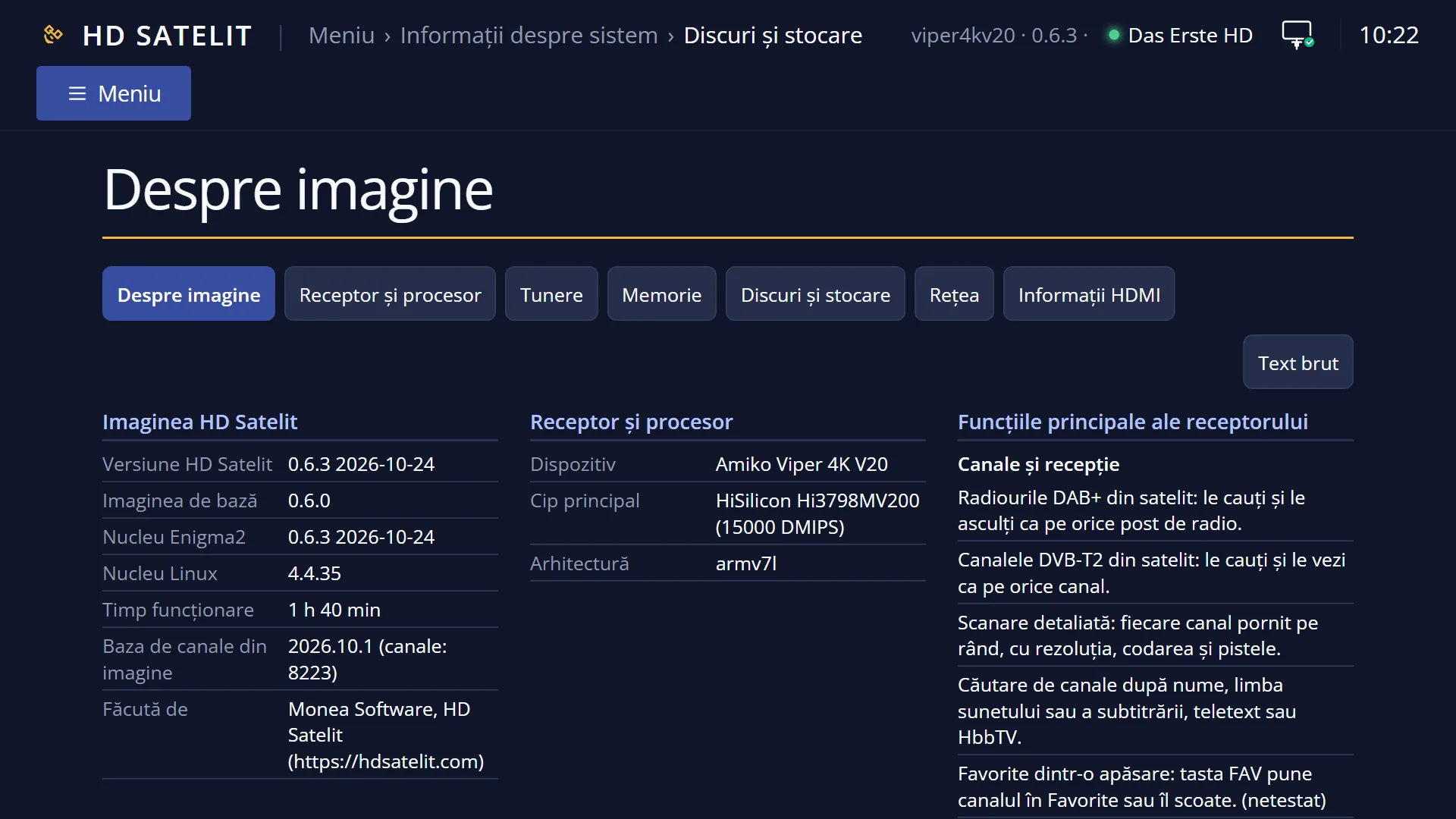
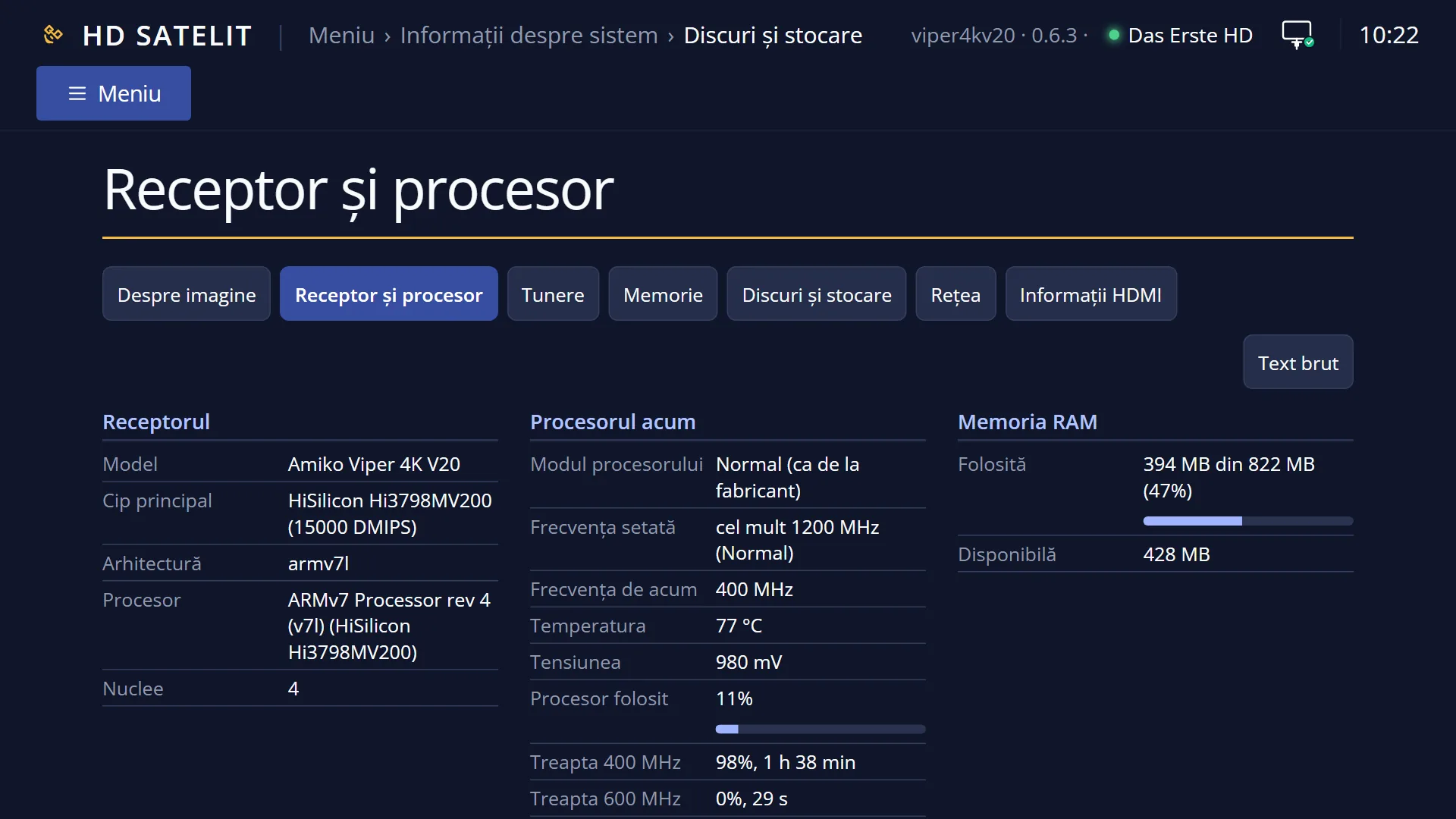
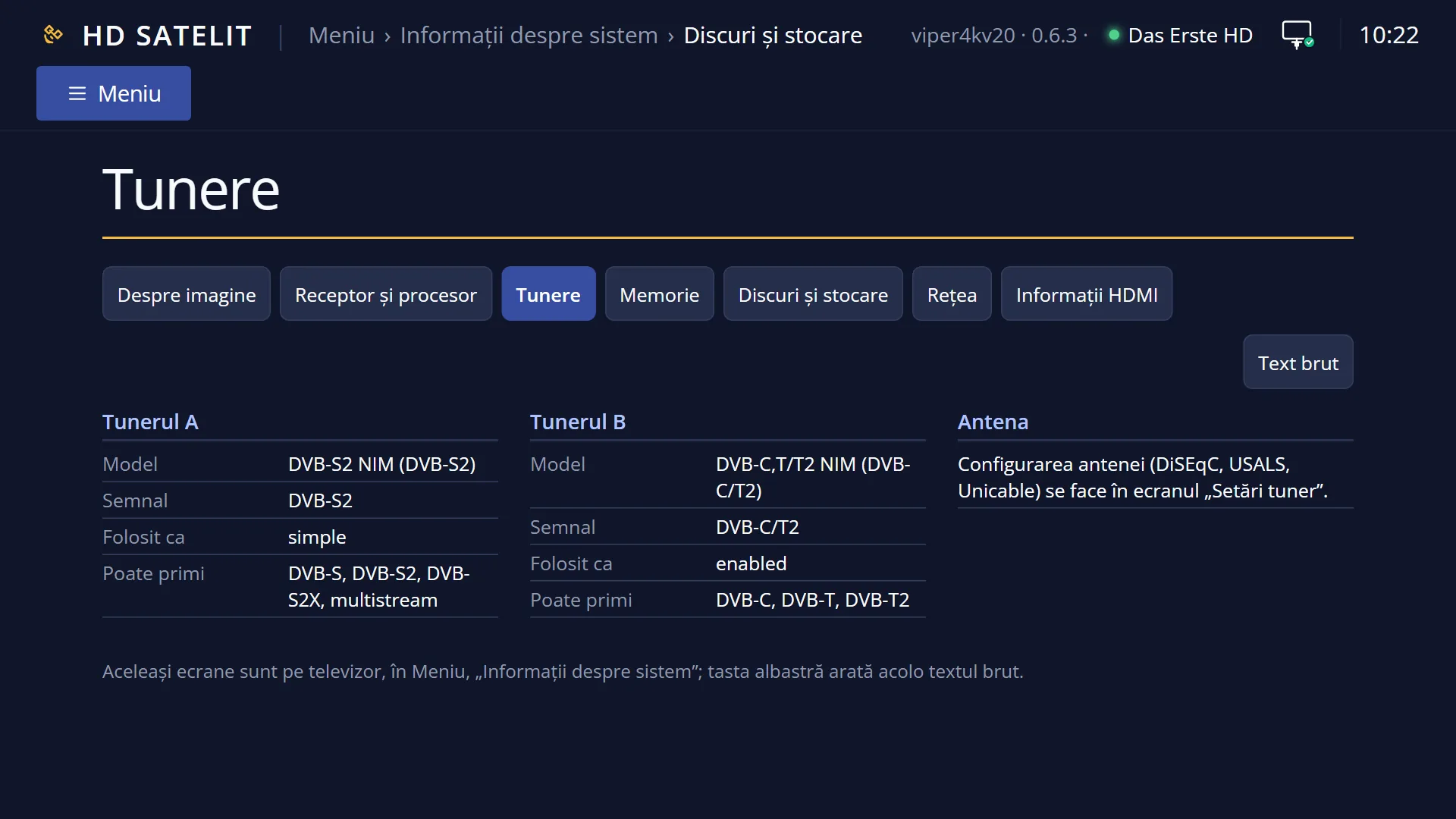
Screenshots are being added: so far 3 from the receiver and 8 from the web interface; the aim is at least 5 of each, with arrows and frames, and, where a setting changes what you see, a before and after comparison.
English screenshots coming: some of the pictures below still show the receiver and the web interface in Romanian. The rows, keys and steps described on this page are the English ones.
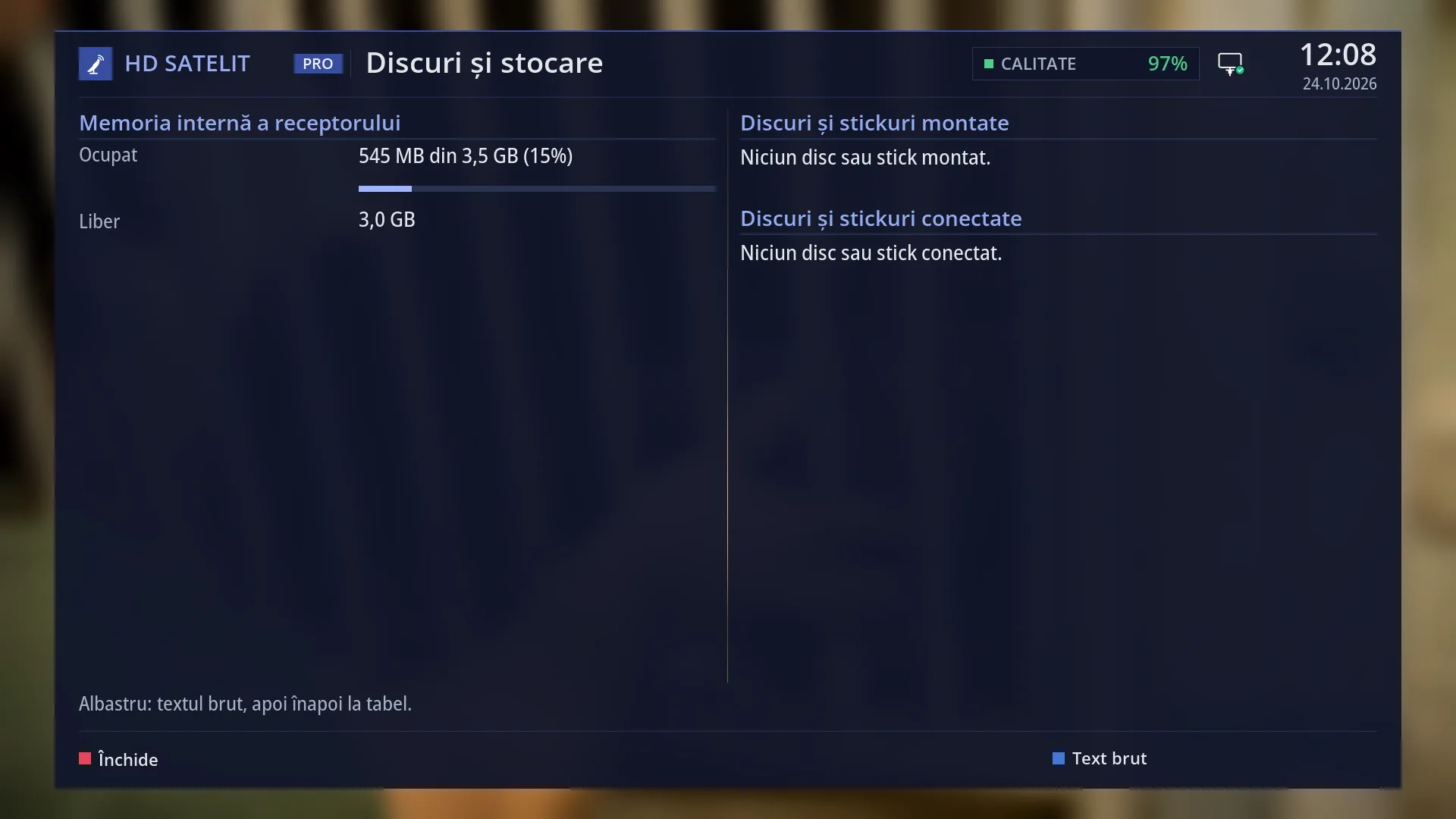
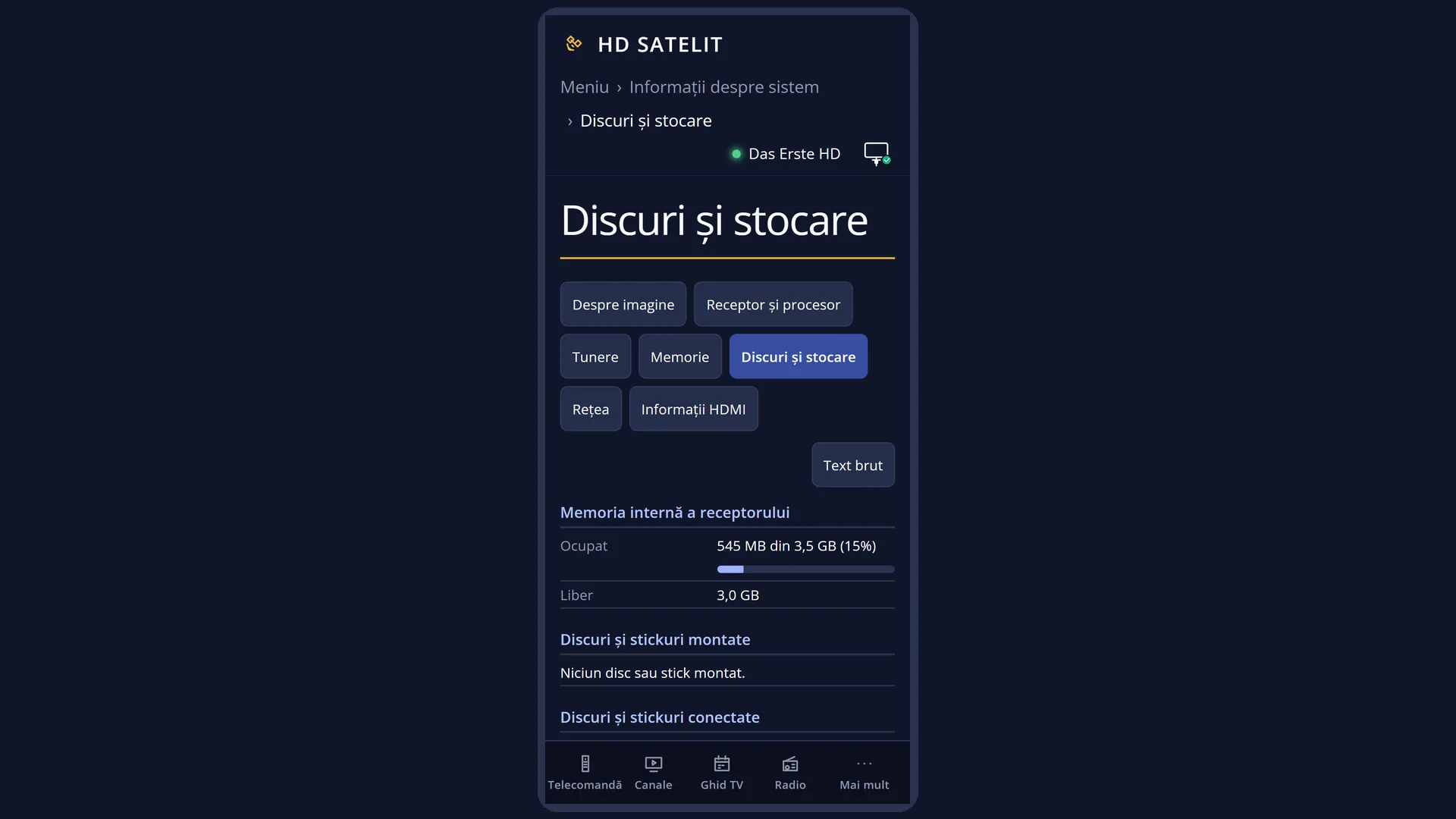
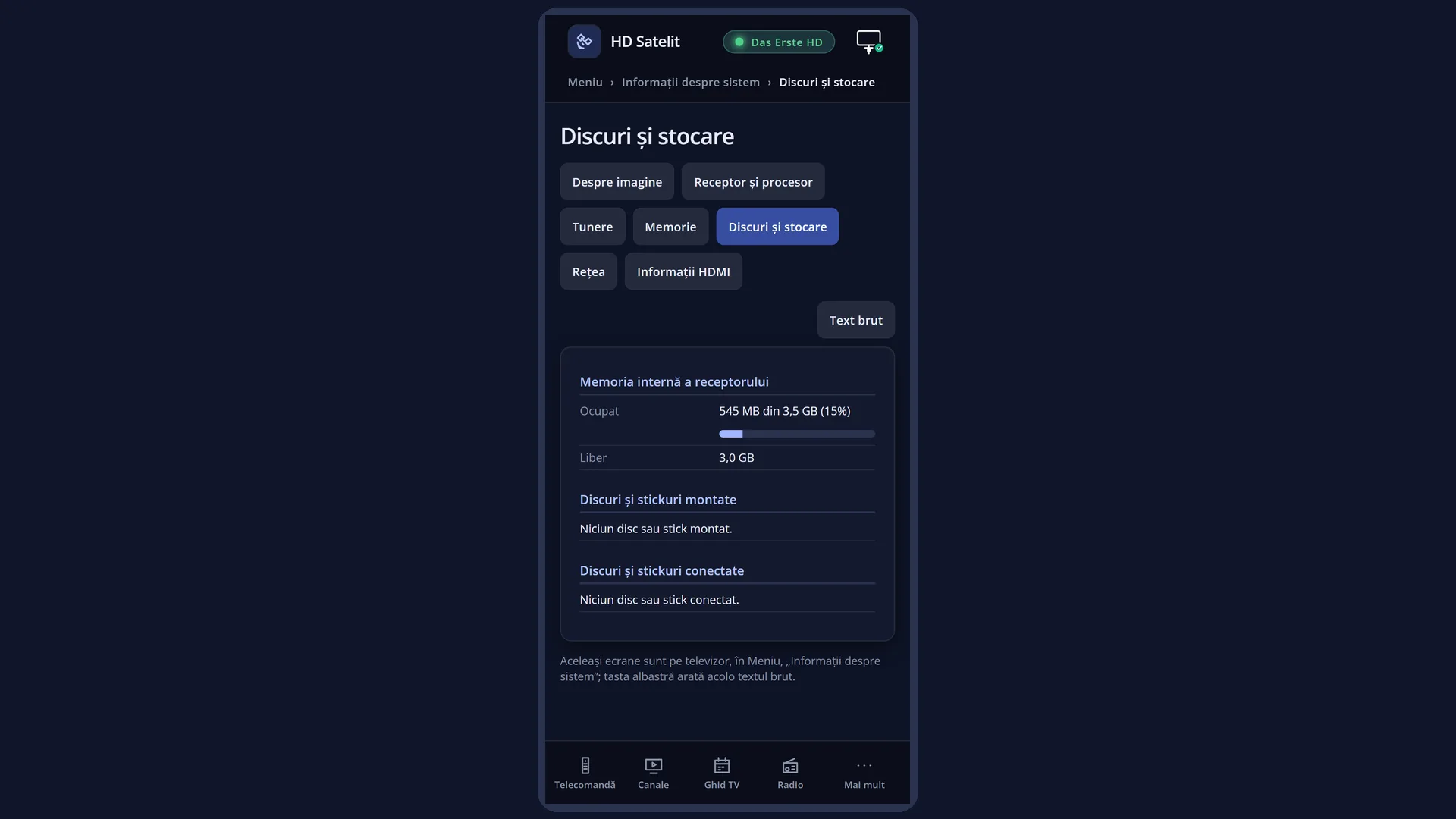
- 1 How much of the internal memory is used, with the bar.
- 2 How much space is left in the internal memory.
- 3 What is open now: USB sticks, disks, network places.
- 4 What is connected to the receiver, with name and size.
- 5 BLUE: the raw text.
What it is for
“Storage & Disks” shows how much space you have and where: in the receiver's internal memory, on the USB sticks and disks that are open now, and on the open network places. This is also where you can see whether the receiver has recognised a USB stick or disk you have just connected.
Open it after you insert a USB stick (for a new image, for the settings copy or with films) or a disk for recordings, to check that the receiver sees it and how much free space it has. You can also open it when the internal memory seems full.
This screen only shows information. Formatting and checking the disk, and the recordings location, are in Settings > Recording & Storage Setup. The same rows are also in the web interface, on the /informatii/stocare page.
How to get here
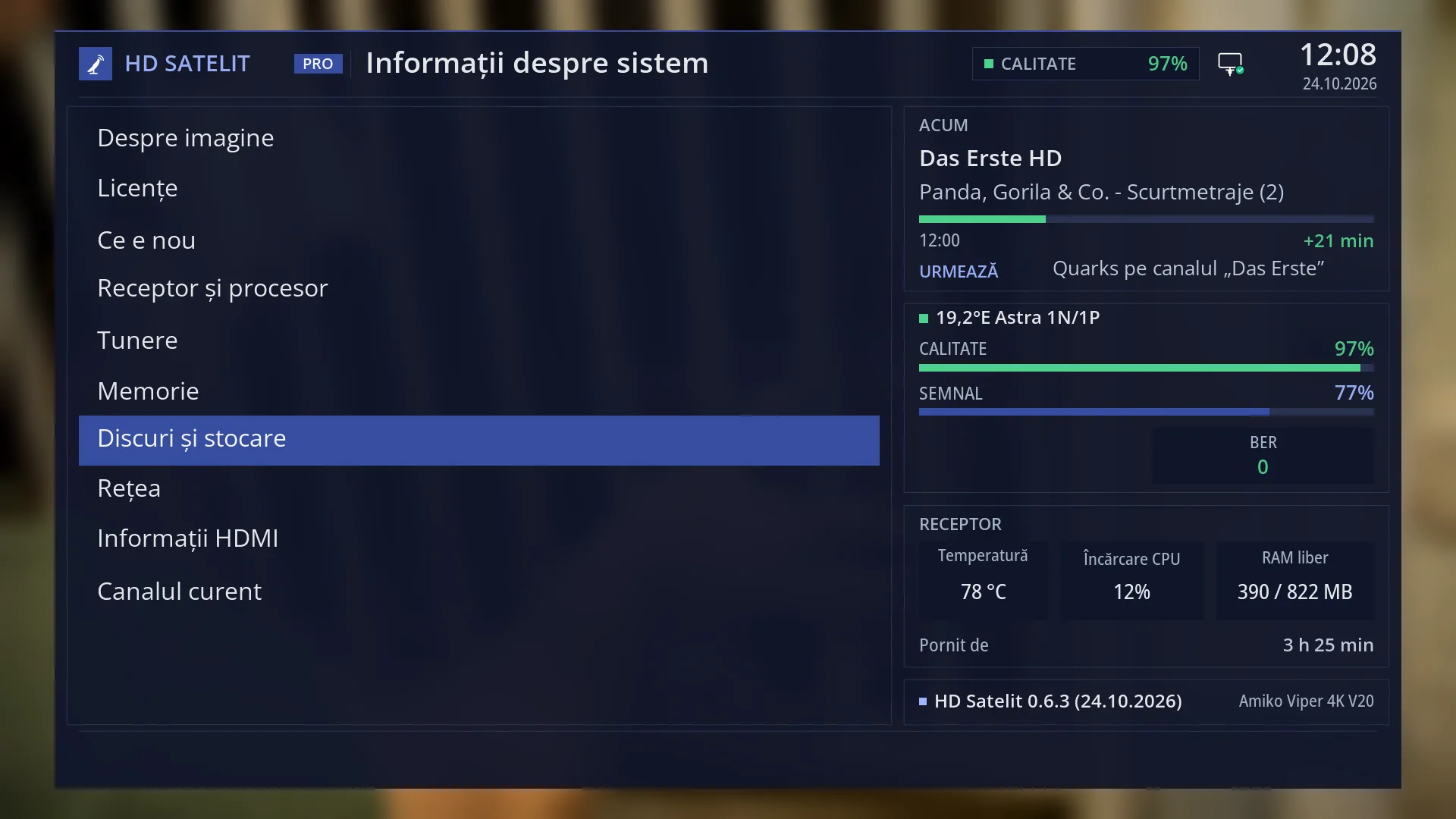
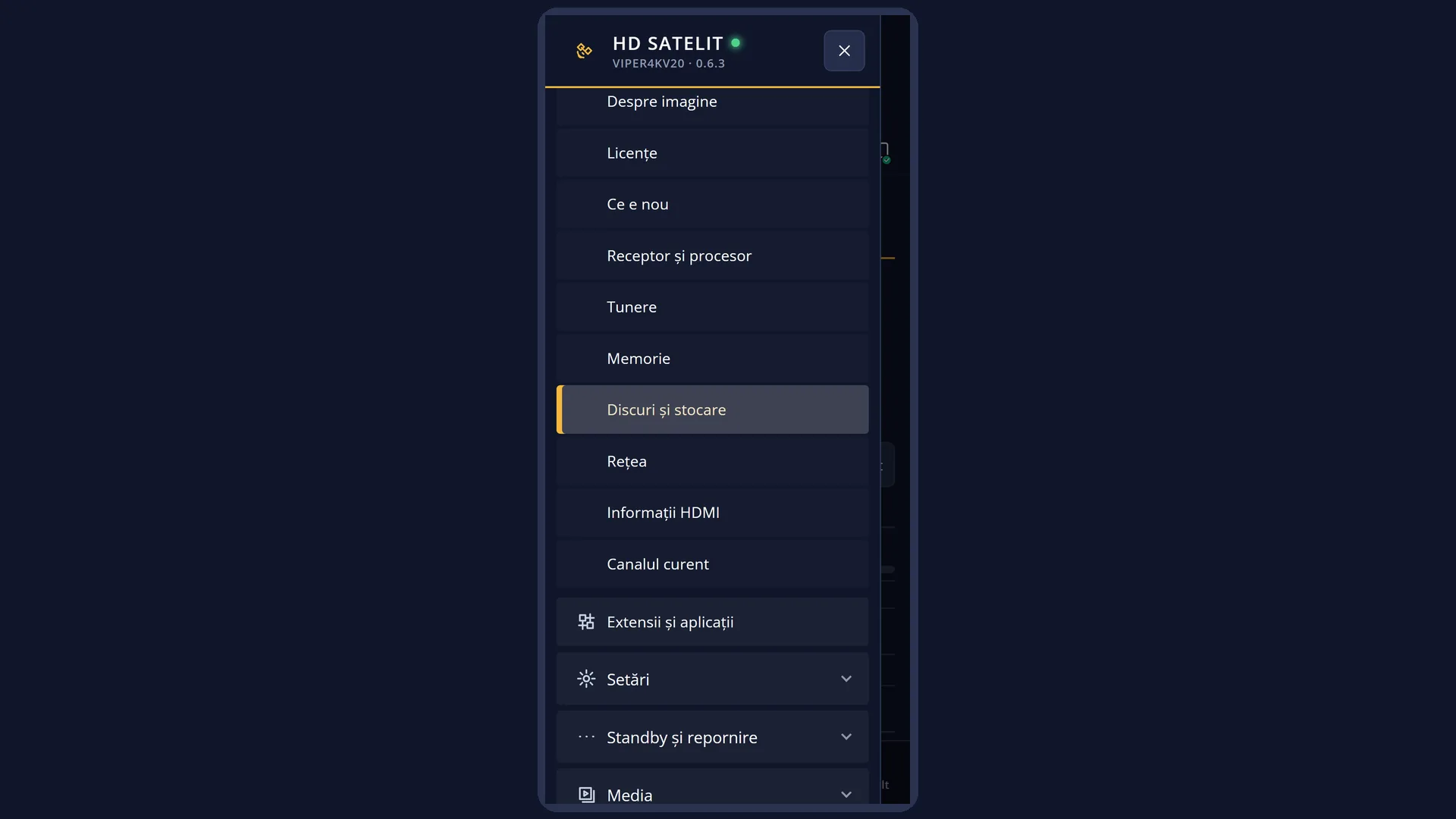
Path: Main menu > System Information > Storage & Disks.
Keys on the TV: MENU 4 7. In safe mode the first row of the submenu is “Safe mode”, so the keys are MENU 4 8.
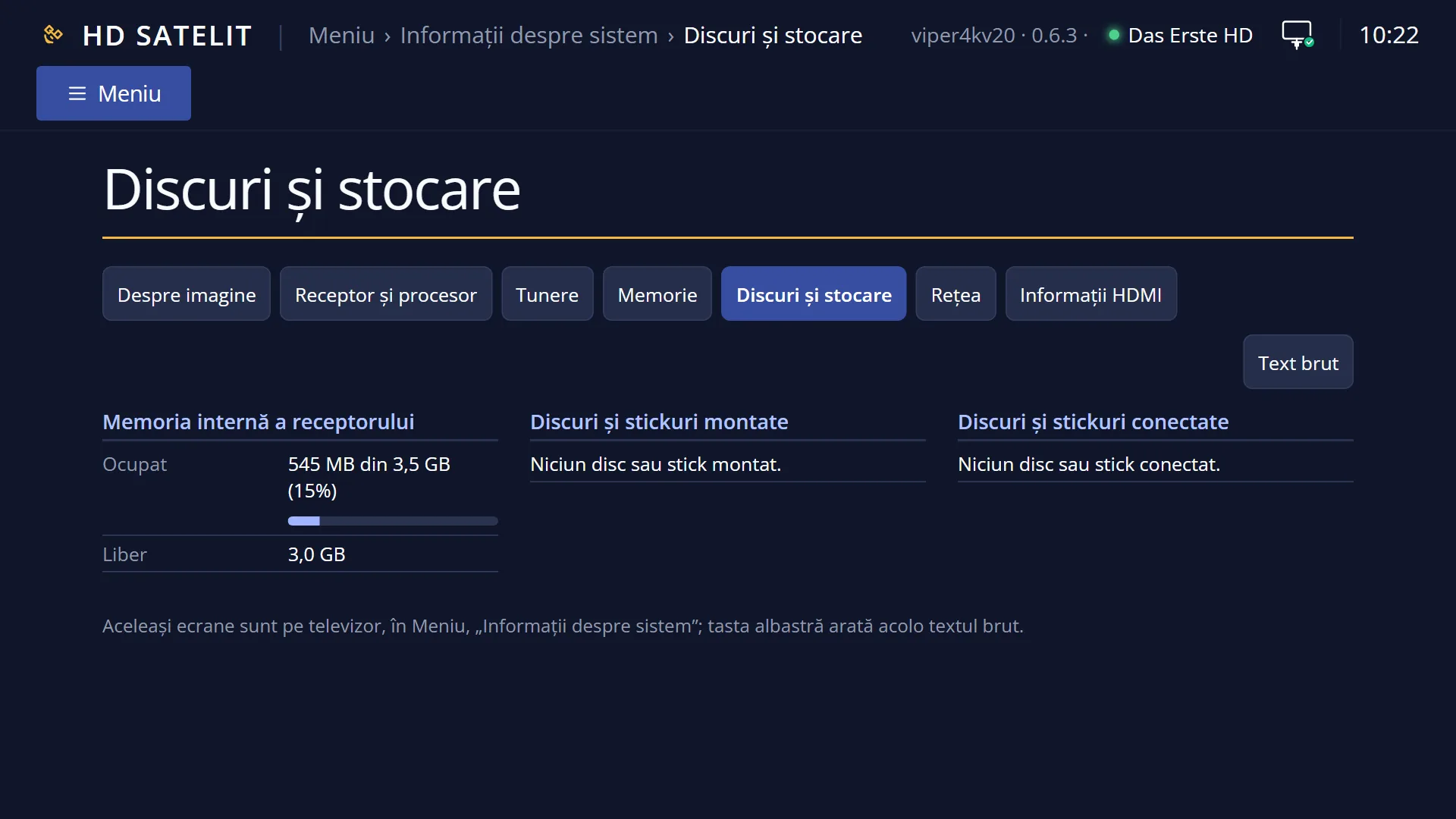
In the web interface: the /informatii/stocare page (the “Storage & Disks” tab in /informatii).
What you see on the screen
At the top: the title “Disk & Storage Space Information”, the clock and the date. In the Pro theme you also see “HD SATELIT PRO”, the signal quality and the network icon.
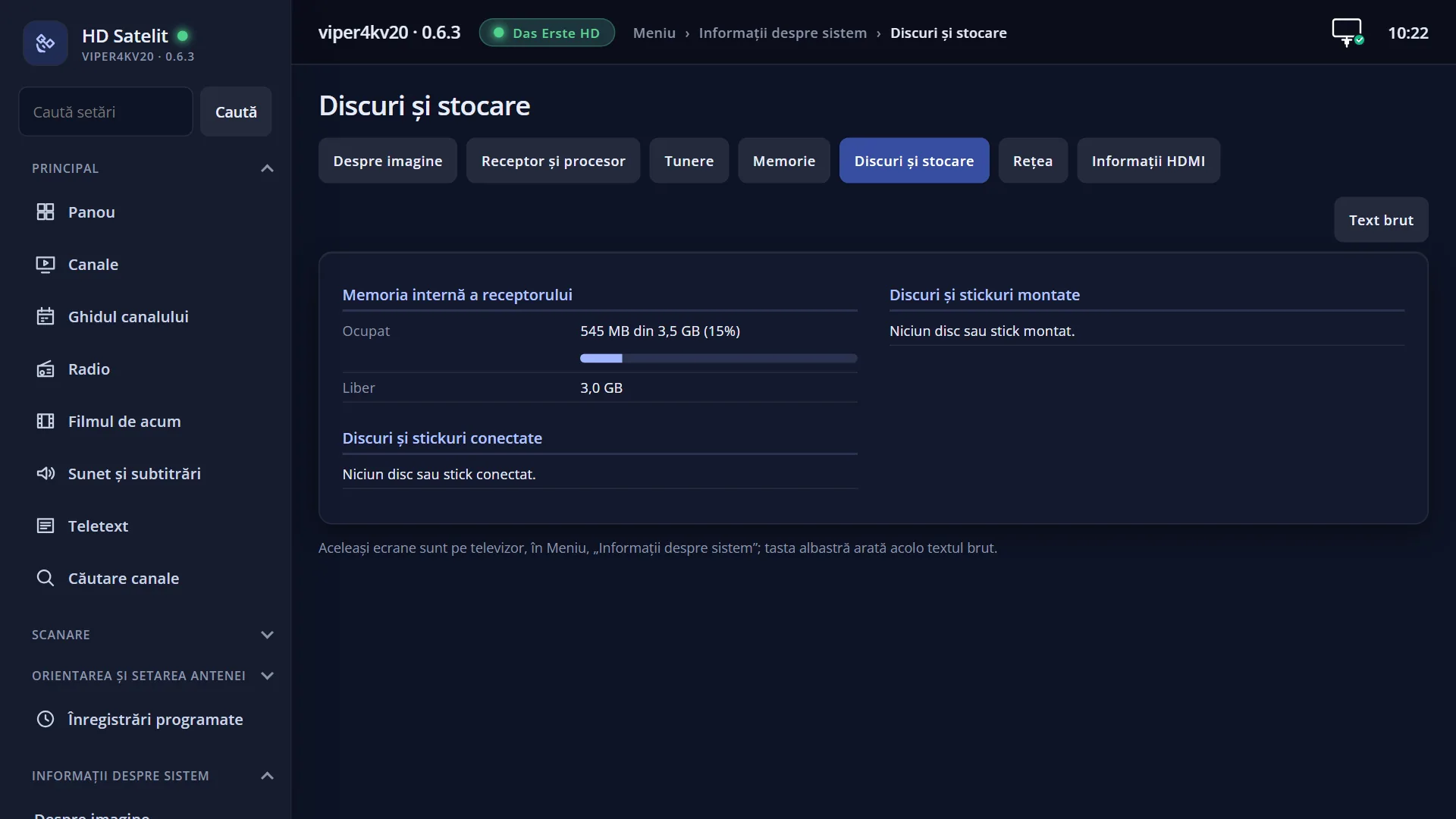
On the left, the “Internal memory of the receiver” group: “busy” (for example “553 MB of 3.5 GB (15%)”, with a bar) and “Free”.
On the right, the “Mounted disks and sticks” group: for each disk, USB stick or network place that is open now, a row with the location where the receiver opened it and, in brackets, the device name and the format type (FAT, exFAT, NTFS, ext4). Below it: “Used: … of … (…%), free: …”. If nothing is open: “No disk or stick mounted.”
Below that, the “Connected disks and sticks” group: for each disk or USB stick connected to the receiver, its name (make and model) with the size printed on it, and below it “Mounted at: …” or “Not mounted.”. If nothing is connected: “No disk or stick connected.”
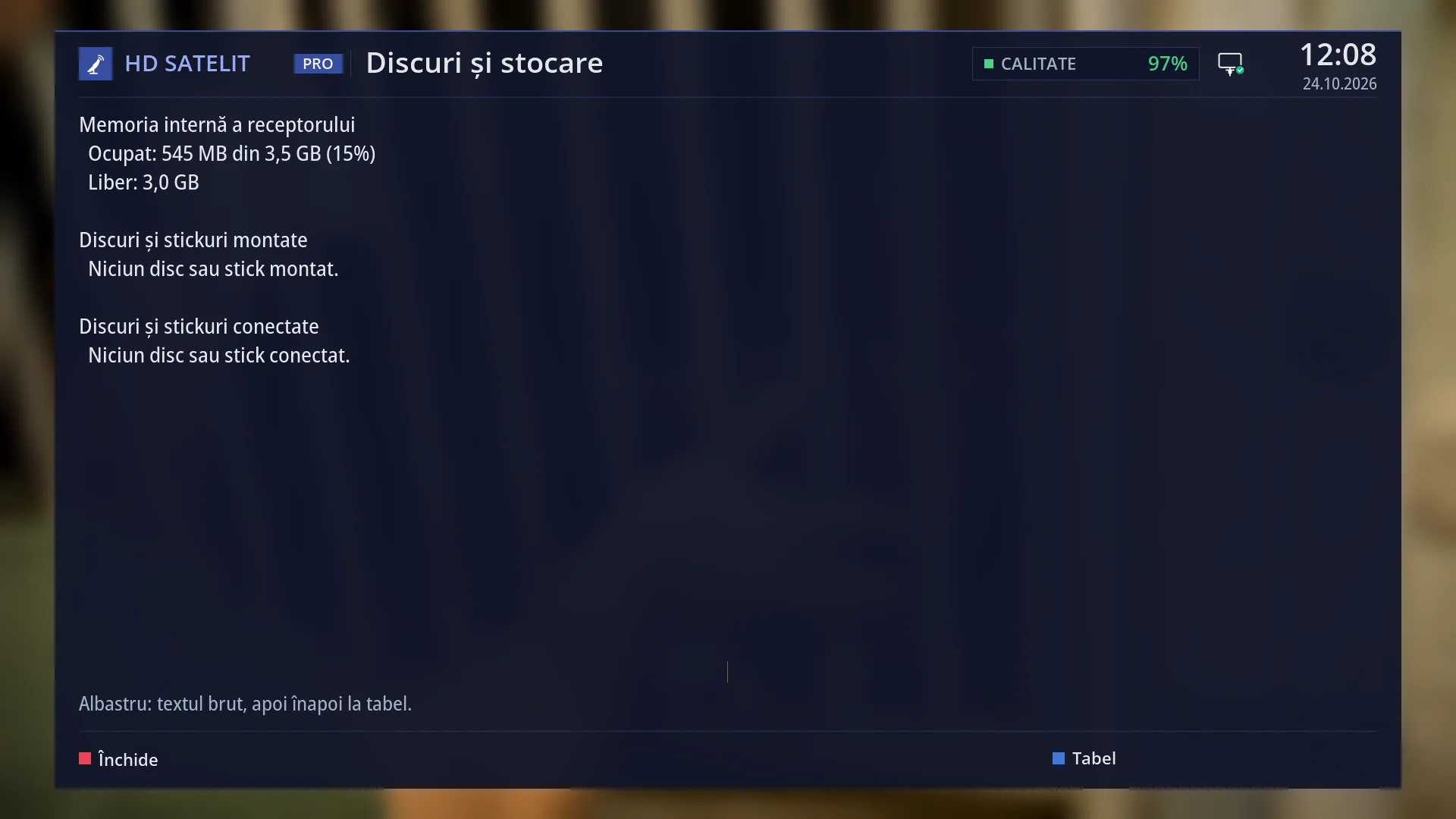
Below the table: “Blue: raw text, then back to the table.” At the bottom, the keys RED “Close” and BLUE “Raw text”.
The screen is read once, when it opens. If you insert a USB stick while the screen is open, close it and open it again.
In the web interface, on /informatii/stocare: the same groups, with the tabs of the other screens at the top and the “Raw text” button.
Rows and settings
| Row | Values | Default | What it does |
|---|---|---|---|
| Internal memory of the receiver: busy | “553 MB of 3.5 GB (15%)”, with the bar below | How much of the internal memory (where the image is stored, with the settings, channels and plugins) is used, out of the total. The bar shows the percentage. It grows when you install plugins. | |
| Internal memory of the receiver: Free | for example “3.0 GB” | How much space is left in the internal memory. When it cannot be read, the row says “The space could not be read.” | |
| Mounted disks and sticks: one row for each | location, device name, format type, “Used: … of … (…%), free: …” | “No disk or stick mounted.” | What is open now and can be used: USB sticks, disks and network places (folders on a computer or a NAS opened from “Network places”, with their type, for example cifs or nfs). For each one: how much is used and how much is free. The format type is shown in plain terms: FAT, exFAT, NTFS (also for NTFS USB sticks), otherwise the system name, for example ext4. |
| Connected disks and sticks: name and size | for example “SanDisk Ultra: 32.0 GB” | “No disk or stick connected.” | Each disk or USB stick connected to the receiver, with its make and model (or the device name, when it has no model) and the size printed on it (1 GB = 1000 MB, as on the USB stick packaging). |
| Mounted in / Not mounted | “Mounted at: …”, “Not mounted.” | Where the receiver opened the disk or USB stick. “Not mounted.” means that the receiver sees the device but cannot use it: usually it is formatted in a way the receiver cannot read, or it is empty, with no partition. You can format an unmounted disk from Settings > Recording & Storage Setup > Format Hard Drive (MENU 6 5 3). Formatting erases everything on it. |
Keys
| BLUE | Switches from the table to the raw text and back. On screen the key says “Raw text” or “Table”. |
| UP / DOWN, CH+ / CH- | When everything does not fit on one page (many disks and USB sticks): UP or CH+ for the page above, DOWN or CH- for the next page. |
| RED, OK or EXIT | Close the screen and take you back to the “System Information” submenu. |
| GREEN / YELLOW | Do nothing here. |
Step by step
Check a new USB stick
- Insert the USB stick into the receiver and wait a few seconds.
- Press MENU 4 7.
- Under “Connected disks and sticks” you should see its name and size, with “Mounted at: …”. Under “Mounted disks and sticks” you should see the used and free space.
See how much space is left in the internal memory
- Press MENU 4 7.
- Read “busy” and “Free” under “Internal memory of the receiver”.
- If space is running out, remove the plugins you no longer need (MENU 5) and use Disk space cleanup, which deletes the downloaded packages.
Check a network place
- Open the network place from Media > Network places.
- Press MENU 4 7: the place appears under “Mounted disks and sticks”, with its space.
Problems and solutions
I inserted the USB stick and it says “No disk or stick connected.”
The screen is read when it opens: close it and open it again after a few seconds. If it still does not appear, try another USB port or another USB stick.
The USB stick appears under “connected”, but it says “Not mounted.” and it is missing from “mounted”.
The receiver cannot read it: it is formatted in an unknown way or it has no partition. Format it on a computer as FAT or exFAT (careful, this erases everything on it) or, for recordings, from Settings > Recording & Storage Setup > Format Hard Drive.
The 32 GB USB stick shows 32.0 GB under “connected”, but less under “mounted”.
Under “connected” you see the size printed on the USB stick, with 1 GB = 1000 MB. Under “mounted” you see the usable space, calculated with 1 GB = 1024 MB and without what the formatting takes up. Both are correct.
The internal memory is almost full.
Installed plugins are stored in the internal memory: remove the ones you do not use, from Plugins & Applications (MENU 5). Disk space cleanup (System & Devices) deletes temporary files and the packages downloaded during installs and updates.
Under “mounted” there is a location I do not recognise.
It may be a network place opened from “Network places” (its type is cifs or nfs) or a second partition on the same disk. Look at the device name in brackets.