

Recording
English screenshots coming: some of the pictures below still show the receiver and the web interface in Romanian. The rows, keys and steps described on this page are the English ones.
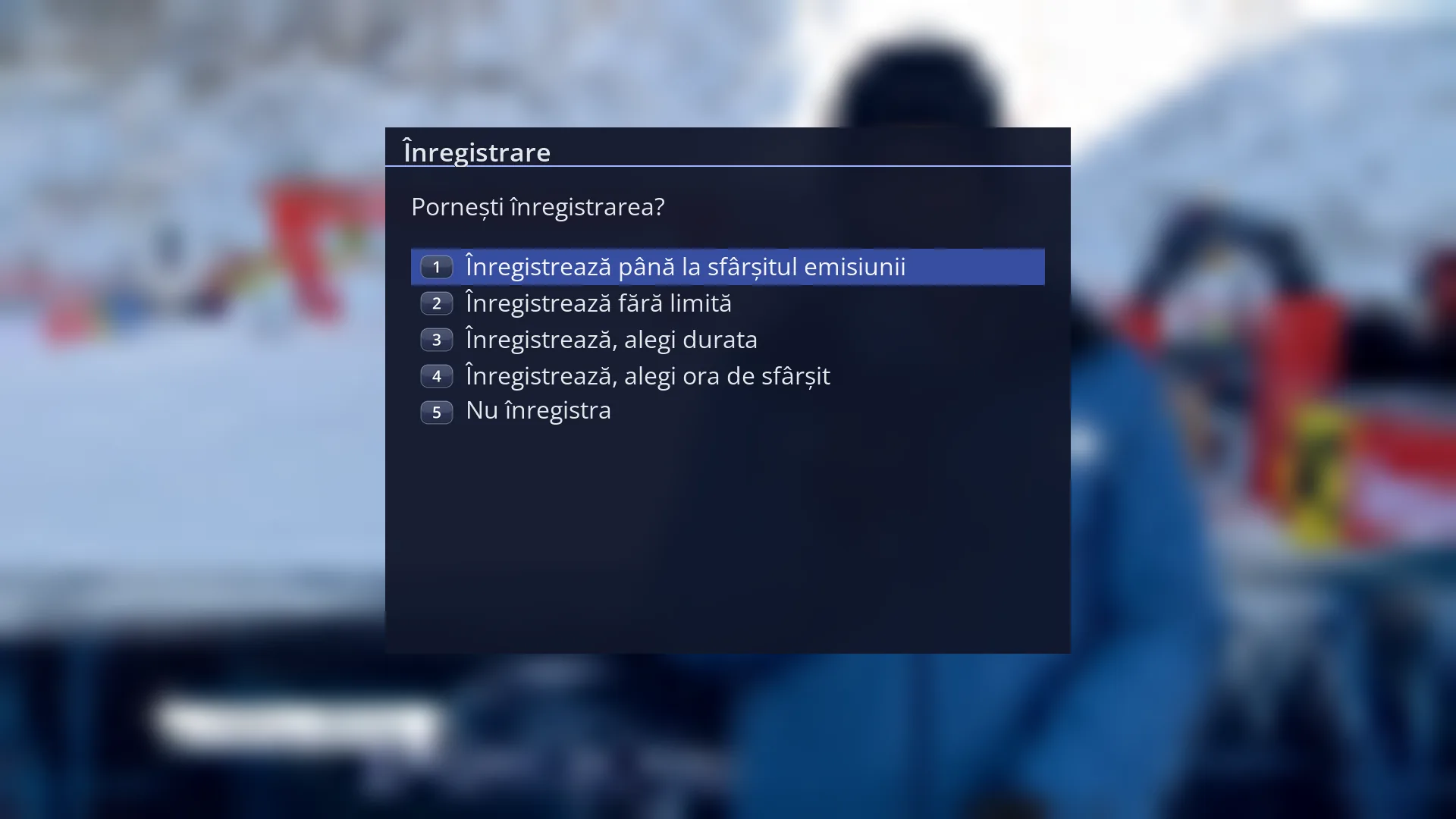
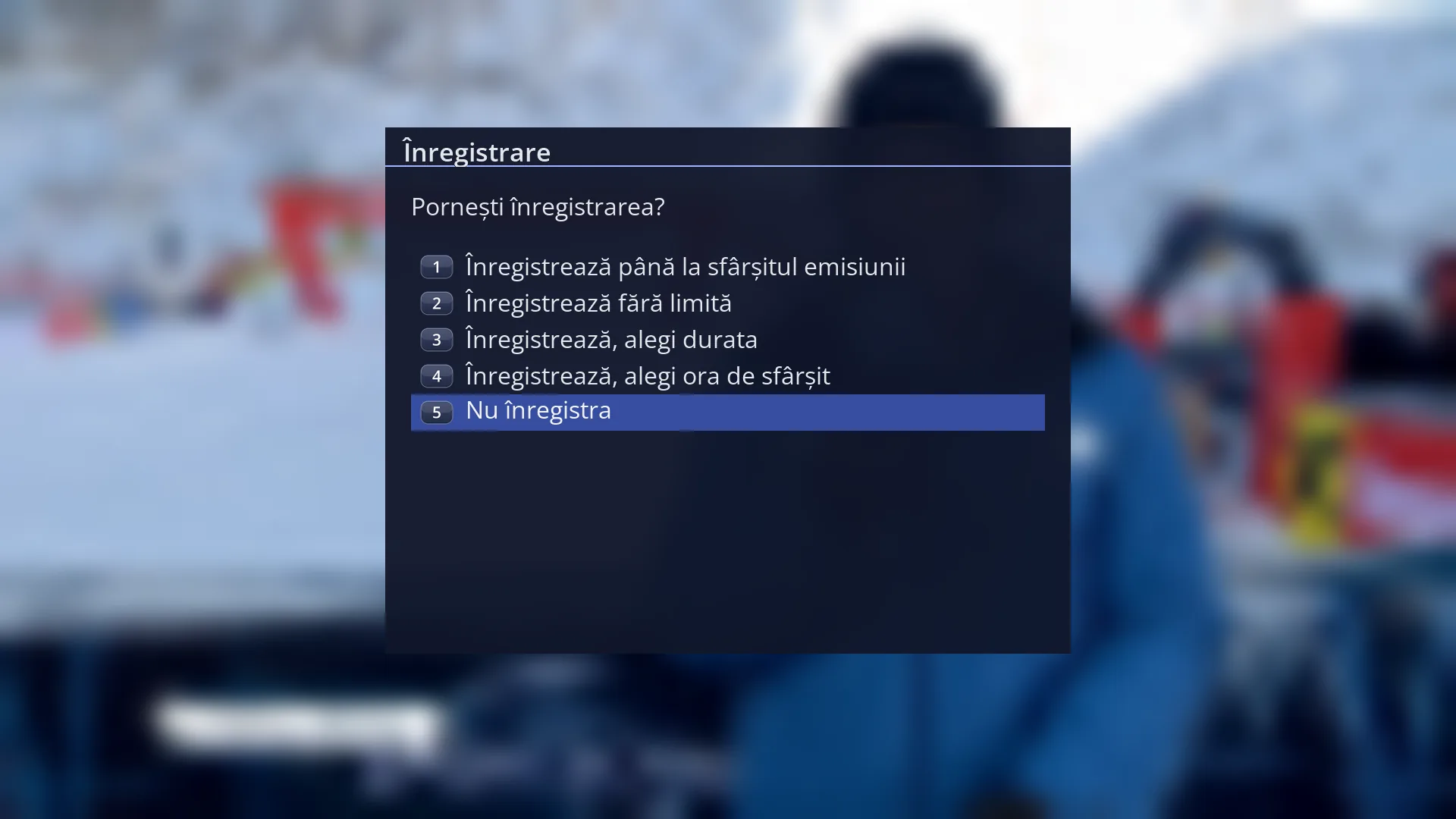
- 1 The question: “Start recording?”.
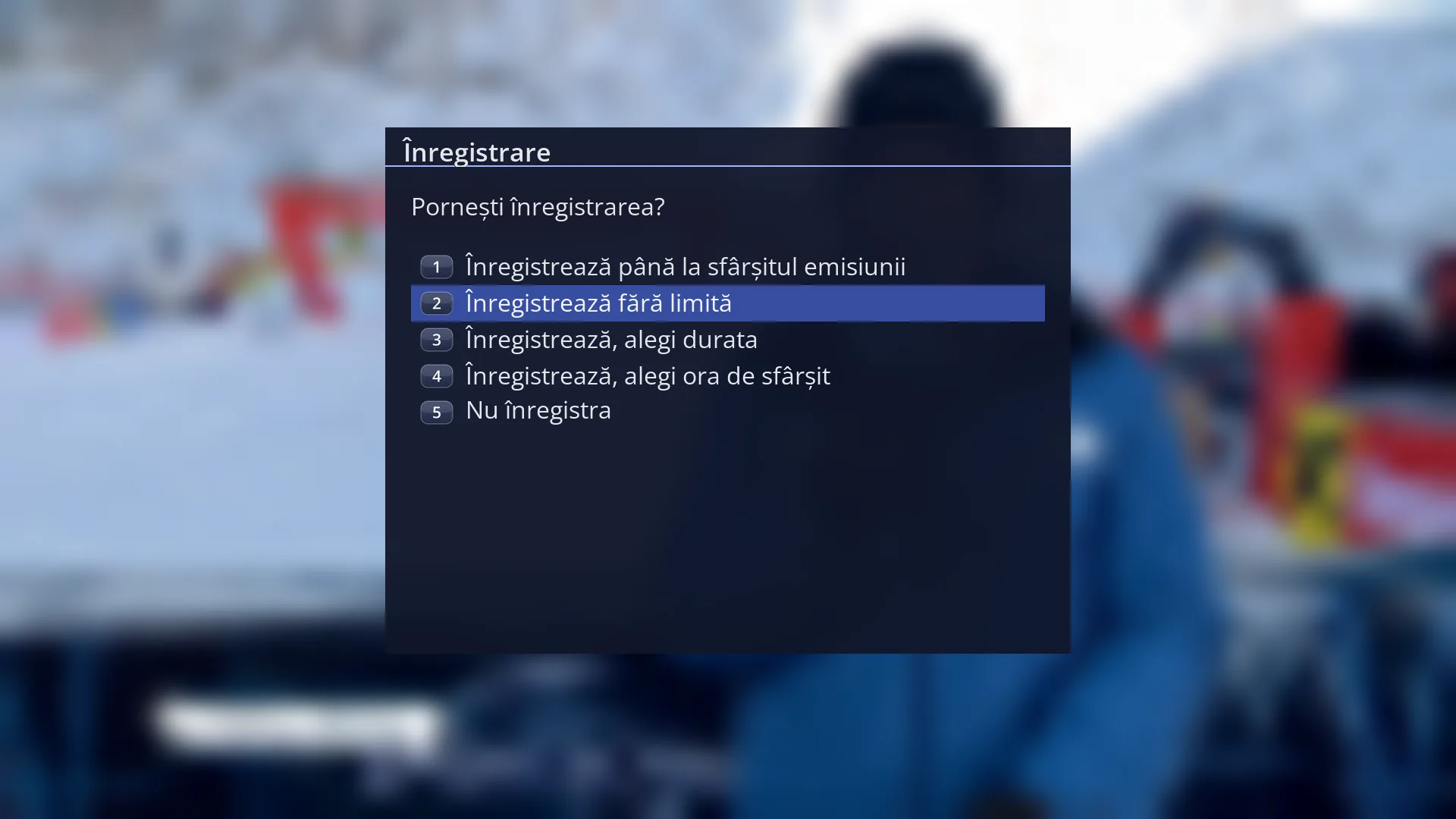
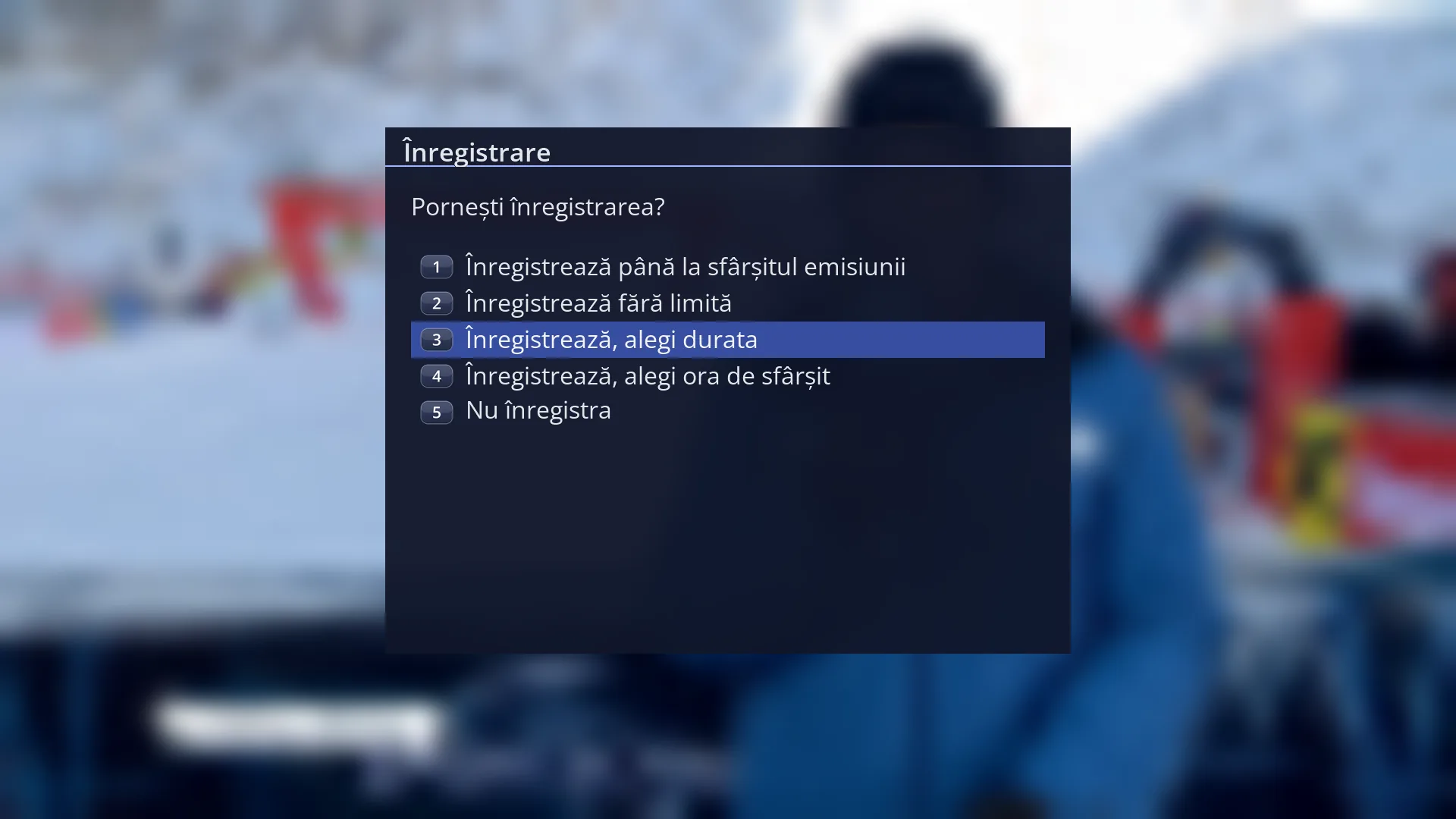
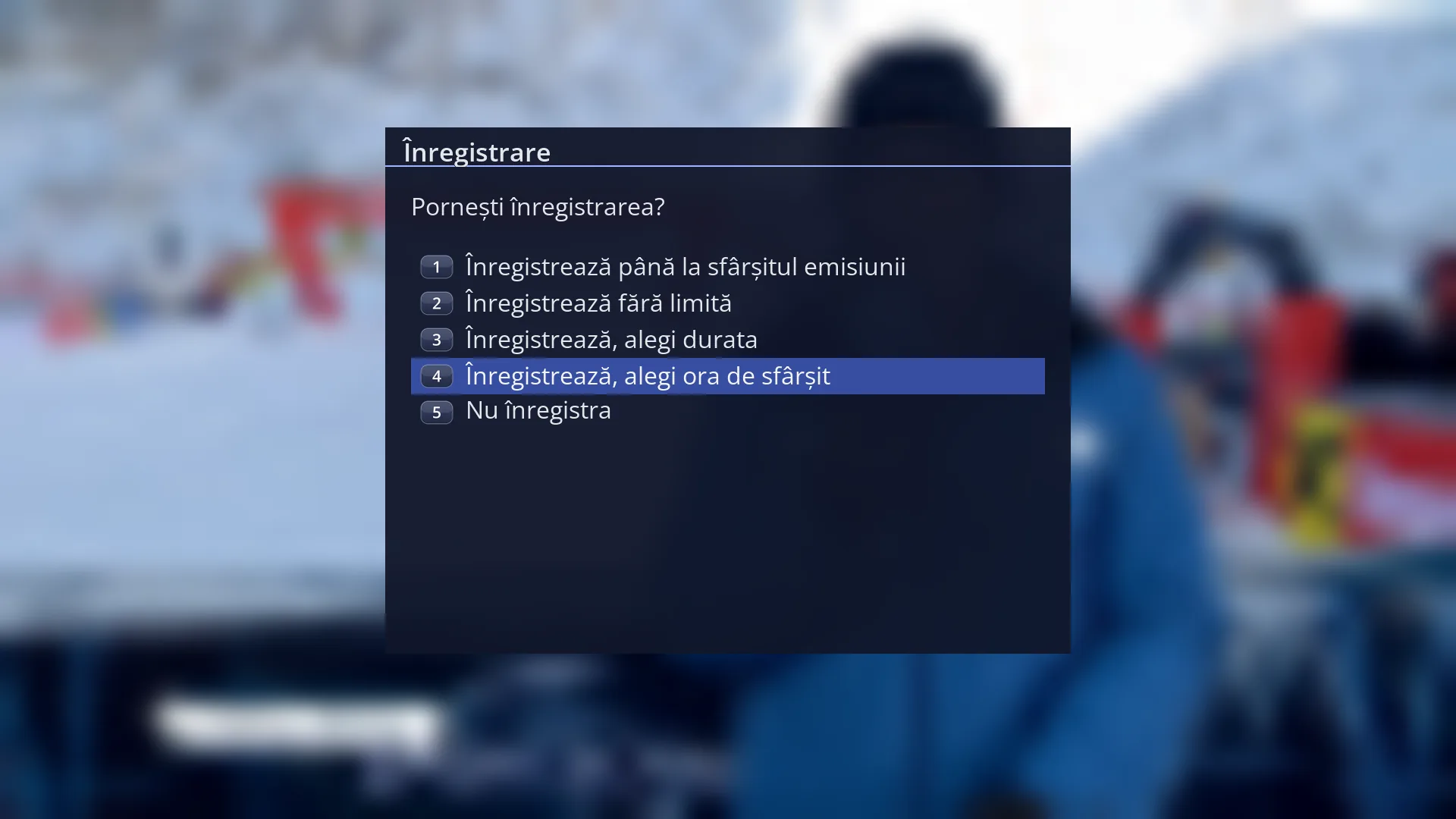
- 2 The five options: until the end of the programme, with no limit, chosen duration, chosen time, don't record. Digits 1-5 select them directly.
What it is for
The REC key records the channel you are watching straight away: until the end of the programme, with no limit, for as long as you choose, or until a time you choose.
Before it starts, the receiver checks where the recording will be saved. If no suitable USB stick or hard disk is connected, it opens “Recordings location”. With one suitable disk, it prepares the disk itself and starts recording. With several, it asks you which one to use. With none, it tells you to connect one.
While the recording runs, the red REC sign appears in the info bar. The recording also appears in the list under the TIMER key.
If you press REC again, you can stop the recording, change its duration or end time, or start another one.
DVB-T2 programmes and DAB+ stations from satellite cannot be recorded yet. On these, REC tells you so straight away.
How to get here
How to get there: while you are watching a channel (or listening to a radio station), press REC.
Keys while watching TV: REC.
You choose where recordings are saved in Menu > Settings > Recording & Storage Setup > Recordings location (MENU 6 5 1). You choose the folder for recordings made with REC in “Recording Locations” (MENU 6 5 2), on the “Instant record location” row (Expert only).
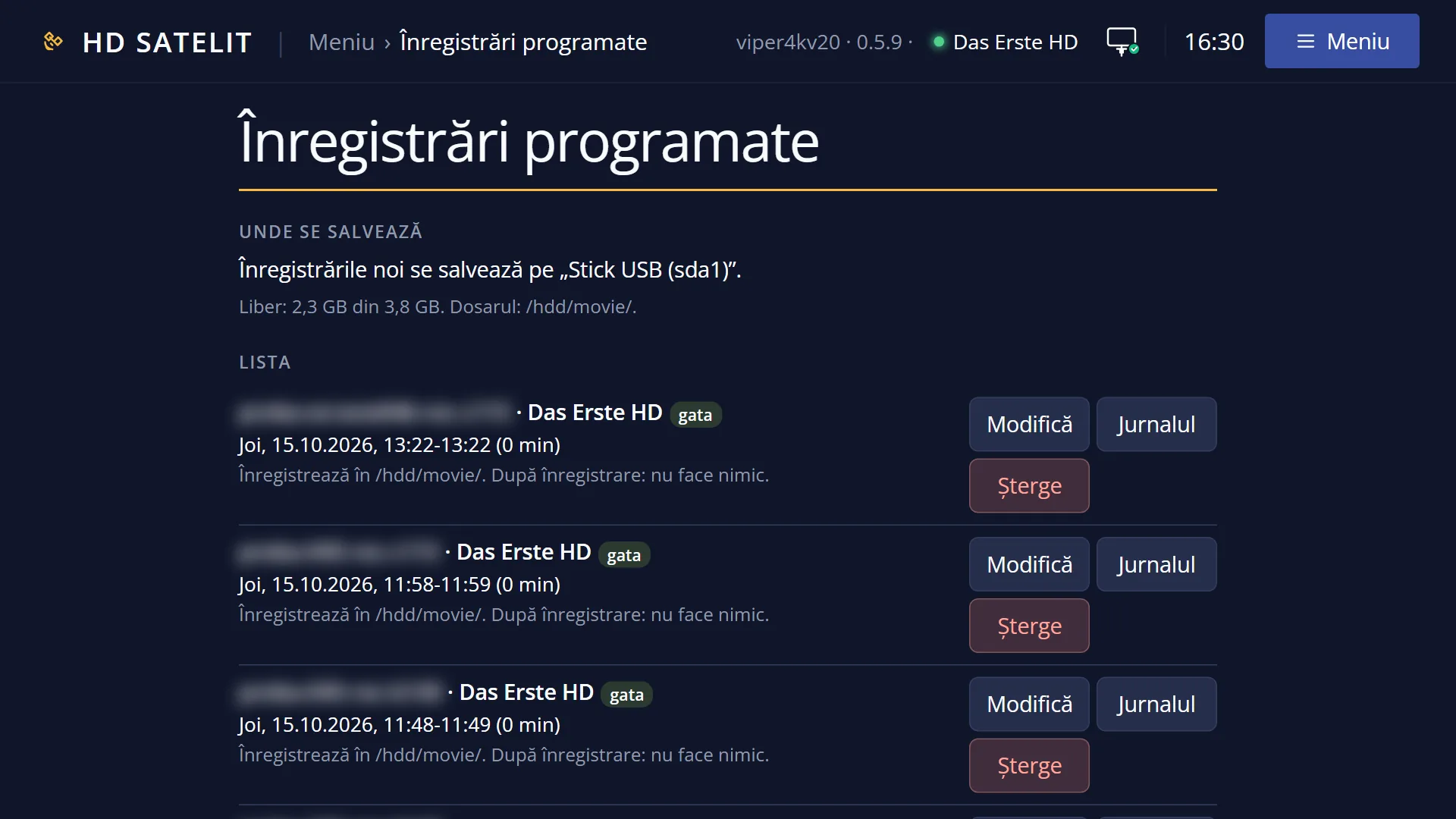
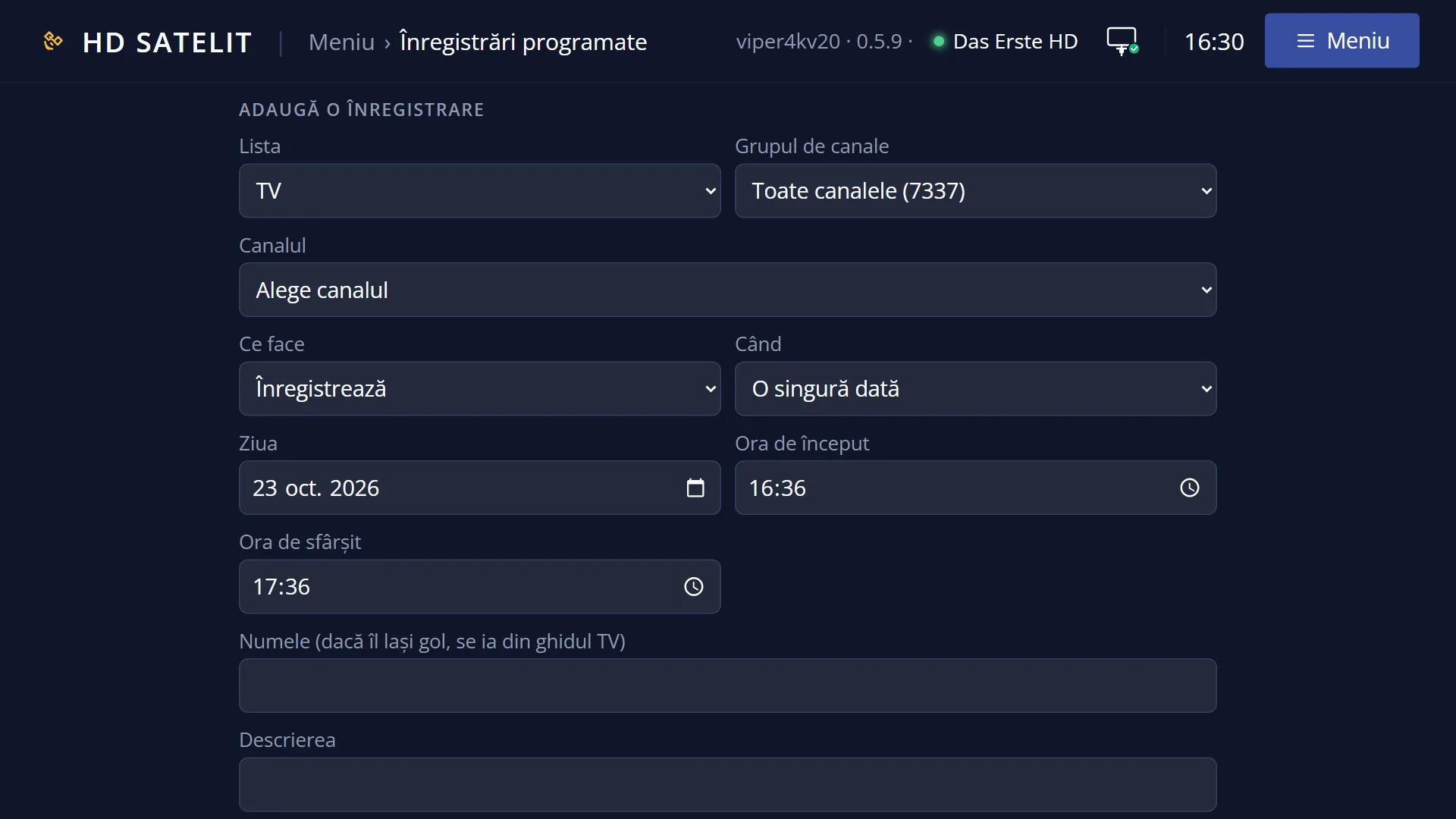
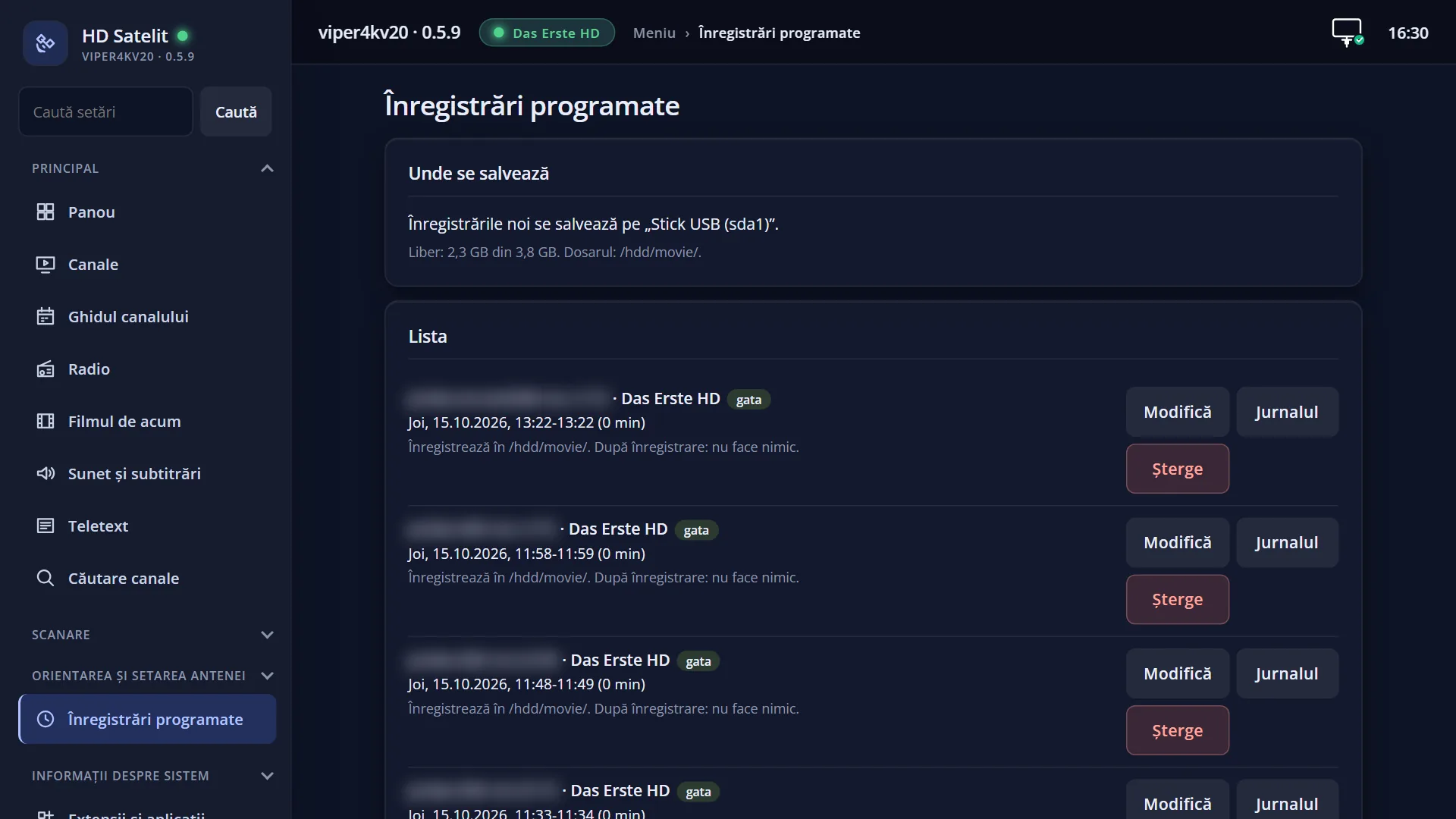
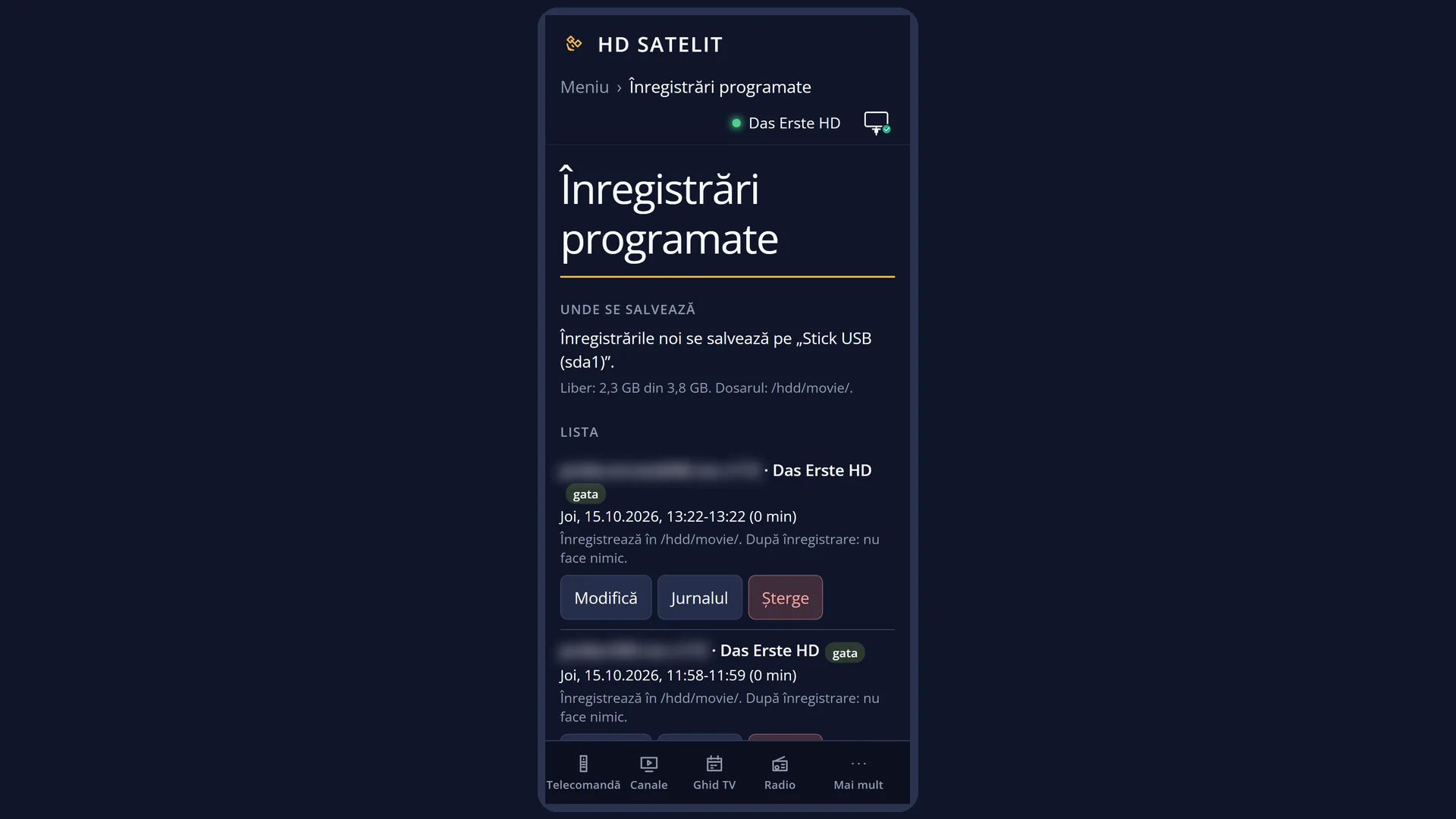
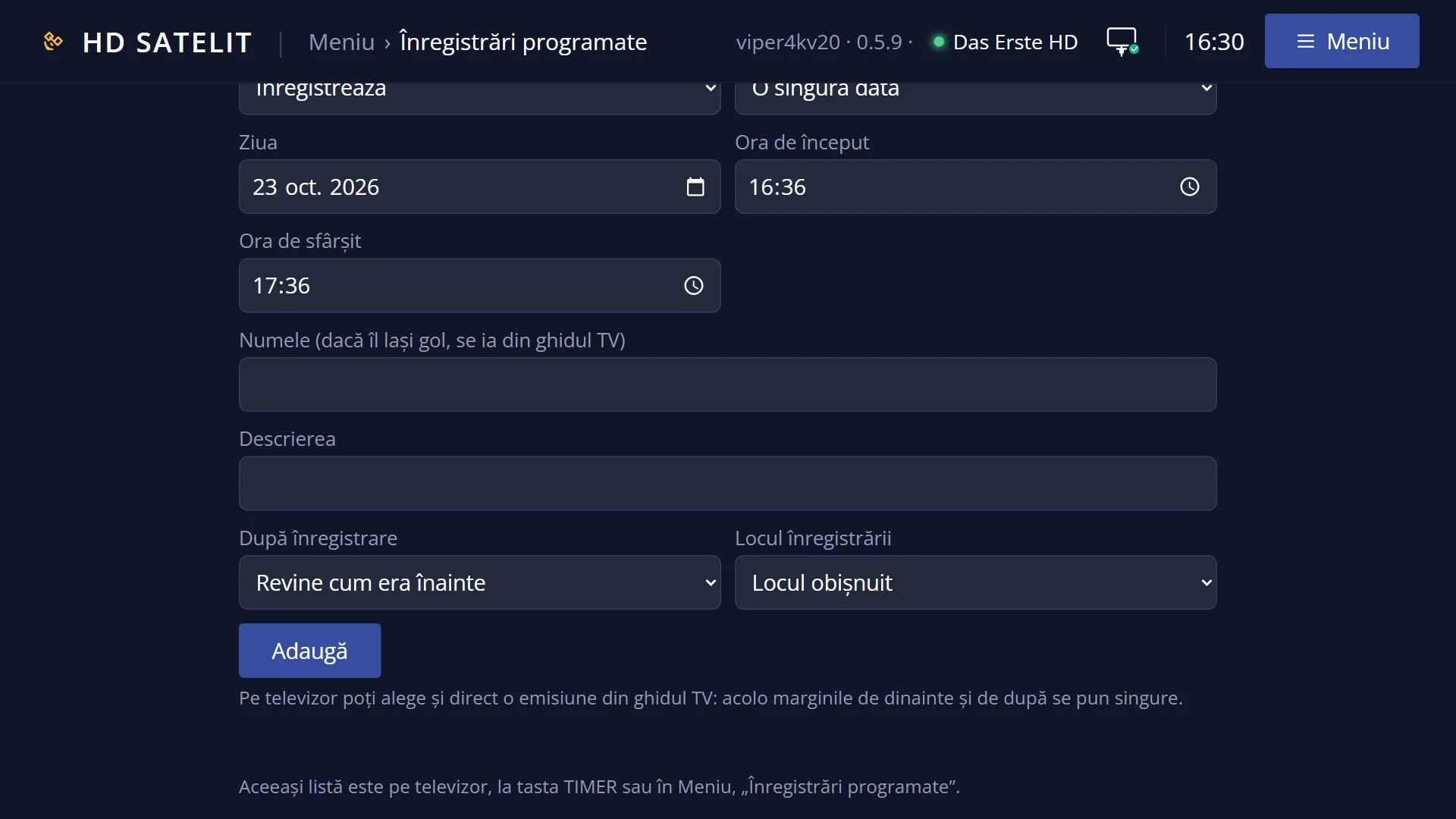
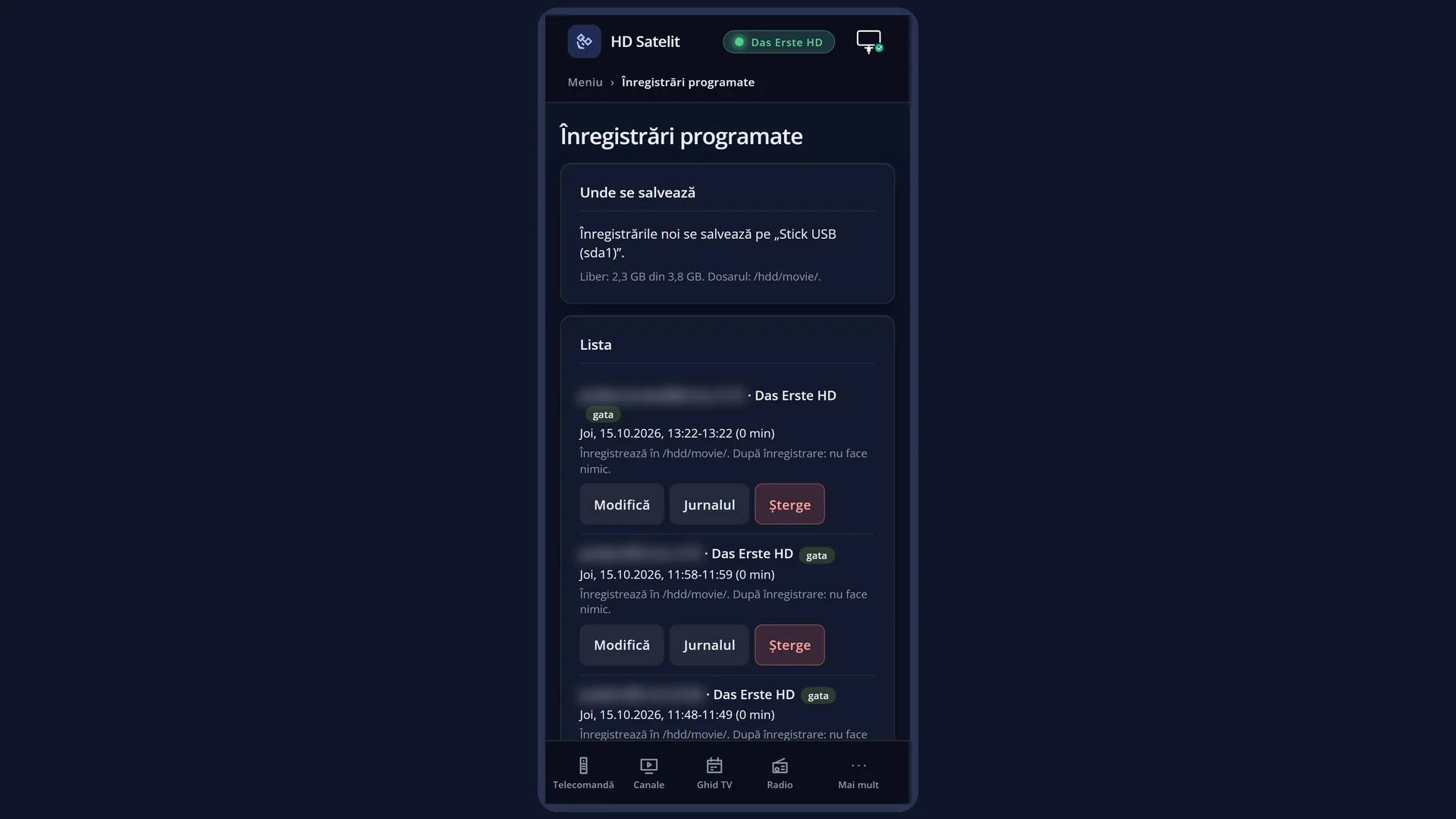
In the web interface: the /temporizatoare page also shows the recording started with REC while it runs.
What you see on the screen
The “Recording” window, with the question “Start recording?” and five numbered rows: 1 “add recording (stop after current event)”, 2 “add recording (indefinitely)”, 3 “add recording (enter recording duration)”, 4 “add recording (enter recording endtime)”, 5 “don't record”. The first one is selected.
When a recording started with REC is already running: “A recording is currently running. What do you want to do?”, with “stop recording”, the same four ways to start another one, “change recording (duration)”, “change recording (endtime)” and “do nothing”.
With “add recording (enter recording duration)”: “How many minutes do you want to record?”, with 5 already filled in. With “add recording (enter recording endtime)”: “Please change recording endtime”, showing the end time of the programme.
When recording starts, for a few seconds: “A record has been started:” and the name of the programme.
In the info bar, in the box at the top right next to the clock, the red REC sign, while any recording is running.
Rows and settings
| Row | Values | Default | What it does |
|---|---|---|---|
| add recording (stop after current event) | row 1 | the row selected when the window opens | Records from now until the end of the programme in the guide (plus “Margin after record”, 0 by default). The recording is named after the programme title. If the channel has no guide, it says “No event info found, recording indefinitely.” and records with no limit. When you want the rest of the current programme. |
| add recording (indefinitely) | row 2 | not applicable | Records until you stop it (REC, then “stop recording”), for one day at most. If a timer recording needs the tuner earlier, it stops half a minute before that recording. When you do not know how long it will last (a match with extra time, a live broadcast). |
| add recording (enter recording duration) | a number of minutes | 5 | Starts recording and asks “How many minutes do you want to record?”. Enter the minutes with the digit keys and press OK: the recording stops that many minutes from now. 0 leaves it with no limit. When you know how long you want to record. |
| add recording (enter recording endtime) | time and day | the end of the current programme | Starts recording and opens “Please change recording endtime”: you choose the time (and day) when it stops. When you also want to record the next programme, up to a certain time. |
| don't record / do nothing | row 5 (or the last row, when a recording is running) | not applicable | Closes the window without starting or changing anything. EXIT does the same. When you pressed REC by mistake. |
| stop recording (when a recording is running) | one row | the first row, when a recording is running | Stops the recording started with REC. What has been recorded so far stays in the film list. If several recordings were started with REC, you choose from a list which one to stop. When what you wanted to record has finished. |
| change recording (duration) / change recording (endtime) | the minutes from now on, the end time | not applicable | Changes how much longer the running recording continues: “change recording (duration)” sets how many minutes from now, “change recording (endtime)” sets the time when it stops. When the programme runs over, or you want it to stop earlier without having to wait for it. |
| Show Message when Recording starts (in OSD Preferences, Expert only) | yes, no | yes | Yes: when each recording starts, “A record has been started:” and its name appear for a few seconds. No, if the message bothers you. |
Keys
| REC (while watching) | Opens “Recording” (“Start recording?”). If a recording started with REC is running: “A recording is currently running. What do you want to do?”. |
| UP / DOWN | Select a row in the window. |
| Digits 1-5 (1-8) | Select the row with that number directly. |
| OK | Does what the selected row says. In the minutes or time window, OK sets the value. |
| EXIT | Closes without recording or changing anything. |
| TIMER | The list of recordings, which also shows the one started with REC (“recording...”). RED there stops it and removes it from the list. |
| EMC | The film list, where you find the recording. |
Step by step
Record the rest of the current programme
- While you are watching the programme, press REC.
- The first row, “add recording (stop after current event)”, is selected: press OK.
- “A record has been started:” appears for a few seconds, and the red REC sign appears in the bar.
Record an hour and a half from now
- Press REC, then 3 (“add recording (enter recording duration)”).
- Delete the 5, enter 90 with the digit keys, then press OK.
Stop the recording early
- Press REC: “A recording is currently running. What do you want to do?”.
- Select “stop recording” and press OK.
- The recording, with what was captured so far, is in the film list (EMC).
Problems and solutions
When you press REC, “Recordings location” opens.
No suitable USB stick or hard disk for recordings is connected (the internal memory is not used). Connect one: with one suitable disk, the receiver prepares it itself and starts recording; with several, choose which one.
REC says “This channel cannot be recorded.” and “Recording DVB-T2 programs from satellite is not possible yet.” (or “… DAB+ stations …”)
DVB-T2 programmes and DAB+ stations received from satellite cannot be recorded yet. Normal satellite channels record as usual.
“No event info found, recording indefinitely.” appears
The channel does not send a guide, so the receiver does not know when the programme ends. The recording runs with no limit: stop it with REC > “stop recording”, or set the end time with REC > “change recording (endtime)”.
“Record time limited due to conflicting timer …” appears
A timer recording needs the tuner later, so the one started with REC stops before it. If you want something else, change or stop the timer recording (TIMER).
“Couldn't record due to conflicting timer …” appears
A timer recording is running right now and is using the tuner. Wait for it to finish, or stop it from the TIMER list.
“Write error while recording. Disk full?” appears
The USB stick or hard disk is full or has been disconnected. Free up space (delete old films from the EMC list) or connect another disk.
STOP does not stop the recording.
While watching, STOP is for live pause (timeshift). You stop the recording with REC > “stop recording” or from the TIMER list.
After the receiver restarted, the recording started with REC did not continue.
Recordings started with REC are not kept through a restart. For a long one, set it with TIMER or from the guide: those are kept.