

Live pause (timeshift)
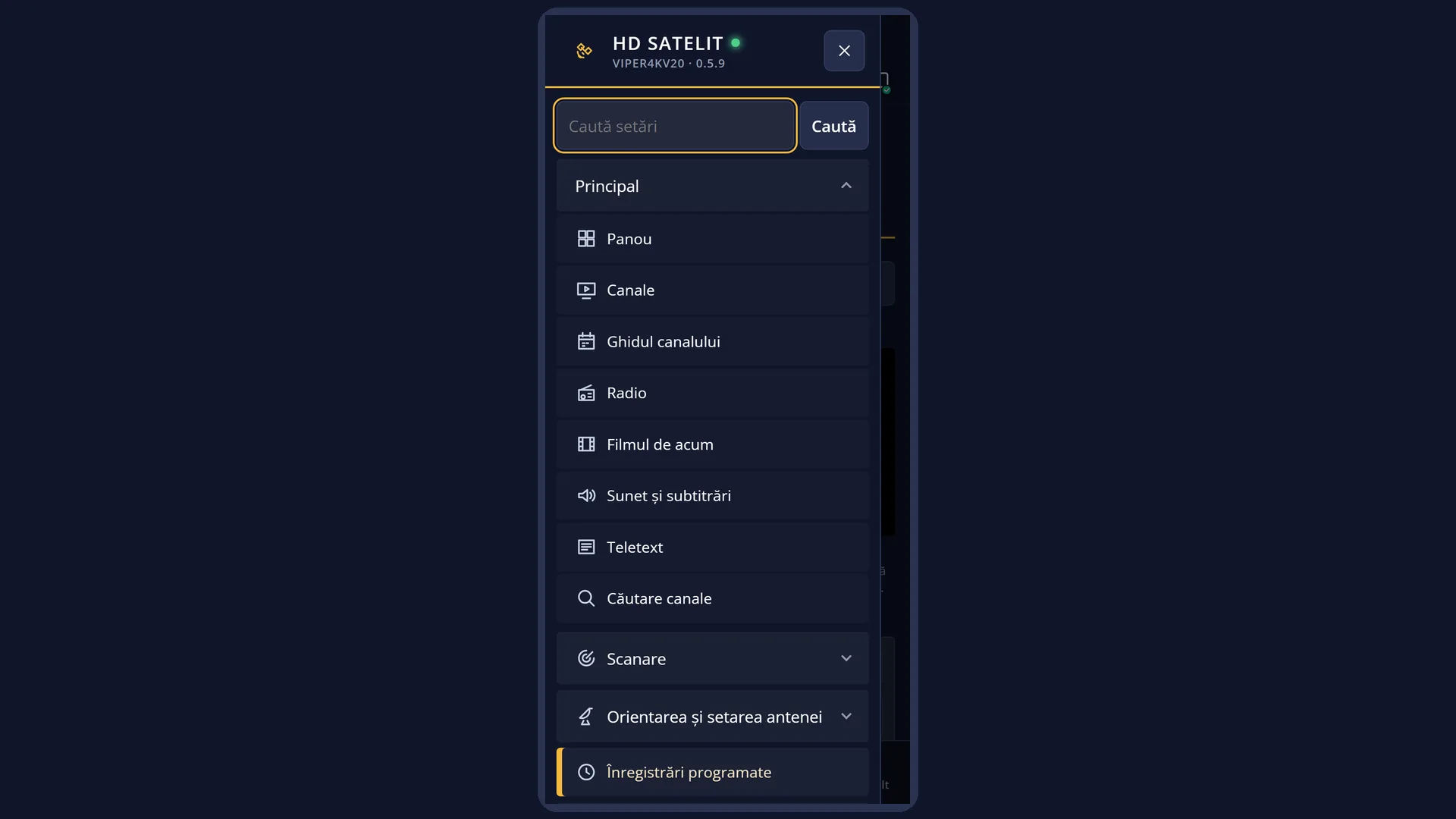
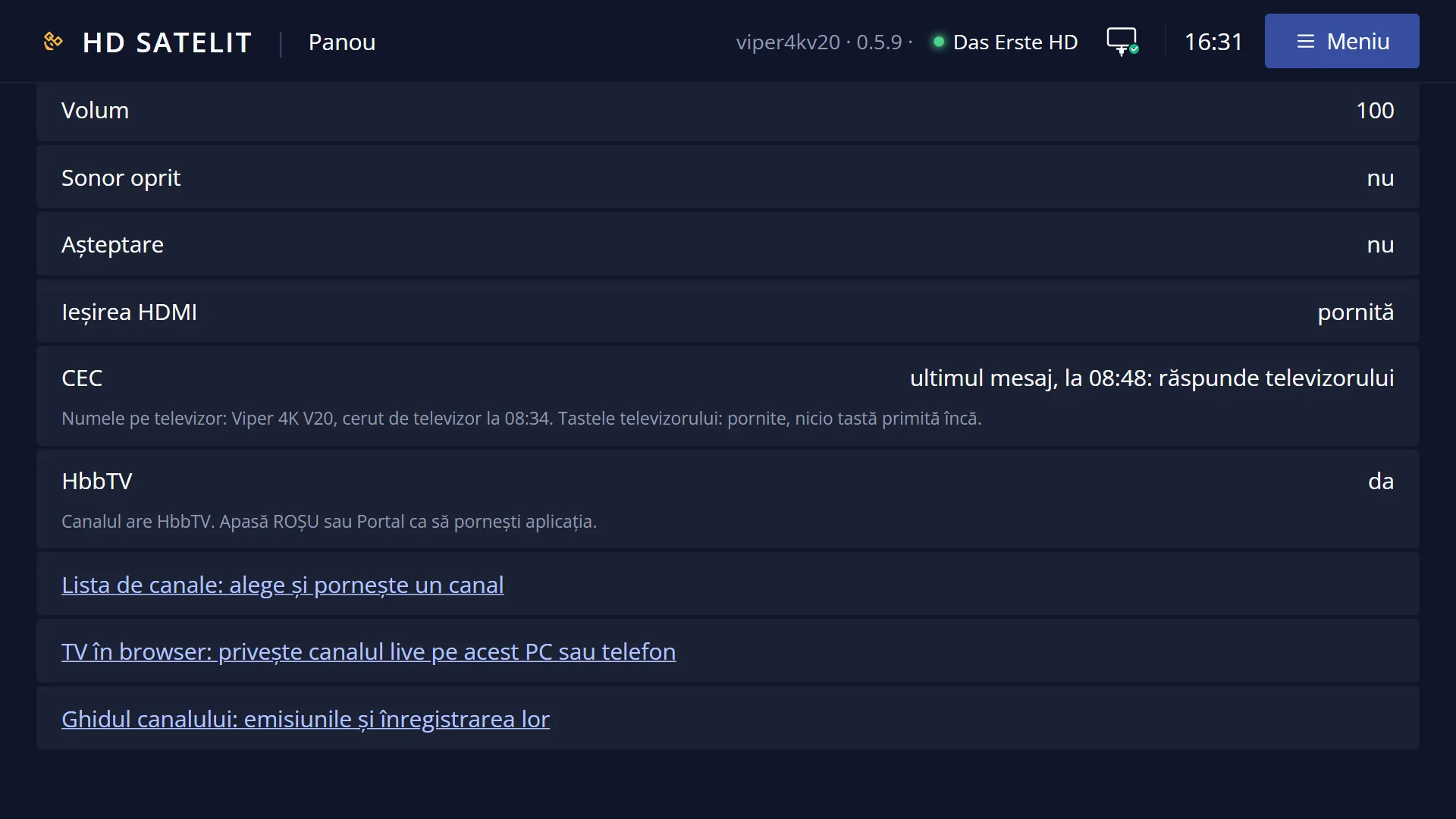
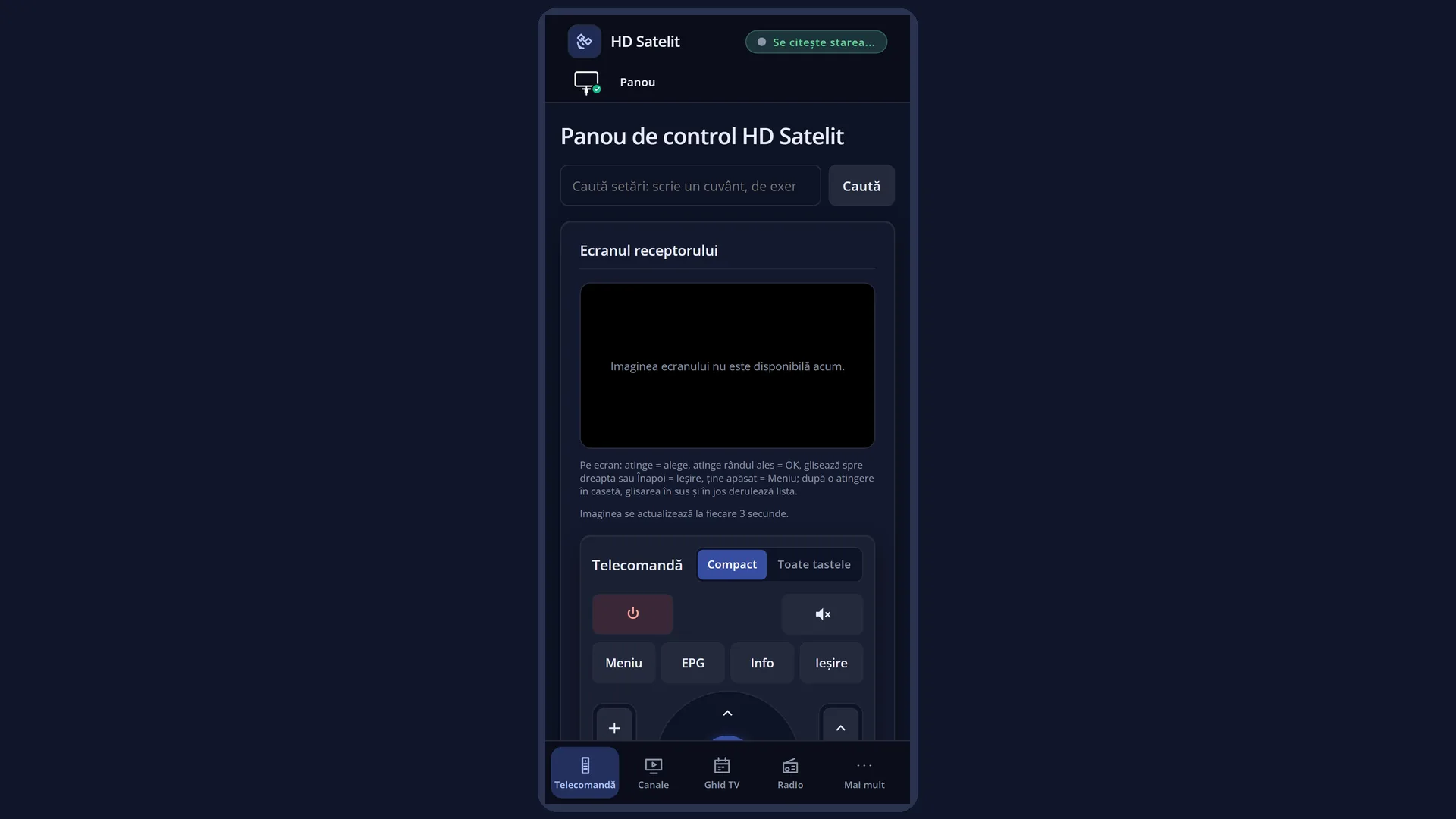
Screenshots are being added: so far 0 from the receiver and 7 from the web interface; the aim is at least 5 of each, with arrows and frames, and, where a setting changes what you see, a before and after comparison.
English screenshots coming: some of the pictures below still show the receiver and the web interface in Romanian. The rows, keys and steps described on this page are the English ones.
What it is for
The PAUSE key freezes the picture of a live programme. The receiver keeps writing the programme to the USB stick or hard disk, and when you press PLAY you carry on watching from where you stopped, behind the live broadcast.
While you are behind, you can rewind and fast forward, skip a few seconds or minutes with the digits, and catch up with live TV again.
In the top left corner, a box shows what you are doing (“||” pause, “>” play, “<< 2x” rewind), how far behind live you are, and a bar showing your position in what has been recorded.
Pause only works on channels with a picture, with a USB stick or hard disk chosen for it and at least 1 GB free on it. If it is not possible, a message tells you why and what to do.
STOP ends the pause after asking “Stop Timeshift?” and takes you back to the live programme.
How to get here
How to get there: while you are watching a TV channel, press PAUSE (or PLAY).
Keys on the remote: PAUSE.
You choose where the pause is stored in Menu > Settings > Recording & Storage Setup > Recording Locations (MENU 6 5 2), row “Timeshift location”. If that location is not a working USB stick or hard disk, the first time you press PAUSE “Recordings location” opens. It chooses the disk by itself (or asks you, if there are several), and then the pause starts.
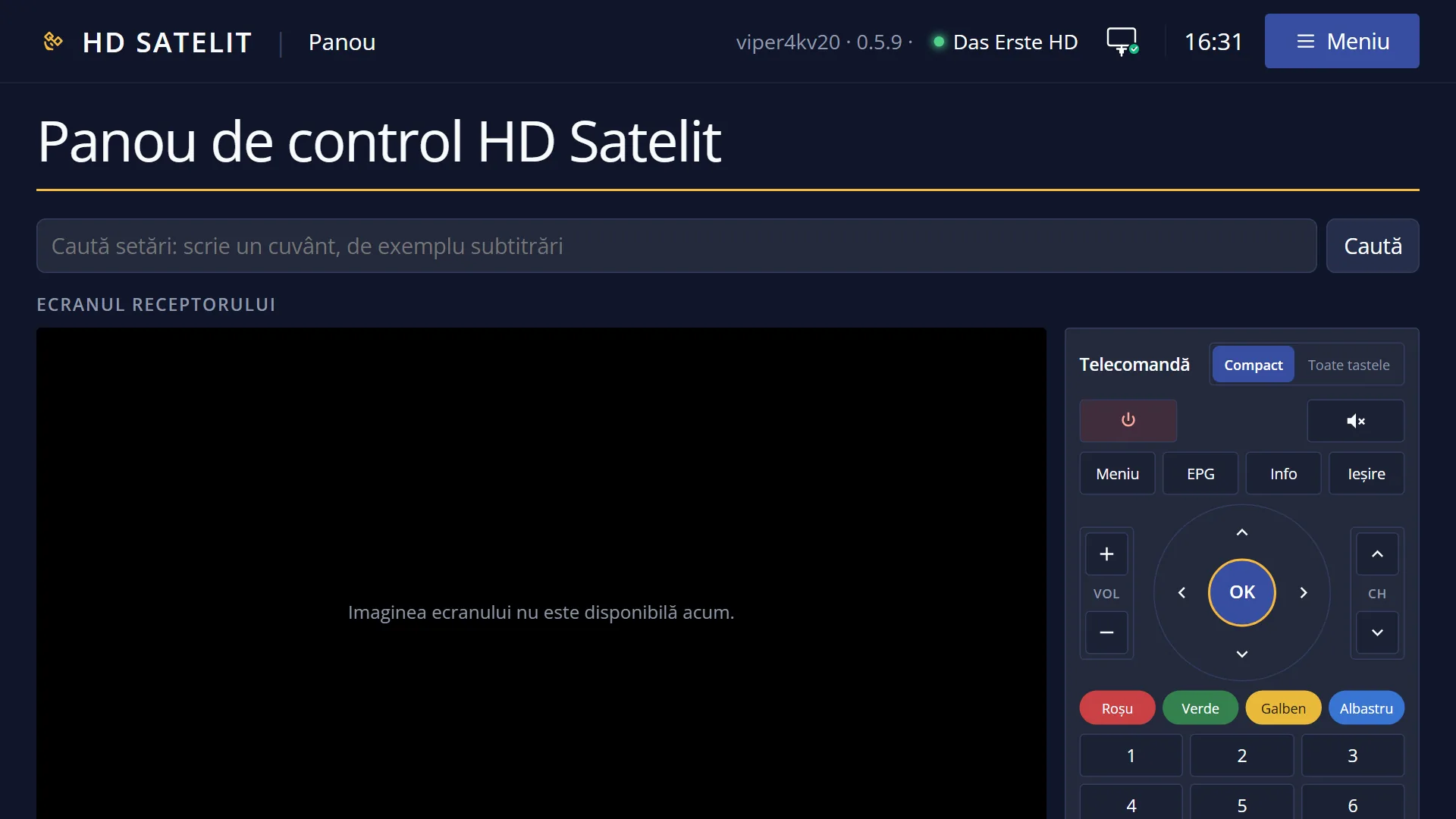
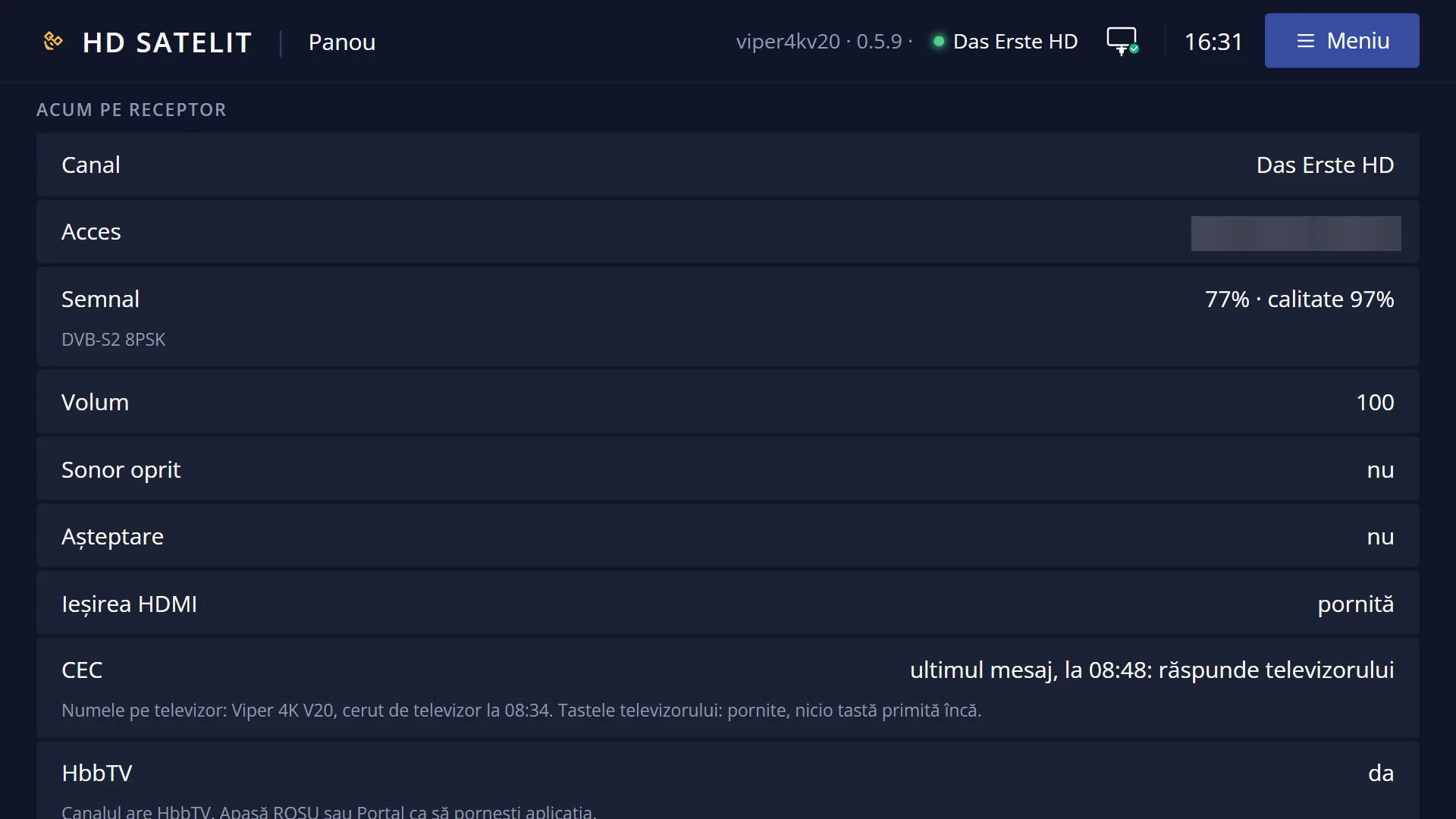
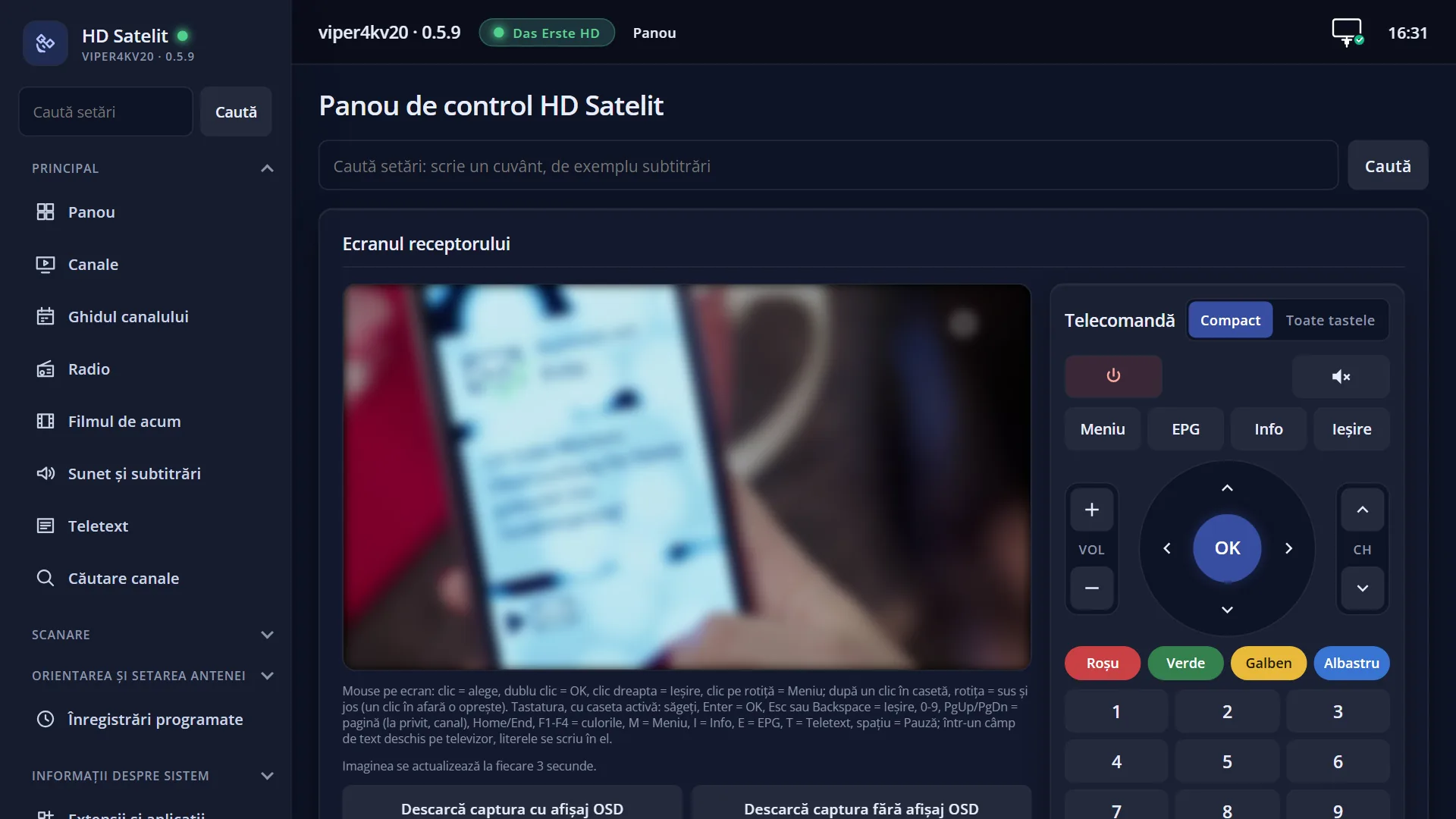
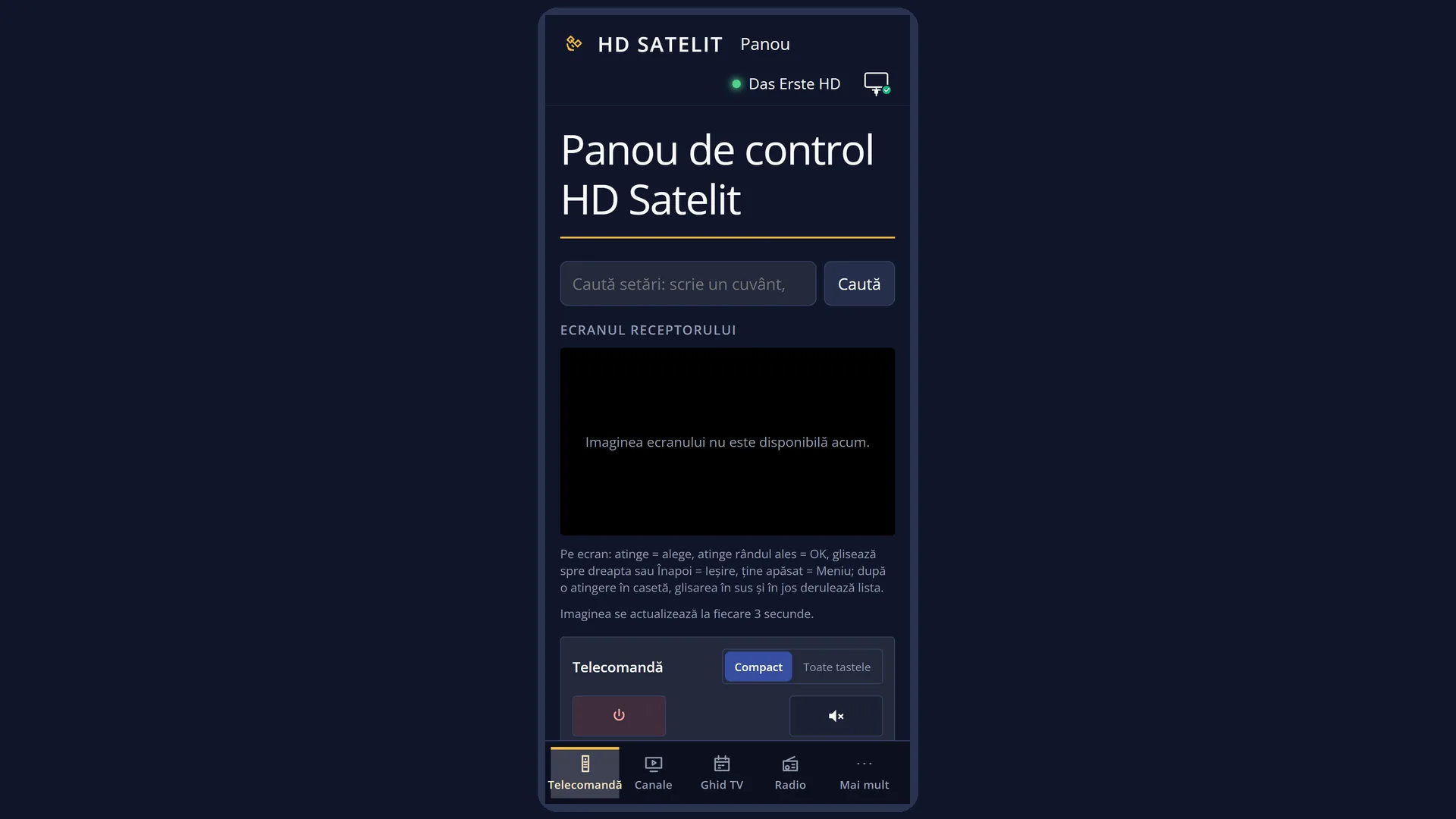
In the web interface: the /panou page shows what is running on the receiver now.
What you see on the screen
The picture freezes. A box appears in the top left: on the left, the status symbol (“||” pause, “>” play, “>> 4x” fast forward, “<< 2x” rewind, “/2” slow motion), on the right, how far behind the live programme you are (for example “-0:03:20”), and below it a bar showing your position in what has been recorded since you paused.
The box stays on screen while you are paused or winding. During playback it disappears after 5 seconds, unless the info bar is open.
When you catch up with the live programme, you are watching live again and the box disappears after a few seconds. What has been recorded stays until you change channel or press STOP: PAUSE or rewind take you back again, without losing anything.
When the pause cannot start, a message appears instead of the box, for example “Pause only works on channels with a picture: radio stations cannot be paused.” or “Not enough space on the USB stick for pause: at least 1 GB must be free, now there are 640 MB.”.
Rows and settings
| Row | Values | Default | What it does |
|---|---|---|---|
| Timeshift location (in Recording Locations, MENU 6 5 2) | the folders allowed for pause, on a USB stick or hard disk | the usual location, which on this receiver is not a disk: the first time you press PAUSE, the receiver chooses the disk by itself | Where the receiver writes the programme while you are paused. It must be a USB stick or hard disk with at least 1 GB free. When you have several disks and want the pause on the fastest or emptiest one. |
| Custom skip time for '1'/'3'-keys, '4'/'6'-keys, '7'/'9'-keys (in OSD Preferences, Expert only) | a number of seconds for each pair | 15 seconds (1/3), 60 seconds (4/6), 300 seconds (7/9) | How far the digits skip back (1, 4, 7) or forward (3, 6, 9) while you are paused. When you want smaller or bigger skips, for example over adverts. |
| Behavior of 'pause' when paused (in OSD Preferences, Expert only) | Play, Singlestep (GOP), Last speed | Play | What PAUSE does when pressed a second time: Play starts playback, “Singlestep” moves forward a little, “Last speed” goes back to the previous winding speed. When you want to go frame by frame. |
Keys
| PAUSE (while watching) | Starts the pause: the picture freezes and the programme keeps being recorded. Pressed again (while paused), it starts playback. |
| PLAY | While watching, it starts the pause like PAUSE. While paused, it starts playback. During playback, it pauses again. |
| OK | While paused or winding: continues playback at normal speed. |
| REWIND / FAST FORWARD | Winds at the next speed (2x, 4x, 8x ... 128x). Pressing the opposite direction slows down, until playback. From pause, FAST FORWARD starts slow motion and REWIND goes back one frame. Held down, they ask how many minutes to skip. |
| LEFT / RIGHT | Like REWIND / FAST FORWARD. |
| 1 / 3, 4 / 6, 7 / 9 | Skip back / forward by 15 seconds, one minute, five minutes (the factory values). |
| REWIND or skip back (when live, with the pause already started) | Take you back again into what has been recorded, and rewind. |
| STOP (or TV) | Asks “Stop Timeshift?”. Yes ends the pause and takes you back to live TV, and what has been recorded is lost. |
| CH+ / CH- or the channel list | Changes the channel. The pause ends and what has been recorded is lost. |
| The digits, for changing channel | While the pause is on, the digits do not change channel: they are for skipping. |
Step by step
Pause a programme and continue it
- While you are watching the channel, press PAUSE. The picture freezes and “||” appears in the top left.
- When you come back, press PLAY (or OK). You watch from where you stopped. The box shows how far behind you are.
- To catch up with live TV, fast forward or skip with 3, 6 or 9.
Watch again a moment from a few seconds ago
- Press PAUSE, then 1 (15 seconds back) as many times as needed.
- Press OK to watch the moment. Then fast forward to live.
The first pause on a new receiver
- Connect a USB stick or a hard disk with at least 1 GB free.
- Press PAUSE. “Recordings location” opens: with a single working disk, the receiver prepares it by itself. With several, you choose which one.
- The pause then starts by itself. Next time, PAUSE works straight away.
Problems and solutions
It says “Pause only works on channels with a picture: radio stations cannot be paused.”
That is correct: there is no pause for radio. It works on TV channels.
It says “Not enough space on the USB stick for pause: at least 1 GB must be free, now there are … MB.” (or “… on the disk …”)
Free up space by deleting recordings you no longer need from the “Films and recordings” list (EMC), or choose another disk in “Timeshift location”.
When you press PAUSE, “Recordings location” opens.
The pause location is not a working USB stick or hard disk. Connect one: the receiver chooses it and starts the pause. Without any disk, pause is not possible (the internal memory is not used).
It says “This channel cannot be paused.”
This channel does not allow pausing (for example a channel that comes from the internet). Record it with REC, if possible.
It says “Pause did not start. Check the disk or USB stick chosen for timeshift.”
The receiver could not write to the disk. Check that the USB stick is inserted properly and is not write-protected. Try another USB stick or check the disk in Menu > Settings > Recording & Storage Setup > Check Disk Health.
I changed channel and can no longer go back.
When you change channel, the pause ends and what has been recorded is lost. To keep the programme, record it with REC.
“Fast winding does not work right now. You can skip forward or backward with the keys 1, 3, 4, 6, 7 and 9.” appears
Fast winding is not possible at that moment. Use the skips with the digits.
The digits do not change channel.
While the pause is on, the digits skip forward or back. Press STOP (Yes), then enter the channel number.
Related topics
- Instant recording (REC)
- Films and recordings (EMC)
- Recording Locations (Timeshift location)
- Recordings location
- OSD Preferences (digit skips, pause key)
- Matching web page: /panou (what is running on the receiver now).