

Device & Hardware
English screenshots coming: some of the pictures below still show the receiver and the web interface in Romanian. The rows, keys and steps described on this page are the English ones.
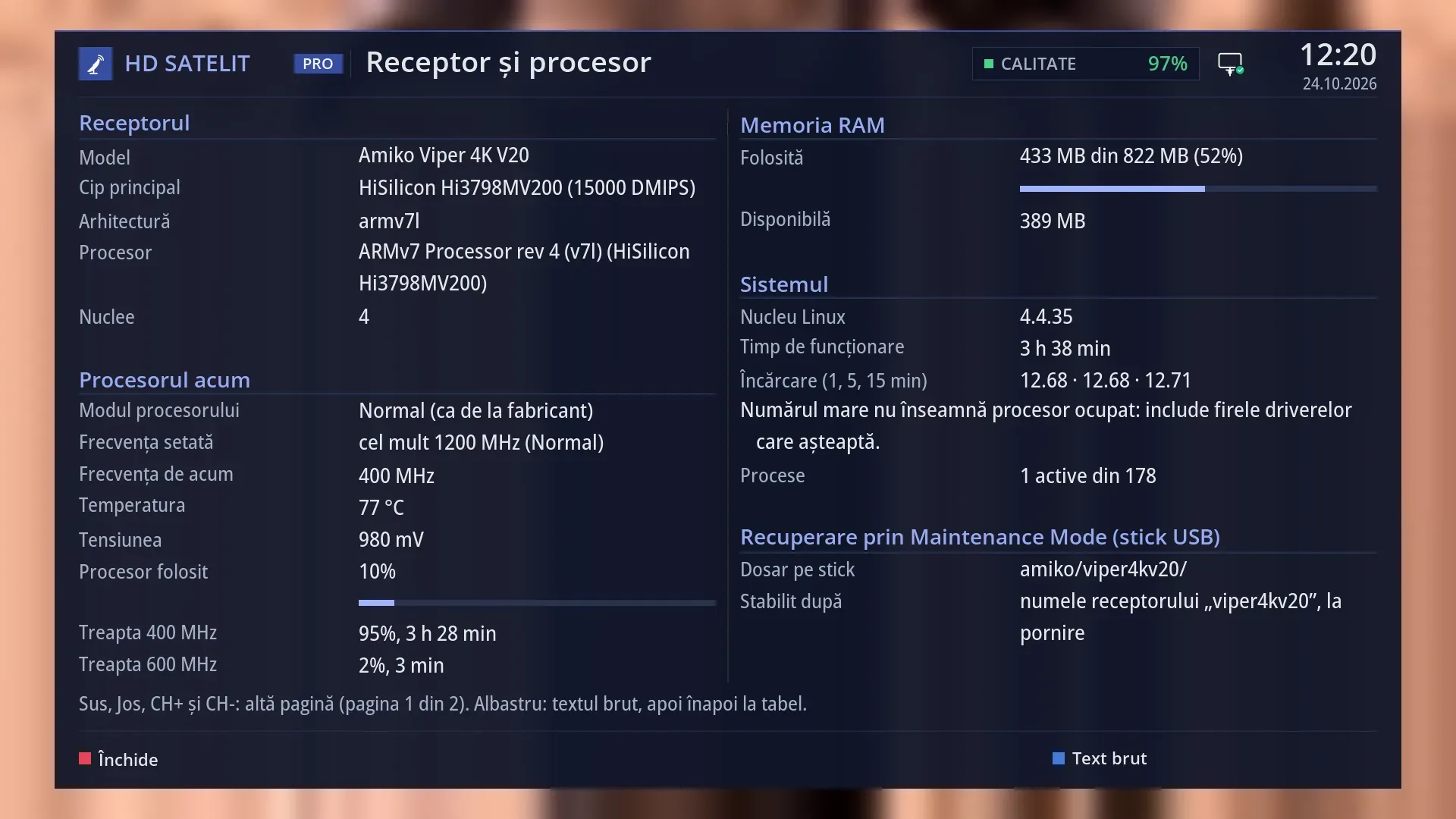
- 1 Receiver: the model, the chip, the processor and the cores.
- 2 Processor now: the mode, the frequencies, the temperature, how much is used and the steps, refreshed every two seconds.
- 3 The RAM used, with the bar, and the RAM available.
- 4 System: the kernel, the running time, the load and the processes.
- 5 The folder on the USB stick for the manufacturer's recovery.
- 6 The page and the keys that change it.
- 7 BLUE: the raw text.
What it is for
“Device & Hardware” shows what is inside the receiver and how it is working right now: the model, the chip and the processor, the selected processor mode, the current frequency and temperature, how much of the processor is in use, the RAM, the load, how long the receiver has been running and, on receivers that have it, the folder on the USB stick where the receiver looks for an image during recovery.
The processor rows refresh themselves every two seconds while the screen is open, so you can watch the frequency and temperature rise and fall as it happens.
Open it when the receiver seems slow or hot, when you want to check that the selected processor mode is working, or when someone helping you asks for the receiver's details. The screen only shows information. You change the processor mode in the “Processor” screen.
The same rows are also in the web interface, on the /informatii/receptor page.
How to get here
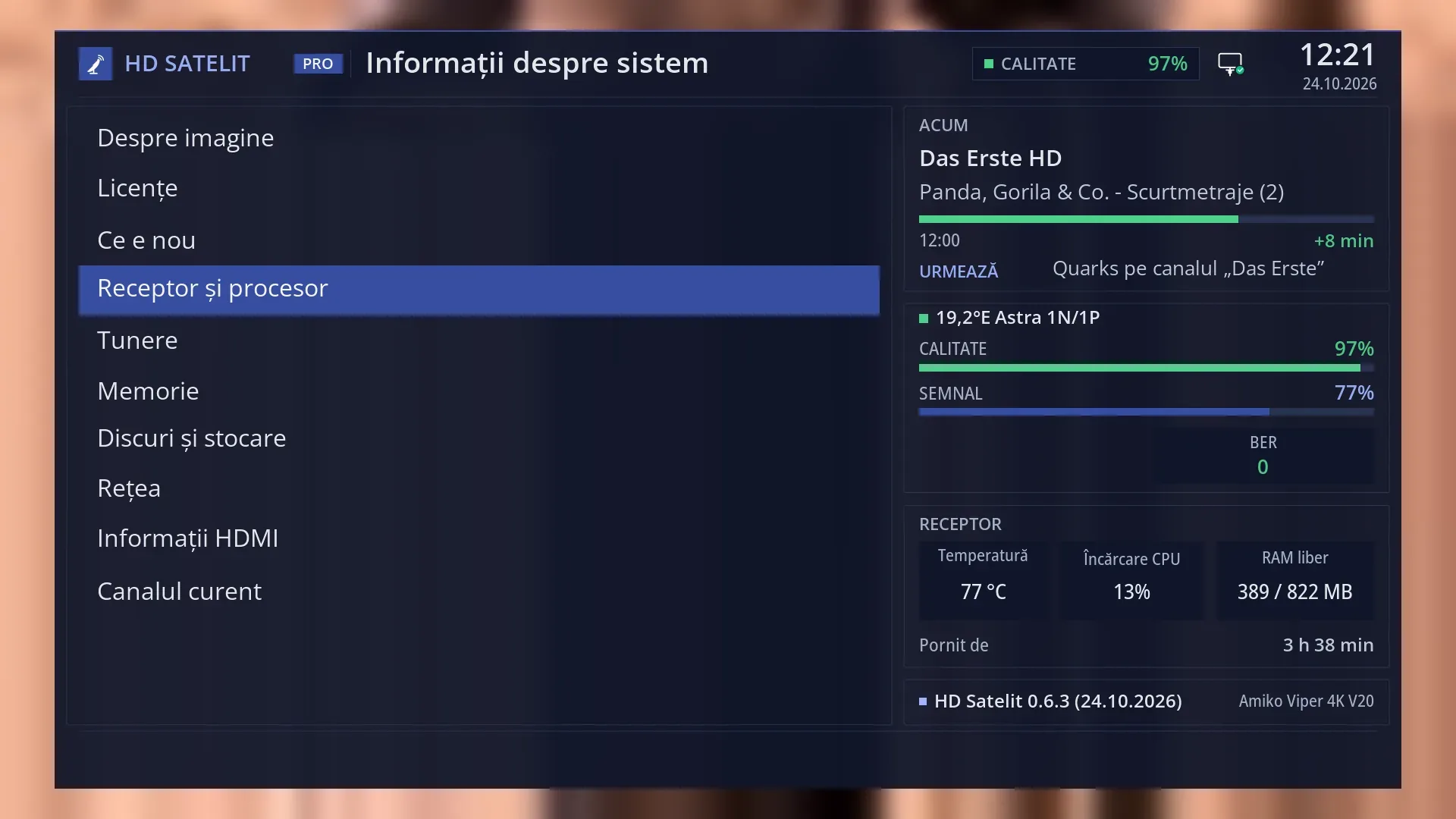
Path: Main menu > System Information > Device & Hardware.
Keys on the TV: MENU 4 4. In safe mode the first row of the submenu is “Safe mode”, so the keys are MENU 4 5.
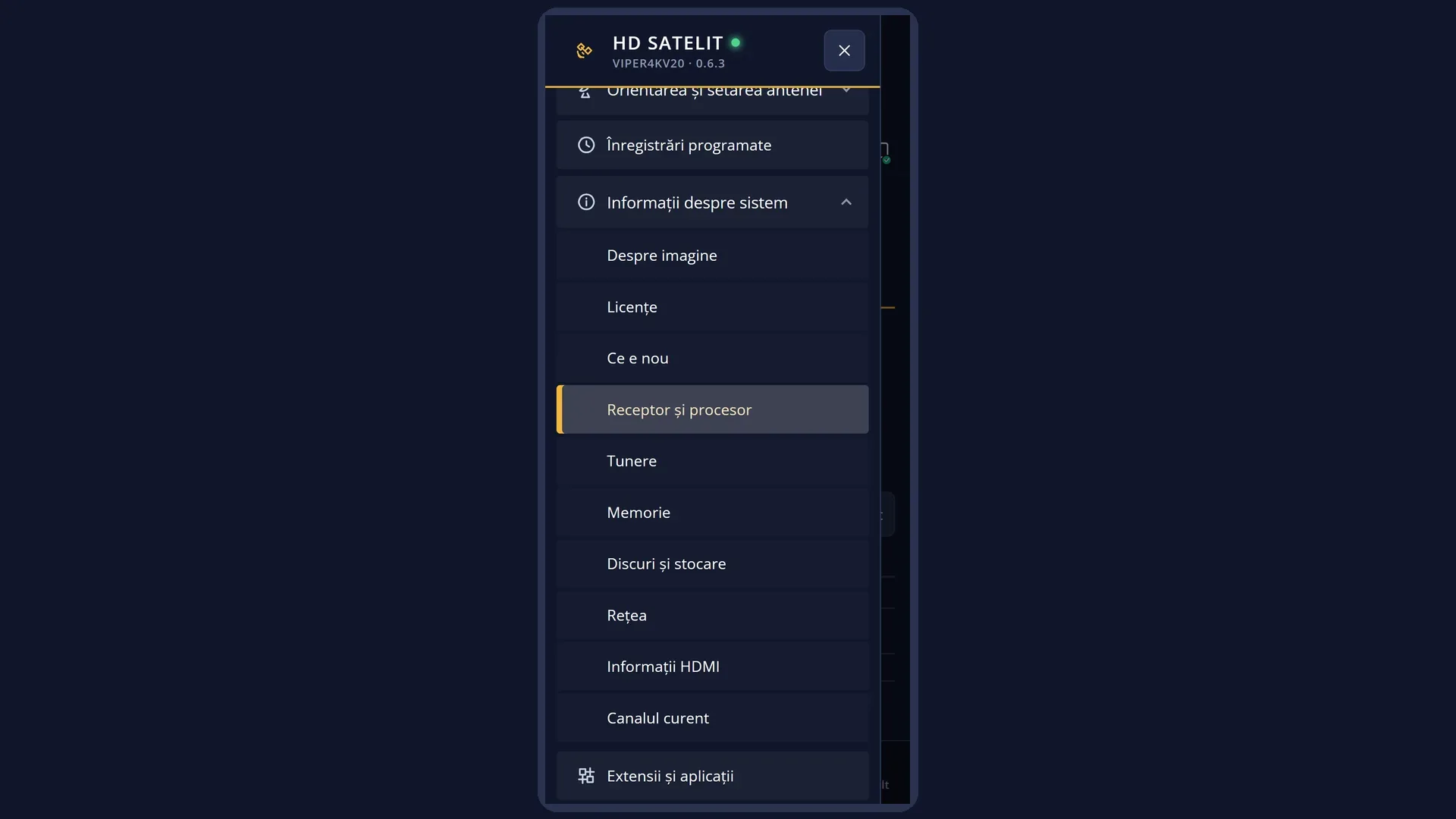
In the web interface: the /informatii/receptor page (the “Device & Hardware” tab in /informatii).
What you see on the screen
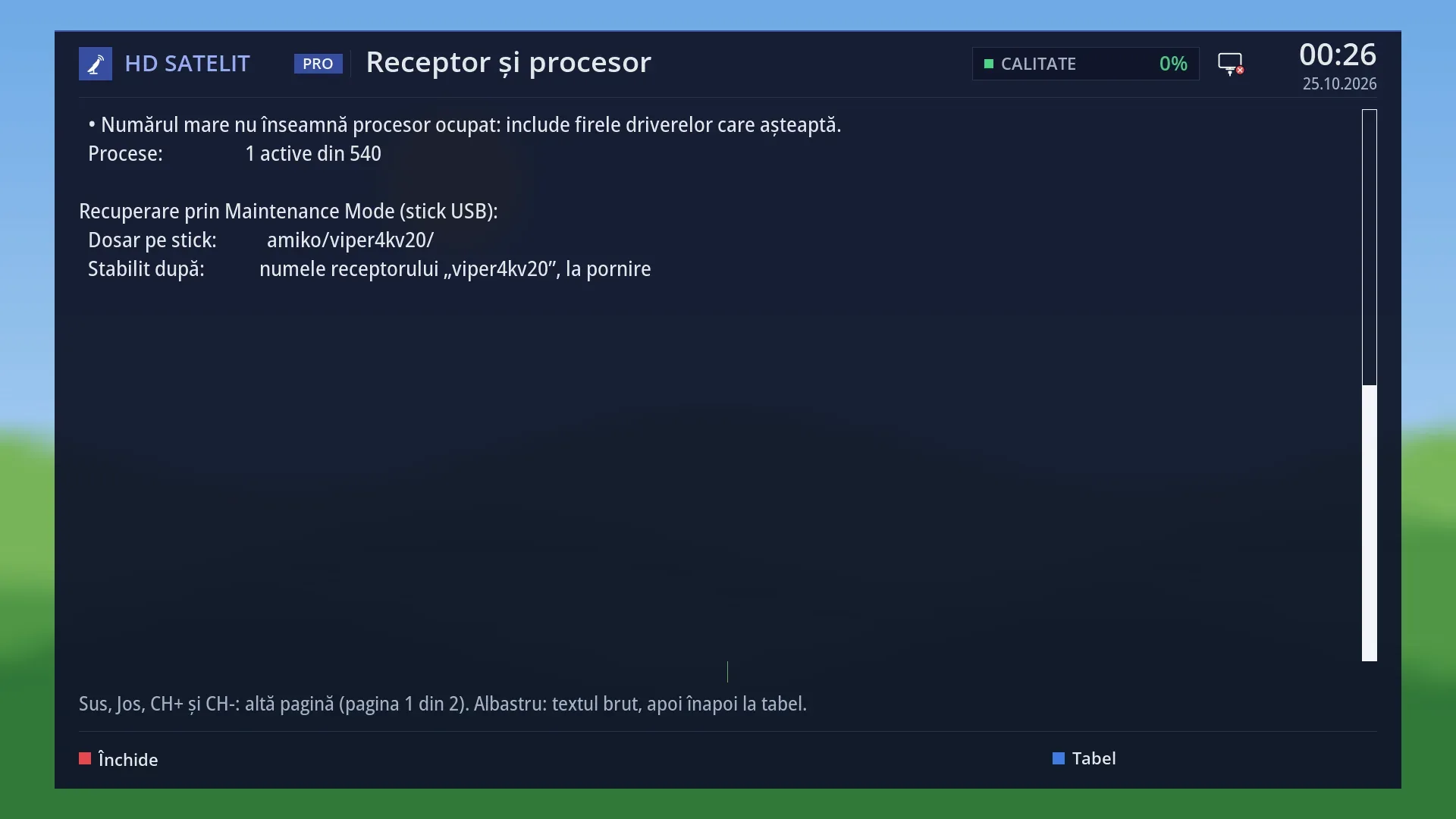
At the top: the title “Receiver & Processor Information”, the clock and the date. In the Pro theme you also see “HD SATELIT PRO”, the signal quality and the network icon.
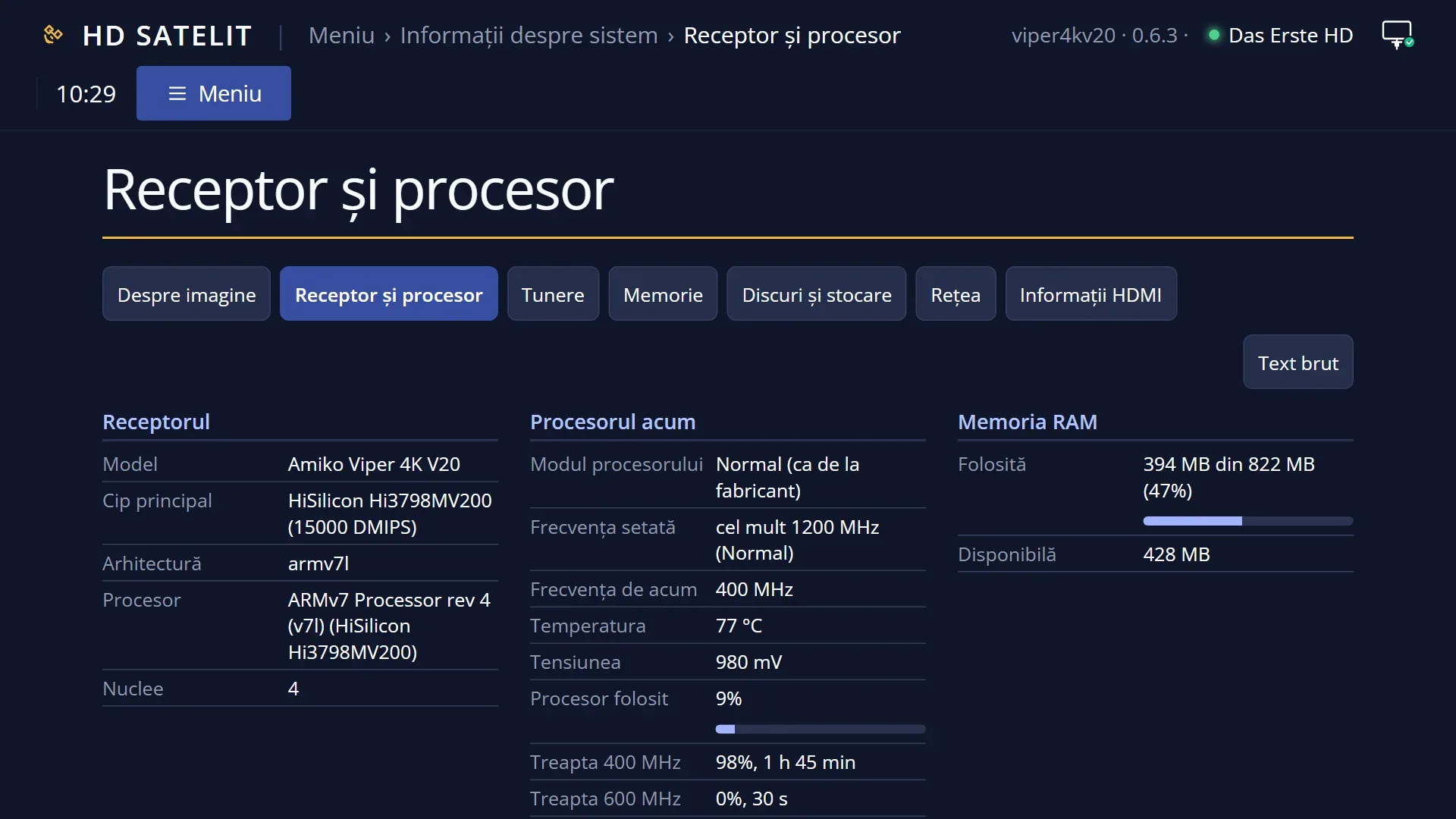
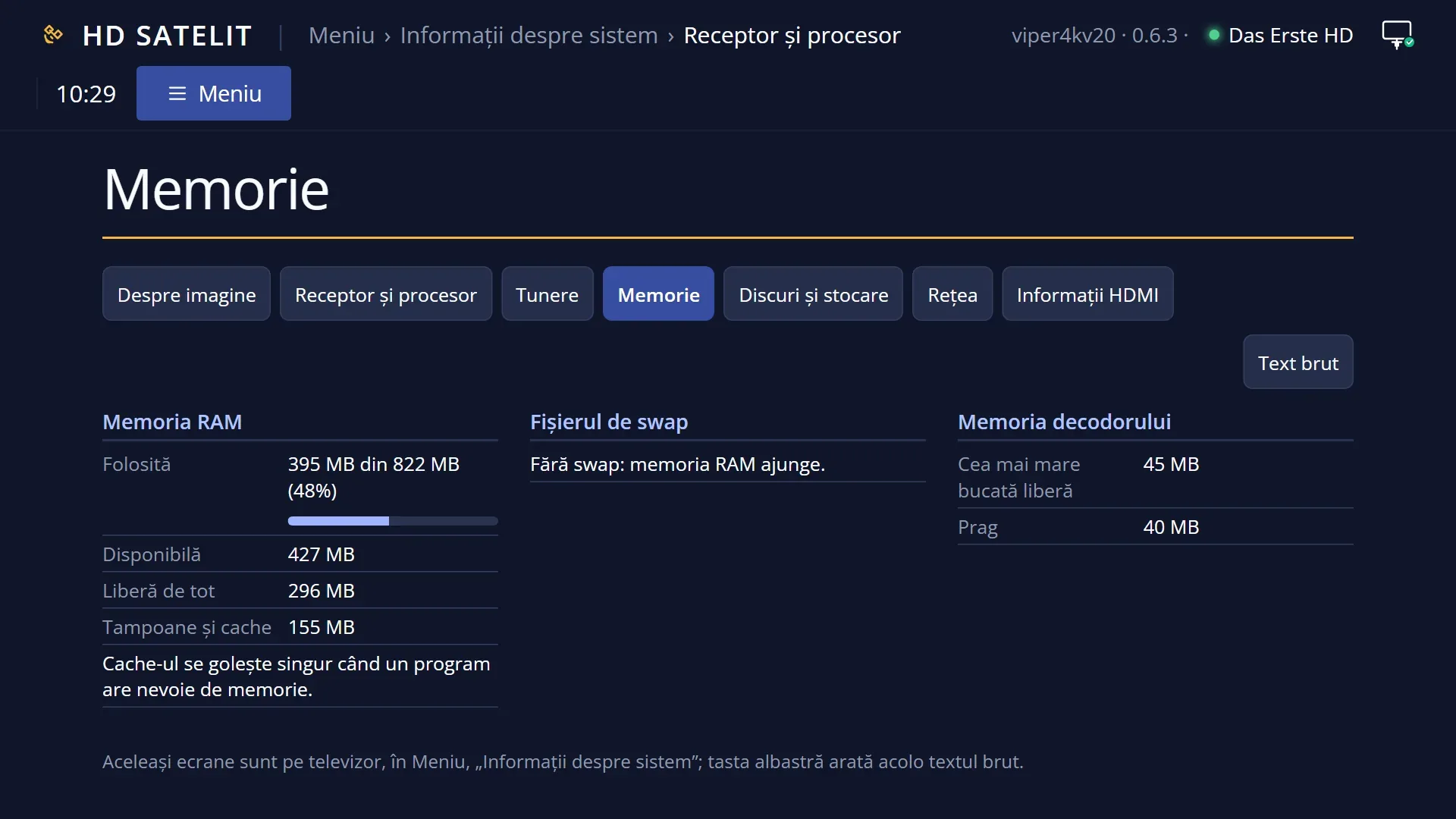
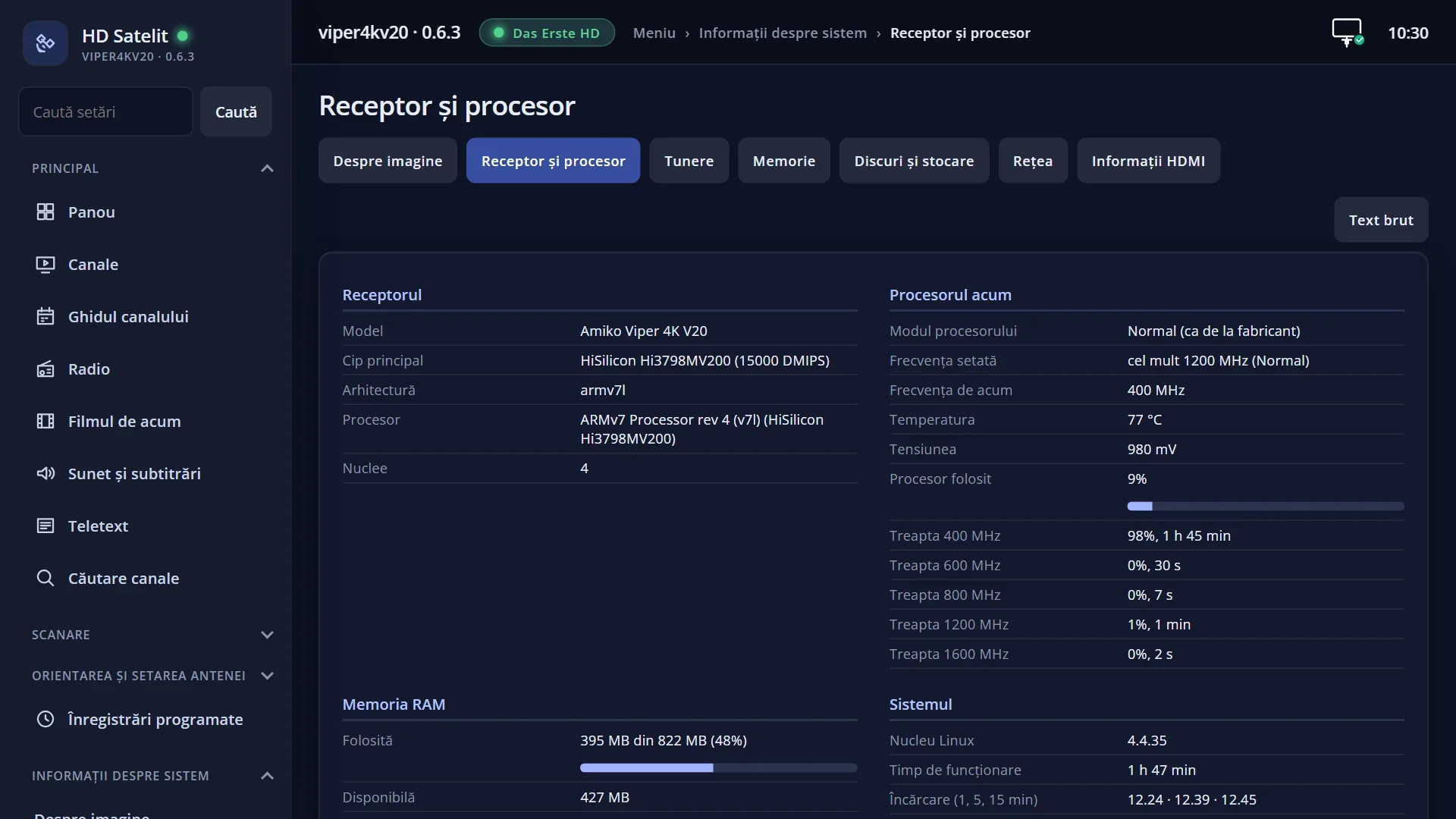
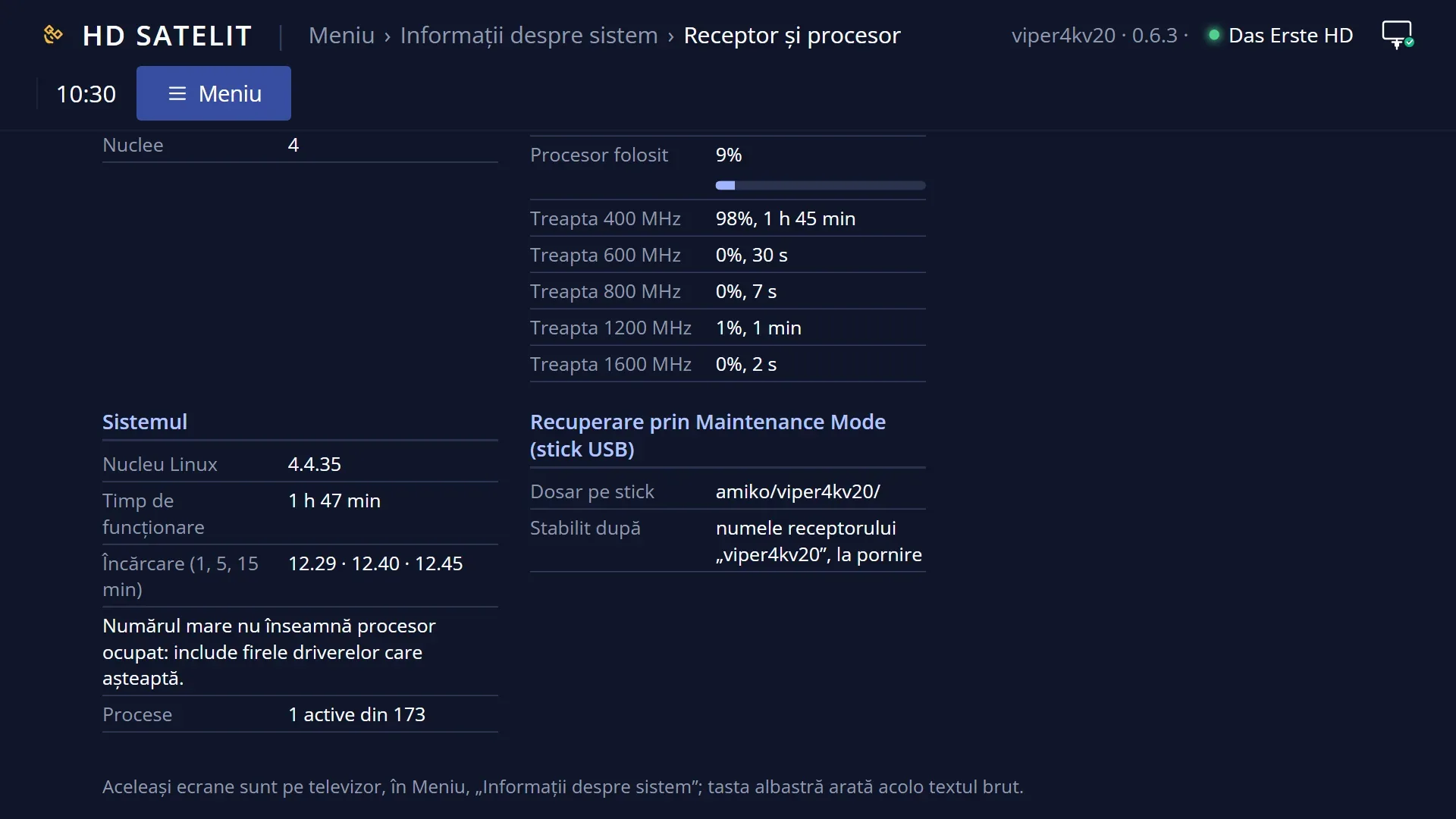
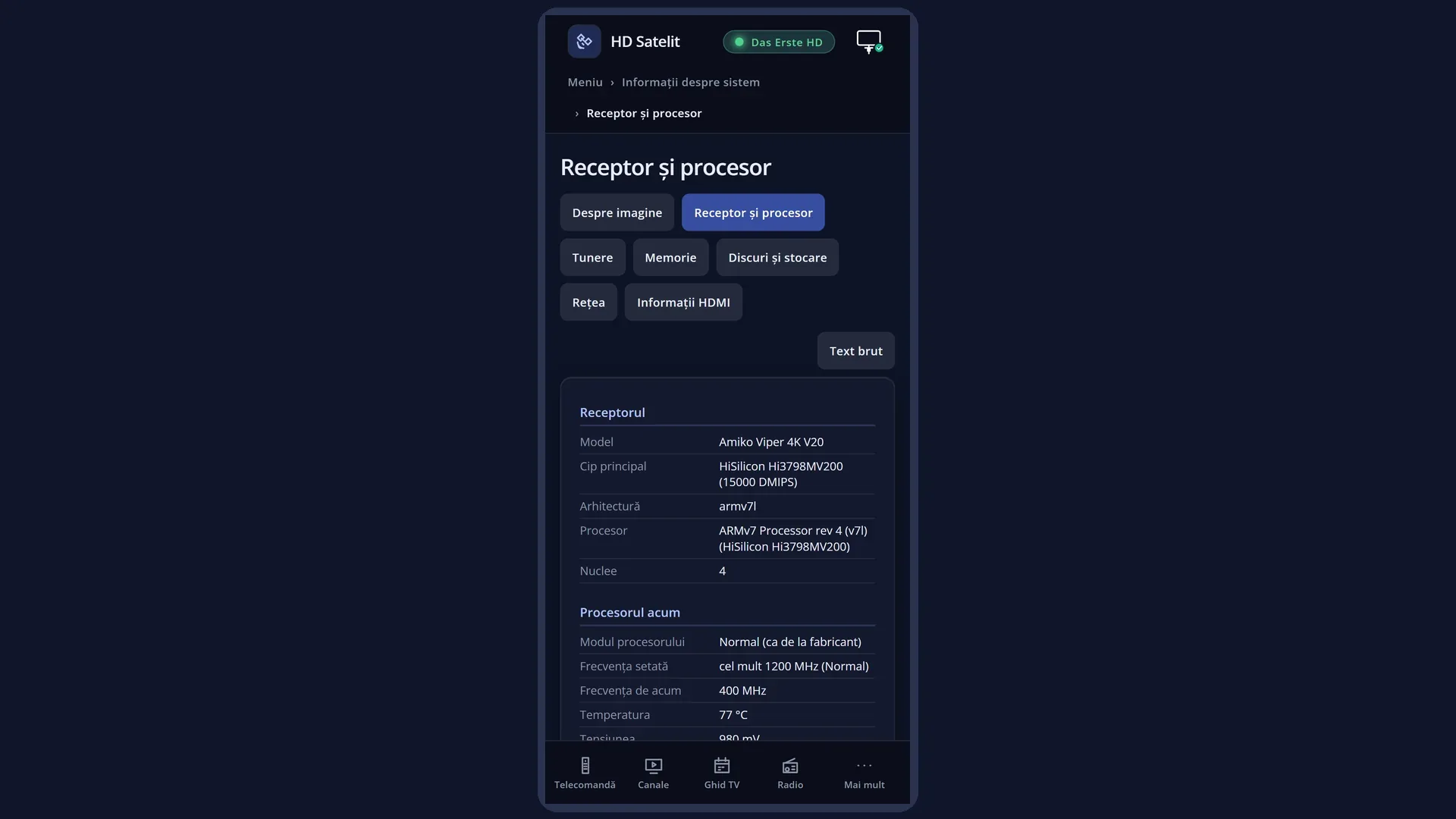
The table has two columns. On the left: the “Receiver” group (the model, the chip, the processor type and name, the number of cores) and the “Processor now” group (the mode, the set and current frequency, the temperature, the voltage, how much of the processor is in use, with a bar, and the time spent on each frequency step).
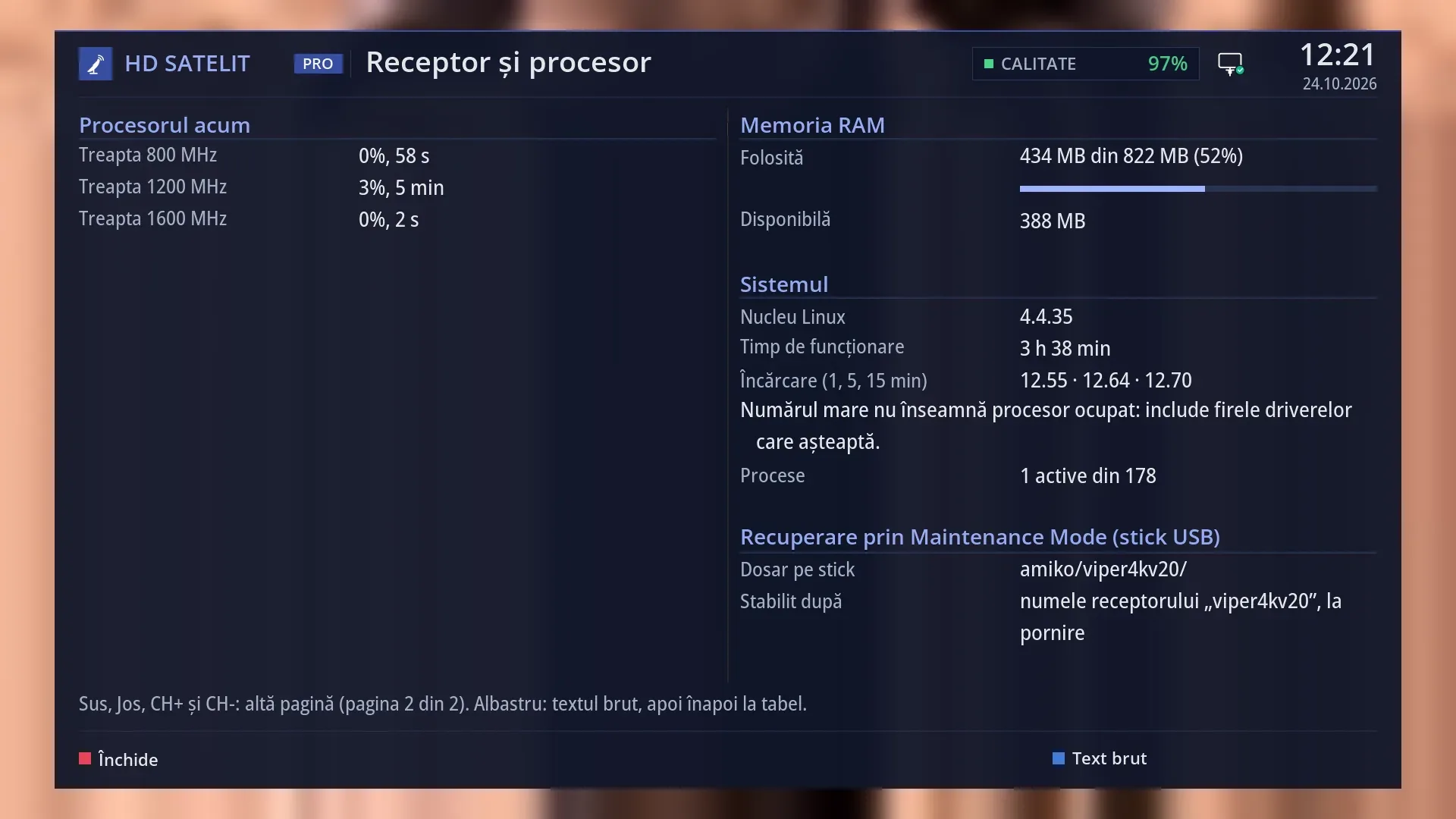
On the right: “RAM memory” (used, with a bar, and available), “System” (the Linux kernel, how long the receiver has been running, the load over 1, 5 and 15 minutes with a note underneath, the processes) and, on the Amiko Viper 4K V20, “Recovery through Maintenance Mode (USB stick)”.
In each row the label is on the left, in grey, and the value on the right, in white. A text that is too long continues on the row below. The group titles are coloured, with a line under them.
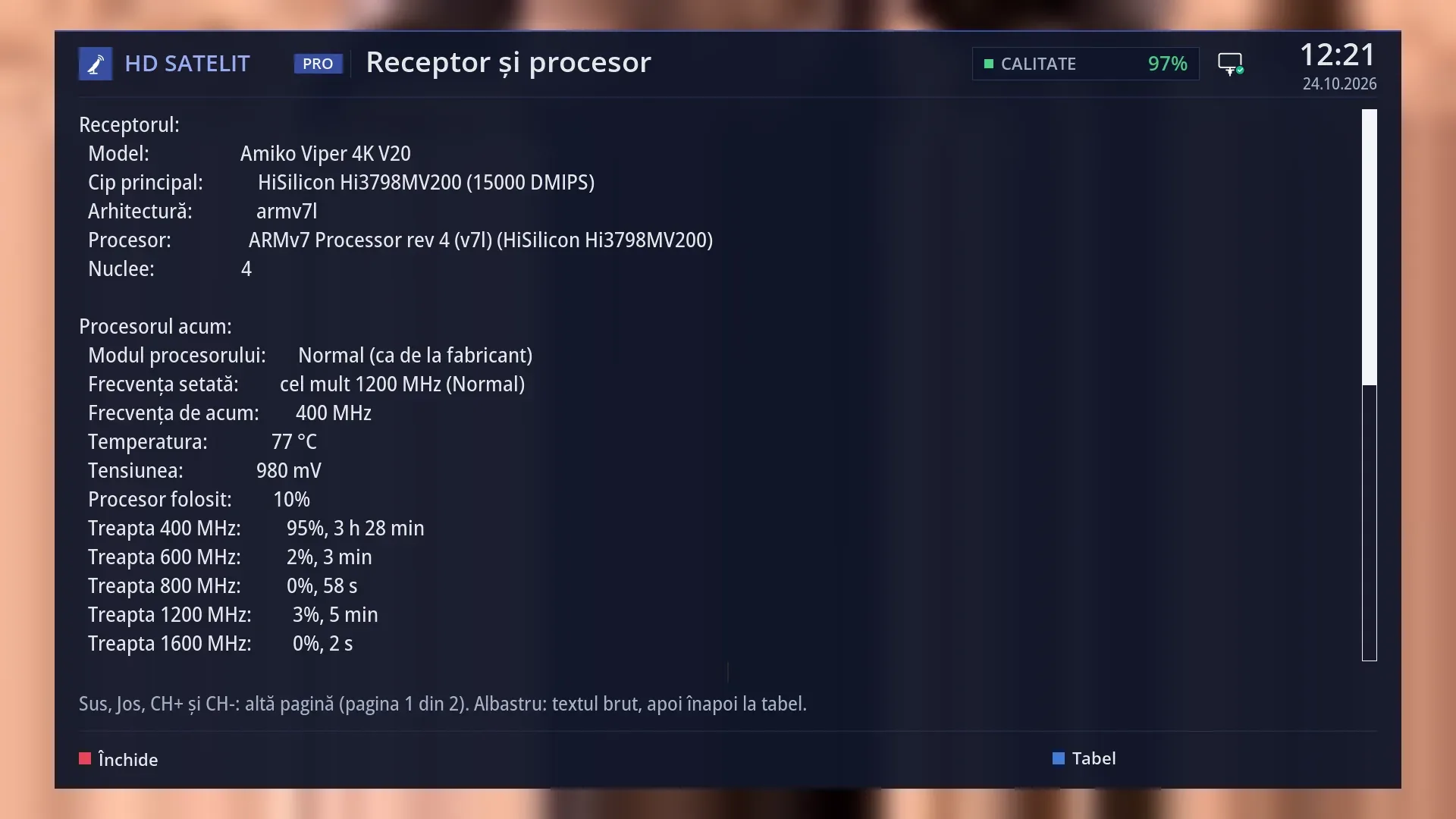
When everything does not fit, the row under the table shows the page: “Up, Down, CH+ and CH-: another page (page 1 of 2). Blue: the raw text, then back to the table.” At the bottom are the keys RED “Close” and BLUE “Raw text”.
Only the rows in the “Processor now” group refresh every two seconds. The memory, the load and the running time are read once, when the screen opens.
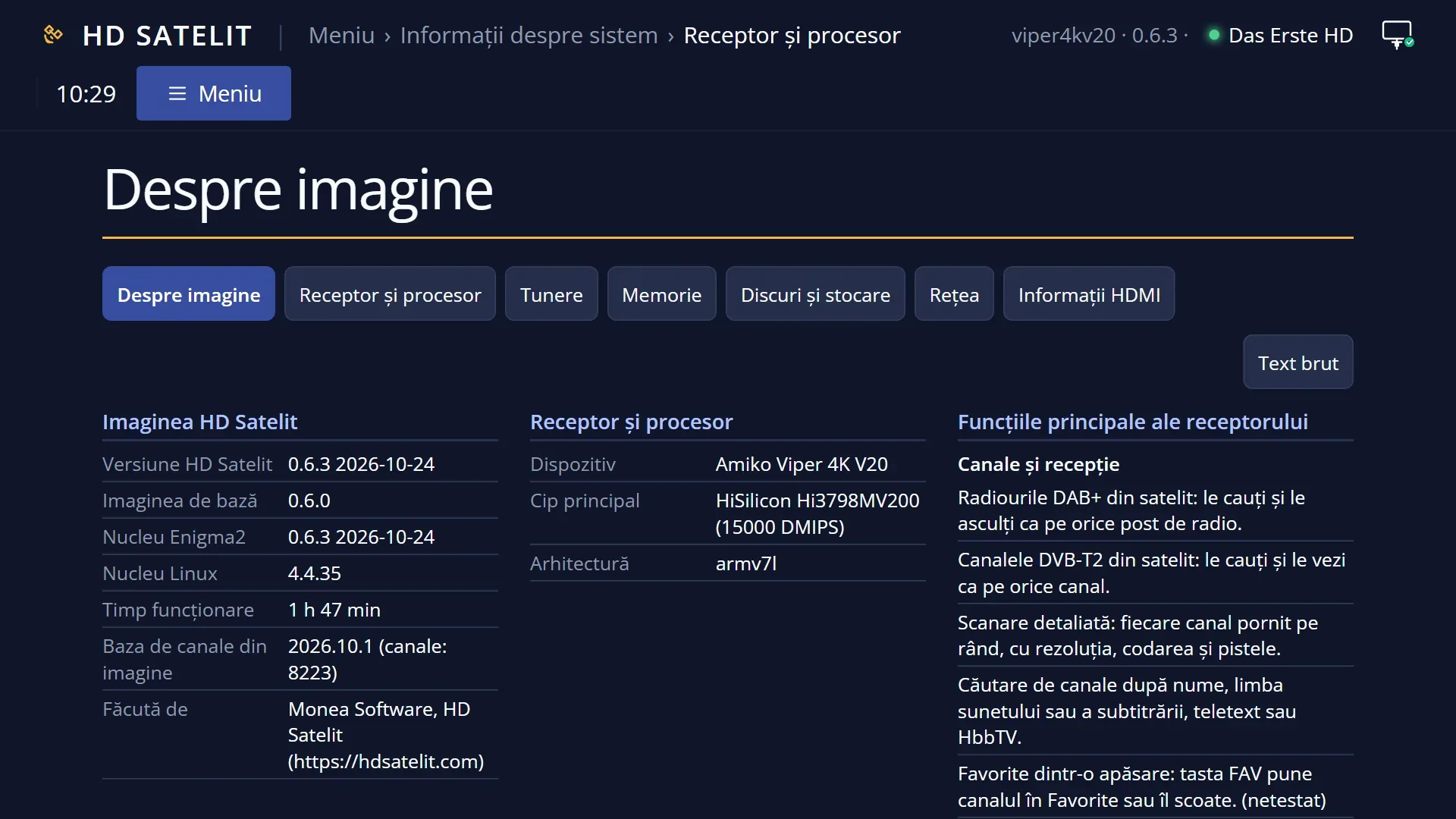
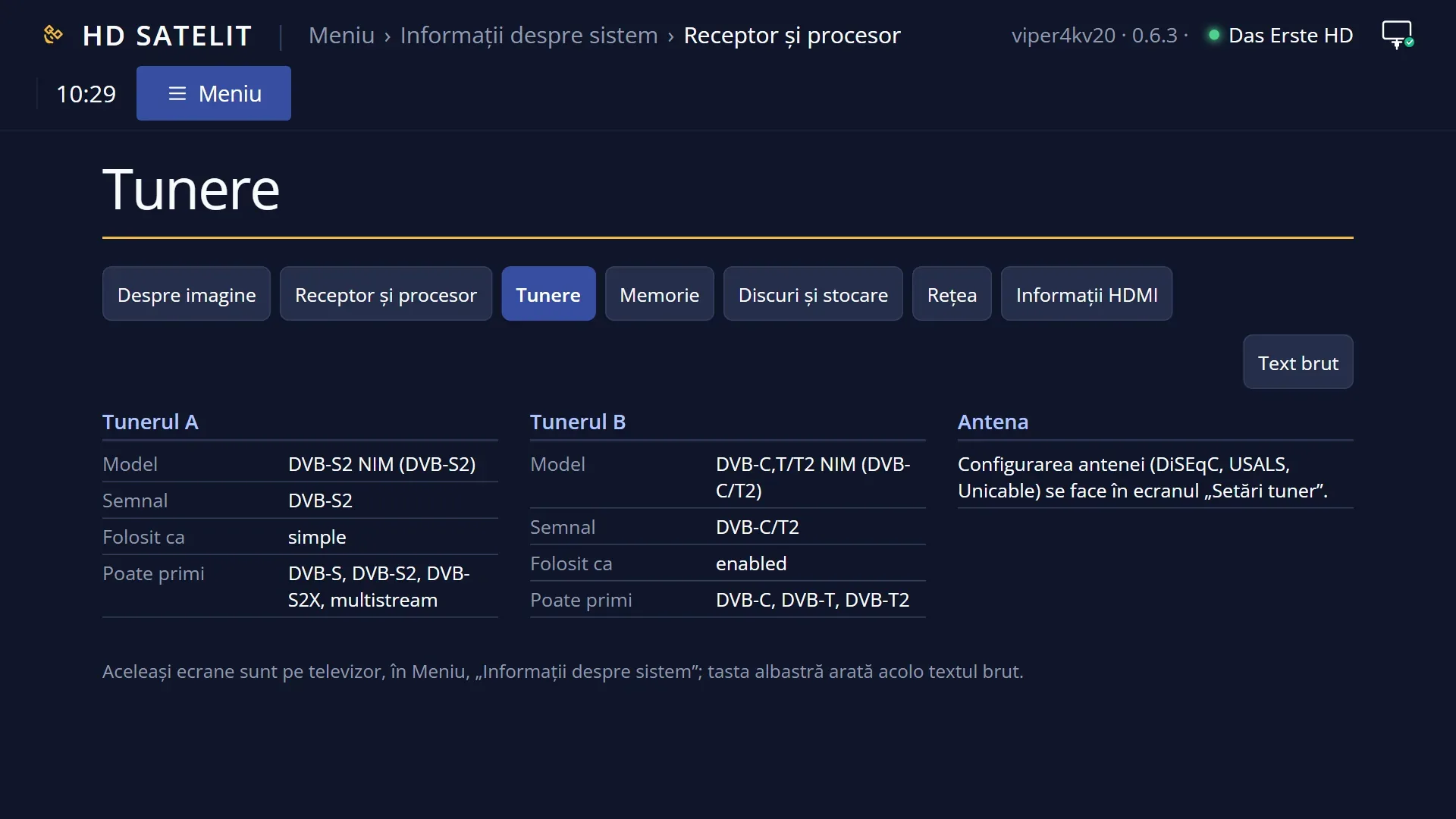
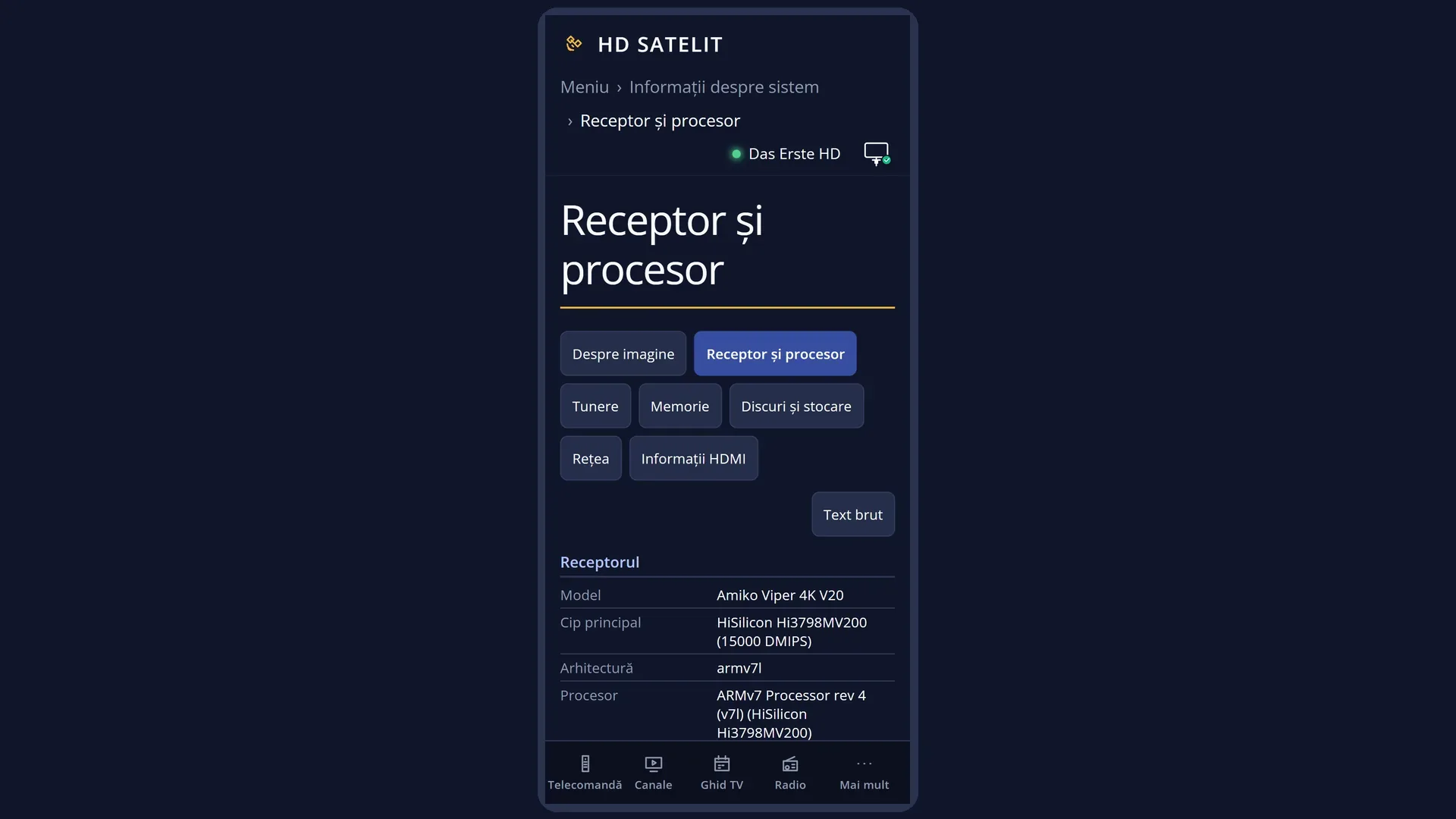
In the web interface, on /informatii/receptor, you see the same groups, arranged in columns to suit the width of the window, with the tabs of the other screens at the top and the “Raw text” button. The whole web page is read again every two seconds while the tab is visible.
Rows and settings
| Row | Values | Default | What it does |
|---|---|---|---|
| Model | for example “Amiko Viper 4K V20” | The name of the receiver. | |
| Main chip | on the Amiko Viper 4K V20: “HiSilicon Hi3798MV200 (15000 DMIPS)” | The chip the receiver is built on and its computing power. | |
| Architecture, Processor, Cores | “armv7l”, the processor name given by the system, „4” | The processor type, its name as the system gives it (with the chip in brackets) and how many cores it has. | |
| Processor mode | Automatic, Cool, Normal (as from the factory), Performance | Normal (as from the factory) | How fast the processor is allowed to work, according to the mode selected in the “Processor” screen. Normal: as the manufacturer set it. Cool: slower, so less heat. Automatic: the receiver chooses by itself according to the temperature. Performance: as fast as it can, slowing down when hot. It only appears after the receiver has passed the heat test. This row, like “Set frequency” and “Current frequency”, only appears on receivers where the processor frequency can be read and changed. You cannot change it here: Settings > System & Devices > Processor (MENU 6 UP UP UP OK 3). |
| Set frequency | “at most 1200 MHz (Normal)”, “at most 600 MHz (Normal, got warm)” | The highest frequency the processor can use right now, with the mode in brackets. When the receiver has got hot, the limit drops by itself and “got warm” appears in the brackets: the processor works more slowly until it cools down. The picture and sound are not affected. | |
| Current frequency | for example “400 MHz” | The frequency the processor is working at right now. While the receiver has little to do, it stays on the lowest step. It rises by itself when needed, up to the set frequency. | |
| Temperature | for example “75 °C”, “cannot be read” | The processor temperature. The receiver protects itself from heat: in any mode, from 95 °C the processor drops to 600 MHz and goes back up after it has stayed at 88 °C or less for one minute. You also see the same temperature in the “Receiver” box in the submenu, in the Pro theme. | |
| Voltage | for example “980 mV” | The processor voltage, only when the receiver can read it. | |
| Processor used | a percentage, with a bar underneath | How much of the processor was used between two readings. The bar shows the same percentage. | |
| Step … MHz | “99%, 18 h 27 min” | One row for each processor frequency step: the percentage of time and how long the processor has stayed on it since the receiver was switched on. If it is on the lowest step almost all the time, the processor has little to do. Rows that do not fit move to the second page. | |
| RAM memory: Used, Available | “491 MB of 822 MB (59%)”, “331 MB” | How much RAM the programs are using and how much is still available to them (including the memory the system frees by itself when needed). The bar shows the percentage used. For more details, including the decoder memory, see the “Memory Status” screen. | |
| Linux kernel, Uptime | „4.4.35”, “18 h 42 min” | The kernel version and how long the receiver has been running since it was last switched on (standby and restarting the interface do not reset it). | |
| Load (1, 5, 15 min) | three numbers, for example “12.47 · 12.52 · 12.41” | The system load over the last minute, the last 5 and the last 15 minutes. Underneath it says: “A high number does not mean a busy processor: it includes driver threads that are waiting.” That is why the numbers can be high even when the processor is hardly working. The “Processor used” row shows how much the processor is actually used. | |
| Processes | for example “1 active of 177” | How many programs are working at that very moment, out of all those started on the receiver. | |
| Recovery through Maintenance Mode (USB stick) | Folder on USB stick: for example “amiko/viper4kv20/”, Determined by | Only on receivers that have the manufacturer's recovery from a USB stick (the Amiko Viper 4K V20 has it). “Folder on USB stick” is the folder on the USB stick where the manufacturer's recovery (Maintenance Mode) looks for the image if the receiver ever stops starting up. “Determined by” tells you how the receiver found out the folder: from the model rules or from the receiver's name, at startup. If the folder cannot be found out, the row says “unknown” and a row starting with “Warning” appears underneath, with the reason. |
Keys
| DOWN / RIGHT / CH- | The next page of the table (or of the raw text). |
| UP / LEFT / CH+ | The previous page. |
| PAGE+ / PAGE- | On remotes that have them: the previous page and the next page. |
| Home / End (USB keyboard) | The first and the last page. |
| BLUE | Switches from the table to the raw text and back. On screen the key says “Raw text” or “Table”. The processor rows also refresh every two seconds in the raw text, without moving the page. |
| RED, OK or EXIT | Close the screen and take you back to the “System Information” submenu. |
| GREEN / YELLOW | Do nothing here. |
Step by step
Check whether the receiver is too hot
- Press MENU 4 4.
- Read “Temperature” and “Set frequency”. If the brackets say “got warm”, the processor is working more slowly until it cools down.
- Leave the receiver room for air above it and at the sides. You can follow the temperature as it changes, every two seconds, on the same screen.
Check the processor mode after changing it
- Choose the mode in Settings > System & Devices > Processor (MENU 6 UP UP UP OK 3).
- Open MENU 4 4: “Processor mode” shows the new mode and “Set frequency” shows its limit.
- On the second page (DOWN) you can see which steps the processor has stayed on since startup.
Follow the processor from your phone
- Open /informatii/receptor in the web interface.
- Leave the page open: it reads itself again every two seconds.
- “Raw text” gives you all the text, ready to copy into a message.
Problems and solutions
“Set frequency” shows “got warm”.
The receiver has got hot and the processor is working more slowly until it cools down. The picture and sound keep working. Do not cover the receiver and leave it room for air. If it happens often, choose the Cool mode in the “Processor” screen.
“Load” shows high numbers, over 10, even though the receiver is doing nothing.
On this receiver that is normal: the number includes the driver threads that are waiting, not just the processor's work. “Processor used” shows how busy the processor is.
The “Processor mode” and “Set frequency” rows are missing.
They only appear on receivers where the processor frequency can be read and changed. On a receiver like this, the “Processor” screen is also missing from System & Devices.
“Temperature” shows “cannot be read”.
The receiver cannot read the temperature sensor at the moment. For safety, the processor then works as set by the manufacturer. Open the screen again in a few seconds.
The RAM and the running time do not change while I watch.
Only the processor rows refresh every two seconds. The rest is read when the screen opens. Close the screen and open it again, or use the web page, which is read in full every two seconds.
“Recovery via Maintenance Mode” says “unknown” and there is a row with “Warning”.
The receiver could not find out which folder on the USB stick the manufacturer's recovery would look in for an image. Read the reason in the “Warning” row and ask for help at [email protected] before you rely on recovery from the USB stick.
Related topics
- System Information
- Processor (the processor mode and the temperature graph)
- Memory Status
- About the image
- New image from USB stick
- Receiver watchdog
- Matching web page: /informatii/receptor