

Network Status
English screenshots coming: some of the pictures below still show the receiver and the web interface in Romanian. The rows, keys and steps described on this page are the English ones.
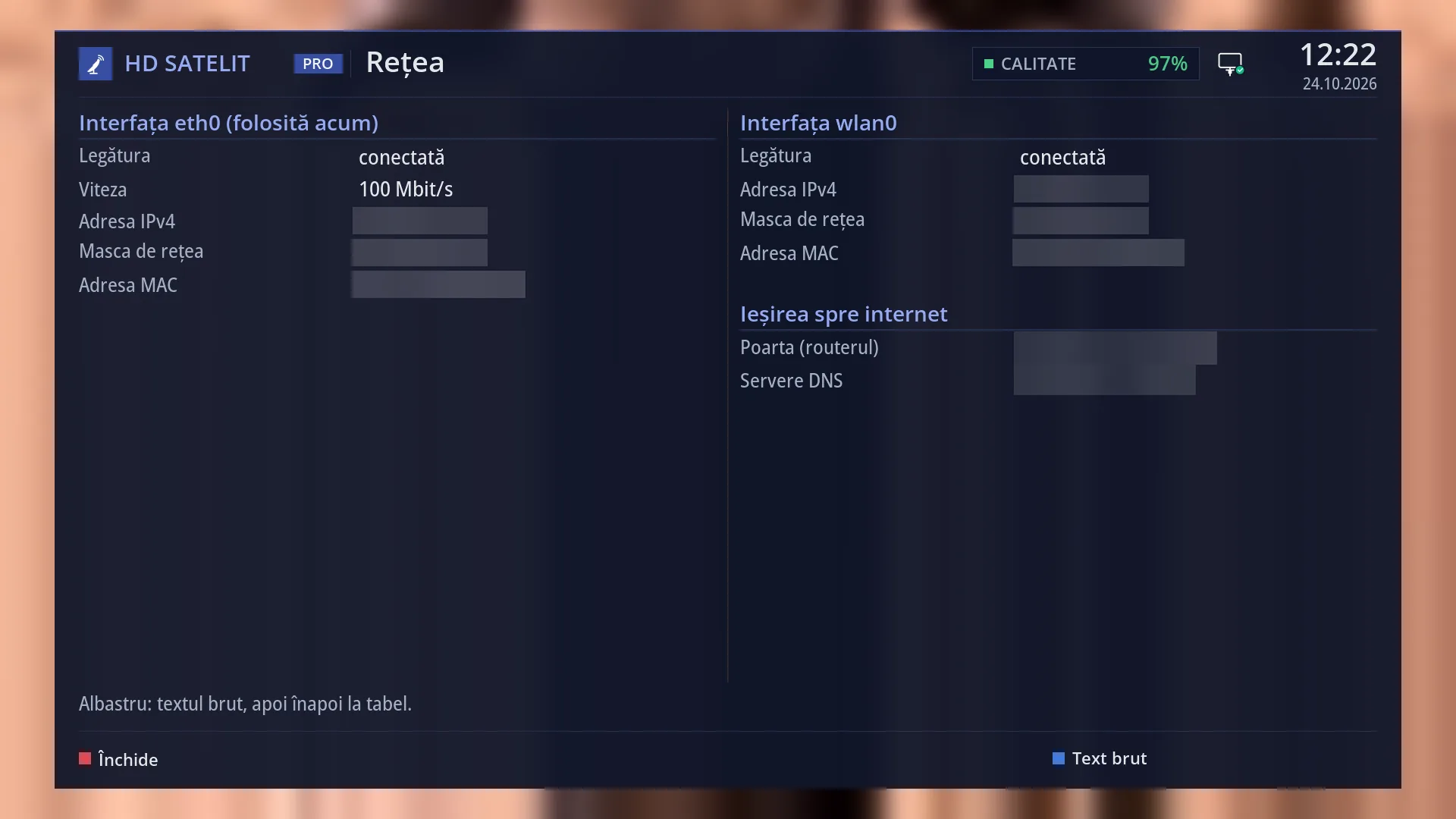
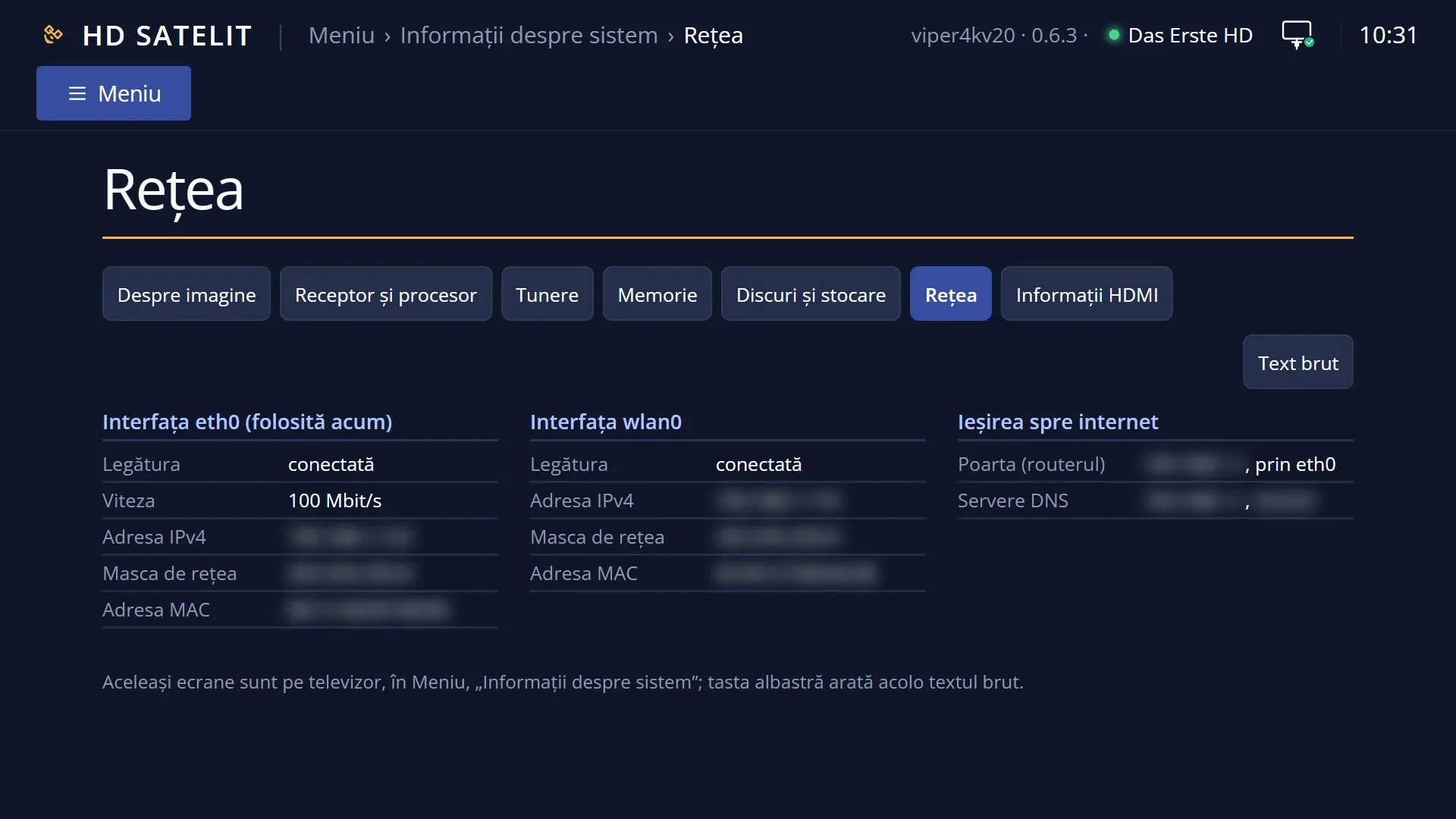
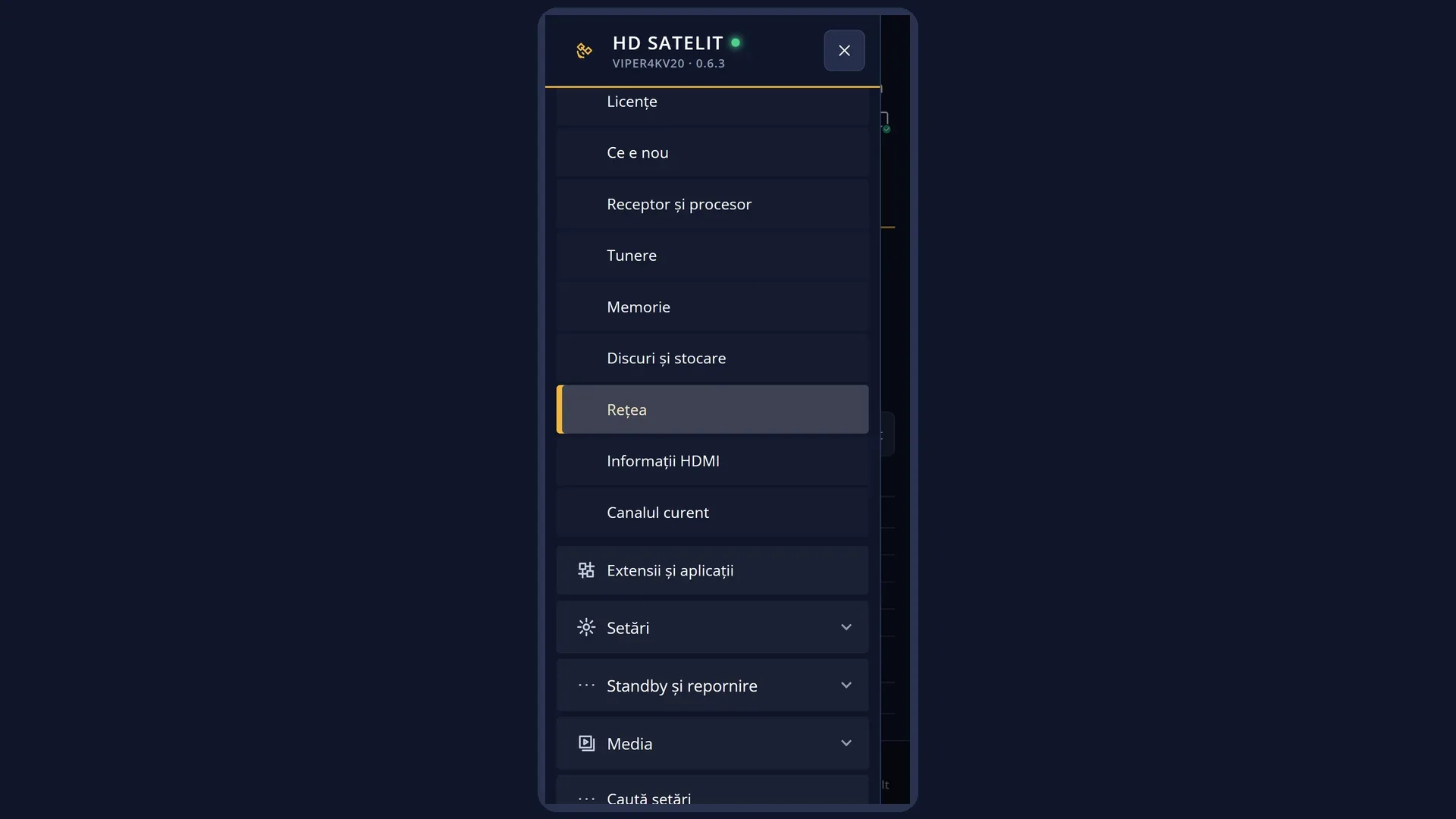
- 1 The card the internet is using right now: “(in use now)”.
- 2 Whether it is connected and at what speed.
- 3 The receiver's address and the netmask.
- 4 The card's fixed name (MAC).
- 5 The second card, here the Wi-Fi.
- 6 The router and the DNS servers the receiver uses to reach the internet.
- 7 BLUE: the raw text.
What it is for
“Network Status” shows at a glance how the receiver is connected: each network card (cable and Wi-Fi), whether it is connected, at what speed, what address it has and which one the internet is using right now. It then shows the router and the DNS servers the receiver uses to reach the internet.
Open it when you need the receiver's address (to open the web interface from your phone or computer), or when the receiver has no internet and you want to see where the connection stops: at the cable, the address, the router or the DNS.
This screen only displays information. You set up the network in Settings > Network & Internet (MENU 6 9). The same rows are also in the web interface, on the /informatii/retea page.
How to get here
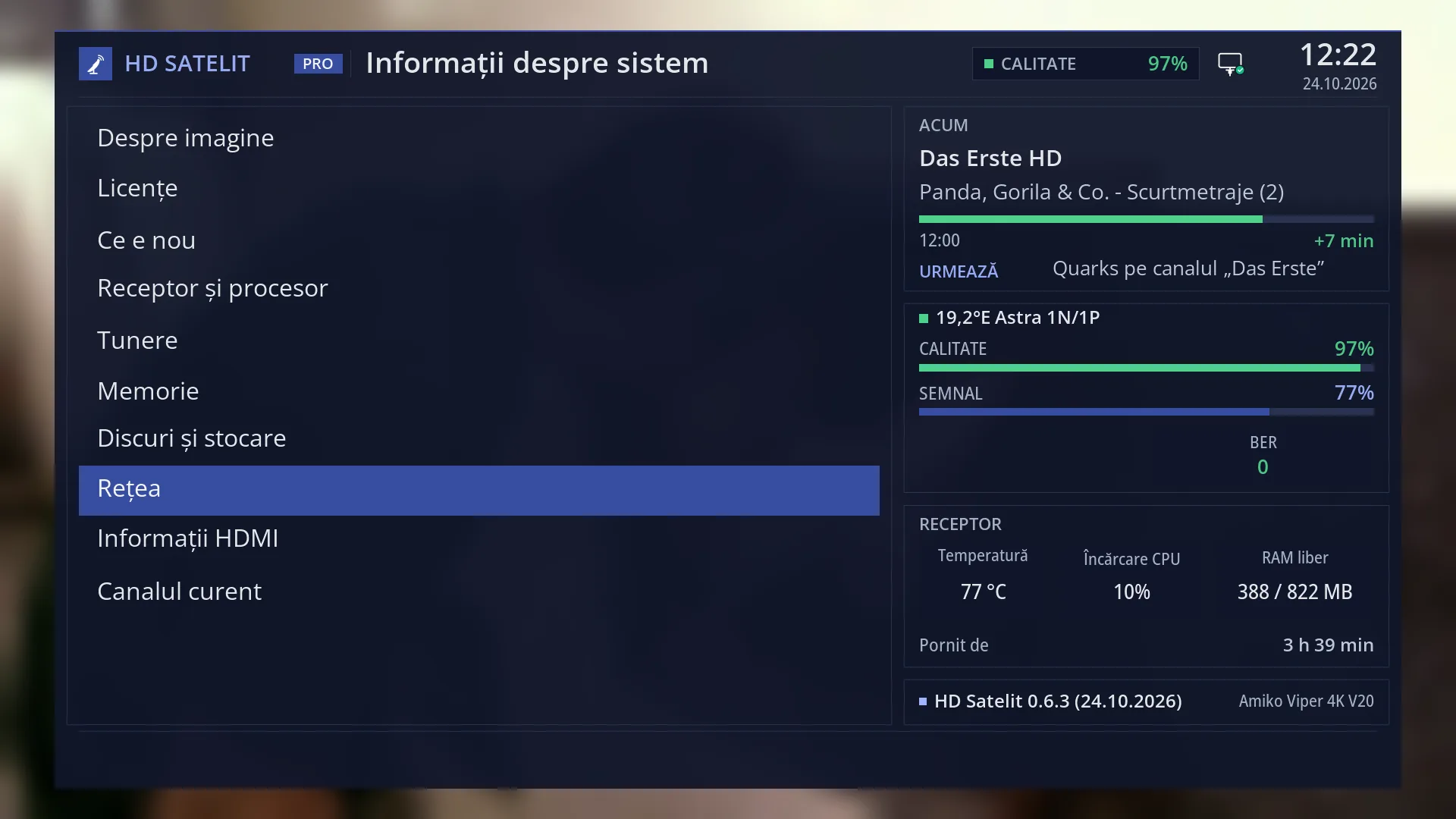
Path: Main menu > System Information > Network Status.
Keys on the TV: MENU 4 8. In safe mode the first row of the submenu is “Safe mode”, so the keys are MENU 4 9.
In the web interface: the /informatii/retea page (the “Network Status” tab in /informatii).
What you see on the screen
At the top: the title “Network Status”, the clock and the date. In the Pro theme you also see “HD SATELIT PRO”, the signal quality and the network icon (it shows whether the receiver has internet).
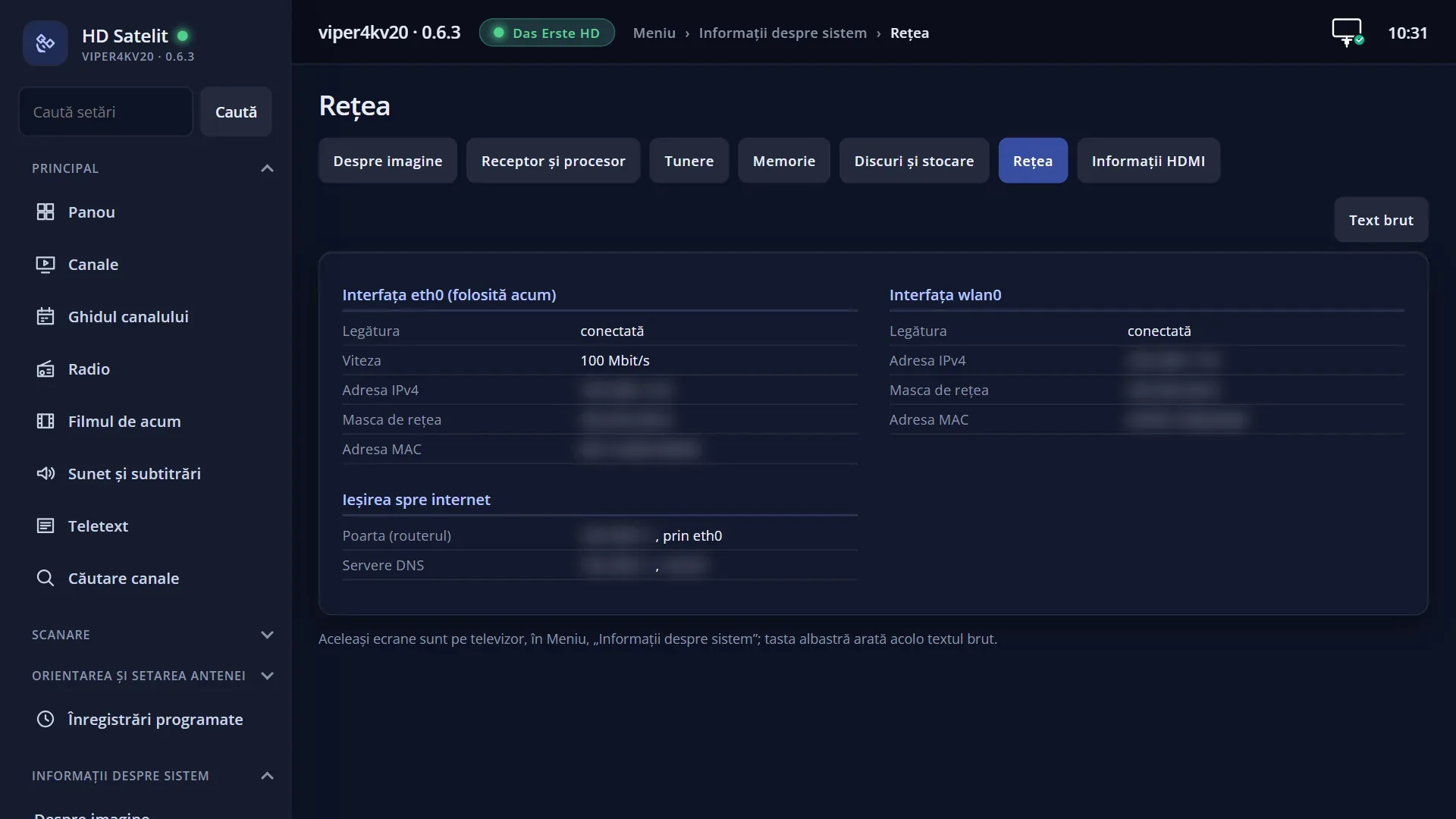
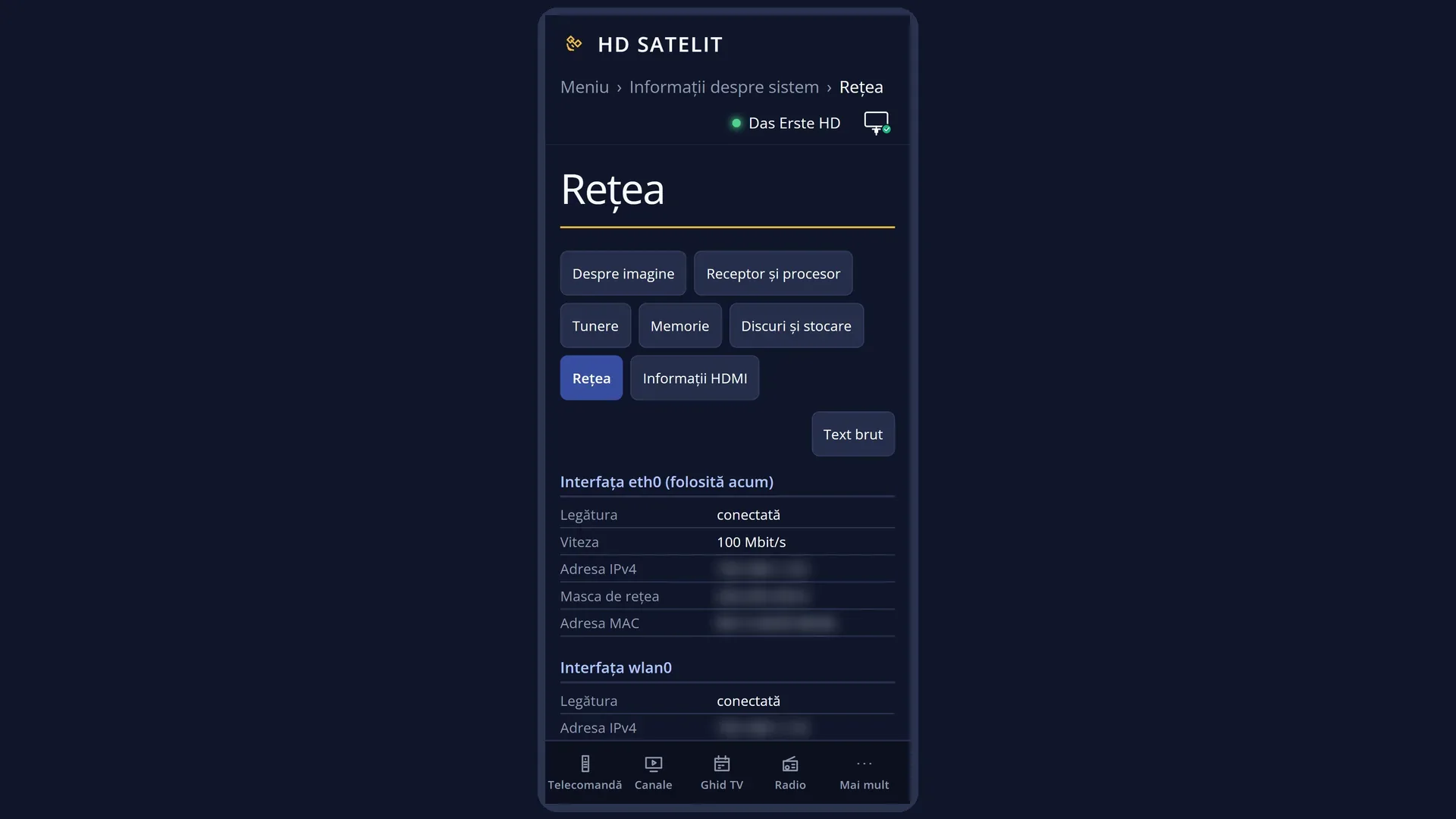
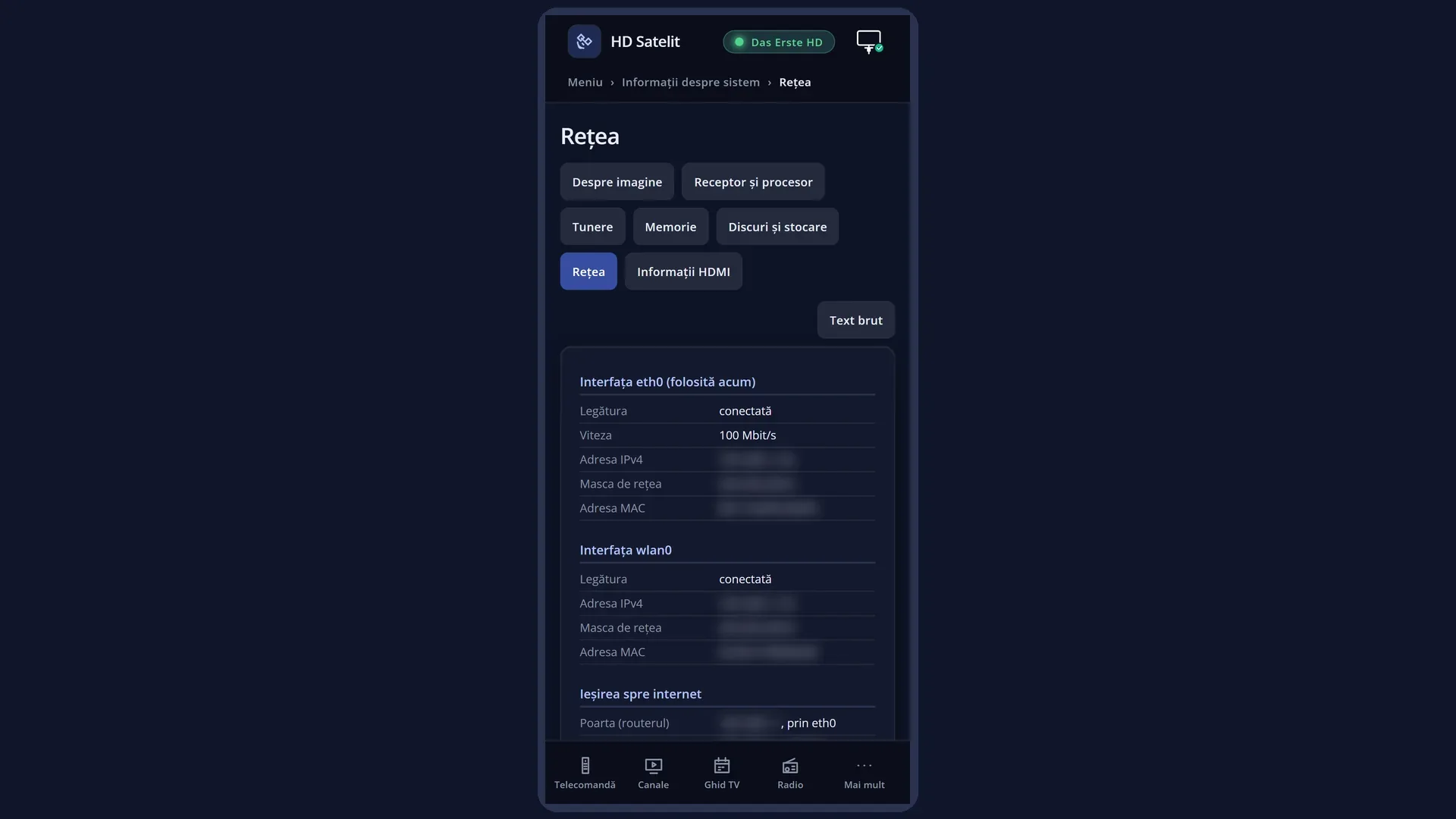
One group for each network card, with its system name: “Interface eth0” is the cable, “Interface wlan0” is the Wi-Fi. The card the internet is using right now has “(in use now)” in its title. When the VPN is on, its interface also appears (hdsvpn0 or hdsvpn1).
In each group: “Link” (connected or disconnected), “Speed” (only for cards that report it, usually the cable), “IPv4 address”, “Netmask” and “MAC address”. The address and netmask are missing when the card has no address.
The last group, “Way to the internet”: “Gateway (router)”, with the router's address and the card used to reach it, and “DNS servers”.
The screen shows only IPv4 addresses. IPv6 addresses do not appear here.
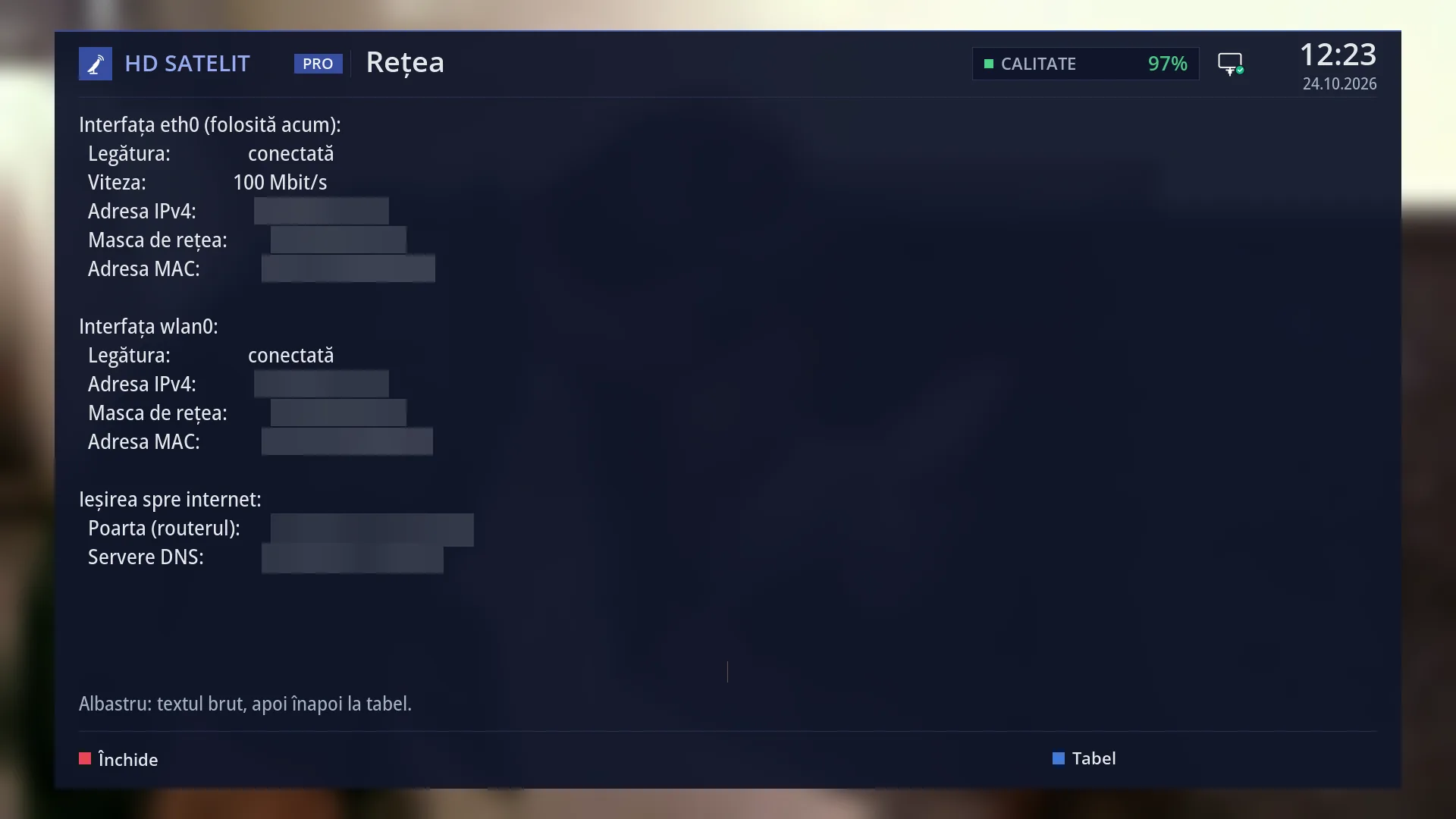
Below the table: “Blue: raw text, then back to the table.” At the bottom, the keys RED “Close” and BLUE “Raw text”.
The screen reads the information once, when it opens. After a change in the network, close it and open it again.
In the web interface, on /informatii/retea: the same groups, with the tabs of the other screens at the top and the “Raw text” button.
Rows and settings
| Row | Values | Default | What it does |
|---|---|---|---|
| Interface … (group title) | eth0 (the cable), wlan0 (Wi-Fi), hdsvpn0 or hdsvpn1 (the VPN, when it is on) | The name of the network card as the system knows it. “(in use now)” is shown next to the card that currently carries the route to the router, that is, the internet. The system's internal card is not shown. | |
| Link | connected, disconnected | Whether the card is connected. For the cable: the cable is plugged in and the device at the other end (usually the router) is switched on. For Wi-Fi: the receiver is connected to a Wi-Fi network. The screen shows “connected” only when the card reports that the link is up. | |
| Speed | for example “100 Mbit/s” | The speed of the cable link agreed between the receiver and the router (not the internet speed). The row appears only for cards that report it. For Wi-Fi it is usually missing. | |
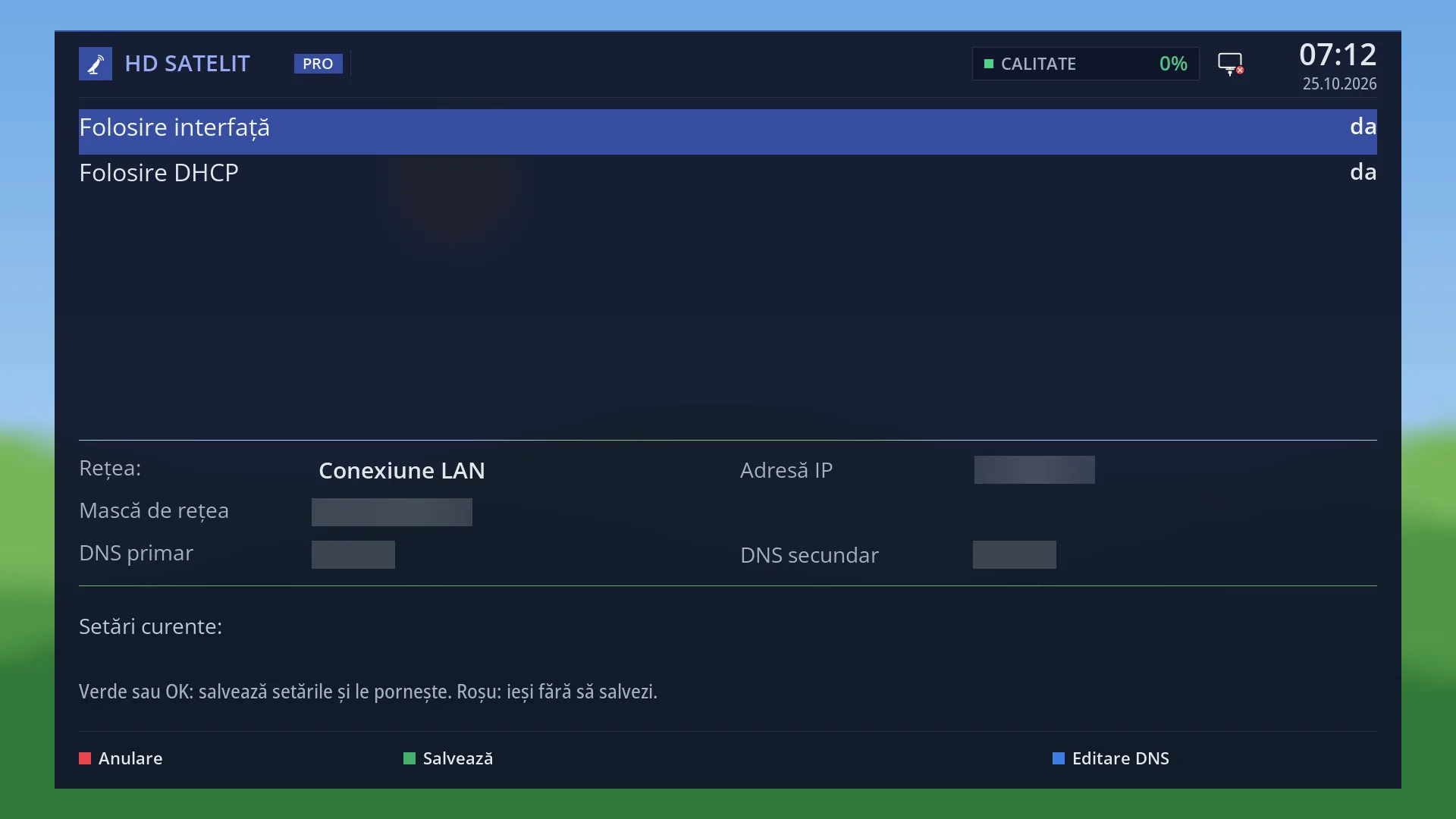
| IPv4 address | for example “192.168.1.50” | The receiver's address in your home network. You use it to open the web interface: in the browser, type http:// followed by the address. It is missing when the card has no address (cable unplugged, Wi-Fi not connected, or the router has not given an address). You choose the address in Settings > Network & Internet > Network Connection Setup (MENU 6 9 1): from the router or typed in by hand. | |
| Netmask | four numbers separated by dots | How big your home network is, that is, which addresses are “at home” as opposed to those on the internet. Usually the router sets it and you do not need to worry about it. | |
| MAC address | six pairs of digits and letters | The fixed name of the network card, given by the manufacturer. You only need it if you want the router to always give the receiver the same address, or to let it into the network from a list. | |
| Gateway (router) | the router's address, “via eth0” or “via wlan0”, “not set” | The router the receiver uses to reach the internet and the card it uses to reach the router. “not set” means the receiver knows no route to the internet. | |
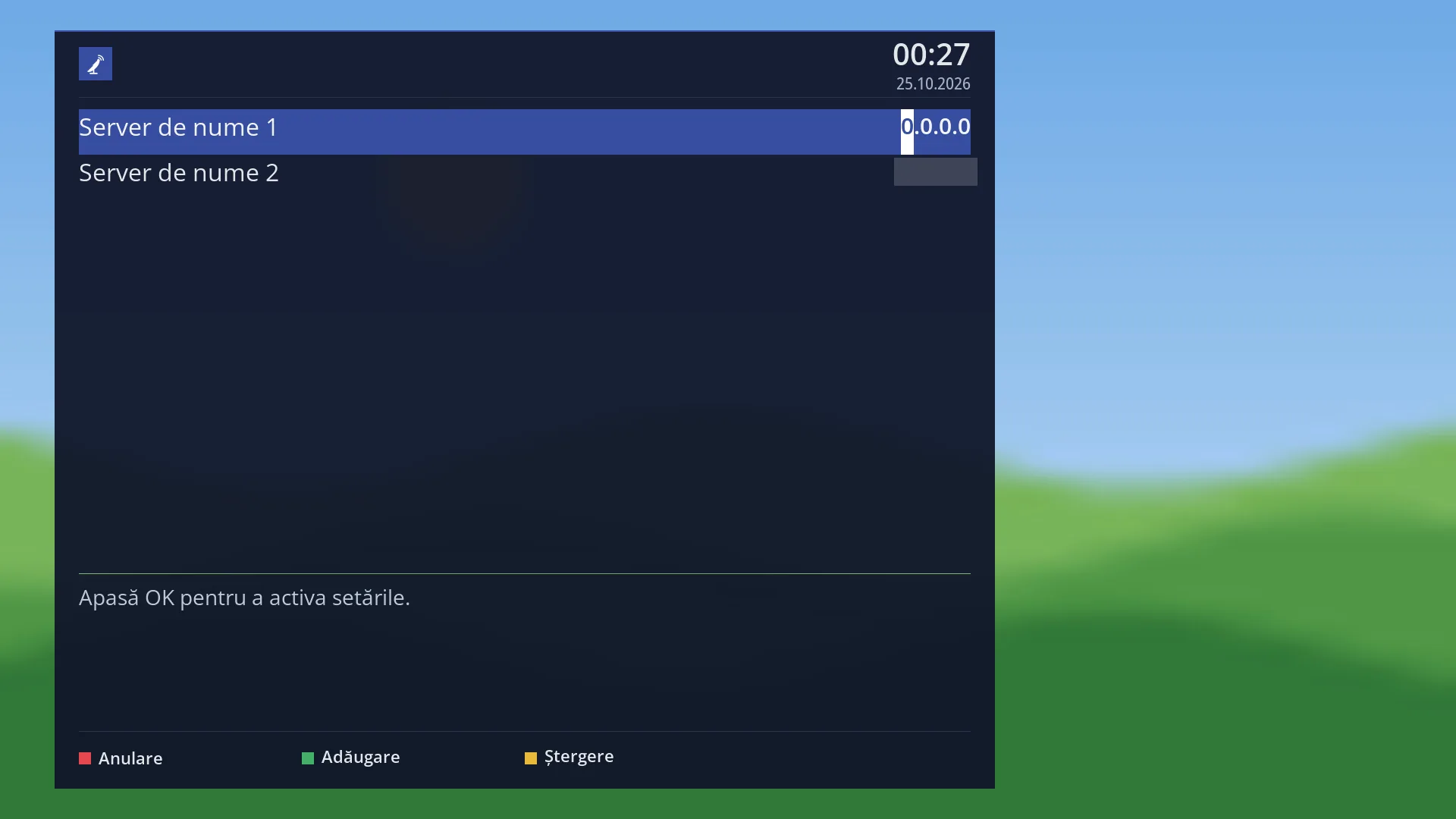
| DNS servers | one or more addresses, “none set” | The servers that turn website names into addresses. Without them the receiver cannot find any website by name, even though it is connected. You choose them in Settings > Network & Internet > DNS Server Settings (MENU 6 9 7, with “Setup Mode” set to Intermediate or Expert). |
Keys
| BLUE | Switches from the table to the raw text and back. On screen the key reads “Raw text” or “Table”. |
| UP / DOWN, CH+ / CH- | When everything does not fit on one page (many network cards): UP or CH+ for the previous page, DOWN or CH- for the next page. |
| RED, OK or EXIT | Close the screen and take you back to the “System Information” submenu. |
| GREEN / YELLOW | Do nothing here. |
Step by step
Find the receiver's address to open the web interface
- Press MENU 4 8.
- In the group marked “(in use now)”, read the “IPv4 address”, for example 192.168.1.50.
- On a phone or computer on the same network, type http://192.168.1.50 in the browser (with your own address).
Find out why the receiver has no internet
- Press MENU 4 8 and go through the groups one by one: “Link” must be “connected” and the card must have an “IPv4 address”.
- Under “Way to the internet”, “Gateway (router)” must have an address and “DNS servers” must have at least one.
- Wherever something is missing, go to Settings > Network & Internet: Network Connection Setup for the cable, Wi-Fi and address, DNS Server Settings for DNS, then Internet check.
See whether the receiver is using the cable or Wi-Fi
- Press MENU 4 8.
- The card with “(in use now)” in its title is the one the internet is using: eth0 is the cable, wlan0 is the Wi-Fi.
Problems and solutions
eth0 shows “Link: disconnected”.
The cable is not plugged in properly or the router at its other end is switched off. Plug the cable in again at both ends and open the screen again.
The card is “connected” but has no “IPv4 address”.
The router has not given it an address yet. Wait a few seconds and open the screen again. If that does not help, in Network Connection Setup (MENU 6 9 1) set the address to “from the router” or type one in by hand.
“Gateway (router)” says “not set”.
The receiver does not know the route to the internet. If the address is typed in by hand, also type in the gateway (the router's address) in Network Connection Setup. Otherwise set the address to “from the router”.
“DNS servers” says “none set”.
The receiver cannot find websites by name. Choose the servers in Settings > Network & Internet > DNS Server Settings, or let them come from the router.
The Wi-Fi is “connected”, but “(in use now)” is shown next to the cable.
The internet uses only one card, the one marked “(in use now)”. The other can be connected at the same time without being used. This is normal.
The VPN interface shows “disconnected”, even though the VPN is working.
The screen shows “connected” only when the card reports that the link is up, and VPN cards usually do not report this. If the interface has an “IPv4 address”, the VPN is on. Its real status is in the VPN screen (MENU 6 9 9).
I cannot see the “Speed” row for Wi-Fi.
This is normal: the row appears only when the card reports its speed, usually only for the cable.
Related topics
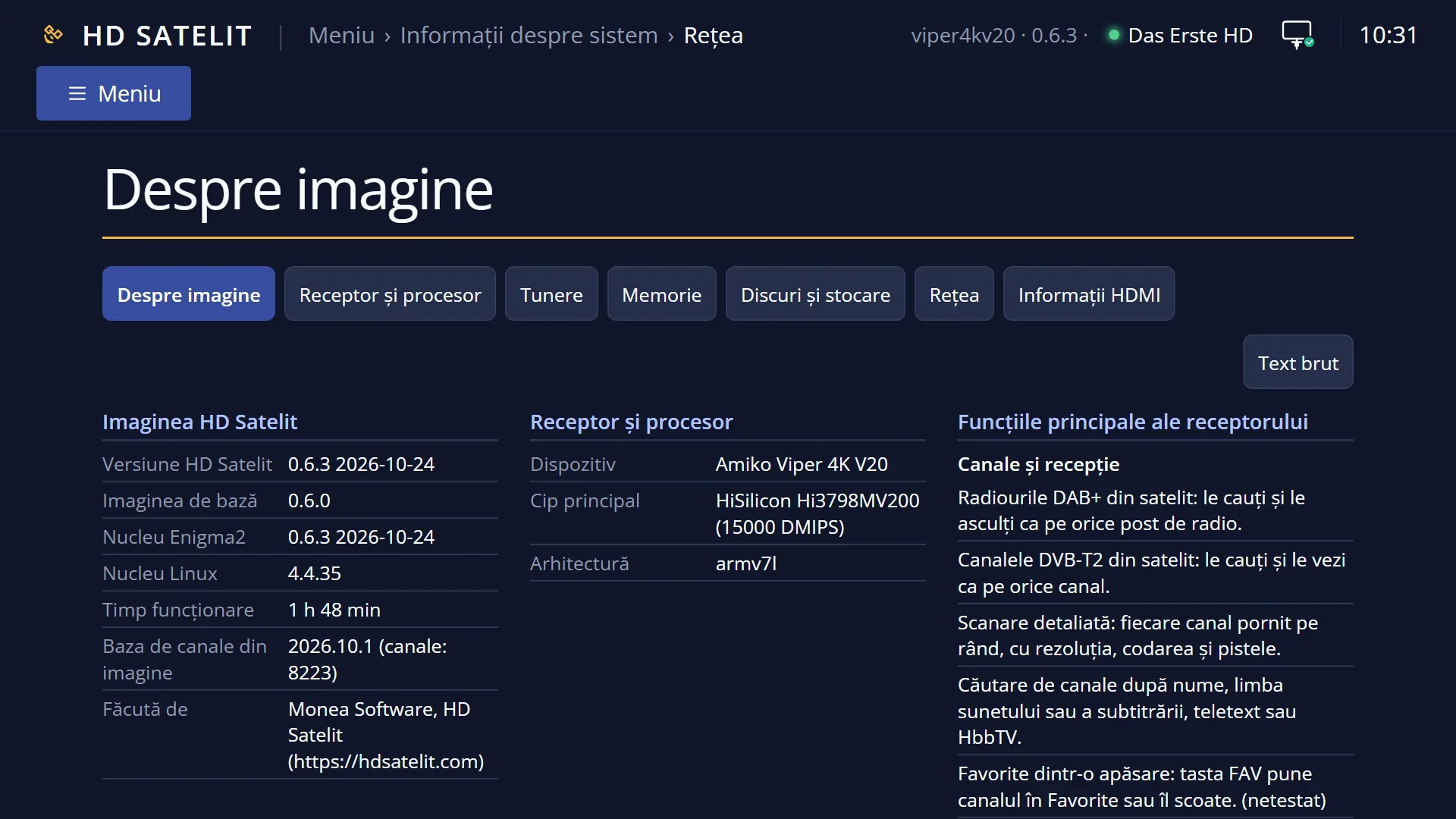
- System Information
- Network & Internet
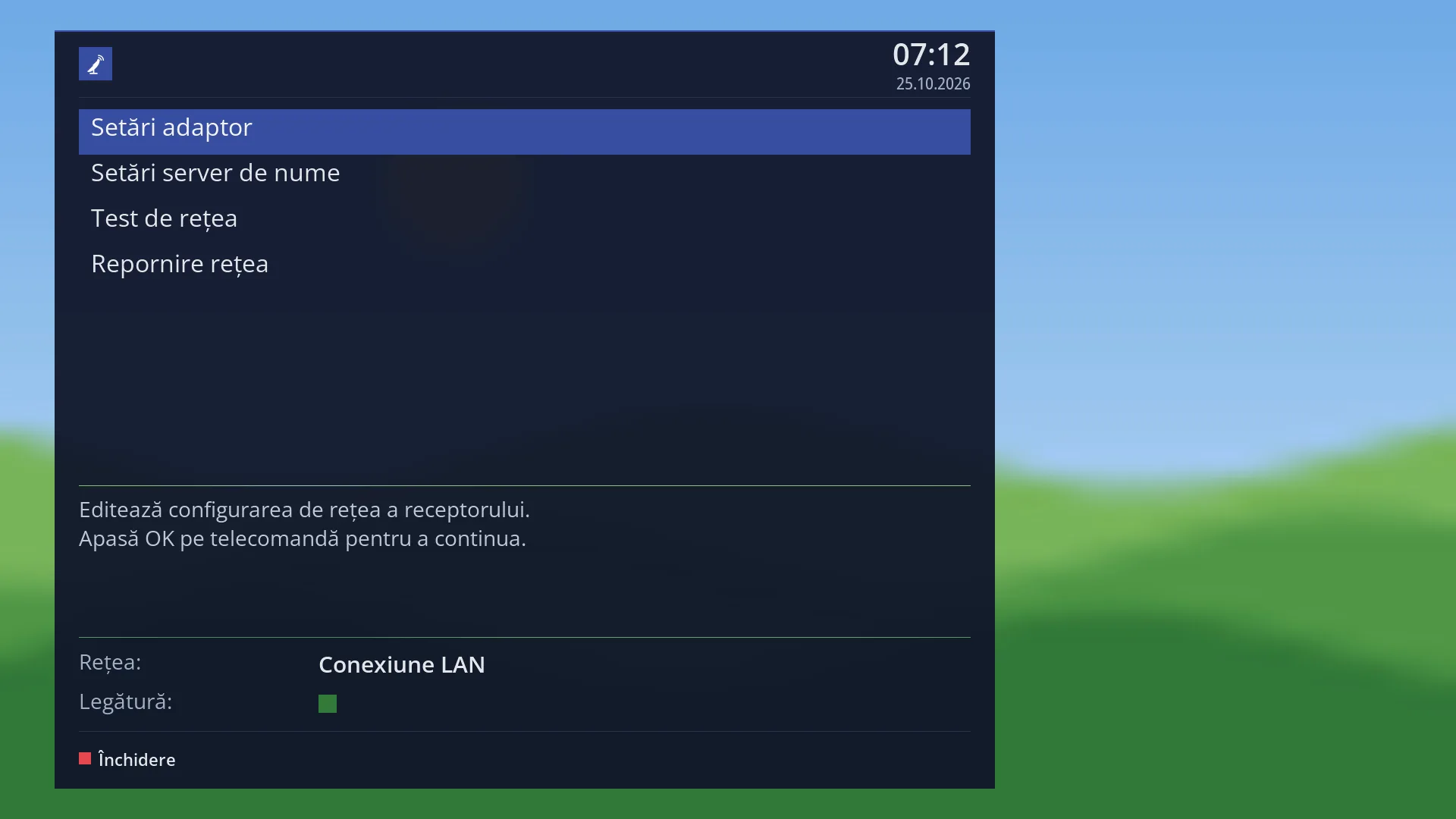
- Network Connection Setup
- Internet check
- DNS Server Settings
- Switch to another network by itself
- VPN
- Which devices are on the network
- Web interface: settings on the receiver
- Matching web page: /informatii/retea (and /retea for settings)