

System Information
English screenshots coming: some of the pictures below still show the receiver and the web interface in Romanian. The rows, keys and steps described on this page are the English ones.
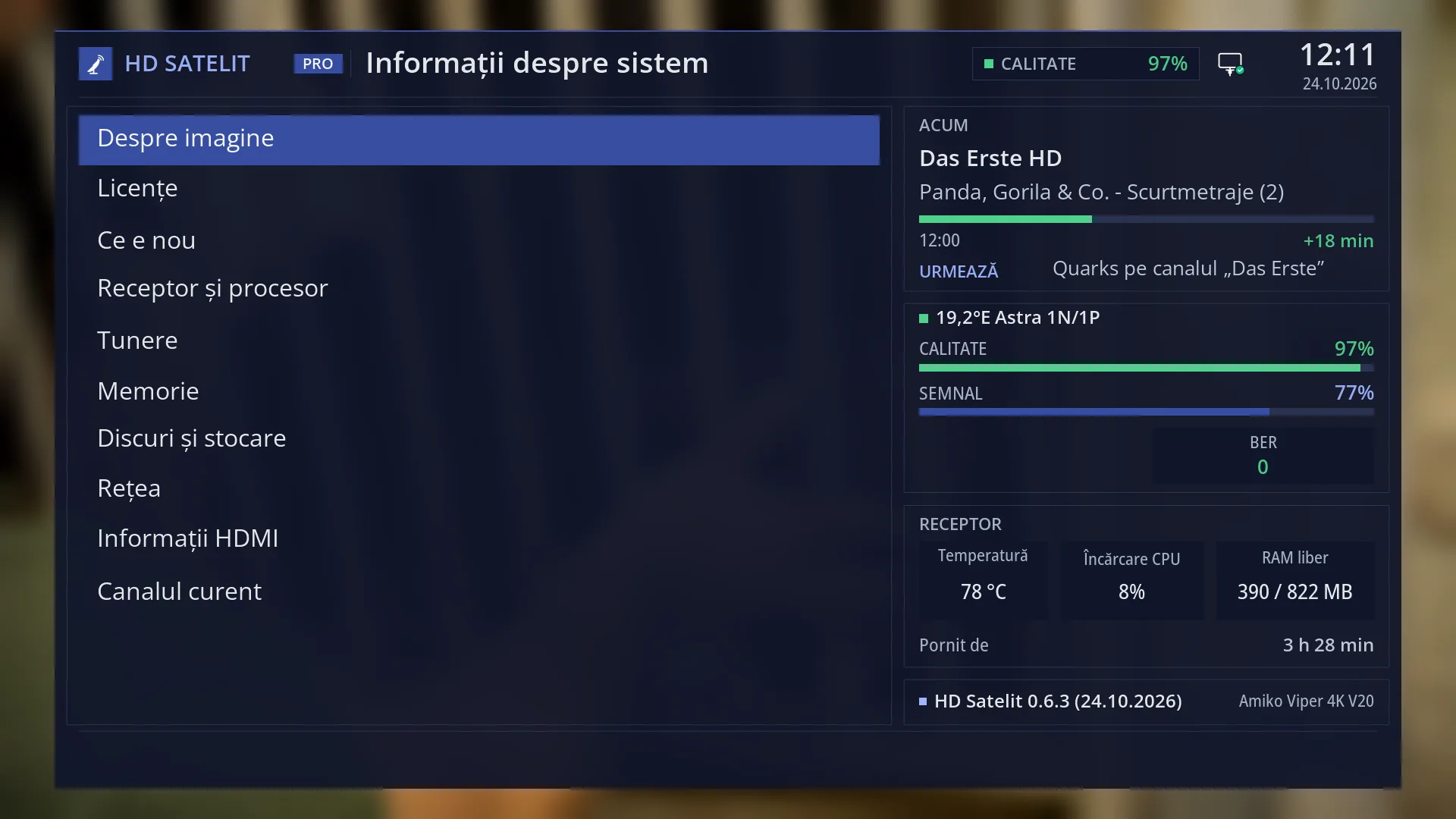
- 1 The selected row.
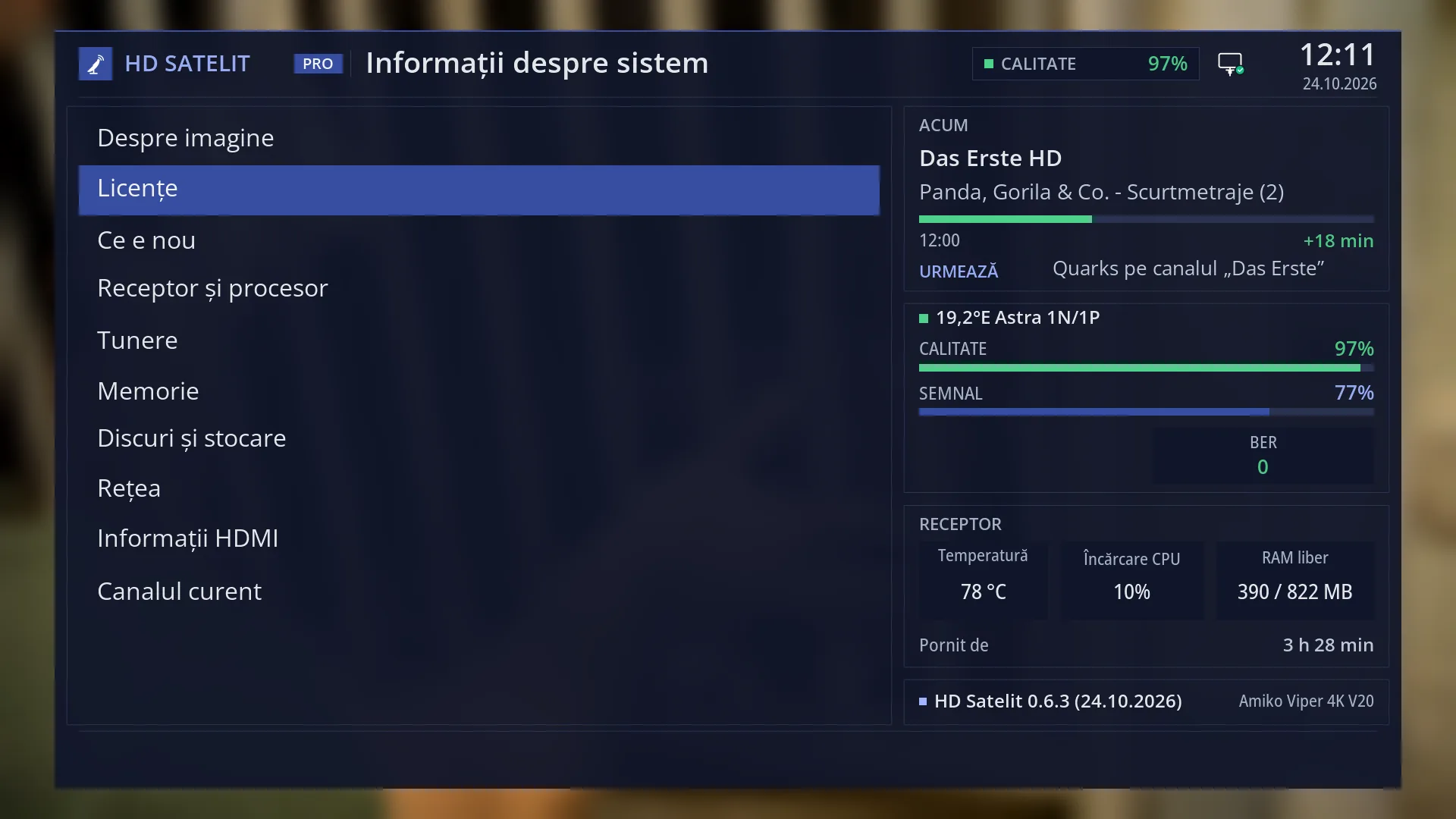
- 1 The selected row: “Licenses”.
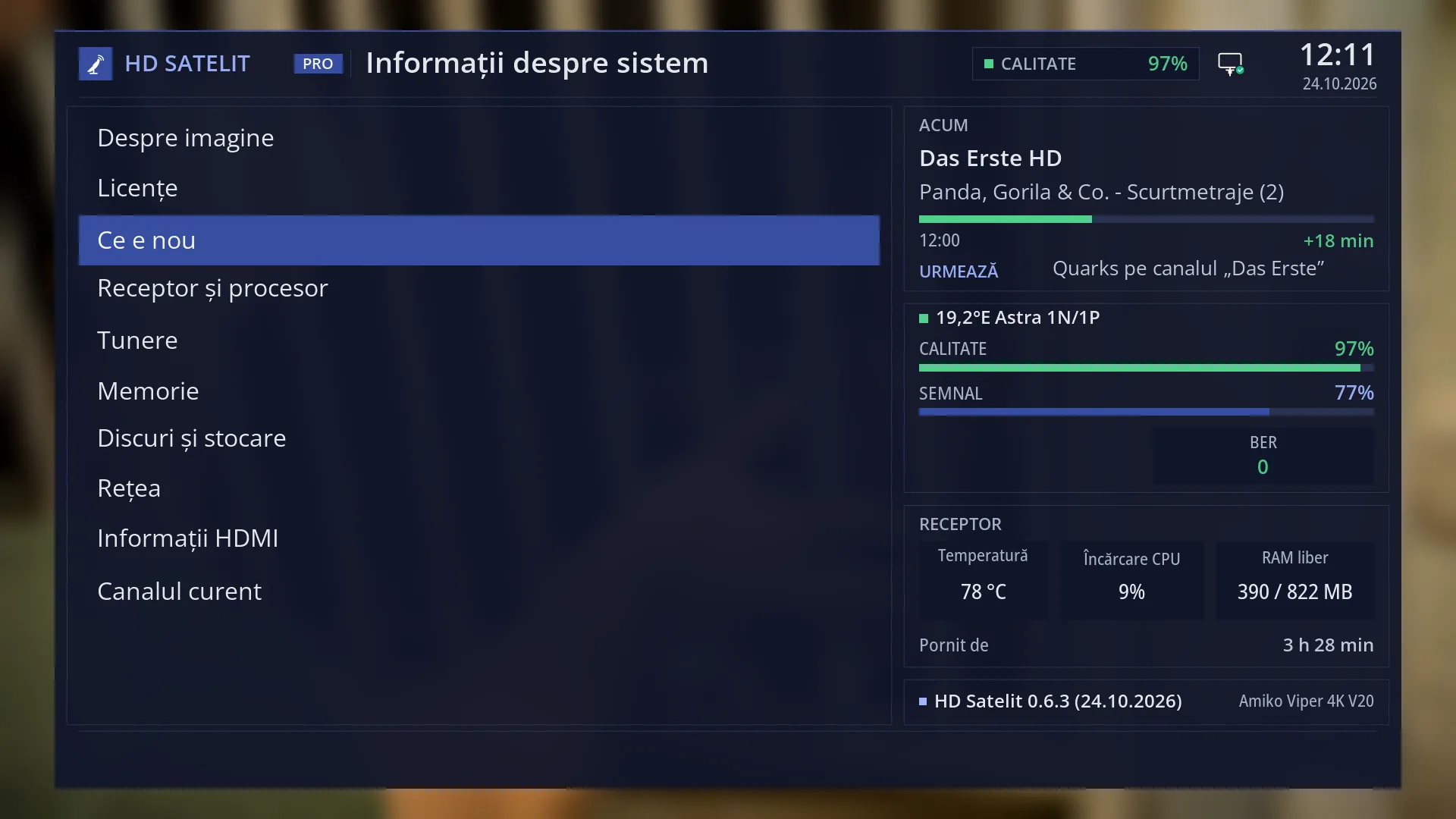
- 1 The selected row: “What's new”.
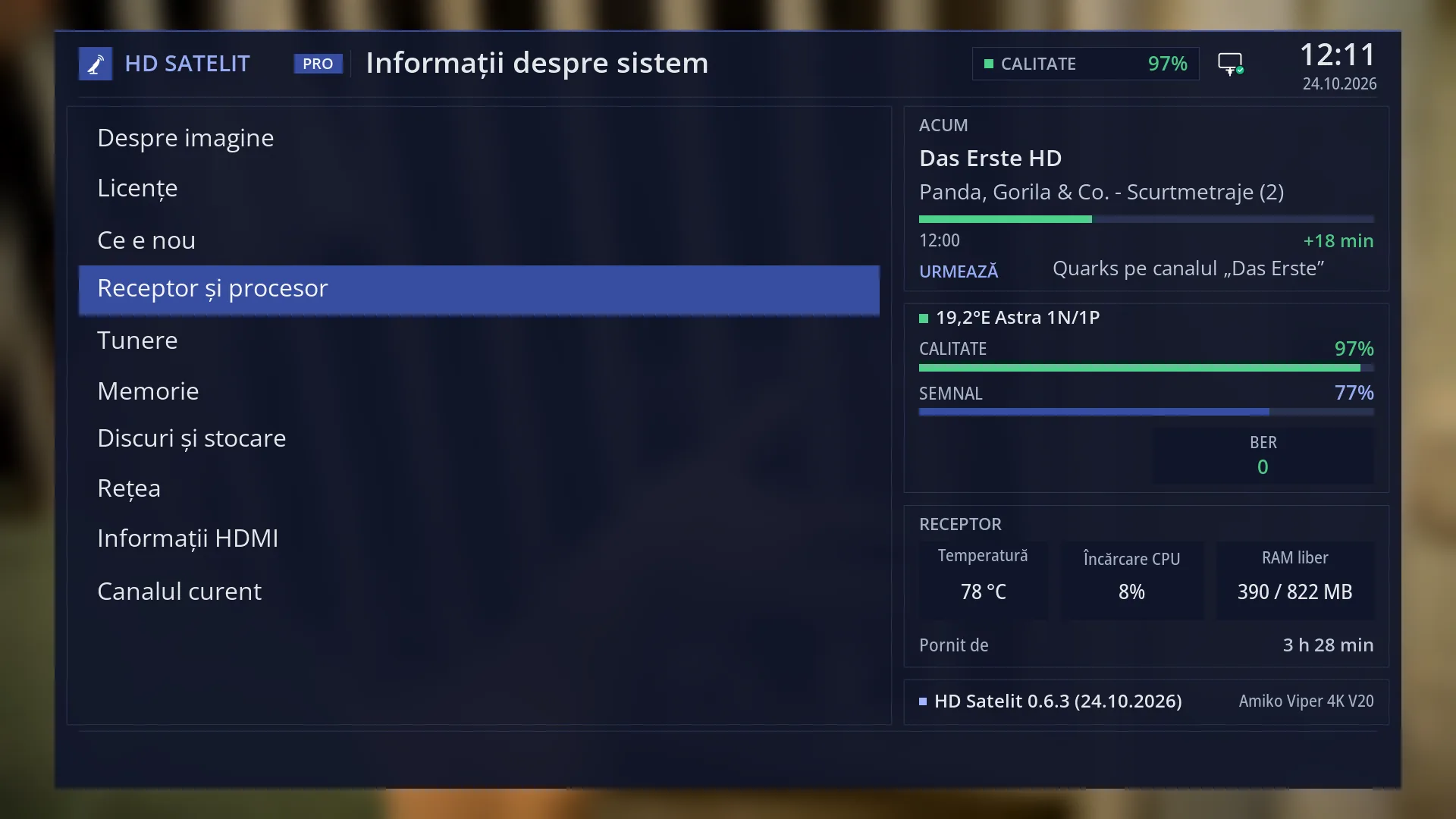
- 1 The selected row: “Device & Hardware”.
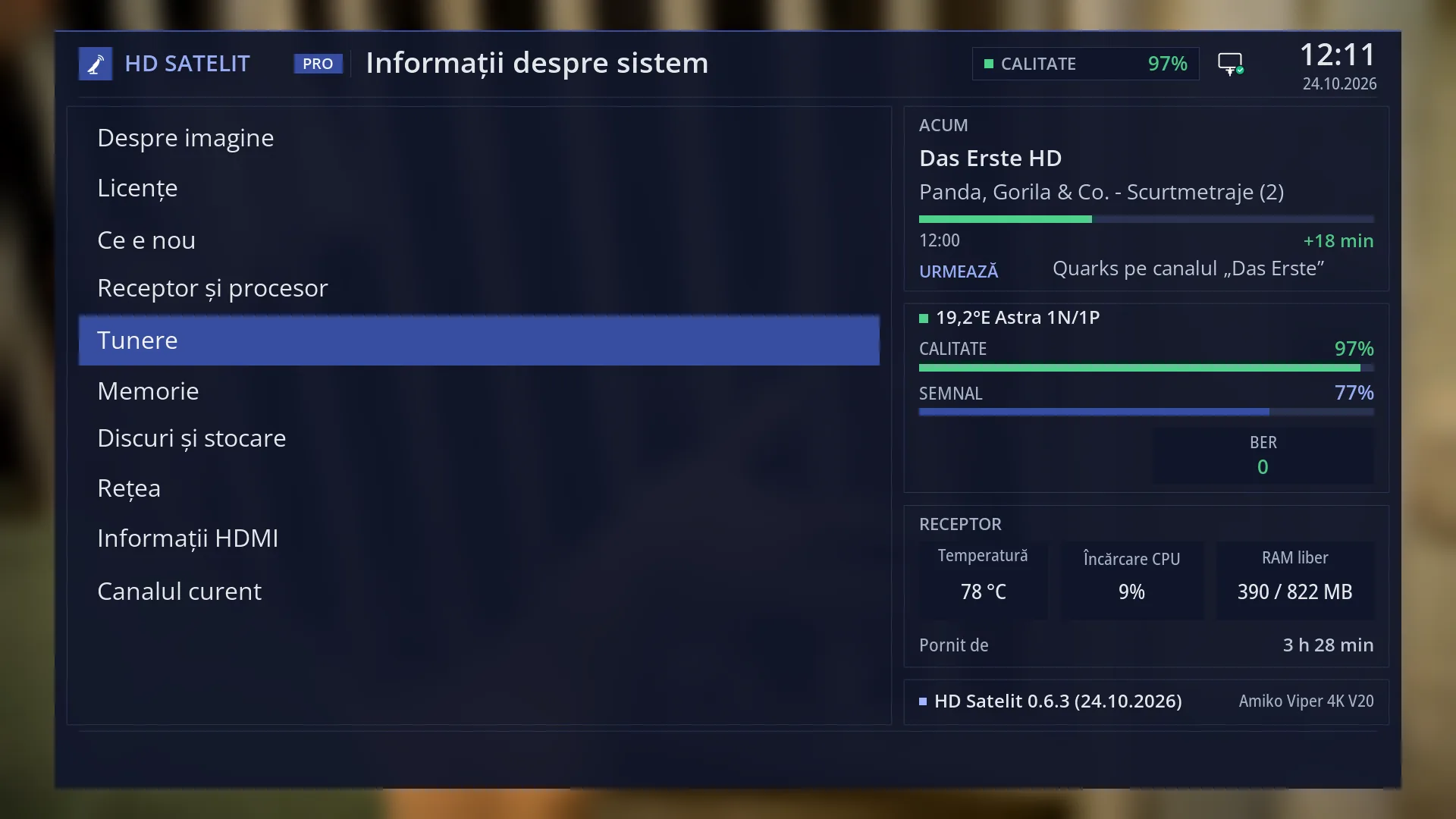
- 1 The selected row: “Tuner Overview”.
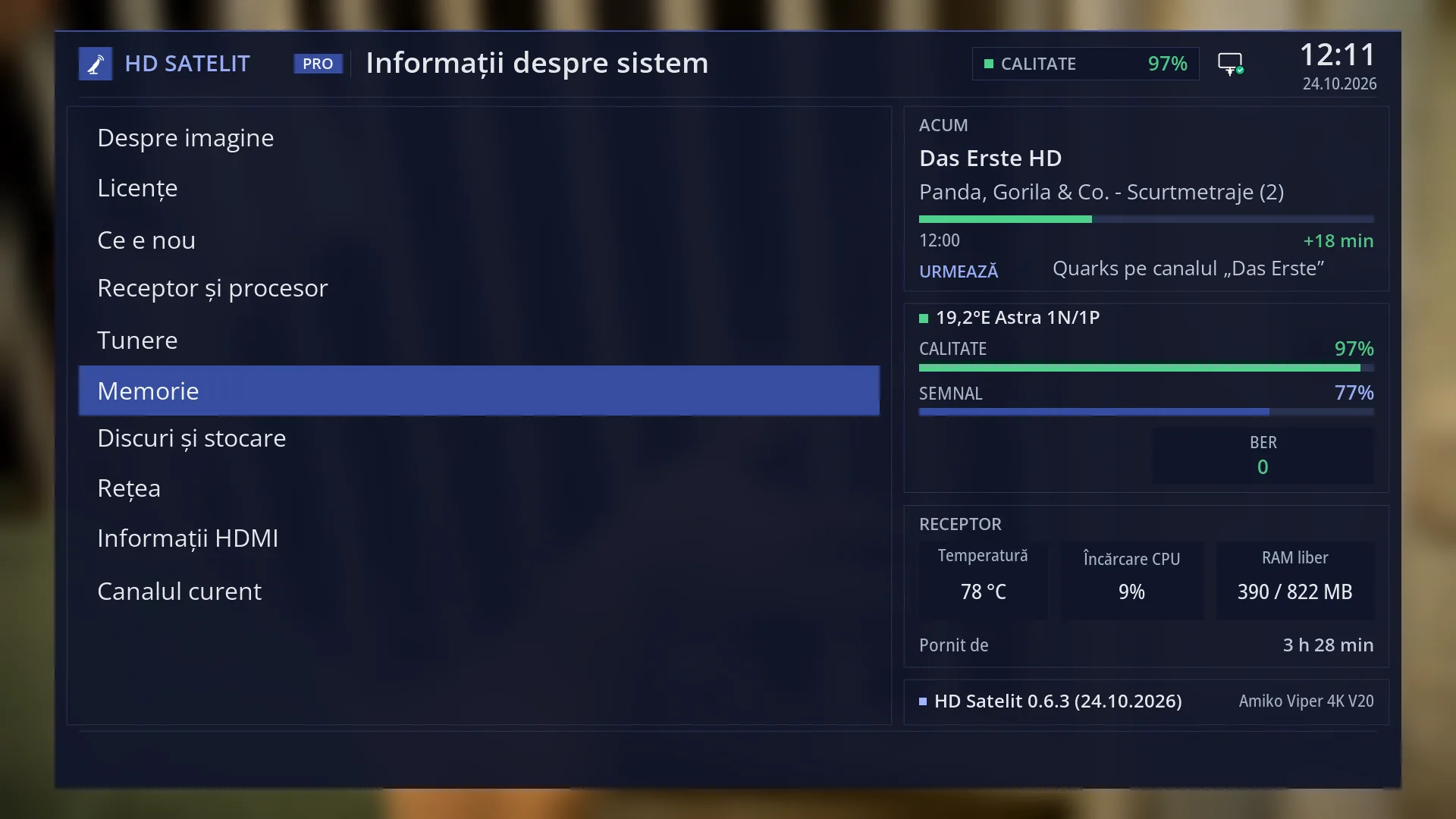
- 1 The selected row: “Memory Status”.
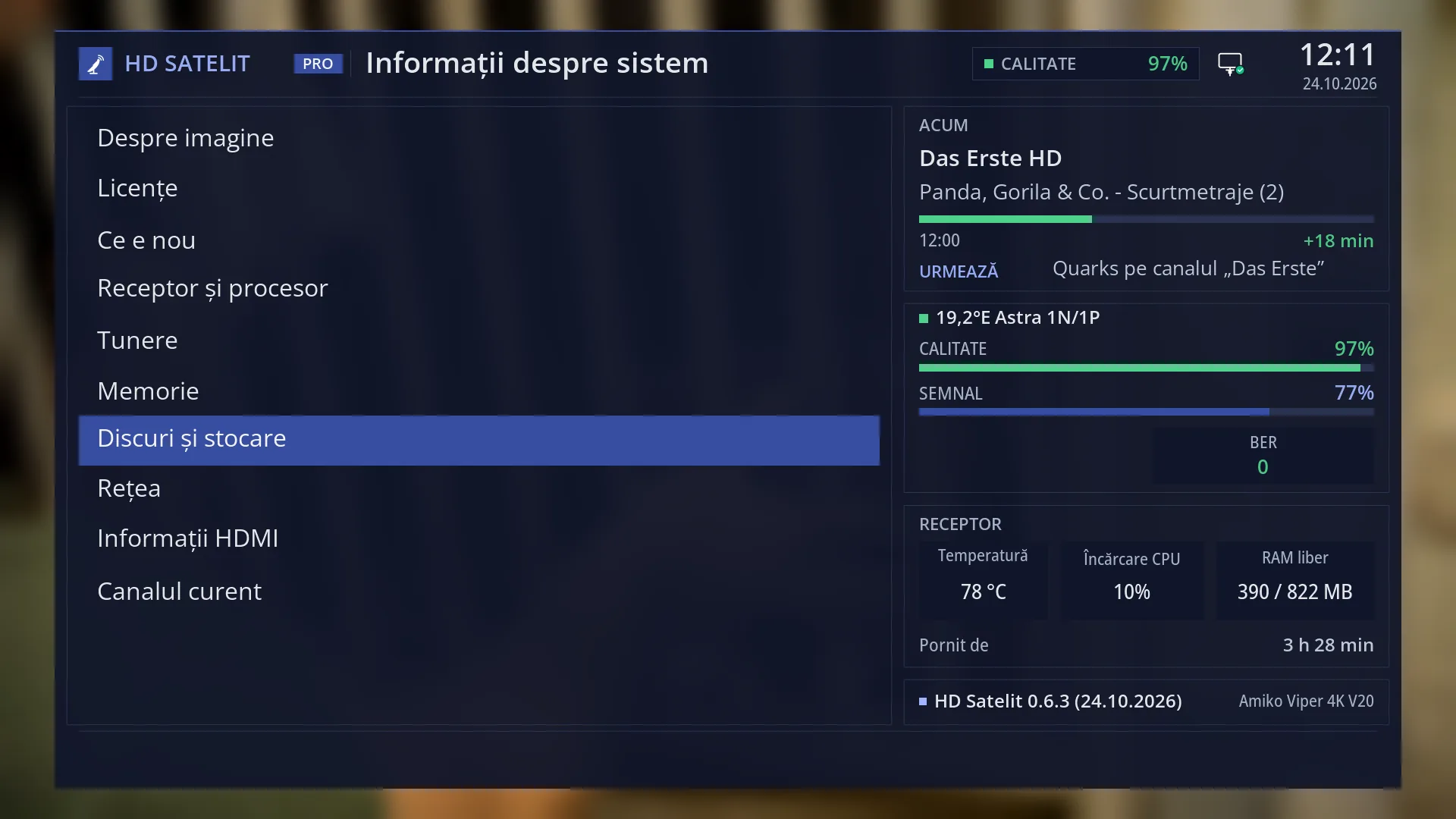
- 1 The selected row: “Storage & Disks”.
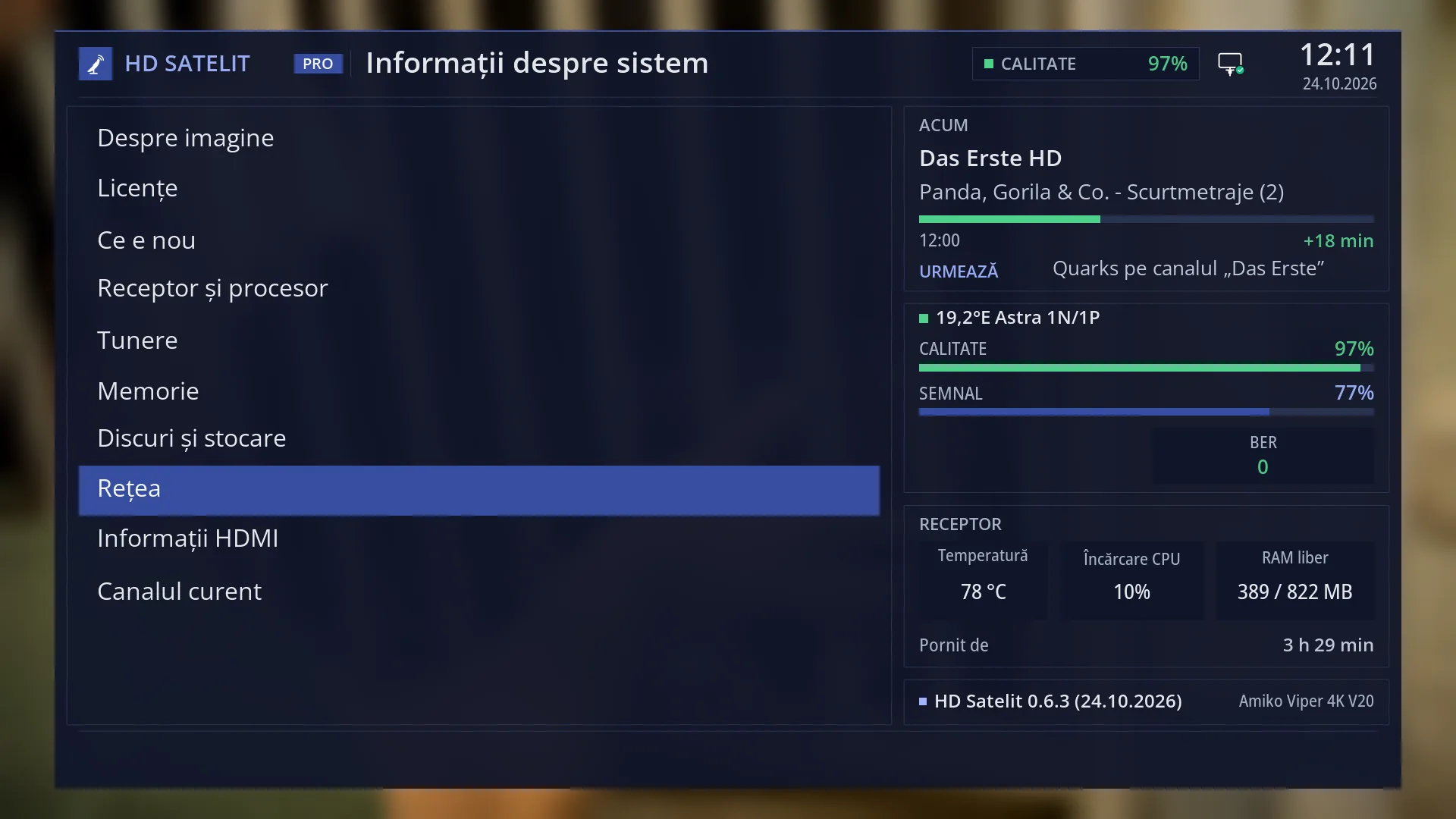
- 1 The selected row: “Network Status”.
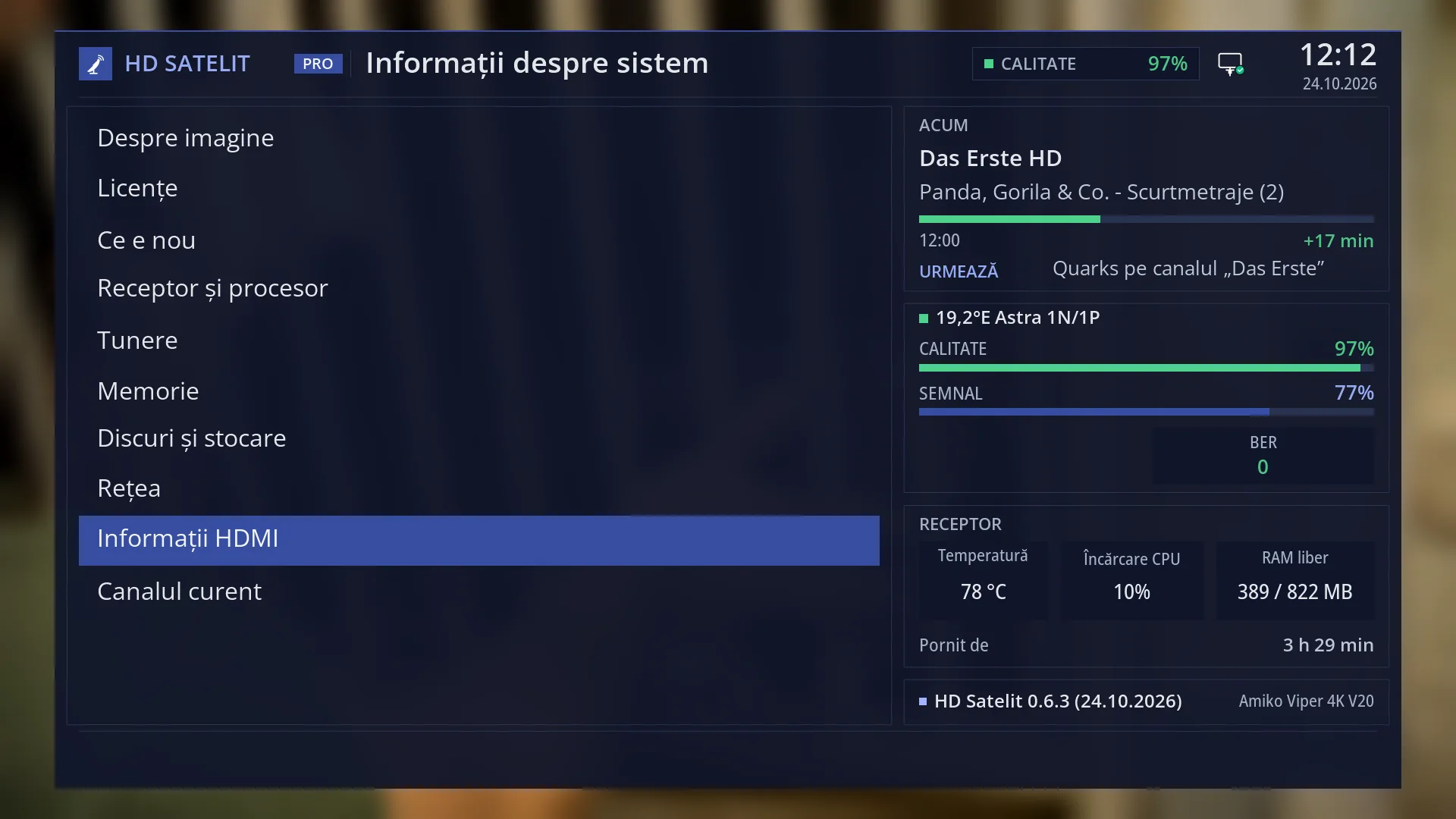
- 1 The selected row: “HDMI Information”.
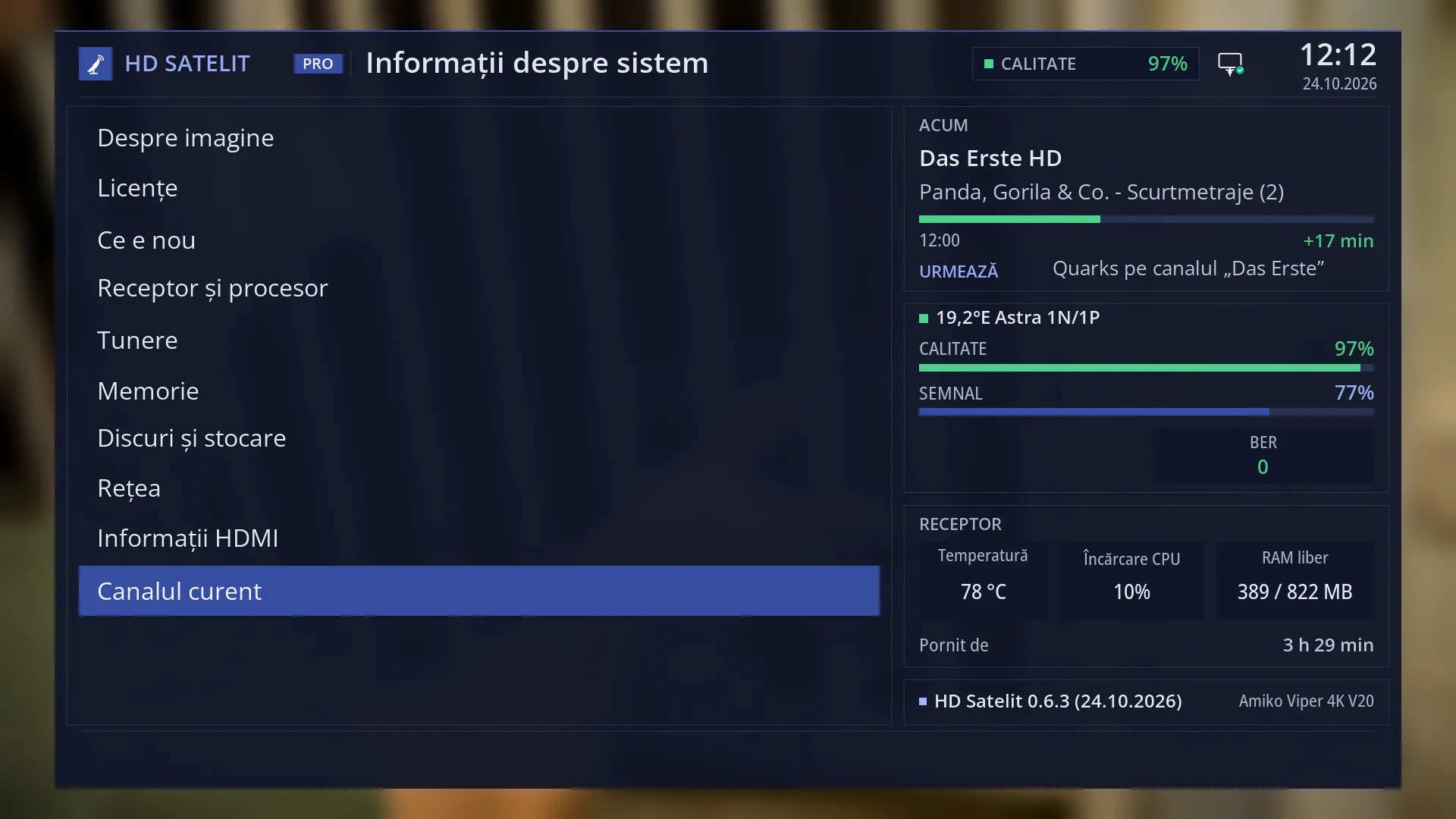
- 1 The selected row: “Channel Information”.
What it is for
The “System Information” submenu brings together everything the receiver can tell you about itself: which version of the image it runs, what is new in it, the software licences, the processor, the tuners, the memory, the disks and USB sticks, the network, what the TV receives over HDMI and the technical data of the current channel.
You cannot change anything here: every screen in this submenu only shows information. Open it when you want to check the version before an update, see whether the receiver has recognised a USB stick or a disk, check whether it is connected to the network or how hot the processor is, or when someone asks for your receiver's details so they can help you.
The “About the image”, “Device & Hardware”, “Tuner Overview”, “Memory Status”, “Storage & Disks” and “Network Status” screens show the information as a two-column table, with headings for each group. On each of them, the BLUE key switches to raw text (the same content as plain text, easy to copy or to read out to someone on the phone) and back to the table.
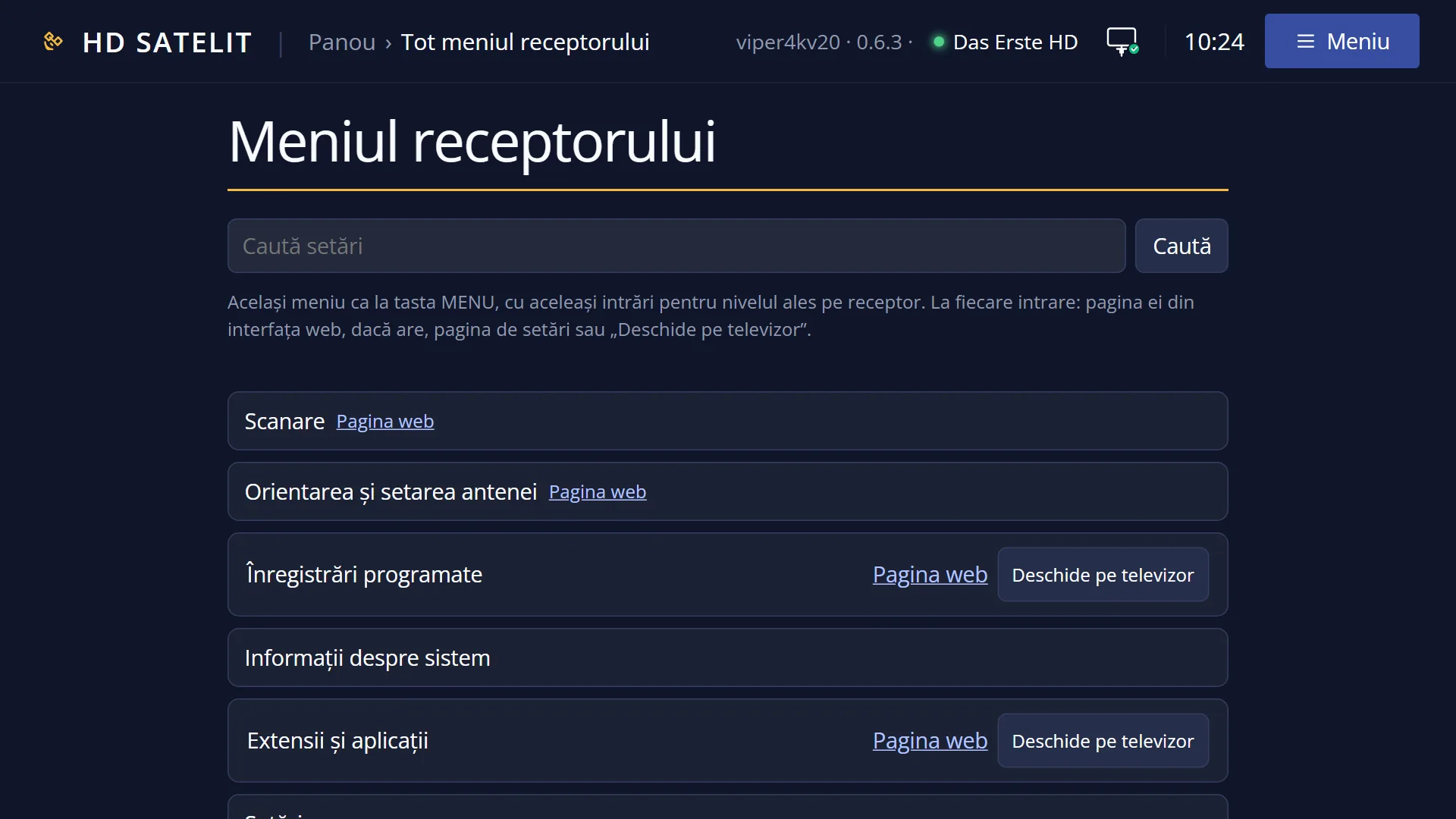
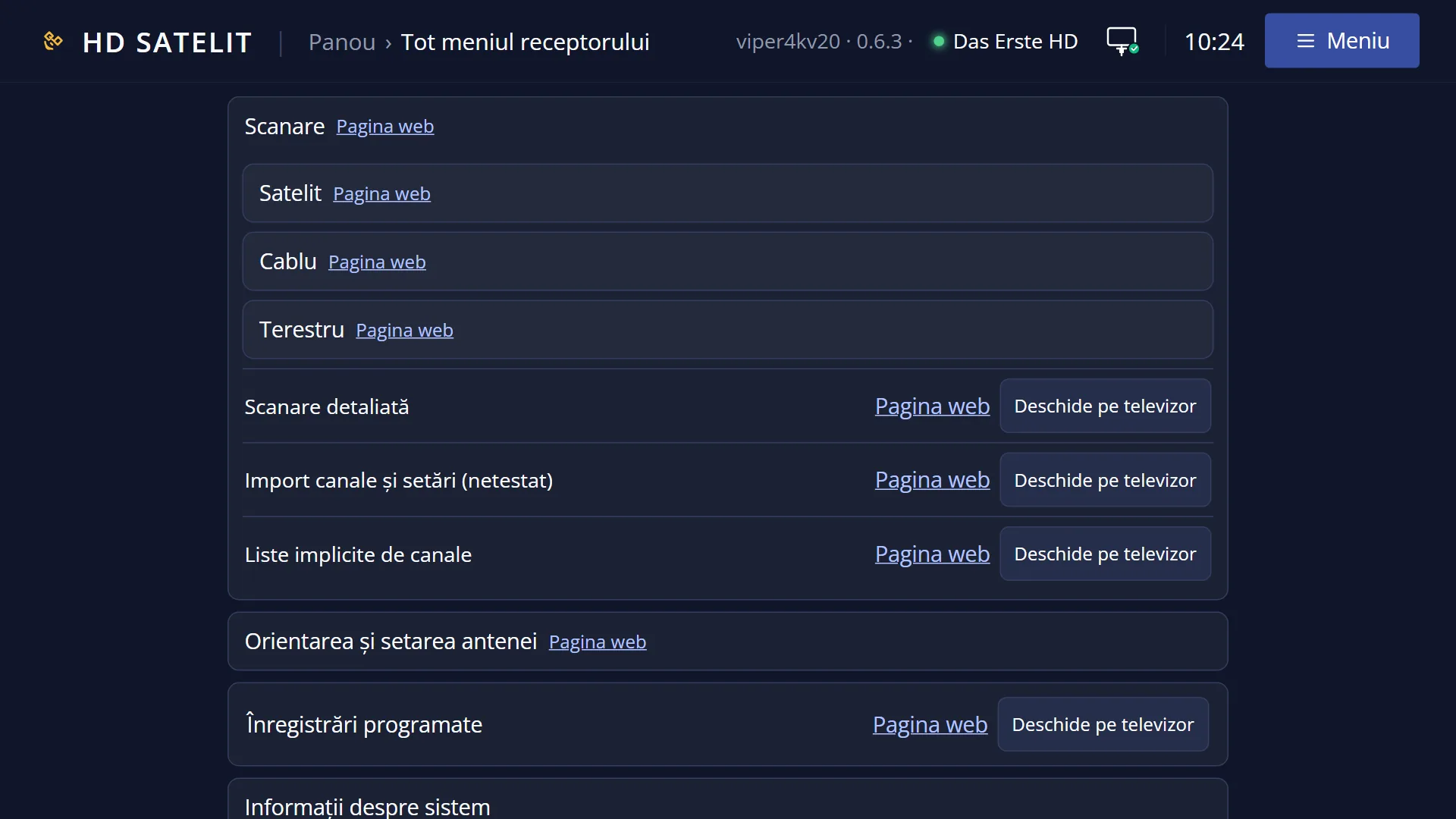
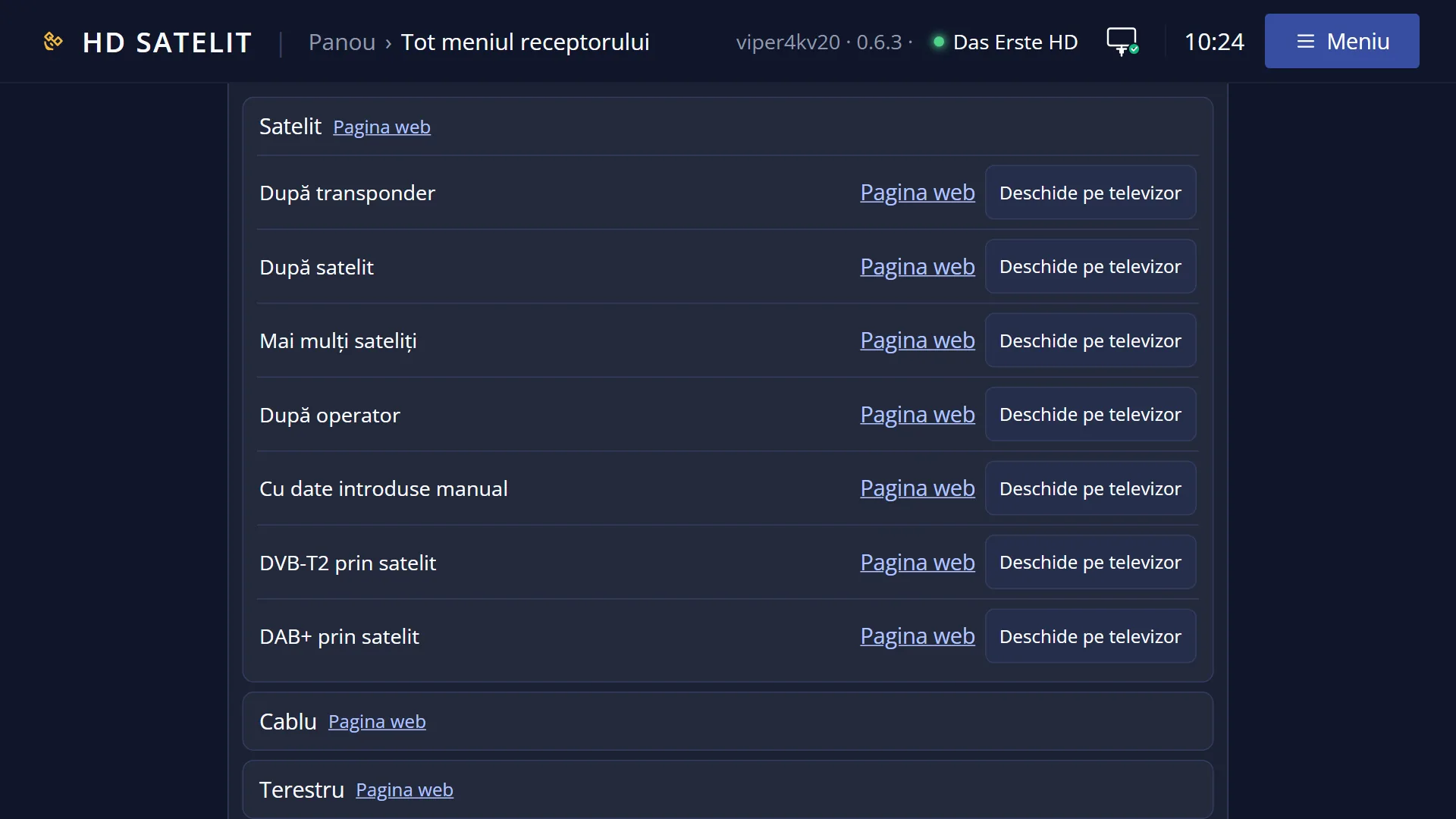
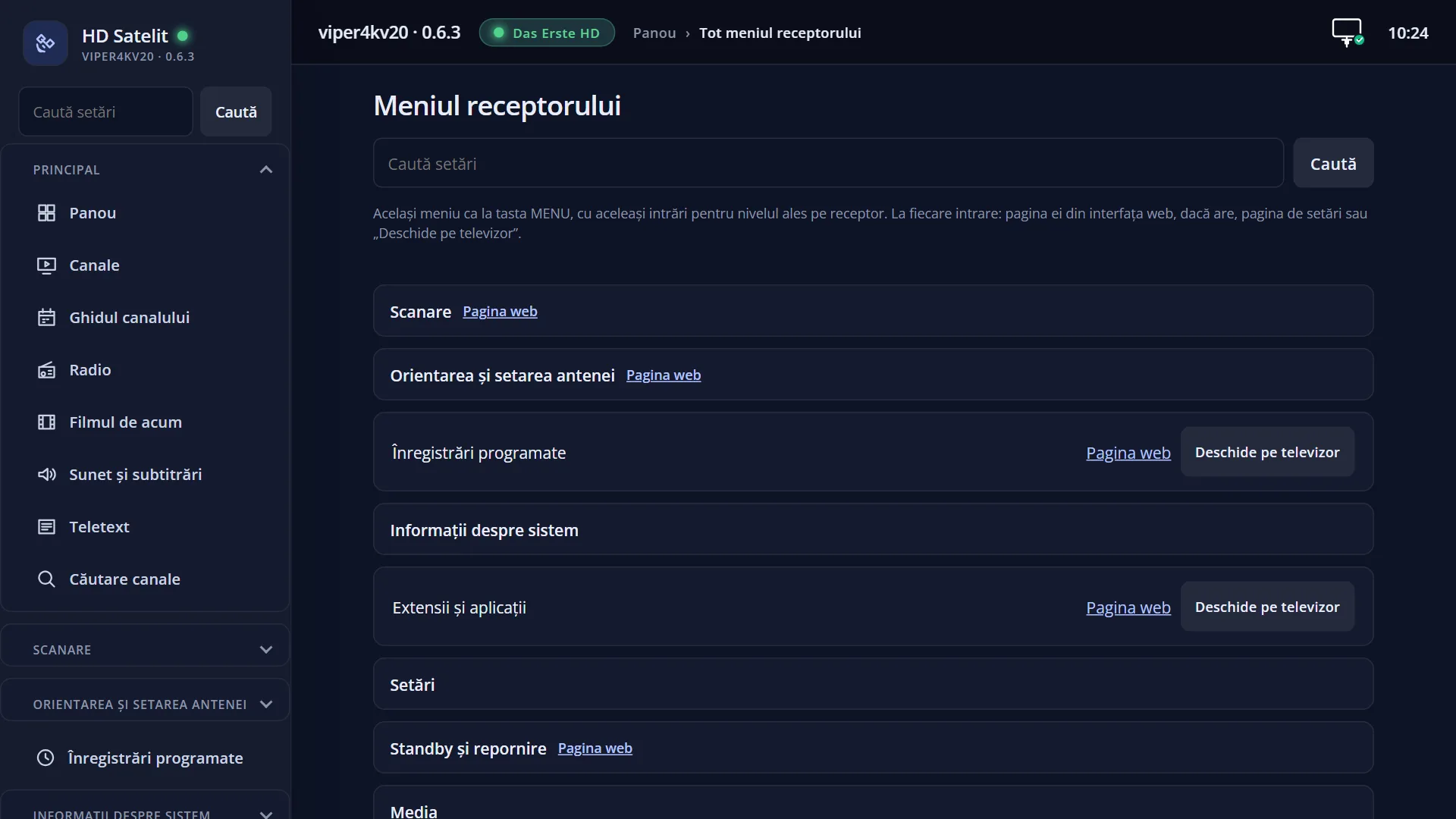
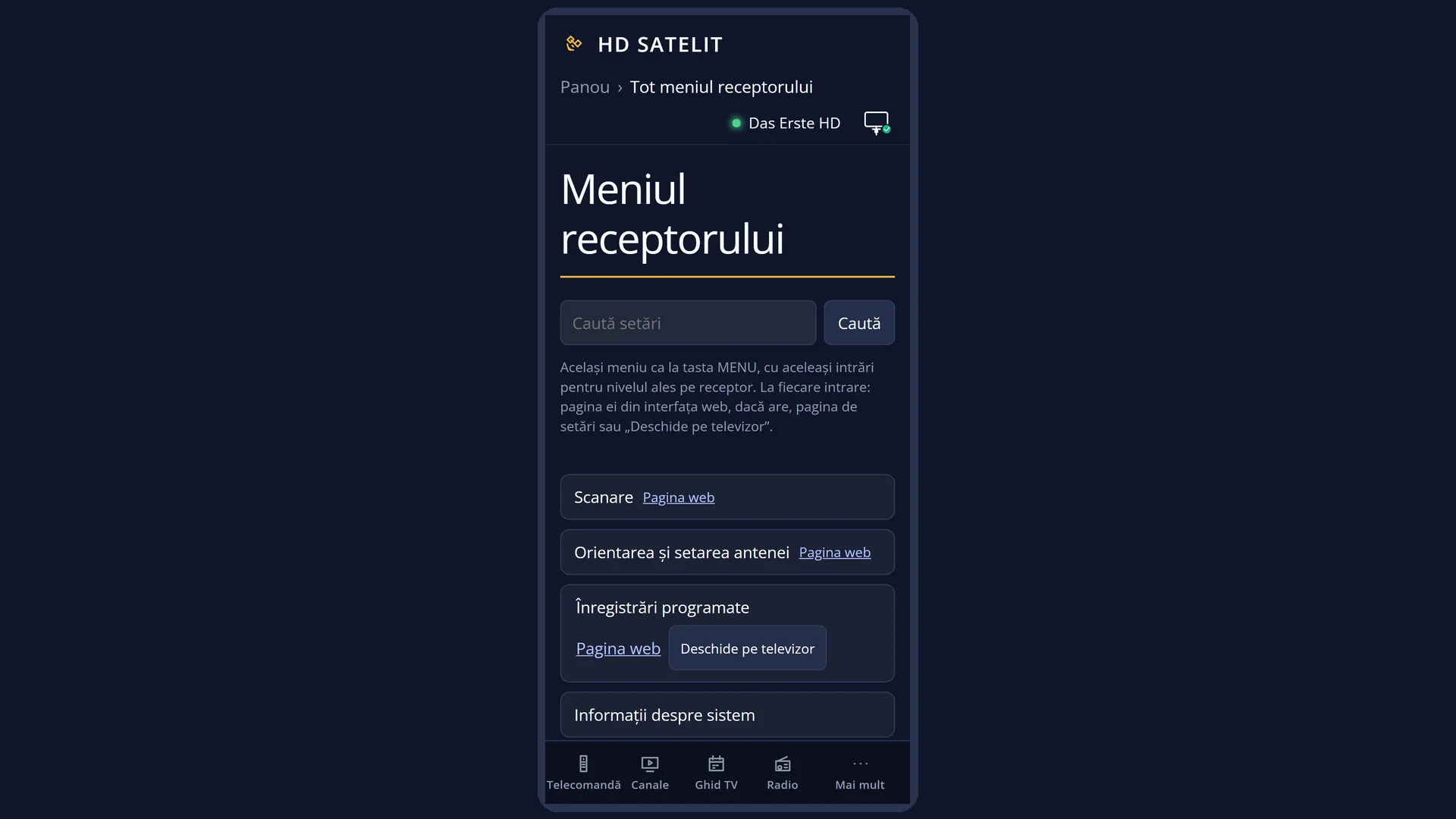
The same information is also in the web interface: the /informatii page has one tab for each screen, and the whole submenu is the “System Information” group on the /meniu page.
How to get here
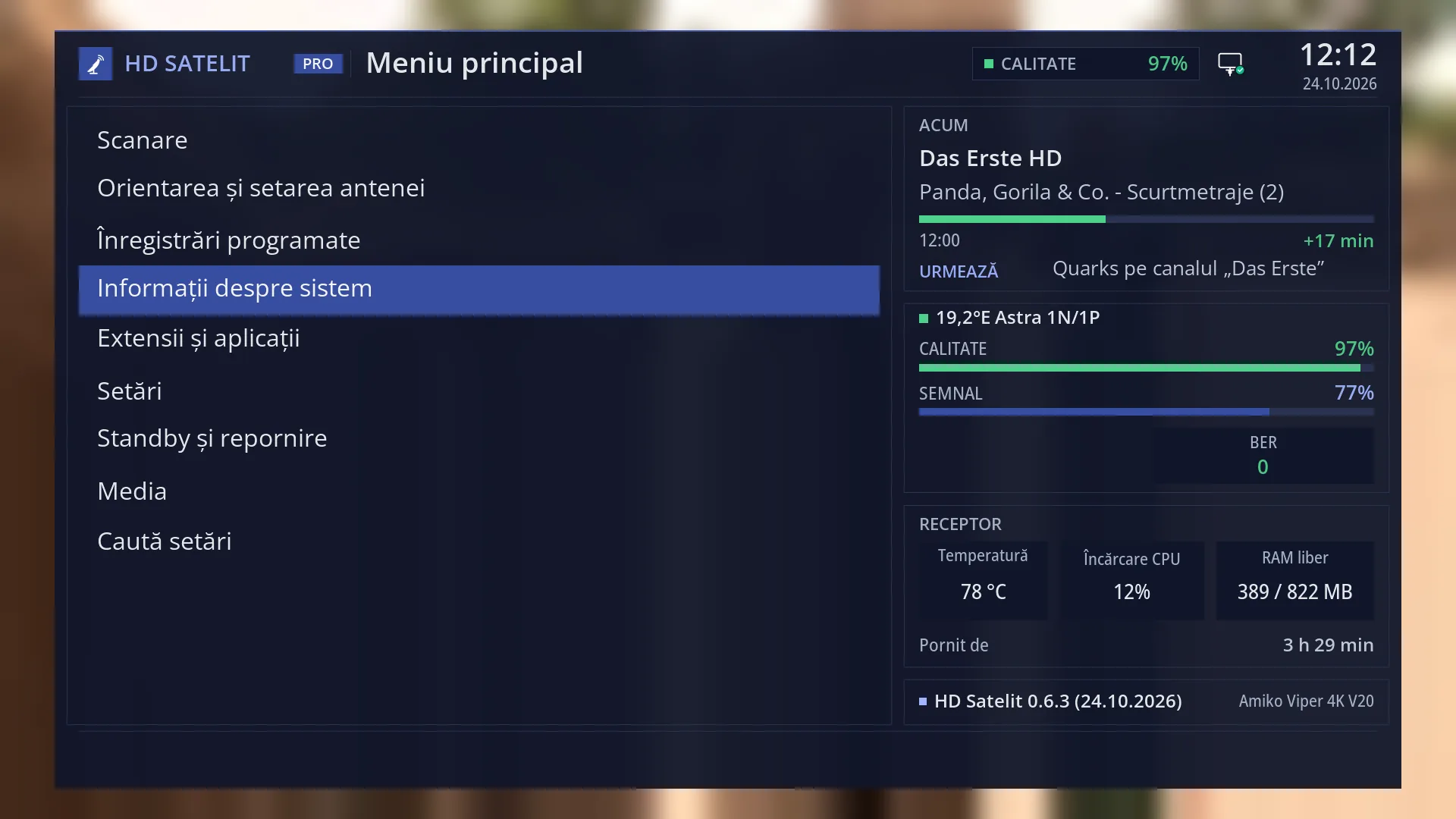
Path: Main menu > System Information.
Keys from live TV: MENU 4.
Then press the digit of the row you want, without OK: for example, MENU 4 1 opens “About the image” and MENU 4 7 opens “Storage & Disks”. The digits go from 1 to 9. “Channel Information”, the tenth row, has no digit: press MENU 4, then UP (from the first row the cursor jumps to the last one) and OK.
When the interface has started in safe mode, the first row is “Safe mode” and all the others move down by one: “About the image” becomes MENU 4 2, “Network Status” MENU 4 9, and “HDMI Information” and “Channel Information” have no digit.
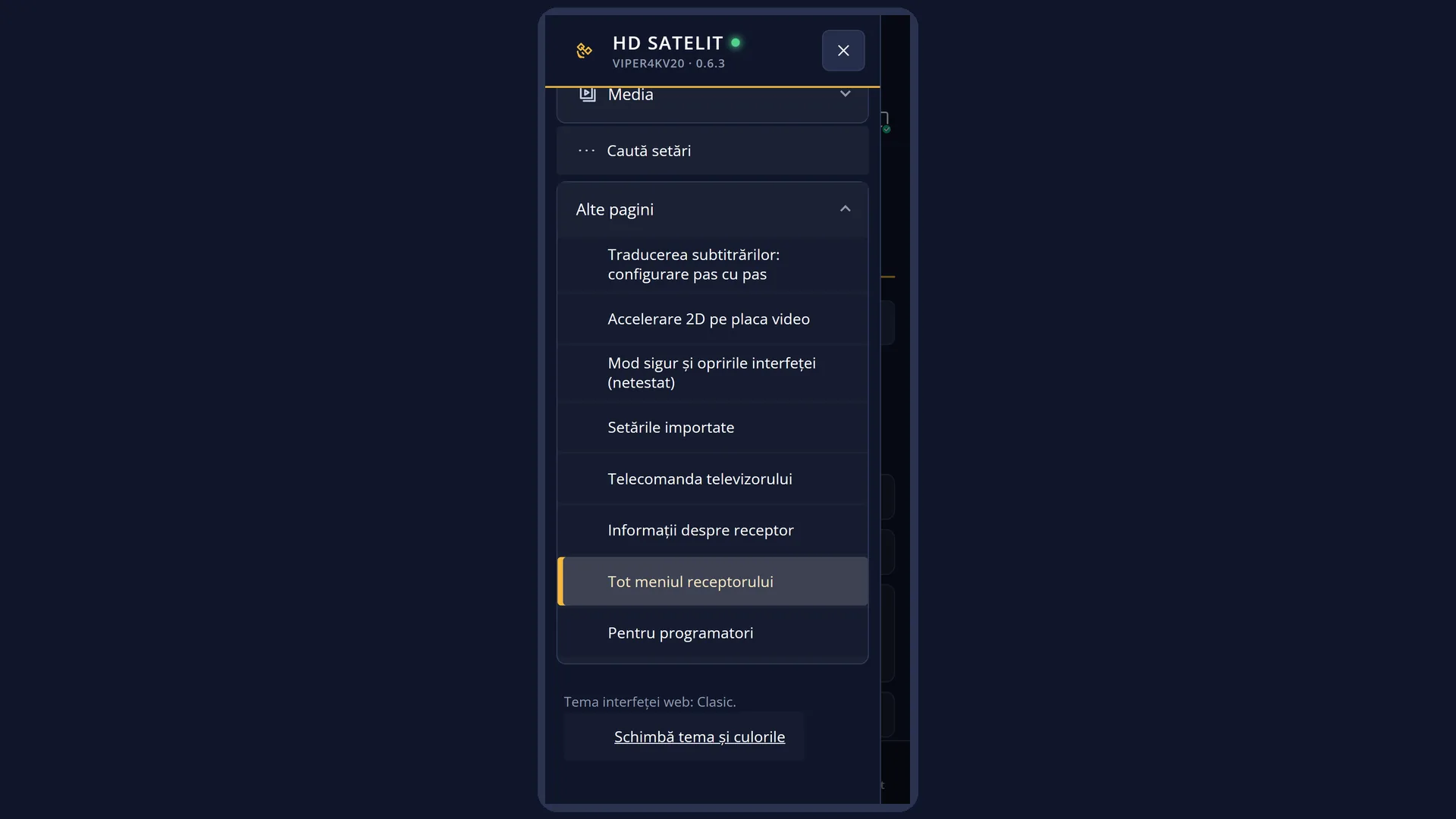
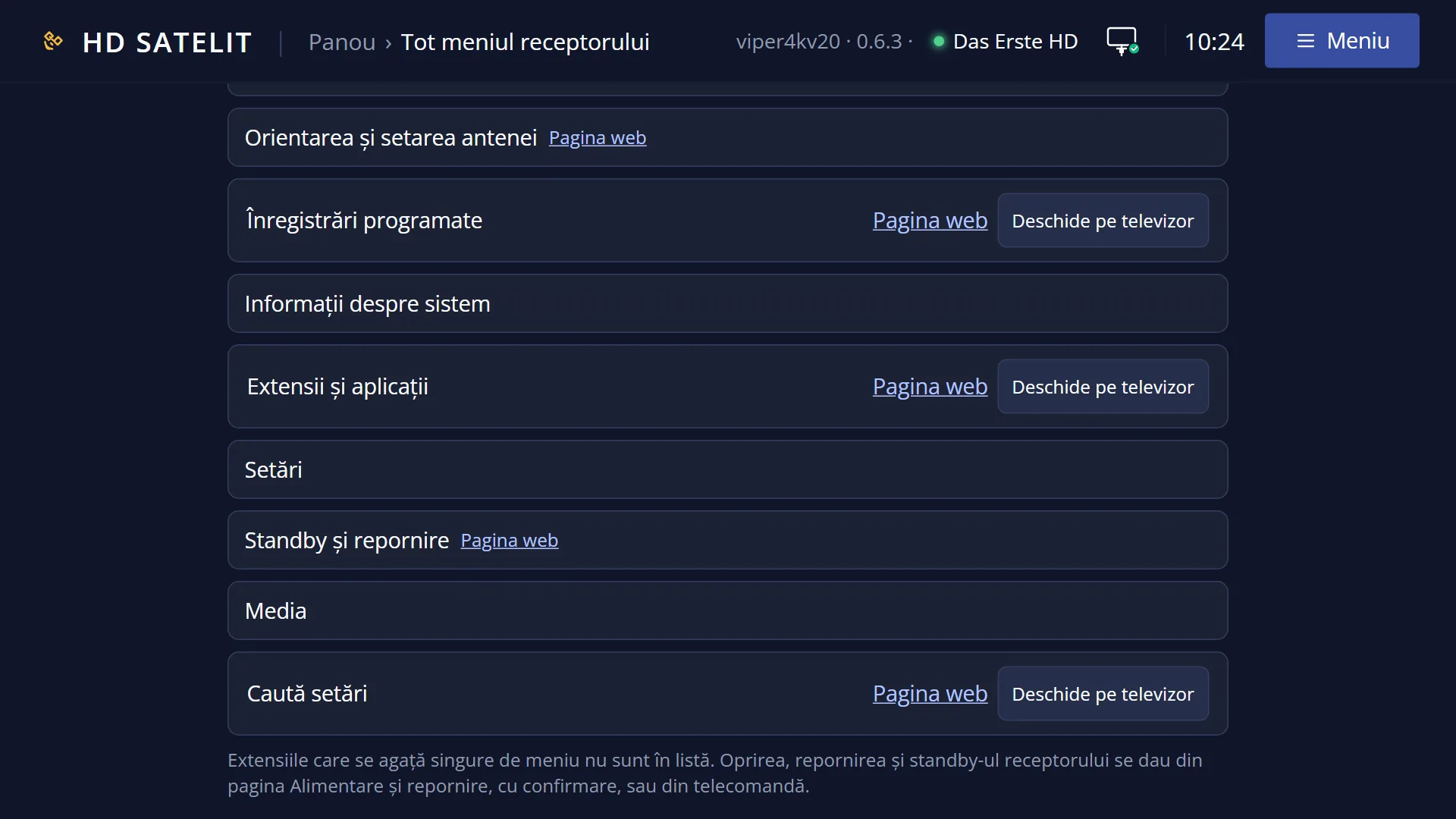
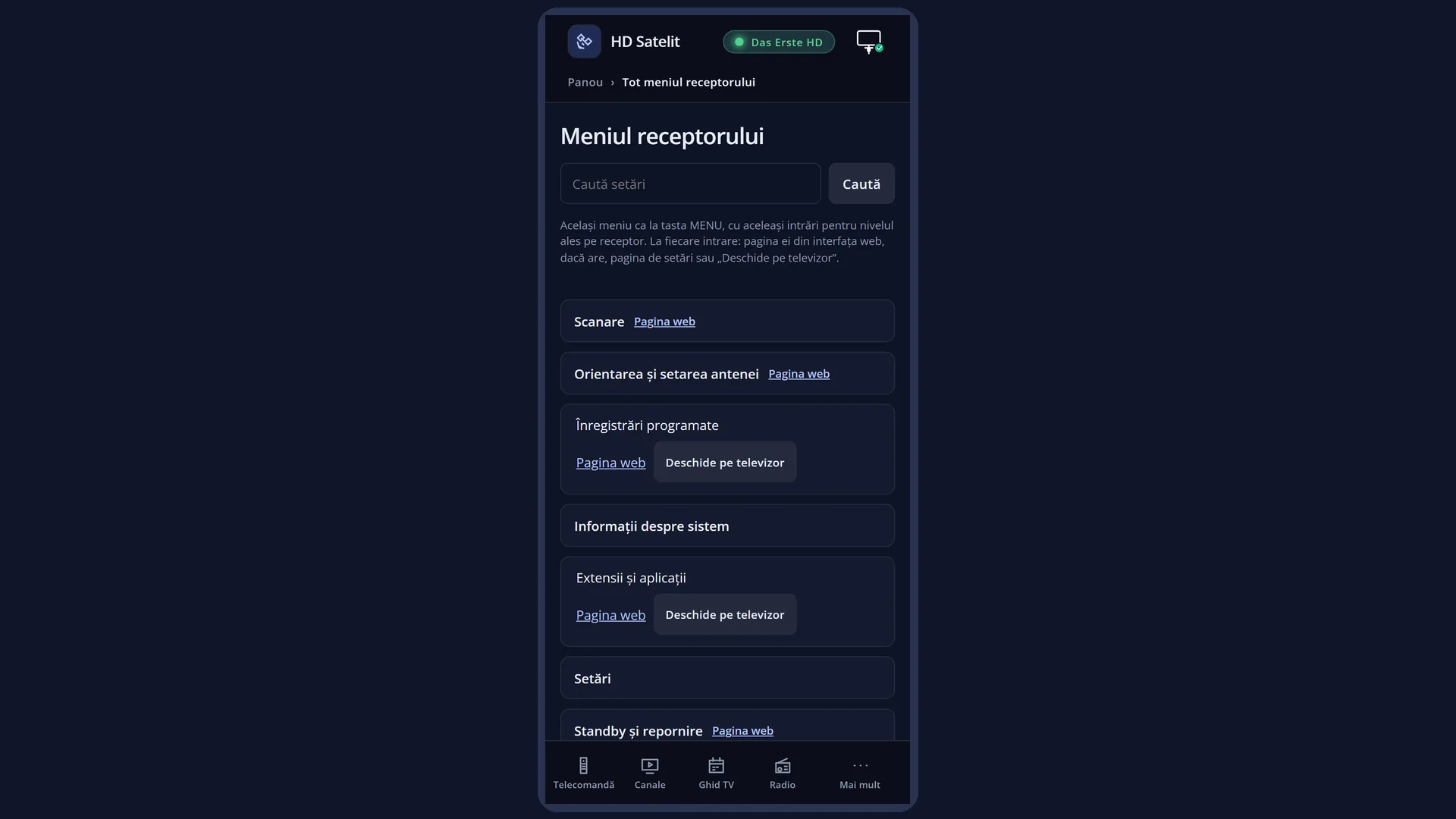
In the web interface: the /meniu page, “System Information” group, or go straight to the /informatii page (the tabs at the top lead to each screen).
What you see on the screen
At the top you see the title “System Information”, the clock and the date. In the Pro theme, “HD SATELIT” with the “PRO” label appears to the left of the title, and on the right you see the signal quality of the current channel (for example “Quality 97%”) and the network icon.
On the left is the list of rows: About the image, Licenses, What's new, Device & Hardware, Tuner Overview, Memory Status, Storage & Disks, Network Status, HDMI Information and Channel Information. The selected row has a blue background. In safe mode, the “Safe mode” row also appears above them.
In the Pro theme, the right side shows the same four boxes as the main menu: “NOW” (the current channel, the programme, its progress and the minutes left, then “Next”), the satellite with “Quality”, “Signal” and “BER”, the “Receiver” box (temperature, processor load, free memory out of total memory and “Pornit de”) and, at the bottom, the image version with its date and the receiver name.
The boxes on the right update by themselves while you stay in the submenu. For a quick look at the temperature and memory you do not need to open any screen: you can see them in the “Receiver” box.
In the Classic theme (the factory default), the submenu is just a panel with the list on the left; the right side keeps showing the channel picture, with no boxes.
In the tile layout (YELLOW key), each row is a large tile with its icon, name and digit, three per row. At the bottom are the keys OK “Open”, EXIT “Back”, 1-9 “Direct” and YELLOW “List”.
Rows and settings
| Row | Values | Default | What it does |
|---|---|---|---|
| Safe mode | hidden | It appears only when the interface has started in safe mode (after several unexpected shutdowns in a row), and then it is the first row. It opens the safe mode screen, which shows what happened and the startup choices. In safe mode all the rows below it move down by one, and so do their digits. When the receiver has started in safe mode by itself and you have closed its screen with EXIT. | |
| 1 About the image | The HD Satelit image version, the kernel, how long the receiver has been running, the channel database in the image, the receiver model and its chip, the list of the receiver's main features, the contact details, the source of the channel list and the origin of the code. When you want to know which version you have, for example before or after an update. | ||
| 2 Licenses | The software in the image and its licences, the manufacturer's components, the fonts, the channel lists and the address of the source code for this version. OK on a row opens the licence text. When you want to find out which licence a program on the receiver uses, or where the source code is. | ||
| 3 What's new | The version history: what has changed in the image, version by version. The same screen appears by itself after an update. After an update, to see what it brings. | ||
| 4 Device & Hardware | The receiver's model, chip and processor, the processor mode, the current frequency and temperature (updated every two seconds), the RAM, the load and how long the receiver has been running. When the receiver seems slow or hot and you want to see what the processor is doing. | ||
| 5 Tuner Overview | Each of the receiver's tuners (Tuner A, Tuner B), which signal it receives (satellite, cable or terrestrial) and how it is set up. When you want to know how many tuners the receiver has and what type they are, for example before a scan. | ||
| 6 Memory Status | The RAM in use and the RAM available, the swap file and the decoder memory (the memory that films and radio station pictures need), with its threshold. When a film or a radio station picture does not start, or the receiver seems overloaded. | ||
| 7 Storage & Disks | How much of the receiver's internal memory is used, the disks and USB sticks currently mounted, with their space, and the disks connected to the receiver. When you have plugged in a USB stick or a disk and want to see whether the receiver has recognised it and how much space it has. | ||
| 8 Network Status | Each of the receiver's network adapters (cable and Wi-Fi): whether it is connected, the speed, the address and the netmask, then the router and the DNS servers the receiver uses to reach the internet. When the receiver has no internet, or you need its address to open the web interface. | ||
| 9 HDMI Information | The status of the HDMI output and what the TV connected to it supports. When the TV does not show the picture the way you expect (resolution, colours, sound over HDMI). | ||
| Channel Information (no digit) | The technical data of the current channel, on four pages: the service, the PIDs, the multiplex and the tuner status. It is the tenth row, so it has no digit: you reach it with UP from the first row, or with DOWN all the way to the bottom. When you want the frequency, resolution or signal quality of the channel you are watching. | ||
| Submenu layout (list or tiles) | List, Tiles | List | As in any menu, YELLOW switches the submenu from the list to tiles with icons and back. The order, the digits and what each row opens stay the same. The choice is remembered for all menus. When you find it easier to choose by icons. |
Keys
| UP / DOWN | Move the cursor to the row above or below. From the first row, UP jumps to the last one (“Channel Information”), and the other way round. |
| LEFT / RIGHT | Jump one page up or down. In the Pro theme the whole submenu fits on one page, so you land on the first or the last row. In the tile layout, they move the cursor to the tile on the left or right. |
| OK | Opens the screen of the selected row. |
| 1 ... 9 | Open the row with that number straight away, without OK: 1 About the image, 2 Licenses, 3 What's new, 4 Device & Hardware, 5 Tuner Overview, 6 Memory Status, 7 Storage & Disks, 8 Network Status, 9 HDMI Information. In safe mode the numbers shift by one (1 is “Safe mode”). |
| TTX (the screen shows TEXT) | Opens “Search settings”. |
| YELLOW | Switches the submenu from the list to tiles or back, immediately, keeping the same row selected. |
| BLUE | Does nothing in the submenu. In the screens opened from here, from “About the image” to “Network Status”, BLUE shows the screen's raw text and then the table again. |
| EXIT | Closes the submenu and takes you back to the main menu, with the cursor on “System Information”. |
| MENU | Closes the whole menu and takes you back to live TV. |
Step by step
Find out the image version
- Press MENU 4 1.
- The first row of the table, “HD Satelit version”, shows the version and its date (for example “0.5.9 2026-10-22”).
- In the Pro theme you can also see the same version, without opening anything, in the bottom box on the right of the submenu.
Check whether the receiver has recognised the USB stick
- Plug the USB stick into the receiver and wait a few seconds.
- Press MENU 4 7.
- Under “Connected disks and sticks” you should see the name of the USB stick and its size, and under “Mounted disks and sticks” the used and free space.
Send your receiver's details to someone
- Open the screen you need (for example MENU 4 4 for the processor and memory).
- Press BLUE: you see the raw text, with all the rows one after another. UP and DOWN turn the page.
- Easier from a phone: in the web interface, open /informatii, choose the tab, press “Raw text” and copy the text.
Problems and solutions
I pressed MENU 4 4 and “What's new” opened instead of “Device & Hardware”.
The interface has started in safe mode: the first row is “Safe mode”, and all the others have moved down by one. Press the next digit (5 in this case) or choose the row with UP and DOWN.
I cannot find the digit for “Channel Information”.
The digits only go from 1 to 9, and “Channel Information” is the tenth row. Press MENU 4, then UP (the cursor jumps to the last row) and OK.
I cannot see the “Safe mode” row, although I have seen it before.
The row only appears while the interface is running in safe mode. After a normal startup it disappears by itself.
The submenu has changed from a list into large tiles.
You pressed YELLOW. Press YELLOW once more to return to the list.
The boxes with the channel and receiver details are missing on the right of the submenu.
The boxes belong to the Pro theme. In the Classic theme (the factory default) you see the channel picture on the right. You change the theme in Settings > Interface & Appearance > Interface theme.
The box with the quality and signal is empty.
A film from a disk or USB stick is playing, not a channel: the signal box is empty in that case. Start a channel and open the submenu again.
Related topics
- Main menu
- About the image
- Licenses
- What's new
- Device & Hardware
- Tuner Overview
- Memory Status
- Storage & Disks
- Network Status
- HDMI Information
- Channel Information
- Safe mode
- Search settings
- The receiver menu in the web interface
- Matching web pages: /meniu (the “System Information” group) and /informatii (the tabs for the screens).