

About the image
English screenshots coming: some of the pictures below still show the receiver and the web interface in Romanian. The rows, keys and steps described on this page are the English ones.
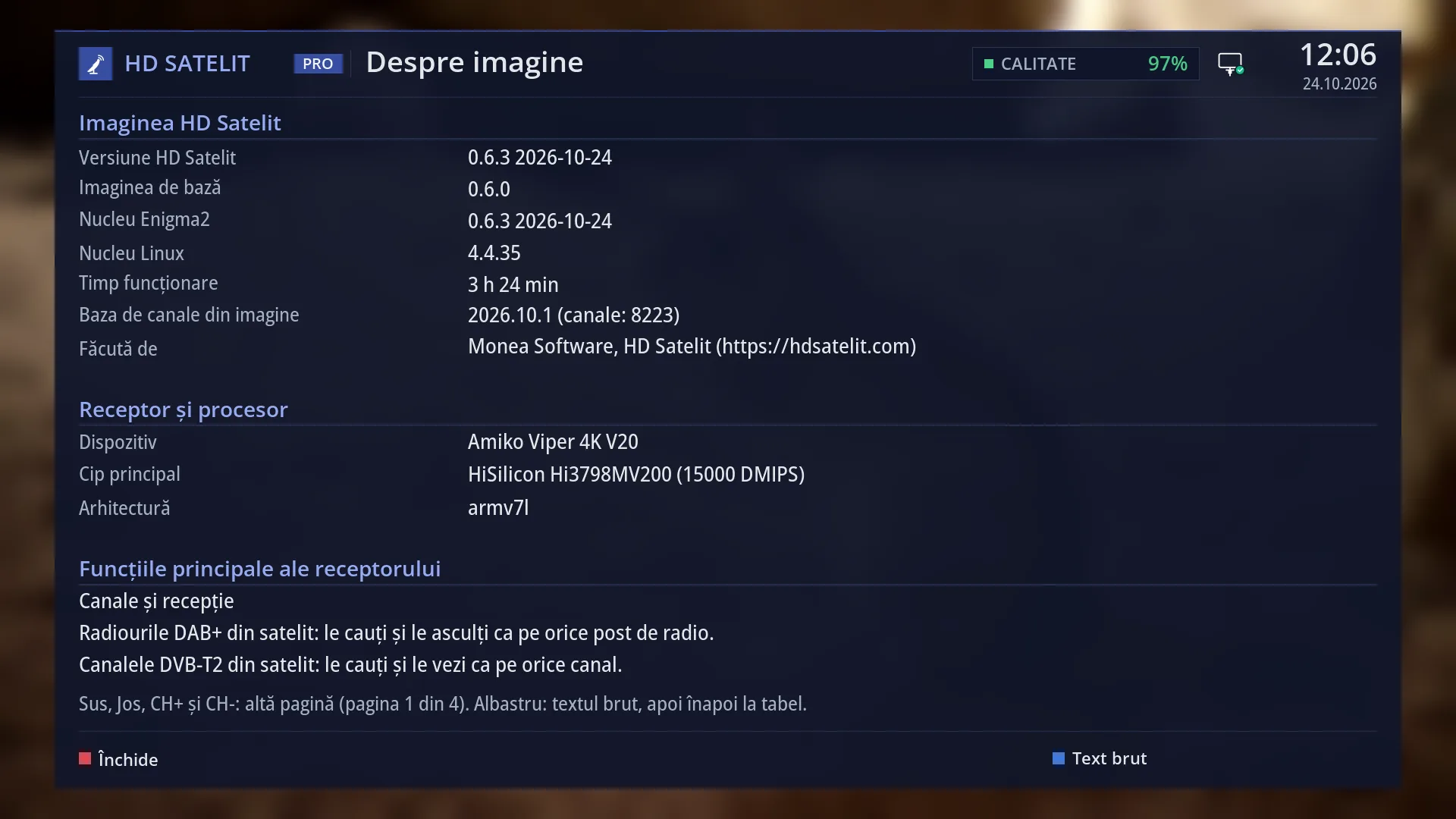
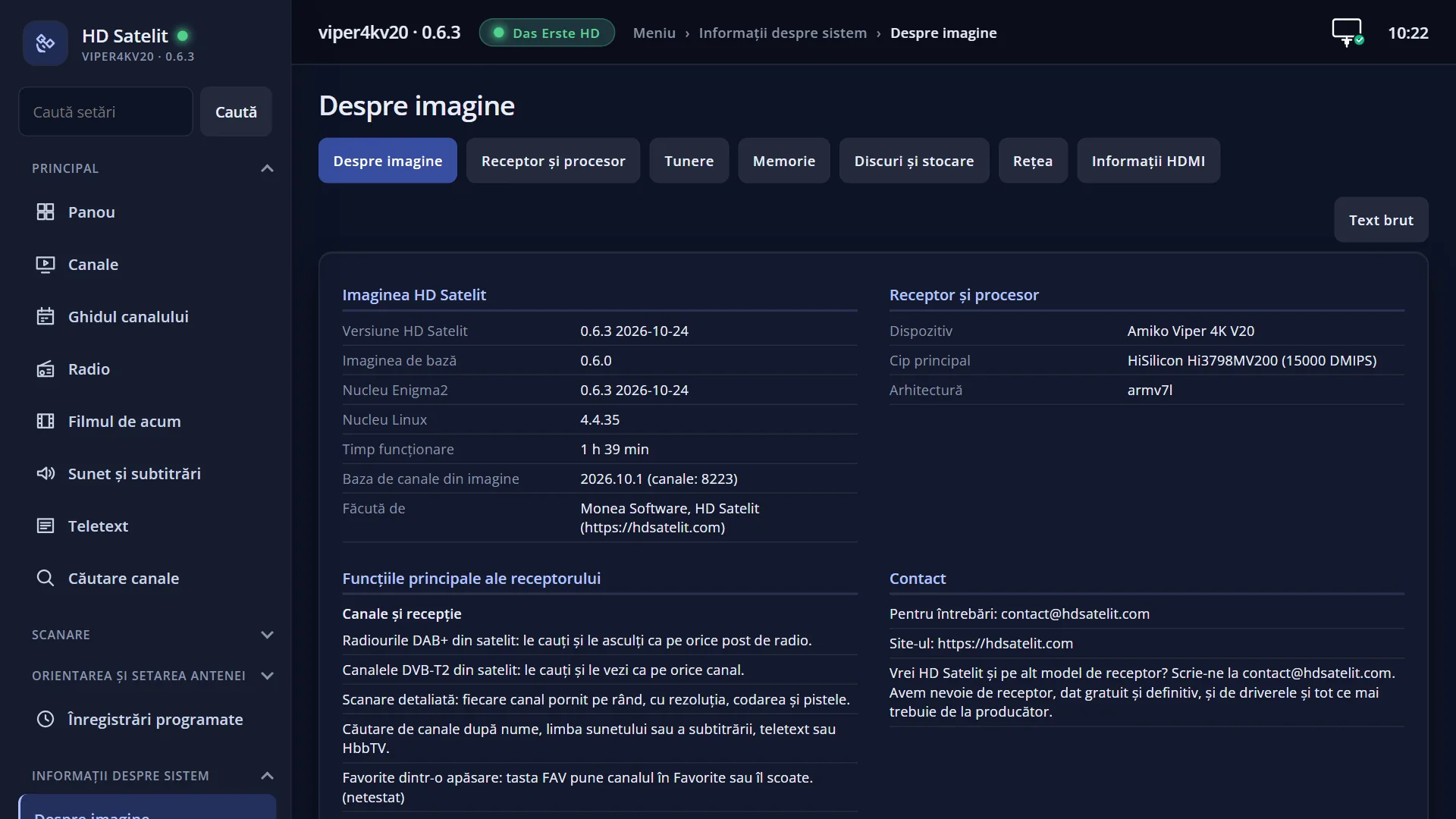
- 1 The HD Satelit image version and its date.
- 2 The base image (only after updates), the kernel and how long the receiver has been running.
- 3 The version of the channel database supplied with the image and how many channels it has.
- 4 The receiver's name, the chip and the type of processor.
- 5 The start of the list of the receiver's main features.
- 6 Which page you are on and which keys take you to another one.
- 7 BLUE: the raw text.
- 8 RED: closes the screen.
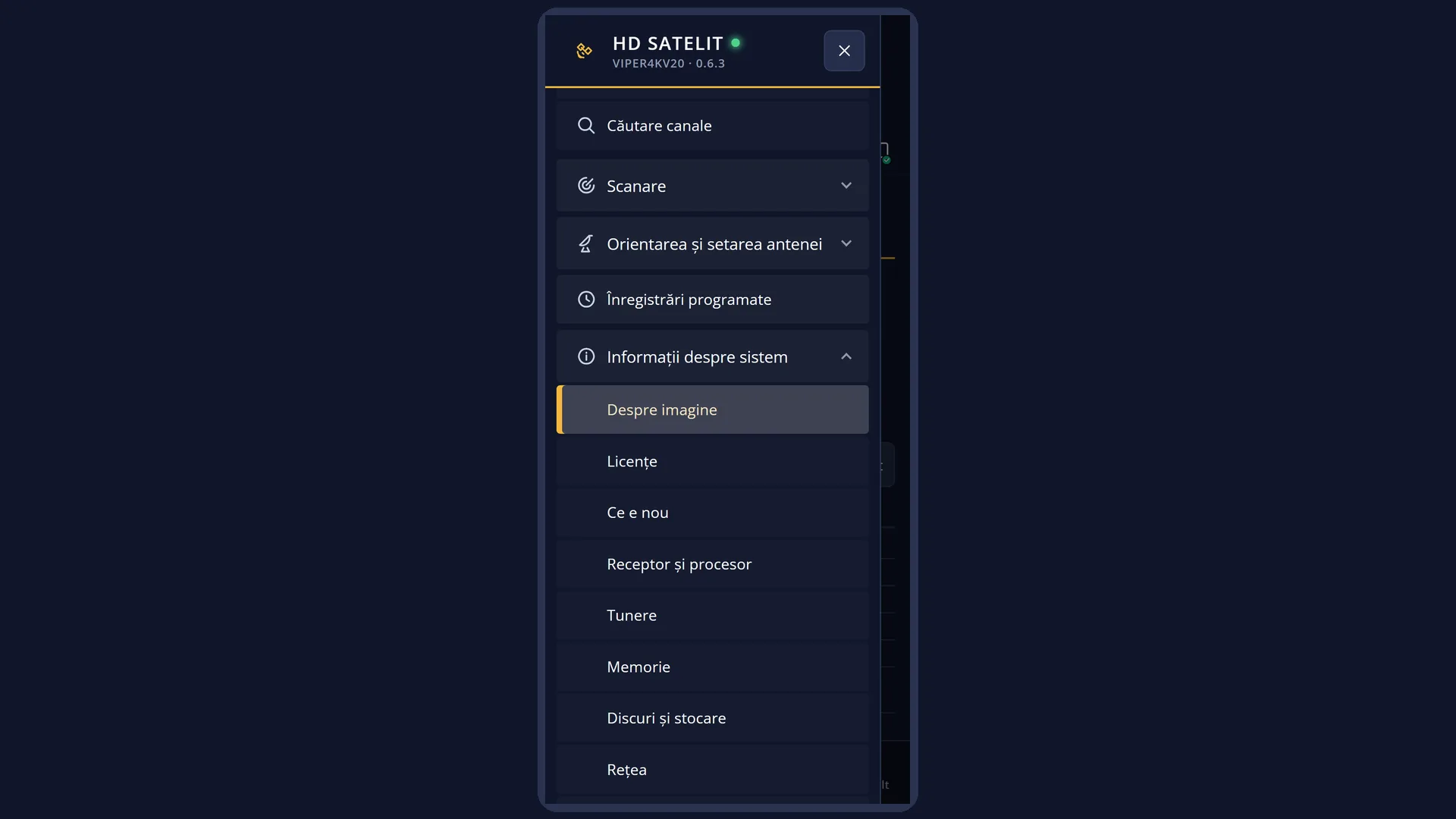
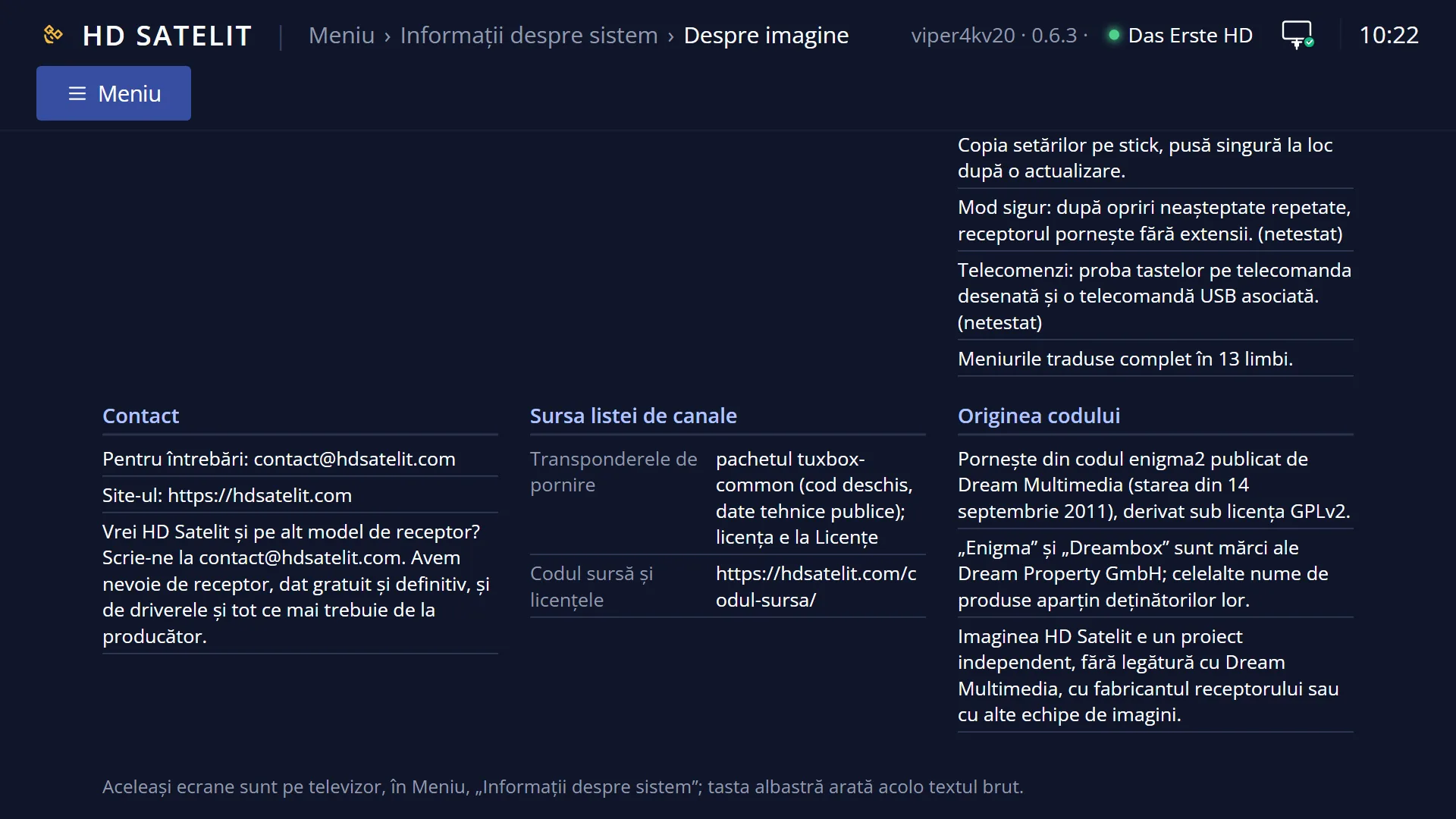
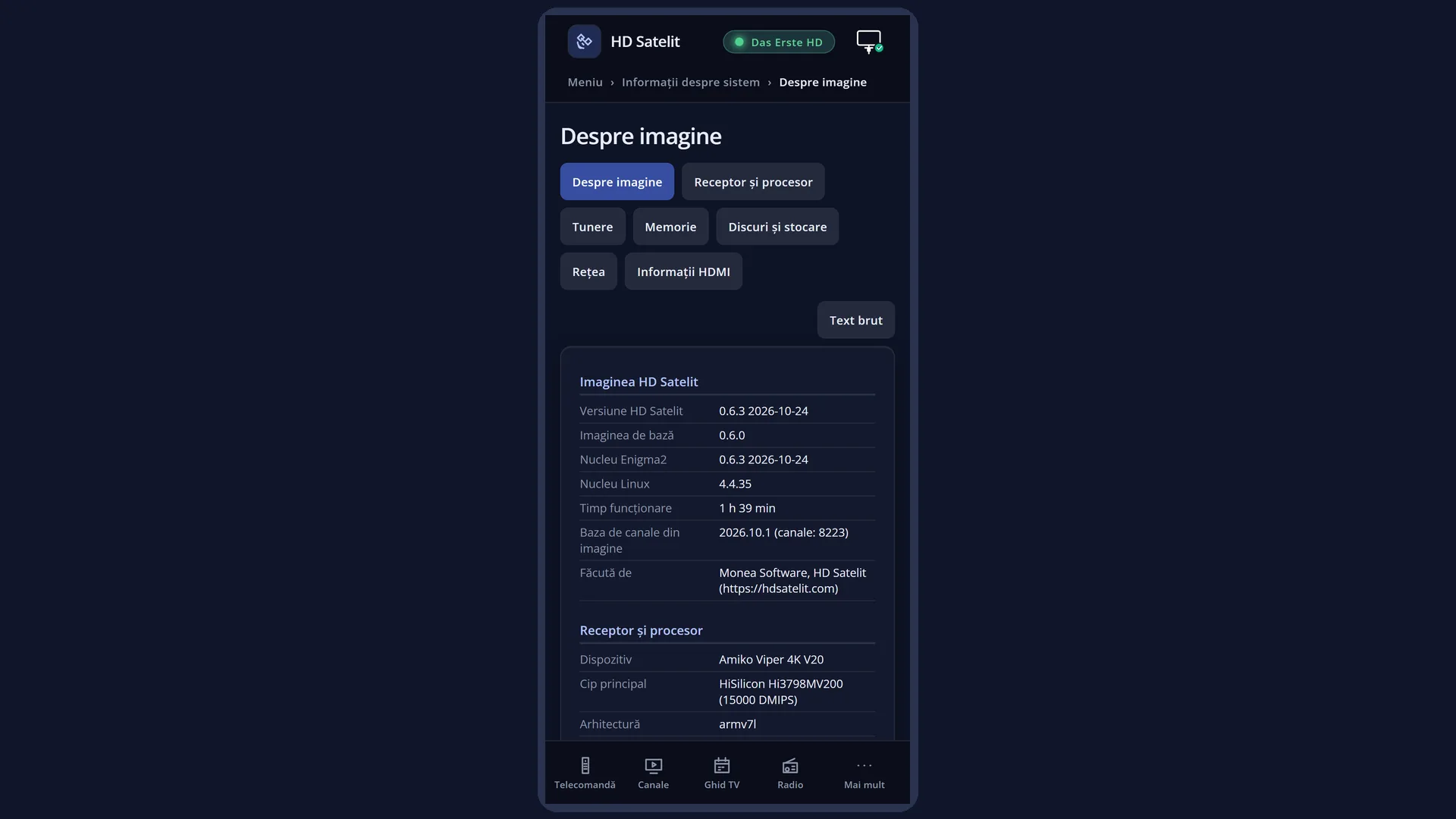
What it is for
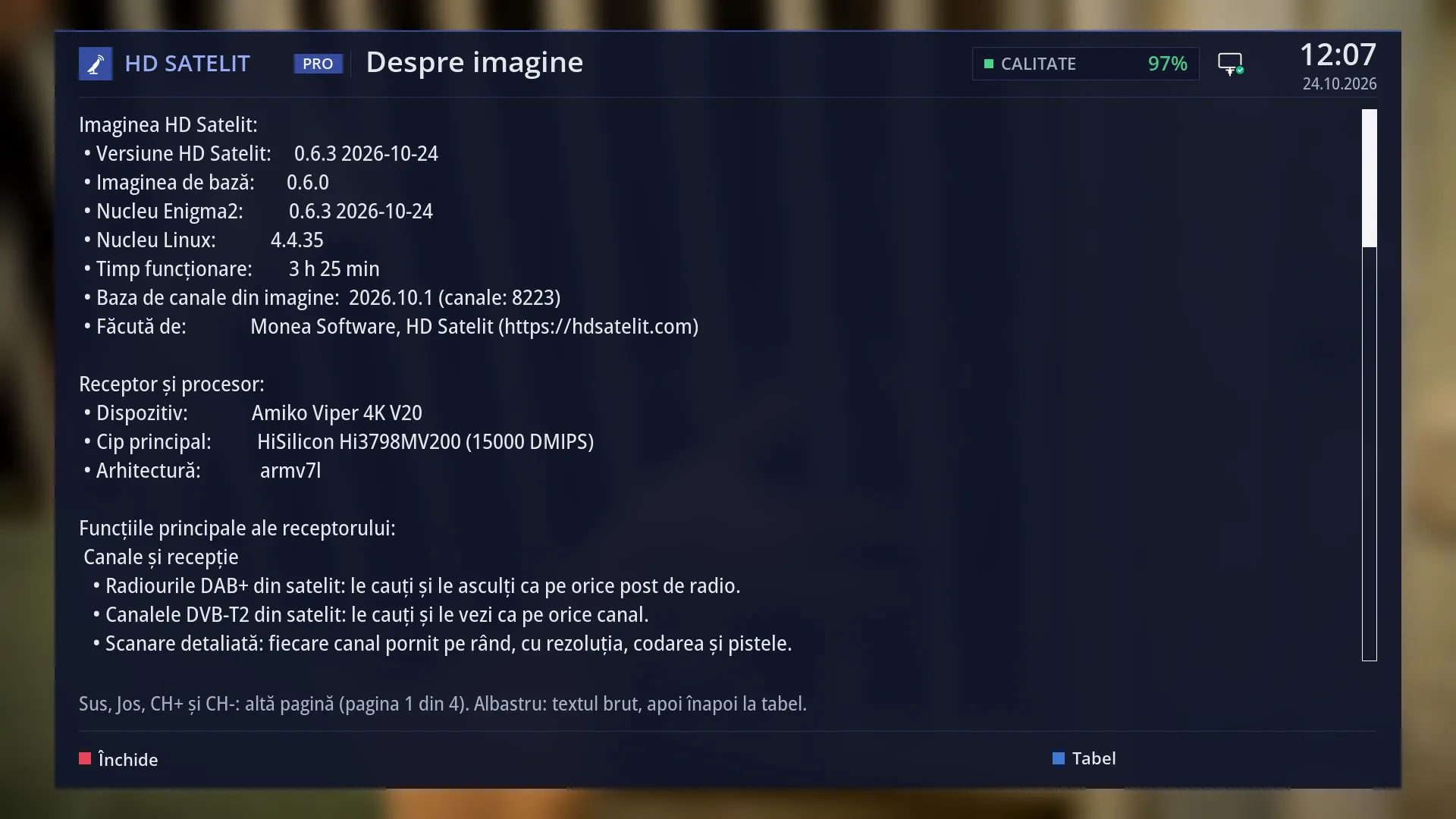
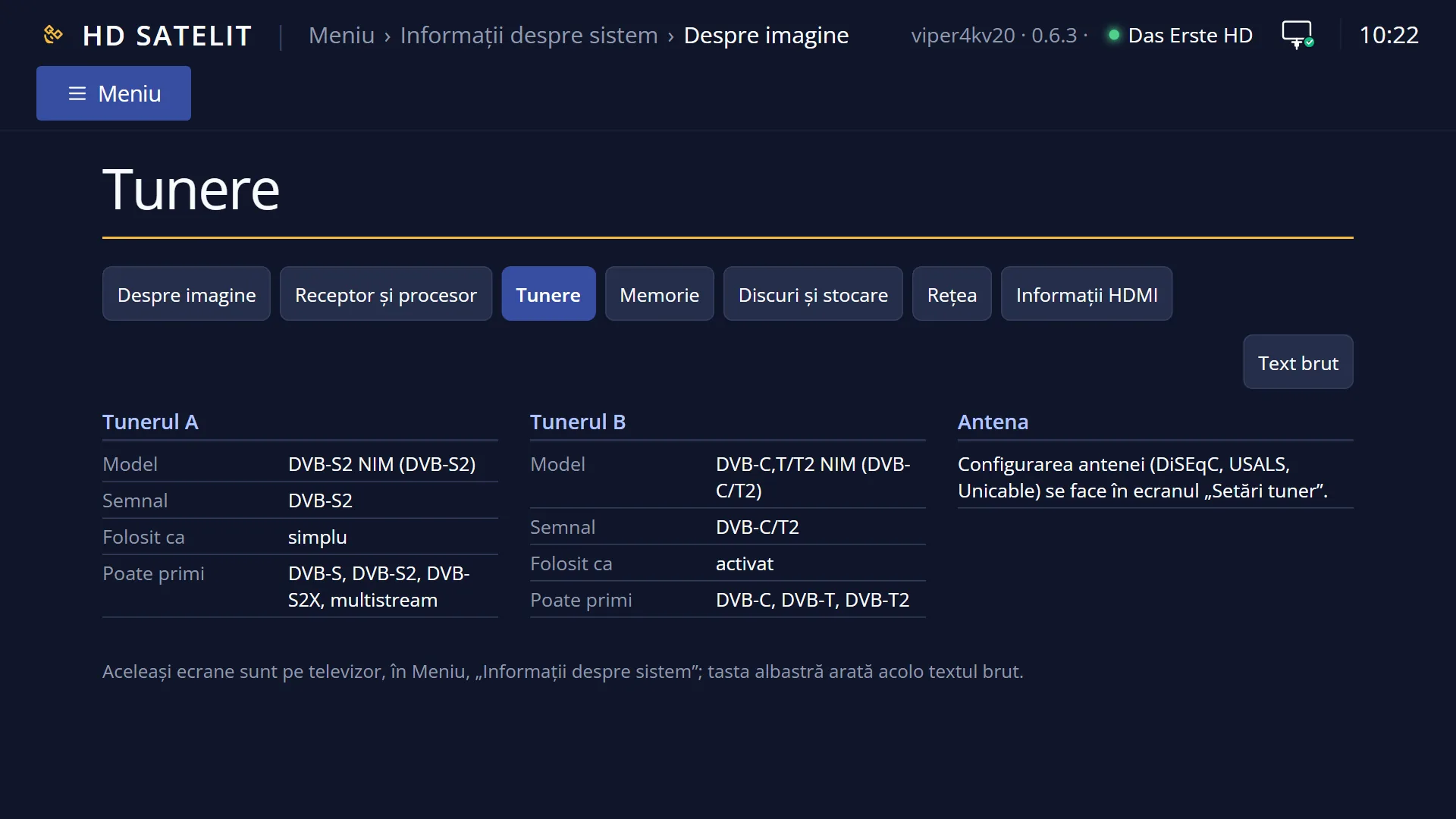
“About the image” shows which image the receiver has and who made it: the HD Satelit version with its date, the kernel, how long the receiver has been running without a restart, the channel database version, the receiver's name and its chip.
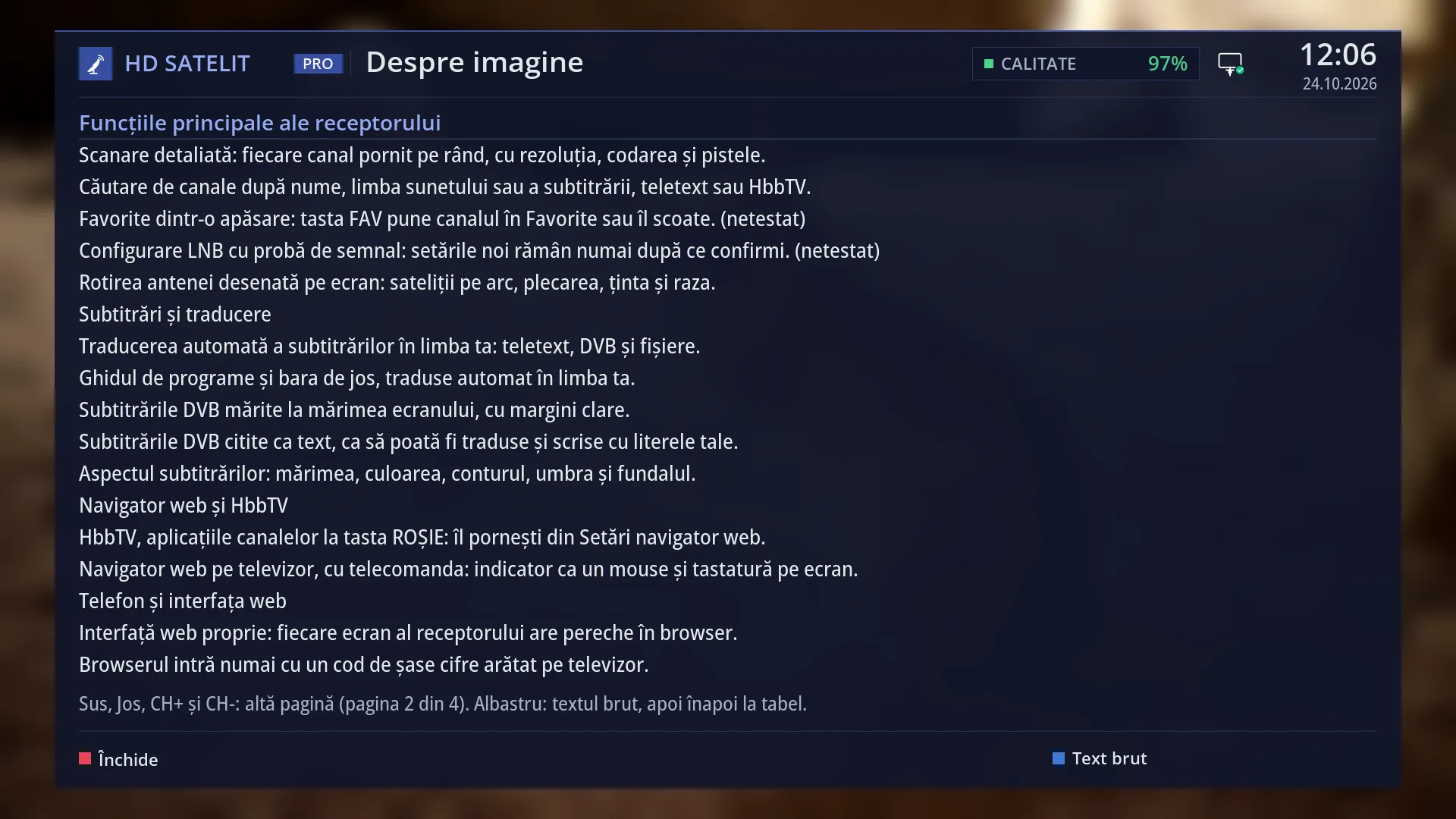
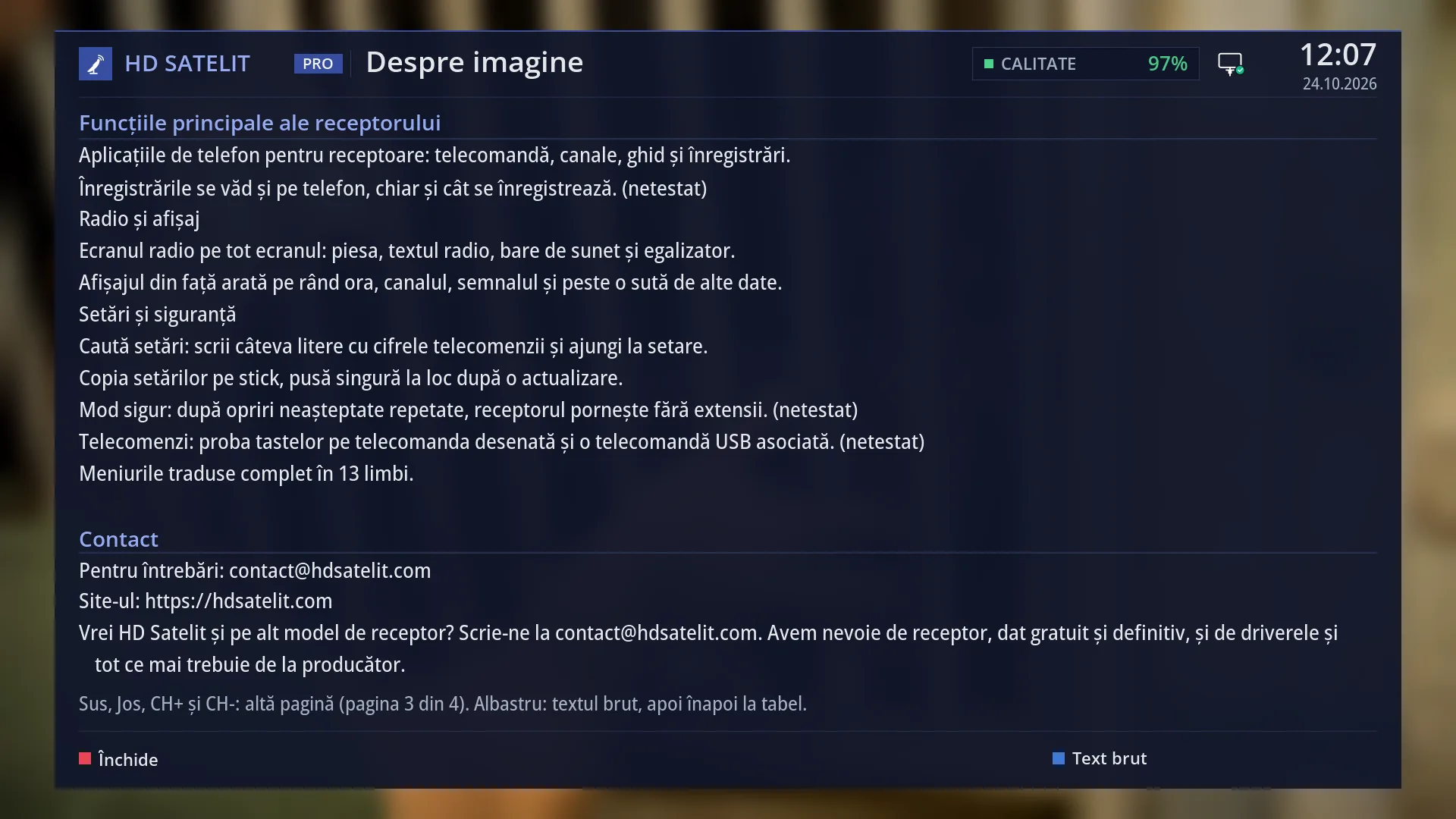
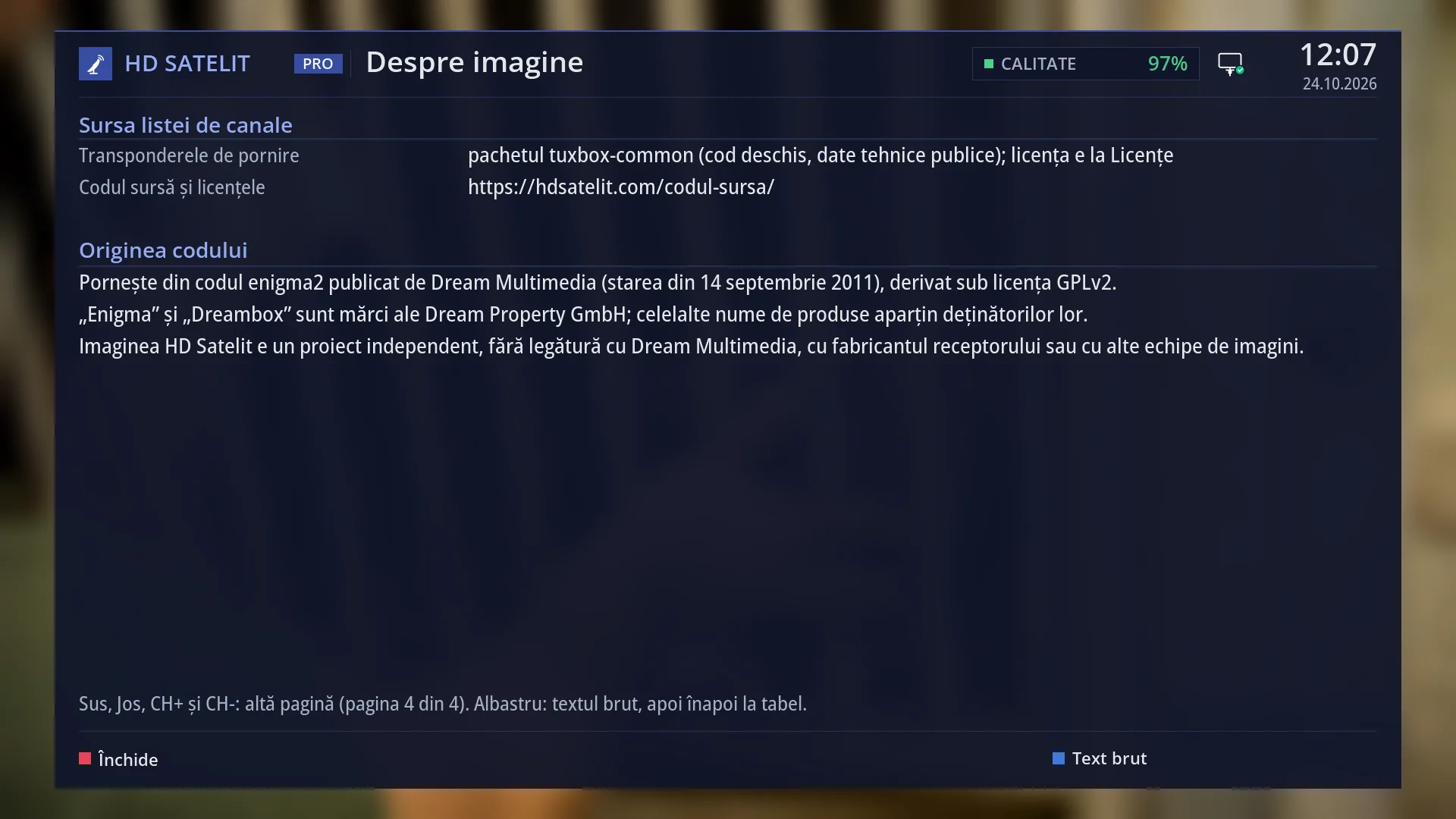
The following pages of the same screen show: the list of the receiver's main features, by group (the same list as in the first-start wizard), the HD Satelit contact details, where the list of starting transponders comes from, the source code address and the origin of the image's code.
Open it when you want to know which version you have (for example, to check whether an update has been installed) or when someone helping you asks for the version and model of your receiver.
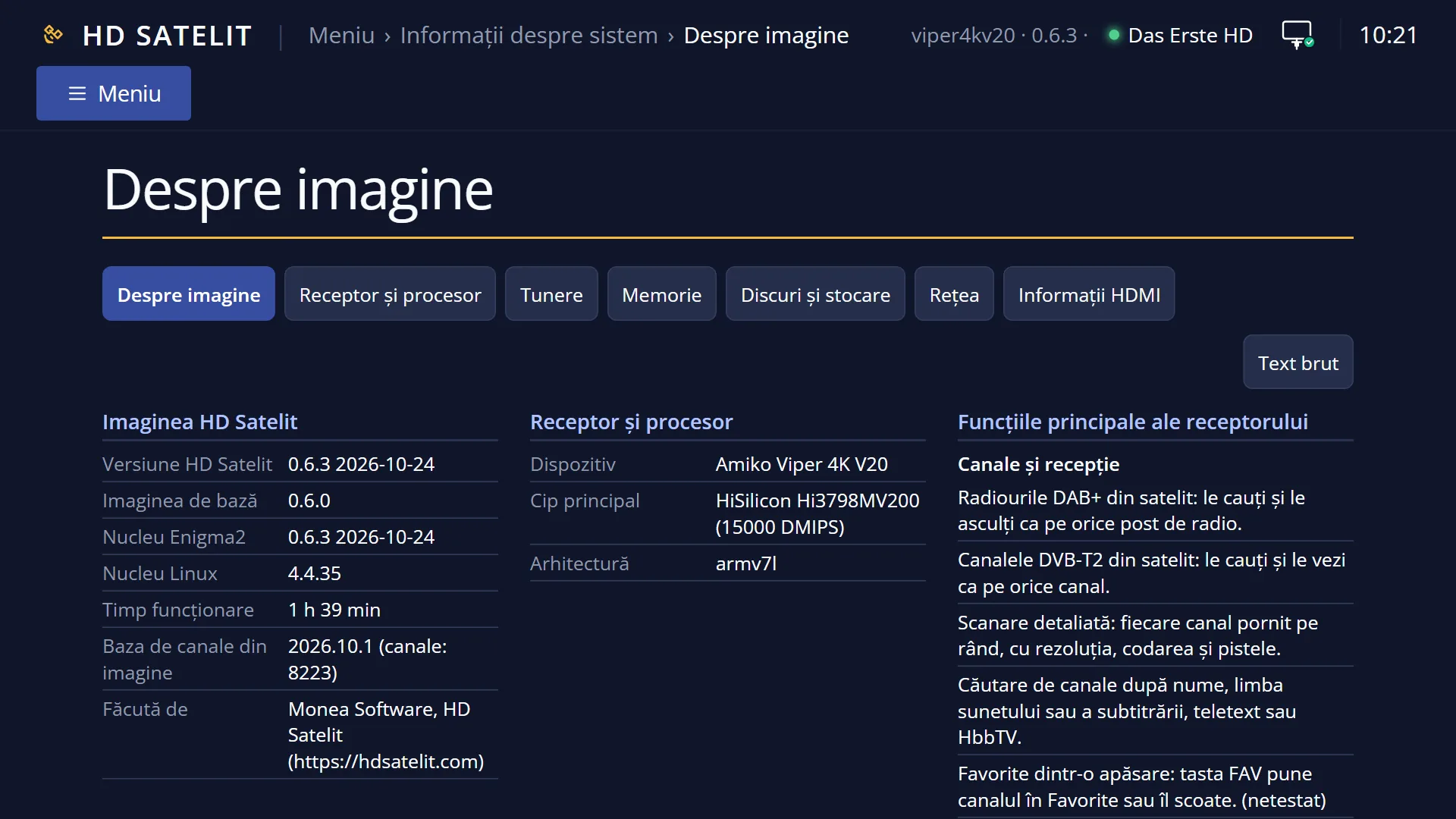
The screen only displays information: it does not change anything. The same rows are also in the web interface, on the /informatii/despre page.
How to get here
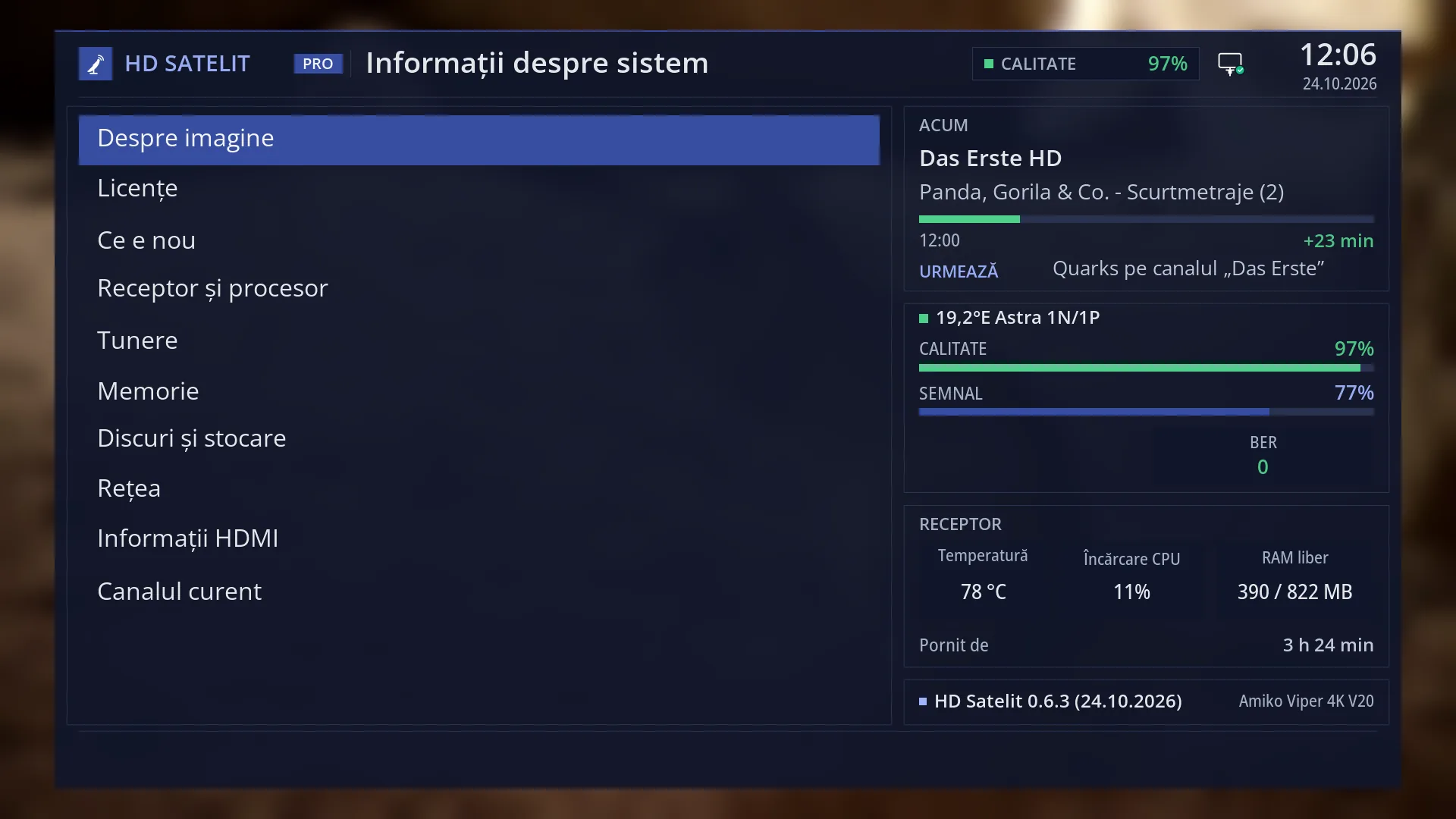
Path: Main menu > System Information > About the image.
Keys on the TV: MENU 4 1. When the interface has started in safe mode, the first row of the submenu is “Safe mode”, so the keys are MENU 4 2.
In the web interface: the /informatii/despre page (the first tab of the /informatii page).
What you see on the screen
At the top: the title “About the image”, the clock and the date. In the Pro theme, “HD SATELIT” with the “PRO” label appears to the left of the title, and the signal quality of the current channel and the network icon appear on the right.
Below that is the table, across the full width of the screen (a single column, so that long rows fit). Each group has its own coloured title with a line under it. In each row, the label is on the left in grey and the value is on the right in white. Text that is too long for its row continues on the row below; it is not cut off.
The groups, from top to bottom: “HD Satelit image”, “Device & Hardware”, “Main features of the receiver” (with the subgroups Channels and reception, Subtitles and translation, Web browser and HbbTV, Phone and web interface, Radio and front display, Settings and safety), “Contact”, “SOURCE OF THE CHANNEL LIST” and “Code origin”. They do not all fit on one screen, so there are several pages.
Below the table is the page line, for example: “Up, Down, CH+ and CH-: another page (page 1 of 4). Blue: raw text, then back to the table.”
At the bottom, the colour keys: RED “Close” and BLUE “Raw text”. In the raw text view, the blue key shows “Table”.
The raw text (BLUE) shows the same rows as plain text, with a “•” in front of each one, across the full width. You move through its pages with the same keys.
The screen reads the information only once, when you open it: for example, “Uptime” does not increase while you stay on the screen. Exit and open it again to see the current value.
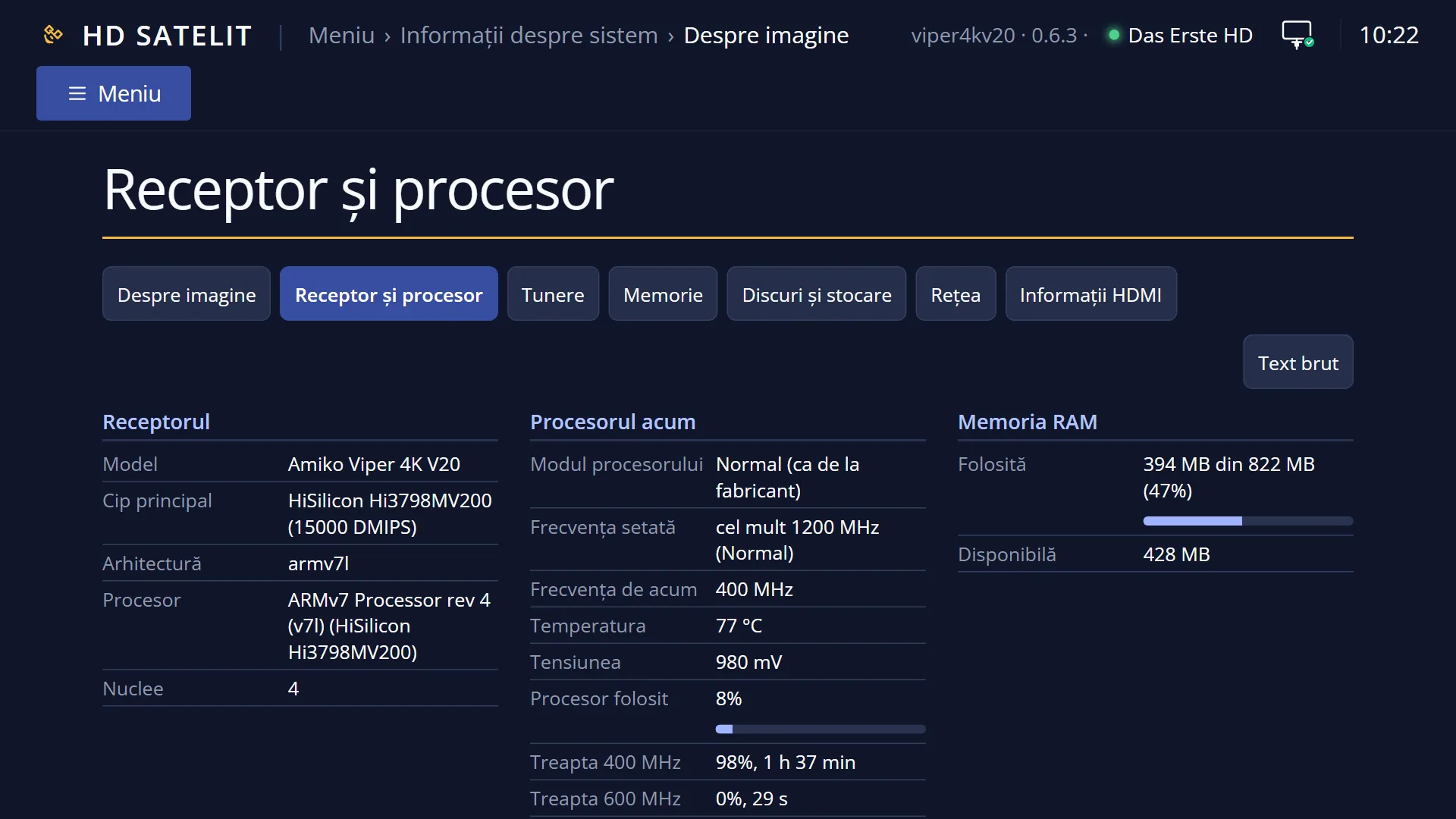
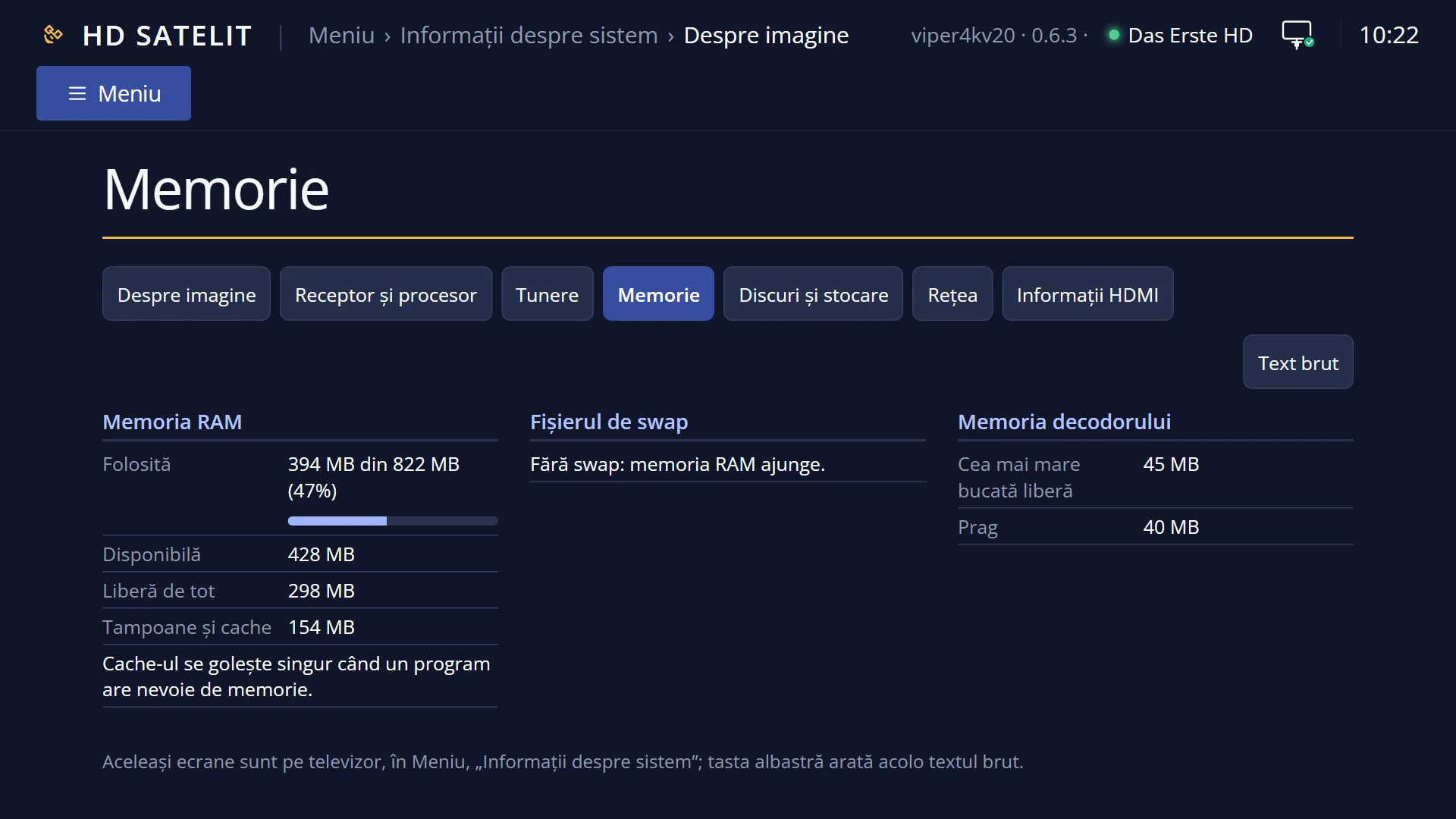
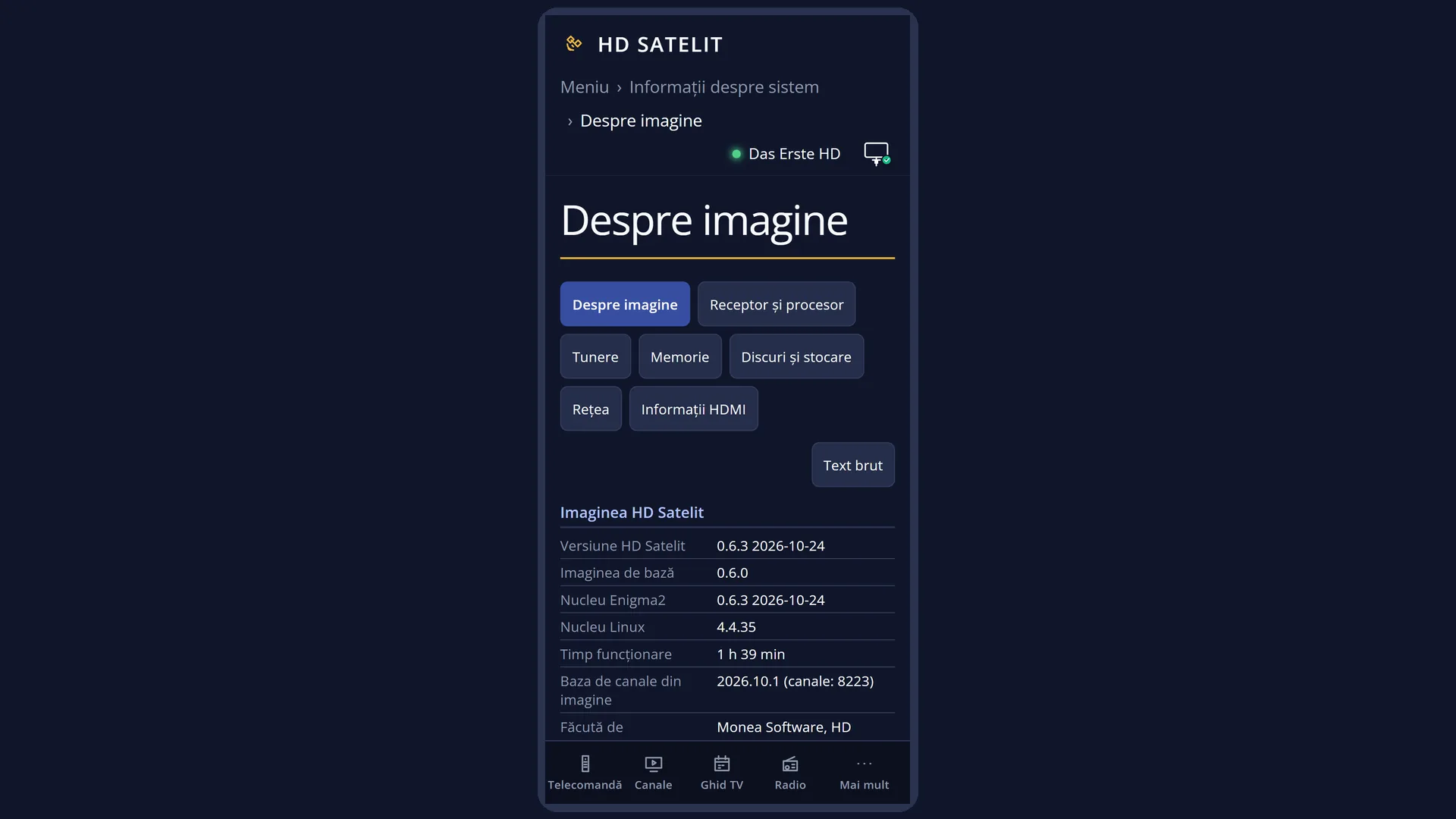
In the web interface, on /informatii/despre: the title “About the image”, the tabs of the other information screens, the “Raw text” button on the right and, in a box, the same groups as on the TV, arranged in columns according to the width of the window. At the bottom is the note “The same screens are on the TV, in Menu, “System Information”; the blue key shows the raw text there.”
Rows and settings
| Row | Values | Default | What it does |
|---|---|---|---|
| HD Satelit version | the version and date, for example “0.5.9 2026-10-22” | The version of the HD Satelit image now running on the receiver, with its date. After an update through Software update, it shows the new version. | |
| Base image | a version, for example “0.5.0” | missing | The image written to the receiver from the USB stick. The row appears only when it differs from the current version, that is, after updates have been installed on top of it. On a receiver recently written with the latest image, the row is missing. |
| Enigma2 core | the version and date of the interface program | The version of the interface's main program (the one that draws the menus and starts the channels). It is usually the same as the HD Satelit version. If the program does not give a clean version, the row shows the image version. | |
| Linux kernel | for example “4.4.35” | The version of the Linux kernel the receiver runs on. | |
| Uptime | “18 h 37 min”, over a day: “2 days, 3 h 5 min” | How long the receiver has been running since it last started. Standby does not reset it, and neither does restarting the interface. Restarting the receiver does, including the hidden restart the receiver does by itself in standby to free the decoder memory. | |
| Channel database in the image | the version and number of channels, for example “2026.10.1 (channels: 8223)” | The database with the technical data of the channels (resolution, sound, subtitles, PIDs), collected by HD Satelit with the detailed scan and supplied with the image. The receiver uses it only where it knows nothing about a channel by itself. What the receiver finds out stays unchanged. | |
| Channel database from the image website | the version and number of channels | missing | On the screen, the row name contains the address of the HD Satelit image website (the same address where you are reading this help). It appears only when the receiver has downloaded from there a channel database newer than the one in the image. This happens only when, in OSD Preferences, the row starting with “Get the channel database from” is set to Yes (the factory setting is No). The receiver then checks once a day, in the background, whether there is a newer database. |
| Made by | “Monea Software, HD Satelit (https://hdsatelit.com)” | Who made the image, and its website. | |
| Device | for example “Amiko Viper 4K V20” | The receiver's name, brand and model. | |
| Main chip | on the Amiko Viper 4K V20: “HiSilicon Hi3798MV200 (15000 DMIPS)” | The chip the receiver is built on and its computing power. When the receiver does not say which chip it has, it shows “Unspecified”. | |
| Architecture | on the Amiko Viper 4K V20: “armv7l” | The type of processor, as reported by the system. It is useful to know when someone asks you for the receiver's “architecture”. | |
| Main features of the receiver | Channels and reception, Subtitles and translation, Web browser and HbbTV, Phone and web interface, Radio and front display, Settings and safety | The extra things the receiver can do, one sentence per feature, in six groups: for example DAB+ radio stations and DVB-T2 channels via satellite, subtitle translation, the web interface, the phone apps, the radio screen, copying the settings to a USB stick. A feature that is finished but not yet tested on all receivers has “(not tested)” next to it. Features still in progress do not appear. | |
| Contact | For questions: [email protected], Website: https://hdsatelit.com | Where to write with questions, the HD Satelit website and what is needed for the image to come to another receiver model. | |
| SOURCE OF THE CHANNEL LIST | Starting transponders, Source code and licenses: https://hdsatelit.com/codul-sursa/ | Where the list of transponders that the scan starts with comes from (an open source package with public technical data; its licence is on the “Licenses” screen) and the address where you can find the image's source code and the licences. | |
| Code origin | What the image's code is based on and under which licence, the note about other parties' trademarks and the fact that HD Satelit is an independent project. |
Keys
| DOWN / RIGHT / CH- | The next page of the table (or of the raw text). |
| UP / LEFT / CH+ | The previous page. |
| PAGE+ / PAGE- | On remotes that have them: the previous page and the next page. |
| Home / End (USB keyboard) | The first and last page. |
| BLUE | Switches from the table to the raw text and back. On the screen, the key shows “Raw text” or “Table”. |
| RED, OK or EXIT | Close the screen and take you back to the “System Information” submenu. |
| GREEN / YELLOW | Do nothing here. |
Step by step
Check whether an update has been installed
- Press MENU 4 1.
- Read “HD Satelit version” in the first row of the table.
- If it shows the new version, the update worked. To see what it brings, go to MENU 4 3 (“What's new”).
Read the list of the receiver's features
- Press MENU 4 1, then DOWN: “Main features of the receiver” starts on the second page.
- Press DOWN to go through all the groups. The line below the table tells you which page you are on.
- It is easier to read on a phone: open /informatii/despre in the web interface.
Send the version to someone who is helping you
- Open /informatii/despre in the web interface, on your phone or computer.
- Press “Raw text”: the whole screen appears as plain text.
- Copy the “HD Satelit version”, “Device” and “Main chip” rows into your message.
Problems and solutions
I cannot see the “Base image” row.
This is normal on a receiver recently written with the latest image: the row appears only when the image from the USB stick differs from the current version, that is, after updates.
“Uptime” is lower than I expected.
The time is counted from the receiver's last start. The receiver can restart by itself, without you seeing it, in standby, to free the decoder memory (see the Memory Status screen). The time starts again from that moment. Restarting the interface and standby do not change it.
“Uptime” does not change while I am watching it.
The screen reads the information only once, when it opens. Press EXIT and open it again.
I can only see the first part; the bottom line says “page 1 of 4”.
The rest is on the following pages: press DOWN or CH-. UP or CH+ takes you back.
The screen shows only text, without a table.
You pressed BLUE (raw text). Press BLUE again to return to the table.
“Enigma2 core” and “HD Satelit version” show the same thing.
That is normal: both come from the same image version.