

Tuner Overview
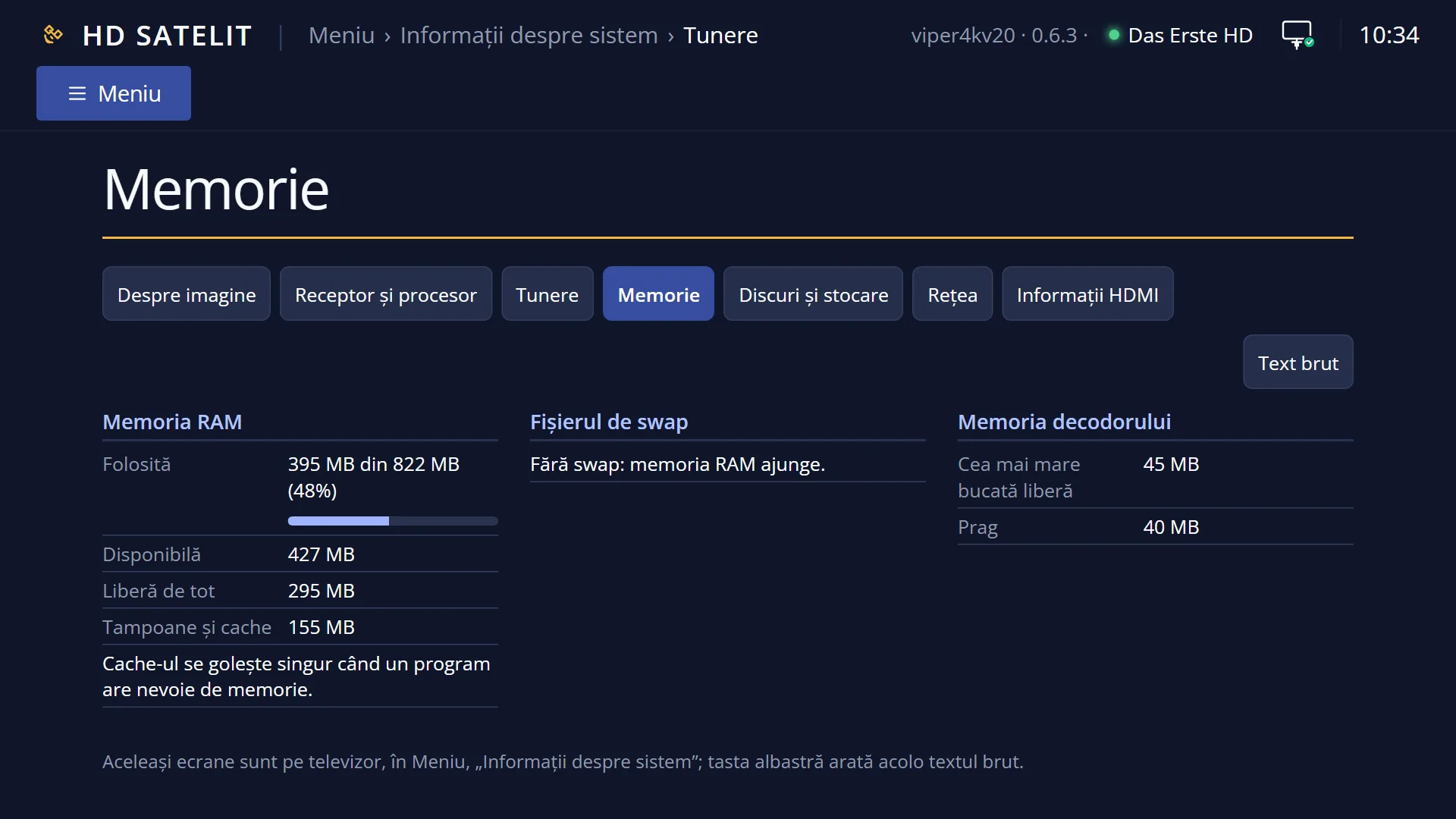
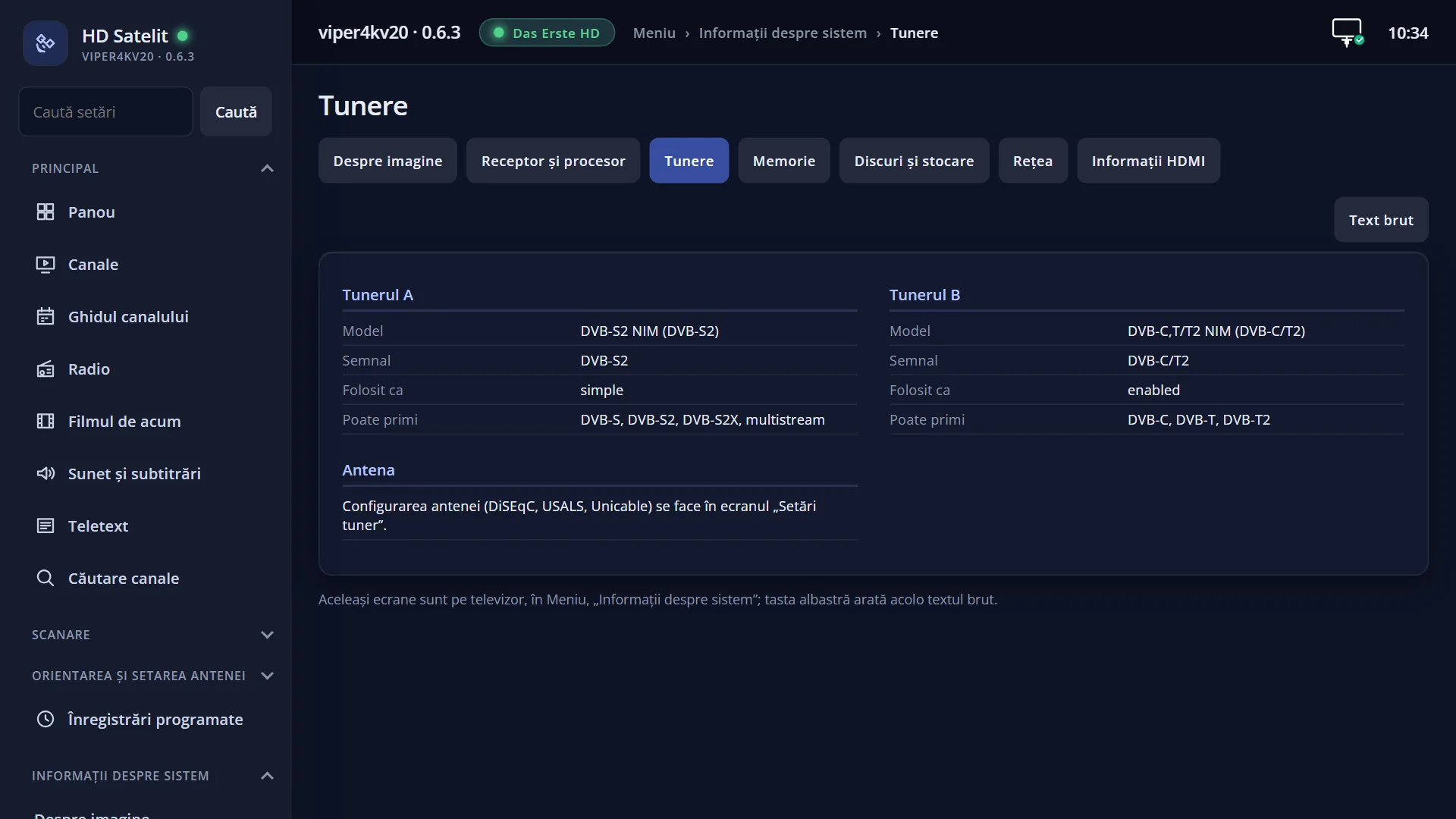
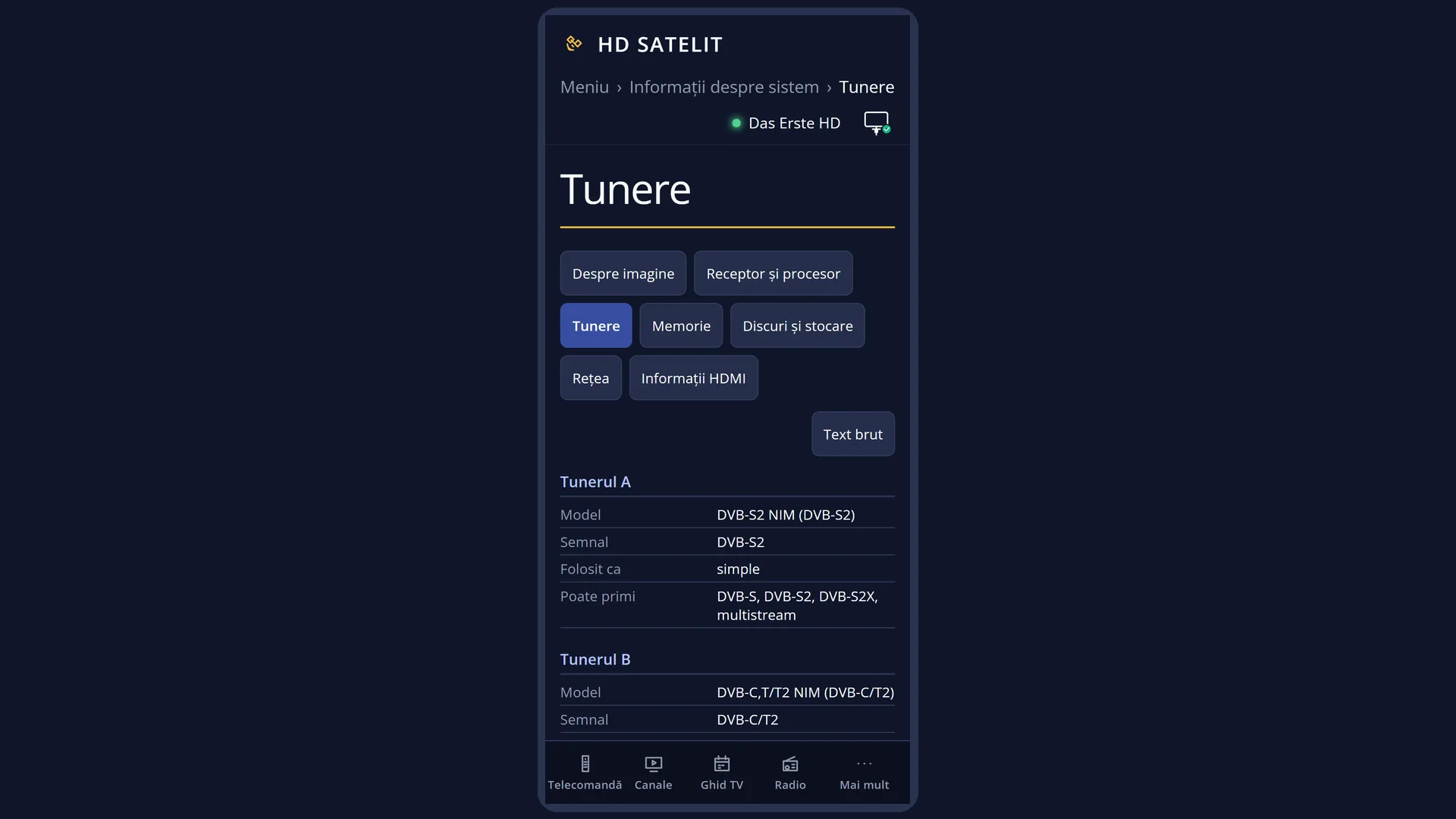
English screenshots coming: some of the pictures below still show the receiver and the web interface in Romanian. The rows, keys and steps described on this page are the English ones.
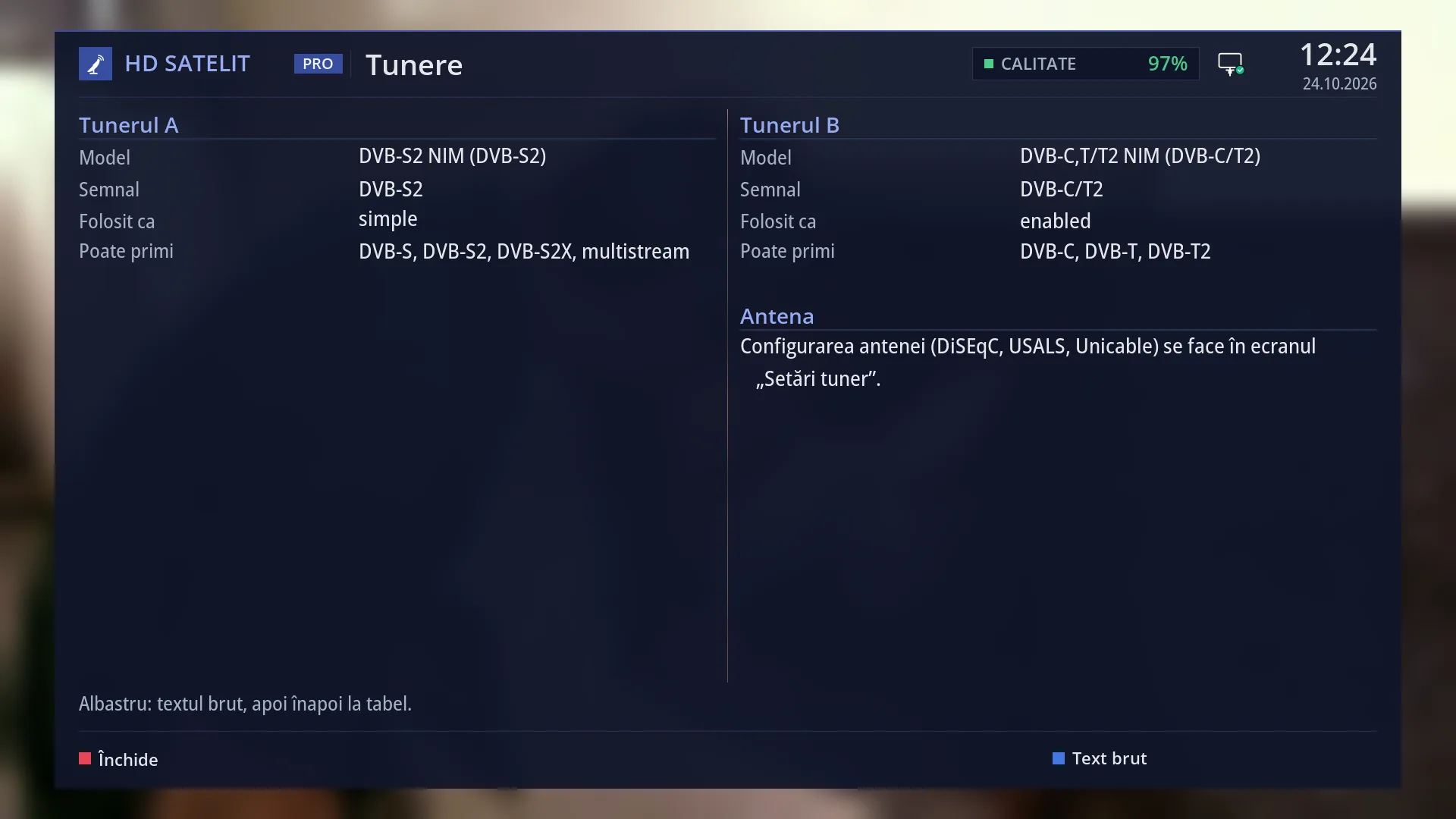
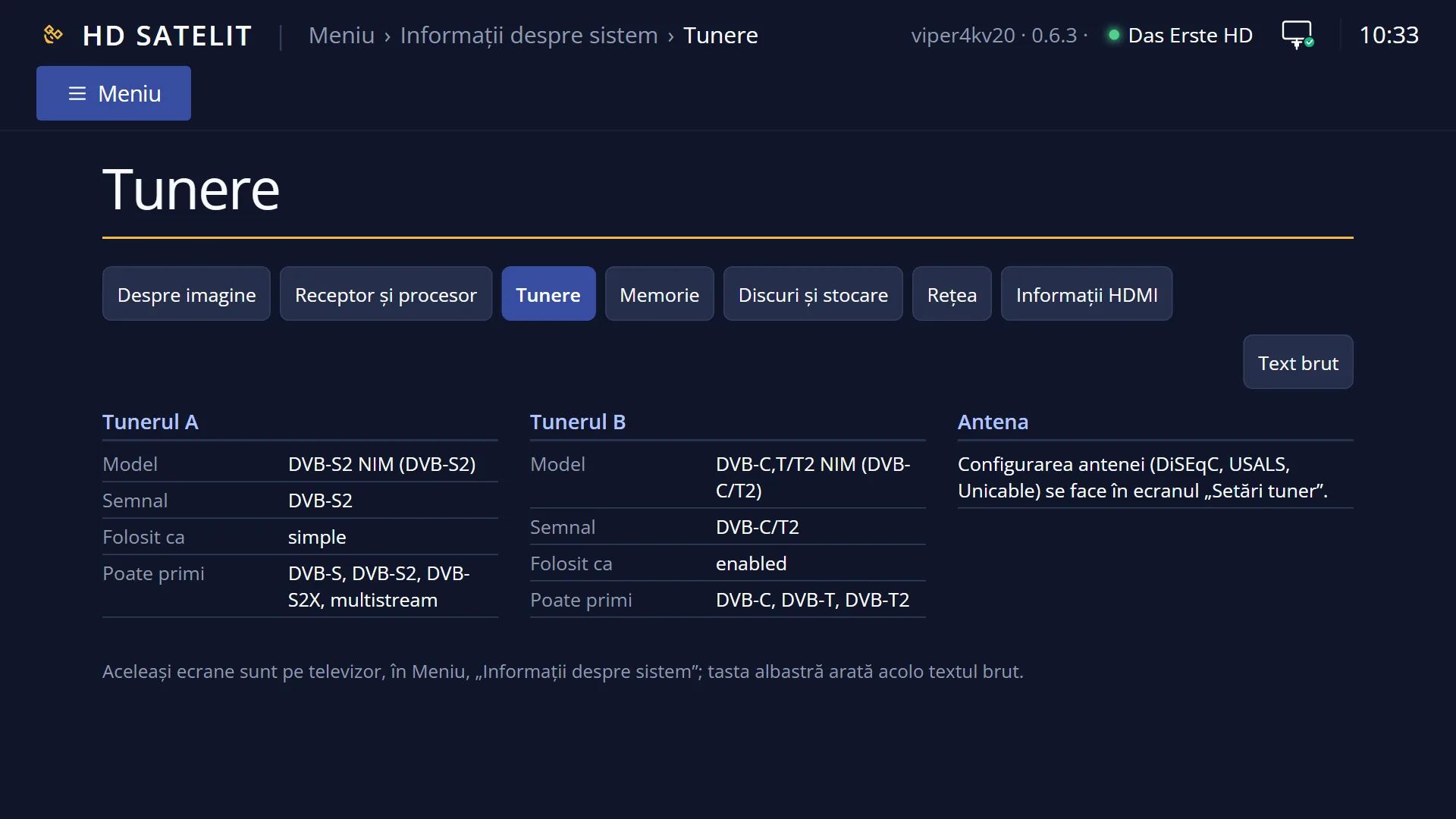
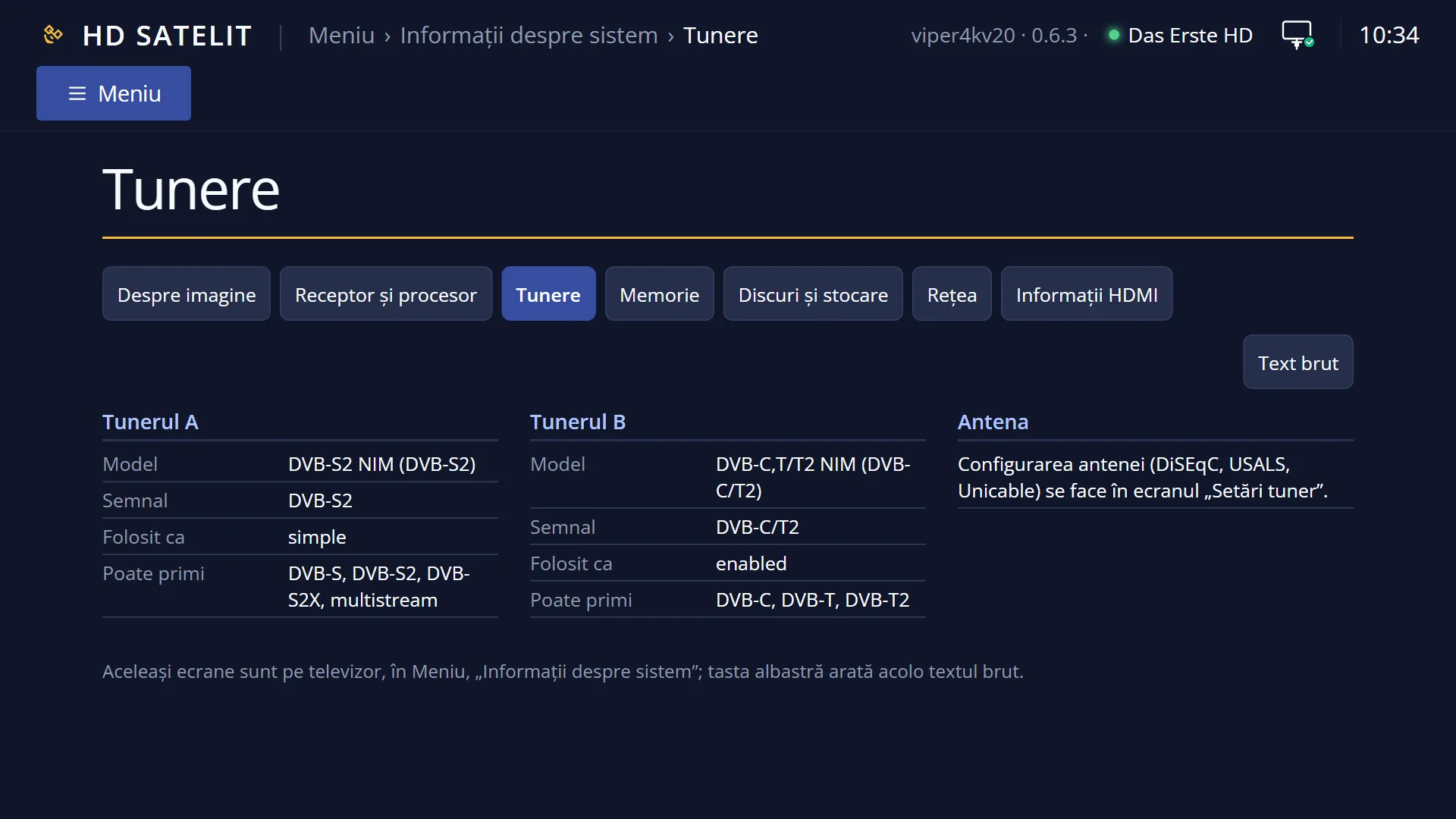
- 1 Tuner A: the model and the signal it receives.
- 2 How tuner A is set up in Tuner settings.
- 3 Tuner B: the model and the signal.
- 4 How tuner B is set up.
- 5 Where to set up the dish.
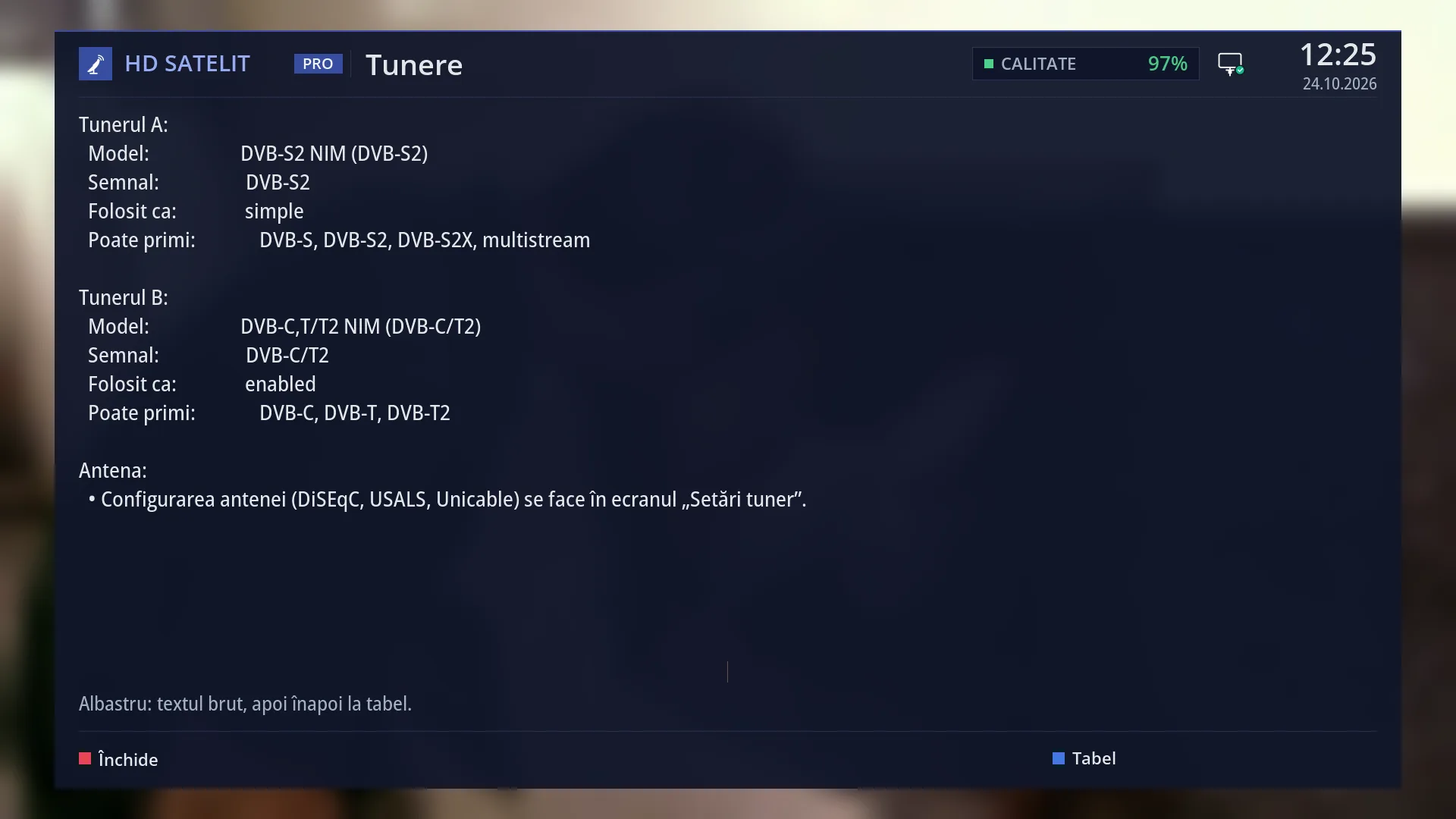
- 6 BLUE: the raw text.
What it is for
“Tuner Overview” shows each tuner in the receiver: its model, the type of signal it receives (satellite, cable or terrestrial aerial) and how it is set up at the moment.
On the Amiko Viper 4K V20 the screen shows two tuners: Tuner A, for satellite (DVB-S2), and Tuner B, for cable and terrestrial aerial (DVB-C/T2).
Open it before your first scan, so you know what you can search for, or when a scan finds nothing: here you can see whether the tuner is set up or left on “nothing connected”.
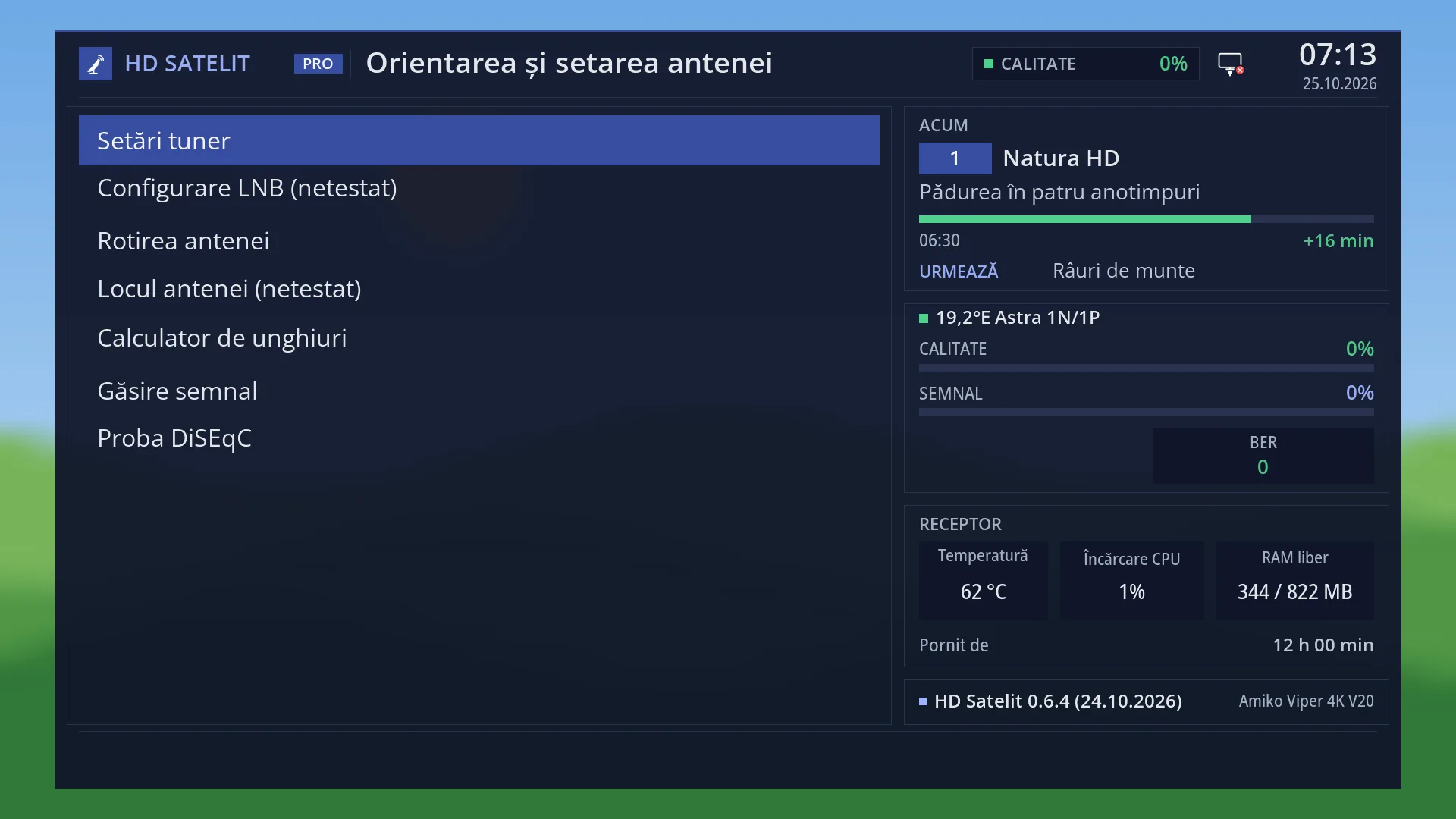
This screen only shows information. You set up the dish, the LNB and the DiSEqC switch in “Tuner settings” (MENU 2 1). The same rows are also in the web interface, on the /informatii/tunere page.
How to get here
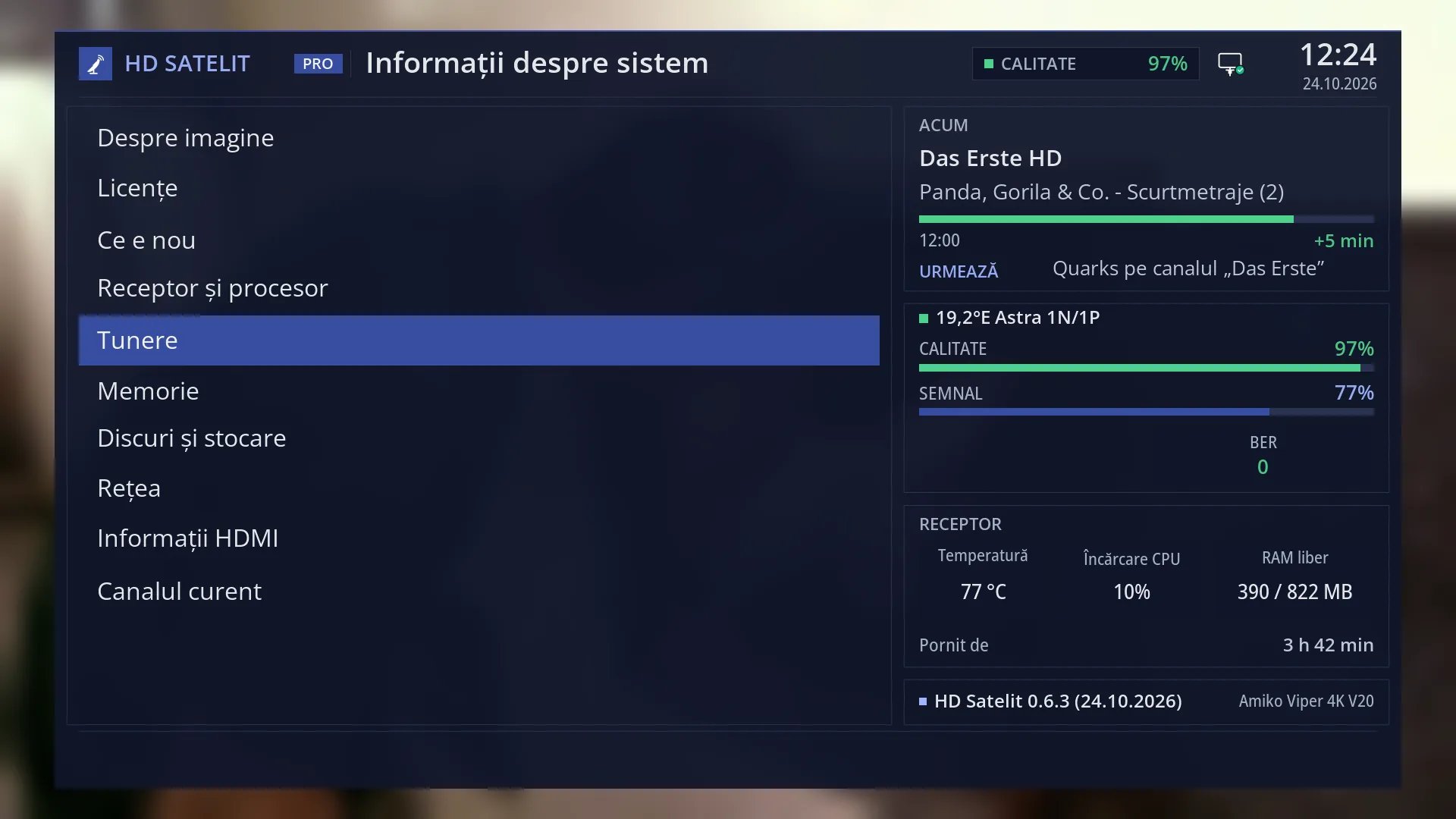
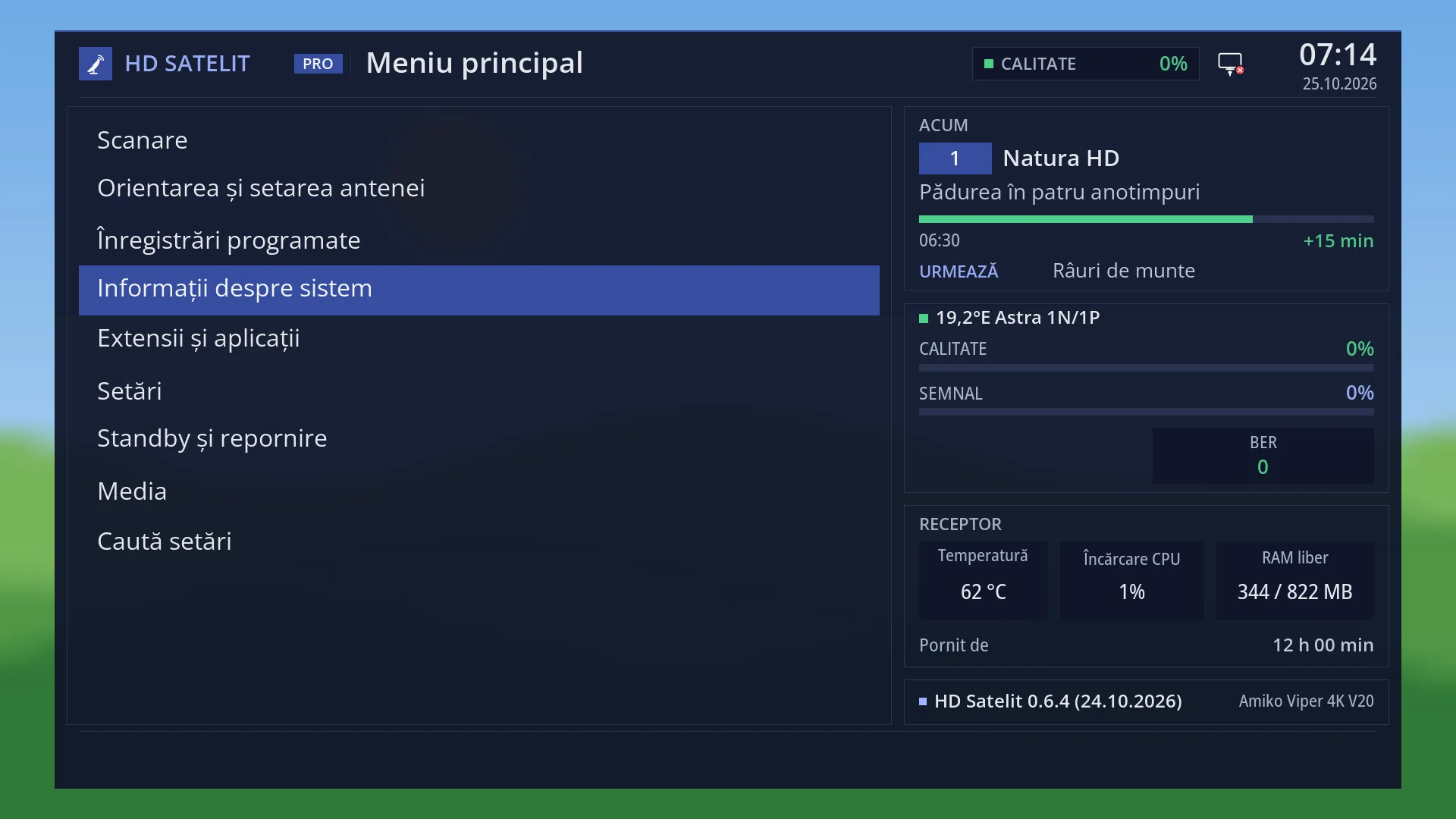
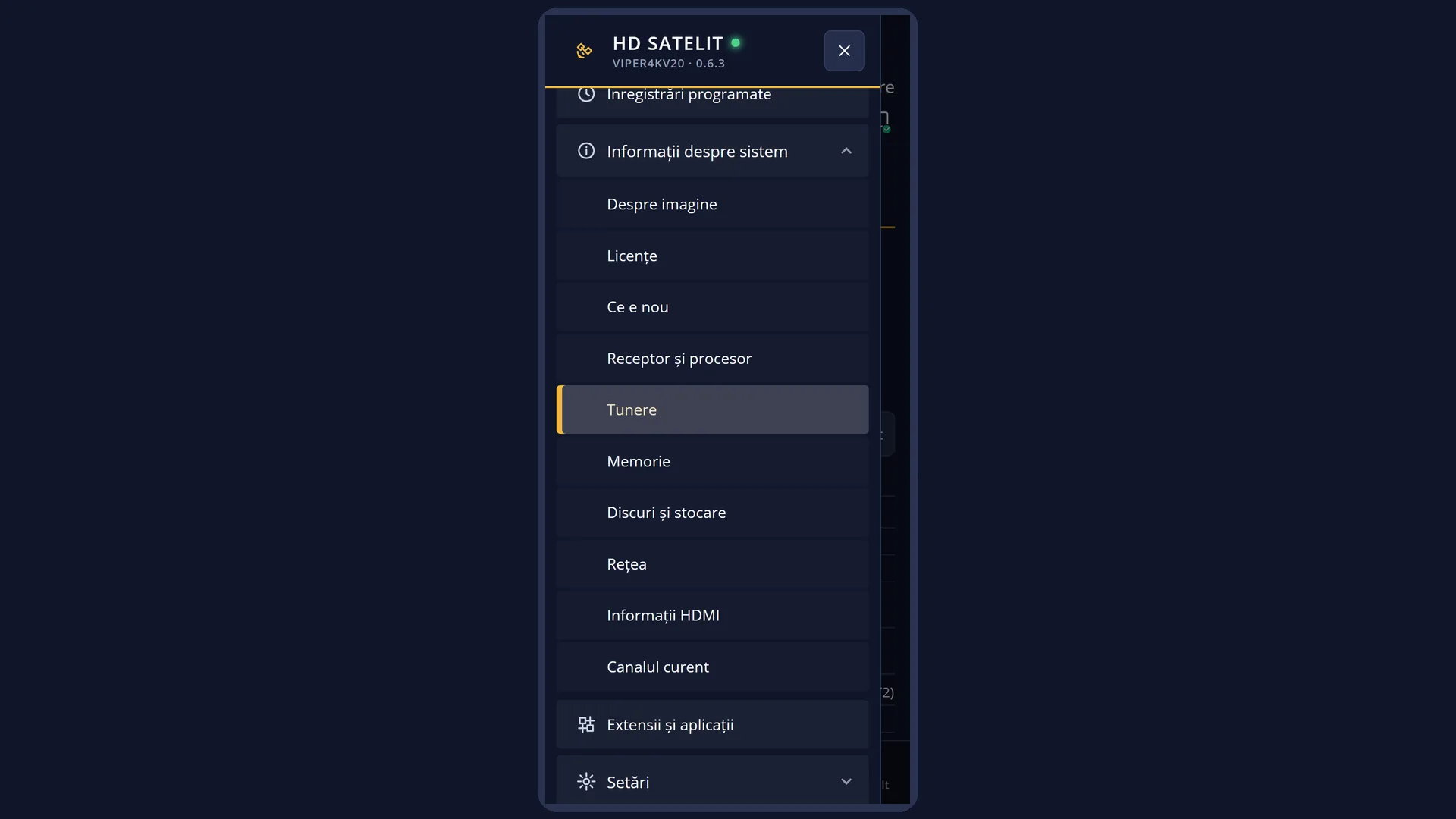
Path: Main menu > System Information > Tuner Overview.
Keys on the remote: MENU 4 5. In safe mode the first row of the submenu is “Safe mode”, so the keys are MENU 4 6.
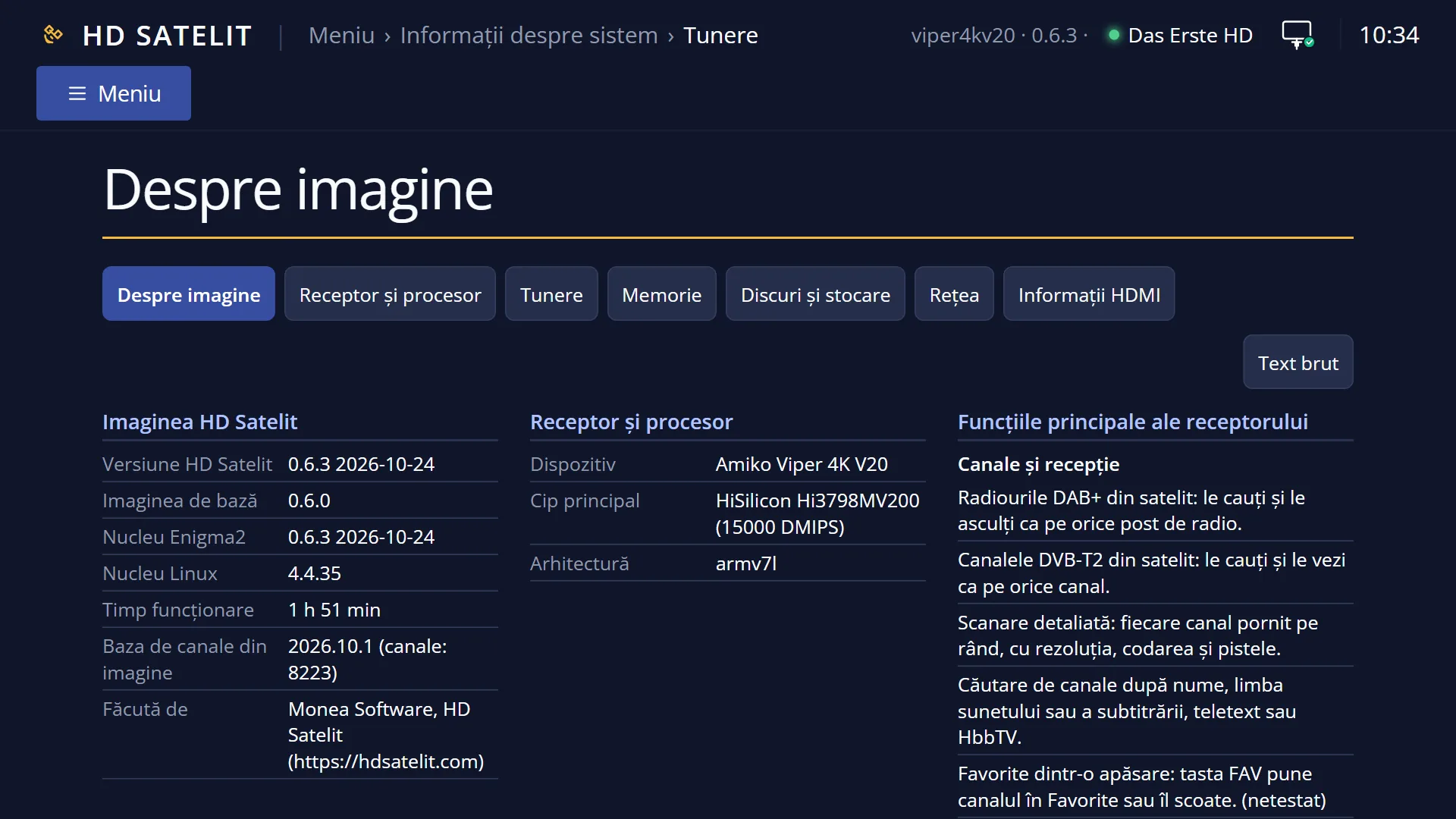
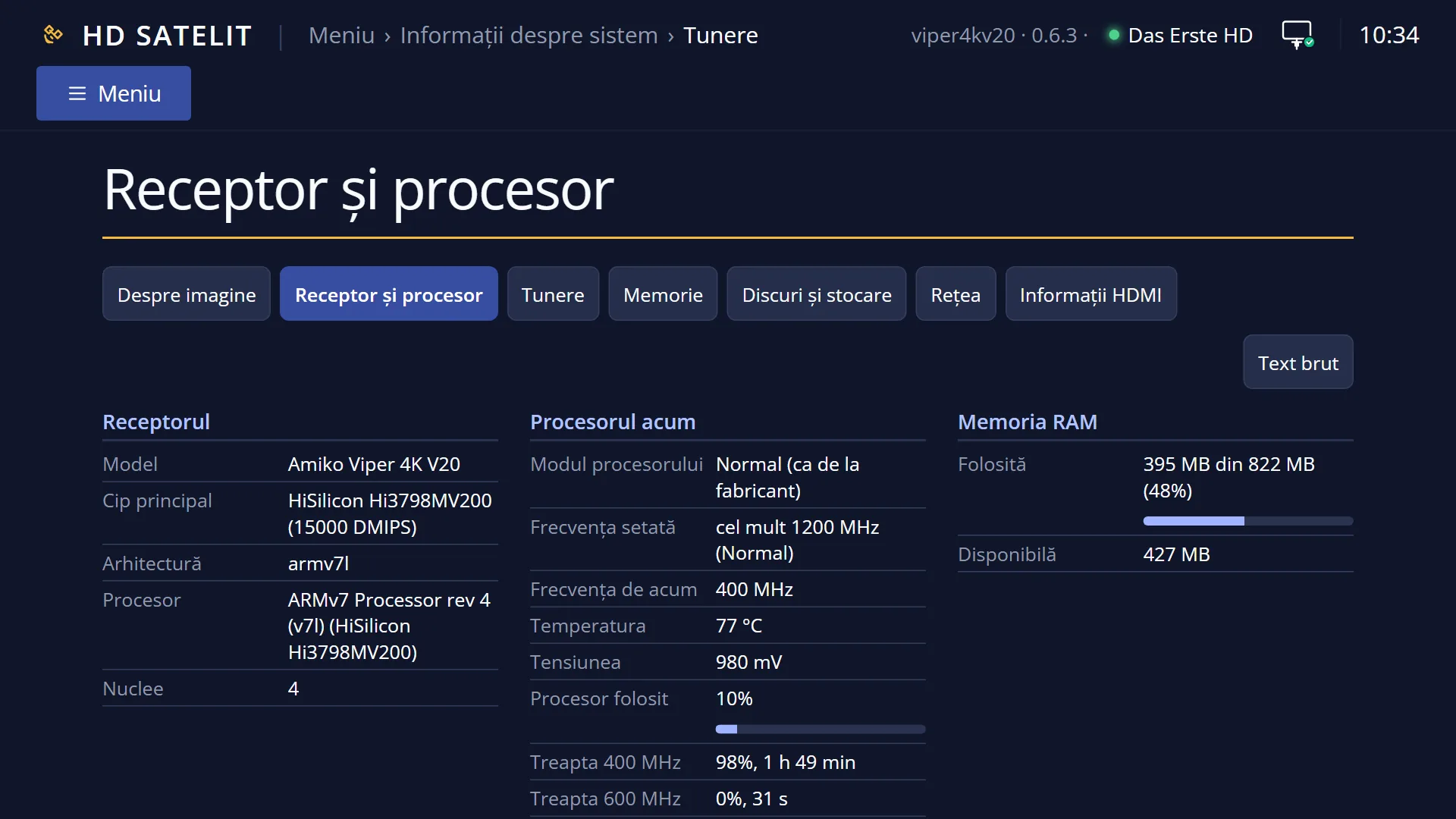
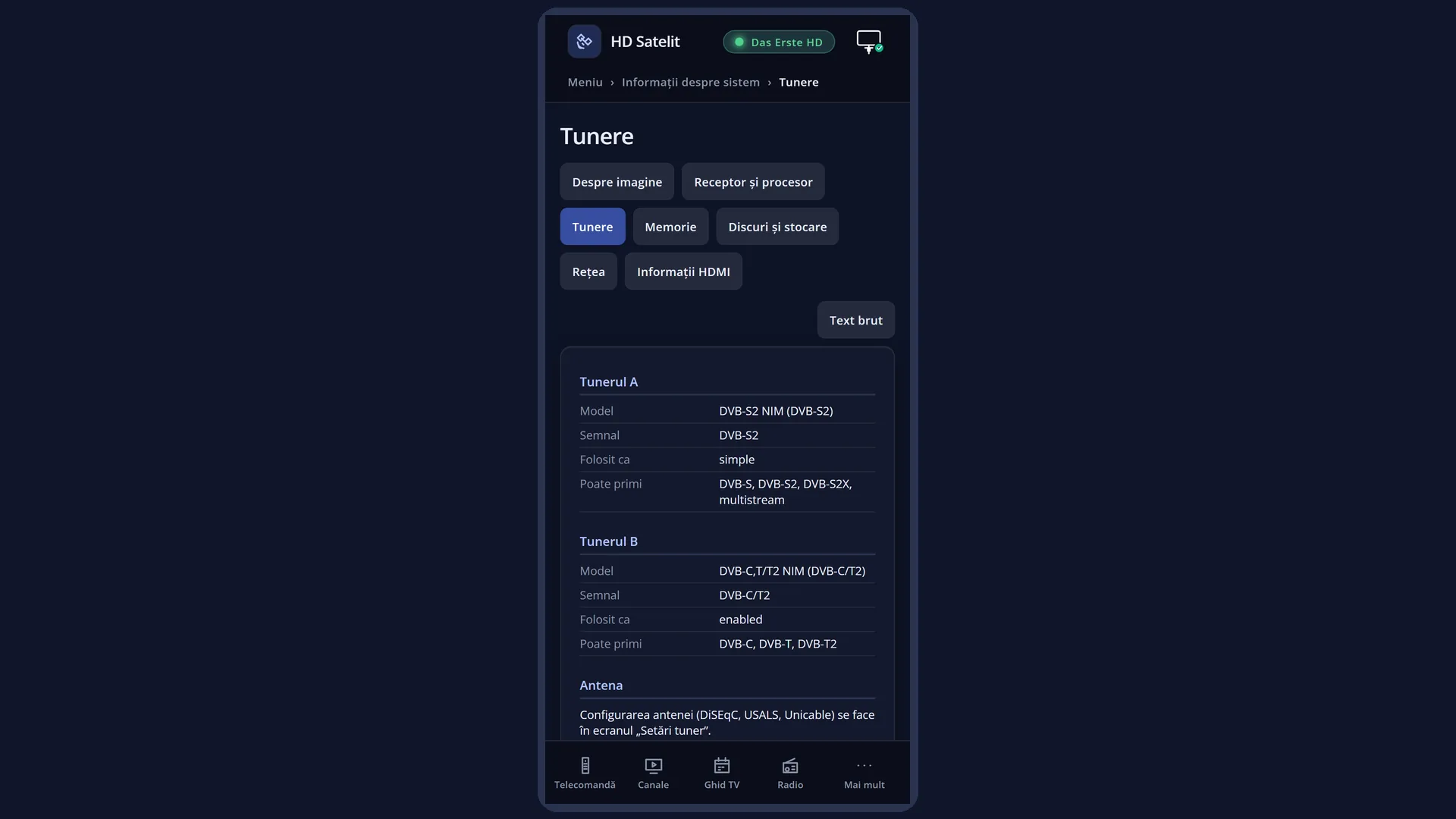
In the web interface: the /informatii/tunere page (the “Tuners” tab in /informatii).
What you see on the screen
At the top: the title “Tuner Overview”, the clock and the date. In the Pro theme you also see “HD SATELIT PRO”, the signal quality and the network icon.
One group for each tuner, “Tuner A”, “Tuner B” and so on, in two columns. Each group has “Model”, “Signal” and “Used as”. The label is on the left in grey, the value on the right in white.
The last group, “Dish”, has a single sentence: “The antenna (DiSEqC, USALS, Unicable) is set up in the “Tuner settings” screen.”
When the receiver finds no tuner, the screen only has the “Tuners” group with the sentence “No tuner found on this receiver.”
Below the table: “Blue: raw text, then back to the table.” (everything fits on one page). At the bottom, the keys RED “Close” and BLUE “Raw text”.
The screen reads the information once, when it opens. If you change something in “Tuner settings”, close it and open it again.
In the web interface, on /informatii/tunere: the same groups, with the tabs of the other screens at the top and the “Raw text” button.
Rows and settings
| Row | Values | Default | What it does |
|---|---|---|---|
| Tuner A, Tuner B (group title) | A, B | The tuner letter, in the order used by the receiver. You see the same letter in “Tuner settings” and on the “Tuner status” page in Channel Information. | |
| Model | for example “DVB-S2 NIM (DVB-S2)”, “DVB-C,T/T2 NIM (DVB-C/T2)” | The tuner name as the receiver reports it, with its type in brackets. An empty tuner slot shows “(empty)”, and a tuner the interface cannot use has “not supported” in brackets. | |
| Signal | DVB-S2, DVB-S, DVB-C/T2, DVB-C, DVB-T | The type of signal the tuner receives. DVB-S2 and DVB-S: satellite (a DVB-S2 tuner also receives DVB-S). DVB-C: cable. DVB-T: terrestrial aerial. DVB-C/T2: cable or terrestrial aerial, including DVB-T2. | |
| Used as | simple, advanced, nothing, equal, satposdepends, loopthrough, enabled | satellite: “nothing”; cable and terrestrial: “enabled” | How the tuner is set up in “Tuner settings”, under “Configuration Mode”. This screen shows the internal word; in “Tuner settings” the same option has its full name: simple = “simple” (one LNB or one DiSEqC switch, quick setup), advanced = “advanced” (each satellite and LNB set up by hand), nothing = “nothing connected” (the tuner is not used), equal = “equal to” (the same settings as another tuner), satposdepends = “second cable of motorized LNB”, loopthrough = “loopthrough to” (the signal comes through another tuner), enabled = “enabled” (the cable or terrestrial tuner is used). You cannot change it here: Menu > Dish alignment and setup > Tuner settings (MENU 2 1), the tuner you want, “Configuration Mode”. |
| Dish | Reminds you where to set up the dish: in the “Tuner settings” screen (DiSEqC for switches, USALS for a motorised dish, Unicable for a single cable shared by several receivers). |
Keys
| BLUE | Switches from the table to the raw text and back; on screen the key reads “Raw text” or “Table”. |
| UP / DOWN, CH+ / CH- | When there are several pages (many tuners): UP or CH+ for the page above, DOWN or CH- for the next page. With two tuners everything fits on one page. |
| RED, OK or EXIT | Close the screen and take you back to the “System Information” submenu. |
| GREEN / YELLOW | Do nothing here. |
Step by step
Find out what your receiver can receive
- Press MENU 4 5.
- Read “Signal” for each tuner: DVB-S2 means satellite, DVB-C/T2 means cable or terrestrial aerial.
- When you scan, choose Satellite, Cable or Terrestrial according to the tuners you have (MENU 1).
Check that the satellite tuner is set up
- Press MENU 4 5 and read “Used as” for the satellite tuner.
- If it says “nothing”, the tuner is not used: press EXIT, then MENU 2 1, choose the tuner and set “Configuration Mode” to “simple” (or “advanced”), with your LNB.
- Save, then open MENU 4 5 again: “Used as” now shows “simple” or “advanced”.
See which tuner the current channel uses
- Press MENU 4, then UP and OK: “Channel Information” opens.
- Press BLUE: the “Tuner status” page shows the tuner in use and its signal.
Problems and solutions
“Used as” says “nothing”.
The tuner is not used, so the scan ignores it. Set it up in Menu > Dish alignment and setup > Tuner settings (MENU 2 1).
“Used as” shows short internal words (simple, enabled).
The screen shows the internal name of the option. Its meaning is the name used in “Tuner settings”: simple = simple, advanced = advanced, nothing = nothing connected, equal = equal to, loopthrough = loopthrough to, enabled = enabled.
A satellite scan finds nothing, even though the tuner appears here.
First check “Signal”: a DVB-C/T2 tuner does not receive satellite. Then check the LNB and the switch in “Tuner settings”, and use “Signal finder” (MENU 2 6) to see whether the dish brings in a signal.
“No tuner found on this receiver.” appears.
The interface did not find the tuners at startup. Restart the receiver (Menu > Power & Restart > Restart Box). If the message is still there, write to us at [email protected].
I changed something in “Tuner settings” and the old value still shows here.
The screen reads the information when it opens. Press EXIT and open it again with MENU 4 5.
Related topics
- System Information
- Tuner settings
- LNB configuration
- Signal finder
- Channel scan
- Channel Information (Tuner status)
- Matching web page: /informatii/tunere