

Plugins & Applications
English screenshots coming: some of the pictures below still show the receiver and the web interface in Romanian. The rows, keys and steps described on this page are the English ones.
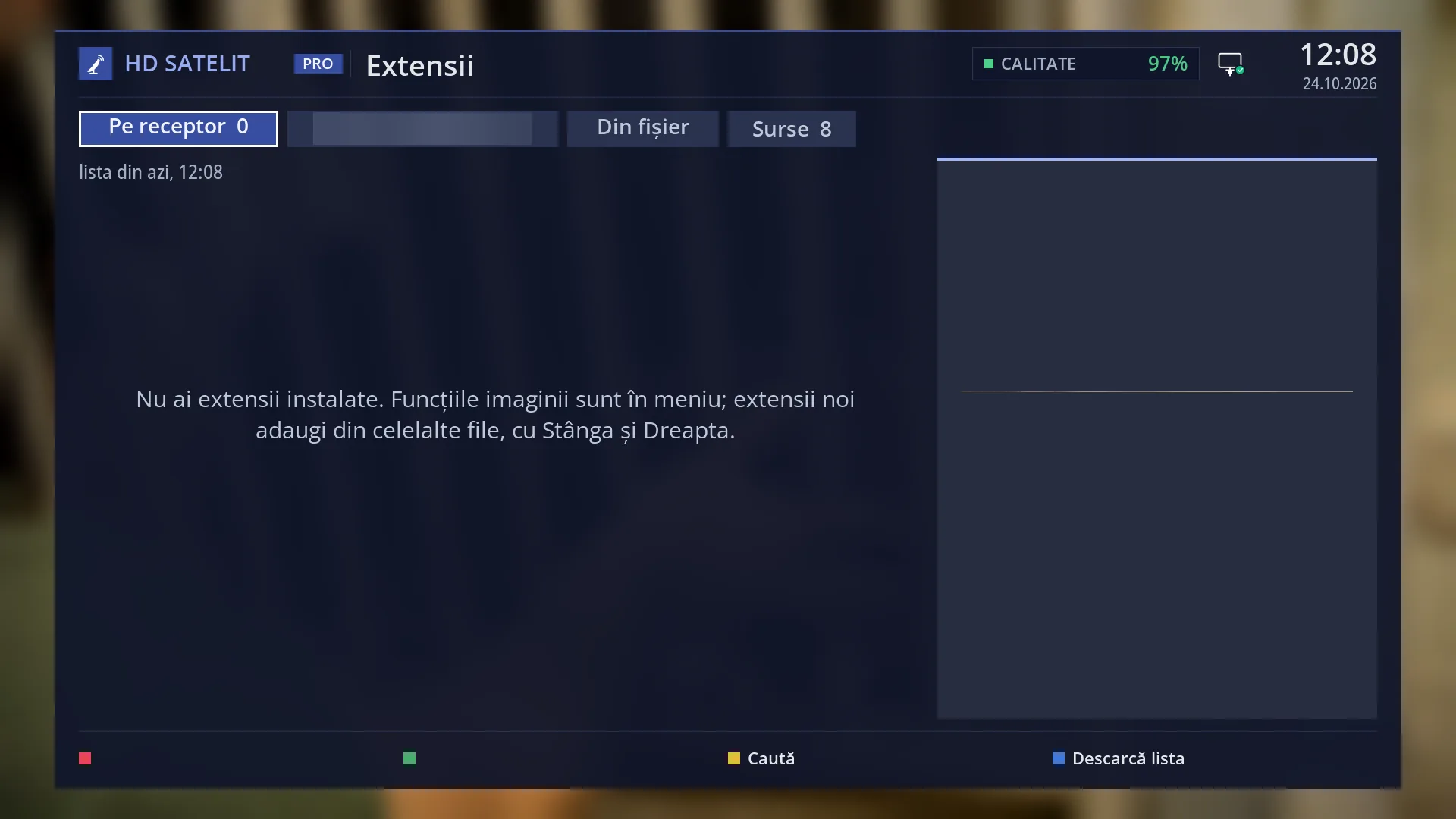
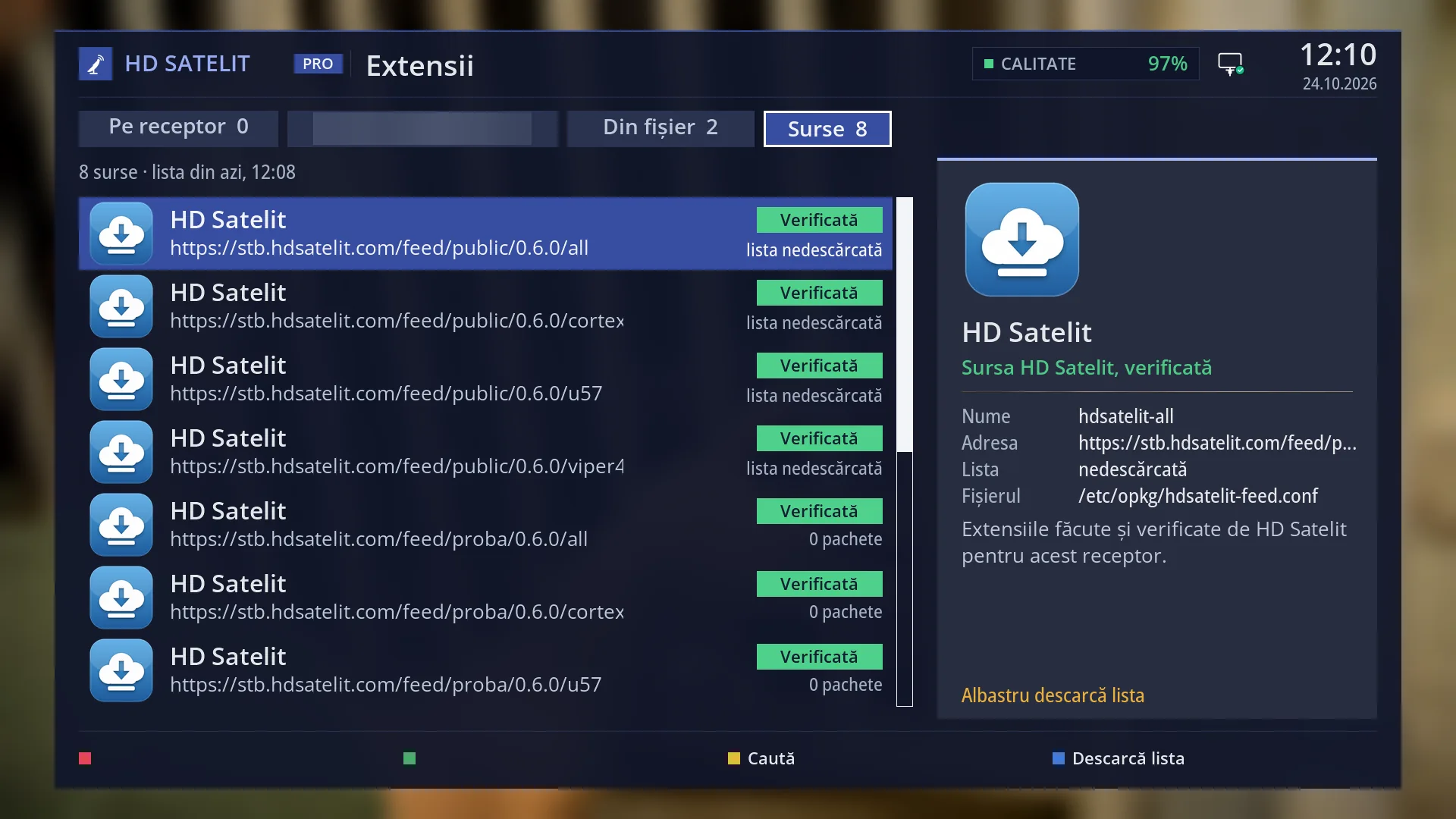
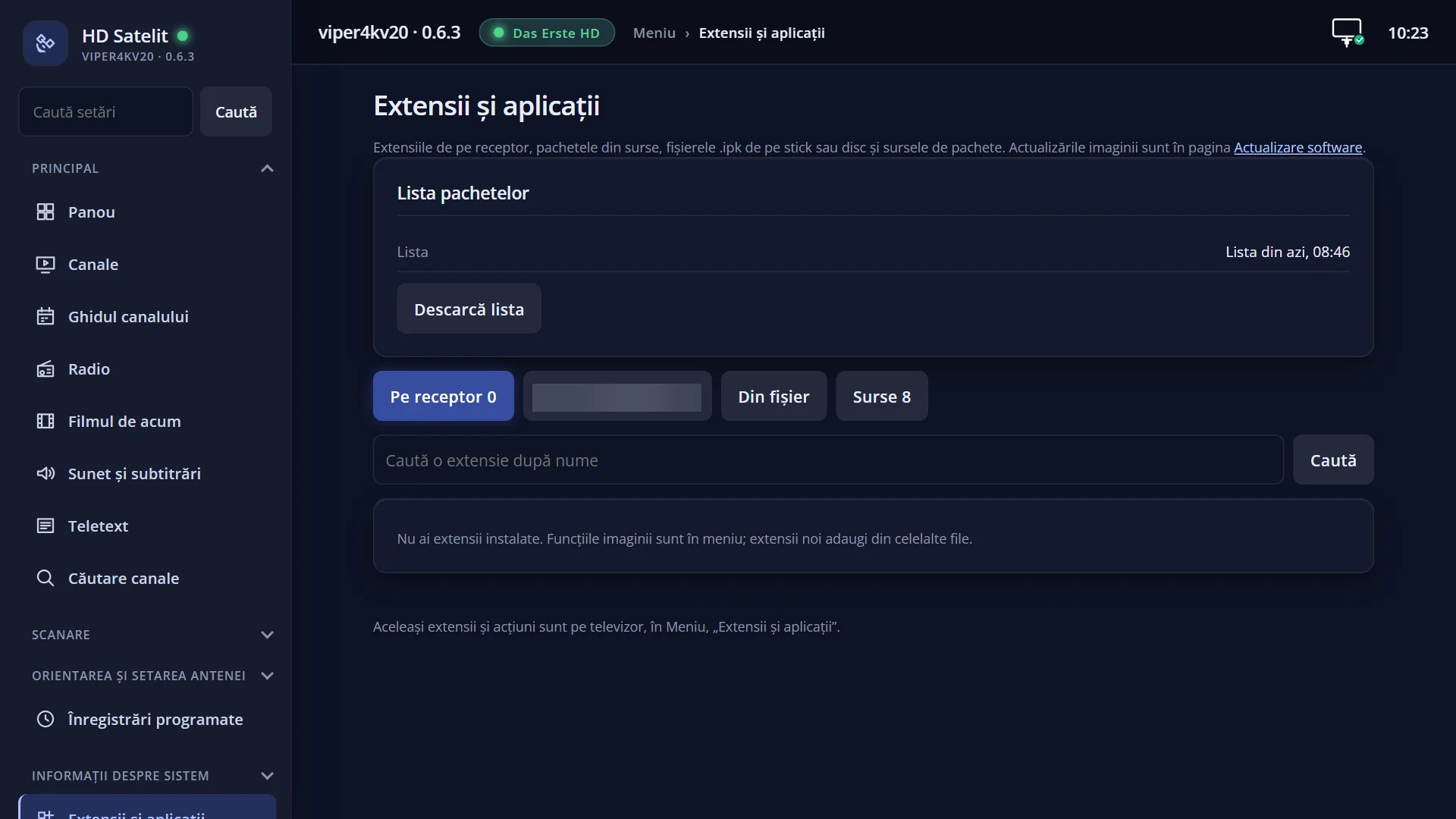
- 1 The tabs: On the receiver, the categories from the sources, From file, Sources.
- 2 The status of the package list; the yellow bar moves while it downloads.
- 3 The rows of the selected tab; an empty tab says why here.
- 4 RED deletes, GREEN is the main action, YELLOW searches, BLUE downloads the list.
What it is for
“Plugins & Applications” opens the receiver's extension manager. It is a single screen, like the app store on a TV. Here you see the extensions you have added, install others from the package sources, update them, delete them, install a package from a USB stick and choose your package sources.
The features of the HD Satelit image are not here: they are already in the menu. The “On the receiver” tab only shows extensions that you installed yourself.
Each package shows where it comes from. The HD Satelit source has the “Checked” badge. Packages from other sources, or from a file on a USB stick, say “Not checked by HD Satelit”. Only install things from outside the HD Satelit source if you know them.
Before anything is installed, updated or deleted, you are asked to confirm, with the version, size and source shown. You see the progress straight away, with a short log.
You can do the same from your phone or computer, on the receiver's /extensii web page.
How to get here
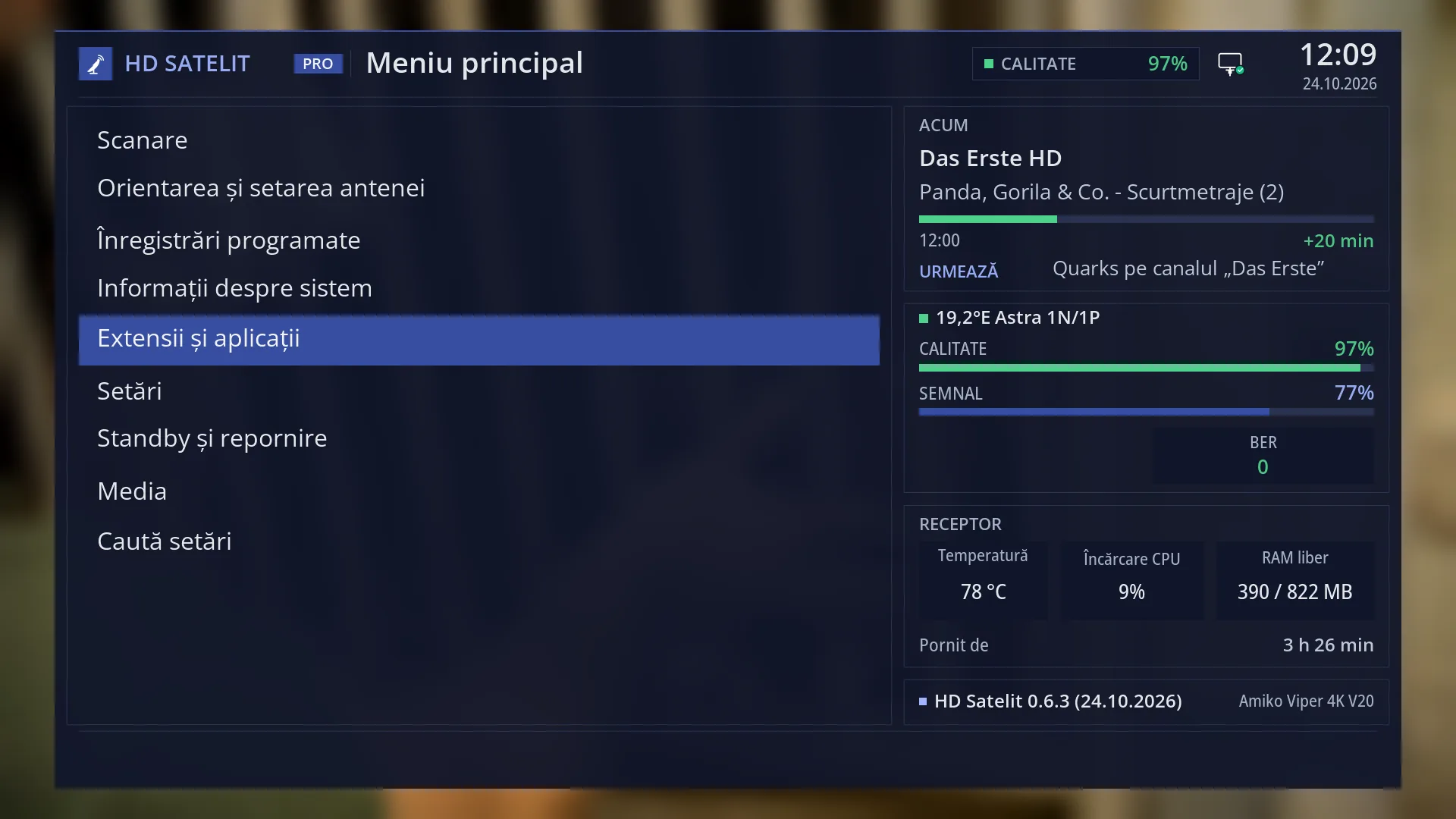
Path: Main menu > Plugins & Applications. The screen is titled “Extensions”.
Keys on the remote: MENU 5.
If your remote has a PORTAL key, pressing it during live TV opens the same list when the channel has no HbbTV application to start. For a few seconds, what the receiver knows about HbbTV on that channel is then shown over the list.
In the web interface: the /extensii page (“Extensions and apps”).
What you see on the screen
At the top is the title “Extensions” and, below it, the tabs: “On the receiver” (with the number of your extensions), “Updates” (only when one has a new version), one tab for each category that has packages in the sources (for example “Extensions”, “Skins”, “Channel lists”, “Channel logos”, “System settings”, “Others”), then “From file” and “Sources”. Next to each name is the number of rows. The selected tab is blue with a white frame. When not all tabs fit, the signs “<” and “>” appear at the edges.
Below the tabs is the status row. It shows how old the package list is (for example “the list from today, 14:32”), “the list has not been downloaded: blue downloads it” or “no package source”. In the “Sources” tab it shows how many sources there are, and in the “From file” tab where it searched. While the list is downloading or files are being searched, the row is yellow (“Downloading the package list”) and a small yellow bar moves below it.
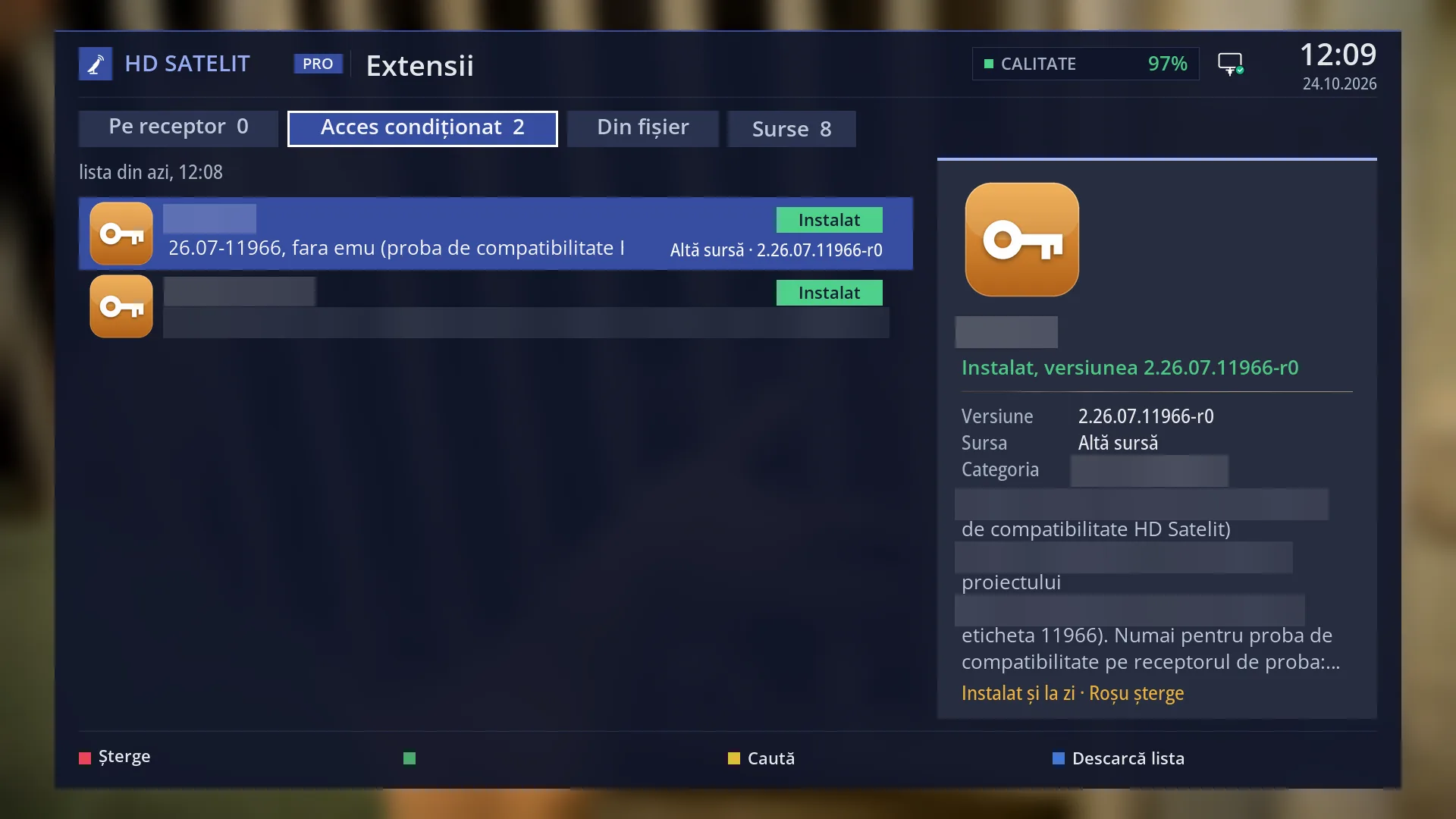
The list on the left: each row has the category icon, the name in large letters and a short description below it. On the right of the row is a coloured badge (“Installed” in green, “Update” or “After restart” in yellow, “Cannot be read” in red) and, in smaller text, the source, version and size. The selected row has a blue background.
The panel on the right shows the selected row: the large icon, the name, a badge (for example “Installed, version 1.2”, “Update from 1.0 to 1.1”, “Not installed”, “HD Satelit source, checked”), then the rows “Version”, “Size” (how much is downloaded and how much space it takes), “Source”, “Address” (external sources only), “Category” and the description. A long description is shown on pages that change by themselves, with “…” at the end.
At the bottom of the panel, in yellow, you see which keys work on the selected row, for example “OK installs”, “OK updates · Red deletes” or “Installed and up to date · Red deletes”.
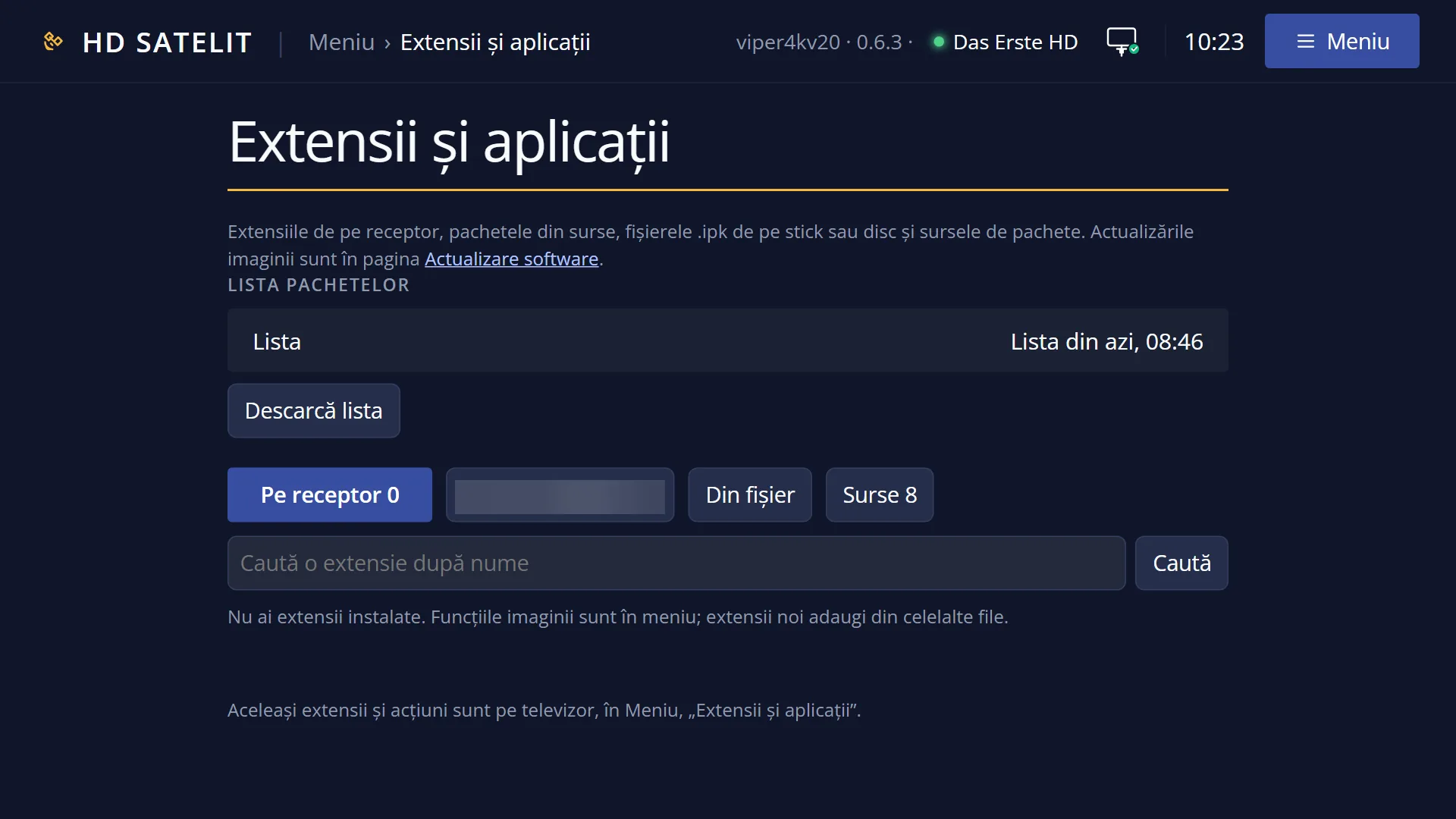
When a tab is empty, the middle of the list says why, for example “You have no extensions installed. The image's functions are in the menu; you add new extensions from the other tabs, with left and right.” or “No .ipk file on the USB stick or disk. Copy the package to a USB stick, then press blue.”.
At the bottom, the colour keys: RED “Delete” or “Delete the source” (only when possible), GREEN the main action for the row (“Open”, “Install”, “Update”, “Update all”, “Add”, “Restart the interface”), YELLOW “Search”, BLUE “Download the list” (in the “From file” tab: “Search files”).
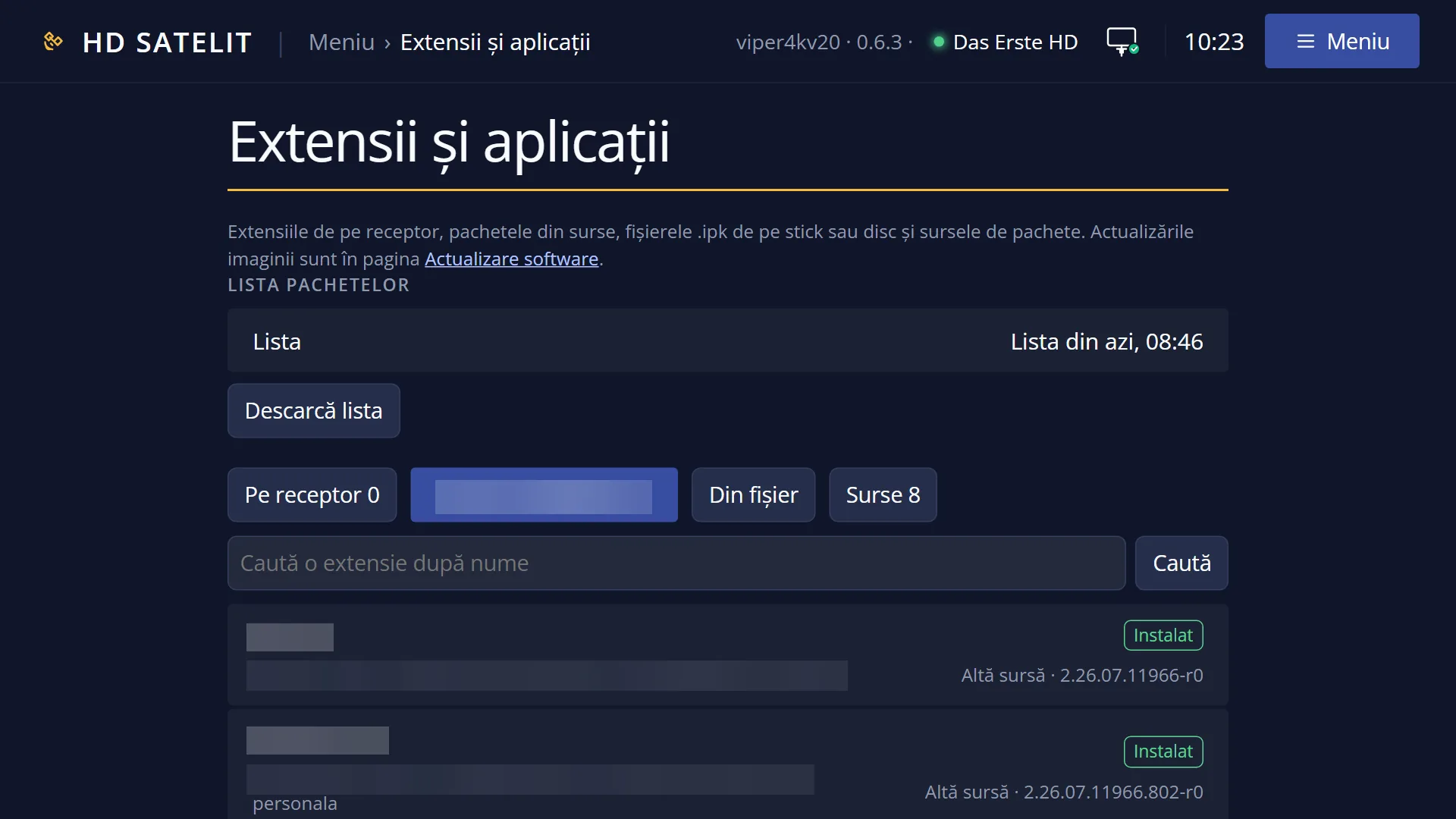
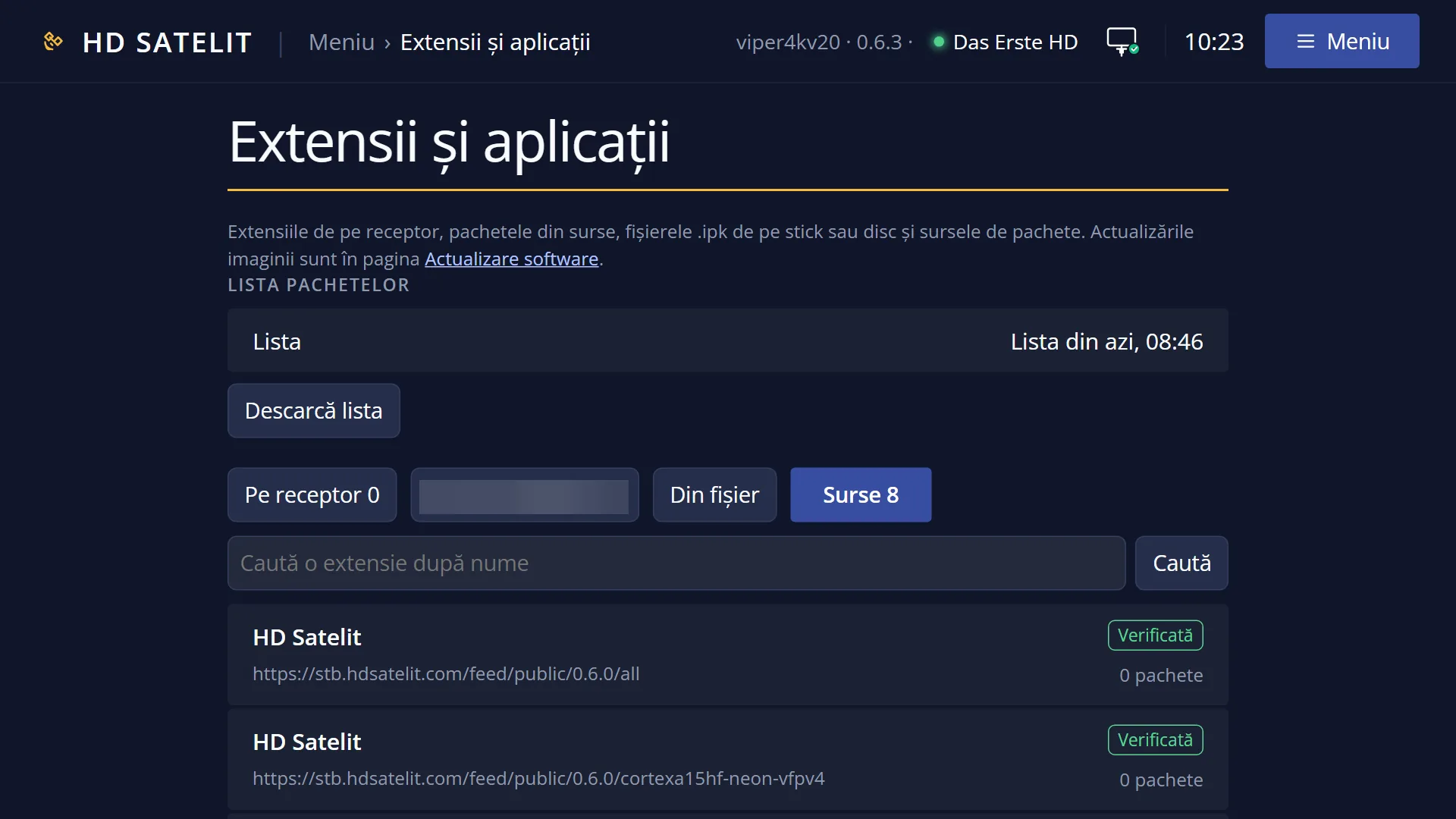
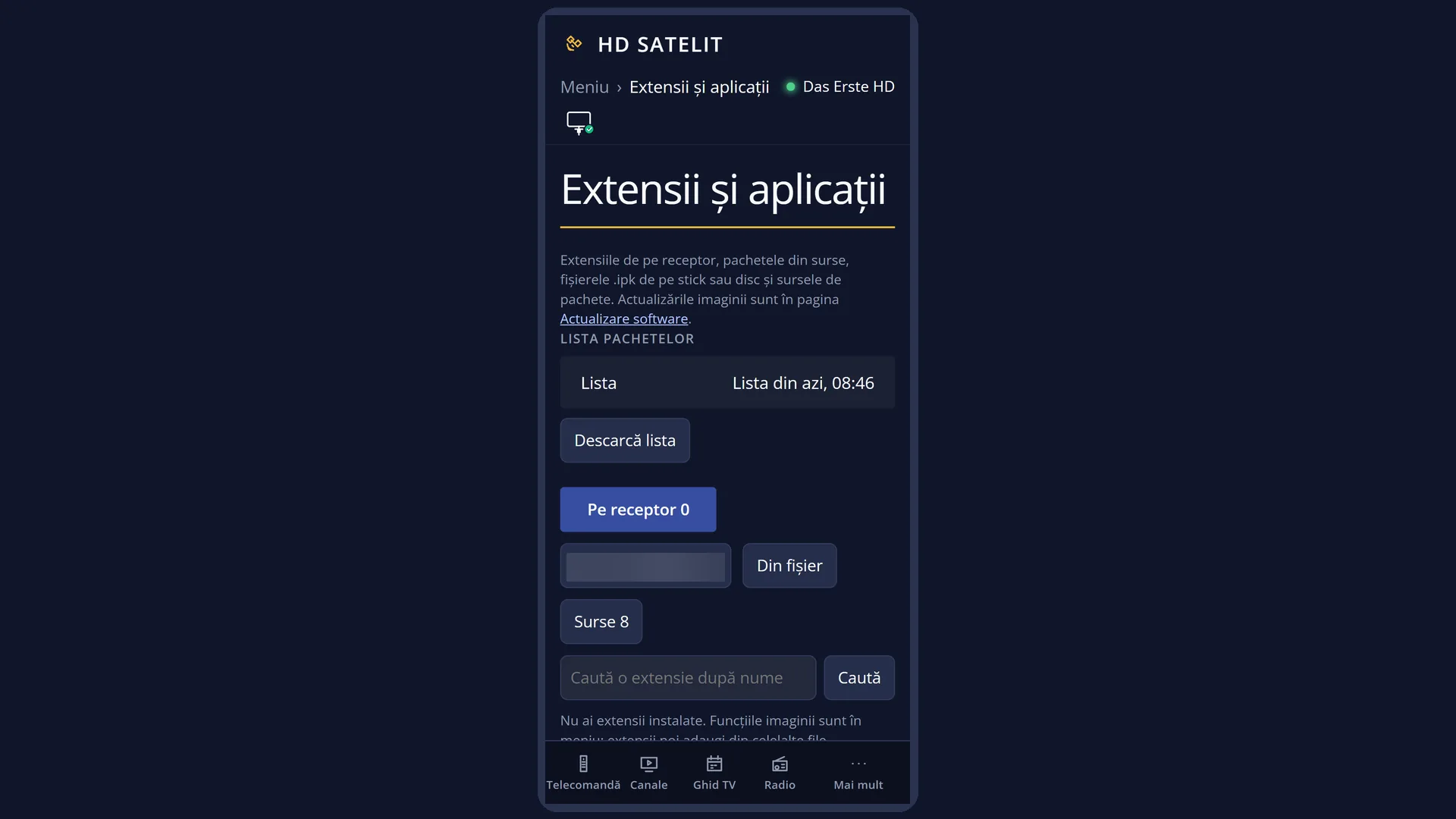
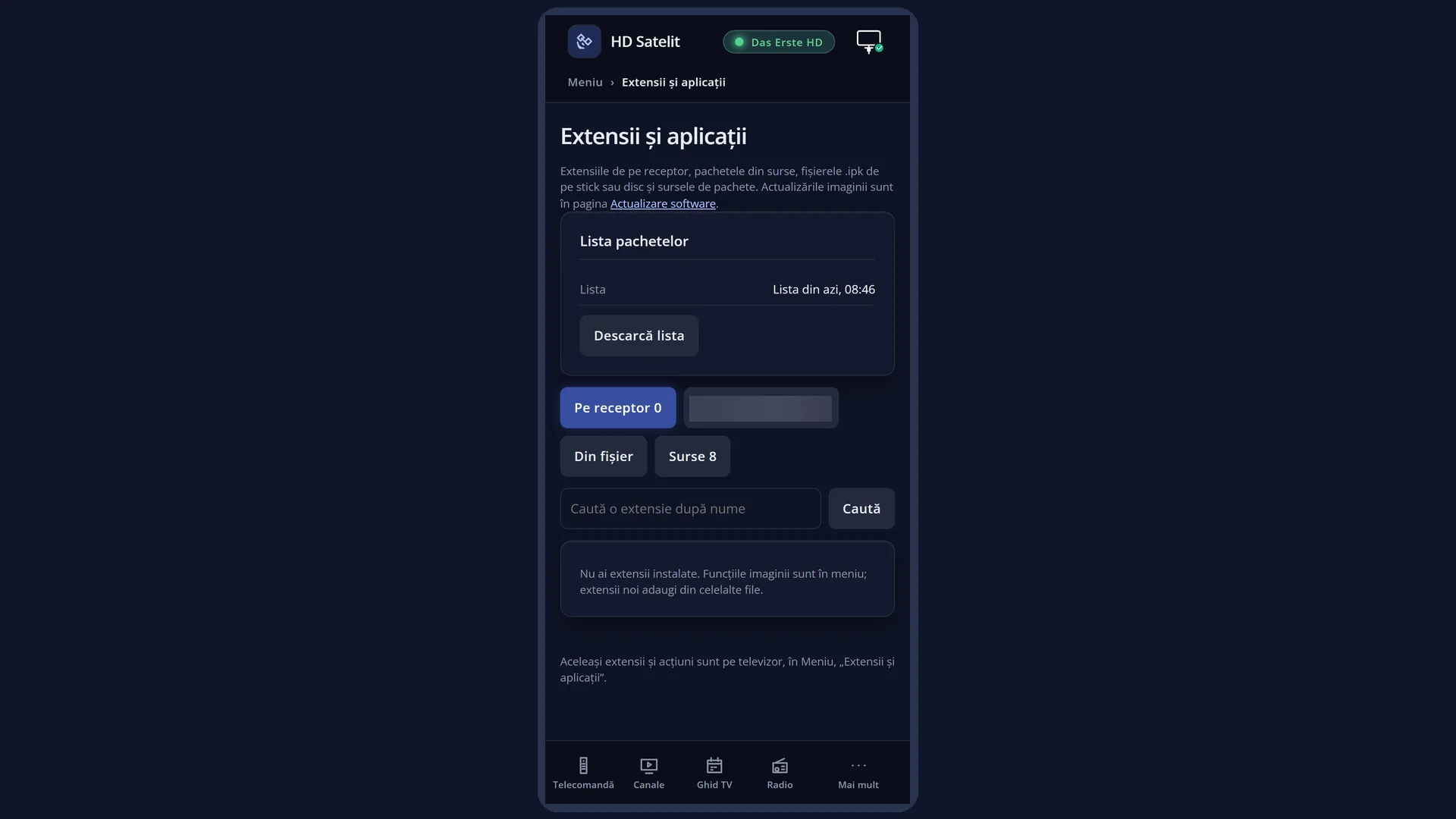
On the /extensii web page: the “The package list” box (how old the list is, and the “Download the list” button), the tabs as buttons, the “Search for an extension by name” field and the list. Clicking a row opens its details and buttons below it (“Install”, “Update”, “Delete”, “Open on the TV”). Every change asks you to confirm on the page.
Rows and settings
| Row | Values | Default | What it does |
|---|---|---|---|
| The “On the receiver” tab | the extensions you installed, “After restart” | empty (the image's features are in the menu) | The extensions you have installed, which you open from the list. OK or GREEN opens the selected extension. RED deletes it, after asking you. The details show the version, how much space it takes, its source and its location. A newly installed extension that only starts after the interface restarts appears at the end, with the yellow “After restart” badge. GREEN on it asks “Restart the interface now?”. In safe mode, the status row says that the extensions you installed are switched off for now, not deleted. When you want to open or delete an extension you added. |
| The “Updates” tab | only appears when there is a new version | Installed packages for which the source has a newer version. The badge in the panel says “Update from ... to ...”. OK updates the selected package. GREEN “Update all” updates all of them at once, after a single question. When the tab appears: after you download the package list. | |
| The category tabs (for example “Extensions”, “Skins”, “Channel lists”, “Channel logos”) | a package that is not installed, “Installed”, “Update” | The packages from the sources, by category, in alphabetical order of name. A tab only appears when the category has at least one package. OK on a package that is not installed installs it. On an old one it updates it. On one that is installed and up to date it opens the extension or says “... is installed and up to date.”. RED deletes an installed package. When you are looking for something new to put on the receiver. | |
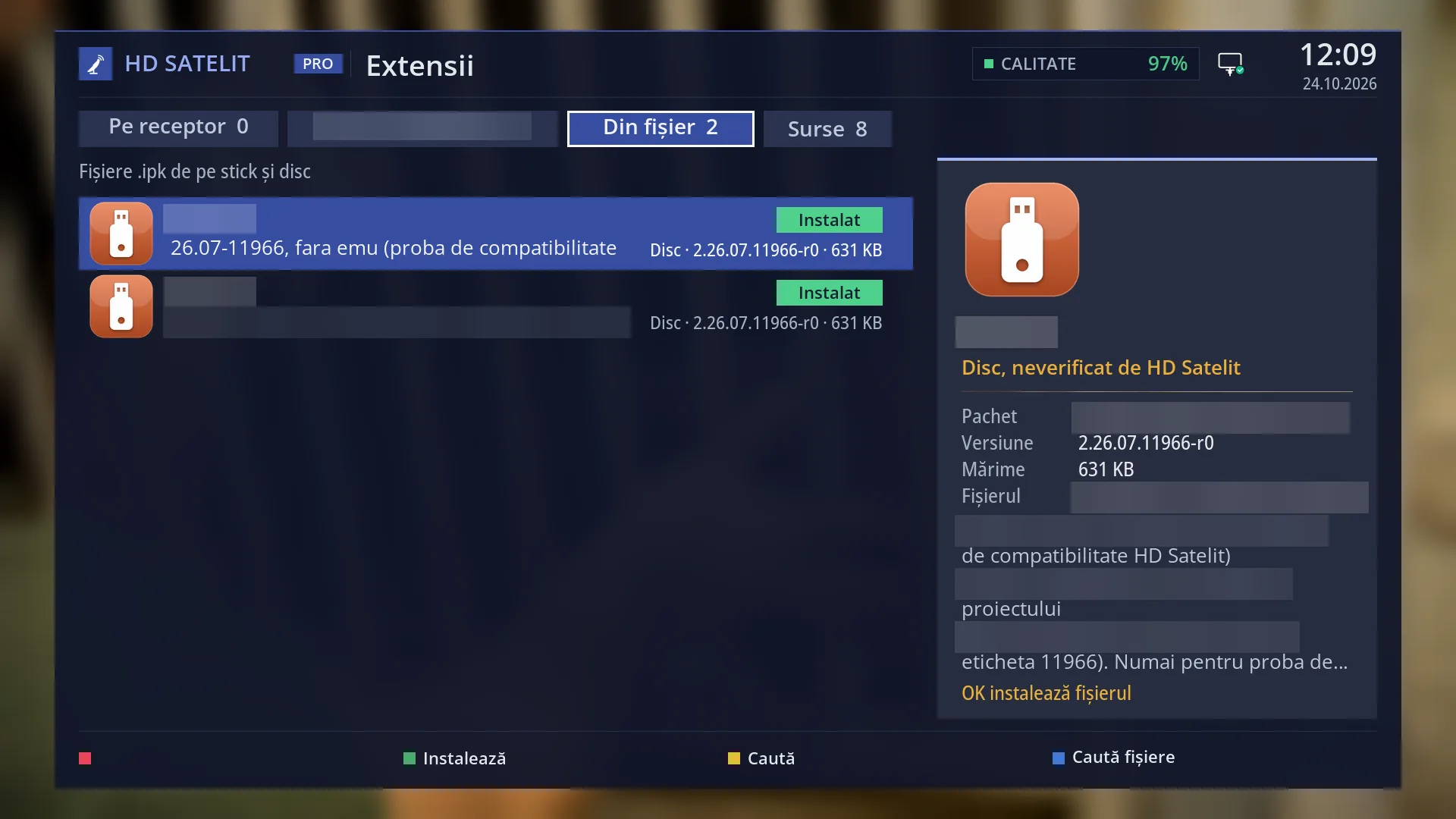
| The “From file” tab | .ipk files on a USB stick, a disk or the receiver's memory, “Search the network too” | The first time you open the tab, the receiver searches in the background for .ipk files on the USB stick, the disk and its own memory (the 300 newest). You can use the list in the meantime. Each file shows the package name, where it is (“USB stick”, “Disk”, “Network”), the version and the size. The details say “..., not checked by HD Satelit”. OK installs the selected file, after asking you. Network folders (a computer or a NAS) are not searched automatically, because they can be slow to respond. When the receiver has network folders, the last row, “Search the network too”, searches them when you press OK. BLUE (“Search files”) searches again. When you have received a package as a file and copied it to a USB stick. | |
| The “Sources” tab | “Checked”, “External”, “Added by you”, “Add a source” | the sources that come with the image | The package sources on the internet. Only the HD Satelit source has the “Checked” badge (with a secure https address). “External” is a source added by someone else, “Added by you” one you added. On the right you see how many packages the source has, or “list not downloaded”. The details show the name, the address, the number of packages and how old the list is. OK or BLUE downloads the list again. RED (“Delete the source”) only works on sources you added; extensions installed from it stay on the receiver. The last row, “Add a source”, adds a new one. When someone you trust gives you the address of a package source. |
| “Add a source” | the source name, the source address | OK opens the on-screen keyboard twice. First the name: lower-case letters, digits and the signs - _ . (32 at most). Diacritics are removed automatically and spaces become “-”. Then the address, which starts with http:// or https:// and has no spaces. Then comes the question “Add the source ...?”, with the address and the sentence “The packages from it are not verified by HD Satelit.”. With Yes, the source appears in the list and its list is downloaded straight away. A name that already exists or a wrong address is refused, with the reason on the screen. | |
| Search (YELLOW) | 40 characters at most | YELLOW opens the “Search for an extension by name” keyboard. After you confirm, the first tab becomes the search, with the text in quotes. It holds the extensions on the receiver and the packages from the sources that have the text in their name or description. EXIT leaves the search and takes you back to the previous tab. An empty text also leaves it. When you know the name of what you are looking for. | |
| The package list (BLUE “Download the list”) | “the list from today, 14:32”, “The list was not downloaded”, “no package source” | The receiver remembers which packages each source has. When you open the screen, the list downloads by itself at most once an hour. BLUE downloads it at any time. You can use the screen while it downloads. If the download fails, the status row gives the reason (for example “Could not download. Check the internet connection.”) and the previous list is used. When the category tabs are missing or when you know a new version has come out. | |
| The confirmation window (install, update, delete) | “Install” / “Update” / “Delete”, “Cancel” | when deleting, “Cancel” is selected | The question (“Install ...?”, “Update ...?”, “Delete ...?”) with the rows “Version”, “Size” (or “Frees” when deleting), “Source” and, when installing, “Also installing” (the packages it needs). Below them is a note: in green “Checked by HD Satelit.” or in yellow “It is not verified by HD Satelit. It comes from the source ...”. When deleting, the note says whether the package can be installed again from the same source. |
| Progress and result | “Done. ... is installed.”, “... was not installed.”, “Restart the interface” / “Later” | after an installation that needs a restart, “Later” is selected | While it works, the window shows the current step, a moving bar and the last lines of the log. EXIT does not stop the work (the packages would be left half installed): it shows “Wait for it to finish. Do not turn off the receiver.”. Only if nothing has responded for a minute does a second press of EXIT stop it. At the end it shows the result in plain words. When the new extension only appears after the interface restarts, the buttons are “Restart the interface” and “Later”. |
Keys
| LEFT / RIGHT | The tab to the left or right. After the last tab comes the first: LEFT from “On the receiver” takes you to “Sources”. |
| UP / DOWN | The row above or below. |
| P+ / P- | Jump one page of rows up or down (|<< and >>| do the same). |
| OK | The main action for the row: opens the extension, installs, updates, searches the network or adds a source. On a source it downloads the list. |
| GREEN | The same main action. In the “Updates” tab, “Update all”. On an “After restart” row, restarts the interface (after asking you). |
| RED | Deletes the selected extension or package (after asking you), or the source you added. |
| YELLOW | “Search”: the keyboard for searching by name. |
| BLUE | “Download the list” of packages. In the “From file” tab, “Search files” again. |
| EXIT | Leaves the search and returns to the previous tab. Otherwise it closes the screen. |
| HELP | Shows the list of keys for this screen. |
| In the confirmation window: LEFT / RIGHT, OK | Choose the button (“Install” or “Cancel”). OK presses the selected button. GREEN starts straight away, RED or EXIT cancels. |
| In the progress window: EXIT | Does not stop the work. Only after a minute with no response does a second press stop it. At the end, OK or EXIT closes the window. |
Step by step
Installing an extension from the HD Satelit source
- Press MENU 5. If the status row says “The list was not downloaded”, press BLUE and wait.
- Use RIGHT to go to the tab of the category you want (for example “Extensions”), or press YELLOW and type the name.
- Select the package with UP / DOWN and read the source and description on the right. Press OK.
- In the window, check the version and size and press OK on “Install”. At the end, if “Restart the interface” appears, choose it to start the extension now, or choose “Later”.
Installing a package from a USB stick
- On your computer, copy the .ipk file to a USB stick, with a name without diacritics, and plug the USB stick into the receiver.
- Press MENU 5, then LEFT twice: you are in the “From file” tab. Wait a few seconds for the search (or press BLUE).
- Select the file, check the package name and version on the right and press OK, then “Install”.
Updating everything you have installed
- Press MENU 5 and BLUE, so the list is up to date.
- If the “Updates” tab appears, go to it with RIGHT.
- Press GREEN (“Update all”) and confirm. At the end, restart the interface if you are asked to.
Adding a package source
- Press MENU 5, then LEFT: you are in the “Sources” tab.
- Press DOWN to go to the last row, “Add a source”, and press OK.
- Type a short name, then the address you were given (it starts with https://) and answer Yes to the question. The source's list is downloaded straight away and its packages appear in the category tabs.
Problems and solutions
I cannot see any category tabs, only “On the receiver”, “From file” and “Sources”.
The package list has not been downloaded. Press BLUE and wait. If “Could not download. Check the internet connection.” appears, check the receiver's network (Menu > System Information > Network Status).
“Wait for the list download to finish.” or “Another installation is running now.” appears
Only one thing can be done at a time, either on the TV or on the web page. Wait for it to finish and try again.
I installed an extension, but it does not appear in “On the receiver”.
Some extensions only start after the interface restarts. Until then they have the “After restart” badge. Press GREEN on its row, or go to Menu > Power & Restart > Restart Interface.
“There is no more room in the receiver's memory.”
Delete an extension you do not need (RED in “On the receiver”) and try again.
“The package is not made for this receiver.”
The package is made for a different type of receiver and cannot be installed. Look for the version made for your receiver.
“Other extensions need this package. Delete them first.”
First delete the extensions that use the package, then the package.
The “From file” tab says “No .ipk file on the USB stick or disk.”
Check that the USB stick is plugged in and that the file ends in .ipk. Put the file directly on the USB stick, not inside several nested folders, then press BLUE. If the file is on a computer on the network, go to the “Search the network too” row and press OK.
The file's row has the red badge “The file name cannot be read”.
The USB stick was written on a system that stores letters differently. Rename the file on your computer, without diacritics, then press BLUE.
I press EXIT during installation and the window does not close.
This is intentional: an installation stopped halfway would damage the packages. Wait. If it says “No answer for a minute. Press EXIT once more to stop.”, you can stop it with the second press and then check the internet connection.
When the screen opens, “Some extensions could not start:” appears with a list.
An installed extension has a problem. Try updating it from the “Updates” tab or delete it from “On the receiver”.
The status row says “Safe mode: ... switched off for now, not deleted.”
The receiver started in safe mode after several unexpected shutdowns. Your extensions are switched off, not deleted. See the “Safe mode” page.