

Power & Restart
English screenshots coming: some of the pictures below still show the receiver and the web interface in Romanian. The rows, keys and steps described on this page are the English ones.
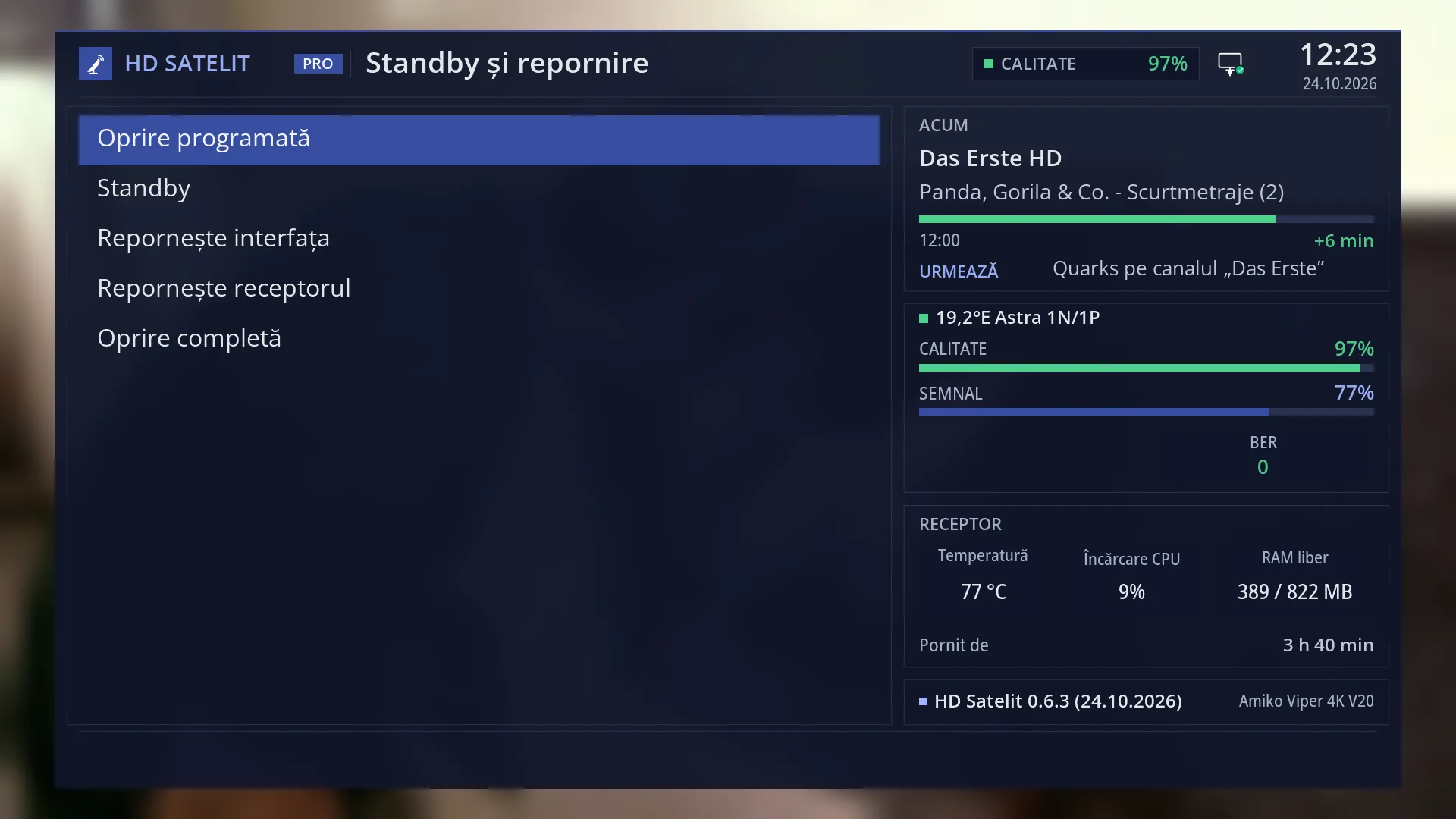
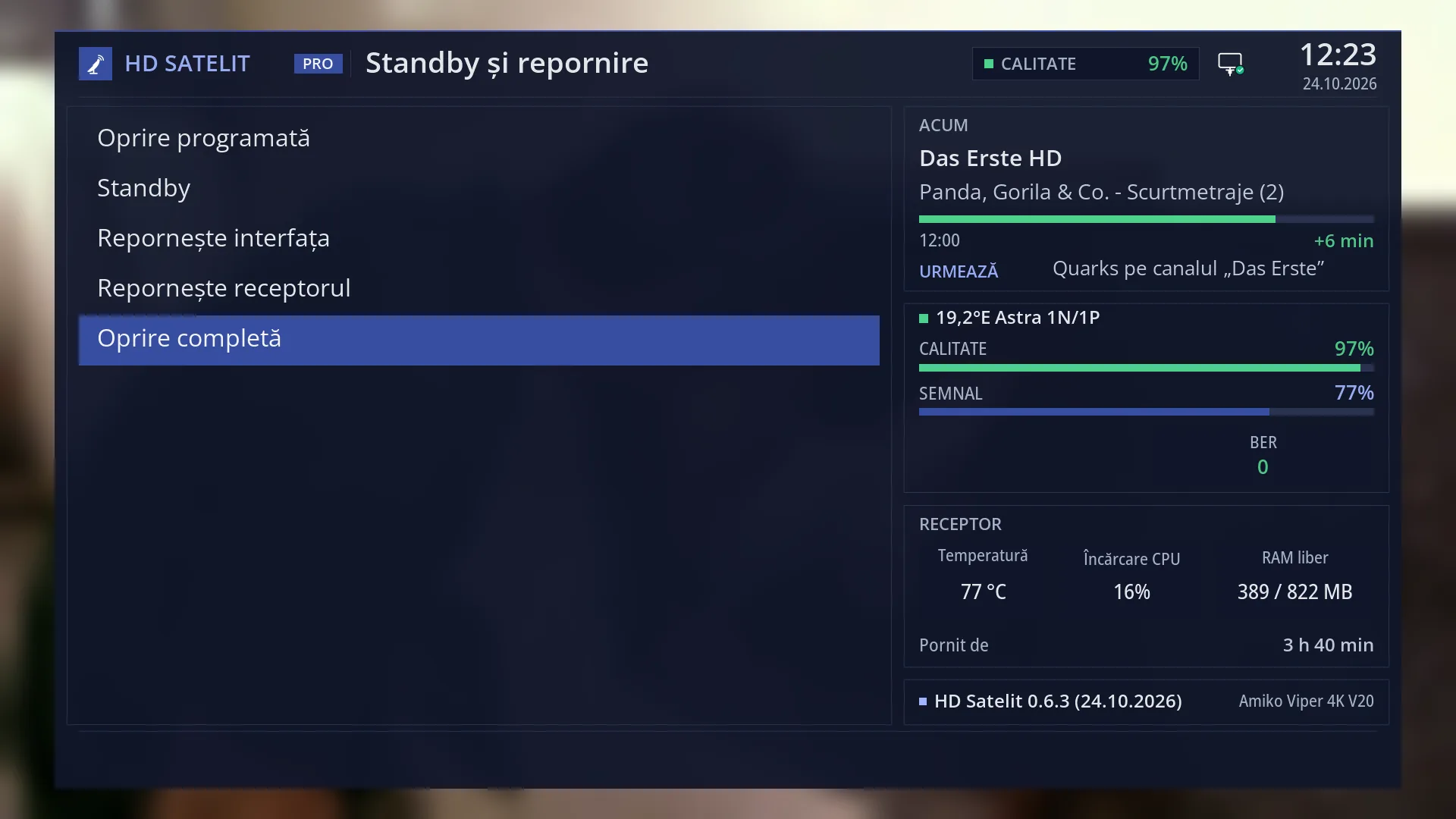
- 1 The menu title.
- 2 The five rows; the digits 1-5 start them directly, without OK.
- 3 “NOW”: the channel, the programme and what comes next.
- 4 The satellite, quality, signal and BER of the current channel.
- 5 “Receiver”; “Running for” goes back to zero only after the whole receiver is restarted.
- 6 The image version and the receiver name.
- 7 The signal quality, always at the top.
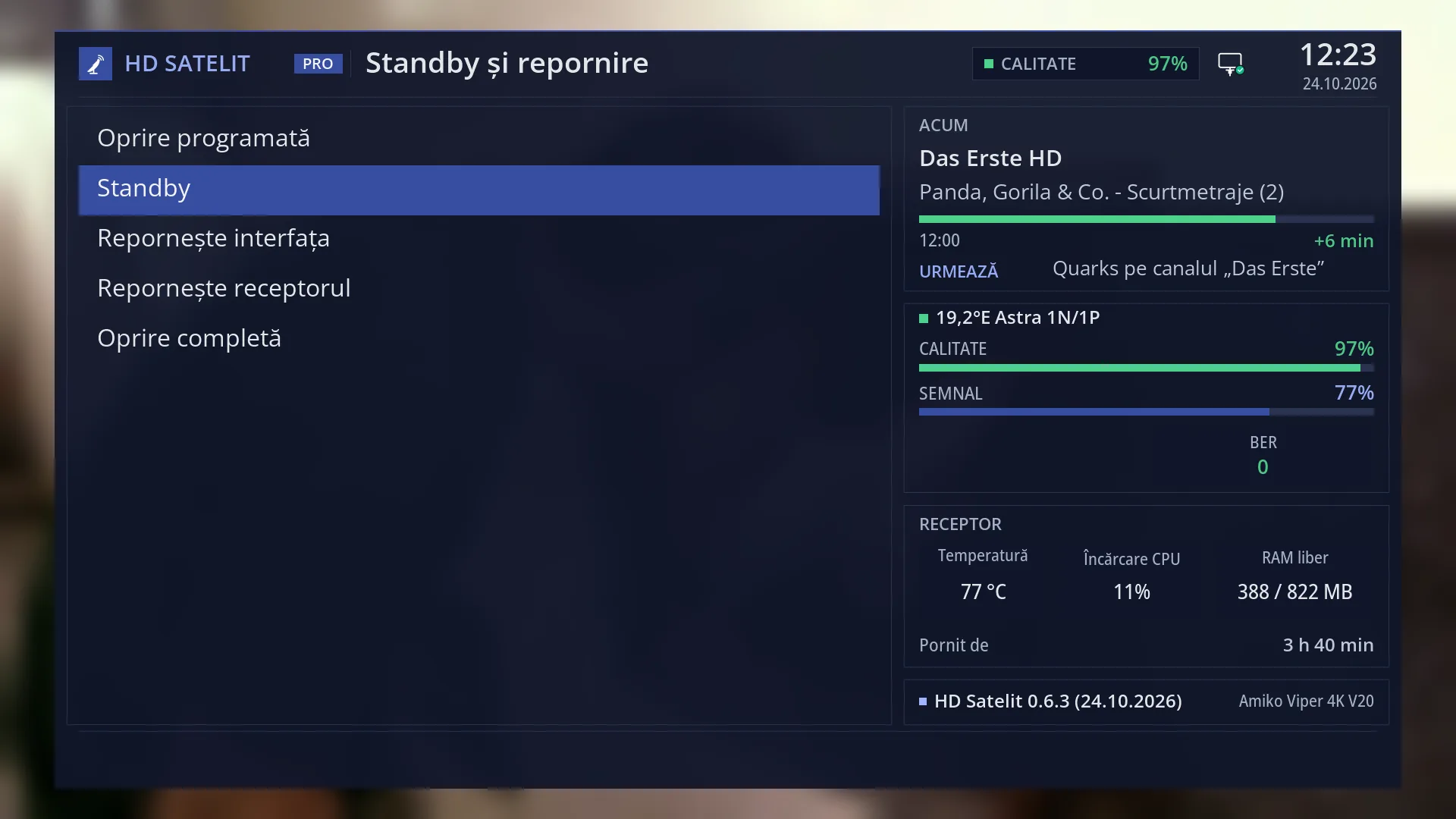
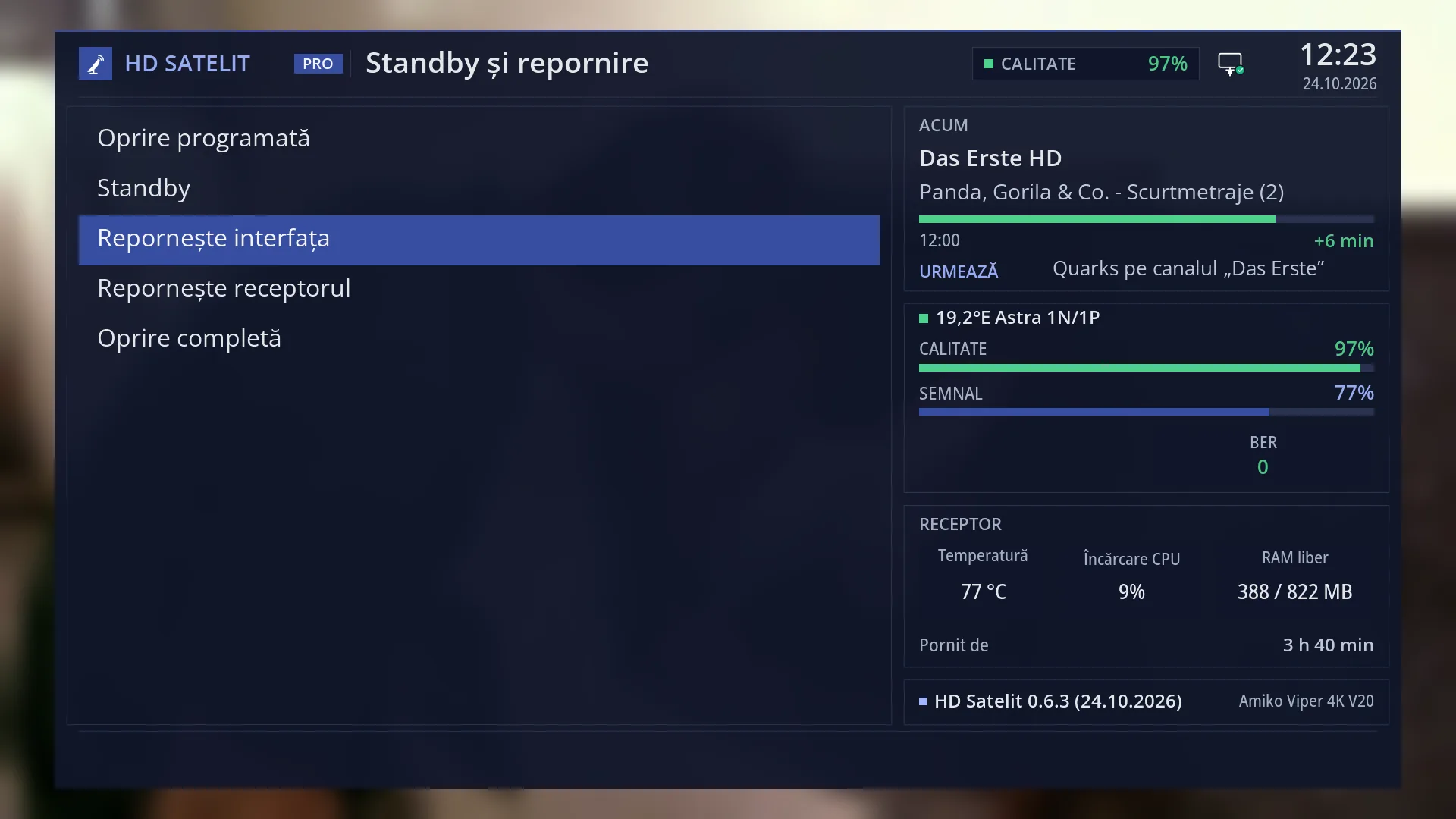
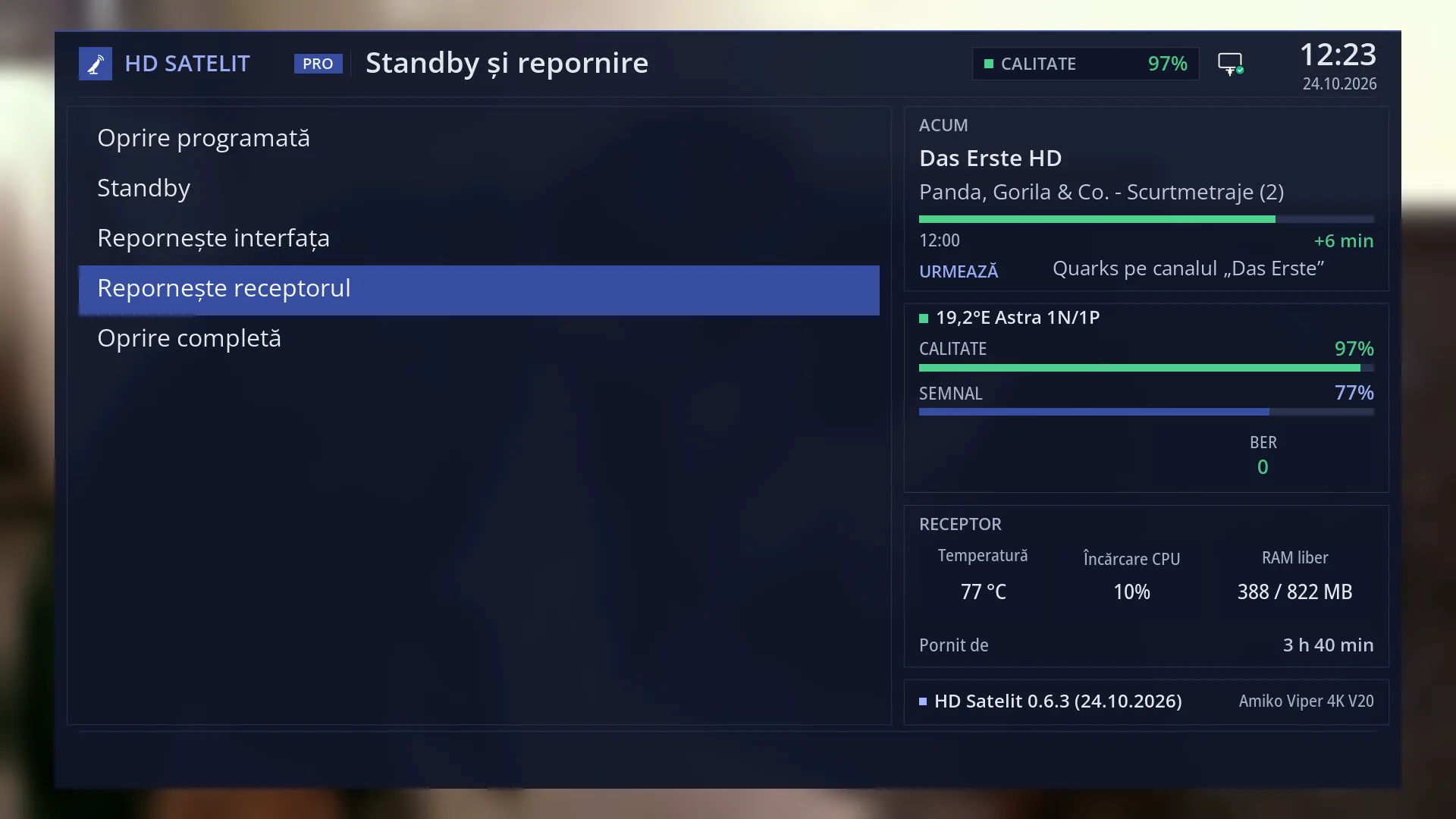
What it is for
“Power & Restart” brings together everything to do with switching the receiver off and on: switching off after a number of minutes, standby, the two restarts and the full shutdown.
Open it when you fall asleep in front of the TV and want the receiver to switch itself off, when you go out and put it to sleep, when something is not working properly and you want a restart, or before you install a new image from a USB stick (for that you need to restart the whole receiver).
In short, what each row does: Sleep Timer switches the receiver off (or puts it in standby) after the minutes you choose. Standby Mode puts it to sleep, but it still makes timer recordings and responds in the web interface. Restart Interface restarts only the menus and the program that shows the channels, in a few seconds. Restart Box restarts everything, as if you had unplugged it and plugged it back in. Deep Standby (Power Off) switches it off completely, and you switch it on again with the POWER key.
The difference between the three that stop something: after Restart Interface the receiver does not switch off at all, only the program on it restarts. After Restart Box it starts again from scratch by itself. After Deep Standby (Power Off) it stays off until you press POWER on the remote.
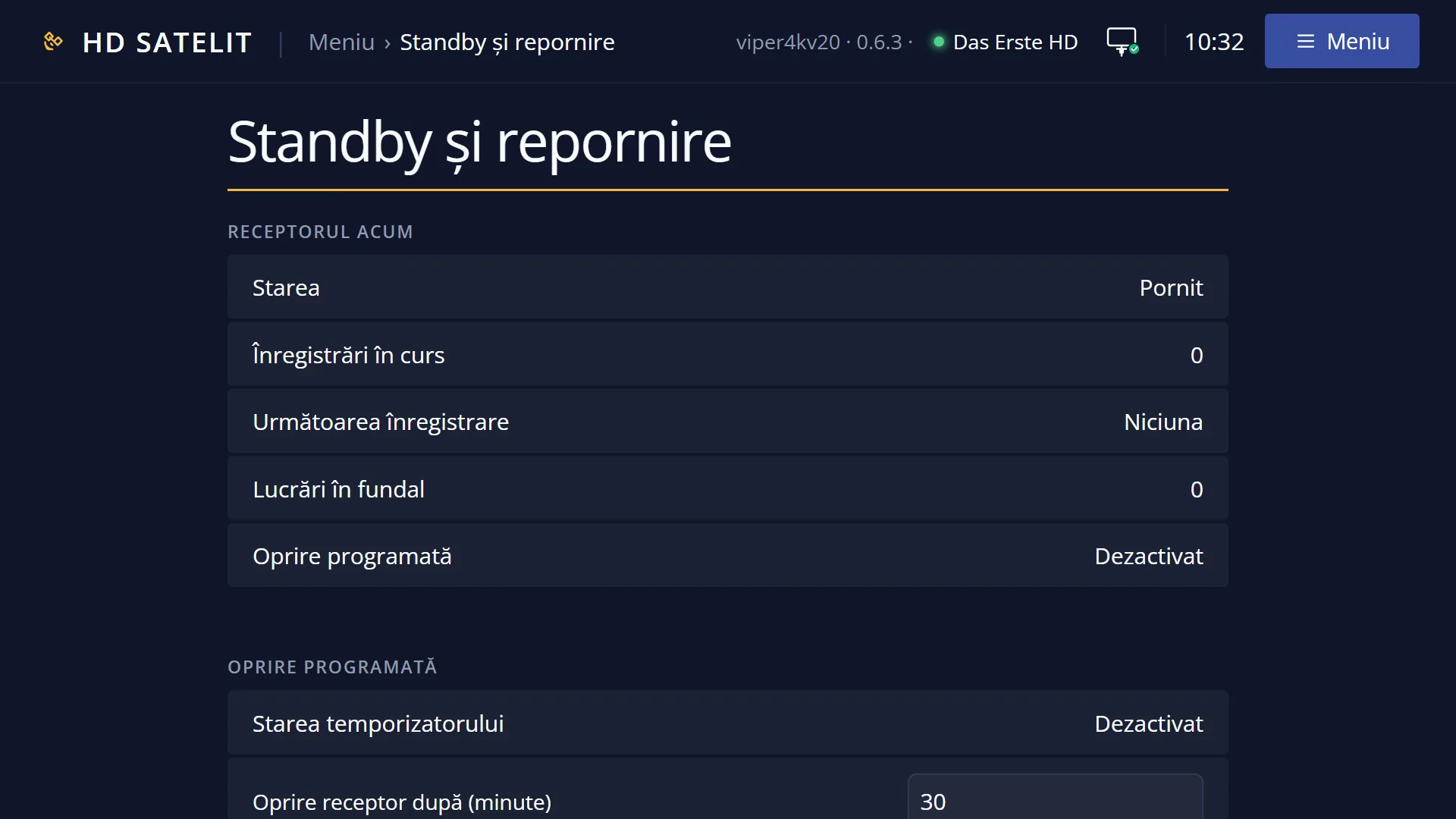
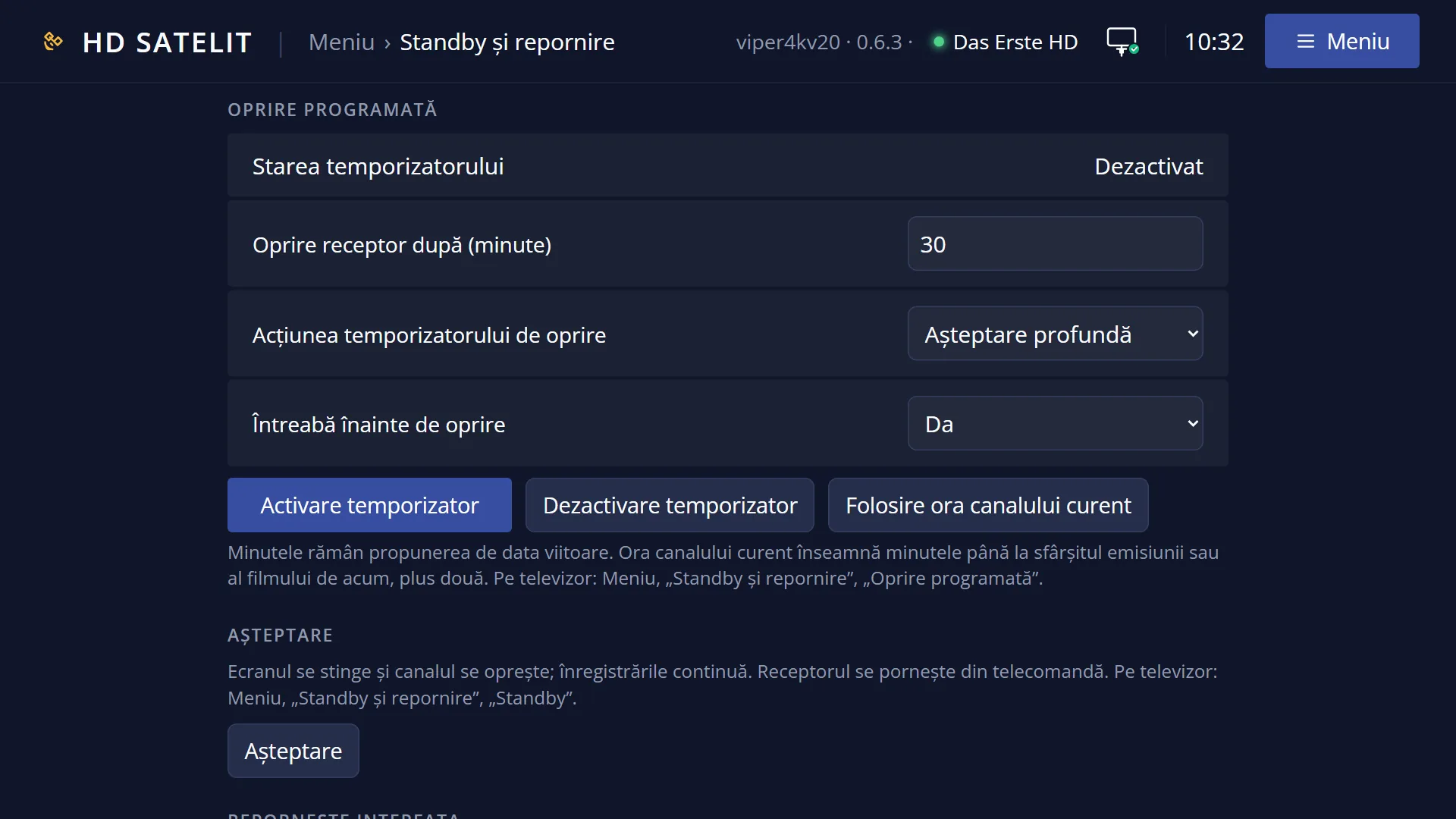
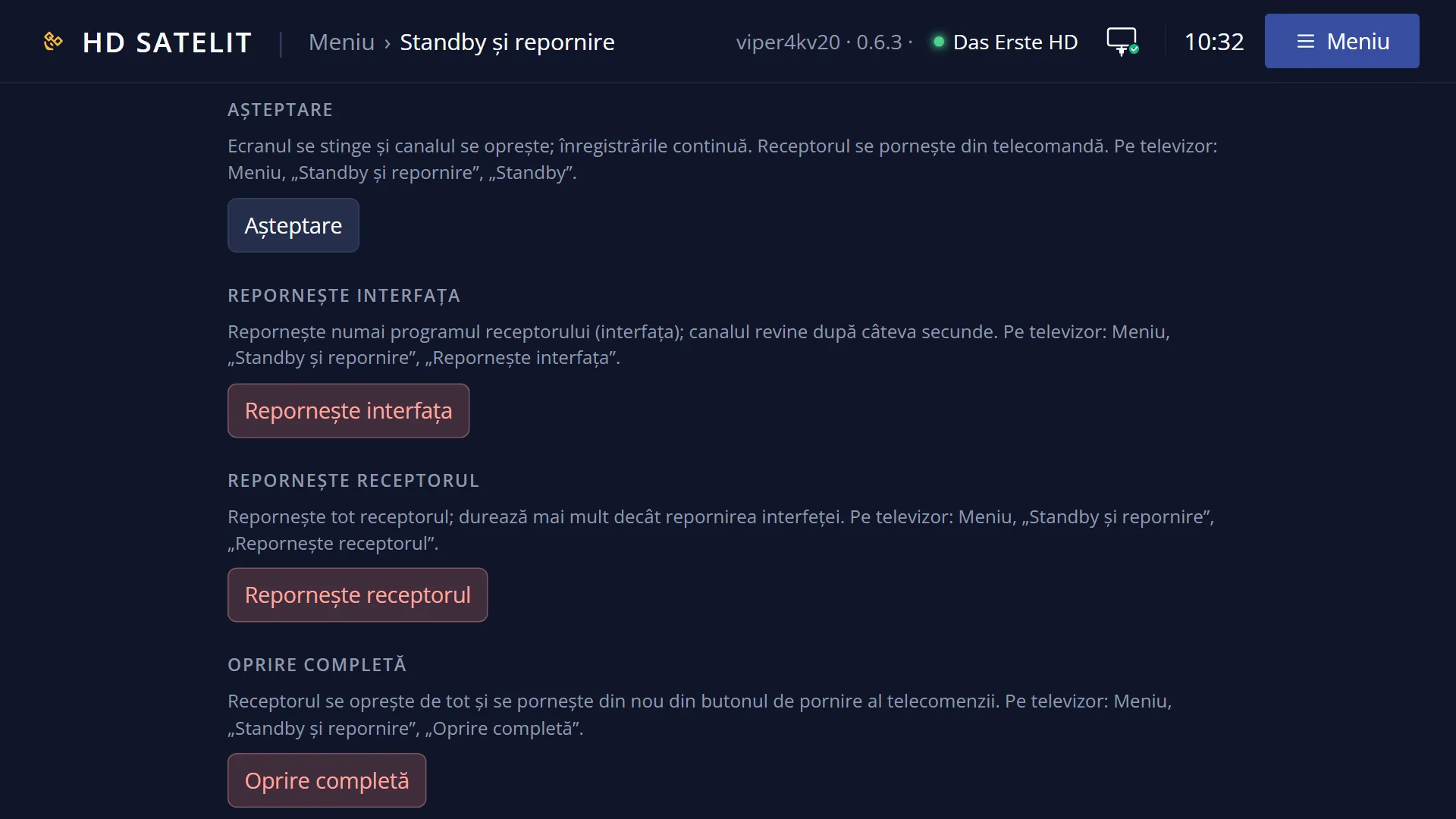
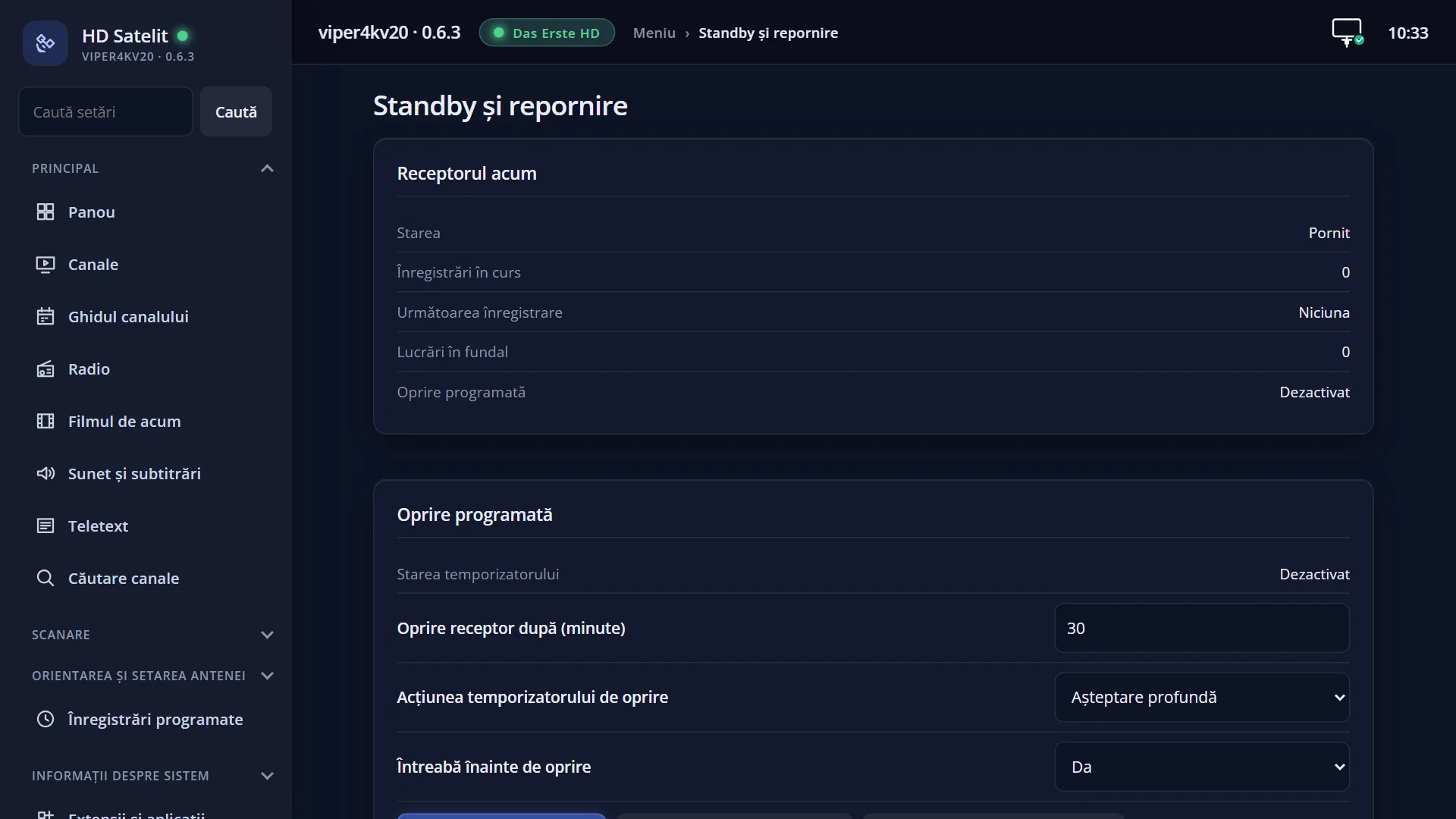
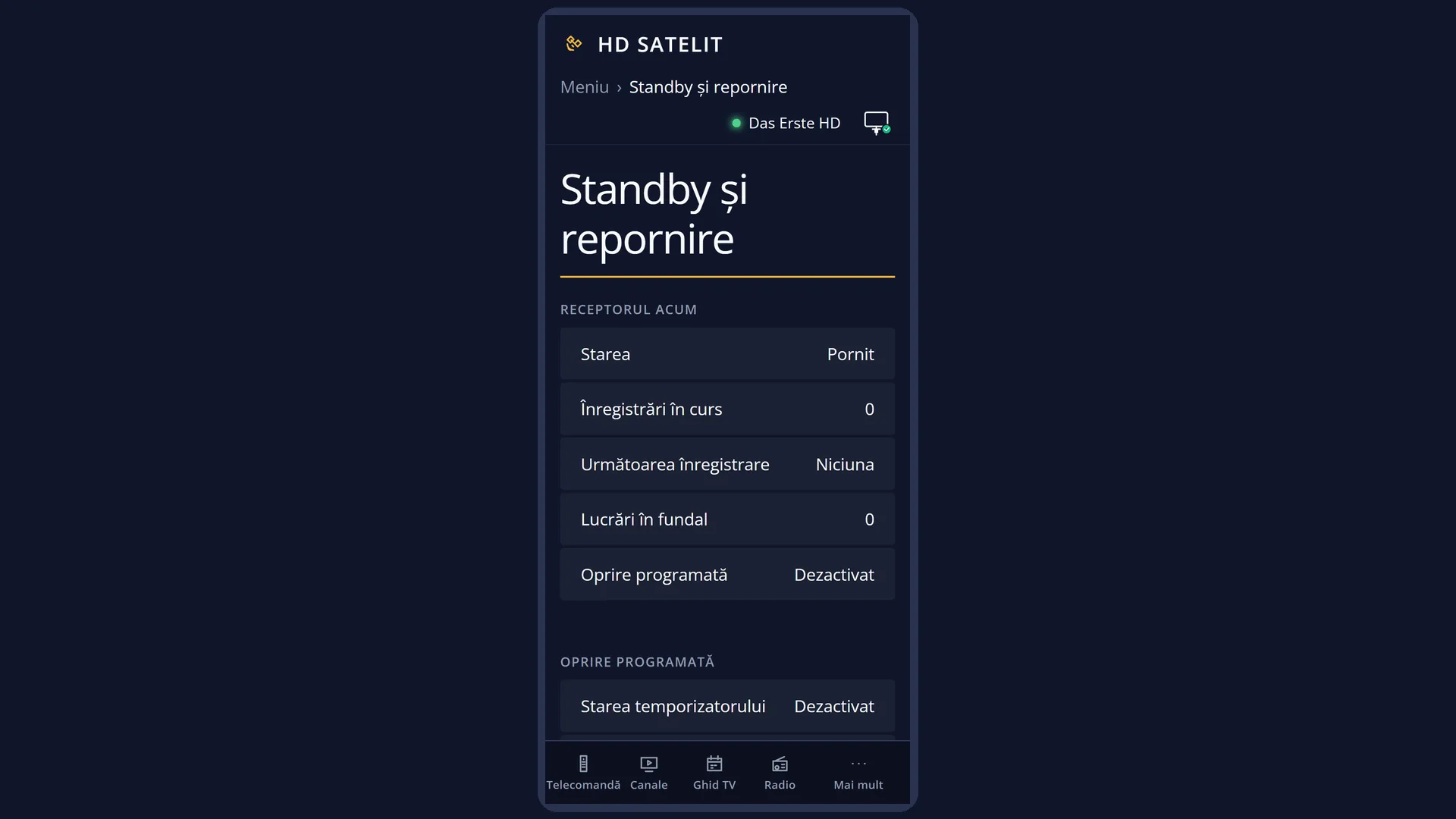
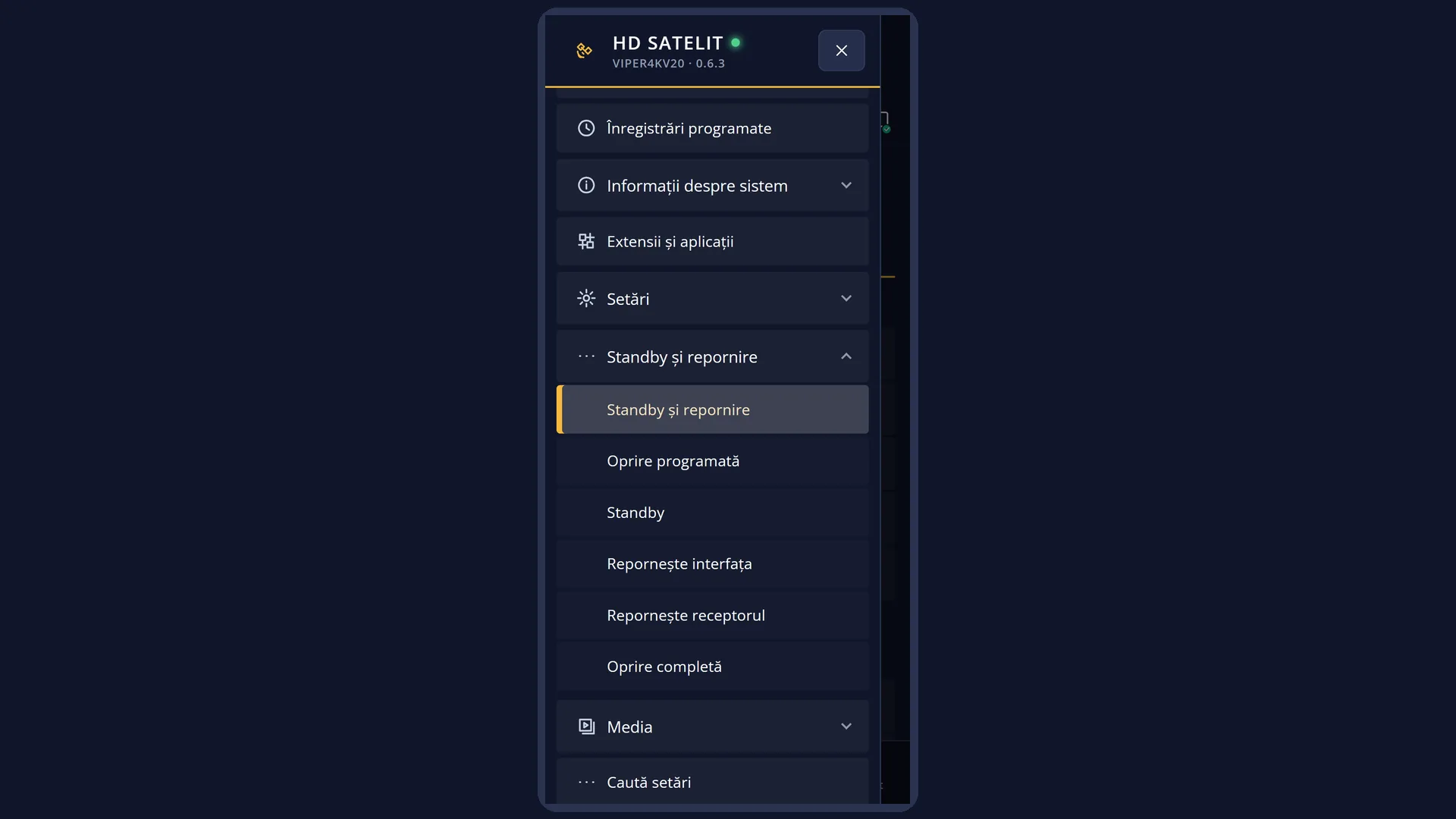
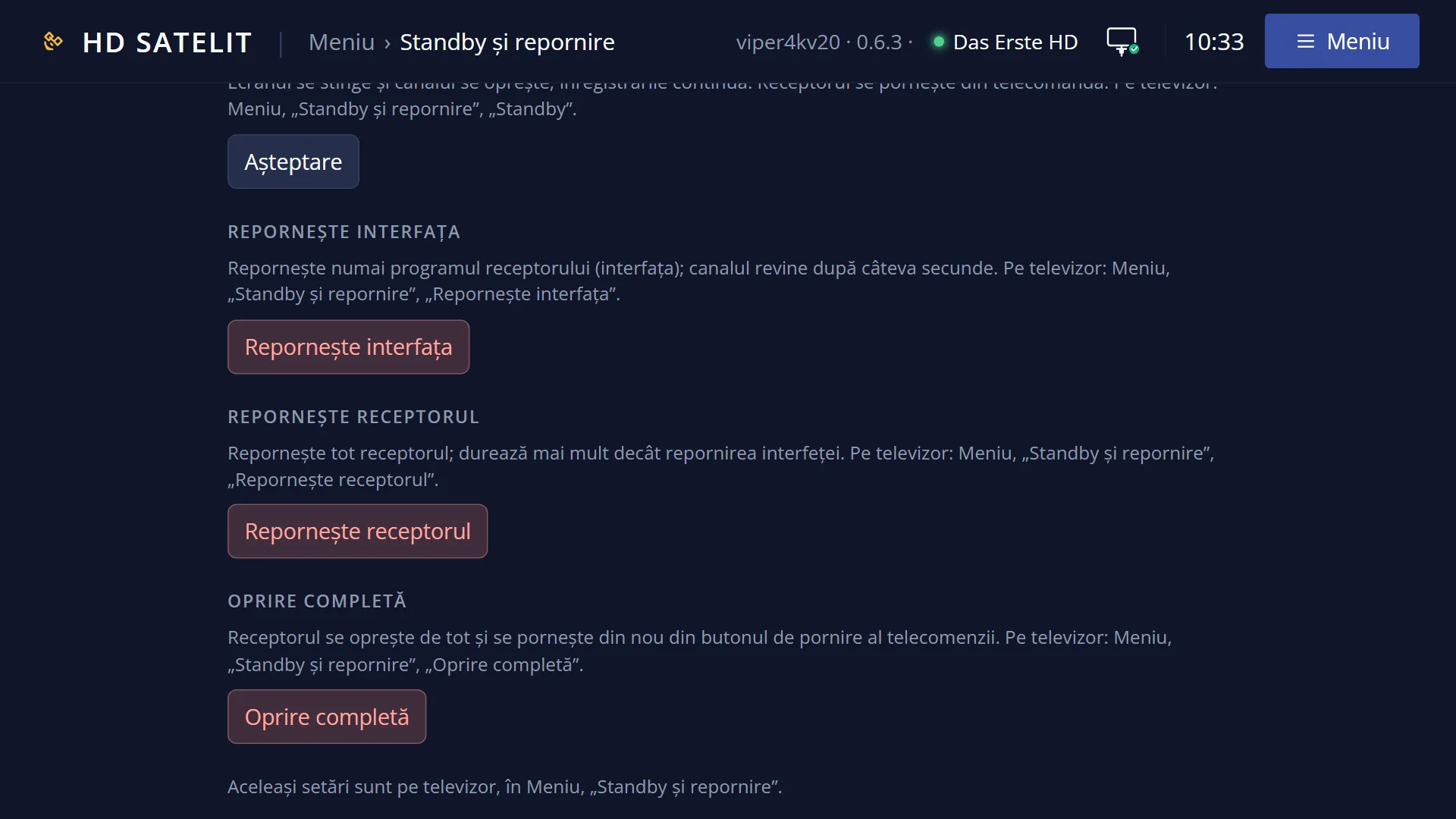
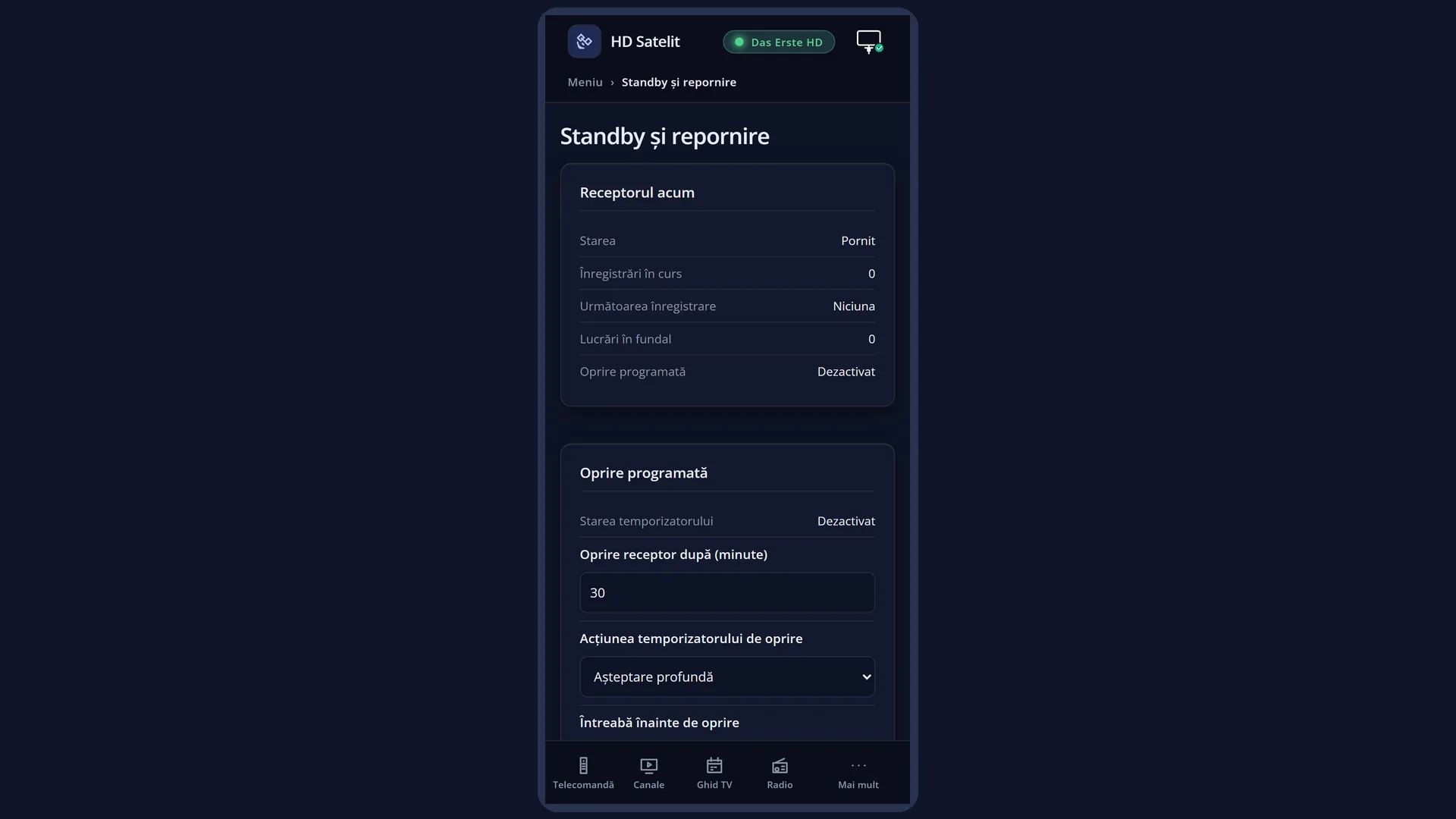
You can do the same things from your phone or computer, in the web interface, on the /alimentare page. There, every shutdown or restart asks you to confirm first.
How to get here
Path: Main menu > Power & Restart.
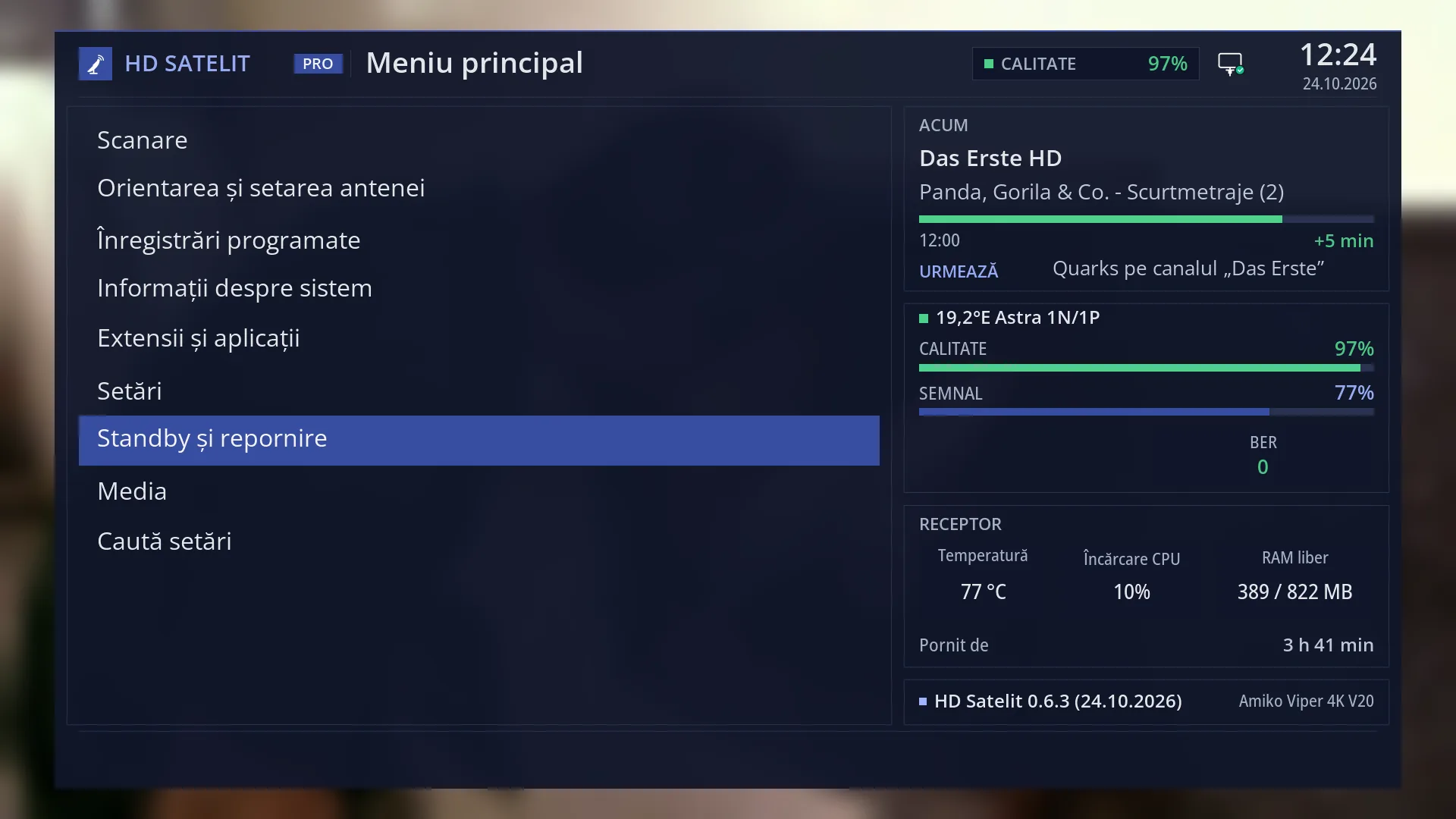
Keys while watching TV: MENU 7.
Holding down the POWER key on the remote opens the same menu (by default, “Action on long powerbutton press” in OSD Preferences is set to “show shutdown menu”). When opened this way, its title is “Standby / Restart”.
In the web interface: the /alimentare page, or the “Power & Restart” group on the /meniu page.
What you see on the screen
At the top: the title “Power & Restart”, the clock and the date. In the Pro theme, “HD SATELIT” with the “PRO” label appears to the left of the title, and on the right you see the signal quality of the current channel (for example “Quality 97%”) and the network icon.
On the left, the list with the five rows: Sleep Timer, Standby Mode, Restart Interface, Restart Box and Deep Standby (Power Off). The selected row has a blue background. The number of each row is its position, from top to bottom, from 1 to 5.
In the Pro theme, the same four boxes as in the main menu appear on the right: “NOW” (the channel, the programme and the minutes left, then “Next”), the signal (the satellite, “Quality”, “Signal” and “BER”), “Receiver” (the temperature, the processor load, the free memory and “Running for”) and, at the bottom, the image version with the receiver name.
“Running for” in the “Receiver” box counts the time since the whole receiver was last started. After Restart Interface it keeps counting. After Restart Box or a full shutdown it starts again from zero.
In the Classic theme (the default one), the menu is just the panel with the list, and the channel picture stays visible on the right.
In the tile view (YELLOW key), each row is a tile with its icon, name and number. At the bottom are the keys OK “Open”, EXIT “Back”, the digits “Direct” and YELLOW “List”.
The list has no questions and no settings: each row starts something. Standby, the two restarts and the full shutdown happen straight away, without a question, unless a recording is running or starts in less than 6 minutes, or something is working in the background.
Rows and settings
| Row | Values | Default | What it does |
|---|---|---|---|
| Sleep Timer | Opens the screen where you enter after how many minutes the receiver switches off and choose whether it switches off completely or goes into standby. Nothing starts until you press OK on that screen. When you fall asleep during a film or go out and want the receiver to switch itself off. | ||
| Standby Mode | Puts the receiver in standby straight away: the channel and the sound stop, the HDMI output switches off (the TV no longer gets a picture), and the front display shows the time. Recordings carry on. You wake it up with POWER. When you stop watching. A short press of the POWER key does the same. | ||
| Restart Interface | Closes and restarts the receiver program that shows the menus and the channels. The receiver does not switch off: the startup picture appears on the TV, then the channel you were watching. This does not free the video decoder memory. When a menu, a plugin or the channel behaves strangely. | ||
| Restart Box | Restarts the whole receiver, as if you had unplugged it and plugged it back in, but cleanly: the settings and the current channel are saved first. It frees everything, including the video decoder memory. It takes longer than restarting the interface. With a USB stick containing an image in the blue port, you can write a new image during startup. When restarting the interface does not help, when films or radio station pictures no longer start, or to install a new image from a USB stick. | ||
| Deep Standby (Power Off) | Switches the receiver off completely. It does nothing any more: no recordings, no web interface. You switch it on again with the POWER key on the remote. When you go away for a longer time or before you unplug the receiver. | ||
| Return to Flash | not shown | A row prepared for receivers that start a second image from a USB stick: it would take them back to the image in their internal memory. In this version it does not appear, either on the TV or in the web interface. |
Keys
| MENU 7 (on live TV) | Opens this menu. |
| POWER held down (on live TV) | Also opens this menu, with the title “Standby / Restart” (by default). A short press of POWER puts the receiver straight into standby. |
| UP / DOWN | Moves the cursor to the row above or below. From the first row, UP goes to the last one (Deep Standby (Power Off)), and the other way round. |
| LEFT / RIGHT | In the list, they jump one page up or down. The menu fits on one page, so you land on the first or the last row. In the tile view, they move the cursor to the tile on the left or right. |
| OK | Starts the selected row. Sleep Timer opens its screen. The others happen straight away, without a question (unless a recording is running or a task is working in the background). |
| 1 ... 5 | Start the row with that number directly, without OK: 1 Sleep Timer, 2 Standby Mode, 3 Restart Interface, 4 Restart Box, 5 Deep Standby (Power Off). As with OK, they happen straight away. 6 ... 9 do nothing here. |
| TTX (TEXT on the screen) | Opens “Search settings”. |
| YELLOW | Switches the menu from list to tiles or back, straight away, keeping the same row selected. Your choice is remembered for all menus. |
| EXIT | Takes you back to the main menu (or to live TV, if you opened the menu with POWER). |
| MENU (in the menu) | Closes the whole menu and takes you back to live TV. |
Step by step
Restarting the receiver when something is not working
- Press MENU 7: “Power & Restart” opens.
- Try Restart Interface first: press 3. After a few seconds, the channel comes back.
- If that does not help, press MENU 7 again and then 4 (Restart Box). The receiver starts from scratch; this takes longer.
- If the question about recordings appears, choose No to let the recording finish, or Yes to restart now.
Choosing without mistakes
- Press MENU 7.
- Move the cursor with UP / DOWN to the row you want (the digits start a row immediately, so the arrow keys are safer).
- Press OK.
Opening the menu with the POWER key
- While watching TV, hold down the POWER key on the remote.
- The “Standby / Restart” menu opens, with the same five rows.
- Choose the row and press OK, or press EXIT to go back to live TV.
Problems and solutions
I pressed 3, 4 or 5 and the receiver restarted or switched off immediately, without asking me.
The digits start the row straight away, just like OK. The question appears only when a recording is running, when one starts in less than 6 minutes, or when something is working in the background. To avoid mistakes, move the cursor with UP / DOWN and press OK.
I answered No to the question and the whole menu closed.
That is how the question works: No (or EXIT) cancels the restart or shutdown and takes you back to live TV. Nothing has changed.
I do not know which to choose: Restart Interface or Restart Box.
Start with Restart Interface: it is quicker and is enough for menus or plugins that behave strangely. Choose Restart Box when that does not help either, when films or radio station pictures no longer start, or when you install a new image from a USB stick.
I cannot find the “Return to Flash” row.
The row is prepared for starting a second image from a USB stick and does not appear in this version.
In Search settings, OK on “Restart Box” did not restart anything.
Shutdowns and restarts do not start directly from the search: this menu opens instead, with the cursor on the row found. Press OK here if you really want to.
When I hold down POWER, the receiver goes into standby or switches off instead of opening the menu.
Check “Action on long powerbutton press” in Menu > Settings > Interface & Appearance > OSD Preferences: by default it is “show shutdown menu”.
The “Open on the TV” button on /meniu does not open these rows.
From the /meniu page, the web interface does not switch off or restart the receiver without confirmation. Use the /alimentare page, where each action has its own confirmation.