

Switch to another network by itself
Screenshots are being added: so far 3 from the receiver and 5 from the web interface; the aim is at least 5 of each, with arrows and frames, and, where a setting changes what you see, a before and after comparison.
English screenshots coming: some of the pictures below still show the receiver and the web interface in Romanian. The rows, keys and steps described on this page are the English ones.
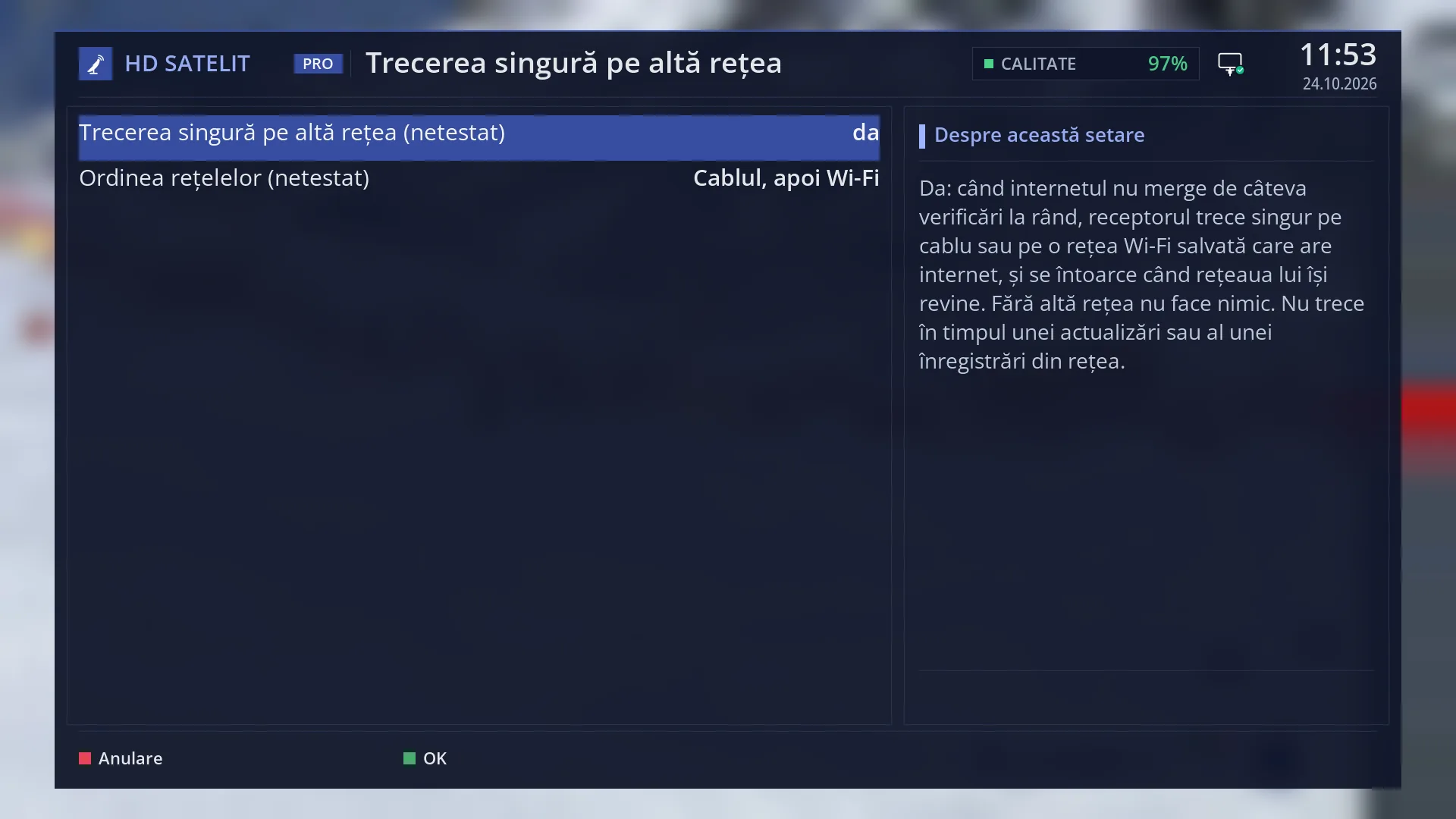
- 1 Switch to another network by itself: yes (default) or no.
- 2 Order of the networks: what is tried first.
- 3 The explanation of the selected row.
- 4 RED cancels, GREEN keeps.
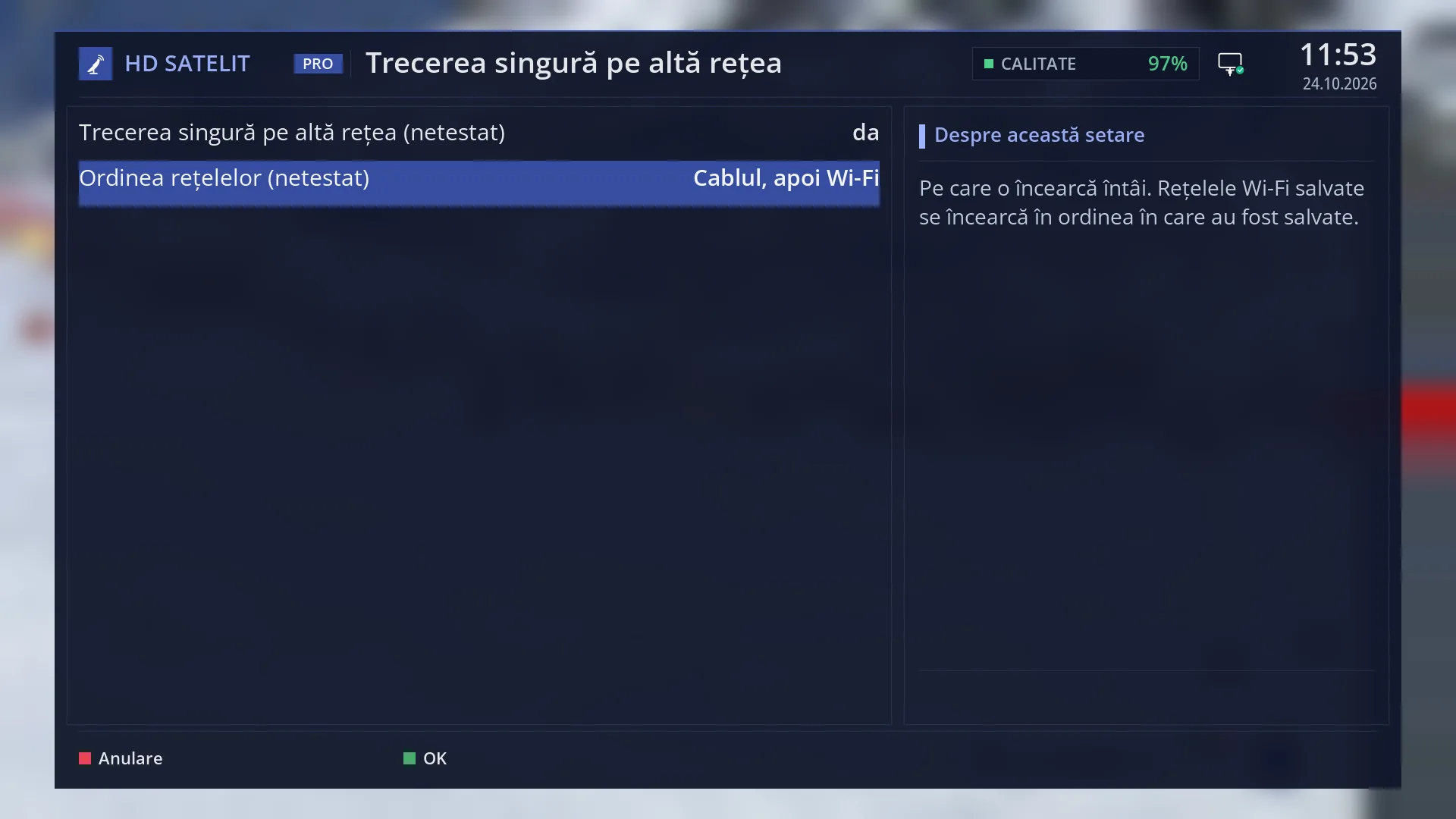
- 1 The order: “Cable, then Wi-Fi” or “Wi-Fi, then cable”.
- 2 The explanation: Wi-Fi networks are tried in the order in which they were saved.
What it is for
When the internet stops working on the usual network, the receiver switches to the other one by itself: from cable to a saved Wi-Fi network, or from Wi-Fi to cable. When its usual network recovers, it switches back by itself.
It only switches to a network that actually has internet: it turns that network on, waits for an address, checks the internet through that network and only then stays on it. If no other network has internet, everything stays as it was and it tries again in 10 minutes.
It is on by default, but it only works when the receiver has at least two connections: the cable and a saved Wi-Fi network, or two saved Wi-Fi networks. With only one connection it does nothing.
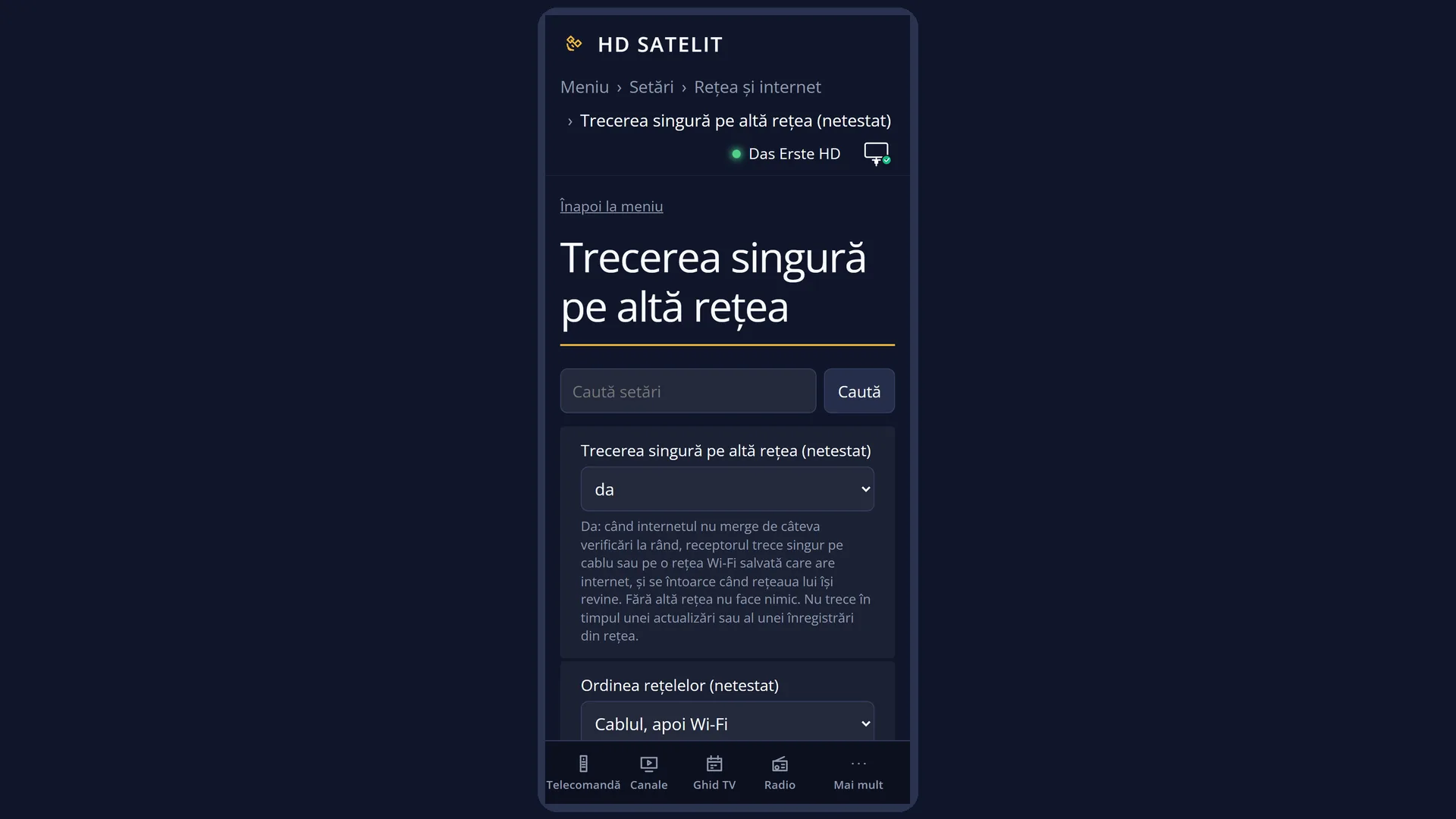
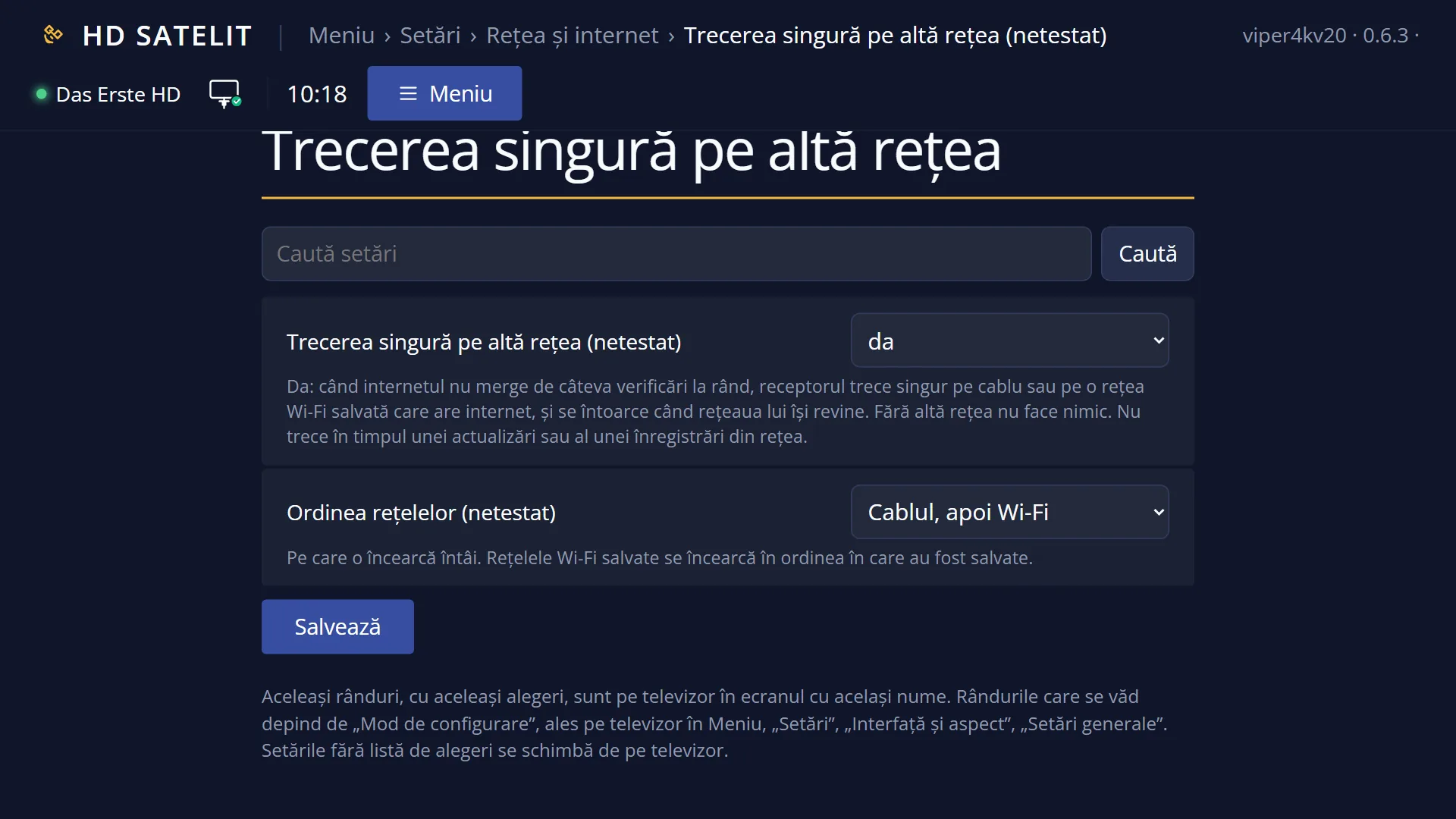
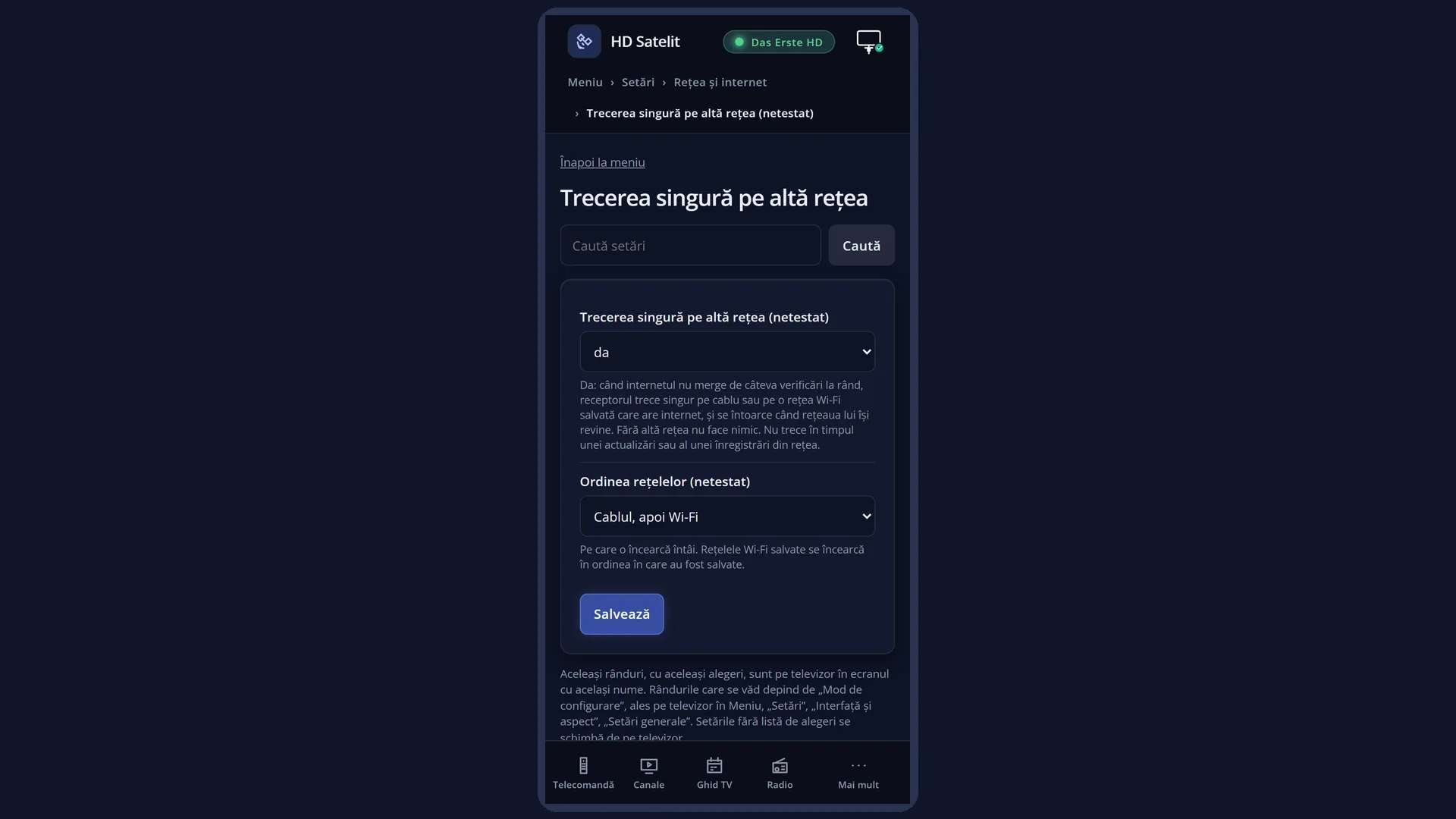
On the screen you choose whether switching is on and which network is tried first. You can see the current status (which network the receiver is on, where it would switch to, what it did last time) in the web interface, on the /retea page.
How to get here
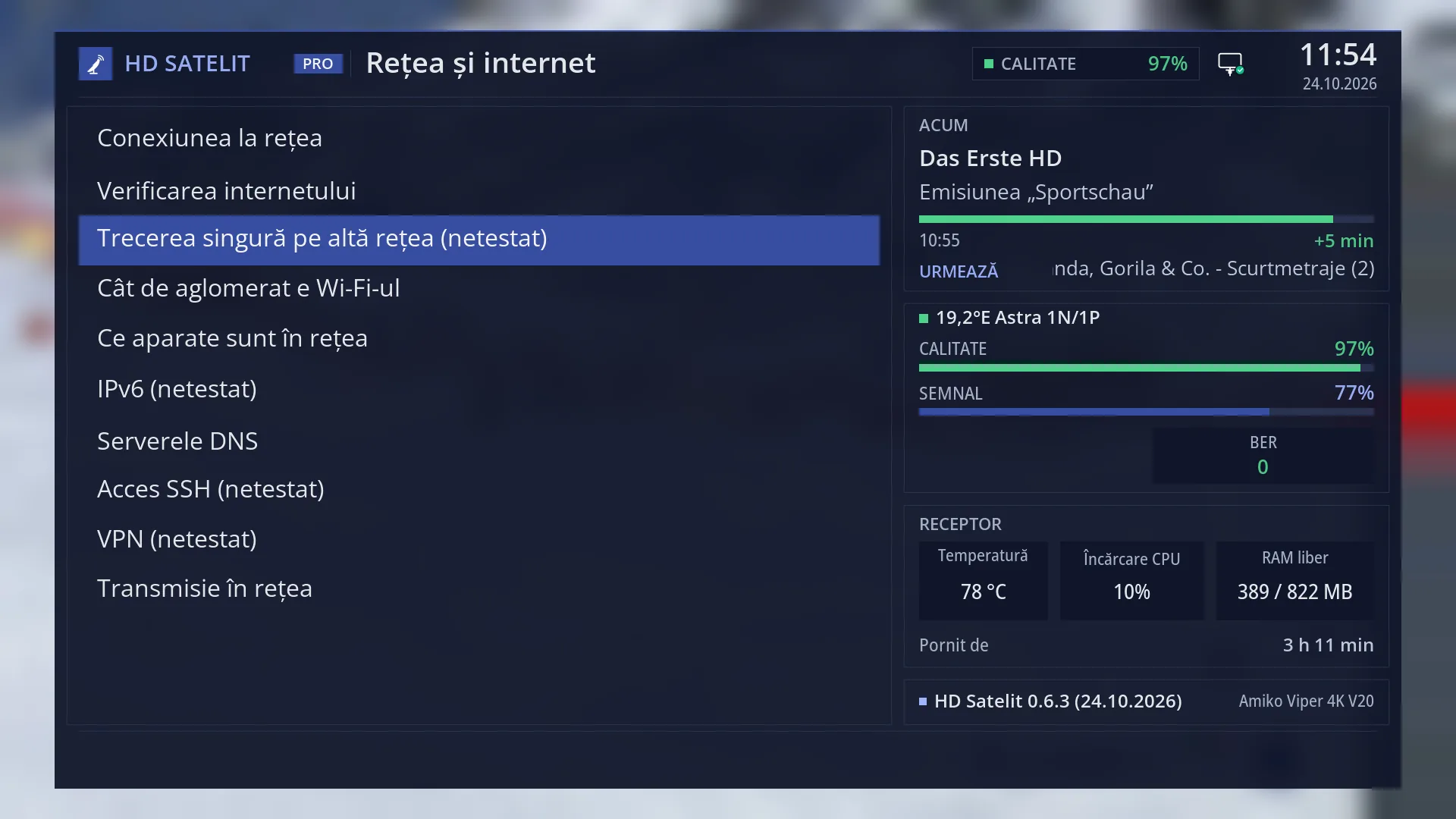
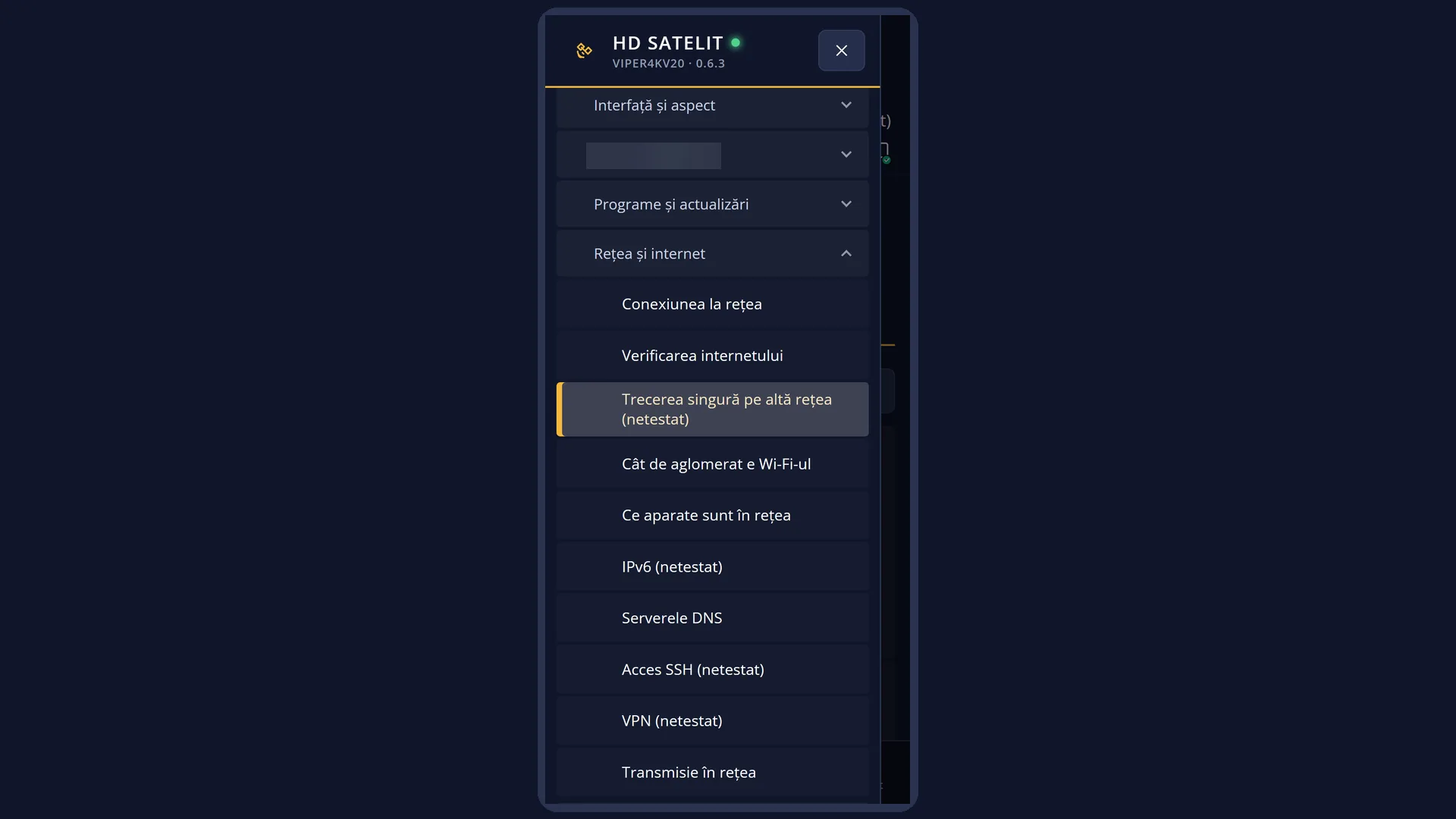
Path: Main menu > Settings > Network & Internet > Switch to another network by itself (the third row).
Keys on the remote: MENU 6 9 3.
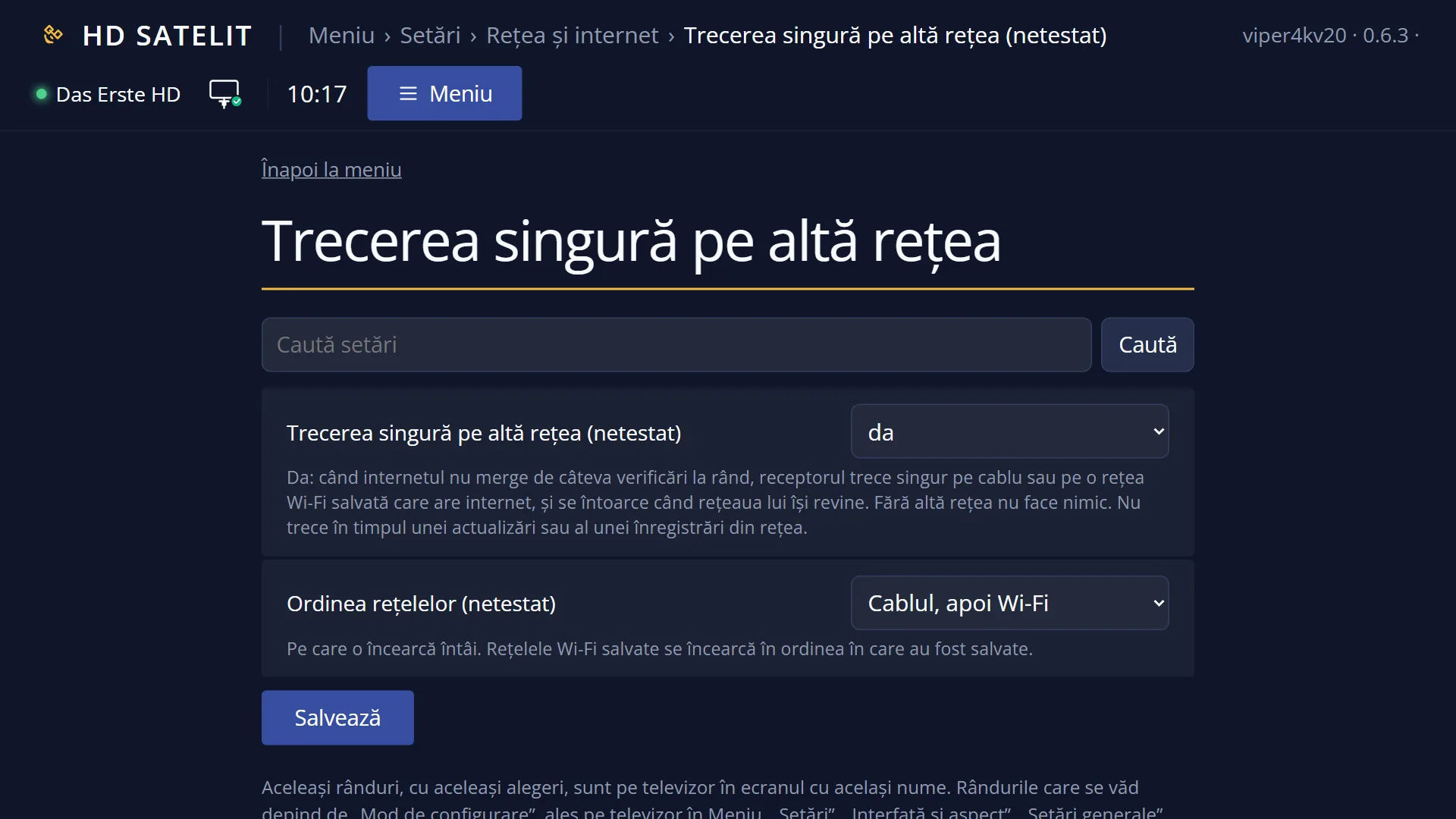
In the web interface: the “Switch to another network by itself” card on the /retea page (with the current status) or the /setari?id=hds_retea_comutare page.
What you see on the screen
At the top, the title “Switch to another network by itself”.
On the left, two rows: “Switch to another network by itself” (yes / no) and “Order of the networks”, each with “(NOT TESTED)” next to the name. This means the feature is ready but has not yet been tested on all receivers.
On the right, “About this setting”: the explanation of the selected row.
At the bottom, the keys: RED “Cancel” and GREEN “OK”.
When the receiver switches to another network or switches back, a short message with the network icon appears in the middle of the screen, for example “The internet was not working over cablu. The receiver switched to Wi-Fi Sufragerie.” and, below it, “Receiver address: 192.168.1.50 (or hdsatelit.local).”. When it switches back: “The receiver went back to cablu: the internet works there again.”. The message does not appear in standby.
In the web interface, the “Switch to another network by itself” card shows the status in a few lines: “On. Now the receiver is on its usual network.”, the order of the connections (for example “Order: 1. cable, 2. Wi-Fi Sufragerie”), the receiver's address, why a switch has been postponed and what happened last time.
Rows and settings
| Row | Values | Default | What it does |
|---|---|---|---|
| Switch to another network by itself (NOT TESTED) | yes, no | yes | Yes: after three failed internet checks in a row (the second and third come ten seconds apart), the receiver tries the other networks one by one and stays on the first one that has internet. If you unplug the cable of the network the internet is running on, it switches straight away, without waiting for the three checks. While it is on another network, it checks the usual one and switches back after two successful checks in a row. It does not switch during an update or while recording a network channel, and it also postpones switching back while a network channel is playing on the TV. No: the receiver stays on its own network, even if the internet is not working. Set it to no if you want the receiver to always stay on the same network, for example when a saved Wi-Fi network must not be used. |
| Order of the networks (NOT TESTED) | Cable, then Wi-Fi, Wi-Fi, then cable | Cable, then Wi-Fi | Which one it tries first when it switches. Saved Wi-Fi networks are tried in the order in which they were saved. When Wi-Fi is your main network and the cable is only a backup. |
| Receiver address after switching | On Wi-Fi the receiver usually gets a different address from the one it has on cable. You can see it in the on-screen message and on the /retea page, and the web interface always opens with hdsatelit.local as well. When the cable is unplugged and the wired adapter had a manually entered address, the same address is also set on Wi-Fi (if it is in the same network), so that the receiver answers at the known address. | ||
| What does not change | Switching does not change the network settings: after a restart the receiver starts on its usual network and begins again. While switching is on, “Adapter settings” no longer asks whether to turn off the other adapter: switching needs both adapters to be on. |
Keys
| UP / DOWN | Select the row. |
| LEFT / RIGHT | Change the value of the selected row. |
| GREEN (“OK”) | Keeps the values and closes the screen. |
| RED (“Cancel”) or EXIT | Close the screen. If you have changed something, it asks “Really close without saving settings?”. If you answer yes, the previous values are restored. |
Step by step
Set up the receiver to switch to Wi-Fi by itself when the cable fails
- Leave the cable plugged in and connect the receiver to Wi-Fi once as well: MENU 6 9 1, “WLAN connection”, OK, “WiFi networks”, your network, the password.
- Press MENU 6 9 3 and check that “Switch to another network by itself” is set to yes and “Order of the networks” is set to “Cable, then Wi-Fi”.
- Press GREEN. From now on, if the internet is not working over the cable, the receiver switches to Wi-Fi by itself and switches back when the cable has internet again.
See which network the receiver is on now
- Open the web interface and go to /retea.
- Read the “Switch to another network by itself” card: “On. Now the receiver is on its usual network.” or “Now on … (the internet was not working over …)”.
Turn switching off
- Press MENU 6 9 3.
- Set “Switch to another network by itself” to no and press GREEN.
Problems and solutions
The screen shows “The receiver cannot switch to Wi-Fi by itself: there is no saved and enabled Wi-Fi network.”
Connect the receiver to Wi-Fi once (MENU 6 9 1, “WLAN connection”, “WiFi networks”). The message appears only once for each loss of connection.
“The internet is not working and no other network has internet right now. The receiver tries again in 10 minutes.”
The other network has no internet either: usually the outage is at the provider or the router is switched off. The receiver tries again by itself; you should check the router.
“The receiver could not switch to Wi-Fi …: the Wi-Fi adapter did not connect to the network …”
The saved Wi-Fi network is out of range or the password has changed. Connect to it again from “WiFi networks”. Other reasons shown: “the cable is not plugged in”, “the router did not give an IP address”, “the router did not give a route to the internet”, “the internet does not work that way either”.
/retea shows “On, but the receiver has only one network: it has nothing to switch to.”
The receiver has only the cable or only one Wi-Fi network. Add a second connection (for example, save the Wi-Fi network as well).
/retea shows “Postponed: an update is being installed.”
Switching waits for the update to finish (or for the recording of a network channel, or the network channel playing on the TV). Then it happens by itself.
After switching, the web page no longer opens at the old address.
On Wi-Fi the receiver has a different address. Open the page with hdsatelit.local or at the address shown in the on-screen message.
The receiver has switched to Wi-Fi and does not switch back to the cable.
It only switches back after two successful checks of the cable in a row. If the cable still has no internet, it stays on Wi-Fi. Check the cable and the router; after a restart the receiver starts on the cable anyway.
Related topics
- Internet check (the same checks)
- Network Connection Setup (how to save a Wi-Fi network)
- Network & Internet
- The on-screen network notice
- The matching web pages: the “Switch to another network by itself” card in /retea and /setari?id=hds_retea_comutare.