

Films and recordings
English screenshots coming: some of the pictures below still show the receiver and the web interface in Romanian. The rows, keys and steps described on this page are the English ones.
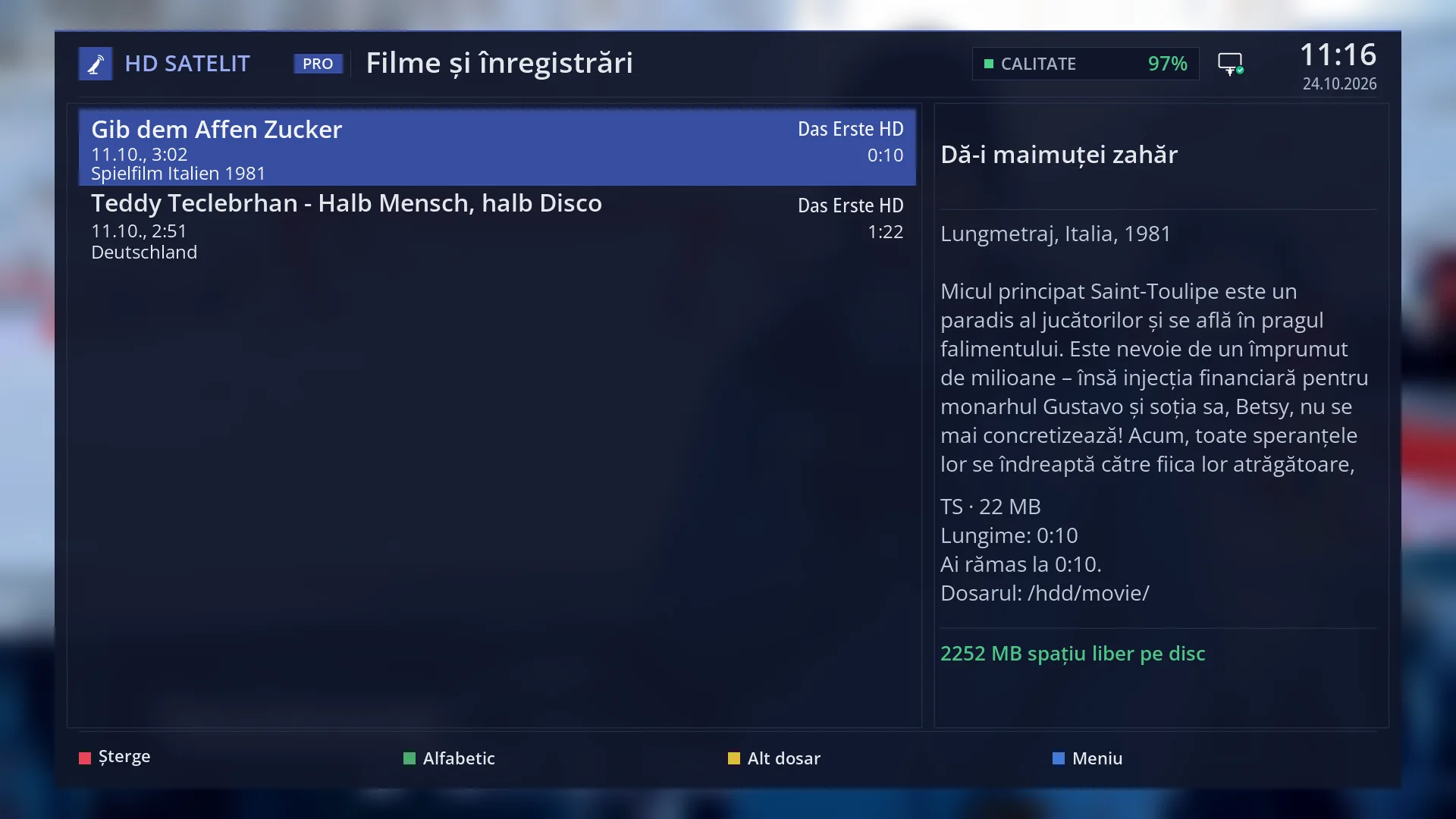
- 1 Films and recordings: name, date, description, channel and length.
- 2 Title and description of the chosen programme.
- 3 File type and size, length, where you stopped, folder.
- 4 Free space on the disk.
- 5 RED deletes, GREEN changes the order, YELLOW another folder, BLUE the menu or the tags.
What it is for
The EMC key opens “Films and recordings”. It shows your recordings and the films in the chosen folder in one list, with the channel, date, length and description of each one.
OK starts the chosen film. A film or recording you have half watched resumes where you stopped: the receiver asks “Resume where you stopped?” and tells you the position.
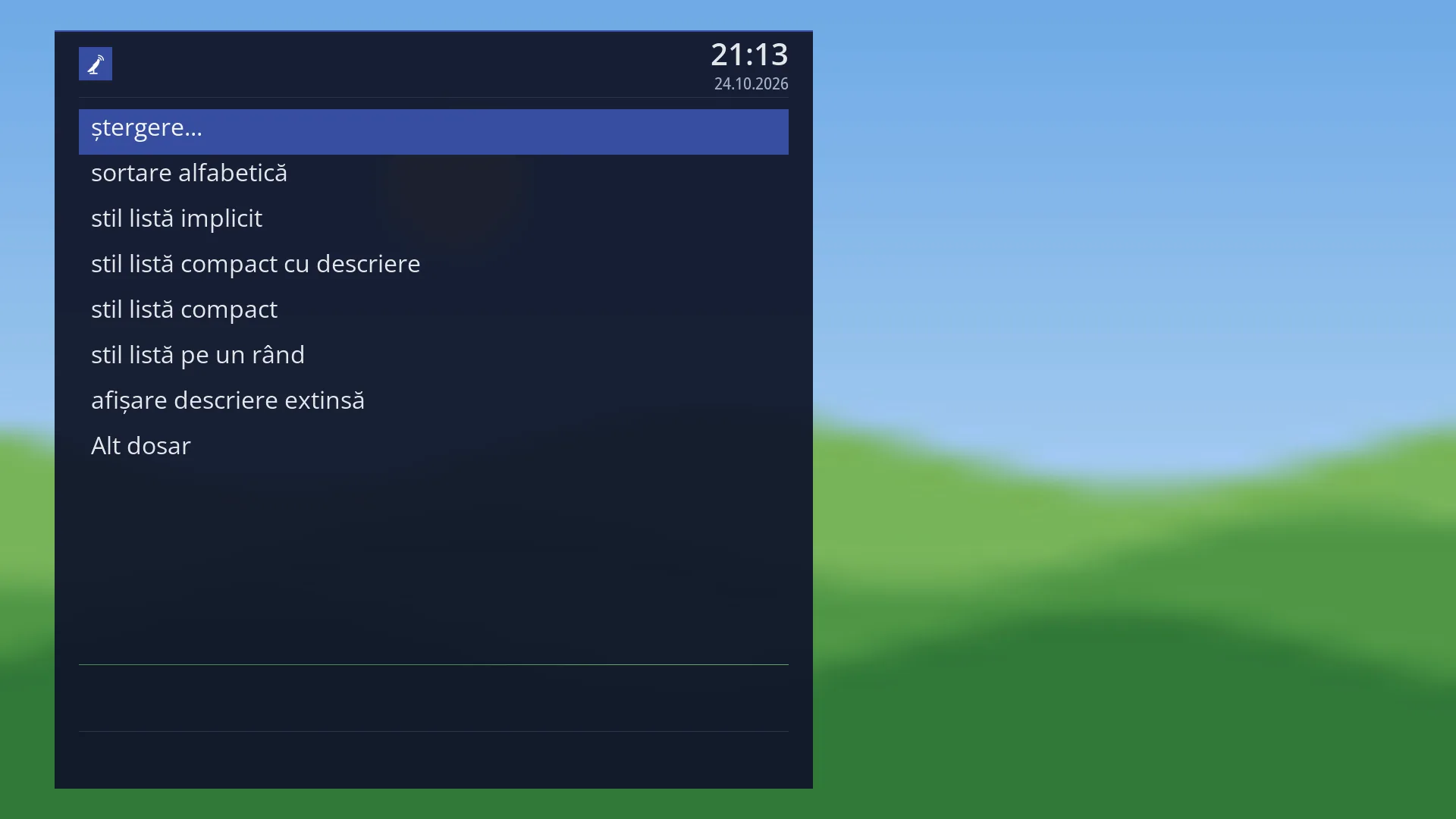
From the list you can delete what you no longer want (RED), change the order (GREEN), switch to another folder (YELLOW) and open the list menu (BLUE or MENU).
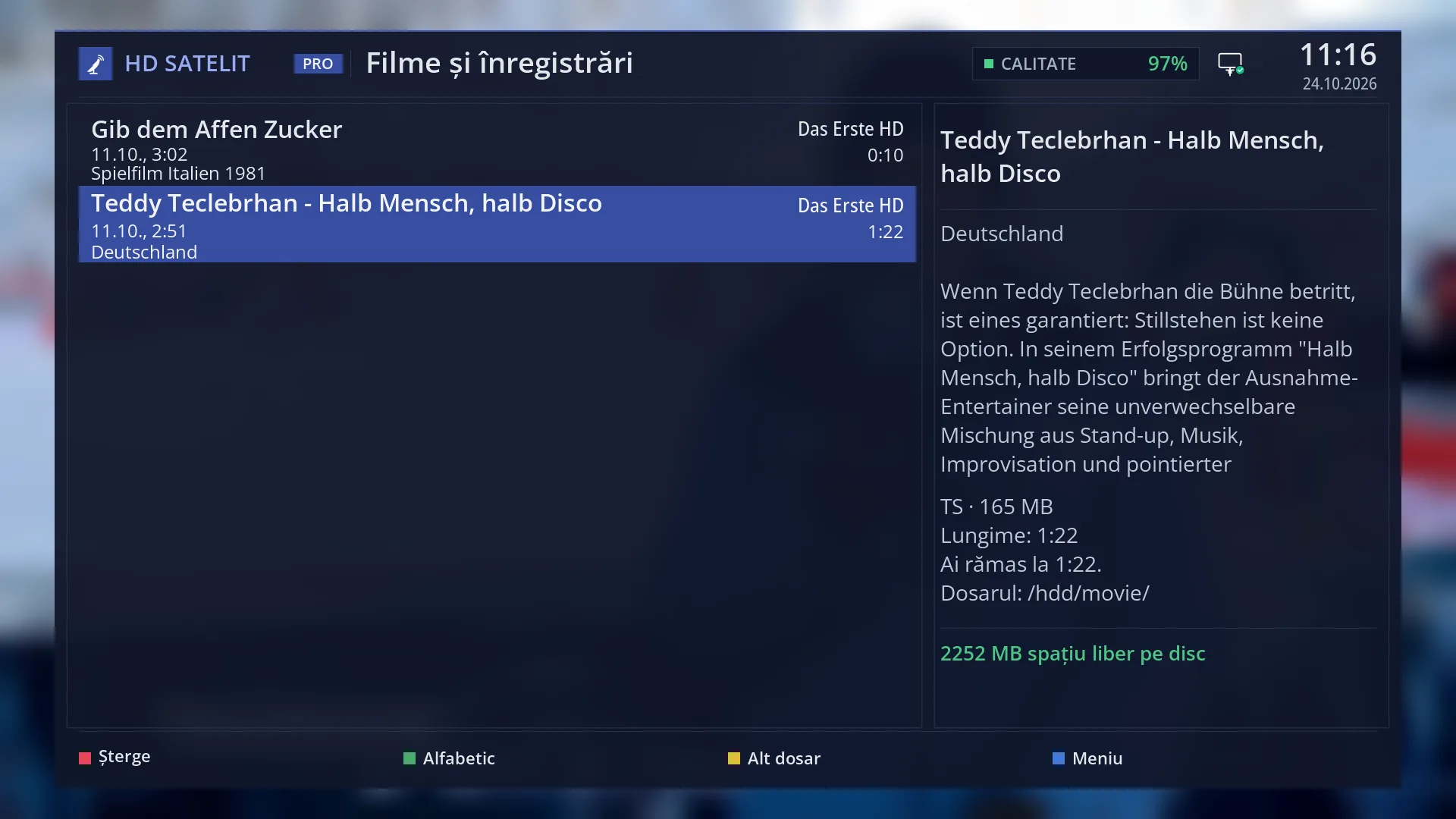
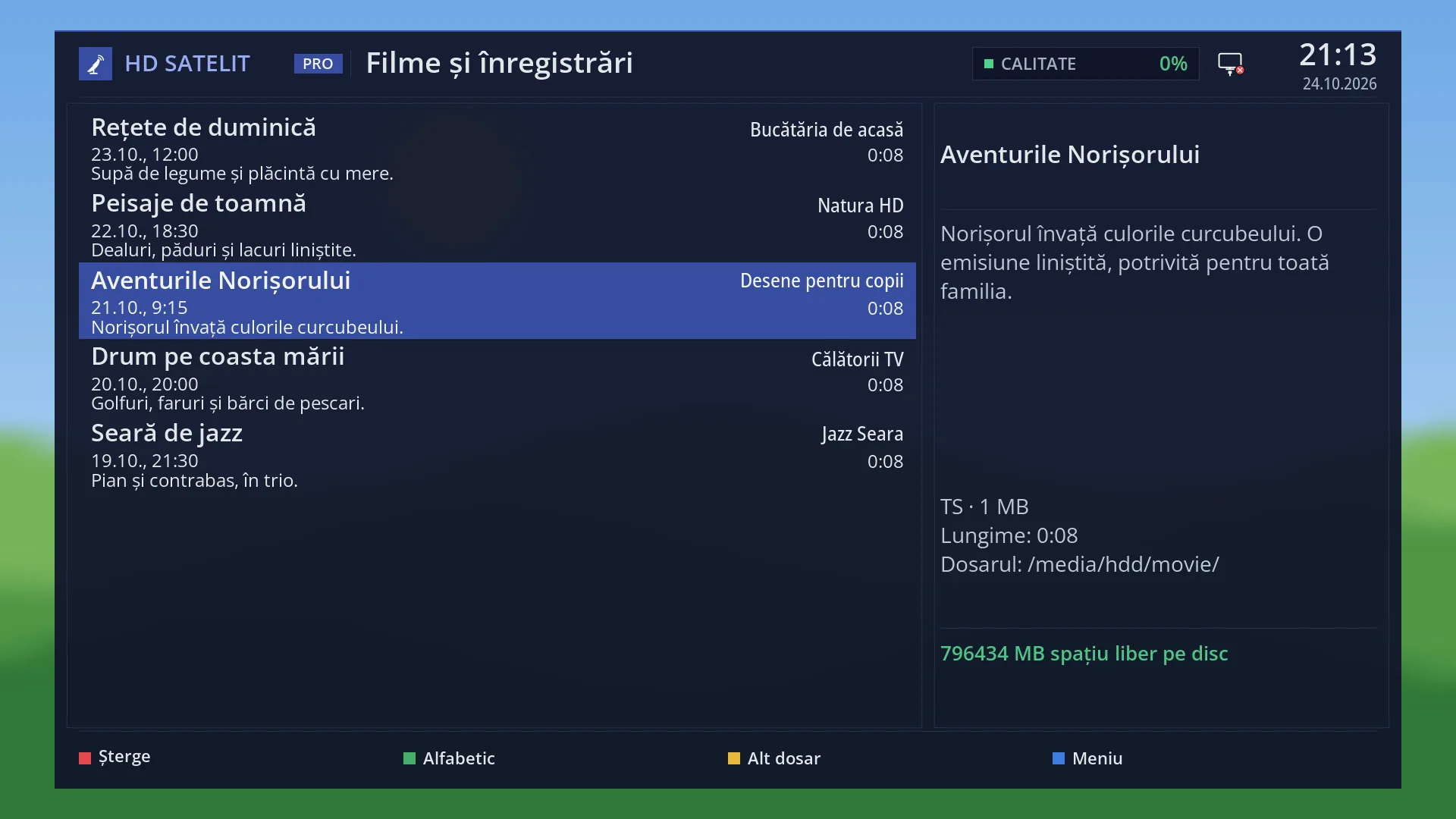
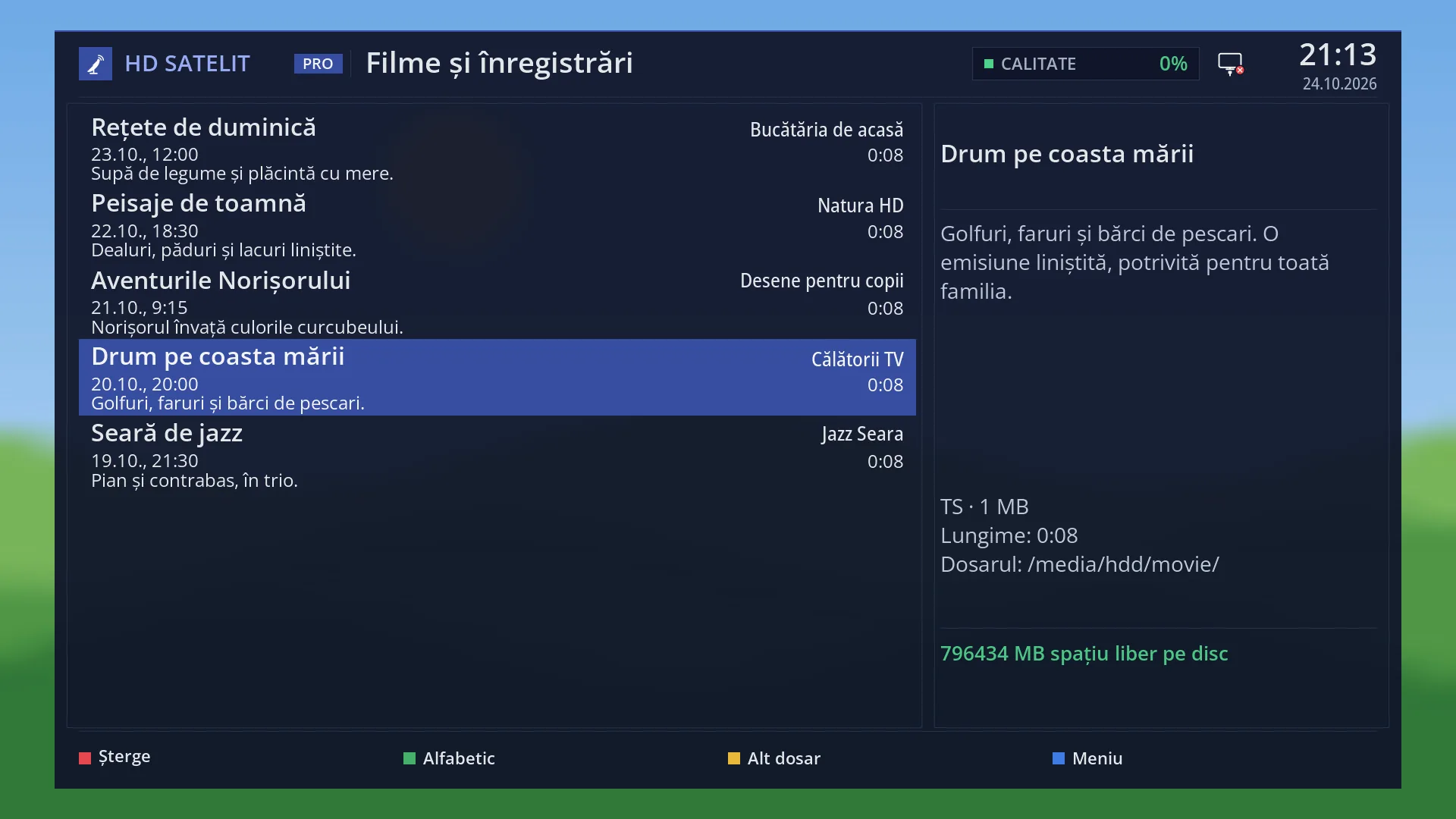
On the right you see the details of the chosen item: the programme title and description, the file type and size, the length, where you stopped, the folder and how much free space is left on the disk.
While you watch a recording, you have pause, fast forward and rewind, skips with the digit keys, jumps to marks and, with BLUE, the mark editor.
How to get here
Path: press EMC while you watch TV (or in the player of a recording).
Keys while watching TV: EMC. In the player of a recording, UP or DOWN also open the list.
You can also find films on a USB stick with Menu > Media > Media player.
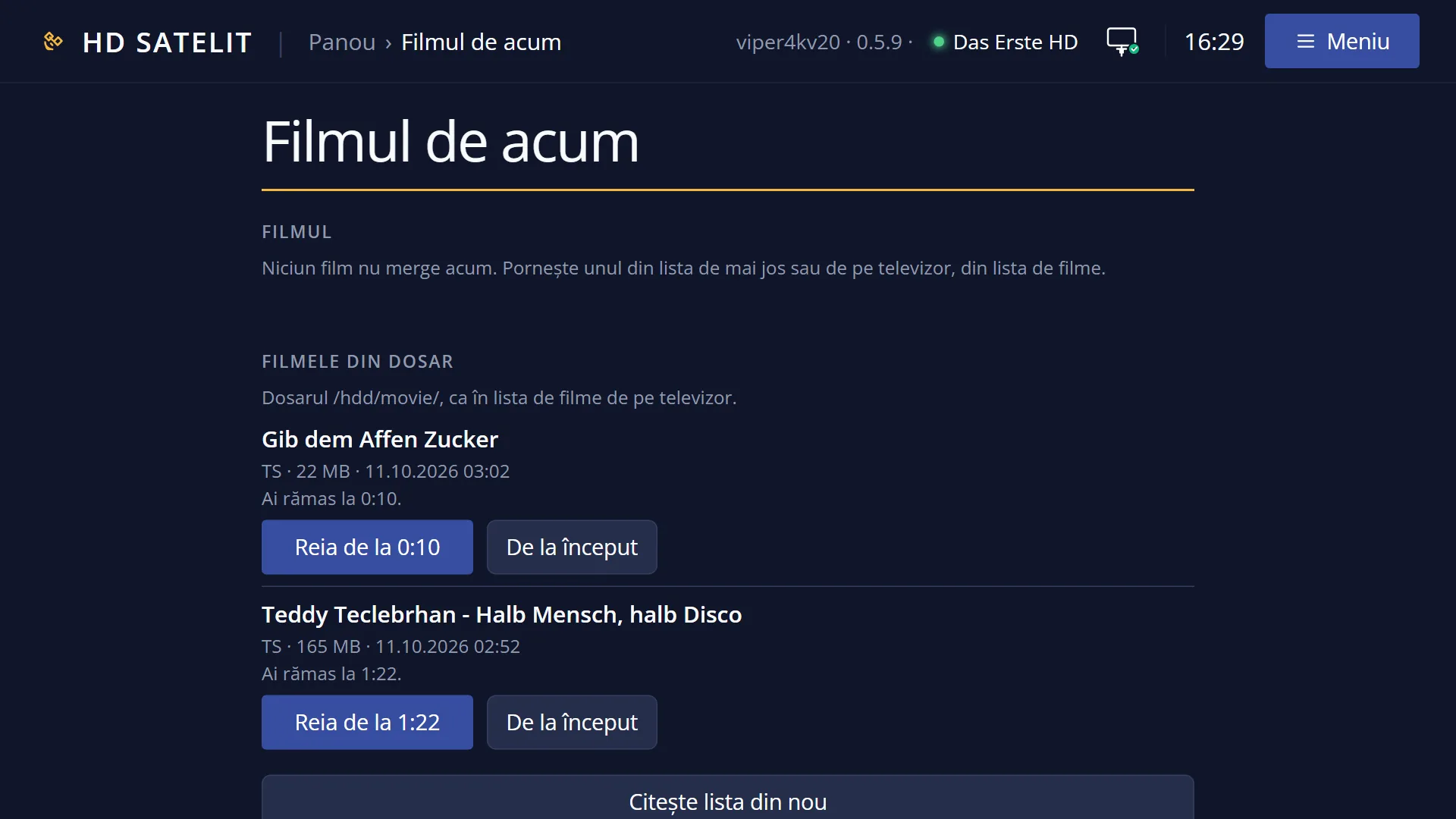
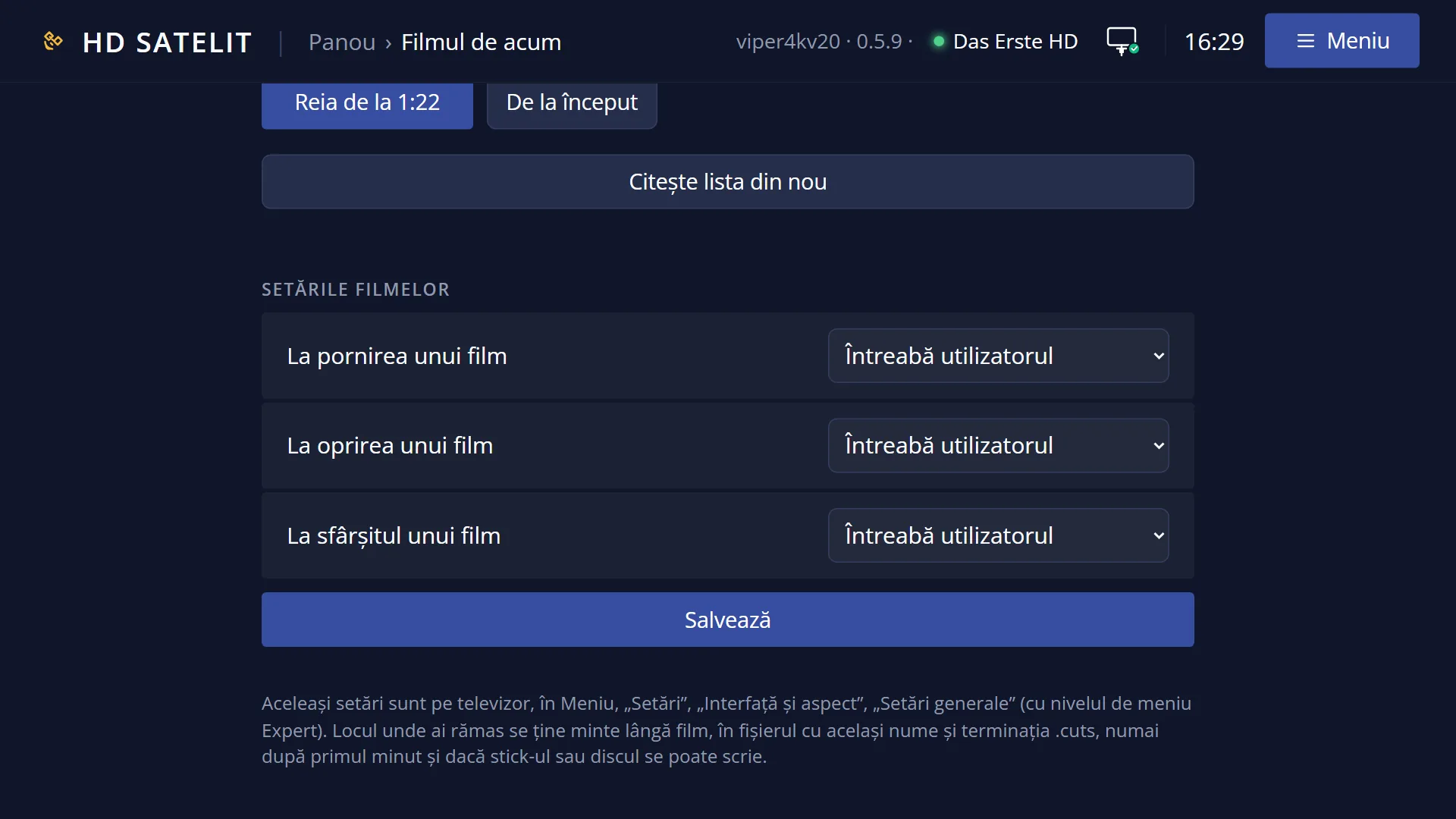
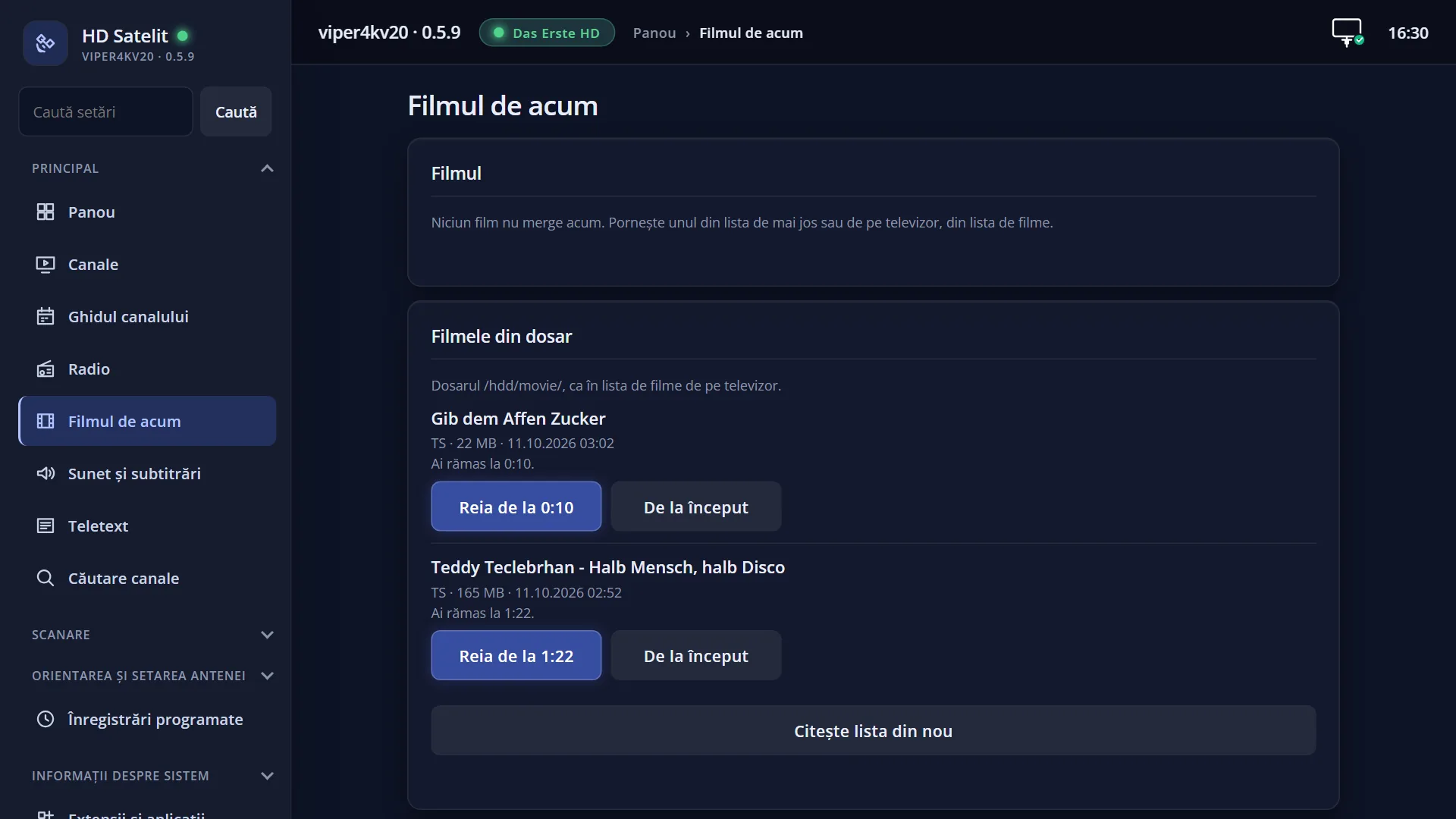
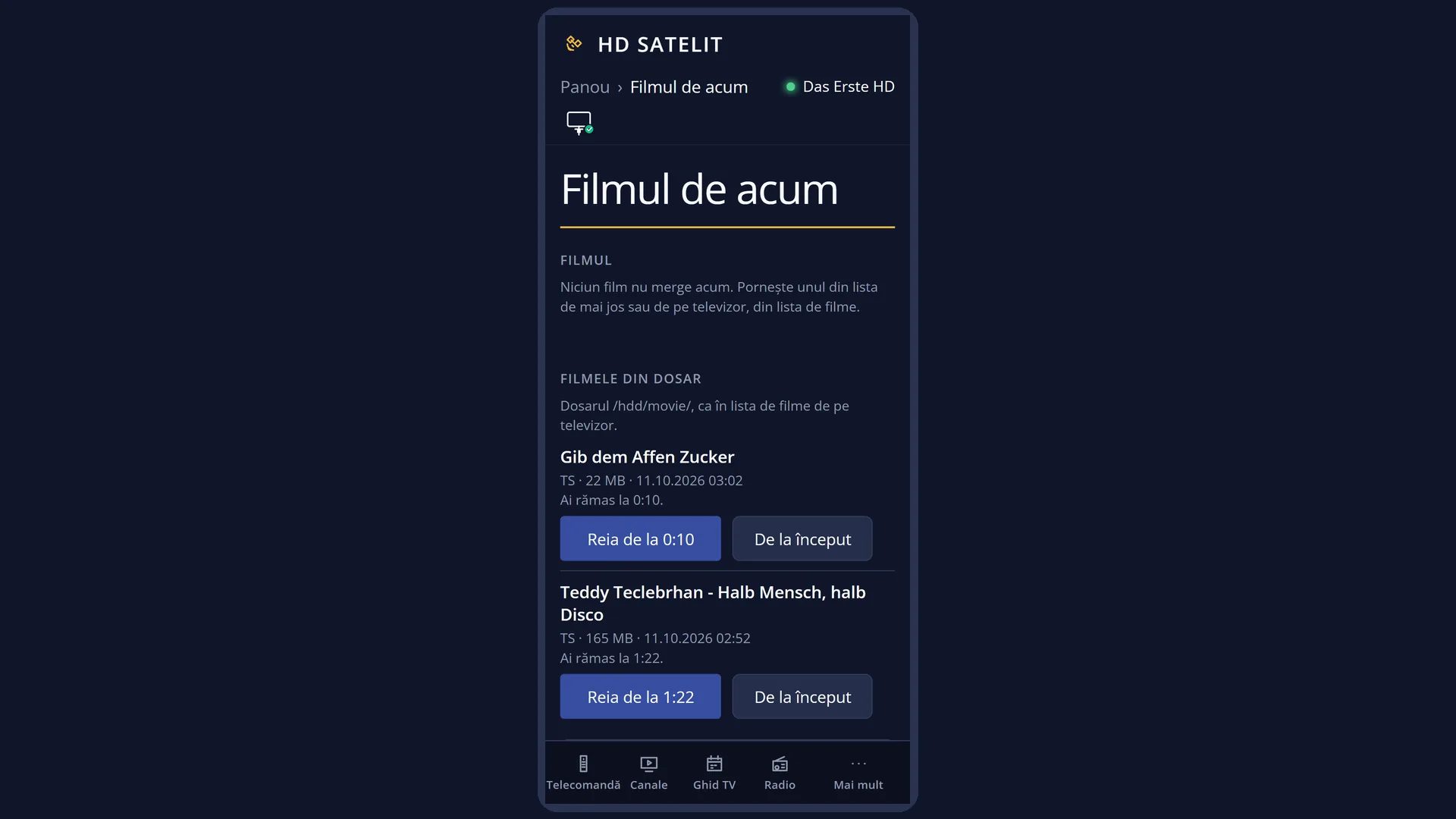
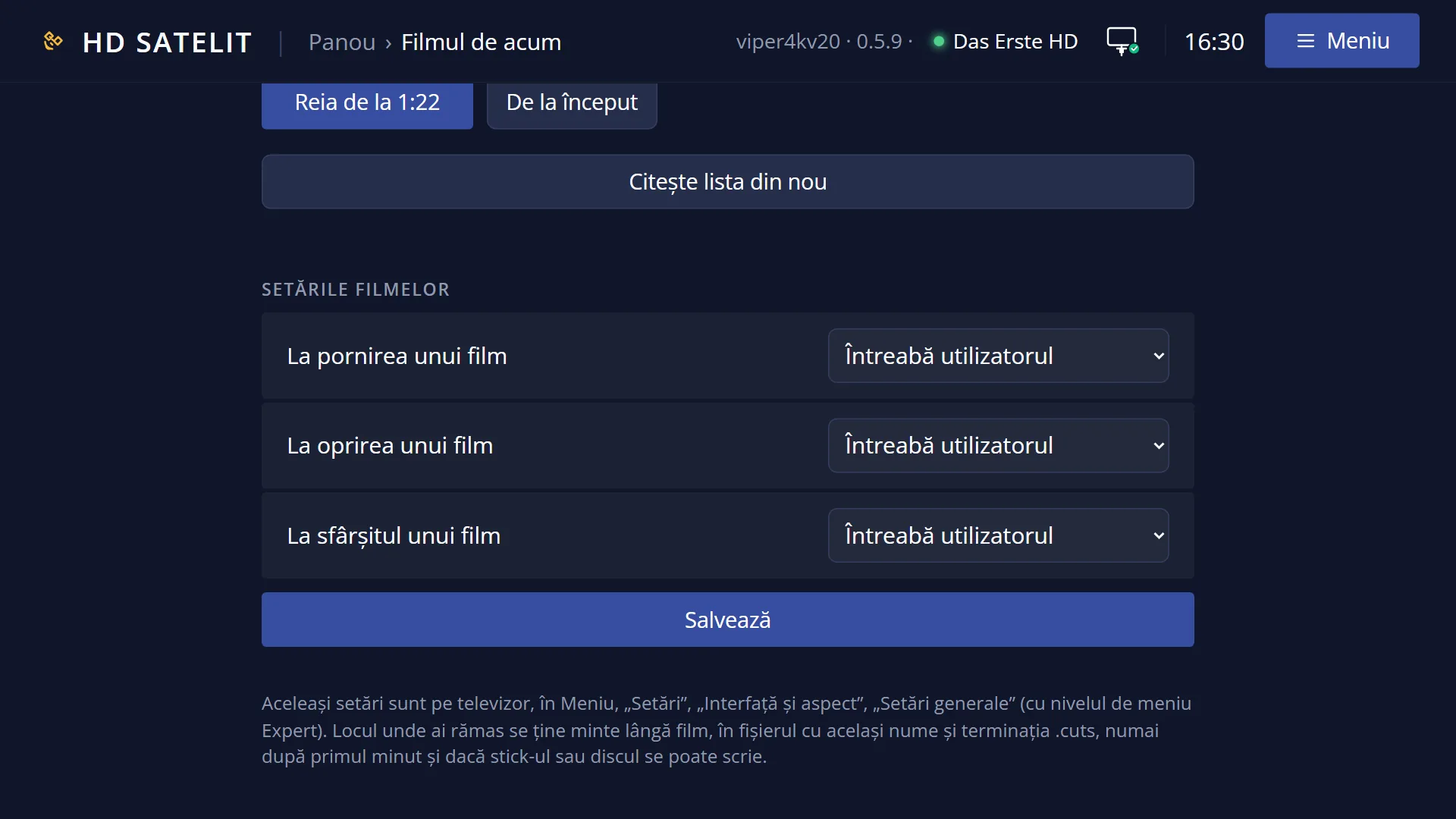
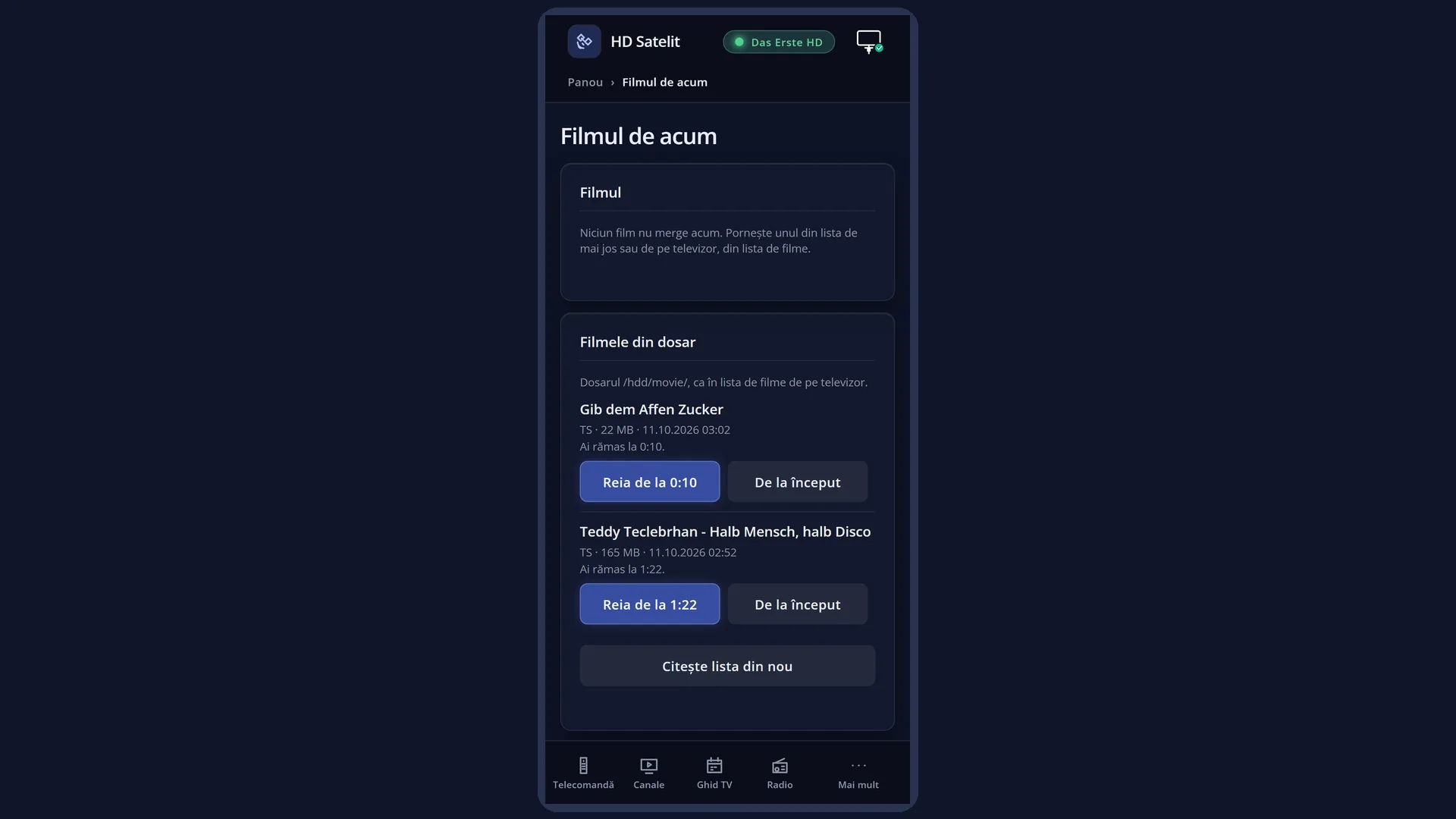
In the web interface: the /filme page (the current film, with pause, skip and fast forward/rewind buttons, the start and stop settings and the film list, from which you can start a film on the TV).
What you see on the screen
At the top: the title “Films and recordings” (followed by the chosen tag when the list is filtered), the clock and the date.
On the left, the list. Each row (in the default style) shows the name in large text, below it the day and time of the recording (for example “11.10., 3:02”, “Today, 21:00”) and the short description; on the right, the channel and the length (for example “1:22”). The selected row is blue. While the list loads, you see “Please wait... Loading list...”.
Top right: the title of the recorded programme and, below it, its description from the guide (translated if “Translate EPG” is on). For a film with no guide data you see its name.
Below that, the details: the file type and size (for example “TS · 22 MB”), “Length: 1:22:05”, “You stopped at 0:45:10.” if you have half watched it, and “Folder: …”.
At the bottom, in green, the free space on the disk, for example “2416 MB free diskspace”.
Keys: RED “Delete”, GREEN “Alphabetical” or “By date” (the order the list switches to when you press it), YELLOW “Other folder”, BLUE “Tags” (when the recordings have tags) or “Menu”.
Rows and settings
| Row | Values | Default | What it does |
|---|---|---|---|
| Order (GREEN) | By date, Alphabetical | By date (newest first) | GREEN switches the list to the other order; the key shows the order it will switch to (“Alphabetical” when the list is sorted by date). The same choice is in the menu: “alphabetic sort” / “sort by date”. Alphabetical, when you are looking for a particular film by name. |
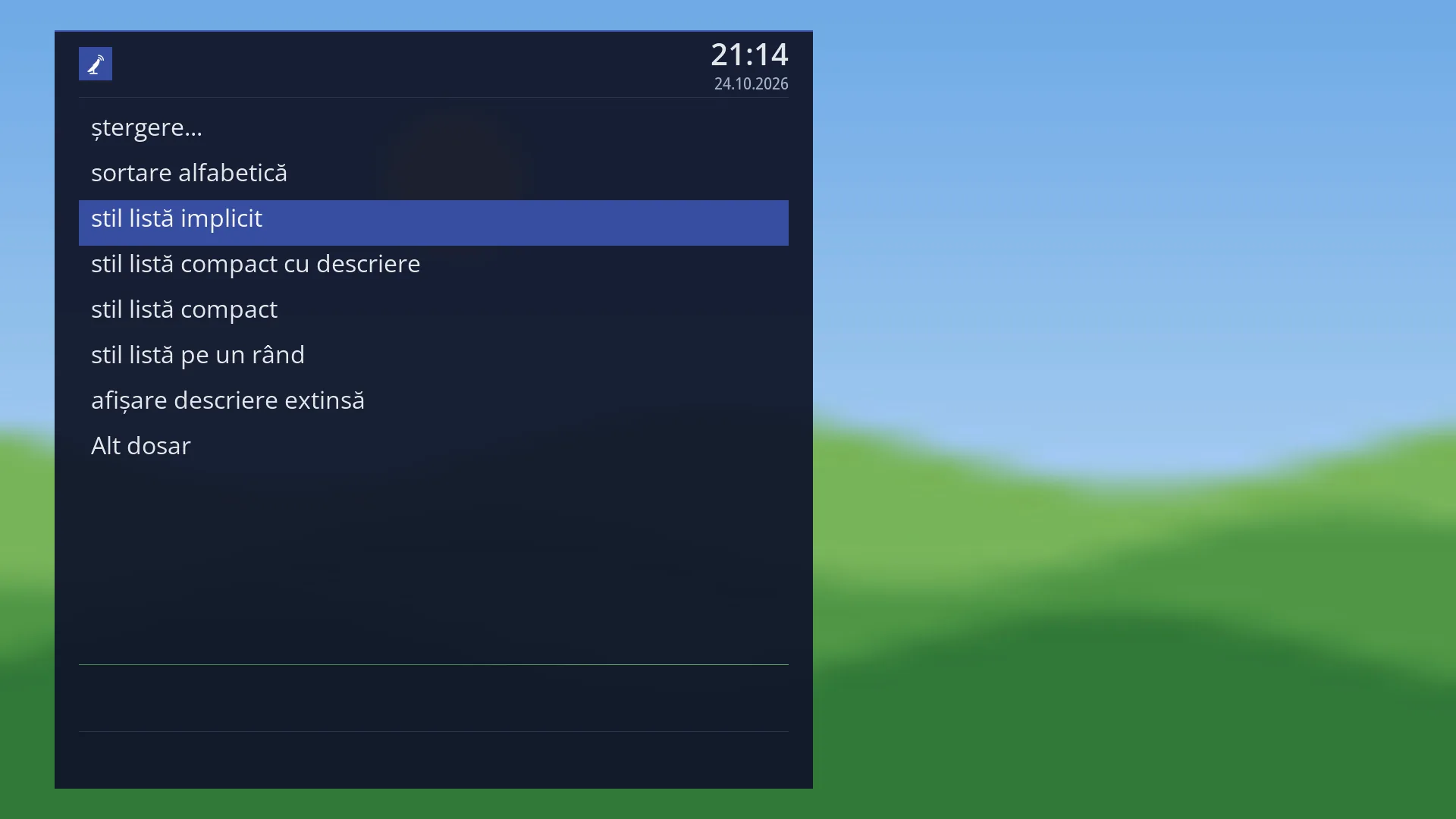
| List style (in the list menu) | list style default, list style compact with description, list style compact, list style single line | list style default | Default: three lines per film (name; date and description; channel and length). Compact: less tall, with or without the description. Single line: only the name and length, so you can see many at once. When you have many recordings and want to see them all without scrolling. |
| Extended description (in the list menu) | show extended description, hide extended description | hidden | In the single line style, with the description shown, the row shows the date instead of the length. The full description is always on the right anyway. If you use the single line style and want to see the date. |
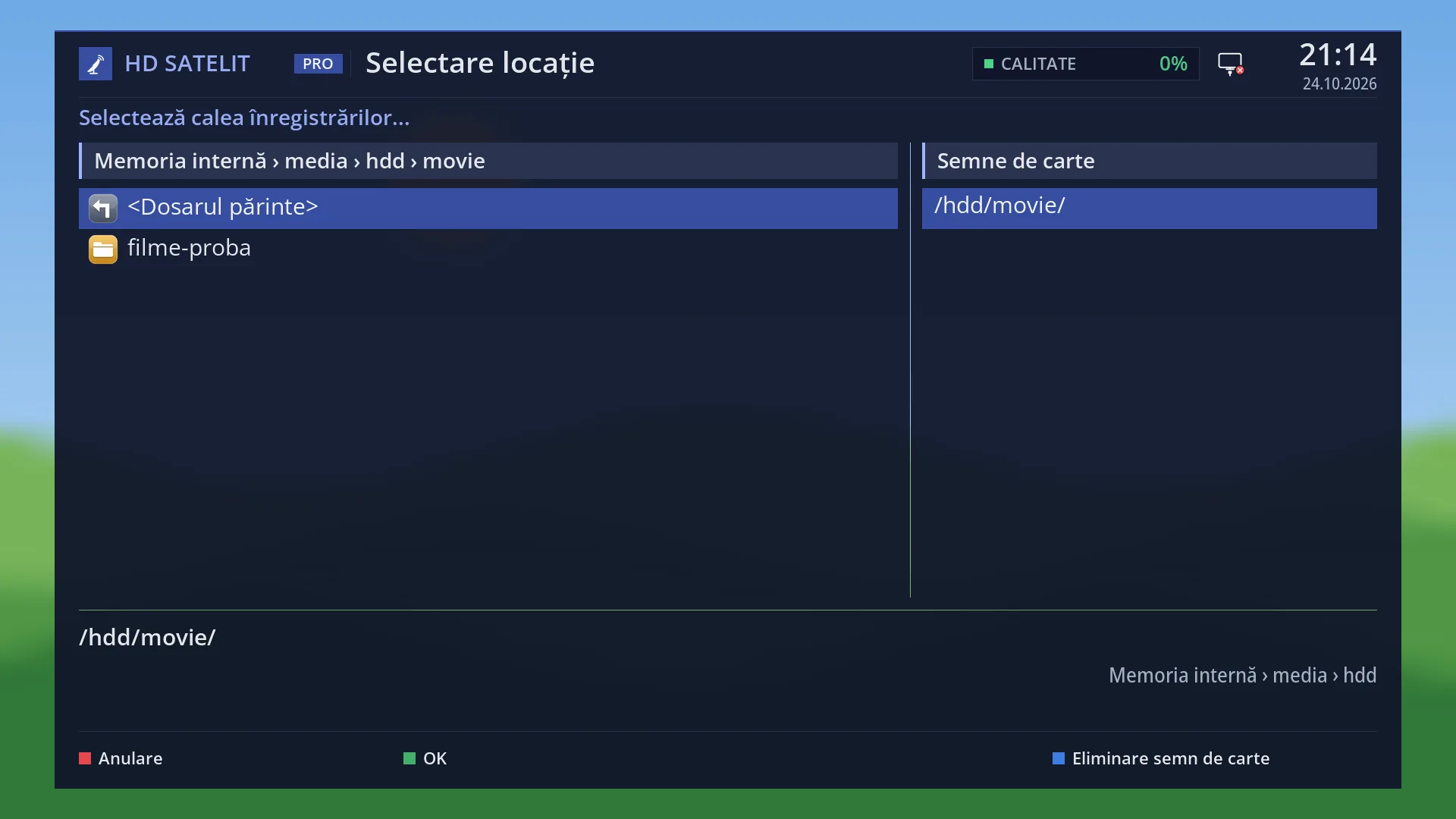
| Folder (YELLOW “Other folder”) | folders on a USB stick, hard disk or the network | the usual recordings folder | Opens “Please select the movie path...”: you choose another folder and the list shows the films in it. The folder is remembered for next time. When your films are in another folder or on another disk. |
| Tags (BLUE, when there are any) | the tags found in the folder, All films | All films | Shows only the recordings with the chosen tag; “All films” removes the filter. If there are no tags in the folder, BLUE opens the list menu. When you have many tagged recordings. |
| When a film starts (in OSD Preferences, Expert only) | Ask user, Resume from last position, Start from the beginning | Ask user | What happens with a half watched film: it asks “Resume where you stopped?”, resumes by itself (briefly showing “Resuming playback”) or starts from the beginning. When you no longer want to be asked. |
| When a film is stopped (in OSD Preferences, Expert only) | Ask user, Return to movie list, Return to previous service | Ask user | What STOP does in the player: it asks “Stop playback?”, takes you straight back to the list or to the previous channel. When you want STOP to stop asking. |
| When a film ends (in OSD Preferences, Expert only) | Ask user, Return to movie list, Return to previous service, Pause movie at end | Ask user | What happens when the film ends. For example, back to the list, so you can choose the next recording straight away. |
Keys
| EMC (while watching) | Opens “Films and recordings”, with the cursor on the last film started from the list. |
| UP / DOWN, LEFT / RIGHT | The film above or below; the page above or below. The details on the right change. |
| OK | Starts the chosen film; the list closes. |
| RED | “Delete”: asks “Do you really want to delete …?”; Yes deletes the file from the disk. |
| GREEN | Changes the order: “Alphabetical” or “By date”. |
| YELLOW | “Other folder”: you choose another folder with films. |
| BLUE | “Tags” (the tag filter) or, if there are no tags, “Menu”. |
| MENU | The list menu: “Delete...”, the order, the four list styles, the extended description, “Other folder”, “Tags” and “All films” (when the list is filtered). |
| INFO | The details of the recorded programme, full screen. |
| EXIT | Closes the list without starting anything. |
| In the player: PAUSE / PLAY, rewind and fast forward, 1 / 3, 4 / 6, 7 / 9 | Pause and play; rewind and fast forward (2x ... 128x); skips of 15 seconds, one minute or five minutes back or forward. |
| In the player: skip back / skip forward (|<< and >>|) | Jump to the previous or next mark; to the end if there are no more marks. 0 sets or removes a mark at the current position. |
| In the player: STOP (or TV) | Asks “Stop playback?” with Yes and No (in Expert mode also “Yes, back to the film list”, “Yes, and delete the film”, “No, but restart from begin”). The position where you stopped is remembered. |
| In the player: EMC, UP or DOWN | The film list, so you can choose another film. |
| In the player: BLUE | The list of player plugins; for a recording it has the “Mark editor” row. |
| In the player: AUDIO, SUBT, TTX, EPG | The audio track, the subtitles, the recorded teletext, the programme details. |
Step by step
Watching a recording
- Press EMC.
- Choose the recording with UP / DOWN; on the right you see what it is about and how long it lasts.
- Press OK. If you have half watched it before, answer “Resume where you stopped?” with Yes (or wait 10 seconds) or No to start from the beginning.
Deleting old recordings to make space
- Press EMC and check the free space at the bottom.
- Go to the recording you no longer need and press RED.
- At “Do you really want to delete …?” choose Yes. The free space increases straight away.
Watching films from another folder
- In the list, press YELLOW (“Other folder”).
- Choose the folder with the arrow keys and OK, then confirm.
- The list now shows the films in that folder. The next time you press EMC, this folder opens again.
Problems and solutions
The list is empty.
There are no recordings in the chosen folder. Press YELLOW and choose the folder where they are (see “Folder:” on the right), or check that the USB stick or hard disk is connected.
When deleting, you see “You cannot delete this!” or “Deleting failed.”
The file cannot be deleted (for example the USB stick is write-protected or the file is read-only on the network). Check the USB stick or delete the file from a computer.
It no longer asks me where to resume.
Either the film has no saved position yet, or “When a film starts” is set to “Start from the beginning” or “Resume from last position” (OSD Preferences, in Expert mode).
STOP no longer asks me anything.
“When a film is stopped” is not set to “Ask user”. Change it in OSD Preferences (in Expert mode).
BLUE has no “Mark editor”.
The mark editor only appears for items that have marks, that is, recordings made by the receiver, not for any file.
The title on the right is in a different language from the one in the list.
With “Translate EPG” on, the title and description on the right are translated; the list keeps the original name of the recording.
You see “Fast winding does not work right now. You can skip forward or backward with the keys 1, 3, 4, 6, 7 and 9.”
Fast forward and rewind do not work with this file; use the skips with the digit keys.