

Dish location
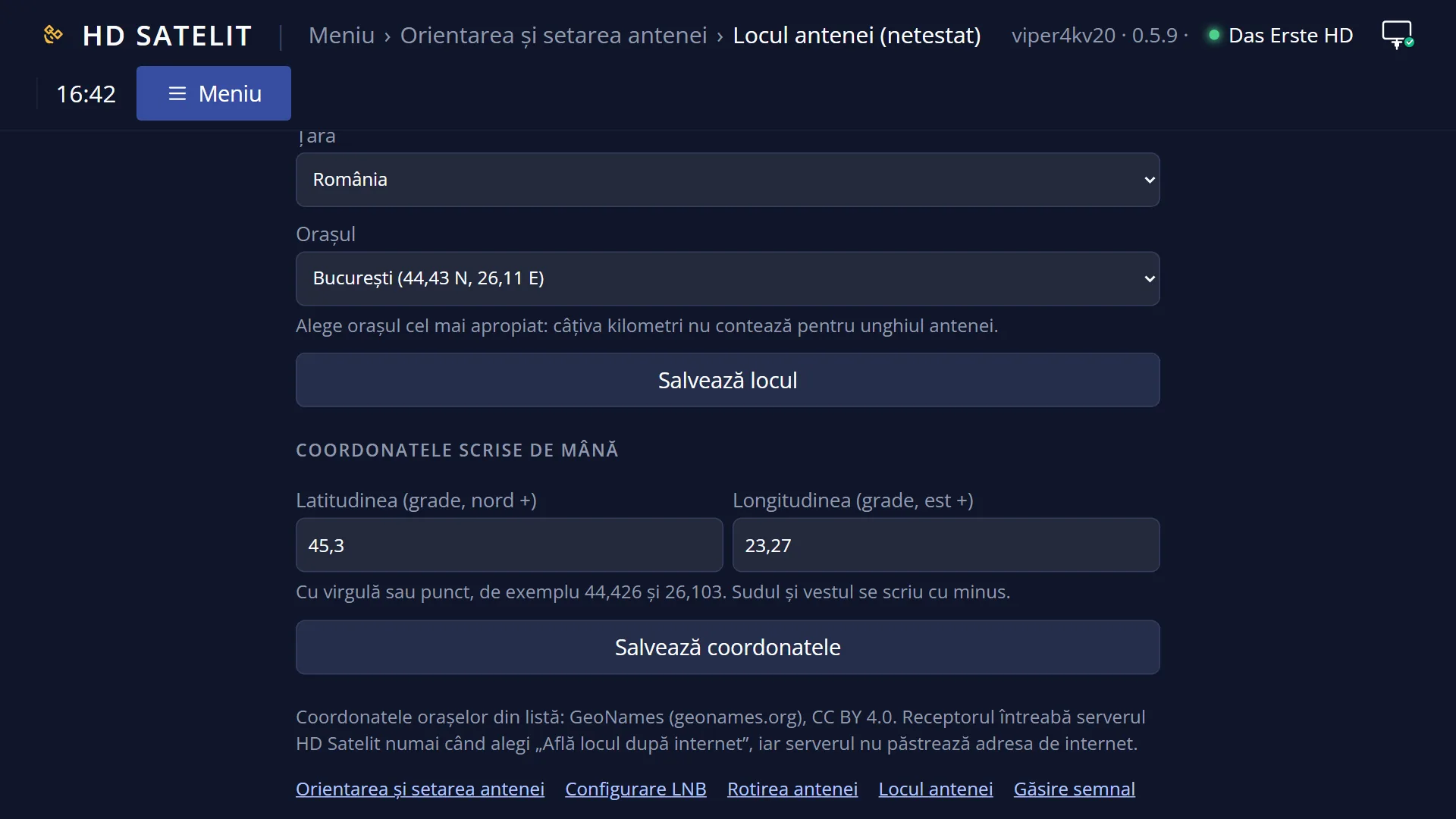
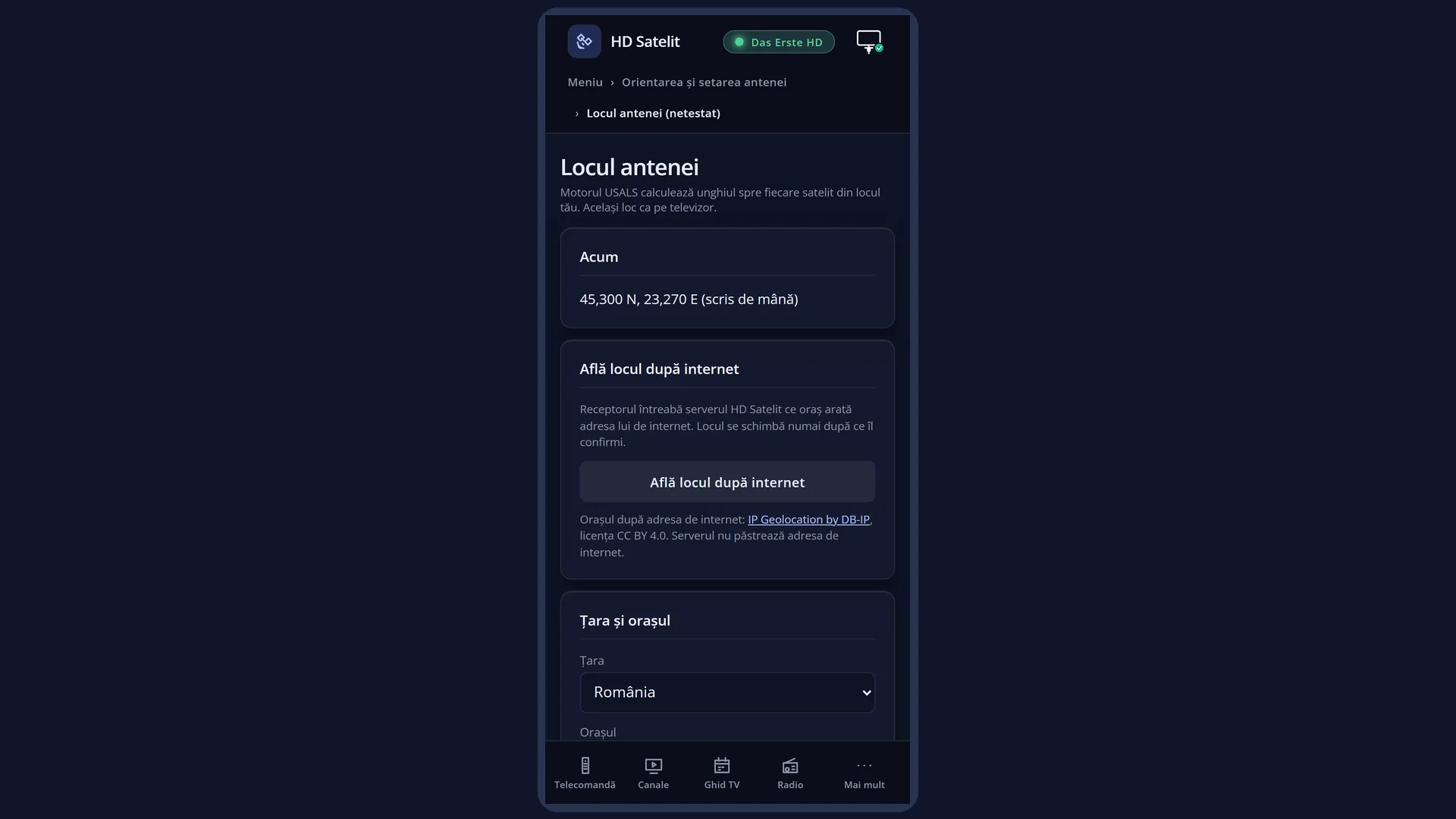
English screenshots coming: some of the pictures below still show the receiver and the web interface in Romanian. The rows, keys and steps described on this page are the English ones.
What it is for
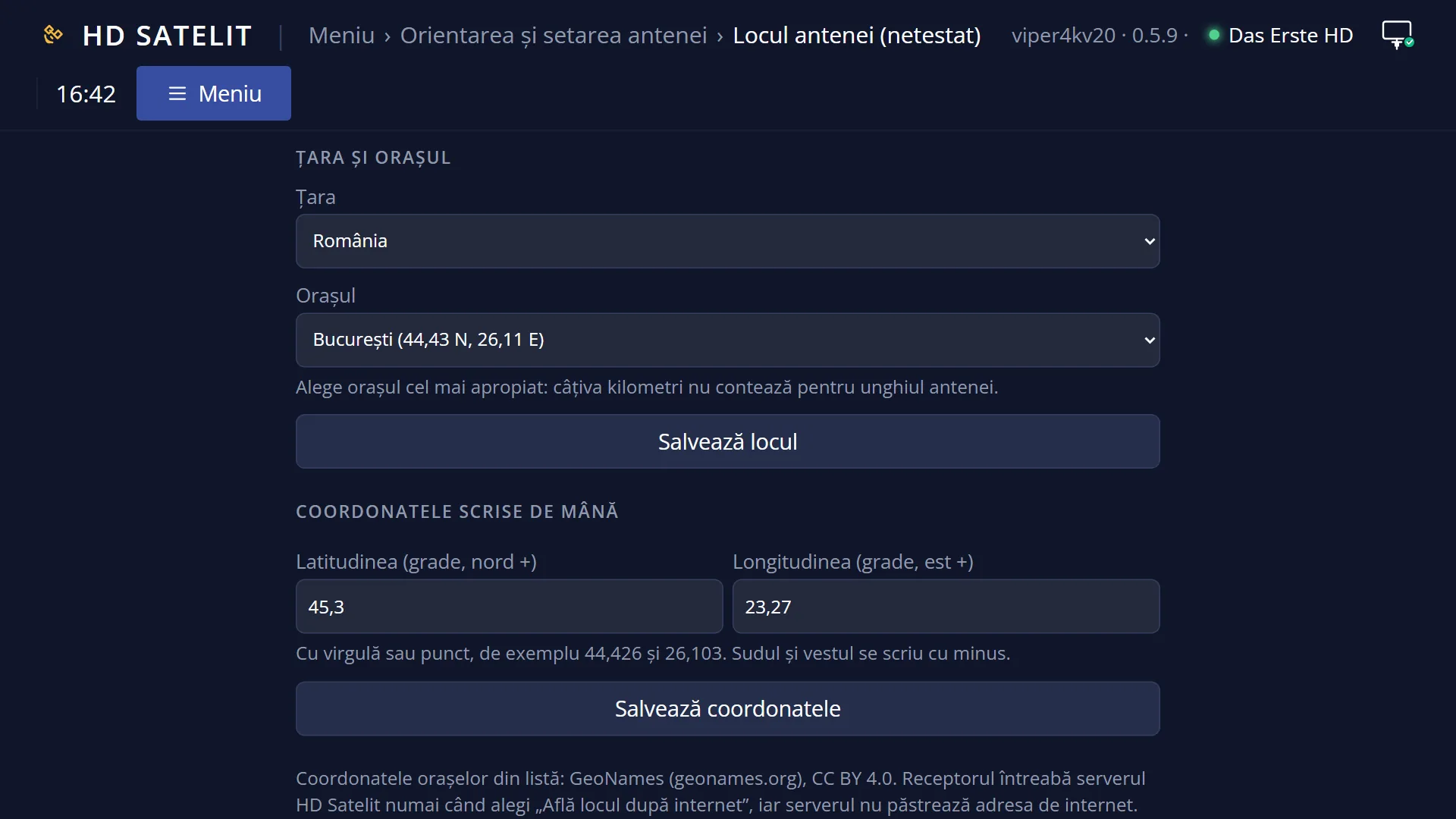
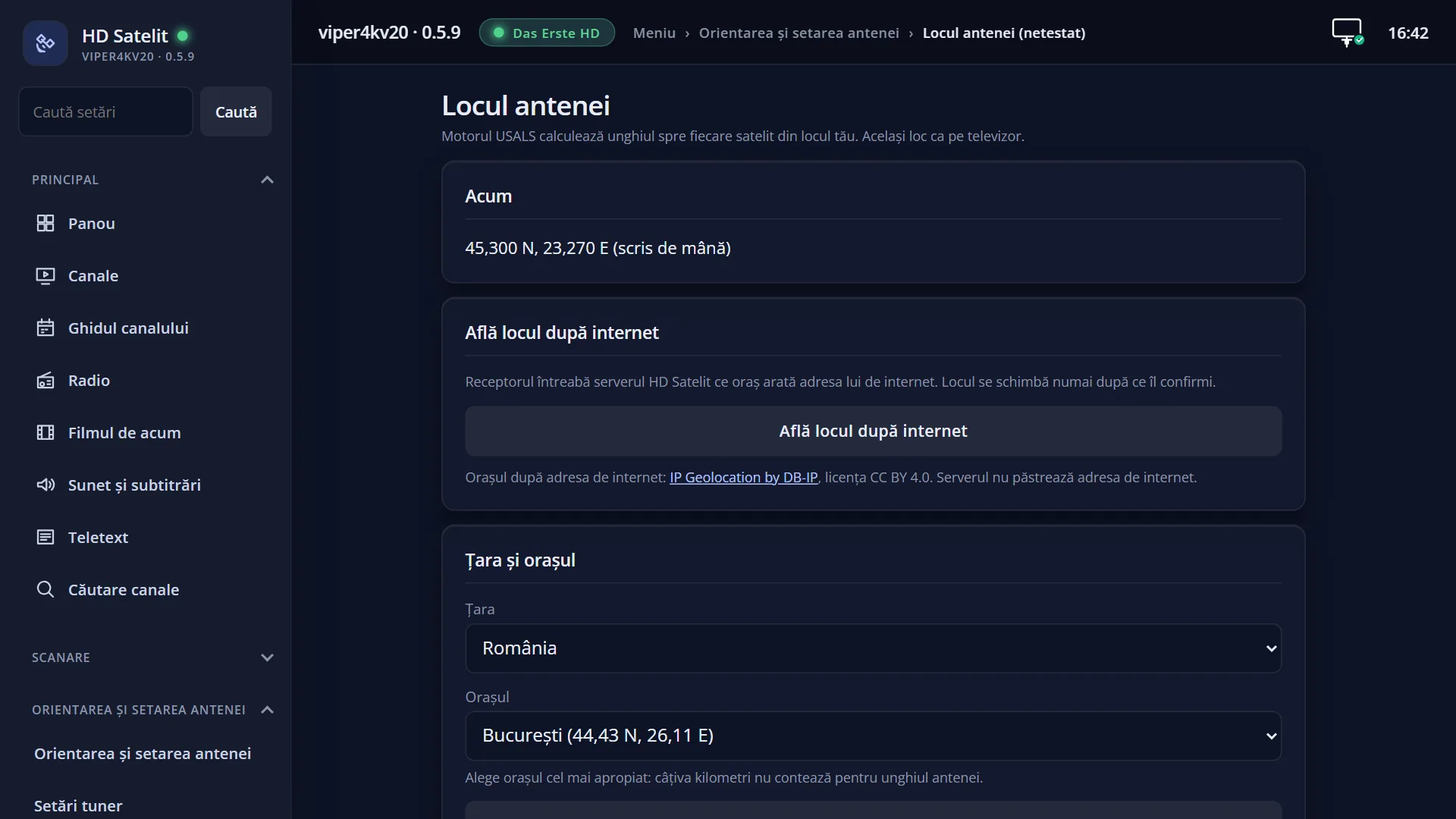
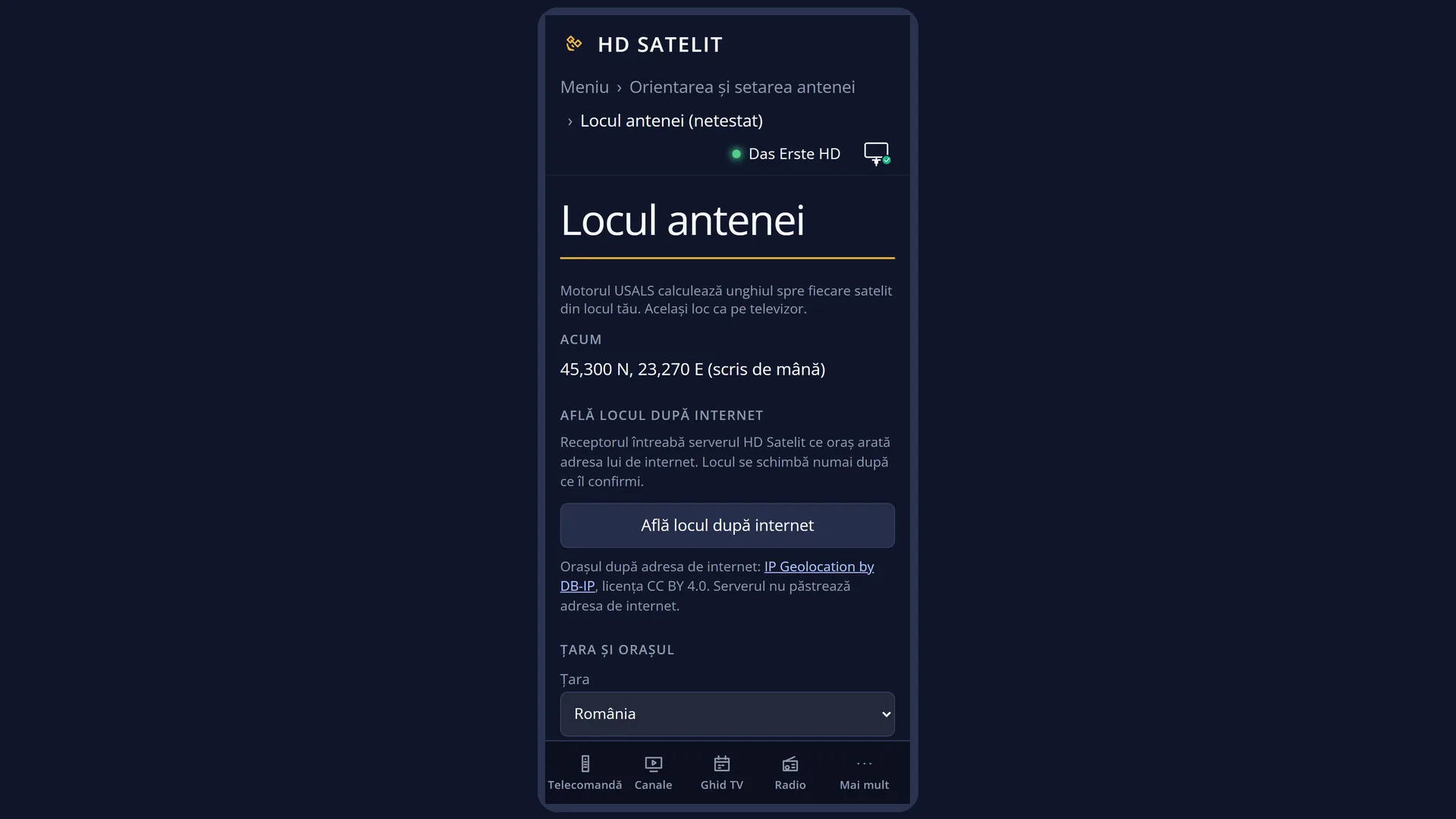
“Dish location” tells the receiver where you live: the country and city, or the exact coordinates. From this location the USALS motor works out the angle to each satellite by itself, so the motorised dish stops exactly on it.
There is only one location on the receiver. Tuner settings, Dish rotation, the Angle calculator and motorised scans all use it. You change it here or in the web interface, and the other screens see the change straight away.
While the location is “not set”, the receiver does not turn the dish towards satellites that need the USALS calculation, so that it does not send it off based on a made-up location. Motor steps, stored positions and limits work without a location.
You have three ways: the receiver finds the location from its internet address (only when it has internet, and only after you confirm), you choose the nearest country and city from a list, or you type the coordinates by hand. An error of a few kilometres makes no difference to the angle.
The “(not tested)” mark in the menu means the screen is finished but has not yet been tried on a receiver.
How to get here
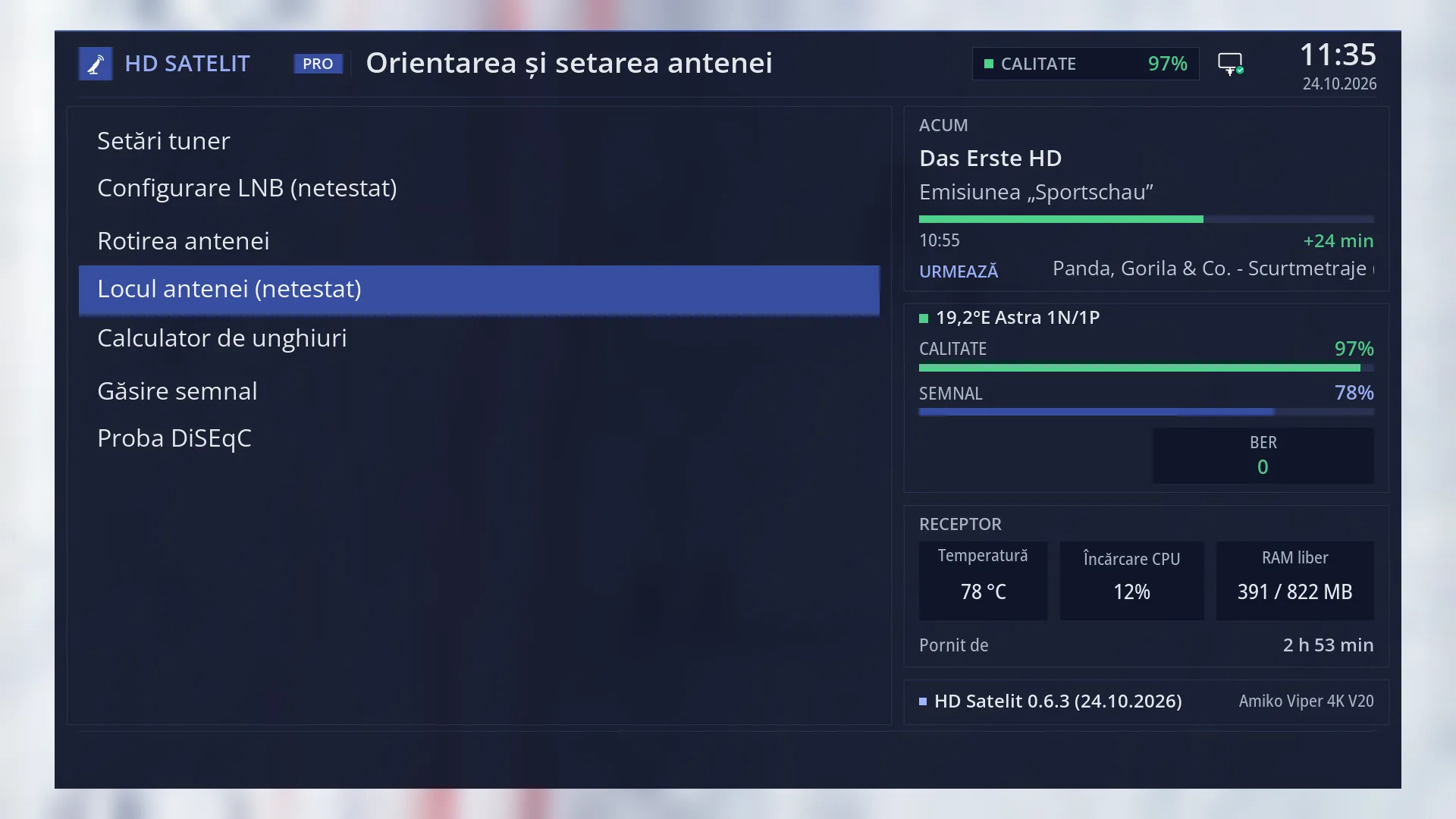
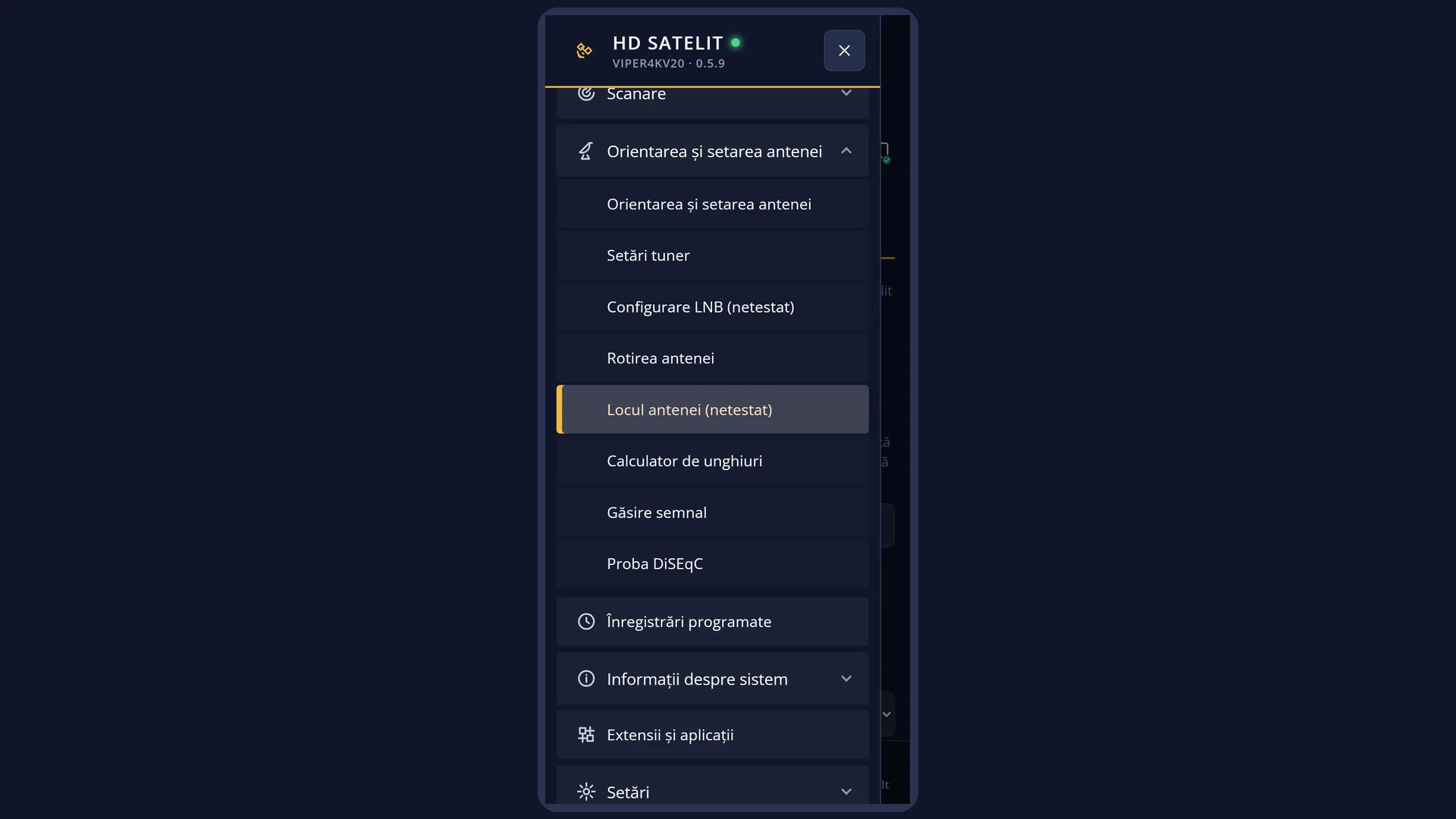
Path: Main menu > Dish alignment and setup > Dish location
Keys on the remote: MENU 2 4
From Tuner settings, with a motor: OK on the “Dish location (not tested)” row.
From Dish rotation: the “Change the dish location” row, or “Go to satellite” while the location is not set. Also from the Angle calculator.
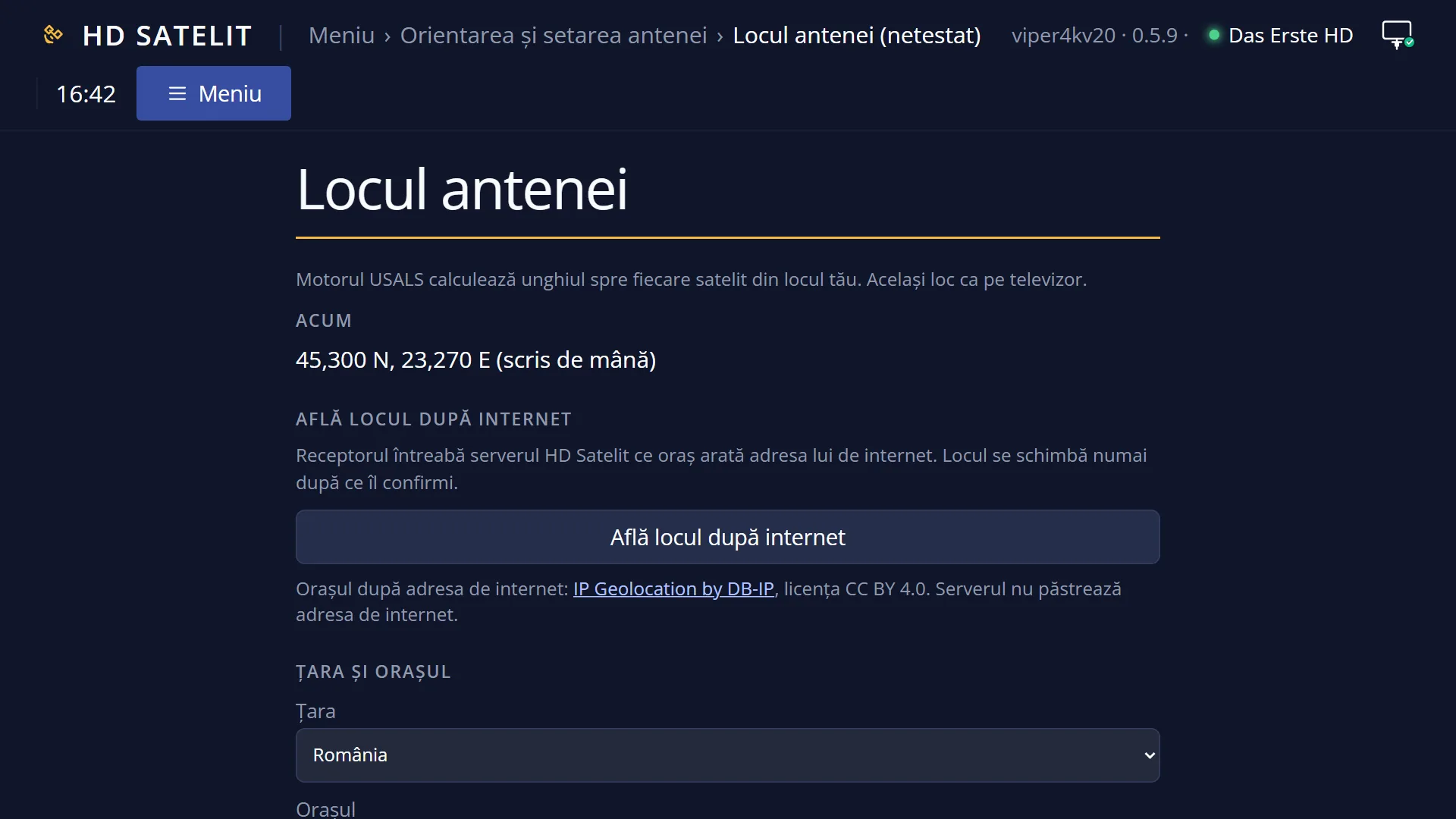
In the web interface: the /antena/locul page.
What you see on the screen
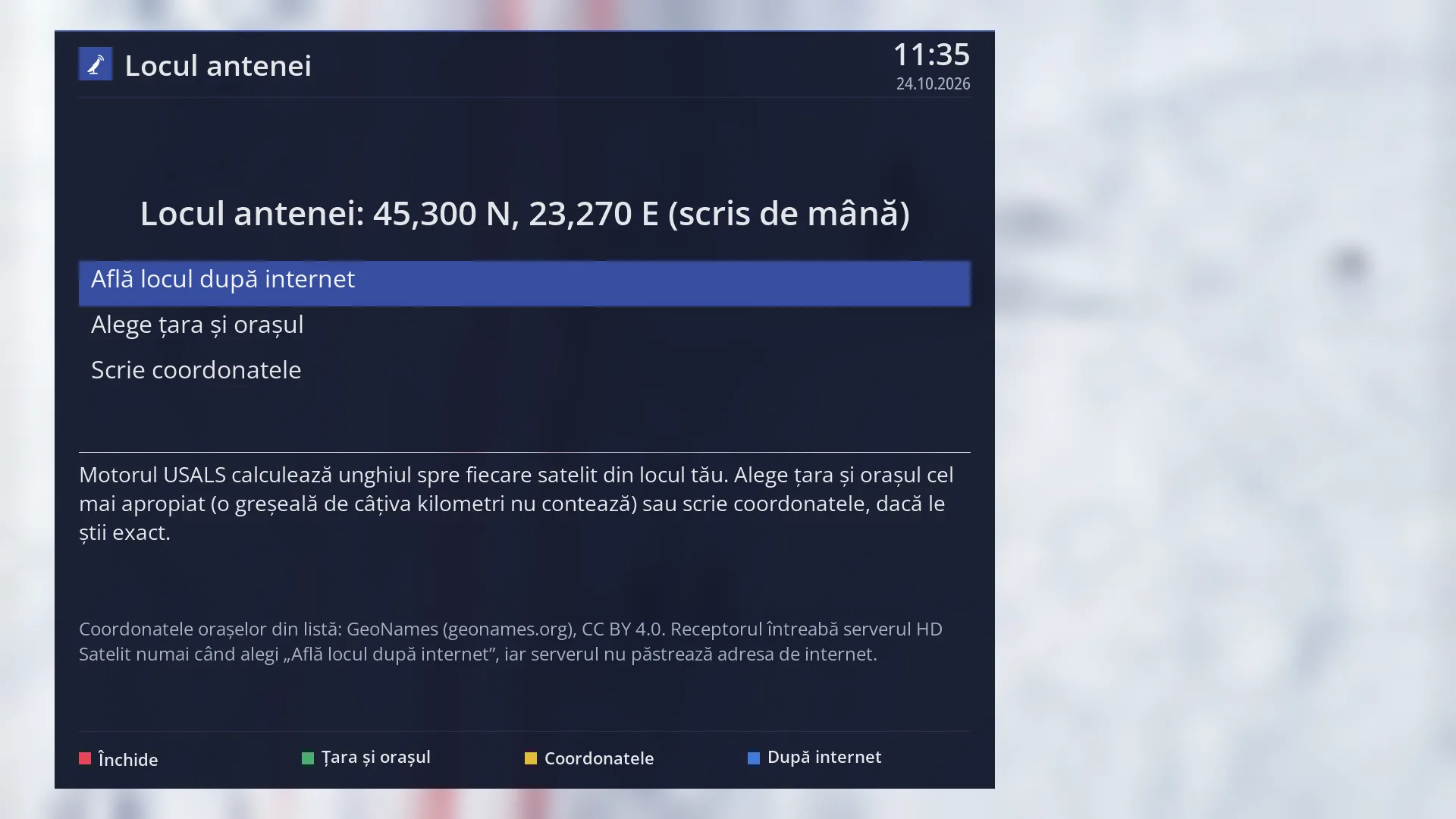
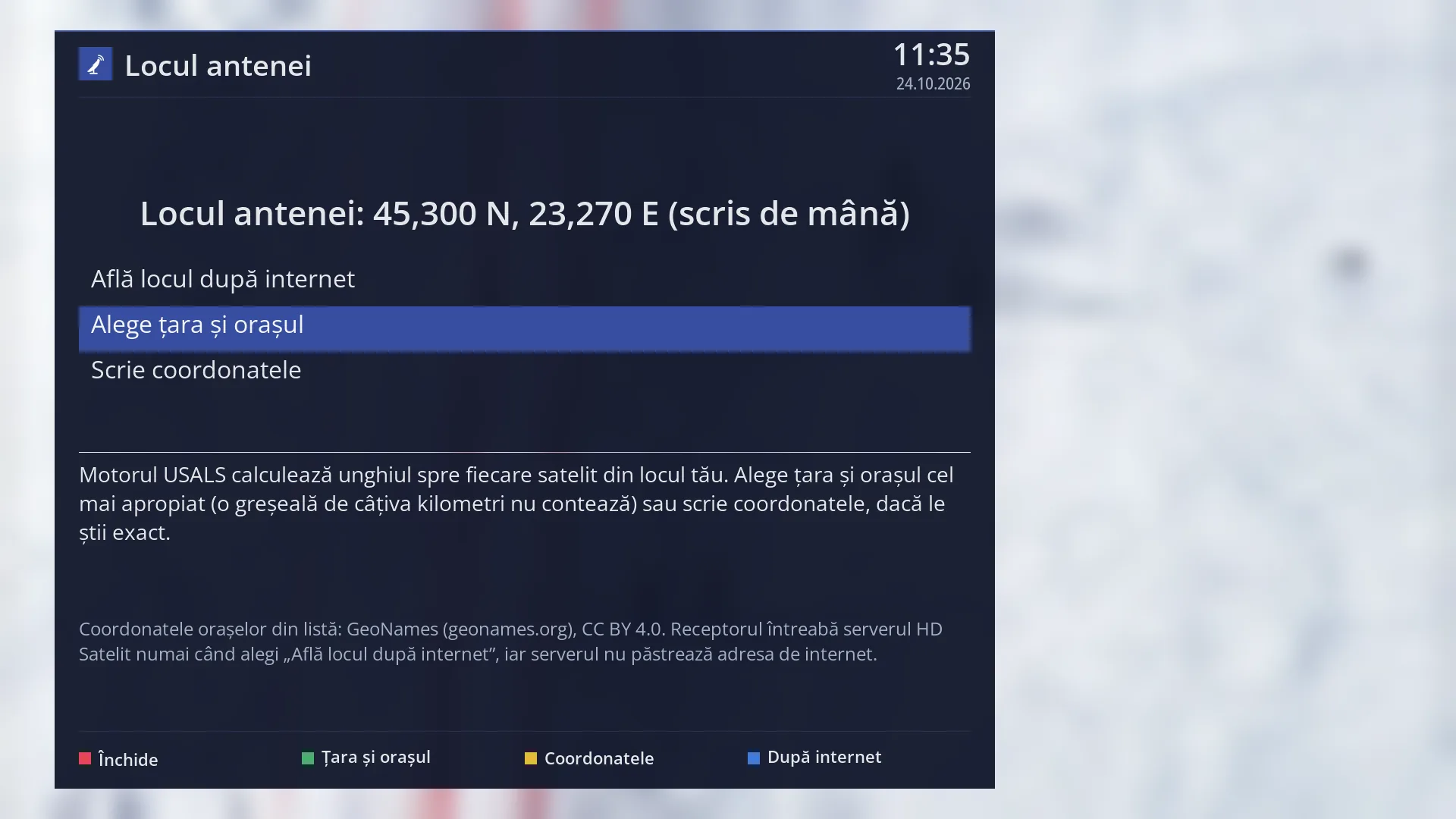
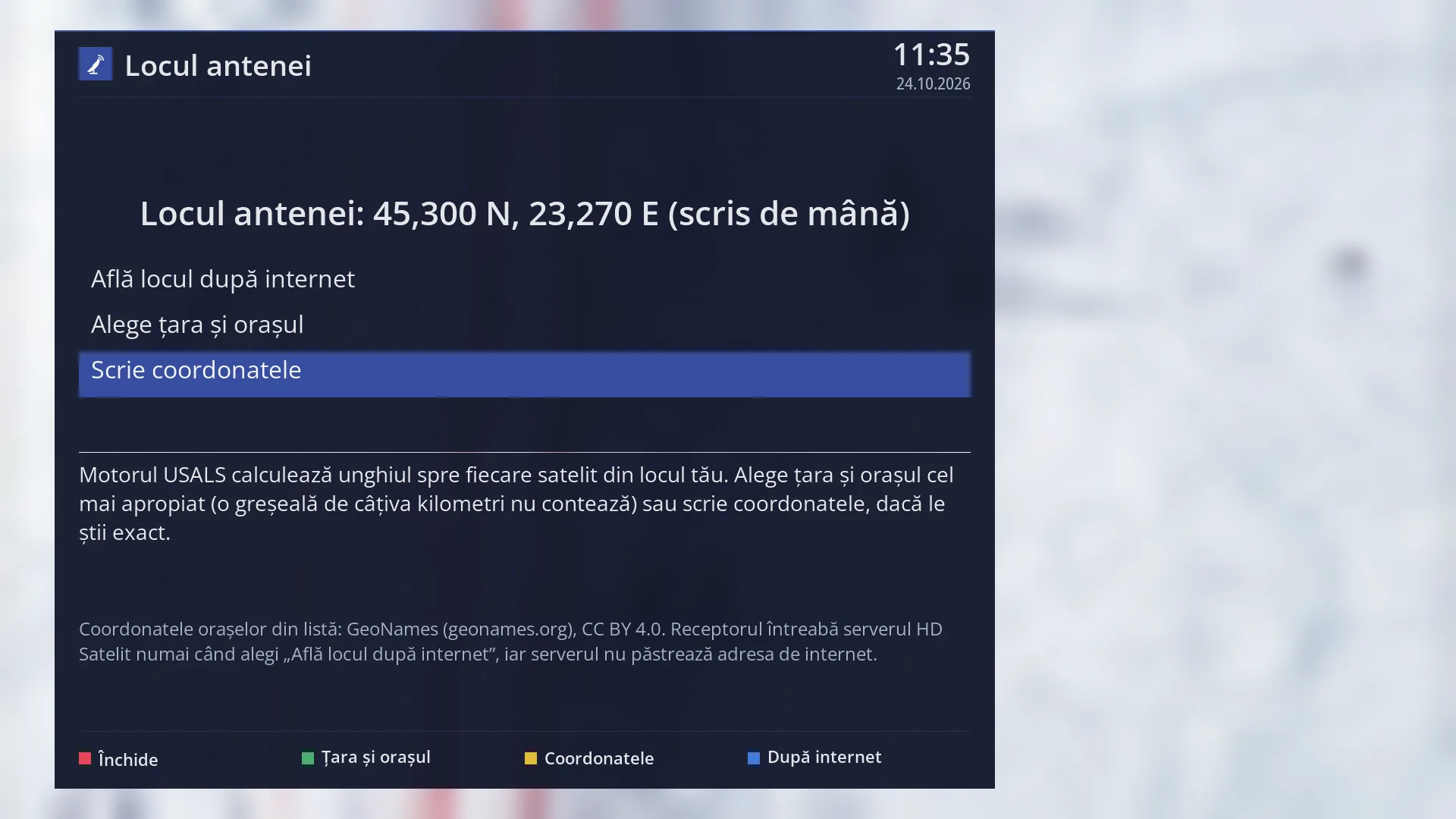
At the top, the title “Dish location”, the time and the date.
Below it, in yellow, a message, only when needed: why the screen opened (for example, a rotation refused because there is no location) or “Looking up the location from the receiver's internet address...”.
In large text in the middle, the current location: “Dish location: București, Romania (44.43 N, 26.11 E)”, “Dish location: 44.430 N, 26.100 E (typed by hand)” or “Dish location: not set”.
The list of the three ways: “Find the location via internet” (only when the receiver has internet), “Choose country and city” and “Enter coordinates”.
Below the list, the explanation: “The USALS motor calculates the angle to each satellite from your location. Choose the country and the nearest city (an error of a few kilometres does not matter) or enter the coordinates, if you know them exactly.” Below that, in smaller text, where the city coordinates come from and that the HD Satelit server does not keep the internet address.
At the bottom, the keys: RED “Close”, GREEN “Country and city”, YELLOW “Coordinates” and, with internet, BLUE “Via internet”.
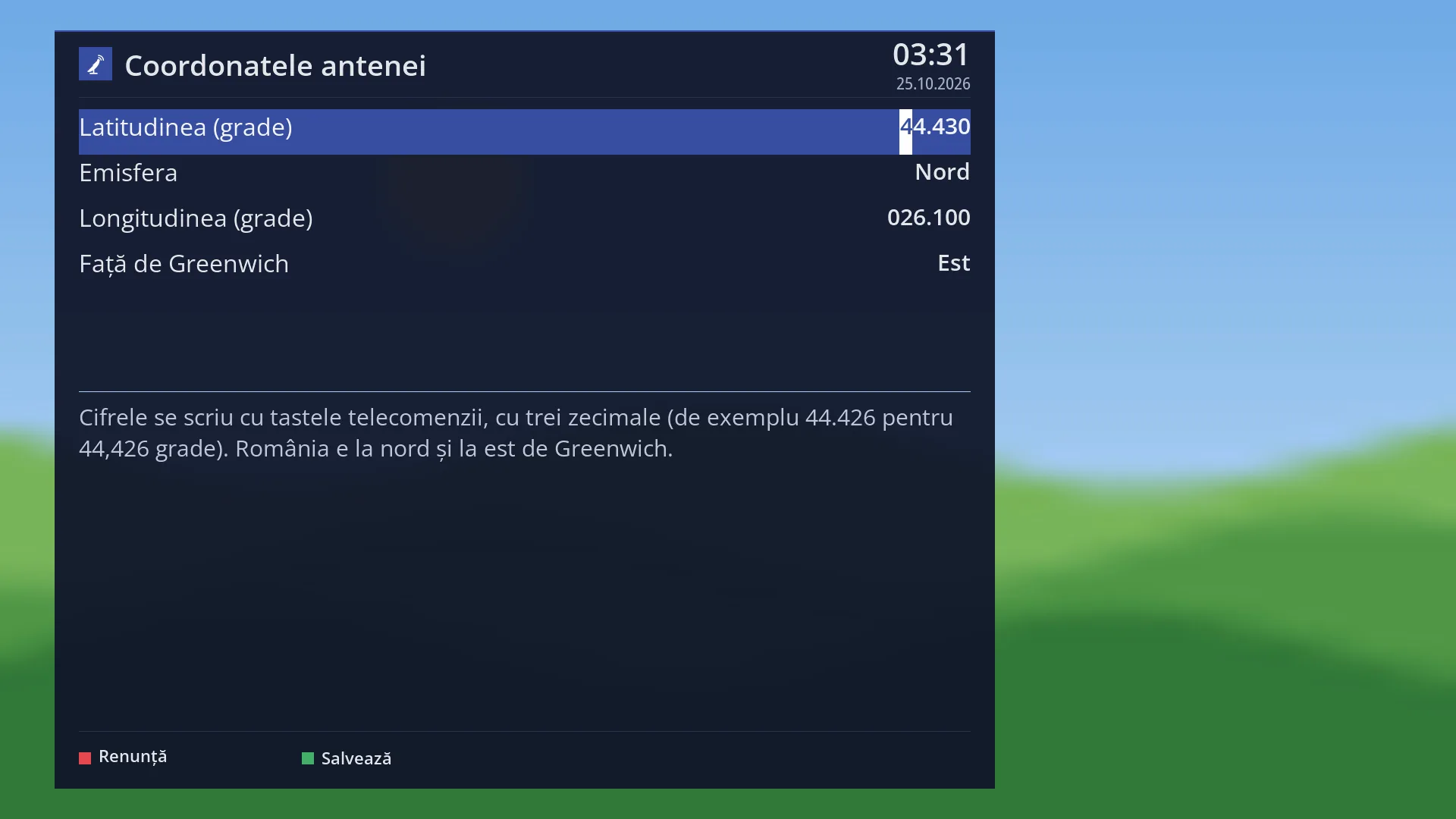
The “Dish coordinates” screen (YELLOW) has the rows “Latitude (degrees)”, “Hemisphere”, “Longitude (degrees)”, “Relative to Greenwich” and a tip on how to type the numbers.
Rows and settings
| Row | Values | Default | What it does |
|---|---|---|---|
| Find the location via internet | The receiver asks the HD Satelit server which city its internet address points to and shows you the location found, with the coordinates and the source: “Use this location?”. Yes saves it. No opens the country list with the nearest city already selected. The row only appears when the receiver has internet. When you first install the motor, so you do not have to look for the city in the list. | ||
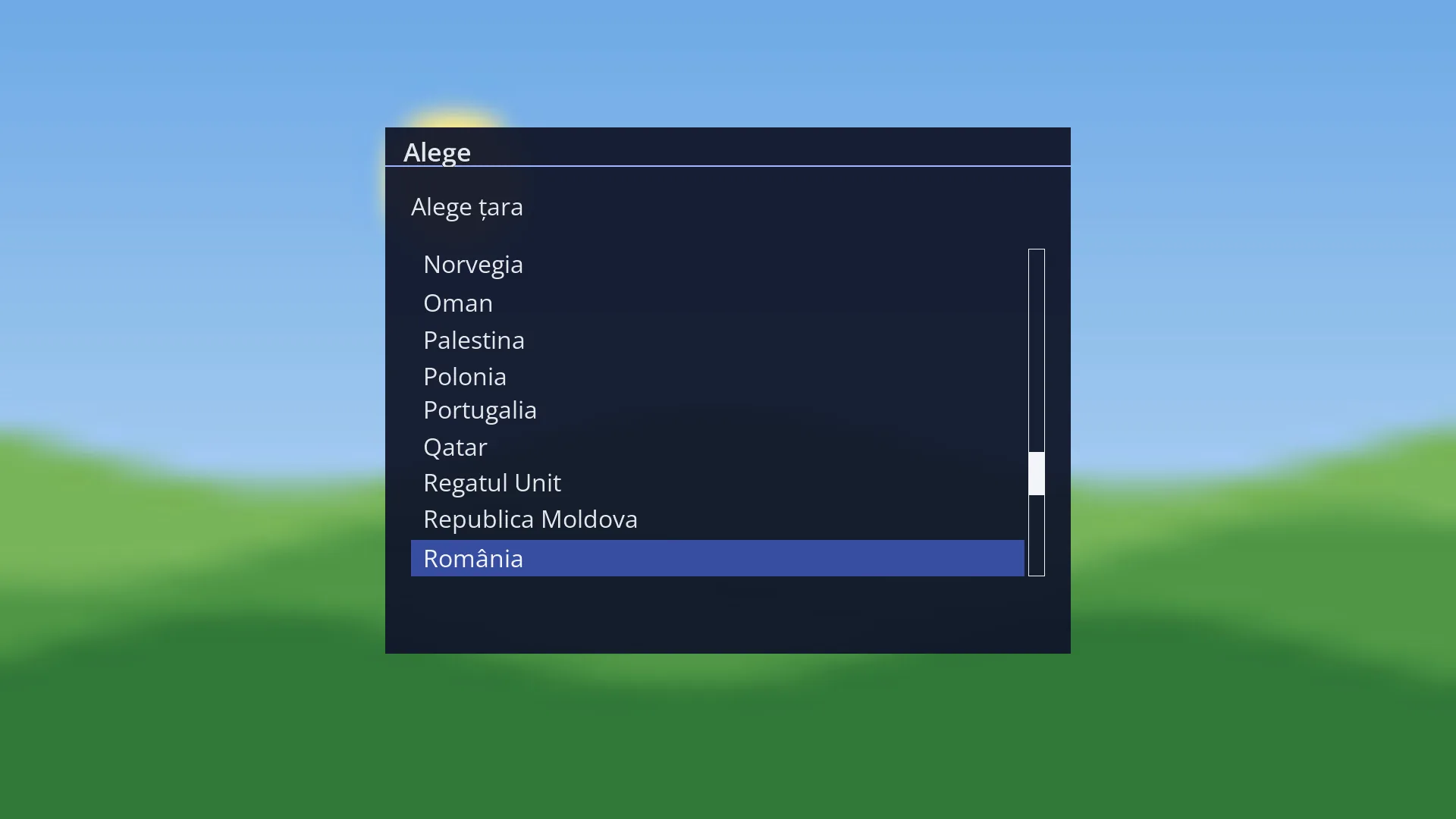
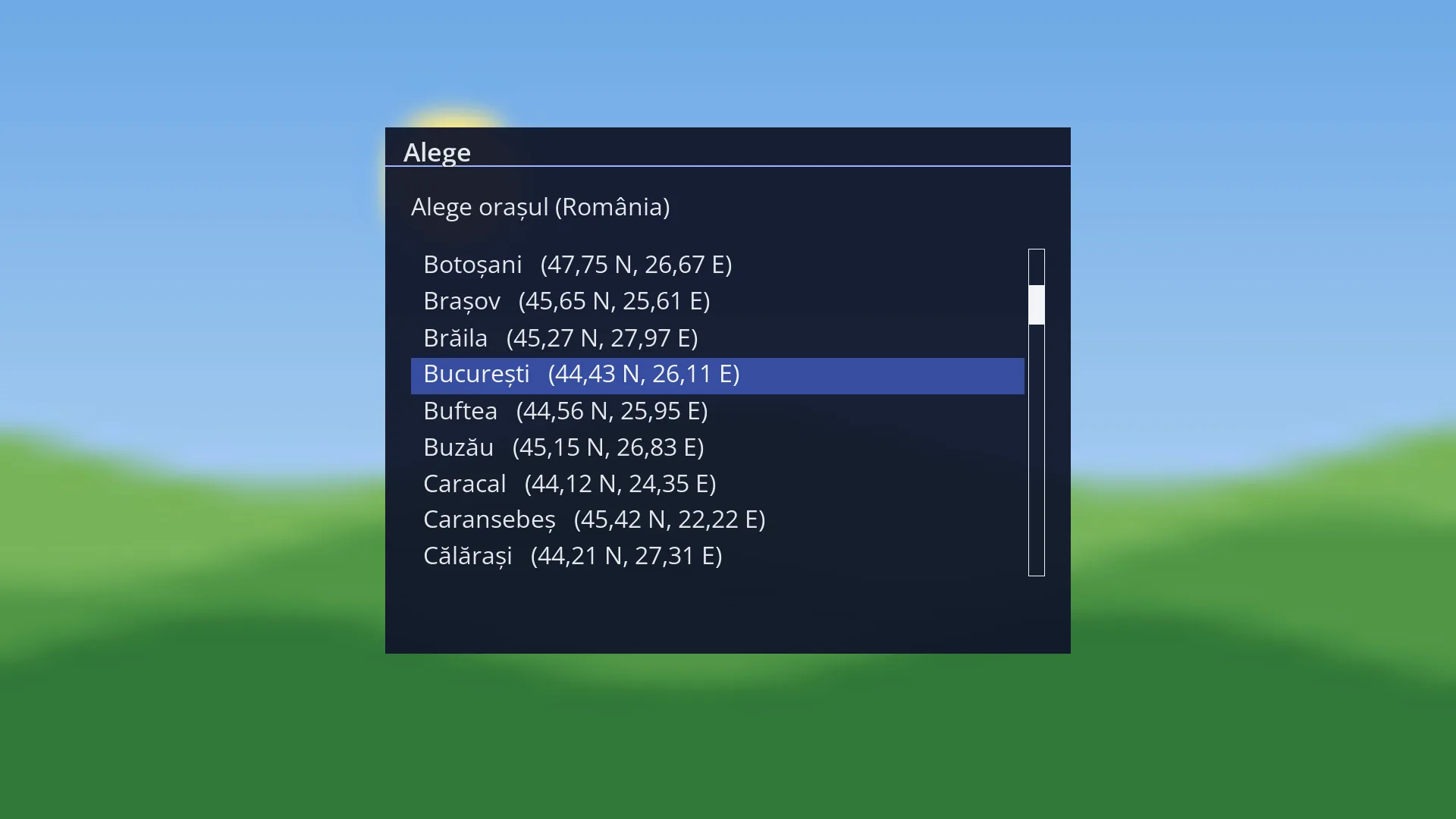
| Choose country and city | the countries in the list, then that country's cities, each with its coordinates | Opens the country list (with the cursor on the current country, usually Romania), then the list of its cities. Pressing OK on a city saves the location. When you live in a city in the list or close to one. | |
| Enter coordinates | Latitude (degrees): 0-90, with three decimals, Hemisphere: North / South, Longitude (degrees): 0-180, with three decimals, Relative to Greenwich: East / West | North, East (Romania is north and east of Greenwich) | Opens the “Dish coordinates” screen, where you type the latitude and longitude of your home with the number keys on the remote, with three decimals (for example 44.426 for 44.426 degrees). GREEN or OK saves, RED cancels. When you know the exact coordinates (for example from a map on your phone) or your city is not in the list. |
| Current location | a city from the list, with its coordinates, Coordinates typed by hand, from the previous tuner settings, not set | not set | The location the motor uses now. “from the previous tuner settings” appears on receivers that used the motor before this screen existed: the old location was kept, so the dish moves as before. |
Keys
| UP / DOWN | Choose one of the three ways. |
| OK | Starts the chosen way. |
| GREEN | Opens the country list directly (“Country and city”). |
| YELLOW | Opens the coordinates screen directly (“Coordinates”). |
| BLUE | Finds the location via internet (“Via internet”); only when the receiver has internet. |
| RED or EXIT | Closes the screen (“Close”). |
| Number keys (in “Dish coordinates”) | Type the degrees and decimals of the selected row. LEFT and RIGHT move the cursor within the number or switch between North / South and East / West. |
| GREEN or OK / RED or EXIT (in “Dish coordinates”) | GREEN or OK saves the coordinates (“Save”). RED or EXIT cancels (“Cancel”). |
| The arrow keys, OK, EXIT (in the country and city lists) | The arrow keys select, OK confirms, EXIT closes the list without changes. |
Step by step
Choosing the city
- Press MENU 2 4.
- Press GREEN: the country list opens. Choose the country and press OK.
- Choose the city nearest to your home and press OK.
- The message “The dish location is now: …” confirms it. The location is shown in large text in the middle of the screen.
Letting the receiver find the location via internet
- Press MENU 2 4, then BLUE (or OK on “Find the location via internet”).
- Read the location found. If it is your city, choose Yes.
- If it is the internet provider's city, choose No and pick your city from the list.
Entering the exact coordinates
- Press MENU 2 4, then YELLOW.
- On “Latitude (degrees)”, type the numbers, for example 44 and 426. “Hemisphere” stays North for Romania.
- On “Longitude (degrees)”, type, for example, 26 and 103. “Relative to Greenwich” stays East.
- Press GREEN.
Problems and solutions
“The dish is turning now. The location changes after the motor stops.” appears
Wait for the dish to stop (see Dish rotation), then choose the location again.
“A recording is using the tuner now. The location changes after it ends.” appears
The location changes the dish angle, so it cannot be changed during a recording. Try again once it ends.
“The latitude is entered between 0 and 90 degrees, the longitude between 0 and 180 degrees.” appears
You typed too high a value. Degrees are typed without a sign. South and west are chosen on the “Hemisphere” and “Relative to Greenwich” rows.
I cannot see “Find the location via internet”.
The receiver has no internet at the moment. Check the network or choose the country and city from the list.
Via internet, a different city from mine appears.
The internet address sometimes points to the provider's city. Choose No and look for your city in the list (the list opens with the city found already selected).
The motorised dish does not turn and “The dish location is not set, so the motor does not know where to turn the dish…” appears.
The location is not set. Choose the country and city or enter the coordinates here, then try again.
The dish stops slightly off the satellite.
Check the location: a city far from your home changes the angle. Enter the exact coordinates. Fine tuning is still done in Dish rotation.
Related topics
- Dish alignment and setup
- Tuner settings (the motor, the “Dish location” row)
- Dish rotation
- Angle calculator
- Matching web page: /antena/locul.