

Manual (cable)
English screenshots coming: some of the pictures below still show the receiver and the web interface in Romanian. The rows, keys and steps described on this page are the English ones.
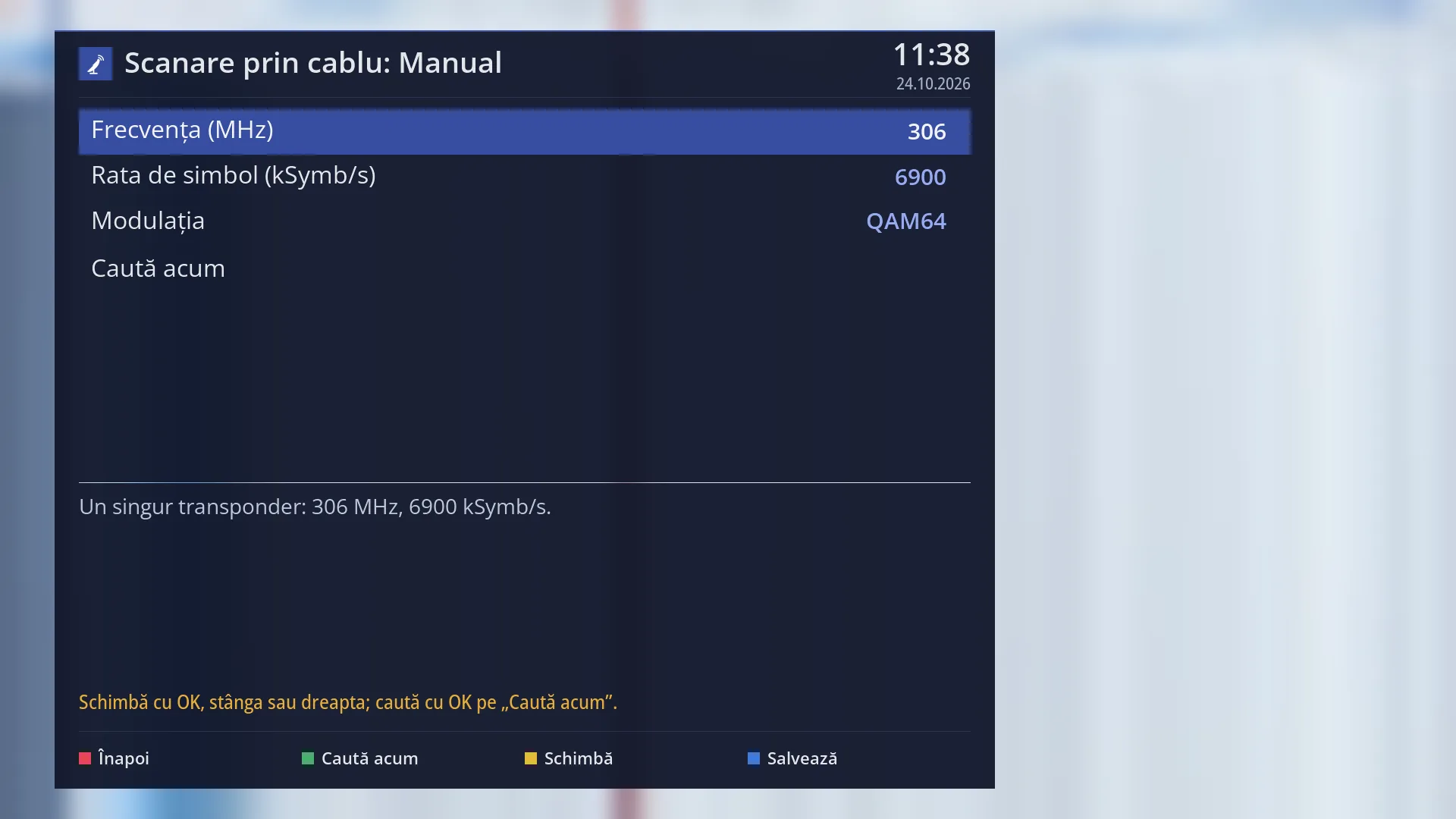
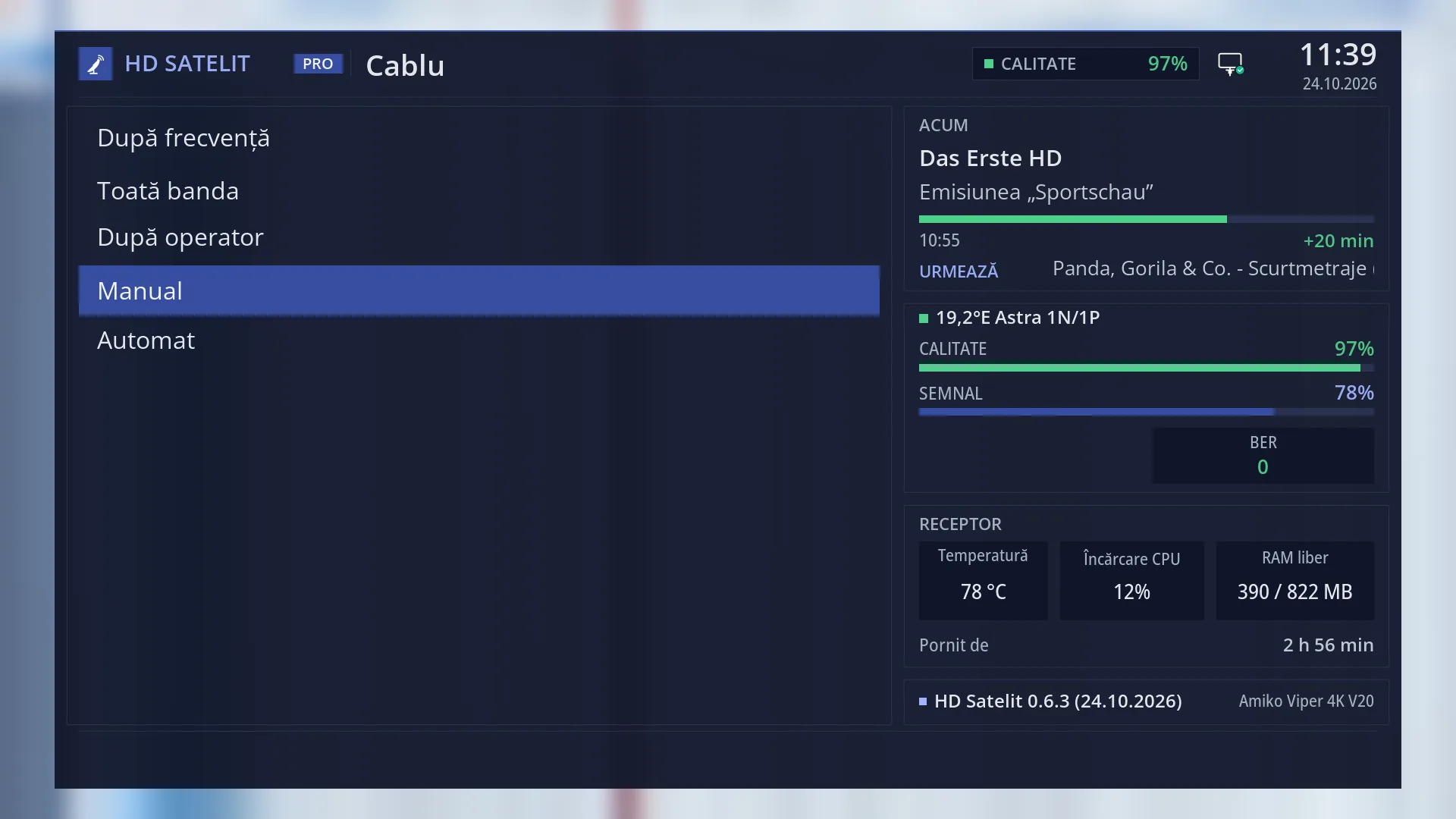
- 1 The frequency, in MHz (OK to enter it).
- 2 The symbol rate, in kSymb/s (OK to enter it).
- 3 Modulation: left, right or OK changes it.
- 4 OK here starts the search.
- 5 What will be searched, or why it cannot be.
- 6 RED back, GREEN search, YELLOW change, BLUE save.
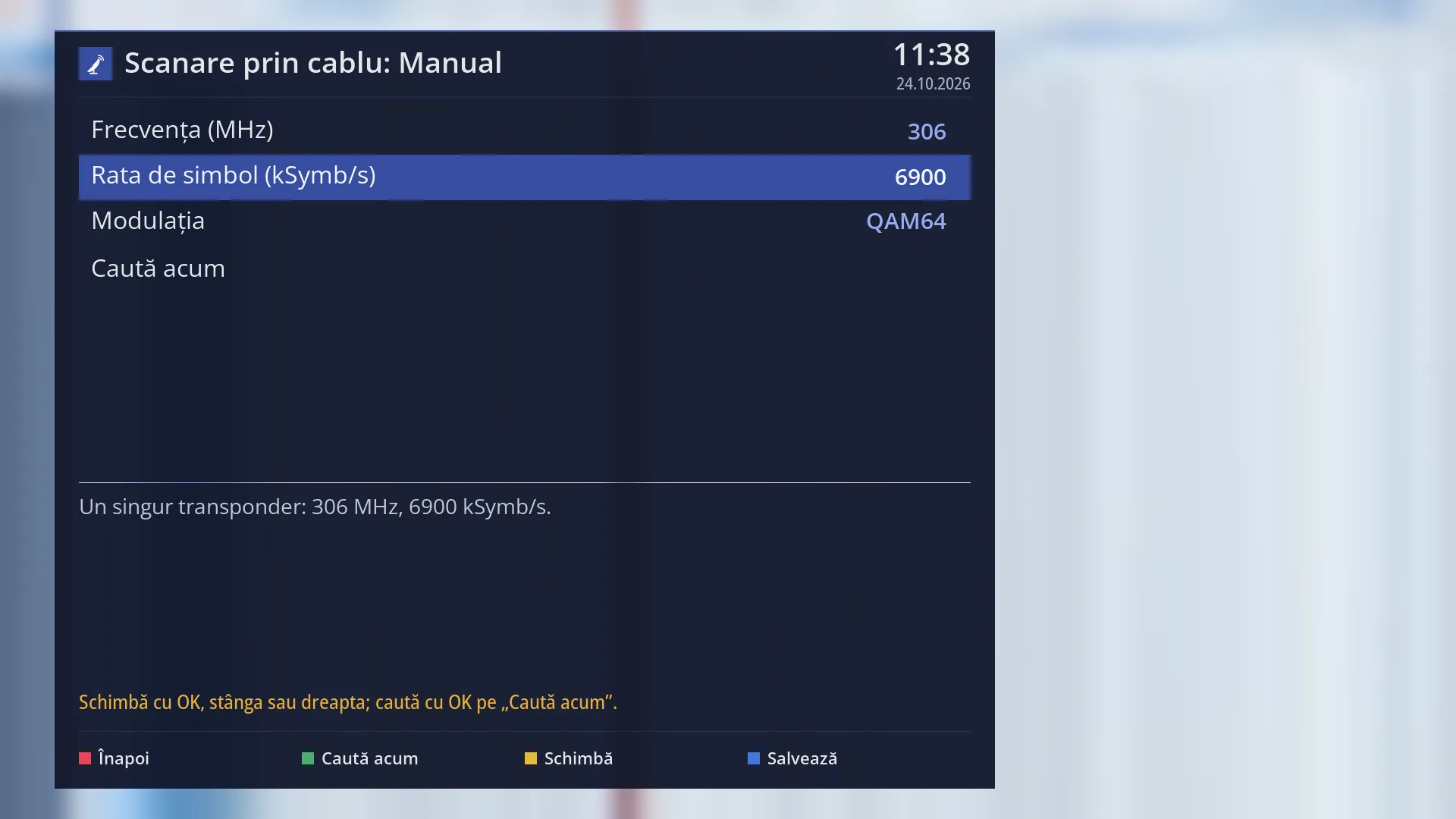
- 1 The selected row: “Symbol rate (kSymb/s): 6900”.
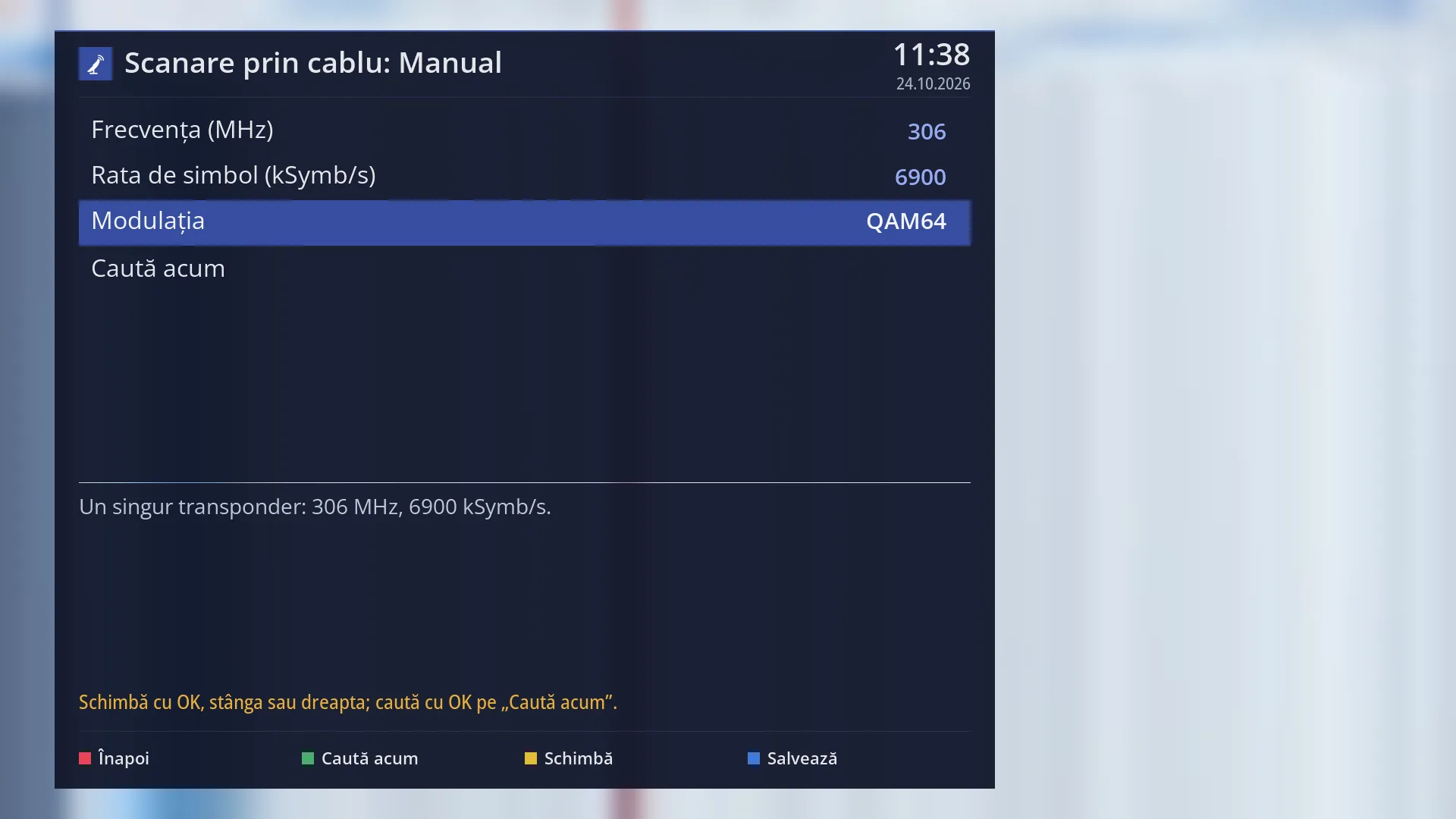
- 1 The selected row: “Modulation: QAM64”.
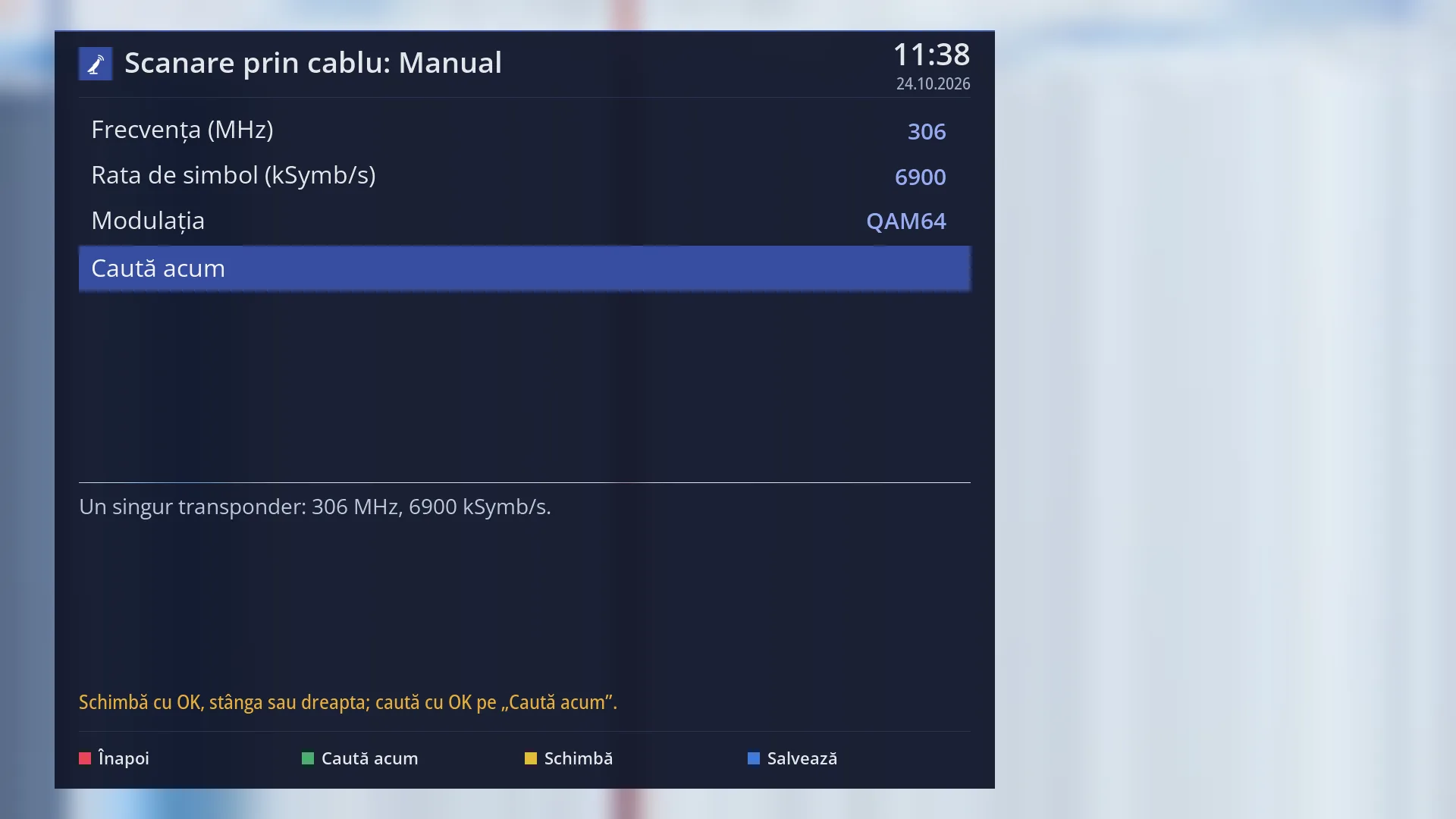
- 1 The selected row: “Search now”.
What it is for
“Manual” searches for channels on a single cable frequency, using the symbol rate and modulation you enter. It is the shortest cable search: a single attempt, usually under a minute.
Use it when you know the exact data of a transponder (from the provider, from its website or from the settings of a TV that is already tuned) and you want to update only the channels on it. For example, after the provider has moved a package to another frequency.
The receiver also reads the network table in the signal, but only as information: the network name and the channel numbers set by the provider. Other frequencies announced by the network are not added to the search. For the whole network, use “Automatic” or “By provider”.
The channels found are added to your list. Existing channels are not deleted. Channels found again are updated.
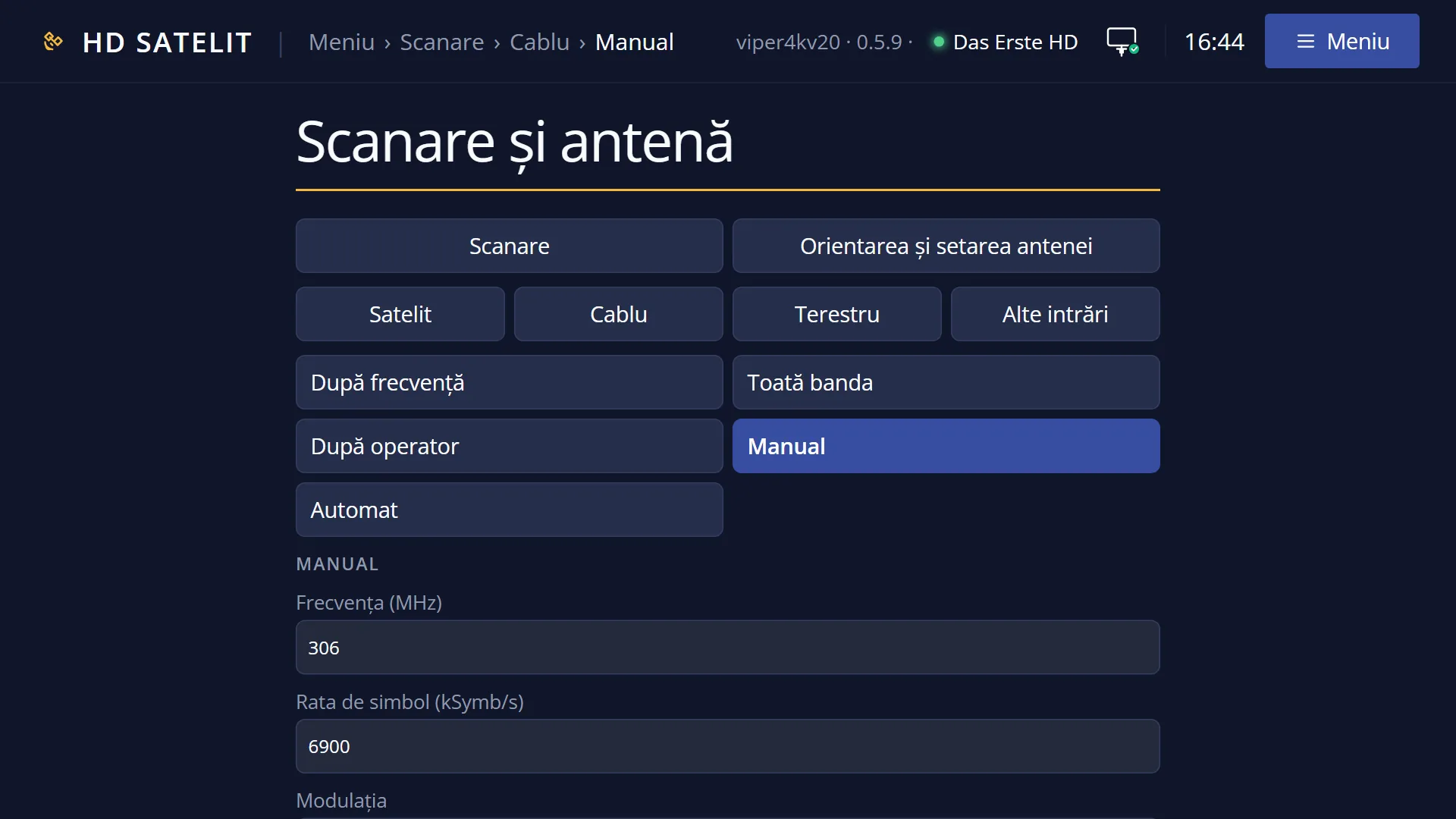
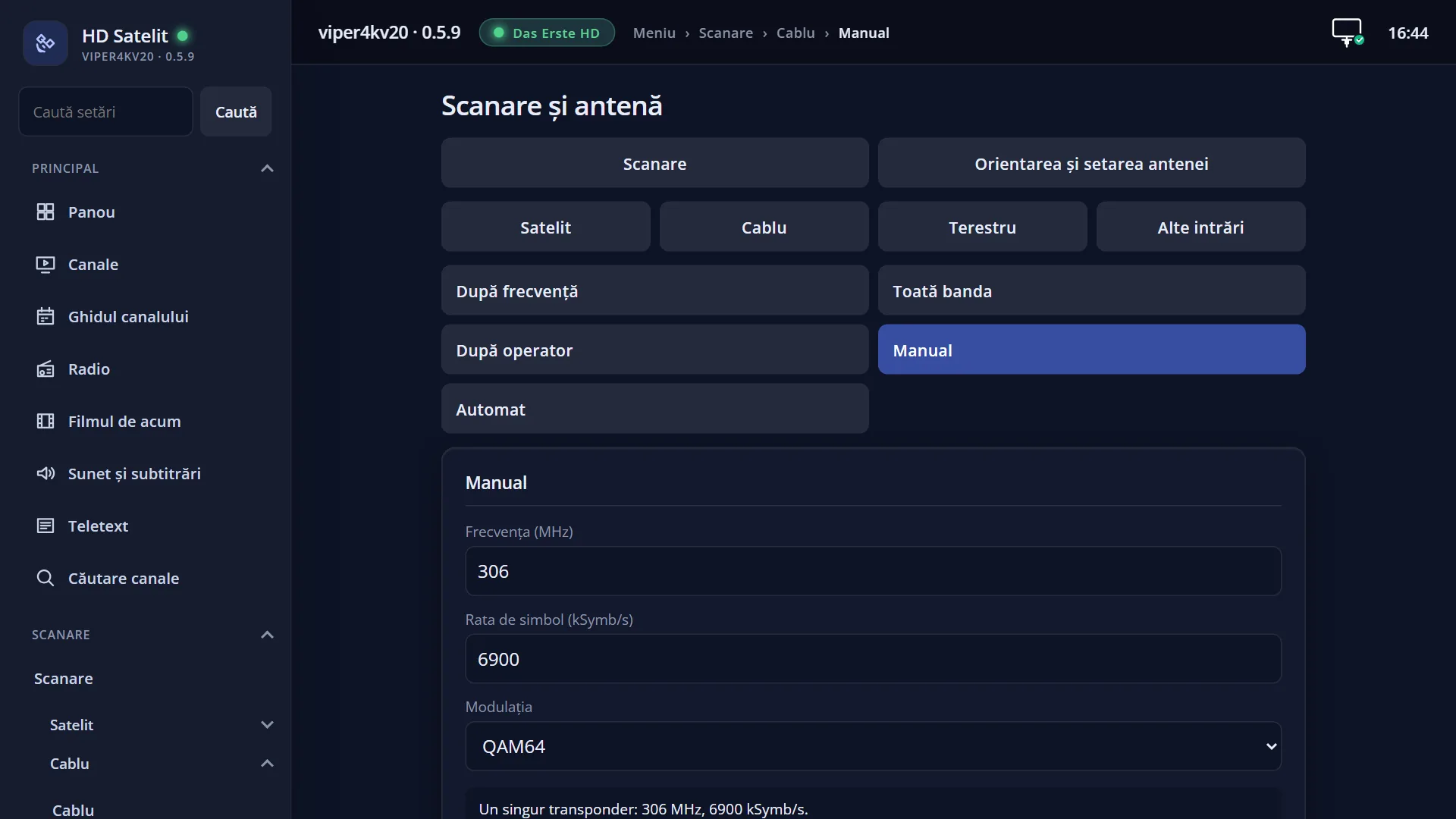
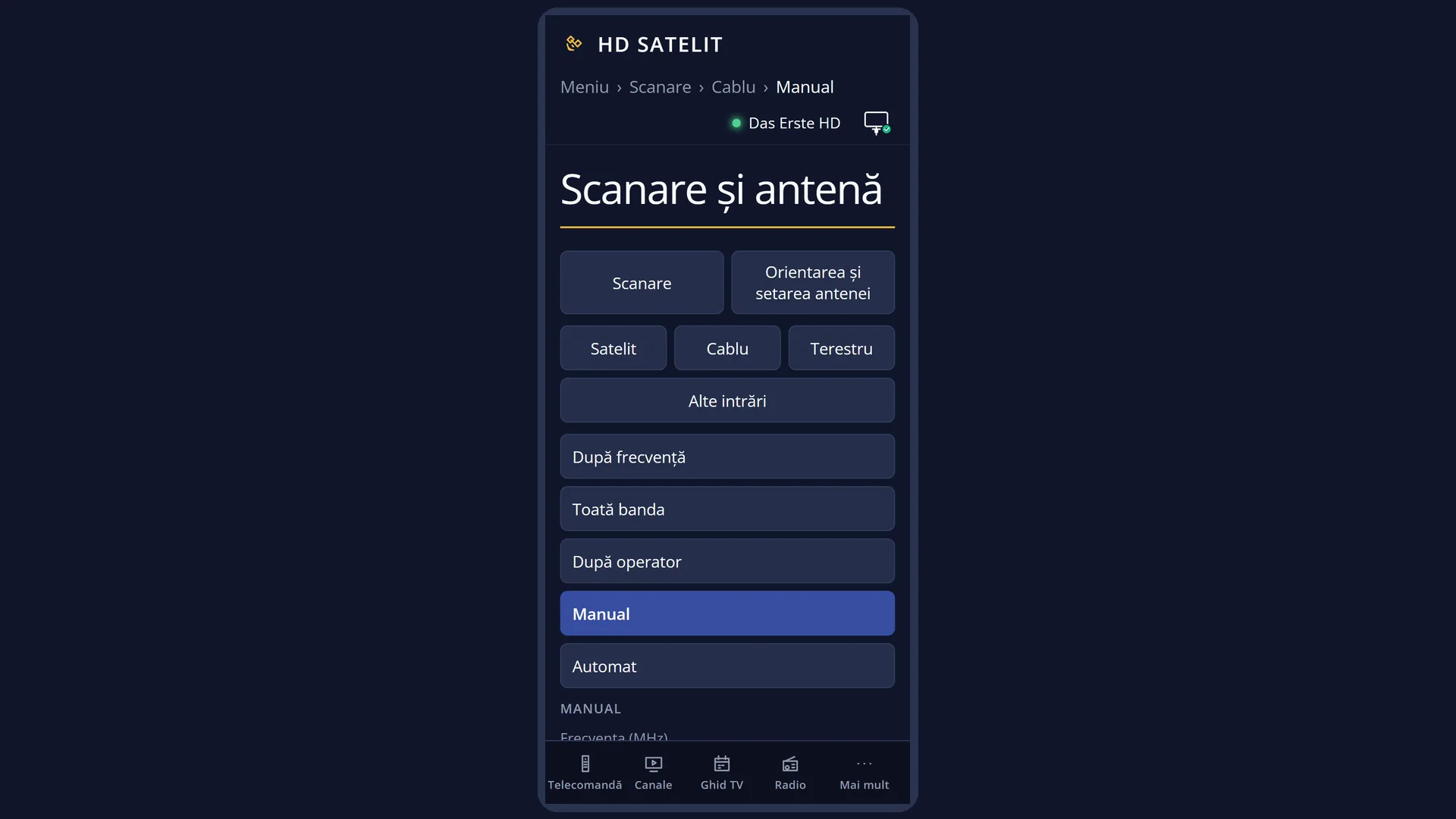
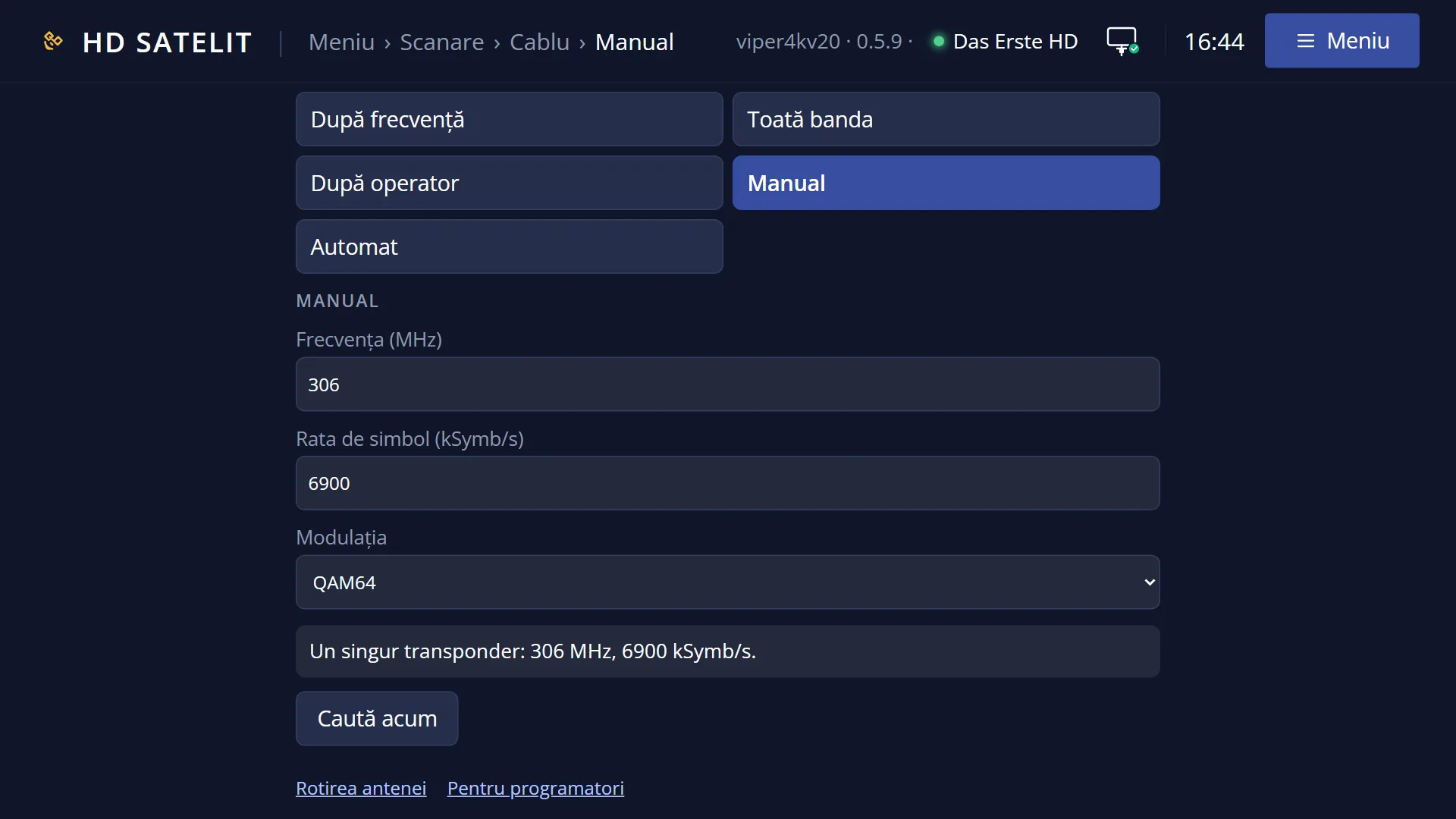
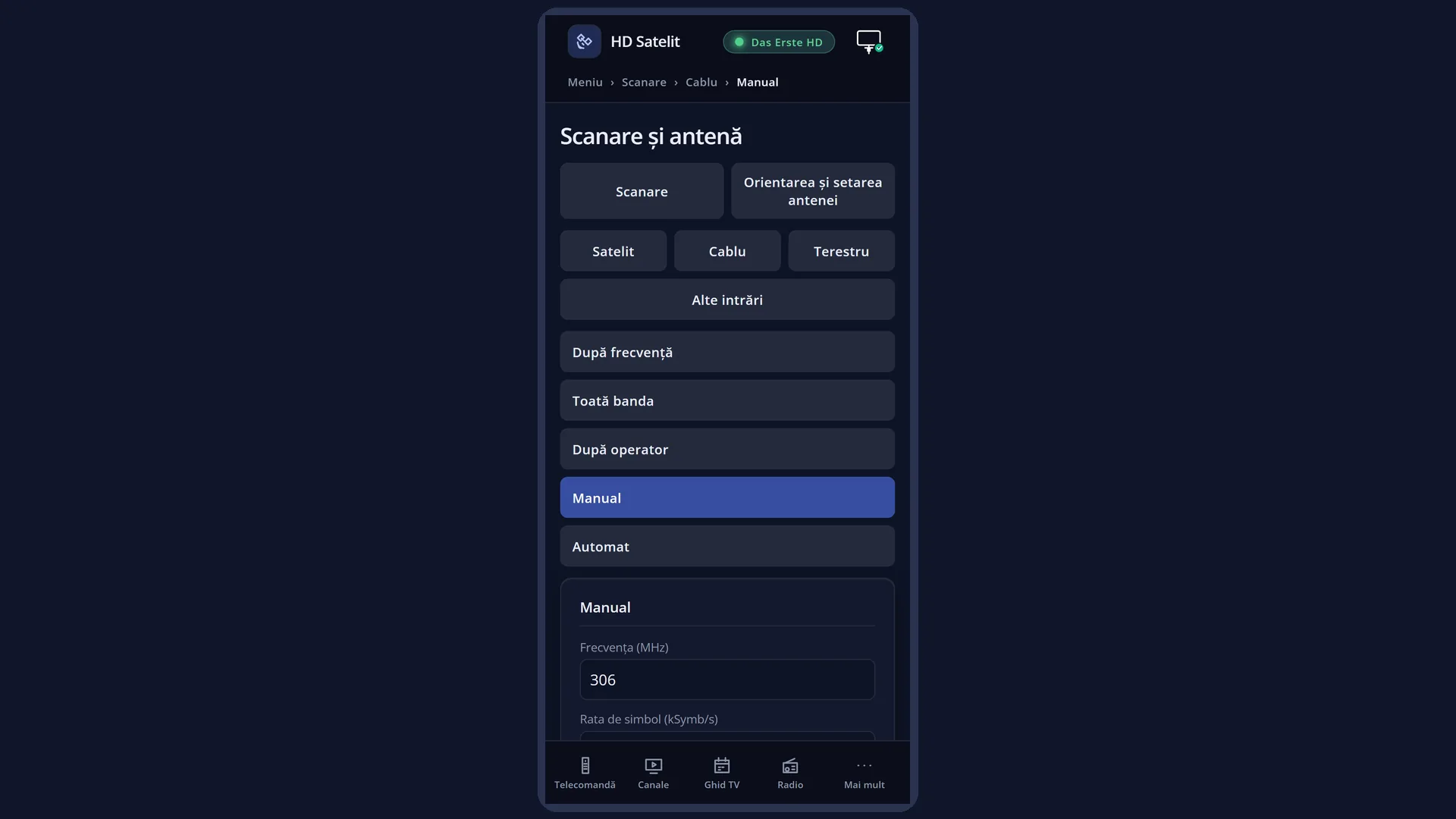
You can also start the same kind of search from the web interface, on the /scanare/cablu/manual page.
How to get here
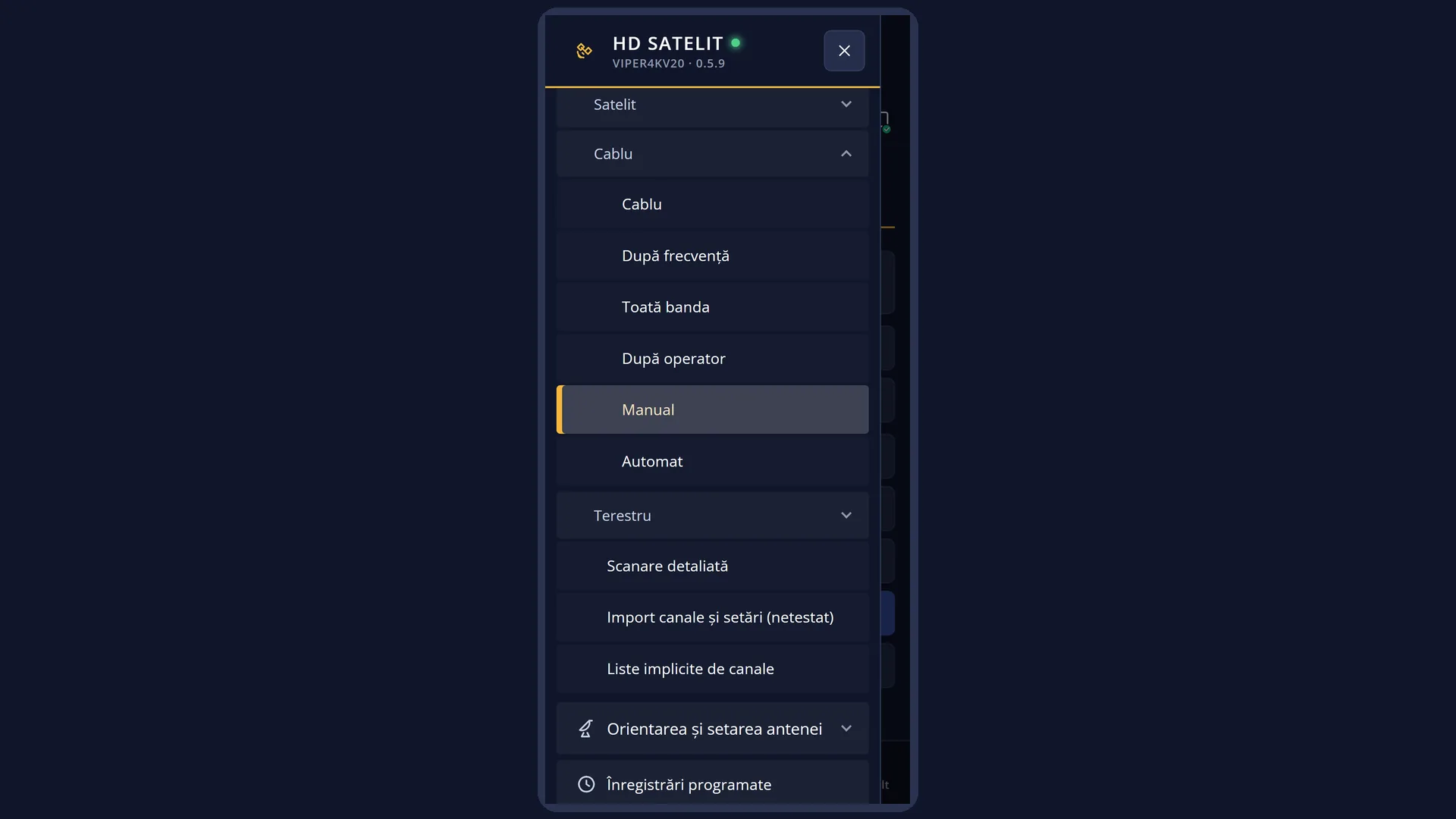
Path: Main menu > Channel scan > Cable > Manual
Keys on the TV: MENU 1 2 4
In the web interface: the /scanare/cablu/manual page (the “Channel scan” tab, the “Cable” group, the “Manual” button).
What you see on the screen
At the top, the title “Cable scan: Manual”, the time and the date.
The list of rows: “Frequency (MHz)”, “Symbol rate (kSymb/s)”, “Modulation” and, last, “Search now”. To the right of each row is its current value, in light blue. An empty field shows “-”.
The first time you use it, with the menu in Romanian, the rows hold the starting data of the first provider in Romania: 306 MHz, 6900 kSymb/s, QAM64. If no provider is known for your country, the frequency is empty and the screen asks for it.
Below the list is the preview: “A single transponder: 306 MHz, 6900 kSymb/s.”. With Auto modulation, the hint “With Auto modulation, if 0 channels come out, choose QAM256 or QAM64.” is added. A value that does not work is also explained here, for example “Cannot search: the frequency 900 MHz is outside the cable band (47-862 MHz).”.
Underneath, in yellow, is the status row (“Change with OK, left or right; search with OK on “Search now”.”, “Saved.” or “Invalid value: a number goes here.”).
At the bottom, the colour keys: RED “Back”, GREEN “Search now”, YELLOW “Change”, BLUE “Save”.
OK on the frequency or the symbol rate opens the on-screen keyboard, with the row name at the top and the current value in the field.
Once started, the “Channel search” screen opens, with the progress bar and the channels found, followed by the summary: “Channels found”, how many are new, how many are TV and radio, “Transponders scanned”, “Duration”. When the signal sends the network name, the “Operator network” box appears underneath, with its name and how many channels have the provider's number.
Rows and settings
| Row | Values | Default | What it does |
|---|---|---|---|
| Frequency (MHz) | a number from 47 to 862, with decimals after a comma or a point (for example 306 or 362.5) | 306 (in Romania); empty where no provider is known | The frequency of the cable transponder, in MHz. OK opens the on-screen keyboard. Enter the number and press GREEN. Each time you search on a different transponder. |
| Symbol rate (kSymb/s) | a number above 450 and at most 7230 | 6900 | The speed at which the network transmits on that transponder. Almost all cable networks use 6900 or 6875. OK opens the on-screen keyboard. When the provider gives you a different rate for that frequency. |
| Modulation | Auto, QAM16, QAM32, QAM64, QAM128, QAM256 | QAM64 (in Romania); Auto elsewhere | The way the data is placed on the signal. Cable networks usually use QAM64 or QAM256. “Auto” lets the tuner work it out by itself, but not every tuner can. When the provider gives you the transponder's modulation, or when one gives no results and you try the other. |
| Search now | OK on this row starts the search, the same as the GREEN key. The values are saved before the search starts. After you have entered the frequency, the rate and the modulation. |
Keys
| UP / DOWN | Moves the cursor to the row above or below. From the last row, DOWN goes to the first, and the other way round. |
| LEFT / RIGHT | On “Modulation” they go to the previous or next value. On the frequency and the rate they do nothing: there you enter the value with OK. |
| OK | On the frequency and the symbol rate it opens the on-screen keyboard. On “Modulation” it goes to the next value. On “Search now” it starts the search. |
| GREEN | Starts the search from any row (the screen shows “Search now”). |
| YELLOW | The same as OK on the selected row (the screen shows “Change”). On “Search now” it does nothing. |
| BLUE | Saves the values and shows “Saved.” in the status row (the screen shows “Save”). |
| RED or EXIT | Closes the screen and takes you back to the Cable menu. The values are saved in this case too. |
| The arrow keys and OK (in the on-screen keyboard) | The arrow keys select a key on the screen, and OK enters it in the field. The on-screen keys “BACKSPACE” and “OK” delete a character and keep the text, respectively. |
| GREEN / RED / EXIT (in the on-screen keyboard) | GREEN keeps the text you entered and closes the keyboard. RED deletes the last character. EXIT closes the keyboard without changing the value. |
| USB keyboard | With a keyboard connected to the receiver, you type the digits directly. Enter keeps, Esc cancels, Backspace deletes. |
| EXIT (in the “Channel search” screen) | During the search it stops it, without writing the channels to the list. When the search has finished, it closes the result (so does OK). |
Step by step
Searching for channels on a known transponder
- Press MENU 1 2 4.
- On “Frequency (MHz)”, press OK, enter the frequency (for example 306) with the arrow keys and OK on the on-screen keys, then press GREEN.
- DOWN to “Symbol rate (kSymb/s)”: OK, enter the rate (for example 6900), GREEN.
- DOWN to “Modulation”: LEFT or RIGHT until you reach the modulation given by the provider (for example QAM64).
- Check the preview (“A single transponder: …”) and press GREEN. At the end, read the summary and press EXIT.
You do not know the modulation: try each in turn
- Set the modulation to QAM64 and search.
- If the summary says “Scan finished, no channels found.”, go back, set QAM256 and search again.
- If there are still no results, check the frequency and the rate, or use “Whole band” (MENU 1 2 2).
Starting the search from your phone
- Open the receiver's web interface and go to /scanare/cablu/manual.
- Enter the frequency and the rate in the fields and choose the modulation from the list. The preview changes after each field.
- Press “Search now” and follow the search in the “The search on the TV” card.
Problems and solutions
The preview says “Enter the frequency (MHz) and the symbol rate (kSymb/s), for example 306 and 6900.”
One of the two fields is empty (it shows “-”). Press OK on it and enter the value.
The status row says “Invalid value: a number goes here.”
You entered something other than digits. The frequency accepts digits and a comma or a point for decimals. The rate accepts digits only.
The preview says “Cannot search: the frequency … MHz is outside the cable band (47-862 MHz).”
Enter the frequency in MHz, not in kHz: 306, not 306000. The cable band goes from 47 to 862 MHz.
The preview says the tuner does not accept the symbol rate.
Enter the rate in kSymb/s: 6900, not 6900000. The tuner accepts rates above 450 and at most 7230.
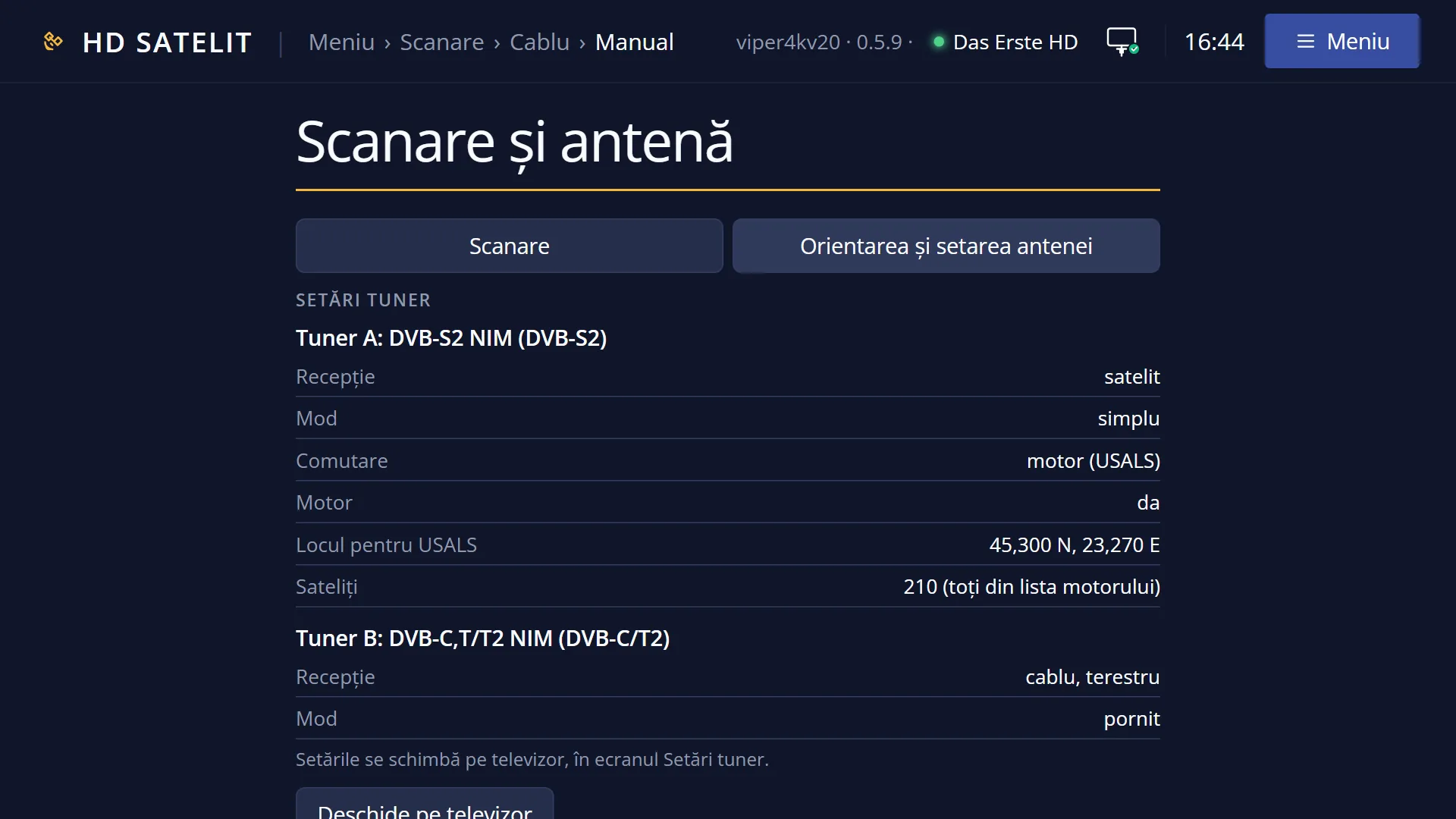
You see “The cable tuner (…) is set to “not connected” in Tuner settings…” or “The receiver has no de cablu tuner.”
Turn on the cable tuner in Menu > Dish alignment and setup > Tuner settings (MENU 2 1). If the receiver has no cable tuner, it cannot search for cable channels.
The summary says “Scan finished, no channels found.” or “No transponder had a signal…”.
Check the frequency, the rate and the modulation with the provider. Try the other modulation (QAM64 or QAM256). Also check the cable lead, plugged into the receiver's cable input.
I found the channels, but not those on the network's other frequencies.
“Manual” searches only the transponder you entered. For the whole network, use “Automatic” (MENU 1 2 5) with the same starting frequency, or “By provider” (MENU 1 2 3).
Related topics
- Cable, all kinds of search
- Automatic (cable)
- By frequency (cable)
- Whole band (cable)
- Tuner settings
- External Keyboard
- Matching web page: /scanare/cablu/manual.
Differences between receivers
On the Amiko Viper 4K V20, the cable tuner is tuner B, the same as the terrestrial one (combined cable and terrestrial tuner).