

Automatic (cable)
English screenshots coming: some of the pictures below still show the receiver and the web interface in Romanian. The rows, keys and steps described on this page are the English ones.
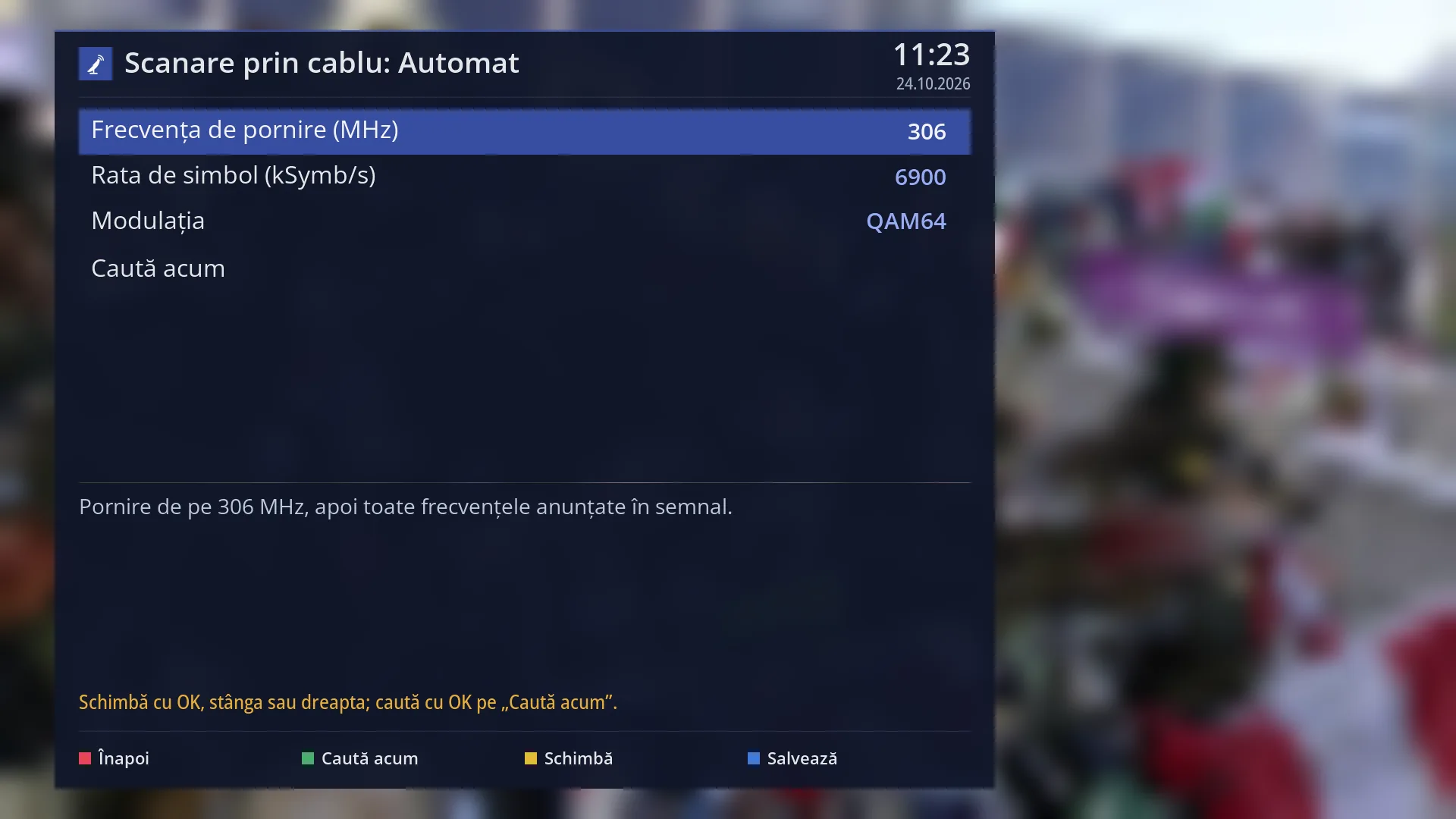
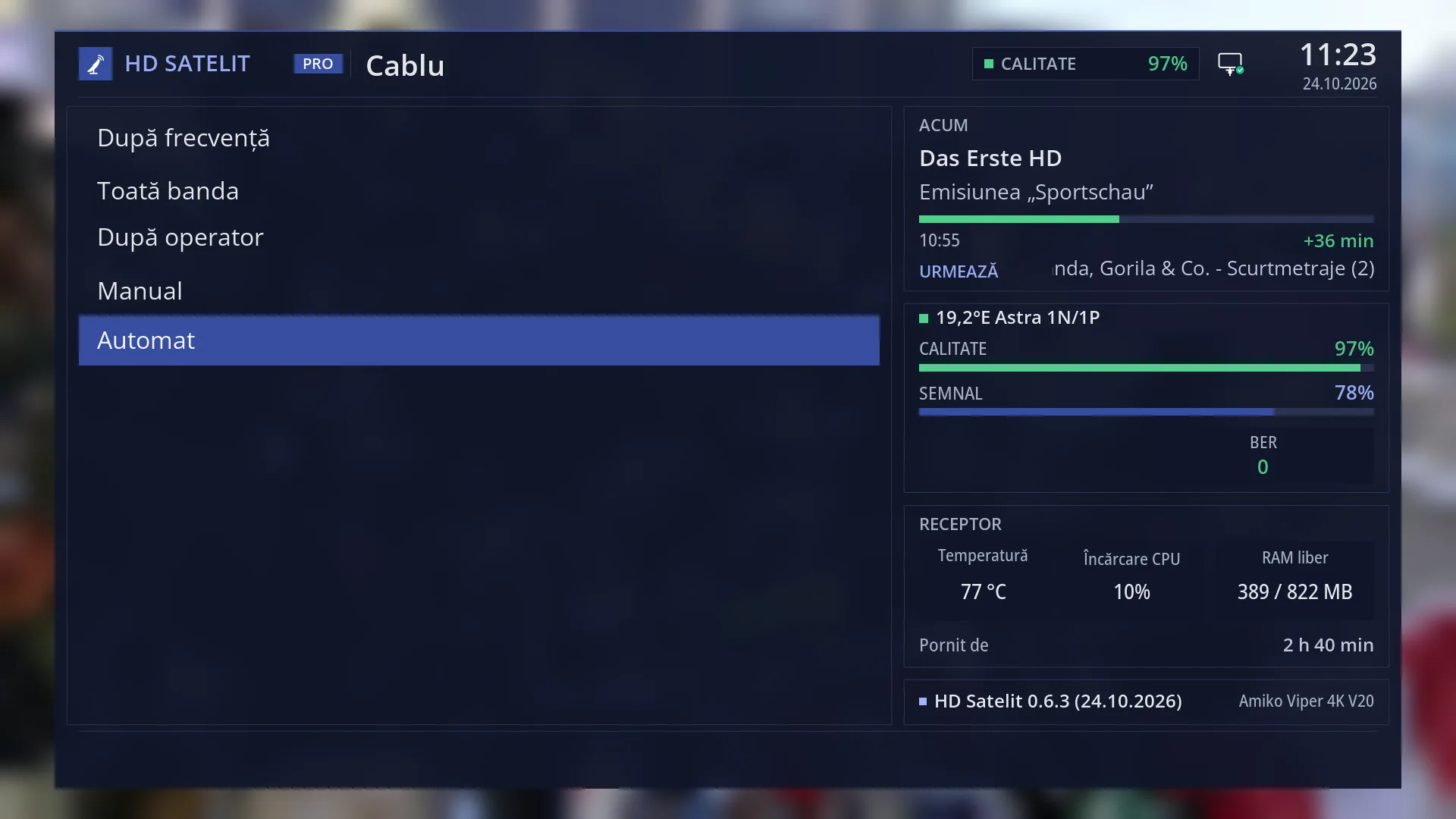
- 1 Type of search: cable, automatic.
- 2 Start frequency, in MHz; OK opens the keyboard.
- 3 Symbol rate, in kSymb/s.
- 4 Modulation: OK, LEFT or RIGHT changes it.
- 5 OK here starts the search.
- 6 What will be searched: the start frequency and the network announced in the signal.
- 7 Status line: what the keys do or the last message.
- 8 RED back, GREEN search, YELLOW change, BLUE save.
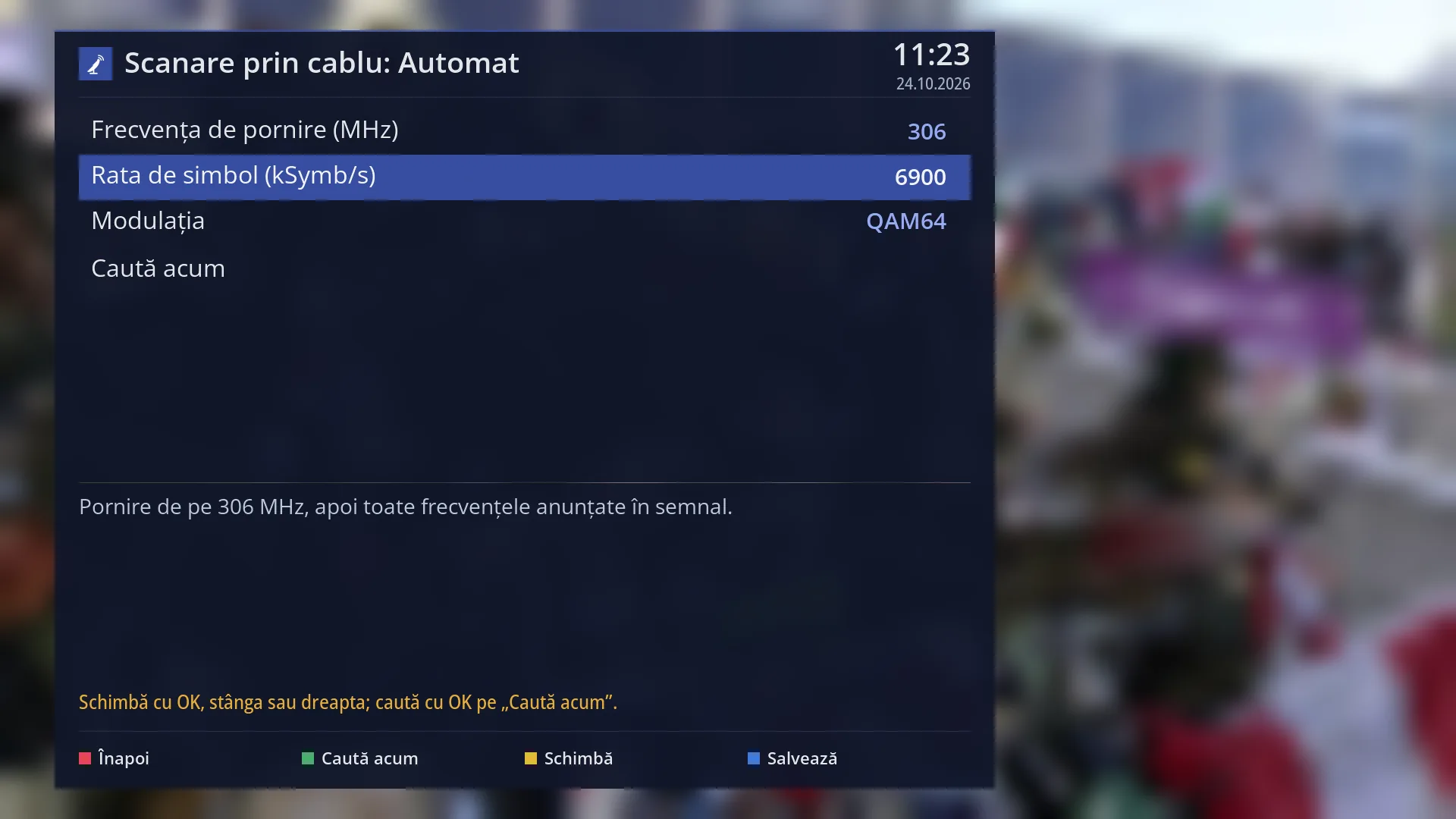
- 1 Selected row: “Symbol rate (kSymb/s): 6900”.
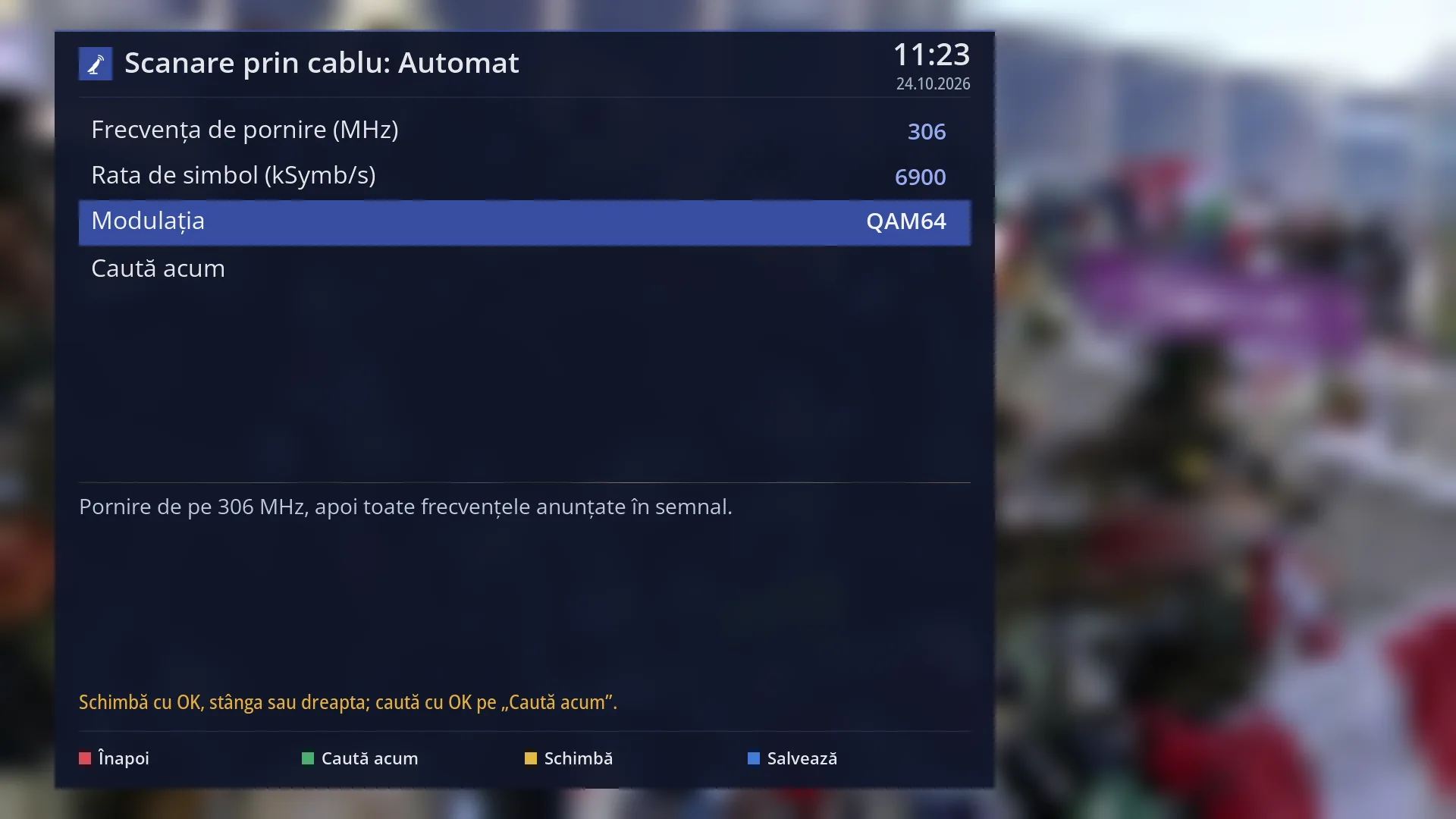
- 1 Selected row: “Modulation: QAM64”.
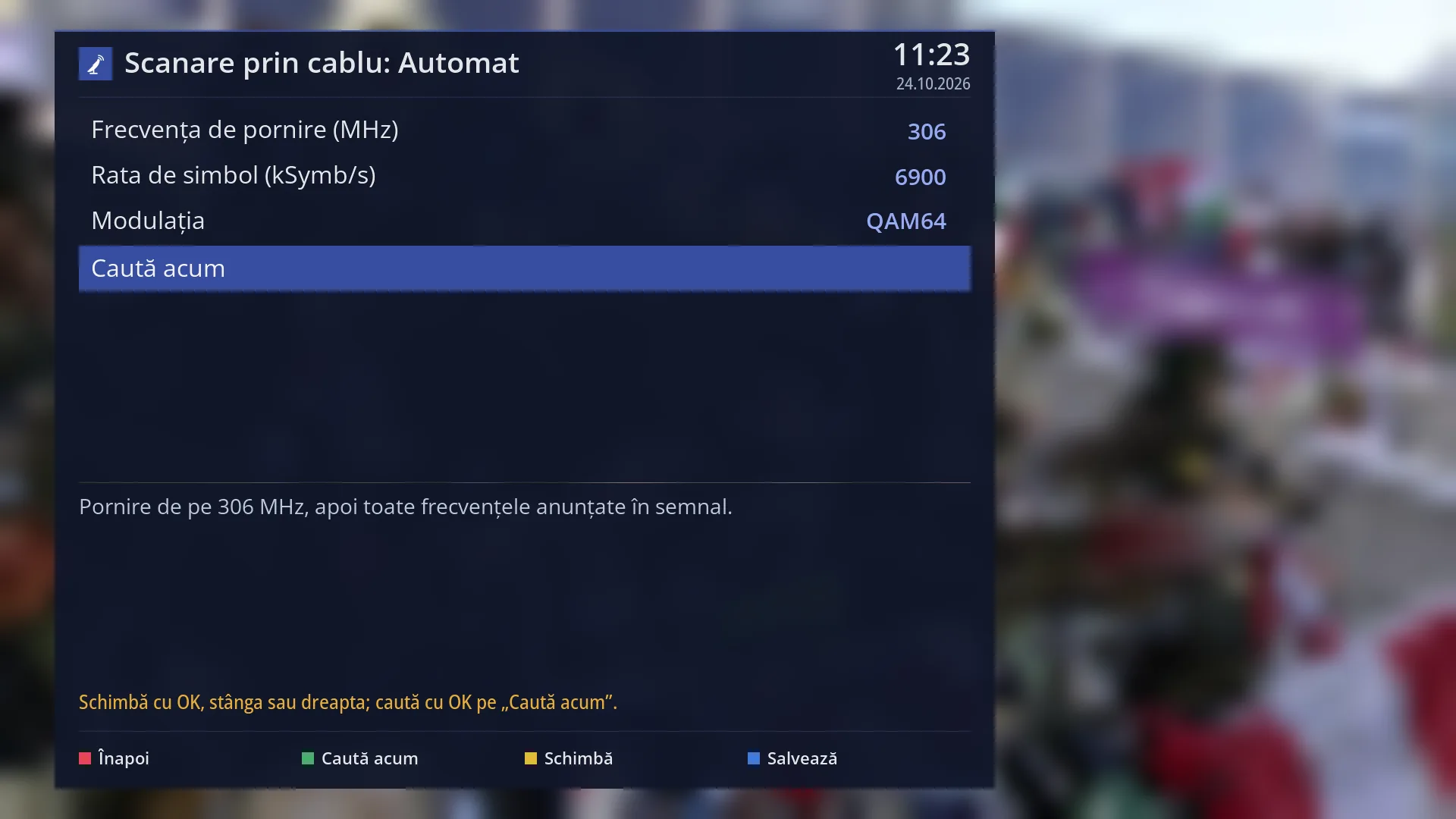
- 1 Selected row: “Search now”.
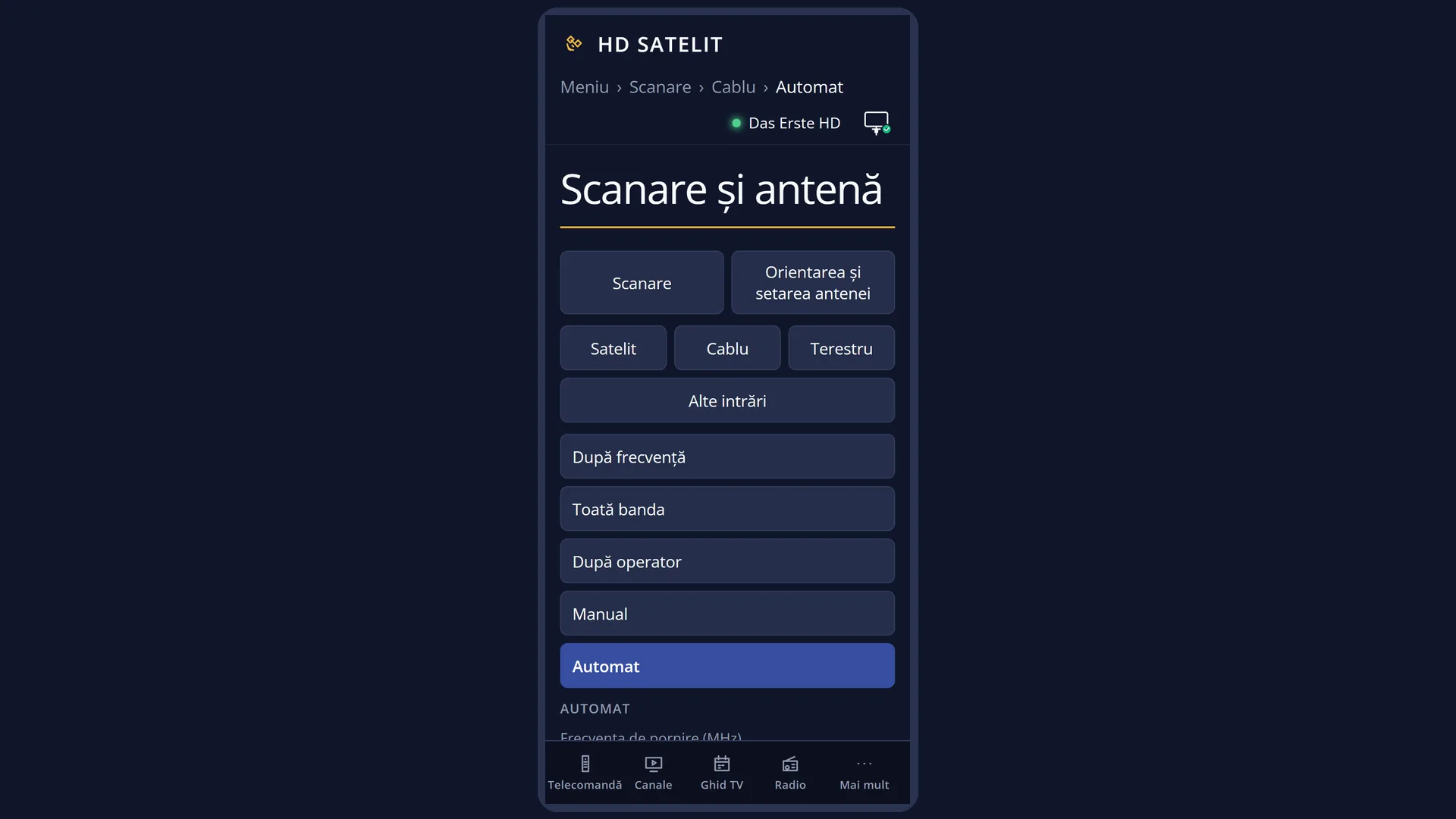
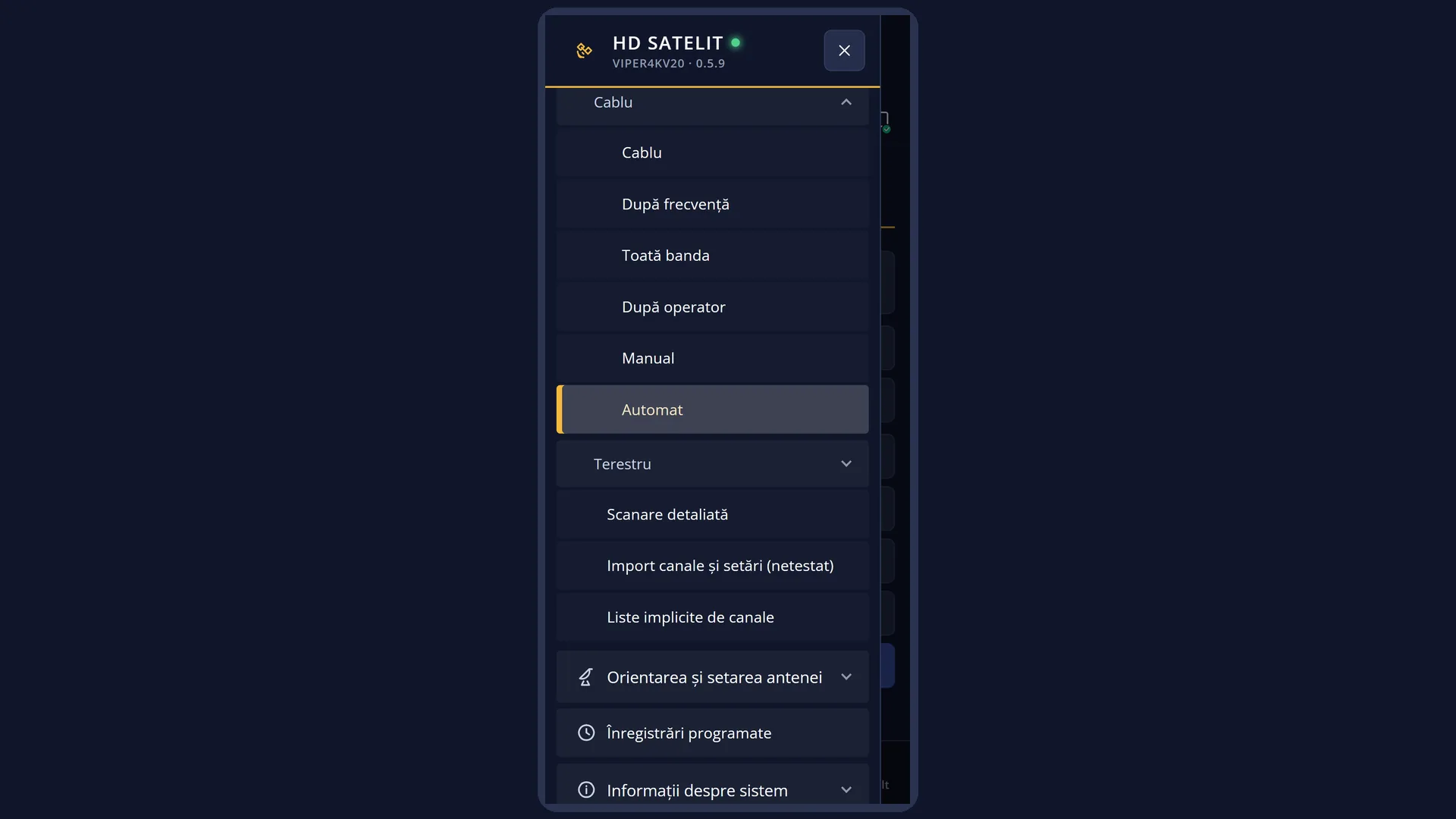
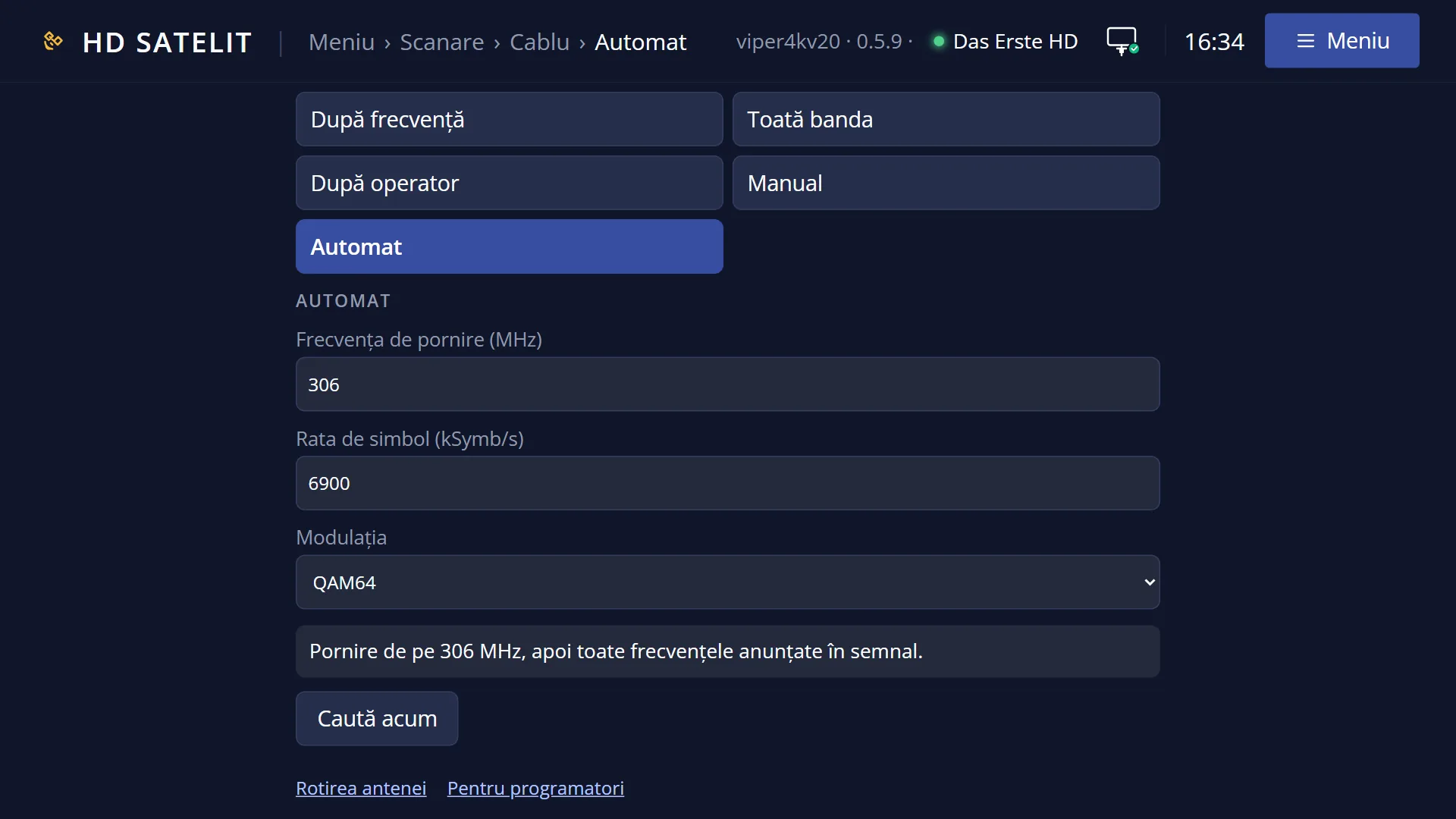
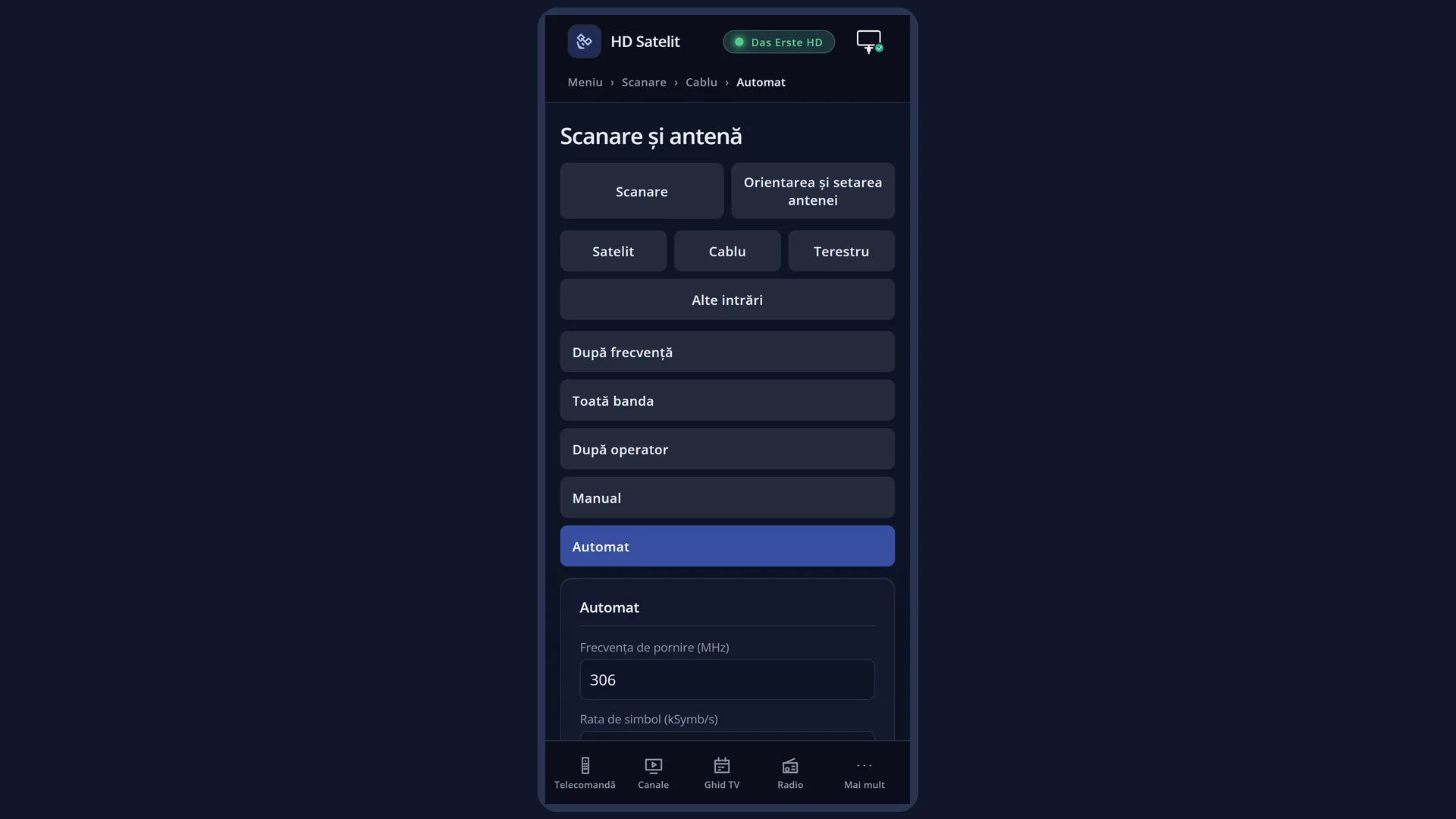
What it is for
“Automatic” searches the whole network of a cable provider, starting from a single frequency that you enter. On that frequency it reads the network table from the signal, which lists all the frequencies of the network, and then searches all of them.
Use it when your provider is not in the list under “By provider” but you know one of its frequencies (from the provider's website, your contract or a TV that is already tuned). One good frequency is enough.
You enter the start frequency in MHz and the symbol rate in kSymb/s, and choose the modulation. In Romania the factory values are Digi's: 306 MHz, 6900 kSymb/s, QAM64.
The frequency, symbol rate and modulation are the same as in “Manual”: what you enter here also appears there, and the other way round. The values are remembered for next time.
The channels found are added to the channel list; the existing ones are not deleted. The same kind of search is also available in the web interface, on the /scanare/cablu/automat page.
How to get here
Path: Main menu > Channel scan > Cable > Automatic
Keys on the remote: MENU 1 2 5
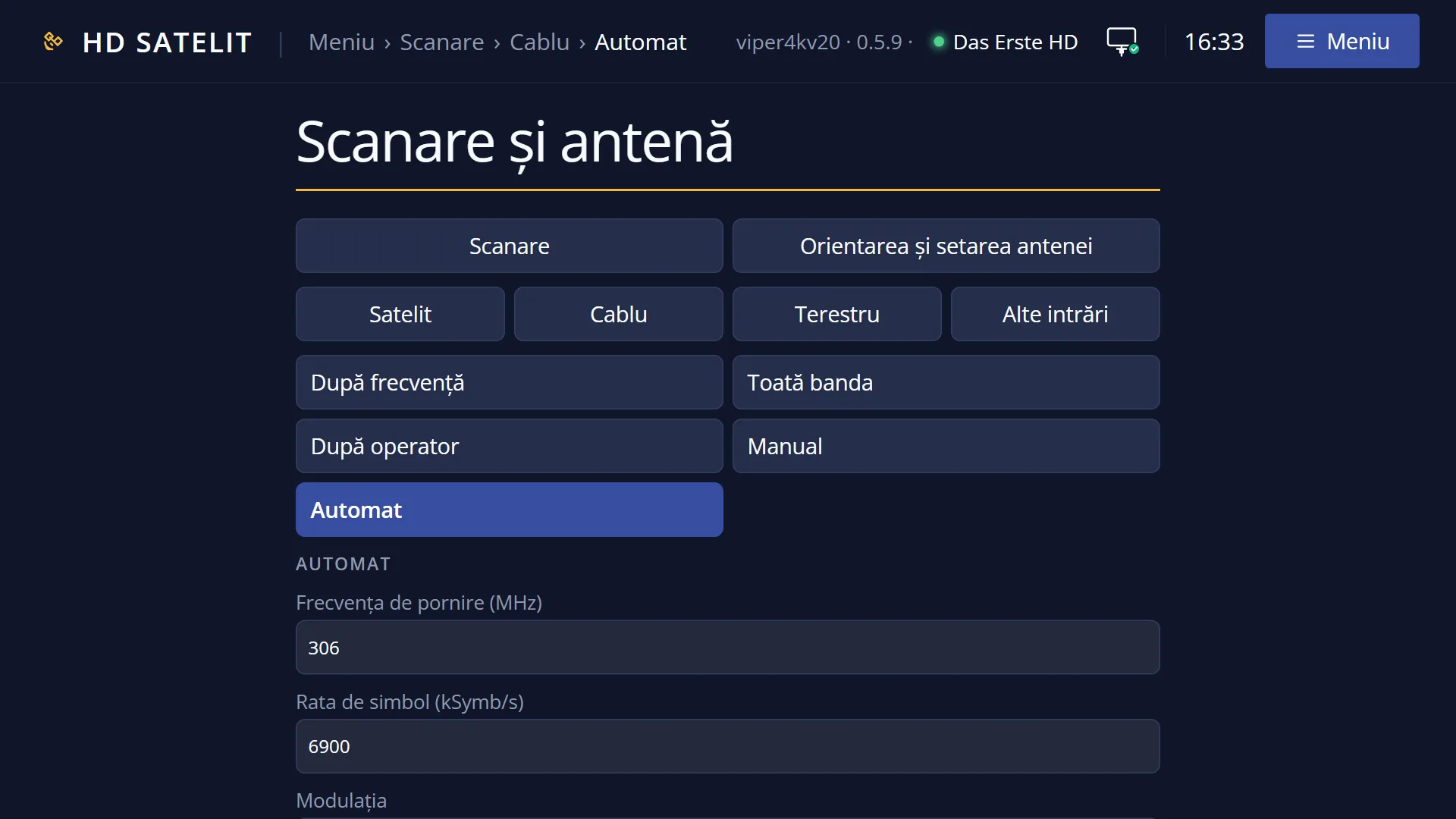
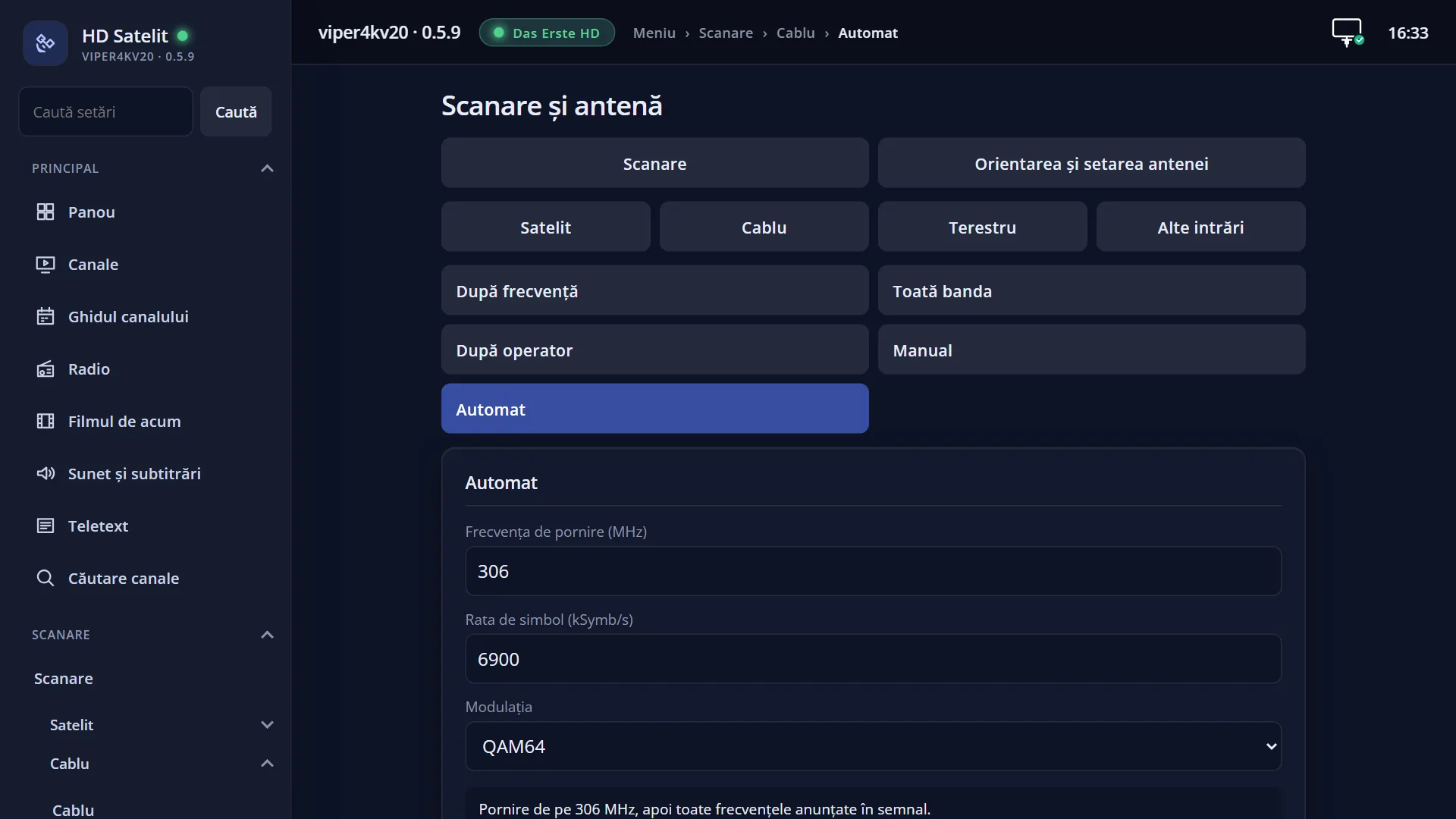
In the web interface: the /scanare/cablu/automat page (the “Channel scan” tab, the “Cable” group, the “Automatic” button).
What you see on the screen
At the top, the title “Cable scan: Automatic”, the time and the date. In the Pro theme, the blue square with the logo is to the left of the title.
The list has four rows: “Start frequency (MHz)”, “Symbol rate (kSymb/s)”, “Modulation” and “Search now”. The value is on the right of each row, in light blue; a number that has not been entered is shown as “-”.
Below the list is the preview: “Start from 306 MHz, then all the frequencies announced in the signal.”. With the Auto modulation, it adds “With Auto modulation, if 0 channels come out, choose QAM256 or QAM64.”. If something is missing or the tuner does not accept a value, this area tells you why the search cannot start.
Below that, in yellow, is the status line, showing what the keys do or the last message (“Saved.”, “Invalid value: a number goes here.”).
At the bottom, the colour keys: RED “Back”, GREEN “Search now”, YELLOW “Change”, BLUE “Save”.
OK on a row with a number opens the on-screen keyboard in the middle of the window: the row name at the top, the number entered below it, then the keys.
Once the search starts, the “Channel search” screen opens: at the top “Cable” and the frequency being tried, the moving dots and the text “search in progress - 20% done, 40 channels found”, the progress bar, “Time left: about …” and “Transponders: x of y”. The number of transponders goes up as the network announces its frequencies.
At the end you see the summary (“Channels found”, how many are new, TV, HD, 4K, radio, “Transponders scanned” and how many had “no signal”, “Duration”) and, if the network sends its name, the “Operator network” box: the network name, “Announced frequencies”, how many channels have the provider's number and where to find their list in number order (Satellites › Cable › network name).
Rows and settings
| Row | Values | Default | What it does |
|---|---|---|---|
| Start frequency (MHz) | a number from 47 to 862, with a comma or a point for decimals (for example 306 or 312.5) | the first frequency of the first provider in your country (in Romania: 306, Digi); with no known provider, empty (“-”) | The frequency the receiver tunes to first. From there it reads all the other frequencies of the network from the signal. It must be a frequency on which the provider actually broadcasts channels. When your provider uses a different frequency from the factory one. |
| Symbol rate (kSymb/s) | a number above 450 and no more than 7230 | 6900 (in Romania, Digi's rate) | The speed at which the network transmits on the start frequency. Almost all cable networks in Europe use 6900 or 6875. When your provider uses a different rate (for example 6875). |
| Modulation | Auto, QAM16, QAM32, QAM64, QAM128, QAM256 | QAM64 (in Romania, Digi's); with no known provider, Auto | The way the data is carried on the signal. Cable networks usually use QAM64 or QAM256. “Auto” lets the tuner work it out by itself, but not every tuner can do this. When you know the modulation of the start frequency. If Auto finds 0 channels, try QAM256, then QAM64. |
| Search now | OK on this row starts the search, like the GREEN key. The values are saved before the search starts. After you have entered the frequency and the symbol rate. | ||
| Channels found | They are written to the channel list only at the end of the search. Existing channels are not deleted; channels found again are updated. You find them in the channel list under Satellites › Cable, and if the network sends channel numbers, also in number order under Satellites › Cable › network name. |
Keys
| UP / DOWN | Move the cursor to the row above or below. From the last row, DOWN goes to the first row, and the other way round. |
| LEFT / RIGHT | On “Modulation” they go to the previous or next value. On the rows with numbers they do nothing. |
| OK | On the frequency and the symbol rate it opens the keyboard. On “Modulation” it goes to the next value. On “Search now” it starts the search. |
| GREEN | Starts the search from any row (the screen shows “Search now”). |
| YELLOW | Does what OK does on the selected row (the screen shows “Change”). On “Search now” it does nothing. |
| BLUE | Saves the values and shows “Saved.” in the status line (the screen shows “Save”). |
| RED or EXIT | Closes the screen and takes you back to the Cable menu. The values are saved in this case too. |
| On the on-screen keyboard | The arrow keys move the cursor over the keys, OK types the selected key, RED deletes the last digit, GREEN confirms the number, EXIT closes the keyboard without changes. With a USB keyboard you type directly: Enter confirms, Esc cancels, Backspace deletes. |
| EXIT (on the “Channel search” screen) | During the search it stops it; the channels found up to that point are not written to the list. After the end, it closes the result. |
| OK (on the “Channel search” screen) | After the end, it closes the result. While the search is running, it does nothing. |
Step by step
Searching the whole network from a known frequency
- Press MENU 1 2 5.
- On “Start frequency (MHz)” press OK, enter the frequency (for example 306) and press GREEN on the keyboard.
- Press DOWN, then OK, and enter the symbol rate (for example 6900), then press GREEN.
- On “Modulation” press OK until you reach the provider's modulation (for example QAM64).
- Read the preview and press GREEN. At the end, read the summary and press EXIT.
Auto modulation finds 0 channels
- Press MENU 1 2 5 and move the cursor to “Modulation”.
- Press OK until QAM256 appears and search again with GREEN.
- If it still finds nothing, try QAM64.
Starting the search from your phone
- Open the receiver's web interface and go to /scanare/cablu/automat.
- Enter the frequency and the symbol rate and choose the modulation; below them you see the same preview as on the TV.
- Press “Search now” and follow the search in the “The search on the TV” card.
Problems and solutions
The message “Enter the frequency (MHz) and the symbol rate (kSymb/s), for example 306 and 6900.” appears
One of the two rows is empty (“-”). Press OK on it and enter the number.
The message “Cannot search: the frequency … MHz is outside the cable band (47-862 MHz).” appears
Enter the frequency in MHz, not in kHz: 306, not 306000. Cable networks use frequencies from 47 to 862 MHz.
The message “Cannot search: the symbol rate … kSymb/s is not accepted by the tuner (450-7230 kSymb/s; networks usually use 6900 or 6875).” appears
Enter the symbol rate in kSymb/s: 6900, not 6900000. Check the value with your provider.
The status line shows “Invalid value: a number goes here.”
You typed something other than digits. Enter digits only (for the frequency you can use a comma for decimals).
The summary says “No transponder had a signal.”
There is no signal on the start frequency with the values you entered. Check the frequency, symbol rate and modulation with your provider, and check the cable (in the receiver's cable input). If you have no reliable values at all, use “Whole band”.
Only the channels of the start frequency were found, not the whole network.
On the start frequency the network did not announce its other frequencies (the “Operator network” box is missing or shows few “Announced frequencies”). Try a different start frequency or “Whole band”.
When the search starts, the message “The cable tuner (…) is set to “nothing connected” in Tuner settings.” appears
Open Menu > Dish alignment and setup > Tuner settings (MENU 2 1), turn on the tuner for cable, then come back here.
I changed the frequency in “Manual” and it changed here too.
This is by design: “Manual” and “Automatic” use the same three values. Enter the start frequency again before you search.
I stopped the search with EXIT and I have no new channels.
Channels are written to the list only at the end of the search. Start it again and let it finish.
Related topics
Differences between receivers
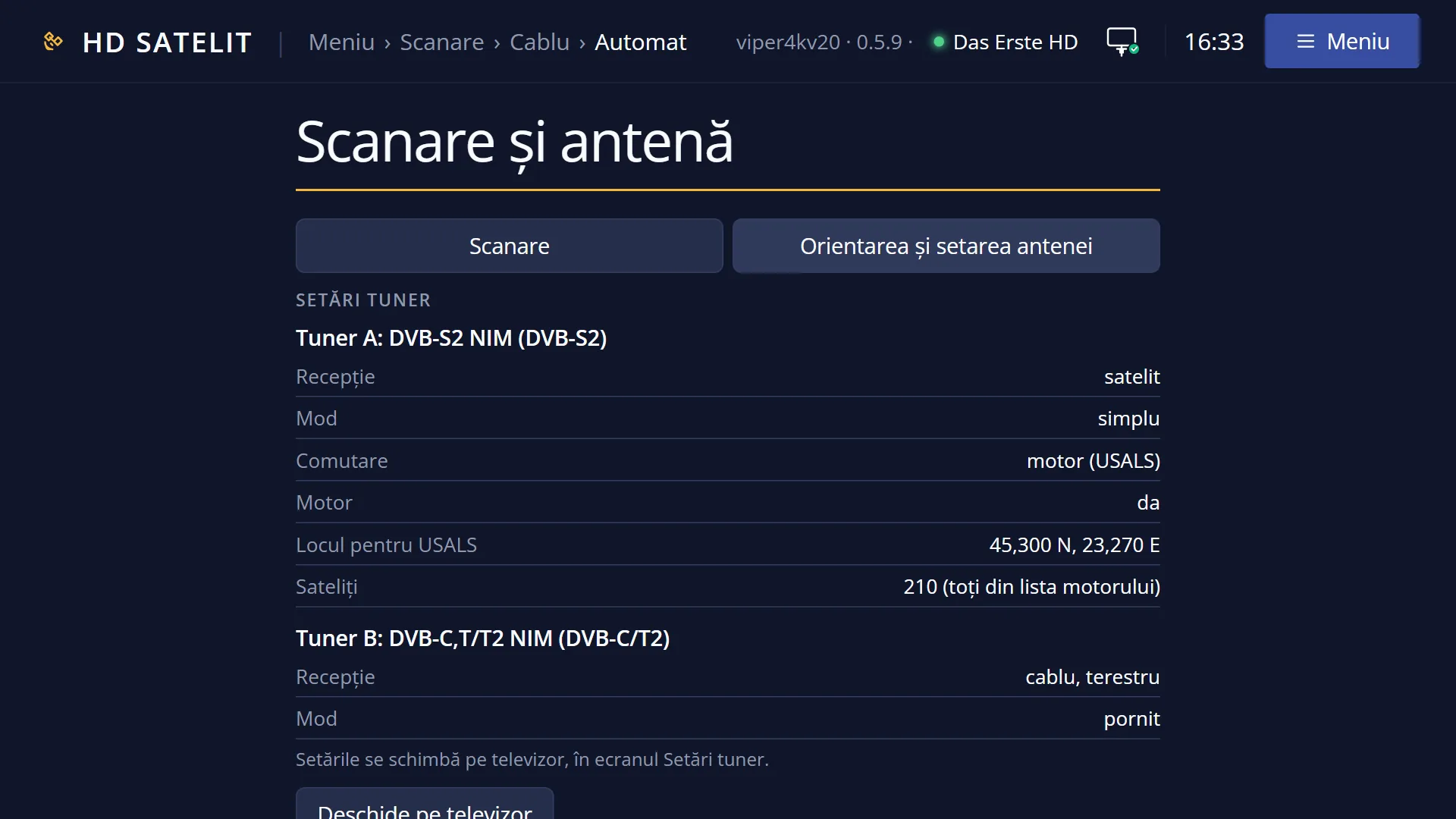
On the Amiko Viper 4K V20, the cable tuner is tuner B, a combined cable and terrestrial tuner: the search runs on it.