

Select audio track
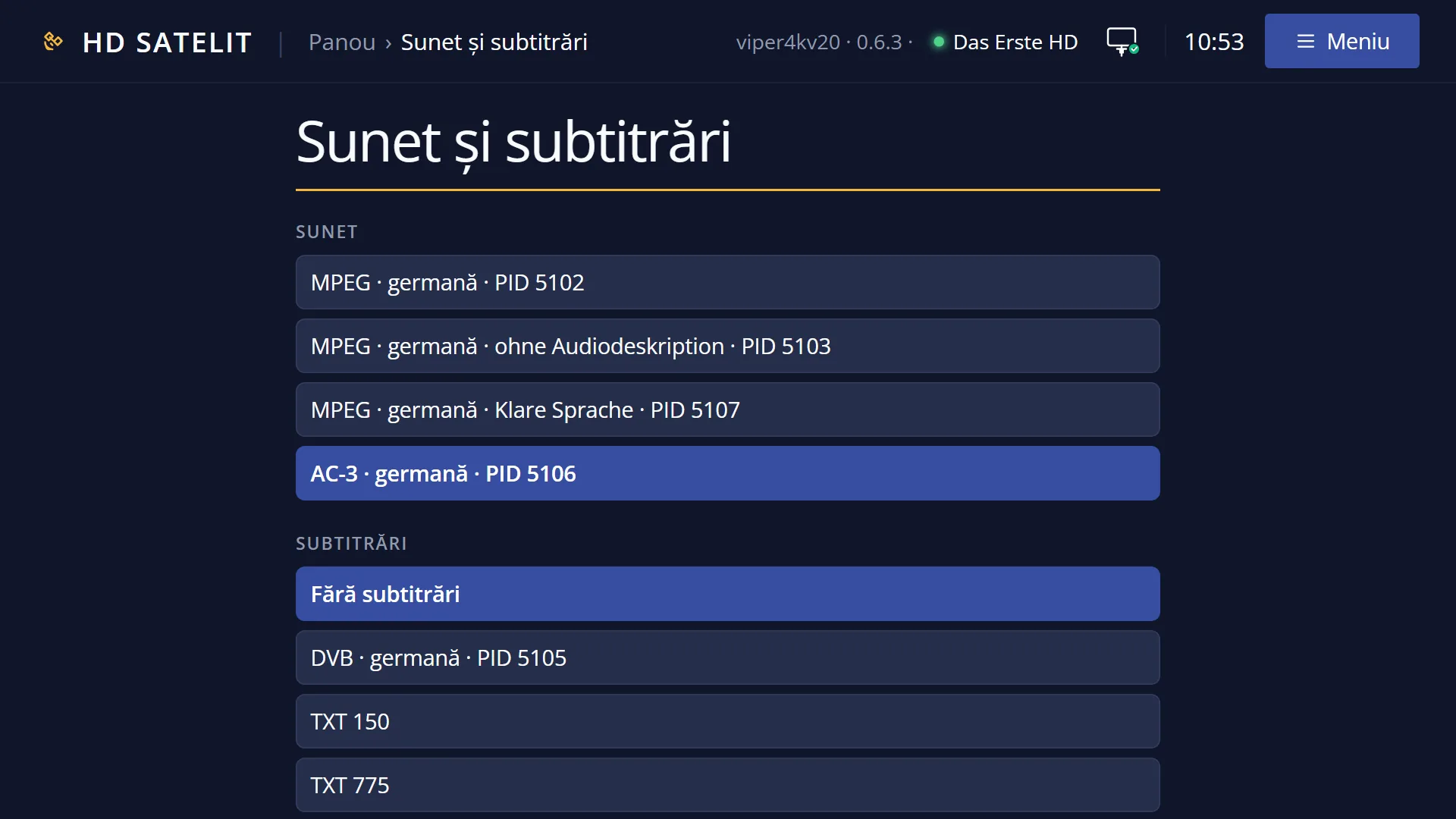
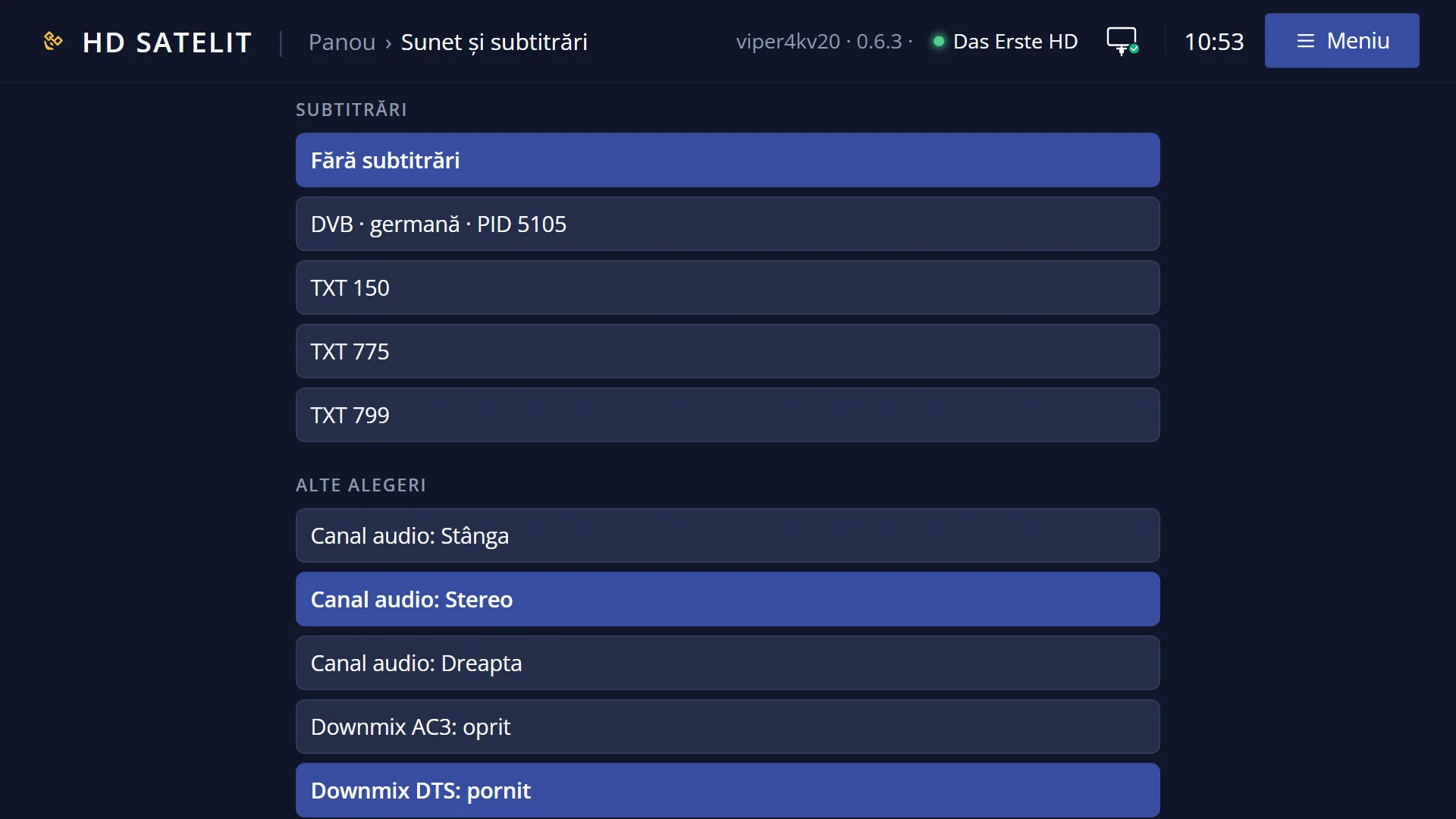
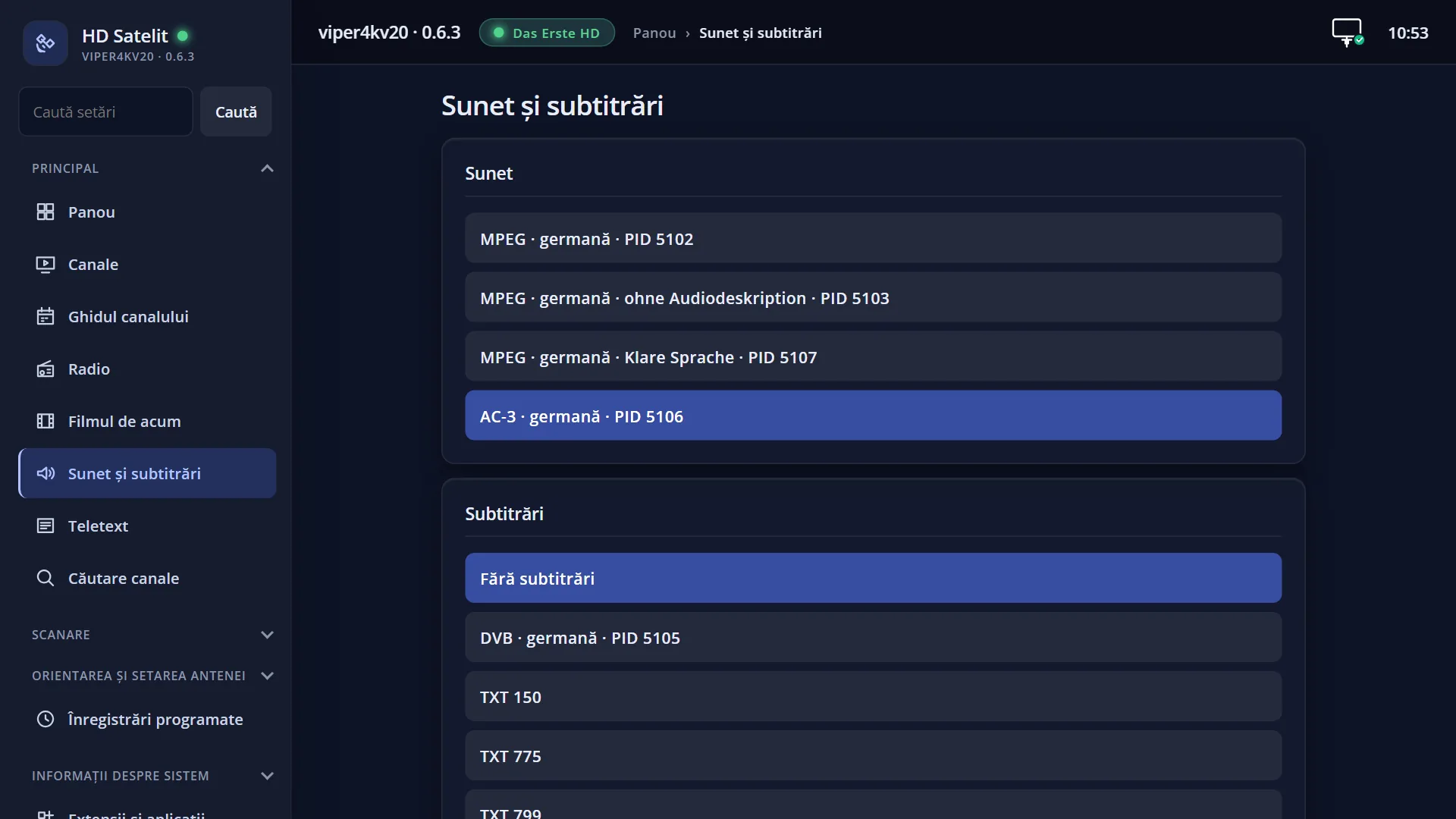
English screenshots coming: some of the pictures below still show the receiver and the web interface in Romanian. The rows, keys and steps described on this page are the English ones.
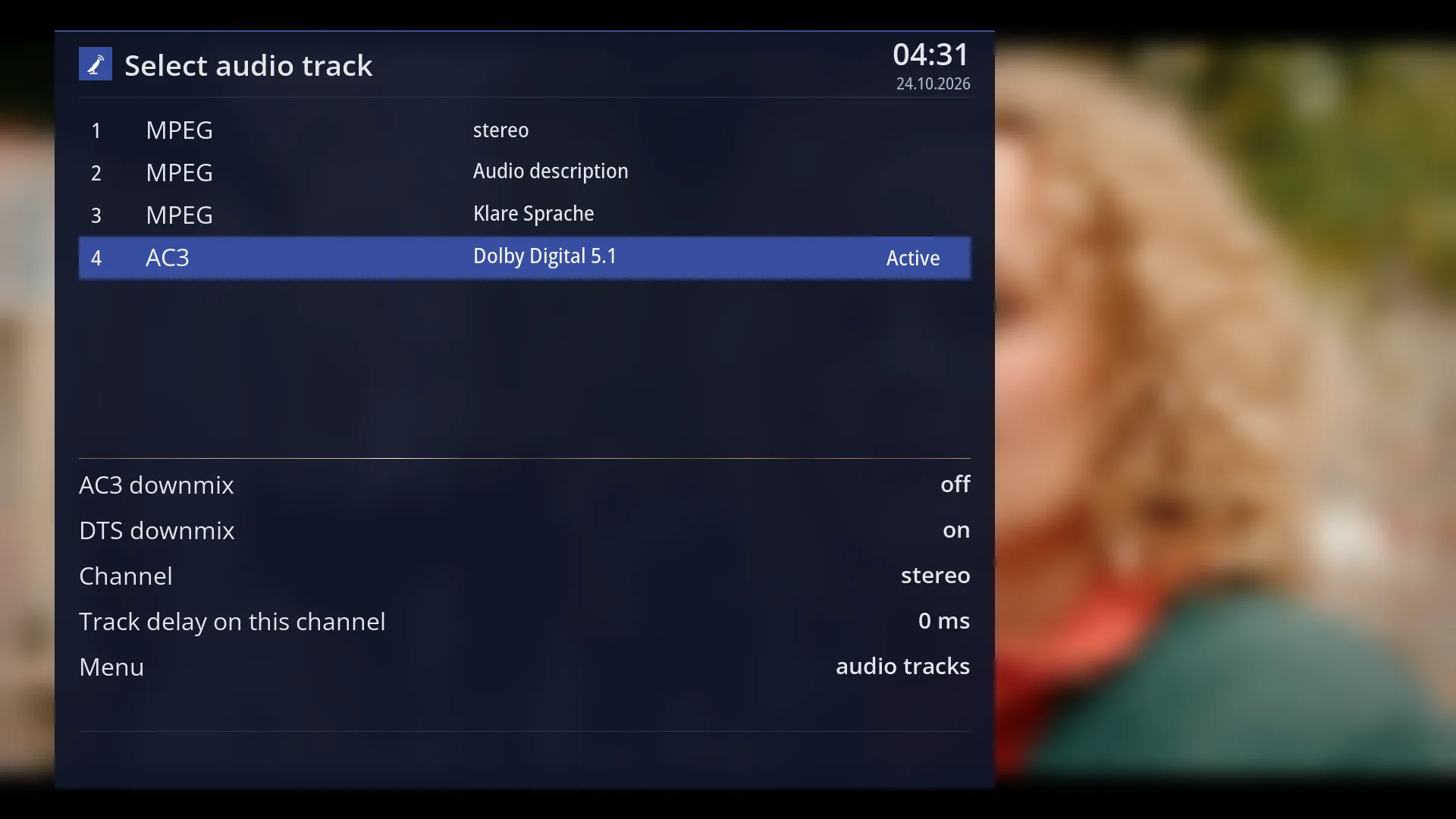
- 1 The title: “Select audio track”.
- 2 The track number and the type of sound (MPEG, AC3, AAC).
- 3 The track language.
- 4 The adjustment rows: AC3 downmix, Channel, track delay, Menu.
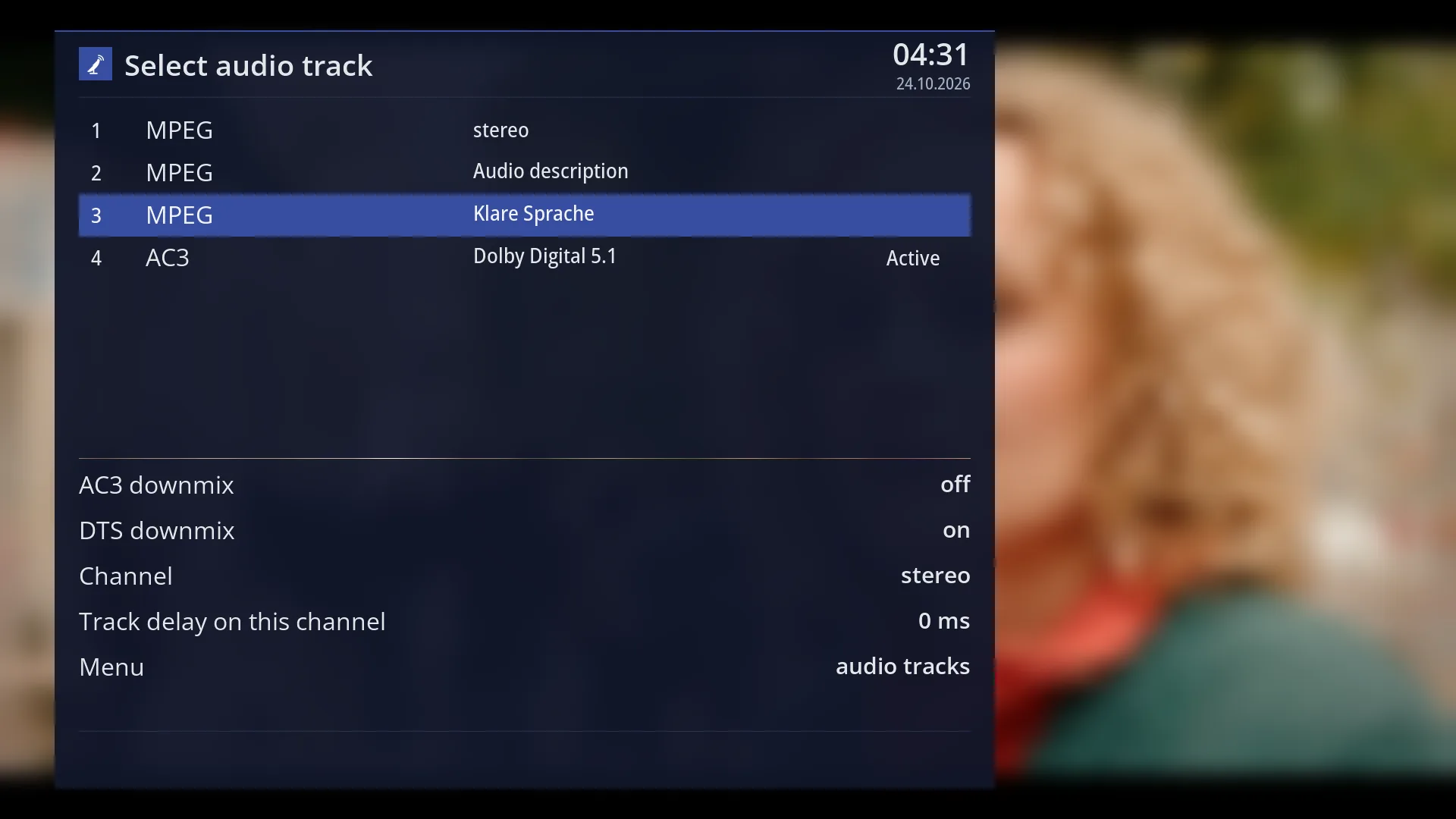
- 1 The adjustment rows; LEFT / RIGHT changes the value.
- 1 The selected row.
- 1 The selected row.
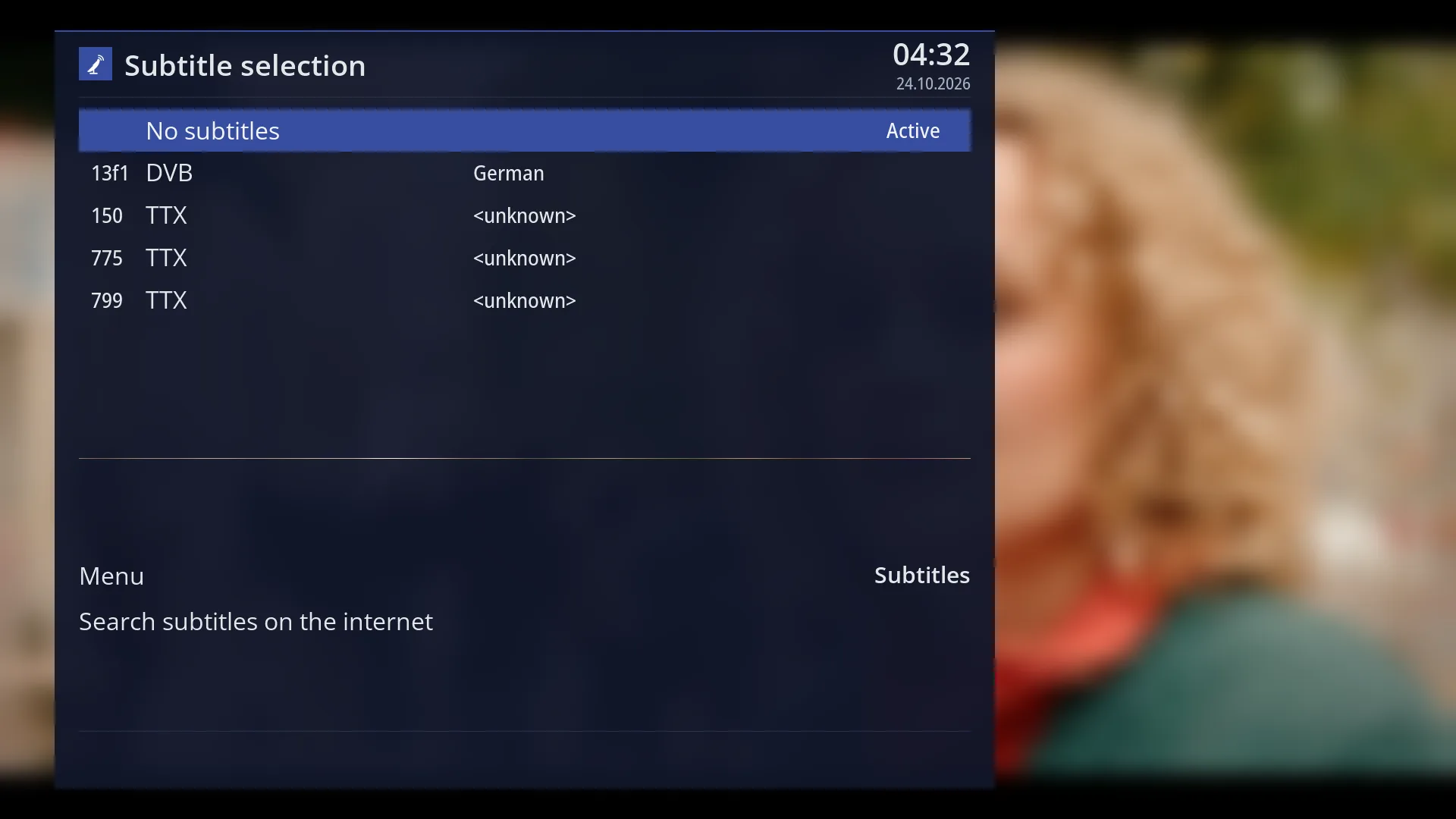
- 1 The same window, on the subtitle page; YELLOW takes you back to the sound.
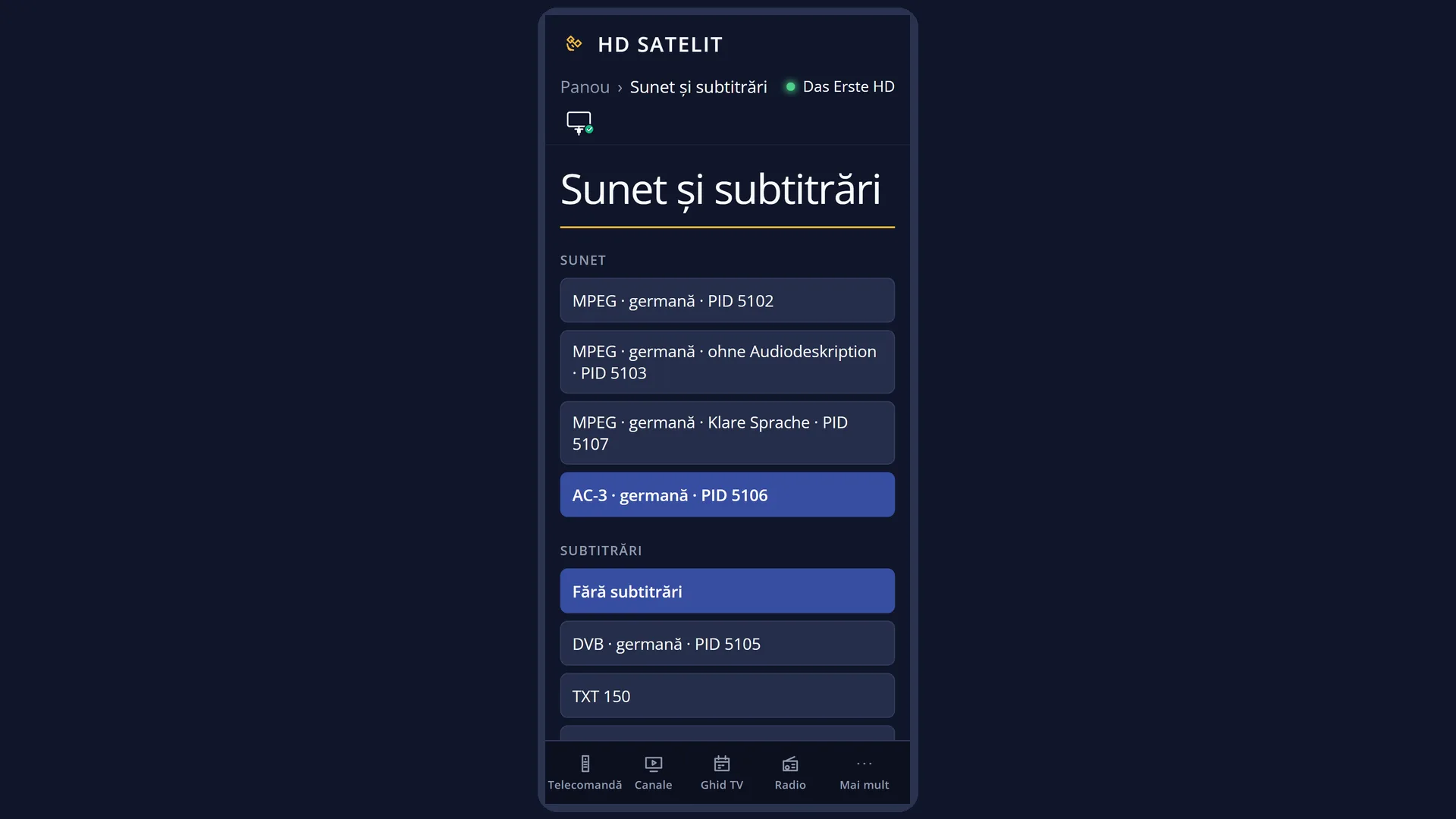
What it is for
Here you choose the channel's sound track: another language, the original sound or Dolby sound, when the broadcaster sends more than one.
A track you choose by hand is remembered for that channel permanently, and it takes priority over the preferred languages in the settings.
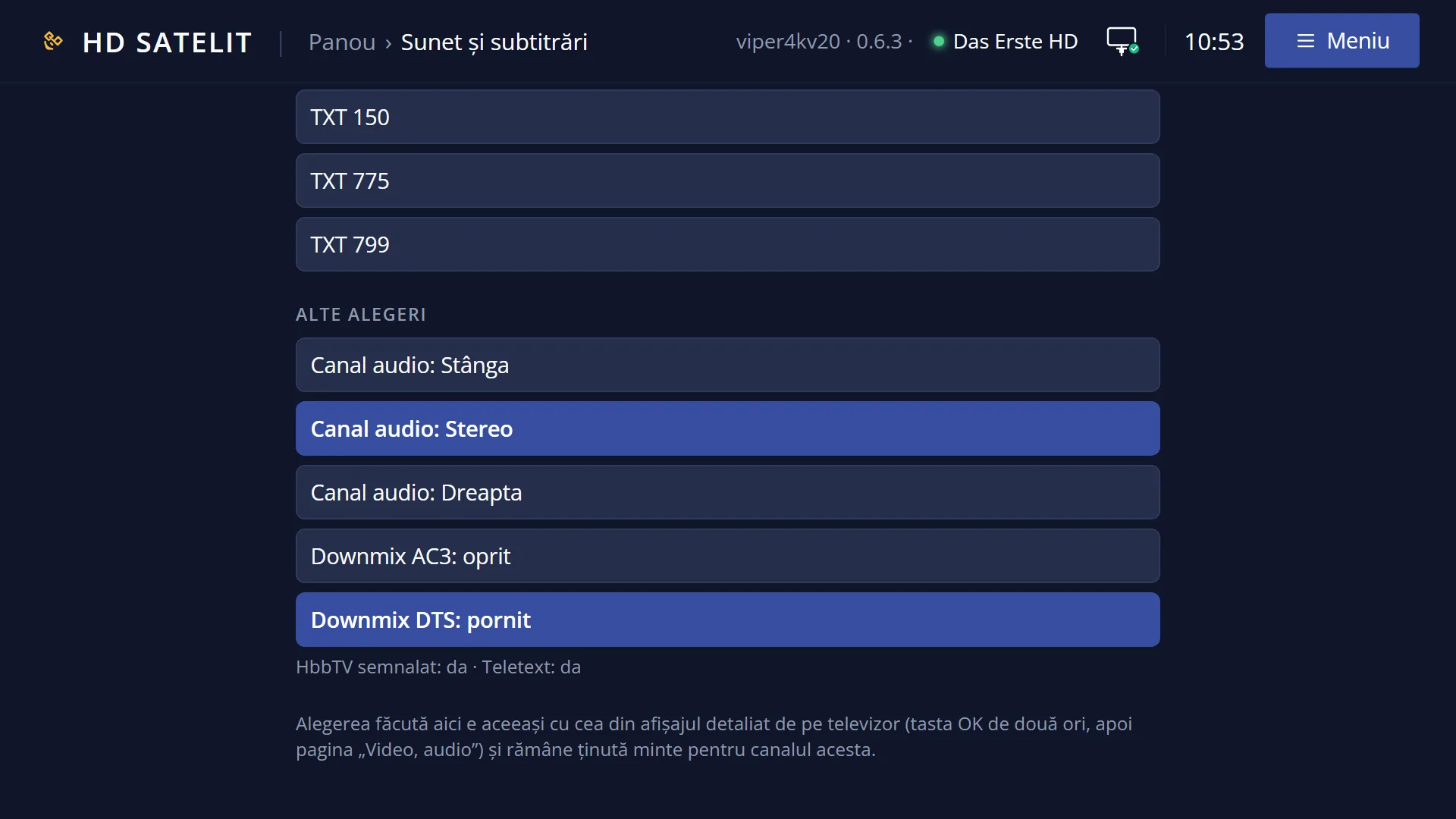
From here you can also turn AC3 downmix on or off (Dolby sound sent as stereo), choose left, stereo or right and, where the sound chip supports it, adjust the sound delay for this channel when the lips do not match the speech.
How to get here
From live TV: AUDIO (short press) or YELLOW.
Holding AUDIO down does not open the screen: it turns AC3 downmix on or off directly and shows a message for 5 seconds.
From the subtitle window (SUBT) you get here with YELLOW, and from here to the subtitles also with YELLOW.
It works the same way in the player for recordings and films.
In the web interface: /piste (sound tracks and subtitles) and the audio track button below the live picture in the panel.
What you see on the screen
At the top, the title “Select audio track” and the clock.
The list of sound tracks, one row per track: the number (1, 2, 3...), the type of sound sent by the broadcaster (for example MPEG, AC3, AAC; “<unknown>” when the broadcaster does not say), the language (for example “Romanian”, “German”; several languages separated by “/”) and, on the track that is playing now, the mark “Active”.
Below the line, the adjustment rows: “AC3 downmix” (on / off), “DTS downmix” (where the chip has it), “Channel” (left, stereo, right), “Track delay on this channel” (where the chip supports it, on a channel from the aerial or dish) and “Menu” (switches to the subtitle page).
At the bottom, the colour key hints: RED for AC3 downmix, GREEN for Channel, YELLOW for Menu.
Rows and settings
| Row | Values | Default | What it does |
|---|---|---|---|
| Sound tracks (one row per track) | the type sent by the broadcaster: MPEG, AC3, AAC and others | the track chosen from the preferred languages in “Audio and subtitle language” | OK starts the track, remembers it for the channel and closes the window. When you want another language or the original sound. |
| AC3 downmix | on, off | follows “Sound output” | On: AC3 (Dolby Digital) sound is output in stereo, for a TV or speaker without Dolby. Off: AC3 sound goes to the TV unchanged. If you change it here, “Sound output” switches from Automatic to Manual and the choice is saved. When channels with Dolby sound are silent or sound strange. |
| DTS downmix | on, off | follows “Sound output” | The same, for the DTS sound of films. The row only appears when the sound chip has it. When a film with DTS sound is silent. |
| Channel | left, stereo, right | stereo | Which side of the sound you hear: both (stereo), or only left or only right. Some broadcasters send two languages on the same track, one on the left and the other on the right. The choice is remembered for the channel. When you hear two languages at once. |
| Track delay on this channel | from -250 to +250 ms, in steps of 10 | 0 ms | It is added to the output delay, only for the current sound track of the current channel. It is remembered. The row only appears when the sound chip supports it, on a channel from the aerial or dish. When the lips move before or after the sound on one particular channel only. |
| Menu | audio tracks, Subtitles | audio tracks (with the AUDIO key) | Switches the window to the subtitle page (“Subtitle selection”) and back. When you also want to choose the subtitles without closing the window. |
Keys
| UP / DOWN | Move the cursor through the tracks. UP from the first track jumps to the adjustment rows at the bottom (to “Menu”); DOWN from the last adjustment row takes you back to the tracks. |
| OK | On a track: starts it, remembers it for the channel and closes the window. On an adjustment row: moves to the next value. |
| LEFT / RIGHT | In the track list: jump to the first or last track. On an adjustment row: change the value. |
| Digits 1-9 | Start the track with that number directly and close the window. |
| RED | AC3 downmix on / off. |
| GREEN | Channel: left, stereo, right (when the channel has tracks). |
| YELLOW | Switches to the subtitle page and back. |
| EXIT | Closes the window; whatever you changed on the adjustment rows is kept. |
| AUDIO held down (from live TV) | Turns AC3 downmix on or off without opening the screen: “AC3 downmix on: AC3 sound goes out as stereo.” or “AC3 downmix off: AC3 sound goes unchanged to the TV.”, for 5 seconds. |
Step by step
Switch the sound to Romanian
- Press AUDIO.
- Use UP / DOWN to choose the “Romanian” track (or press its number).
- Press OK. The sound changes, and the receiver chooses it by itself next time on this channel.
Fix a channel with Dolby sound that is silent
- Hold AUDIO down for one second.
- The message says “AC3 downmix on: AC3 sound goes out as stereo.”.
- If there is still no sound, press AUDIO and choose another track (for example MPEG).
Match the sound to the lips on a channel
- Press AUDIO, then UP to reach the adjustment rows.
- Go to “Track delay on this channel” and change it with LEFT / RIGHT, in steps of 10 ms, until the lips match.
- Press EXIT. The delay stays remembered for the channel and the track.
Problems and solutions
There is only one track in the list.
The broadcaster is sending only one sound at the moment. Some programmes have several languages, others do not.
Channels with AC3 are silent.
The TV or speaker does not accept Dolby sound. Turn on AC3 downmix (hold AUDIO down) or set “Sound output” to Automatic, so the receiver asks the TV what it accepts.
I hear two languages at once.
The broadcaster sends two languages on the same track, left and right. Under “Channel”, choose left or right.
On one channel a language I do not want starts by itself.
Choose the language you want here: it is remembered for the channel. For all channels, set your preferred languages in “Audio and subtitle language”.
I cannot see the “Track delay on this channel” row.
It only appears when the sound chip supports the delay, and on a channel from the aerial or dish, not for films. For all channels at once, use the HDMI or optical delay in “Volume and delay”.
After I changed AC3 downmix here, “Sound output” is no longer on Automatic.
This is normal: a choice made by hand switches the output to Manual. Set it back to Automatic in “Sound output”, if you want.