

The second bar (six pages)
English screenshots coming: some of the pictures below still show the receiver and the web interface in Romanian. The rows, keys and steps described on this page are the English ones.
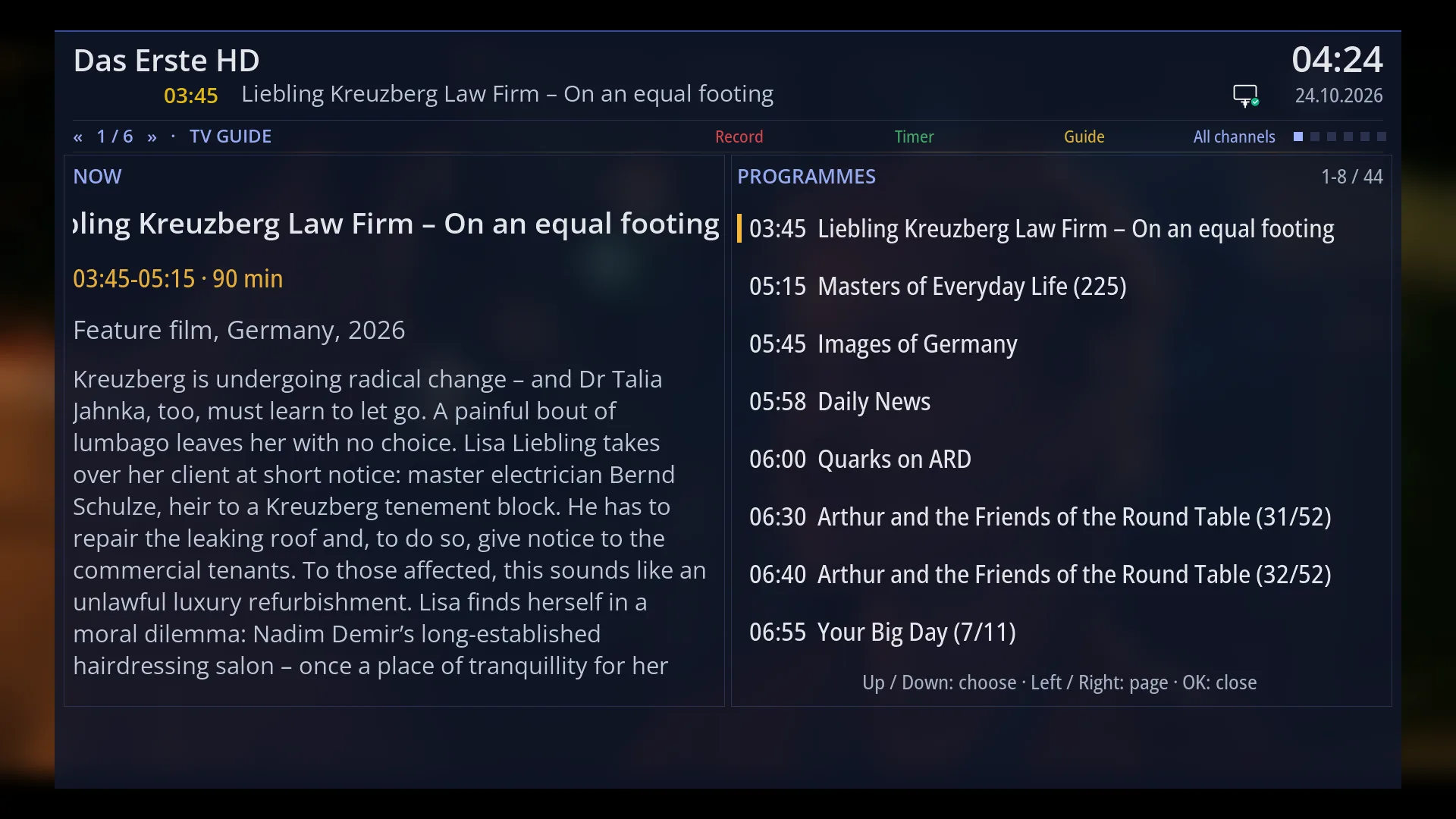
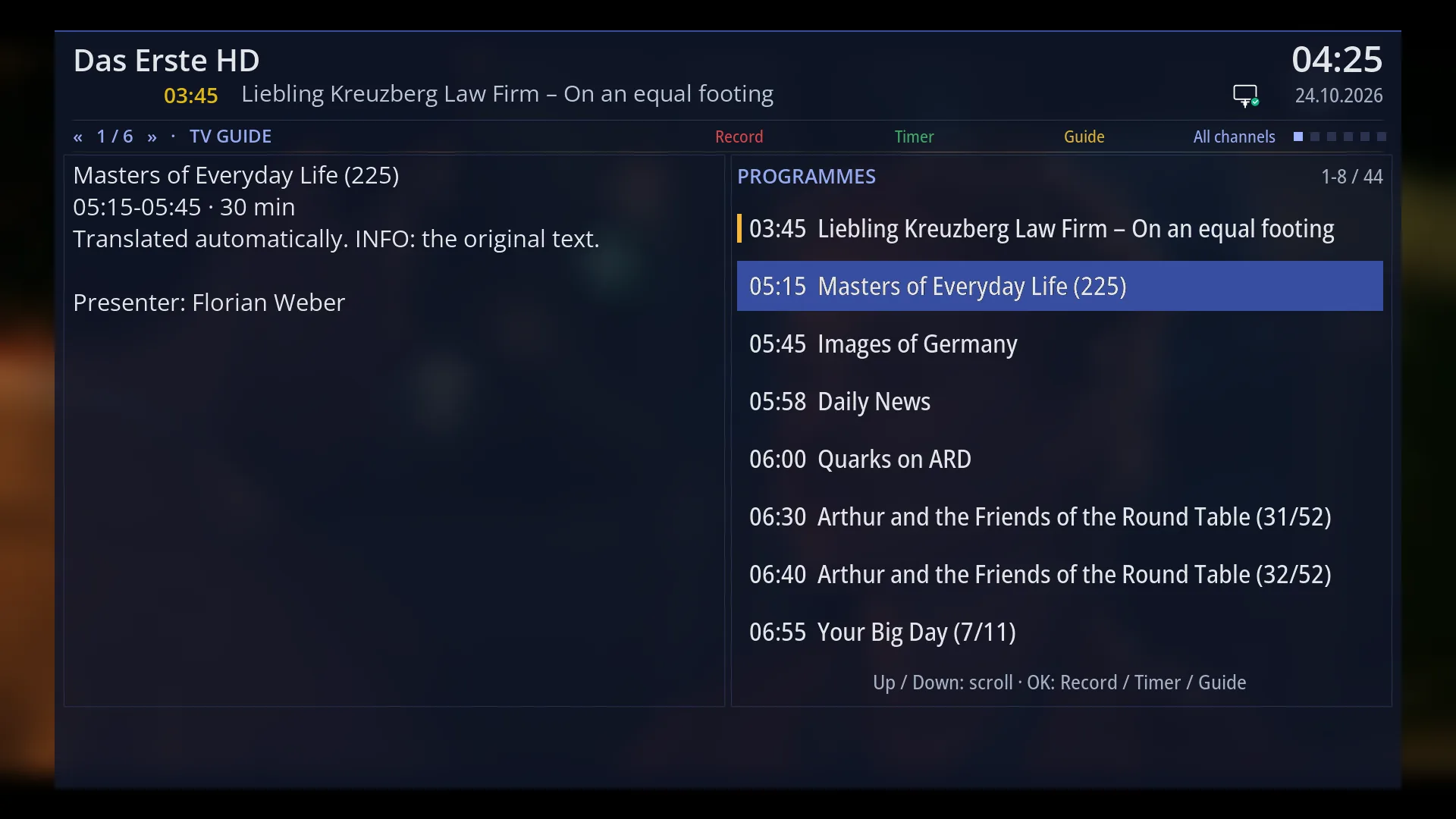
- 1 The channel number and name.
- 2 The current programme: start time and title.
- 3 The clock, the date and the network icon.
- 4 The title of the current page.
- 5 The colour keys that work in the guide: Record, Timer, Guide, All channels.
- 6 The page dots: the lit one is the current page.
- 7 The selected programme: day and time, title, times, description.
- 8 The channel's schedule from now on; UP / DOWN move the cursor. Yellow bar: the current programme; red dot: scheduled recording.
- 9 The help row: what the arrow keys and OK do at the moment.
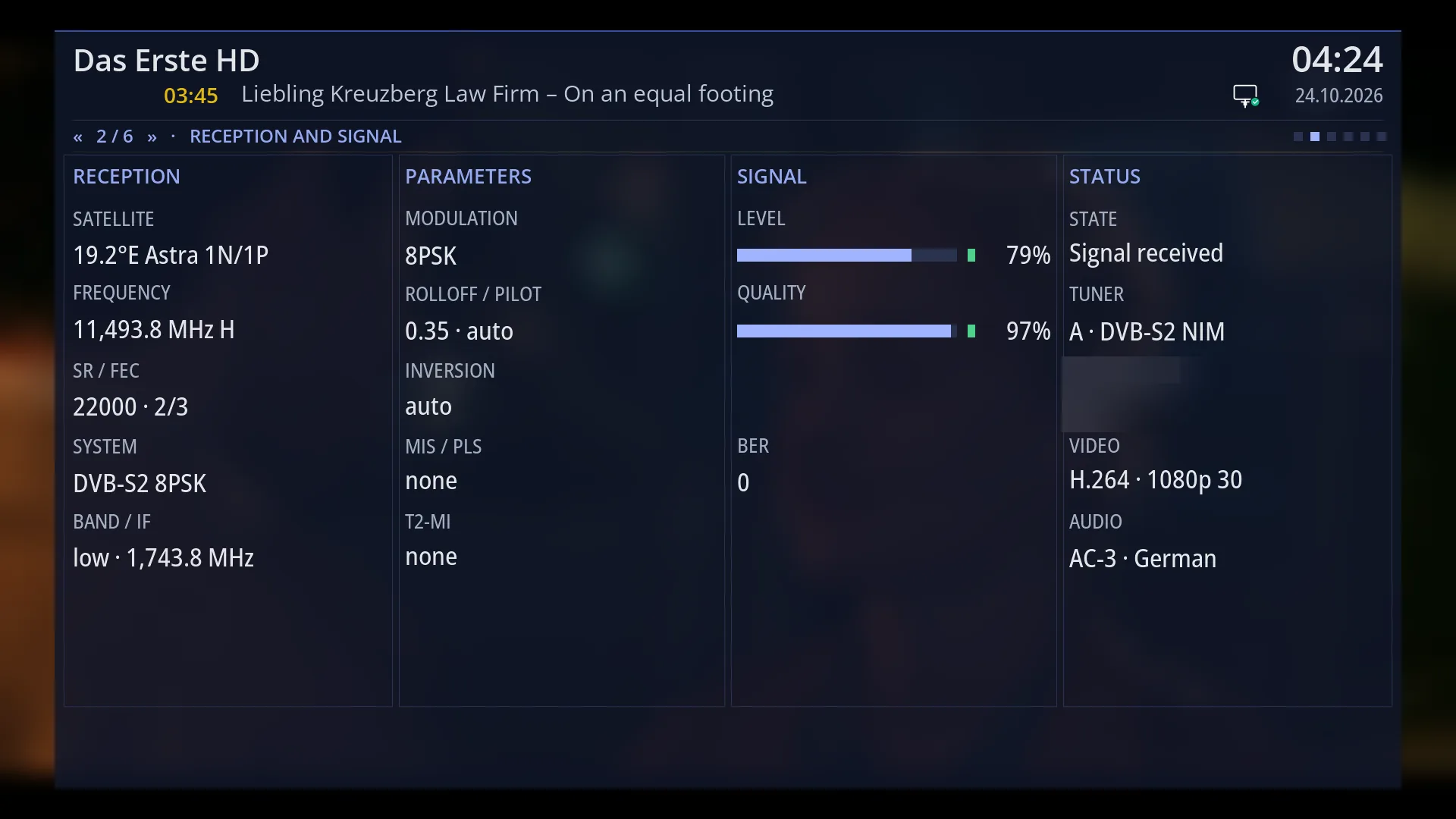
- 1 Reception: satellite, frequency, SR / FEC, system, band, network.
- 2 PARAMETERS: modulation, rolloff and pilot, inversion, MIS / PLS, T2-MI.
- 3 Signal: signal and quality with coloured bars, SNR, BER.
- 4 Status: tuner status and the tuner in use.
- 5 VIDEO and AUDIO: the channel's picture and sound.
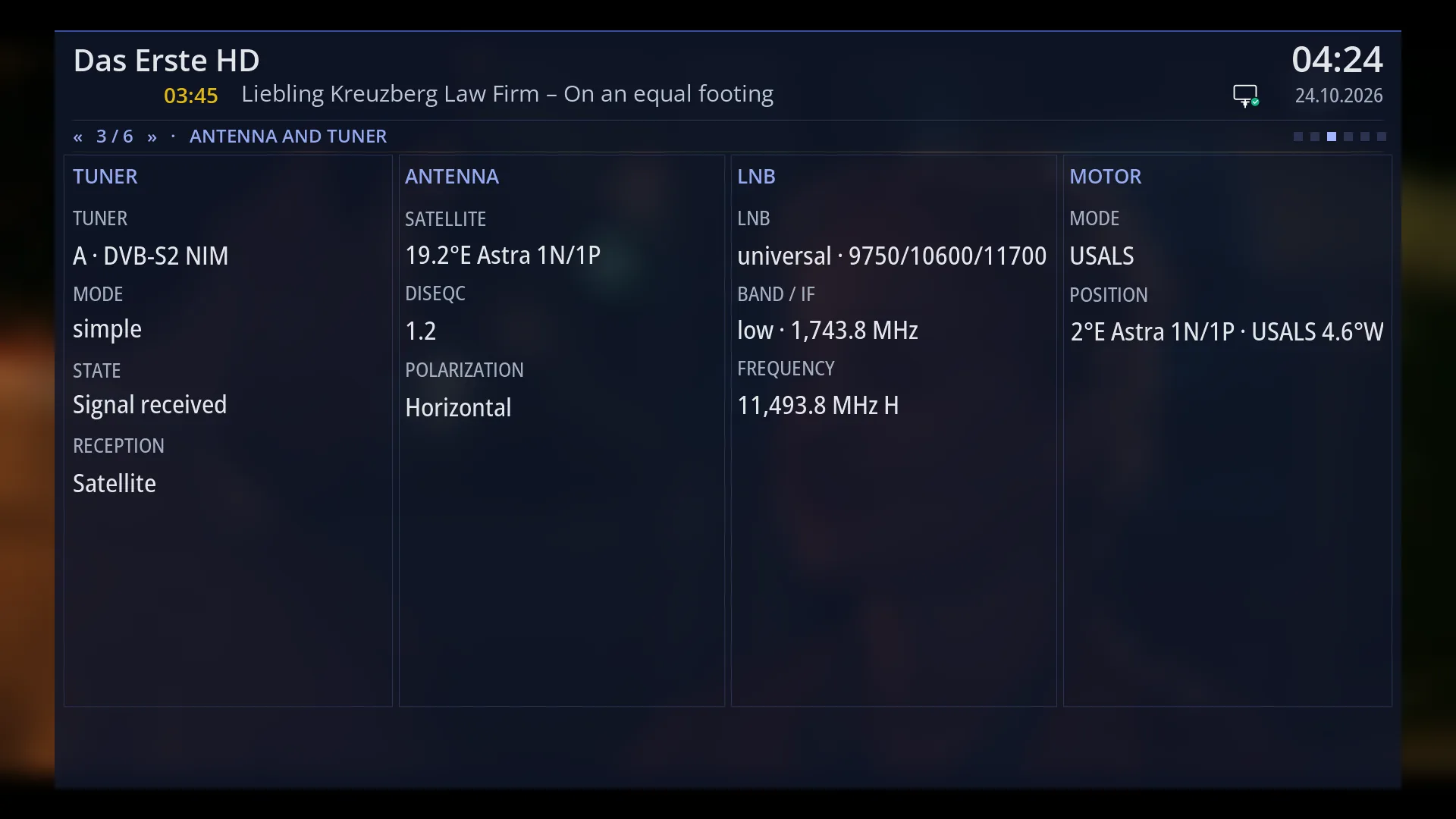
- 1 The tuner, its mode, status and reception.
- 2 Dish: satellite, DiSEqC, polarisation.
- 3 LNB: type, band, frequency.
- 4 MOTOR: only with a motorised dish.
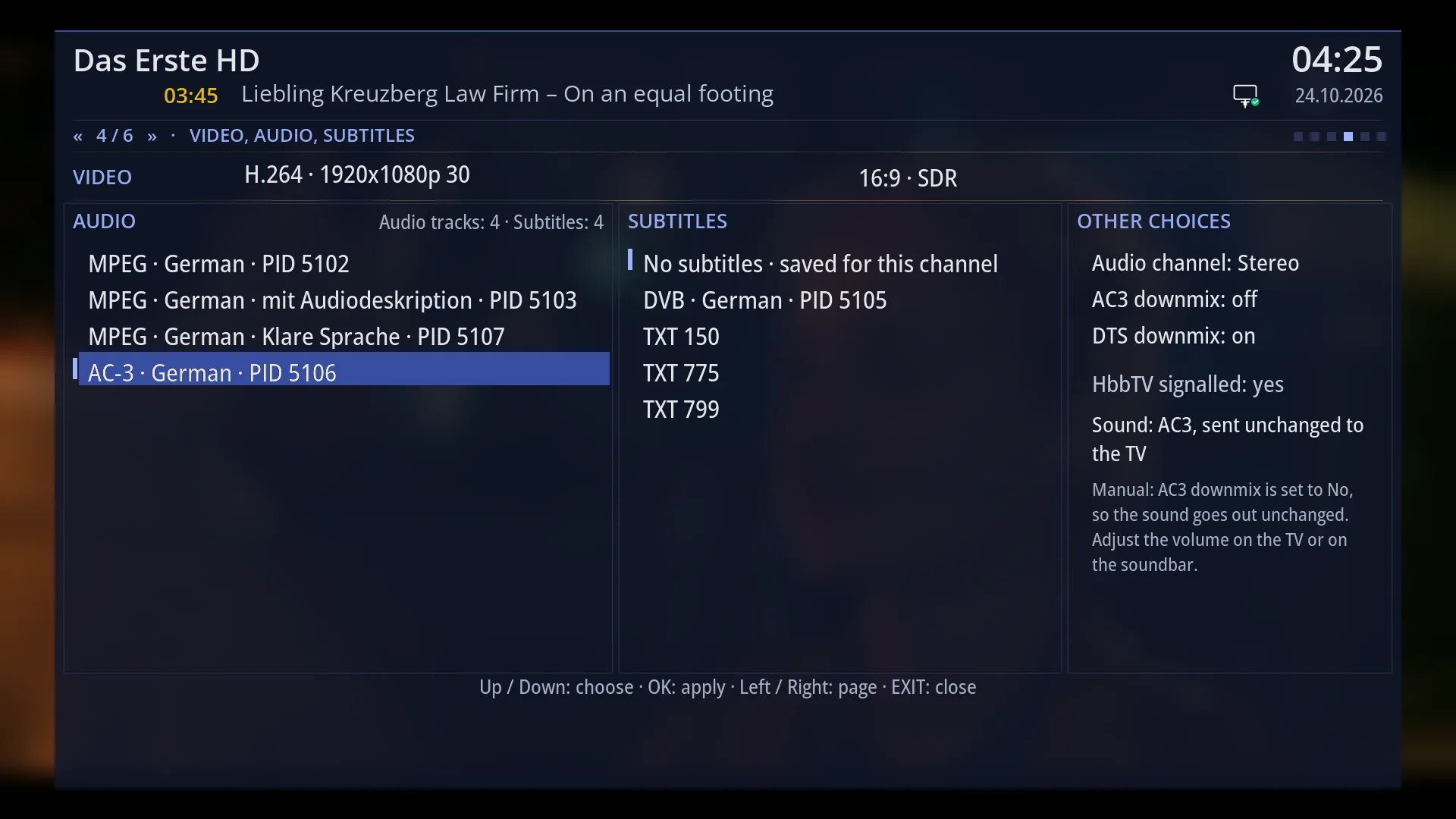
- 1 VIDEO: codec, resolution, format, bit rate.
- 2 AUDIO: the audio tracks; OK starts the track under the cursor.
- 3 Subtitles, with “No subtitles” first.
- 4 Other choices: audio channel, downmix, back to the automatic choice.
- 5 The page's help row.
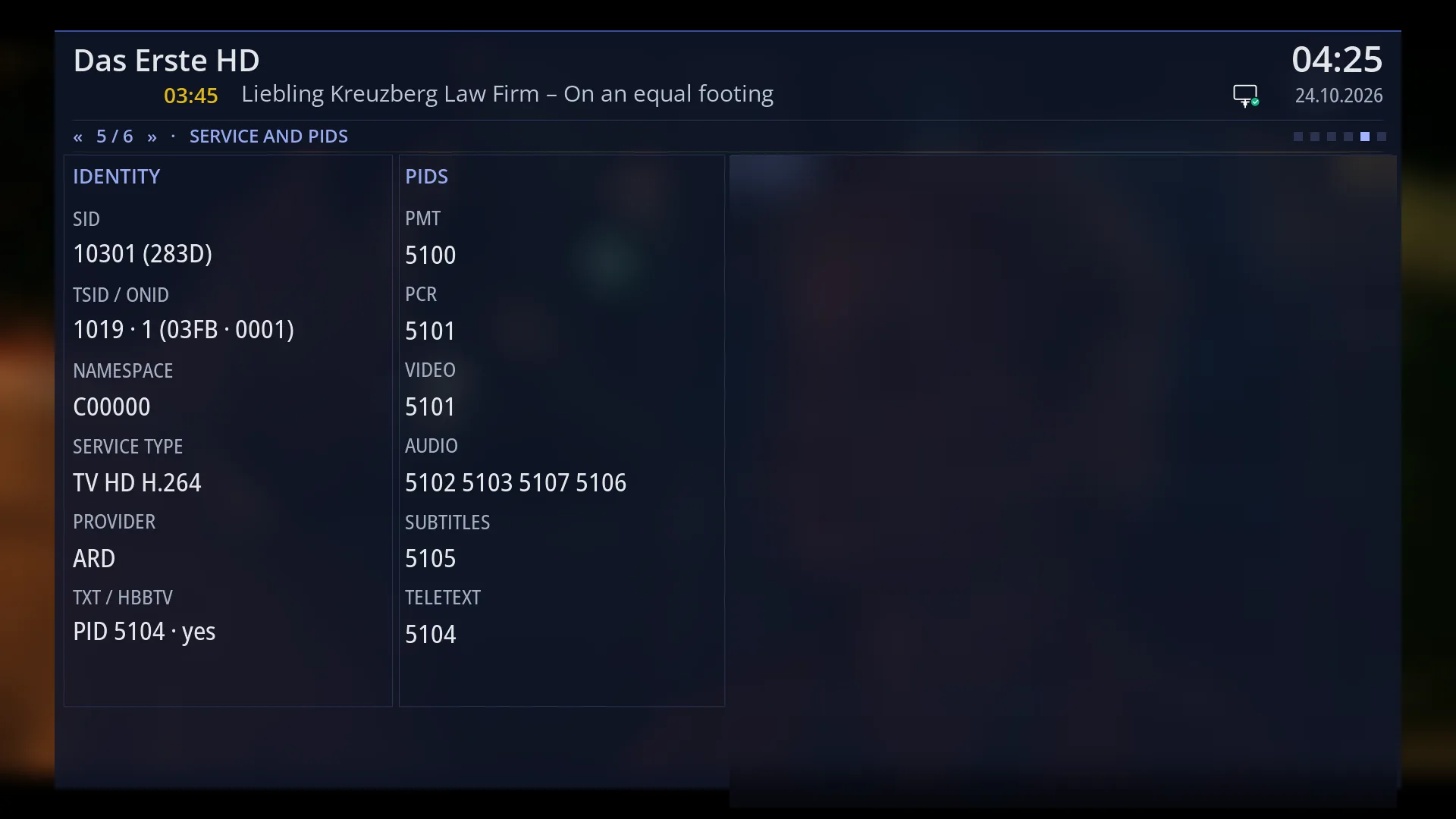
- 1 IDENTITY: SID, TSID / ONID, namespace, type, provider, TXT / HbbTV.
- 2 PIDs: PMT, PCR, video, audio, subtitles, teletext.
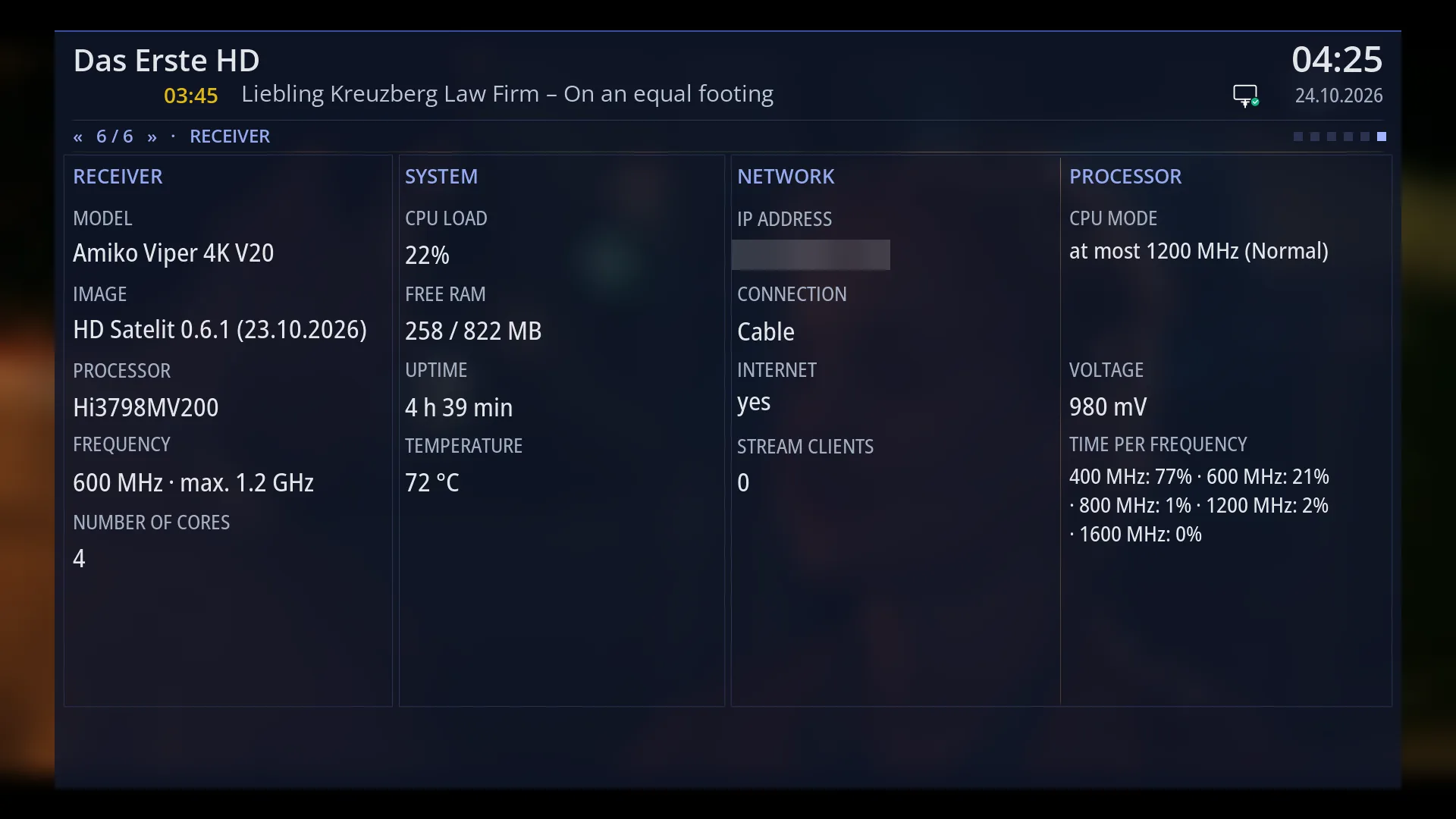
- 1 Model, image, processor.
- 2 Load, free memory, how long it has been on, temperature.
- 3 Network: IP address, link, internet, clients on the network.
- 4 Processor mode, voltage, time at each frequency (where available).
- 1 The full description; UP / DOWN scroll, EXIT takes you back to the list.
- 2 The help row: “Up / Down: scroll · OK: Record / Timer / Guide”.
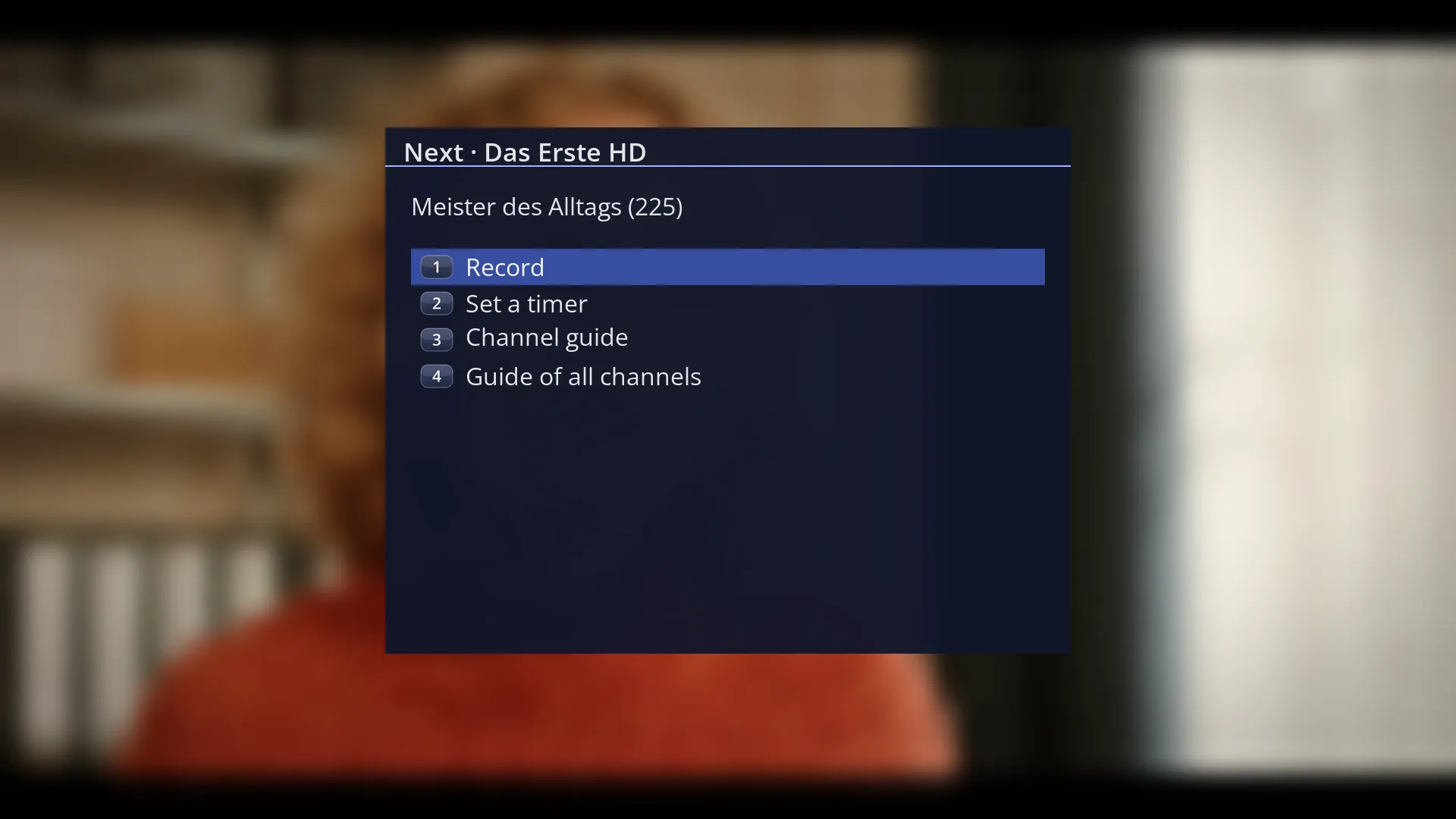
- 1 The programme title; at the top, the day, time and channel.
- 2 What you can do with the selected programme.
What it is for
The second bar shows everything the receiver knows about the channel you are watching, on six pages: the channel guide, reception and signal, dish and tuner, picture, sound and subtitles, channel data and the receiver's status.
The first page, “TV guide”, is a small guide for the channel. You see the programmes from now on, read the description of any of them and record one with a single key press, without leaving the channel.
On the “Video, audio, subtitles” page you choose the audio language and the subtitles straight away, using only the arrow keys and OK.
The other pages help when something does not work: whether the signal is weak, which satellite and frequency the channel is on, and how busy the receiver is.
How to get here
From live TV: press OK while the first bar is on screen. If the bar is hidden: press OK, then OK again.
The second bar does not close by itself. It stays on screen until you press OK or EXIT, or until you open another screen.
It opens on the first page that has data: “TV guide” when the channel has a programme guide, otherwise “Reception and signal”.
It works the same way in the player for recordings and films (there the dish pages are missing).
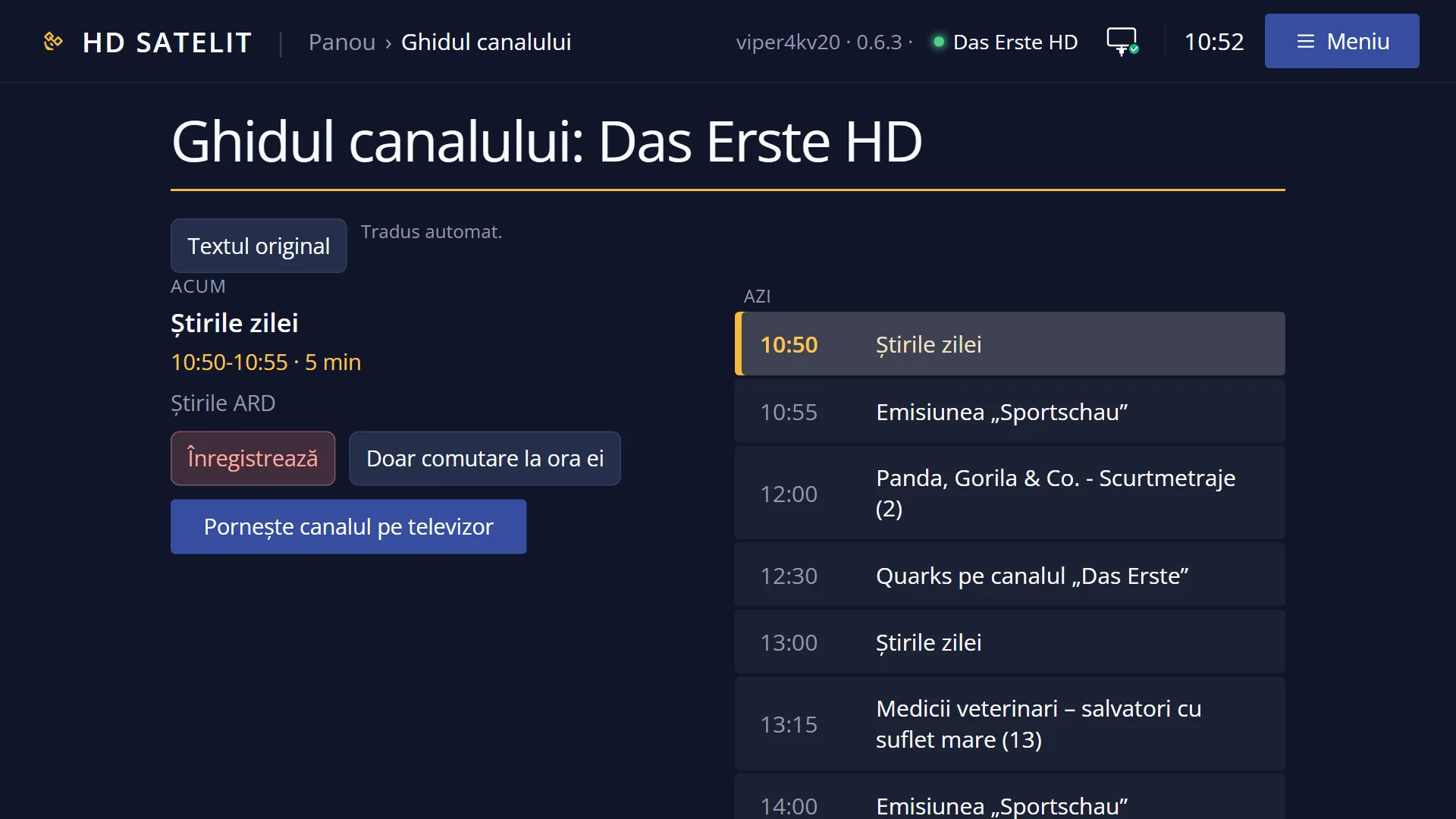
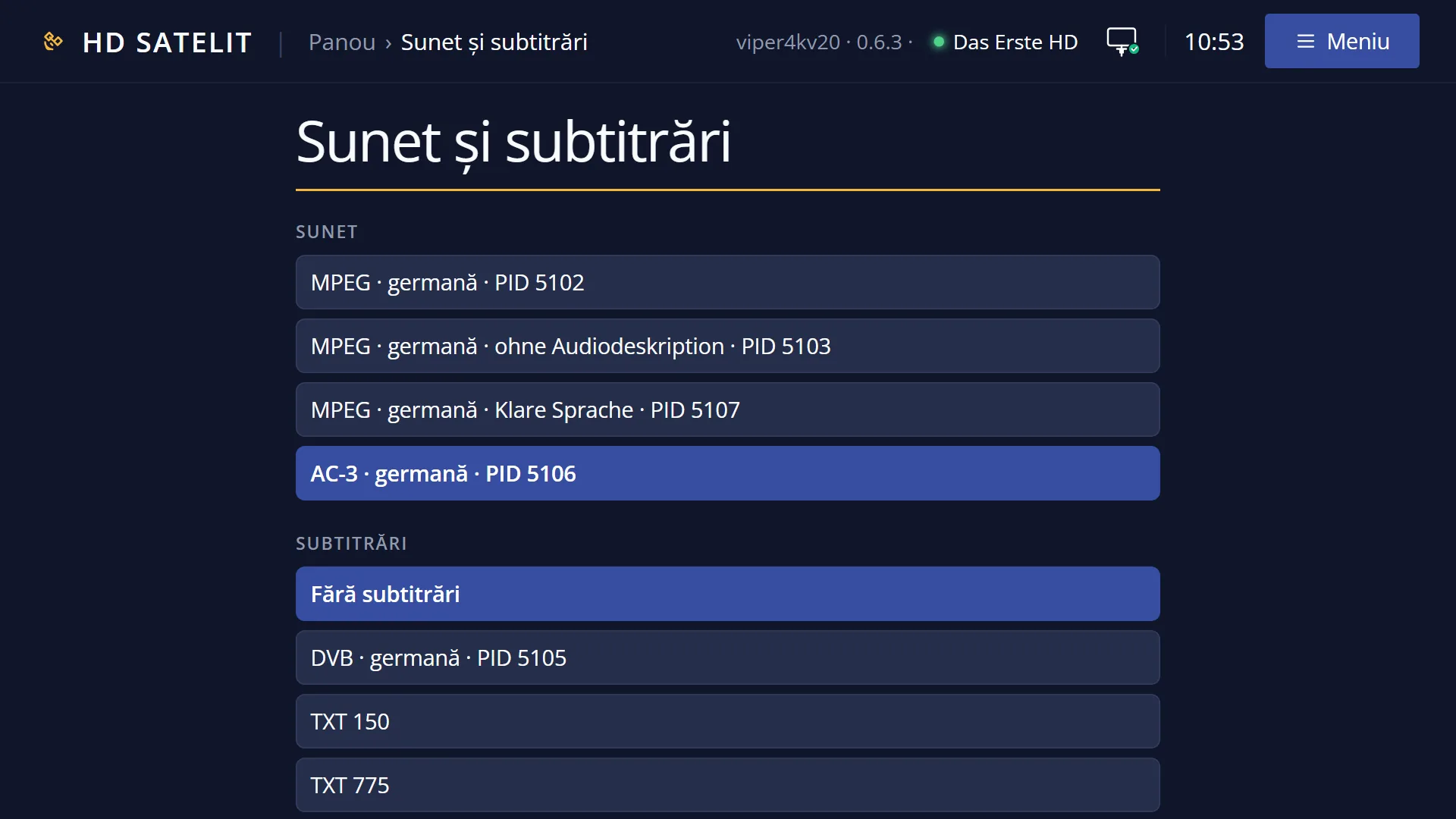
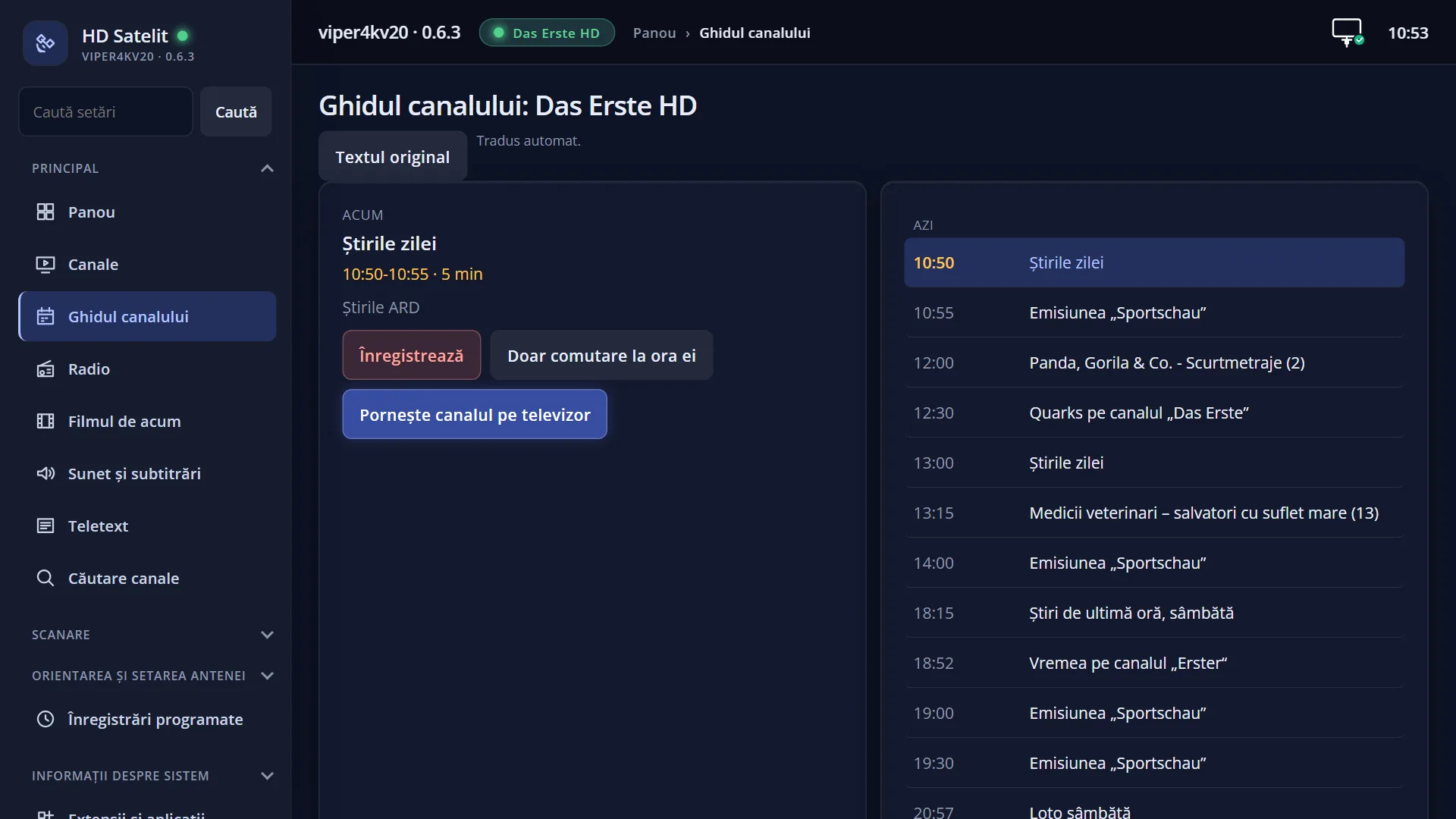
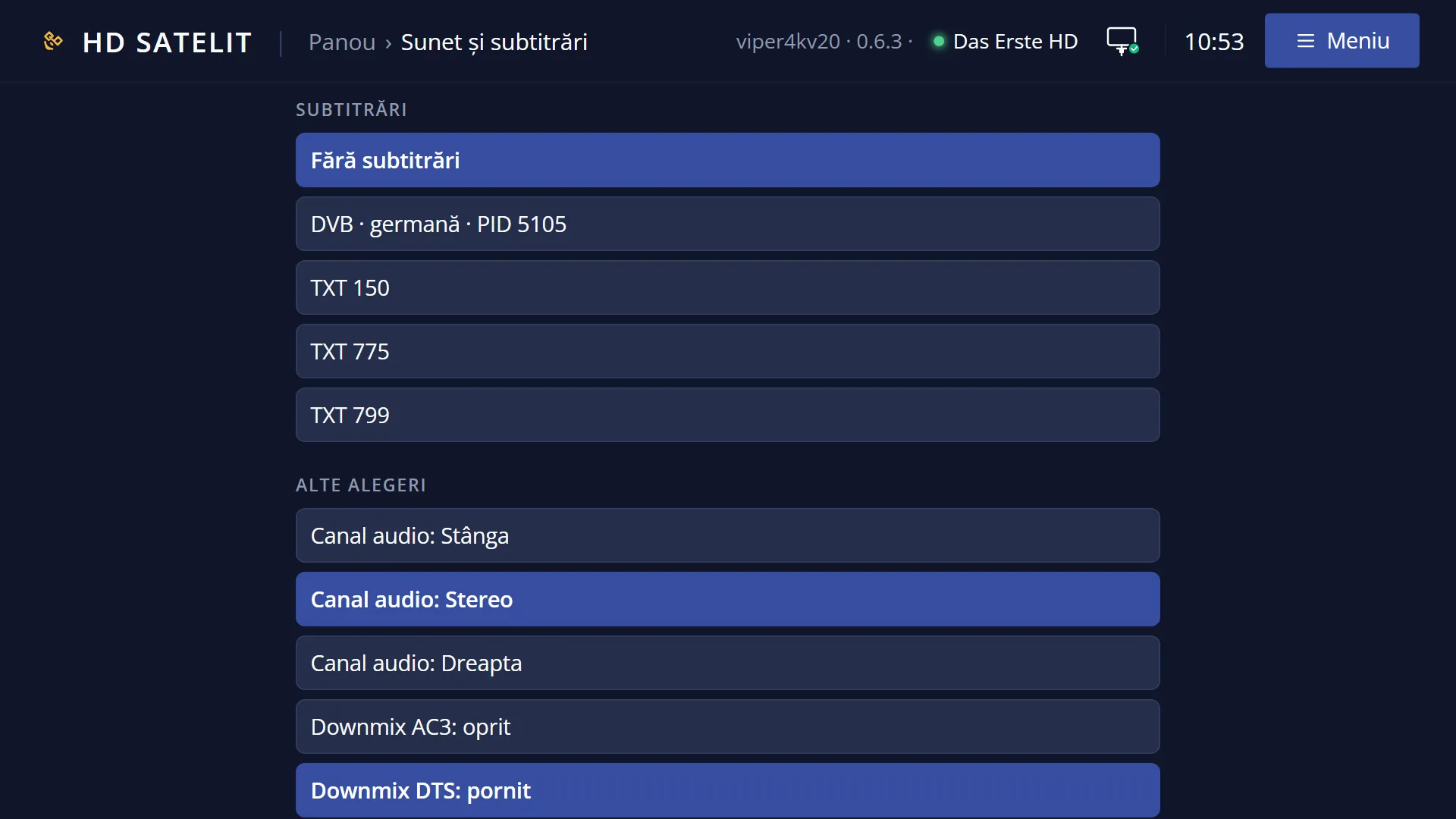
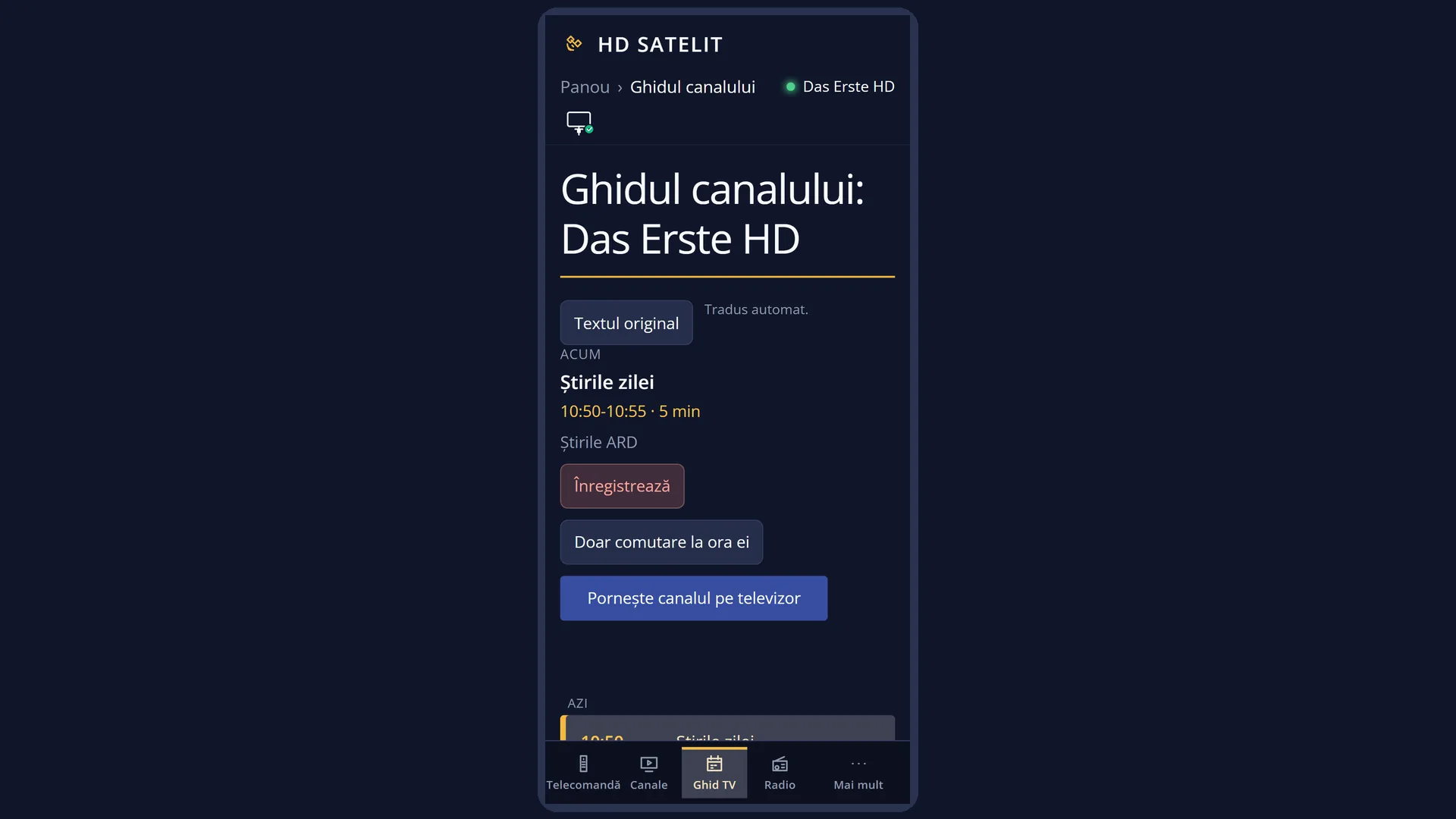
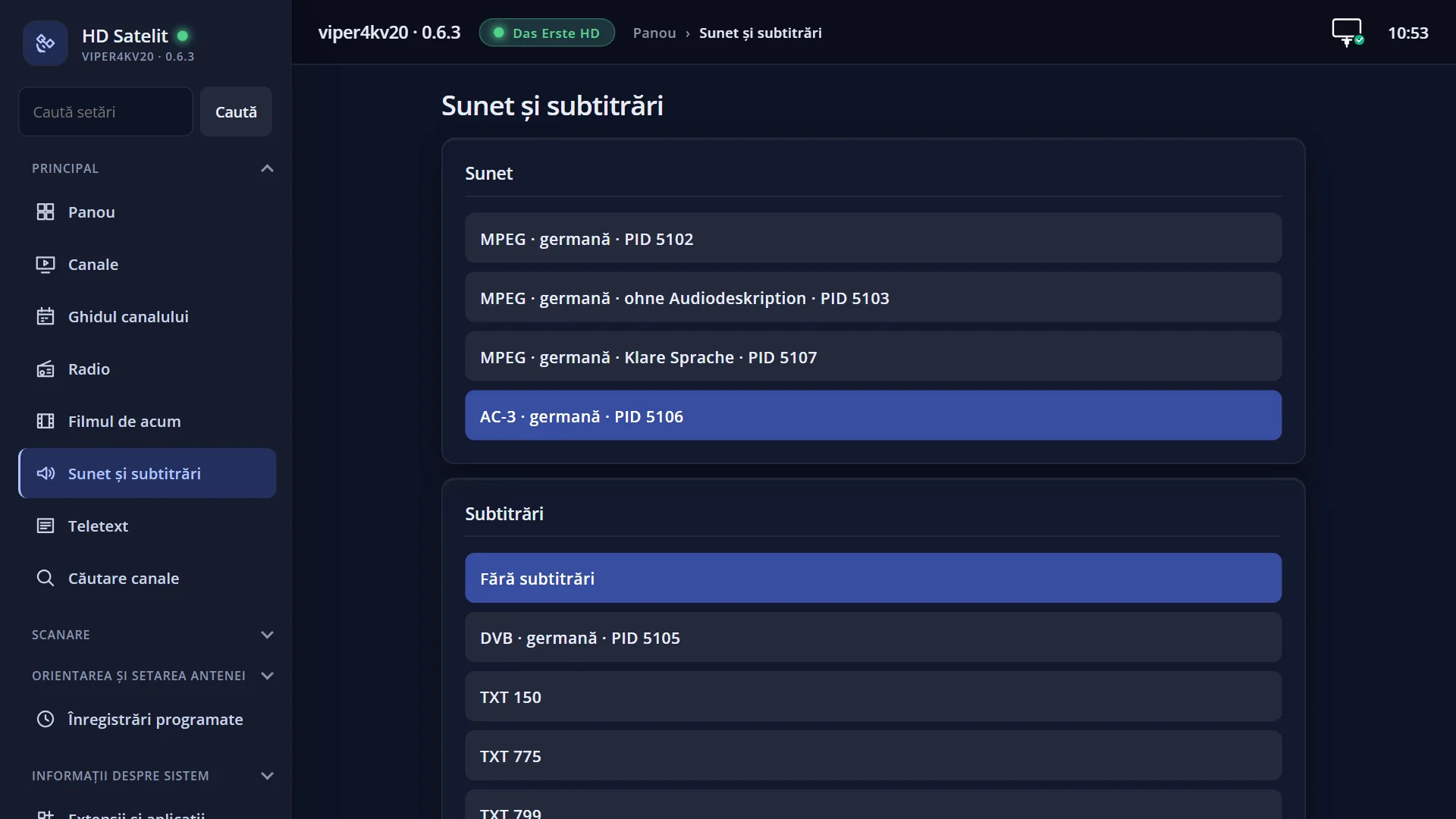
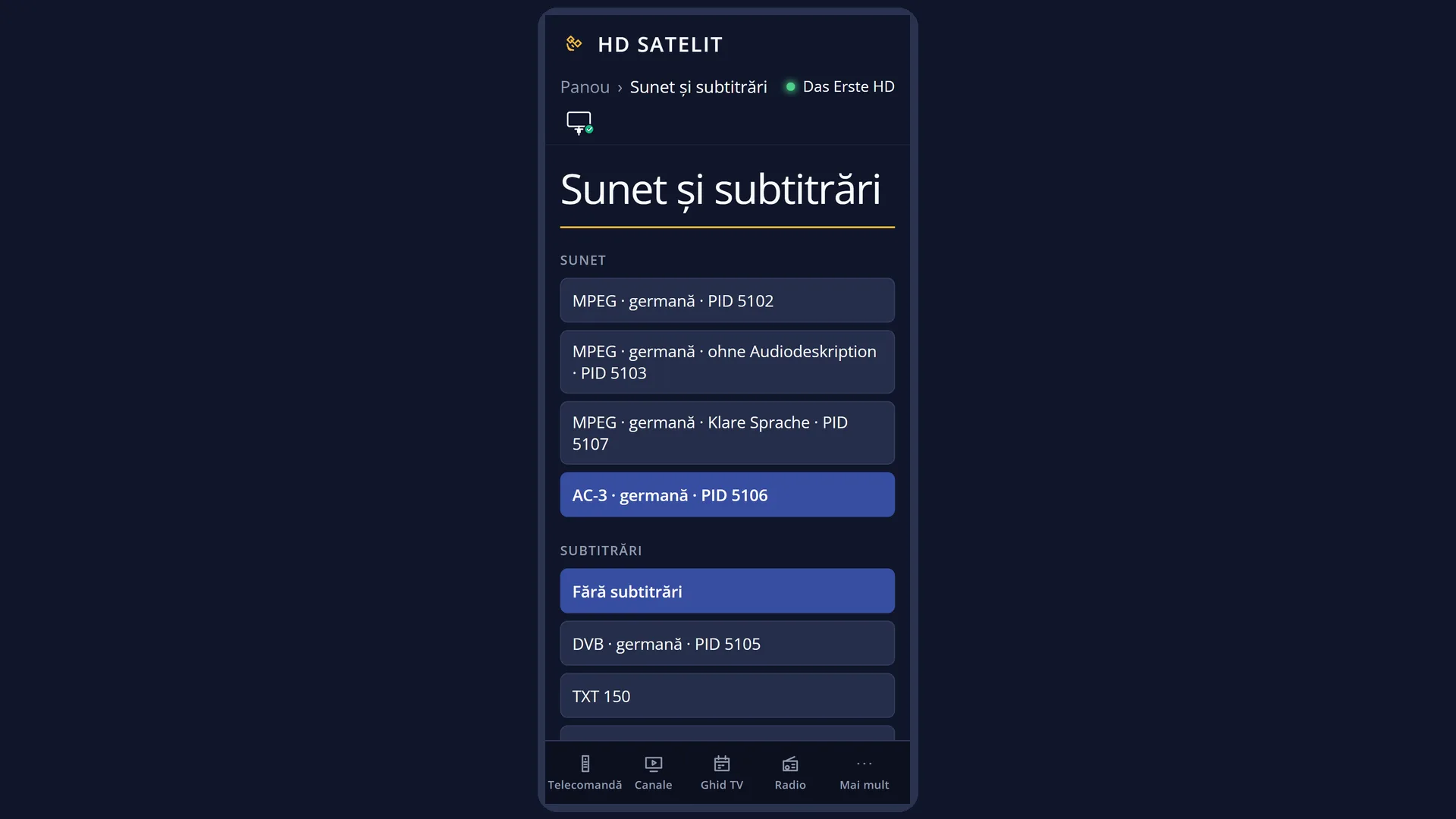
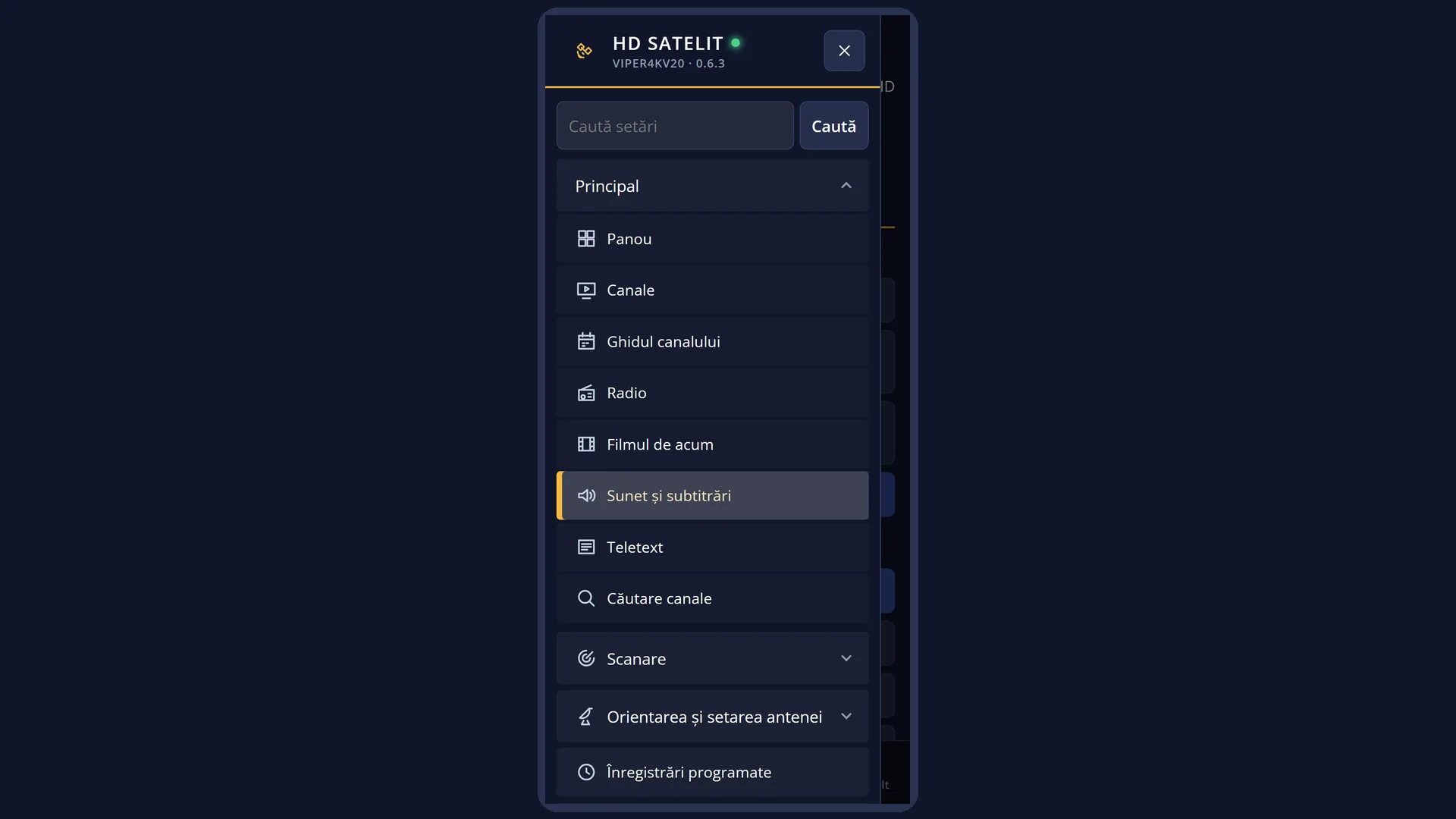
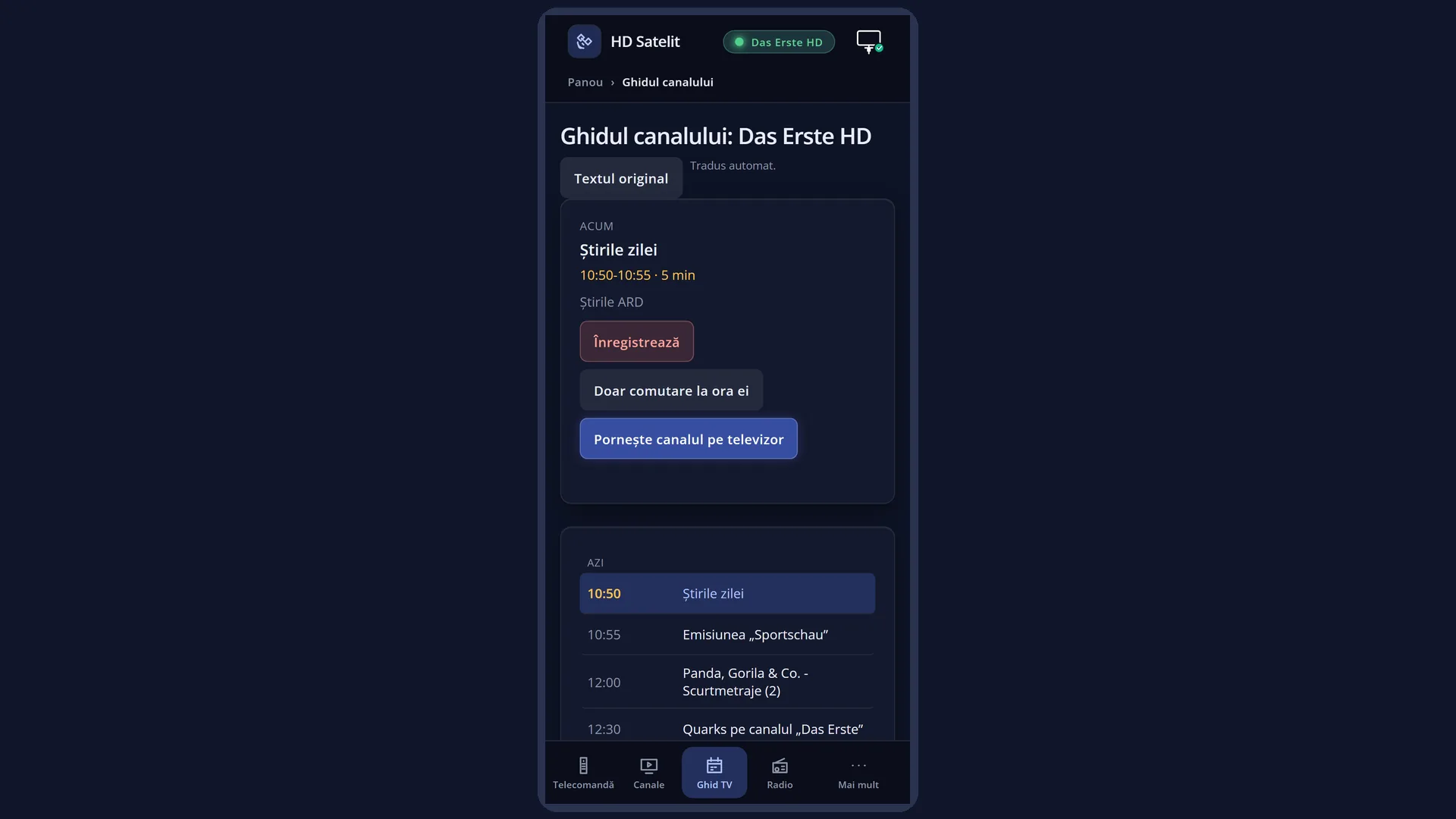
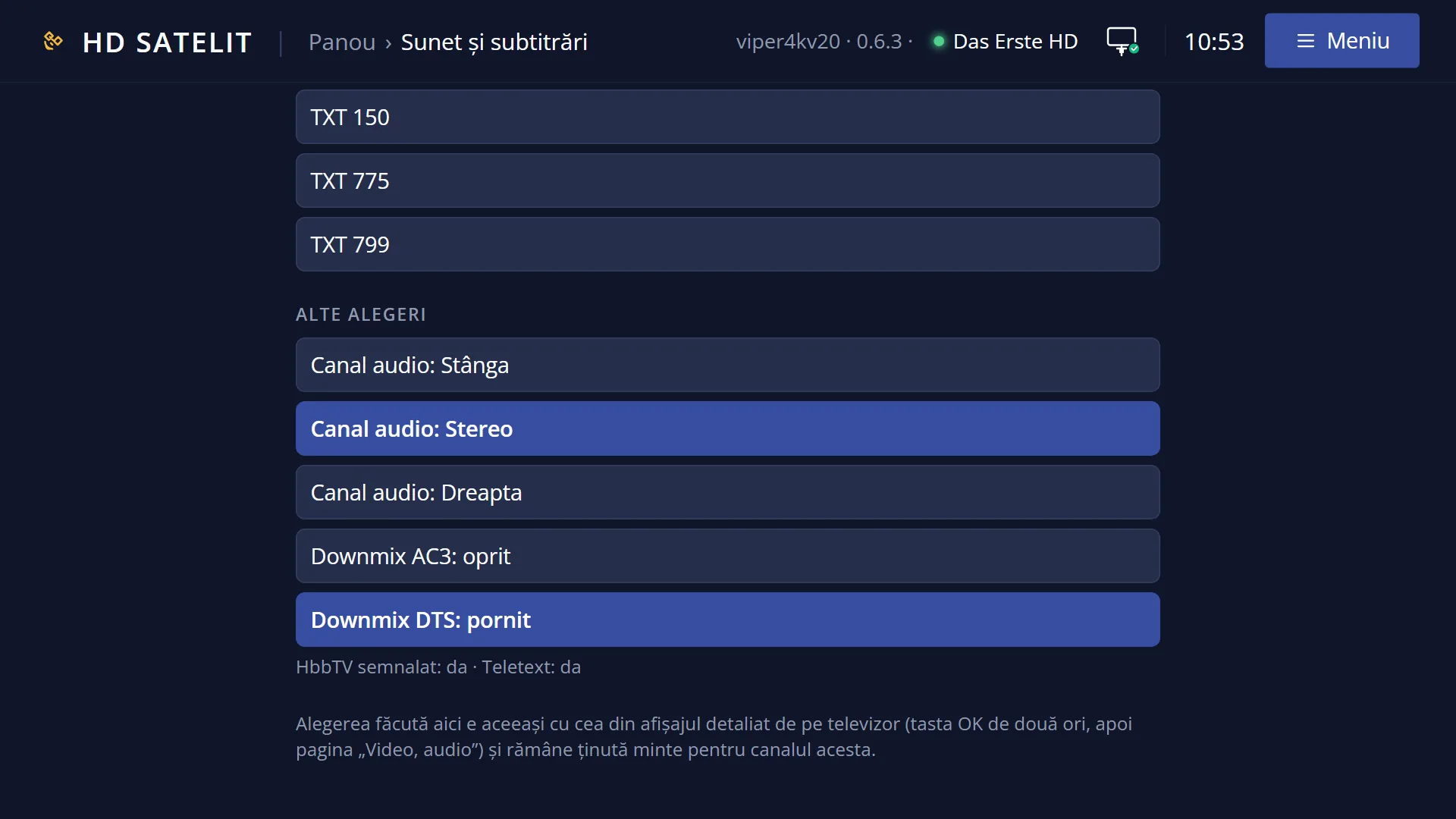
In the web interface: the channel guide is at /ghid, the audio tracks and subtitles at /piste.
What you see on the screen
At the top of every page: the channel number and name, the current programme (start time and title), the clock, the date and the network icon. While the channel is being streamed on the network, Streaming appears between the name and the clock.
Below them is the page strip: on the left the page title in capital letters, on the right the page dots (the lit dot is the current page). On “TV guide” the strip also shows the colour keys that work there: RED “Record”, GREEN “Timer”, YELLOW “Guide”, BLUE “All channels” (on a programme with a timer, RED and GREEN show “Cancel”). After you set a recording, the strip shows a message for a few seconds, for example “Recording set: ...”.
The “TV guide” page: on the left the selected programme (day and time, title, times with genre and age rating where available, the short and long description); on the right the “Programme” list with the programmes from now on, eight on screen, with a count in the corner (for example “1-8 / 42”). The current programme has a yellow bar on the left. A red dot at the end of a row means a scheduled recording, a yellow dot a scheduled channel switch. At the bottom, the help row tells you what the arrow keys and OK do at that moment.
The “Reception and signal” page: in the Reception column the satellite (or cable, terrestrial), frequency, SR / FEC, system, band and intermediate frequency, and network; in PARAMETERS the modulation, rolloff and pilot, inversion, MIS / PLS, T2-MI (for terrestrial: constellation, code rate, guard interval, transmission mode, PLP); in Signal the signal and quality with coloured bars (green good, yellow borderline, red weak), SNR and BER; in Status the tuner status, the tuner in use, then the picture (VIDEO) and the sound (AUDIO).
The “Dish and tuner” page: the tuner, its mode and status, the reception; under Dish the satellite, DiSEqC and polarisation (for terrestrial, the 5 V antenna power); under LNB the type, band and frequency; under MOTOR, only with a motorised dish, the mode and dish position.
The “Video, audio, subtitles” page: at the top the VIDEO row (codec, resolution, format, bit rate). Below it are three columns: AUDIO (the audio tracks), Subtitles (with “No subtitles” first) and Other choices (audio channel left, stereo or right, AC3 downmix, DTS downmix, and “Back to automatic choice” when you have chosen something by hand on the channel; below these, read only, whether the station announces HbbTV and what the sound is doing). The track playing now is marked. At the bottom: “Up / Down: choose · OK: start · Left / Right: page · EXIT: close”.
The “Serviciu and PID-uri” page: under IDENTITY the SID, TSID / ONID, namespace, service type, provider and whether it has teletext and HbbTV; under PIDs the PMT, PCR, video, audio, subtitles and teletext.
The “Receiver” page: the model, the image, the processor (frequency, number of cores), then the processor load, free memory, how long it has been on, the temperature, then the network (IP address, link, internet, how many clients are receiving a channel over the network right now) and, where the receiver has them, the processor mode, the voltage and the time spent at each frequency.
At the bottom of any page there is an extra strip, only when the channel is a DVB-T2 programme or a DAB+ station received via satellite: where it comes from (for example “DVB-T2 via satellite (T2-MI)”) and the stream data.
Rows and settings
| Row | Values | Default | What it does |
|---|---|---|---|
| Technical page | Full screen, Window at top | Full screen | Full screen: the second bar covers the screen. Window at top: the same pages in a smaller window at the top; the first bar can be seen below it, with the new channel name when you change channel. The row is in Menu > Settings > Interface & Appearance > Skin settings (MENU 6 6 3). When you want to see the channel's picture while you read the pages. |
| Time on technical page | Manual (only with left / right), 4, 5, 6, 7, 8, 10, 12, 15 or 20 seconds | Manual (only with left / right) | Manual: the page changes only with LEFT / RIGHT. With a number of seconds, the pages change by themselves one after another; any key you press on the bar restarts the count. This row is also in Skin settings. When you want the bar to go through the pages by itself, for example on a demonstration receiver. |
Keys
| LEFT / RIGHT | Previous / next page. From the last page you go to the first. CH+ / CH- and < / > work the same way. |
| UP / DOWN | On “TV guide”: move the cursor through the programmes (in the full description, they scroll the text). On “Video, audio, subtitles”: move the cursor through the tracks, subtitles and options. On the other pages they do nothing. |
| OK | On “TV guide”: once you have moved the cursor, shows the full description of the selected programme; in the description, opens the programme menu (“Record”, “Set a timer”, “Channel guide”, “Guide of all channels”). If you have not moved the cursor, it closes the bar. On “Video, audio, subtitles”: starts the track, subtitle or option under the cursor (OK on the subtitle that is showing turns it off). On the other pages: closes the bar. |
| EXIT | In the full description: back to the programme list. Otherwise it closes the bar. |
| INFO | On “TV guide”: shows or hides the full description of the selected programme. With guide translation turned on, INFO on the translated description shows the original. |
| RED / record | On “TV guide”: records the selected programme. The current programme starts recording straight away; a later one is added to the timers. If it already has a recording, it asks “Remove the timer for ...?”. |
| GREEN | On “TV guide”: opens the timer window for the selected programme; if it already has one, it asks whether you want to remove it. |
| YELLOW / EPG | On “TV guide”: the channel guide, on the selected programme. |
| BLUE | On “TV guide”: the guide of all channels. |
| The colour keys on the other pages | Close the bar. |
| The digits | Change the channel as usual; the bar stays open and is rebuilt for the new channel, starting from the first page. |
Step by step
Record a later programme from the bar's guide
- Press OK twice. “TV guide” opens.
- Use DOWN to choose the programme in the list on the right.
- Press RED. The top strip shows “Recording set: ...” and the programme's row gets a red dot.
Change the audio language or the subtitles without leaving the channel
- Press OK twice, then RIGHT until you reach “Video, audio, subtitles”.
- Use UP / DOWN to move the cursor to the track or subtitle you want.
- Press OK. The change happens straight away and is remembered for the channel; EXIT closes the bar.
Check the reception of a channel that keeps stopping
- Press OK twice, then RIGHT until you reach “Reception and signal”.
- Look at Signal and Quality: green is good, yellow borderline, red weak. A high BER means errors in the signal.
- On “Dish and tuner” you see which tuner, which LNB and which DiSEqC position the channel uses.
Problems and solutions
The bar does not start with “TV guide”.
The channel has no programme guide at the moment (or the receiver has not read it yet), so the guide page is missing. Wait a little on the channel or check the guide with EPG.
Some pages are missing when you press LEFT / RIGHT.
Only pages with data are shown: “Dish and tuner” only for channels received through an antenna or dish, “Serviciu and PID-uri” for channels and recordings, the guide only when there is a programme guide.
OK closes the bar instead of showing the description.
OK opens the description only after you have moved the cursor with UP / DOWN. For the current programme, press INFO.
RED does not record anything in the guide.
When you play back a recording, the guide is read only. For a DVB-T2 programme or a DAB+ station received via satellite, the receiver says it cannot record it yet. Without a USB stick or hard disk, the receiver opens “Recordings location”.
The pages change by themselves.
In Skin settings, “Time on technical page” is set to a number of seconds. Choose “Manual (only with left / right)”.
On “Video, audio, subtitles” I cannot see AC3 downmix or the audio channel.
These rows appear only when they can be used: the audio channel for channels with audio tracks, downmix when the sound hardware supports it.
I cannot see the channel's picture while the bar is open.
Set “Technical page” to “Window at top” in Skin settings.
Related topics
- The first info bar
- Choosing the audio track (AUDIO)
- Choosing subtitles (SUBT)
- The channel guide
- The guide of all channels
- Scheduled recordings
- Skin settings (the bar's layout and page rotation)
- The matching web pages: /ghid (the guide) and /piste (sound and subtitles).