

Aspect ratio (screen key 2)
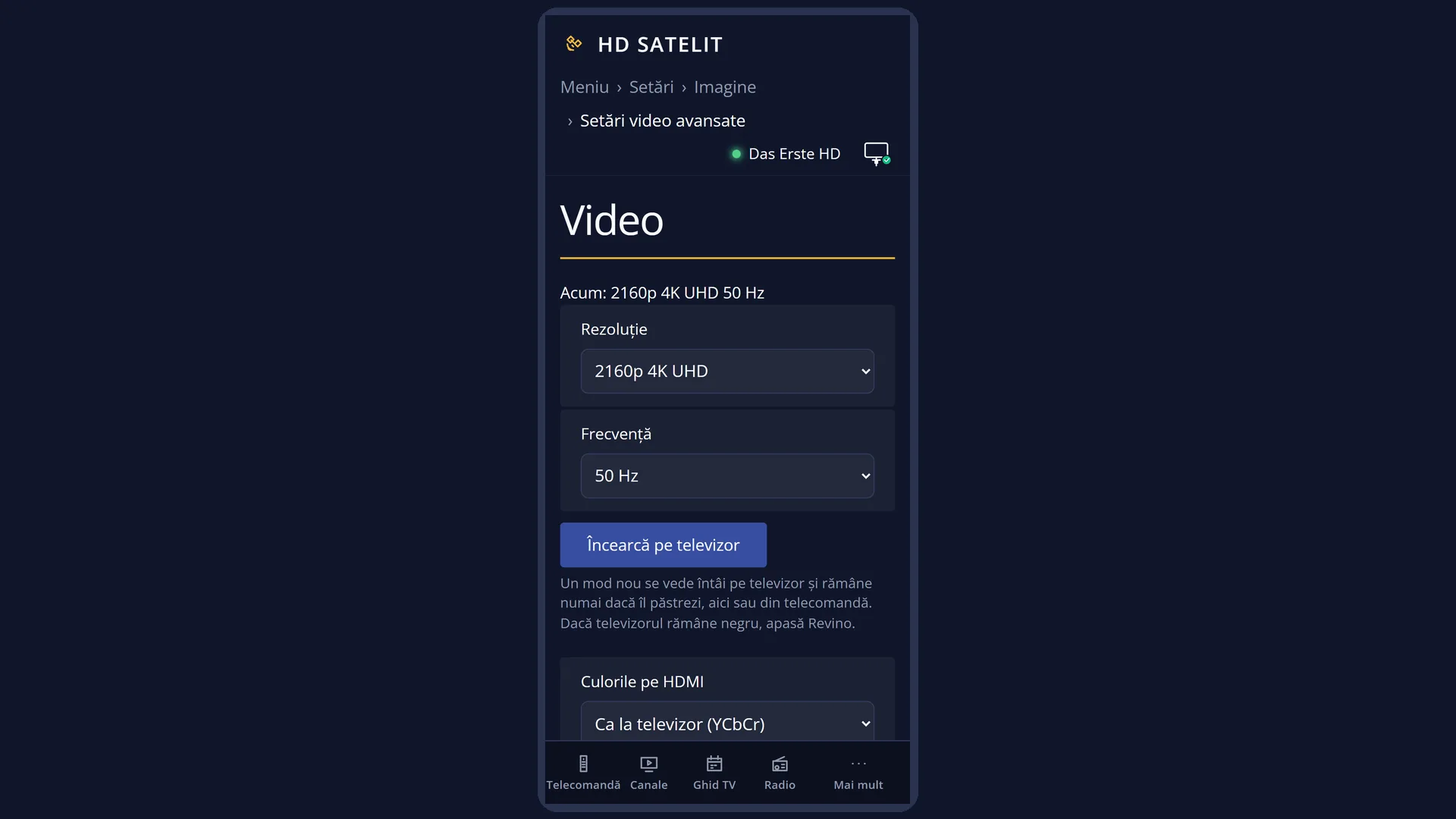
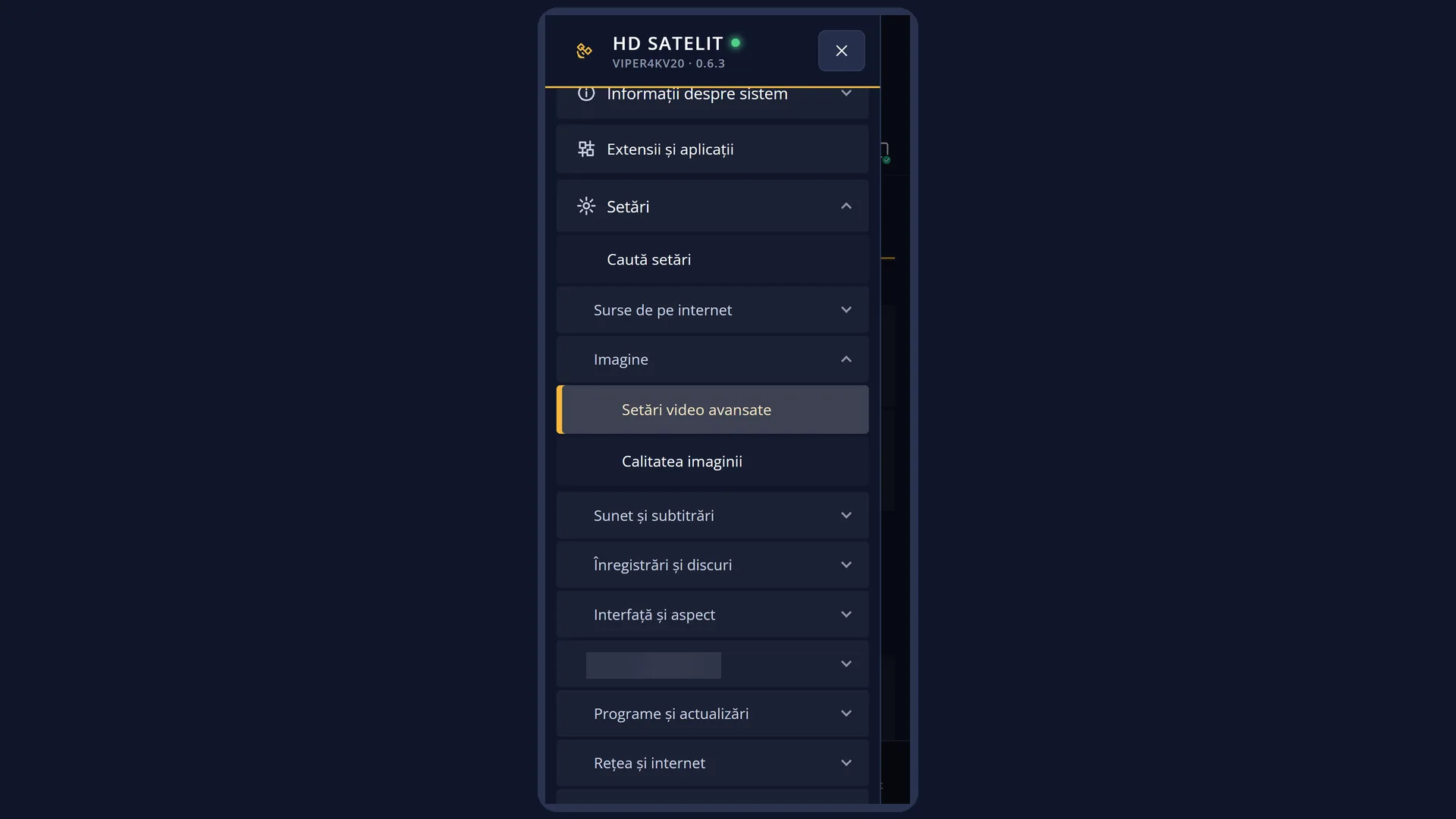
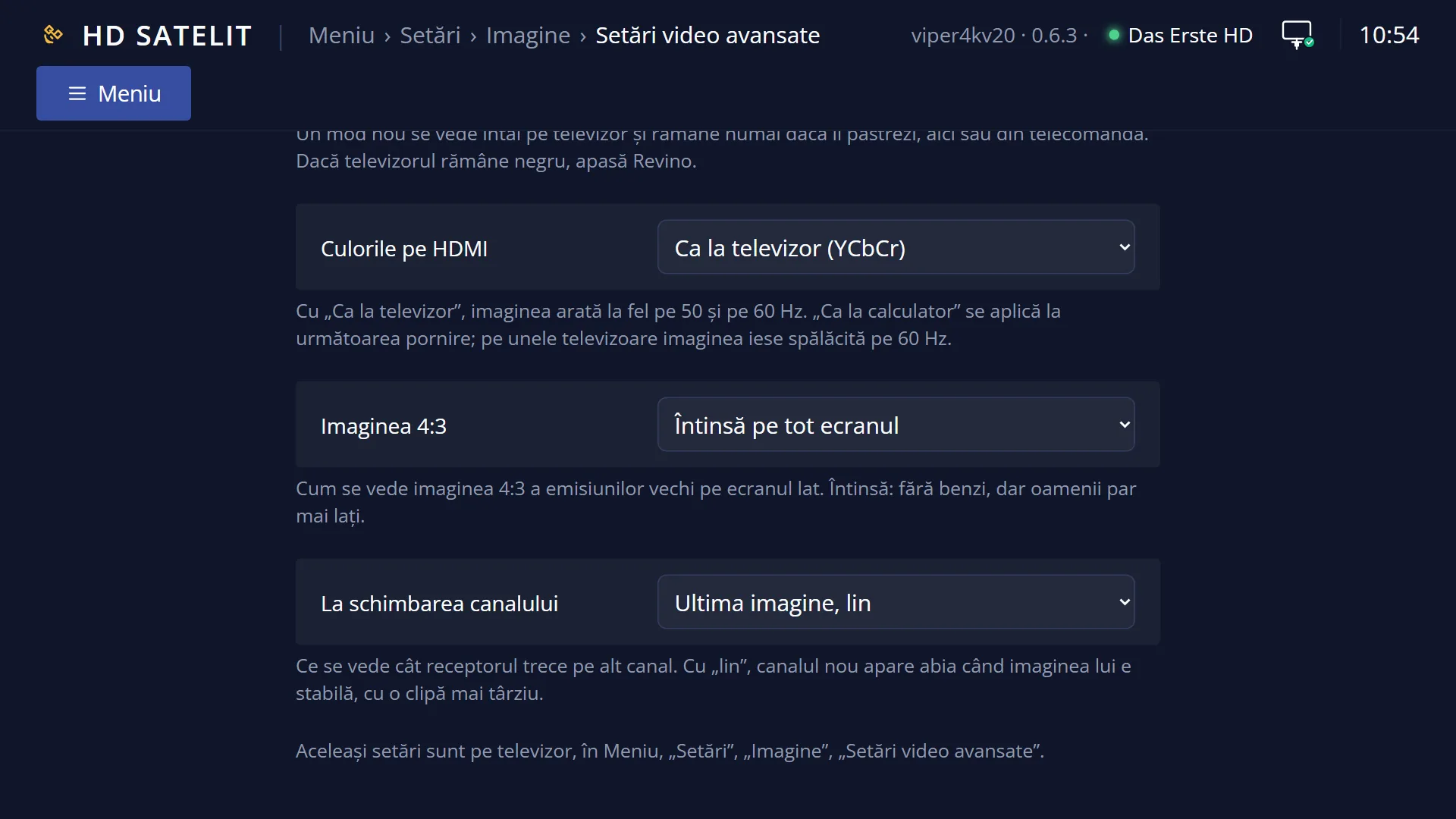
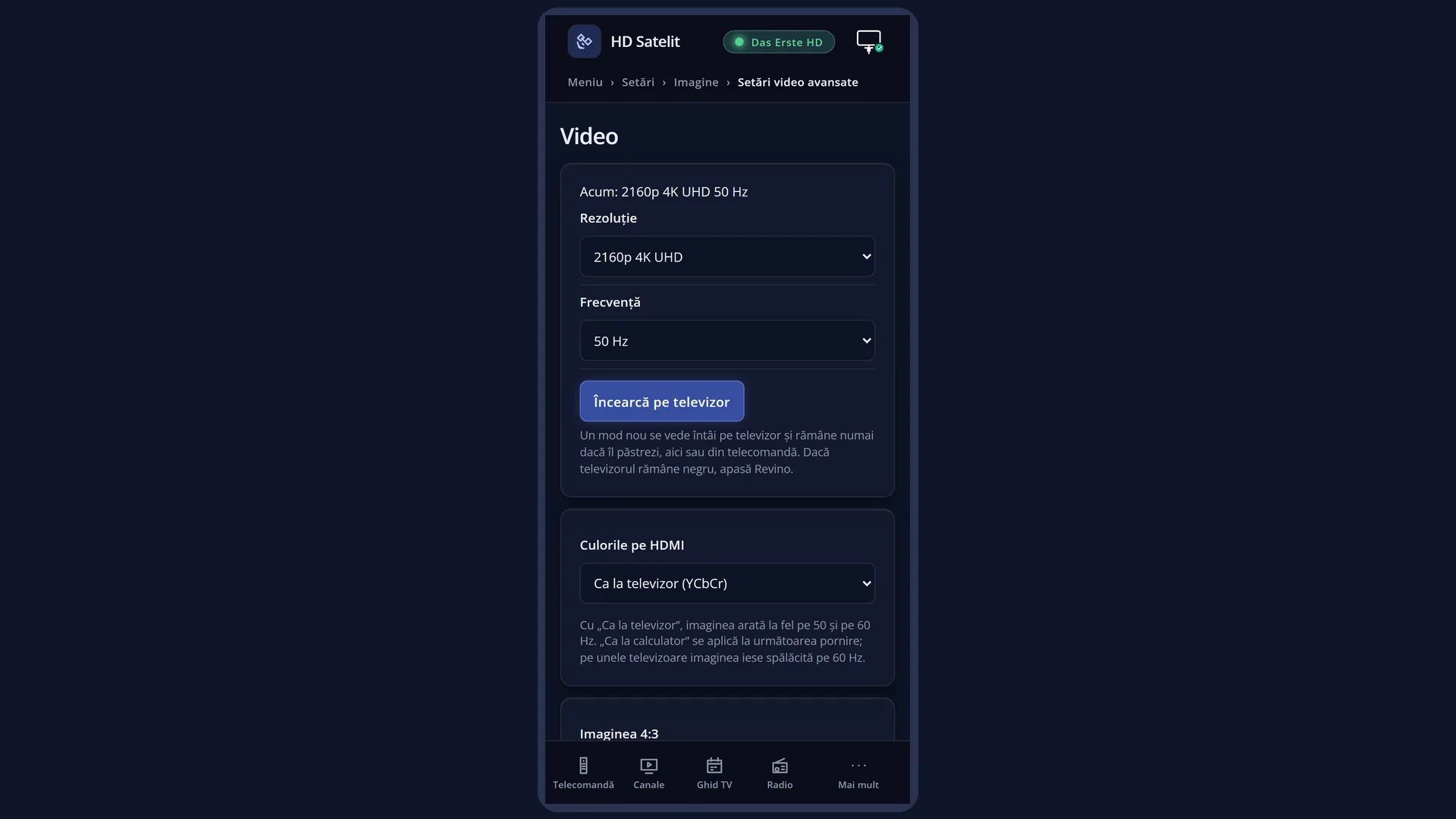
English screenshots coming: some of the pictures below still show the receiver and the web interface in Romanian. The rows, keys and steps described on this page are the English ones.
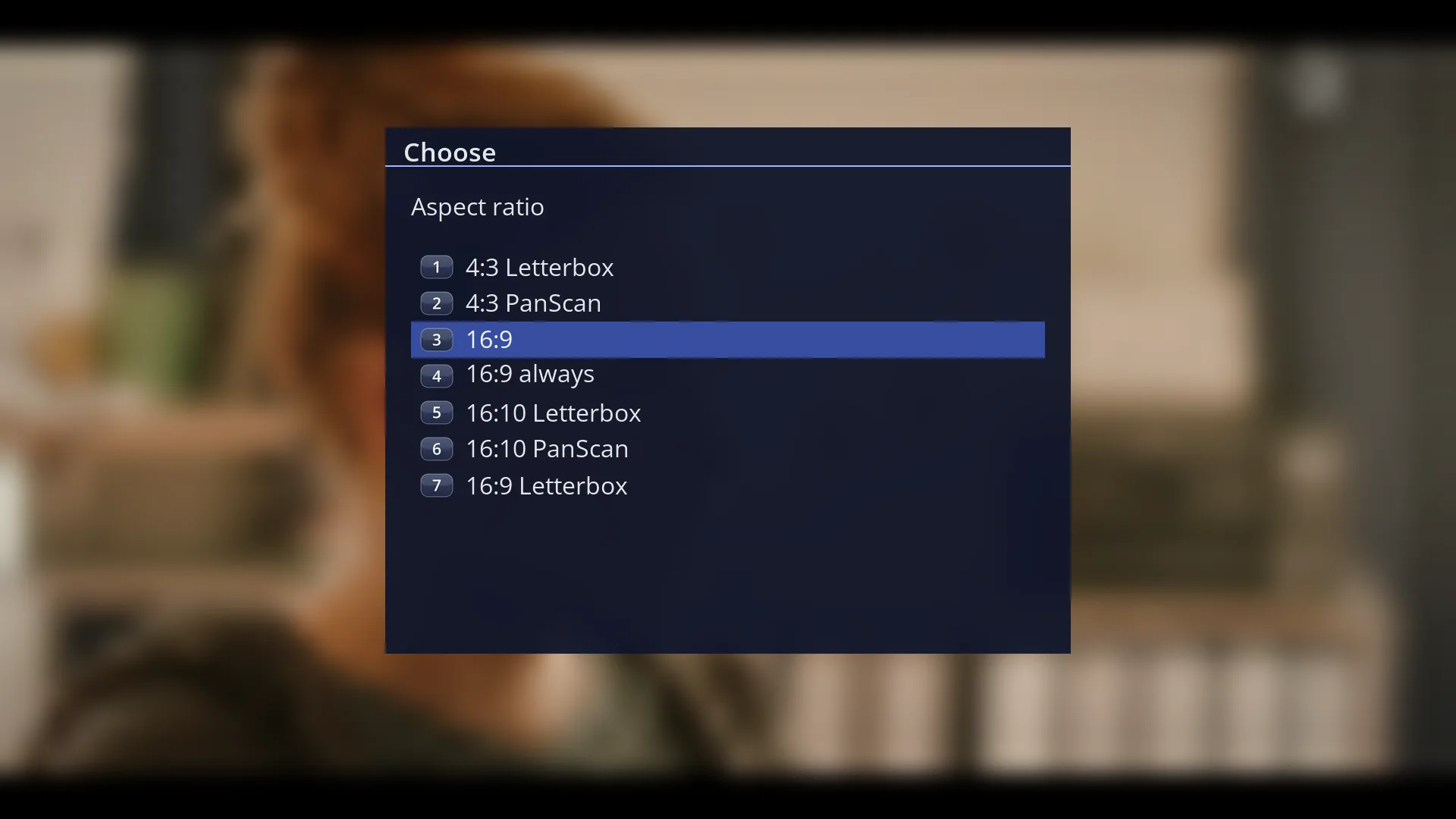
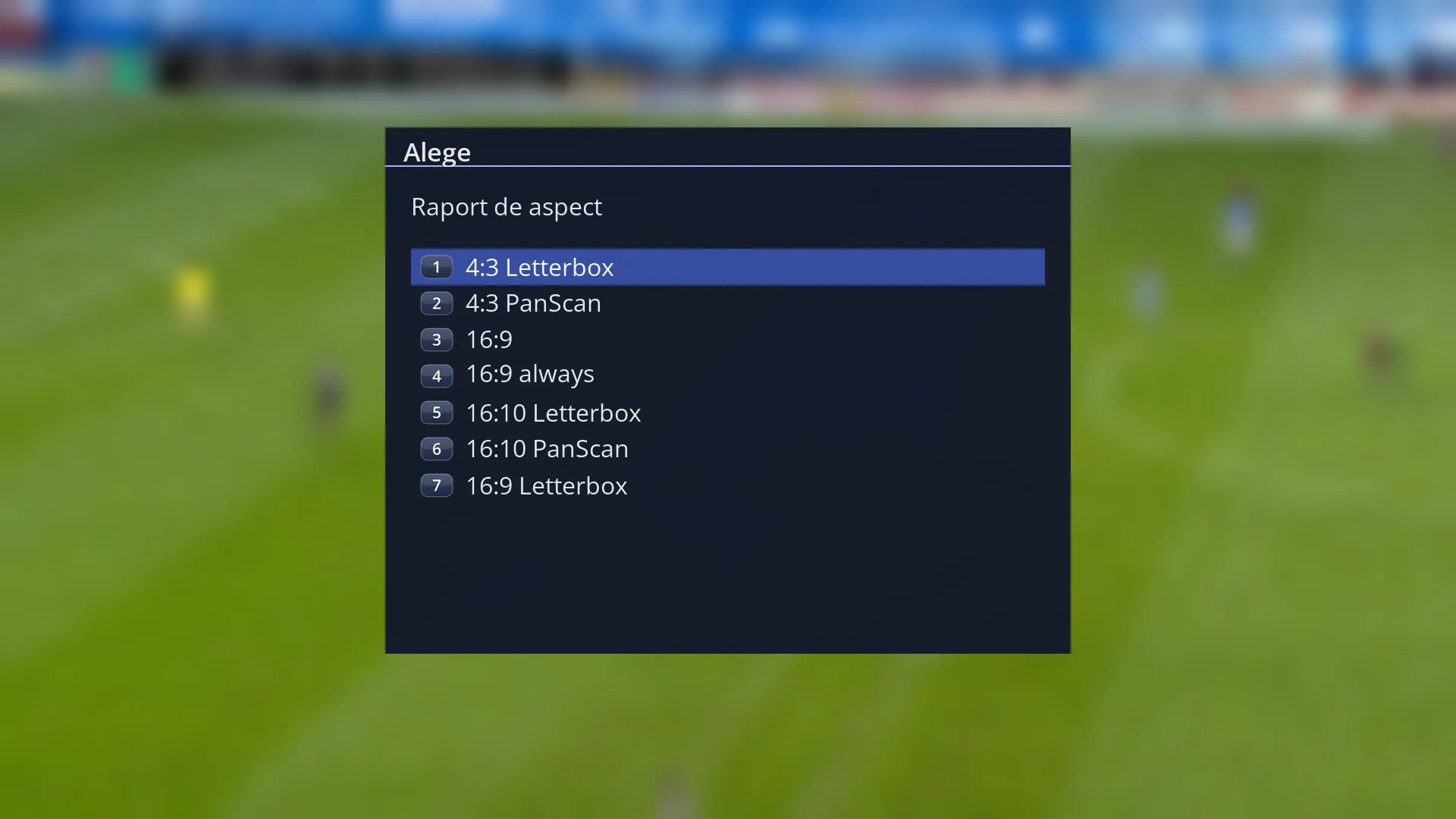
- 1 The title: “Aspect ratio”.
- 2 The formats; the cursor is on the current one. OK applies it and saves it.
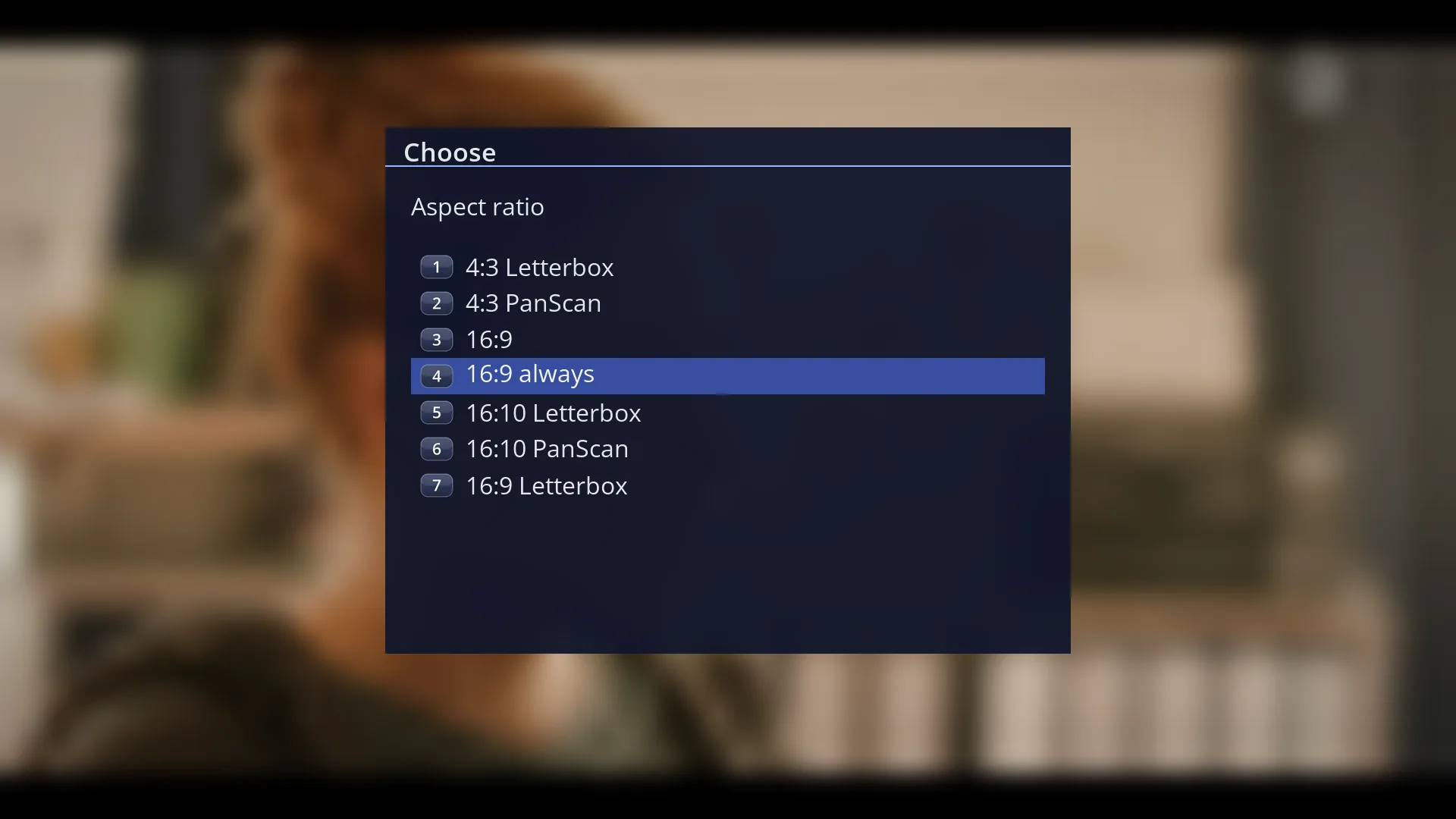
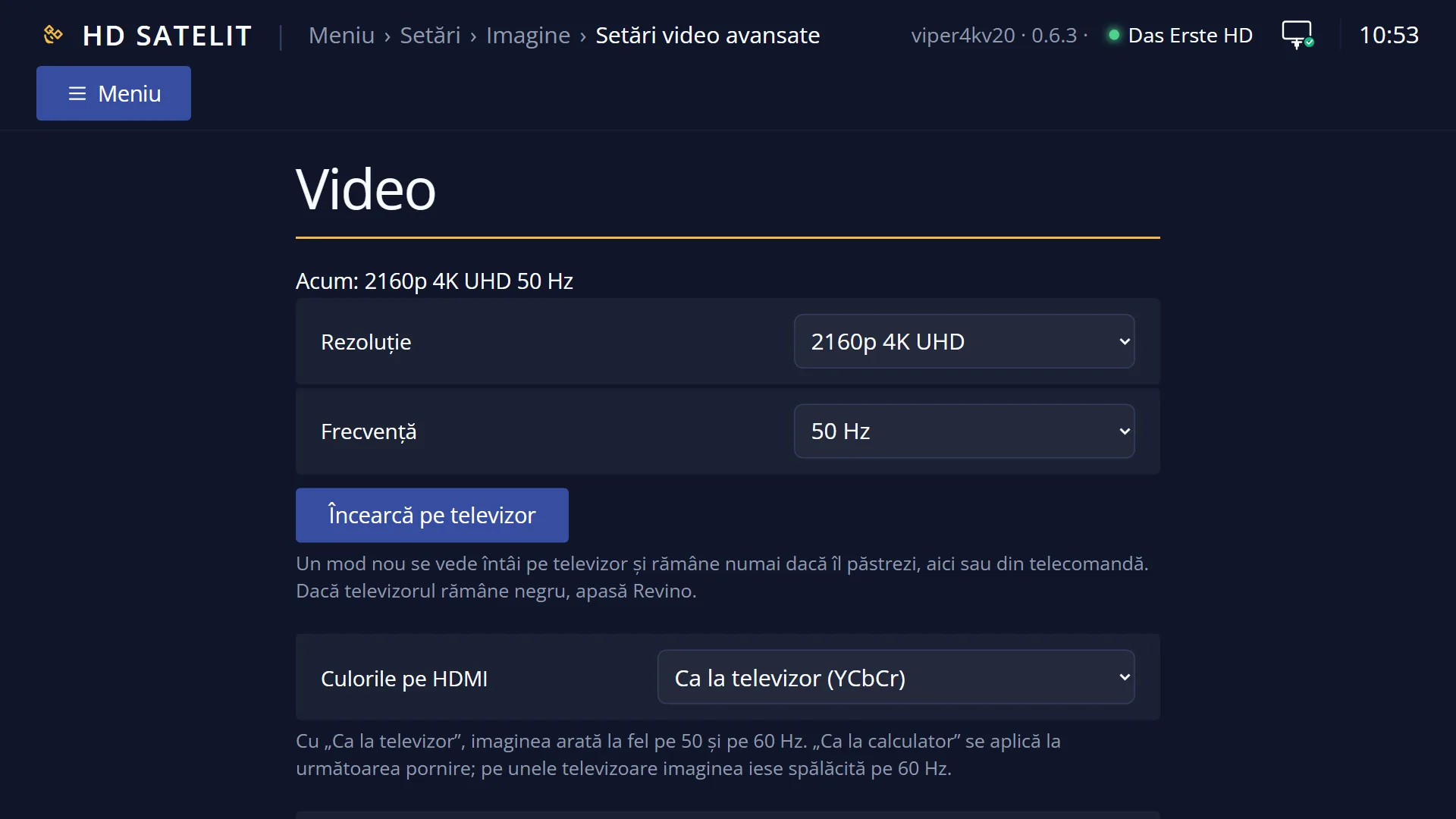
- 1 The selected row: “16:9 always”.
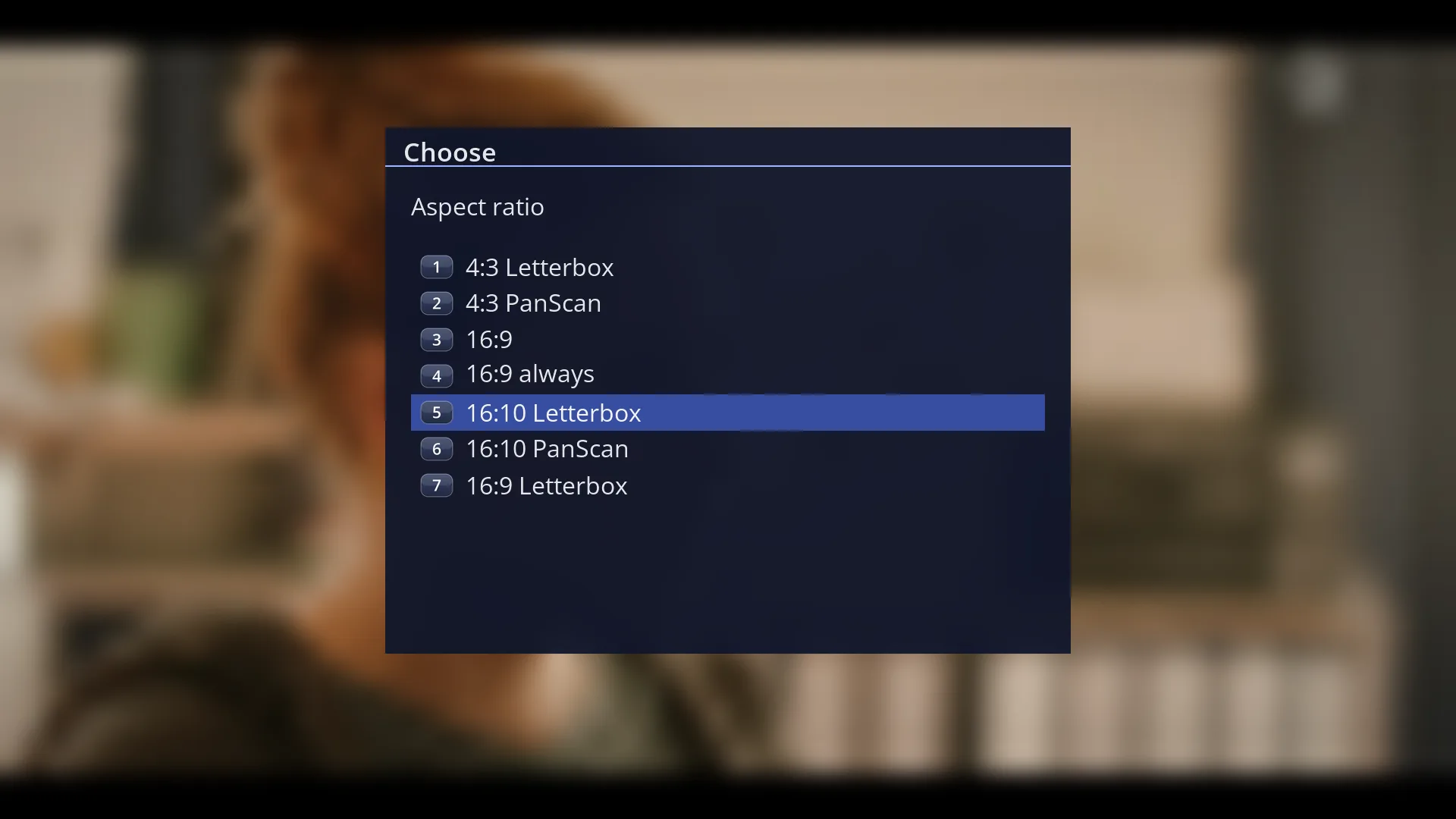
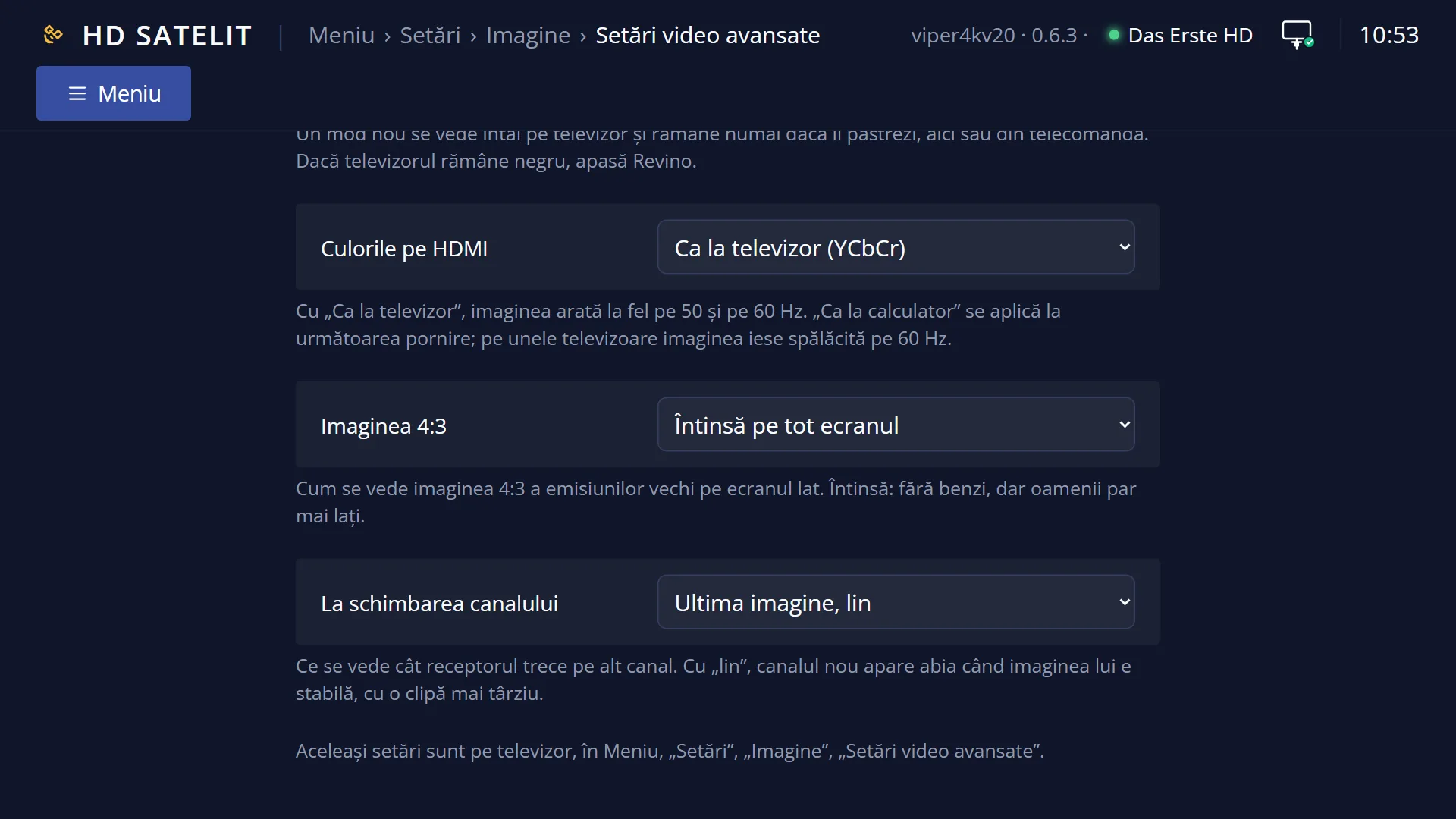
- 1 The selected row: “16:10 Letterbox”.
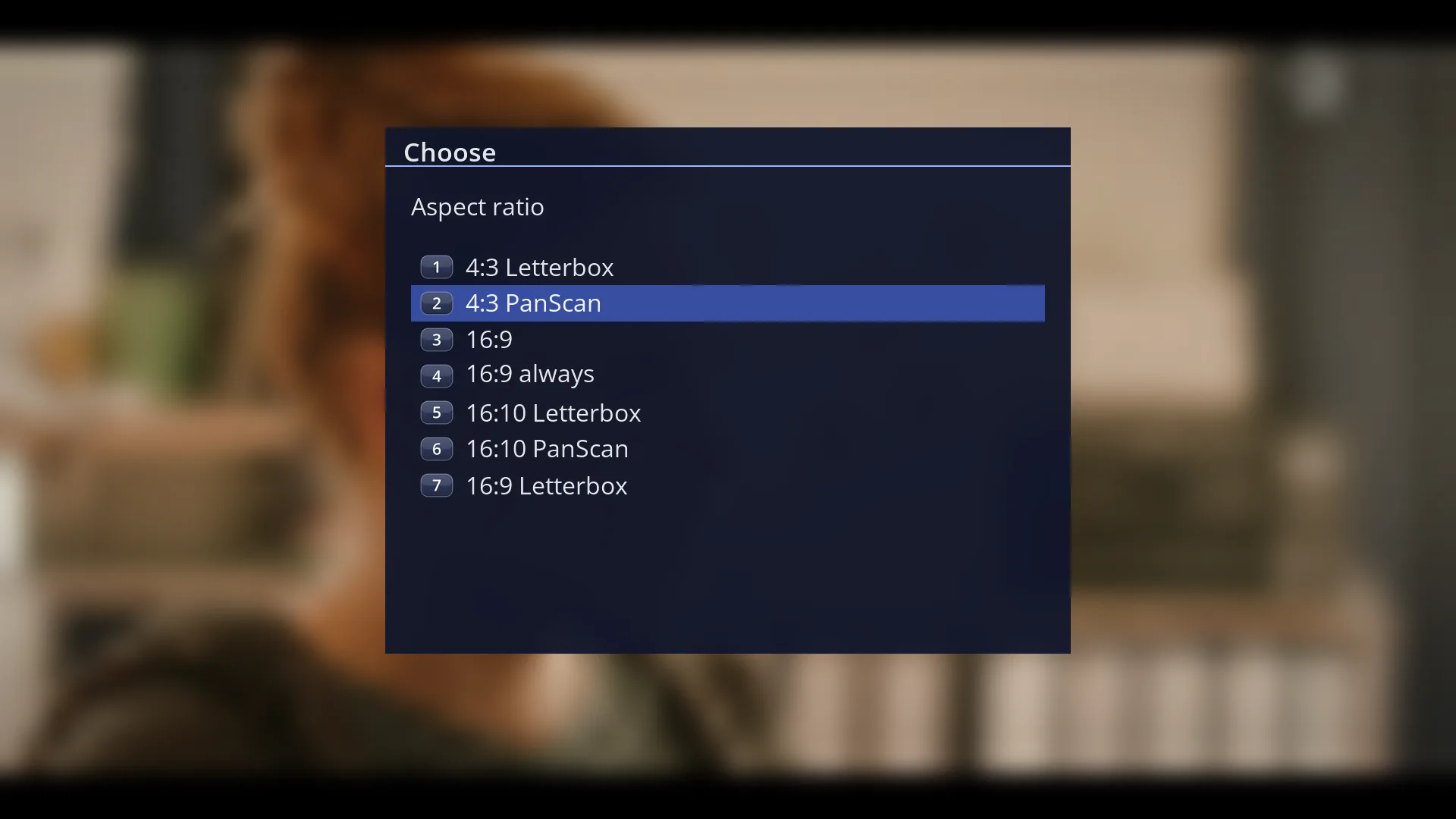
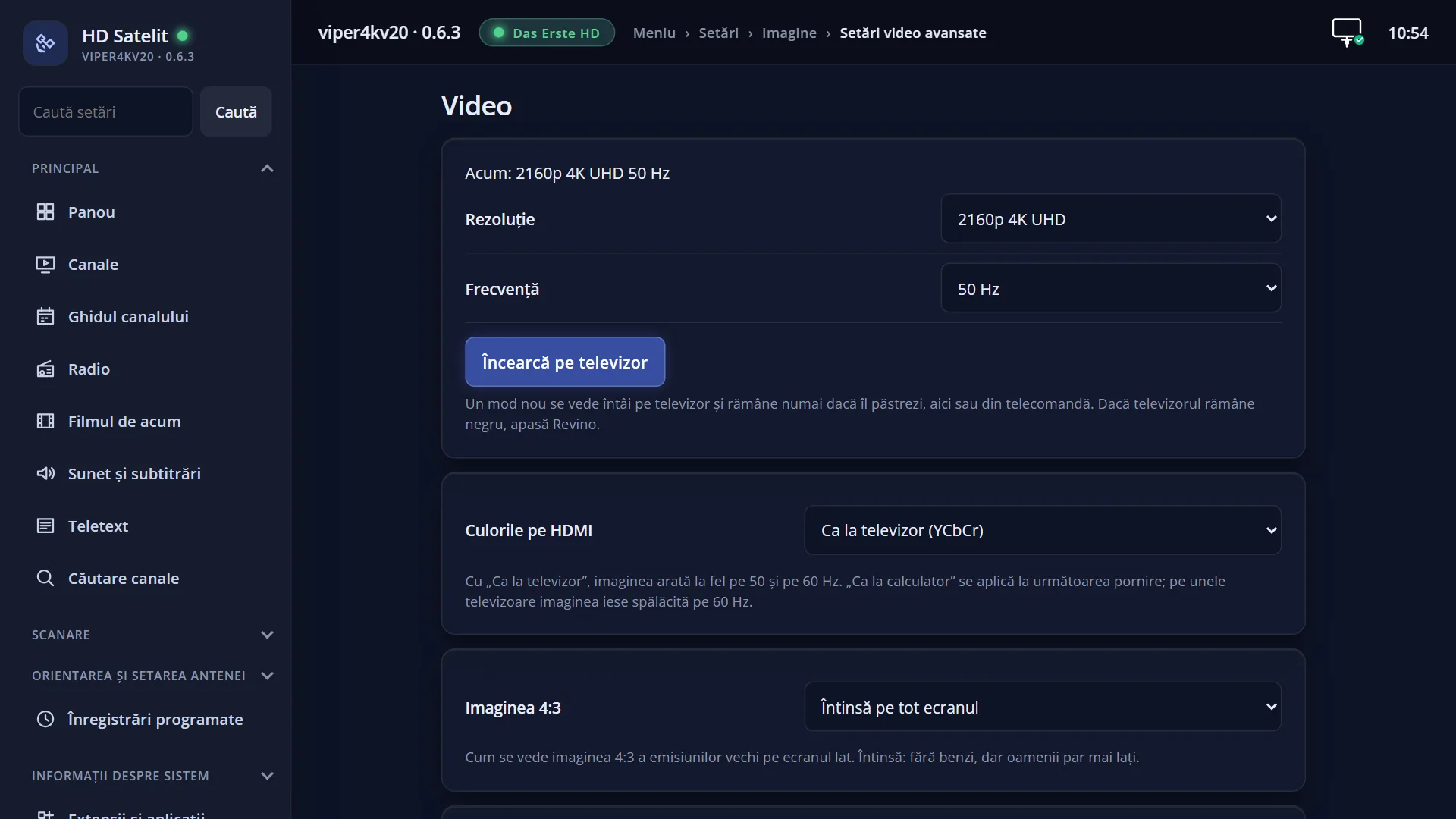
- 1 The selected row.
What it is for
The “Aspect ratio” window sets how the picture fits your TV screen: for a widescreen TV (16:9), for an old TV (4:3) or for a 16:10 screen.
You open it with one press of screen key 2, without going into the menu. Your choice applies straight away and is saved.
The factory setting is “16:9 always”, which suits any widescreen TV: old 4:3 programmes show in full, with black bars at the sides.
How to get here
From live TV: screen key 2 (the middle key, with the picture of side bars).
It works the same way in the recordings and film player.
The same row, “Aspect Ratio”, is also in Menu > Settings > Audio & Sound Tracks > Sound Output & Downmix (MENU 6 4 1).
There is no equivalent in the web interface.
What you see on the screen
A small window titled “Aspect ratio” with the list of formats, with the cursor on the one currently selected.
The formats: “4:3 Letterbox”, “4:3 PanScan”, “16:9”, “16:9 always”, “16:9 Letterbox”, “16:10 Letterbox”, “16:10 PanScan”.
Rows and settings
| Row | Values | Default | What it does |
|---|---|---|---|
| Aspect Ratio | 4:3 Letterbox, 4:3 PanScan, 16:9, 16:9 always, 16:9 Letterbox, 16:10 Letterbox, 16:10 PanScan | 16:9 always | Tells the receiver what kind of screen you have. With a 16:9 or 16:10 format the receiver sends a wide picture; how old 4:3 programmes then look is set in the “4:3 picture” row on the “Video” screen. The 4:3 formats are for an old 4:3 TV: Letterbox and PanScan are two ways of fitting the wide picture onto it, and the “4:3 picture” row no longer appears. When you have a 4:3 TV or a 16:10 screen, or when the picture looks squashed or stretched on every channel. |
| 4:3 picture | Whole, with black bars at the sides, Zoomed, cut at the top and bottom, Stretched to the whole screen, Stretched more towards the edges, Automatic | Whole, with black bars at the sides | How the 4:3 picture of old programmes looks on the wide screen. Stretched: no bars, but people look wider. The row is on the “Video” screen (screen key 1) and in Advanced Video Setup; it only appears with a wide format and only with the values your video card supports. When the black bars on old programmes bother you. |
Keys
| UP / DOWN | Moves the cursor through the formats. |
| OK | Applies the selected format, saves it and closes the window. |
| EXIT | Closes the window without changing anything. |
Step by step
Setting the format for an old 4:3 TV
- Press screen key 2.
- Select “4:3 Letterbox” or “4:3 PanScan” and press OK. The format changes straight away and stays after a restart.
- If the picture does not look right, try the other 4:3 format as well and keep the one that fits.
Going back to the factory format
- Press screen key 2.
- Select “16:9 always” and press OK.
Problems and solutions
Every channel looks squashed or stretched.
The format does not match your TV. On a widescreen TV select “16:9 always”. Also check that the TV is not stretching the picture itself (in the TV's menu, set the picture format to “Original” or “16:9”).
Old programmes have black bars at the sides.
That way they show in full, without distortion. If you want the picture to fill the whole screen, change “4:3 picture” on the “Video” screen (screen key 1).
I cannot find the “4:3 picture” row.
It only appears when a wide format (16:9 or 16:10) is selected here and only when the video card offers this option.