

Up and down arrows while watching
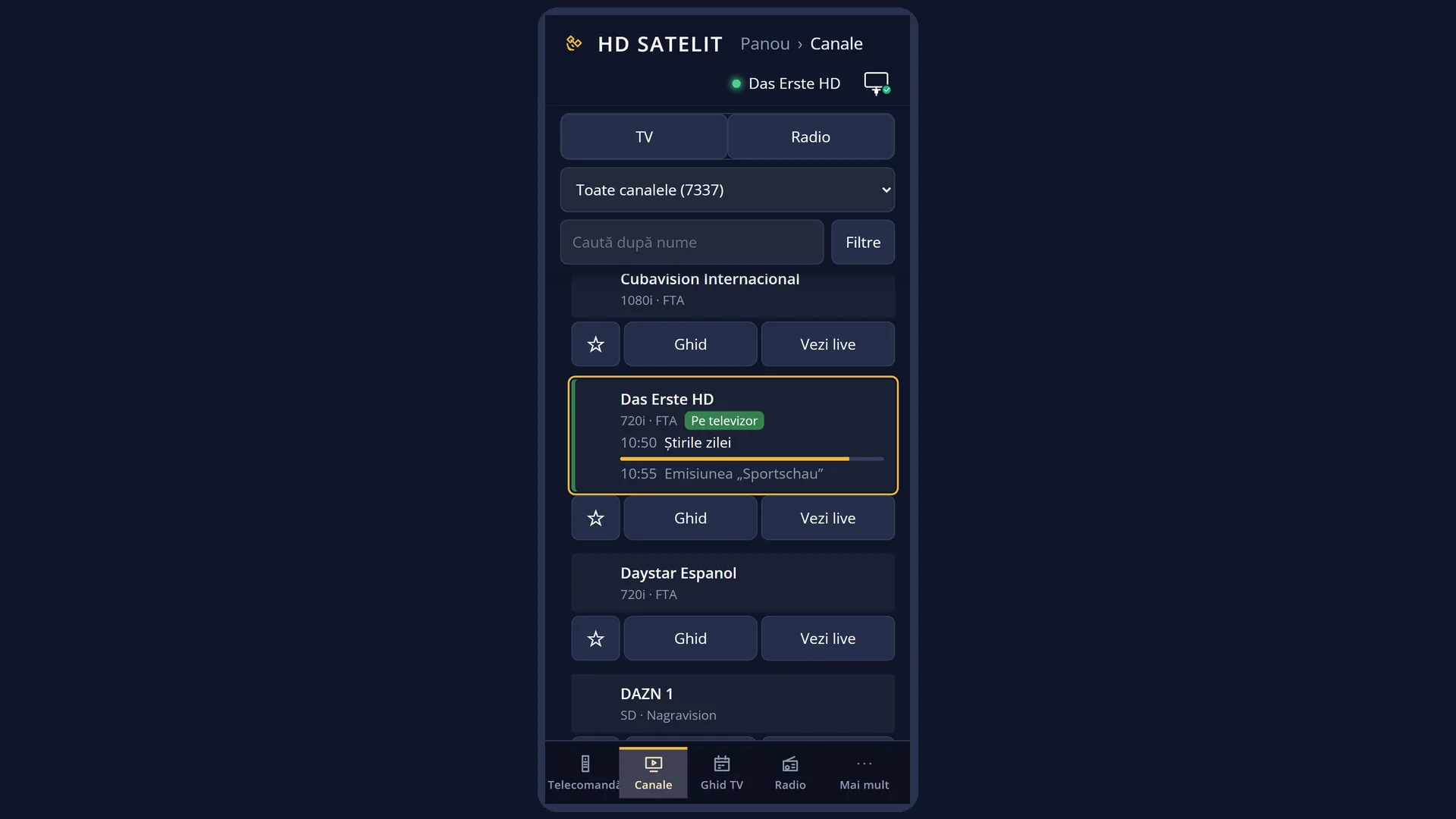
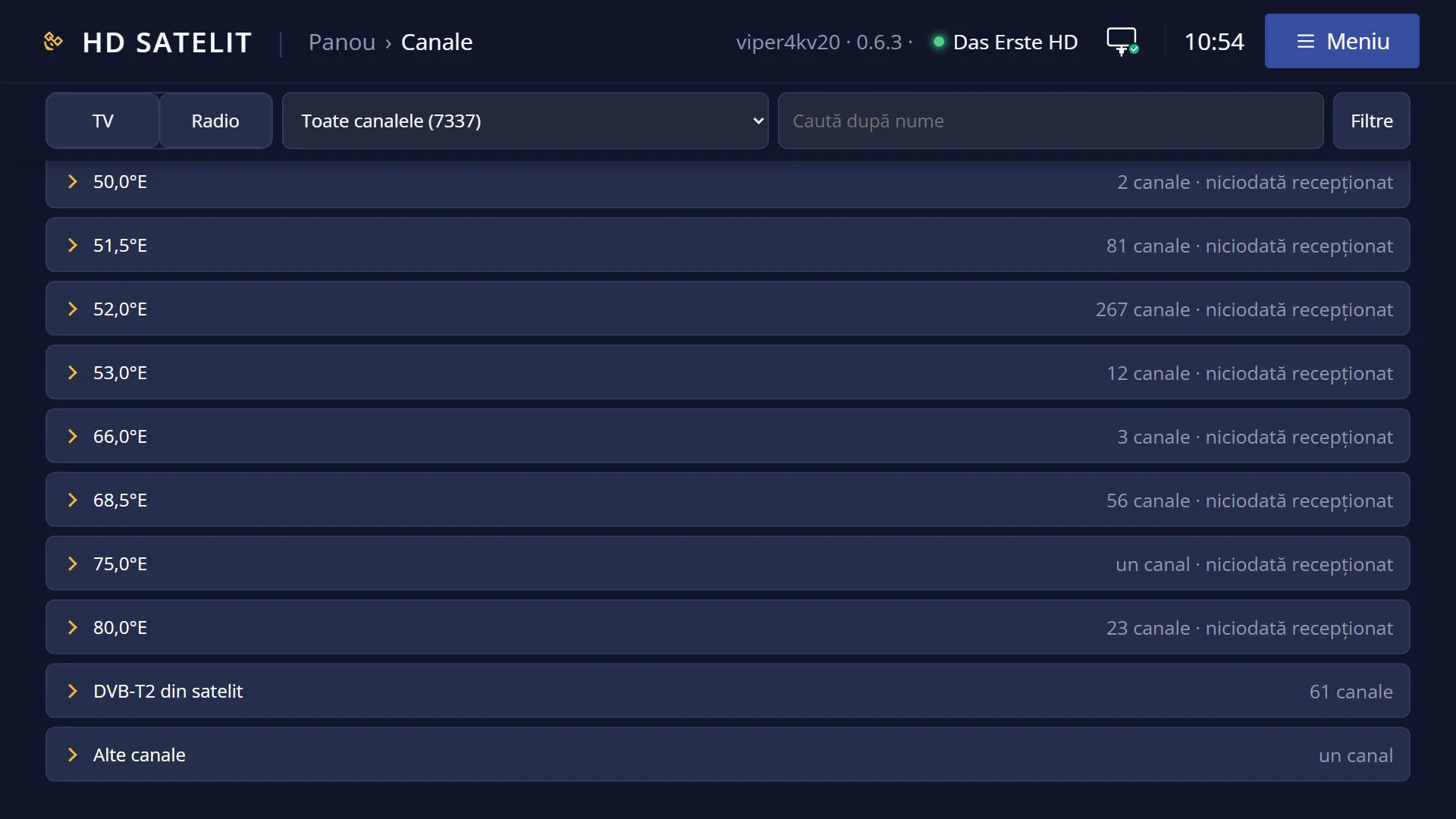
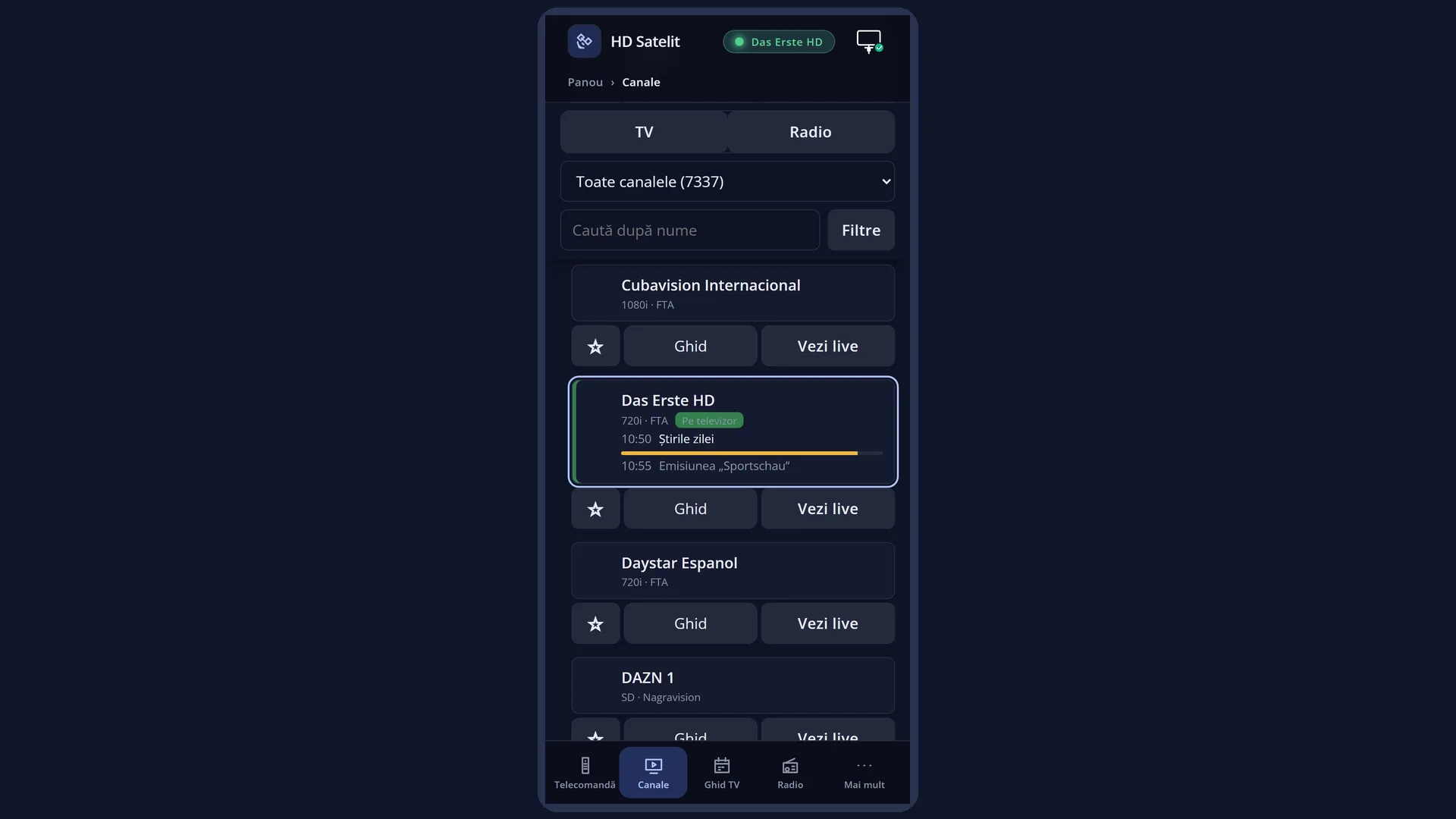
English screenshots coming: some of the pictures below still show the receiver and the web interface in Romanian. The rows, keys and steps described on this page are the English ones.
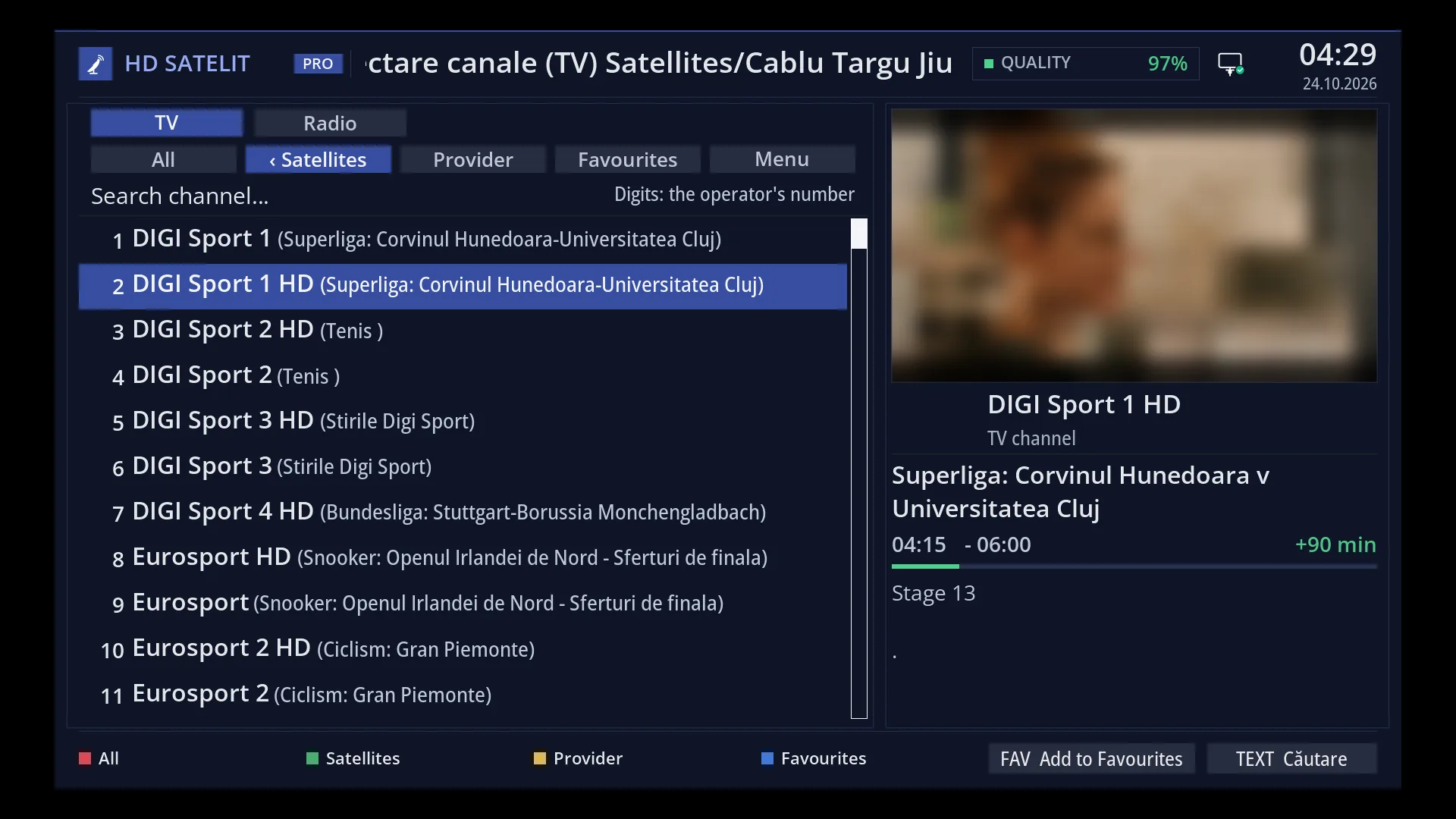
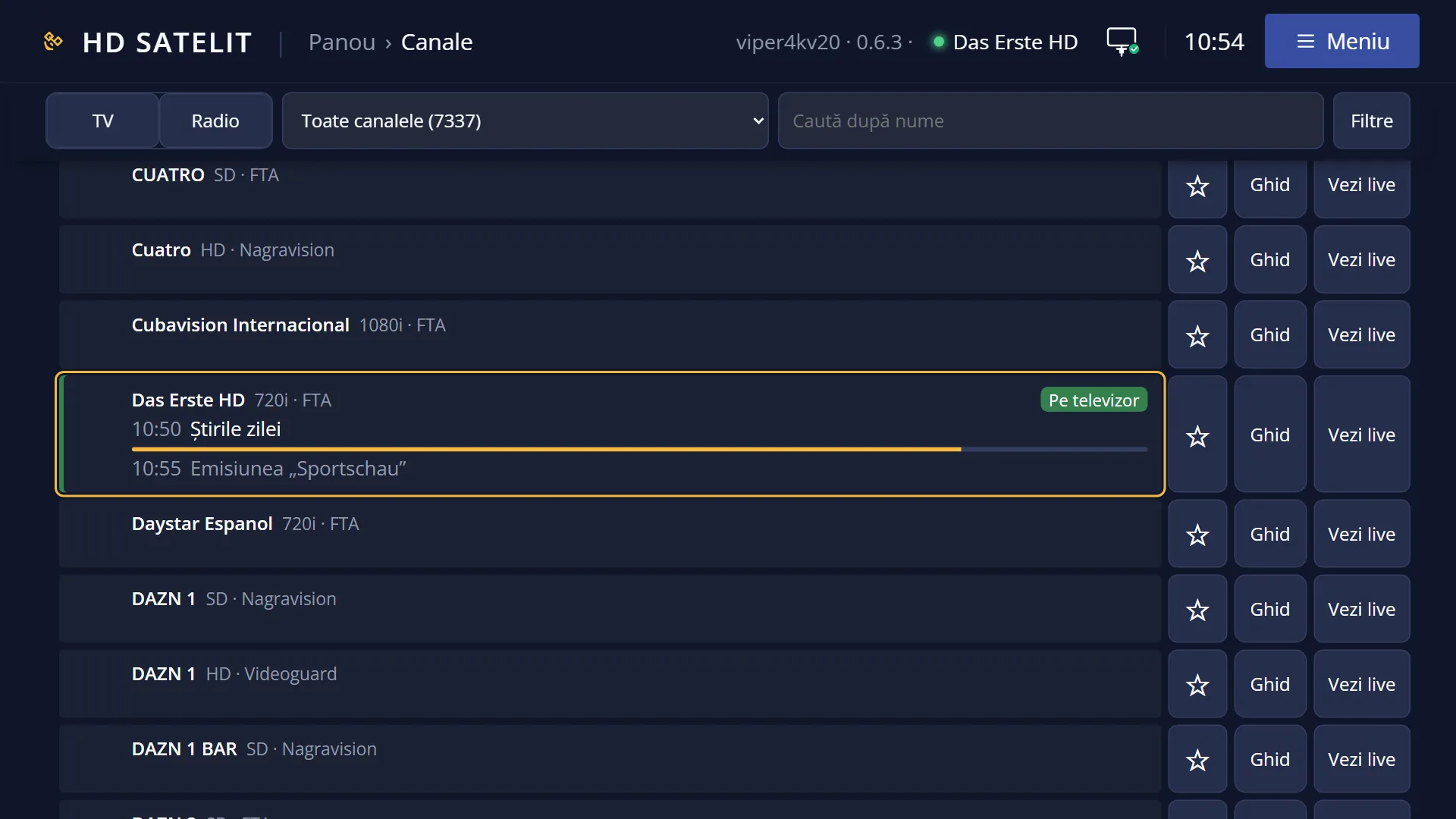
- 1 The cursor is on the channel below the current one; OK starts it.
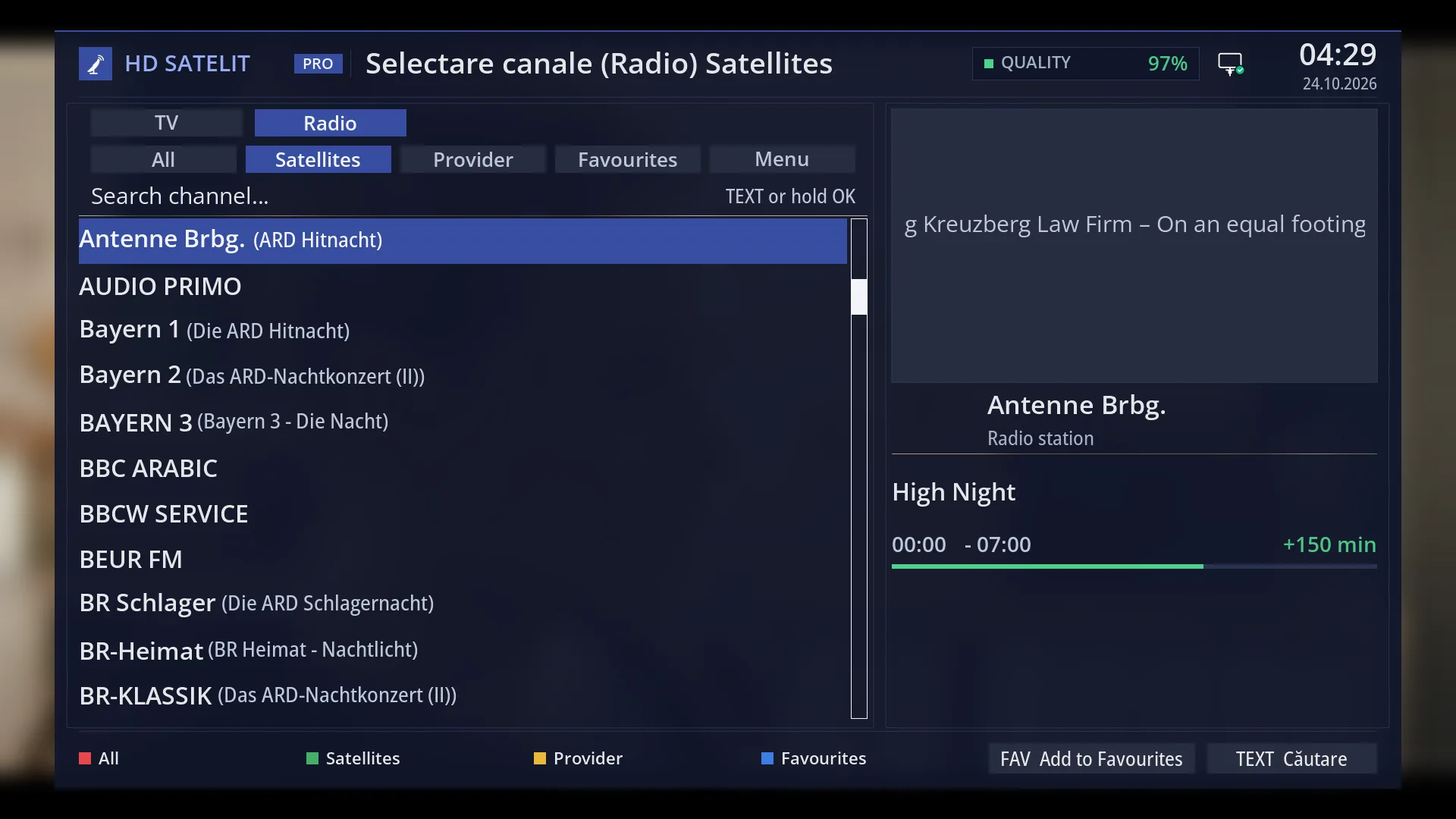
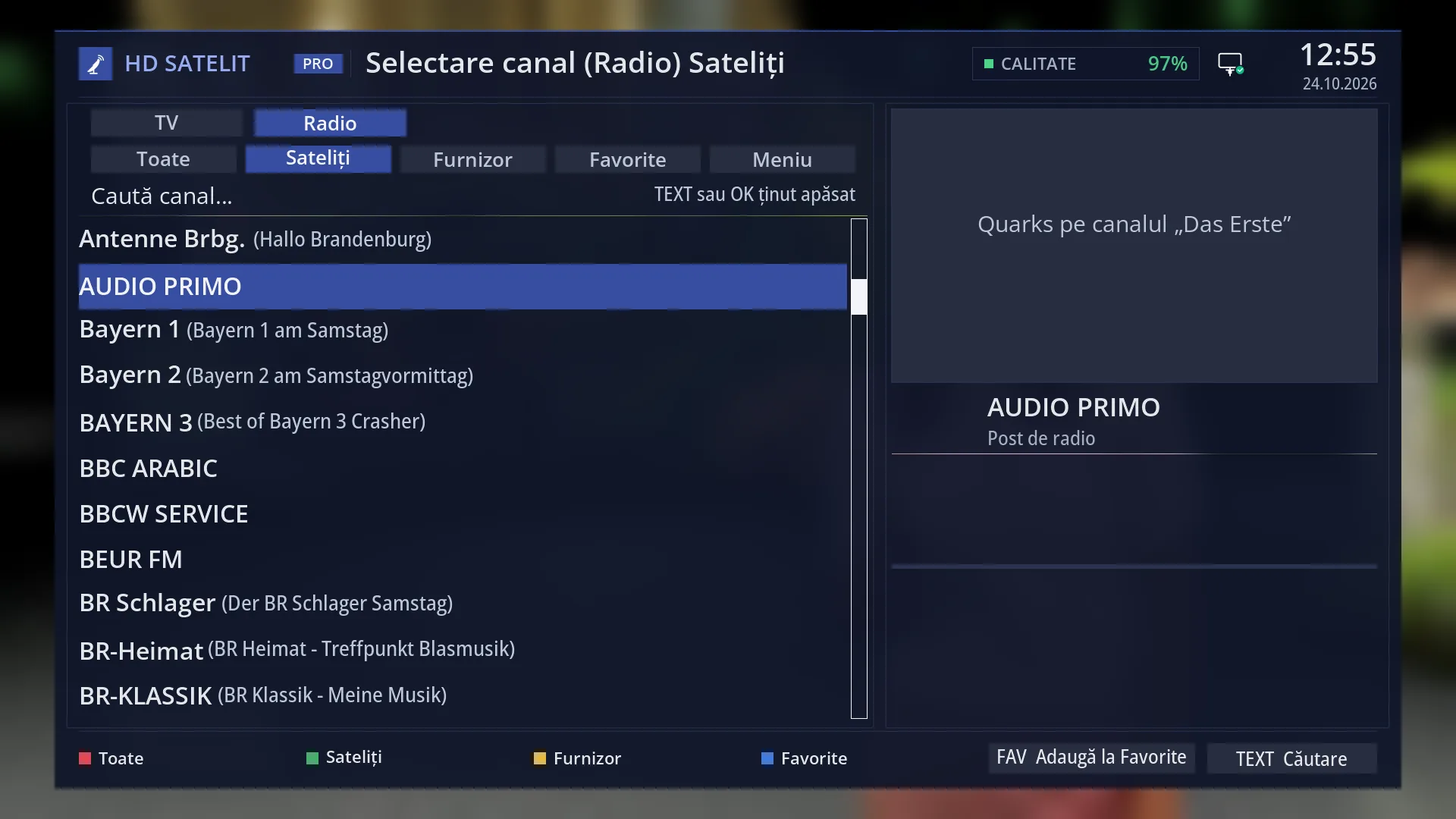
- 1 The TV | Radio tab: the list opened by UP is the radio list.
- 2 The radio stations, with the cursor on the last station you listened to.
- 3 On the right: what is playing on the receiver now; the TV channel has not stopped.
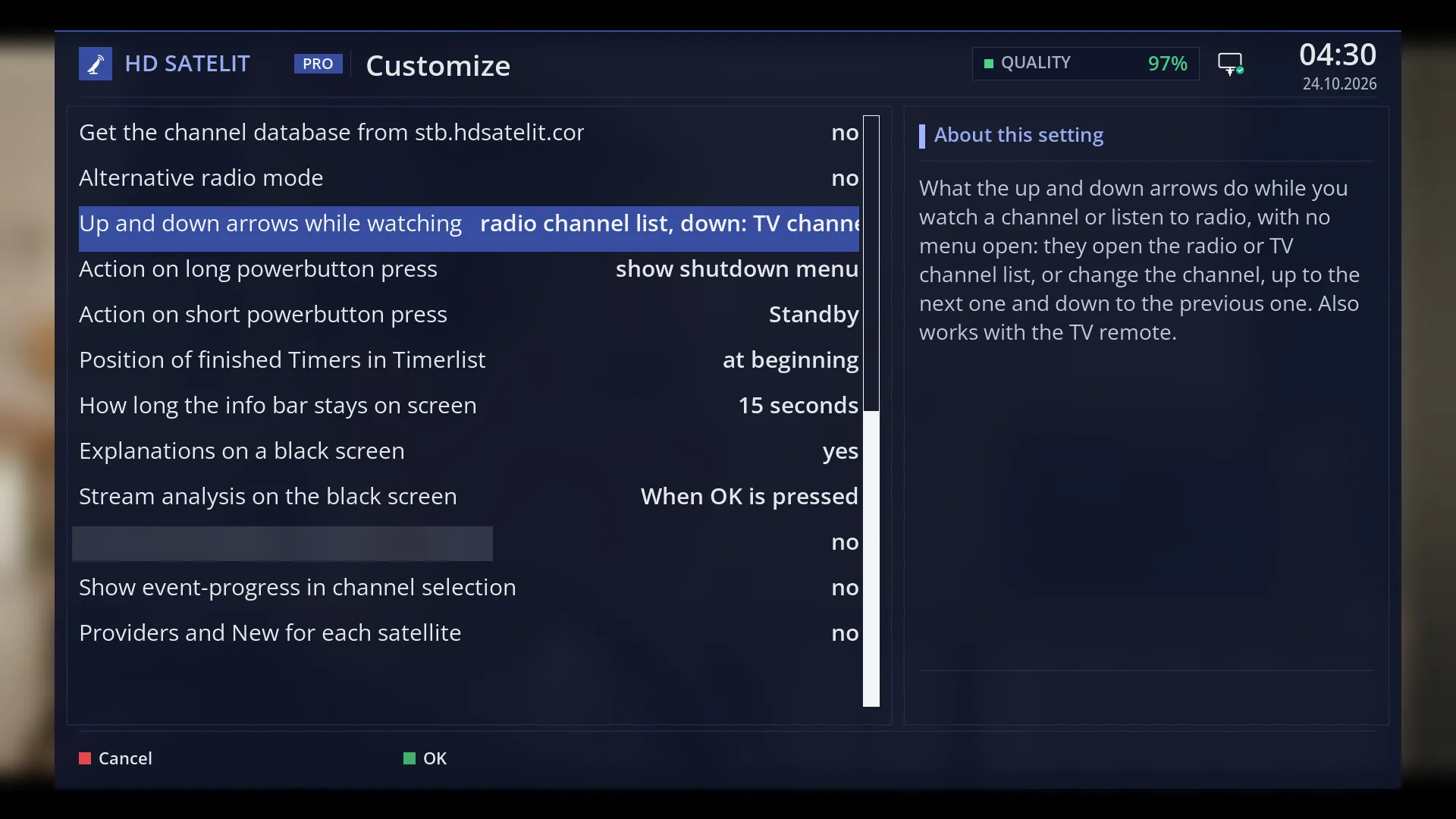
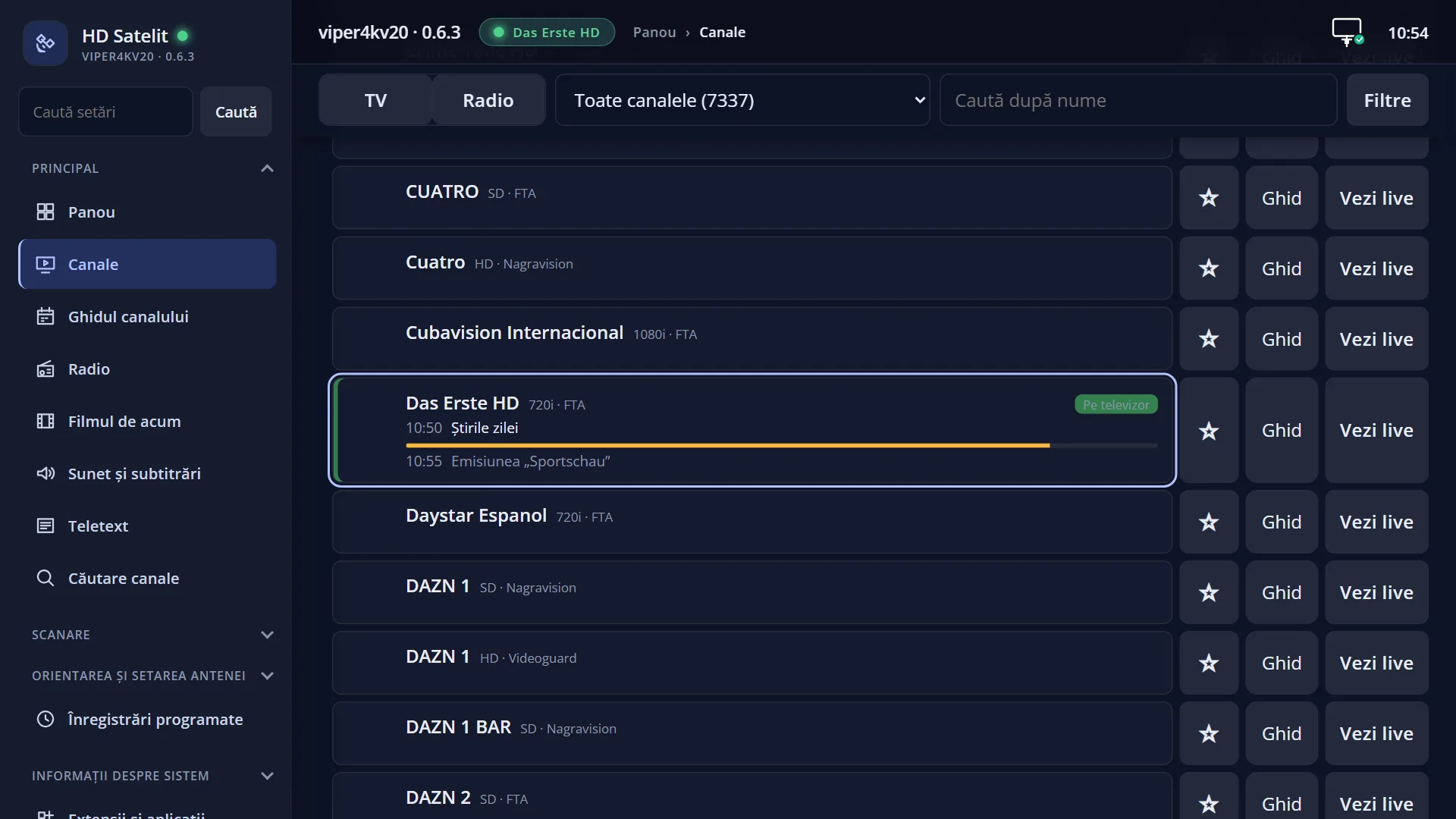
- 1 The selected row.
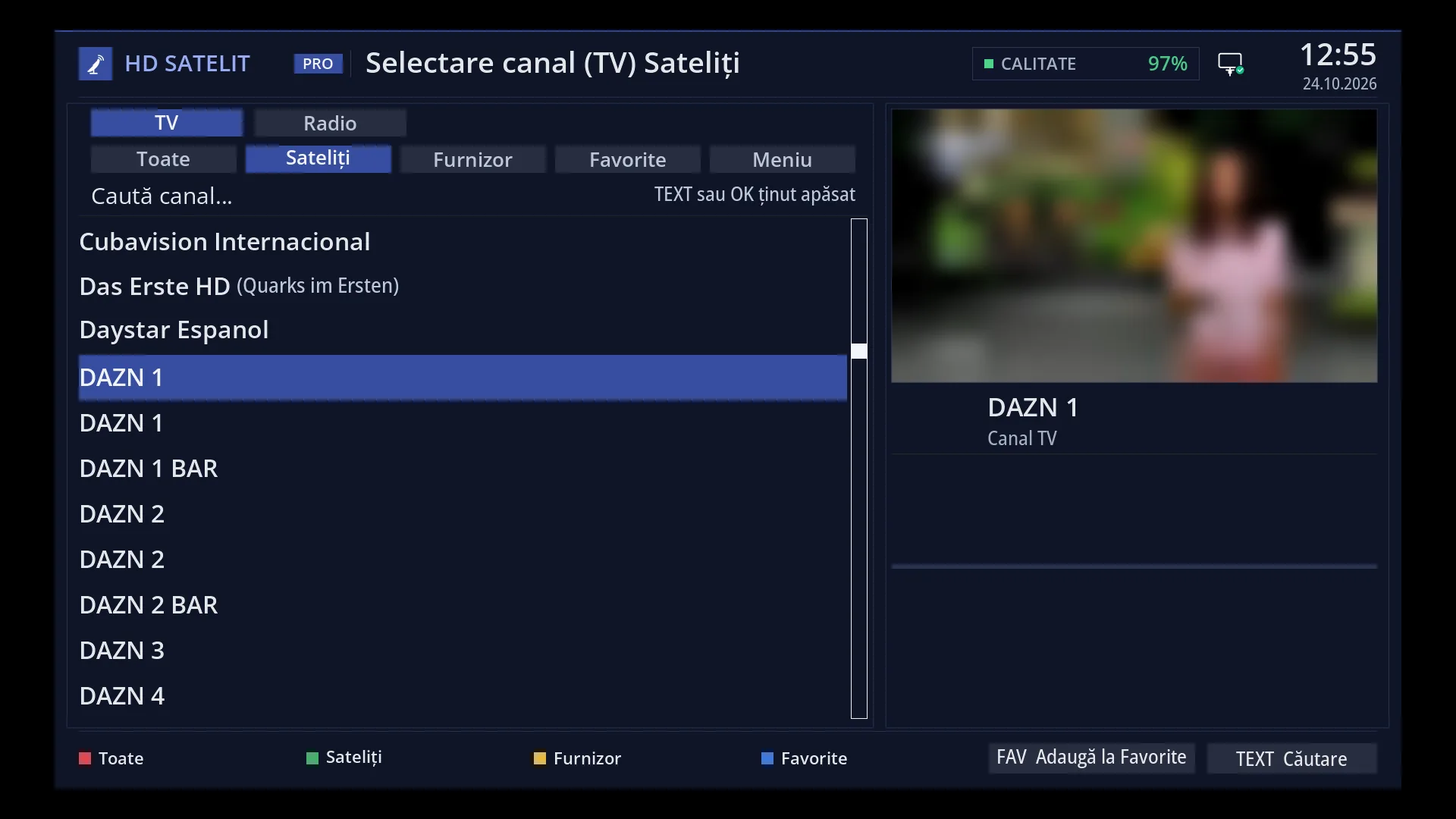
What it is for
When you are watching a channel or listening to the radio with no menu open, the UP and DOWN arrows do what you choose in the “Up and down arrows while watching” setting: they open the radio or TV channel list, or they change the channel.
By default, UP opens the radio list and DOWN opens the TV list. Opening the radio list with UP does not stop the TV channel: the channel keeps playing until you pick a radio station with OK, and EXIT leaves you on the TV channel.
If you are used to changing channels with the arrows, you can choose “Change channel (up: next)”: UP goes to the next channel and DOWN to the previous one, like CH+ and CH-.
The same rule applies on the radio screen and with the TV remote.
How to get here
The UP and DOWN arrows, from live TV or the radio screen, with no menu open.
The setting: Menu > Settings > Interface & Appearance > OSD Preferences (MENU 6 6 5), row “Up and down arrows while watching”.
In the web interface: /setari?id=usage, the same row.
What you see on the screen
With “Up: radio channel list, down: TV channel list” (the default): UP opens the radio list with the cursor on the last station you listened to, and the TV channel keeps playing. DOWN opens the TV list with the cursor on the row below the current channel.
On the radio screen, the arrow that opens the radio list opens the list of stations, and the one that opens the TV list works like the TV key: it takes you back to the previous TV channel, with the TV list.
With “Change channel (up: next)” no list opens: the channel changes and the first info bar appears with the new channel.
In the HELP list for live TV, the row for the arrows says what they currently do, depending on the setting.
Rows and settings
| Row | Values | Default | What it does |
|---|---|---|---|
| Up and down arrows while watching | Up: radio channel list, down: TV channel list, Up: TV channel list, down: radio channel list, Both open the TV channel list, Both open the radio channel list, Change channel (up: next) | Up: radio channel list, down: TV channel list | What the UP and DOWN arrows do when you are watching a channel or listening to the radio with no menu open: they open the radio or TV channel list, or they change the channel (UP to the next, DOWN to the previous). It also works with the TV remote. The row is in OSD Preferences (MENU 6 6 5). When you do not listen to the radio and want both arrows to open the TV list, or when you want to change channels with the arrows. |
Keys
| UP | Depending on the setting: the radio list (default), the TV list or the next channel. |
| DOWN | Depending on the setting: the TV list (default), the radio list or the previous channel. |
| OK (in the open list) | Starts the selected channel or station. |
| EXIT (in the open list) | Closes the list; the previous channel keeps playing. |
| LEFT / RIGHT, CH+ / CH- | Change the channel anyway, whatever the arrow setting. |
Step by step
Making the arrows change the channel
- Press MENU, then 6 (Settings), 6 (Interface & Appearance), 5 (OSD Preferences).
- Go to “Up and down arrows while watching” and use LEFT / RIGHT to choose “Change channel (up: next)”.
- Press GREEN to save. From now on UP goes to the next channel and DOWN to the previous one.
Looking at the radio list without stopping the film
- From live TV, press UP (with the default setting).
- The radio list opens; the TV channel keeps playing.
- OK starts the selected station; EXIT leaves you on the TV channel.
Problems and solutions
UP opens the radio list, but I do not listen to the radio.
Choose “Both open the TV channel list” or “Change channel (up: next)” in OSD Preferences.
DOWN opens the list with the cursor on a different channel from the current one.
The list opens with the cursor moved one row in the direction of the arrow (DOWN: the row below the current channel). OK starts the channel under the cursor, EXIT keeps the current channel.
The arrows do not change the channel.
By default they open the lists. To change the channel, use LEFT / RIGHT or CH+ / CH-, or choose “Change channel (up: next)”.
Related topics
- The first info bar (all the live TV keys)
- Changing the channel
- Channel Selection
- Radio screen settings
- OSD Preferences
- The matching web page: /setari?id=usage.