

The first info bar
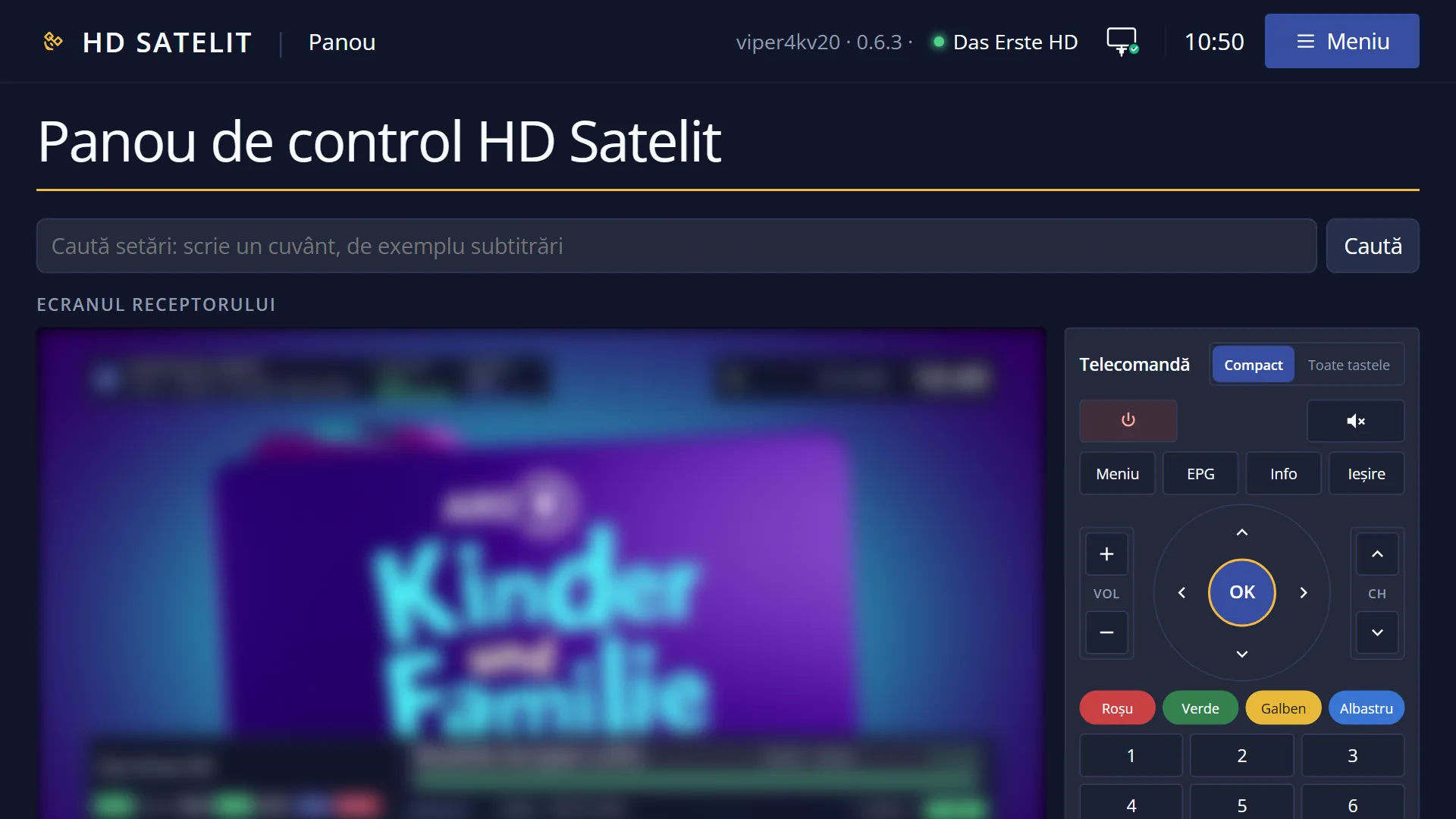
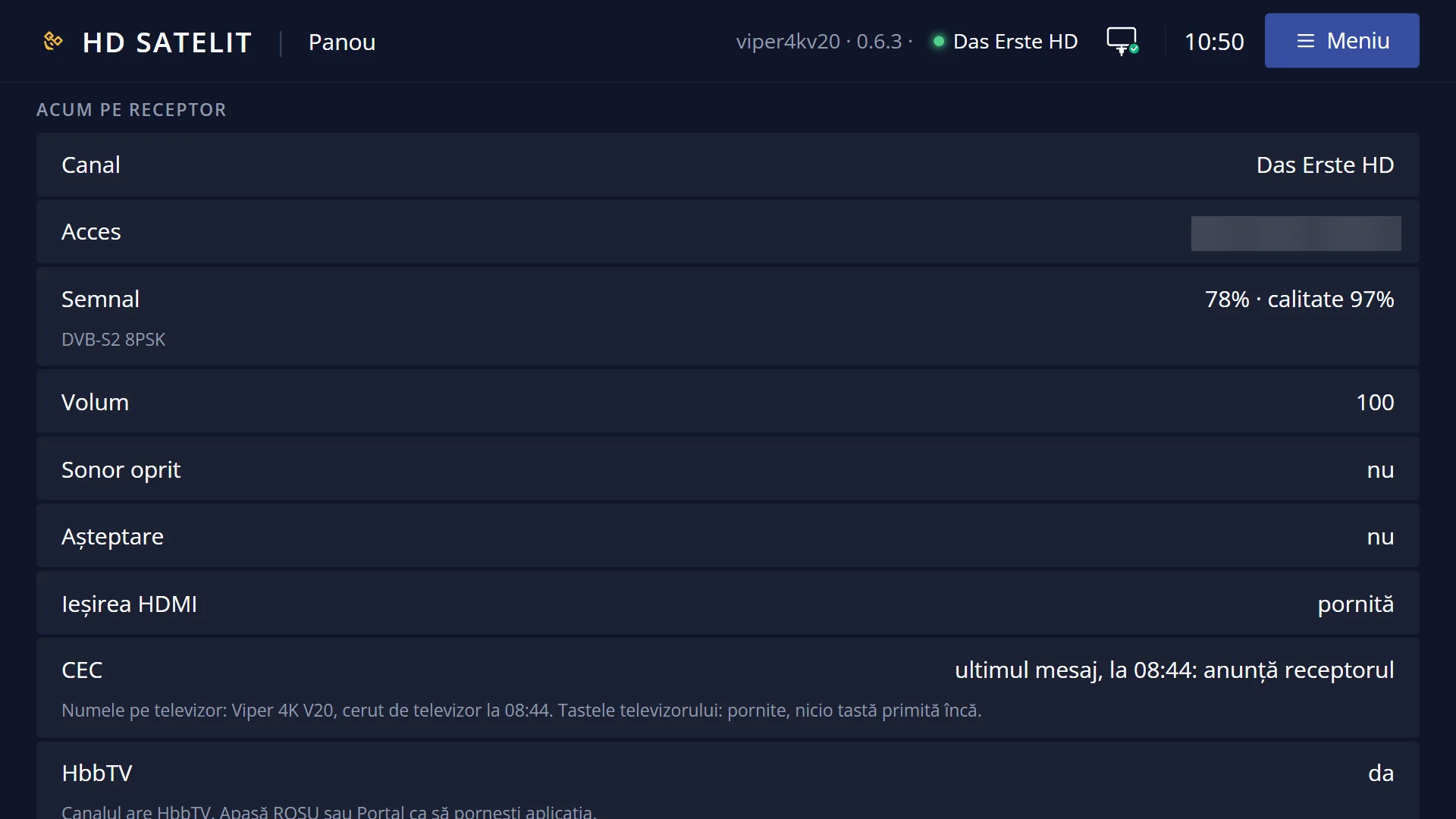
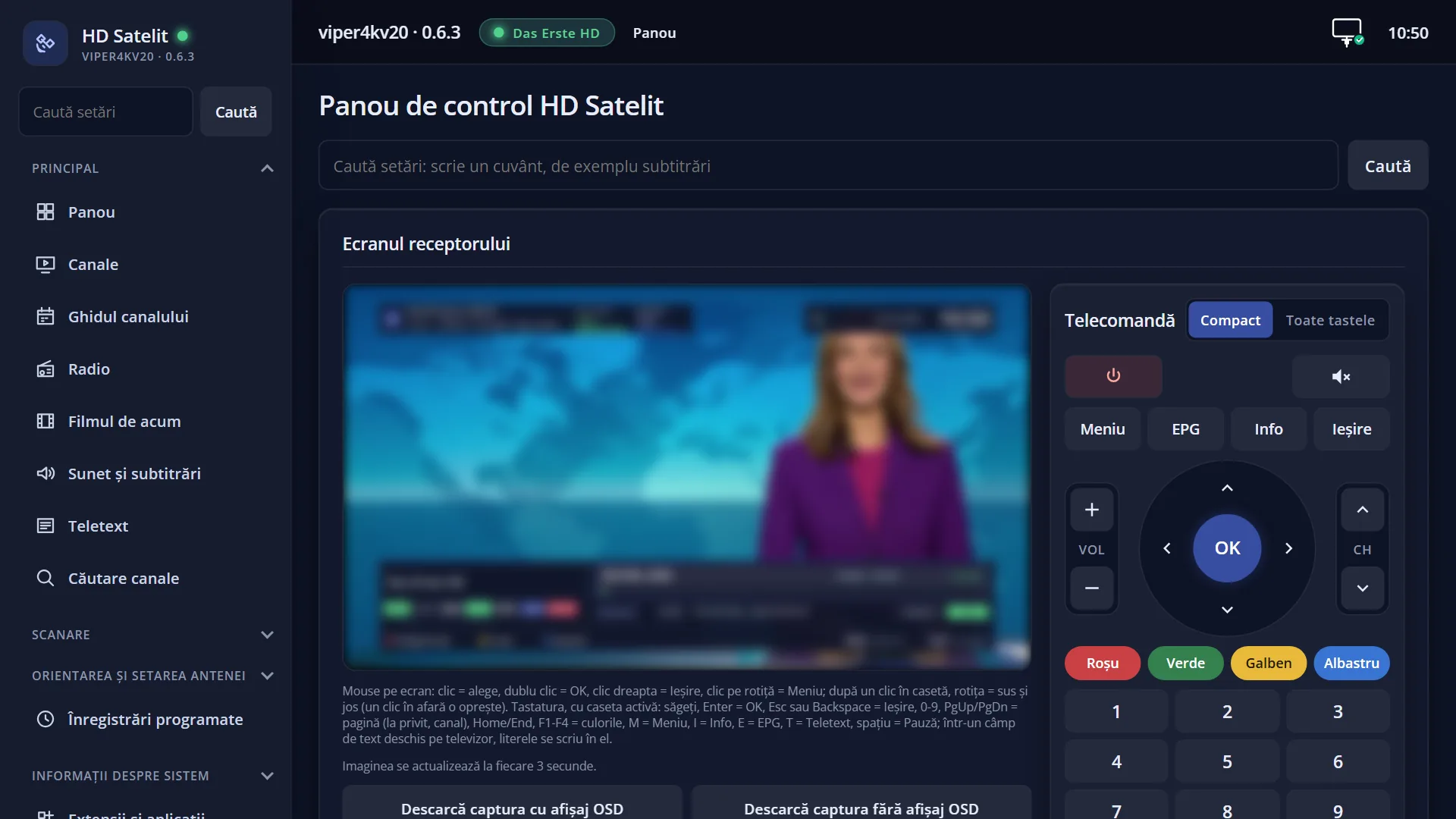
Screenshots are being added: so far 4 from the receiver and 7 from the web interface; the aim is at least 5 of each, with arrows and frames, and, where a setting changes what you see, a before and after comparison.
English screenshots coming: some of the pictures below still show the receiver and the web interface in Romanian. The rows, keys and steps described on this page are the English ones.
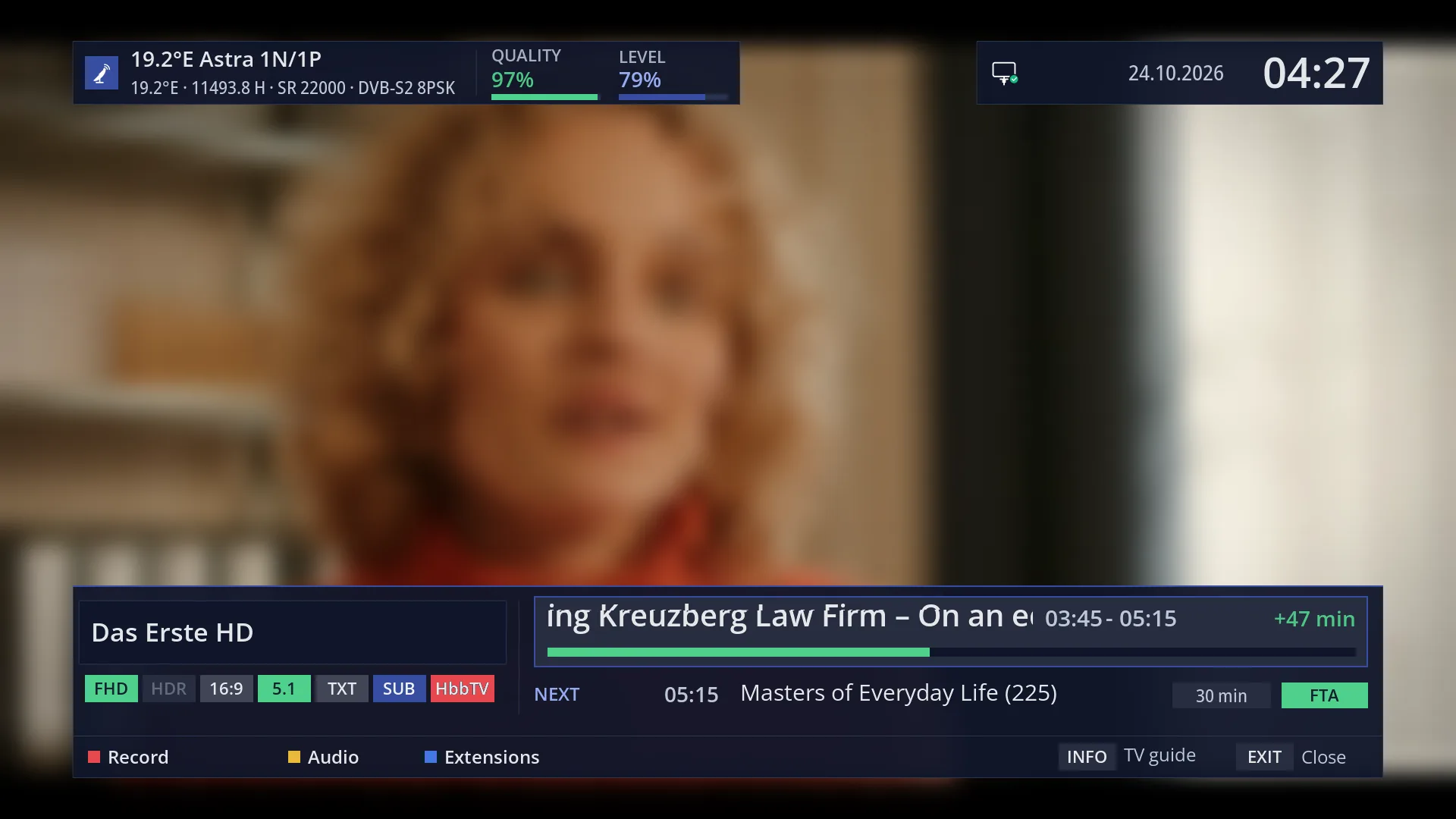
- 1 The channel name.
- 2 The labels: resolution (SD, HD, FHD, UHD) or RADIO, HDR, 16:9, 5.1, TXT, SUB, HbbTV; lit only when they apply.
- 3 Encrypted: encrypted channel; FTA: free-to-air channel.
- 4 The date and the clock.
- 5 The current programme: start time, title and, on the right, how much time is left.
- 6 The network icon: cable or Wi-Fi, and whether the internet works.
- 7 How much of the current programme has passed.
- 8 The next programme, with its time and duration (for radio, the station's text).
- 9 Reception summary: the satellite, the frequency, the symbol rate, the system.
- 10 Signal and Quality, with their bars and percentages.
- 11 The keys at the bottom: RED, GREEN, YELLOW, INFO and EXIT, with what they do on this bar.
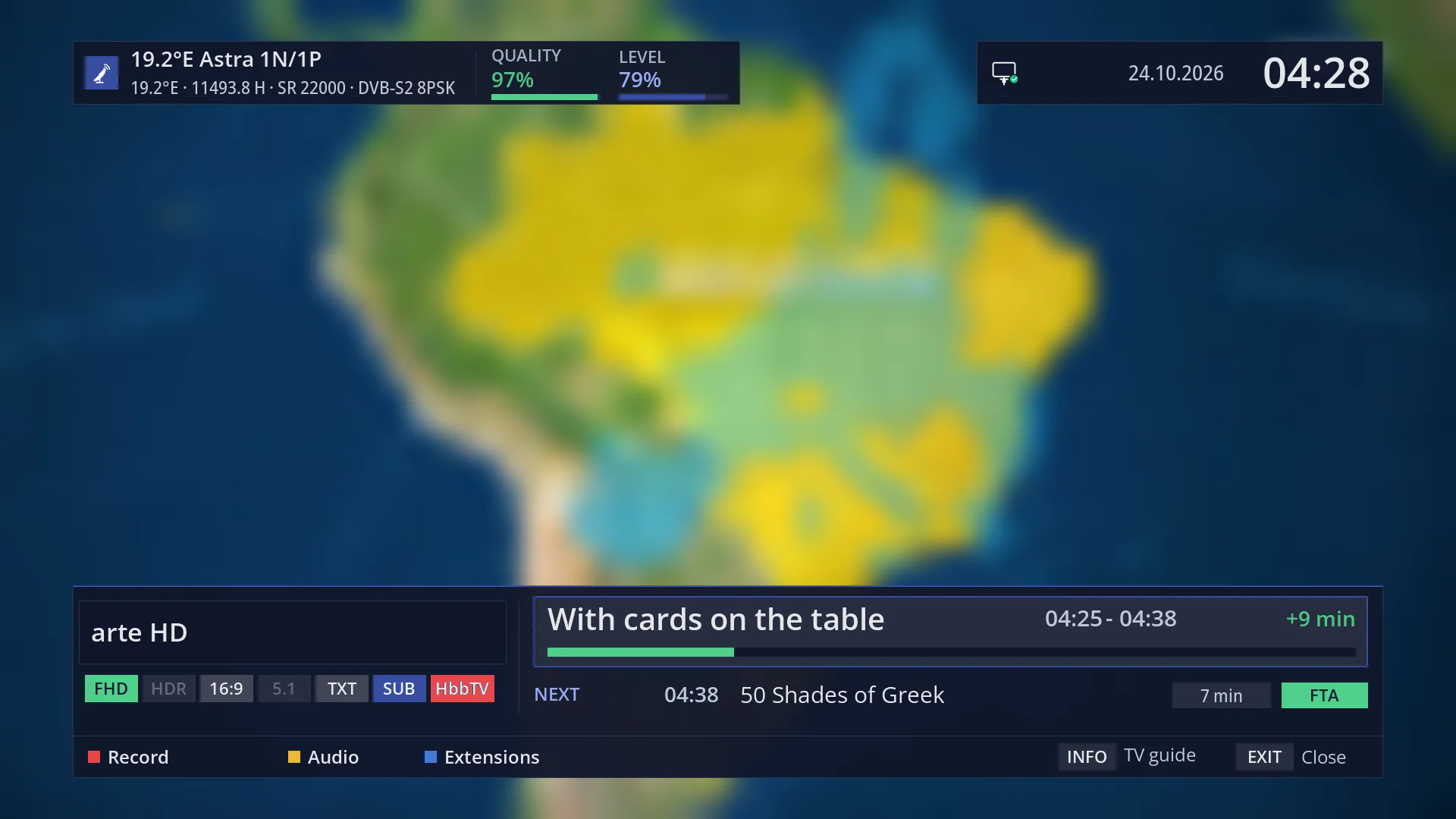
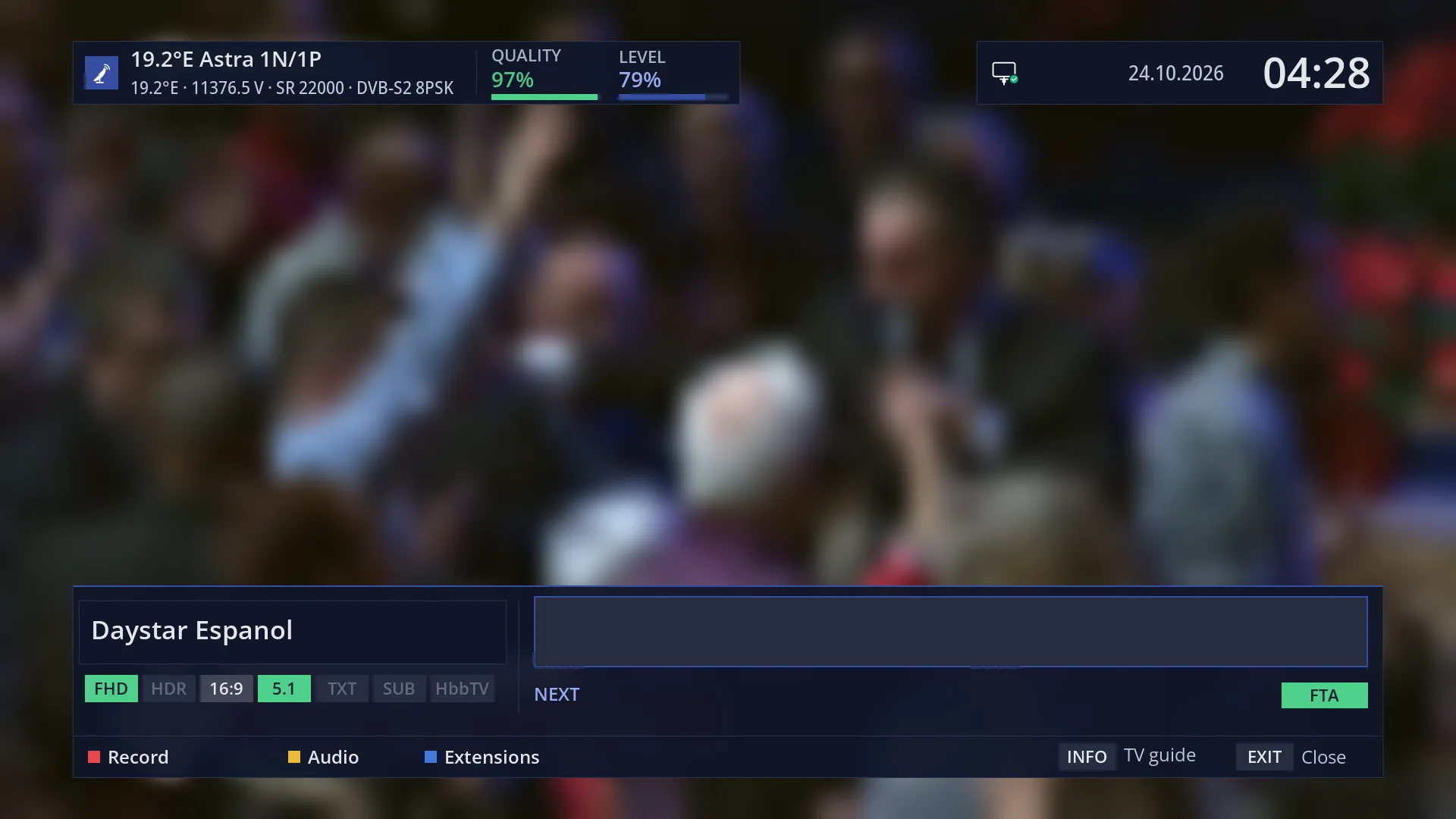
What it is for
The first info bar is the strip at the bottom that appears over the picture when you change channel. It gives you a quick summary of what you are watching: the channel number and name, the current programme and the next one, how much time is left and how well the channel is being received.
The labels in the bar show at a glance what the channel has: the resolution (SD, HD, FHD, UHD), HDR, 16:9 widescreen picture, 5.1 sound, teletext (TXT), subtitles (SUB) and HbbTV. A label is lit only when it applies; the ones that do not apply stay dimmed in grey.
Here you also see whether the receiver has internet (the network icon), whether the channel is being recorded right now (REC), whether it is being streamed over the network to a phone or a computer in your home (“Streaming”) and whether it is coming from the internet (“via internet”).
The bar is the basic screen of live TV: all the remote keys described below work from here.
How to get here
It appears by itself every time you change channel and when a new programme starts, then hides by itself after 8 seconds (factory setting).
The OK key shows it when it is hidden. Pressing OK a second time opens the second bar, with its six pages.
EXIT hides it straight away.
On a radio station, the bar has the same layout (see below for what changes). By default, however, radio shows the full-screen radio screen, and the bar no longer appears when you change station; there, OK shows the radio screen or opens the radio list. The radio bar appears if you set “Bar when changing station” to “yes” or “Full-screen radio screen” to “no” (Menu > Settings > Audio & Sound Tracks > Radio screen).
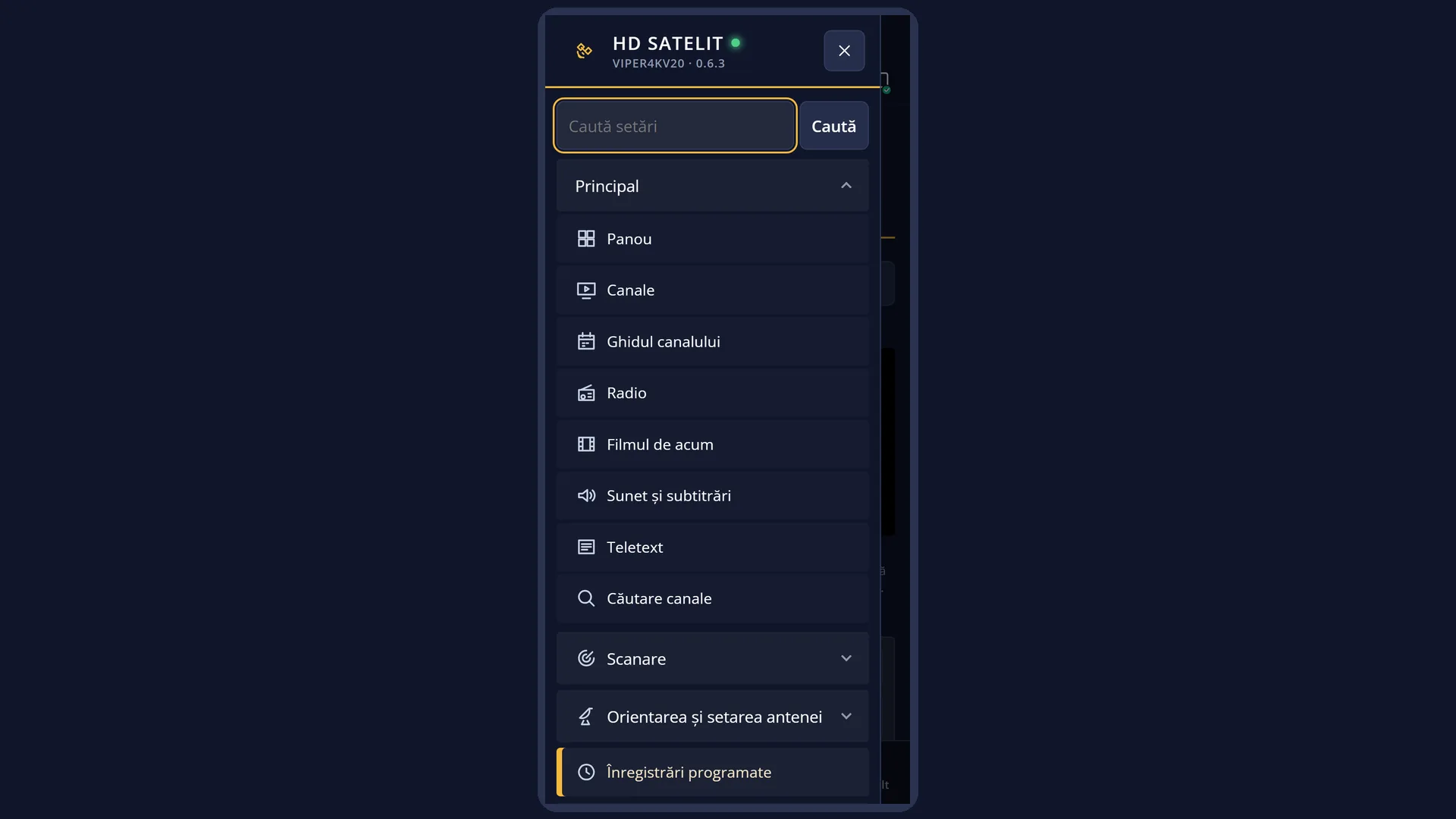
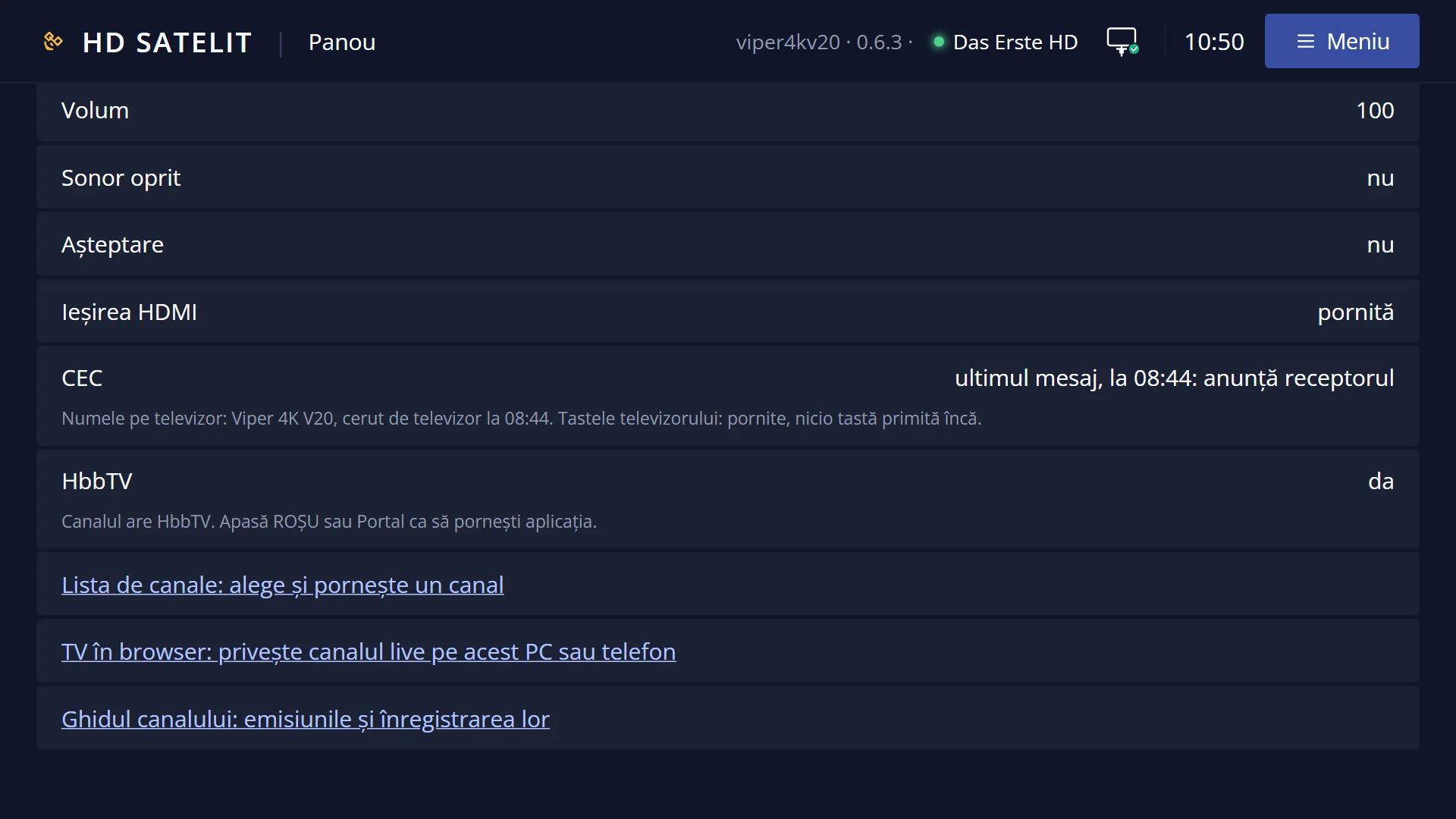
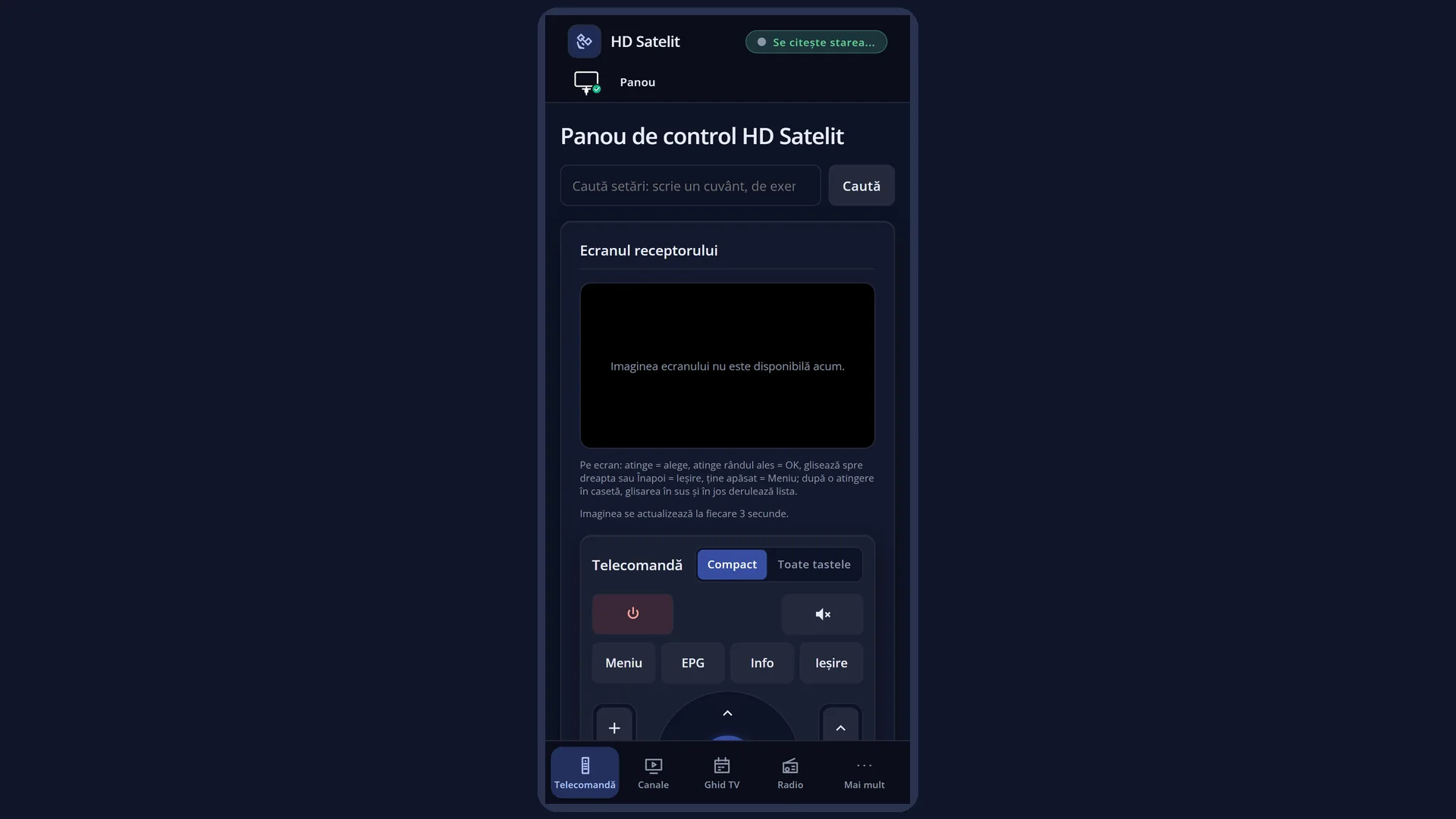
In the web interface: the main panel (/panou), the “Now on the receiver” box (channel, signal, volume, mute, standby, HbbTV).
What you see on the screen
Top left: the channel number from the channel list (in light blue) and the channel name. A channel started from a list without numbers (for example from “Satellites” or “Providers”) has no number: in that case the name takes the place of the number.
Top right: the clock.
On the same row, the short labels: RADIO (on a radio station, instead of the resolution) or the resolution SD, HD, FHD or UHD, then HDR, 16:9, 5.1, TXT, SUB and HbbTV. The HbbTV label turns red when the channel has an application that starts with the RED key (with HbbTV switched on in the settings).
At the end of the labels, Encrypted means an encrypted channel and FTA means a free-to-air channel.
Before the labels, only when they apply: DVB-I (the channel also has an internet version) and Streaming (the channel on the TV is currently being streamed to a browser or a player in your home).
Second row: the time the current programme started (in yellow), its title and, on the right, how much time is left (for example “+25 min”). If the programme has not started yet, its duration is shown on the right.
Also on the second row, before the time left: the network icon (cable or Wi-Fi, with the Wi-Fi signal bars) with a small mark: green when the internet works, orange when the router has no internet, red when the receiver is not connected to the router; no mark while it is being checked.
REC, in red, to the right of the title: the channel is being recorded right now.
Below the title: the progress bar of the current programme.
Third row, in grey: the next programme, with its start time and, on the right, its duration (for example “45 min”). On a radio station, the text sent by the station (RDS) is shown there instead.
Last row, the technical row: on the left, a summary of the reception (for satellite, the position, the frequency with the polarisation, the symbol rate SR and the system; for cable, the network name or “Cable”), then Signal and Quality, each with its bar and percentage, then the picture (resolution and codec; for radio, the audio and the bit rate).
When the channel is coming from the internet, the “via internet” box appears in place of the signal, with the network status (for example “Internet over cable: works”). For a recording or a film, the signal area stays empty.
Text that is too long for its space is not cut off: it scrolls slowly.
Rows and settings
| Row | Values | Default | What it does |
|---|---|---|---|
| How long the info bar stays on screen | does not close, 1-10 seconds, 12 seconds, 15 seconds, 20 seconds, 30 seconds | 8 seconds | How long the bar stays on screen after it appears. With “does not close”, the bar stays until you press EXIT. The row is in Menu > Settings > Interface & Appearance > OSD Preferences (MENU 6 6 5); on the web, /setari?id=usage. When the bar disappears before you have time to read it, or when it gets in the way and you want it to go sooner. |
| Show infobar on channel change | yes, no | yes | Yes: the bar appears by itself every time you change channel. No: the channel changes without the bar; you can show it with OK. The row is also in OSD Preferences, but it is only visible with “Setup Mode” set to “Expert” (the first row of the screen). When you do not want anything over the picture when you change channel. |
| Show infobar on event change | yes, no | yes | Yes: the bar appears by itself when a new programme starts on the channel you are watching. No: it only appears when you change channel and with OK. The row is also in OSD Preferences, but it is only visible with “Setup Mode” set to “Expert”. When the bar appearing by itself while you are watching bothers you. |
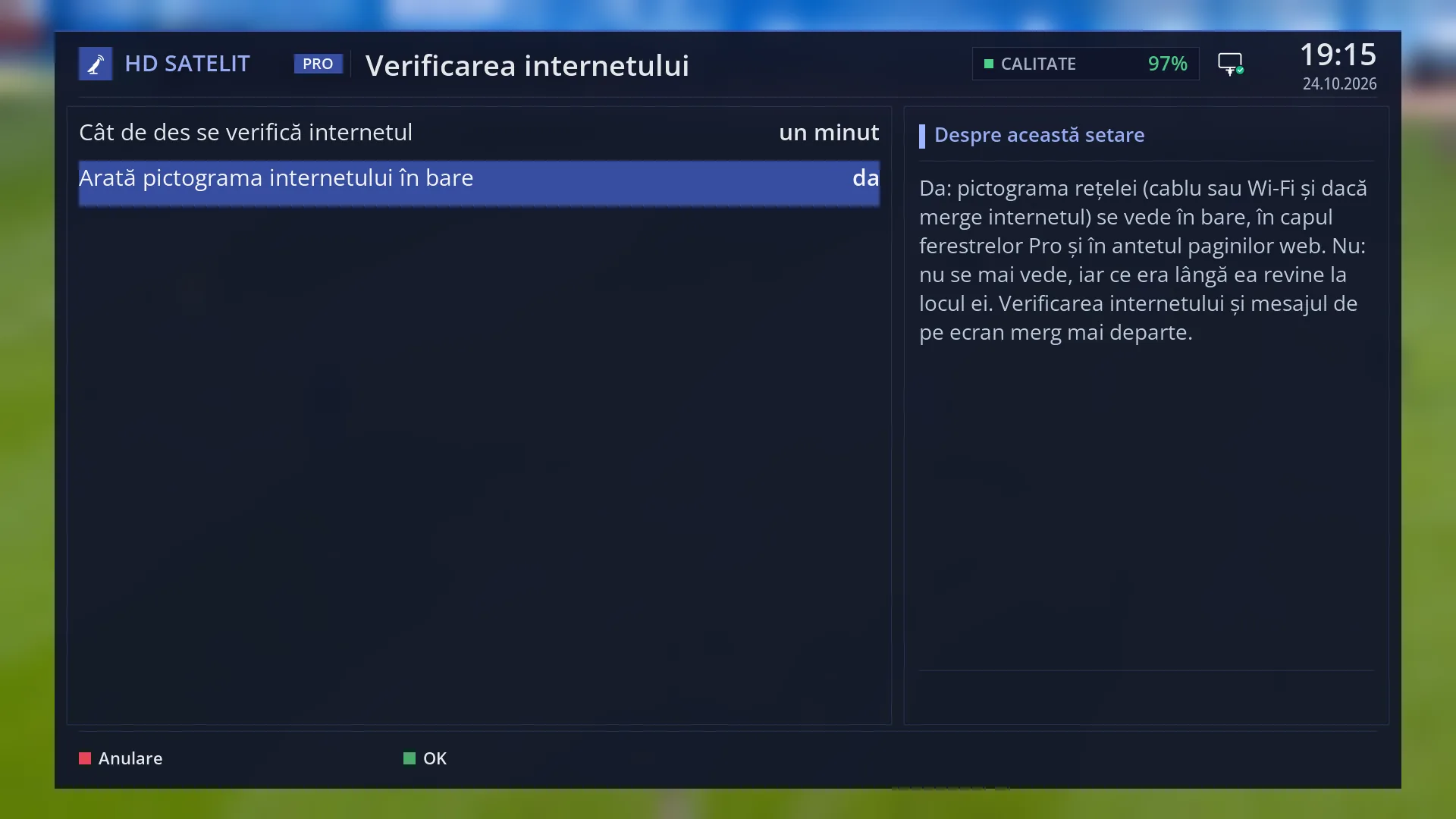
| Show the internet icon in the bars | yes, no | yes | Yes: the network icon is shown in the bar (and in the header of the web pages). No: it is no longer shown, and the programme title gets its space back. The internet check and the on-screen message keep working. The row is in Menu > Settings > Network & Internet > Internet check (MENU 6 9 2). When you do not use the internet on the receiver and do not want the icon. |
| Red HbbTV sign in the info bar | yes, no | yes | On channels with an HbbTV application, the HbbTV label in the bar turns red: press RED to start the application. The row only appears with “HbbTV (channel applications)” switched on (off by default). The row is in Menu > Settings > Internet Sources > Web browser settings (MENU 6 2 6); on the web, /navigator. When you use HbbTV but do not want the red sign. |
Keys
| OK | Bar hidden: shows it. First bar on screen: opens the second bar (the six pages). Second bar on screen: closes it. |
| EXIT | Hides the bar (and the second bar, if it is open). |
| LEFT / RIGHT | Previous / next channel in the list, one per press (holding the key down does not skip several). |
| CH+ / CH- | Next / previous channel. |
| UP / DOWN | Depends on the “Up and down arrows while watching” setting. By default, UP opens the radio list and DOWN the TV list (see the “Up and down arrows while watching” page). |
| Digits 1-9 | Channel number: the “Channel:” window appears with the digits (also on the front display). The channel starts after 3 seconds without another digit, at the fourth digit or with OK; EXIT cancels. |
| 0 | The previous channel. |
| < / > | Back and forward through the channels you have watched (the history). |
| INFO | Short press: details of the current programme and the next one. Hold: the channel's programme guide. |
| EPG | The channel's programme guide. |
| MENU | The main menu. |
| AUDIO | Short press: “Audio track selection”. Hold: switches AC3 downmix on or off, with a 5-second message. |
| YELLOW | “Audio track selection”, like AUDIO. |
| SUBT | “Subtitle selection”. |
| TTX | The channel's teletext. |
| RED | The channel's HbbTV application, when the channel has one and HbbTV is switched on in the settings (the HbbTV label is red). |
| GREEN | The list of subchannels, only on channels that have subchannels. |
| BLUE | The list of extensions; with no extensions installed, a message telling you where to add them. |
| Portal | The channel's HbbTV application, if it has one; otherwise the “Extensions” screen, with a message about the channel's HbbTV. |
| FAV | Short press: the channel list on Favourites. Hold: adds the current channel to Favourites (or, if it is already there, asks whether to remove it). |
| TV / Radio | The list of TV channels / the list of radio stations. |
| EMC | “Films and recordings”. |
| Mplay | The media player. |
| Timer | “Timers & Recordings”. |
| Screen 1 (the first key with a screen symbol) | The “Video” screen (resolution, refresh rate, colours, HDR). |
| Screen 2 (the middle key with a screen symbol) | “Aspect Ratio”: the picture format. |
| Screen 3 (the third key with a screen symbol) | Does nothing. |
| Pause / Play | Pauses the channel (timeshift). Without a USB stick or hard disk suitable for this, “Recordings location” opens. |
| Record | Asks “Start recording?”, with the duration. |
| HELP | The list of keys for this screen. |
| VOL+ / VOL- / MUTE | Volume and mute. |
| POWER | Short press: standby. Hold: the power menu. |
Step by step
See what programme is on now and how long it has left
- Press OK. The bar appears at the bottom.
- On the second row you can read the title of the current programme and, on the right, how much time is left; below it, the next programme.
- For the programme description, press INFO.
Make the bar stay on screen longer
- Press MENU, then 6 (Settings), 6 (Interface & Appearance), 5 (OSD Preferences).
- Go to “How long the info bar stays on screen” and choose with LEFT / RIGHT, for example 15 seconds.
- Press GREEN to save.
Check whether the dish is receiving the channel well
- Press OK and read Signal and Quality on the bottom row.
- For the full values (SNR, BER, tuner status), press OK again and use LEFT / RIGHT to go to the “Reception and signal” page of the second bar.
Problems and solutions
The bar disappears too quickly.
Increase “How long the info bar stays on screen” (OSD Preferences). With “does not close” it stays until you press EXIT.
The bar no longer appears when you change channel.
“Show infobar on channel change” is set to “no”. The row is visible in OSD Preferences once you set “Setup Mode” to “Expert”. Until then, OK shows the bar at any time.
The bar appears by itself while you are watching.
A new programme has started. If this bothers you, set “Show infobar on event change” to “no” (also in Expert mode).
The programme rows are empty.
The channel is not sending the programme guide right now, or the receiver has not read it yet. Wait a few seconds on the channel; some channels have no guide at all.
Signal and Quality are low, and the picture freezes.
Reception is weak: bad weather, the dish has moved or a cable is loose. The full values are on the “Reception and signal” page of the second bar.
The network icon has an orange or red mark.
Orange: the router has no internet (the problem is probably with your internet provider). Red: the receiver is not connected to the router; check the cable or the Wi-Fi network. Satellite channels keep working.
The HbbTV label is lit, but it is not red, and RED does nothing.
The channel announces HbbTV but has no application to start right now, or HbbTV is switched off in “Web browser settings” (off by default).
The channel has no number in the bar.
You started it from a list without numbers (for example “Satellites” or “Providers”). Started from the normal channel list or from Favourites, it has its number.
Related topics
- The second bar, with its six pages (OK, OK)
- Programme details (INFO)
- The network notice (the message when the internet is lost)
- The black screen with explanations
- Changing the channel
- OSD Preferences (how long the bar stays on screen)
- Internet check (the icon in the bar)
- The “Streaming” sign
- The channel's HbbTV application (RED)
- The matching web page: /panou (the “Now on the receiver” box).