

The “Streaming” sign
English screenshots coming: some of the pictures below still show the receiver and the web interface in Romanian. The rows, keys and steps described on this page are the English ones.
What it is for
The “Streaming” sign tells you that a channel is being sent to a browser (“TV in browser”) or to a player in your home (VLC, Kodi and others, through a playlist). This way you know why a tuner is busy and why a stream might stop when you change channel.
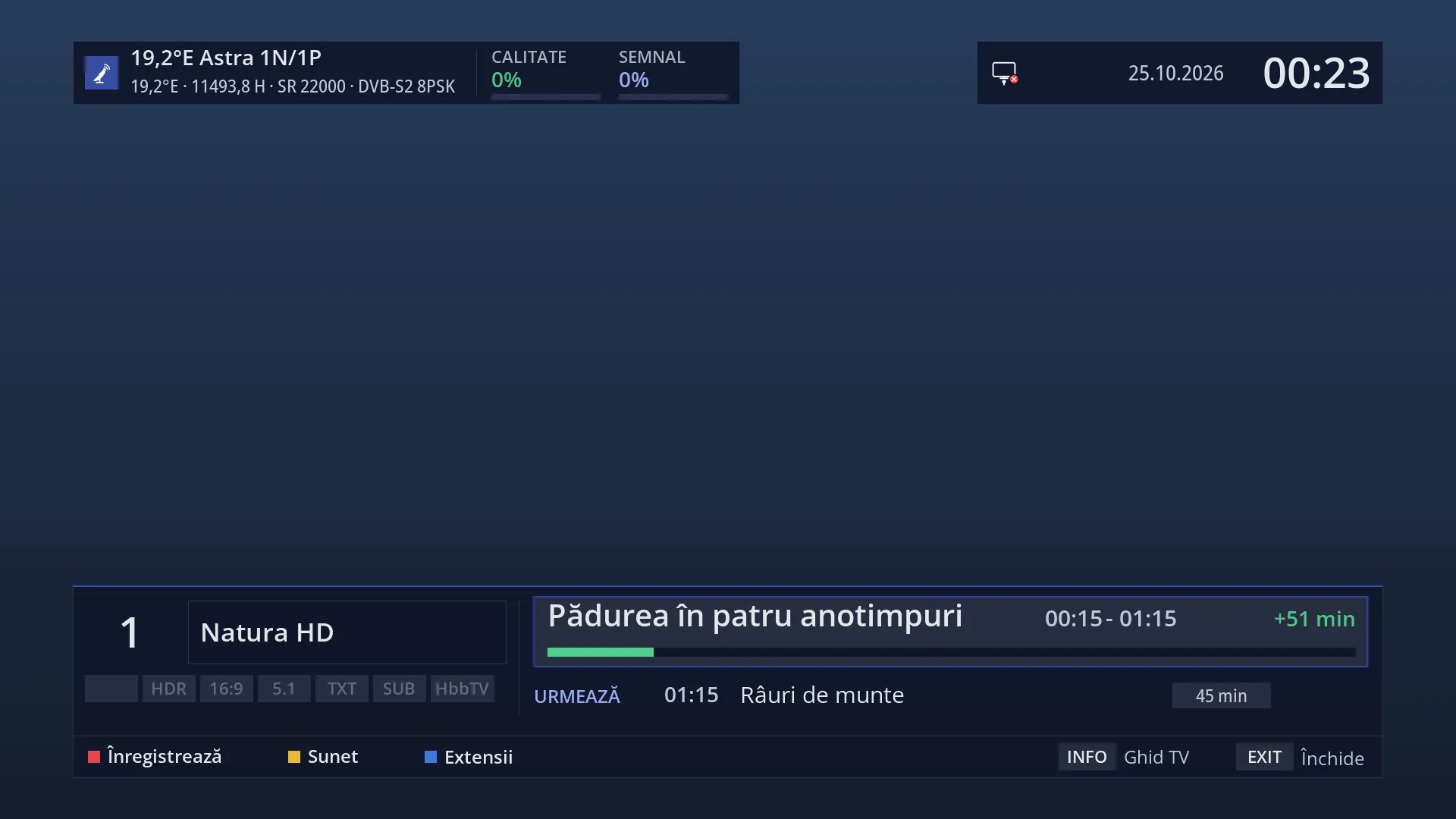
The sign appears in three places: in the channel list on the TV, next to each channel being streamed; in the info bar and the second bar, when the channel you are watching is being streamed; and on the channels web page (/canale).
The sign appears and disappears by itself as the stream starts and stops. It has no settings.
How to get here
Path: it shows by itself while a channel is being streamed: in the channel list (DOWN from live TV), in the info bar (OK) and in the second bar (OK twice).
Keys on the TV: DOWN (channel list) or OK (info bar).
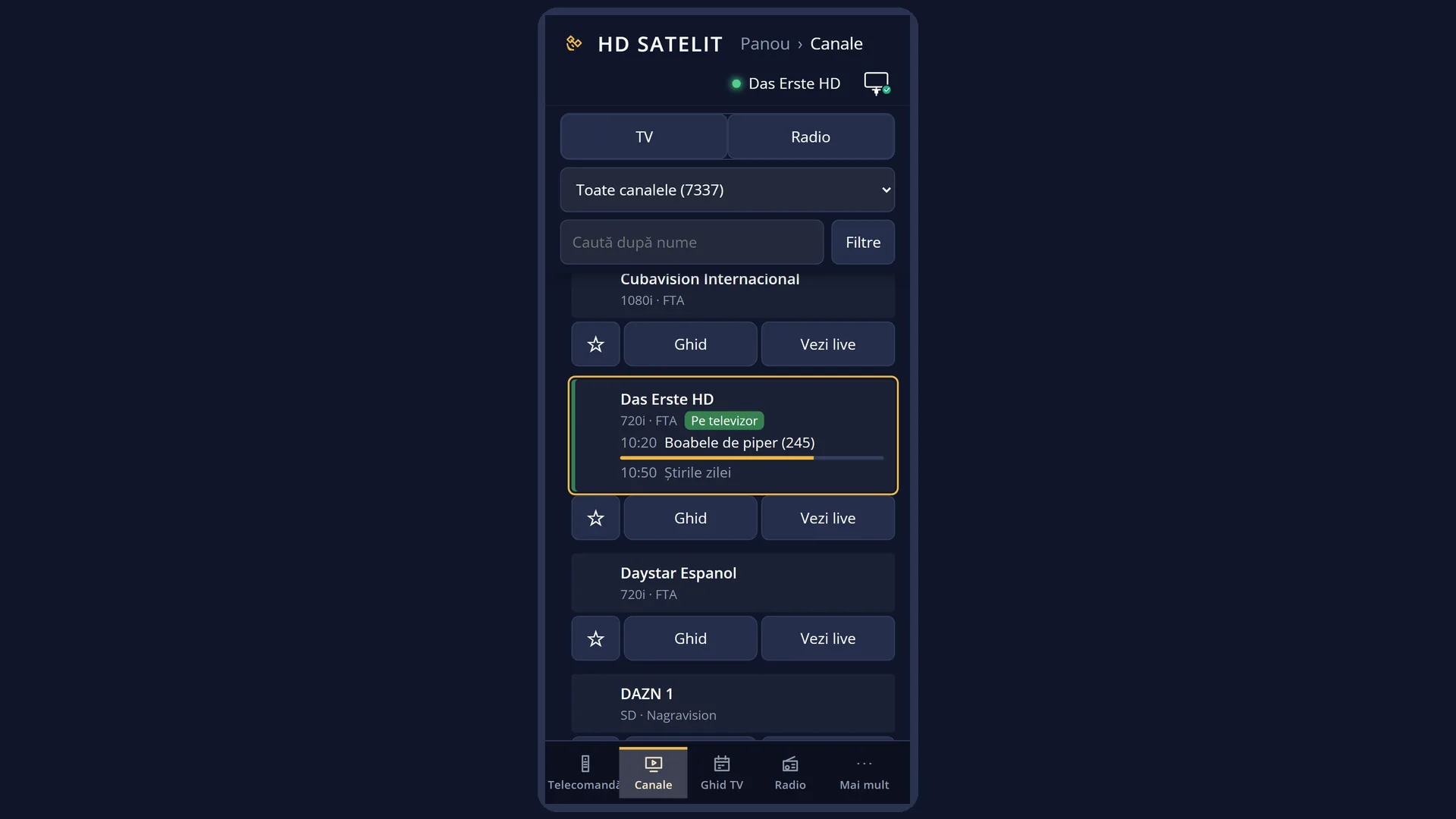
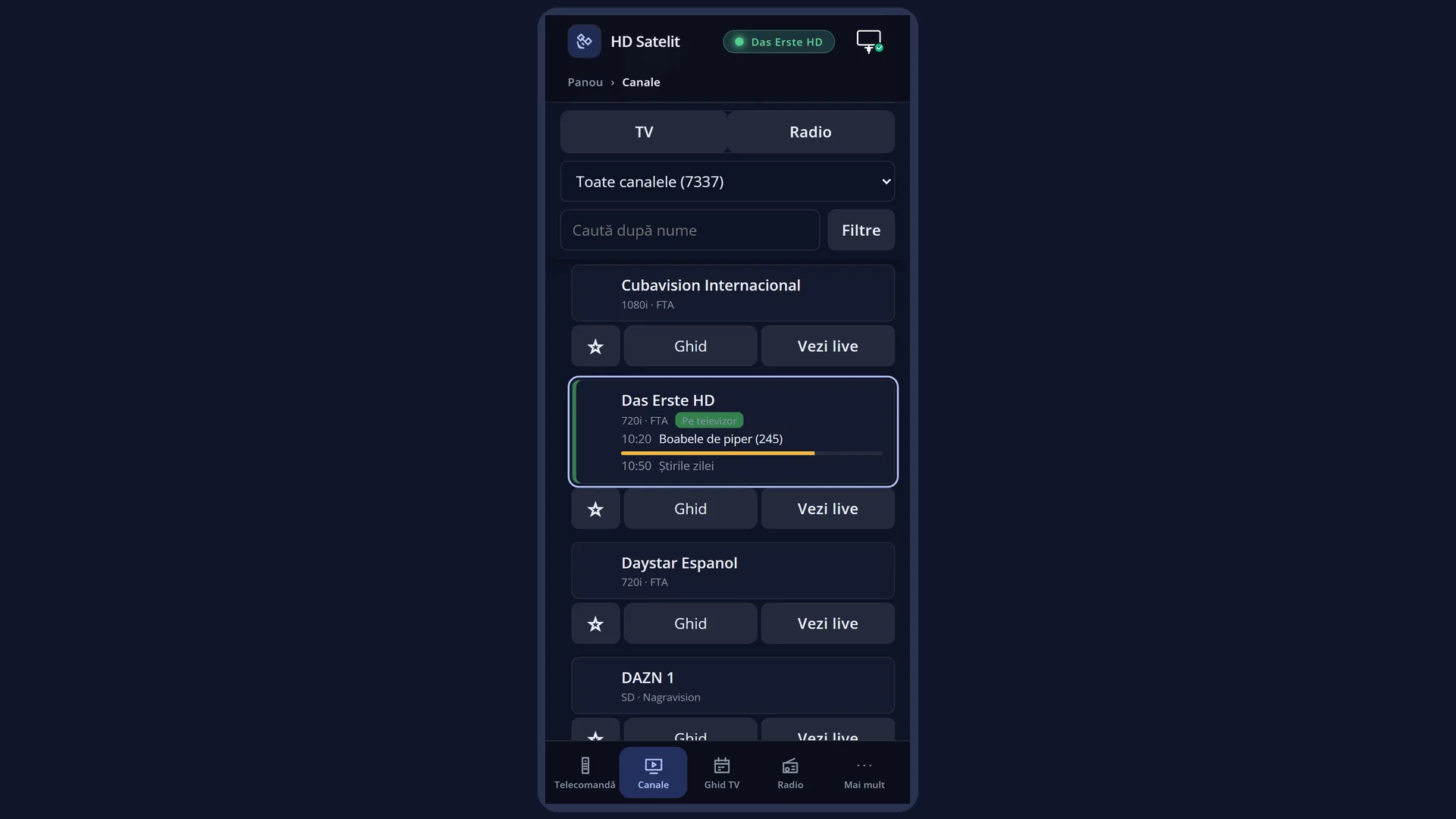
In the web interface: the /canale page, next to the name of the channel being streamed.
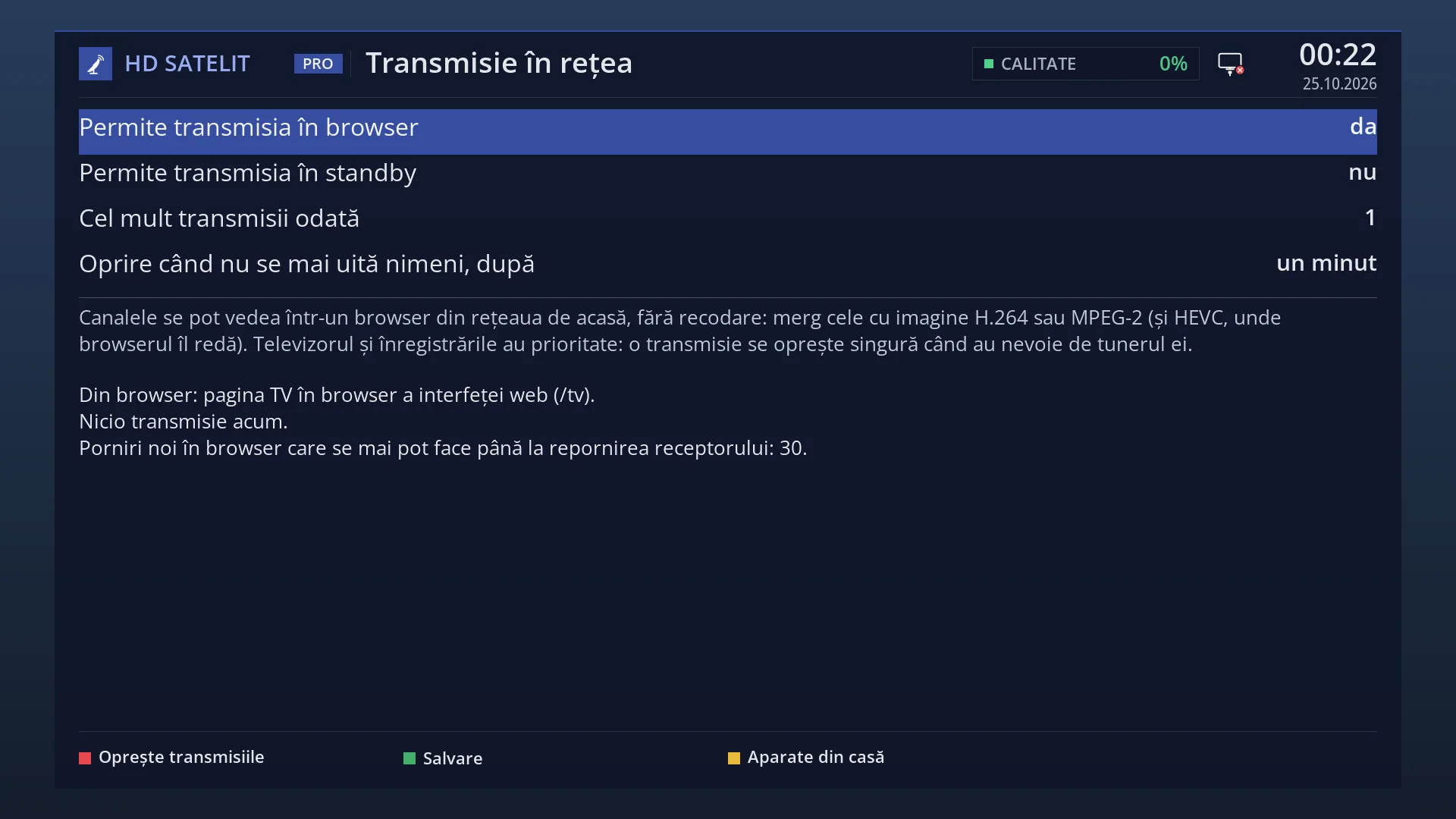
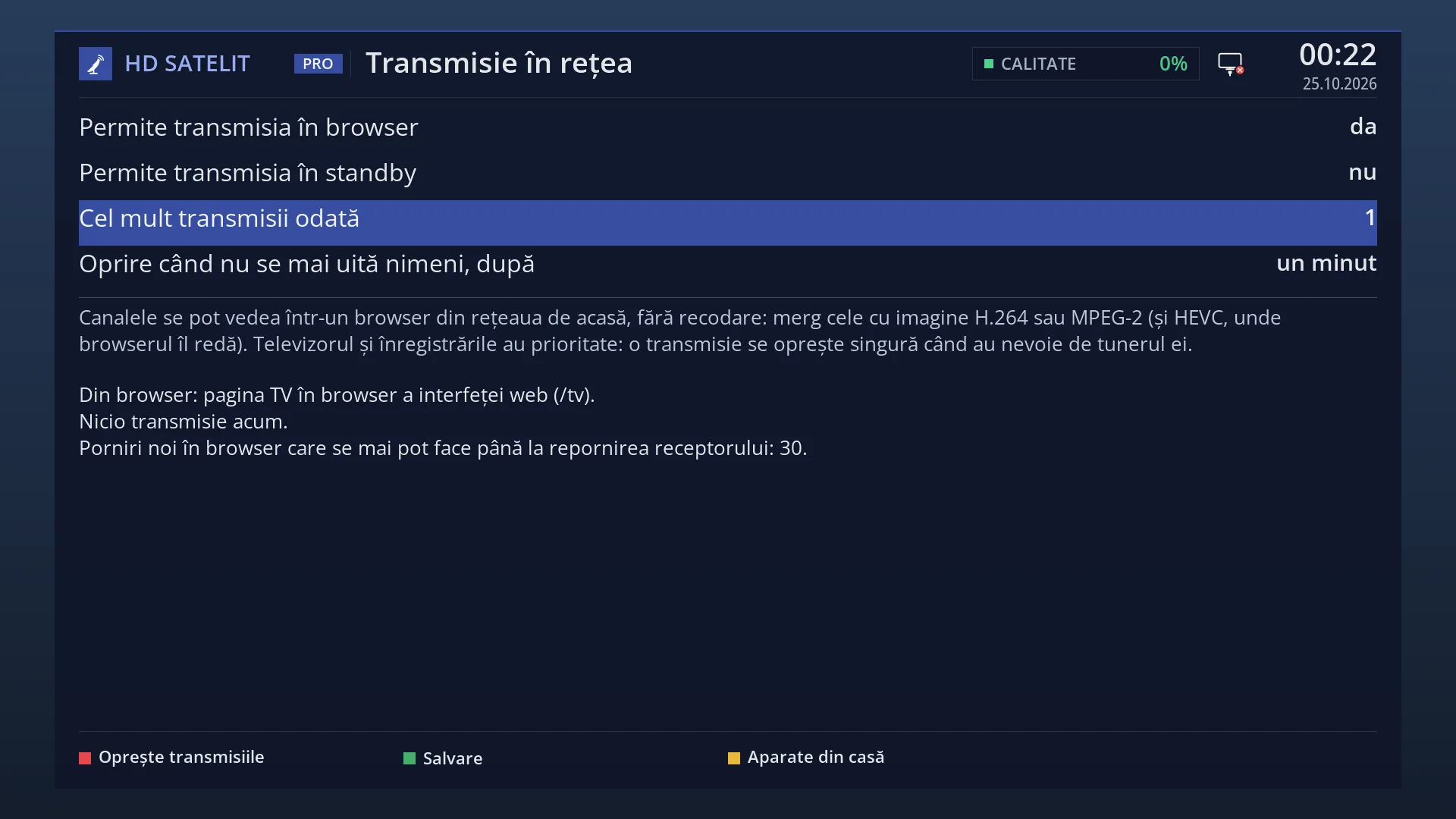
You can see who is watching and what in Menu > Settings > Network & Internet > Network streaming, or on the /tv web page, under “Active streams”.
What you see on the screen
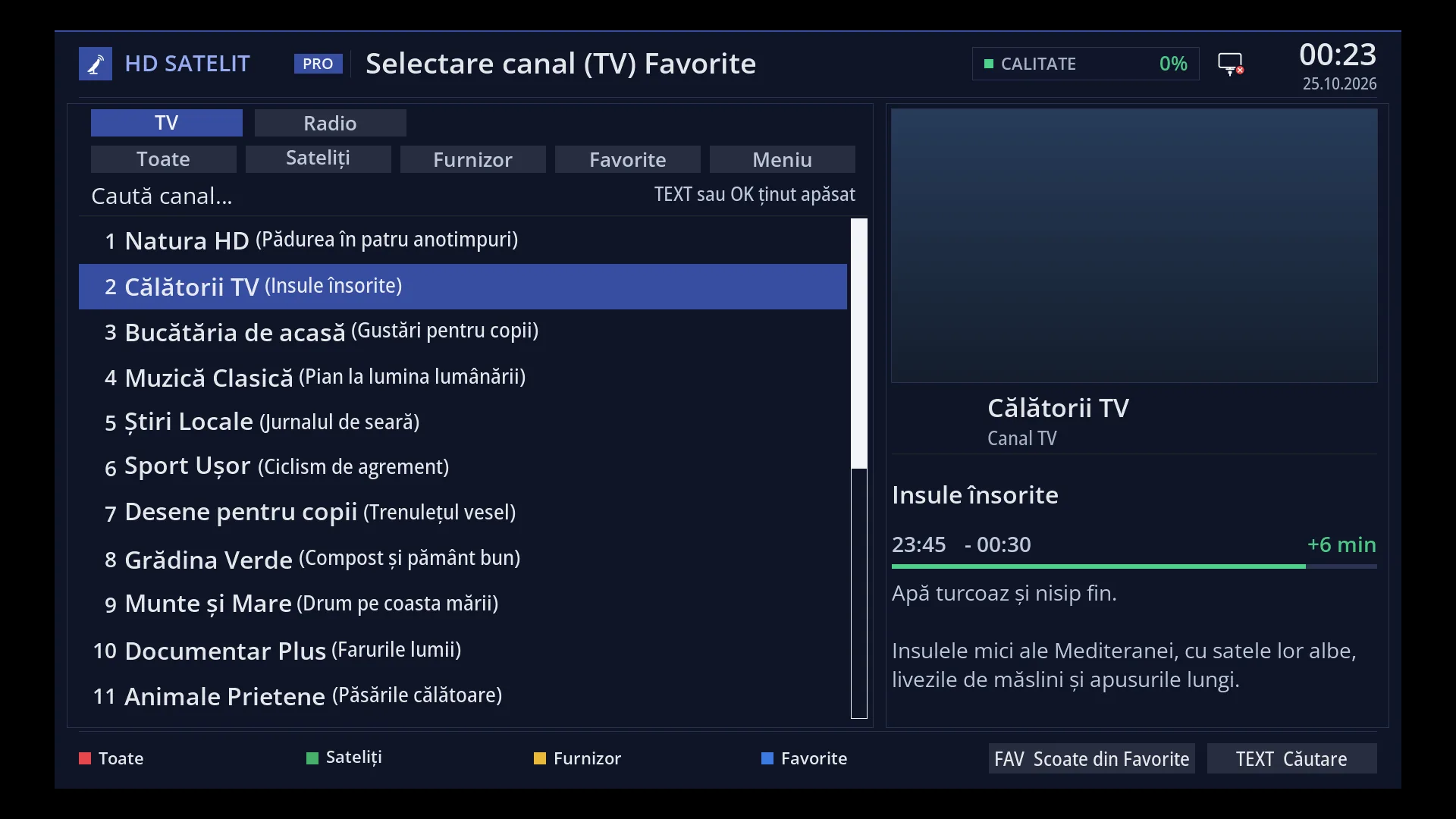
In the channel list: on the row of each channel being streamed now, on the right, an icon and the text “Streaming”. The sign also shows on the selected row.
In the info bar (the first bar): the “Streaming” label, in capital letters, next to the channel labels (HD, 16:9, TXT and the others; in the Pro theme, below them), while the channel on the TV is being streamed.
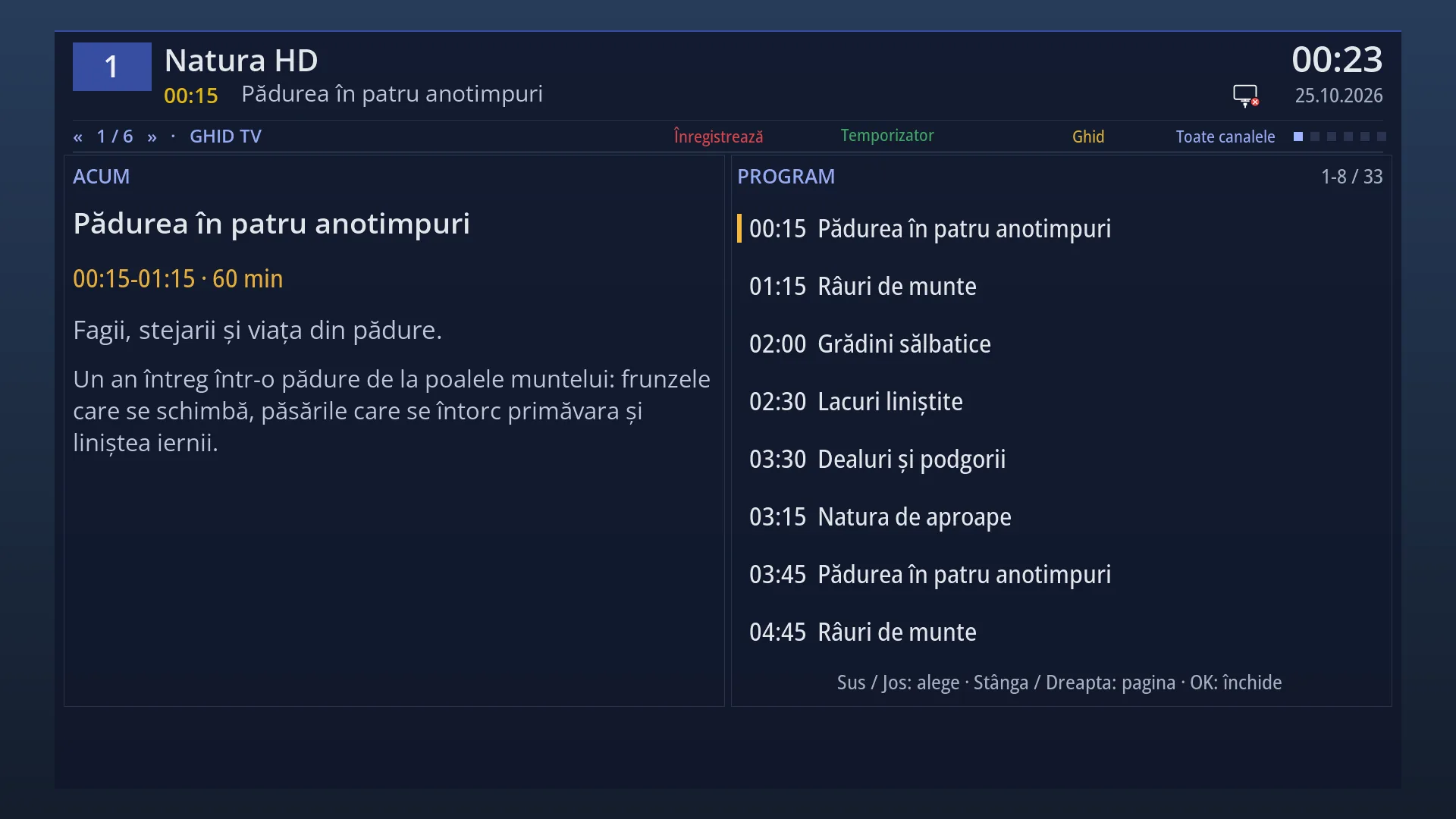
In the second bar: the same “Streaming” label, at the top, between the channel name and the clock.
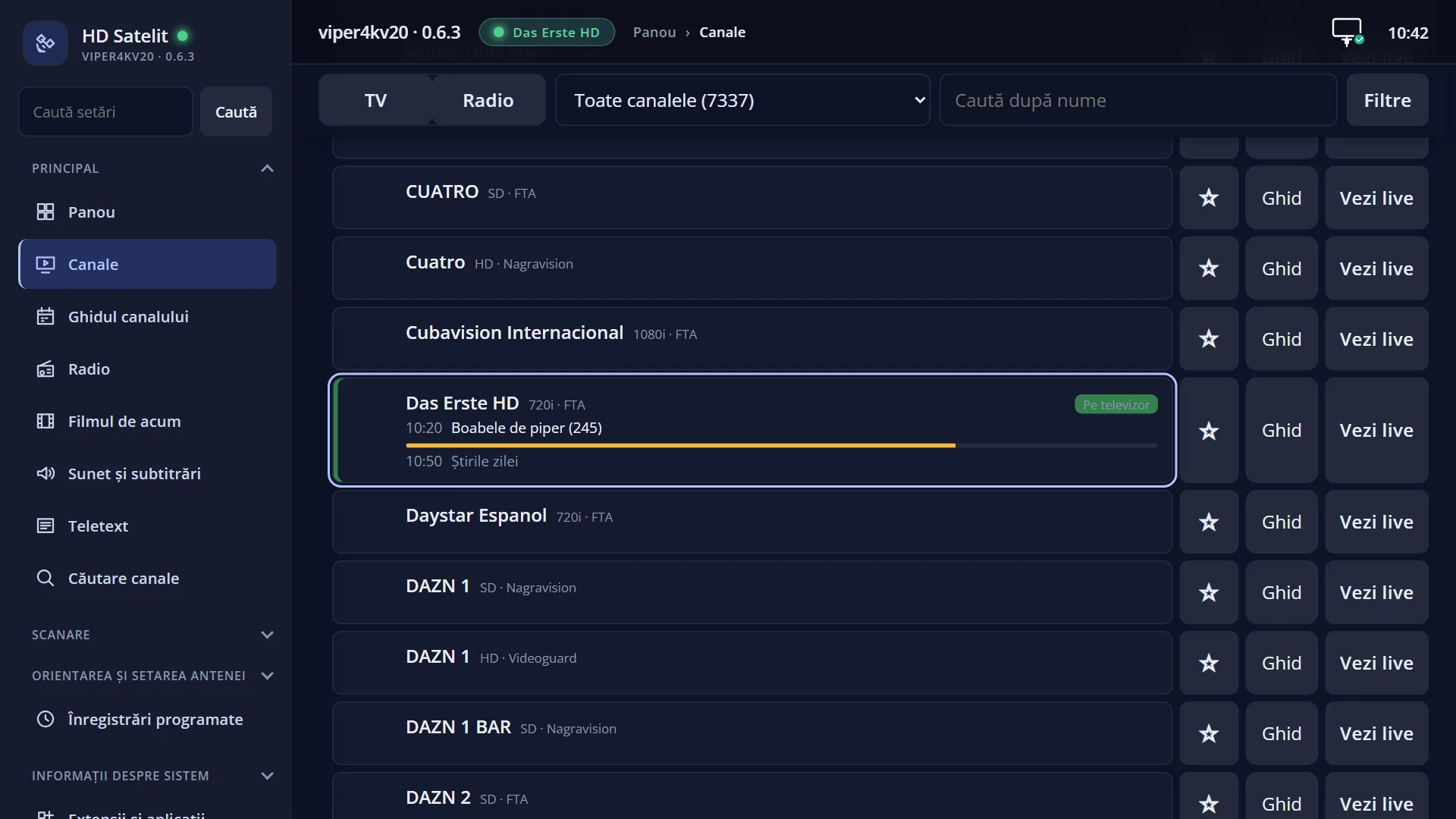
On the /canale web page: the “Streaming” label, in light blue, next to the channel. When you hold the mouse over it, it says “The channel is being streamed on the network now (TV in the browser or an external player)”.
Channels on other frequencies are NOT greyed out in the list just because of a stream: if you choose one, the stream gives up the tuner to the TV. A channel stays grey only because of a real recording.
Rows and settings
| Row | Values | Default | What it does |
|---|---|---|---|
| The sign in the channel list | the icon and “Streaming” | Shows, on the channel's row, that it is being streamed now to a browser or a player. Two channels can have the sign when “Maximum streams at once” is set to 2. | |
| The “Streaming” label in the bars | Appears only when the channel on the TV is the one being streamed. If the browser is playing a different channel from the one on the TV, the bar does not show it. | ||
| The “Streaming” label on the /canale page | The same information as the sign on the TV, for any channel on the page. |
Keys
| DOWN (on live TV) | Opens the channel list, where you see the sign on the rows of the channels being streamed. |
| OK (on live TV) | Shows the info bar; another OK shows the second bar. Both have the “Streaming” label while the current channel is being streamed. |
| Changing channel (CH+ / CH-, the digits, OK in the list) | On a channel on the same frequency, the stream carries on. On another frequency, the TV has priority: the stream on that tuner stops, and the browser shows “The stream has stopped: the TV switched to a channel on another frequency.”. |
Step by step
Find out who is watching the channel with the “Streaming” sign
- Press MENU 6 9, then UP and OK (Network streaming).
- Under “Streams now” you see the channel, the browser, for how long and how much has been sent.
- If you want, press RED to stop all streams; the sign disappears.
See from your phone which channels are being streamed
- Open the receiver's web interface and go to /canale.
- Channels being streamed have the “Streaming” label next to their name.
- On /tv, under “Active streams”, you see which browser each one goes to, and you can stop it with “Stop”.
Problems and solutions
A channel has the “Streaming” sign, but I am not watching in any browser.
Someone else in the house is watching, or a player in the house (on a smart TV, for example) is using a playlist. See who in Network streaming; stop it with RED, and revoke an unwanted device with YELLOW.
I changed channel and the one in the browser stopped.
The new channel was on another frequency and the TV needed the tuner. Start a channel on the TV's frequency again in the browser, or use “Start the channel from the TV”, which follows the TV.
The sign stays for a few seconds after I close the page.
The stream stops by itself after the time chosen in “Stop when nobody is watching” (one minute by default). Until then, reloading the page finds it still running.
I cannot start a channel from another satellite in the browser.
On a receiver with a motorised dish or with only one satellite tuner, the dish does not turn from the browser. Change the channel on the TV first; the stream follows it if you started it with “Start the channel from the TV”.
Related topics
- Network streaming
- TV in browser
- Channel selection (the channel list)
- The first info bar
- The second bar (six pages)
- Matching web pages: /canale (the “Streaming” label) and /tv (Active streams).