

Multi EPG
English screenshots coming: some of the pictures below still show the receiver and the web interface in Romanian. The rows, keys and steps described on this page are the English ones.
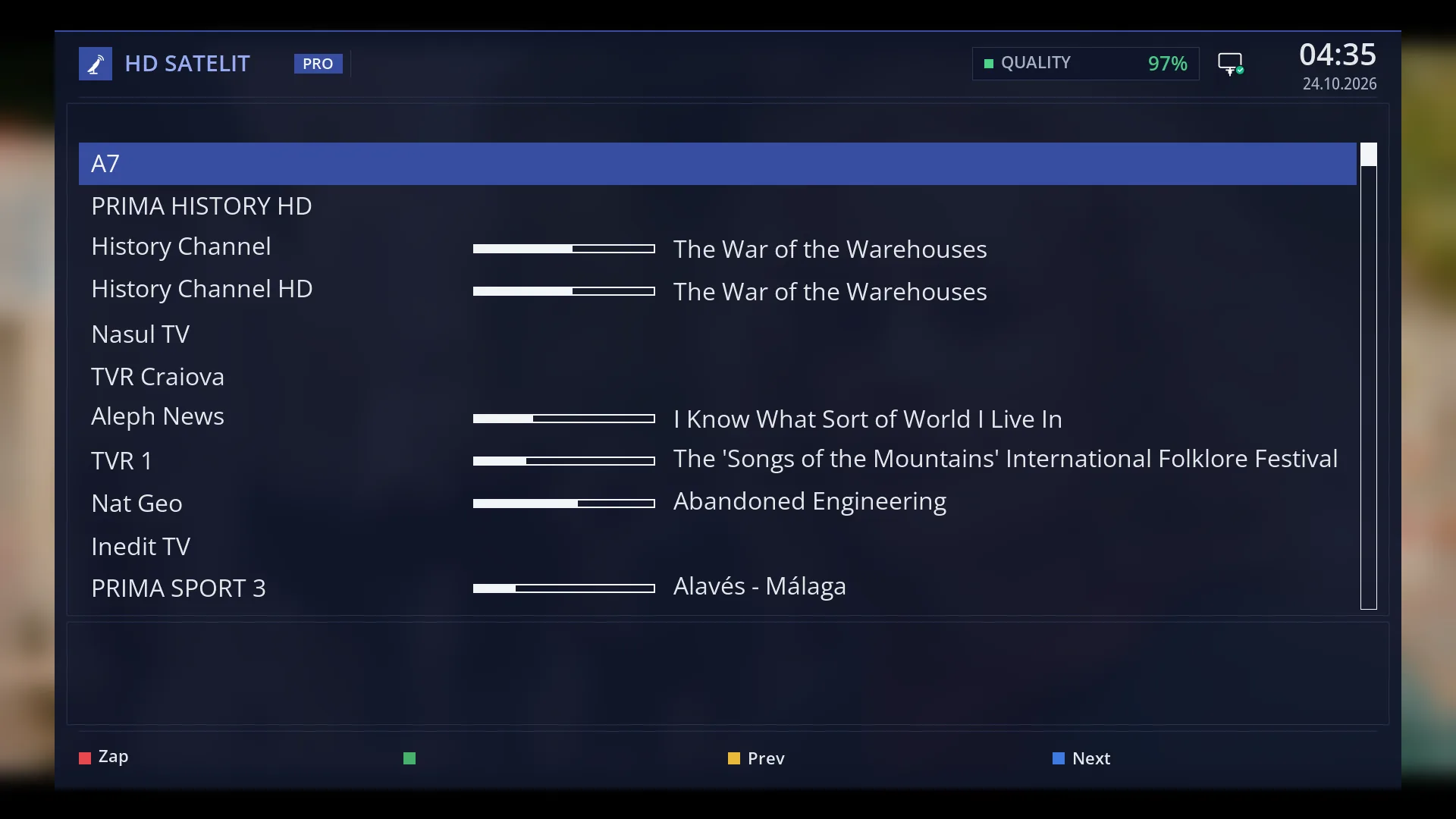
- 1 One row per channel: name, progress bar or times, programme title.
- 2 RED “Zap”, GREEN timer, YELLOW “Prev”, BLUE “Next”.
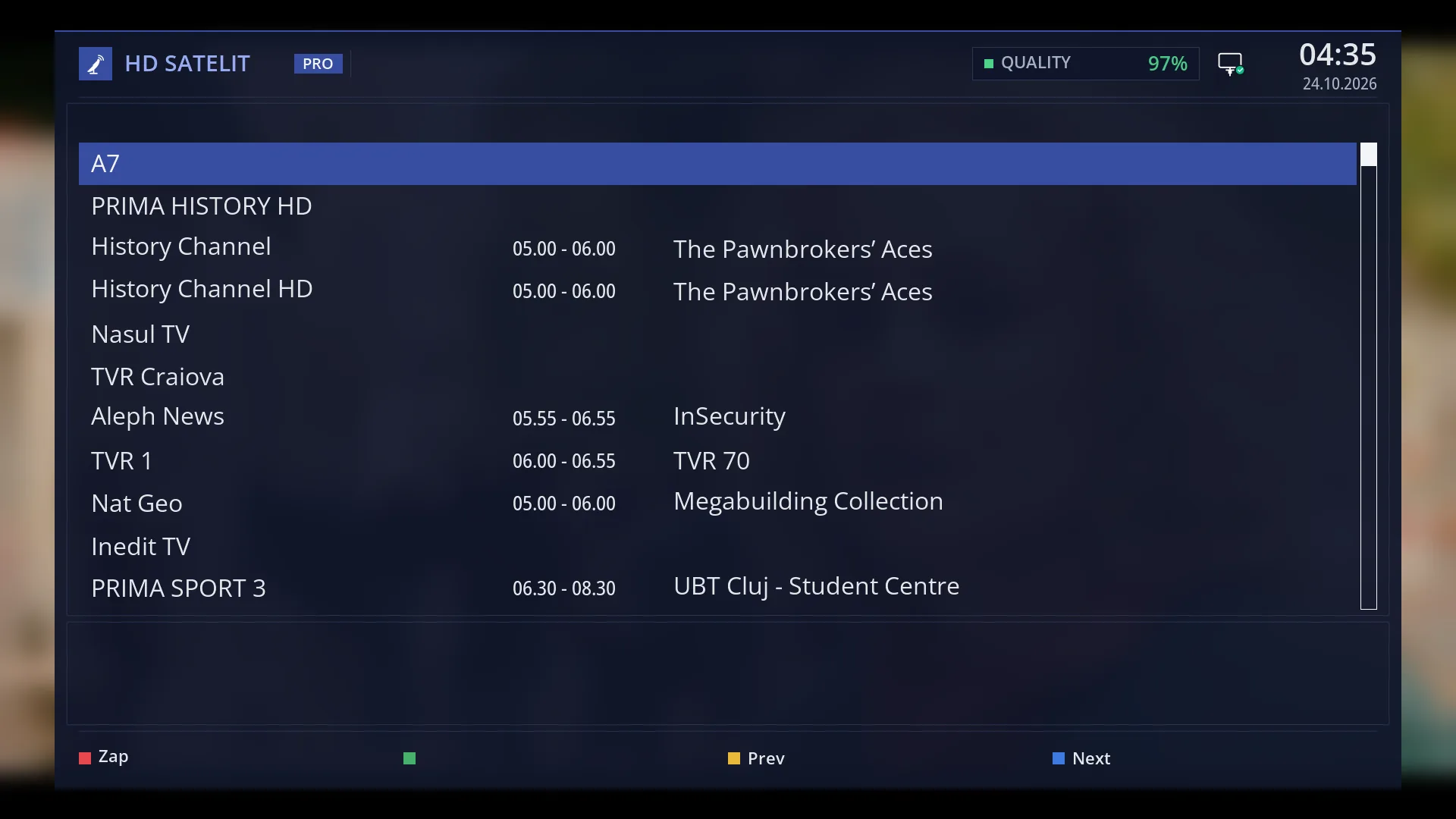
- 1 For each channel, the next programme, with its start and end time.
- 2 YELLOW takes you back towards the current programmes, BLUE goes further.
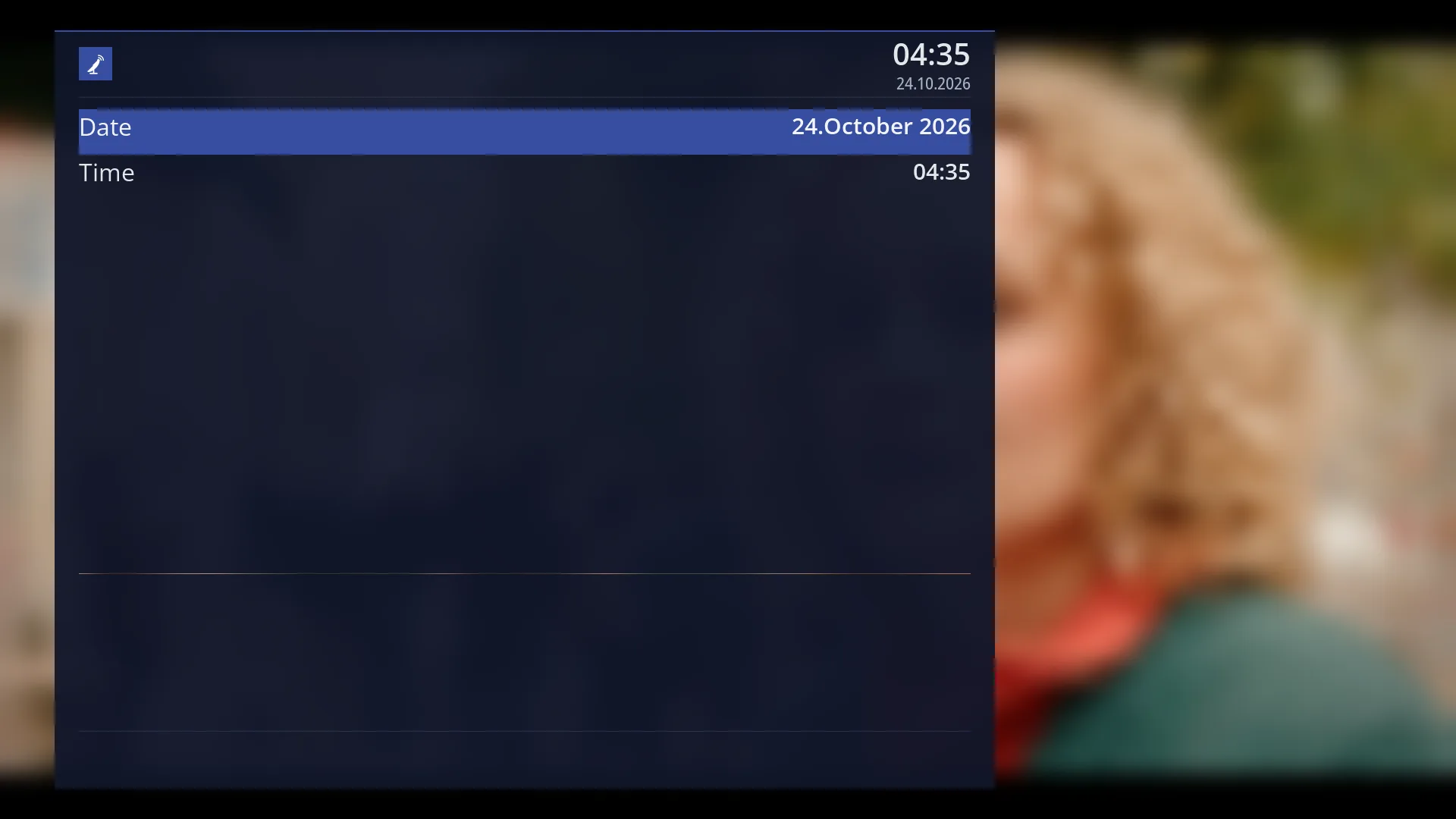
- 1 The selected row.
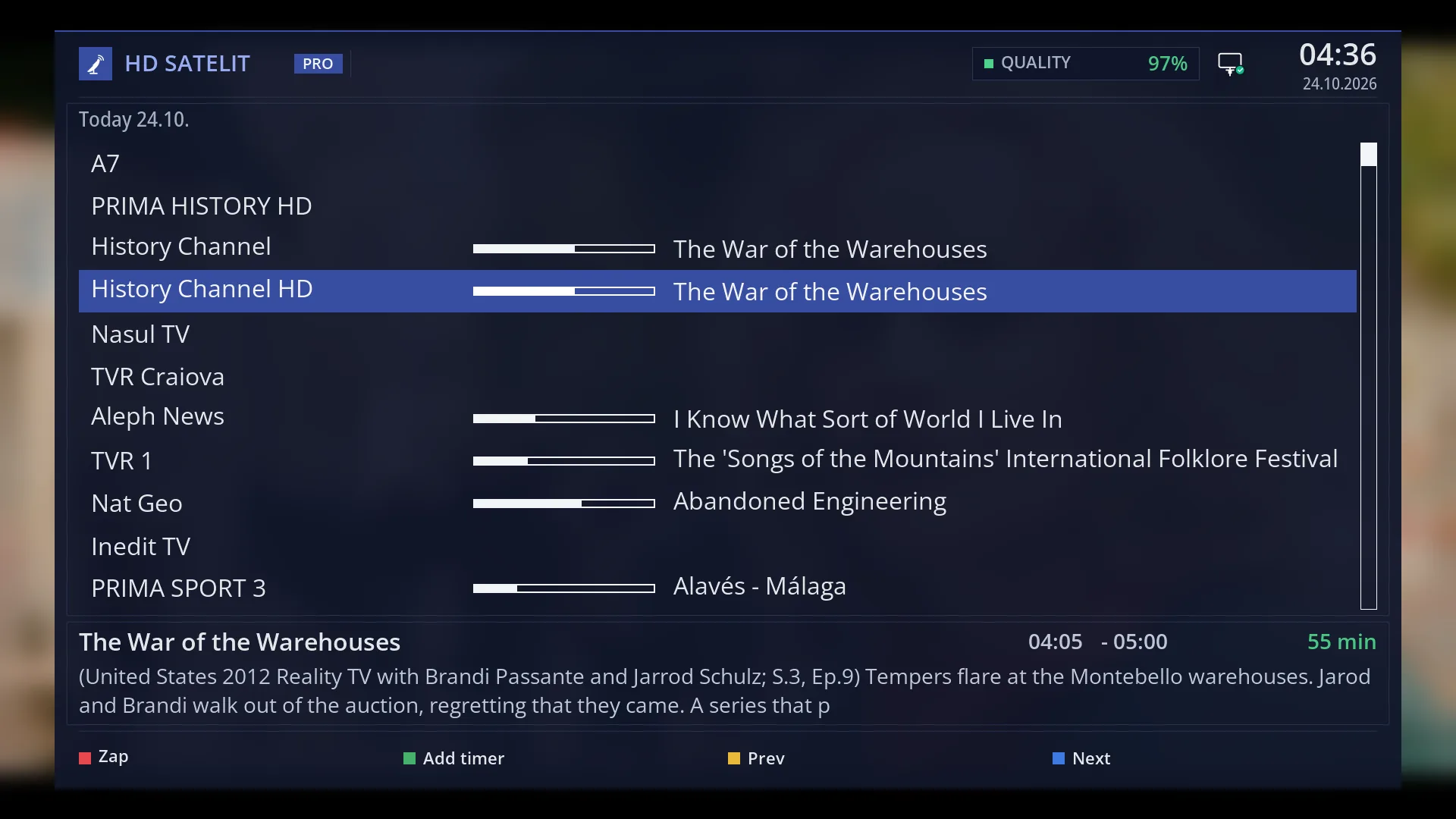
- 1 The selected row.
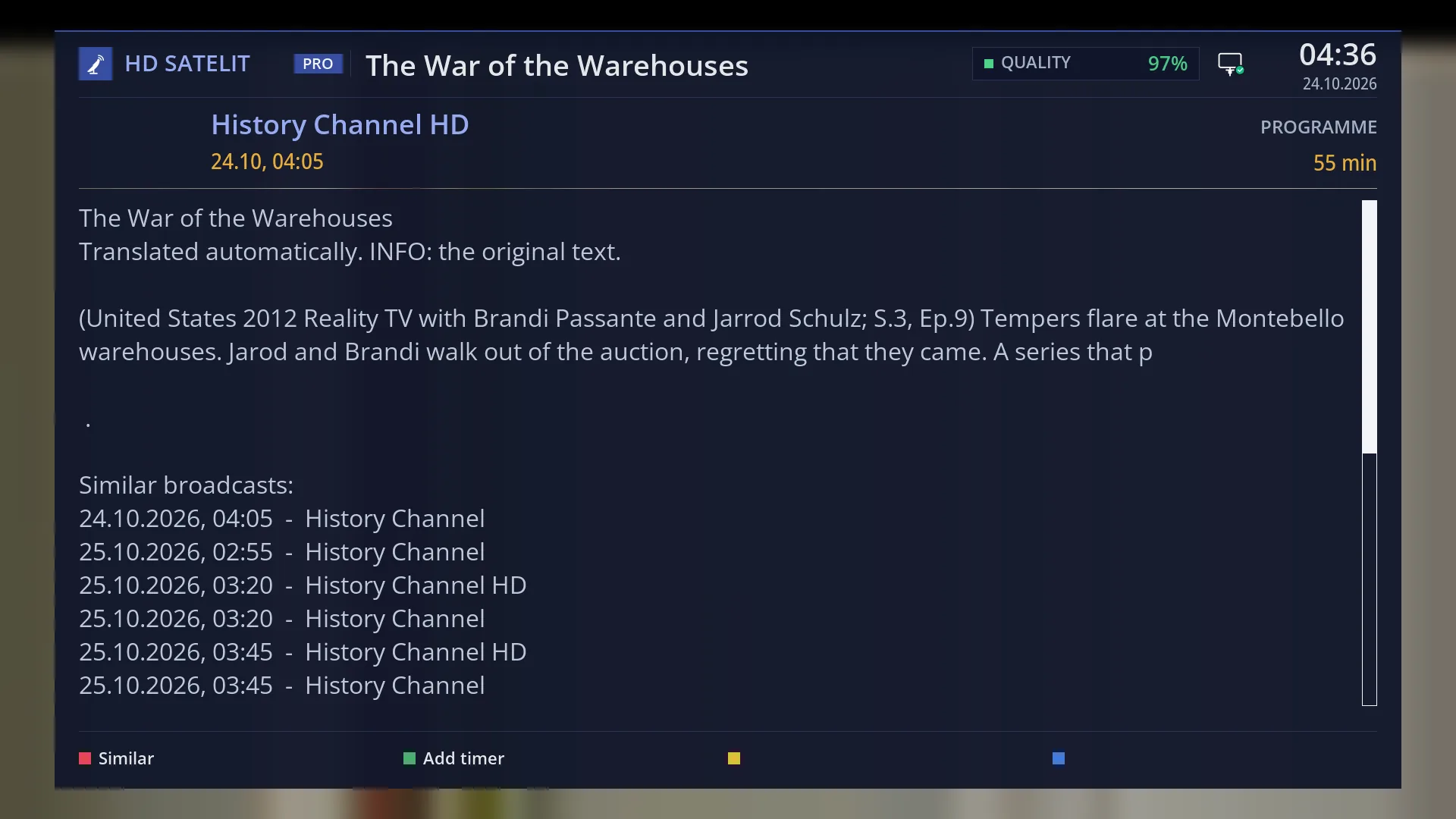
- 1 The description. LEFT and RIGHT move to the neighbouring channel.
What it is for
Multi EPG shows the current programme on each channel in your list, one channel per row. You can see at a glance what is on across all channels and switch straight to the one you want.
YELLOW and BLUE move all channels at once to the next programmes and back. MENU lets you pick a specific day and time (for example tonight at 21:00).
The channels are those in the list the channel list is currently set to, usually Favourites. If the list is set to “Satellites”, the guide uses the bouquet that contains the current channel. If that channel is not in any bouquet, the channel guide opens instead.
As in the channel guide, GREEN sets a recording for the selected programme and OK shows its details.
How to get here
How to get there: from live TV, press OK twice (second bar), then BLUE.
Keys while watching TV: OK OK BLUE.
From the programme details (INFO during live TV): BLUE “Multi EPG”.
Pressing INFO during live TV on a channel with no guide opens Multi EPG directly.
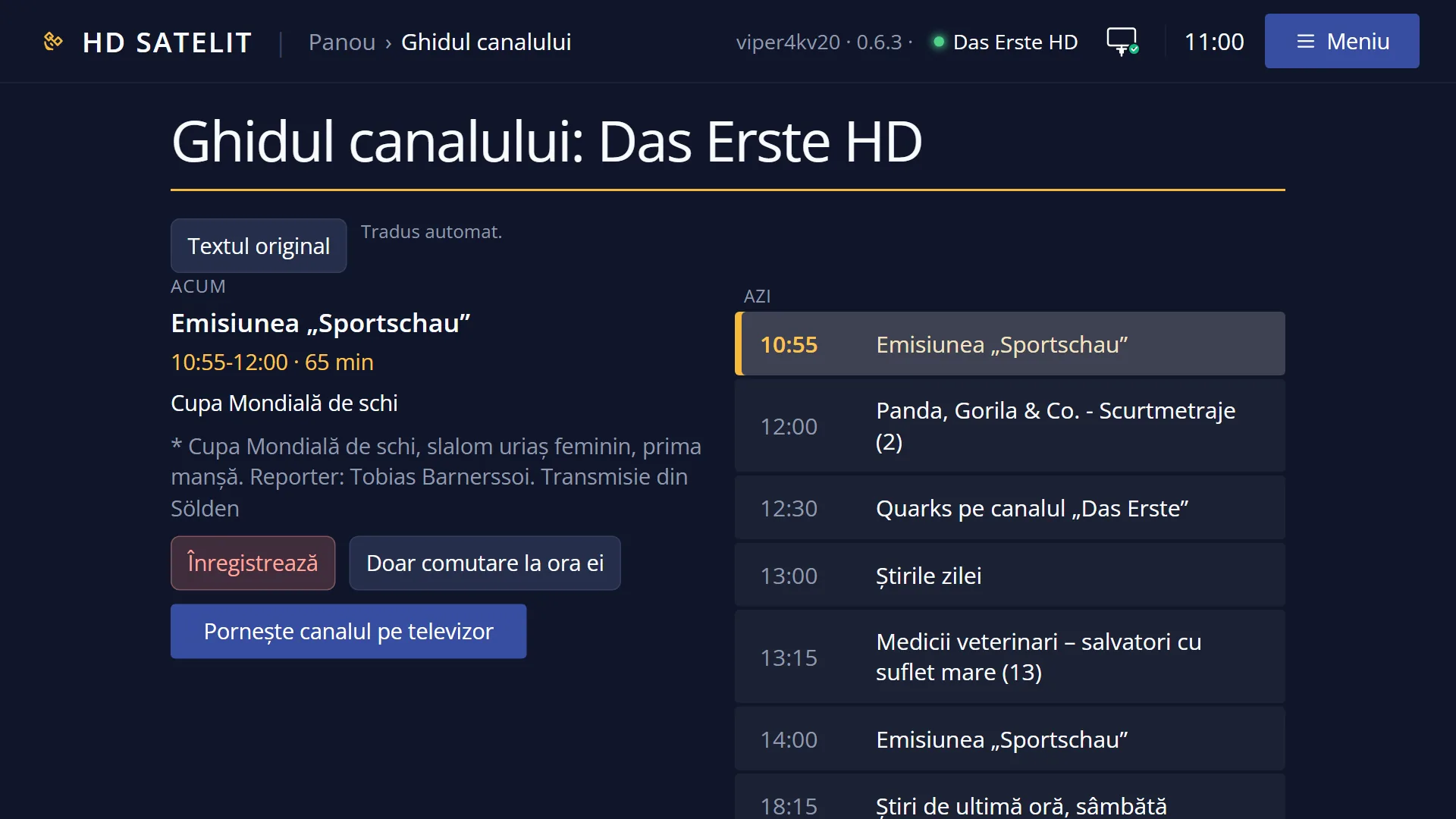
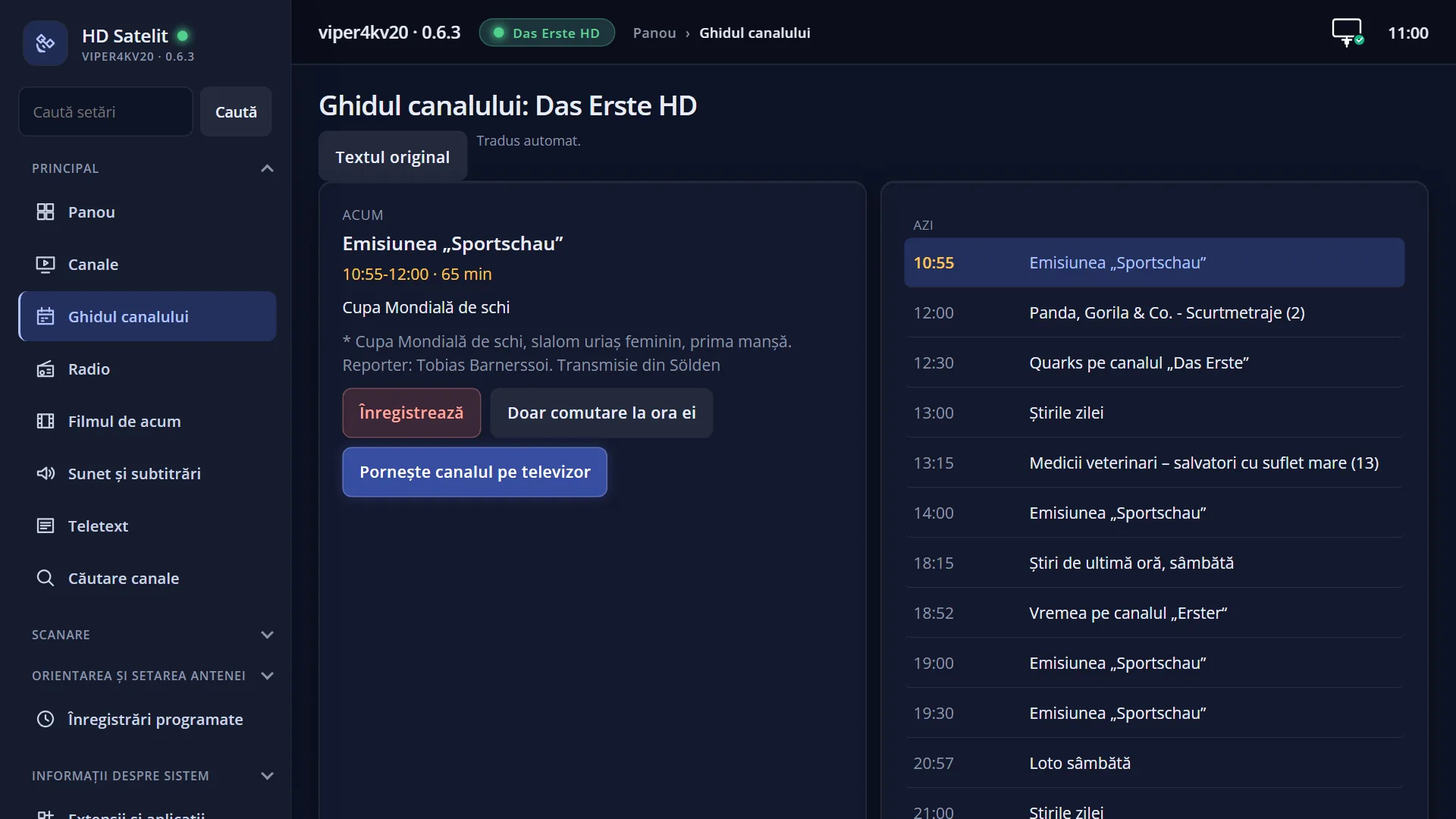
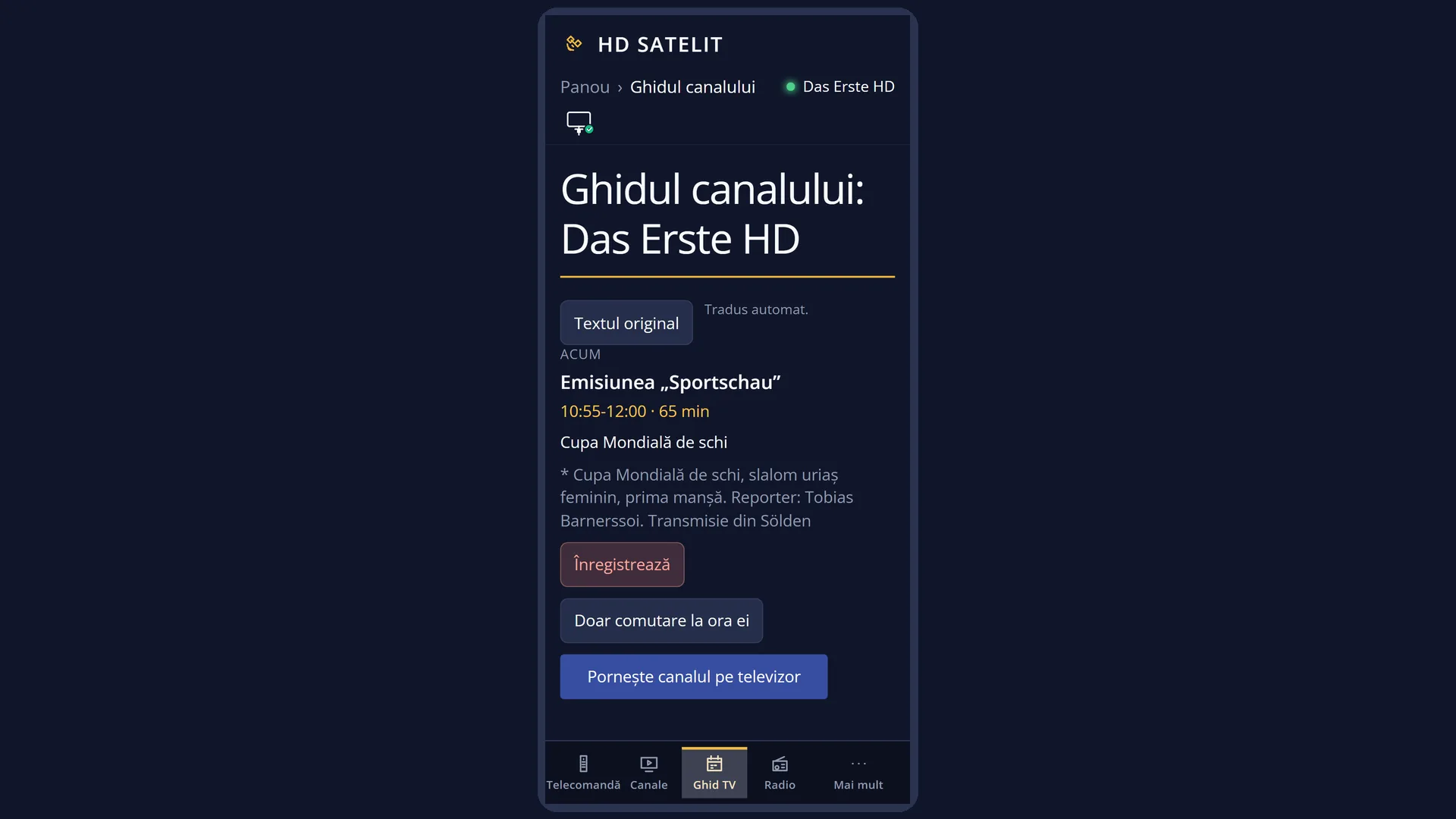
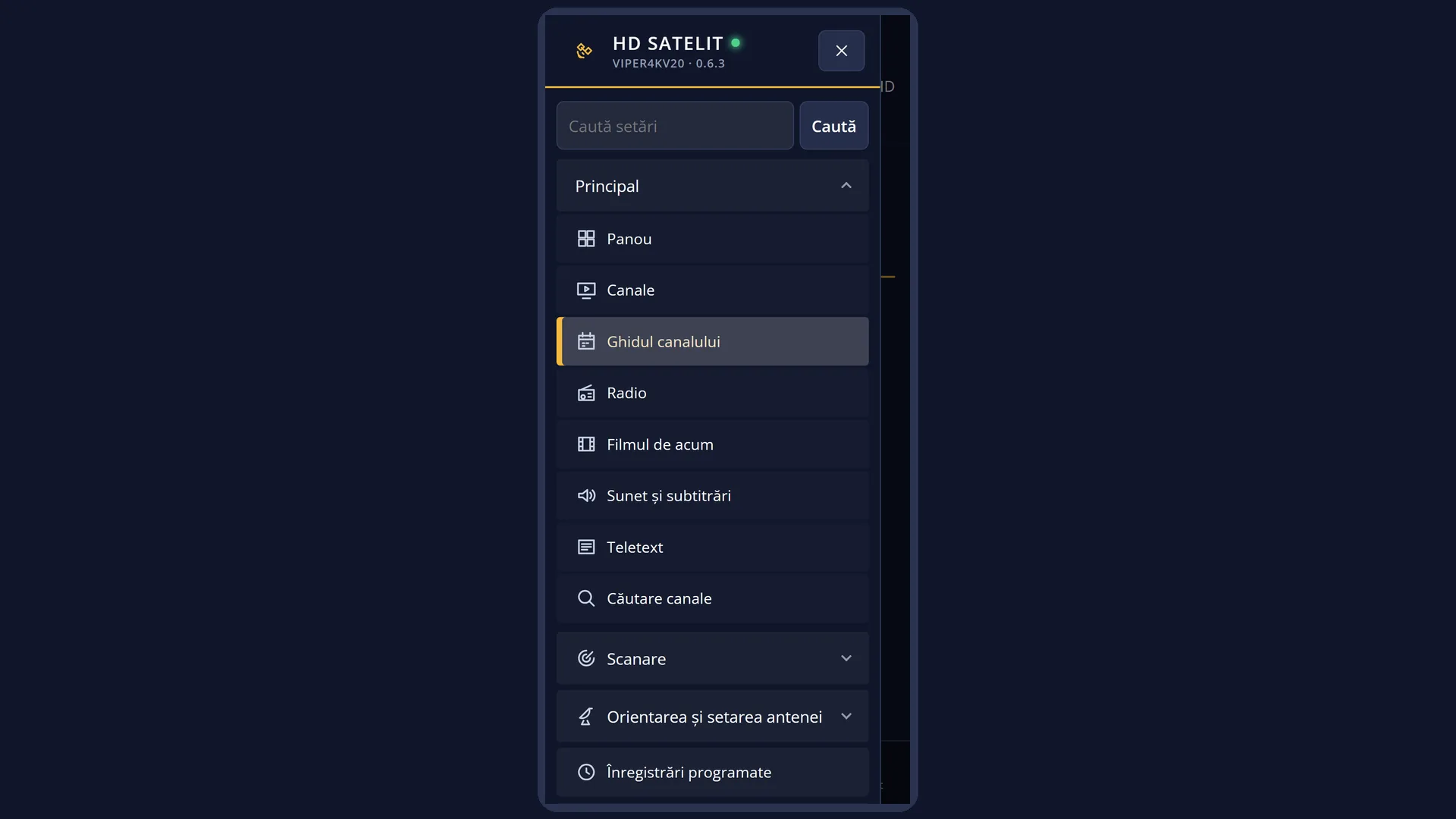
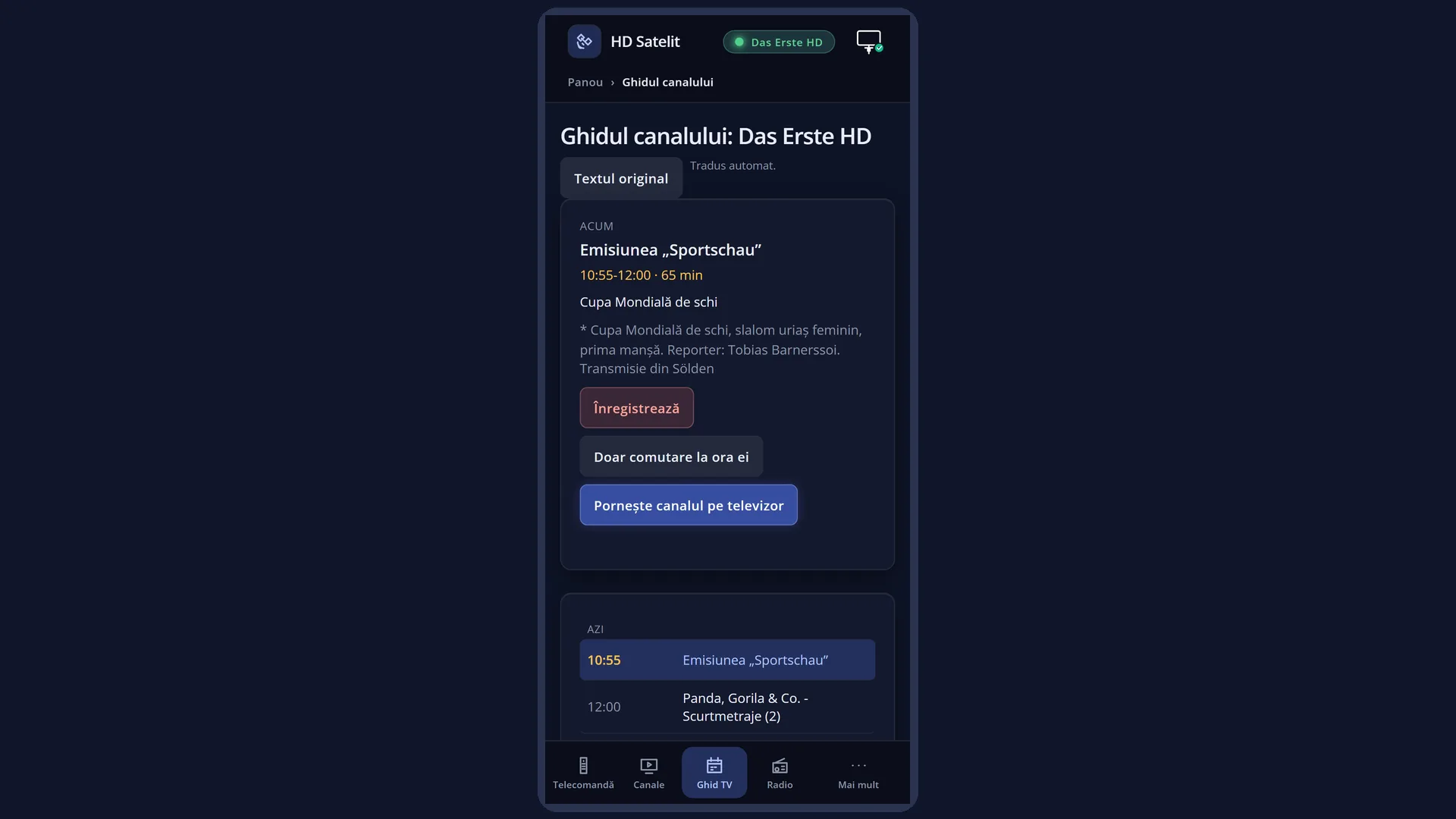
In the web interface: the /canale page shows the current and next programme for all channels in the selected list. The guide for a single channel is at /ghid.
What you see on the screen
Top left, the day of the selected programme: “Today 23.10.” or, for another day, the short day name and date (for example “Fri 24.10.”).
The list, one row per channel: the channel name, then a bar showing how much of the programme has passed if it is on now, or its times if it has not started yet (for example “21.00 - 22.30”), then the programme title. When the guide opens, the cursor is on the current channel.
A clock at the end of the channel name means a recording is set for the programme in that row.
At the bottom, the selected programme: title, start and end time, duration and description.
The keys at the bottom: RED “Zap”, GREEN “Add timer” (or “Remove timer”), YELLOW “Prev”, BLUE “Next”.
Rows and settings
| Row | Values | Default | What it does |
|---|---|---|---|
| Channel row | Channel name, progress bar (current programme) or times (an upcoming programme), Programme title, clock for a set recording | the current programmes | OK or INFO on a row opens the programme details. RED switches to the channel. |
| Day and time shown (MENU) | Date, Time | Now | MENU opens a window with two rows, “Date” and “Time”. After OK or GREEN, the list shows the programme on each channel at the chosen day and time. When you want to see what is on tonight or tomorrow at a certain time. |
| Multi-EPG bouquet selection (OSD Preferences) | Yes, No | No | Yes: before the guide, the “Choose bouquet” window appears so you can choose which list's channels you see (only with “Enable multiple bouquets” on and at least two bouquets). No: the guide goes straight to the list the channel list is set to. When you have several bouquets and want to choose each time. |
Keys
| UP / DOWN | The channel above or below. From the last one it goes to the first. |
| LEFT / RIGHT | The previous or next page of the list. |
| OK / INFO | Details of the selected programme. In the details, LEFT and RIGHT move to the channel above or below. |
| RED | “Zap”: switches to the selected channel and closes the guide. It works on rows with the current programme and after choosing a time with MENU (the “Zap” label then disappears from the bottom, but the key still works). After BLUE it does nothing until you go back with YELLOW. |
| GREEN | “Add timer”: sets a recording for the programme in the row. On a programme that already has one, “Remove timer”. |
| YELLOW | “Prev”: the previous programme on all channels. It does not go back further than the current programmes. |
| BLUE | “Next”: the next programme on all channels. Press it again for the one after that. |
| MENU | You choose the day and time (“Date”, “Time”). The list shows the programmes at that time. |
| CH+ / CH- | The next or previous bouquet, when you have several bouquets. |
| EXIT | Closes the guide without changing the channel. |
Step by step
See what is on now on all channels and switch to one
- Press OK twice, then BLUE.
- Use UP and DOWN to go to the channel you want. The programme description is shown at the bottom.
- Press RED “Zap”. The channel starts and the guide closes.
See what is on tonight at 21:00
- In Multi EPG, press MENU.
- On “Date”, leave today's date. On “Time”, enter 21:00.
- Press OK. The list shows the 21:00 programme on each channel. Press GREEN to set a recording for the one you want.
See what comes after the current programmes
- Press BLUE “Next”: each channel shows its next programme, with its times.
- Press BLUE again to go further.
- YELLOW “Prev” takes you back, as far as the current programmes.
Problems and solutions
RED “Zap” does not switch to the channel.
You have moved to the next programmes with BLUE. Go back with YELLOW to the current programmes, then press RED.
The guide does not show the channels I expect.
The guide takes its channels from the list the channel list is set to (usually Favourites). Open the list (DOWN), switch to the list you want, start a channel from it and open the guide again.
The guide for a single channel opens instead of Multi EPG.
The channel list is set to “Satellites” or “Provider”, and the current channel is not in any bouquet. Add the channels to Favourites (FAV key) and start the channel from Favourites.
Some channels have no programme in their row.
The broadcaster does not send a guide, or the receiver has not received it yet. The guide builds up while the channels are playing.
CH+ and CH- do nothing.
Switching to another bouquet only works with “Enable multiple bouquets” on and at least two bouquets.
Related topics
- Channel guide (the programmes of a single channel)
- The translated guide
- Favourites in one press (the channels that appear here)
- The “Multi-EPG bouquet selection” setting: Menu > Settings > Interface & Appearance > OSD Preferences.
- Matching web pages: /canale (the current and next programme on each channel) and /ghid.