

Channel guide
English screenshots coming: some of the pictures below still show the receiver and the web interface in Romanian. The rows, keys and steps described on this page are the English ones.
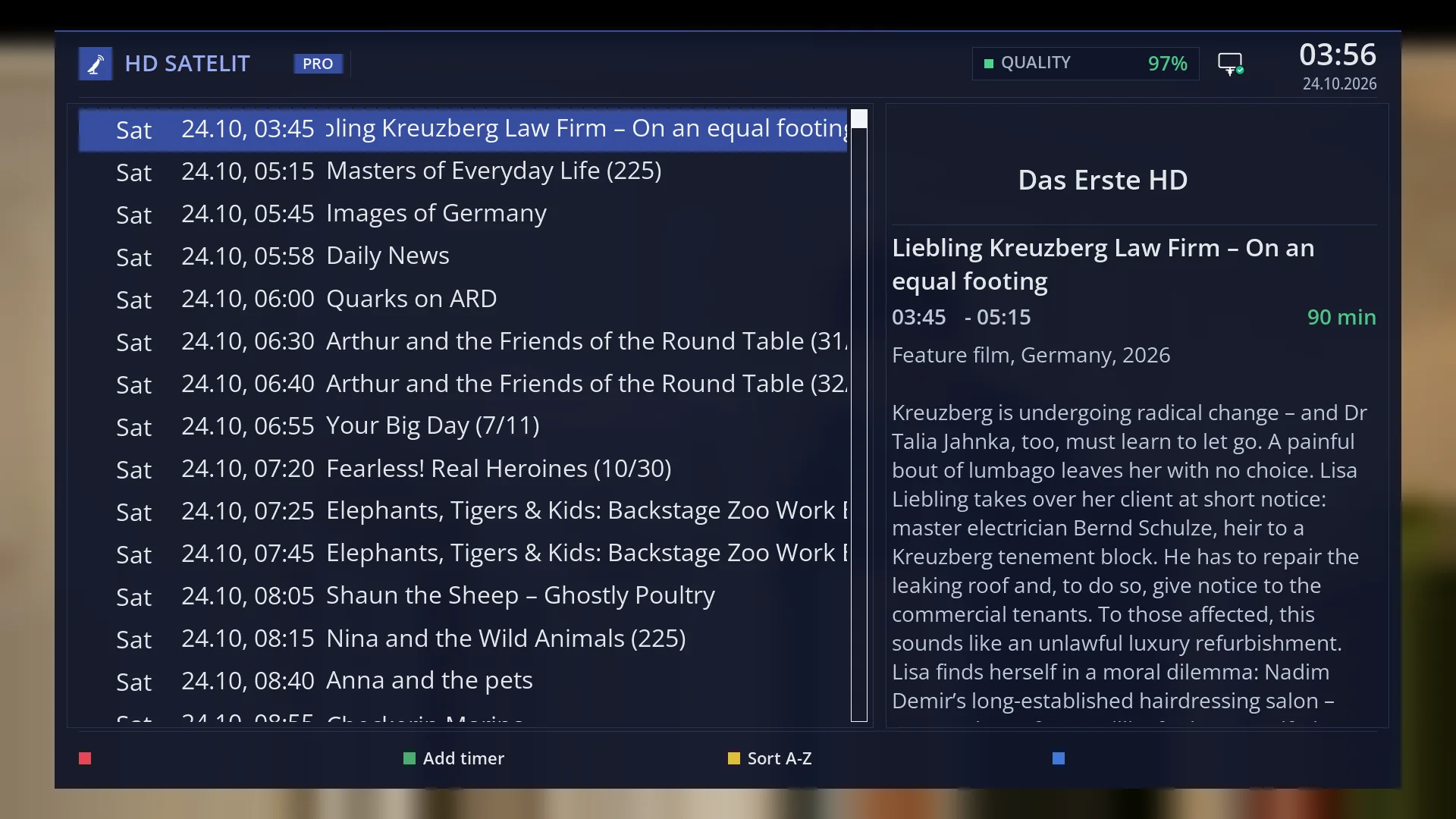
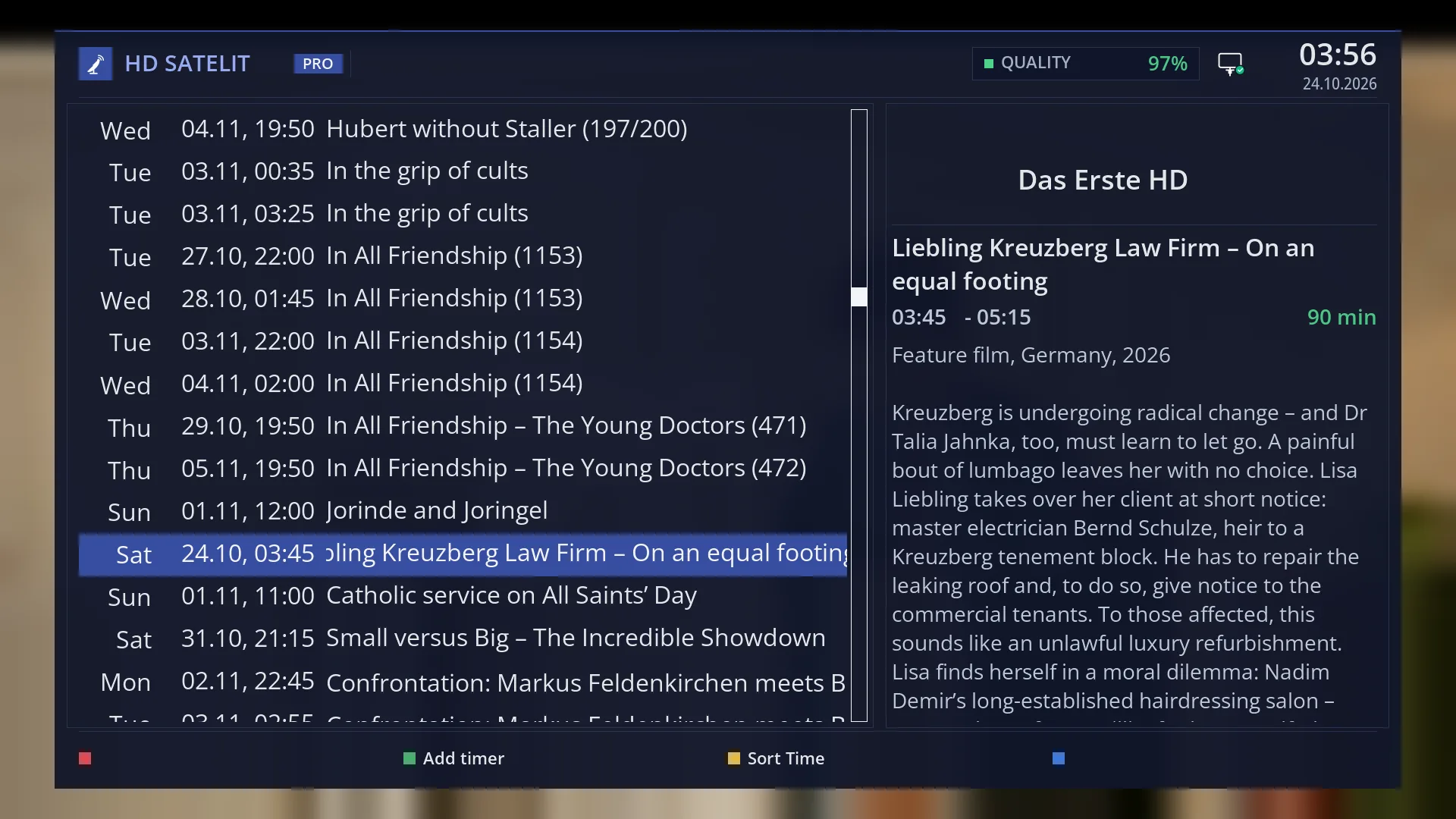
- 1 The programmes: day, date and time, title. The clock means a scheduled recording.
- 2 The channel logo and name.
- 3 The selected programme: title, start and end time, duration.
- 4 The description of the selected programme.
- 5 GREEN: scheduled recording. YELLOW: sorting by title or by time.
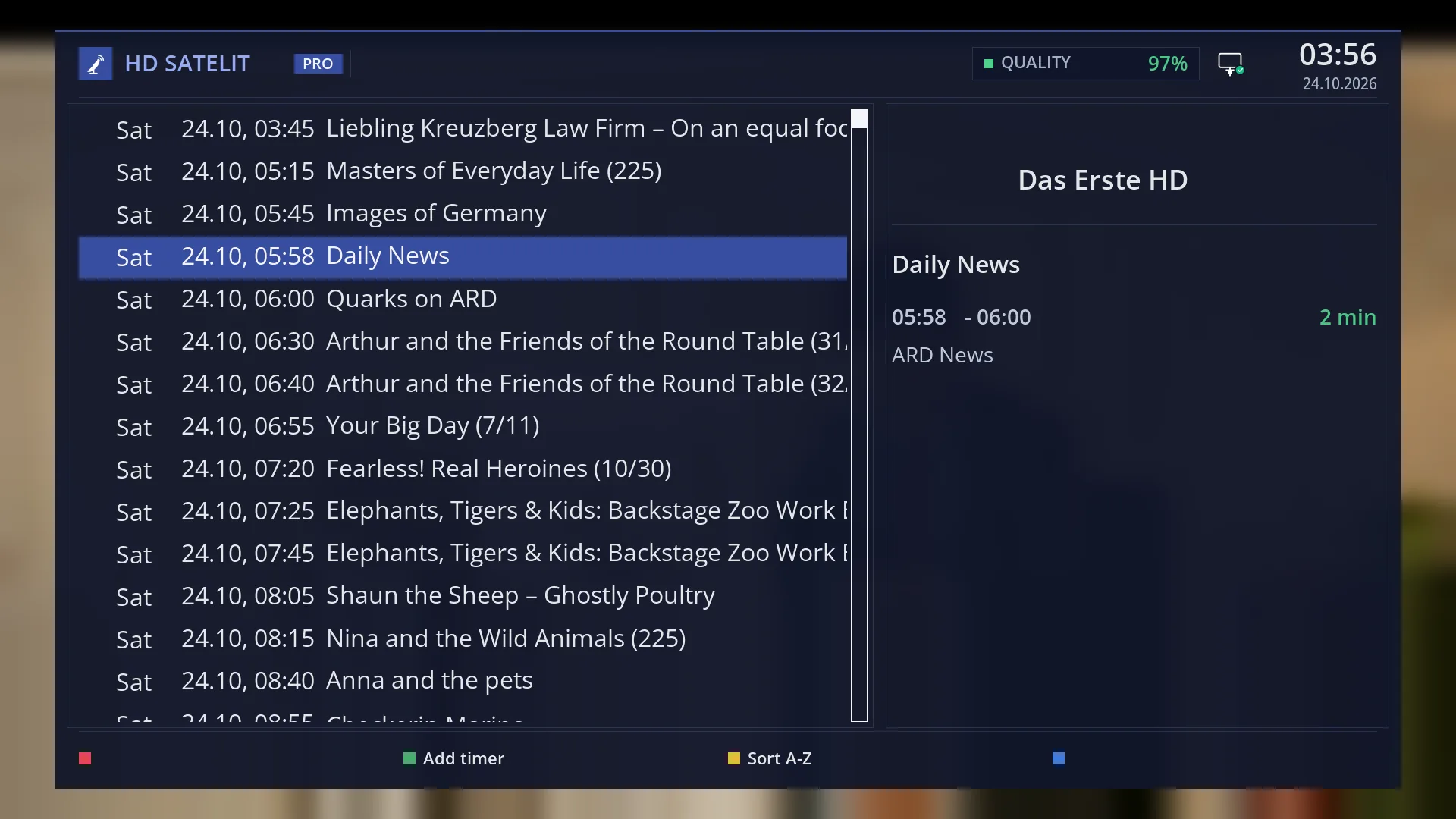
- 1 The selected row.
- 1 The programmes in title order: showings of the same programme are listed one under the other.
- 2 YELLOW puts the list back in time order.
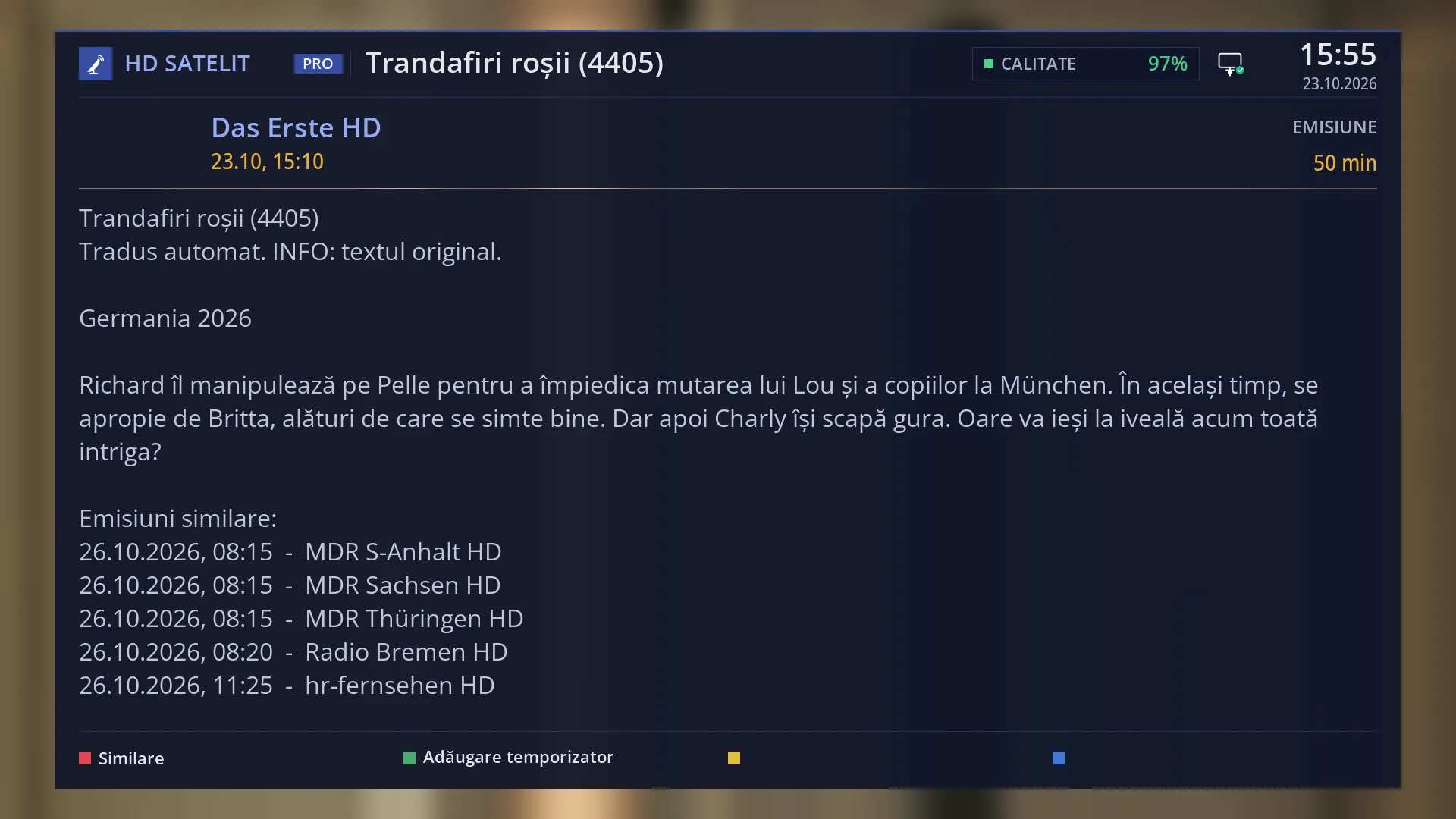
- 1 The channel logo and name, the date and start time.
- 2 The “PROGRAMME” label and the duration in minutes.
- 3 The title and the full description. UP and DOWN scroll it. At the end, the other showings.
- 4 RED “Similar”, GREEN “Add timer”.
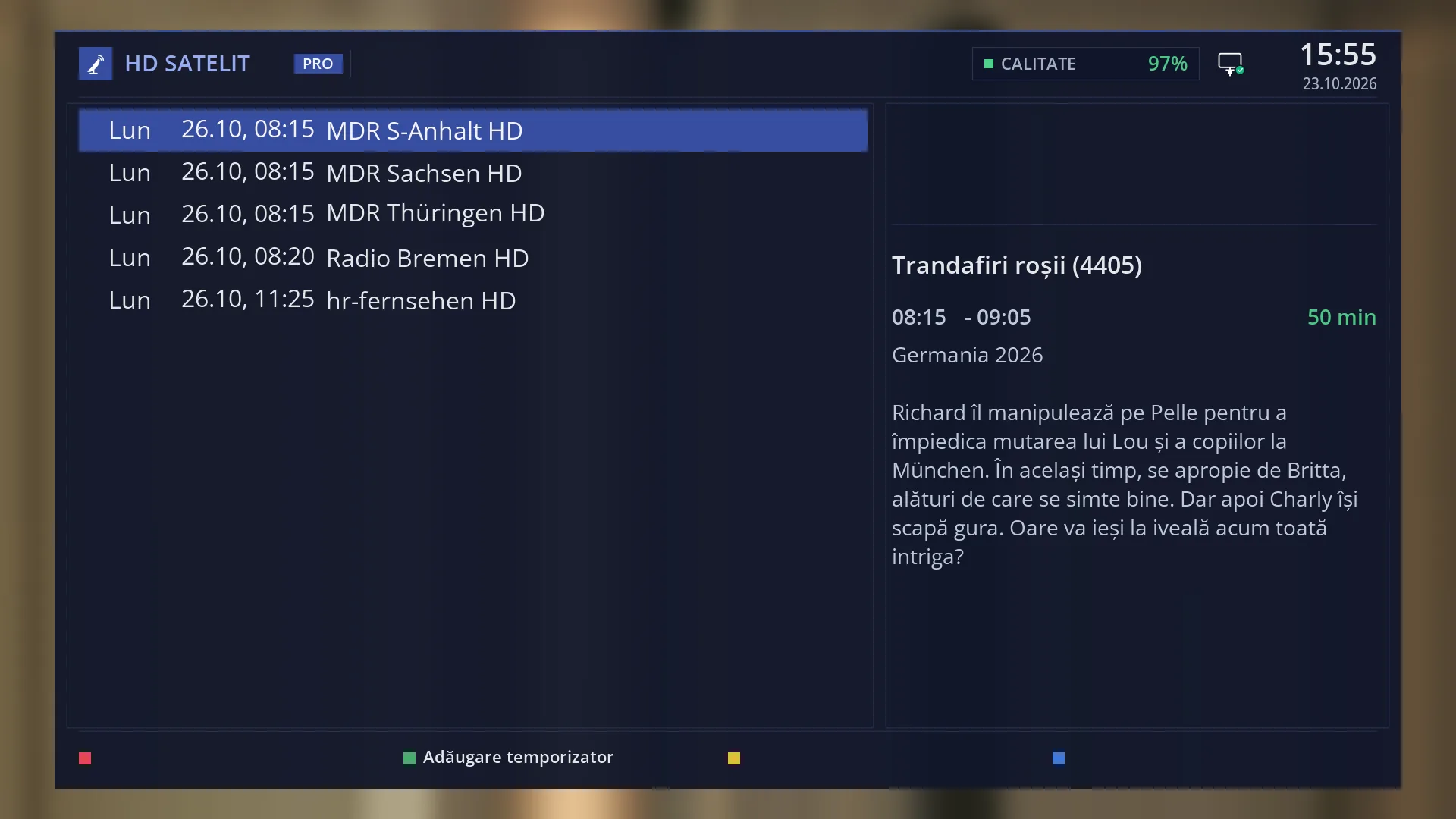
- 1 The other showings: day, date and time, channel.
What it is for
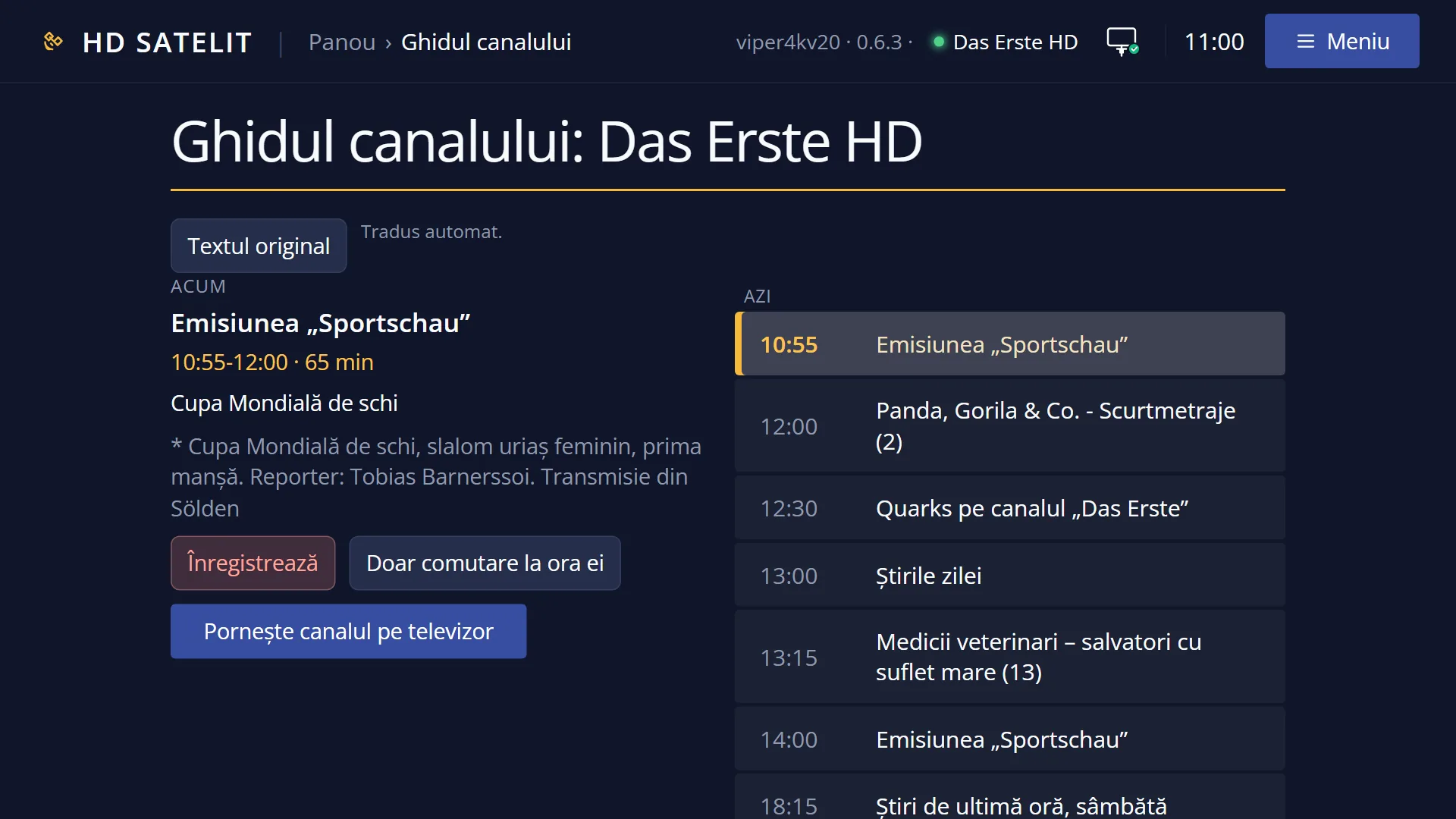
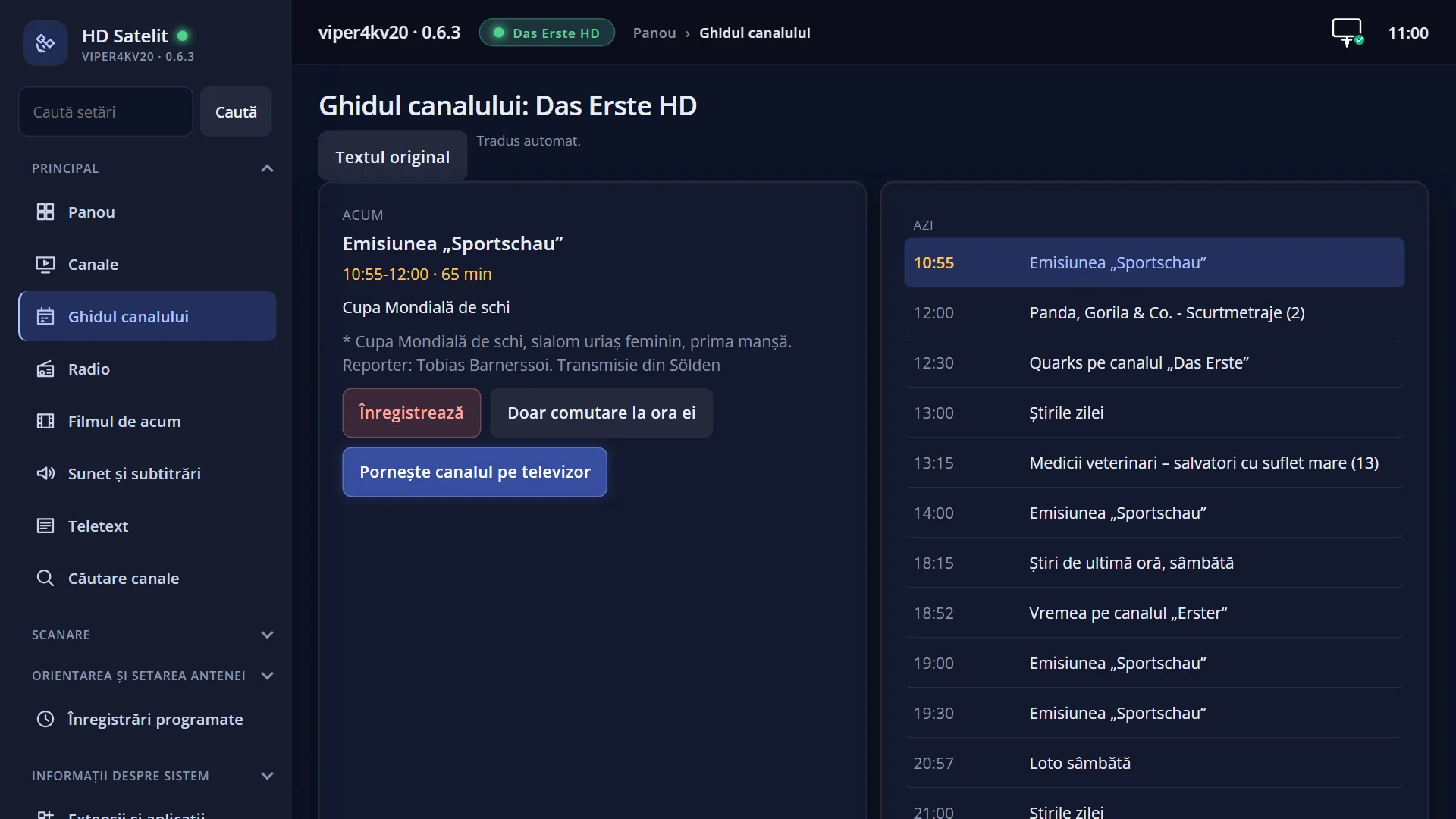
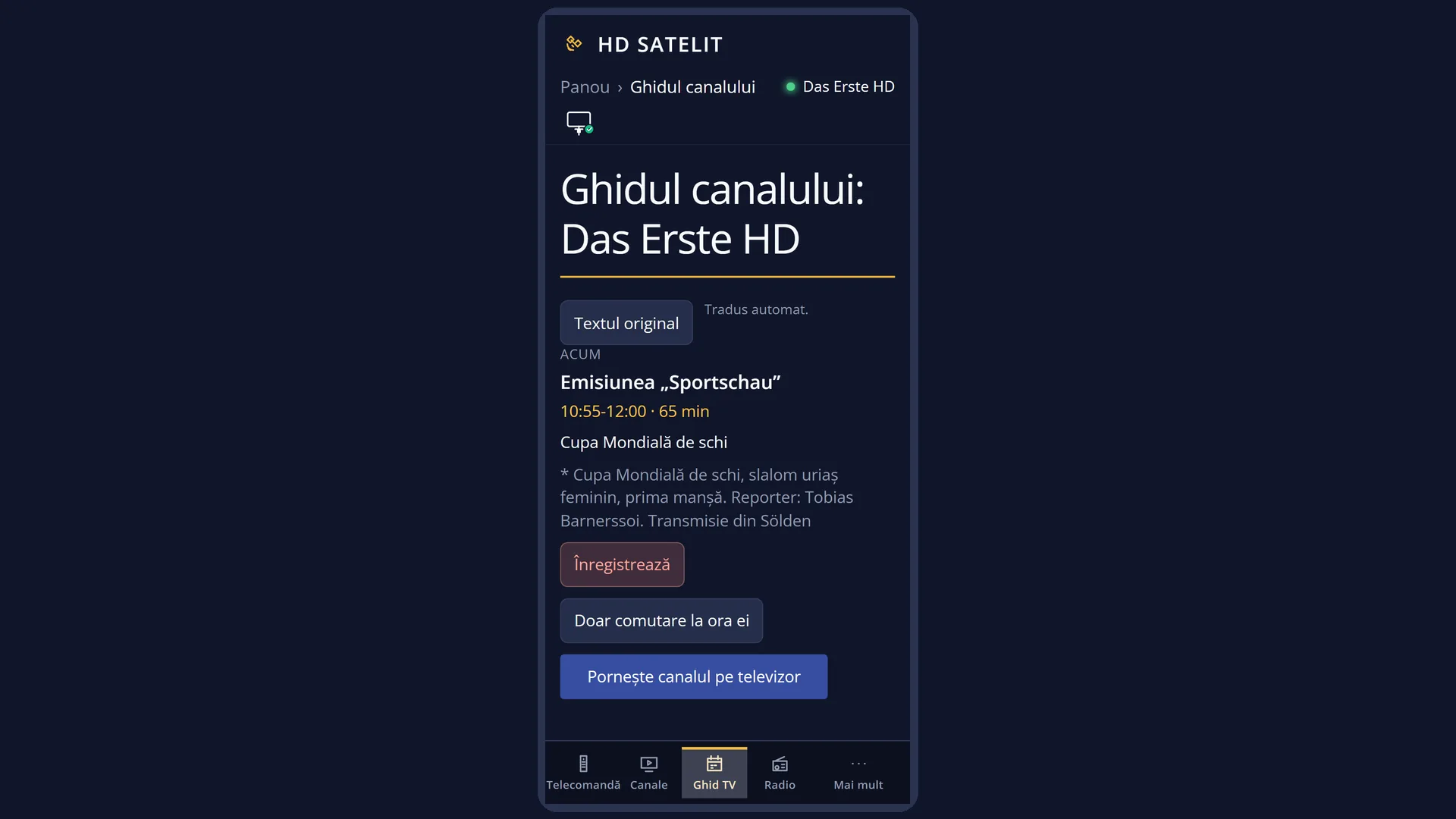
The channel guide shows the programmes of a single channel, from now on, for all the days the broadcaster has sent. You see what is coming up and can read the description of any programme.
From here you schedule a recording of a programme with the GREEN key. The receiver records it by itself at the right time, even if you are watching another channel or it is in standby.
The data comes from the broadcaster, via satellite. A channel that sends no guide has an empty list, and some broadcasters send only the current programme and the next one.
With “Translate EPG” switched on, titles and descriptions are translated into your language (see the “Translated guide” page).
How to get here
Path: from live TV, press EPG (or hold down INFO). You get the guide of the channel you are watching.
Keys while watching TV: EPG.
From the channel list: INFO or EPG on a channel opens the guide of that channel without switching to it.
From the second bar (OK twice): YELLOW or EPG, with the guide opened on the programme selected there.
From the programme details (INFO in live TV): YELLOW “Single EPG”.
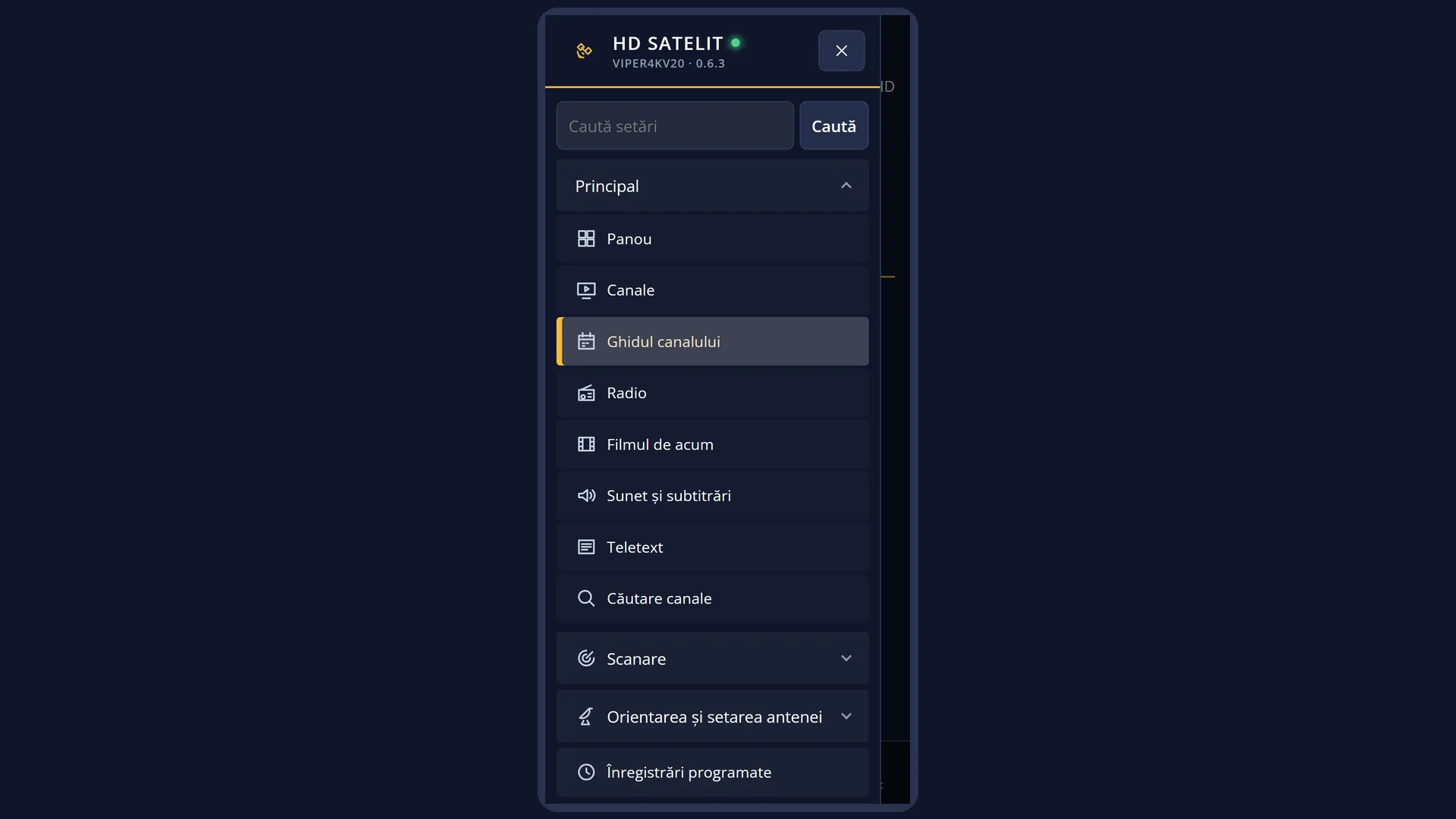
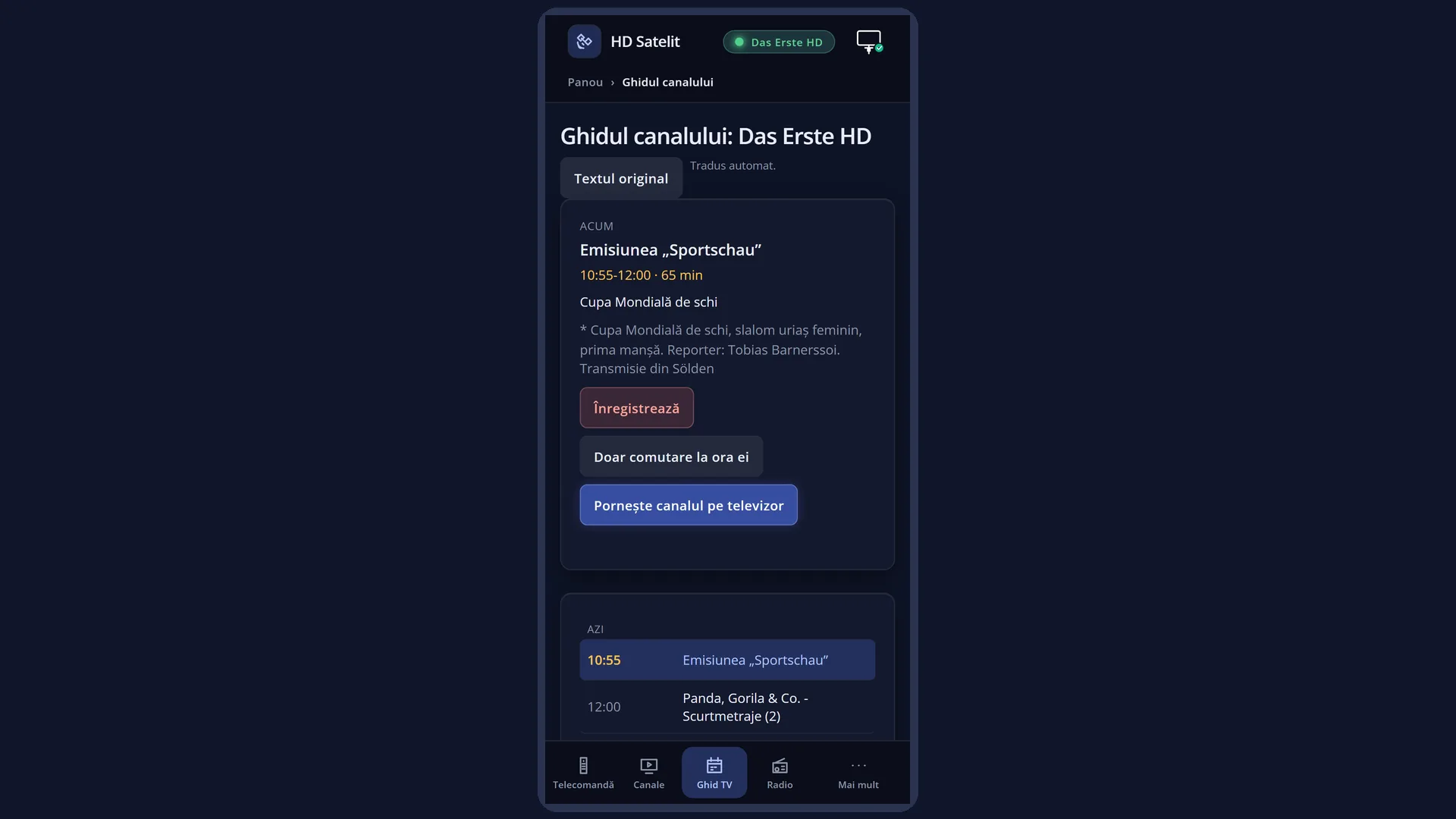
In the web interface: the /ghid page (the guide of the channel on the TV, for 7 days) and, for any channel, the “Guide” button in /canale.
What you see on the screen
At the top, the title with the channel name and the clock.
On the left, the list of programmes: the short day name (“Mon”, “Tue”, “Wed”, “Thu”, “Fri”, “Sat”, “Sun”), the date and start time (for example “23.10, 20:00”) and the title. By default the list is in time order.
A clock in front of the title shows that the programme has a scheduled recording. A half clock shows that a scheduled recording covers only the start or only the end of the programme.
On the right, the channel logo and name, then the selected programme: the title, start and end time, duration and description.
At the bottom, the keys: GREEN “Add timer” (on a programme that already has a scheduled recording: “Remove timer”) and YELLOW “Sort A-Z” (after sorting: “Sort Time”).
Rows and settings
| Row | Values | Default | What it does |
|---|---|---|---|
| Programme row | the day (Mon ... Sun), the date and start time, the title, the scheduled recording clock | OK or INFO on a row opens the programme details, full screen. | |
| Sorting (YELLOW) | by time, by name (A-Z) | by time | The key shows what the next press does: “Sort A-Z” puts the programmes in title order, “Sort Time” puts them back in time order. The cursor stays on the same programme. When you are looking for all the showings of a series or of a programme that is repeated. |
| Scheduled recording (GREEN) | Add timer, Remove timer | Add: “New scheduled recording” opens, with the name, channel, day and times of the programme filled in. GREEN “Save” sets it. Remove: you get the question “Do you really want to delete <programme>?”, and Yes removes it. When you want a programme recorded without being next to the TV. | |
| Programme details (OK on a row) | Full screen: the logo, the channel and the “PROGRAMME” label, the date, the time and the duration in minutes, then the title and the full description. After a moment, if the broadcaster shows the same programme again, “Similar broadcasts:” appears at the end of the text, with the days and times, and RED becomes “Similar”. When the description on the right is too long to be seen in full. | ||
| Similar programmes (RED “Similar” in the details) | Opens the list of the other showings of the same programme: the day, date and time, and the channel. On a showing, GREEN schedules a recording of it. When you cannot record the programme now and are looking for a repeat. |
Keys
| UP / DOWN | The programme above or below. From the last one it goes to the first. |
| LEFT / RIGHT | The previous or next page of the list. |
| OK / INFO | The details of the selected programme, full screen. |
| GREEN | “Add timer”: schedules a recording of the selected programme. On a programme already scheduled, “Remove timer”. |
| YELLOW | Sorting: by title (“Sort A-Z”) or back by time (“Sort Time”). |
| < / > | The guide of the previous or next channel in the list. This works when the guide was opened from the channel list or, from live TV, when the list is set to Favourites or to a bouquet. |
| EXIT | Closes the guide. If you opened it from the channel list, it takes you back to the list on the same channel. |
| In the details: UP / DOWN | Scrolls the description text. |
| In the details: LEFT / RIGHT | The previous or next programme in the guide, without leaving the details. If opened with INFO from live TV: the current programme and the next one. |
| In the details: GREEN / RED | GREEN: schedules a recording of the programme (or removes it). RED “Similar”: the other showings, when there are any. |
| In the details: YELLOW / BLUE | Only in the details opened with INFO from live TV: YELLOW “Single EPG” (the channel guide), BLUE “Multi EPG” (the guide of all channels). |
| In the details: OK / EXIT / INFO | Close the details. With the translated guide, INFO first shows the original text and only closes on the second press. |
Step by step
See what is coming up on the channel
- Press EPG.
- Use UP and DOWN to go to the programme you are interested in. The description appears on the right.
- For the full text, press OK. Leave with EXIT.
Schedule a recording of a programme
- Press EPG and select the programme.
- Press GREEN “Add timer”. “New scheduled recording” opens, with the times of the programme.
- Press GREEN “Save”. In the guide, the programme gets the clock, and the GREEN key becomes “Remove timer”.
See the guide of another channel without switching to it
- Press DOWN to open the channel list.
- Go to the channel and press EPG (or INFO).
- Use < and > to move to the guide of the neighbouring channels. EXIT takes you back to the list.
Problems and solutions
The guide is empty.
The channel sends no guide, or the receiver has not received it yet. Leave the channel on for a few minutes: the guide builds up as it comes in from the broadcaster.
I only see the current programme and the next one.
Some broadcasters send only that. A guide covering several days comes only from the broadcasters that send one.
< and > do not change the channel in the guide.
Moving to the neighbouring channel works when the guide was opened from the channel list or when the list is set to Favourites or to a bouquet. With the list set to “Satellites”, leave the guide and open it from the list (DOWN, then EPG on the channel).
GREEN does nothing.
The cursor is on a row with no programme. Go to a programme with a title.
After “Save”, a window about other recordings appears.
The new recording overlaps with another one already scheduled, and the receiver cannot make both. Choose which one to keep.
The text is in another language.
The broadcaster sends the guide in its own language. Switch on “Translate EPG” (see the “Translated guide” page).
Related topics
- Multi EPG (the programmes of all channels)
- The translated guide
- Channel selection (INFO or EPG on a channel in the list)
- Scheduled recordings: the Timer key.
- Matching web page: /ghid.