

Internet channels (DVB-I) in the list
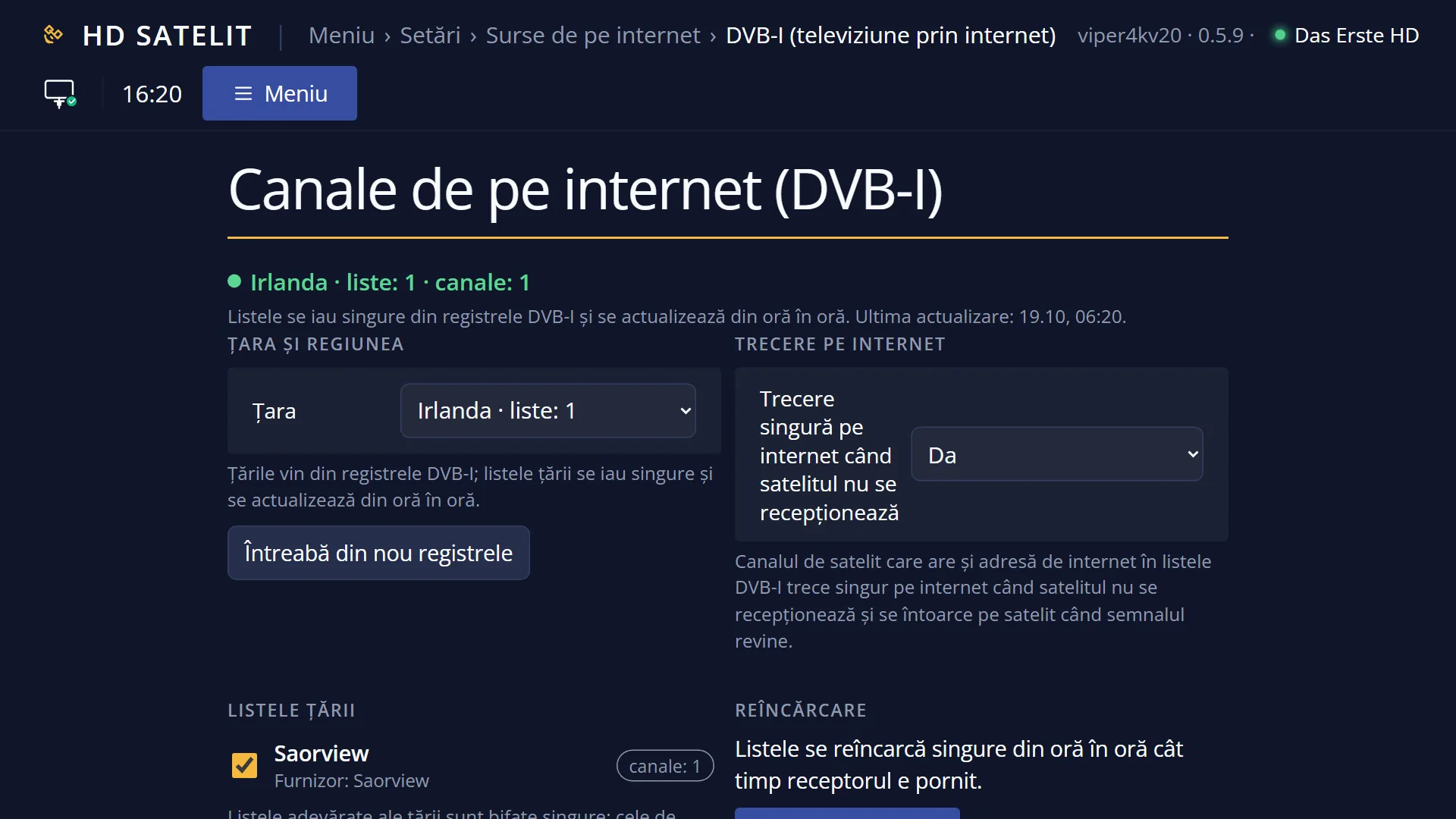
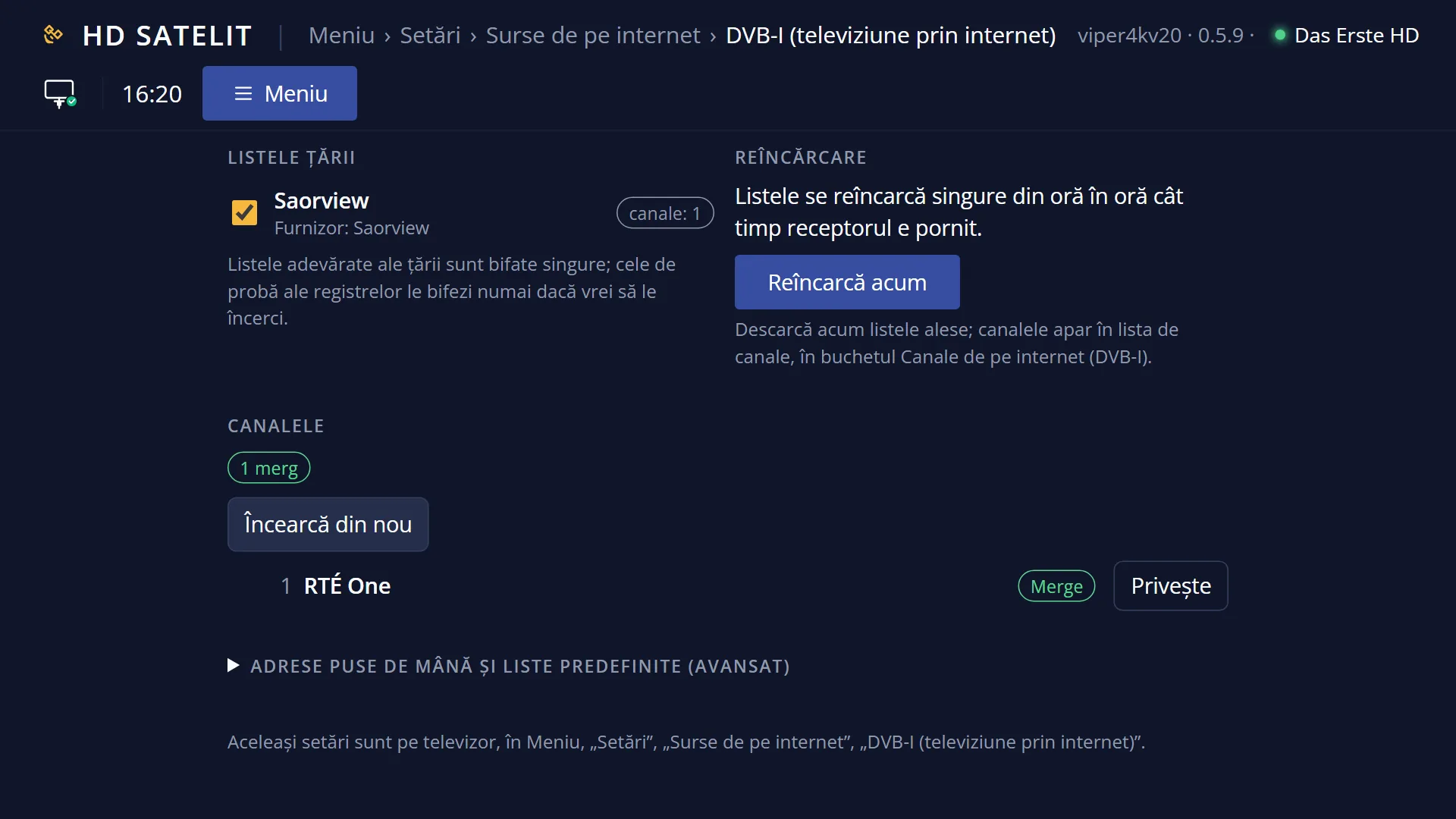
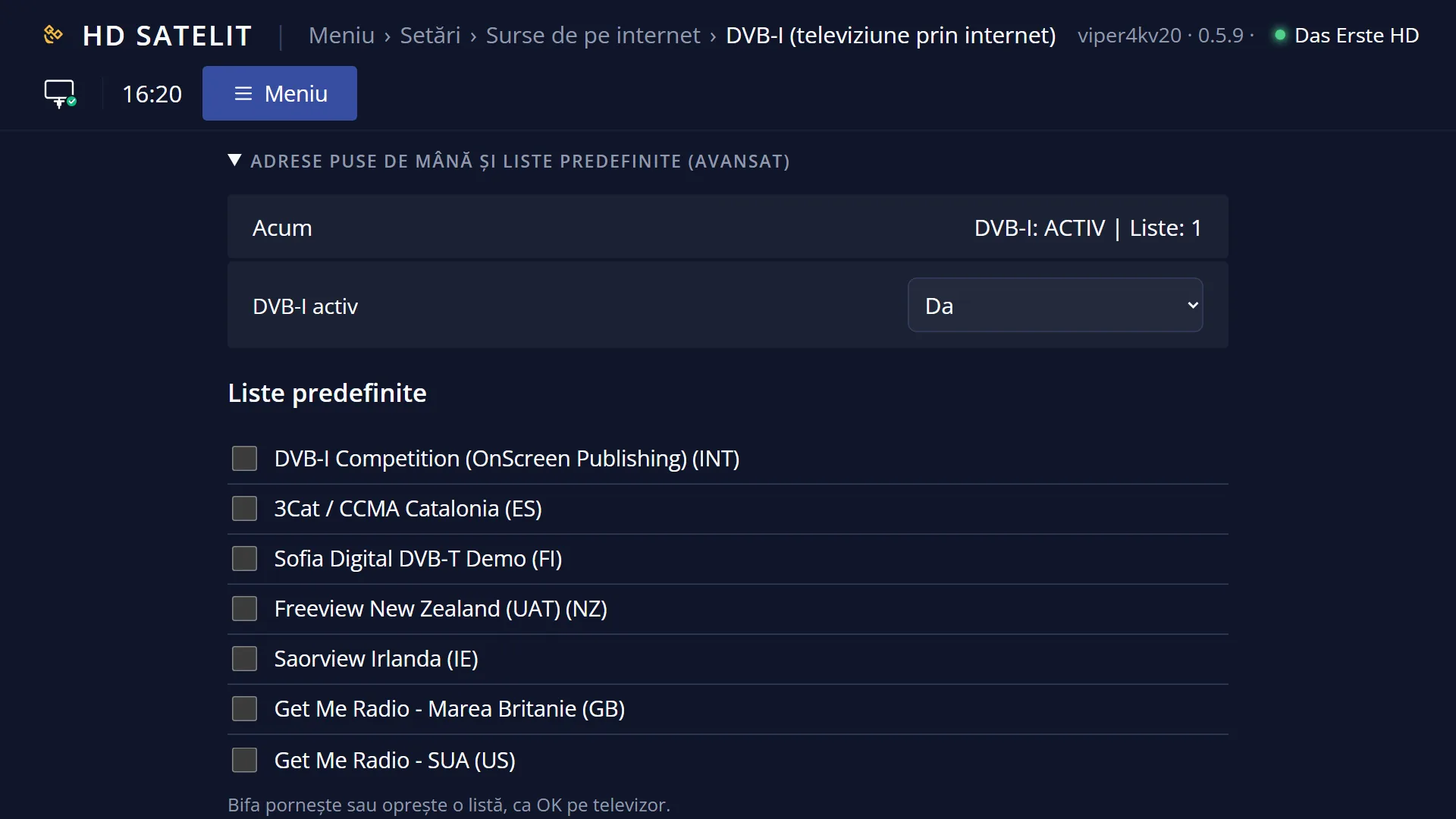
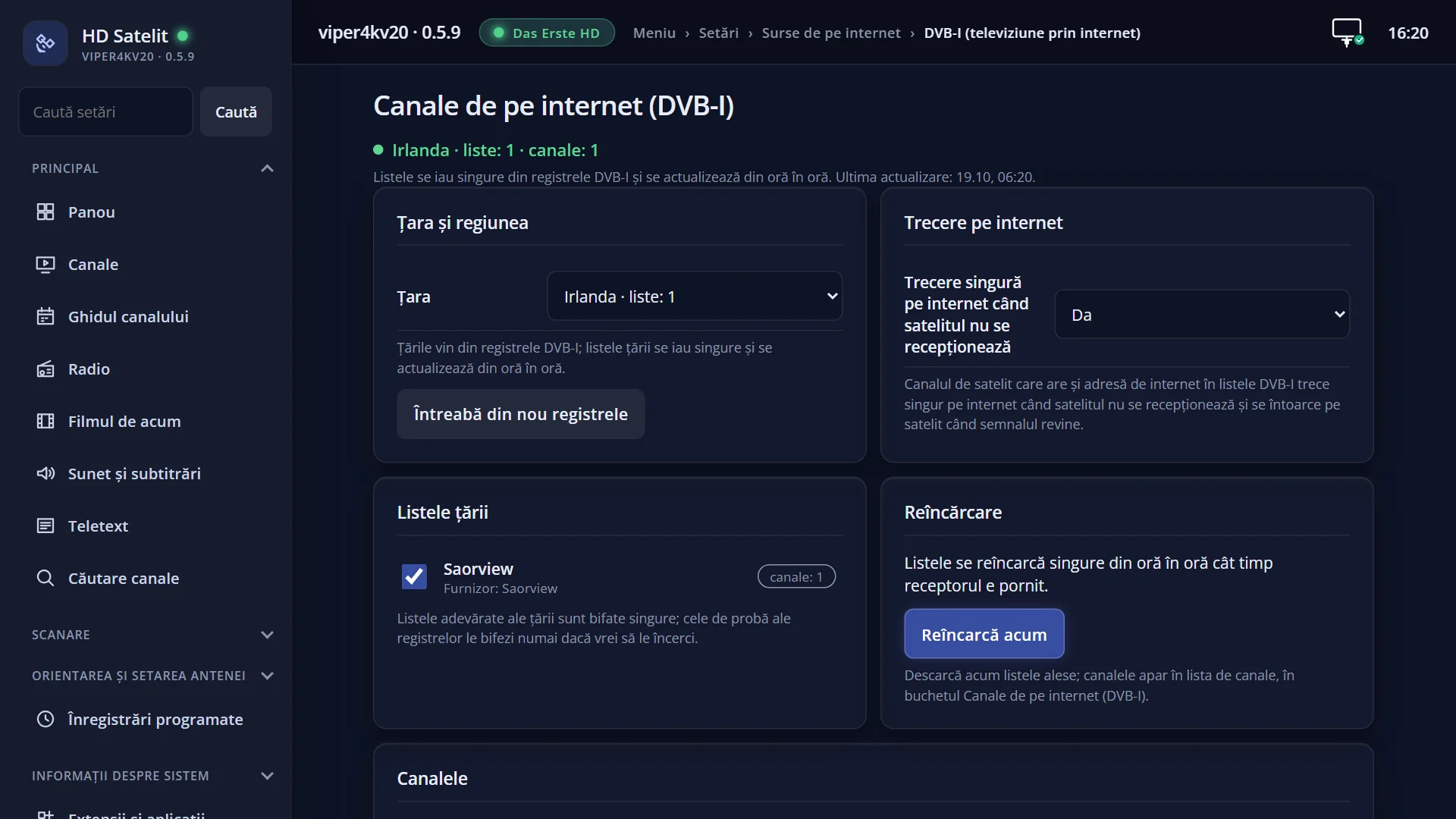
Screenshots are being added: so far 0 from the receiver and 5 from the web interface; the aim is at least 5 of each, with arrows and frames, and, where a setting changes what you see, a before and after comparison.
English screenshots coming: some of the pictures below still show the receiver and the web interface in Romanian. The rows, keys and steps described on this page are the English ones.
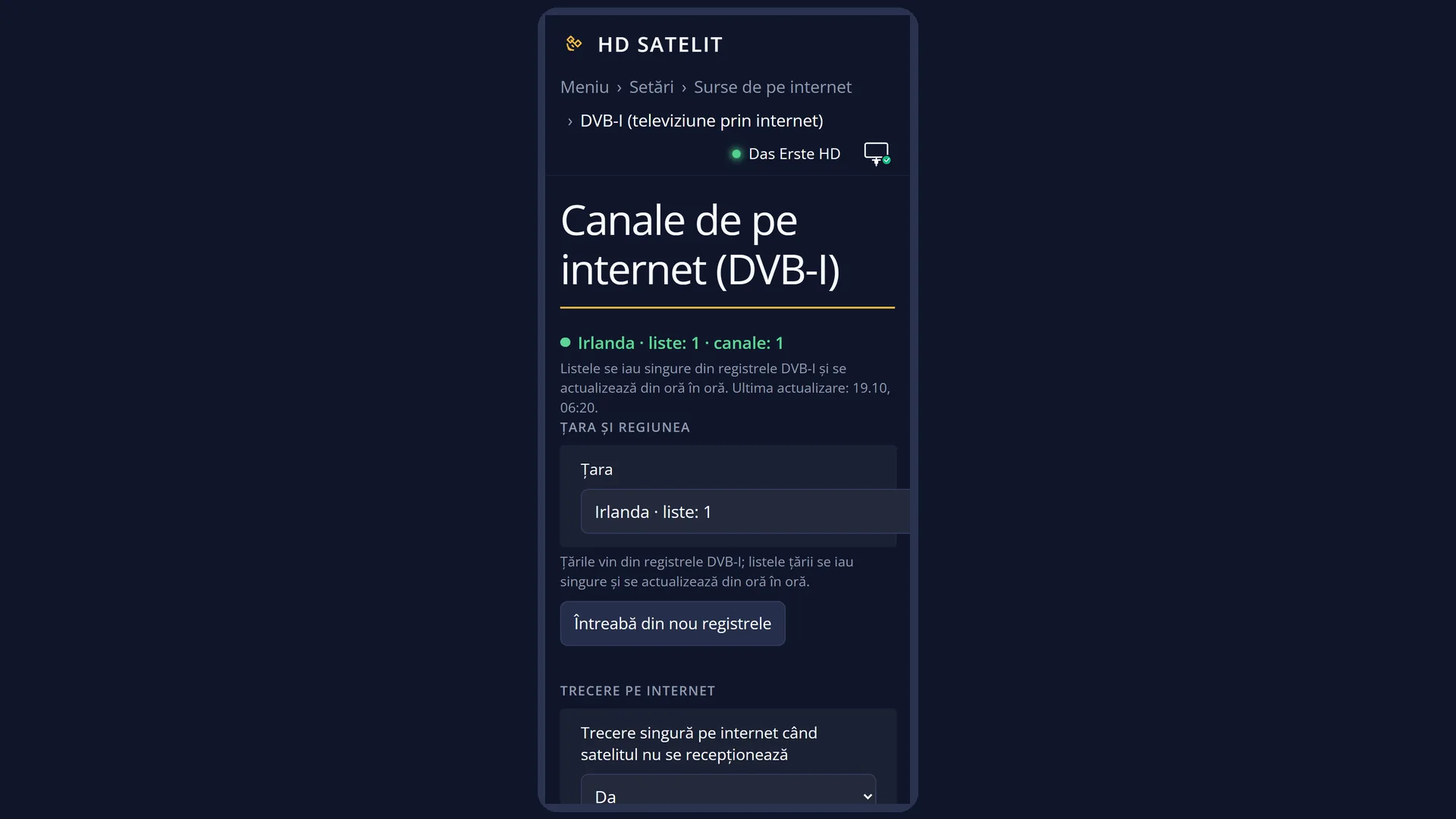
What it is for
The internet channels (DVB-I) of the chosen country sit in the receiver's channel list, in their own folder, “Internet channels (DVB-I)”. You start them like any other channel: press OK on the name.
The channels come in the order of the numbers given by the broadcaster (for your region, if you have chosen one). The list builds itself from the DVB-I lists and updates itself every hour. You do not search for the channels or move them yourself.
A satellite channel that also has an internet version in the DVB-I lists gets the “DVB-I” label at the end of its row in its normal list. On that channel, if the satellite is not received, the picture can switch to the internet by itself (the “Switch to internet by itself when the satellite is not received” setting in the DVB-I screen).
The receiver tests every DVB-I channel from your home. A channel that does not work from here shows the reason at the end of its row: “blocked in your country”, “dead address” or “no answer”.
Radio stations from the DVB-I lists are stored the same way, in a folder with the same name in the radio list (RADIO key).
How to get here
The path: the channel list (OK while watching TV), then GREEN (“Satellites”), go down to the end of the list, to the “Internet channels (DVB-I)” folder, and press OK.
The keys while watching TV: OK, GREEN, then DOWN to the last folder and OK.
With “Enable multiple bouquets” switched on, “Internet channels (DVB-I)” is a bouquet in the bouquet list (BLUE key in the channel list).
The folder is always there, even when empty: in that case, OK on it opens the country selection.
In the web interface: the /dvb-i page, the “Channels” box (the table of all channels, with the “Watch” button), and the /canale page, where “Internet channels (DVB-I)” is in the bouquet list.
What you see on the screen
In “Satellites”, the last folder is called “Internet channels (DVB-I)”. When the cursor is on it, on the right, under its name, you see “Channels received over the internet, from the DVB-I lists of the chosen country”, how many channels it has (for example “24 channels.”) and “The list updates itself from the internet every hour.”.
Inside the folder, the channels with their names, in the order of the numbers given by the broadcaster. At the end of a row you may see the status found from your home: “blocked in your country”, “dead address” or “no answer”. A channel with no label works or has not been tested yet.
The empty folder shows over the list: “The internet channels (DVB-I) of the chosen country appear here, with no scan and no antenna. The list is empty: no country has been chosen yet or its lists have not been downloaded.”, then “Press OK to choose the country.” and the path in the menu.
In a satellite's list, at the end of the row of a channel that also has an internet version, the “DVB-I” label.
On the info bar, while a channel comes over the internet (started from the DVB-I folder or switched to the internet by itself), you see “via internet” instead of quality and signal, and how well the internet connection is working. On a satellite channel with an internet version, the bar has the “DVB-I” label.
When a satellite channel switches to the internet by itself, the message “The satellite is not received: … now plays from the internet.” appears for 6 seconds, and when the signal returns, “The satellite is received again: … plays from satellite again.”.
Rows and settings
| Row | Values | Default | What it does |
|---|---|---|---|
| The “Internet channels (DVB-I)” folder | empty, until you choose the country | Holds all TV channels from the chosen DVB-I lists in a single list: first the channels of the first list, in the order of its numbers, then those of the others. A channel that appears in two lists is added only once. You do not change it by hand: it changes with the choice of country, region and lists in the DVB-I screen. | |
| The “DVB-I” label (satellite channel) | The satellite channel also has an internet version in the DVB-I lists. On it, switching to the internet by itself works when the satellite is not received. | ||
| The “blocked in your country” label | The broadcaster refused your address: it only gives the channel to people in its own country. You can watch it with the receiver's VPN switched on, using an address from that country. | ||
| The “dead address” label | The channel's address in the DVB-I list no longer exists. The list reloads itself every hour. If the broadcaster adds a new address, the channel works again. | ||
| The “no answer” label | At the last test, the channel's address did not answer (the broadcaster or the internet had a problem). |
Keys
| OK (on the folder) | Opens the “Internet channels (DVB-I)” folder. If it is empty, opens the DVB-I screen so you can choose the country. |
| OK (on a channel) | Starts the channel and closes the list. If it is blocked for your country, the “The channel is blocked for your country” window appears. |
| UP / DOWN | Moves the cursor to the channel above or below. |
| 0 | From the folder, takes you back up to “Satellites”. |
| GREEN (in the channel list) | Opens “Satellites”. The DVB-I folder is the last one. |
| EXIT | Closes the list without changing the channel. |
| In the “The channel is blocked for your country” window: GREEN or OK / RED or EXIT | GREEN or OK open the VPN setting. After you leave it, the blocked channels are tested again by themselves. RED or EXIT close the window. |
Step by step
Starting an internet channel
- While watching TV, press OK, then GREEN (“Satellites”).
- Go down to the last folder, “Internet channels (DVB-I)”, and press OK.
- Choose the channel and press OK. The info bar shows “via internet” instead of the signal.
Filling the empty folder
- Go into the empty folder and press OK: the DVB-I screen opens.
- On “Country:”, press OK and choose the country.
- Leave with RED. After a few seconds the channels are in the folder.
Watching a channel that is “blocked in your country”
- Start the channel: the “The channel is blocked for your country” window appears, with the code received from the broadcaster and the country where the channel can be watched.
- Press GREEN (“VPN settings”) and switch on the VPN with an address from that country, for all traffic.
- Leave the VPN setting: the channel is tested again by itself. Start it again.
Problems and solutions
The “Internet channels (DVB-I)” folder is empty.
You have not chosen a country or its lists have not been downloaded. Press OK on the folder and choose the country. If you have already chosen it, check the internet connection and go to Menu > Settings > Internet Sources > DVB-I Reload Now.
I cannot find the folder.
It is at the end of the “Satellites” list (GREEN in the channel list), after all the satellites. With “Enable multiple bouquets” switched on, it is in the bouquet list (BLUE).
I start a channel and “The channel is blocked for your country” appears.
The broadcaster only gives the channel to people in its own country. Switch on the receiver's VPN with an address from the list's country and choose to send all traffic through the VPN. The window appears at most once every 30 minutes for the same channel.
“The channel's address no longer answers” appears.
The channel's address in the list no longer exists. The list reloads itself every hour. If the broadcaster adds a new address, the channel works again.
The channel keeps stopping or the picture breaks up.
DVB-I channels come over the internet: a slow connection or weak Wi-Fi interrupts them. On the info bar, under “via internet”, you can see how well the connection is working. Try a wired connection.
The satellite channel switched to the internet by itself and I do not want this.
Set “Switch to internet by itself when the satellite is not received” to “no” in Menu > Settings > Internet Sources > DVB-I Setup (TV over Internet).
Related topics
- DVB-I Setup (TV over Internet)
- DVB-I Reload Now
- Channel Selection
- Satellites collapsed into groups
- The first info bar
- VPN
- Channels and the guide on the web
- Matching web page: /dvb-i (the “Channels” box) and /canale.