

Internet Sources
English screenshots coming: some of the pictures below still show the receiver and the web interface in Romanian. The rows, keys and steps described on this page are the English ones.
What it is for
“Internet Sources” brings together everything the receiver gets from the internet rather than from the aerial or dish: TV channels over the internet (DVB-I), the web interface you open on your phone or computer, and the web browser on the TV with the channels' HbbTV applications.
Nothing is changed directly here: each row opens its own screen. This page tells you what each row does and where it takes you.
Two rows have “(in progress)” next to their name: DVB-MABR (IP Multicast) and IPTV (M3U / Stalker / Xtream). Their screens open and their settings are saved, but the receiver does not use them for channels yet.
The web browser itself (the pages opened on the TV) is in the Media menu. Only its settings are here.
How to get here
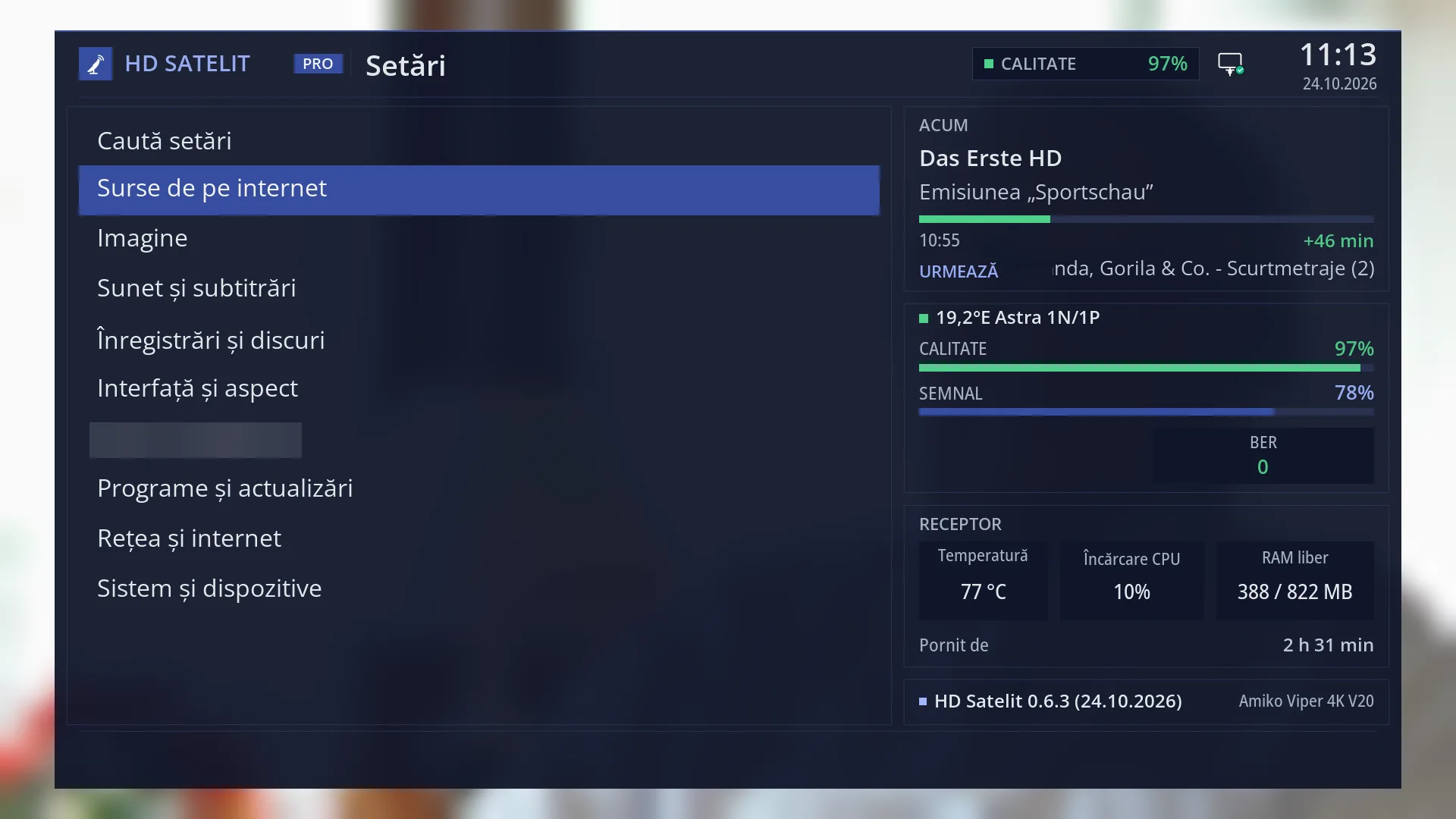
Path: Main menu > Settings > Internet Sources.
Keys on the remote: MENU 6 2 (“Settings” is row 6 of the main menu, and “Internet Sources” is row 2 in Settings, after “Search settings”).
In “Search settings” (the TEXT key in any menu) you can type the name of a row from here, for example “DVB-I”, and go straight to it.
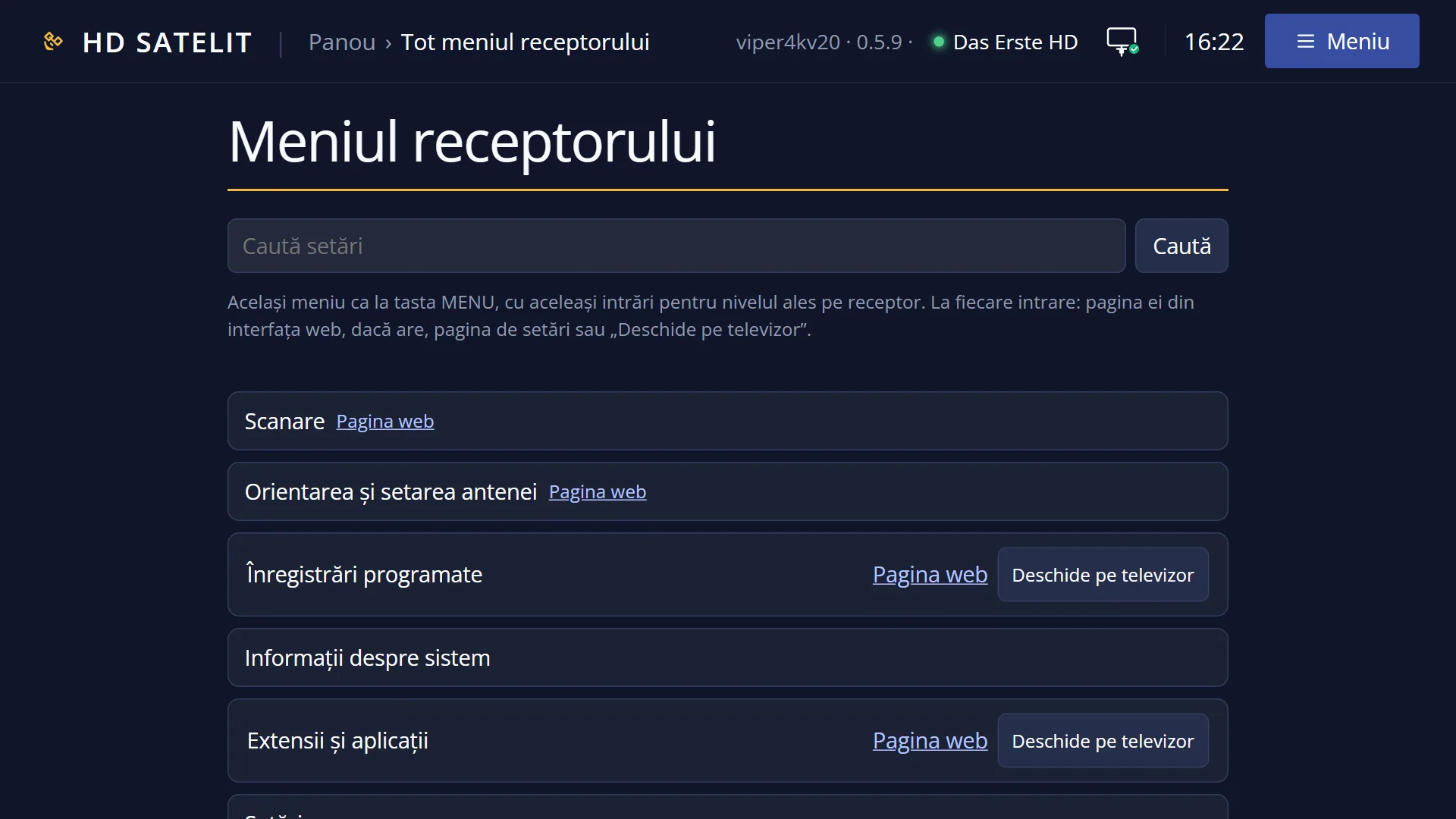
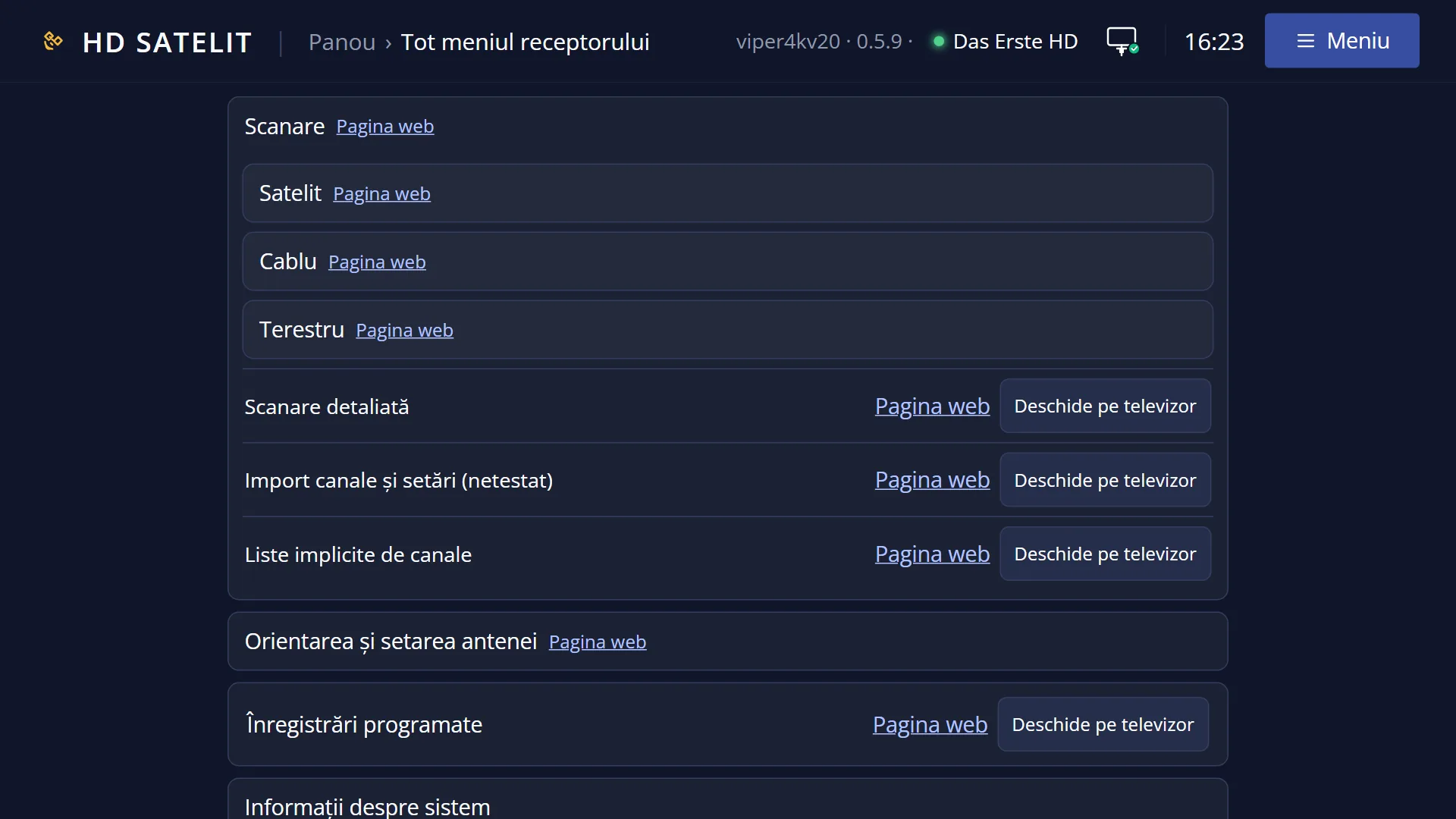
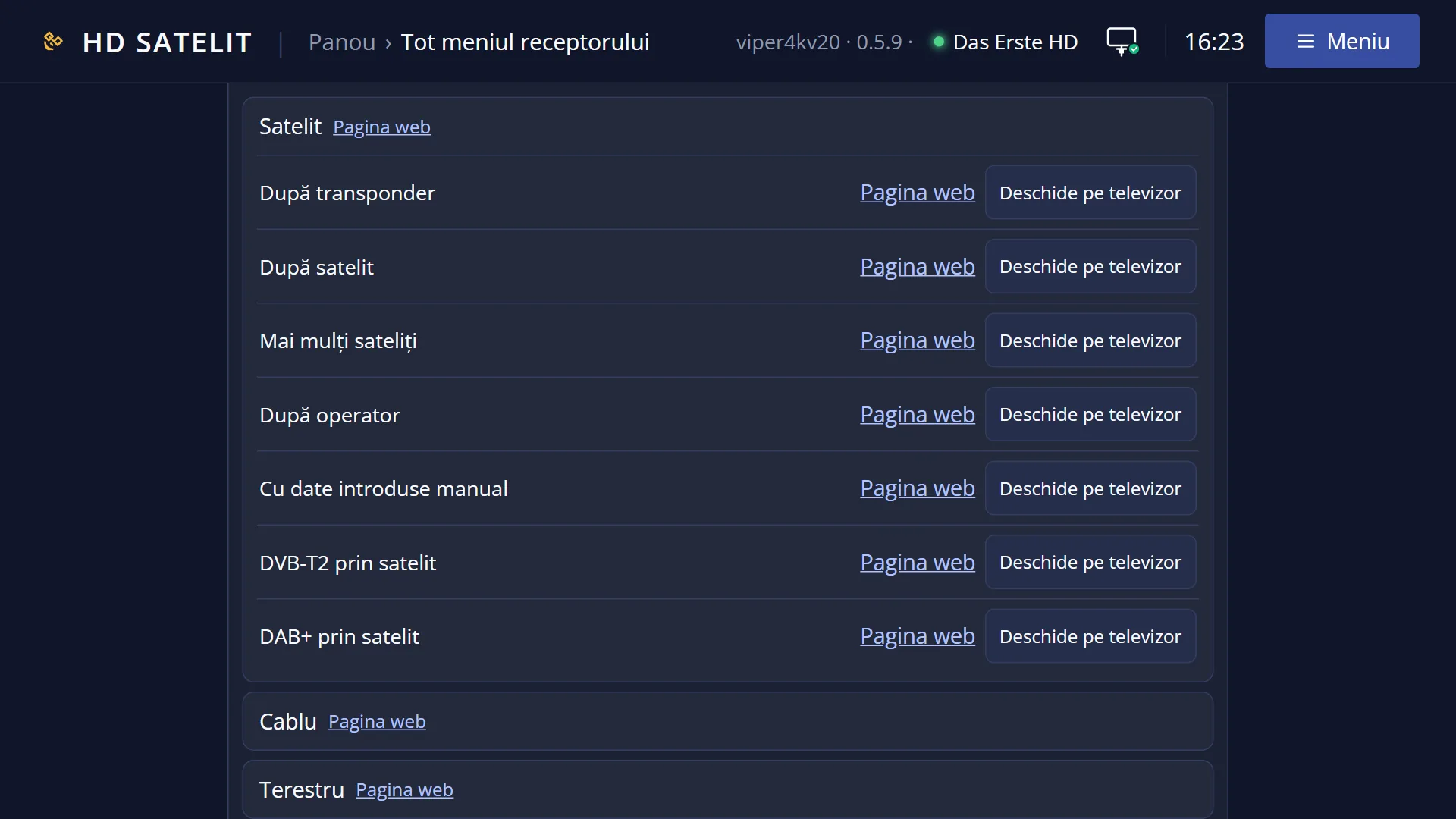
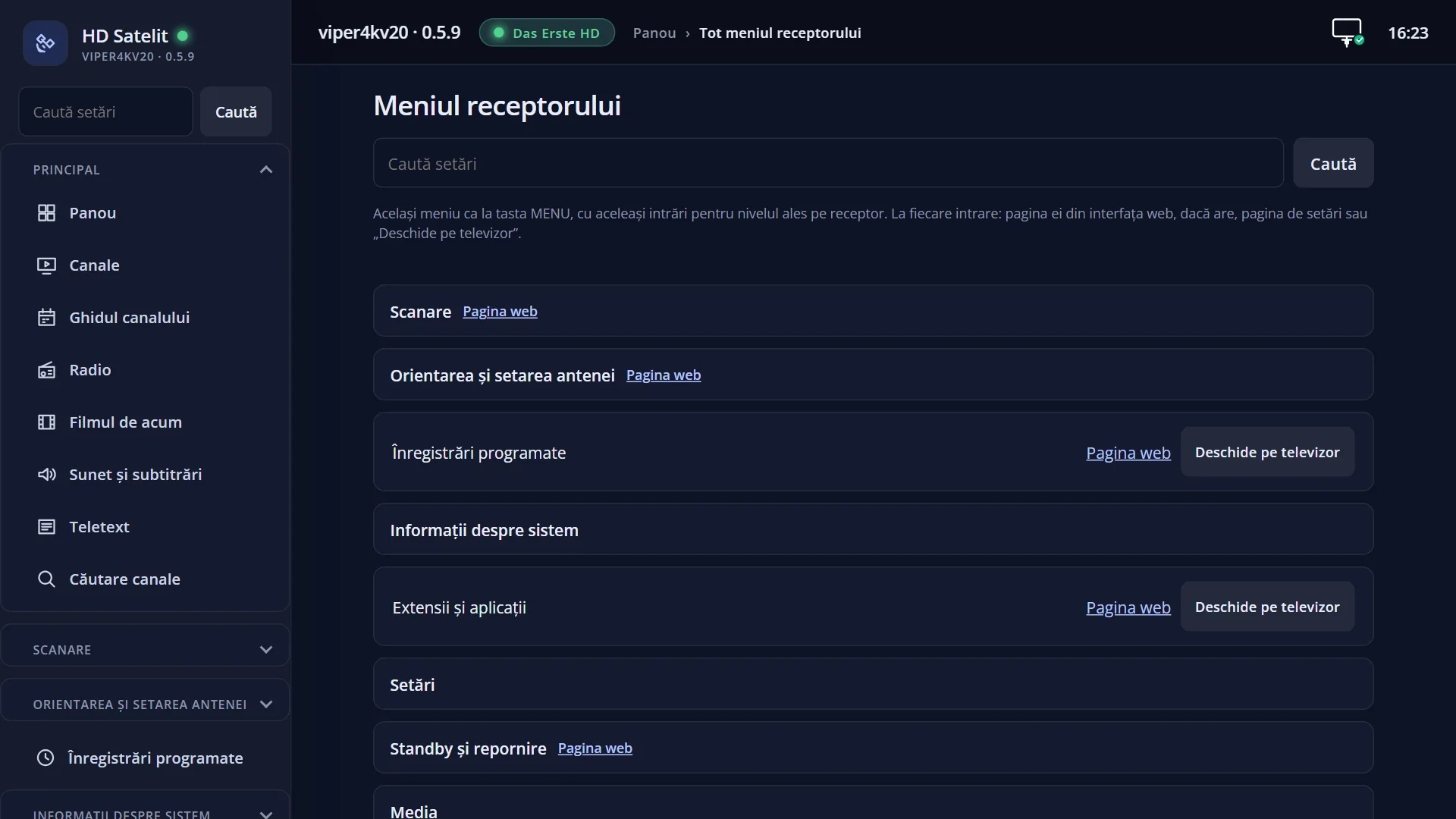
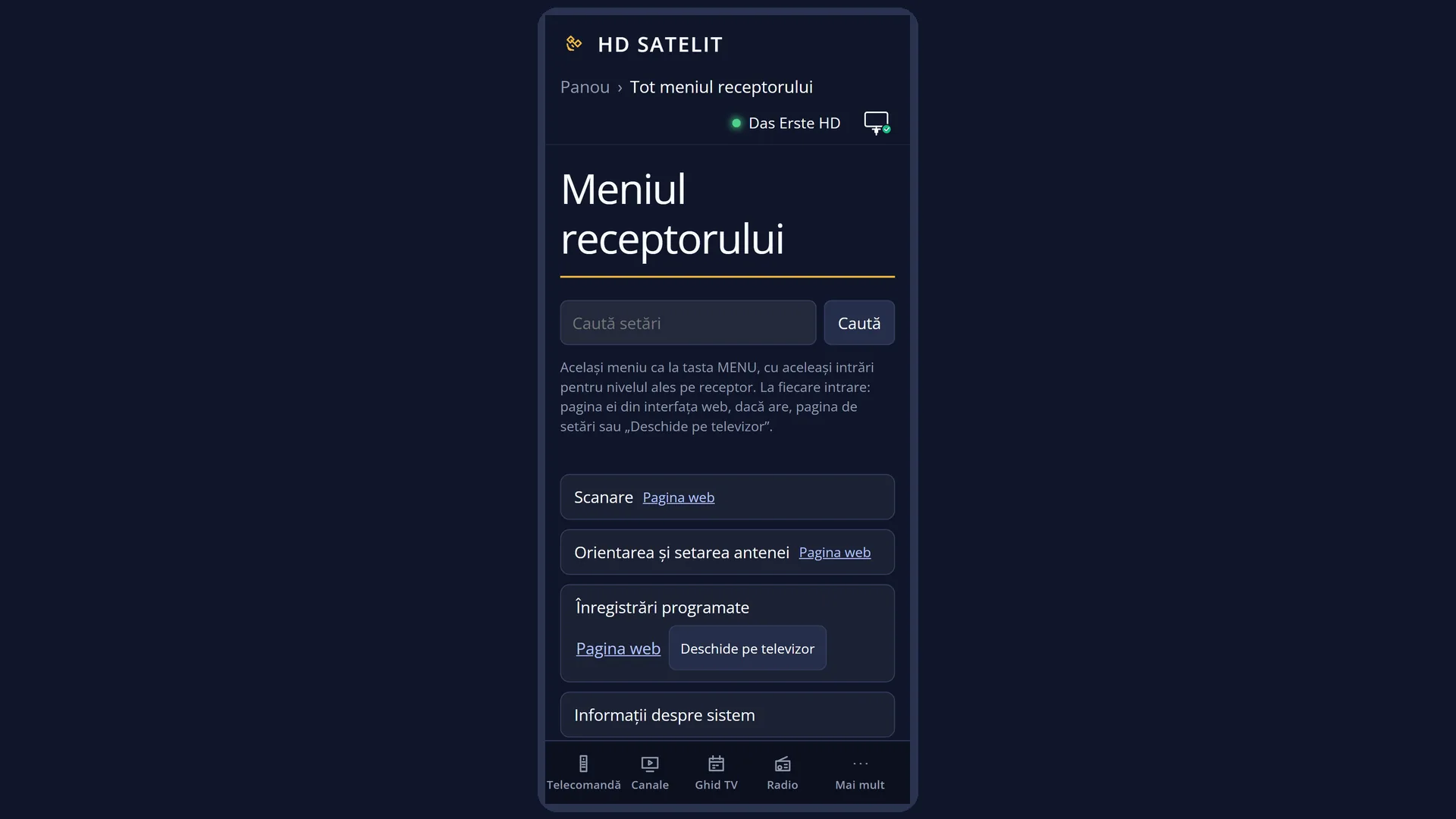
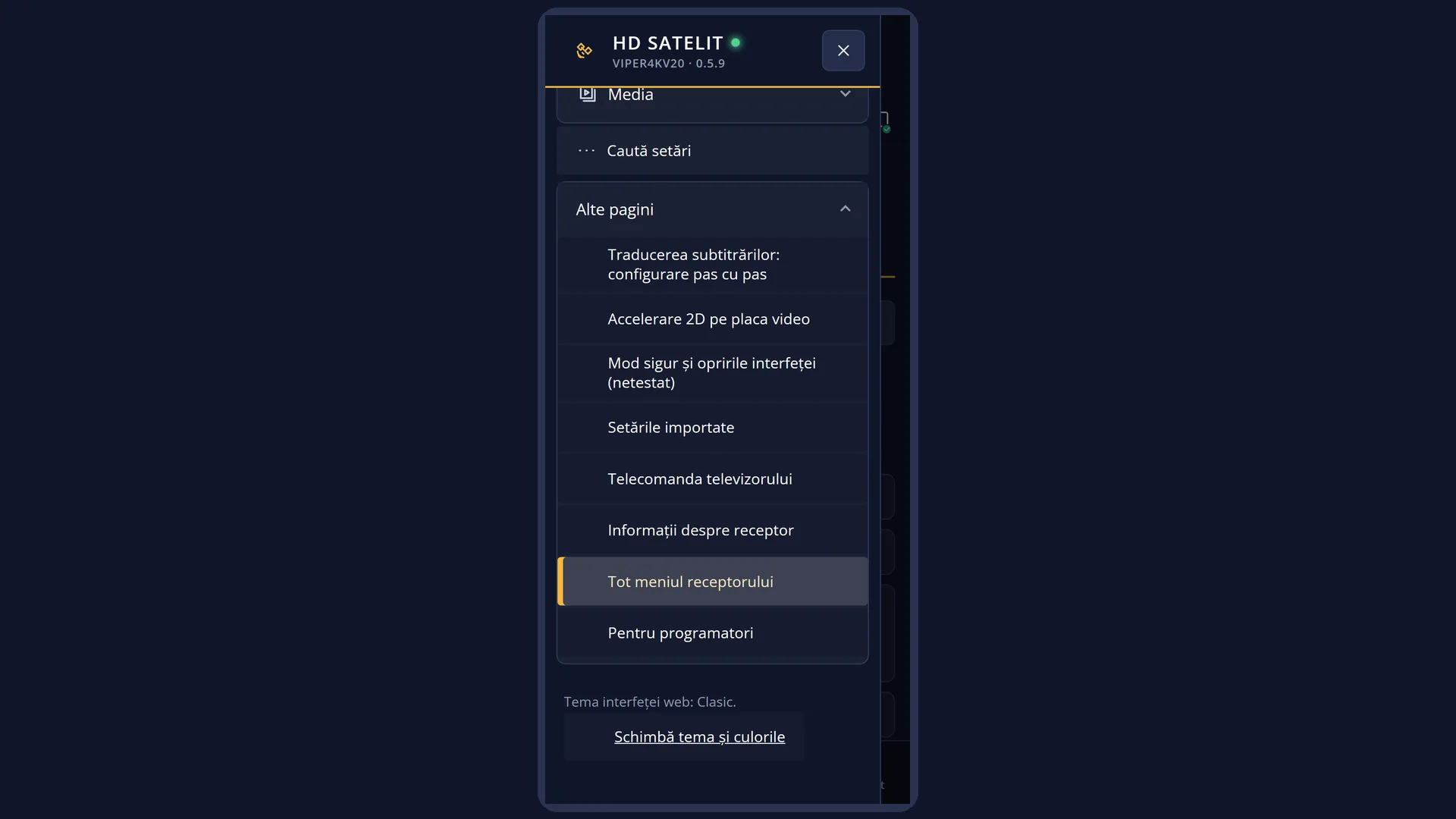
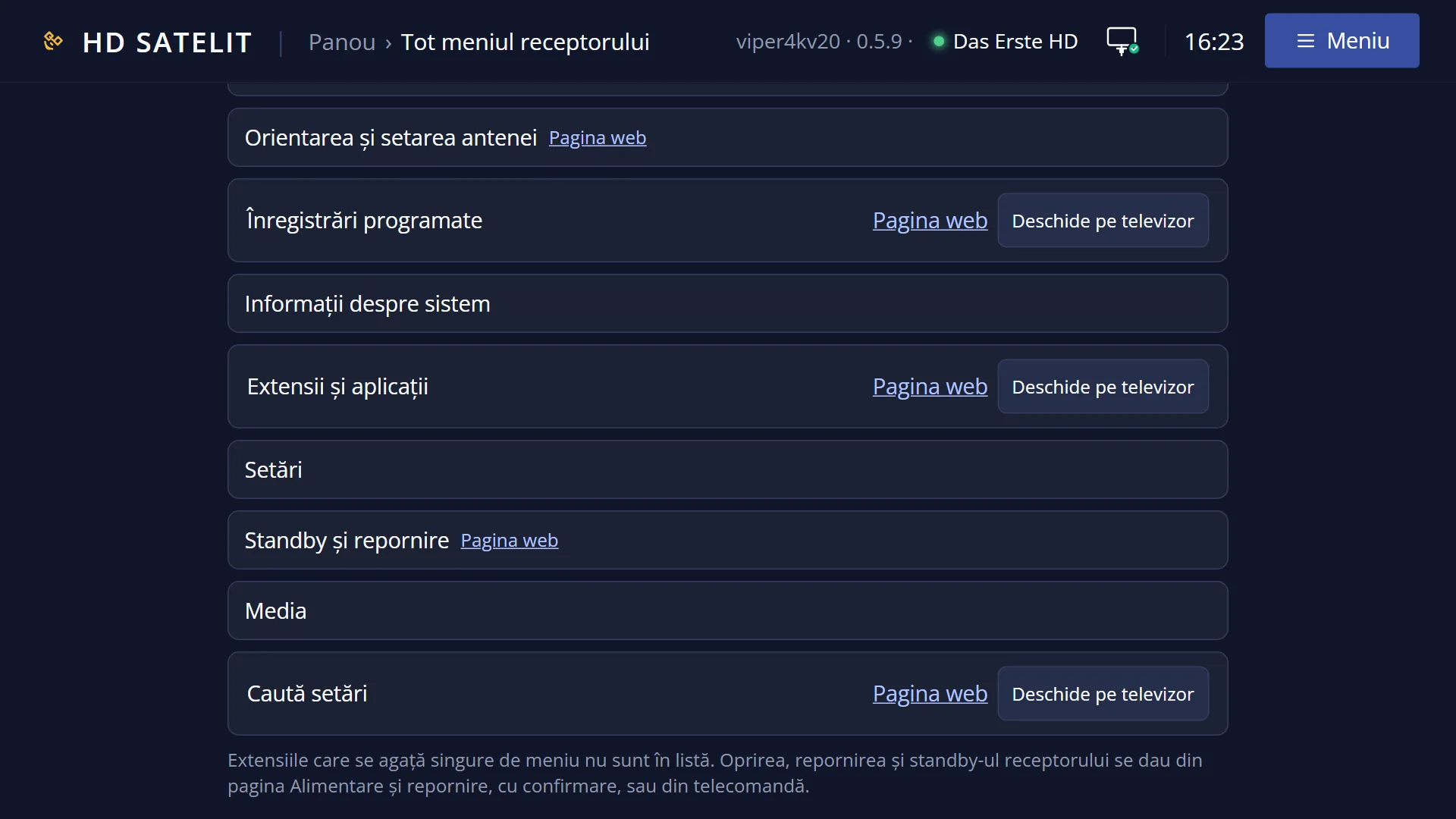
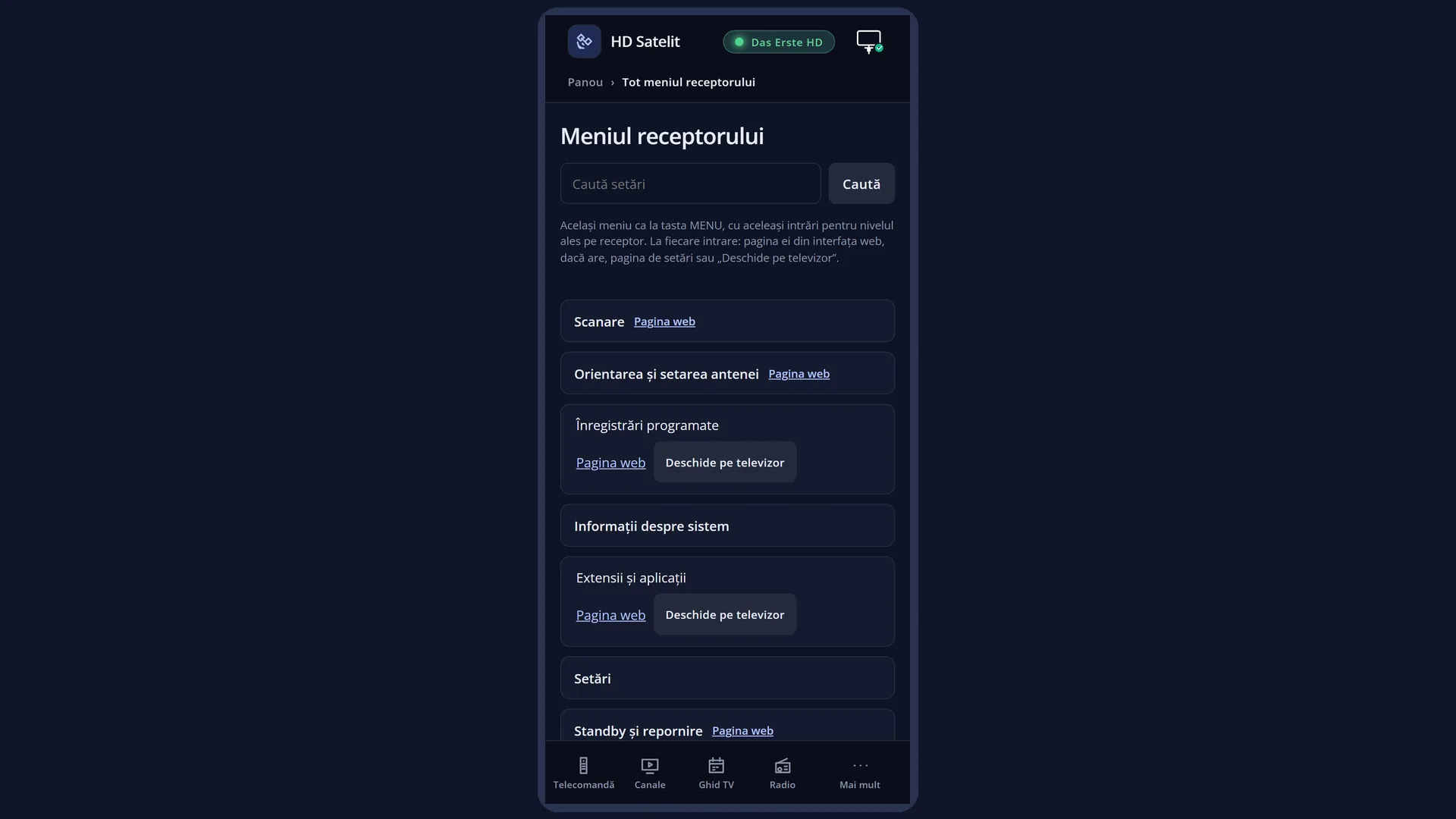
In the web interface: the /meniu page (“Receiver menu”), group Settings > Internet Sources, with a link to the web page of each row and a button that opens it on the TV.
What you see on the screen
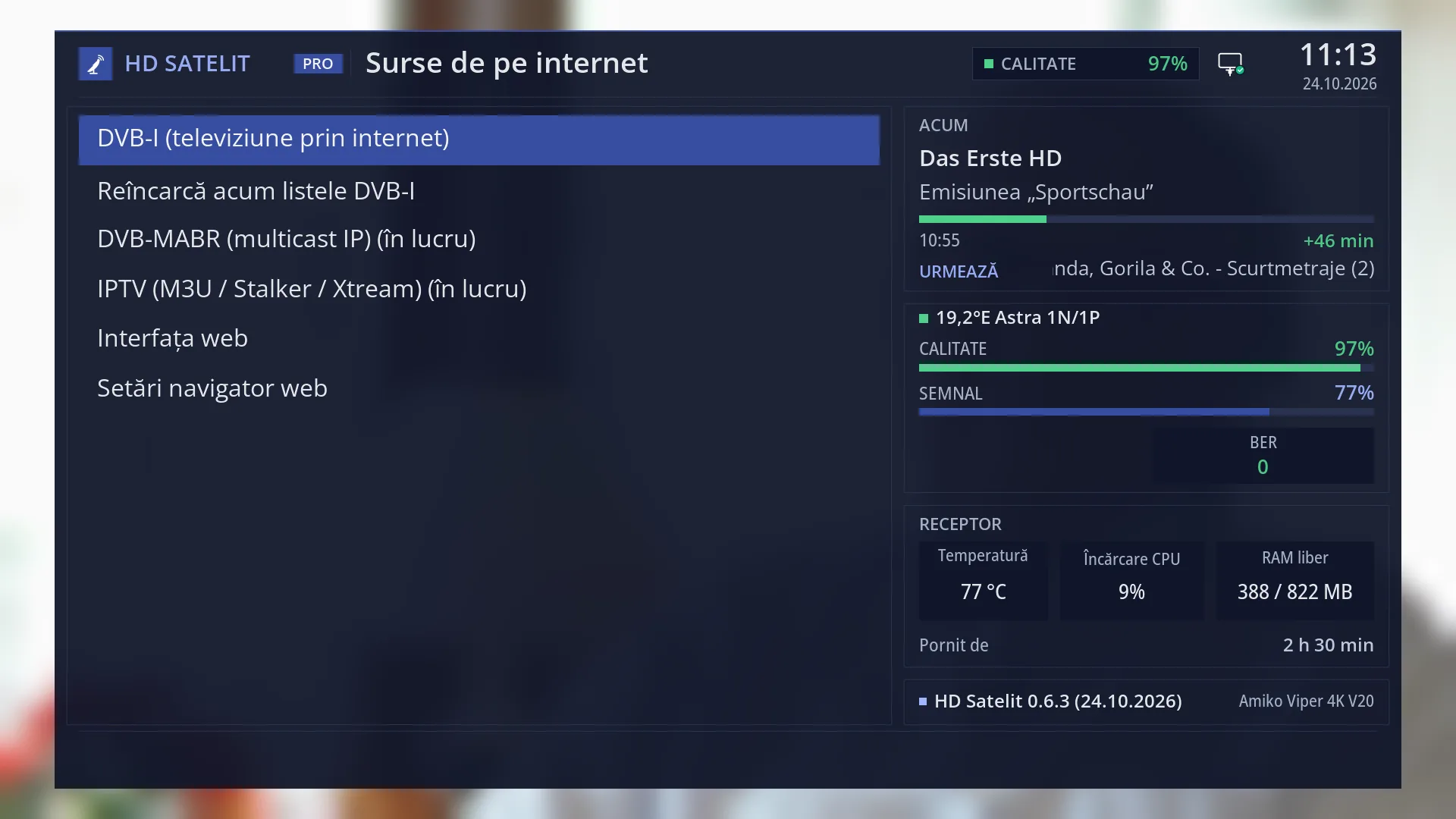
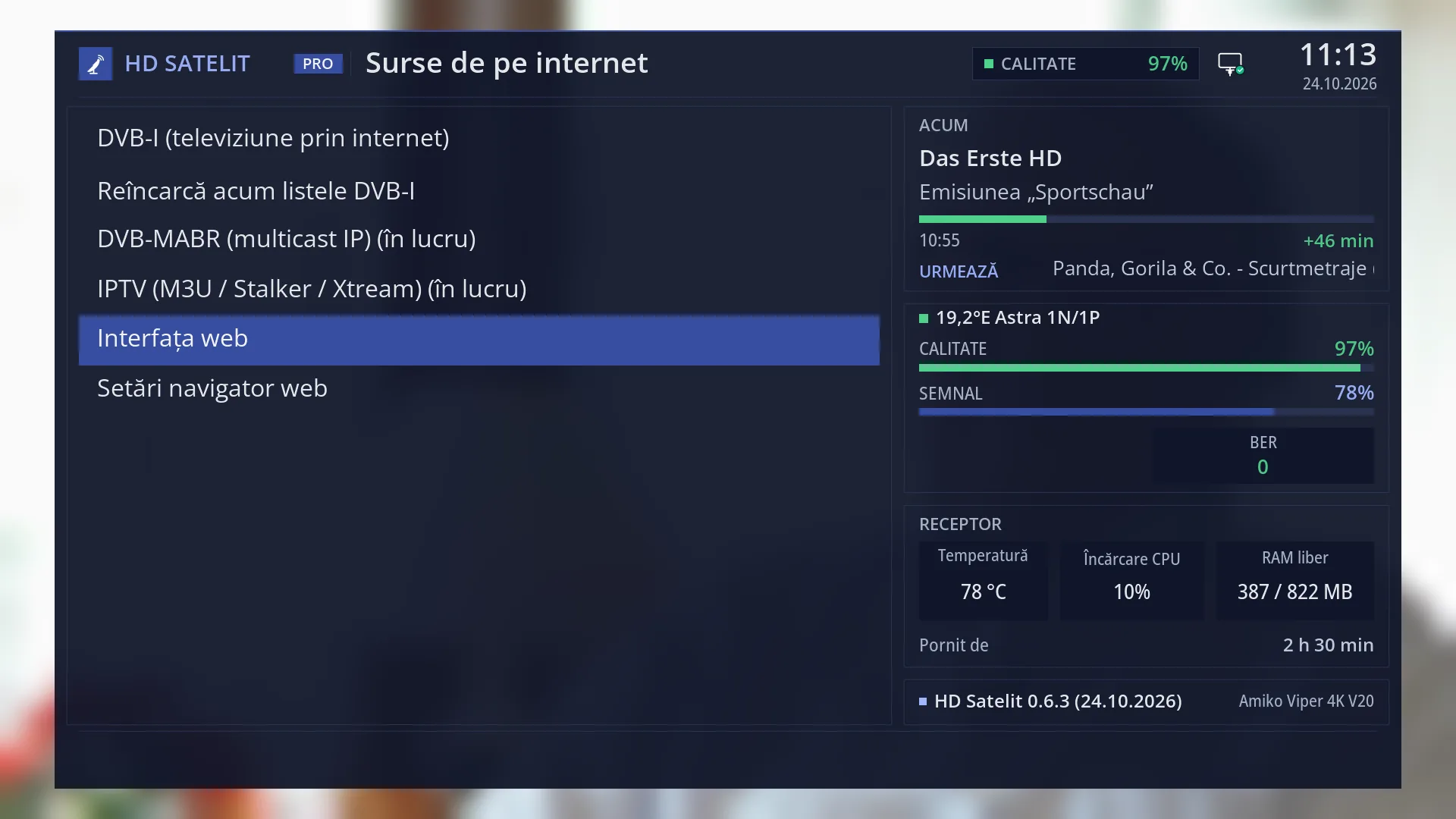
At the top you see the title “Internet Sources”, the clock and the date. In the Pro theme, “HD SATELIT” with the “PRO” label appears to the left of the title. On the right you see the signal quality of the current channel and the network icon, which shows whether the receiver has internet.
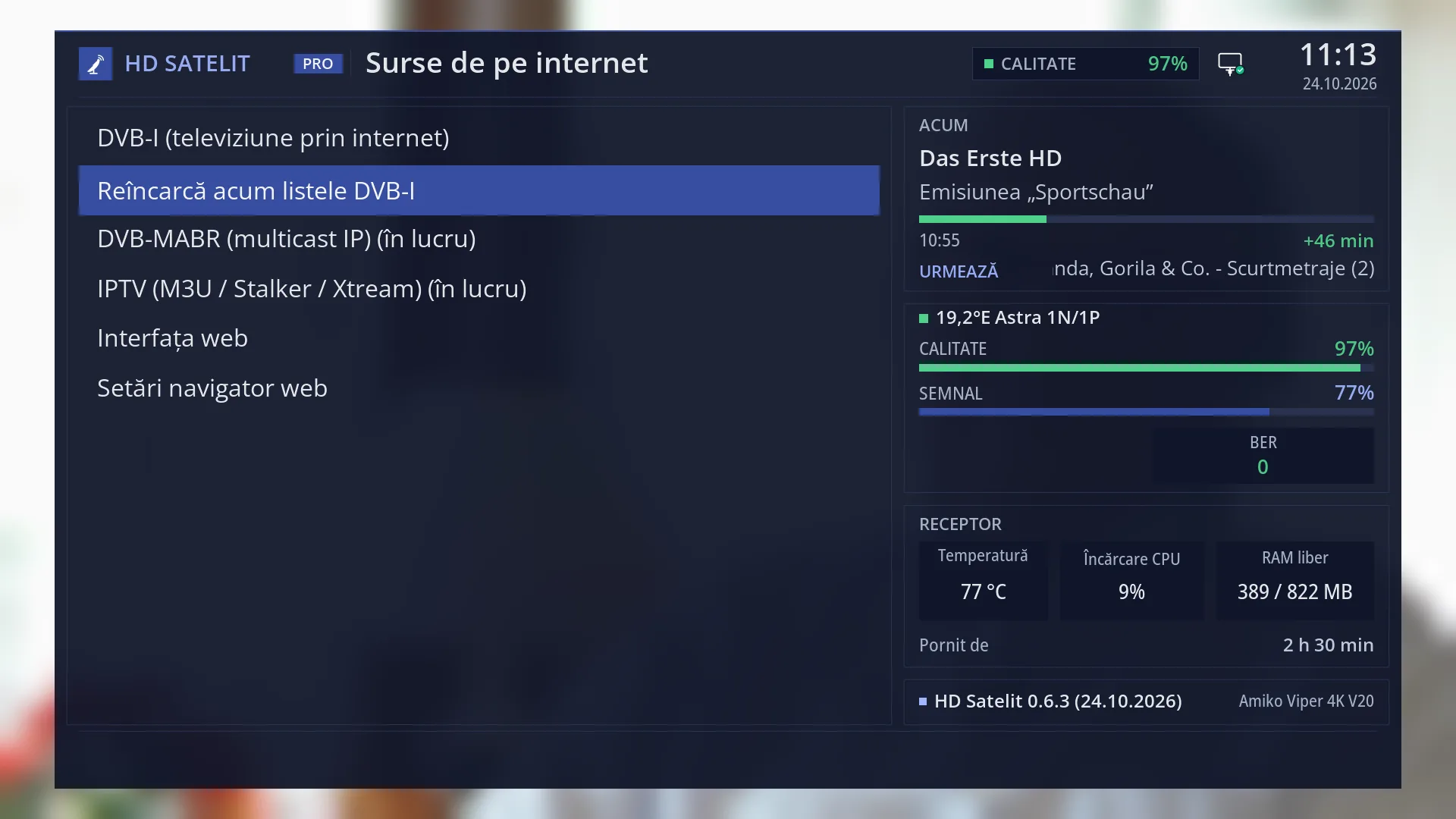
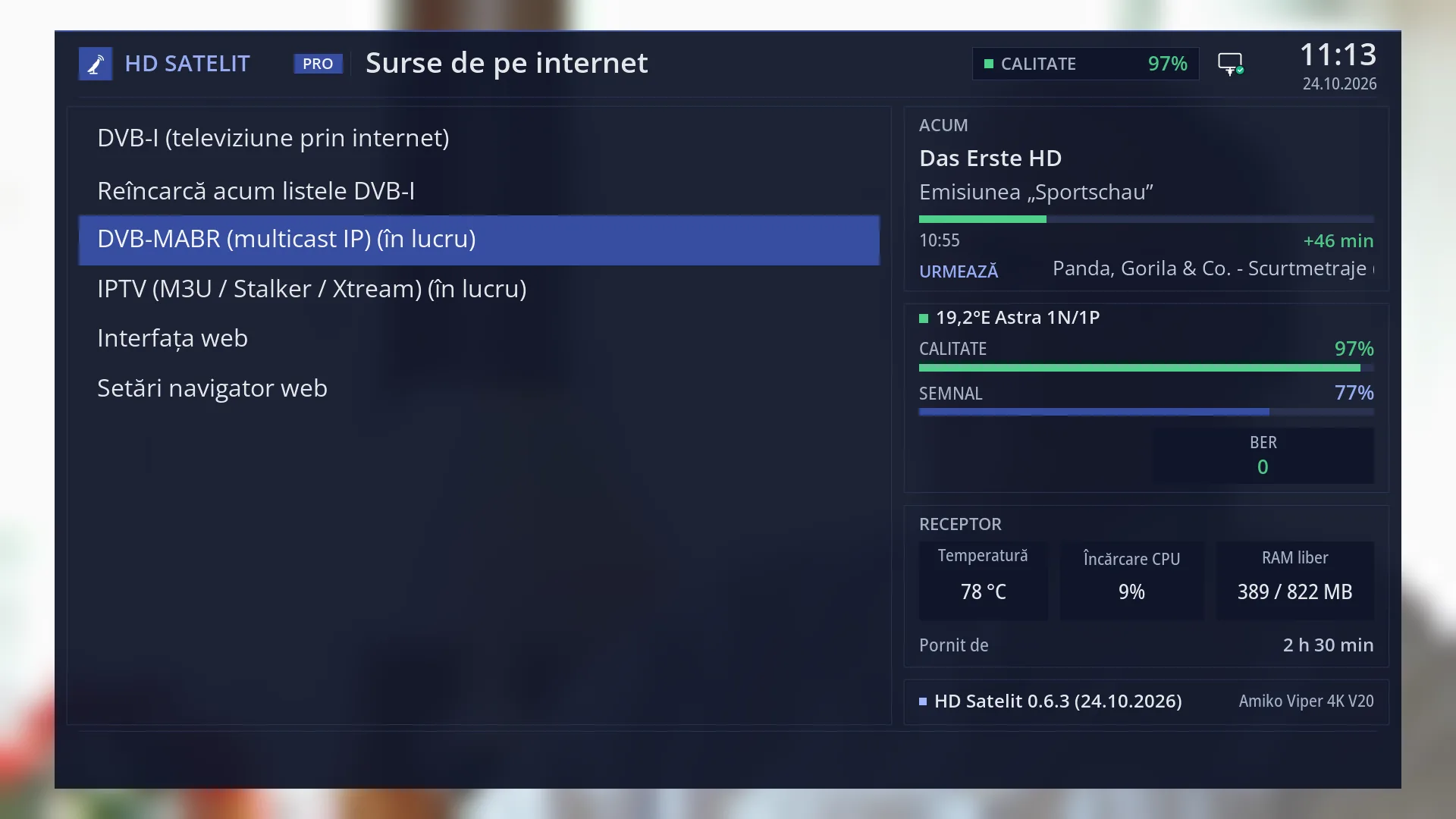
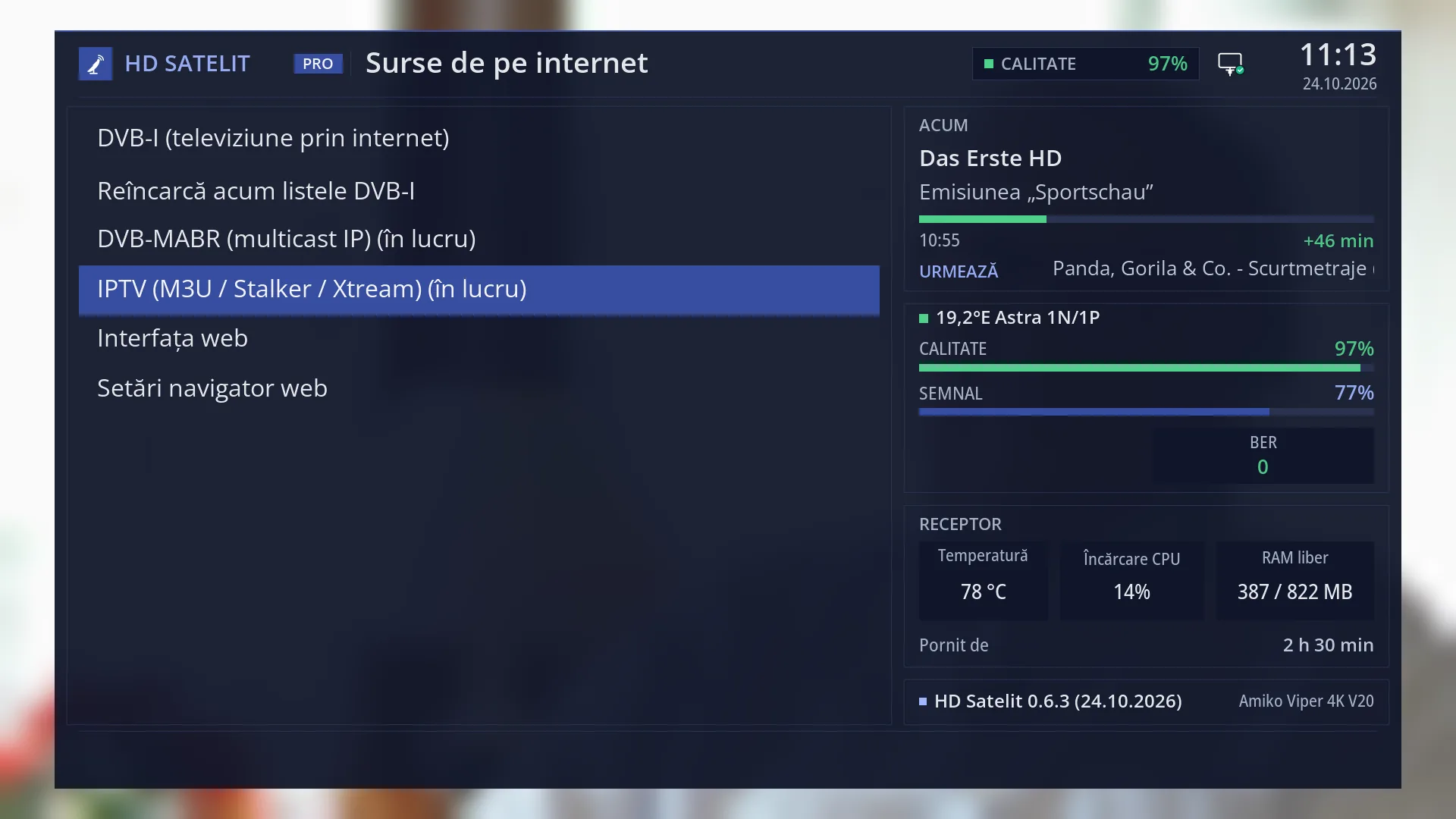
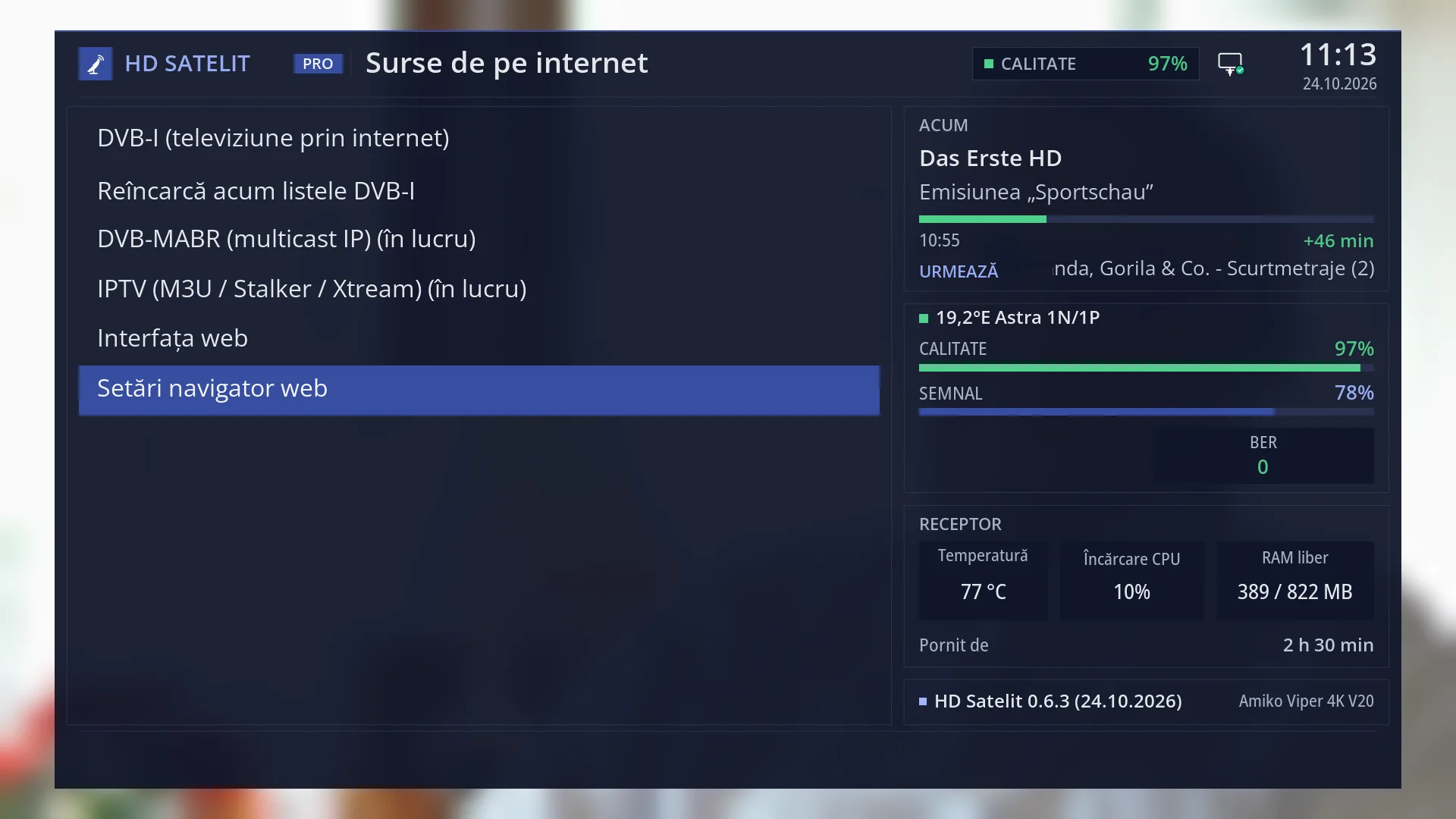
On the left is the list of 6 rows: DVB-I Setup (TV over Internet), DVB-I Reload Now, DVB-MABR (IP Multicast) (in progress), IPTV (M3U / Stalker / Xtream) (in progress), HdsWebControl (Web Interface) and Web browser settings. The selected row has a blue background.
In the Pro theme, the boxes shown in all menus are on the right: “NOW” (the channel, the programme and how long it has left, then “Next”), the satellite with “Quality”, “Signal” and “BER”, then “Receiver” (temperature, processor load, free memory, how long it has been on) and, at the bottom, the image version and the receiver name. The main menu page explains what each one means.
In the Classic theme you only see the list, without the boxes on the right. The rows are the same.
You can also show the menu as large tiles, three per row (the YELLOW key). Each row then becomes a tile with its icon and the number in the corner.
Rows and settings
| Row | Values | Default | What it does |
|---|---|---|---|
| 1 DVB-I Setup (TV over Internet) | Opens the “Internet channels (DVB-I)” screen. You choose the country, and its channel lists arrive from the internet by themselves, with no scan and no dish. On the same screen you can turn on the automatic switch to the internet when the satellite cannot be received, and see which channels work from your home. When you want channels you watch over the internet, or you want a satellite channel to carry on from the internet during heavy snow or rain. | ||
| 2 DVB-I Reload Now | Downloads the chosen DVB-I lists again straight away, so you do not have to wait for the hourly update. A small window shows “Reloading the configured DVB-I lists...”, then the result. When you have chosen a country or a list and want the channels now, or when a list did not download and you want to try again. | ||
| 3 DVB-MABR (IP Multicast) (in progress) | Opens the “DVB-MABR: IP Multicast Setup” screen, where you can enter multicast groups from your home network. This row is in progress: the settings are saved, but the receiver does not use them yet. For now, only to look at the screen. It does not bring any channels yet. | ||
| 4 IPTV (M3U / Stalker / Xtream) (in progress) | Opens the “Television over IP (IPTV)” screen, where IP television sources are stored: M3U lists, a Stalker portal or an Xtream Codes account. This row is in progress: the sources are saved, but they do not appear in the channel list yet. When you want to enter the details of a source now, so it is ready when the feature is finished. | ||
| 5 HdsWebControl (Web Interface) | Opens the web interface settings: turning it on, the port, the linked phones and computers, and the code you use to link a new browser. When you want to use the receiver from your phone or computer, or to disconnect a browser. | ||
| 6 Web browser settings | Opens the settings of the web browser on the TV: the start page, zoom, text, the frame around the selection, the channels' HbbTV applications (off by default), favourites and clearing data. When you want to turn on HbbTV, change the start page or change how the frame looks in the browser. |
Keys
| UP / DOWN | Moves the cursor to the row above or below. From the last row, DOWN goes to the first, and the other way round. |
| LEFT / RIGHT | Jump one page up or down. The list fits on one page, so you go to the first or the last row. In tile view, they move the cursor to the tile on the left or right. |
| OK | Opens the screen of the selected row. |
| 1 ... 6 | Open the row with that number directly, without OK: 1 DVB-I, 2 DVB-I Reload Now, 3 DVB-MABR, 4 IPTV, 5 HdsWebControl (Web Interface), 6 Web browser settings (numbering for the Intermediate setup mode, the factory default). |
| TTX (shown on screen as TEXT) | Opens “Search settings”, so you can find a setting by name. |
| YELLOW | Switches the menu from list to tiles or back. Your choice is remembered for all menus. |
| EXIT | Takes you back to Settings. |
| MENU | Closes the whole menu and takes you back to live TV. |
Step by step
Getting a country's internet channels
- Press MENU 6 2, then 1 (“DVB-I Setup (TV over Internet)”).
- On the “Country:” row, press OK and choose the country from the list.
- Wait a few seconds: the country's lists download by themselves, and the top of the screen shows how many lists and channels arrived.
- Close with EXIT. The channels are in the channel list, in the “Internet channels (DVB-I)” bouquet.
Turning on the channels' HbbTV applications
- Press MENU 6 2 6 (“Web browser settings”).
- Go down to the “HbbTV (channel applications)” row and set it to “yes” with LEFT or RIGHT.
- Press GREEN or OK to save.
- On a channel with HbbTV, press RED: the channel's application opens.
Problems and solutions
I cannot see the “DVB-MABR (IP Multicast)” row, and the numbers of the rows below it are different.
The row only appears in the Intermediate setup mode (the factory default) or Expert. In Simple it is missing, and IPTV becomes row 3, HdsWebControl (Web Interface) row 4 and Web browser settings row 5. You change the mode in Settings > Interface & Appearance > OSD Preferences > “Setup Mode”.
I added an IPTV source or a multicast group, but no channels appear.
Both rows are “(in progress)”: what you enter there is saved, but the receiver does not turn it into channels yet. For internet channels, use DVB-I for now.
I cannot find the web browser in this menu.
Only its settings are here. You open the browser from Main menu > Media > Web browser (MENU 8 3).
The boxes on the right are not shown.
The boxes (NOW, the signal, Receiver) are only in the Pro theme. In the Classic theme the menu only has the list. The rows are the same.
Related topics
- DVB-I Setup (TV over Internet)
- DVB-I Reload Now
- DVB-MABR (IP Multicast)
- IPTV (M3U / Stalker / Xtream)
- Web interface: settings on the receiver
- Web browser settings
- Web browser (from Media)
- Main menu (the boxes on the right, the keys)
- Settings
- The receiver menu in the web interface
- Matching web page: /meniu (group Settings > Internet Sources).