

Channels and guide on the web
English screenshots coming: some of the pictures below still show the receiver and the web interface in Romanian. The rows, keys and steps described on this page are the English ones.
What it is for
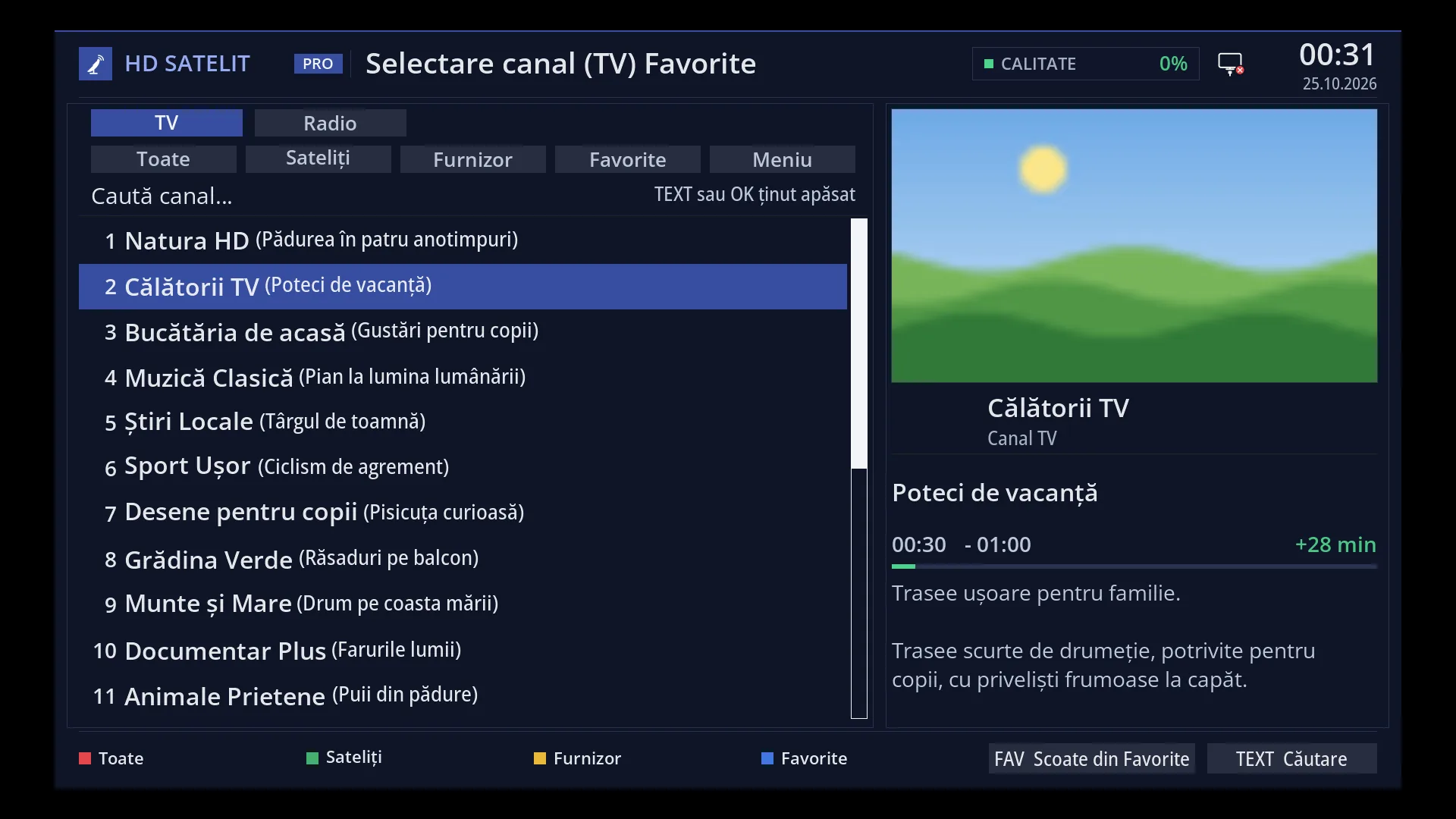
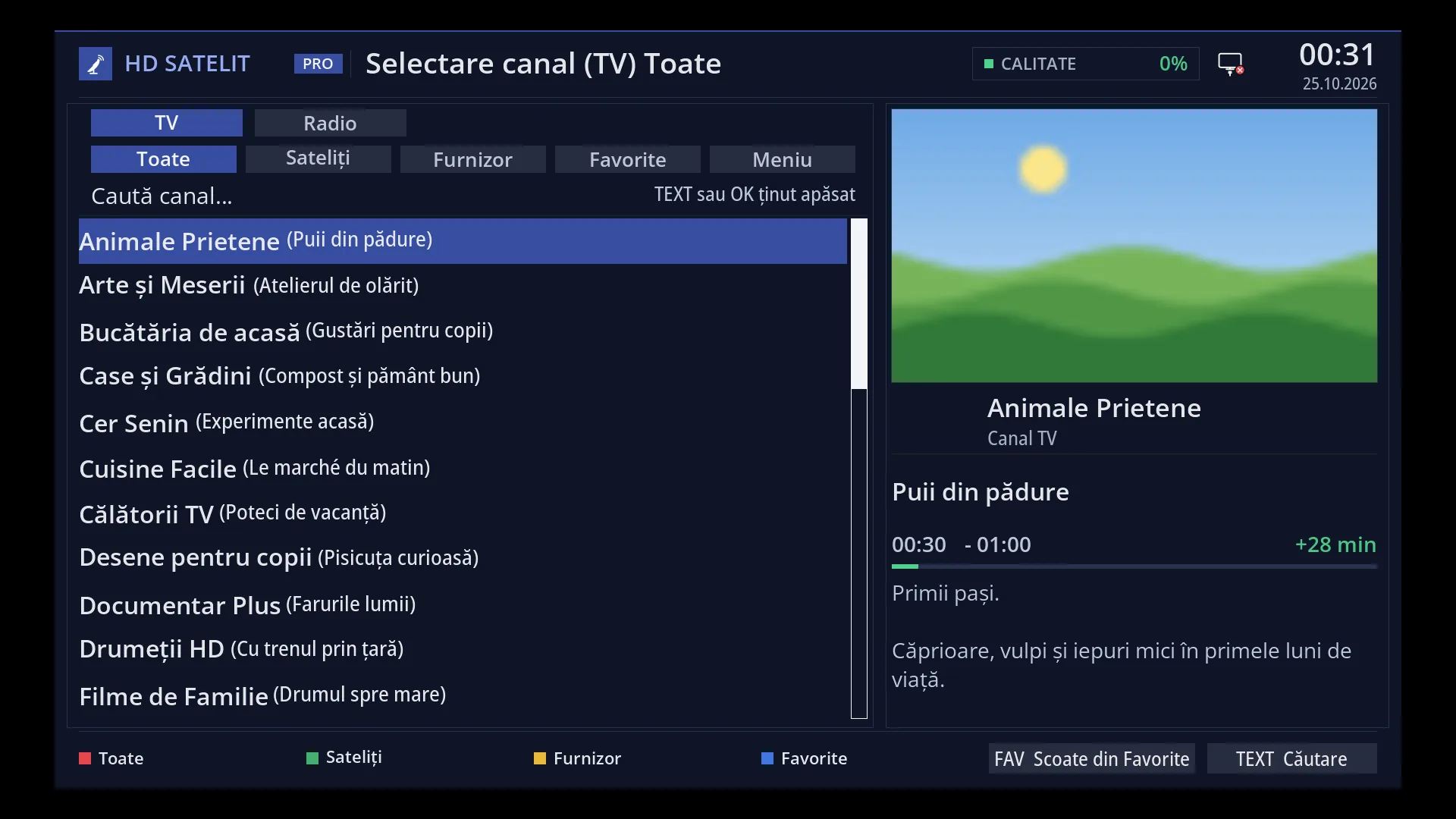
The “Channels” page (/canale) is the receiver's channel list in your browser. You choose a channel and start it on the TV, add it to Favourites with the star, open it in the guide or watch it live in the browser. The lists are the same as on the TV, in the same order and with the same numbers.
You can search by name and use the same filters as the channel search on the TV (type, resolution, satellite, sound, languages, subtitles and more). You can export the chosen and filtered list as a playlist for a player in your home.
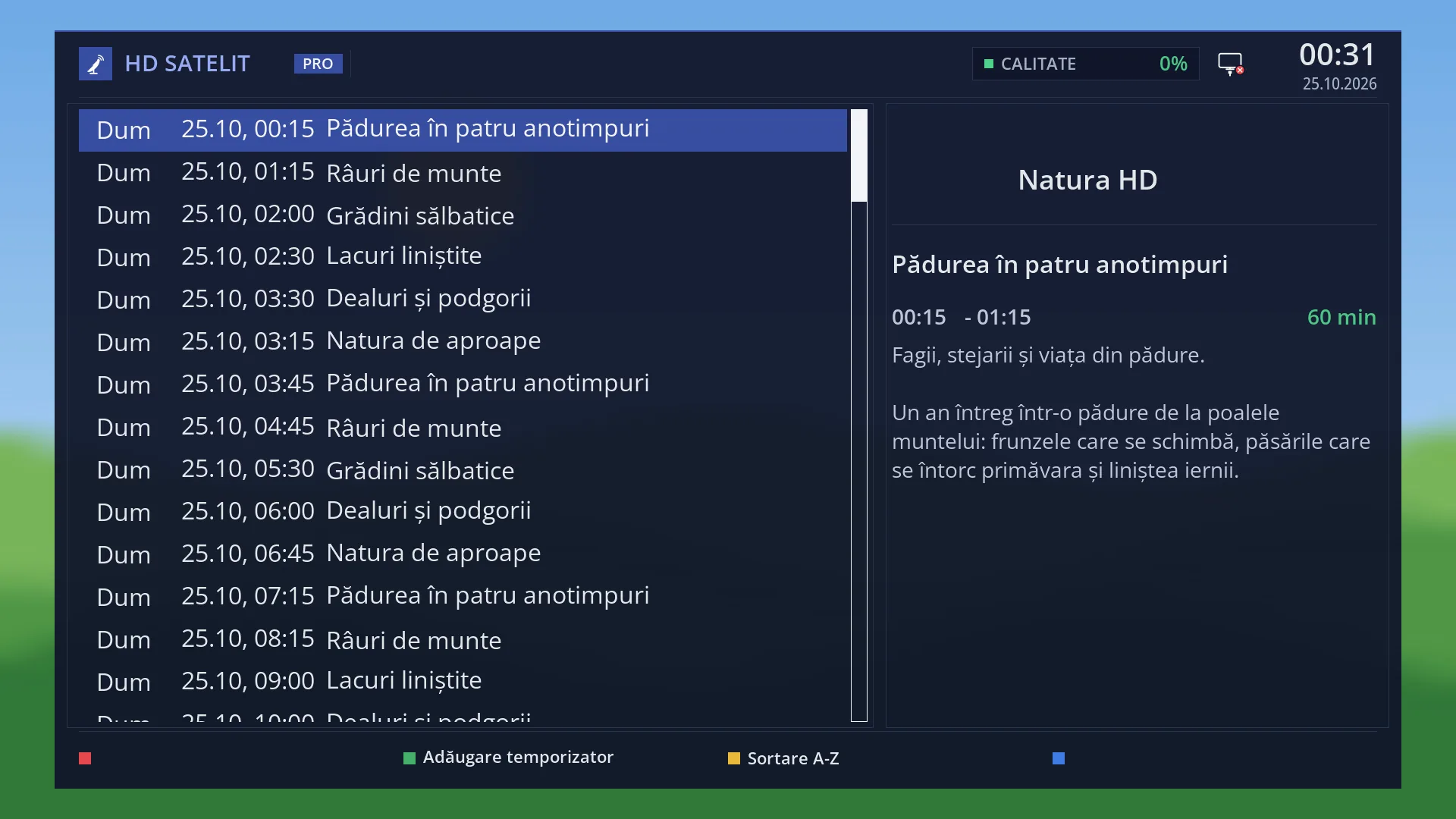
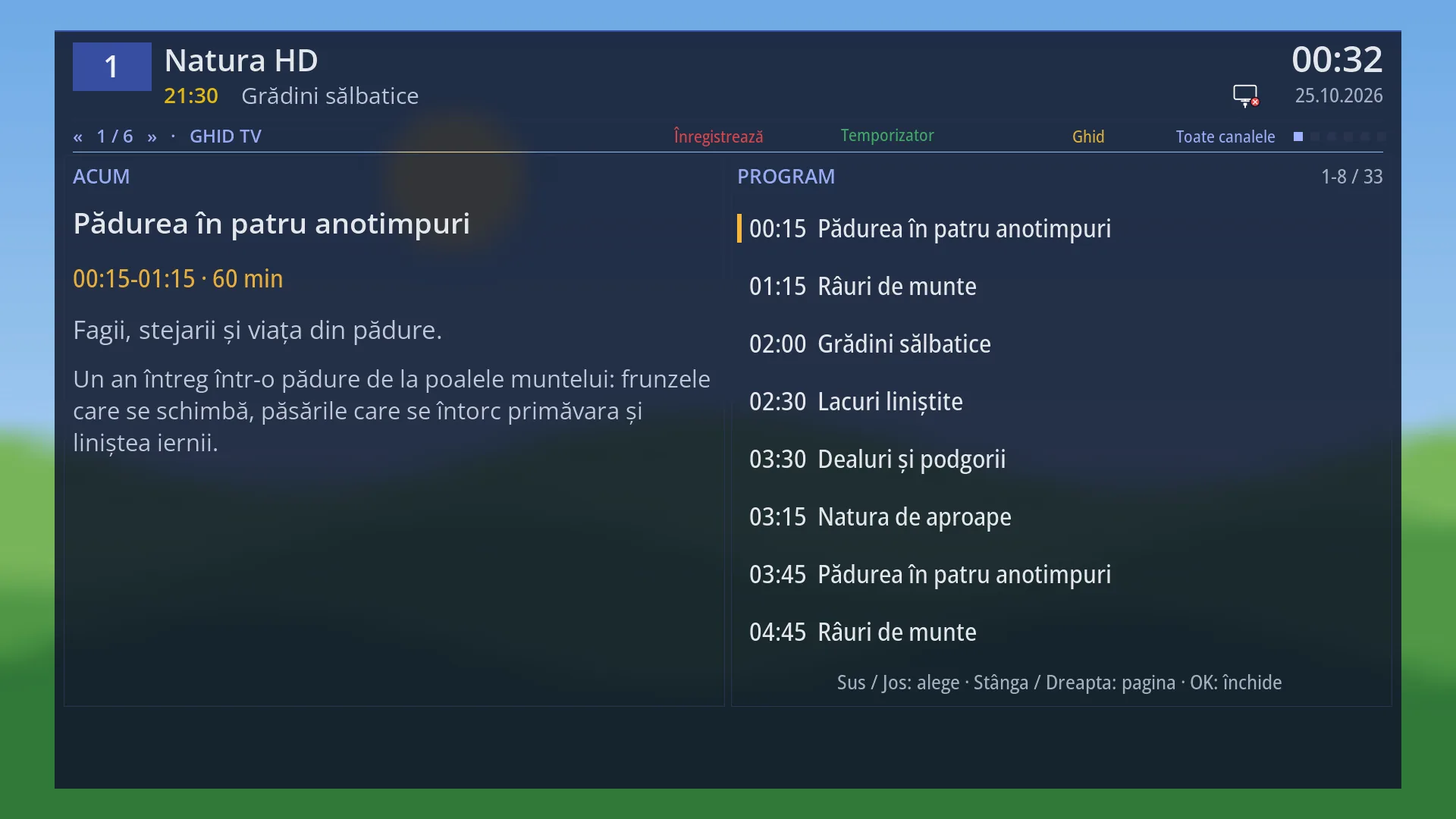
The “Channel guide” page (/ghid) shows the channel's programmes for up to 7 days, with a description of each. From there you can set a recording or a switch to the channel at the programme's time, just as from the guide on the TV.
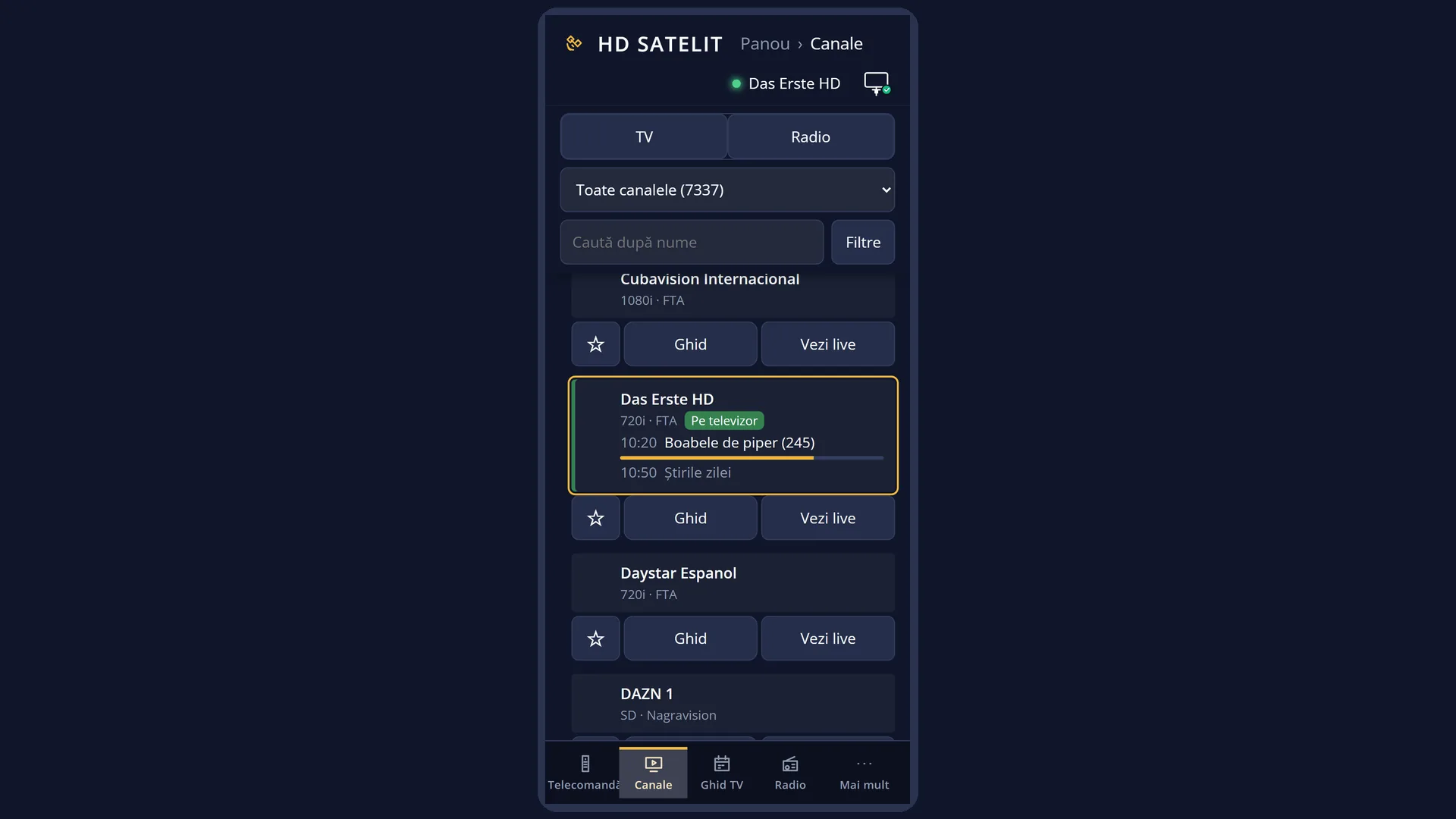
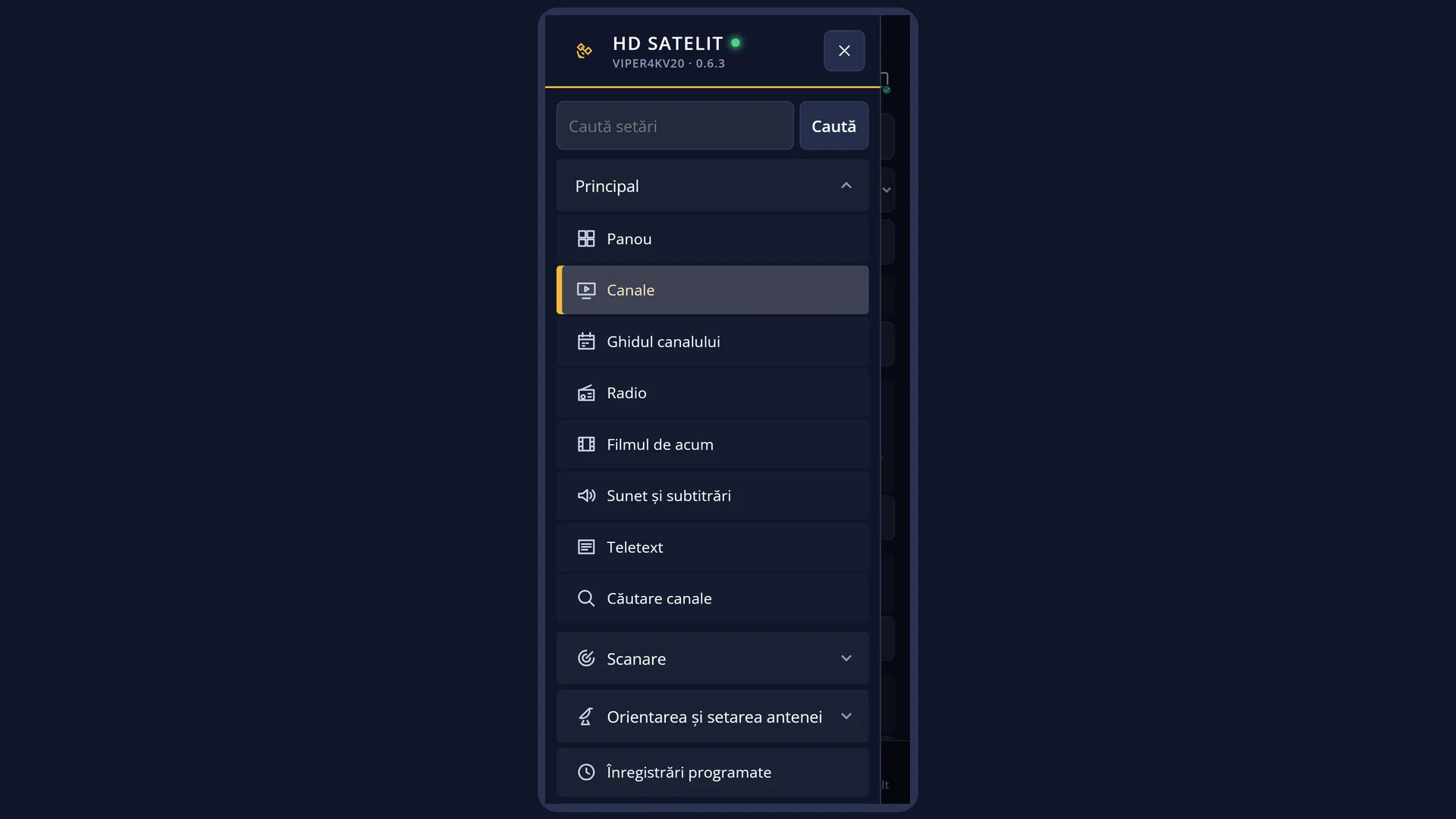
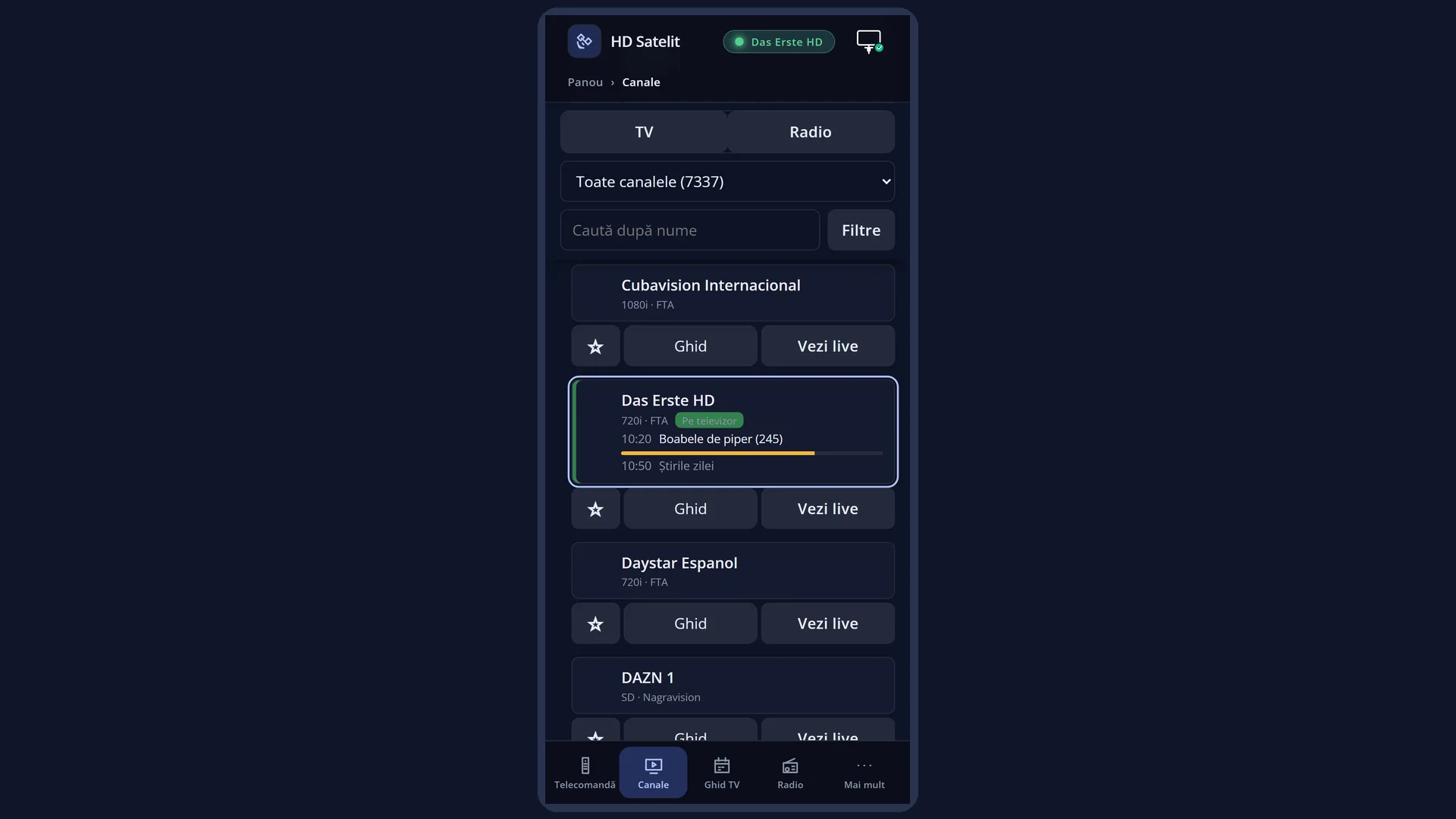
On a phone, the same pages are laid out in one column. The bottom bar has “Channels” and “TV guide”.
How to get here
In the web interface: the /canale page and the /ghid page (the guide for the channel on the TV; in “Channels”, the “Guide” button on a row opens the guide for that channel).
From the dashboard: the links “The channel list: choose and start a channel” and “The channel guide: the programmes and their recording”. On a phone, “Channels” and “TV guide” in the bottom bar.
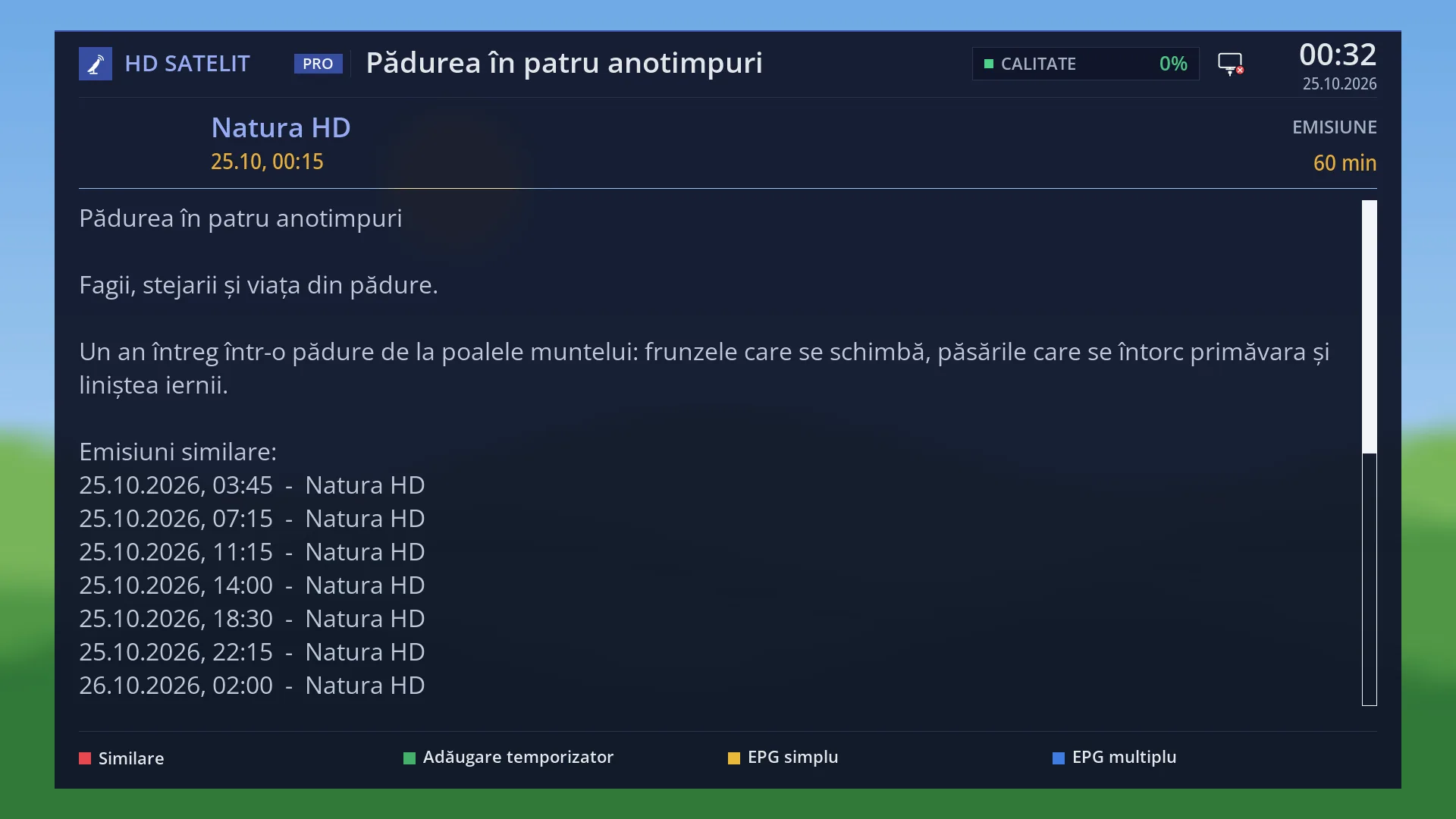
The matching screens on the TV: the channel list (OK or the channel keys) and the channel guide (OK twice on a channel).
What you see on the screen
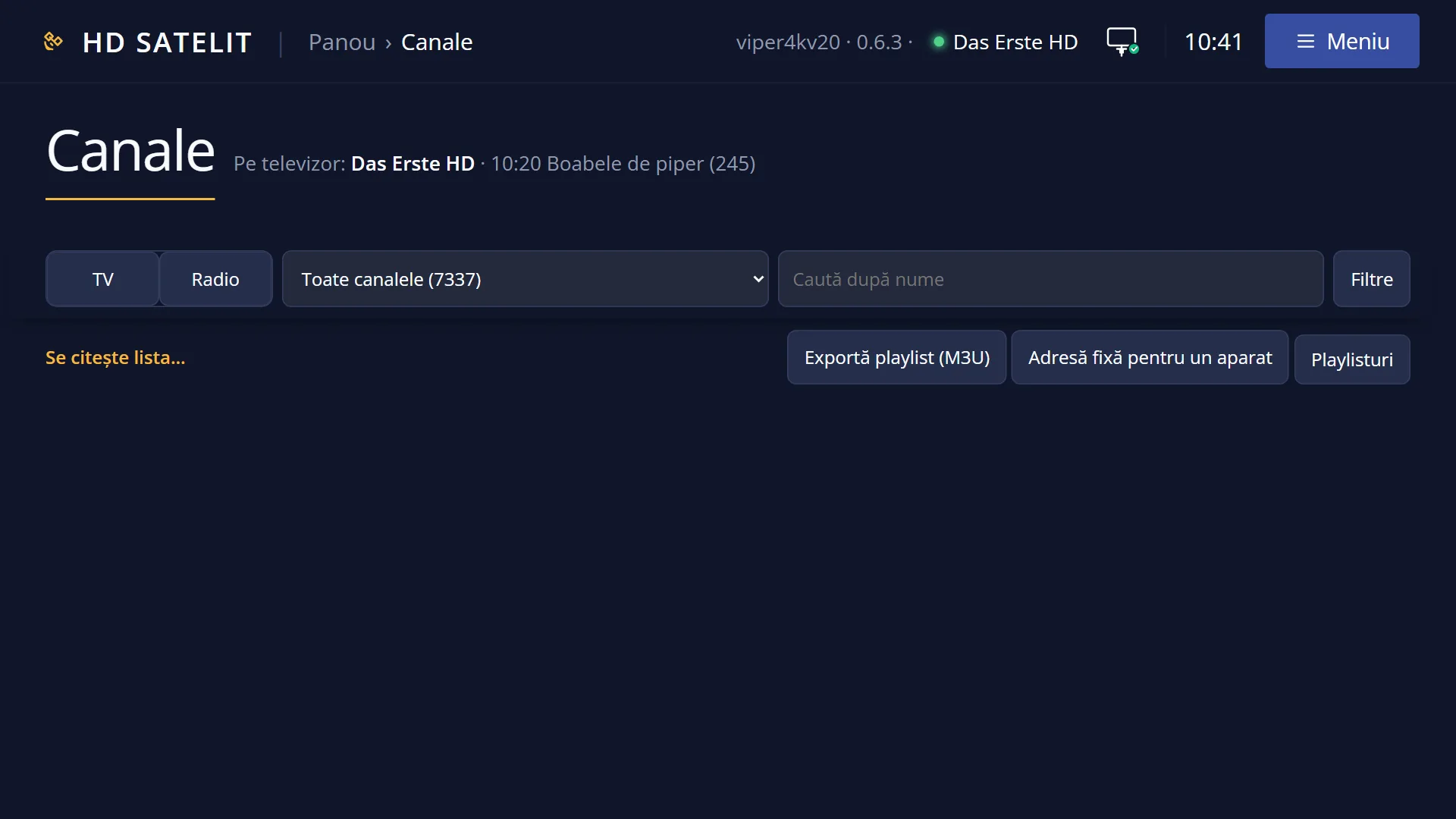
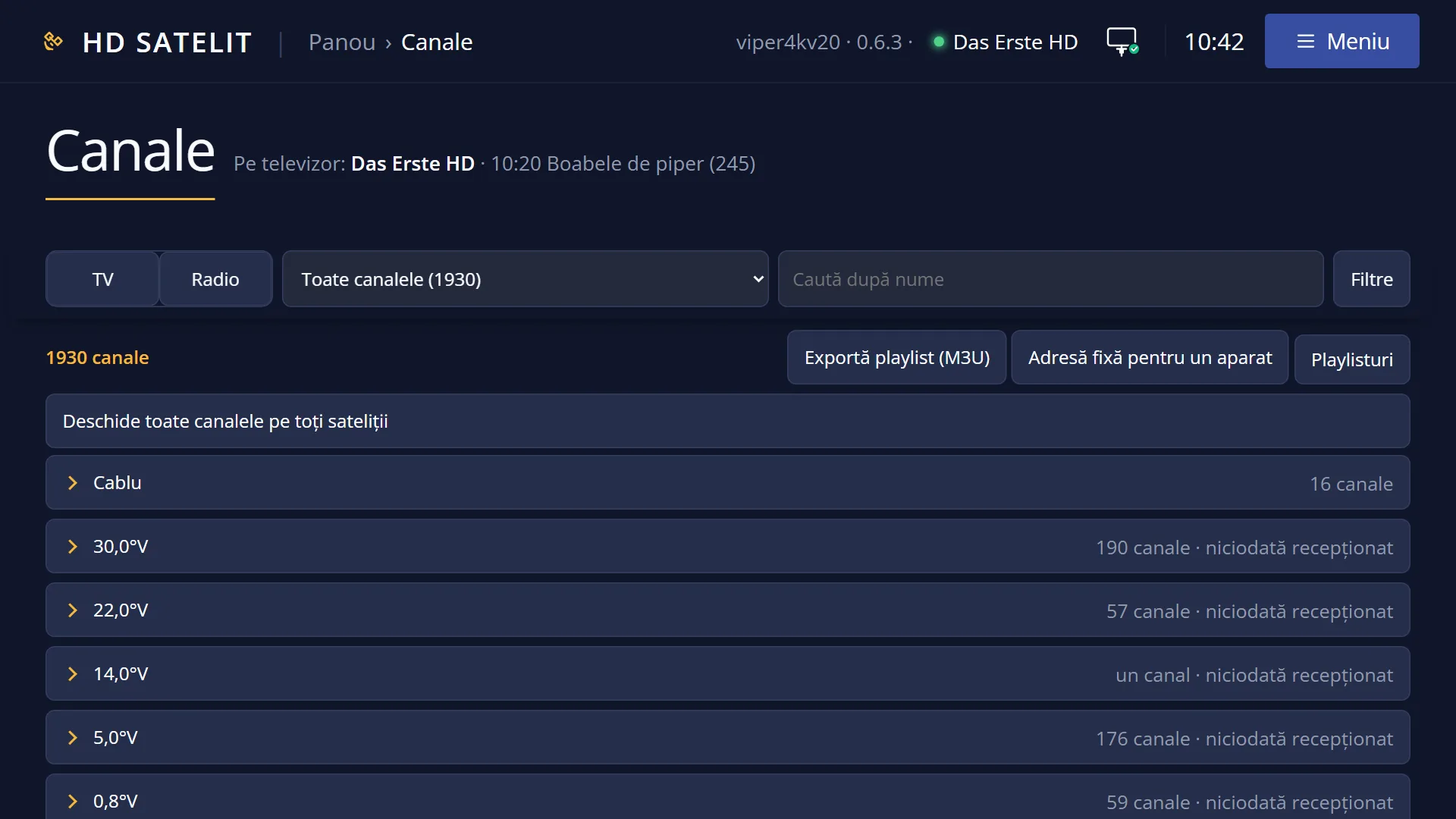
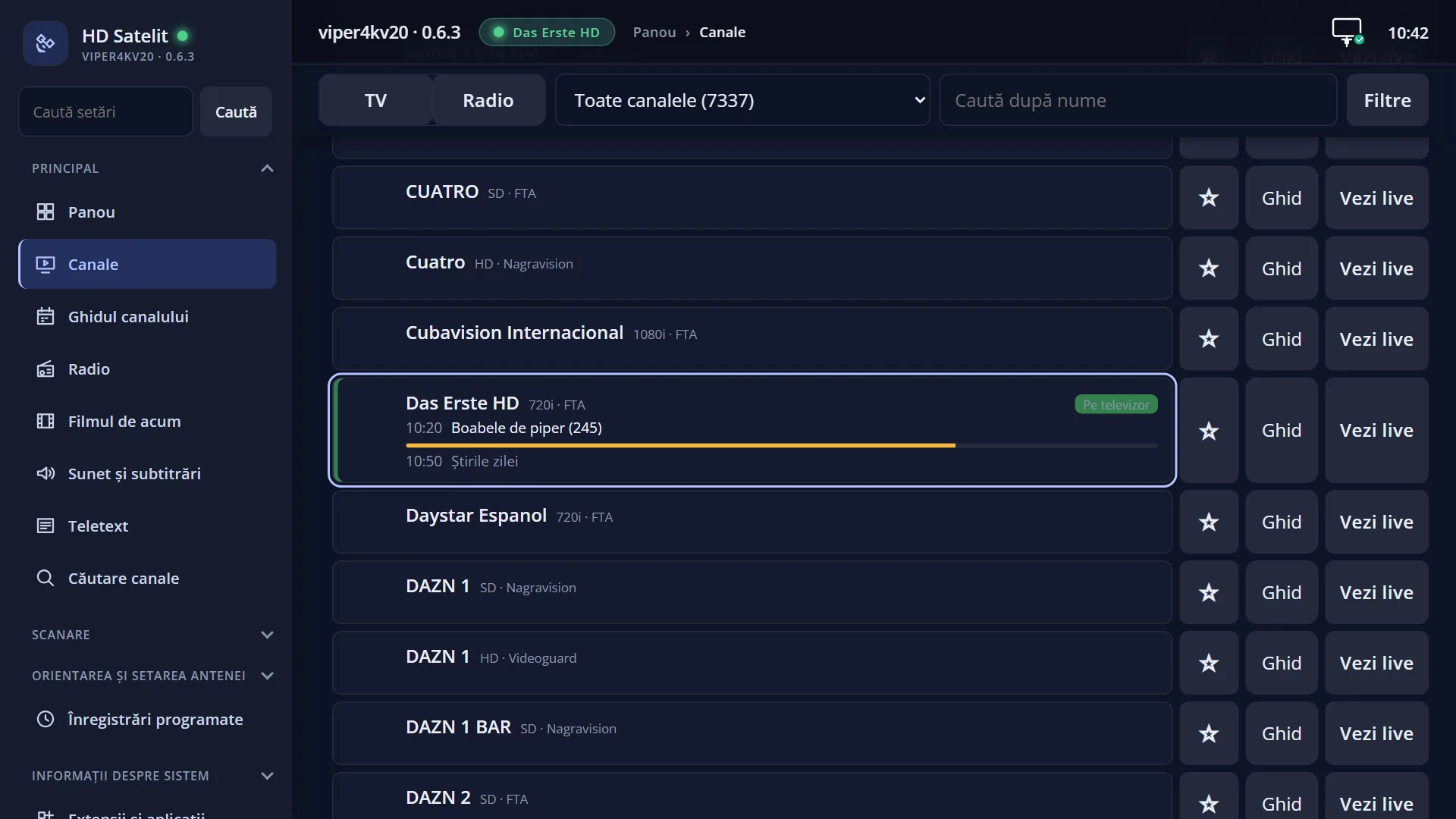
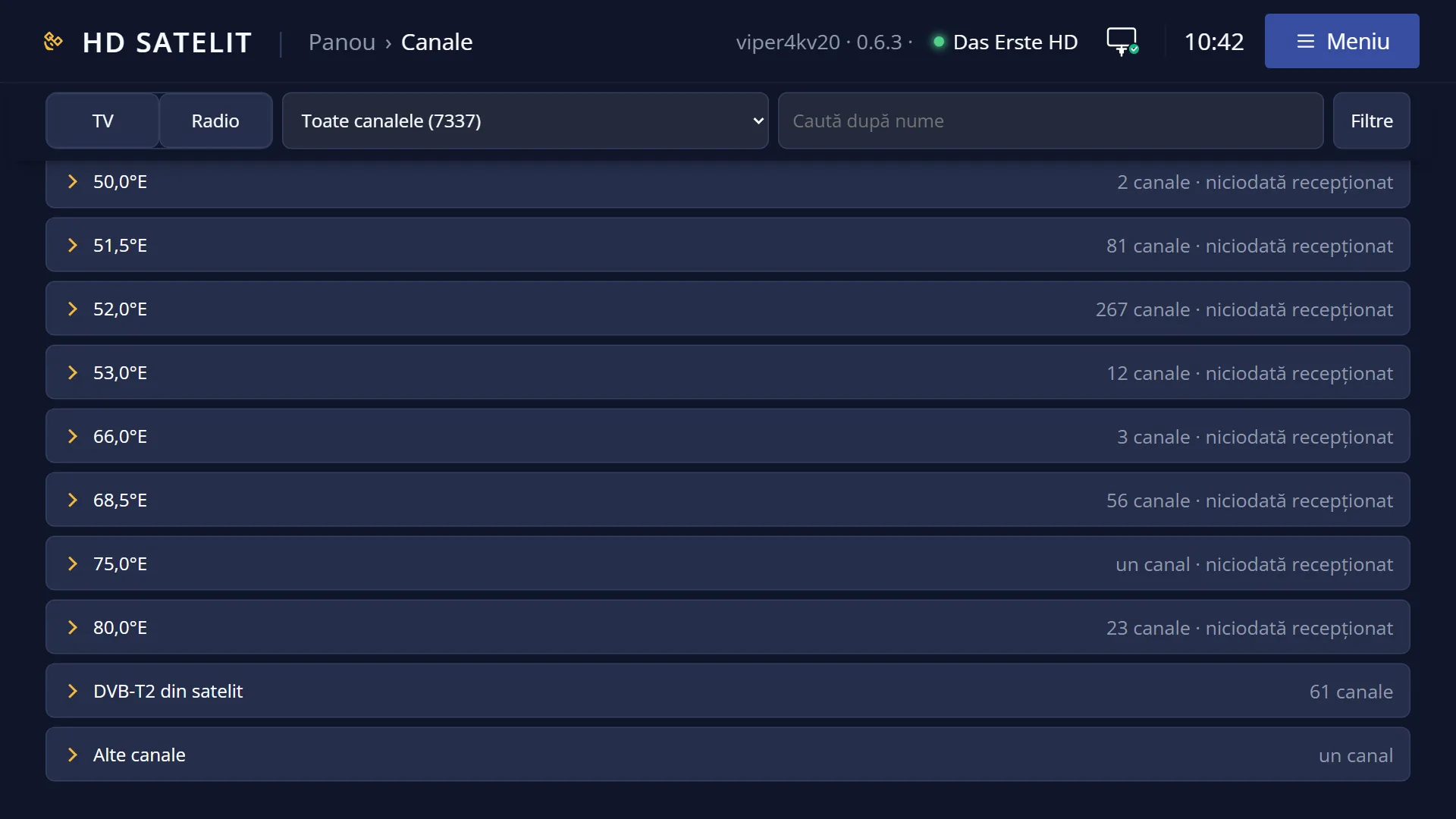
“Channels”: at the top, the title and, next to it, what is playing on the TV now (“On the TV: …”, with “· in standby” when that applies). Below are the “TV” and “Radio” tabs, the drop-down list (your bouquets, for example Favourites, and “All channels”), the “Search by name” box and the “Filters” button (showing how many filters are selected).
The “Filters” panel: the groups “Type” (TV, Radio, DAB+, DVB-T2, Internet), “Resolution” (SD, HD 720p, Full HD 1080, 4K), “Coding”, “Position” (the satellites), “Has” (Teletext, DVB subtitles, Teletext subtitles, HbbTV), “Audio format”, “Sound” (Mono, Stereo, 5.1), “Audio tracks”, “Audio language” and “Subtitles”, with the “Clear filters” button and the note “In the same group the ticked options add up with “or”, between groups with “and”. The number shows how many channels would remain with the option ticked.”.
Above the list: the number of channels and the buttons “The channel on the TV”, “Export playlist (M3U)”, “Fixed address for a device” and “Playlists”. When you search within a bouquet, there is also “Search in all channels (…)”.
Each row shows the channel number (the one you use with the remote's digit keys; channels in “All channels” have none), the logo (if the receiver has it), the name, the current programme with a progress bar and the next one, then the Favourites star, “Guide” and “Watch live”. The channel on the TV is marked “On the TV”, and the one being streamed over the network now is marked “Streaming”. Channels with the same name show what tells them apart (position, frequency, provider).
In “All channels”, the channels are grouped, for example by satellite, with “Open all channels on all satellites” and “Close the other satellites”.
“Channel guide”: the title with the channel name, then the chosen programme (day and time, large title, short line, description) with the buttons “Record”, “Switch only at its time” (or “Remove timer”, if it already has one) and “Start the channel on the TV”. Beside it is the list of programmes, with “Show more” at the bottom. If guide translation is switched on, “Translated automatically.” and the “Original text” button appear at the top.
Rows and settings
| Row | Values | Default | What it does |
|---|---|---|---|
| Click on a channel | Starts the channel on the TV, in the same way as OK in the channel list on the TV (the channel history and the last channel work the same). The page shows “Start on the TV.” or “The channel did not start.”. | ||
| The star (Favourites) | Add to Favourites, Remove favourite | Adds the channel to the Favourites list of the tab (TV or Radio) or removes it (after the question “Remove … from Favorite?”), like the FAV key on the TV. The list on the TV updates itself if it is showing Favourites. | |
| The filters and search by name | Type, Resolution, Coding, Position, Has, Audio format, Sound, Audio tracks, Audio language, Subtitles | no filter | Narrow the chosen list to the matching channels, with the same rules as on the TV. Sound, languages and subtitles are known only for channels you have already watched or that went through the detailed scan. When you are looking, for example, for all 4K channels or those with Romanian subtitles. |
| Export playlist (M3U) / Fixed address for a device | “Export playlist (M3U)” downloads the list as it is currently chosen and filtered, for VLC, Kodi or another player in your home. “Fixed address for a device” turns the current list into a source for a device in your home (smart TV, player), with the TV guide, at an address that does not change. Both are explained on the playlists page. | ||
| Guide (next to a channel) and the /ghid page | The channel's programme list, from now up to 7 days ahead, 30 per page (“Show more” loads the next ones). Click a programme to see its description. | ||
| Record / Switch only at its time / Remove timer | Sets a timer for the chosen programme, either to record it or only to switch to the channel at its time, or removes the timer (after the question “Remove the timer for …?”). The messages are: “The timer has been set.”, “The programme already has a timer.”, “It overlaps other timers. Nothing was set.”. No window opens on the TV; if the bar is open on the guide, it updates. When you want to record a programme from your phone. | ||
| Watch live | Opens the channel in a window on the page, in the browser, without necessarily changing the TV. If it cannot be played in the browser right now, the window tells you why. |
Keys
| TV / Radio | Choose the tab. |
| Drop-down list | Chooses the bouquet or “All channels”. |
| Search by name | Narrows the list as you type. |
| Filters / Clear filters | Open the filter panel; remove all selected filters. |
| The channel on the TV | Moves the list to the channel now playing on the TV. |
| The star | Adds the channel to Favourites or removes it. |
| Guide | Opens the channel guide. |
| Watch live | Opens the channel in the browser, in the page window. |
| Record / Switch only at its time / Remove timer | Set or remove the timer for the chosen programme. |
| Start the channel on the TV | Starts the guide's channel on the TV. |
| Original text | Shows the untranslated guide (when guide translation is switched on). |
Step by step
Change the channel from your phone
- Open /canale (or “Channels” in the bottom bar).
- Choose the list, for example Favourites, or type part of the name in “Search by name”.
- Tap the channel: it starts on the TV.
Record a programme from the guide
- On /canale, press “Guide” next to the channel.
- Choose the programme from the list (use “Show more” for the following days).
- Press “Record” and wait for “The timer has been set.”.
Find all 4K channels
- On /canale, choose “All channels”.
- Press “Filters” and tick “4K” under “Resolution”.
- The list now shows only the 4K channels; “Export playlist (M3U)” puts them in a playlist.
Problems and solutions
The list is empty or says there are no channels.
The receiver has no channels yet: the page shows the “Search now” button, which takes you to the channel scan.
“The channel did not start.”
The channel could not be started right now. Try again; if it still does not work, start it with the remote: the TV shows a message with the reason.
“It overlaps other timers. Nothing was set.”
There are already other recordings at the same time. Look in Timers & Recordings and remove one, or choose another programme.
“The channel has no programme in the guide.”
The station does not broadcast a guide, or the receiver has not collected it yet. Leave the channel playing on the TV for a while.
The sound or subtitle filters do not find a channel that I know has them.
Audio tracks and subtitles are known only after the channel has been watched or after “Detailed scan”.
I cannot see the channel numbers in “All channels”.
The number is the one used with the digit keys and exists only in bouquets; in “All channels” the channels have no number.