

Portal key
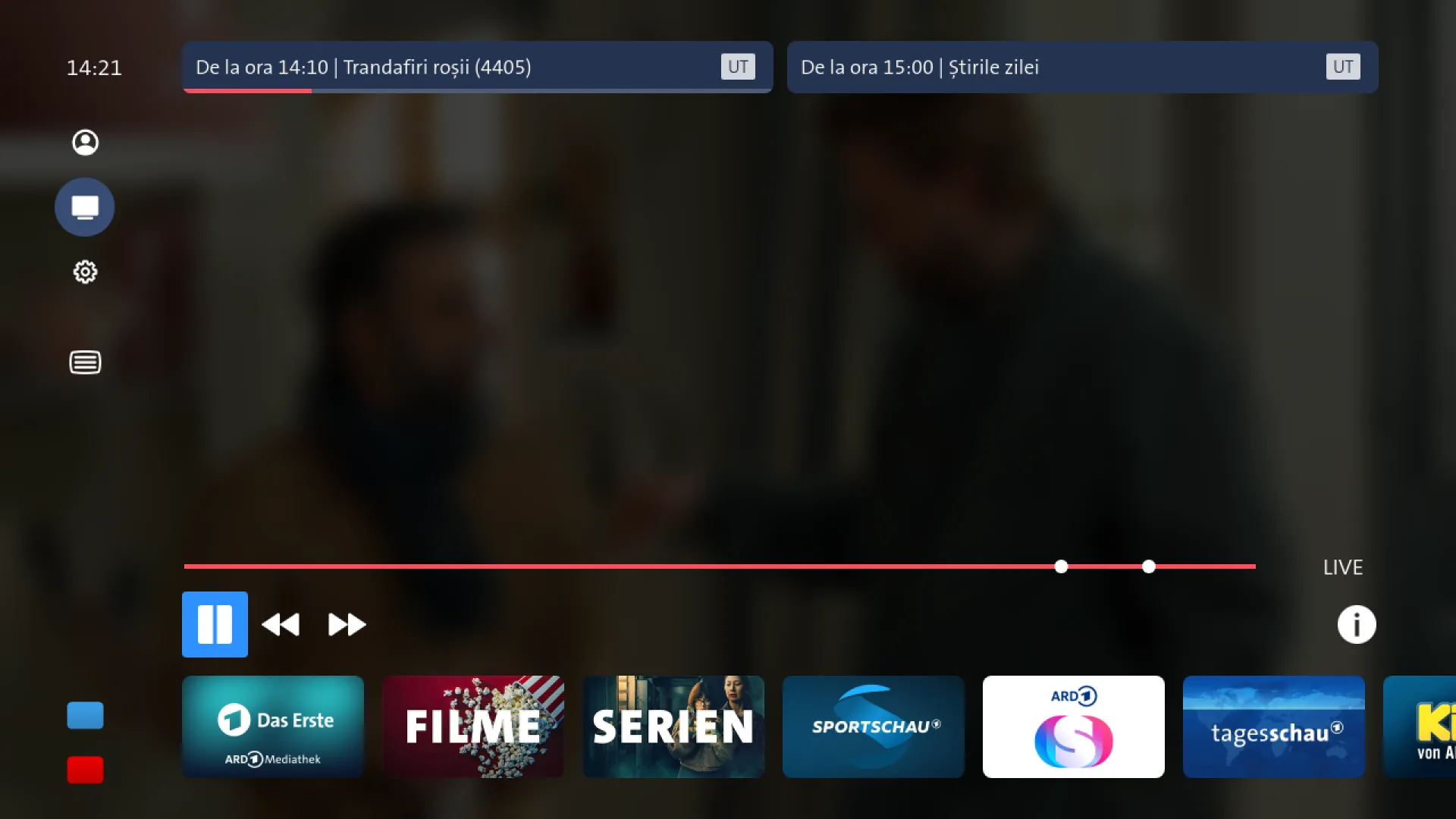
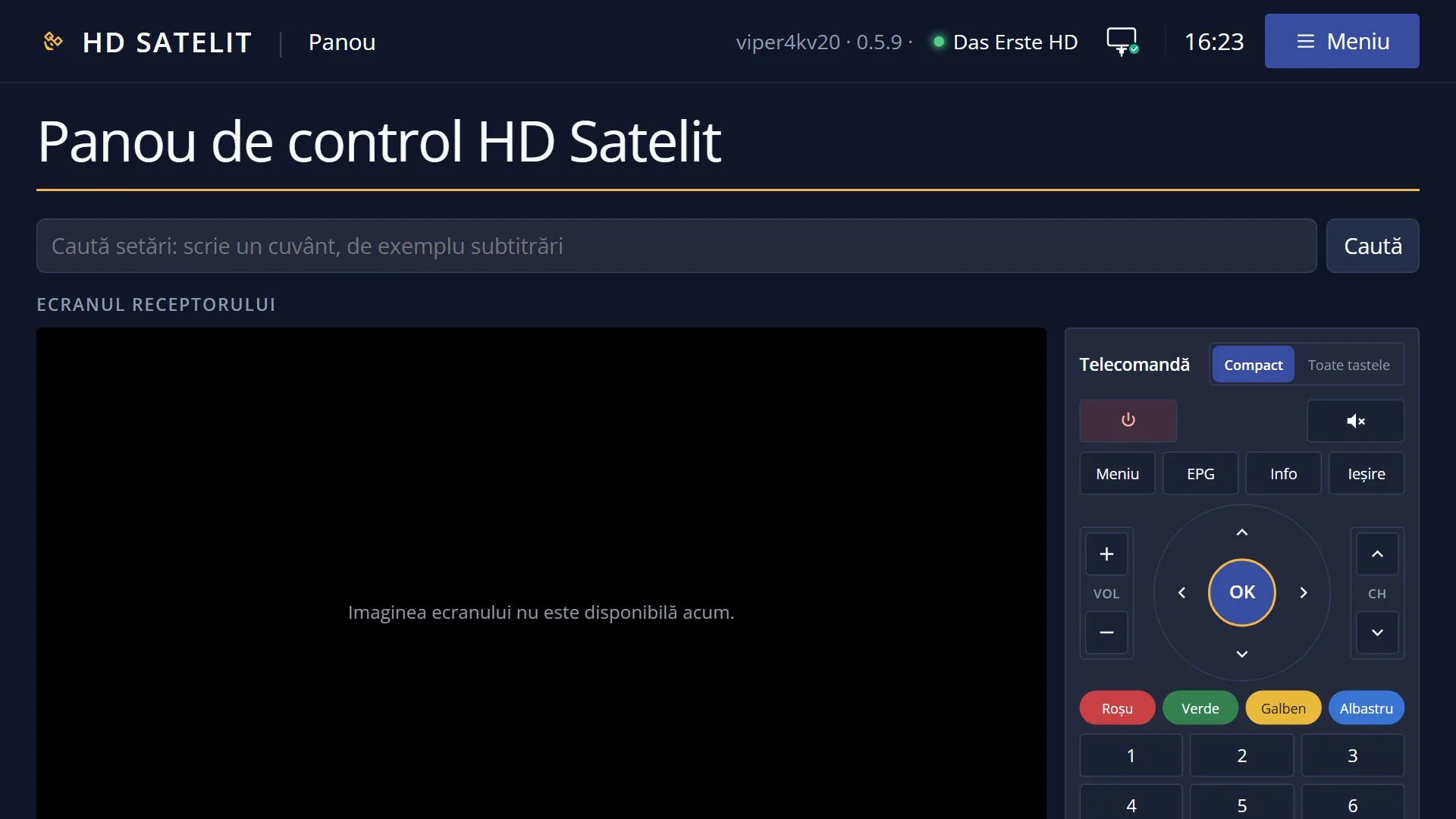
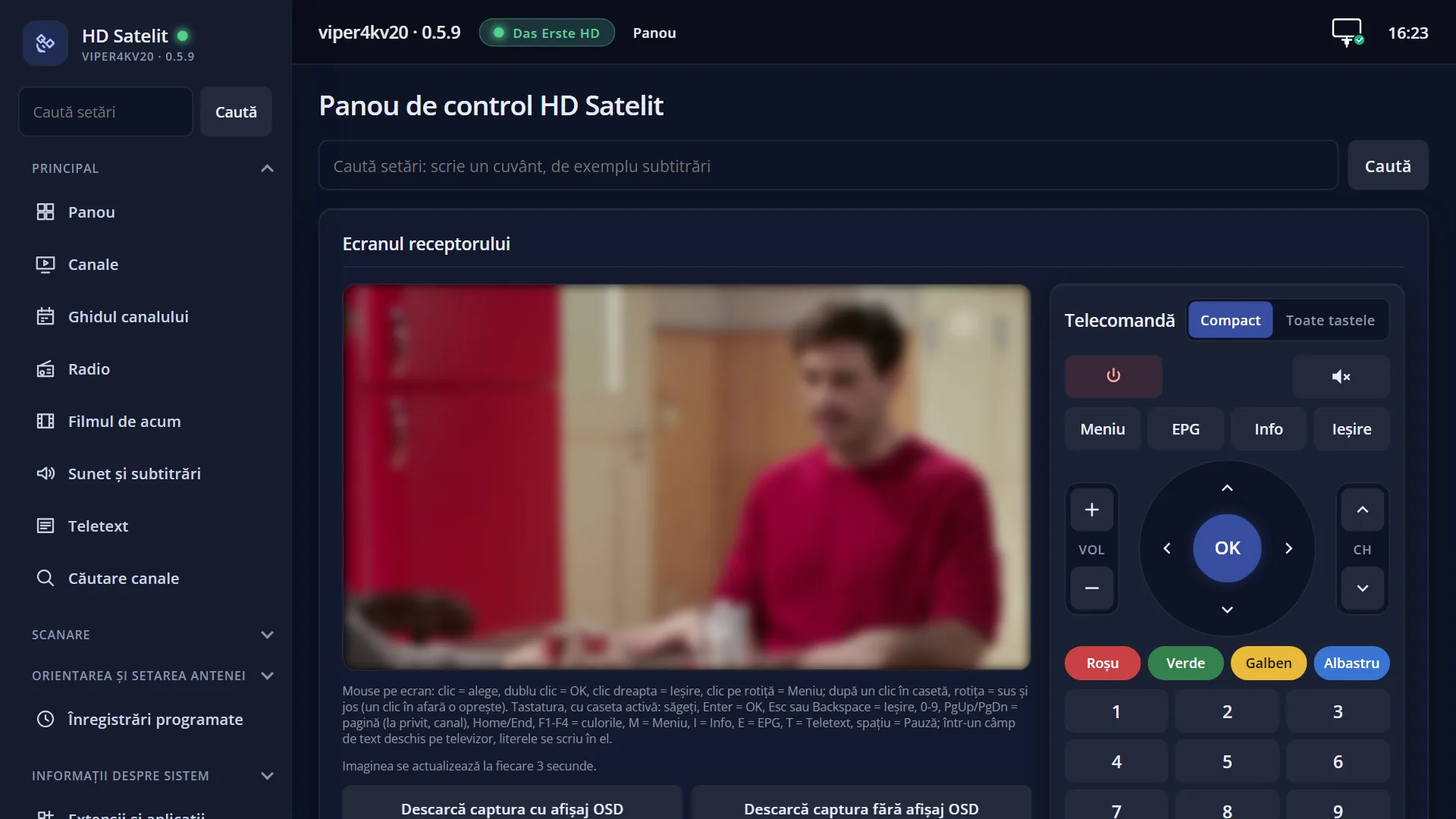
Screenshots are being added: so far 1 from the receiver and 7 from the web interface; the aim is at least 5 of each, with arrows and frames, and, where a setting changes what you see, a before and after comparison.
English screenshots coming: some of the pictures below still show the receiver and the web interface in Romanian. The rows, keys and steps described on this page are the English ones.
What it is for
The Portal key on the remote does one of two things, depending on the channel. On a channel with an HbbTV application ready to start, it opens that application directly, just like RED.
Otherwise it opens the plugin list (the applications installed on the receiver) and, on top of it, a message for 5 seconds that tells you what the receiver knows about HbbTV on the current channel: that the channel has it, that it does not, or that this is not known yet.
So it is also a quick way to find out whether a channel has HbbTV, without looking for the label in the bar.
How to get here
Path: while watching TV, press the Portal key.
Keys while watching TV: PORTAL.
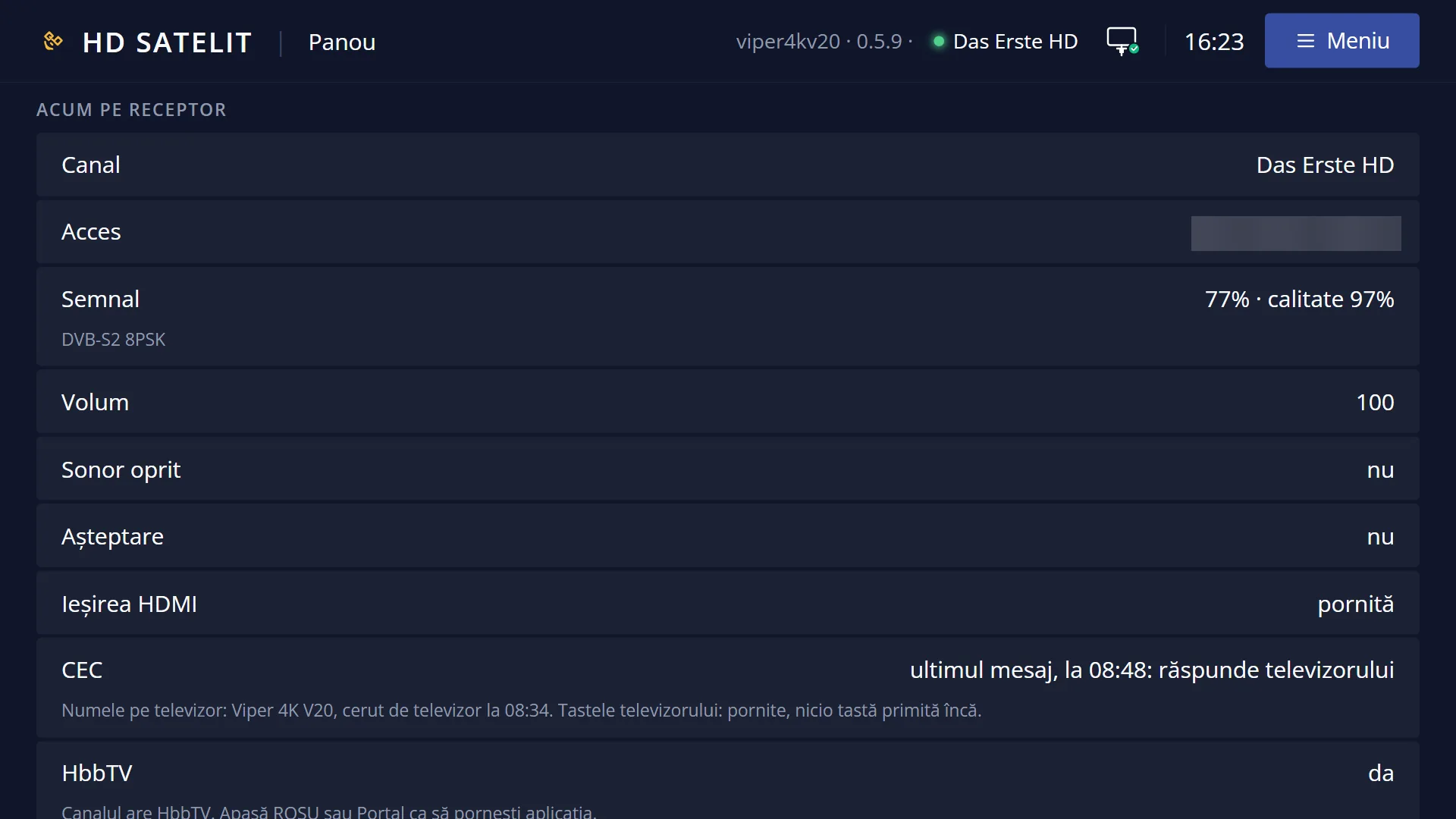
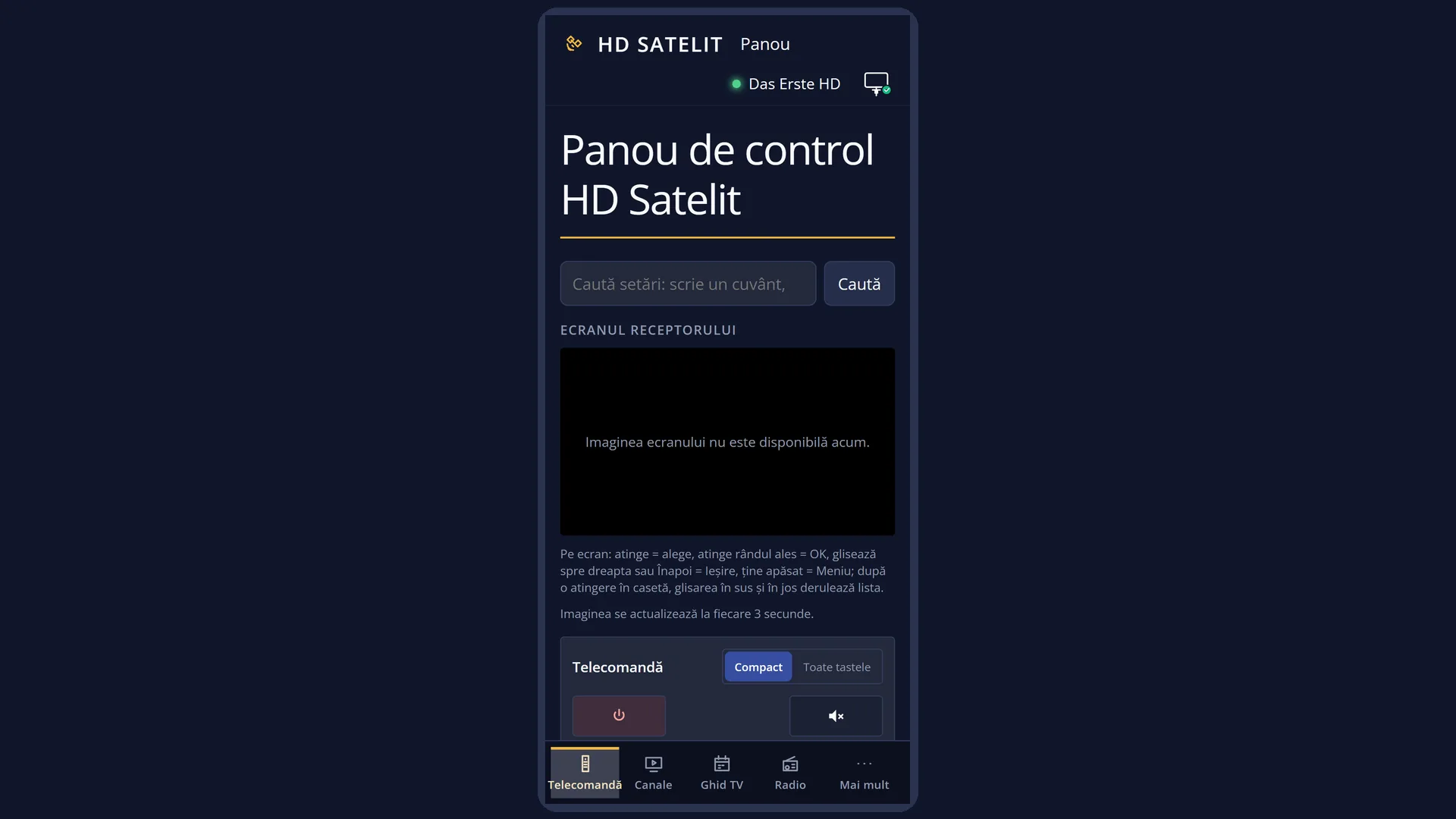
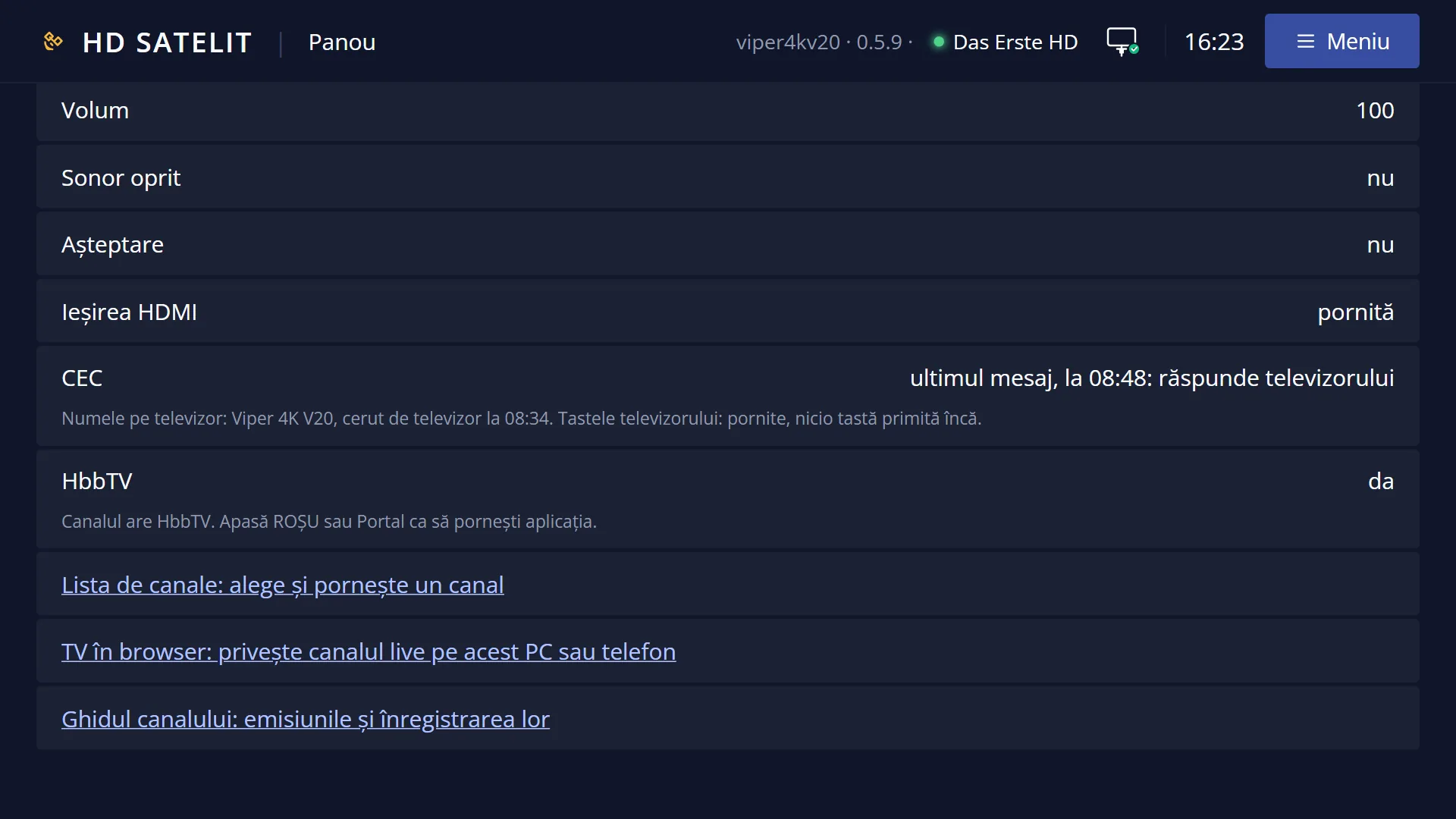
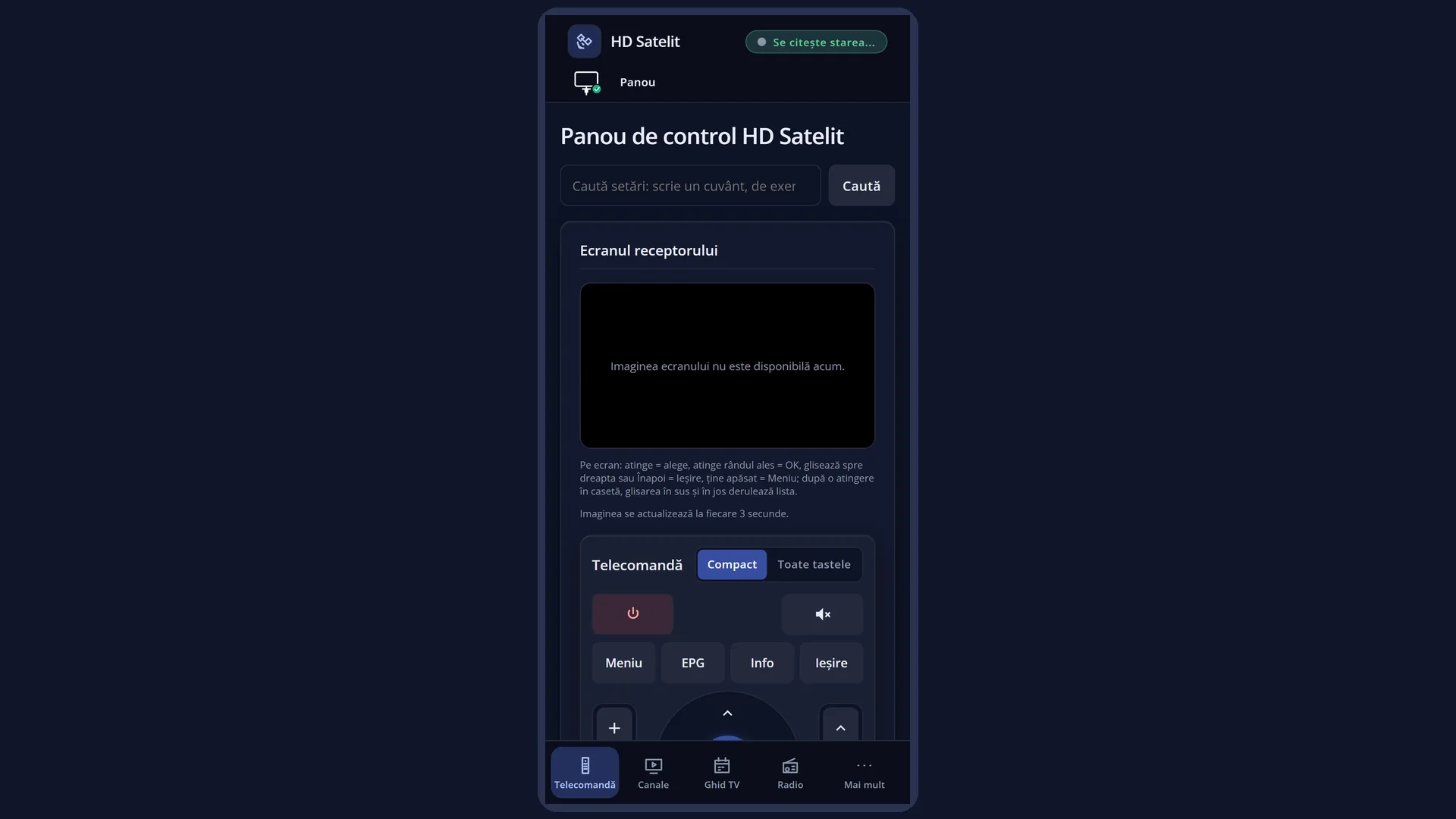
In the web interface: on the /panou page, the “HbbTV” row in the “Now on the receiver” box shows the same status, with the full message below it. The remote on /panou, with all the keys, also has the Portal key.
What you see on the screen
On a channel with an application ready to start (and HbbTV switched on): the small window “HbbTV: starting the channel's application...”, then the application, as after RED.
On other channels: the plugin list, open on the installed plugins tab, and on top of it a box with one of these messages: “The channel has HbbTV. Press RED or Portal to start the application.”, “This channel has no HbbTV.”, “I do not know yet whether this channel has HbbTV.” or, on an internet channel or when playing a file, “HbbTV is only available on satellite, cable or antenna channels.”.
If HbbTV is switched off in the settings, the message is “HbbTV is switched off in the settings (Web browser settings).”.
When no channel is playing, only the plugin list opens, with no message.
The message closes by itself after 5 seconds (or with OK or EXIT). The plugin list stays open.
Rows and settings
| Row | Values | Default | What it does |
|---|---|---|---|
| The channel's HbbTV message | Channel are HbbTV., This channel has no HbbTV., I do not know yet whether this channel has HbbTV., HbbTV is only available on satellite, cable or antenna channels., HbbTV is switched off in the settings. | “Has”: the channel announces HbbTV in its signal. “no”: the channel's signal has been read and announces no application. “I do not know yet”: the channel's signal has not been read yet (usually just after you change channel). “only on … satellite, cable or antenna”: the channel comes from the internet or is a file. |
Keys
| PORTAL (while watching TV) | Opens the channel's HbbTV application, if it has one ready to start. Otherwise it opens the plugin list and the HbbTV message. |
| OK / EXIT (on the message) | Close the message before the 5 seconds are up. The plugin list stays open. |
| EXIT (in the plugin list) | Closes the list and takes you back to live TV. |
| RED | Starts the channel's HbbTV application. On a channel with an application, Portal does the same. |
Step by step
Find out whether a channel has HbbTV
- On the channel, press Portal.
- If the application opens, the channel has HbbTV. EXIT closes it.
- Otherwise, read the message on top of the plugin list. Then press EXIT twice to go back to live TV.
Check the HbbTV status from your phone
- Open the /panou web page.
- In “Now on the receiver”, the “HbbTV” row shows “yes”, “no”, “not known yet” or “only on satellite, cable or antenna”, with the full message below it.
Problems and solutions
It says “The channel has HbbTV. Press RED or Portal…”, but the application did not open.
The receiver knows that the channel announces HbbTV, but its application has not been read from the signal yet. Wait a few seconds on the channel and press RED or Portal again.
It says “I do not know yet whether this channel has HbbTV.”.
The channel's signal has not been read yet. Wait a few seconds on the channel and press Portal again.
It says “HbbTV is switched off in the settings (Web browser settings).”.
Switch HbbTV on: MENU 6 2 6, set “HbbTV (channel applications)” to “yes”, OK.
The plugin list opens and I do not want that.
On a channel without an HbbTV application, this is what the key does. Leave with EXIT.
Related topics
- The channel's HbbTV application
- Web browser settings (switching HbbTV on)
- Plugins & Applications
- HD Satelit control panel
- Matching web page: /panou (the “Now on the receiver” box, the “HbbTV” row).