

Web browser settings
English screenshots coming: some of the pictures below still show the receiver and the web interface in Romanian. The rows, keys and steps described on this page are the English ones.
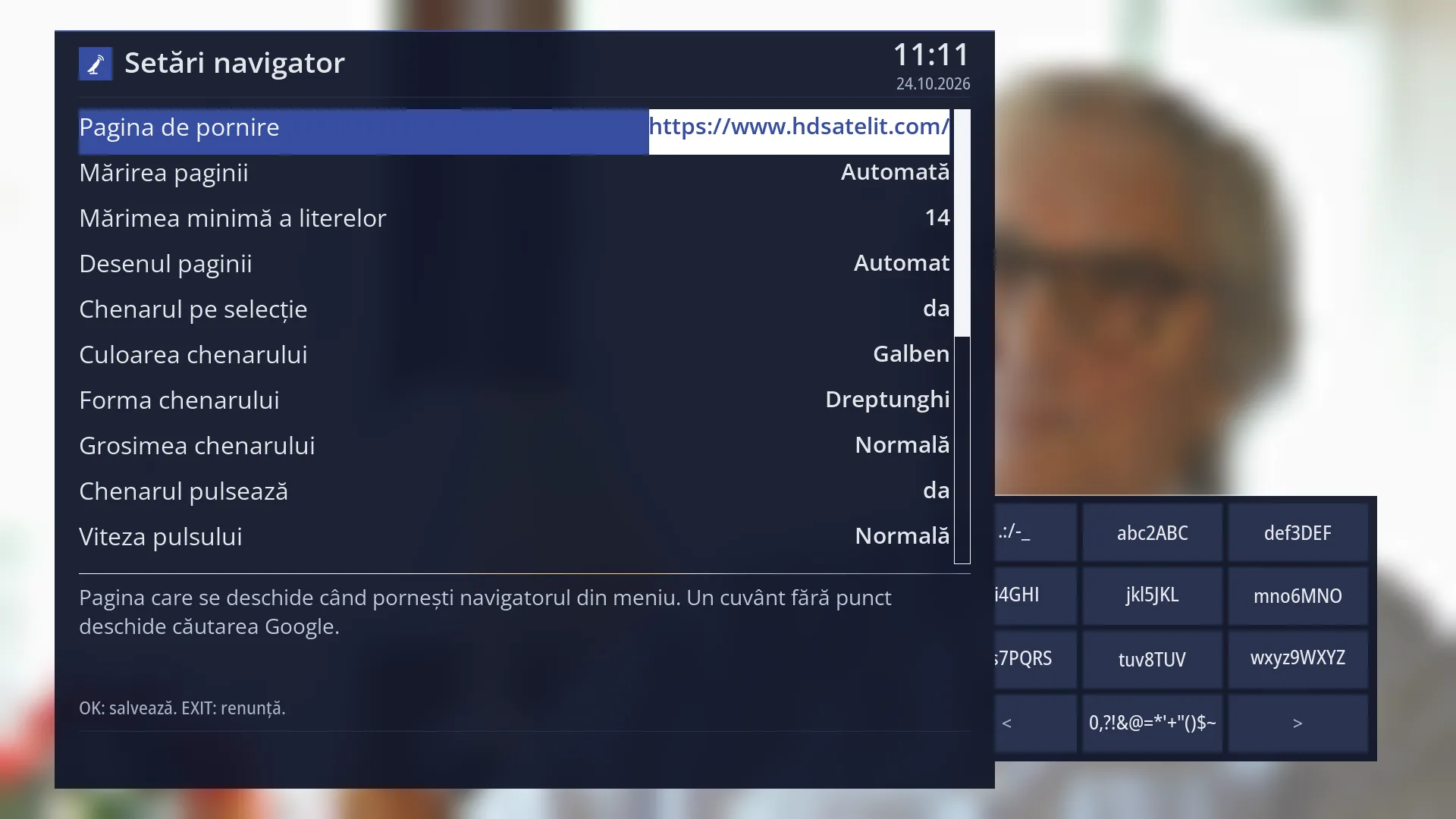
- 1 The title: “Browser settings”.
- 2 Start page, zoom, text size and page drawing.
- 3 The frame around the selection and its style. The style rows only show with the frame turned on.
- 4 What the selected row does and what each value means.
- 5 OK saves, EXIT cancels.
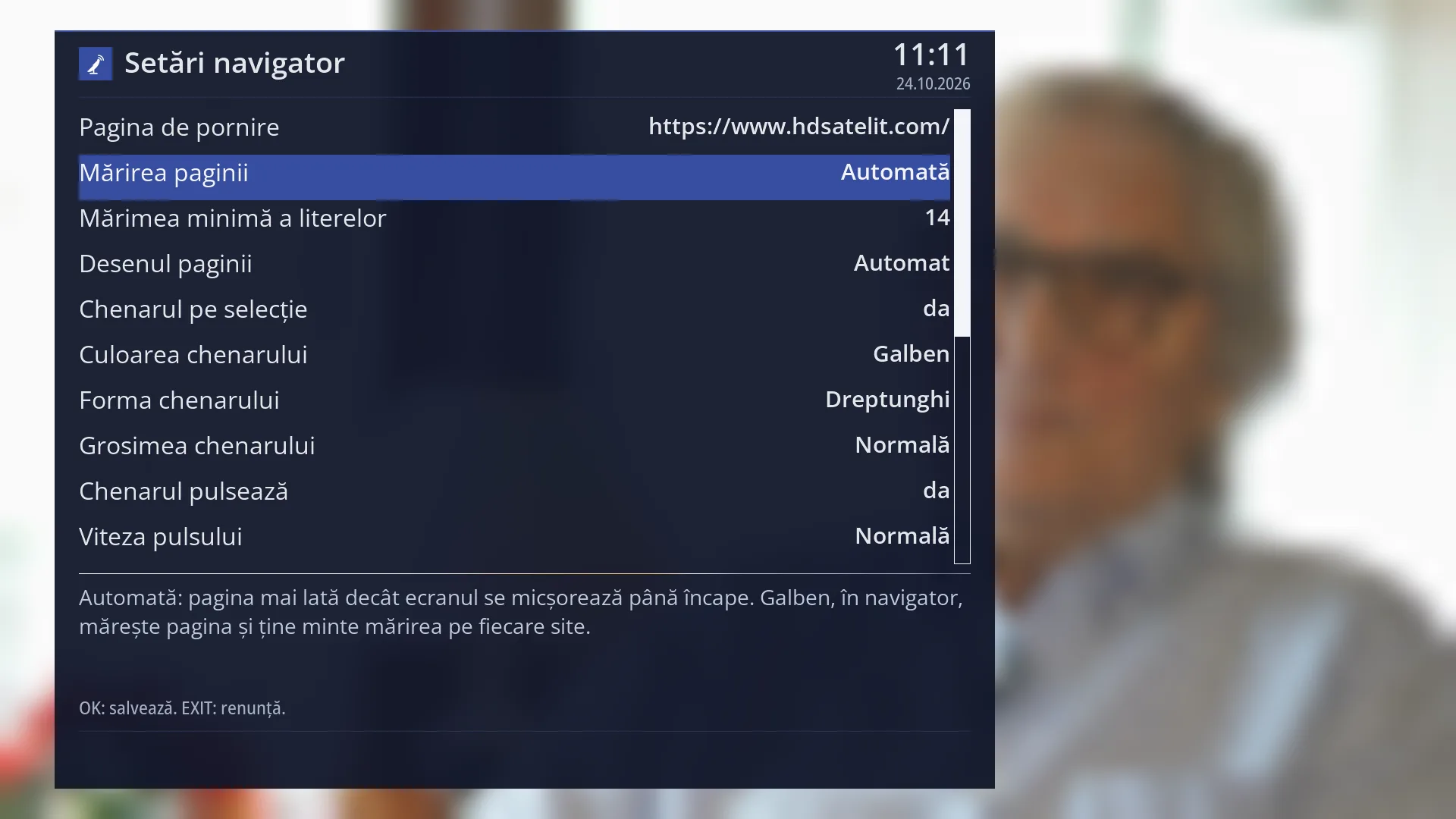
- 1 The selected row: “Page zoom: Automatic”.
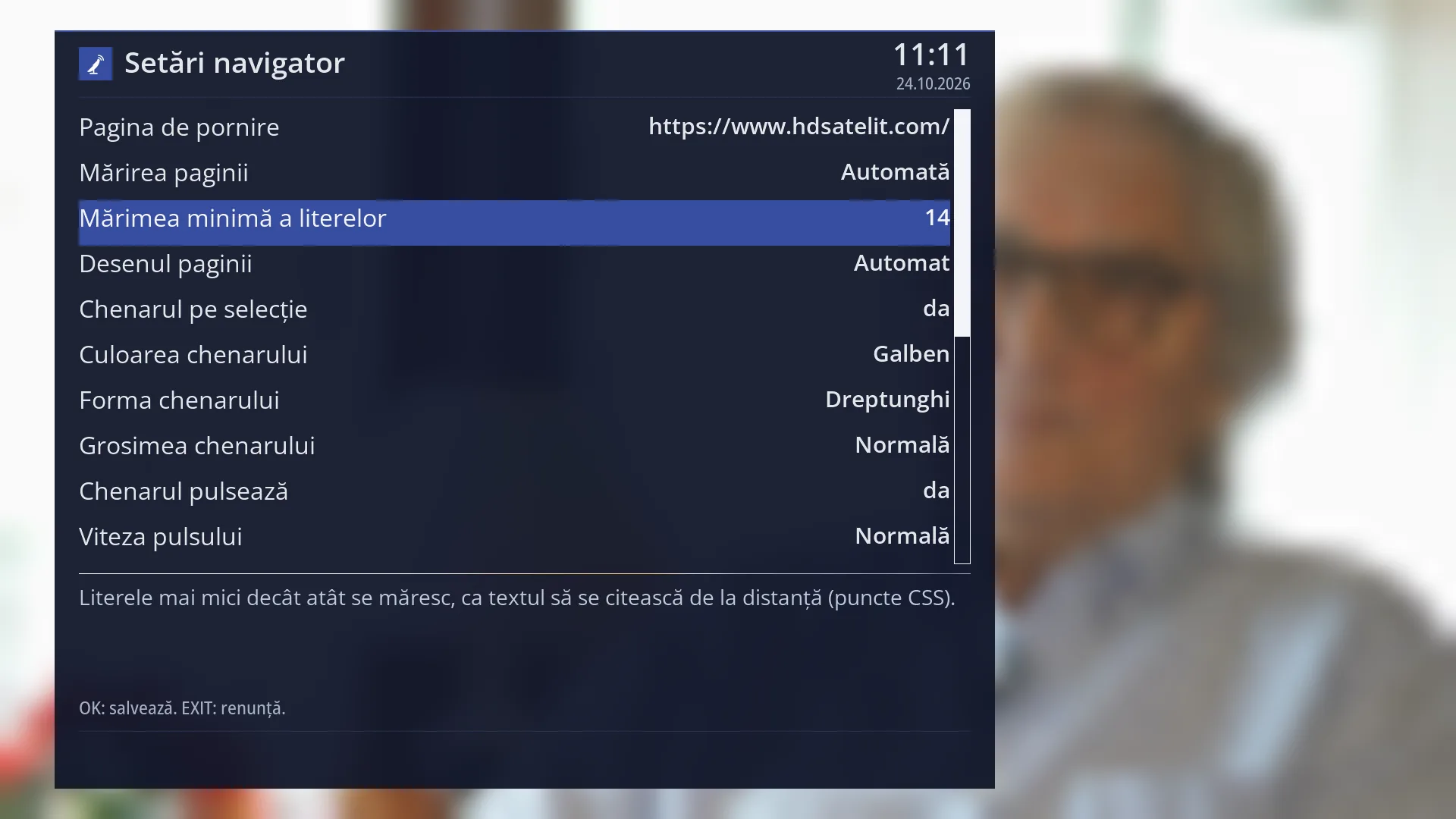
- 1 The selected row: “Minimum font size: 14”.
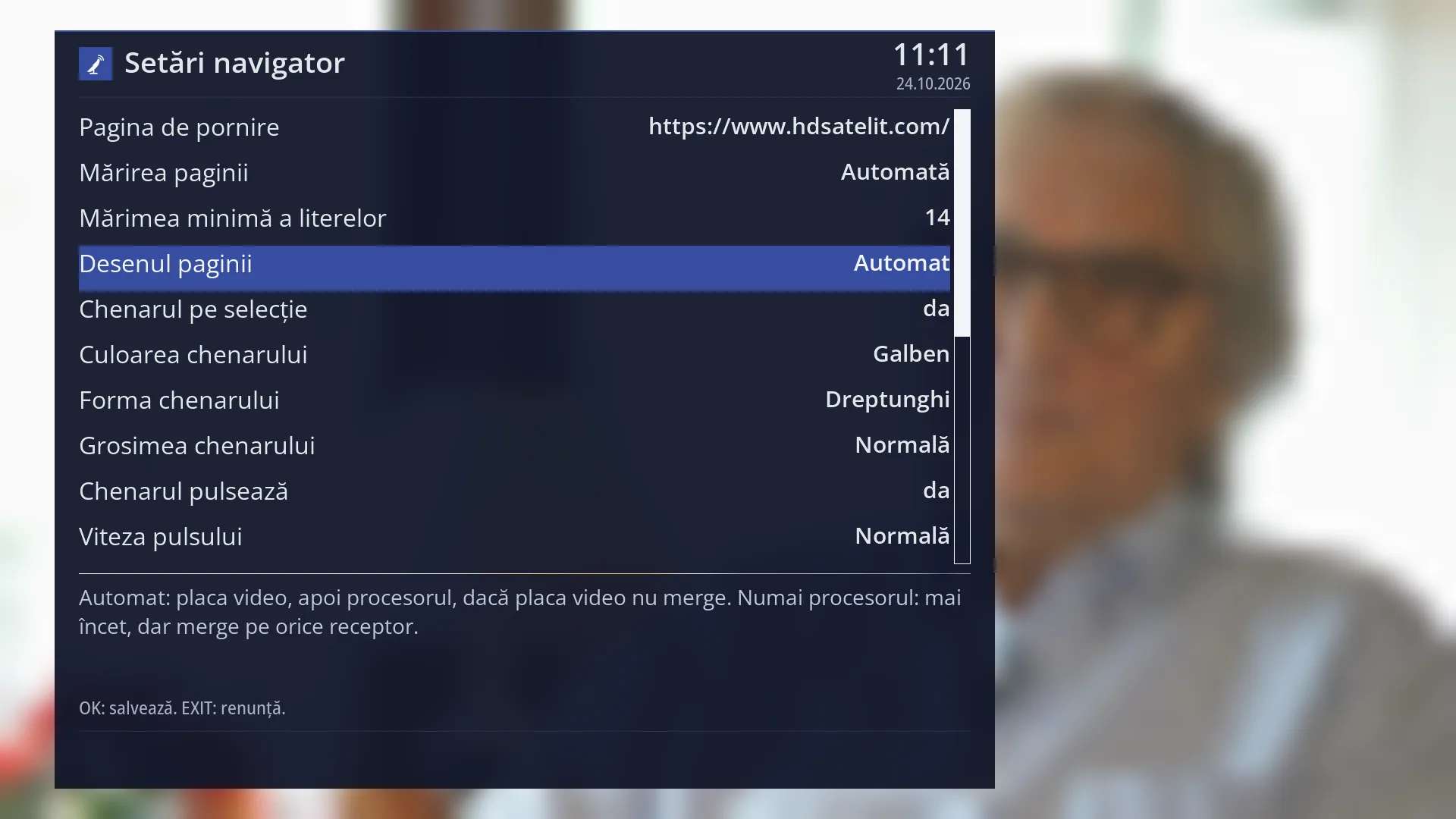
- 1 The selected row: “Page drawing: Automatic”.
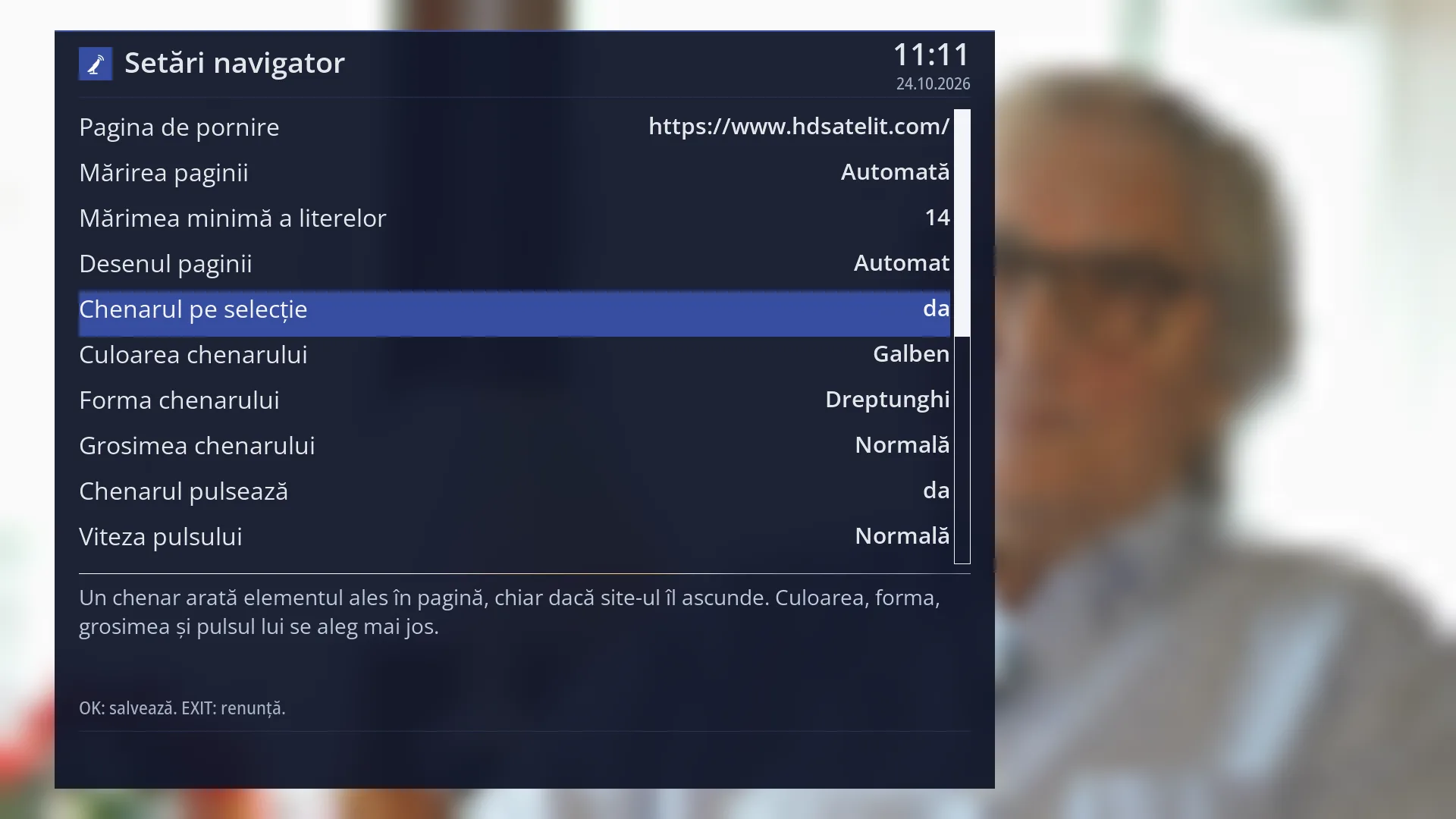
- 1 The frame turned on or off.
- 2 Colour, shape, thickness, pulse and speed. They only show with the frame turned on.
- 3 What the selected row does.
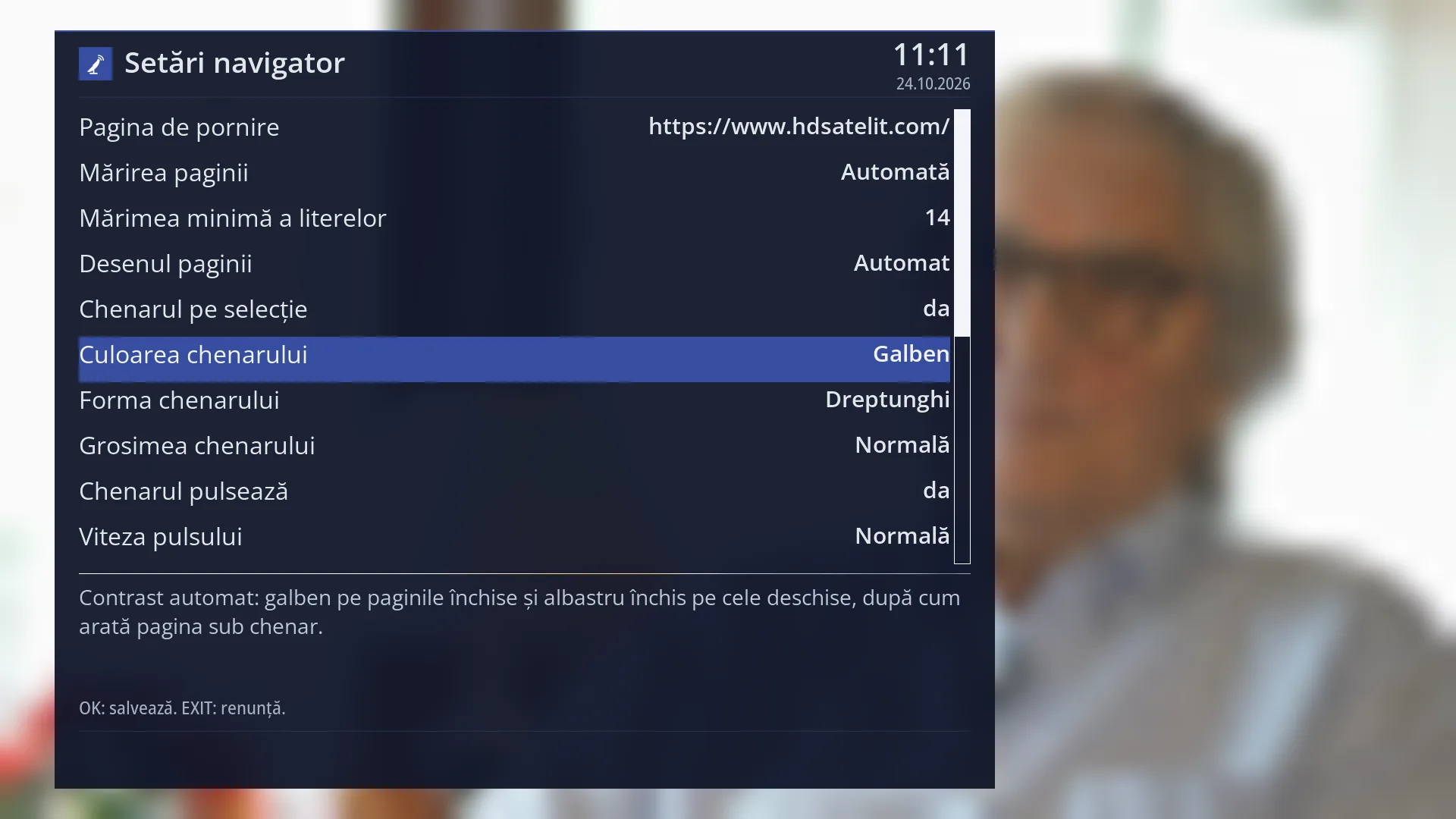
- 1 The selected row: “Frame color: Yellow”.
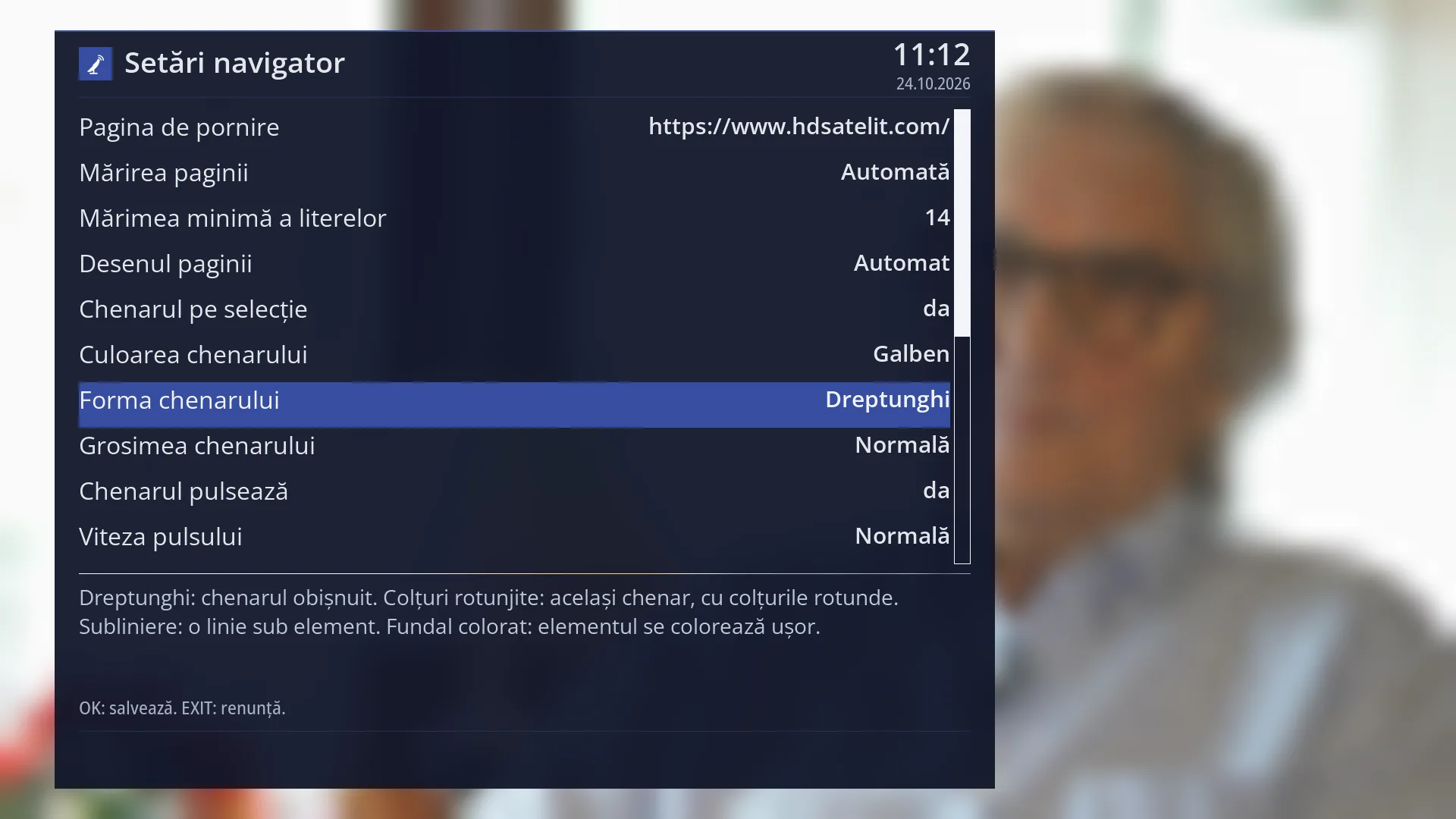
- 1 The selected row: “Frame shape: Rectangle”.
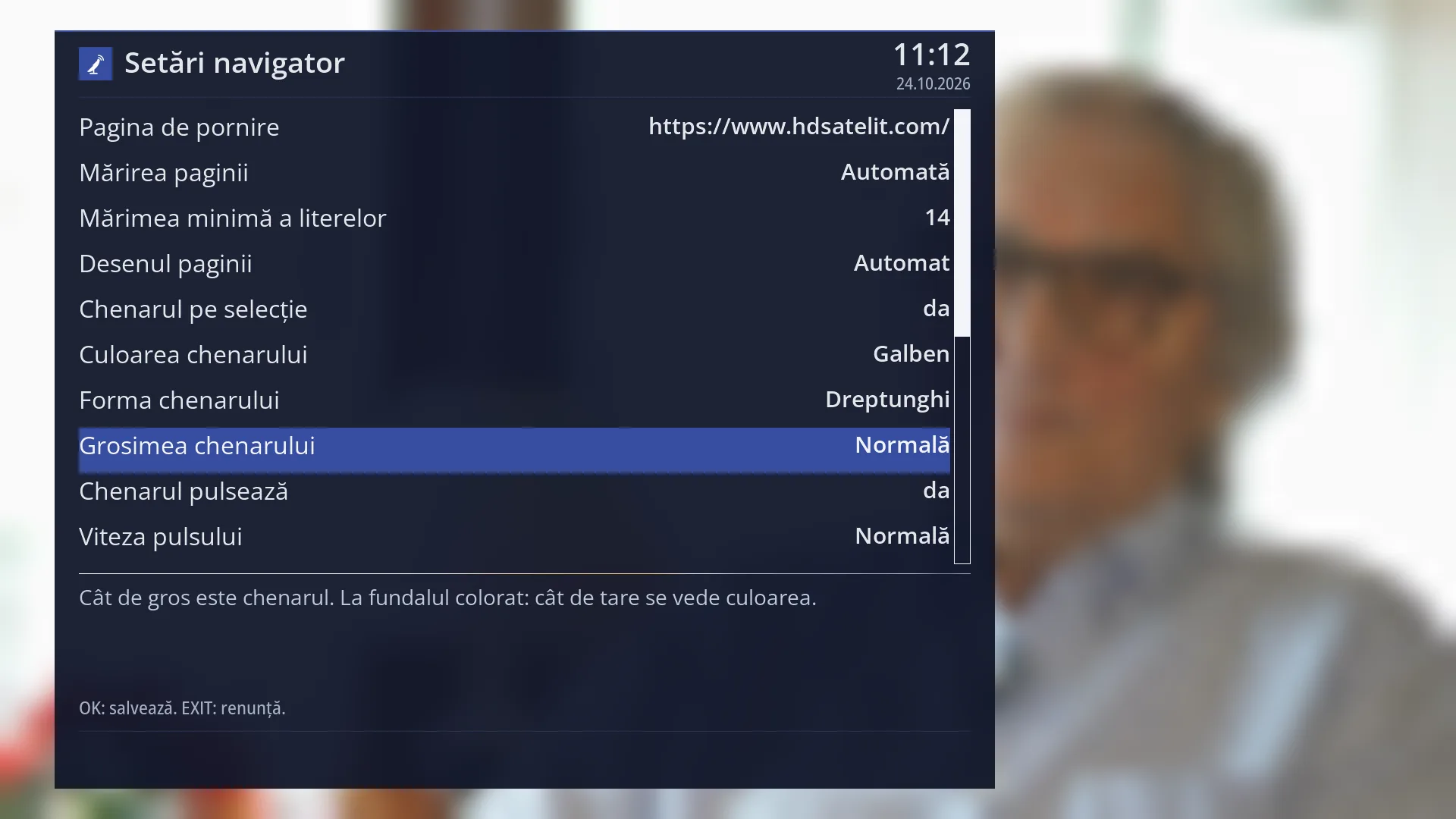
- 1 The selected row: “Frame thickness: Normal”.
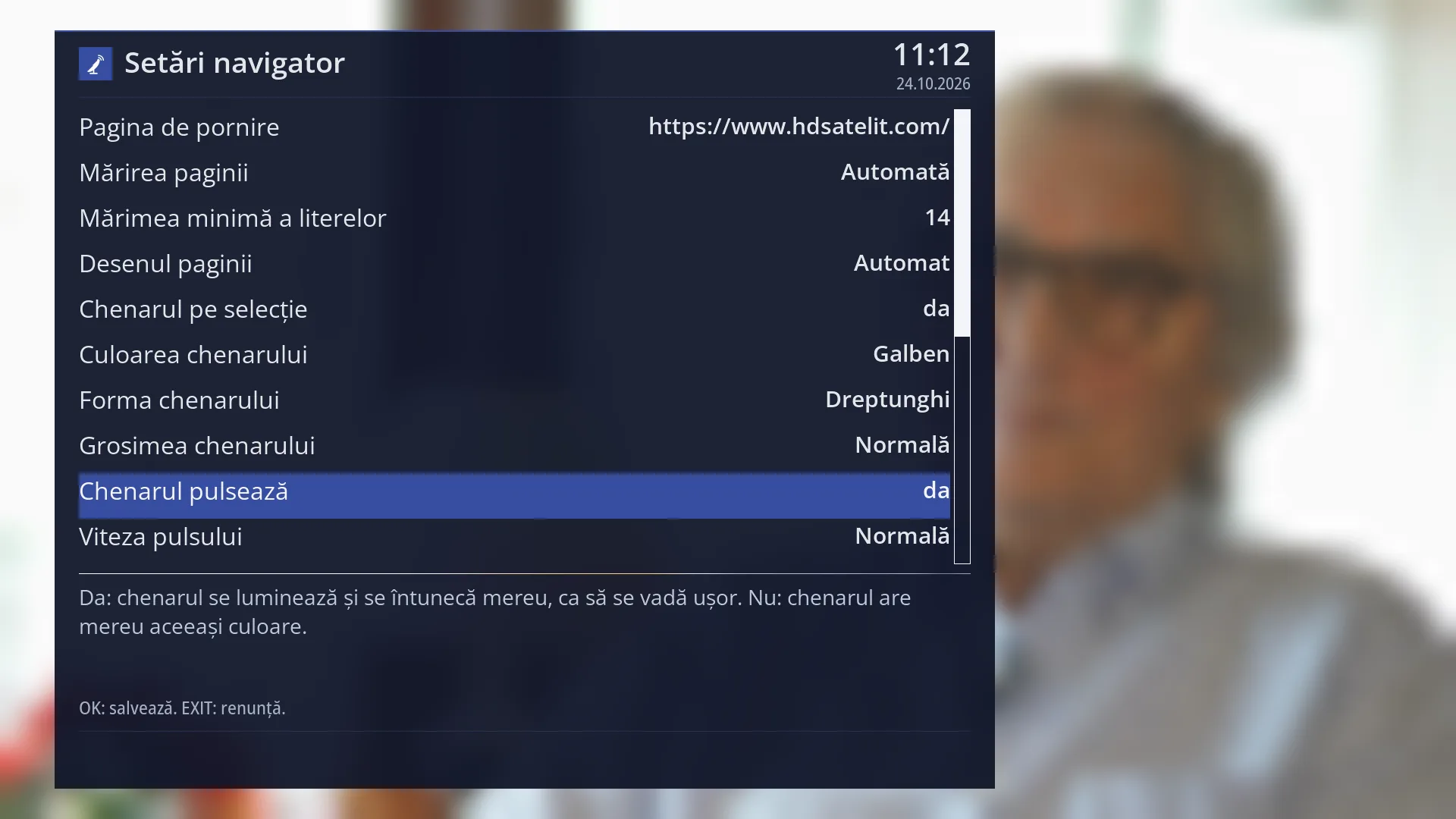
- 1 The selected row: “Frame pulses: yes”.
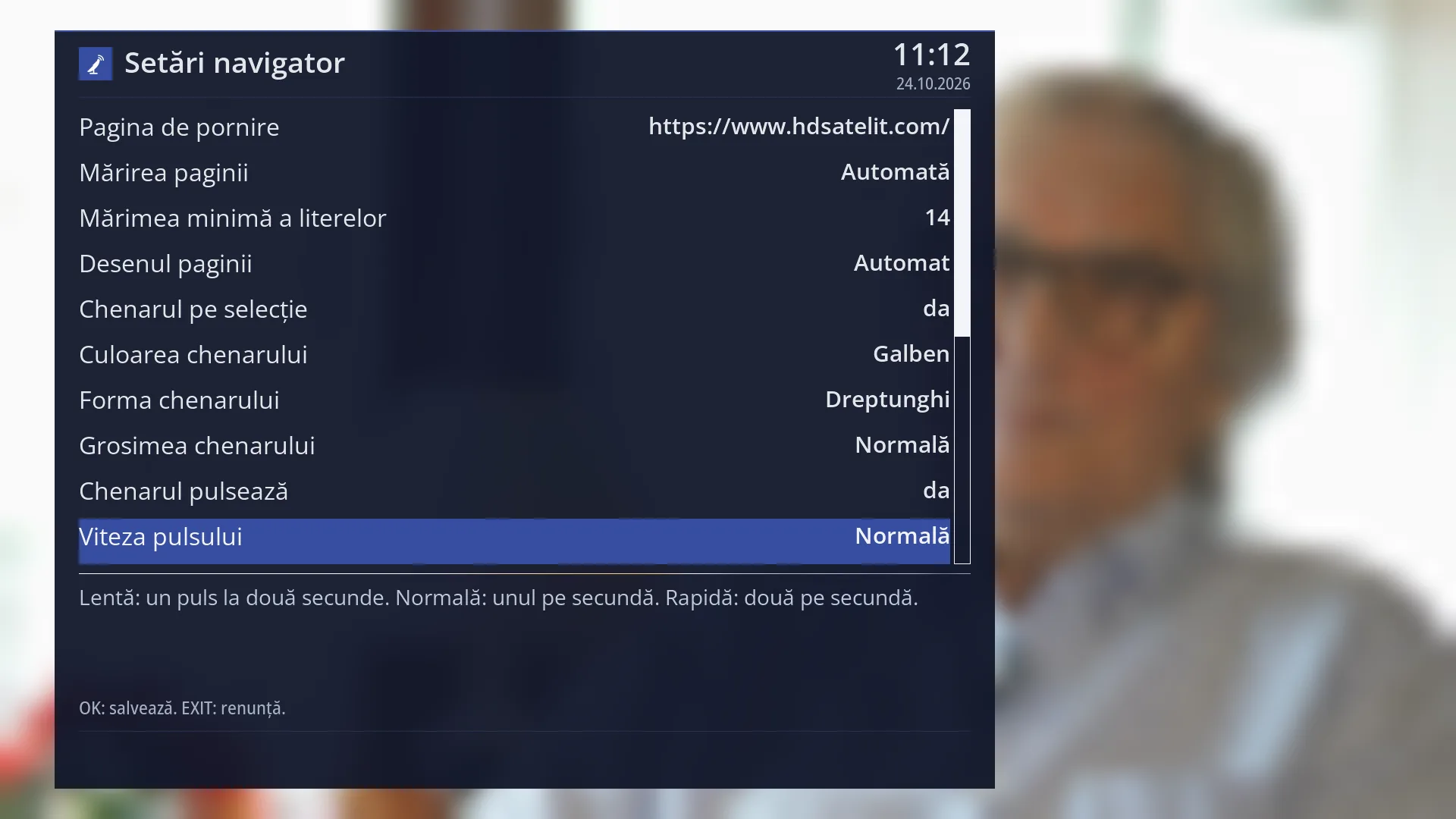
- 1 The selected row: “Pulse speed: Normal”.
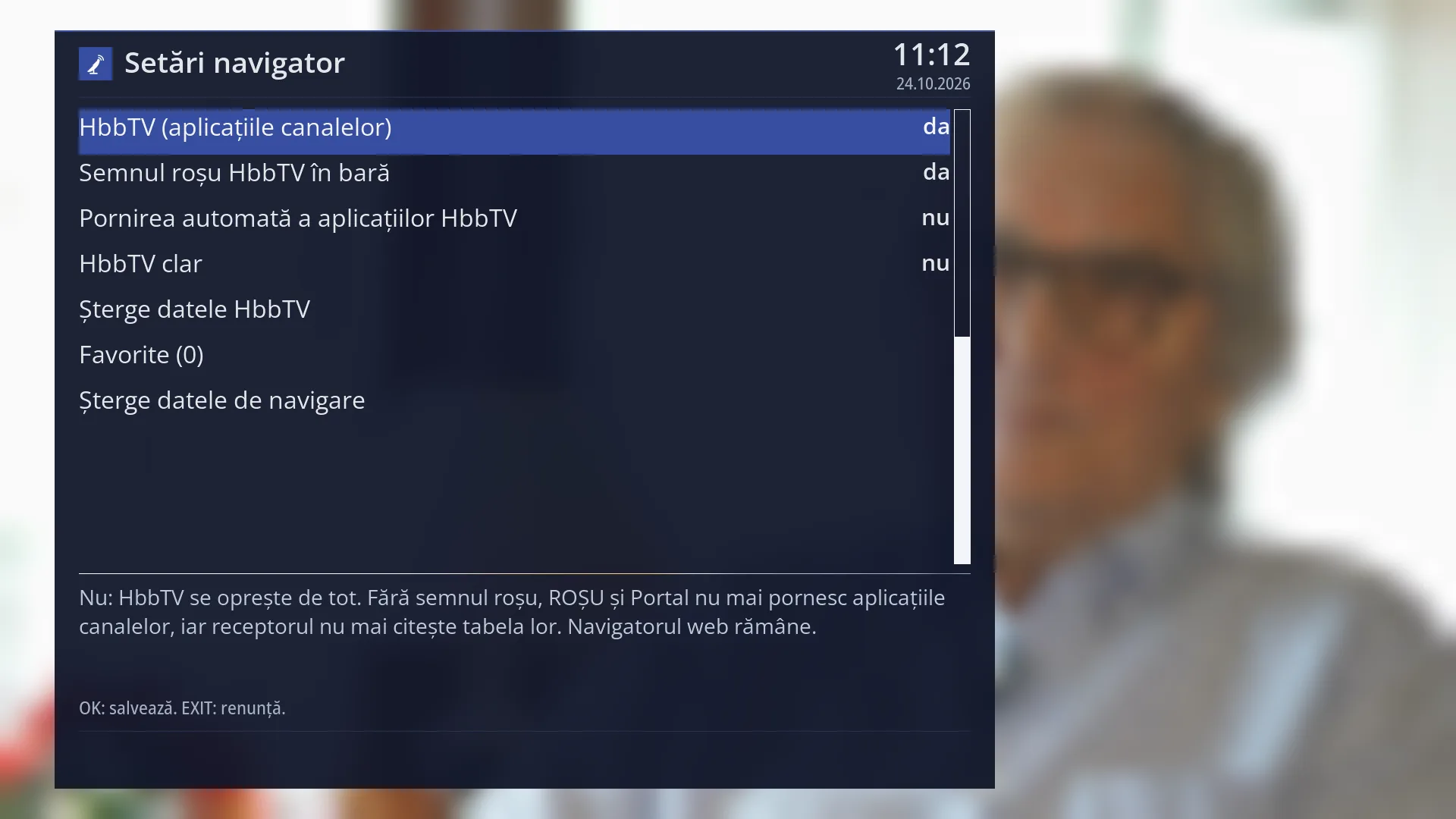
- 1 The main HbbTV setting.
- 2 The three rows that only appear with HbbTV turned on.
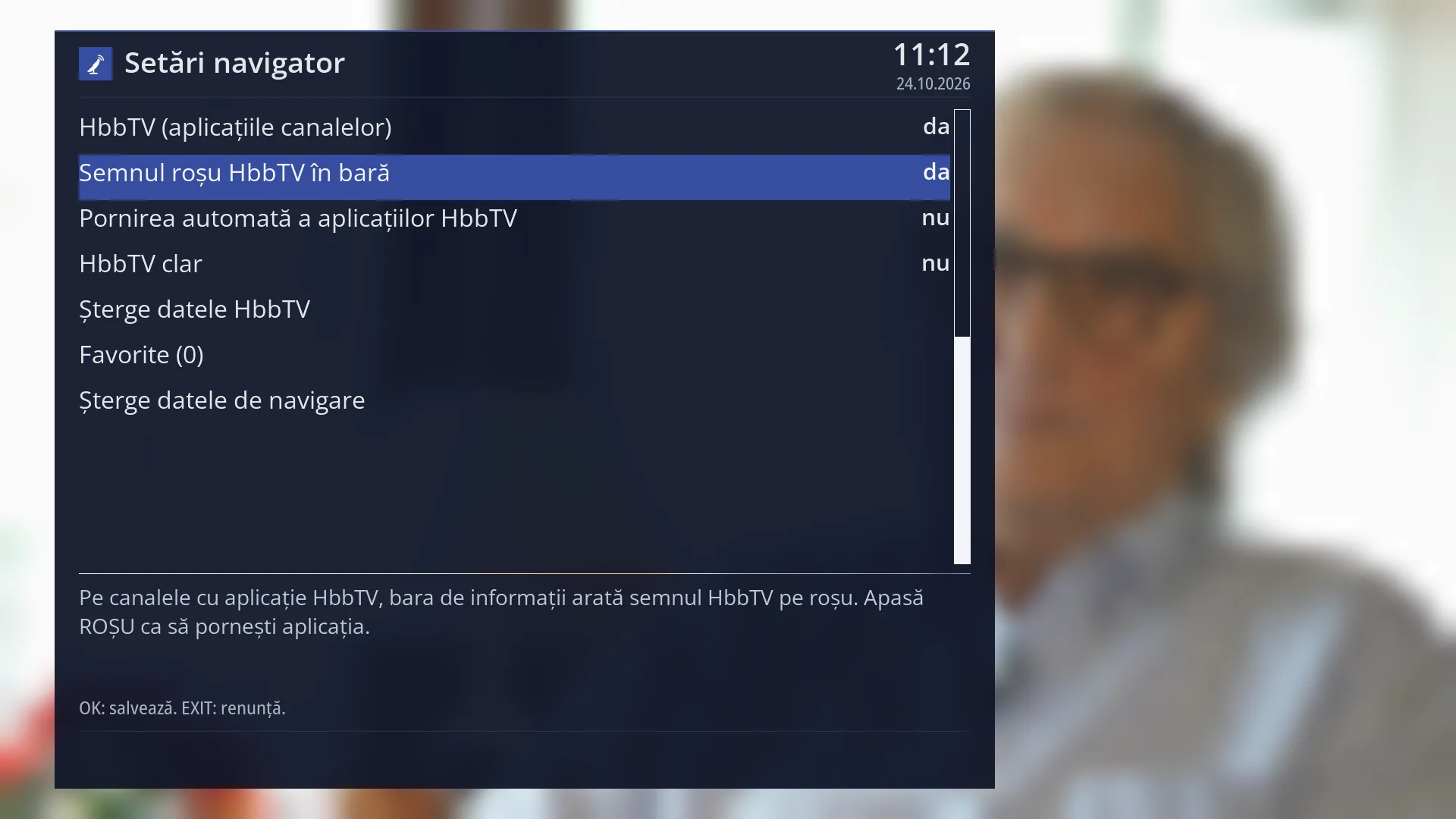
- 1 The selected row: “Red HbbTV sign in the info bar: yes”.
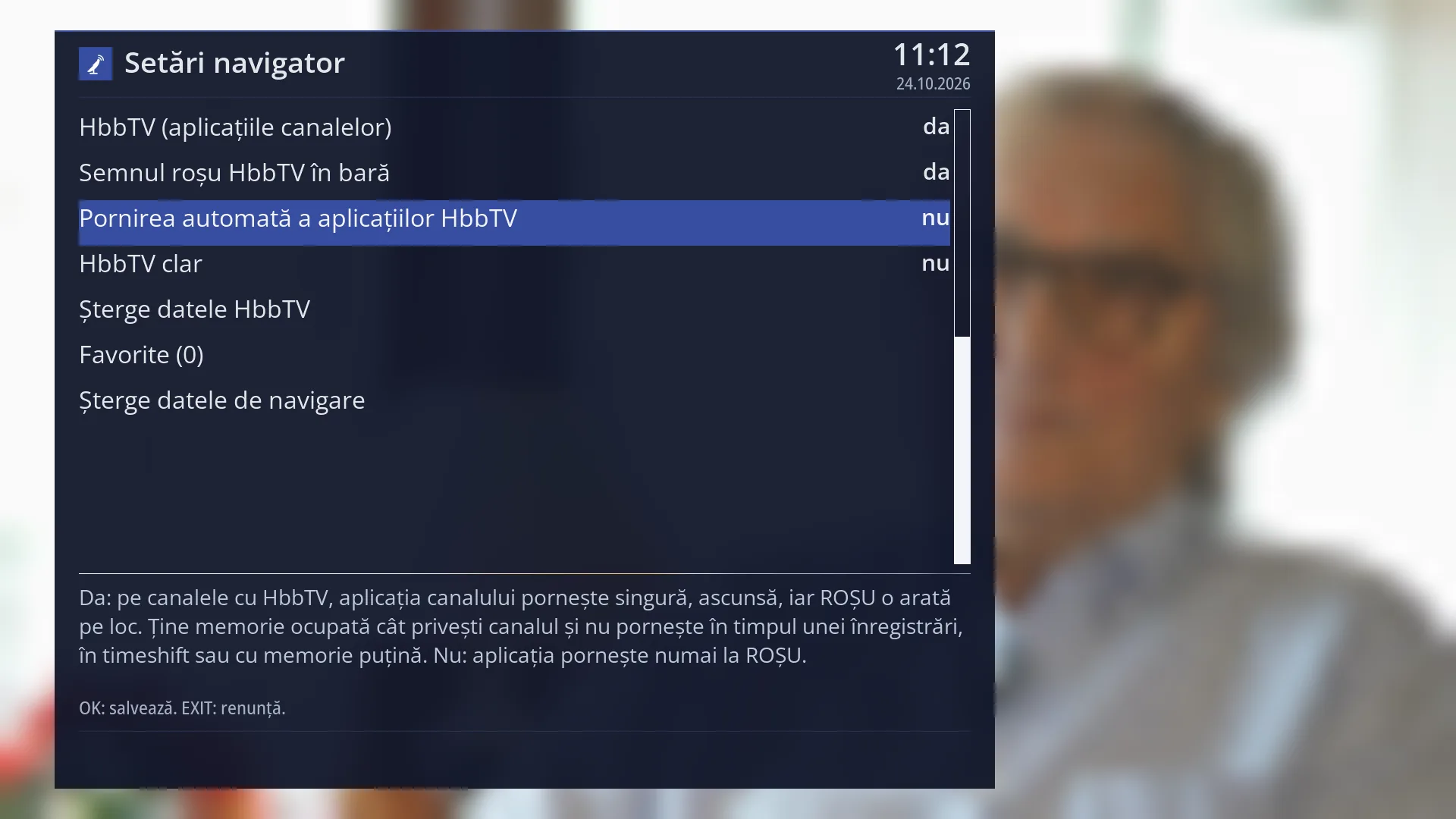
- 1 The selected row: “Start HbbTV applications automatically: no”.
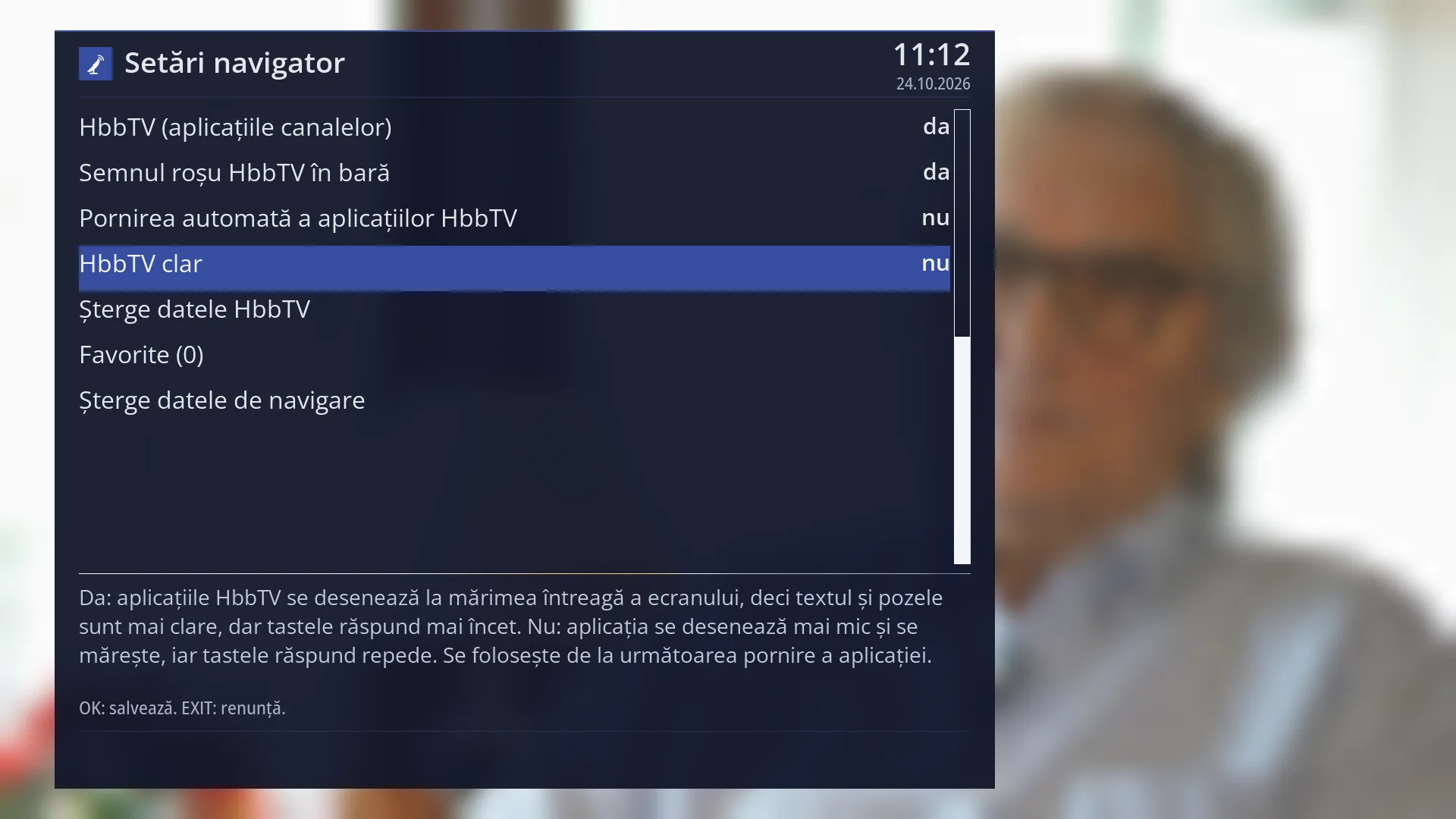
- 1 The selected row: “Sharp HbbTV: no”.
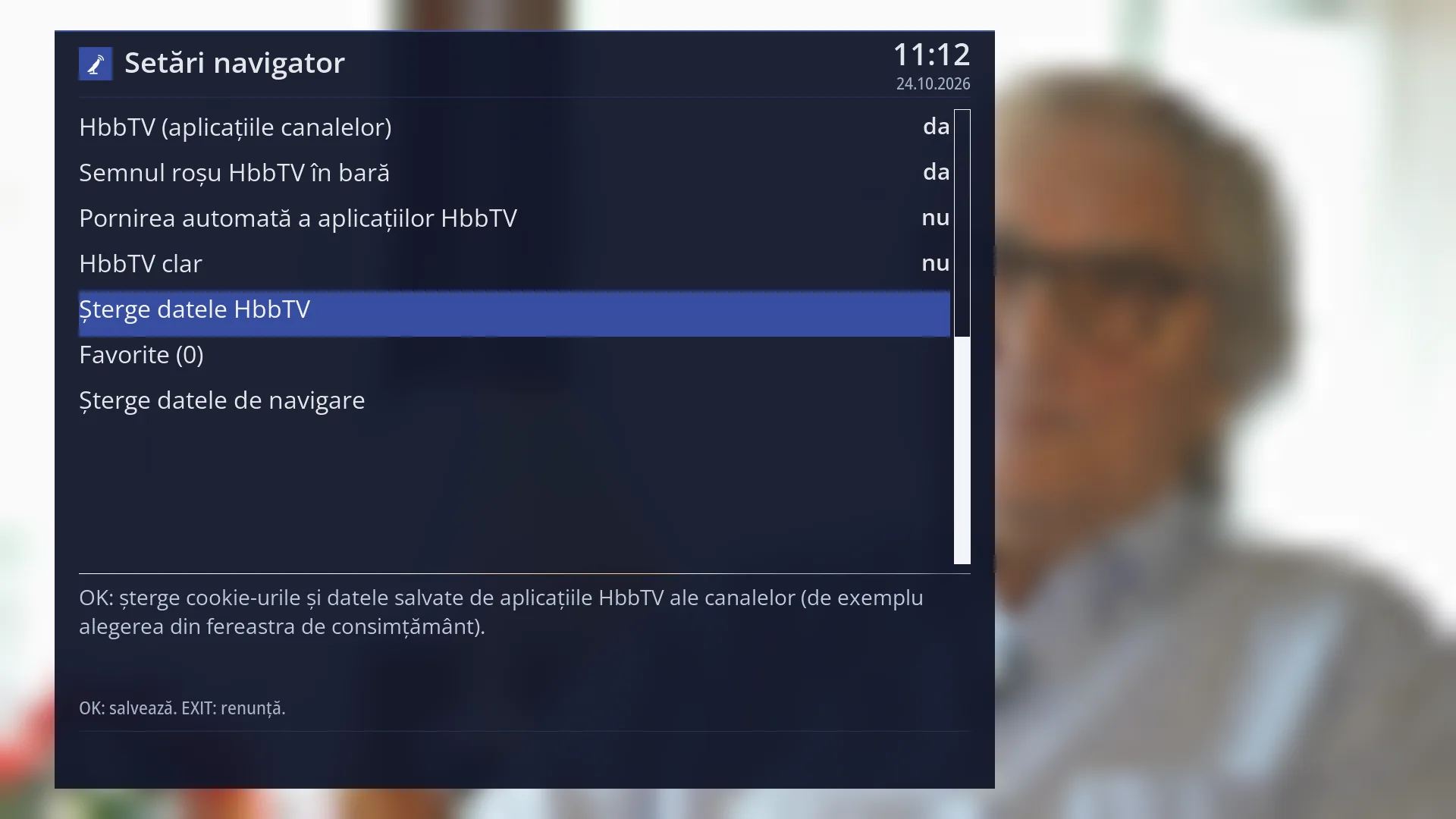
- 1 The selected row: “Delete HbbTV data”.
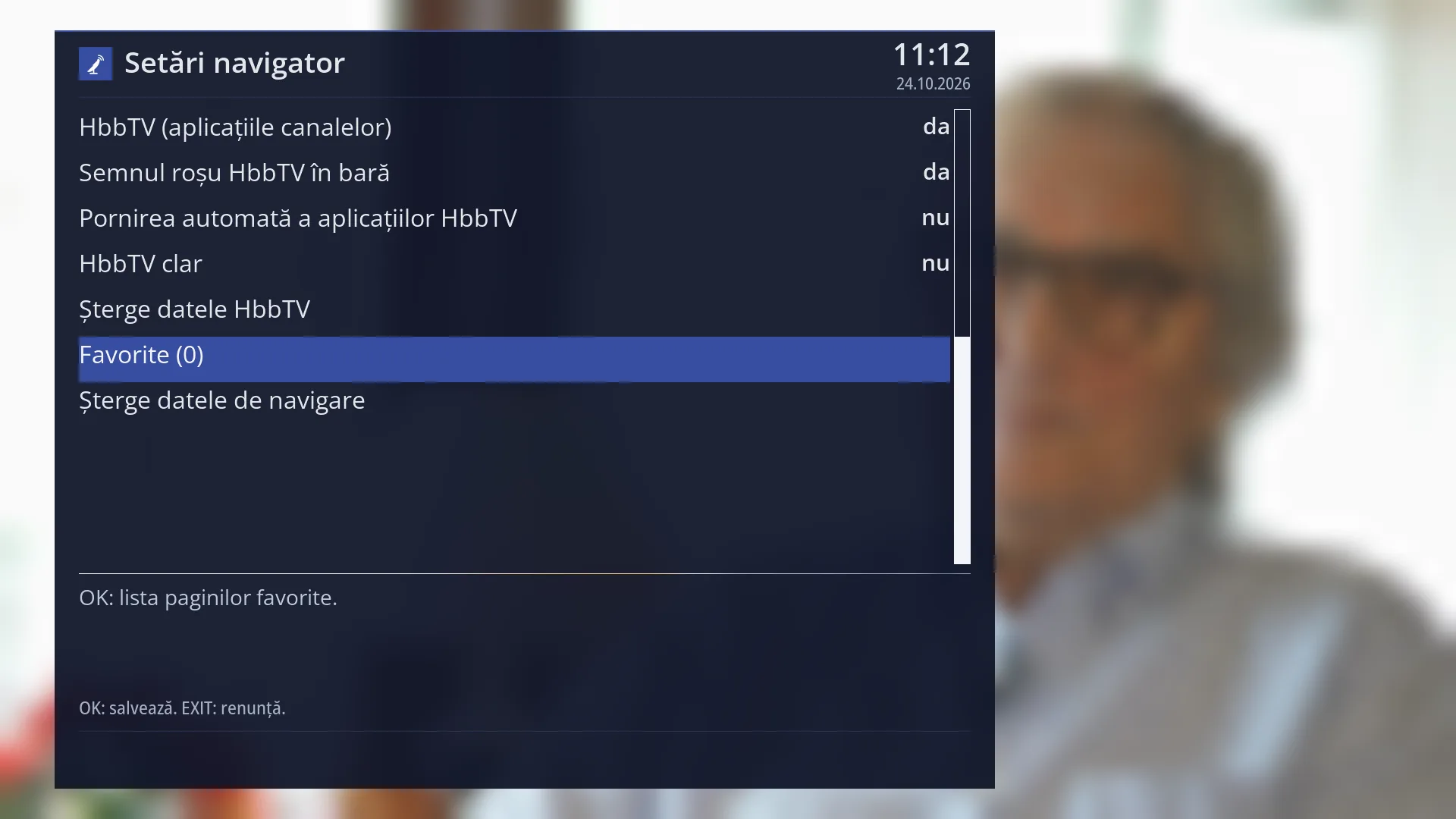
- 1 The selected row: “Favourites (0)”.
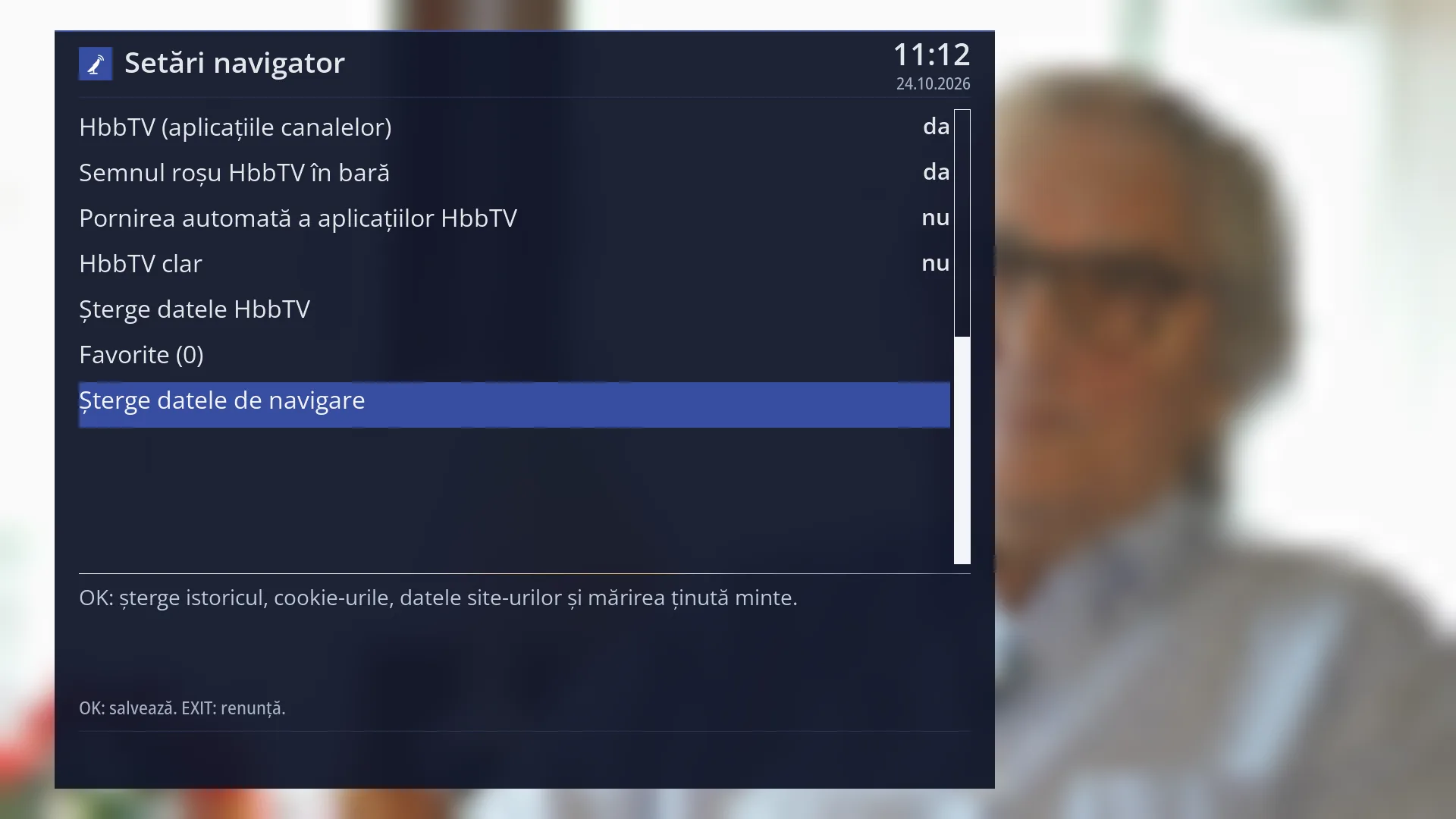
- 1 The selected row: “Delete browsing data”.
What it is for
Here you set up the web browser on the TV: the page it starts with, how large pages and text appear, how pages are drawn, and the frame that shows which element you are on in the page.
This is also where you turn on the channels' HbbTV applications (guides, news, archives, opened with RED), which run in the same browser. HbbTV is off by default: until you set “HbbTV (channel applications)” to “yes”, RED and Portal do not start any application.
You can also see your favourite pages and delete the data saved by websites (cookies, remembered zoom) or by HbbTV applications.
The same screen also opens from the browser menu (MENU in the browser, “Browser settings”). The browser itself is in Menu > Media > Web browser.
How to get here
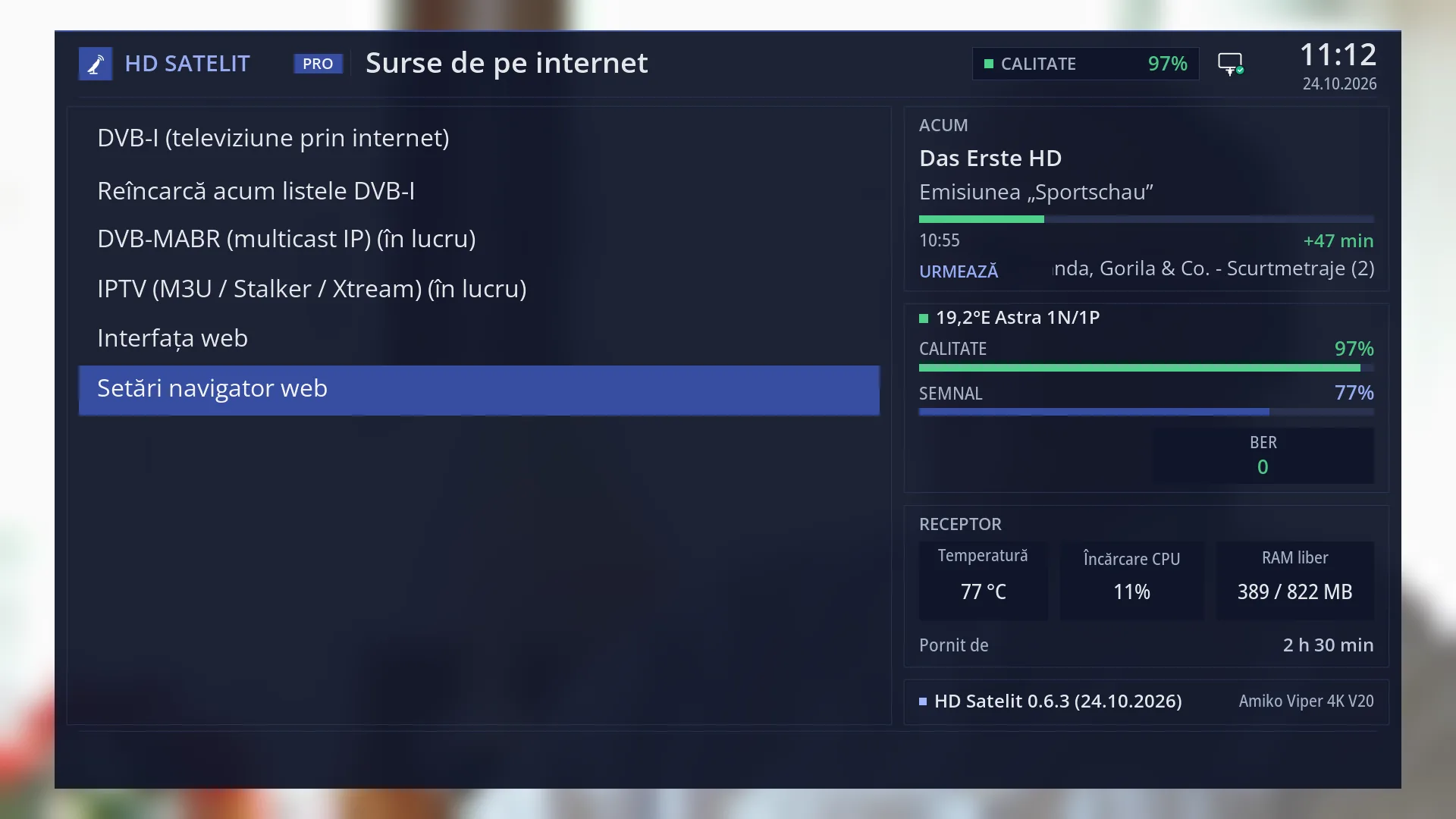
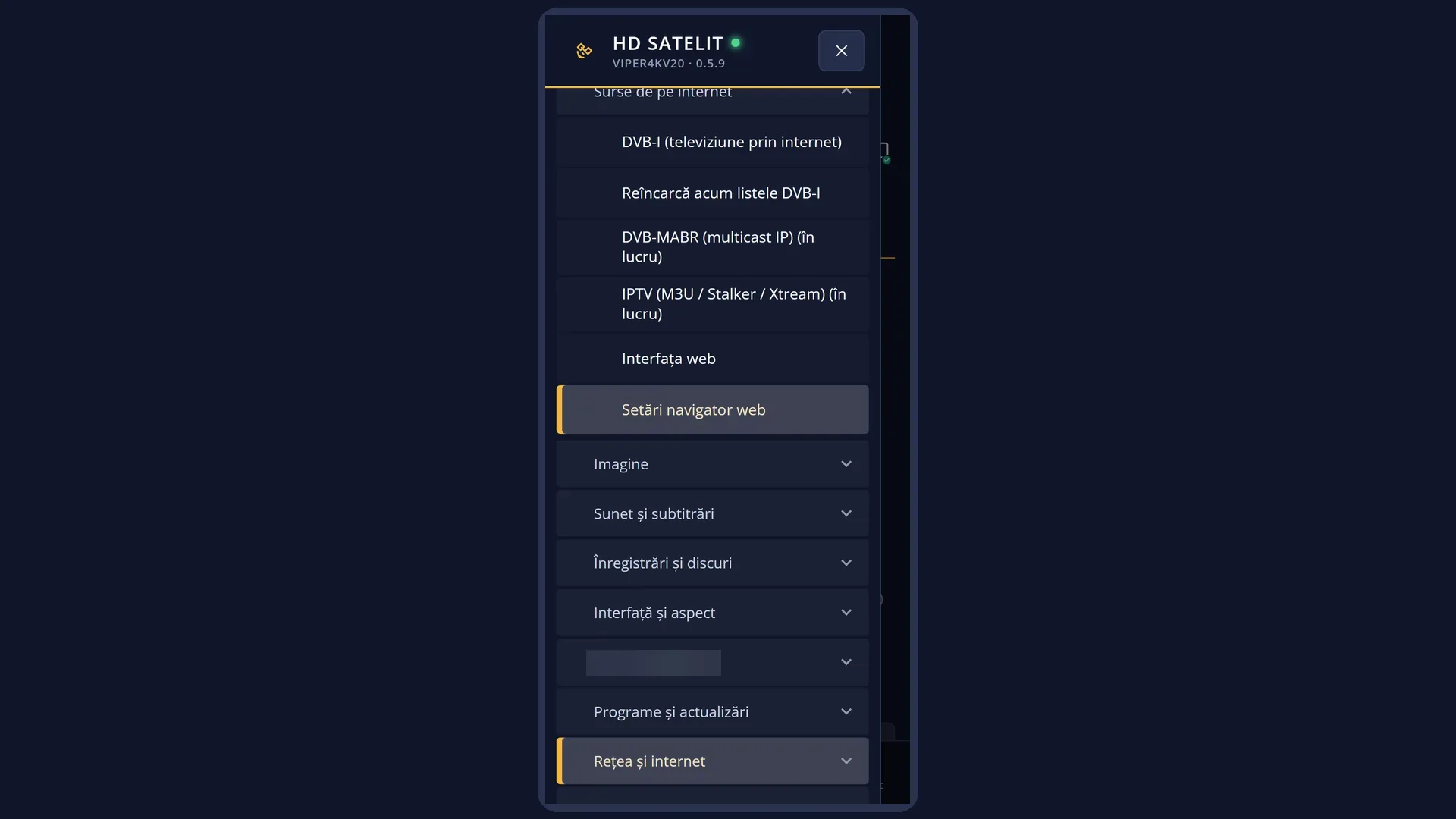
Path: Main menu > Settings > Internet Sources > Web browser settings.
Keys on the remote: MENU 6 2 6 (with the “Simple” setup mode, it is the fifth row: MENU 6 2 5).
From the browser: MENU, then “Browser settings”.
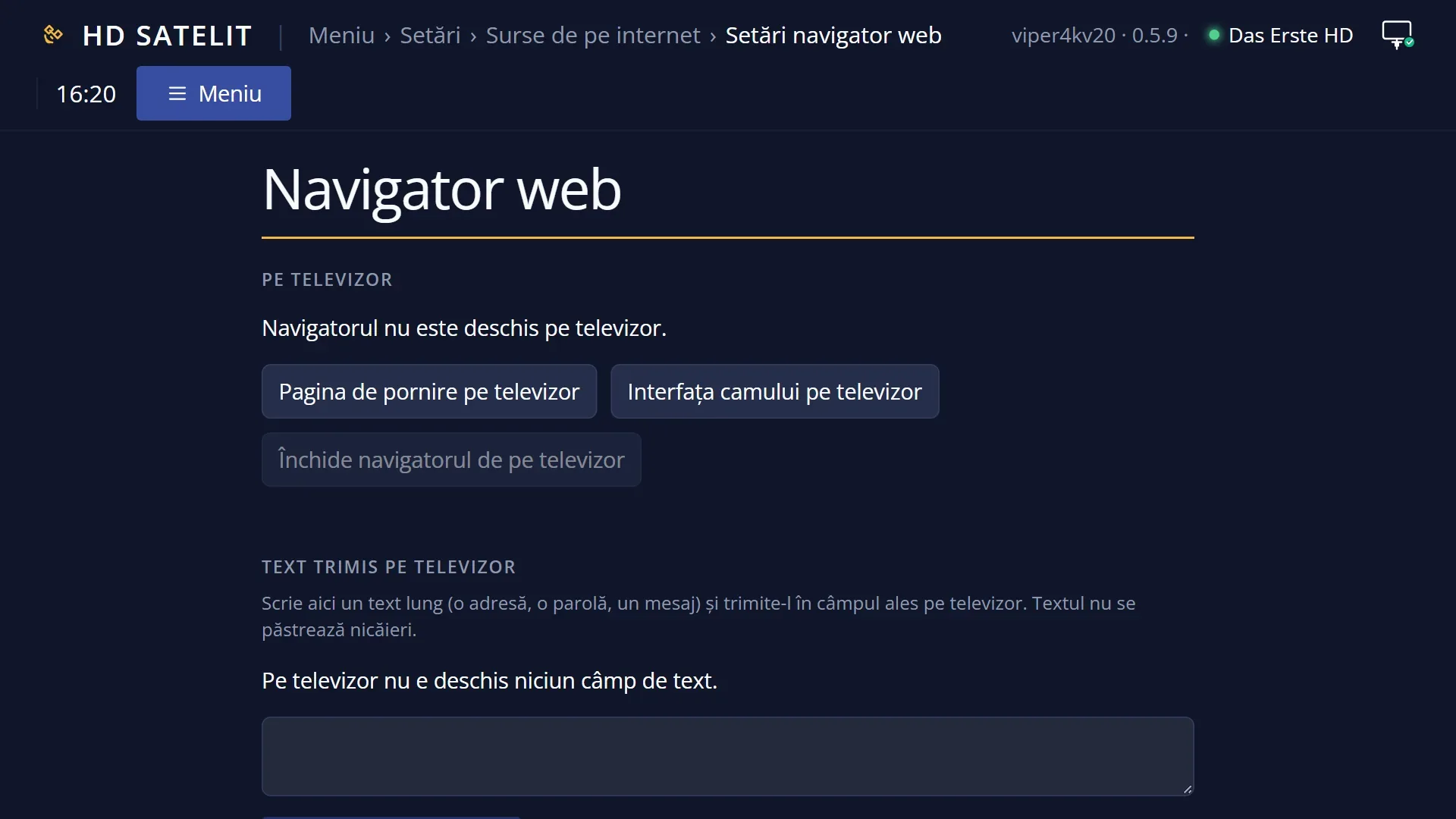
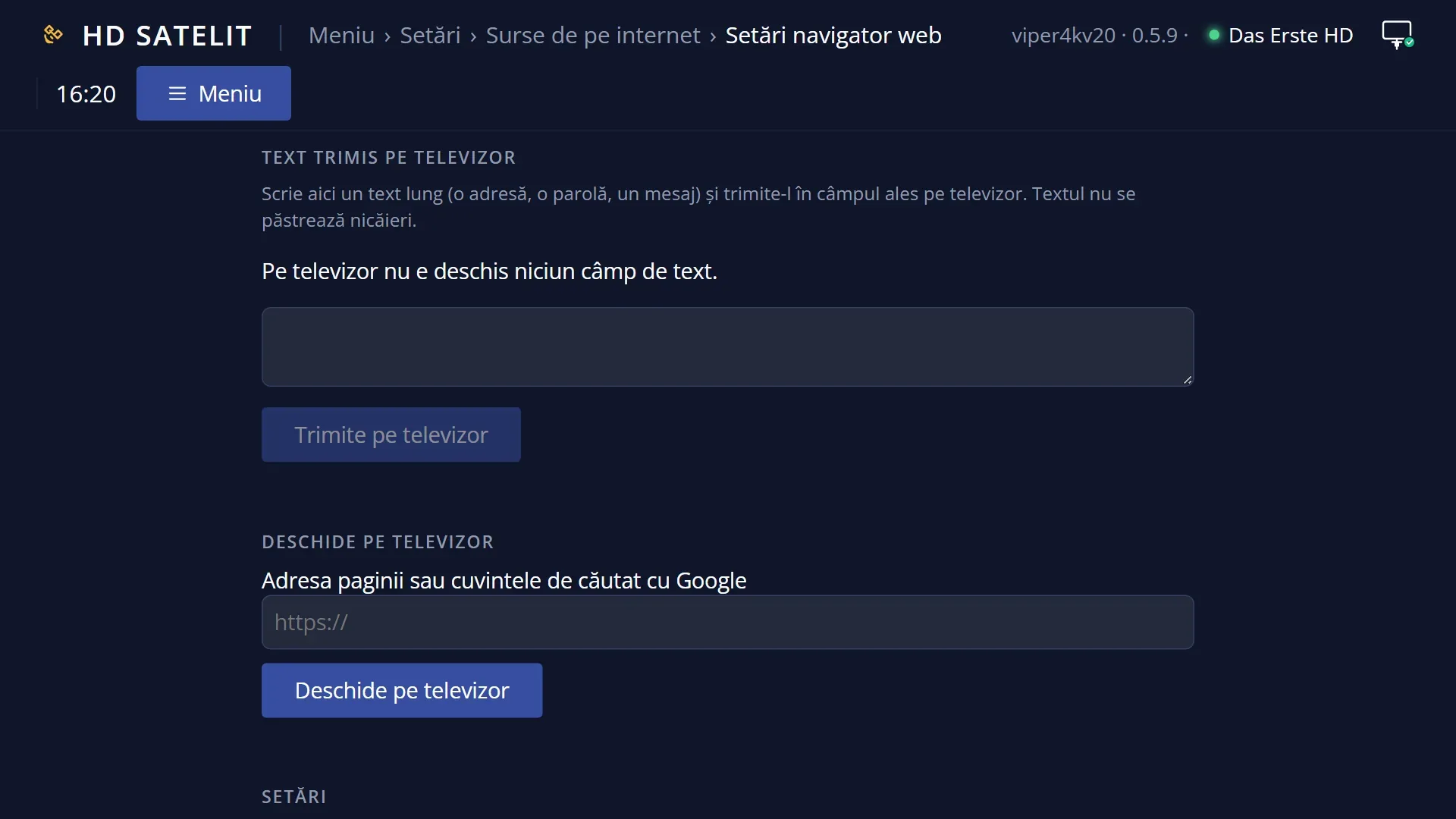
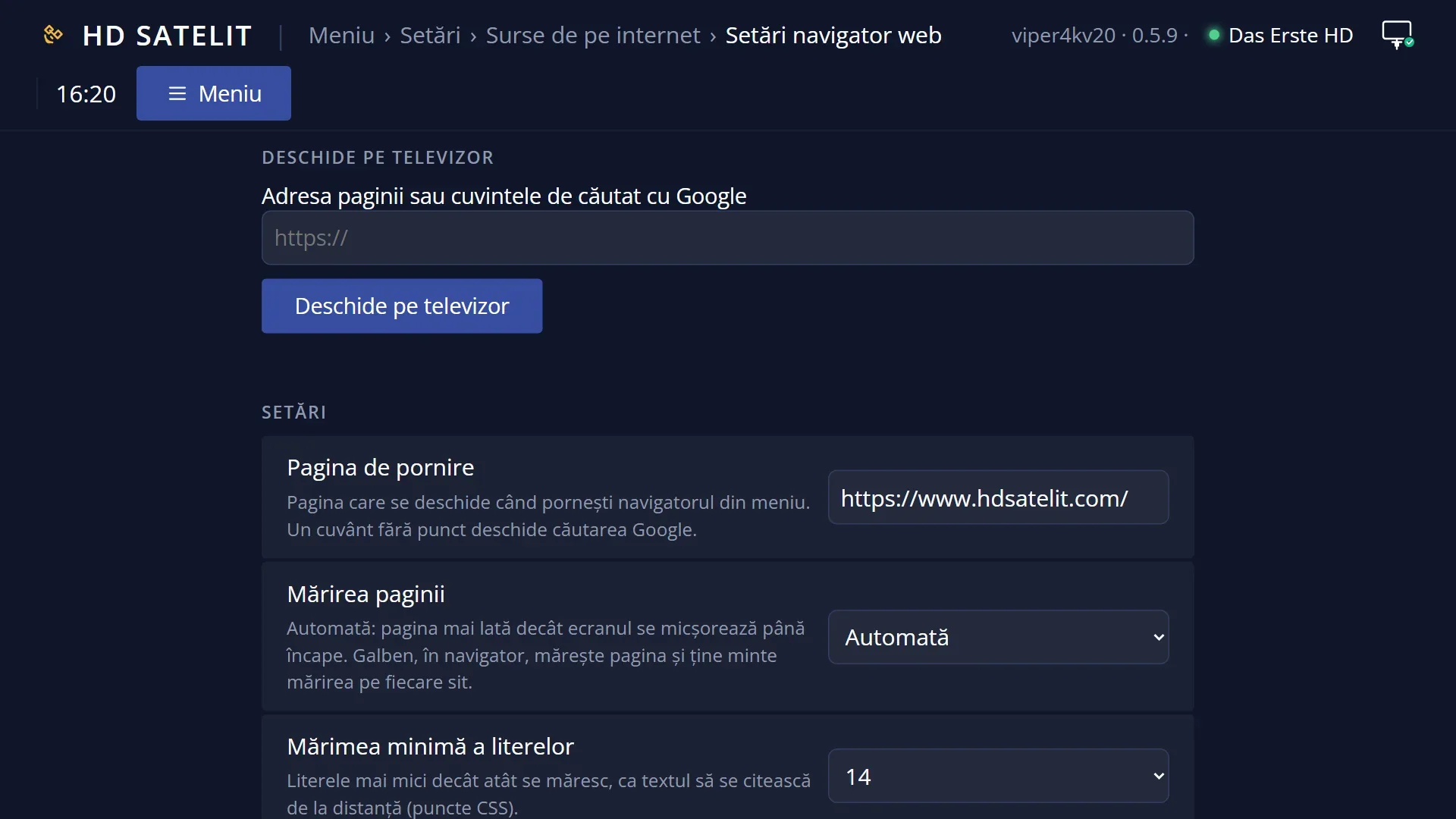
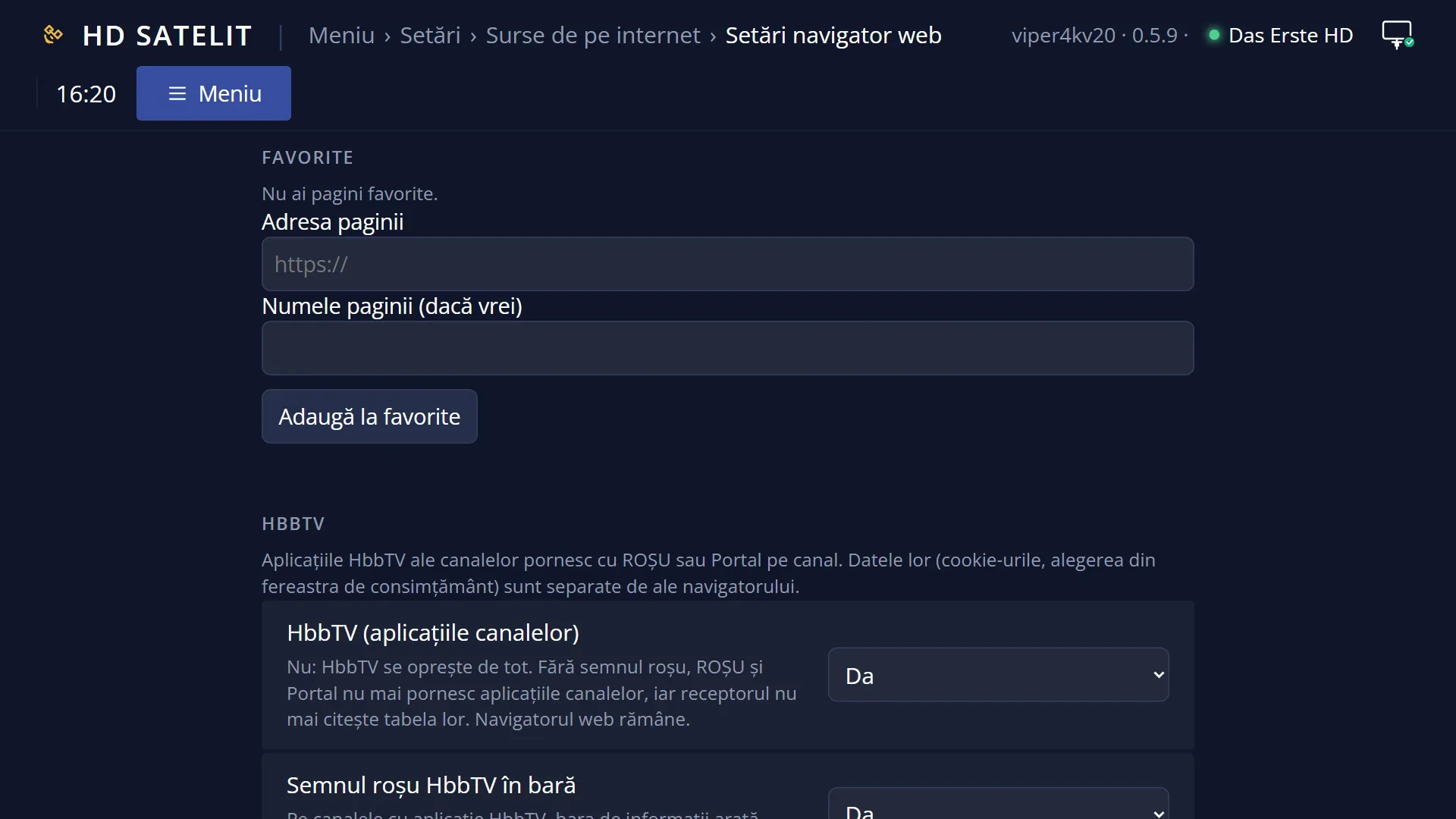
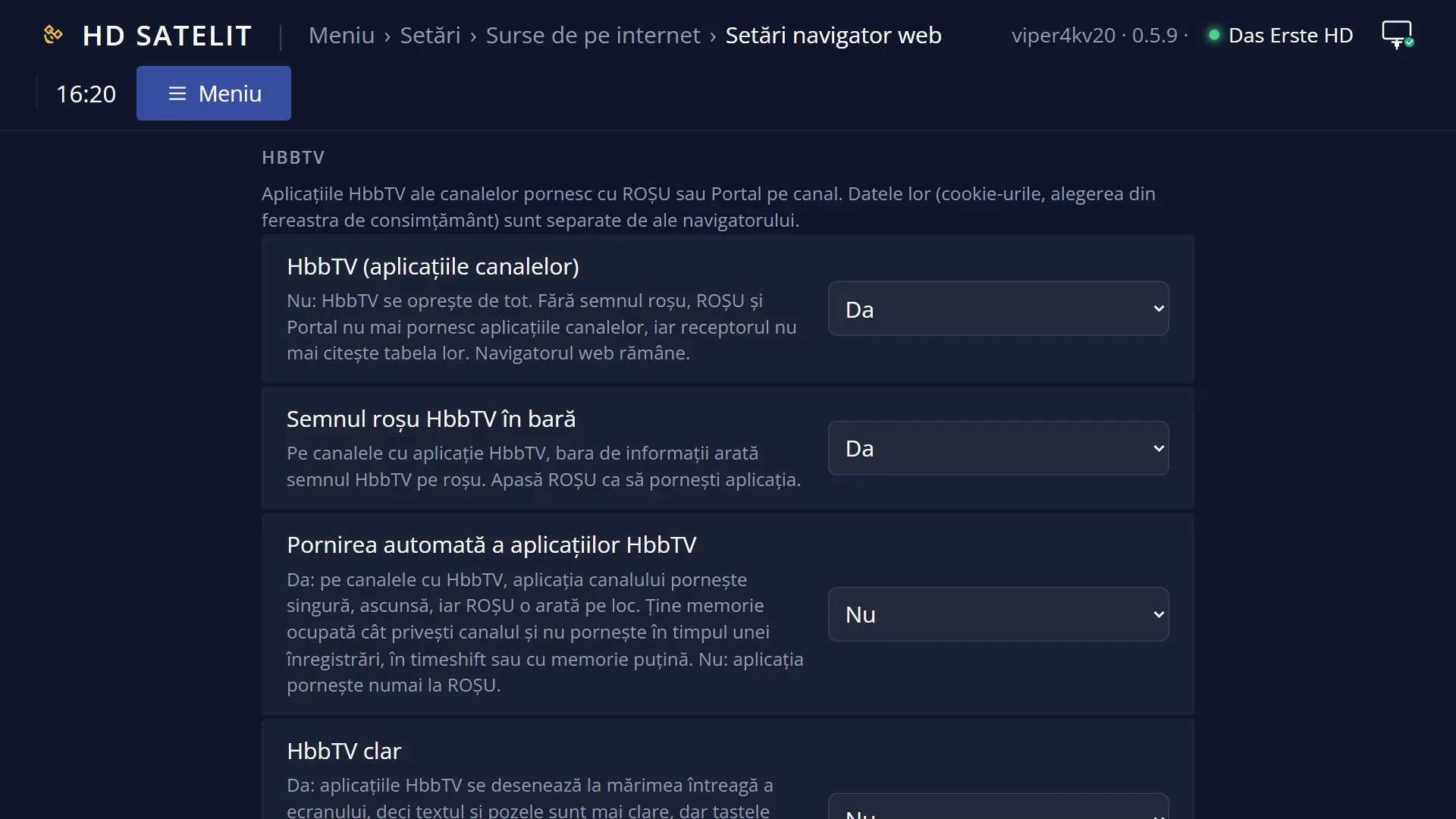
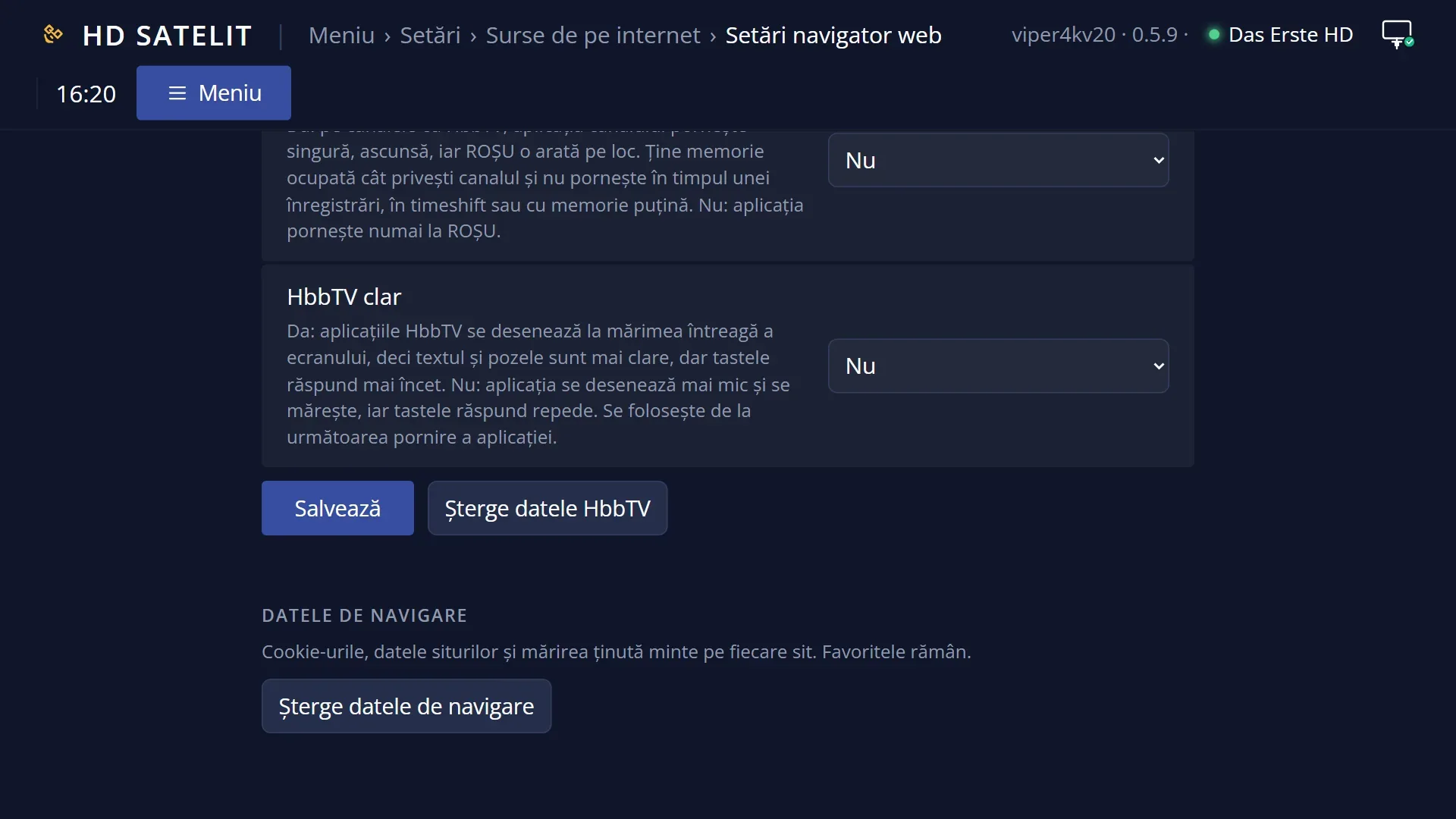
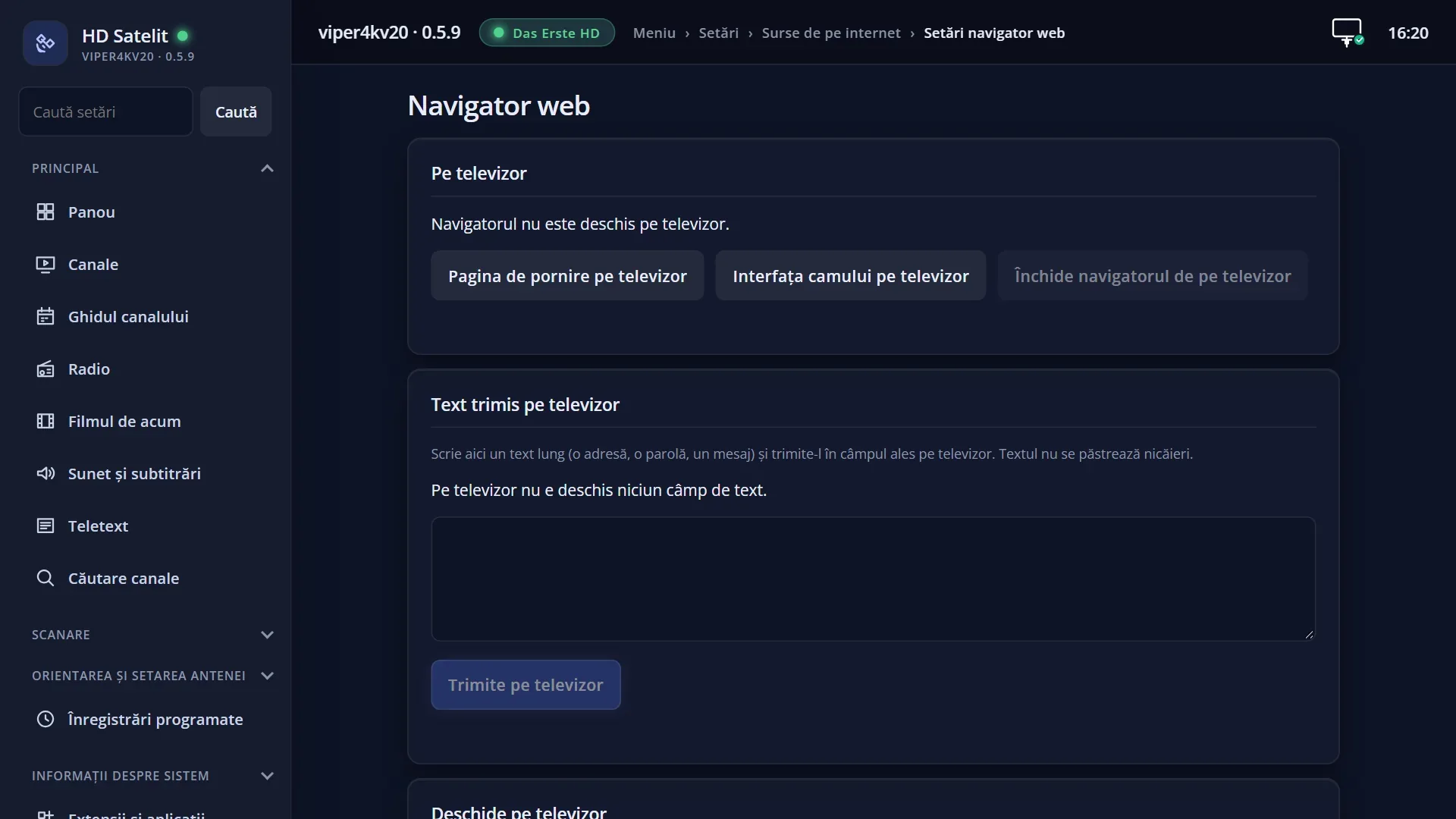
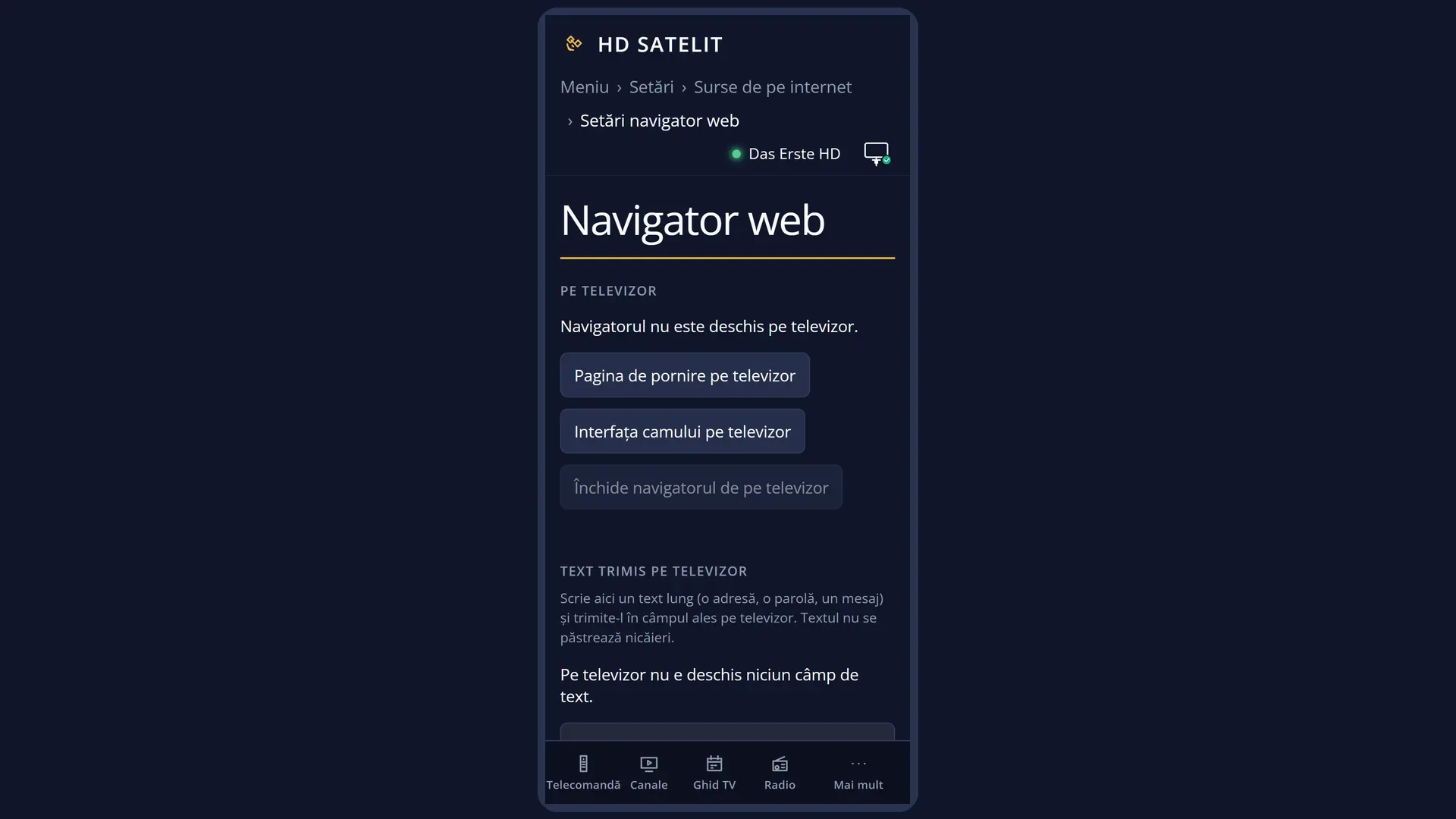
In the web interface: the /navigator page, the “Settings”, “HbbTV”, “Favourites” and “Browsing data” boxes, with the same settings. You can also find the rows in “Search settings” (for example “frame” or “HbbTV”).
What you see on the screen
At the top, the title “Browser settings” and the clock.
The list of settings, with the name on the left and the value on the right. The screen holds 10 rows; you reach the rest with DOWN (the bar on the right shows where you are). With everything turned on there are 17 rows; by default, with HbbTV off, there are 14.
Some rows appear and disappear straight away, depending on other settings: the frame style (colour, shape, thickness, pulse) only with “Frame around the selection: yes”, the pulse speed only with “Frame pulses: yes”, and “Red HbbTV sign in the info bar”, “Start HbbTV applications automatically” and “Sharp HbbTV” only with HbbTV set to “yes”.
Below the list, an explanation of the selected row, with what each value does.
At the bottom, “OK: save. EXIT: cancel.”.
Rows and settings
| Row | Values | Default | What it does |
|---|---|---|---|
| Start page | any page address | https://www.hdsatelit.com/ | The page that opens when you start the browser from the menu. OK opens the keyboard. You can type the address without https:// (it is added automatically). A single word without a dot, or several words, opens a Google search, as in the address bar. An address that cannot be opened is rejected with “The address cannot be opened.”. When you want the browser to start on your favourite website. |
| Page zoom | Automatic, 100 %, 125 %, 150 %, 175 %, 200 % | Automatic | Automatic: a page wider than the screen is shrunk until it fits. A percentage enlarges all pages by that amount. In the browser, YELLOW enlarges the current page and remembers the zoom for each website. When the text on pages is too small from where you sit. |
| Minimum font size | None, 12, 14, 16, 18, 20 | 14 | Text smaller than this is enlarged, so you can read it from a distance. None: text stays as the website made it. Increase it if some websites have tiny text. Decrease it if pages break (the text no longer fits in its boxes). |
| Page drawing | Automatic, Processor only | Automatic | Automatic: the page is drawn with the video card, and if that does not work, the browser switches to the processor by itself. Processor only: slower, but works on any receiver. Only if pages look broken or the browser often stops. |
| Frame around the selection | yes, no | yes | A frame shows the element you are on in the page (a link, a button, a field), even if the website hides it. The receiver draws it over the page, so the website cannot break it. On “no”, the style rows below it disappear. Set “no” if the website already shows the selection clearly and the frame gets in your way. |
| Frame color | Yellow, White, Green, Light blue, Orange, Red, Automatic contrast | Yellow | The colour of the frame. Automatic contrast: yellow on dark pages and dark blue on light ones, depending on how the page looks under the frame. When the frame gets lost in the colours of the websites you use. |
| Frame shape | Rectangle, Rounded corners, Underline, Colored background | Rectangle | Rectangle: the usual frame. Rounded corners: the same, with round corners. Underline: a line under the element. Colored background: the element is lightly coloured. As you prefer. Underline or a coloured background gets in the way less on busy pages. |
| Frame thickness | Thin, Normal, Thick | Normal | How thick the frame is. With the coloured background: how strong the colour is. Thick, if you sit far from the TV. |
| Frame pulses | yes, no | yes | Yes: the frame keeps getting brighter and darker, so it is easy to see. No: the frame always has the same colour, and the speed row disappears. Set “no” if the movement tires you. |
| Pulse speed | Slow, Normal, Fast | Normal | Slow: one pulse every two seconds. Normal: one per second. Fast: two per second. As you prefer. |
| HbbTV (channel applications) | yes, no | no | The main HbbTV setting. No: HbbTV is completely off: there is no red sign, RED and Portal no longer start the channels' applications, and the receiver no longer reads their table from the signal. The web browser stays. Yes: on channels with HbbTV, RED starts the application, and three more settings appear below the row. Set “yes” if you want the channels' applications. Leave “no” if you do not use them. |
| Red HbbTV sign in the info bar | yes, no | yes | On channels with an HbbTV application to start, the “HbbTV” label in the info bar turns red: a sign that RED starts the application. It only shows with HbbTV set to “yes”. Set “no” if you do not want the sign in the bar. RED works anyway. |
| Start HbbTV applications automatically | yes, no | no | Yes: on channels with HbbTV, the channel's application starts by itself, hidden, and RED shows it straight away, without waiting. It takes up memory while you watch the channel and does not start during a recording, in timeshift or when memory is low. No: the application only starts when you press RED. Set “yes” if you often open the applications and want them to appear immediately. |
| Sharp HbbTV | yes, no | no | Yes: HbbTV applications are drawn at the full size of the screen, so text and pictures are sharper, but keys respond more slowly. No: the application is drawn smaller and enlarged, and keys respond quickly. Set “yes” if application text looks blurred to you and a slower response does not bother you. |
| Delete HbbTV data | OK asks “Delete the HbbTV application data? The cookies and data saved by the channels' applications are deleted.”. With Yes the data is deleted (for example the choice made in an application's consent window) and “The HbbTV data was deleted.” appears. When an HbbTV application freezes or you want to answer its consent question again. | ||
| Favourites (…) | Favourites (0) | The number shows how many favourite pages you have (at most 100). OK opens their list. OK on a page asks “Open” or “Remove from favourites”. You add pages from the browser: MENU, then “Add the page to favourites”. When you want to remove a page from your favourites. | |
| Delete browsing data | OK asks “Delete the browsing data? This deletes cookies, website data and remembered zoom. Favourites are kept.”. With Yes, “The browsing data was deleted.” appears. When a website behaves oddly, when you want to sign out of accounts open in the browser, or when you give the receiver to someone else. |
Keys
| UP / DOWN | Moves the cursor. After the tenth row the list moves to the next page. |
| LEFT / RIGHT | Changes the value of the selected row. Rows that depend on it appear or disappear straight away. |
| OK | On “Start page”: the keyboard. On “Favourites”: the list of favourite pages. On the two delete rows: the question. On any other setting: saves everything and closes the screen. |
| GREEN | Saves everything and closes the screen (it is not shown on the screen). |
| RED / EXIT | Closes without saving: all values go back to what they were. |
| In the “Favourites” list: OK / EXIT | OK on a page asks “Open” or “Remove from favourites”. EXIT goes back to the settings. |
Step by step
Turning on HbbTV
- Press MENU 6 2 6.
- Go down to “HbbTV (channel applications)” and set “yes” with RIGHT. Three new rows appear below it.
- Press OK: the settings are saved and the screen closes.
- On a channel with HbbTV, press RED.
Making the frame easier to see
- On “Frame color”, choose “Automatic contrast” with LEFT / RIGHT.
- On “Frame thickness”, choose “Thick”.
- Press GREEN. If you opened the settings from the browser (MENU, “Browser settings”), the frame changes straight away.
Changing the start page
- On “Start page”, press OK.
- Type the address (for example the website name with a dot, without https://) and confirm.
- Press GREEN. From now on the browser starts on the new page.
Problems and solutions
RED does not start any HbbTV application.
HbbTV is off by default. Set “HbbTV (channel applications)” to “Yes” and save. If it is on and still does not work, the channel may have no application: press Portal, which tells you whether it has one.
I cannot find “Red HbbTV sign”, “Start HbbTV applications automatically” or “Sharp HbbTV”.
They only appear with “HbbTV (channel applications)” set to “yes”.
I cannot find the frame colour or shape.
The style rows only appear with “Frame around the selection” set to “yes”. The pulse speed only appears with “Frame pulses” set to “yes”.
I changed the zoom or the text size, but the browser looks the same.
Zoom, text size and page drawing are used from the next time the browser starts. Close it and open it again. A zoom remembered for a website (with YELLOW in the browser) takes priority. You clear it with “Normal zoom” in the browser menu.
I pressed EXIT and the settings were not saved.
EXIT and RED cancel. Save with OK on a setting or with GREEN.
When I delete the data, it shows “Close the browser first, then delete the data.”.
The browser (or an HbbTV application) is open. Close it, then try again.
In the Favourites list, “Open” does not open the page.
From this screen, opened from the menu, the list just closes. Open your favourites from the browser (GREEN or MENU > Favourites), where “Open” loads the page.
Related topics
- Web browser
- The channel's HbbTV application
- The Portal key
- Internet Sources
- Search settings
- Matching web page: /navigator (the “Settings”, “HbbTV”, “Favourites” and “Browsing data” boxes).