

DVB-MABR (IP Multicast)
English screenshots coming: some of the pictures below still show the receiver and the web interface in Romanian. The rows, keys and steps described on this page are the English ones.
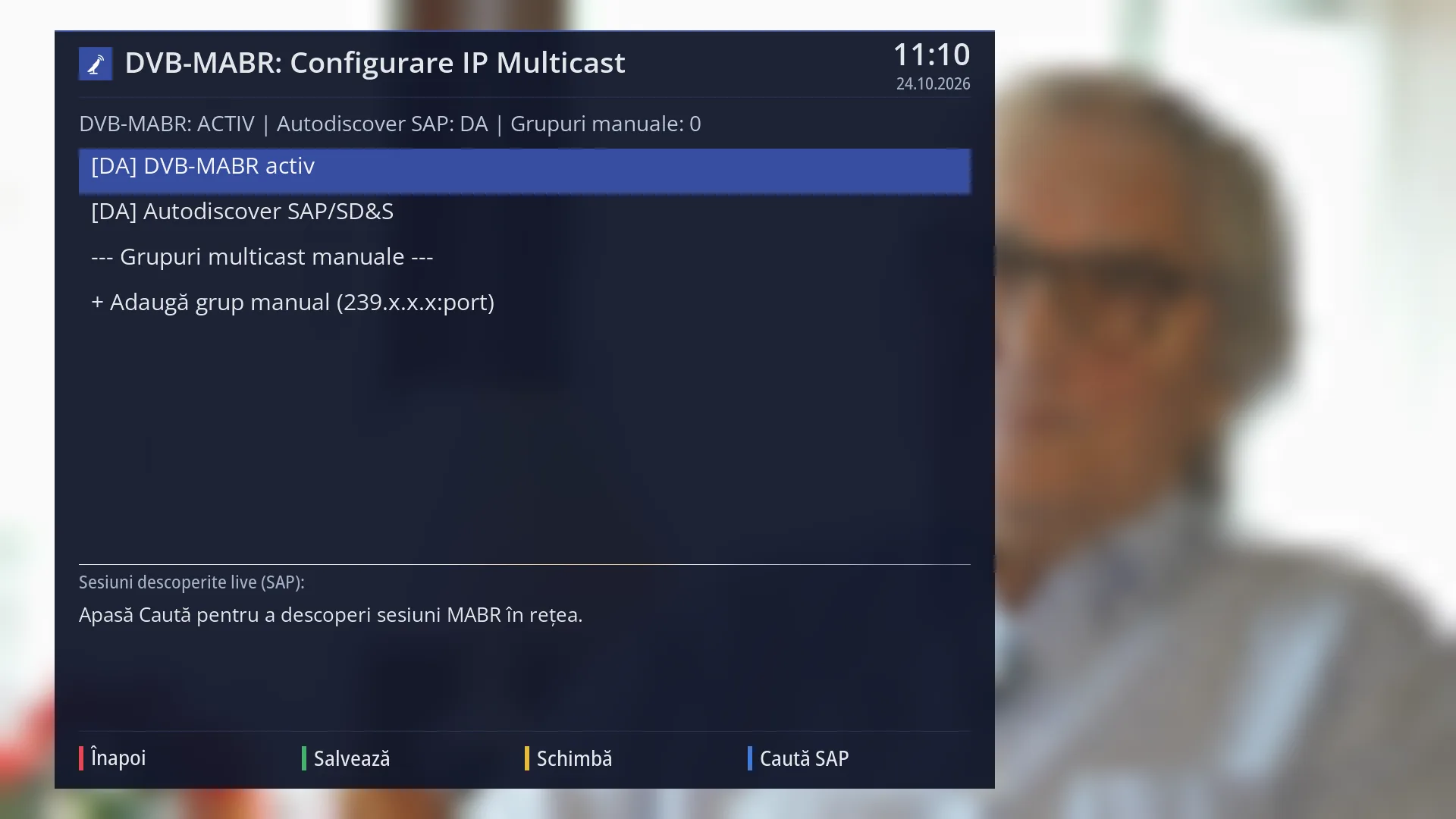
- 1 The screen title.
- 2 The status: whether DVB-MABR is on, the network search and how many groups you have added.
- 3 DVB-MABR active and the automatic network search: OK or YELLOW switches YES / NO.
- 4 The groups added by hand and the row that adds a new one.
- 5 The sessions found on the network or the message from the last action.
- 6 RED back, GREEN save, YELLOW toggle, BLUE search the network.
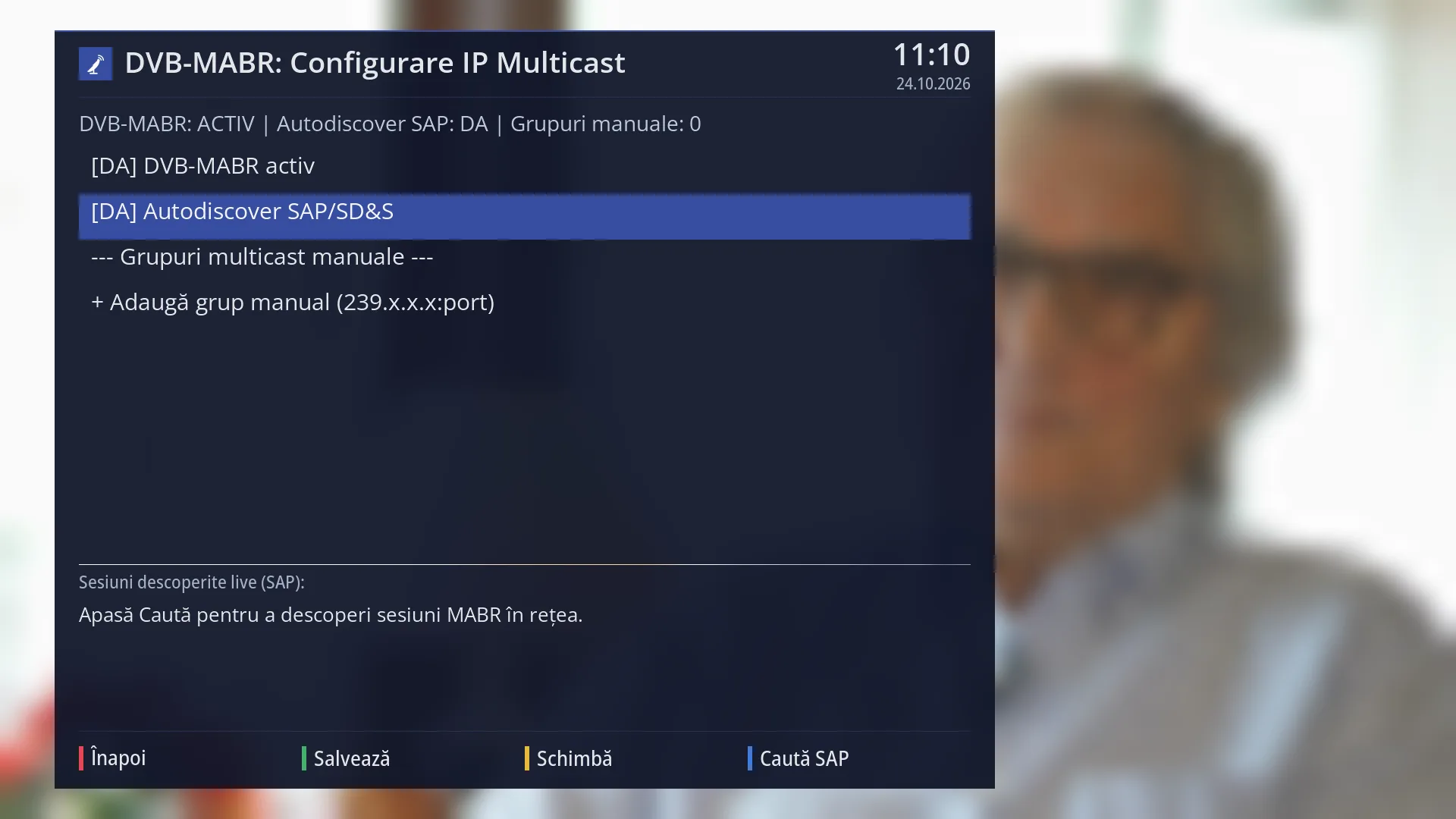
- 1 Automatic search for sessions on the network: YES or NO.
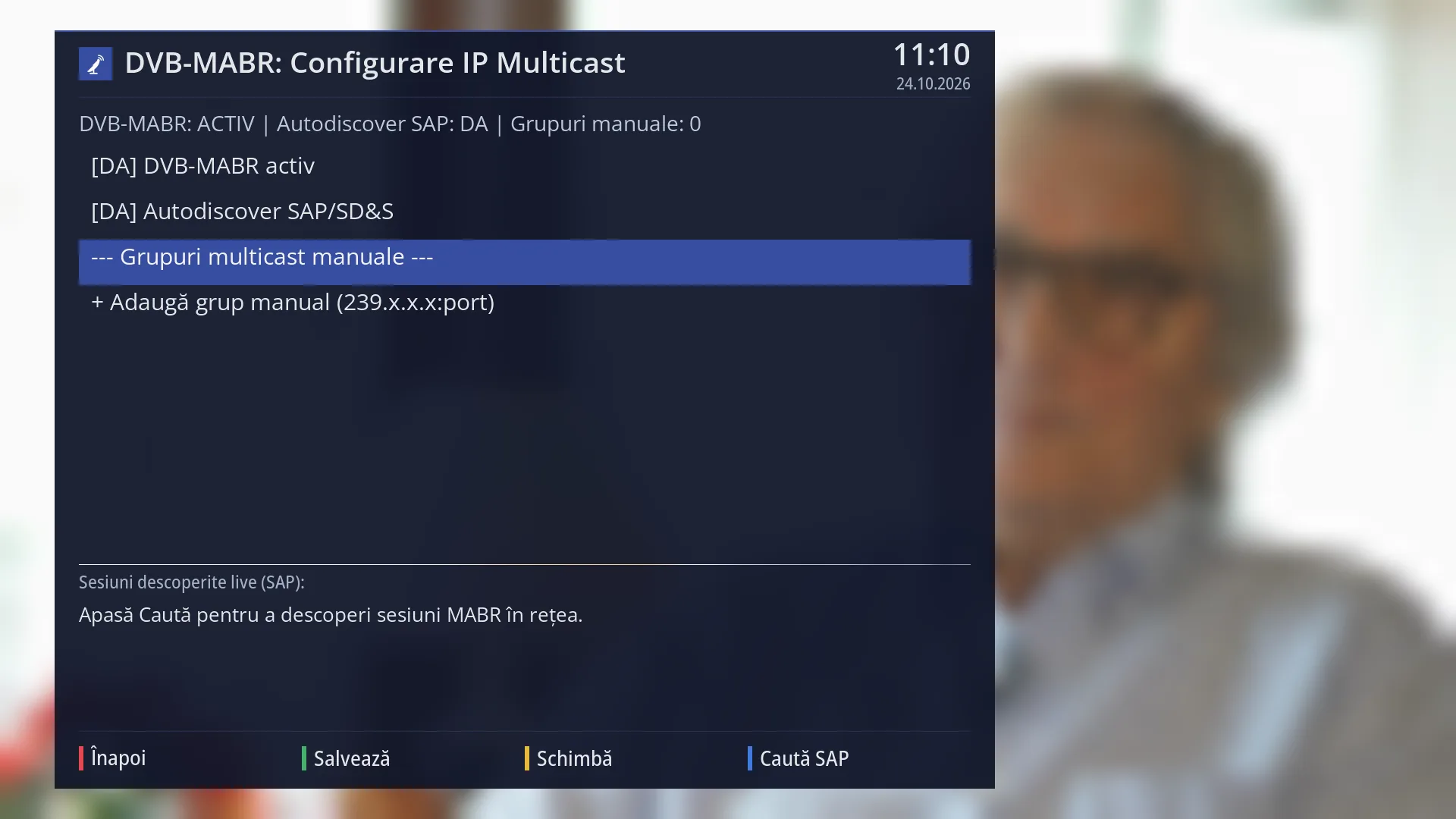
- 1 The selected row: “Manual multicast groups”.
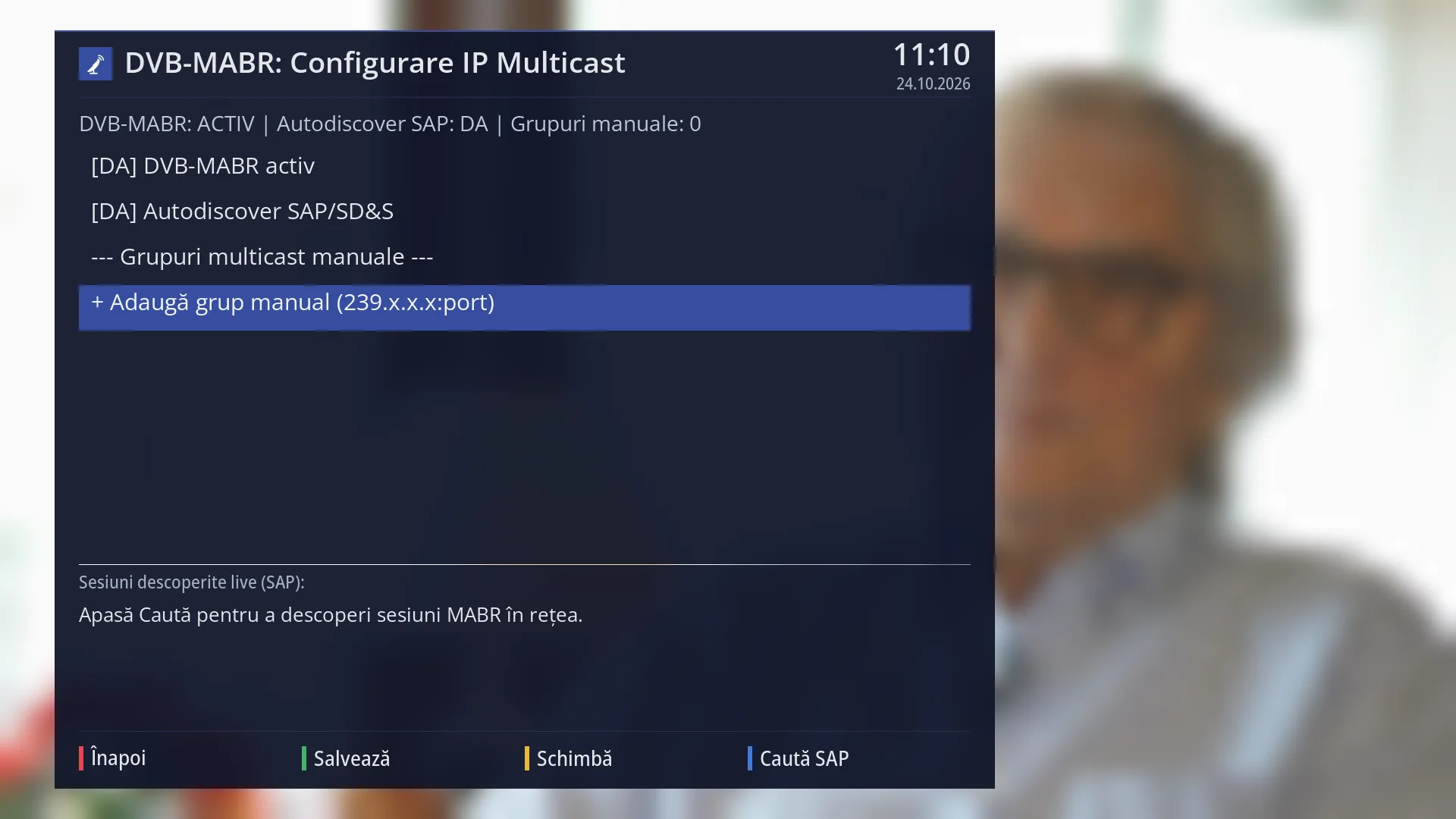
- 1 The selected row: “Add manual group (239.x.x.x:port)”.
What it is for
DVB-MABR is a way of sending television over a network to many devices at once (multicast). A single stream leaves the source, and each receiver on the network picks it up from there. Some operators use it, as do some large networks in hotels or blocks of flats.
The screen is marked “(in progress)”. You can note the multicast groups on your network here and switch their automatic search on or off, and the settings are saved. But in this version no part of the receiver reads them yet: no channels appear, and the search for sessions on the network does not yet have the part that listens to the network.
If you want internet channels now, use DVB-I (Menu > Settings > Internet Sources > DVB-I Setup (TV over Internet)).
How to get here
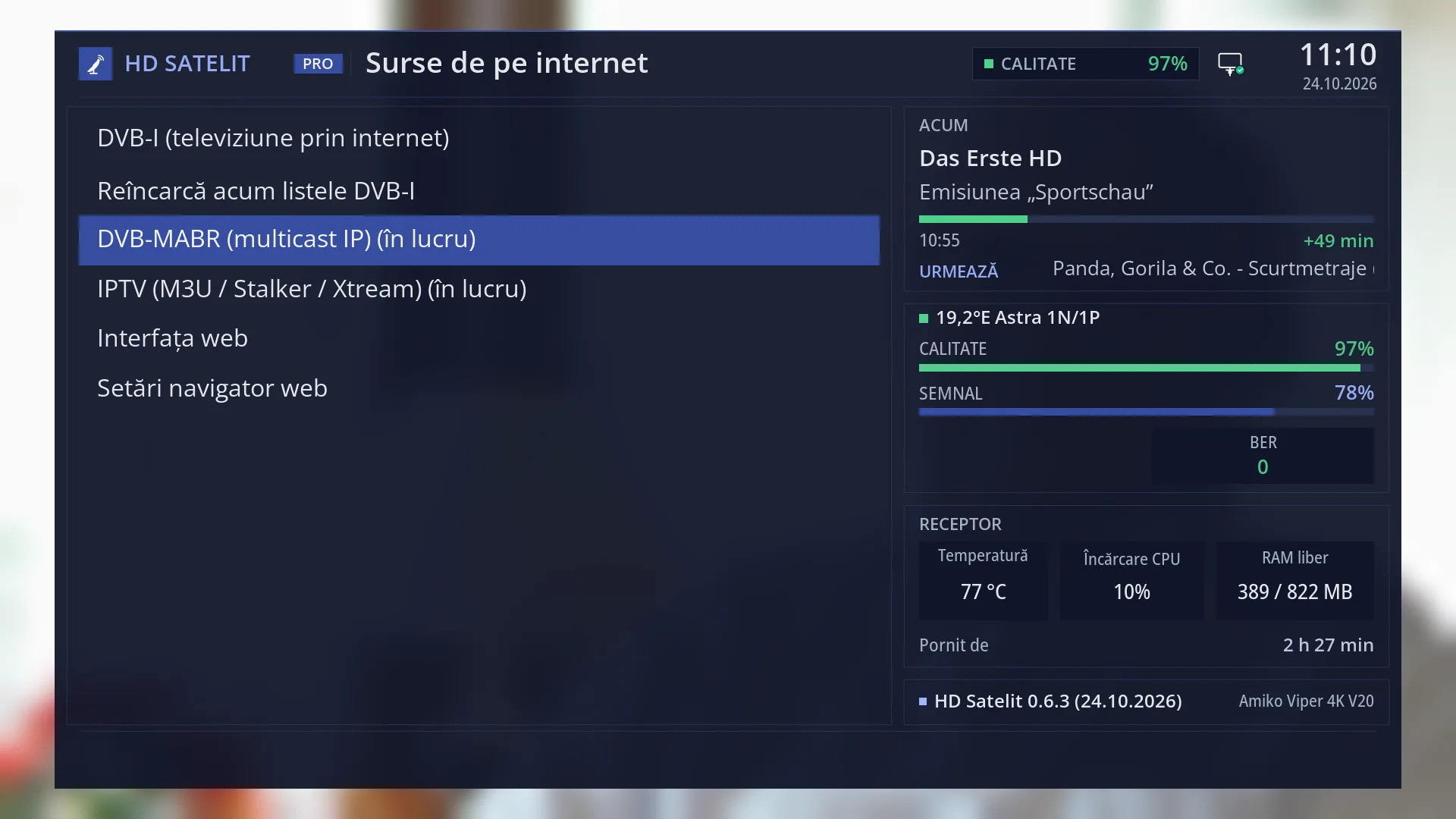
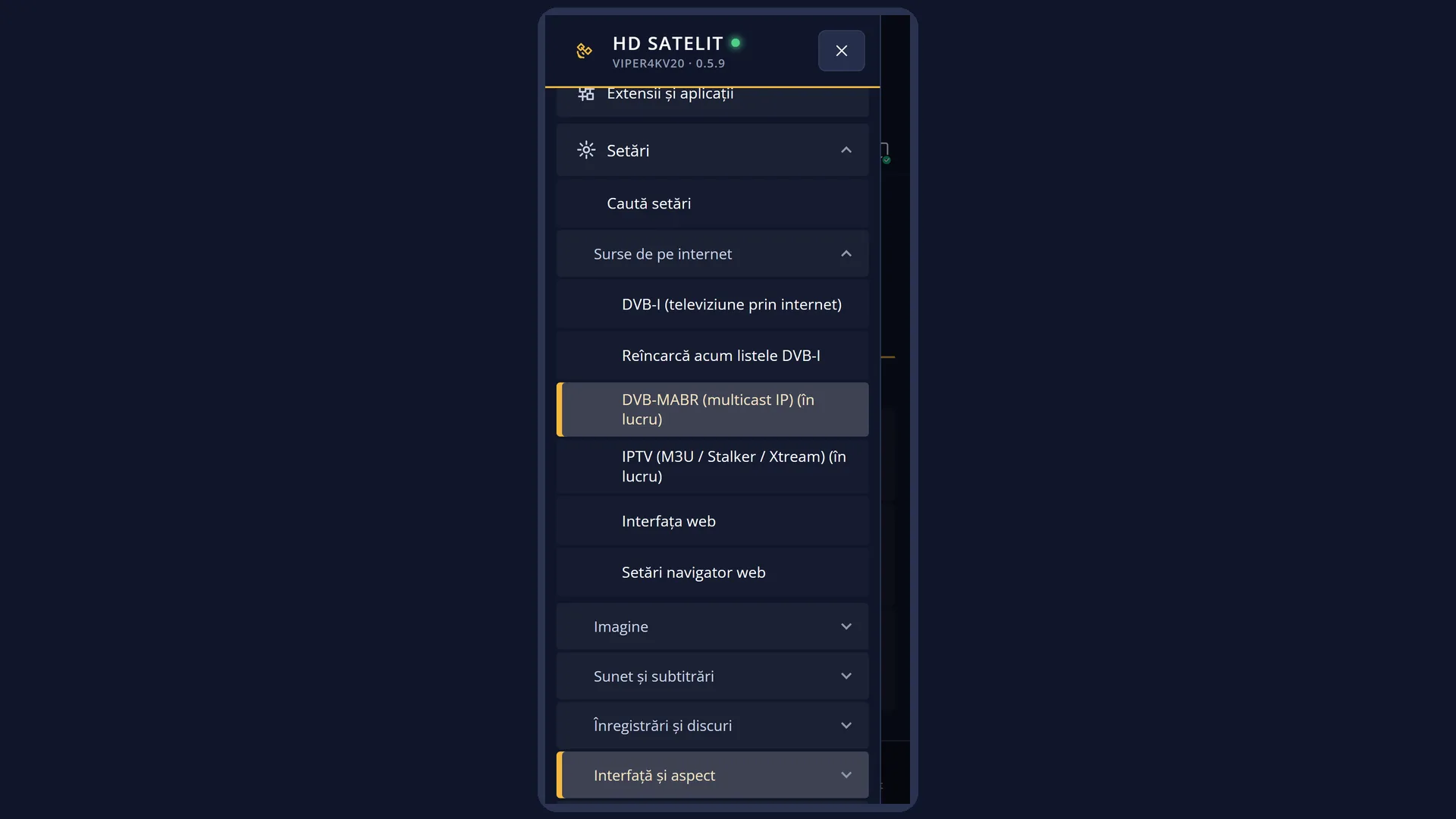
Path: Main menu > Settings > Internet Sources > DVB-MABR (IP Multicast).
Keys on the remote: MENU 6 2 3.
The row only appears with the Intermediate setup mode (the factory setting) or Expert.
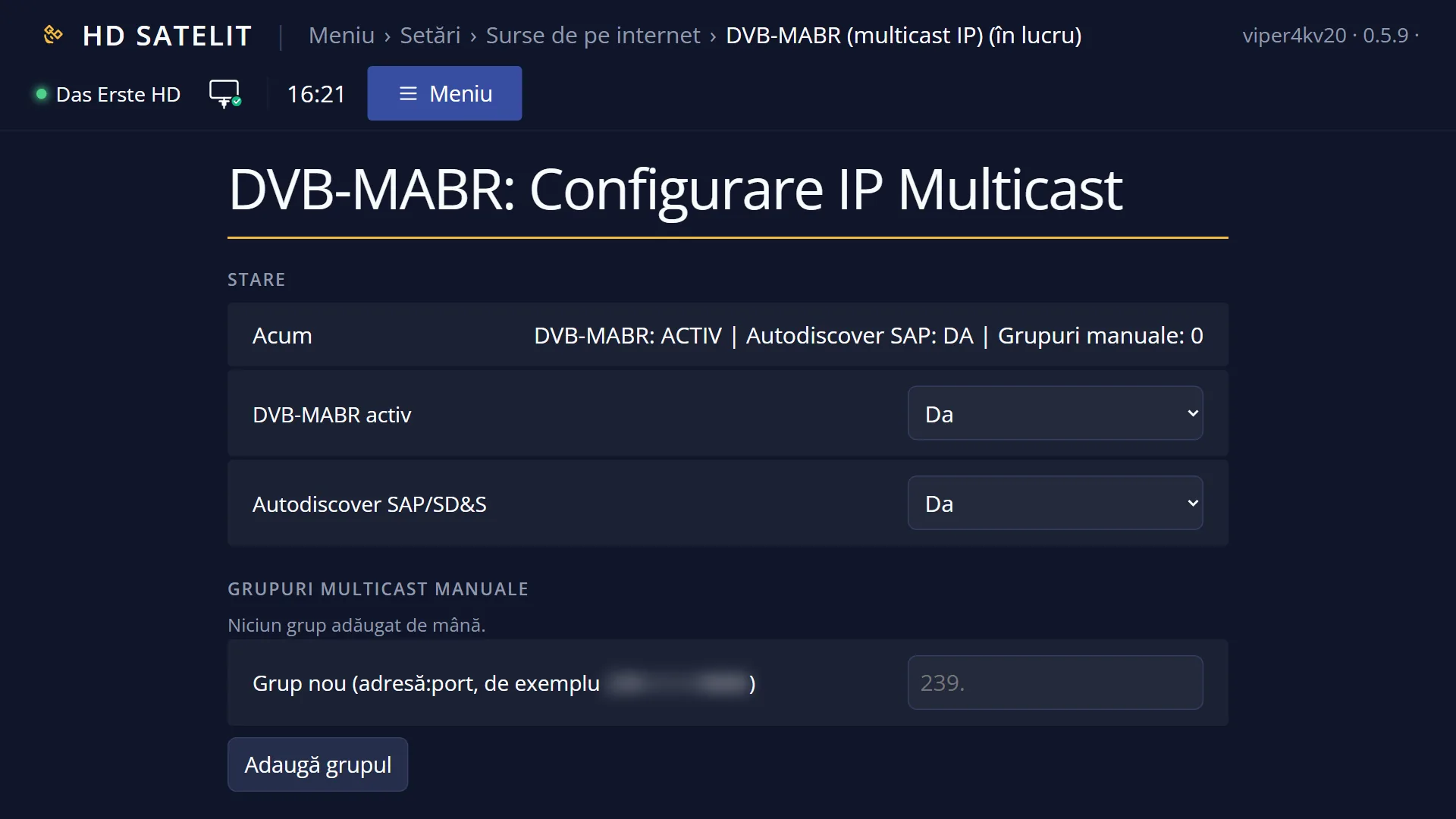
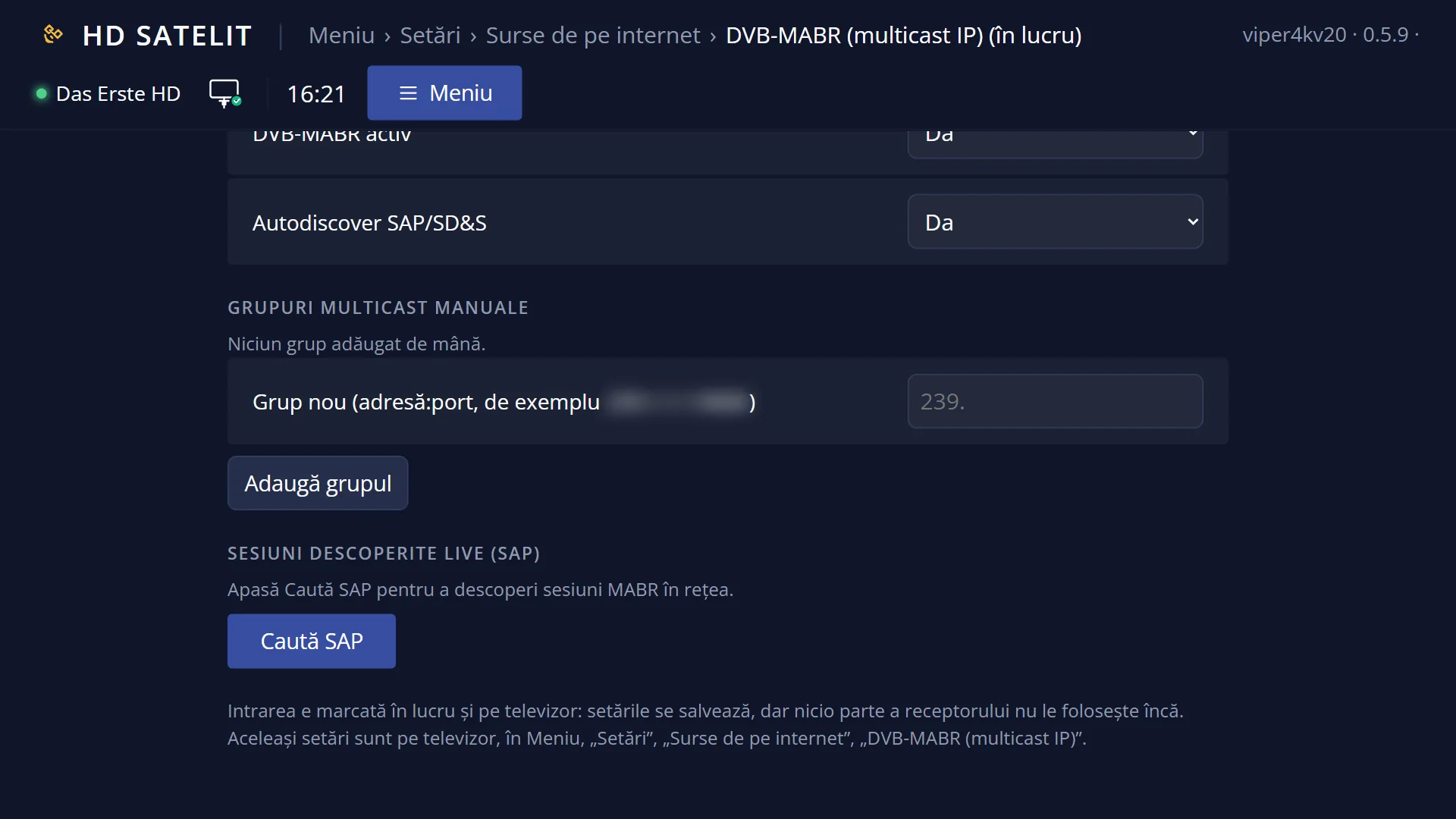
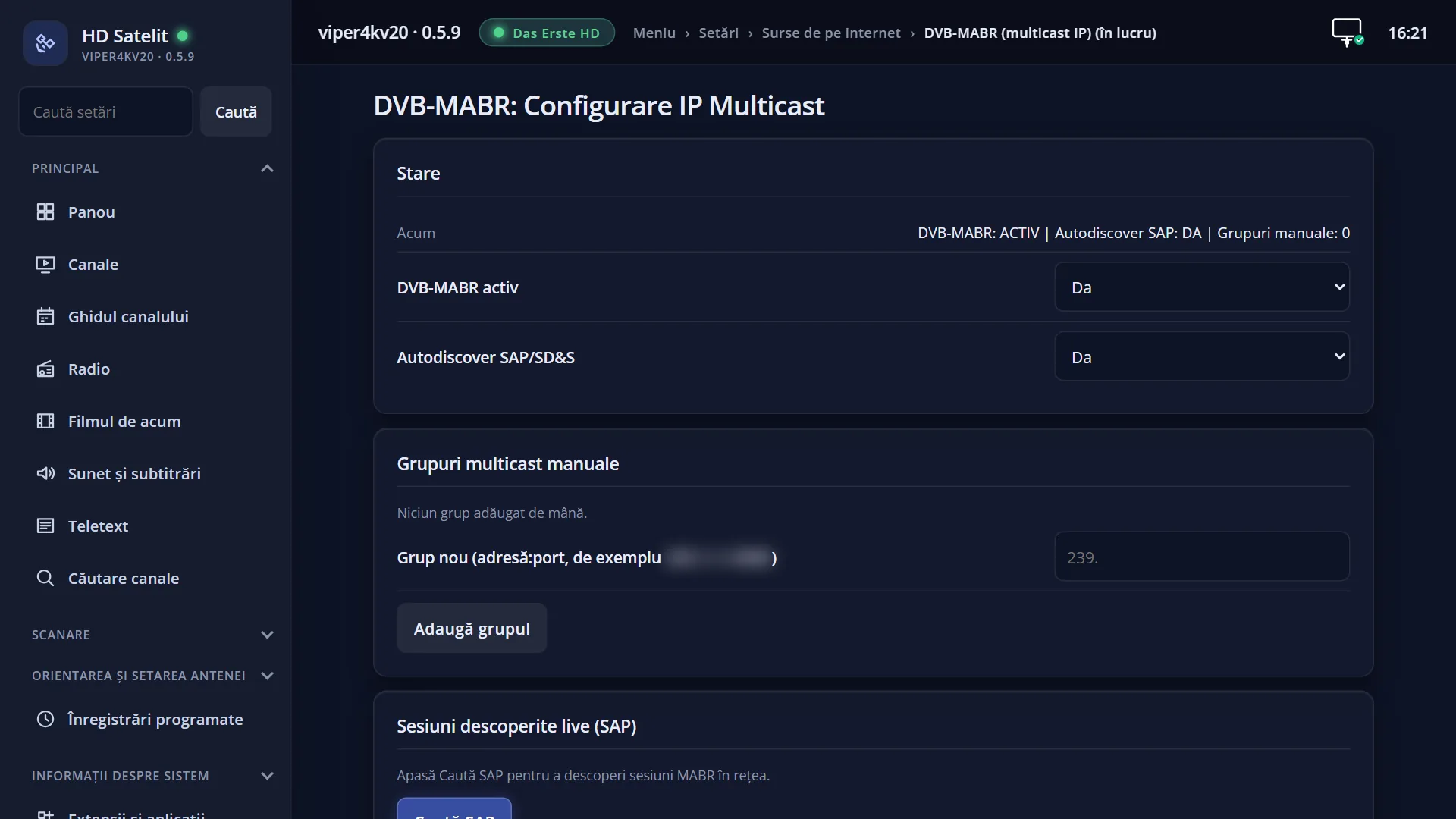
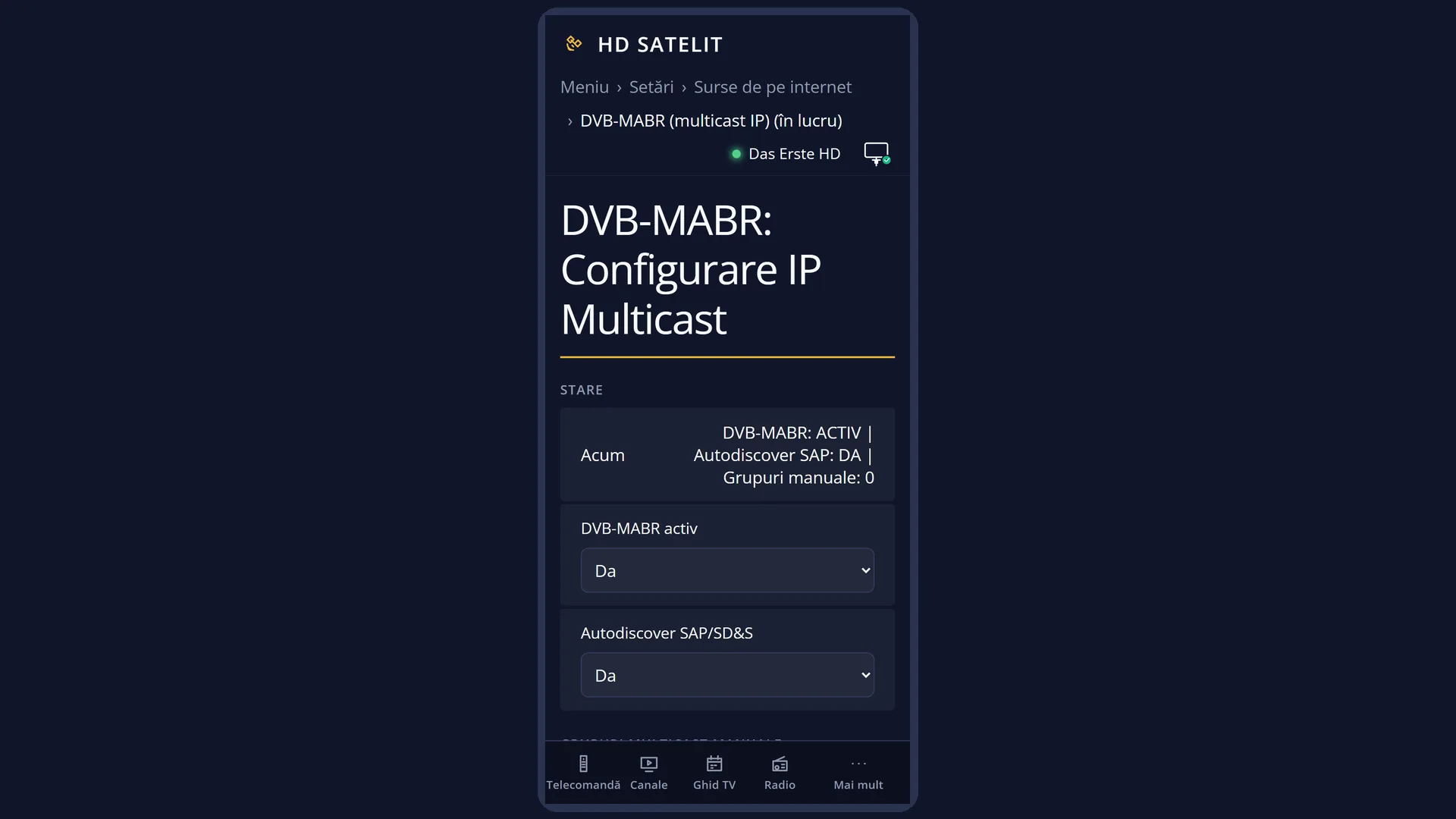
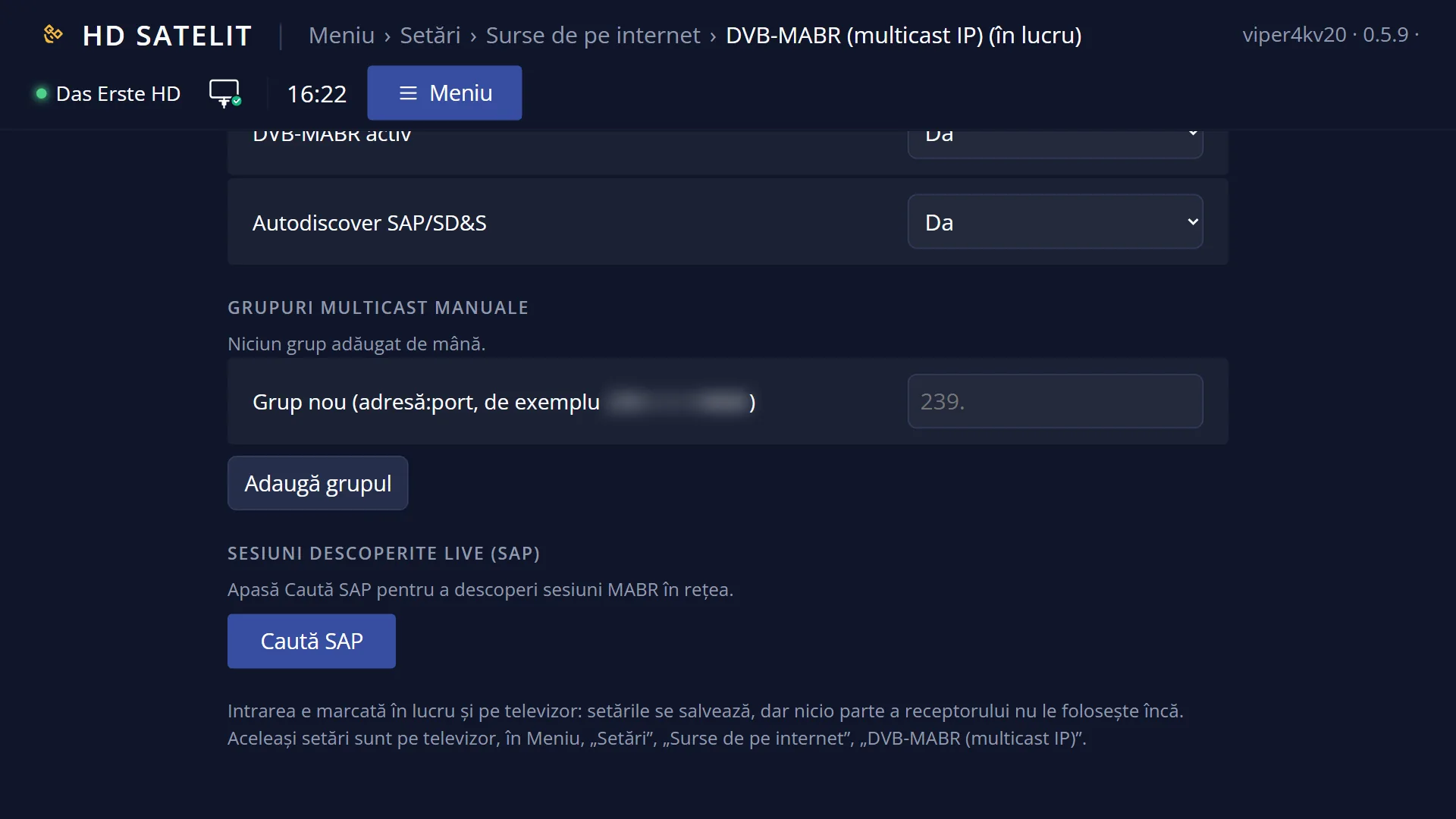
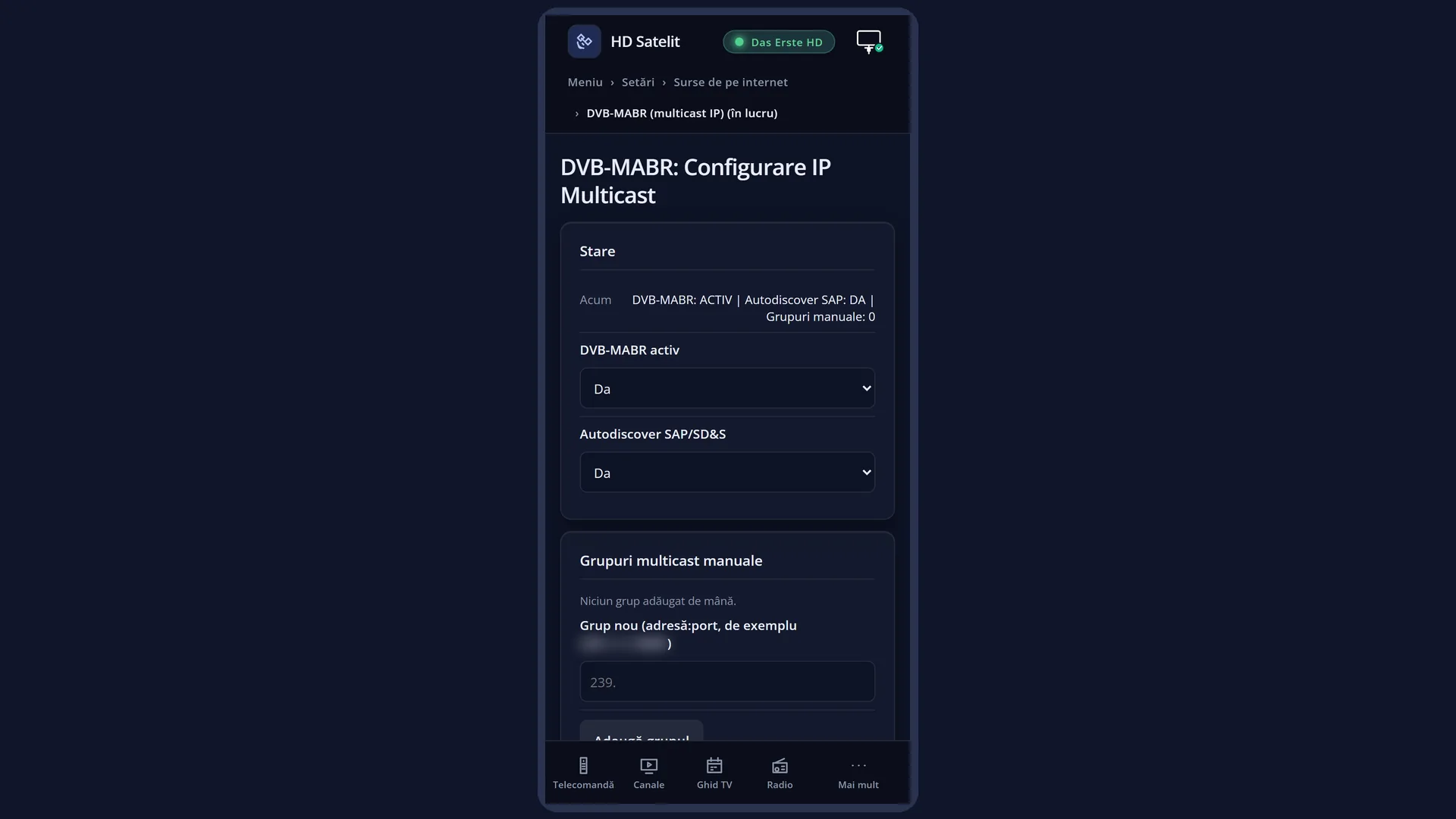
In the web interface: the /mabr page (“DVB-MABR: IP Multicast”), with the same settings.
What you see on the screen
At the top, the title “DVB-MABR: IP Multicast Setup” and the clock.
Below the title, the status line: “DVB-MABR: ACTIV | Autodiscover SAP: DA | Manual groups: 0”. It shows whether DVB-MABR is on, whether it searches the network by itself and how many groups you have added by hand.
The list: “[YES] DVB-MABR active”, “[YES] Autodiscover SAP/SD&S”, the heading “--- Manual multicast groups ---”, one row for each group you have added (in the form “udp://@239.1.1.1:9000”) and, at the end, “+ Add manual group (239.x.x.x:port)”. The selected row has a blue background.
At the bottom, “Live sessions discovered (SAP):” and, below it, a message: when the screen opens, “Press Search to discover MABR sessions on the network.”, then the result of the search or of the last addition.
On the last line, the colour keys: RED Back, GREEN Save, YELLOW Toggle (the screen shows it like this), BLUE Search SAP.
Rows and settings
| Row | Values | Default | What it does |
|---|---|---|---|
| [YES] DVB-MABR active | YES, NO | YES | Switches DVB-MABR on or off. For now it is only recorded: no part of the receiver uses the setting yet. For now it has no effect. |
| [YES] Autodiscover SAP/SD&S | YES, NO | YES | Automatic search on the network for television sessions announced by the source. For now it is only recorded. For now it has no effect. |
| A group, for example “udp://@239.1.1.1:9000” | no groups | A multicast group you have added: the address and the port. OK on it removes it from the list immediately, without asking. When the group is no longer valid. | |
| + Add manual group (239.x.x.x:port) | OK opens the keyboard “Multicast group (address:port), e.g. 239.1.1.1:9000”, with “239.” already typed. The address must be a multicast address (from 224.0.0.0 to 239.255.255.255), followed by a colon and the port (1-65535). You can add up to 64 groups. When the operator or the network administrator has given you the address of a group. |
Keys
| UP / DOWN | Moves the cursor to the row above or below. |
| OK | On “DVB-MABR active” or “Autodiscover”: switches between YES and NO. On a group: removes it. On “+ Add manual group”: opens the keyboard. On the heading “--- Manual multicast groups ---” it does nothing. |
| RED (Back) | Saves and closes the screen. |
| GREEN (Save) | Saves without closing. The status line starts with “Saved.”. |
| YELLOW (“Toggle” on the screen) | Does the same as OK on the selected row. |
| BLUE (Search SAP) | Searches the network for sessions for 5 seconds (“Searching for MABR sessions on the network (5 seconds)...”). In this version the search does not yet have the part that listens to the network, so the answer is a message saying that the module is missing. Once it works, the first three sessions found will appear here. |
| EXIT | Saves and closes, like RED. |
Step by step
Noting a multicast group
- Press MENU 6 2 3.
- Go down to “+ Add manual group (239.x.x.x:port)” and press OK.
- Type the address and port you were given, for example 239.1.1.1:9000, and confirm.
- The bottom of the screen shows “Added: …”. Press GREEN or leave with EXIT. The group stays saved.
Problems and solutions
I added groups, but no channels appear.
The screen is “(in progress)”: the groups are saved, but the receiver does not yet turn them into channels. For internet channels, use DVB-I.
“Search SAP” says a module is not available.
The part that listens to the network is not in the image yet. It is not a problem with your network.
When adding, it says “Address … is not multicast (224.0.0.0 - 239.255.255.255).”.
Multicast groups have addresses between 224.0.0.0 and 239.255.255.255. Check the address you were given. The normal address of a device in your home does not work here.
It says “Invalid format: address:port is required (e.g. 239.1.1.1:9000).” or “Port outside the 1-65535 range.”.
Type the address, a colon and the port, with no spaces, for example 239.1.1.1:9000.
I removed a group by mistake.
OK on a group removes it without asking. Add it again with “+ Add manual group”.
I cannot see the DVB-MABR row in Internet Sources.
The row only appears with the Intermediate or Expert setup mode (Settings > Interface & Appearance > OSD Preferences > “Setup Mode”).
Related topics
- Internet Sources
- DVB-I Setup (TV over Internet)
- IPTV (M3U / Stalker / Xtream)
- Matching web page: /mabr (the “Status”, “Manual multicast groups” and “Live sessions discovered (SAP)” boxes).