

HbbTV from the satellite signal
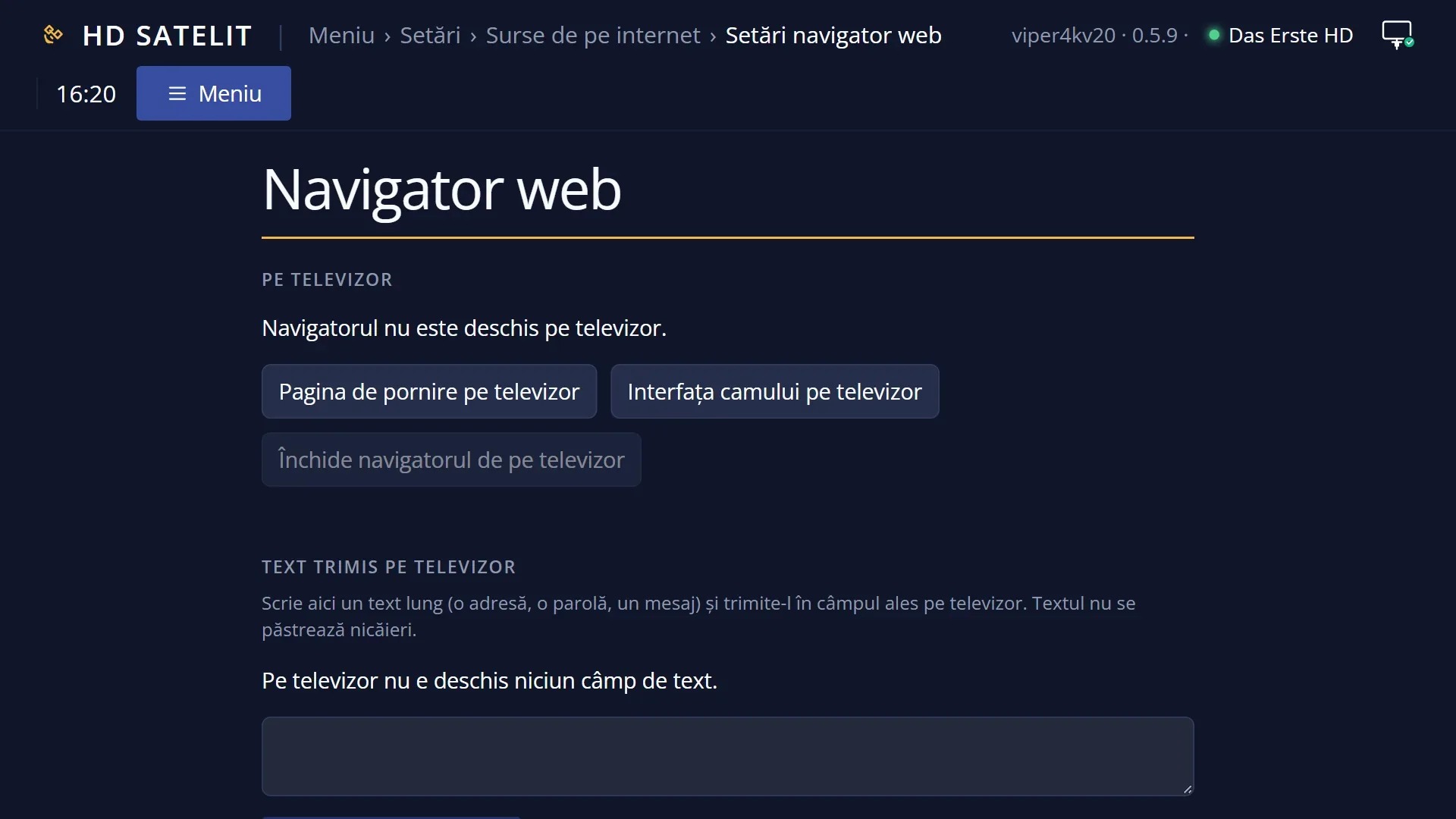
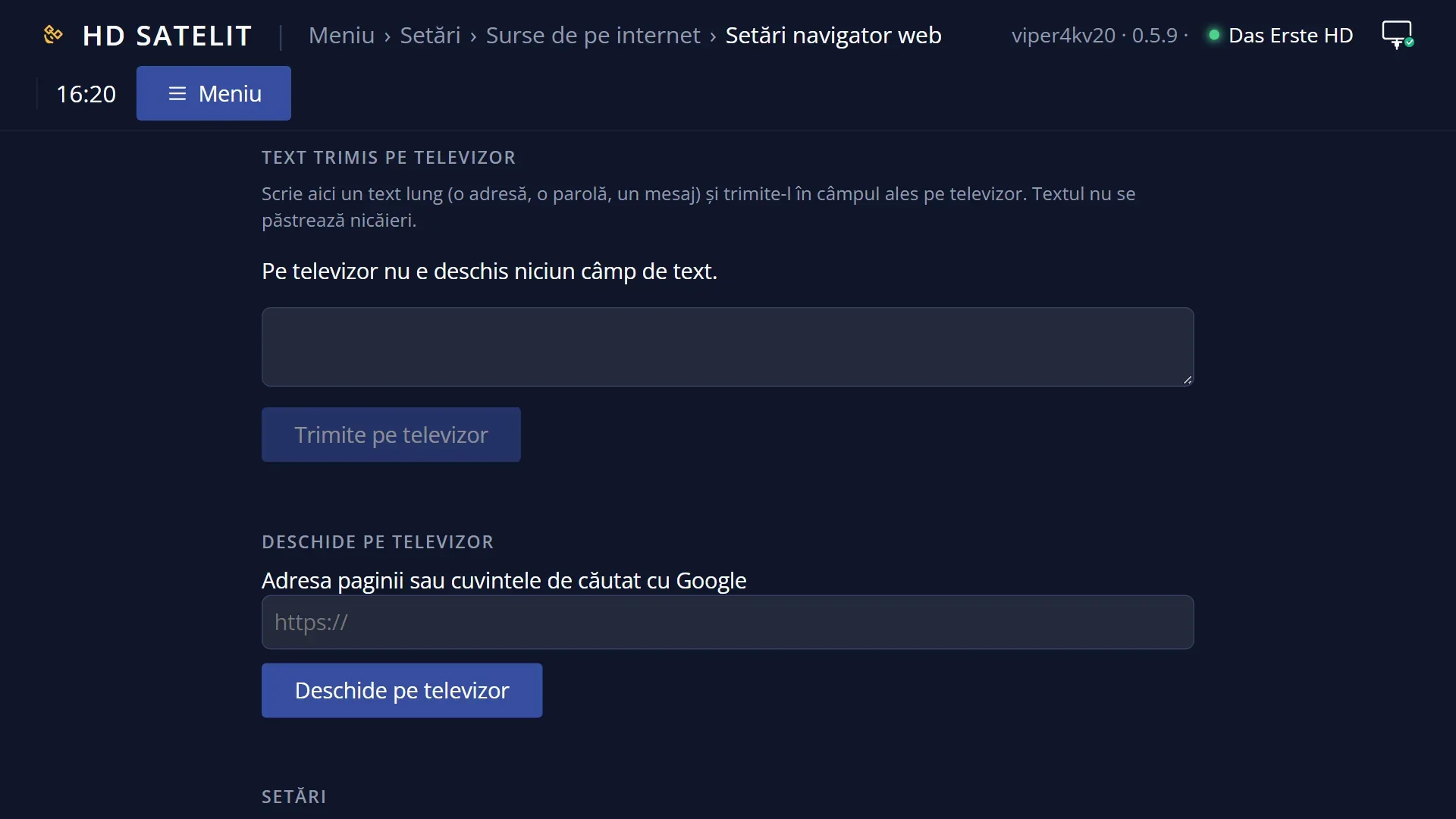
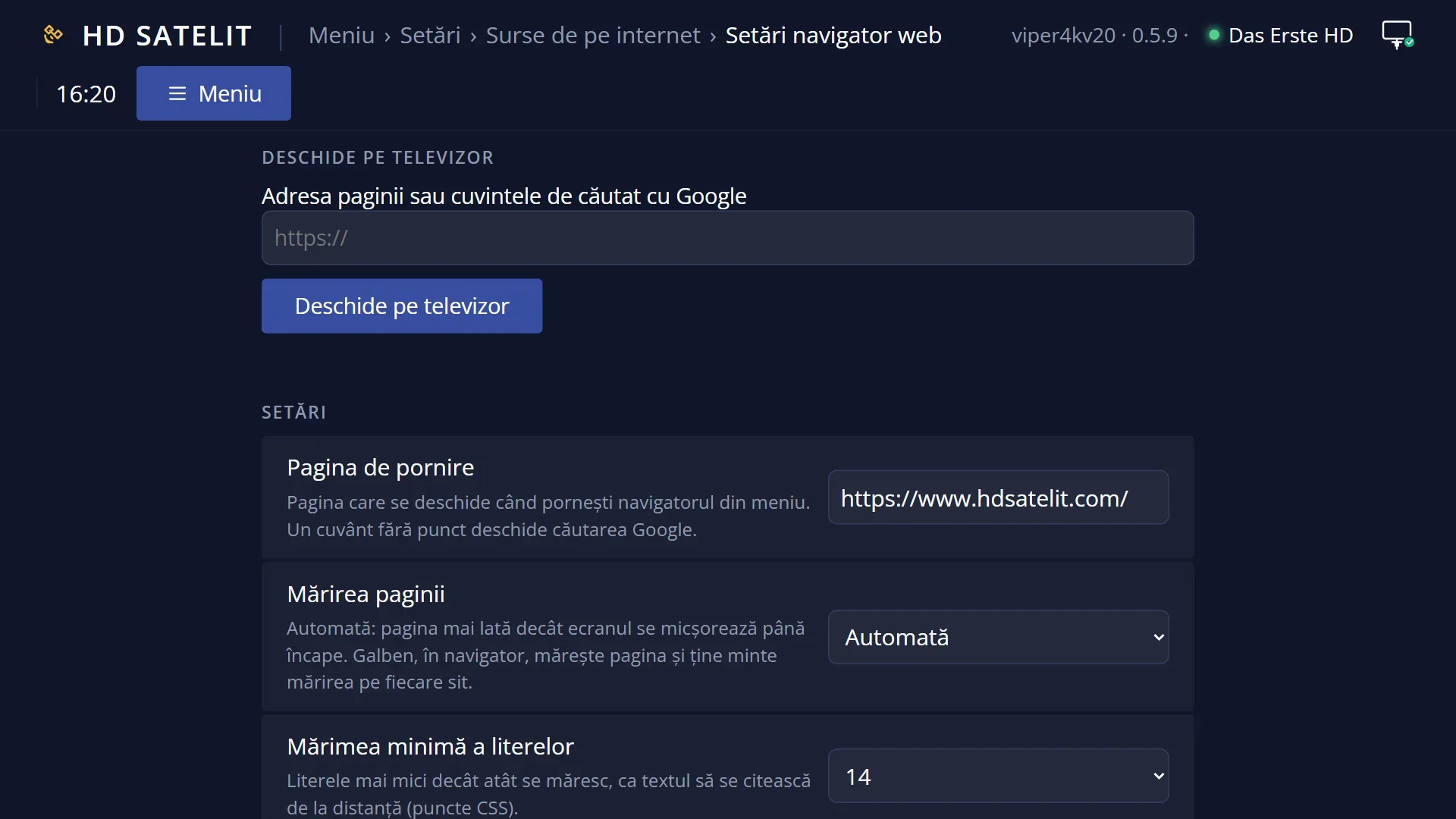
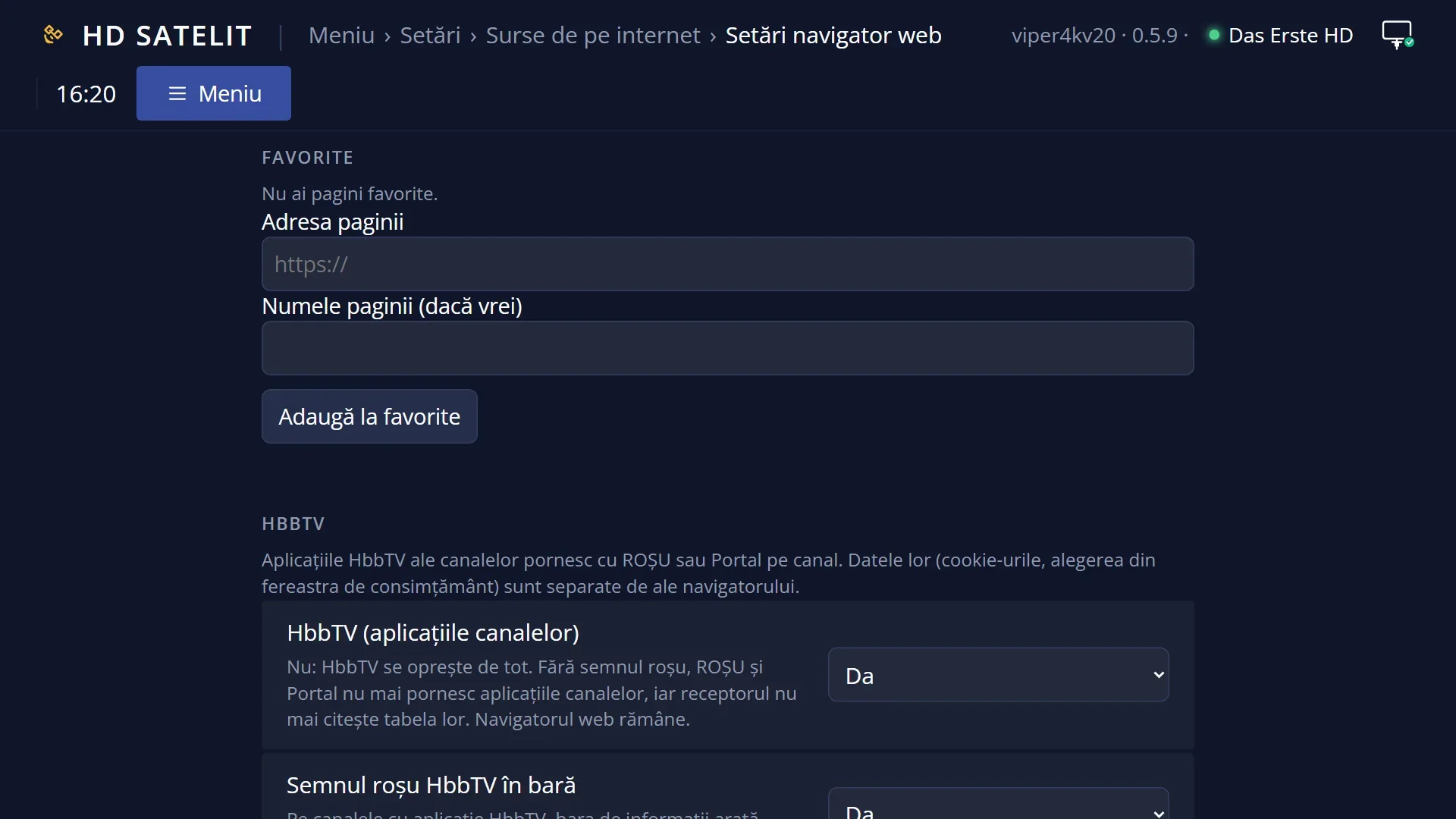
Screenshots are being added: so far 0 from the receiver and 9 from the web interface; the aim is at least 5 of each, with arrows and frames, and, where a setting changes what you see, a before and after comparison.
English screenshots coming: some of the pictures below still show the receiver and the web interface in Romanian. The rows, keys and steps described on this page are the English ones.
What it is for
Most HbbTV applications come from the internet. Some channels, however, send their application in the satellite signal itself, piece by piece, in a loop that repeats (a “Carousel”). The receiver collects it from the signal and opens it in the same way as the others.
You do not need to turn anything else on. With HbbTV on, pressing RED on such a channel starts loading from the satellite, and a small window shows how many parts have arrived.
You do not need the internet to start it, because the application comes from the dish. Some applications still ask for pages from the internet afterwards.
While the application is open, the receiver keeps its parts and updates them if the broadcaster changes them. It deletes them when you close the application, change channel or go into standby.
How to get here
How to get there: while watching TV, on a channel whose application is sent only by satellite, press RED (the “HbbTV” label in the bar is red, as for any application you can start).
Keys while watching TV: RED (or Portal).
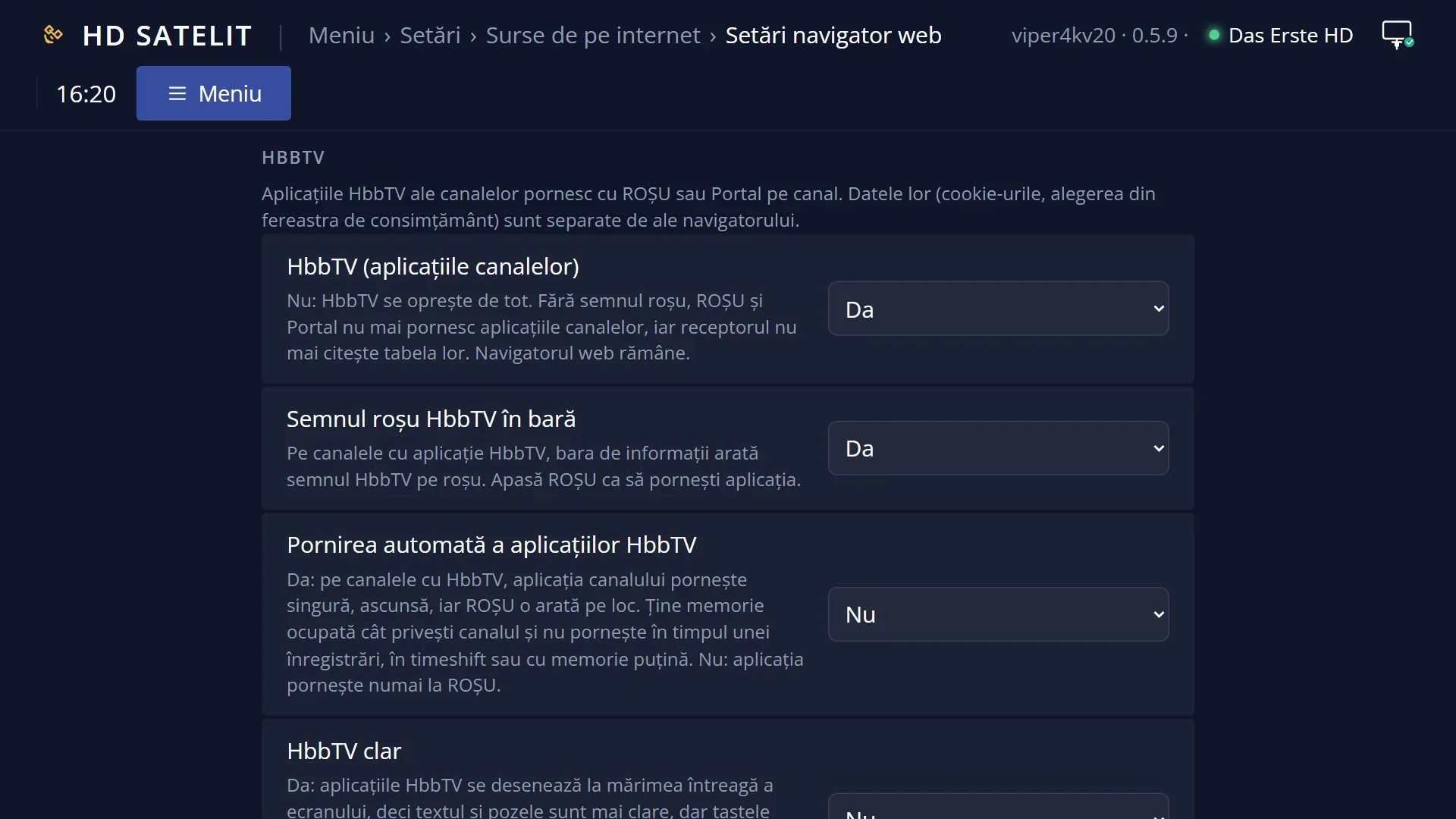
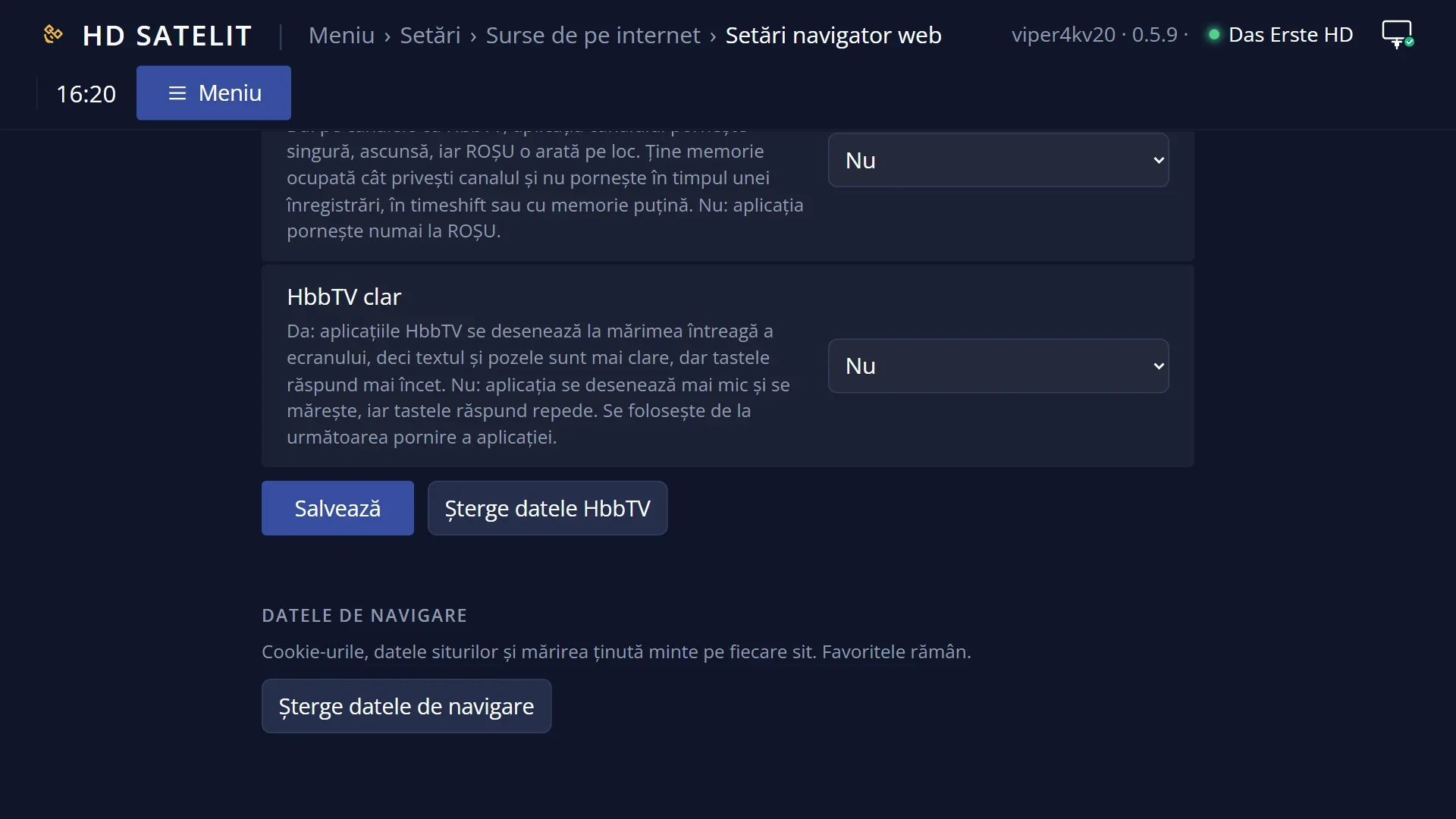
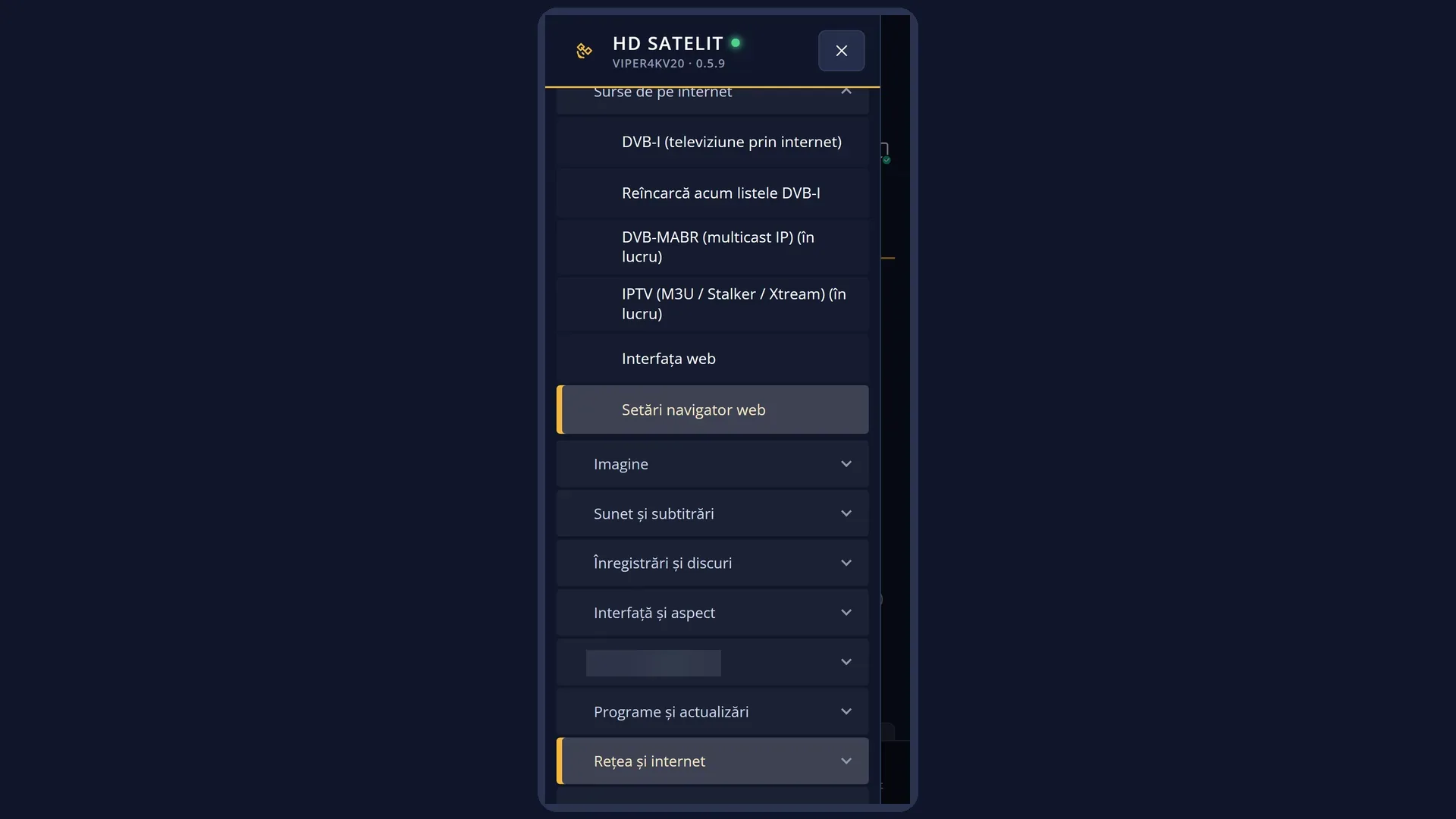
HbbTV must be on: MENU 6 2 6, “HbbTV (channel applications)” set to “yes”.
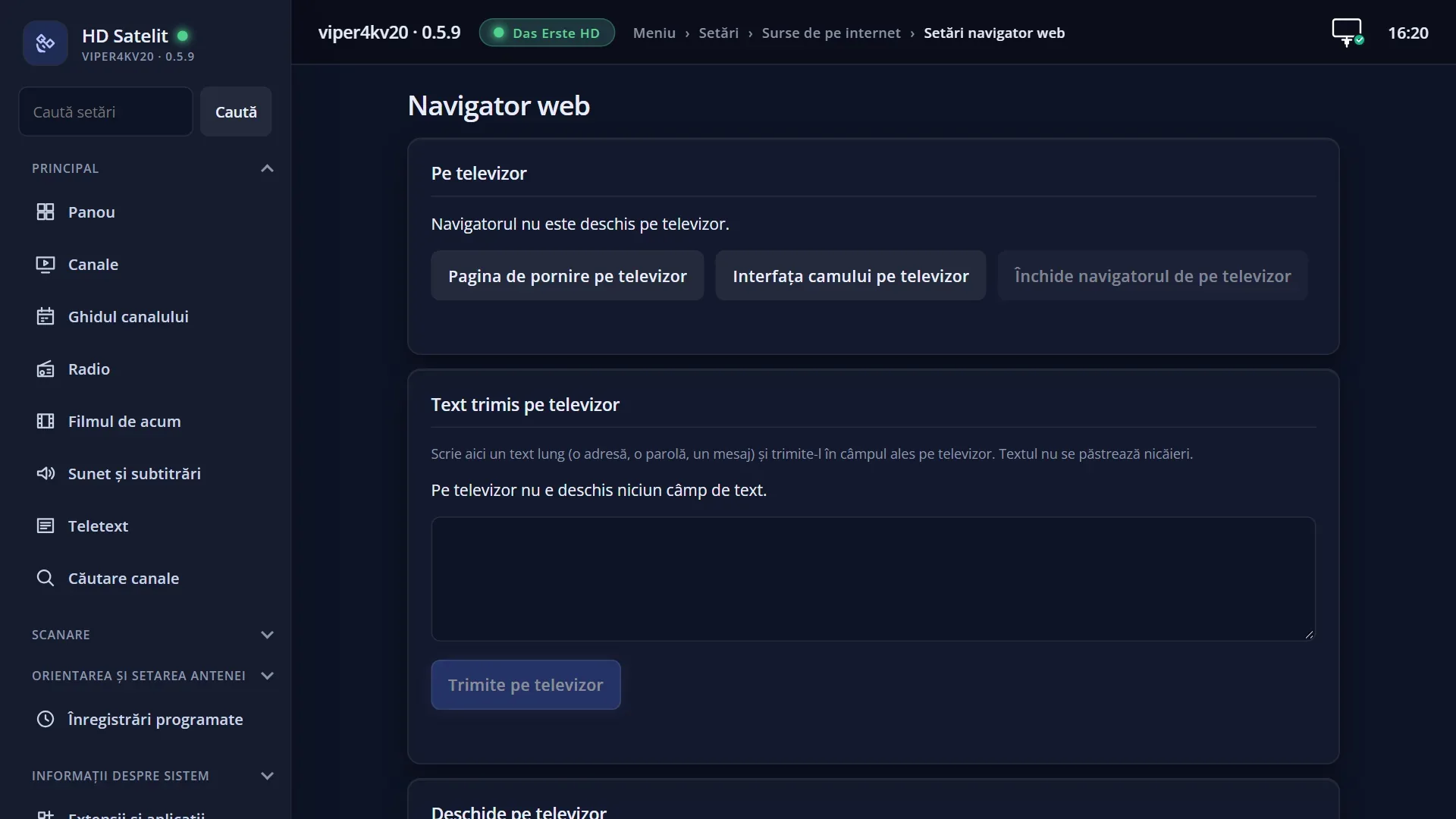
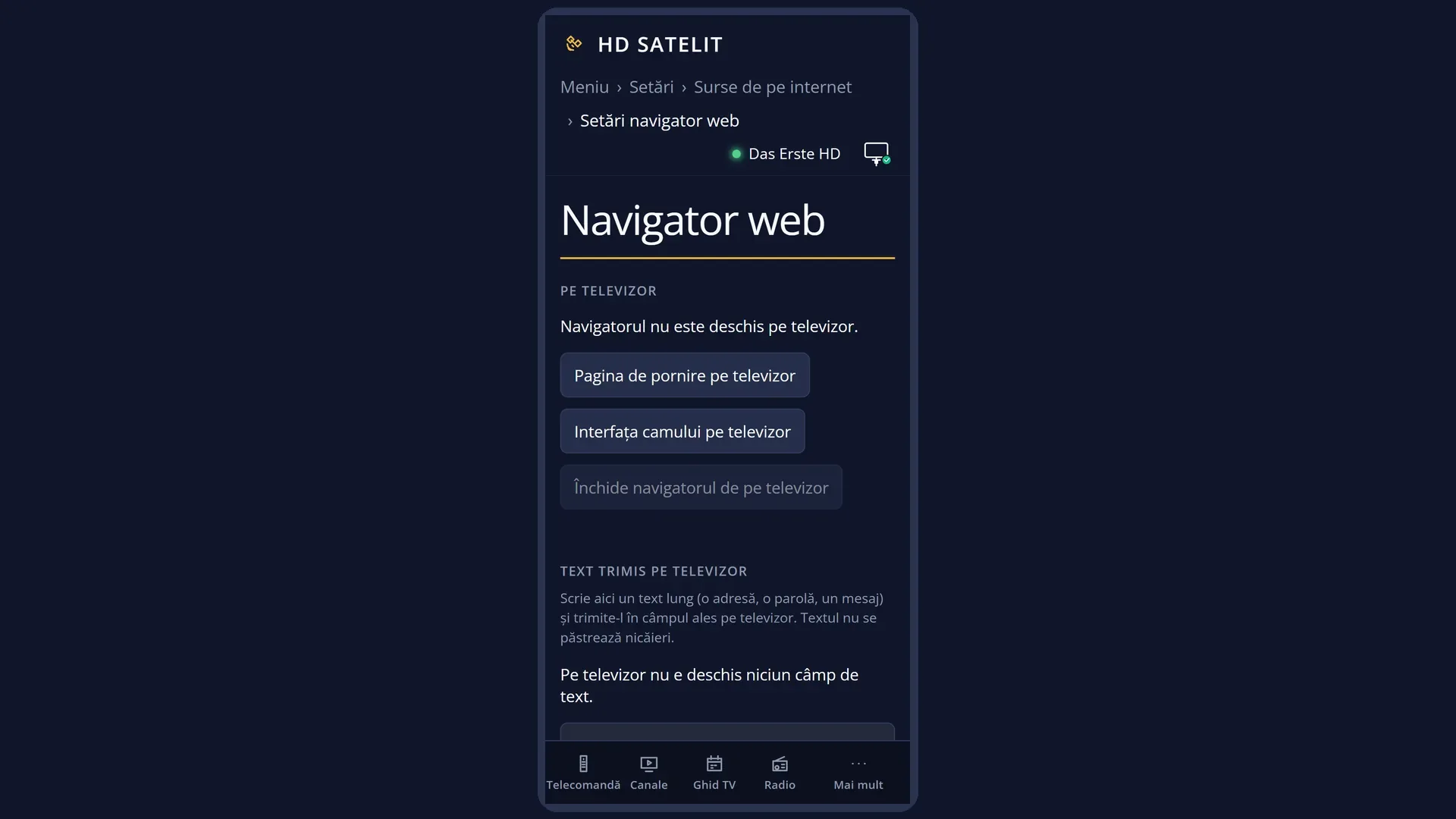
The web interface has no page for this. In /navigator, in the “HbbTV” box, “Last HbbTV application that did not open” tells you why the last load from the satellite failed.
What you see on the screen
After you press RED, the small window “HbbTV: loading the application from the satellite...” appears at the top right, then “HbbTV: loading the application from the satellite (3 of 12 parts)...”, showing how many parts have arrived out of the total, and “EXIT: cancel”.
When all the parts have arrived (or after 30 seconds at most, if the start page has arrived), the application appears on the screen like any HbbTV application.
If it cannot be loaded, a message with the reason appears for 6 seconds: the signal is too weak, the application is too large for the memory, the start page is missing or the application is sent on another channel.
Keys
| RED | Starts loading the application from the satellite. Pressing it again while loading does nothing more. |
| EXIT | While loading: cancels. With the application on the screen: closes it. The channel stays on. |
| P+ / P- (changing channel) | Stops loading or closes the application. An application from the satellite does not stay open after you change channel. |
| The arrow keys, OK, the colour keys, the digits | With the application on the screen, they go to the application, as with applications from the internet. |
Step by step
Opening an application that comes by satellite
- Check once that HbbTV is on (MENU 6 2 6, “HbbTV (channel applications)” set to “yes”).
- On the channel, press RED.
- Wait while the small window counts the parts. This usually takes a few seconds, longer with a weak signal.
- Use the application. EXIT closes it.
Problems and solutions
“This channel's HbbTV application did not load completely from the satellite: the signal is too weak.”
Some parts were lost on the way. Check the channel's signal (the quality in the bar) and try again. In rain or snow it may not work.
“This channel's HbbTV application is too large for the receiver's memory.”
The application is larger than the receiver can hold in memory (16 MB for an application from the satellite). It cannot be opened on this receiver.
“The HbbTV application from the satellite does not have the start page announced by the channel.”
The broadcaster announced a page that is not in the signal. Try again later. The broadcaster usually puts it back.
“This channel's HbbTV application comes in another channel's signal and the receiver cannot load it from here.”
The application is sent on another of the broadcaster's channels. The receiver only loads it from the channel it is sent on.
A message appears saying that the application is not coming from the satellite, because its track cannot be read or there is no signal.
Check the channel's signal first. If the signal is good, the application's track cannot be read on this receiver.
“The HbbTV application from the satellite cannot be read from the channel's signal right now.”
Try again in a few seconds, or after you change channel and come back.
“HbbTV applications do not start while a recording is running.” or the message about memory.
As with applications from the internet: wait for the recording to end or free up memory (stop timeshift).
Related topics
- The channel's HbbTV application
- Web browser settings (turning HbbTV on)
- The Portal key
- The info bar (signal quality)
- Matching web page: /navigator (the “HbbTV” box, “Last HbbTV application that did not open”).