

Satellites collapsed into groups
English screenshots coming: some of the pictures below still show the receiver and the web interface in Romanian. The rows, keys and steps described on this page are the English ones.
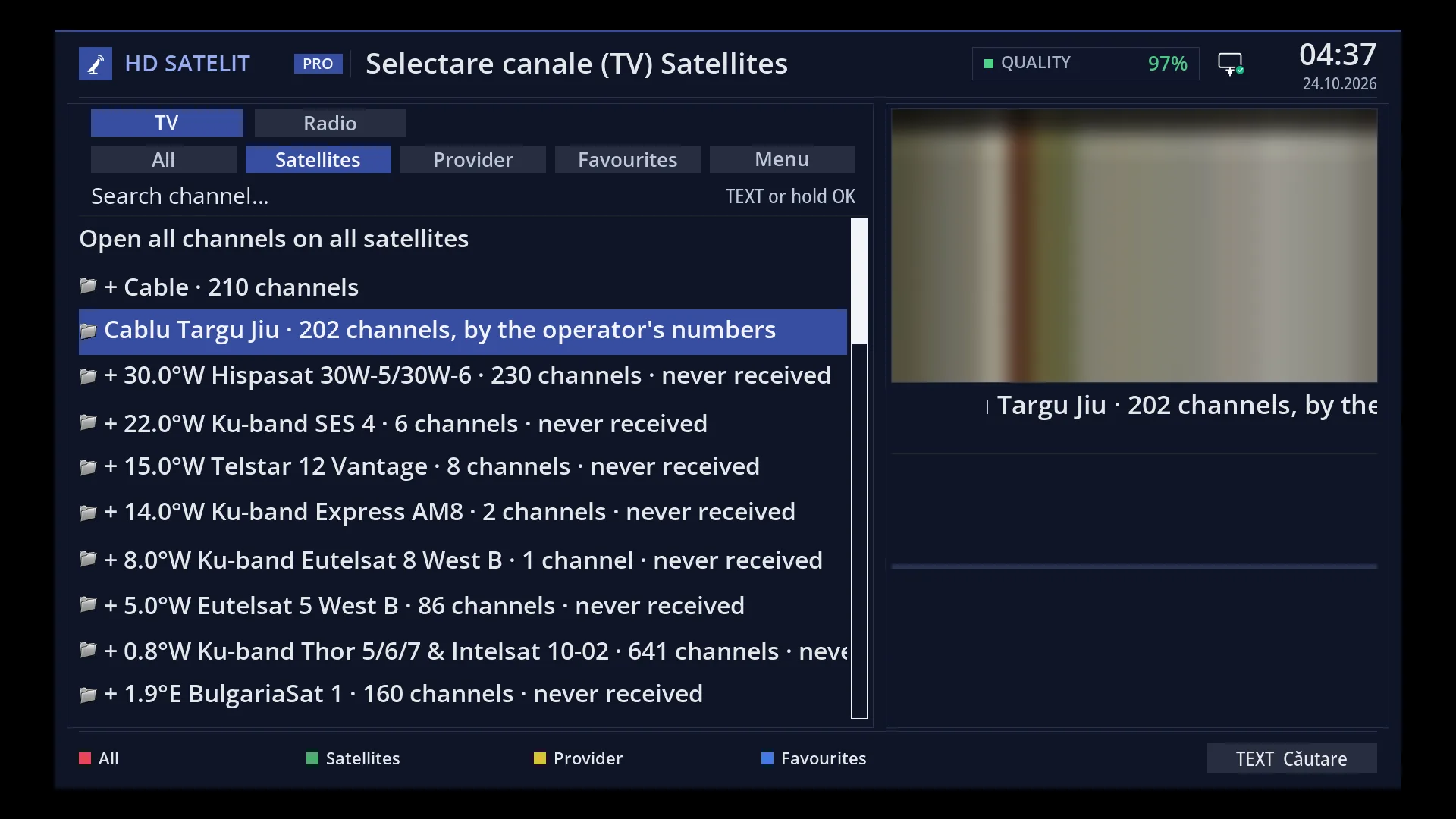
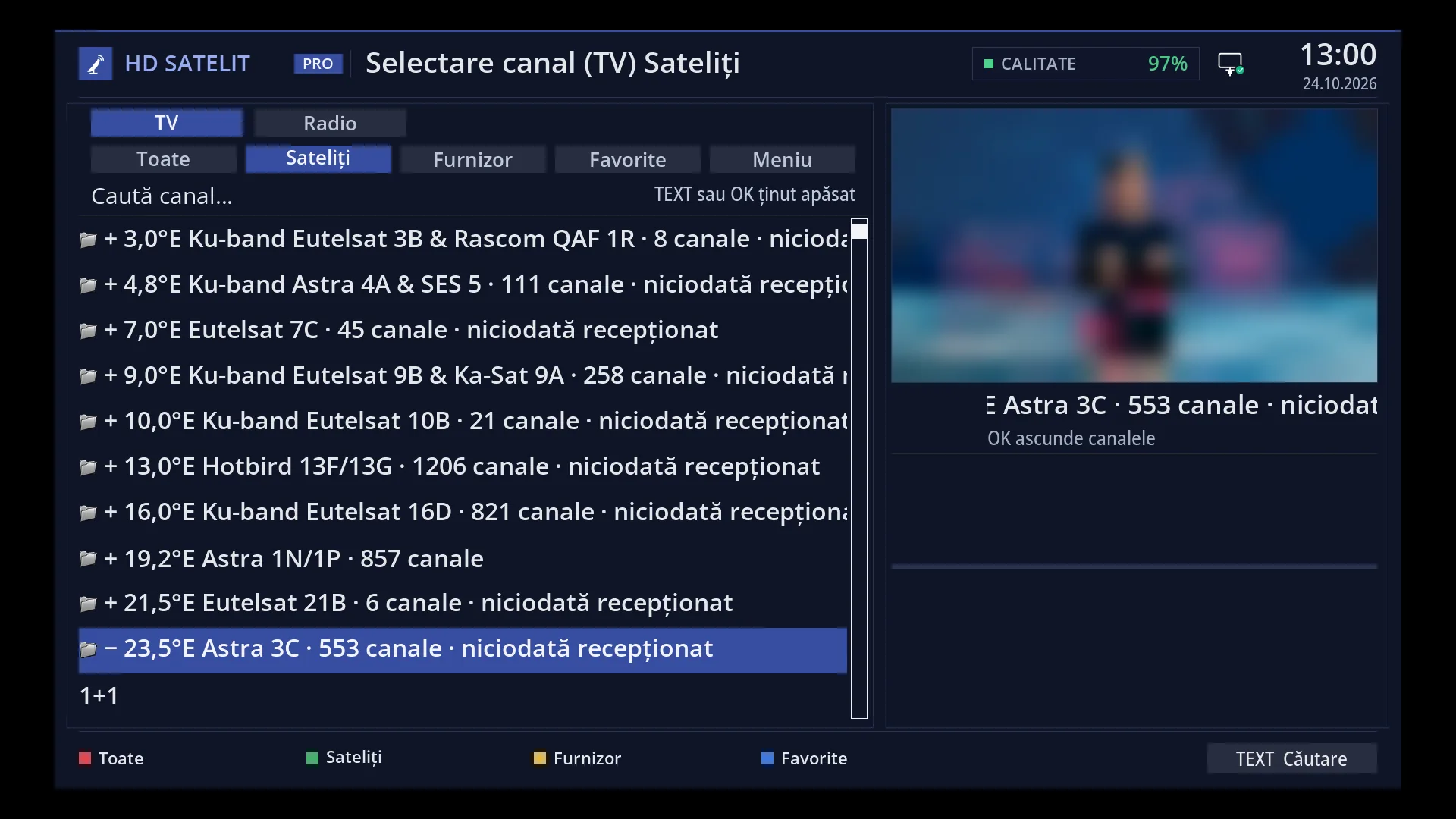
- 1 The title: “Channel Selection (TV) Satellites”.
- 2 The first row: opens all satellites at once (or collapses the others).
- 3 One row per location: “+” collapsed, “−” open, the position, the satellite name and the number of channels.
- 4 GREEN: collapses all satellites, with the cursor on the current channel's satellite.
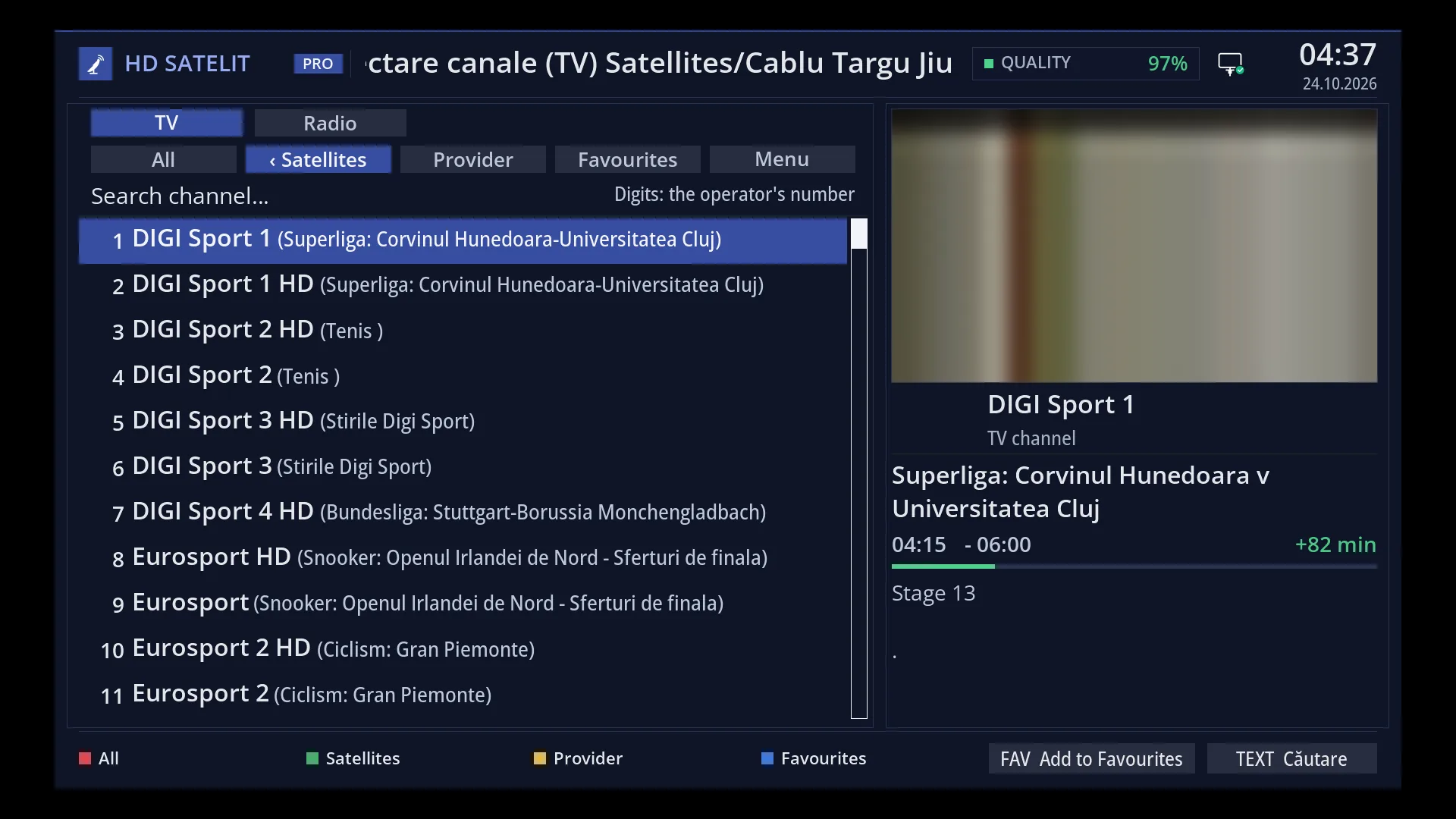
- 1 With all of them open, the first row collapses all satellites again except that of the current channel.
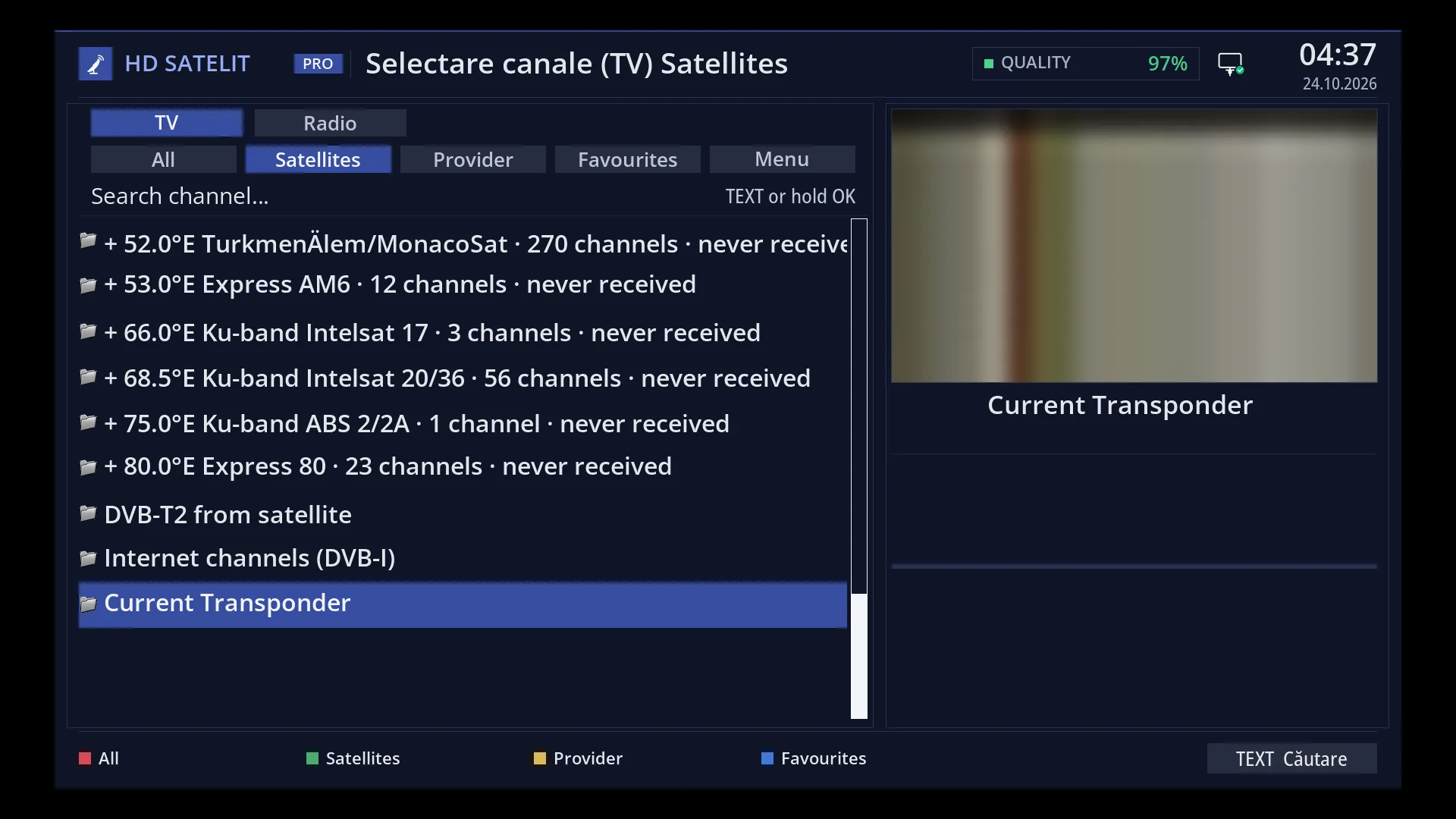
- 1 The folders at the end, after the satellites.
- 2 The type of folder, for example “DVB-T2 channels received via satellite”.
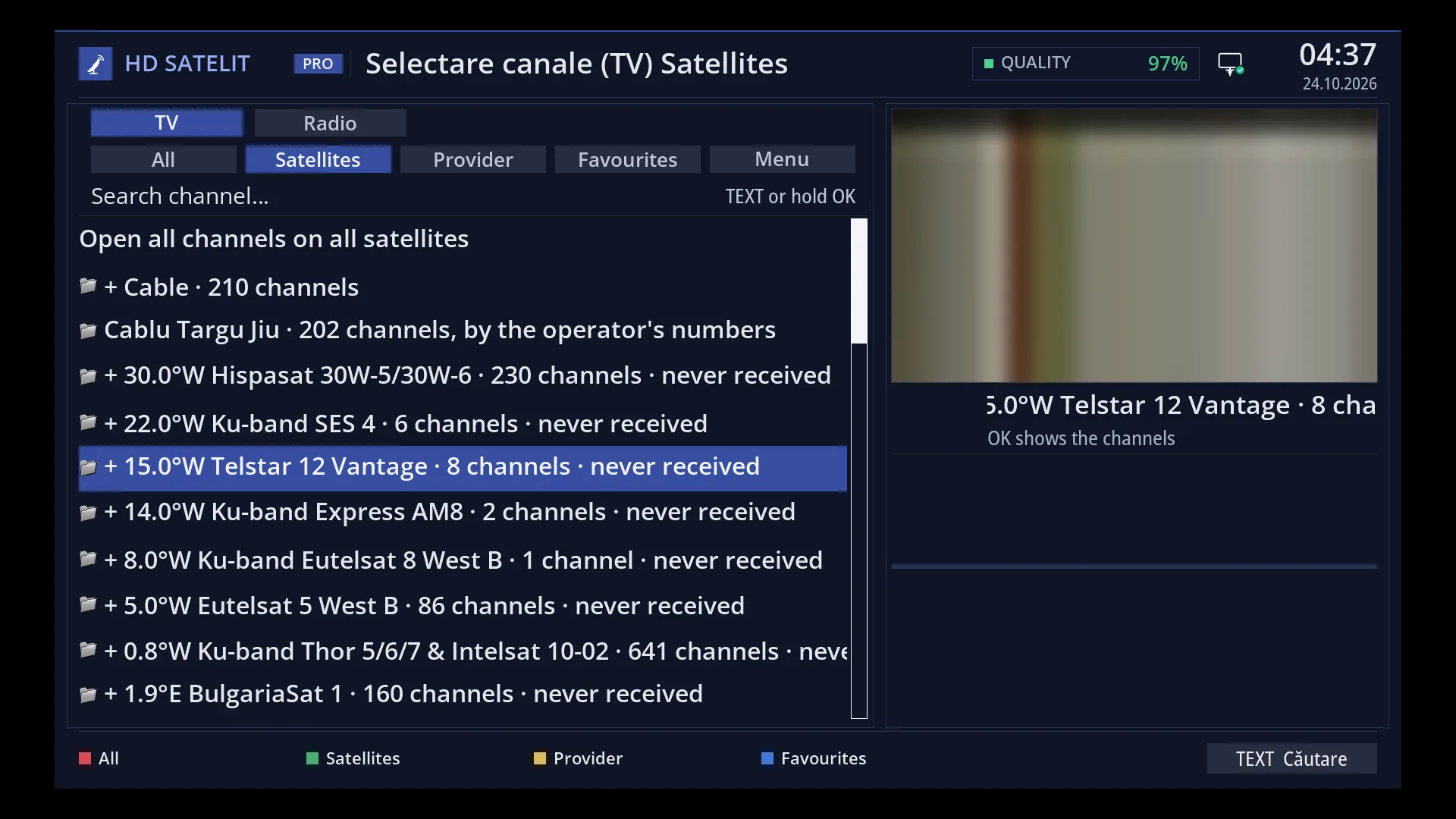
- 1 The selected row.
What it is for
“Satellites” is the channel list group that sorts channels by location: cable, terrestrial and each satellite, from west to east. Each location has a single collapsed row, and its channels appear below it only when you open it with OK.
This way you no longer scroll through thousands of channels on satellites you don't watch: you open only the satellite you want.
When the list opens on “Satellites”, only the satellite of the current channel is open, with the cursor on the channel. The GREEN key collapses all satellites.
At the end of the list are the folders for stations received other than by a normal scan: “DVB-T2 from satellite” (in the TV list), “DAB+ from satellite” (in the radio list), “Internet channels (DVB-I)” and “Current Transponder”.
The channel search looks through all channels, whichever satellites are open or collapsed.
How to get here
Path: from live TV press DOWN (the channel list), then GREEN.
Keys from live TV: DOWN GREEN.
From the top of the list: press UP until you reach the group row, select the “Satellites” tab and press OK.
If you started the last channel from “Satellites”, the list opens straight here, with that channel's satellite open.
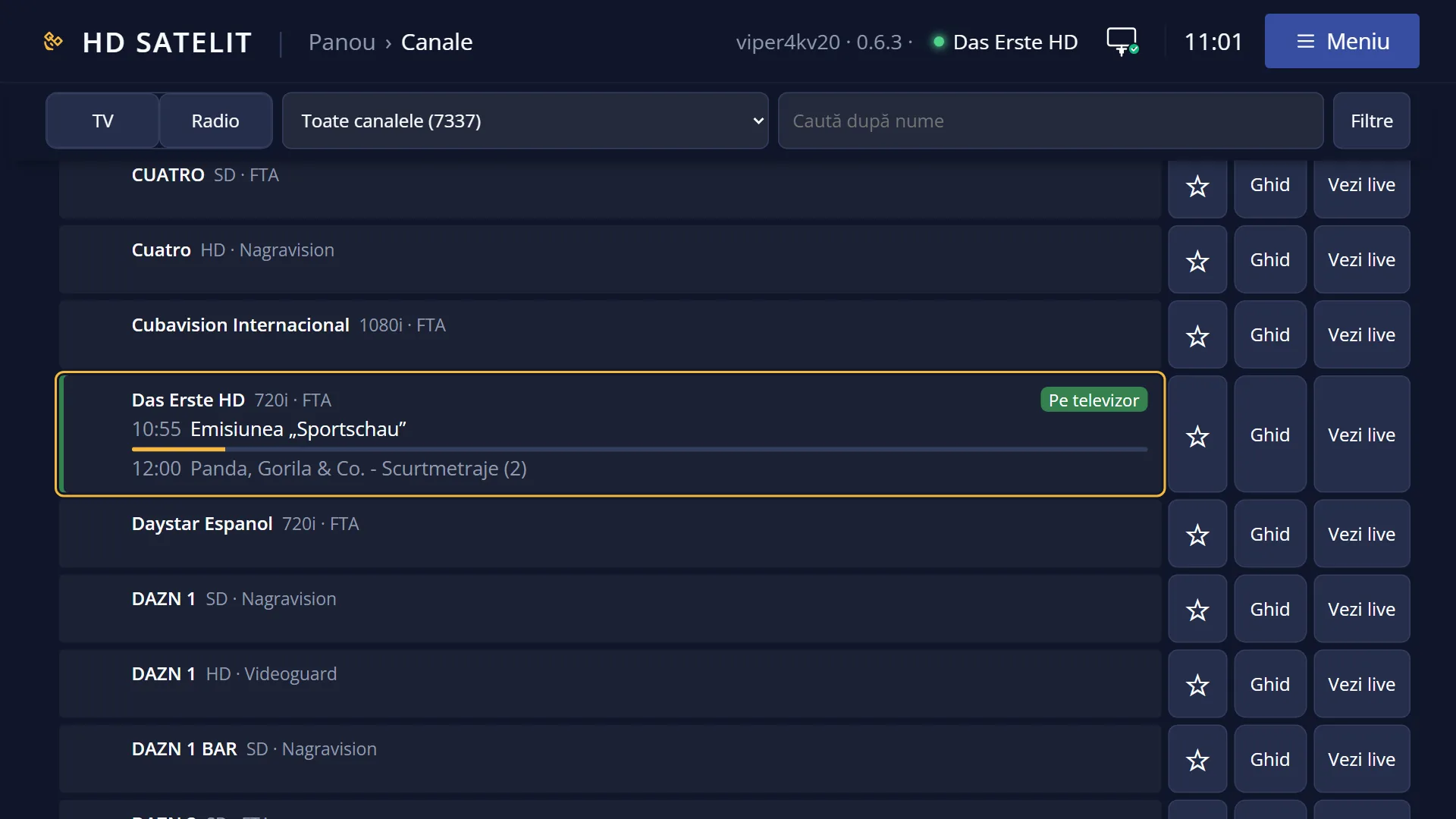
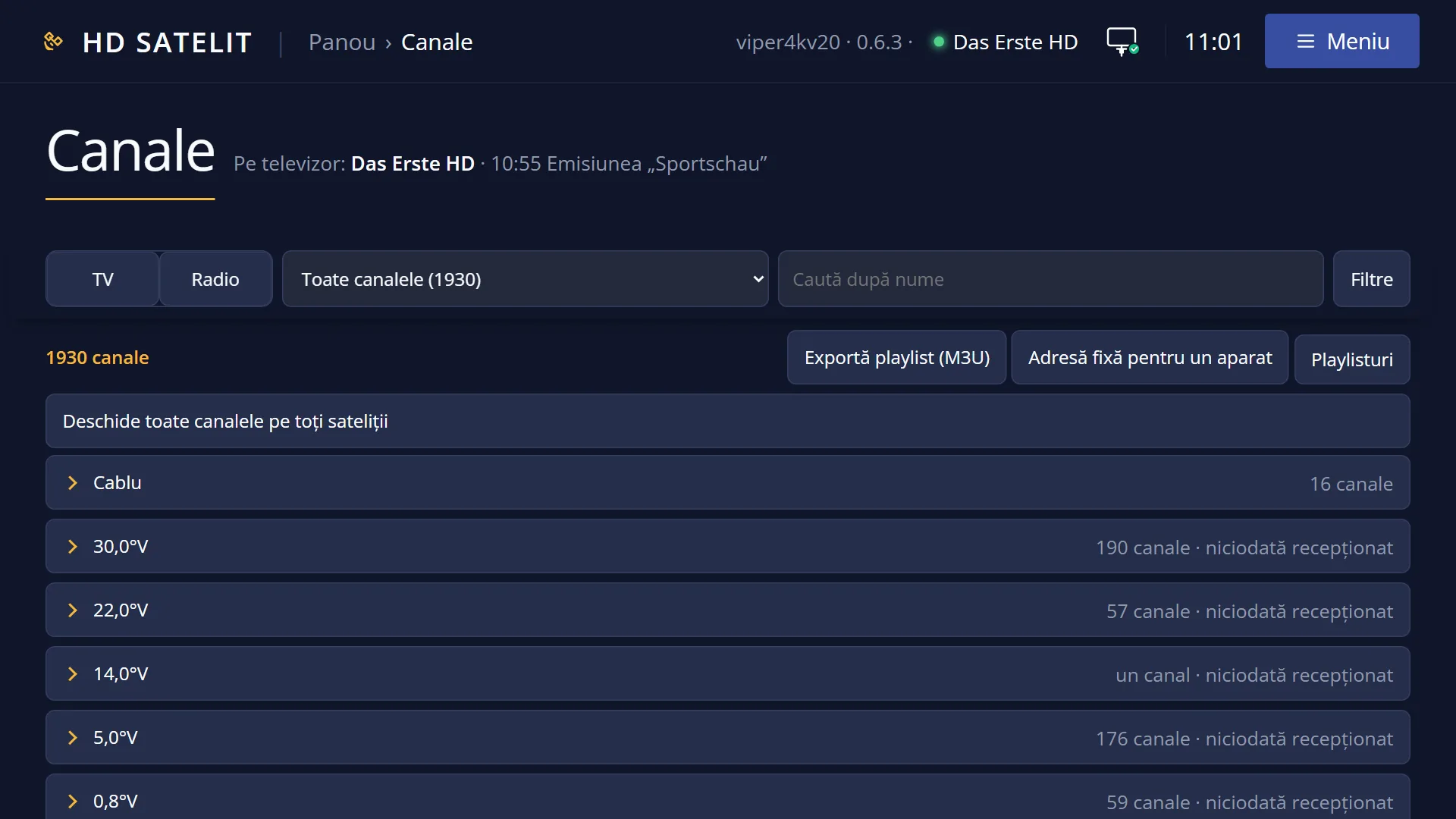
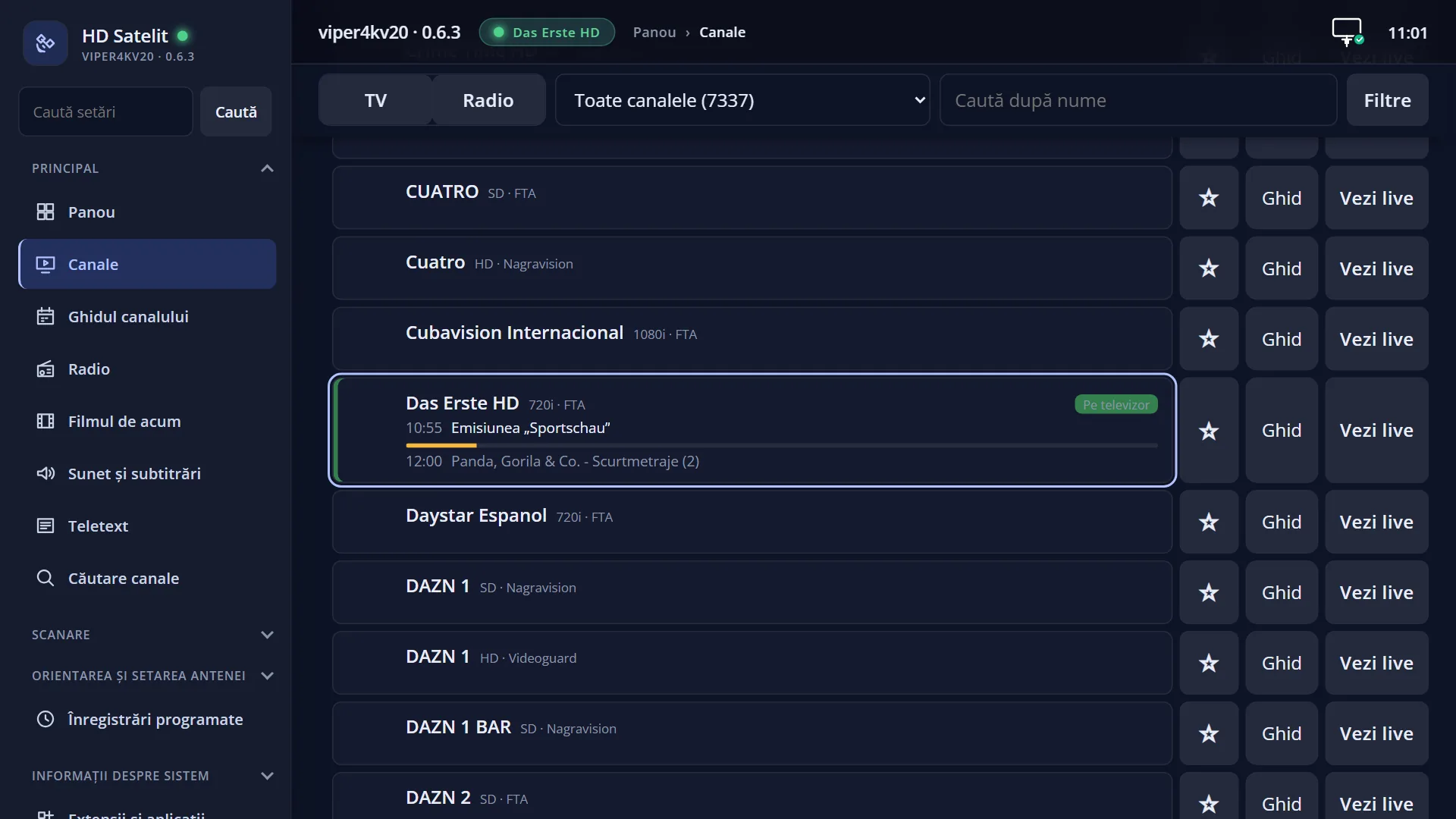
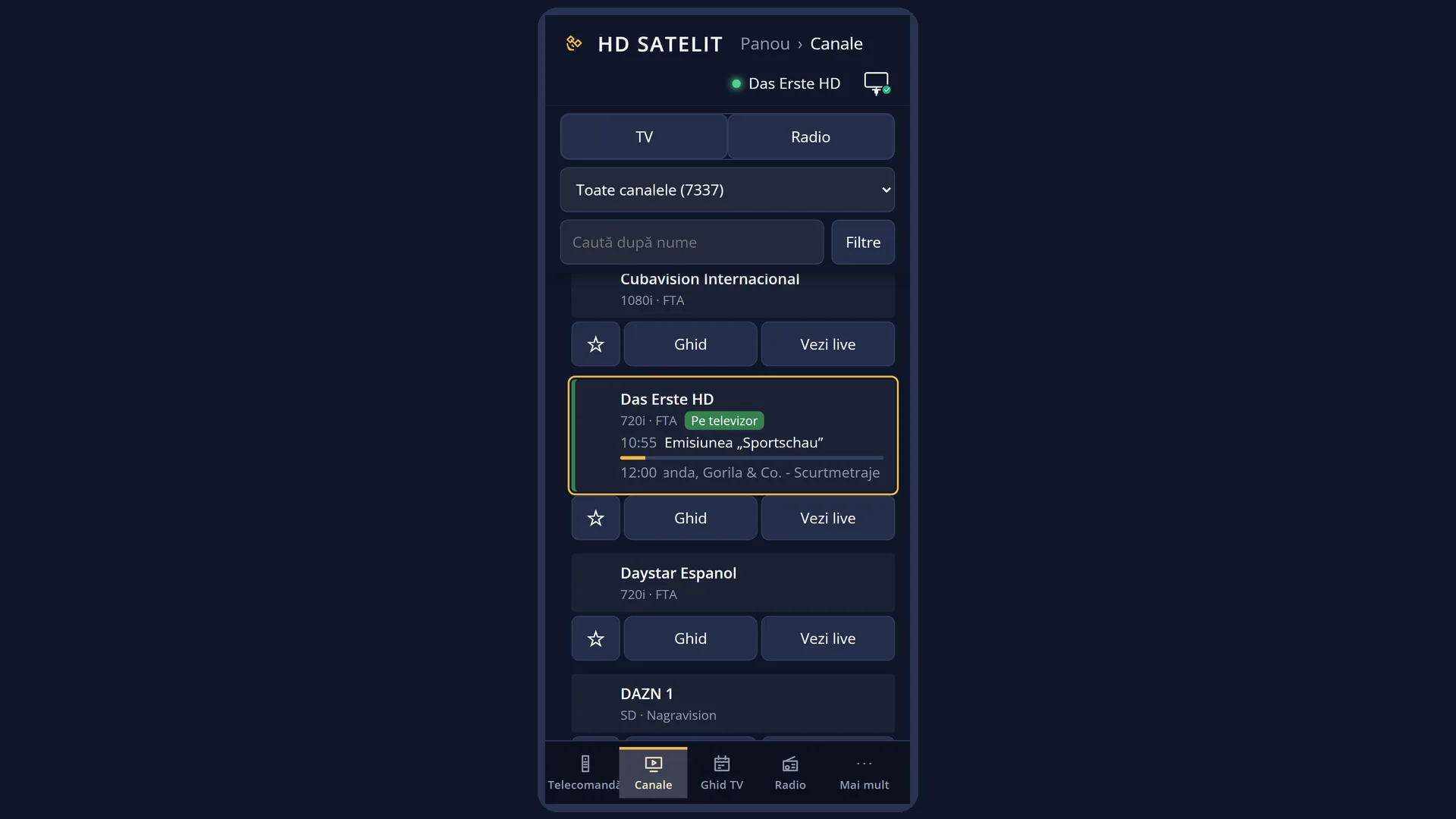
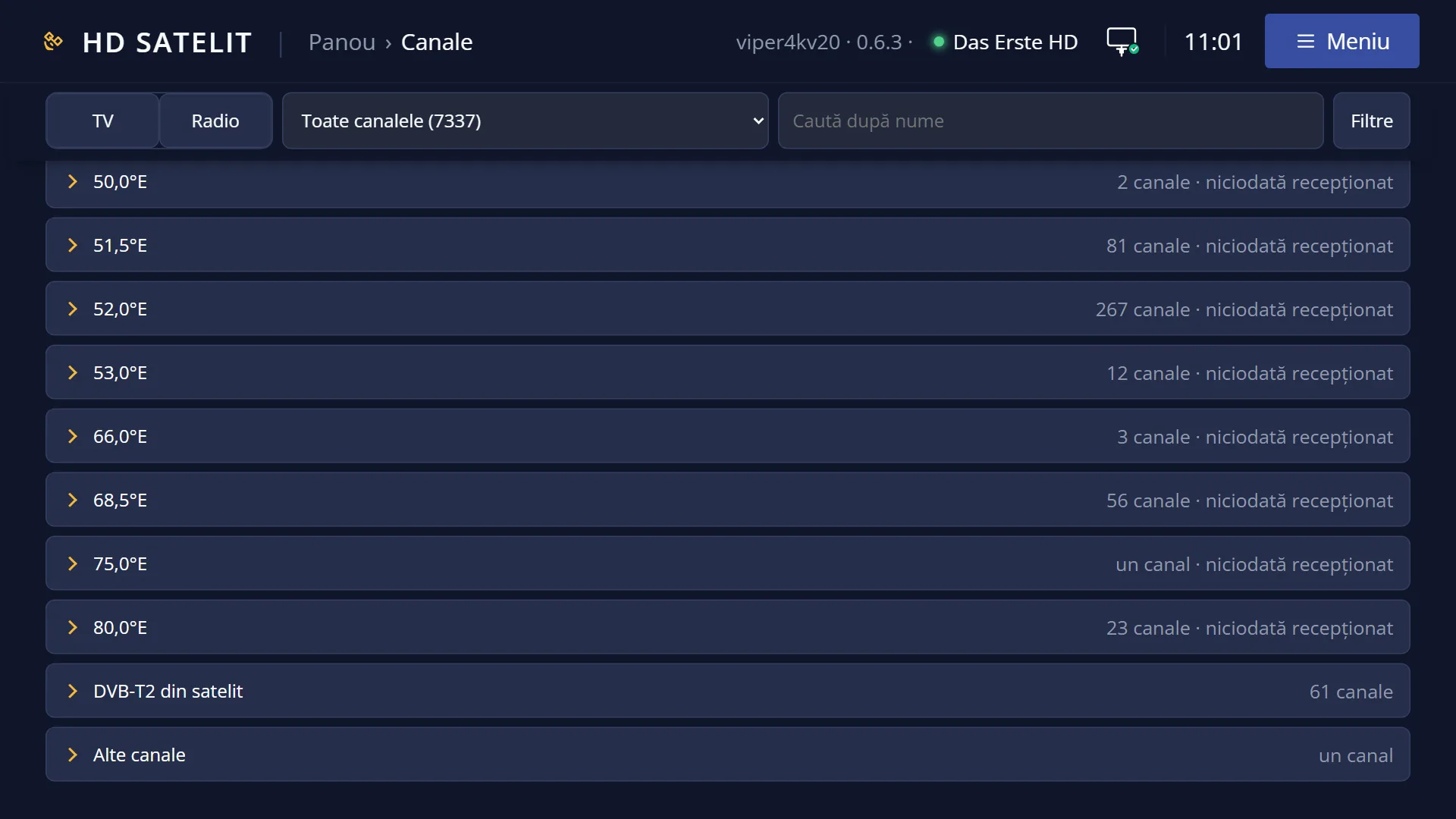
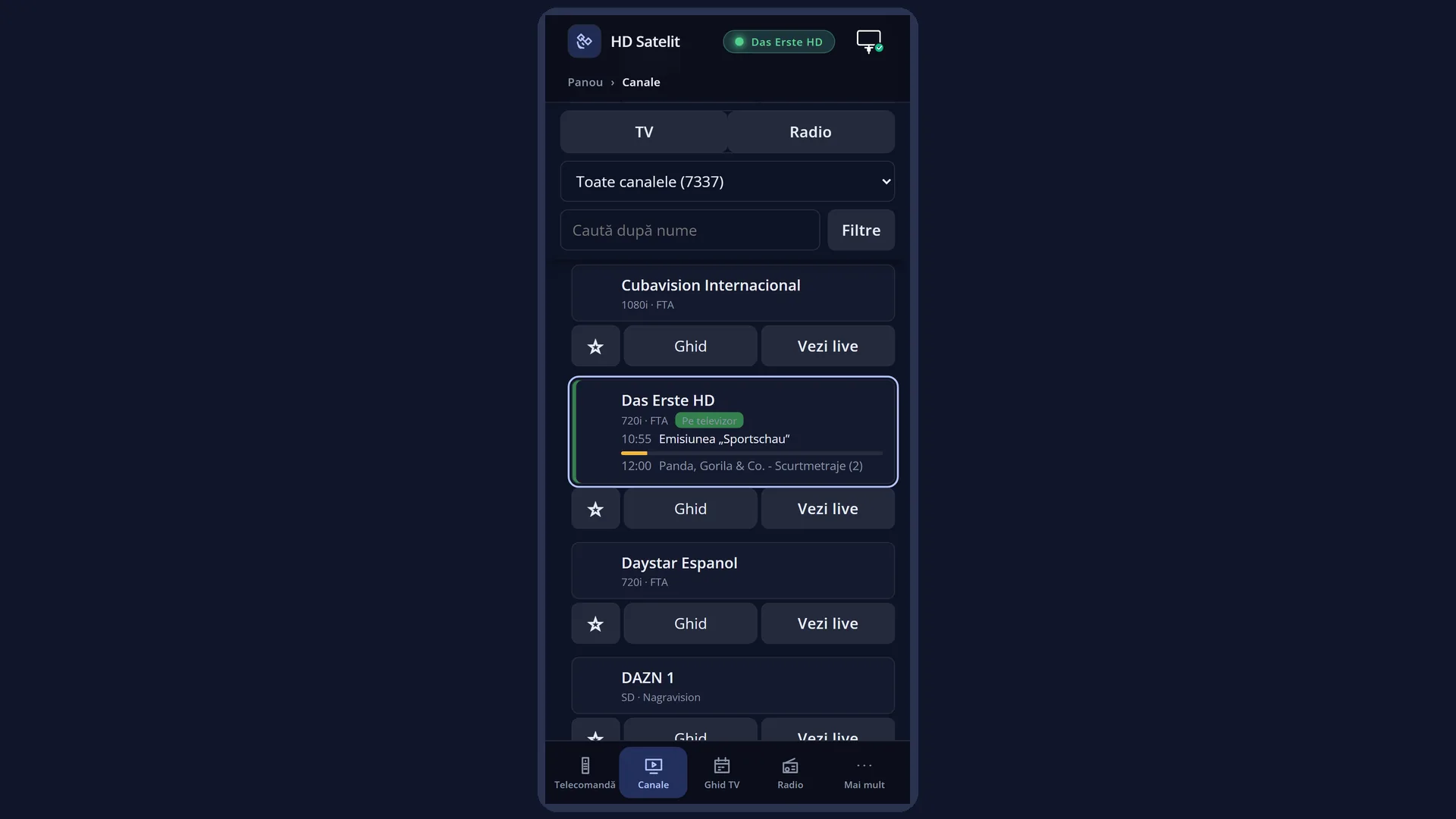
In the web interface: the /canale page, the “All channels” list with no search and no filters. It is collapsed into the same groups, with the group of the channel on the TV open.
What you see on the screen
The title “Channel Selection (TV) Satellites” (or “(Radio)” in the radio list).
The first row, when there are at least two locations: “Open all channels on all satellites”. When all are open, the same row reads “Close the other satellites”.
One row per location: first “Cable” and “Terrestrial”, if you have channels there, then the satellites by position, shown as “19.2°E Astra 1N”. In front of the name is “+” when the location is collapsed and “−” when it is open; after the name, the number of channels it has.
For a satellite from which this receiver has never received a signal, the row ends with “never received”.
Below an open location are its channels, sorted by name. Below cable there can also be the network lists read during the scan, for example “Cable … · 178 channels, by the operator's numbers”: in these, the channels are in the order of the numbers given by the operator.
With the “Providers and New for each satellite” setting turned on, the rows “<satellite> - Providers” and “<satellite> - New” also appear below each satellite.
On the right, below the name of the selected row, it says what OK does: “OK shows the channels”, “OK hides the channels” or, on the first row, “OK opens or closes all satellites”.
On a folder at the end, the right side shows what it is, how many stations it has and how it is filled, for example “DAB+ radio stations received via satellite” and “The list is filled in when you search again in Menu > Channel scan > Satellite > DAB+ via satellite.”
Rows and settings
| Row | Values | Default | What it does |
|---|---|---|---|
| Open all channels on all satellites / Close the other satellites | OK opens all locations at once. With all of them open, the row becomes “Close the other satellites” and OK leaves only the satellite of the current channel open. When you want to scroll through all channels as one list. | ||
| A satellite row (or “Cable”, “Terrestrial”) | + collapsed, − open | only the satellite of the current channel is open | OK opens the location (its channels appear below it) or collapses it again. The cursor stays on the satellite row. When you are looking for a channel on a satellite other than the current one. |
| <satellite> - Providers and <satellite> - New | not shown (the setting is off) | These appear only with the “Providers and New for each satellite” setting. “Providers”: the satellite's channels by provider. “New”: the new channels found in the last scan. When you want to see which new channels a scan has found. | |
| A network list (for example “Cable … · 178 channels, by the operator's numbers”) | It appears below its location after a scan that has read the numbers given by the operator. In it, the channels are in the order of these numbers, and the digit keys on the remote select the operator's number (the hint at the top: “Digits: the operator's number”). When you want the cable channels in the operator's order. | ||
| DVB-T2 from satellite / DAB+ from satellite | The folder of DVB-T2 stations (in the TV list) or DAB+ stations (in the radio list) received via satellite, found with their own scan. When it is empty, a note over the list says what it is, and OK starts the scan. When you want to watch terrestrial television sent via satellite or listen to DAB+ radio. | ||
| Internet channels (DVB-I) | The folder of channels received over the internet from the DVB-I lists of the chosen country. When it is empty, OK opens the country selection. When you want channels without an aerial, over the internet. | ||
| Current Transponder | It appears when a channel is playing. It shows the channels on the same frequency as the current channel. When you want to see which other channels come with the current one. | ||
| Providers and New for each satellite (OSD Preferences) | Yes, No | No | Yes: in the channel list, under “Satellites”, each satellite also has the rows “Providers” (its channels by provider) and “New” (the new channels found in the scan) below its name. No: a single row per satellite, and the providers of all satellites stay on the YELLOW key. When you often work with a satellite's new channels or its providers. |
Keys
| OK | On a satellite row: opens or collapses it. On the first row: opens all satellites (or collapses the others). On a channel: starts it and closes the list. On a folder at the end: opens it. |
| GREEN | Collapses all satellites, including that of the current channel, with the cursor on the current channel's satellite row. |
| CH+ / CH- | The cursor jumps to the next or previous satellite row; after the last one comes the first again. |
| UP / DOWN, LEFT / RIGHT | As in the rest of the list: the row above or below, the page above or below (on the last page, RIGHT goes to the first row). |
| 0 | From a folder (DVB-T2 from satellite, Current Transponder, a network list, Providers, New): back to “Satellites”, on the folder's row. |
| EXIT | Closes the list. The next time you open it, only the satellite of the current channel is open again. |
| MENU | On a satellite row: “remove selected satellite” (deletes all its channels immediately, without asking) and, with “Enable multiple bouquets” turned on, “copy to bouquets”; on “New”, “remove all new found flags”. |
| LEFT / RIGHT or CH+ / CH- in live TV | With the list on “Satellites”, changing channel in live TV stays within the current channel's satellite: after its last channel comes the first again. |
Step by step
Choose a channel on another satellite
- Press DOWN, then GREEN. All satellites are collapsed.
- Use UP and DOWN (or CH+ and CH-) to go to the satellite you want and press OK. Its channels appear below it.
- Select the channel and press OK.
See all channels in one list
- In “Satellites”, go to the first row, “Open all channels on all satellites”.
- Press OK. All satellites open.
- To go back, press OK on the same row, which now reads “Close the other satellites”.
Listen to DAB+ radio via satellite
- Press RADIO (or UP in live TV) and GREEN.
- Go to the end of the list (LEFT from the first row), select “DAB+ from satellite” and press OK.
- If the folder is empty, OK starts the station scan; afterwards, select the station and press OK.
Problems and solutions
I can't see a satellite's channels, only its row.
The satellite is collapsed (the “+” sign). Press OK on its row.
I opened several satellites, and the next time I open the list they are collapsed again.
This is how the list works: each time it opens, only the satellite of the current channel stays open. For your own list that always stays the same, put the channels in Favourites.
A satellite has “never received” at the end.
The receiver has never had a signal at that position: the channels came from a ready-made list or the dish is not pointed at that satellite. Check the dish in Menu > Dish alignment and setup, or remove the satellite with MENU.
I can't find “Providers” and “New” below the satellites.
Turn on “Providers and New for each satellite” in Menu > Settings > Interface & Appearance > OSD Preferences. Without it, the providers are on the YELLOW key.
The “DAB+ from satellite” or “DVB-T2 from satellite” folder is missing from the end of the list.
The folder appears after the first scan for these stations: Menu > Channel scan > Satellite > DAB+ via satellite (or DVB-T2 via satellite). “DAB+ from satellite” is in the radio list, “DVB-T2 from satellite” in the TV list.
“Current Transponder” is missing.
The row appears only while a channel is playing.
The channels of a satellite have disappeared completely.
The satellite was removed with MENU > “remove selected satellite”. Scan it again from Menu > Channel scan > Satellite.
Related topics
- Channel selection (the whole list and its keys)
- Channel search (in all channels, whichever satellites are open)
- Favourites with one press
- Scanning for DAB+ and DVB-T2 stations via satellite: Menu > Channel scan > Satellite (on the web, /scanare).
- The “Providers and New for each satellite” setting: Menu > Settings > Interface & Appearance > OSD Preferences (on the web, /setari?id=usage).
- The matching web page: /canale, the “All channels” list.