

HD Satelit control panel
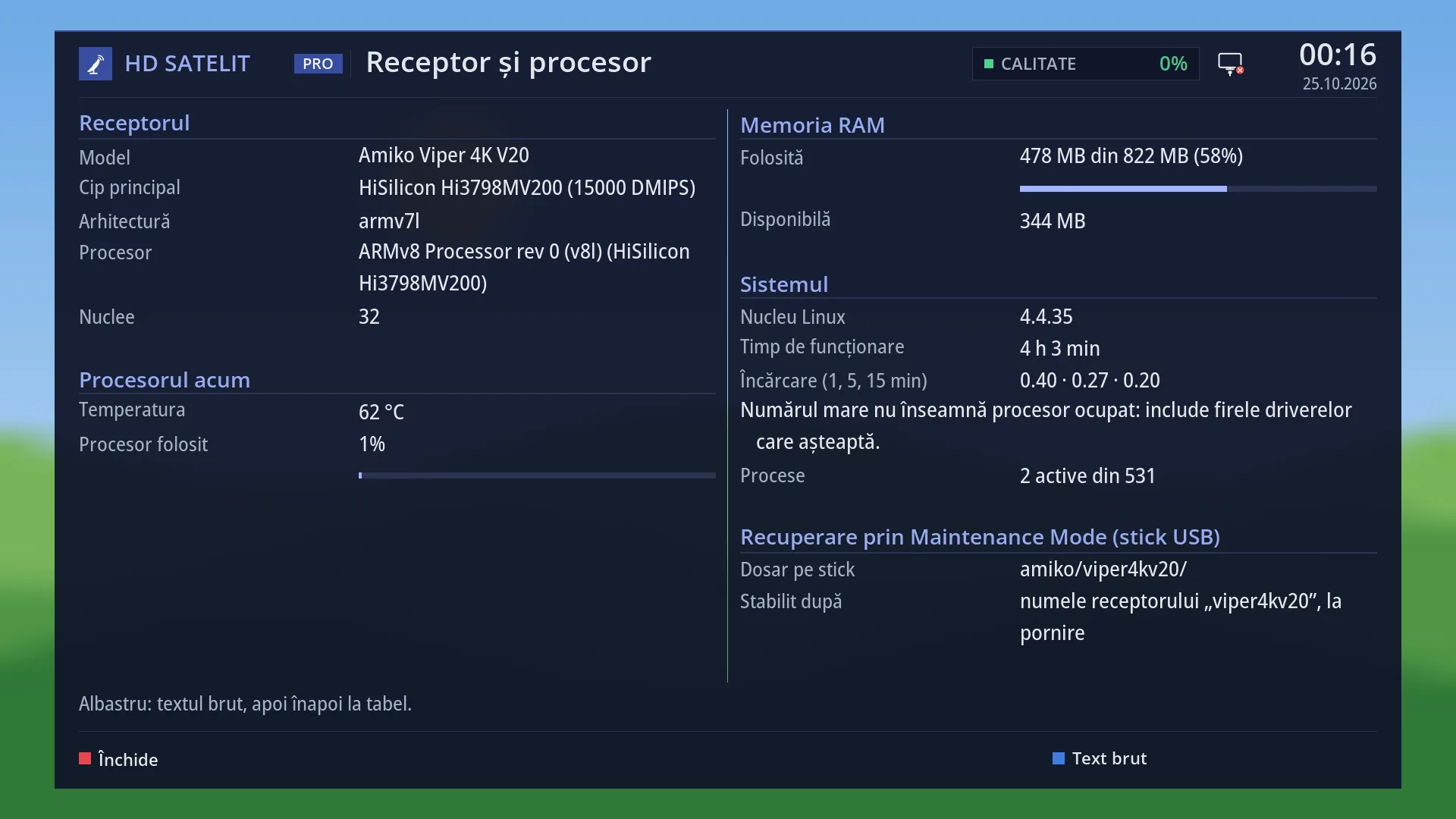
English screenshots coming: some of the pictures below still show the receiver and the web interface in Romanian. The rows, keys and steps described on this page are the English ones.
What it is for
The “HD Satelit control panel” is the first page of the web interface. You can see what is on the TV right now and control the receiver from your browser, just as you would with the remote.
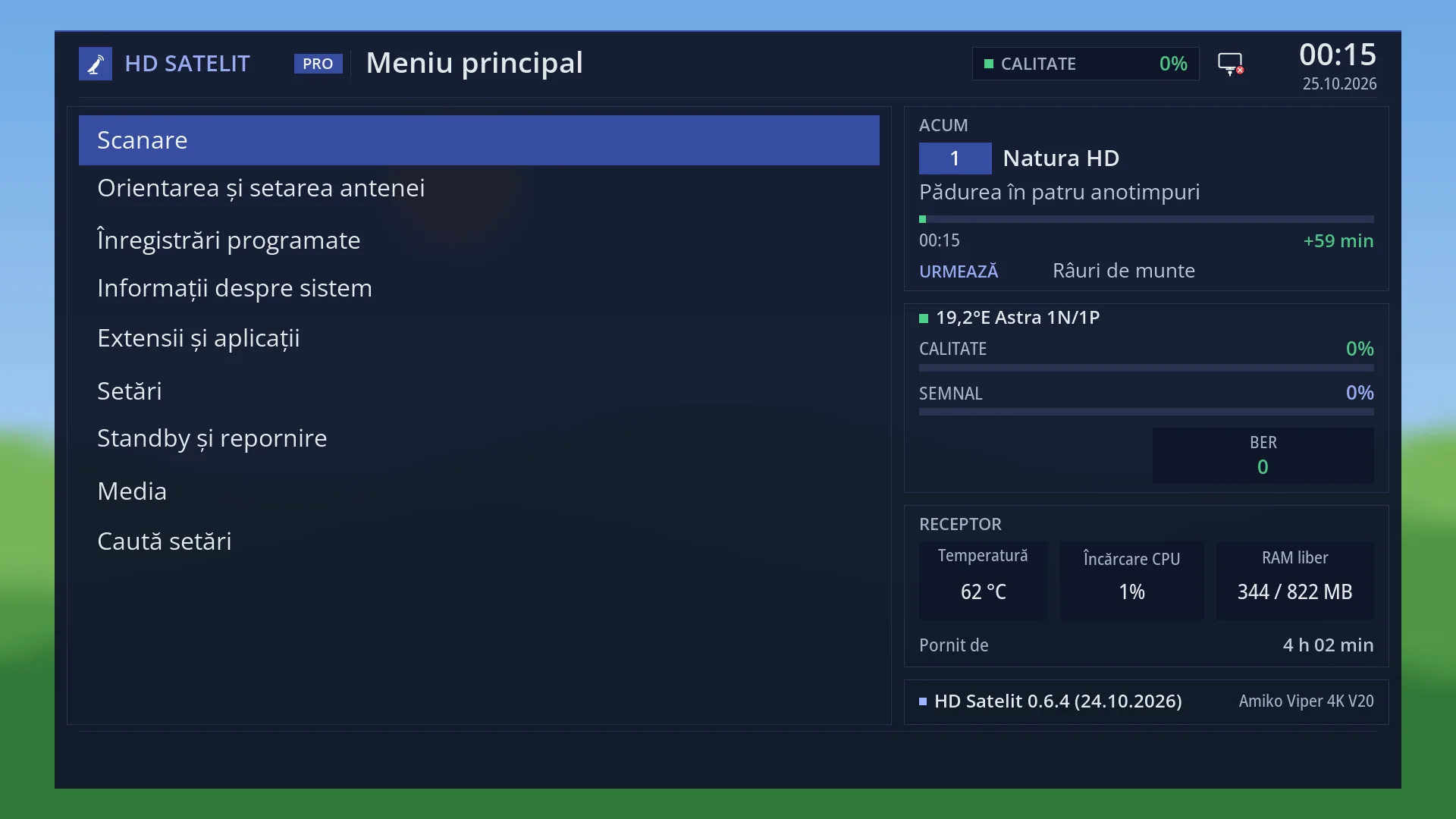
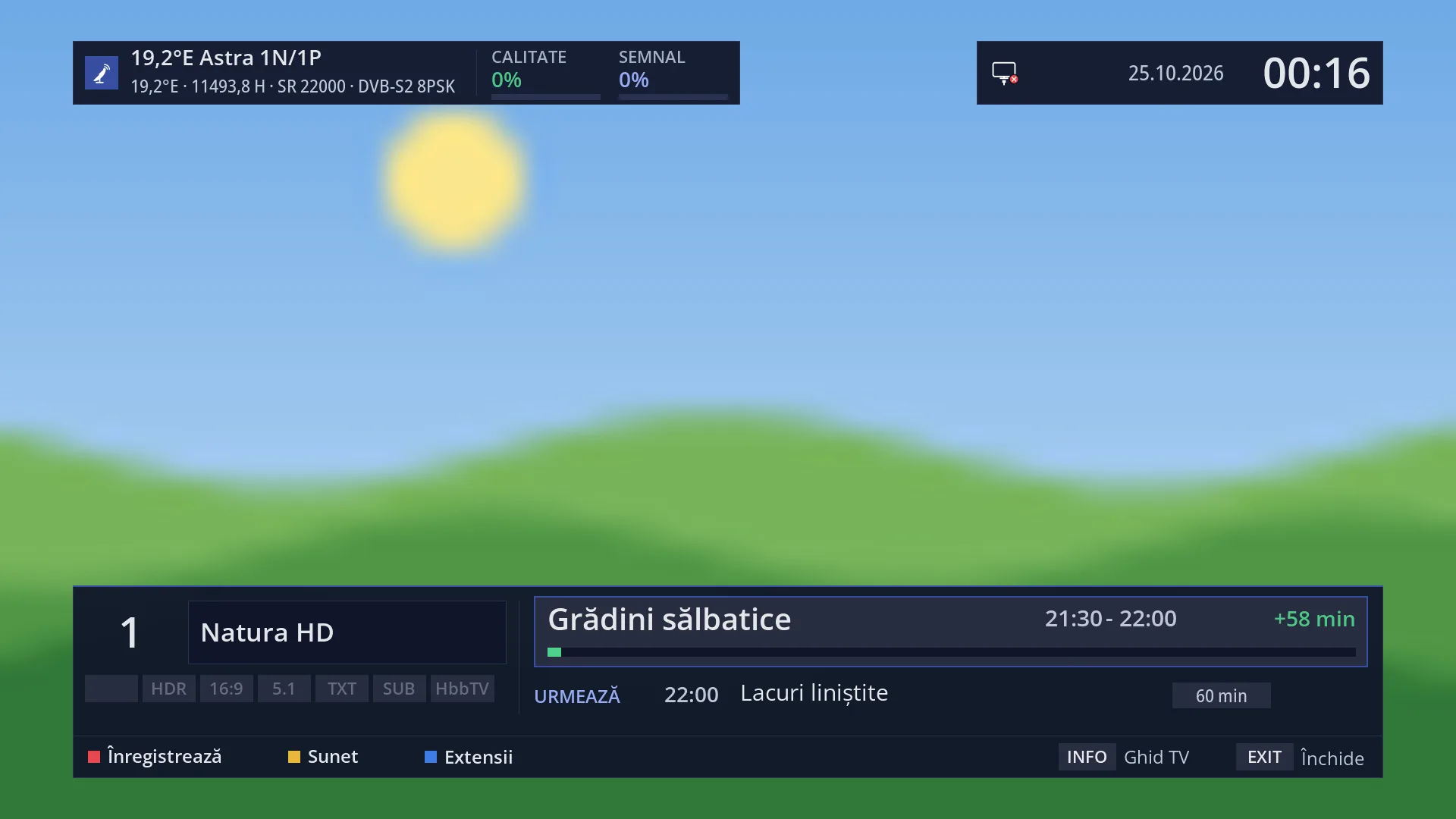
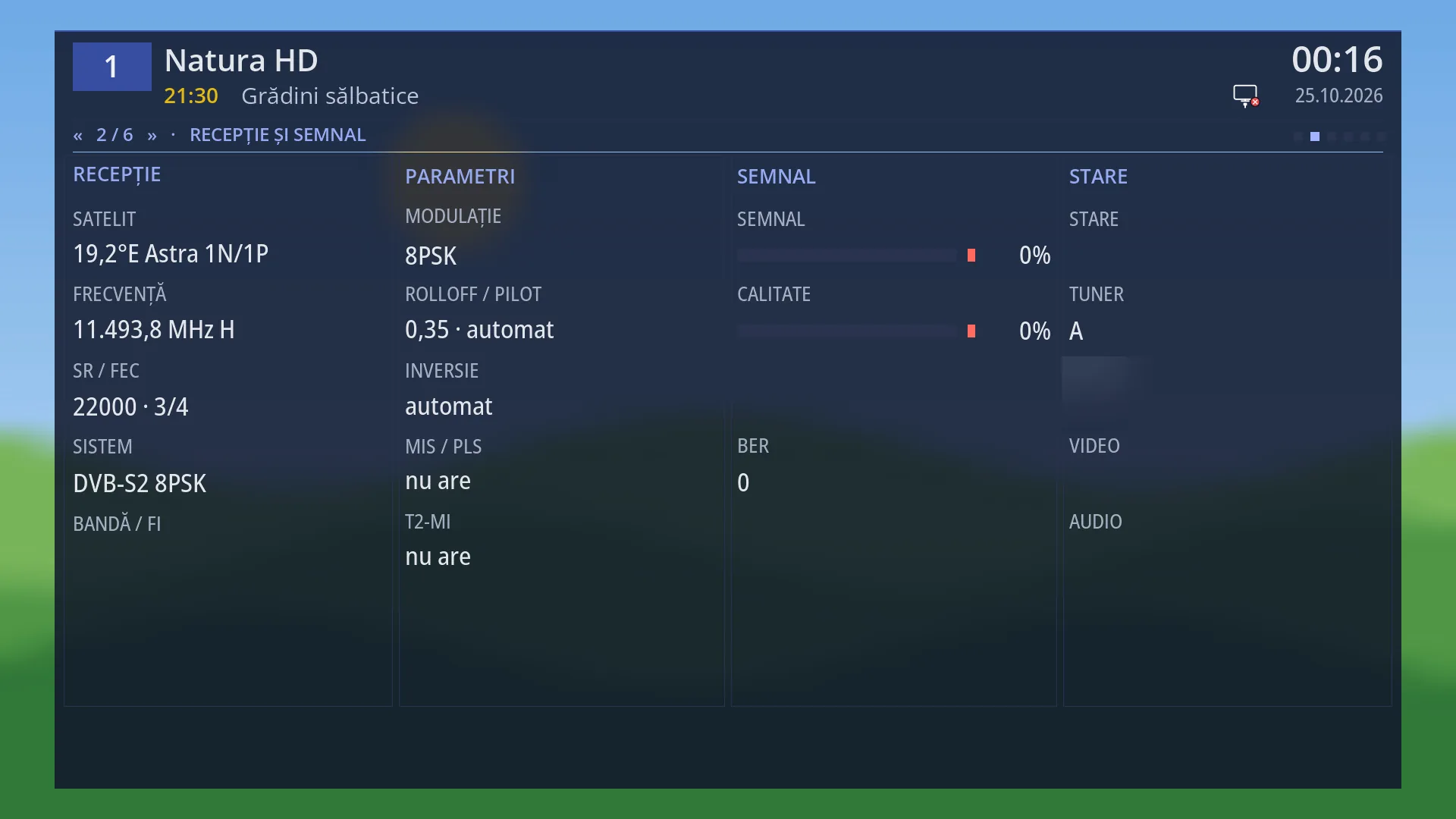
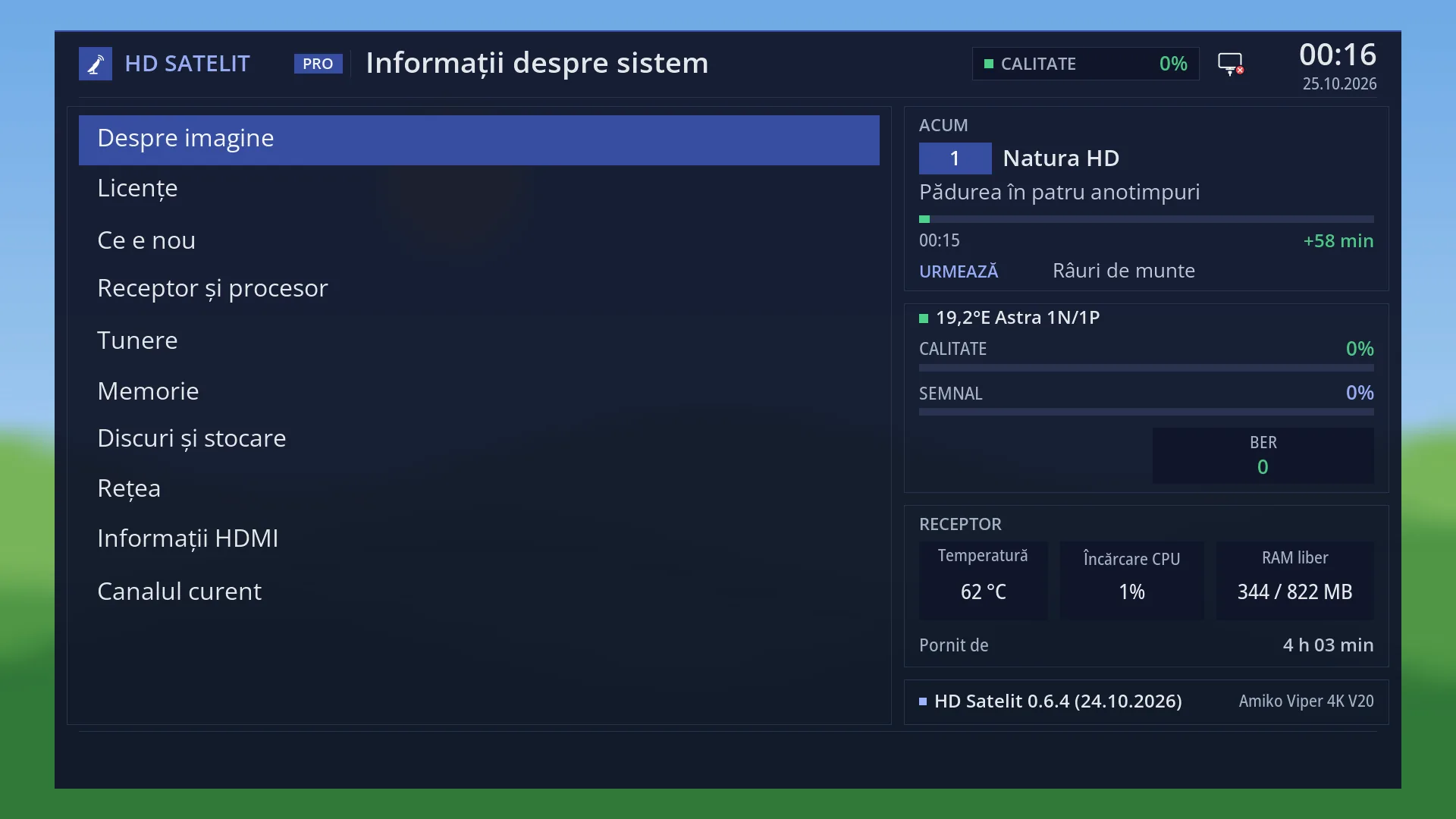
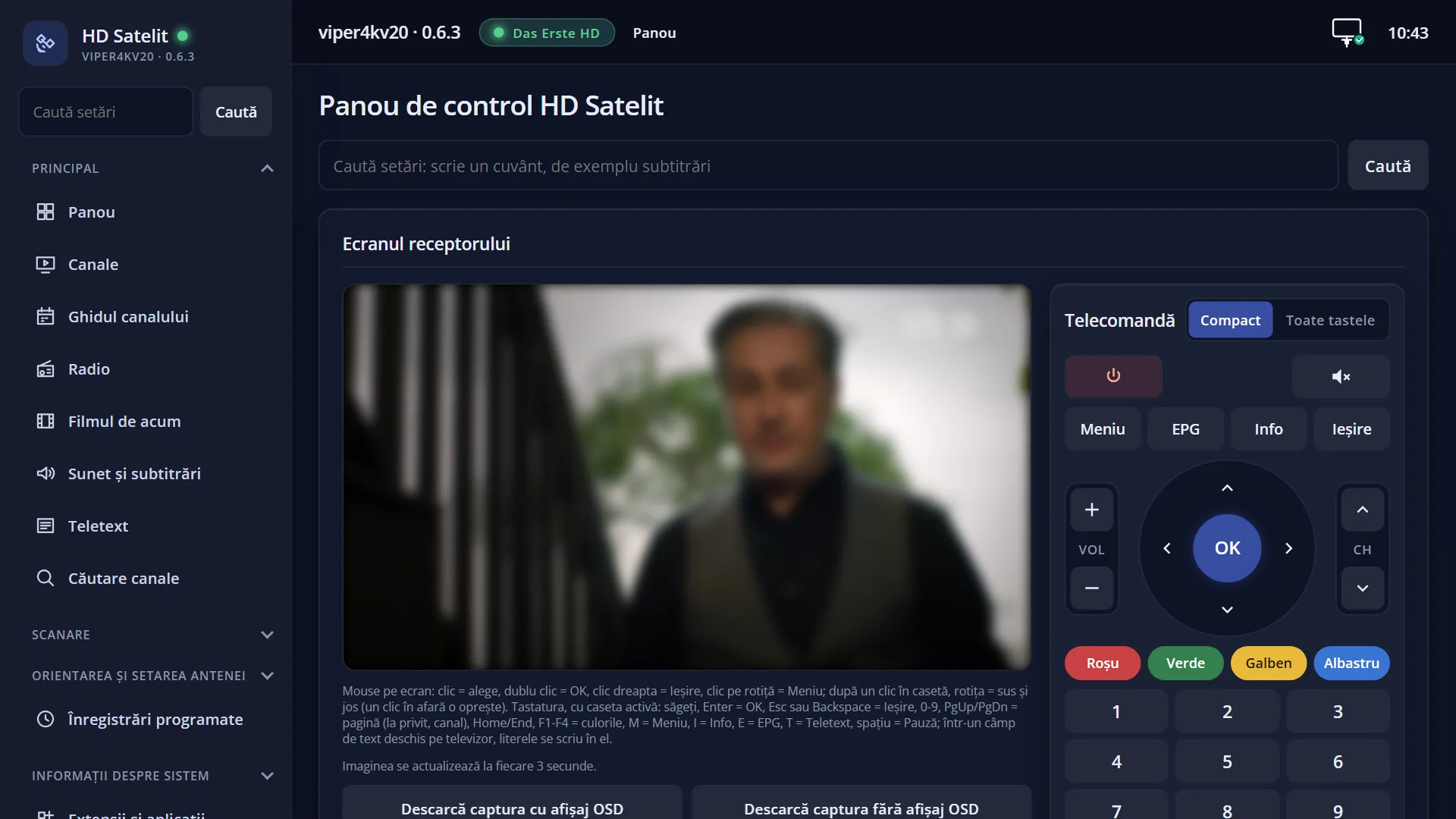
The picture of the receiver screen refreshes by itself. The full remote sits next to it, and you can click on the picture with the mouse (or tap it with your finger) to choose menu rows. You can download a screenshot of the screen, with or without the menu, and you can start the current channel right on the page.
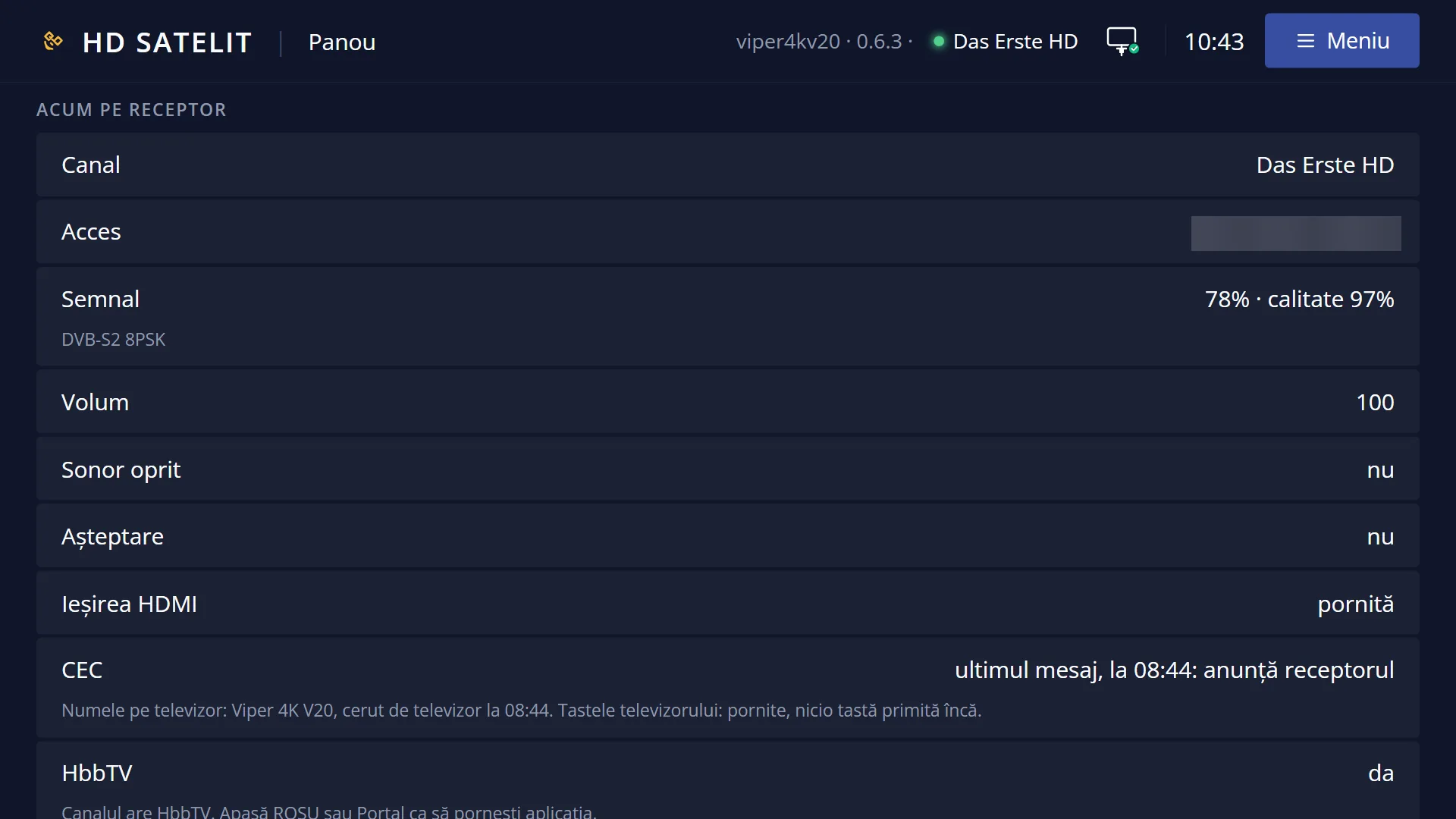
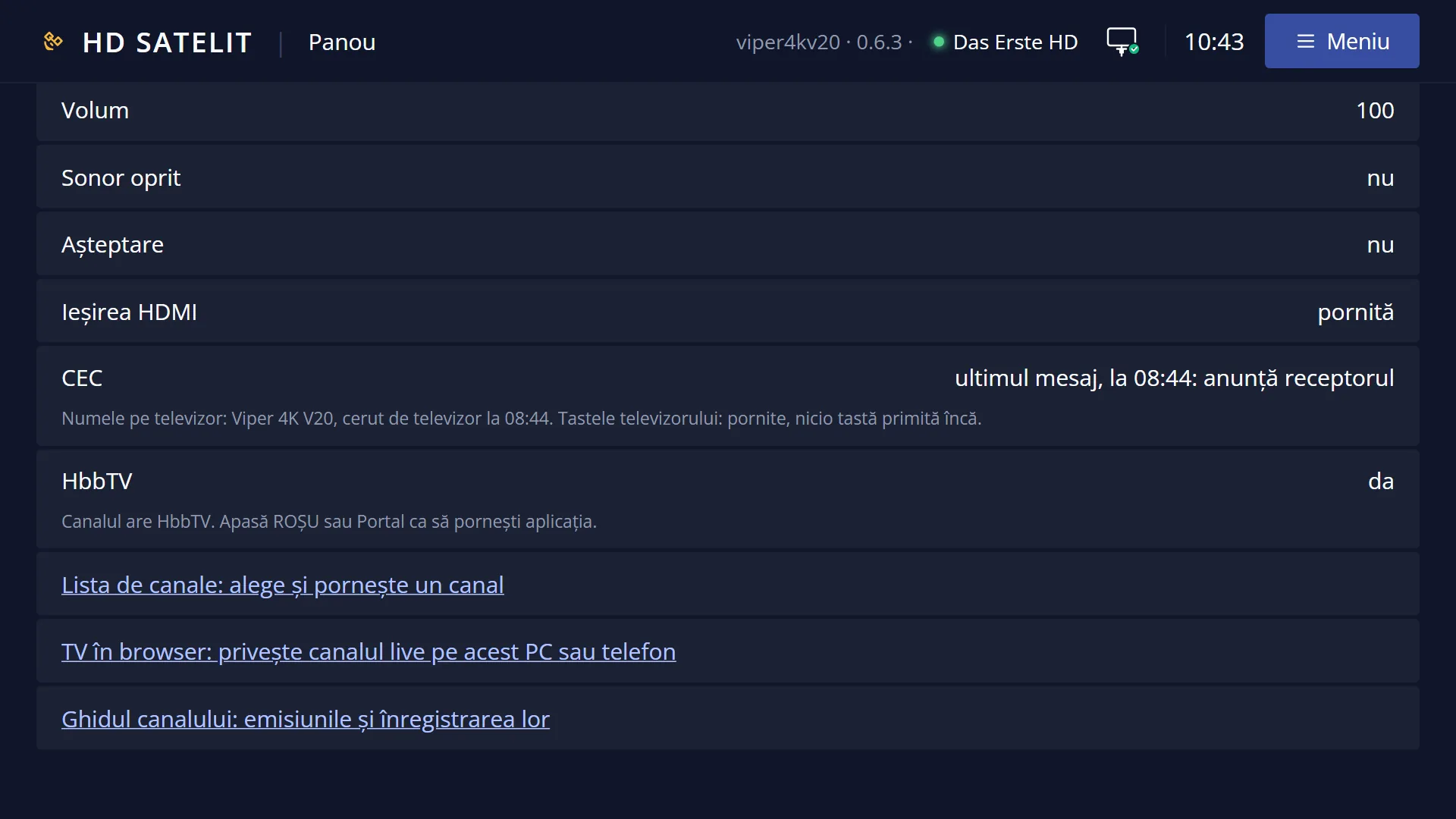
Below it, “Now on the receiver” shows the channel, the signal, the volume, whether the sound is off, standby and HbbTV, with links to the channel list, TV in browser and the guide.
You can open the panel from any browser in your home: phone, tablet or computer.
How to get here
In your browser, enter hdsatelit.local or the receiver's address (for example http://192.168.1.50). The panel is the start page, /.
From any other page of the web interface: “HD Satelit” in the header or, on a phone, “Remote” in the bottom bar.
The receiver's address is shown on the TV in Menu > Settings > Internet Sources > HdsWebControl (Web Interface).
What you see on the screen
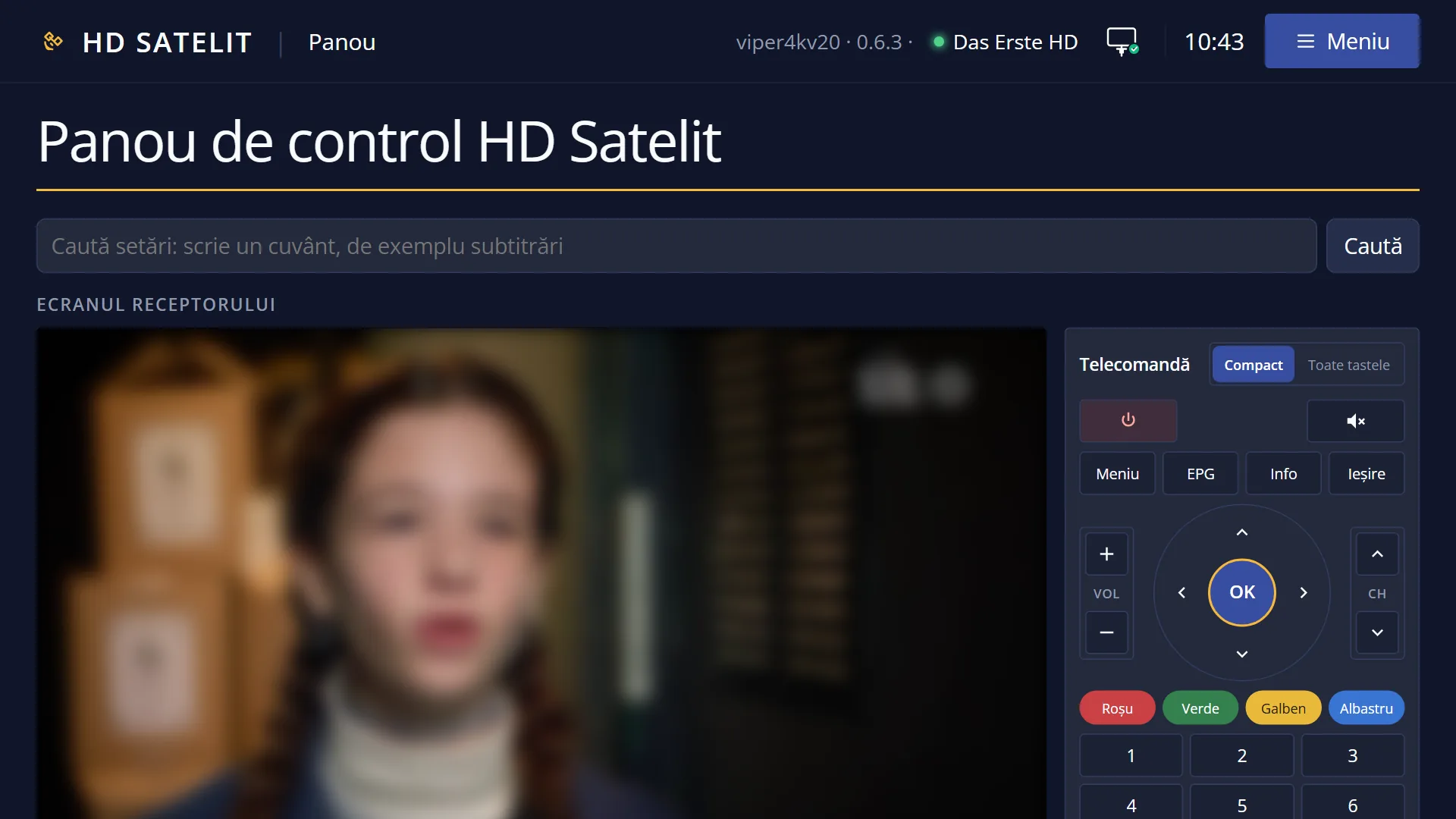
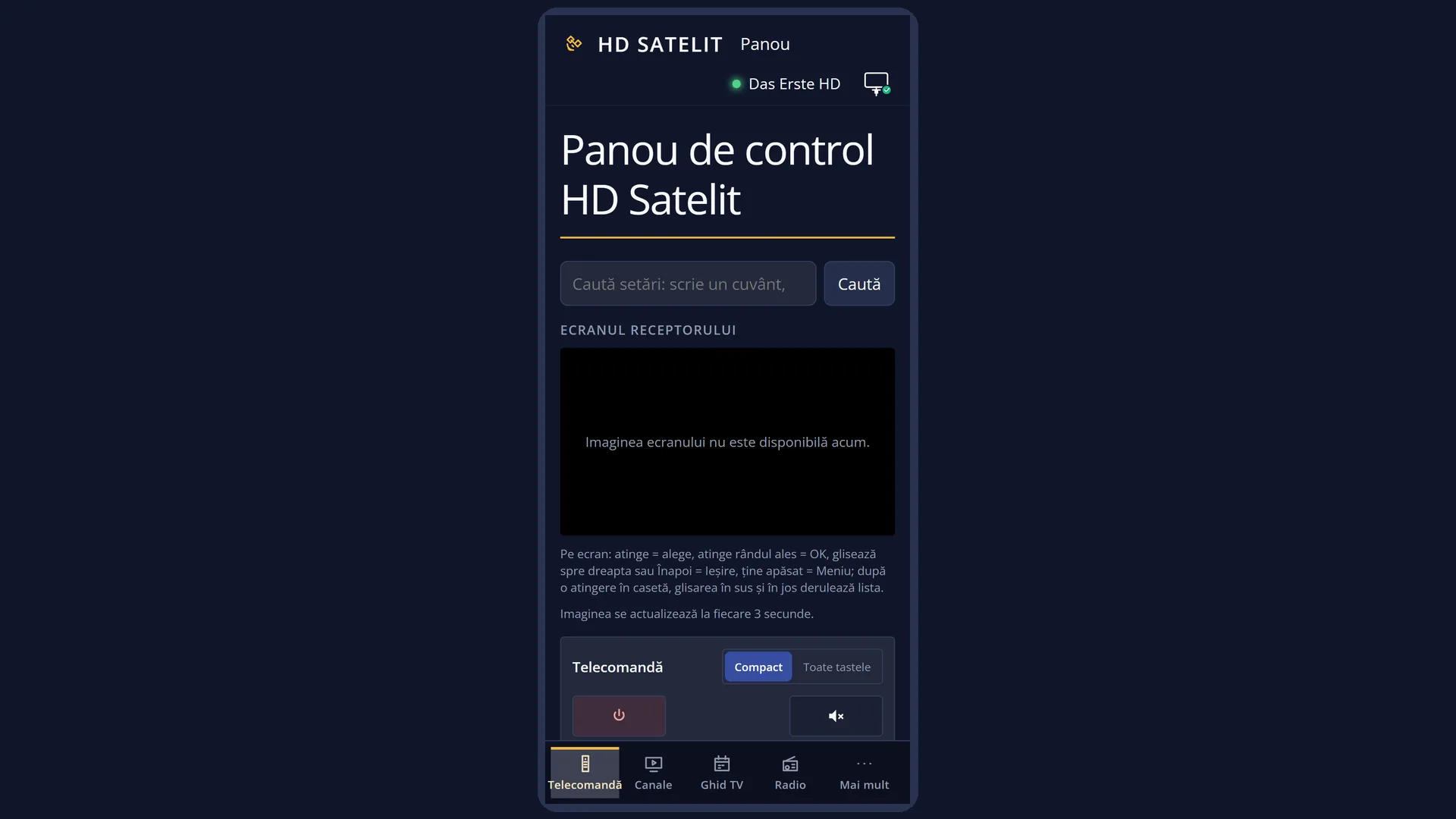
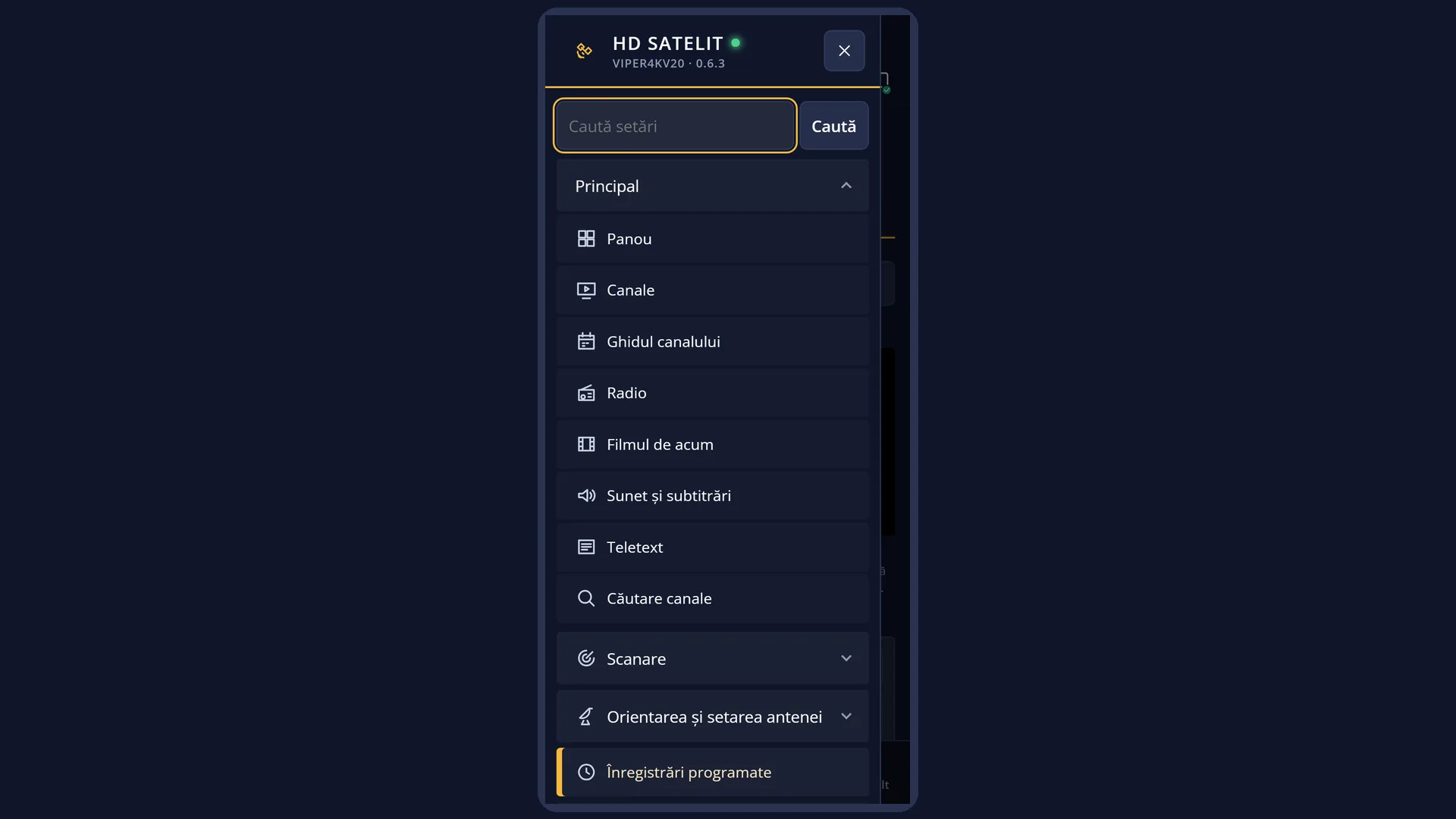
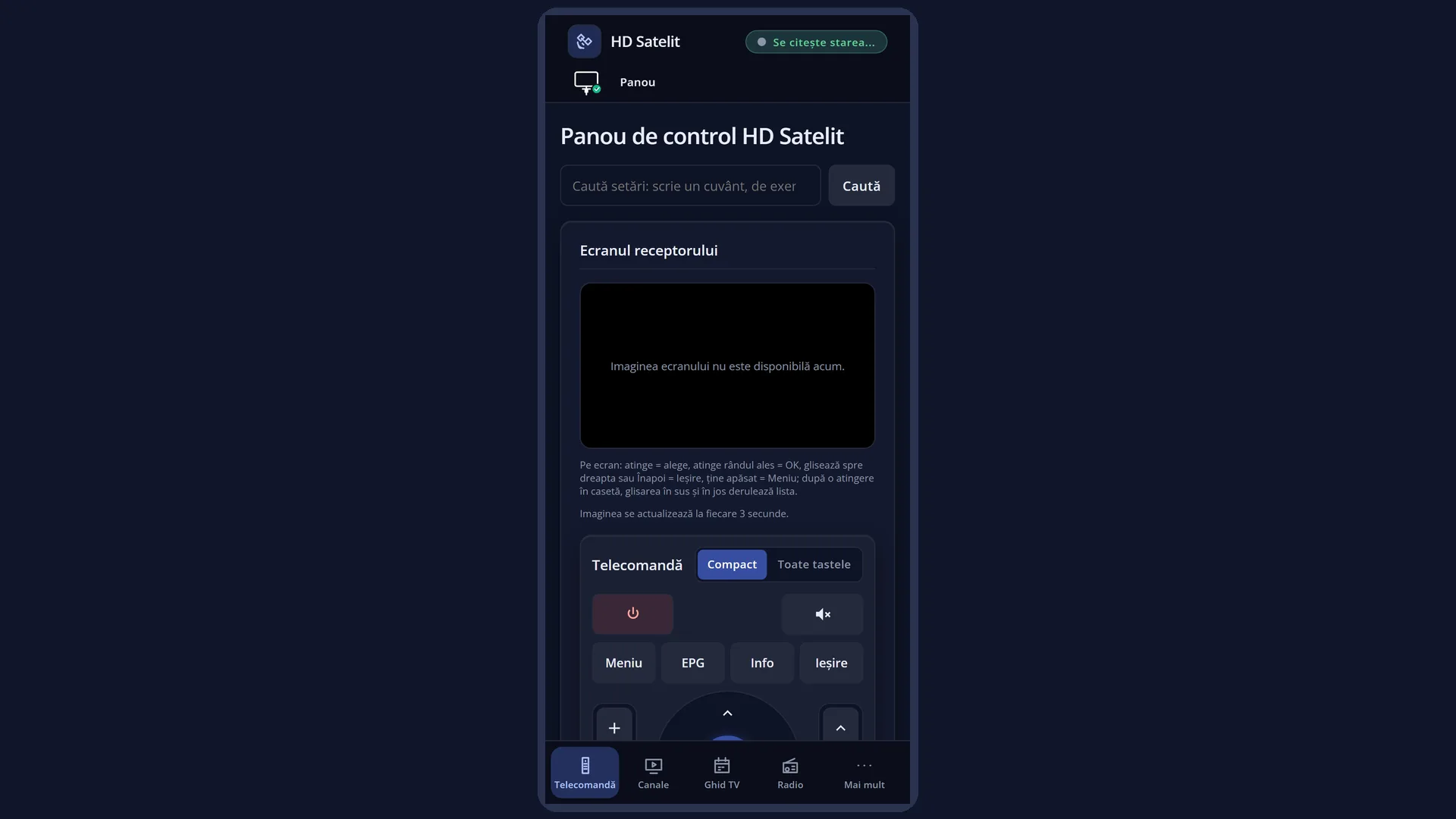
At the top is the header shared by all pages: “HD Satelit” (brings you here), the receiver name and the image version, a short status (the channel or standby), the network icon, the clock and the “Menu” button with the whole receiver menu in groups. On a phone, the bottom bar shows “Remote”, “Channels”, “TV guide”, “Radio” and “More”.
The title “HD Satelit control panel” and the box “Search settings: type a word, for example subtitles”, with the “Search” button.
When needed, a yellow strip with a link: the receiver has started in safe mode, or there are channels from another image on the USB stick that you can bring in.
The “The receiver screen” card: the picture of the screen, refreshed every 3 seconds (“The image updates every 3 seconds.”) and sooner after you press a key. Below it are the buttons “Download screen capture with OSD” and “Download screen capture without OSD”, then “Watch live here” and “Download playlist (M3U)”, with the note “With menu: exactly what is on the TV. Without menu: only the channel picture, without what the receiver draws over it (menus, info bar, subtitles).”.
Next to the picture (on a phone, below it) is “Remote”, in two forms: “Compact” (power, mute, Menu, EPG, Info, Exit, volume, the ring with OK, channels, the four colours and the digits) and “All keys” (all the keys of the receiver's remote, in the order they have on it). Below it is the status line, for example “Sent: OK”.
The “Now on the receiver” card: “Channel”, “Signal” (with a short note), “Volume”, “Sound off”, “Standby Mode”, “HbbTV” (with a note), then the links “The channel list: choose and start a channel”, “TV in browser: watch the live channel on this PC or phone” and “The channel guide: the programmes and their recording”. On a radio station there is also “Radio: see the radio page (the station, the track, the bars)”. The status is read again every 3 seconds.
At the bottom, “This browser: …” and the “Disconnect this browser” button (only for a browser linked with a code).
Rows and settings
| Row | Values | Default | What it does |
|---|---|---|---|
| Screen picture | with OSD, without OSD | with OSD | What is on the TV now, with the menus and the info bar. Downloading “with OSD” saves exactly what you see on the TV; “without OSD” saves only the channel picture. When the receiver cannot take the screenshot, it shows “The screen image is not available now.”. When you want to see from a distance what the receiver is doing, or send someone a picture of the screen. |
| Mouse and finger on the picture | A click selects the row under the mouse. A click on the row already selected, or a double click, is OK. A click on a colour key shown on the screen presses it. Right click is EXIT, clicking the wheel is MENU. After you click in the picture (a faint frame appears), the wheel moves the cursor in the list and the computer keys go to the receiver like a remote. A click outside the picture gives them back to the page. On a phone: tap = click, swipe right = EXIT, swipe up or down = scroll, tap and hold = MENU, the phone's Back button = EXIT. When you want to move through the menus faster than with the remote. | ||
| Watch live here | Starts the channel on the TV right in the panel, in place of the screenshot, with the receiver display over it. The button takes you back to the screenshot. It only works from a browser linked with a code: “The live image works only with the connected browser: open the panel without the key in the address.”. For all the browser picture settings, use the “TV in browser” page. When you want to watch the channel on your phone without leaving the panel. | ||
| Download playlist (M3U) | Downloads a playlist with the channel currently on the TV, for VLC, Kodi or another player in your home. When you want the channel in a player on your computer or smart TV. | ||
| Remote (Compact / All keys) | Compact, All keys | Compact | The keys go to the receiver just as from the real remote. A key held down for 0.7 seconds is sent as a long press (the status line shows “(long press)”). “All keys” also shows the less common keys: screen, audio, teletext, subtitles, portal, player, timer, skipping, pause, record, TV, HELP, favourites, radio. “All keys” when you need a key that is not in the compact form. |
| Now on the receiver | Channel, Signal, Volume, Sound off, Standby Mode, HbbTV | The receiver status, read again every 3 seconds: the current channel, how good the signal is, the volume, whether the sound is off, whether the receiver is in standby and whether the programme has HbbTV. | |
| Search settings | You type a word (for example “subtitles”) and reach the /cauta-setari page with the results, as with “Search settings” on the TV. When you do not know where a setting is. |
Keys
| Remote keys on the page | Short press: as on the remote. Held for 0.7 seconds: long press. |
| Compact / All keys | Choose the form of the remote. |
| Download screen capture with OSD / without OSD | Saves a picture of the screen on your device, with the menu or with only the channel picture. |
| Watch live here | Starts the channel on the TV in the panel; press again to go back to the screenshot. |
| Download playlist (M3U) | Downloads the playlist of the current channel. |
| Click, double click, right click, wheel click, wheel (on the picture) | Select the row, OK, EXIT, MENU, up / down. |
| Computer keys (with the picture selected) | They go to the receiver like a remote; Esc is EXIT. |
| Search | Searches for the setting typed in the box. |
| Disconnect this browser | After asking you, removes this browser. Next time it will ask again for the code shown on the TV. |
Step by step
Control the receiver from your phone
- Open hdsatelit.local in your phone's browser.
- Use the remote below the picture. The screen picture shows what is happening on the TV.
- For a less common key (for example TEXT or record), choose “All keys”.
Move through the menu with the mouse
- Press Menu on the remote on the page.
- On the picture, click the row you want, then click it once more (or double click) to open it.
- Right click takes you back one step (EXIT).
Save a picture of the screen
- In the “The receiver screen” card, press “Download screen capture with OSD” (with the menu) or “without OSD” (picture only).
- Wait for “The screen capture has been downloaded.”. The picture is in your browser's downloads.
Problems and solutions
“The screen image is not available now.”
The receiver could not take the screenshot (for example, it is just starting up or it is in standby). Wait a few seconds. If it stays like this, restart the receiver's interface.
I press a key and it says “The key did not reach the receiver”.
The connection to the receiver has been lost. Check that the receiver is on and on the same network, then reload the page.
“Watch live here” says it only works with the connected browser.
You opened the panel with the script key in the address. Open the plain panel, without the key, from a browser linked with the code shown on the TV.
Clicking on the picture does nothing in the menu.
A click selects the row in the receiver's menus and lists. On other screens, use the remote on the page. On the live picture, clicking only works with “Receiver display” turned on.
The wheel scrolls the page instead of moving the cursor.
First click in the picture: a frame appears and the wheel goes to the receiver. A click outside the picture gives it back to the page.
I cannot see the “Disconnect this browser” button.
The button only appears for a browser linked with a code. A browser in your home that gets in without a code has nothing to disconnect.