

Teletext in the web interface
Screenshots are being added: so far 3 from the receiver and 9 from the web interface; the aim is at least 5 of each, with arrows and frames, and, where a setting changes what you see, a before and after comparison.
English screenshots coming: some of the pictures below still show the receiver and the web interface in Romanian. The rows, keys and steps described on this page are the English ones.

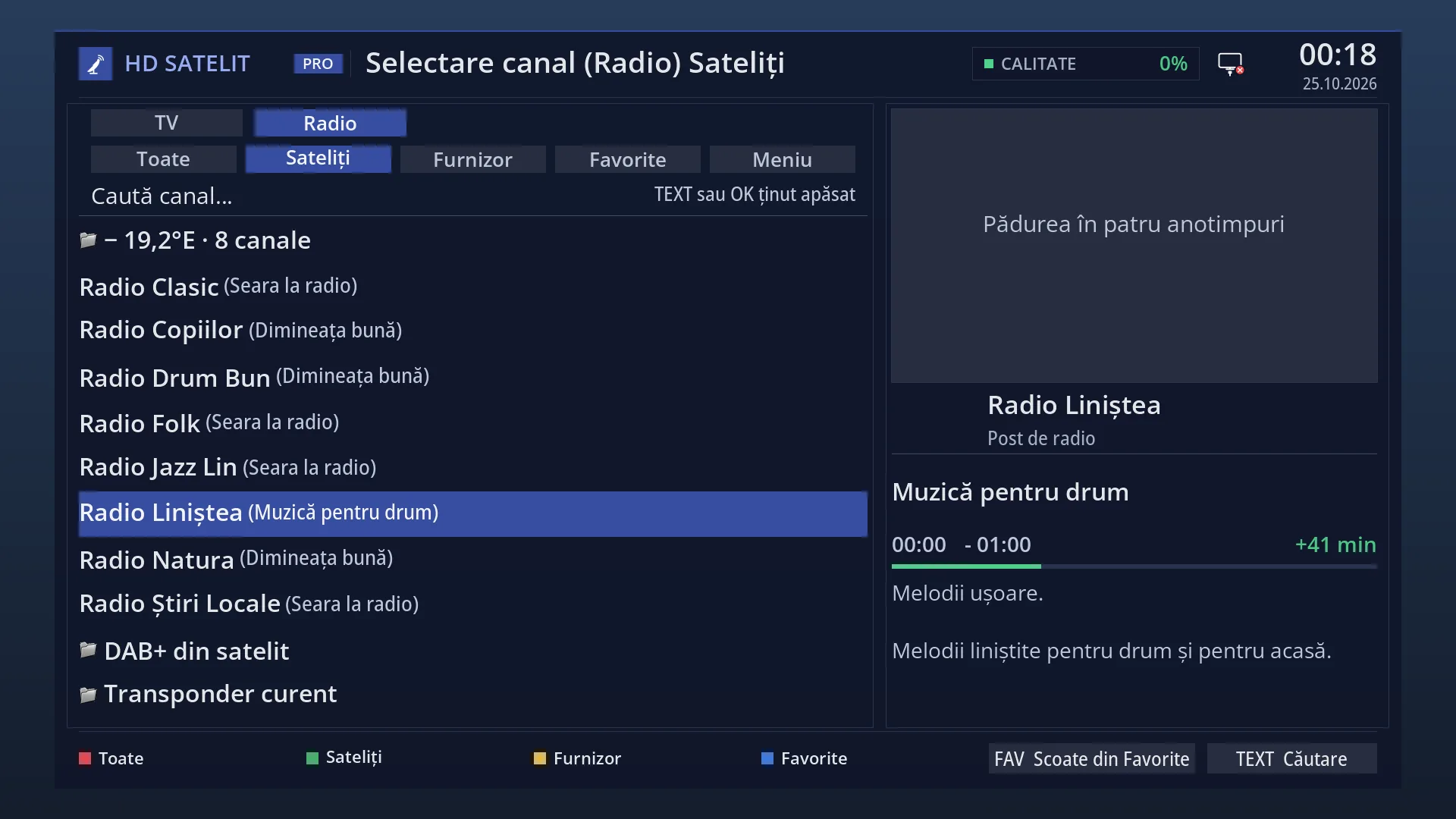
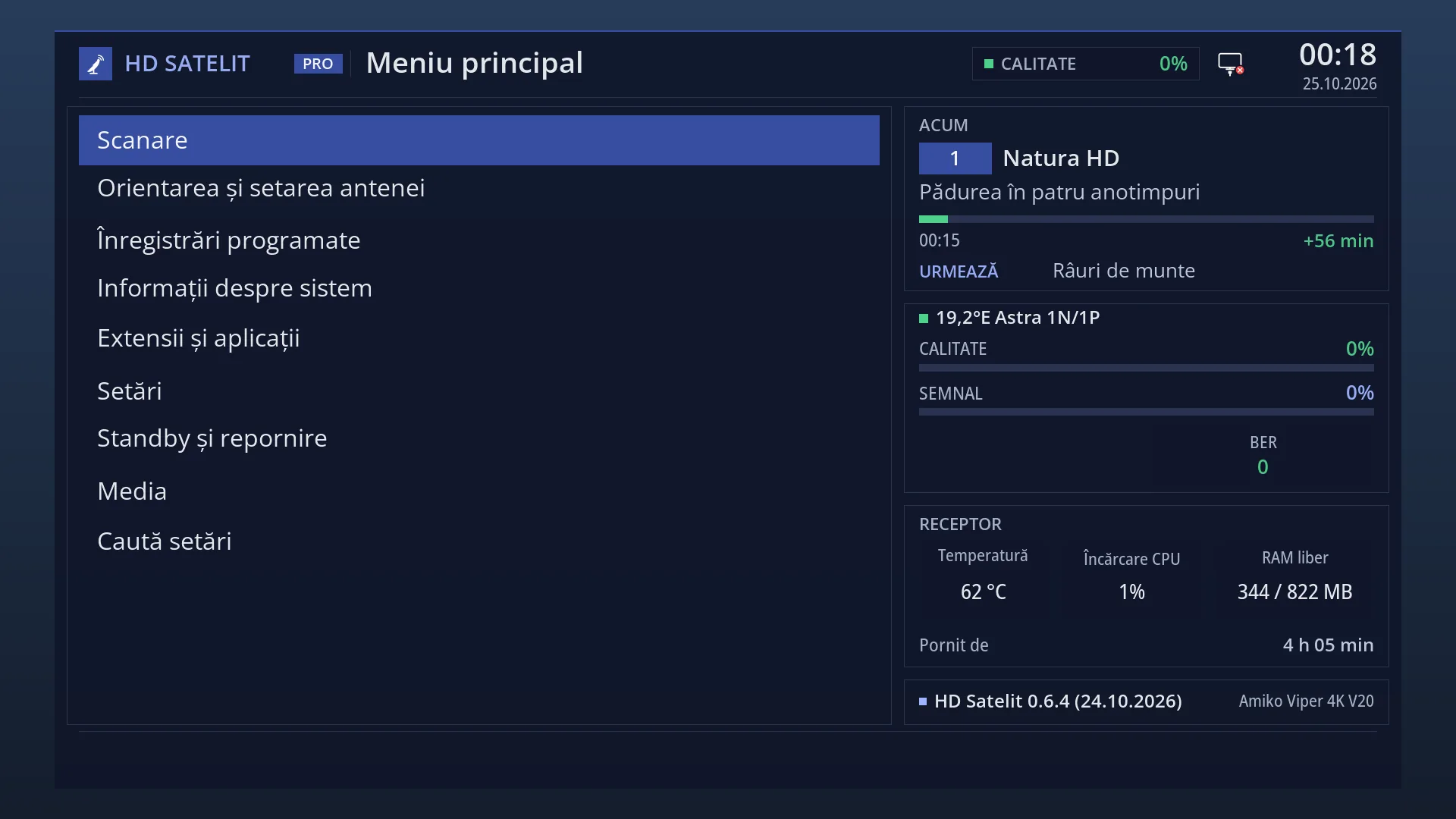
What it is for
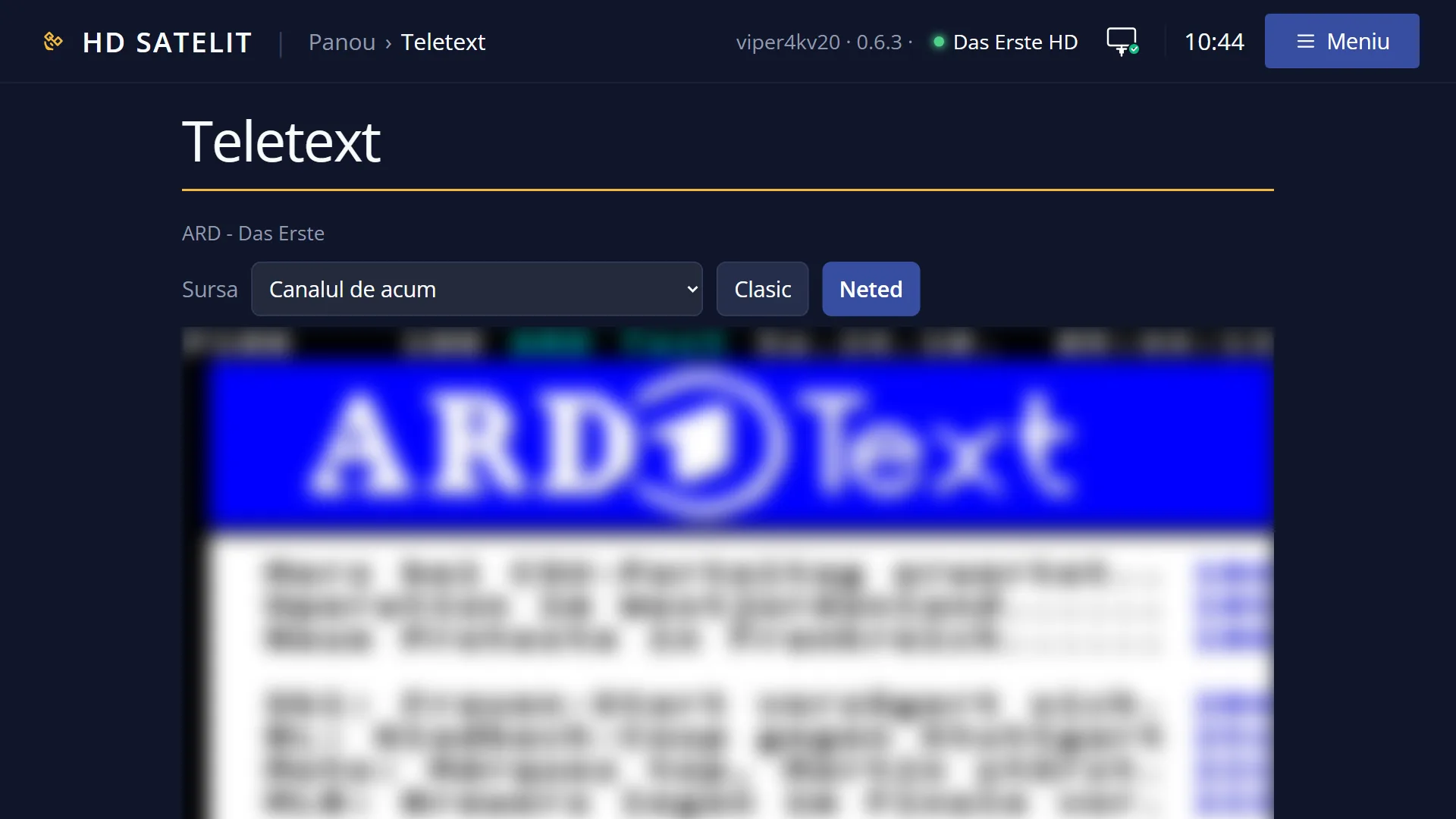
The “Teletext” page (/teletext) shows the teletext of the current channel, or the teletext copies saved by the receiver, in your browser. It does not change what is on the TV.
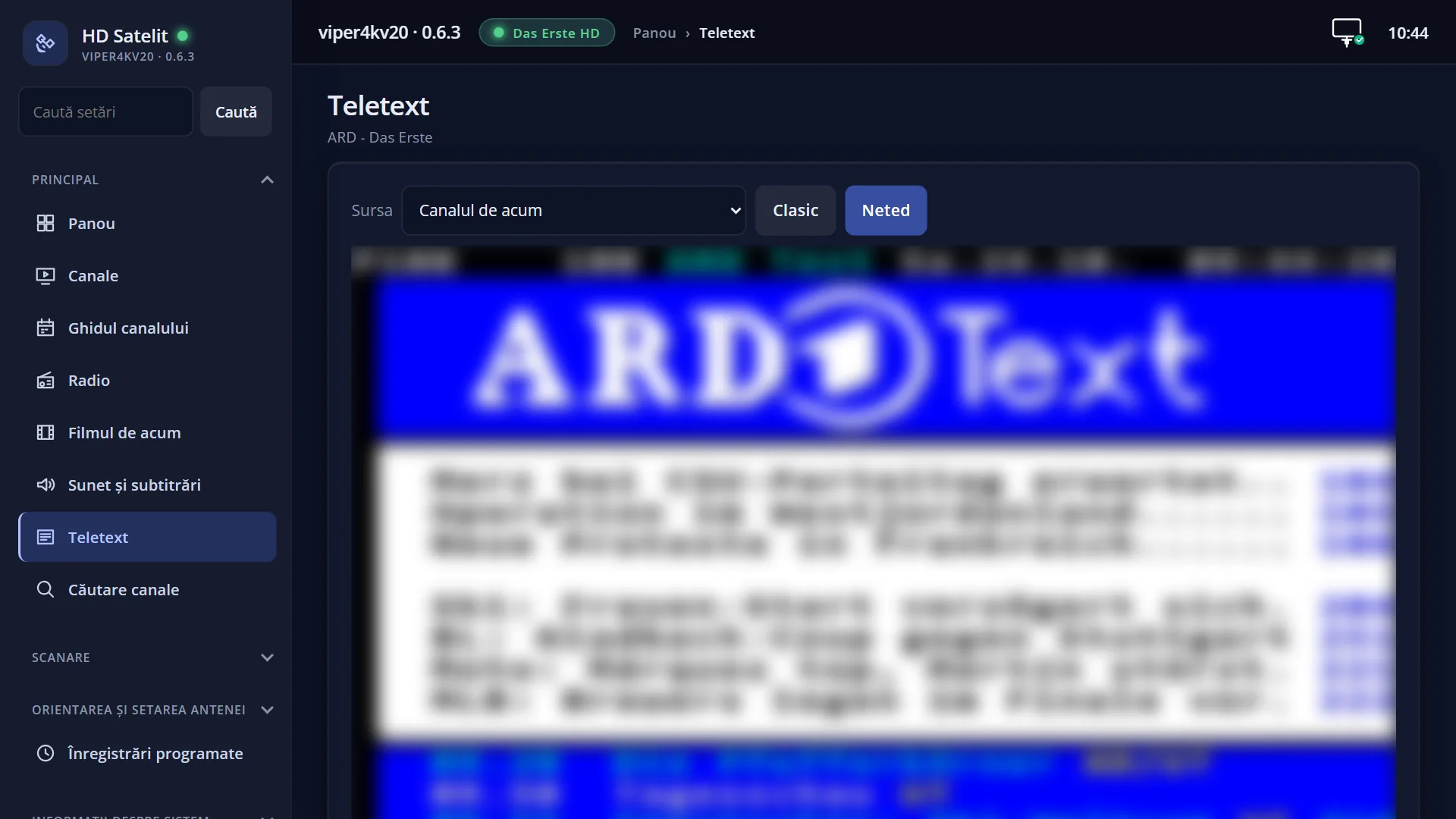
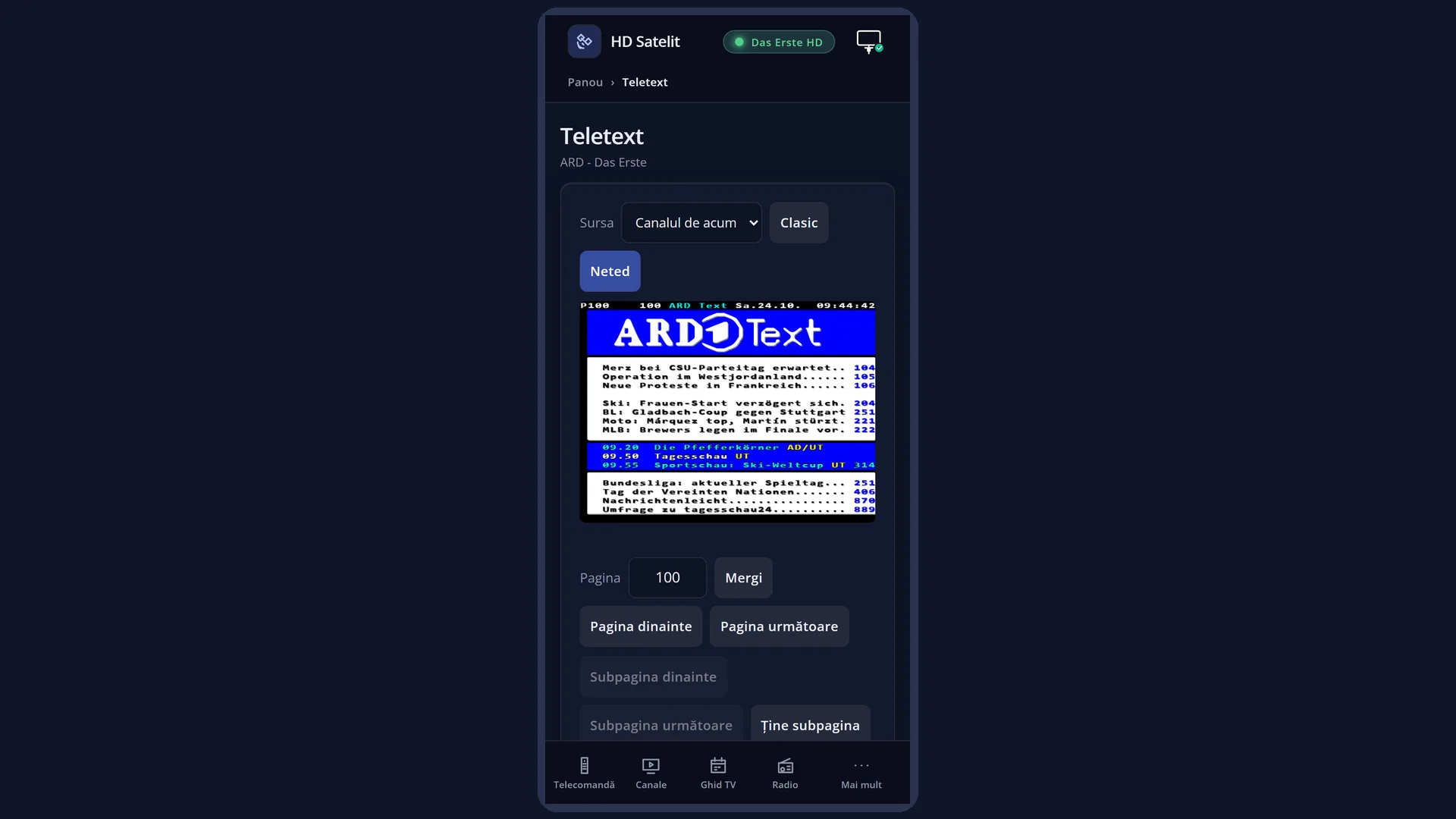
The browser draws the pages just as the TV does, classic or smooth, with the colour keys and the subpages. You can copy the page text, and you can download a whole copy as a single file that you can read without the receiver.
The same page also has the teletext copies (save, refresh, delete) and the teletext settings, which are the same as in the teletext menu on the TV.
How to get here
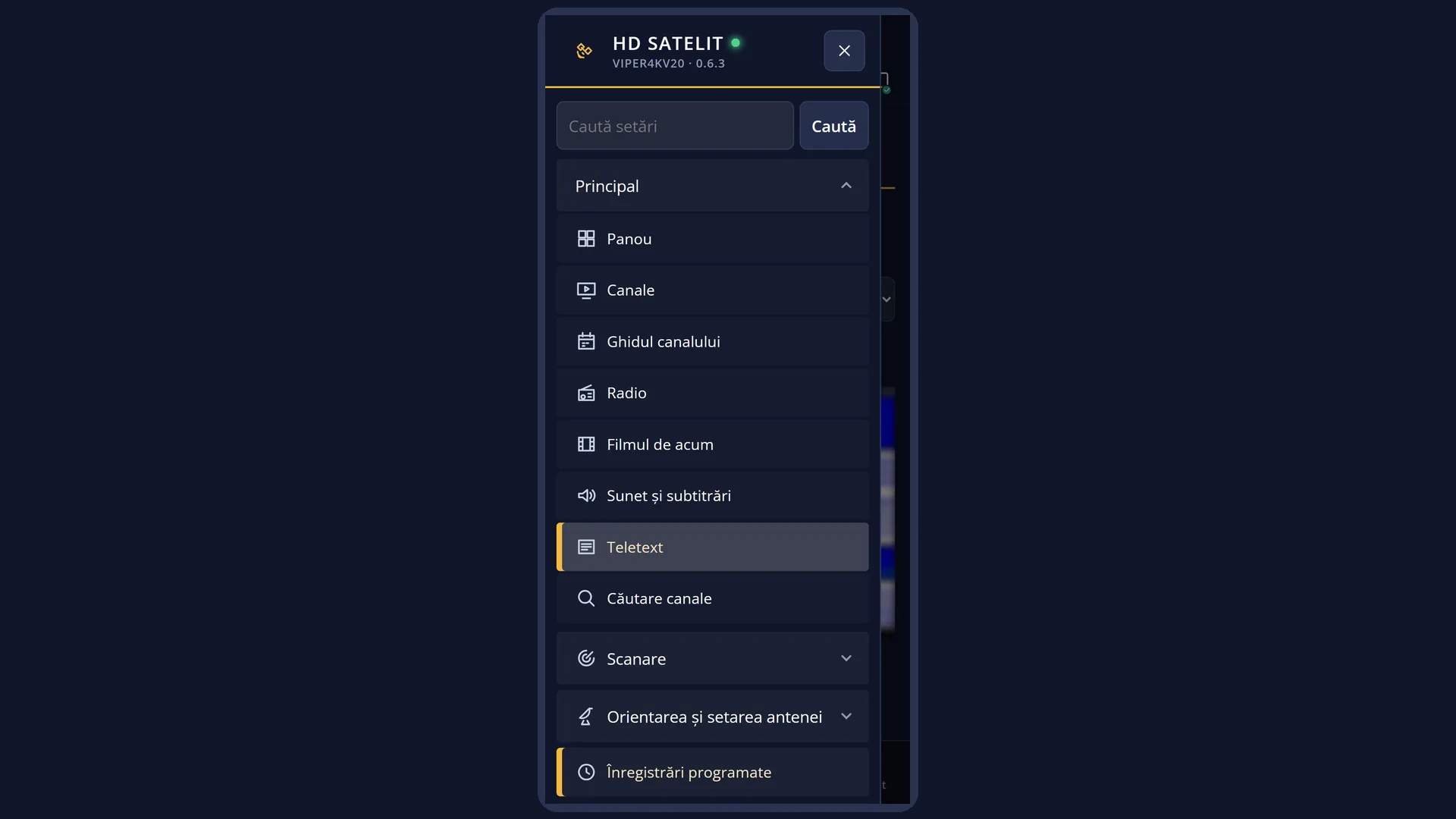
In the web interface: the /teletext page (in the top menu, “Main” group).
On the TV: the TEXT key.
What you see on the screen
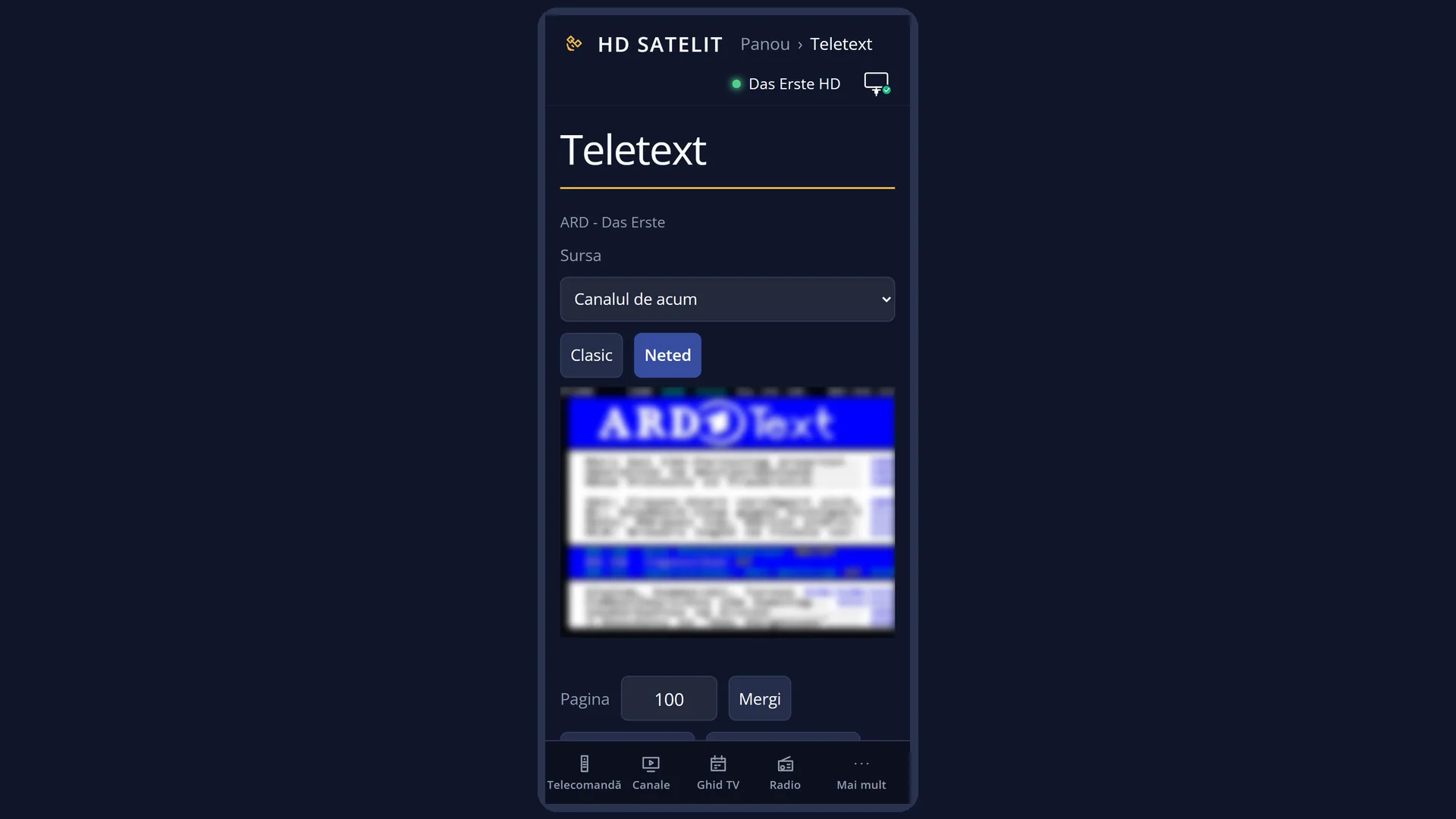
At the top, “Source”: “Current channel” or a saved copy (“Copy: …”), and the choice between “Classic” and “Smooth”.
“Teletext page”: the drawn page with its number. Below it are the colour buttons (for example “Red: page 300”), the “Page” box with the “Go” button, “Previous page”, “Next page”, “Previous subpage”, “Next subpage”, “Hold the subpage” and “Show hidden text”. One line shows which page the TV is on (“on the TV: page 100”). For a copy, it says “The pages come from the saved copy, without a tuner.”.
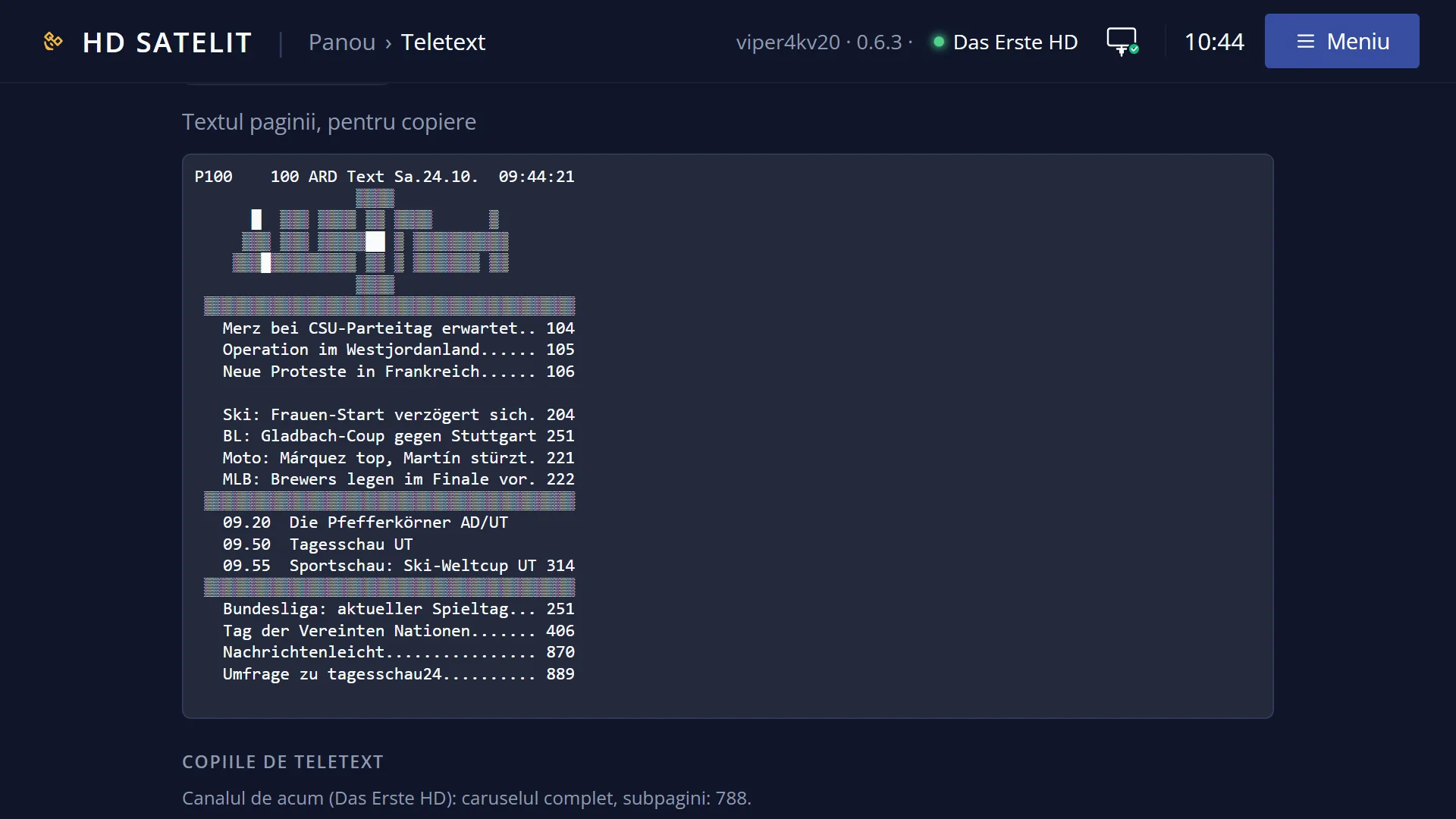
“The page text, for copying”: the text of the page, which you can select and copy.
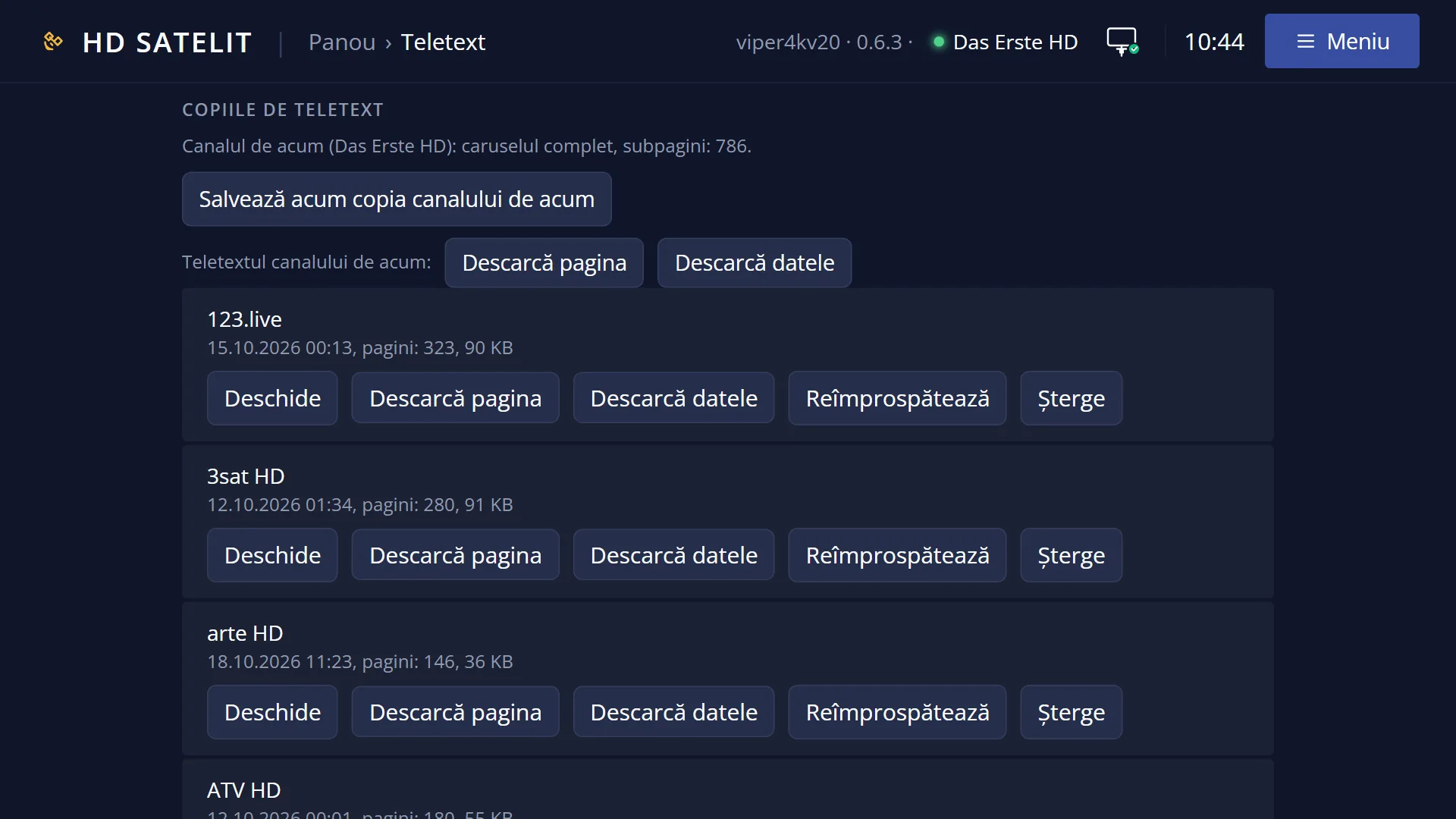
“Teletext copies”: the saved copies, each with the channel, the date, the number of pages and the buttons “Open”, “Download the page”, “Download the data”, “Refresh” and “Delete”. At the top are “Save the current channel's copy now” and the teletext status of the current channel (for example “complete carousel”), then the space used (“Space used: 3 of 20 MB …”). If there are no copies: “You have no teletext copy yet.”.
“Channels with teletext”: a “Search for a channel with teletext” box and the channels that have teletext, each marked “has a copy” or “no copy”.
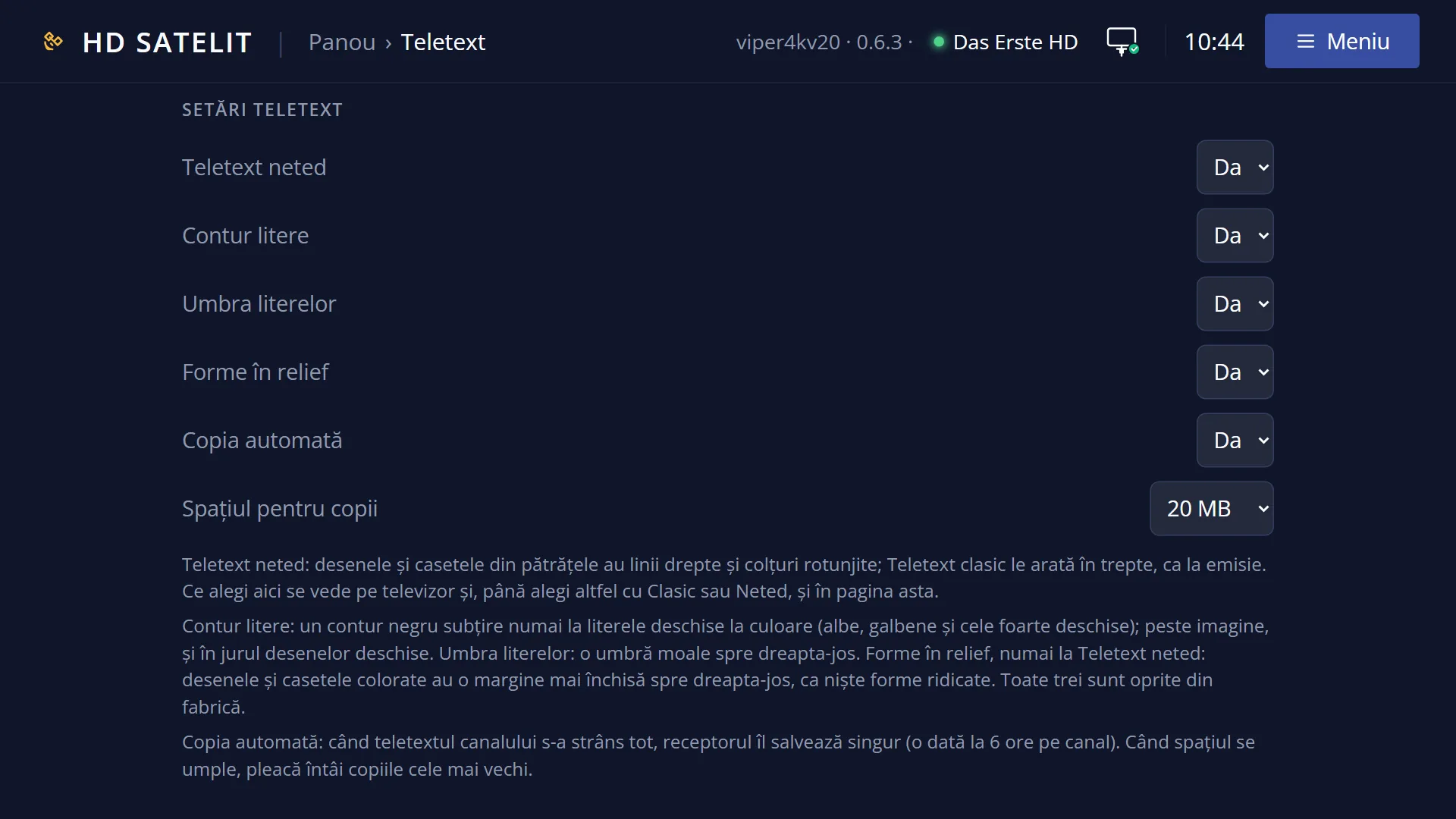
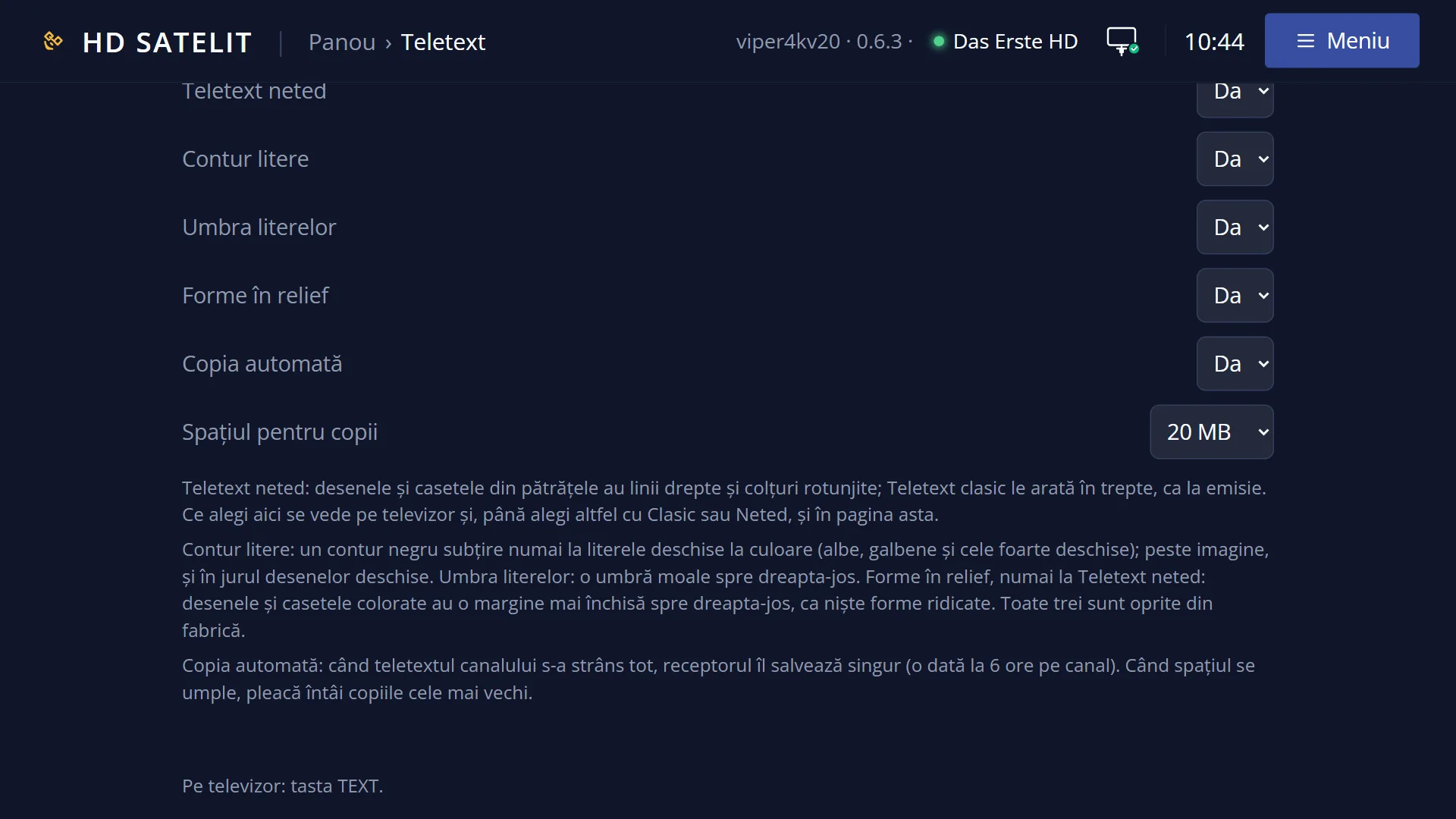
“Teletext settings”: “Smooth teletext”, “Letter outline”, “Letter shadow”, “Raised shapes”, “Automatic copy” and “Space for copies”, with their explanations.
Rows and settings
| Row | Values | Default | What it does |
|---|---|---|---|
| Source | Current channel, a saved copy | Current channel | Where the pages come from: the teletext of the channel playing on the TV, or the saved copy of another channel, read without a tuner (this also works when the dish is pointed at another satellite). When you want the teletext of a channel that is not on the TV right now. |
| Classic / Smooth | Classic, Smooth | Same as on the TV | How the page is drawn on this web page: classic, in steps, as broadcast, or smooth, with straight lines and rounded corners. It does not change the setting on the TV. |
| Page, subpage, hidden text | 100 ... 899 | the page on the TV or the start page | Type the page number and press “Go”, or use the colour buttons and the page buttons. “Hold the subpage” stops the subpages from changing by themselves (“Let the subpages run” starts them again). “Show hidden text” shows the hidden answers on quiz pages (“Hide again” hides them). |
| Teletext copies | Open, Download the page, Download the data, Refresh, Delete | “Save the current channel's copy now” saves the teletext collected so far. “Refresh”: the receiver switches to the channel, turns the dish if needed, waits for one full cycle of the teletext, then goes back to the previous channel. “Download the page” gives you a single HTML file with all the pages, which you can read in a browser without the receiver (the UP and DOWN arrow keys change the page, LEFT and RIGHT change the subpage). “Download the data” gives you the copy file as it is on the receiver. “Delete” first asks “Delete the teletext copy of channel …?”. When you want to keep a channel's teletext or read it later. | |
| Smooth teletext | Yes, No | No | The receiver setting: drawings and boxes made of small blocks get straight lines and rounded corners. Classic shows them in steps. What you choose here shows on the TV and also on the web page, until you choose otherwise with Classic or Smooth. |
| Letter outline / Letter shadow / Raised shapes | Yes, No | No | Letter outline: a thin black outline, only around light-coloured letters. Letter shadow: a soft shadow towards the bottom right. Raised shapes (smooth only): coloured drawings and boxes get a darker edge towards the bottom right. When the letters are hard to read over the picture. |
| Automatic copy | Yes, No | Yes | When all of a channel's teletext has been collected, the receiver saves it by itself, once every 6 hours per channel. No, if you do not want copies saved automatically. |
| Space for copies | 5 MB, 10 MB, 20 MB, 50 MB, 100 MB | 20 MB | How much space the copies take, on the mounted disk or USB stick, otherwise in the receiver's memory. When the space is full, the oldest copies are removed first. More, if you keep the teletext of many channels. |
Keys
| Colour buttons | Go to the pages linked to the page's colour keys, as on the TV. |
| Go | Opens the page you typed (100-899). |
| Previous page / Next page | Go to the neighbouring page among those received. |
| Previous subpage / Next subpage | Go to the neighbouring subpage. |
| Hold the subpage / Let the subpages run | Stop or start the automatic change of subpages. |
| Show hidden text / Hide again | Show or hide the page's hidden text. |
| Save the current channel's copy now | Saves the teletext of the current channel. |
| Open, Download the page, Download the data, Refresh, Delete | Act on the copy in their row. |
| Search (under channels with teletext) | Searches for a channel with teletext by name. |
Step by step
Reading teletext on your phone
- Open /teletext: you see the page the TV is on, or the start page.
- Type the page number (for example 300) and press “Go”, or use the colour buttons.
Keeping a channel's teletext
- Put the channel on the TV and wait until the status says “complete carousel”.
- Press “Save the current channel's copy now”.
- Later, choose the copy under “Source” or press “Open” next to it.
Downloading teletext to read anywhere
- Under “Teletext copies”, press “Download the page” next to the copy you want.
- Open the downloaded file in any browser, even without the receiver.
Problems and solutions
“The receiver could not read the teletext.”
The current channel has no teletext, or the receiver has not received it yet. Choose a channel with teletext (the “Channels with teletext” list) or a saved copy.
“Page 312 is not in the copy”.
The copy was saved before that page arrived. Refresh the copy, or read the teletext from the channel.
“The copy could not be refreshed.”
The channel could not be started or did not send the teletext. Check on the TV that the channel works, then try again.
The page looks different from the TV.
Classic / Smooth on the web page only changes the drawing in the browser. The setting for the TV is “Smooth teletext” under “Teletext settings”.
Old copies have disappeared.
When the “Space for copies” is full, the oldest copies are removed first. Increase the space.
Related topics
- Teletext (on the TV)
- Smooth teletext
- Teletext copies
- Translated teletext
- Web page: /teletext.