

Web interface: the page in the browser
Screenshots are being added: so far 3 from the receiver and 0 from the web interface; the aim is at least 5 of each, with arrows and frames, and, where a setting changes what you see, a before and after comparison.
English screenshots coming: some of the pictures below still show the receiver and the web interface in Romanian. The rows, keys and steps described on this page are the English ones.
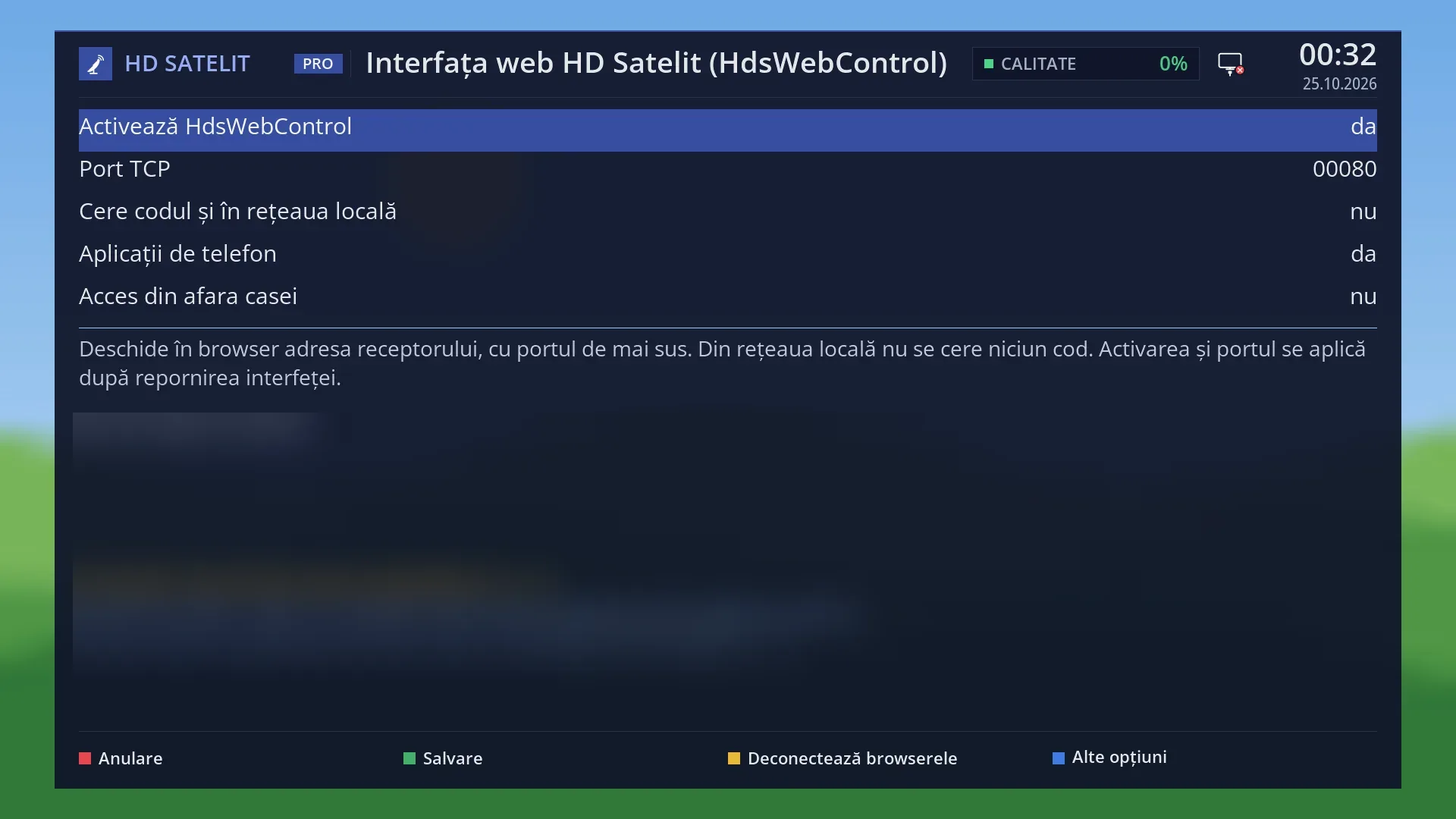
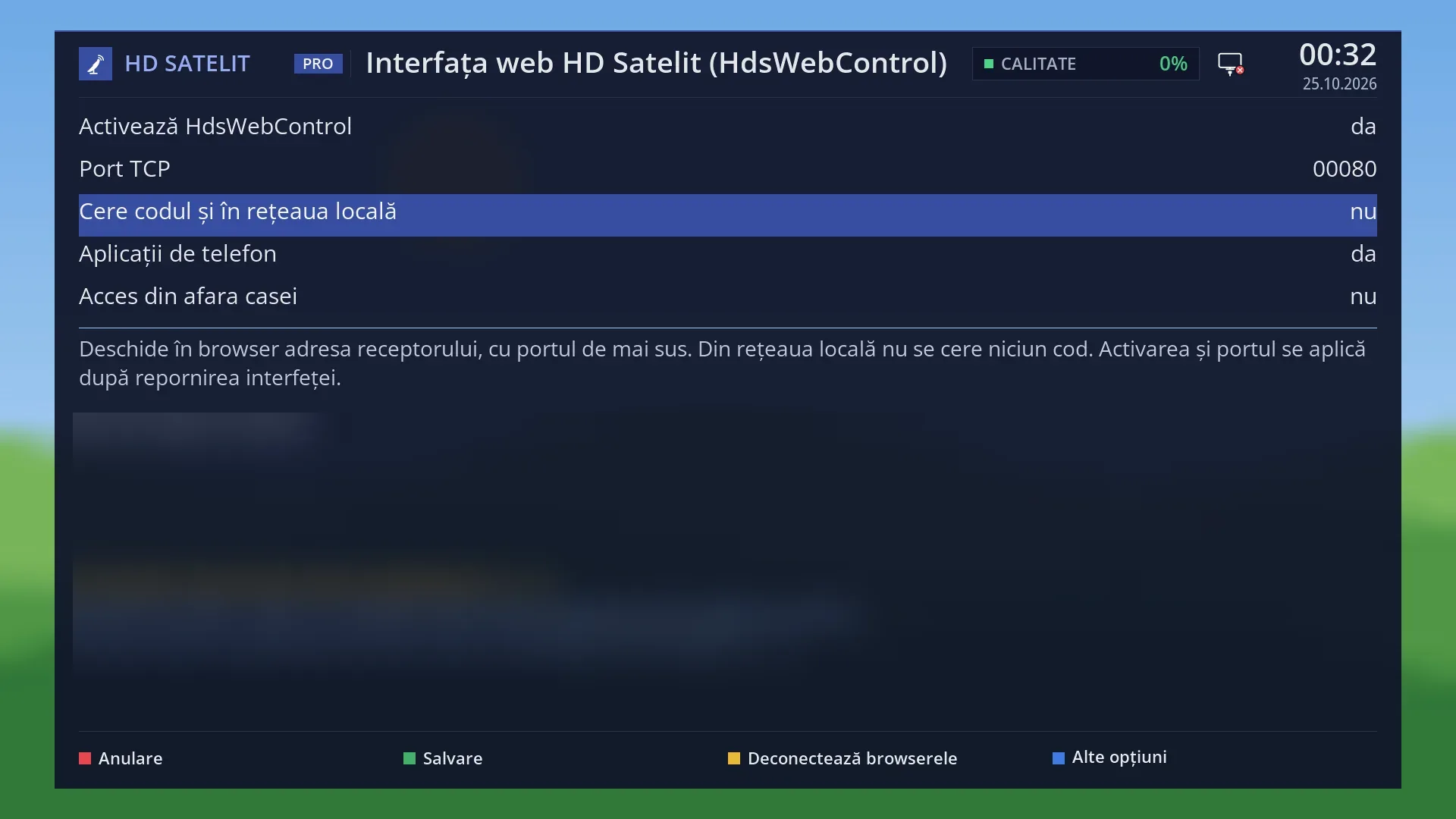
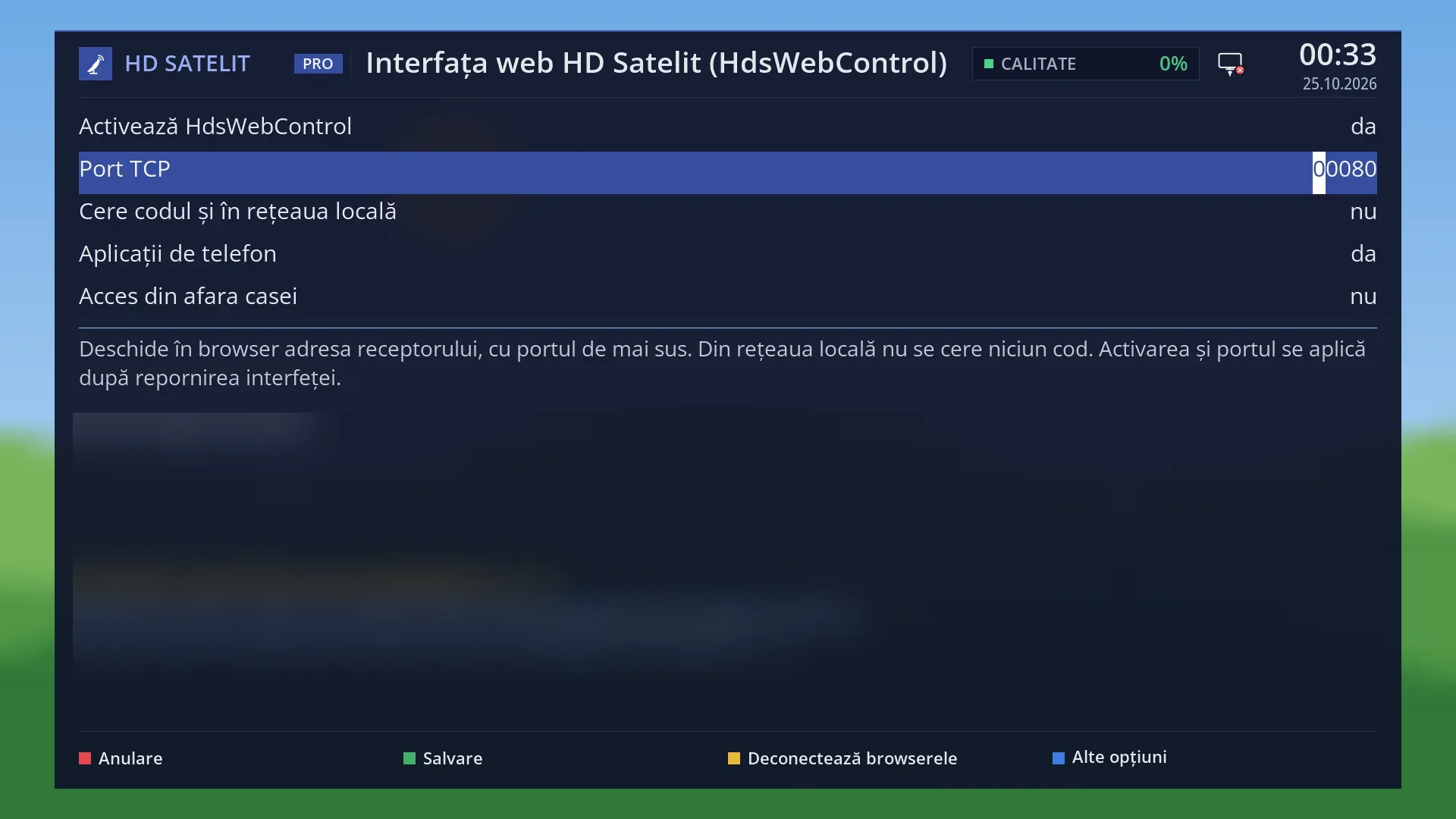
What it is for
The web interface opens in the browser of any phone, tablet or computer on your home network. Type hdsatelit.local (or the receiver's address, for example http://192.168.1.50) and you reach the receiver's control panel. You do not need to install anything.
By default, devices in your home get in directly, without a code. If you have turned on “Ask for the code on the local network too” on the receiver, each new browser is paired once with a 6-digit code shown in large digits on the TV. After that it stays paired for a year, and you do not need to type anything again.
Some things always need a browser paired with a code, even at home: the administrator password and the keys in “SSH access”, and changes to the VPN. In that case the page shows you the code pairing straight away.
The pages do not respond from outside your home network. This way, only someone who is in your home or can see the TV can use the receiver from a browser.
How to get here
In the browser: hdsatelit.local or the receiver's address. The exact address is shown on the TV, in Menu > Settings > Internet Sources > HdsWebControl (Web Interface) (MENU 6 2 5).
The code page: /asociere. It appears by itself when the browser needs a code.
Some screens on the TV (for example the subtitle translation setup) also show a QR code. A phone that scans it is paired without you typing the code and goes straight to the right page.
What you see on the screen
The “Connecting to the receiver” page: “Enter the code shown on the TV.”, a large box for the 6 digits (“00 00 00”), the “Connect” button and, below it, a status line (for example “The code is shown on the TV.”), then the “Show the code on the TV again” button.
At the bottom, the note: “The code appears on the TV when the receiver is showing a channel, not in the menu and not in standby. It is valid for an hour. After connecting, this browser stays connected for a year.”.
On the TV, a large window in the middle: “Connect browser” (or “Connect phone”), the code in three groups of two very large digits, “Requested from ...” with the address of the device that requested it, and, in yellow, “If you did not ask for it, press EXIT.”.
Once connected, the TV briefly shows “Browser connected to the receiver: …” (or “Phone connected to the receiver: …”) with the browser's name, and the page shows “Connected. The panel is opening...” and takes you to the panel.
At the bottom of the panel you see “This browser: …” and the button for disconnecting this browser.
Rows and settings
| Row | Values | Default | What it does |
|---|---|---|---|
| Code box | 6 digits | Type the code from the TV (spaces do not matter) and press “Connect”. A code can be used only once and is valid for one hour. The first time you open the interface in a new browser, when the code is requested. | |
| Show the code on the TV again | Shows the code on the TV again, for example after you have closed its window. The TV shows at most 10 codes in 15 minutes. When you can no longer see the code on the TV. | ||
| Status line | “The code is shown on the TV.”, “The code appears on the TV after you close the menu or the window open on the receiver (the Exit key).”, “The receiver is in standby. Turn it on from the remote: the code appears on the TV after it starts.”, “Wrong code. You have 3 attempts left.”, “The code has expired or has already been used. Press Show the code on the TV again.”, “Too many wrong codes. Try again in …” | Tells you what is happening with the code. After five wrong codes, pairing is blocked for 5 minutes. You can remove the block from the TV, in the Web interface screen, with BLUE and “Connect a new browser”. | |
| Disconnecting this browser (in the panel) | The button at the bottom of the panel, after the question “Disconnect this browser? To use it again you will need a new code from the TV.”. To disconnect all browsers at once, use YELLOW in the Web interface screen on the TV. On someone else's computer, when you have finished. |
Keys
| Connect | Sends the code you typed. If the code is correct, it takes you to the panel. |
| Show the code on the TV again | Requests the code on the TV again. |
| OK or EXIT (on the remote, in the code window) | Close the code window on the TV and cancel the code: a code requested by someone else can no longer be used. |
Step by step
Opening the web interface on your phone
- Connect the phone to the same Wi-Fi as the receiver.
- In the browser, type hdsatelit.local. If it does not open, type the address shown in Menu > Settings > Internet Sources > HdsWebControl (Web Interface).
- By default you go straight to the panel. Add the page to your phone's home screen so you can open it with one tap.
Pairing a browser with the code
- Open the page. “Connecting to the receiver” appears.
- The code appears in large digits on the TV (if the receiver is in a menu, close it with EXIT; if it is in standby, switch it on).
- Type the 6 digits and press “Connect”. The browser stays paired for a year.
Pairing with a QR code from the TV
- On the TV screen that shows a QR code, scan it with your phone's camera.
- Open the address: the phone pairs by itself and goes to the right page. The QR code works only once and only for a few minutes.
Problems and solutions
hdsatelit.local does not open.
Some phones or networks do not recognise .local names. Type the receiver's address shown on the TV (Menu > Settings > Internet Sources > HdsWebControl (Web Interface)), for example http://192.168.1.50.
The page asks for the code, but nothing appears on the TV.
The code appears only when the receiver is showing a channel: leave the menu with EXIT, or switch the receiver on if it is in standby. Then press “Show the code on the TV again”.
“Too many wrong codes. Try again in …”
Wait 5 minutes or, on the TV, go to Menu > Settings > Internet Sources > HdsWebControl (Web Interface), press BLUE and choose “Connect a new browser”: the block is removed and the code appears right there.
“The code has expired or has already been used.”
The code works for one hour and only once. Press “Show the code on the TV again”.
A code I did not request appeared on the TV.
Press EXIT: the code is cancelled and nobody can pair with it. The window also shows the address of the device that requested it.
The page does not open from outside the home.
The web interface pages respond only on your home network. From outside the home, only the phone apps work, and only if you have turned on “Access from outside the home”.
The browser asked for the code again after a long time.
Pairing lasts a year. Also, after “Disconnect browsers” or “New key for the web panel” on the TV, each browser has to be paired again.