

Text typed on your phone
Screenshots are being added: so far 3 from the receiver and 9 from the web interface; the aim is at least 5 of each, with arrows and frames, and, where a setting changes what you see, a before and after comparison.
English screenshots coming: some of the pictures below still show the receiver and the web interface in Romanian. The rows, keys and steps described on this page are the English ones.
What it is for
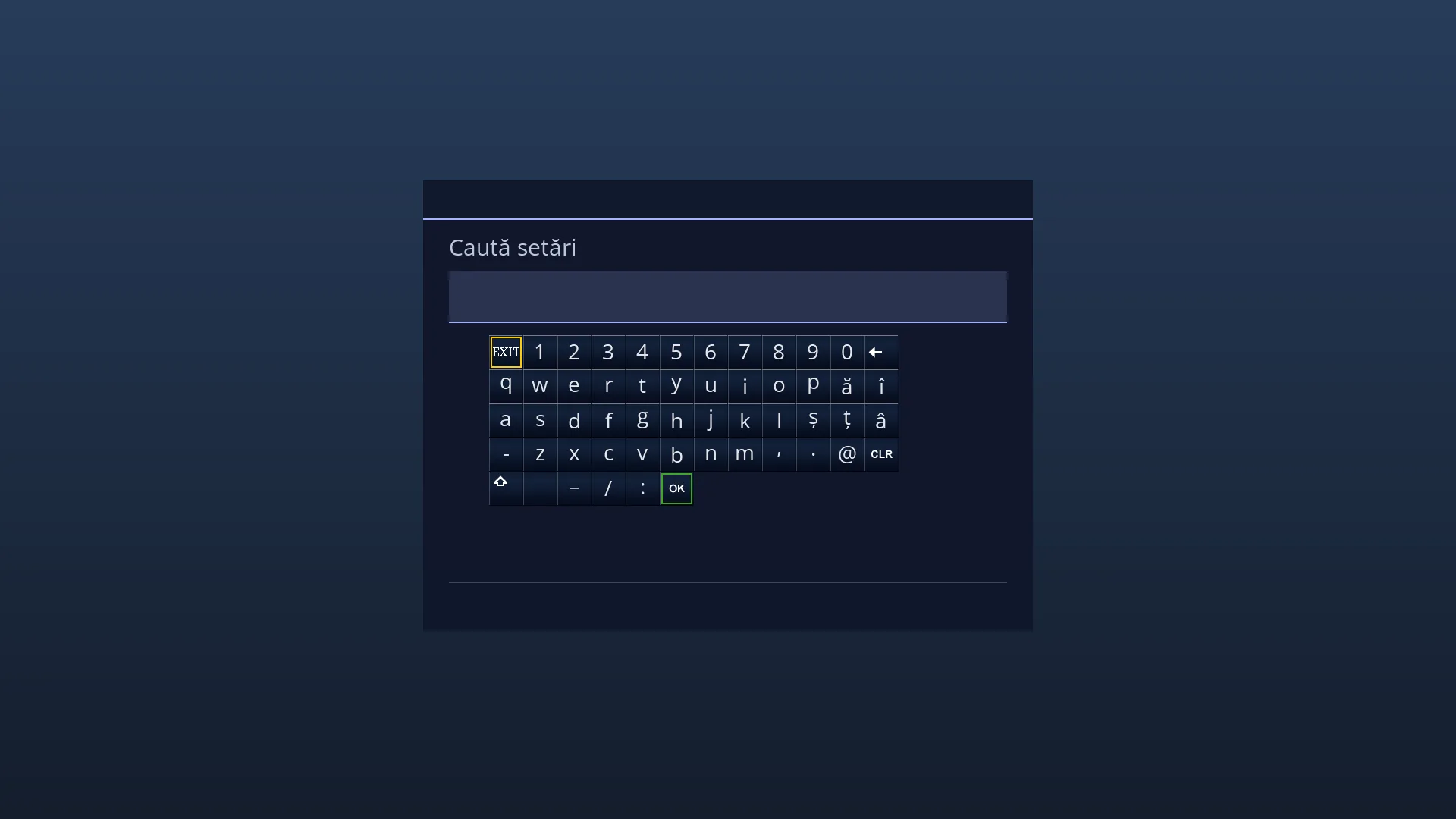
Long texts (a web address, a Wi-Fi password, an account name, a message) are hard to type with the remote. On the “Web browser” page of the web interface, you type them on your phone or computer and send them straight to the text field that is open on the TV.
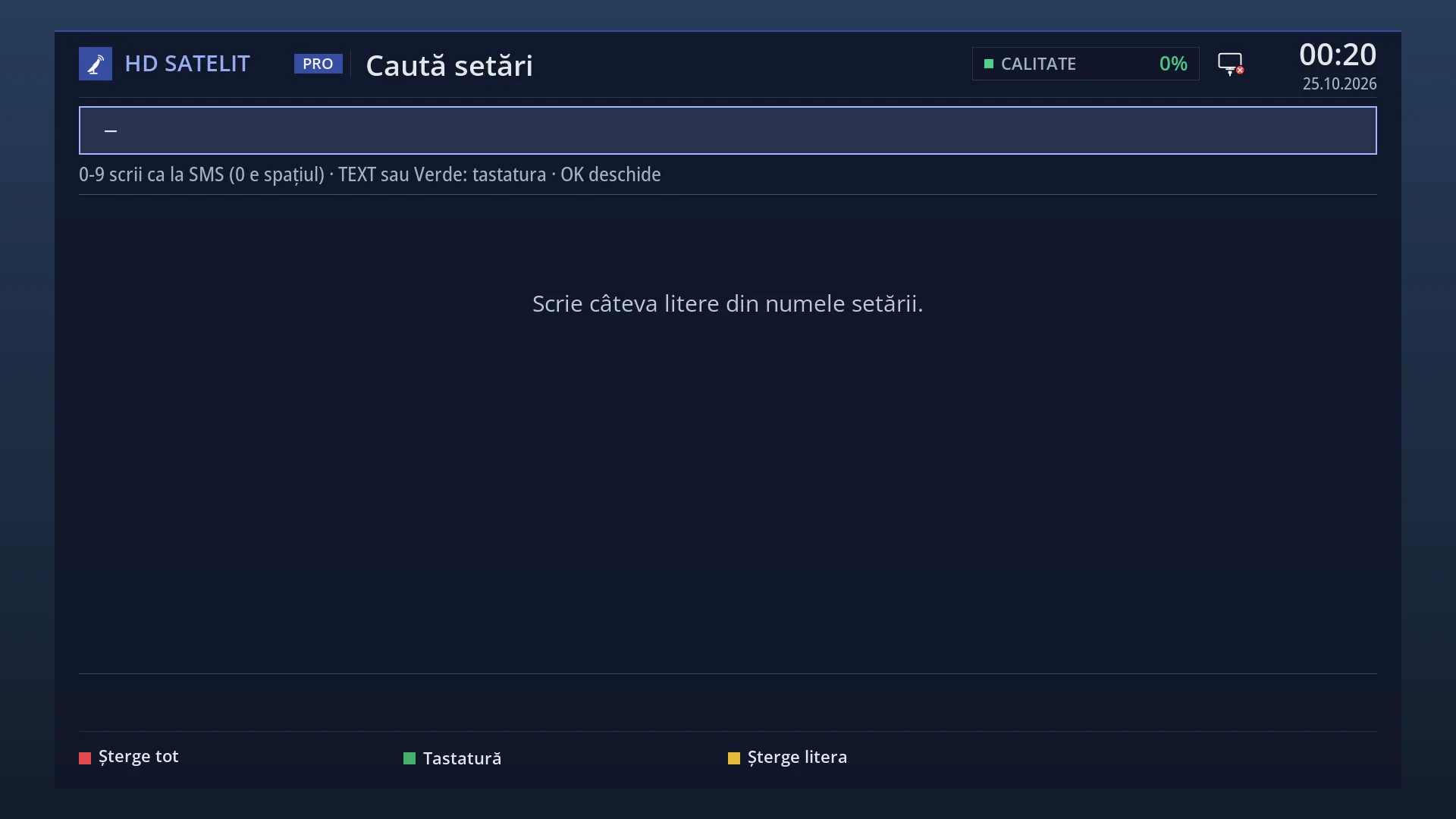
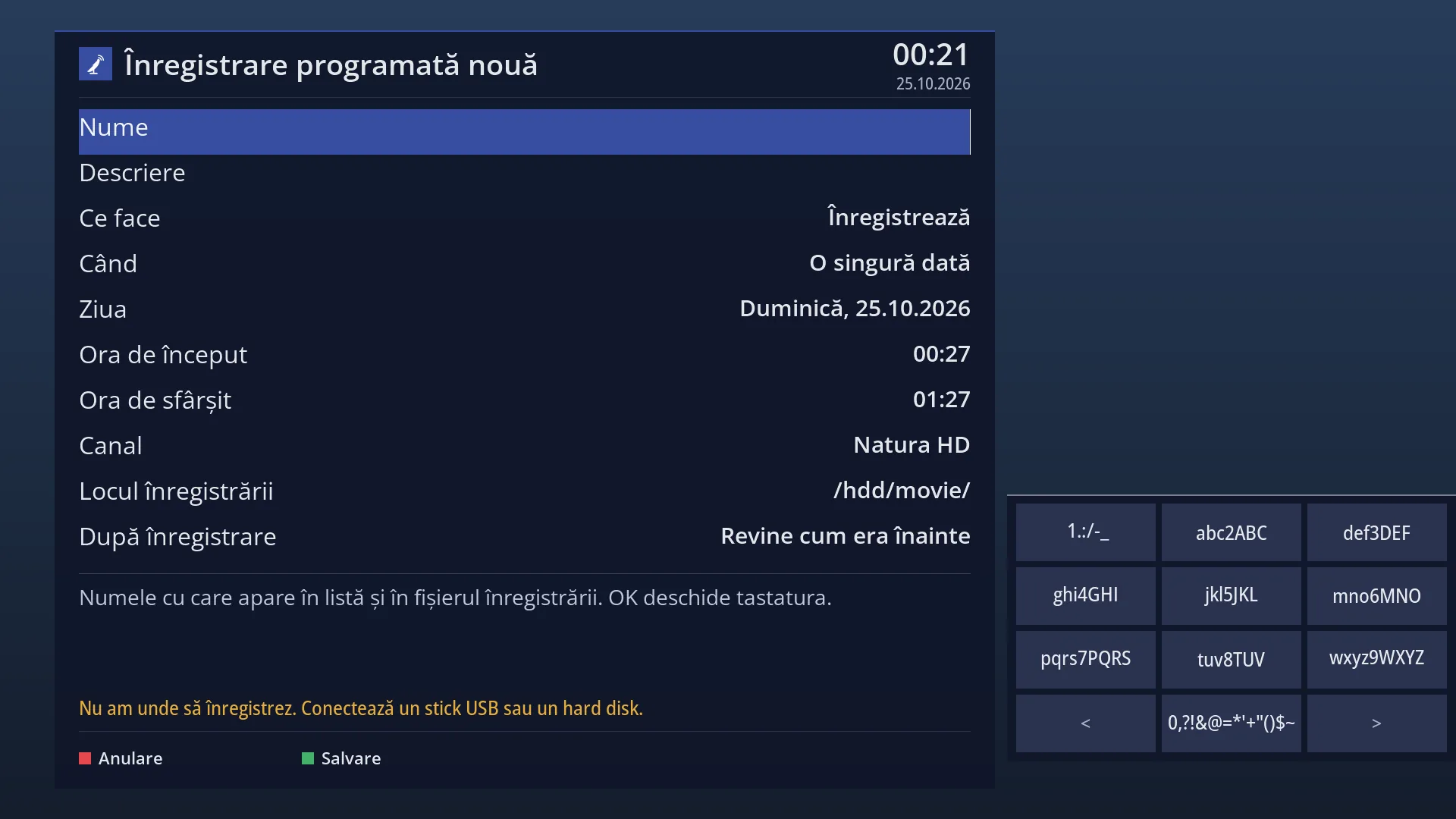
The text goes to the first of these that applies: the on-screen keyboard or the text box open on the TV (it replaces what is there, then you confirm with OK as usual), the text setting selected in a settings screen (not saved), or the field selected in the page open in the web browser on the TV (at the cursor).
The text is not stored anywhere and is not written to any log. In a password field it is not shown on the TV either.
On the same page, “Open on the TV” sends an address or a search straight to the web browser on the TV.
How to get here
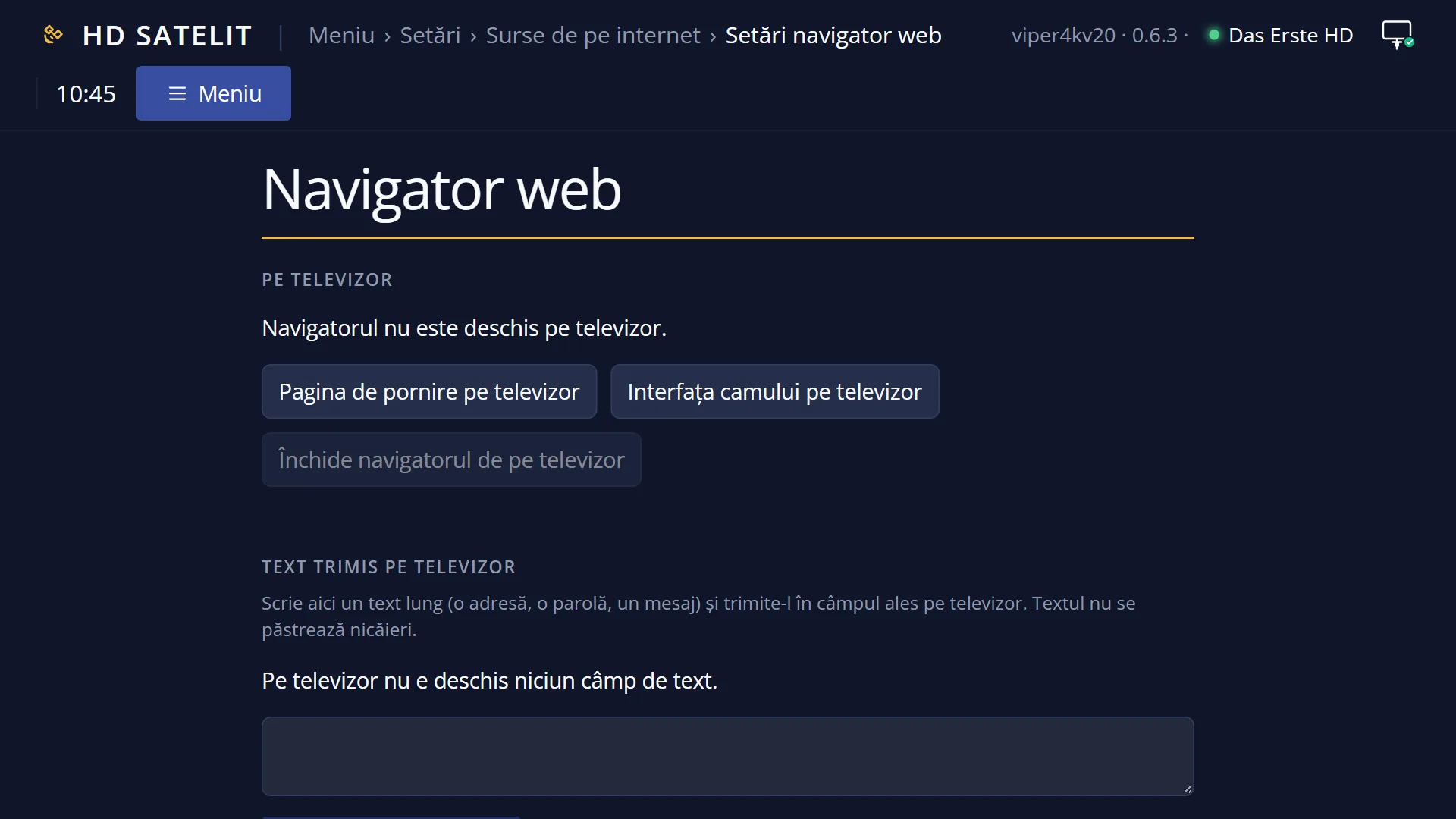
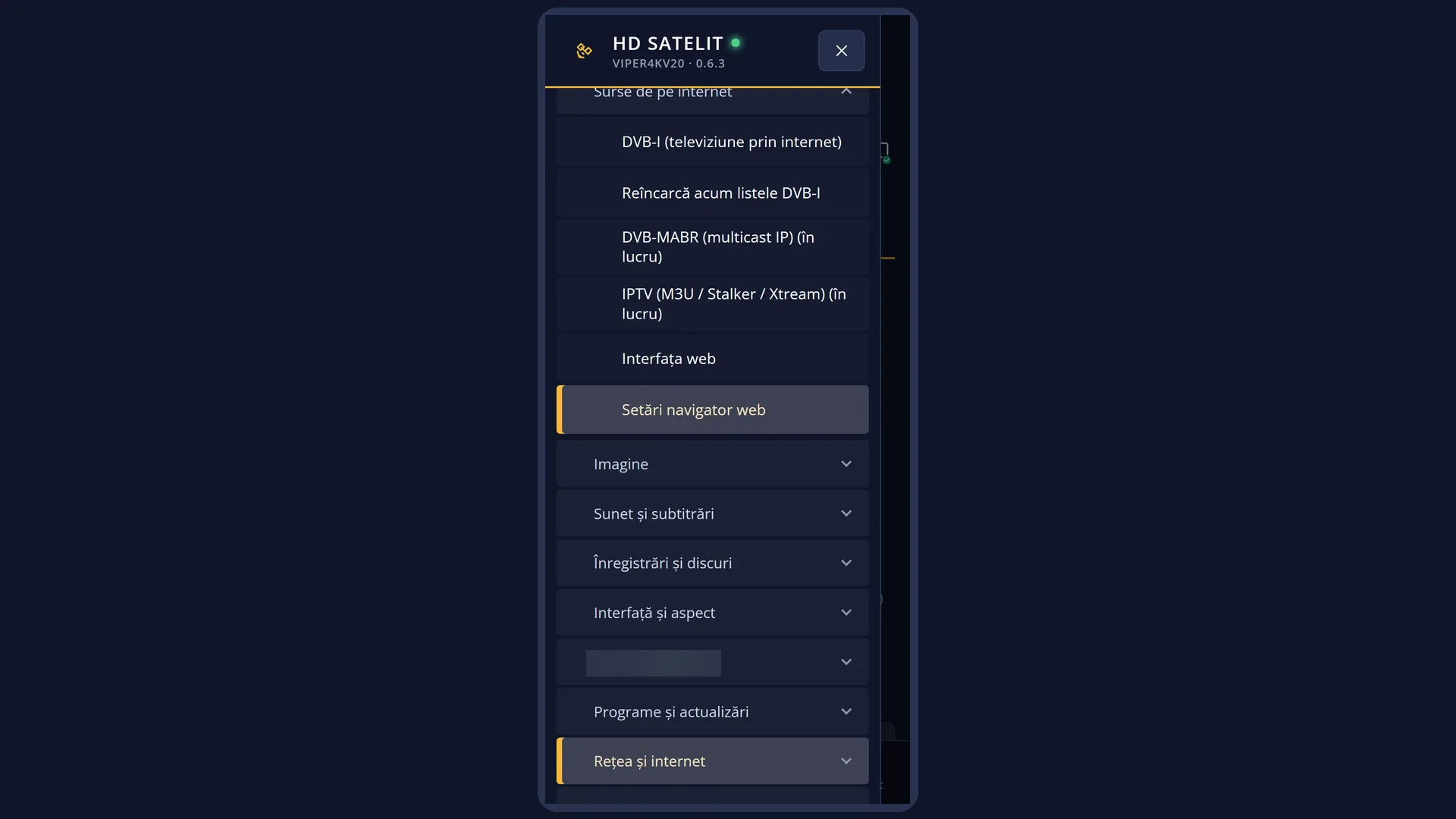
In the web interface: the /navigator page, the “Text sent to the TV” card.
On the TV, first open the place where you want the text: the on-screen keyboard of a field, a text box, a text row in a settings screen or a field in a web browser page.
What you see on the screen
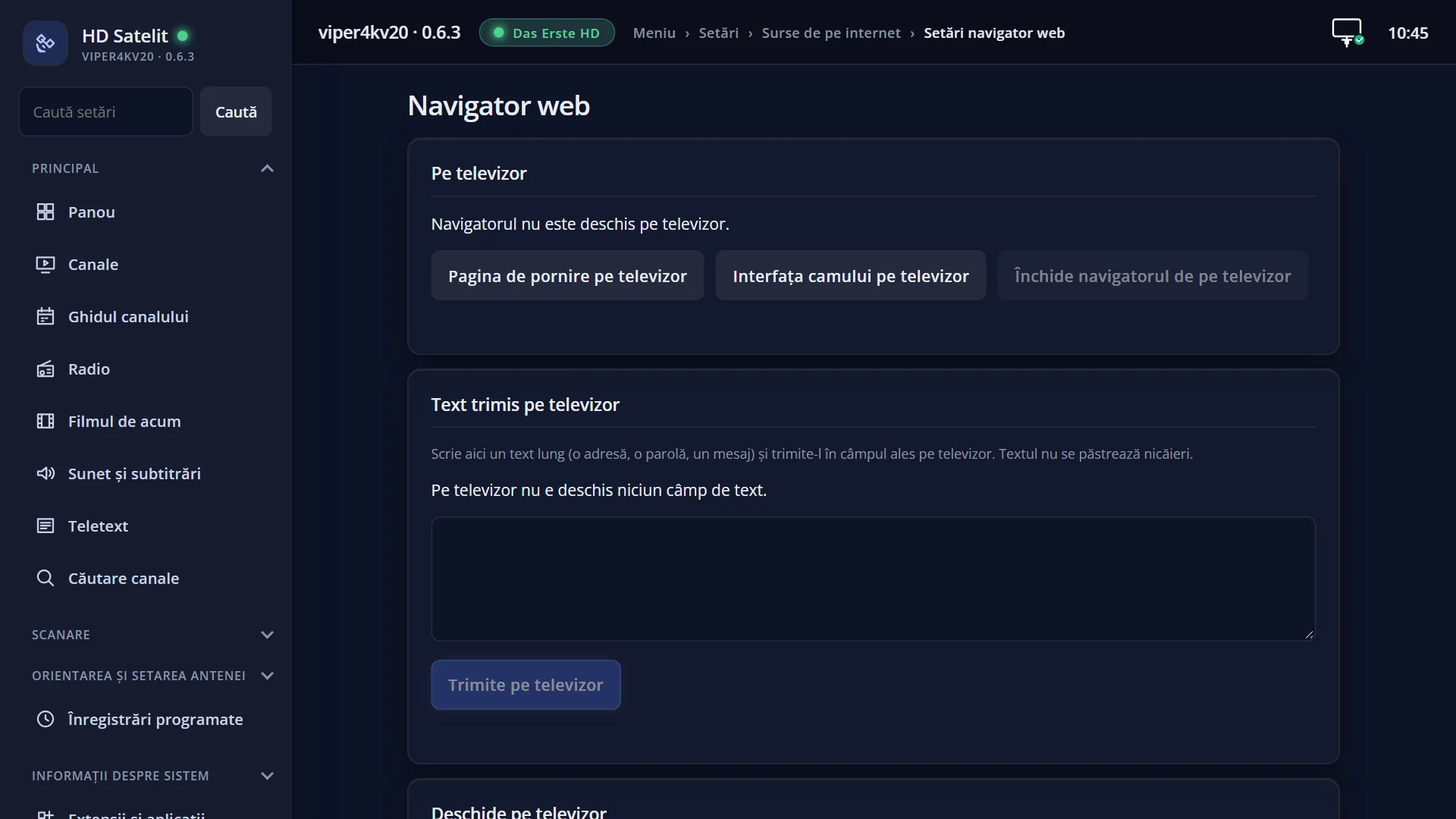
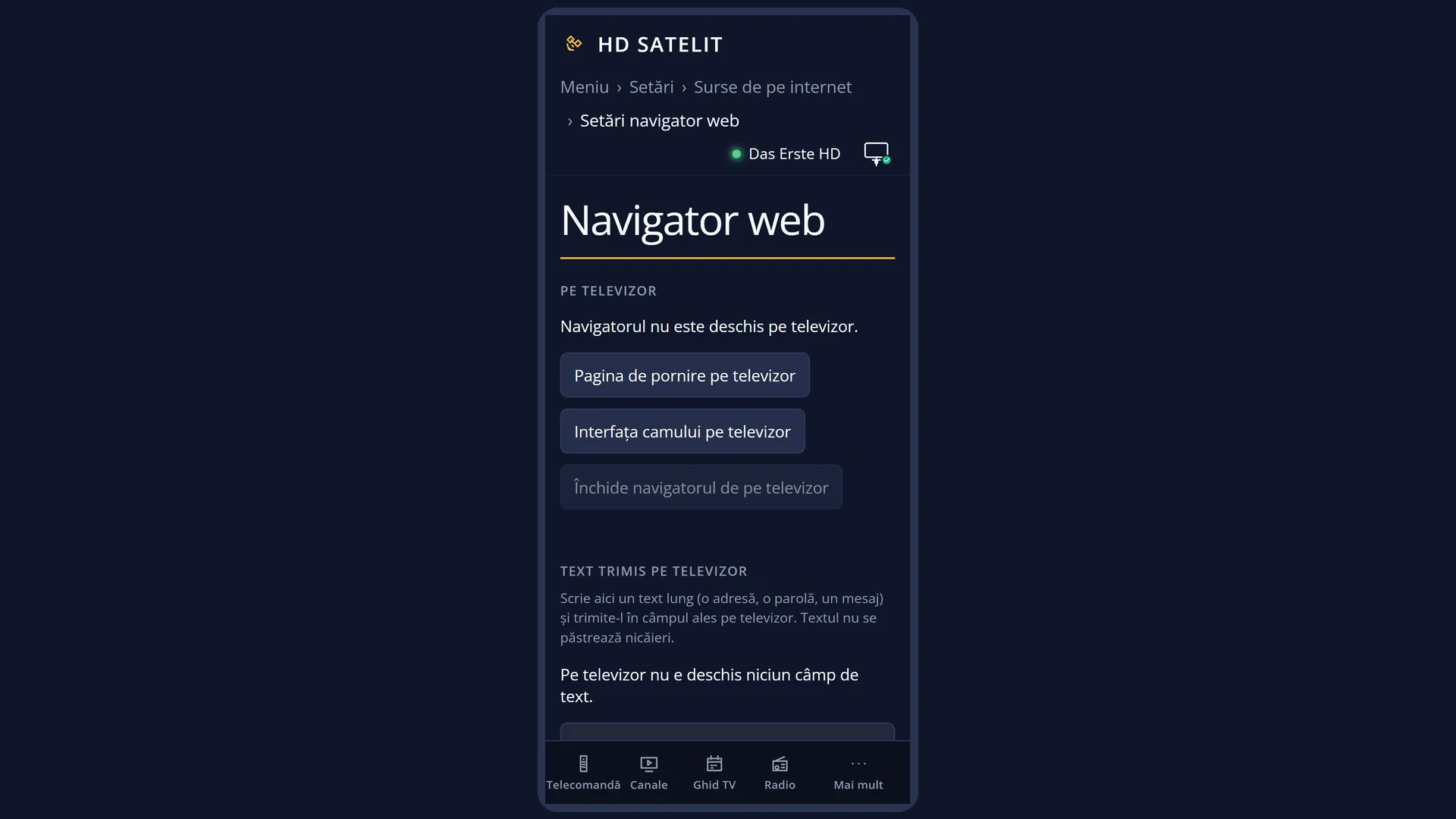
The “On the TV” card: whether the browser is open on the TV and what it is doing (for example “The browser is on the TV screen.”, “A window is open over the browser on the TV.”), the field selected in the page and the zoom, with the “Start page on the TV” and “Close the browser on the TV” buttons.
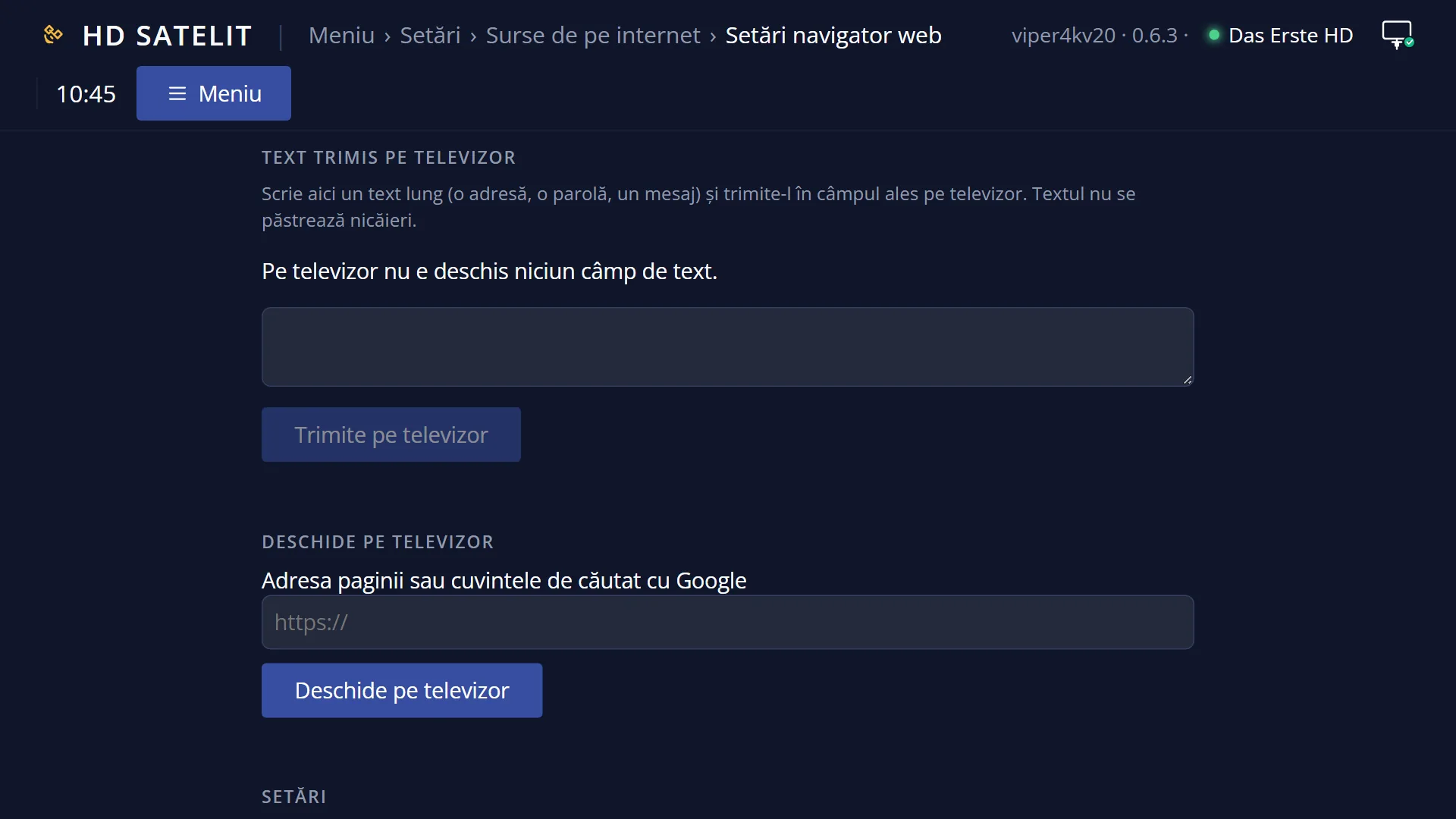
The “Text sent to the TV” card: the note “Type a long text here (an address, a password, a message) and send it into the field selected on the TV. The text is not kept anywhere.”, then a line that says where the text would go now, the large text box and the “Send to the TV” button.
The “where it goes” line can be: “The text goes into the keyboard open on the TV.”, “The text goes into the text box open on the TV.”, “The text goes into the text setting selected on the TV.”, “The text goes into the field selected in the page on the TV.” or “No text field is open on the TV.”. For a password field: “A password field is selected on the TV: the text is not shown on the screen.”.
The “Open on the TV” card: the “Page address or words to search with Google” box and the “Open on the TV” button.
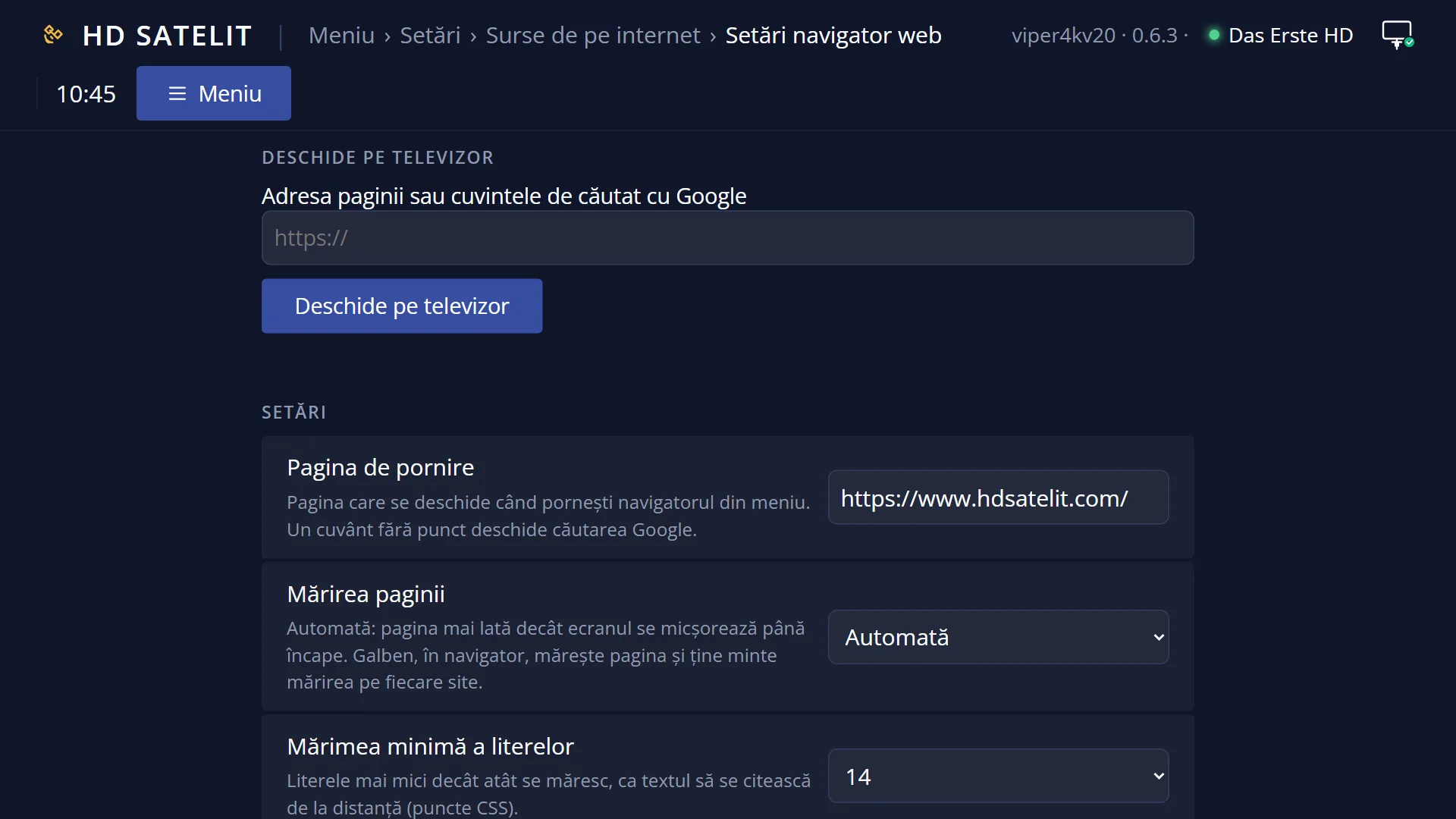
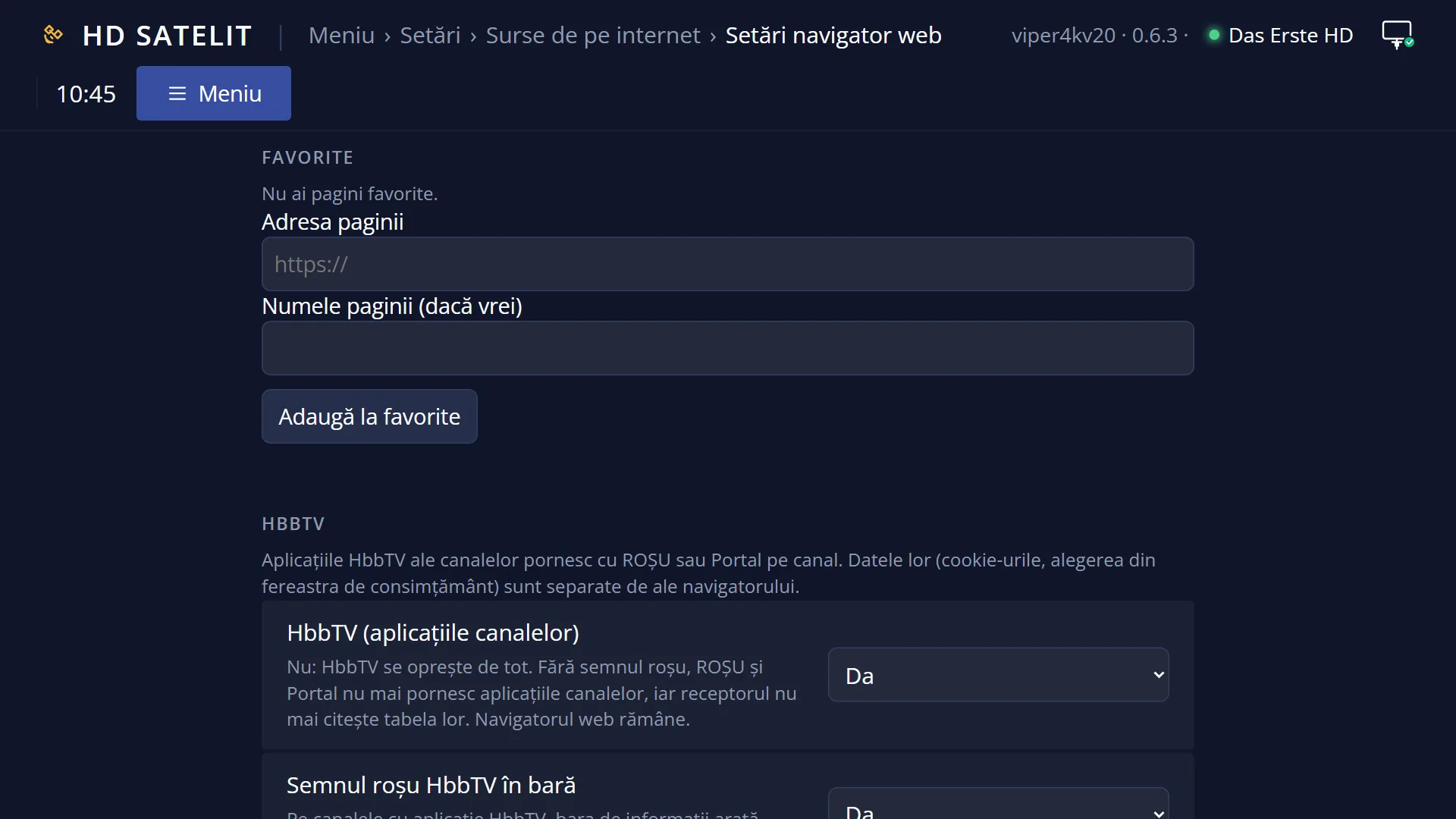
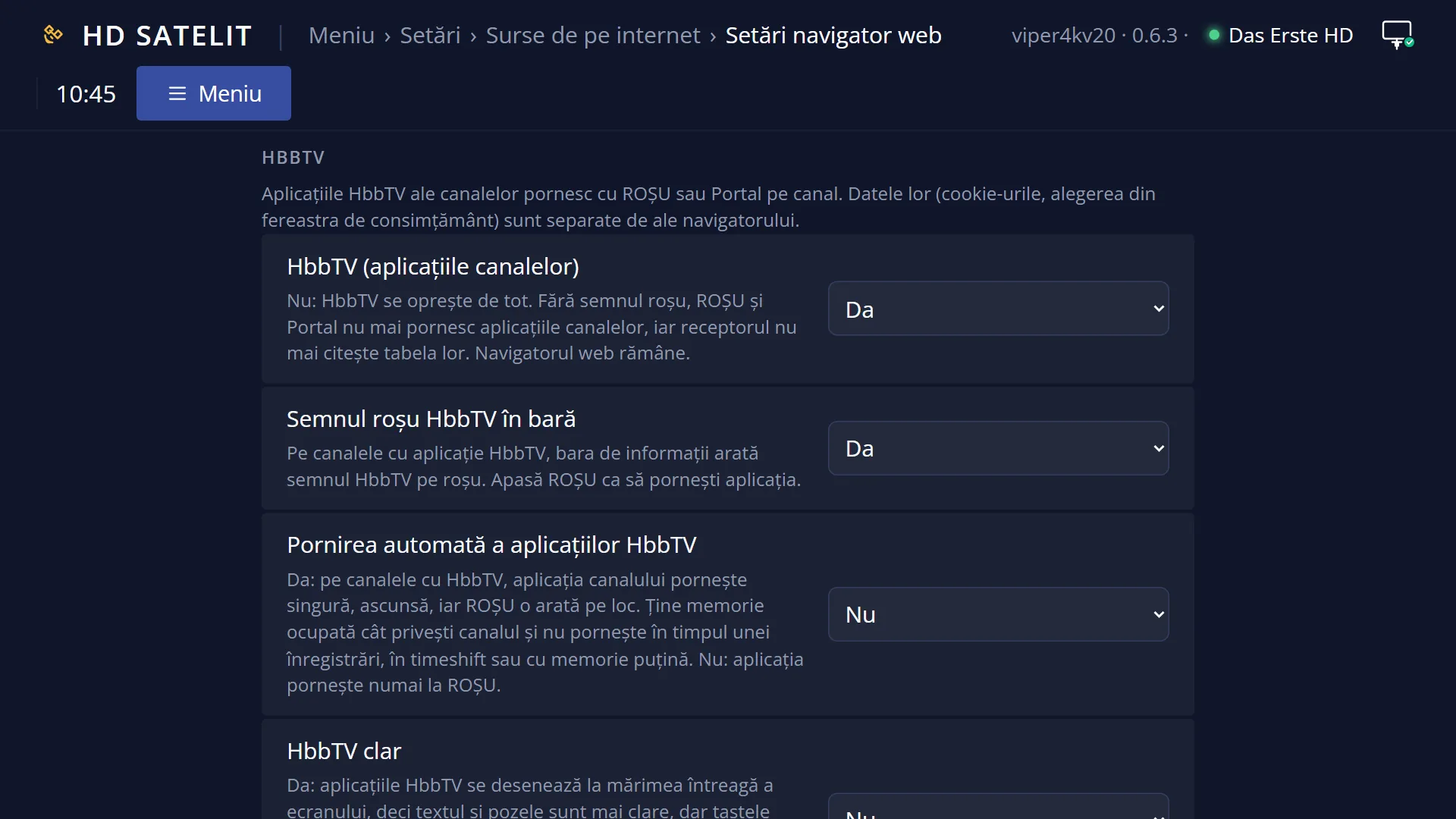
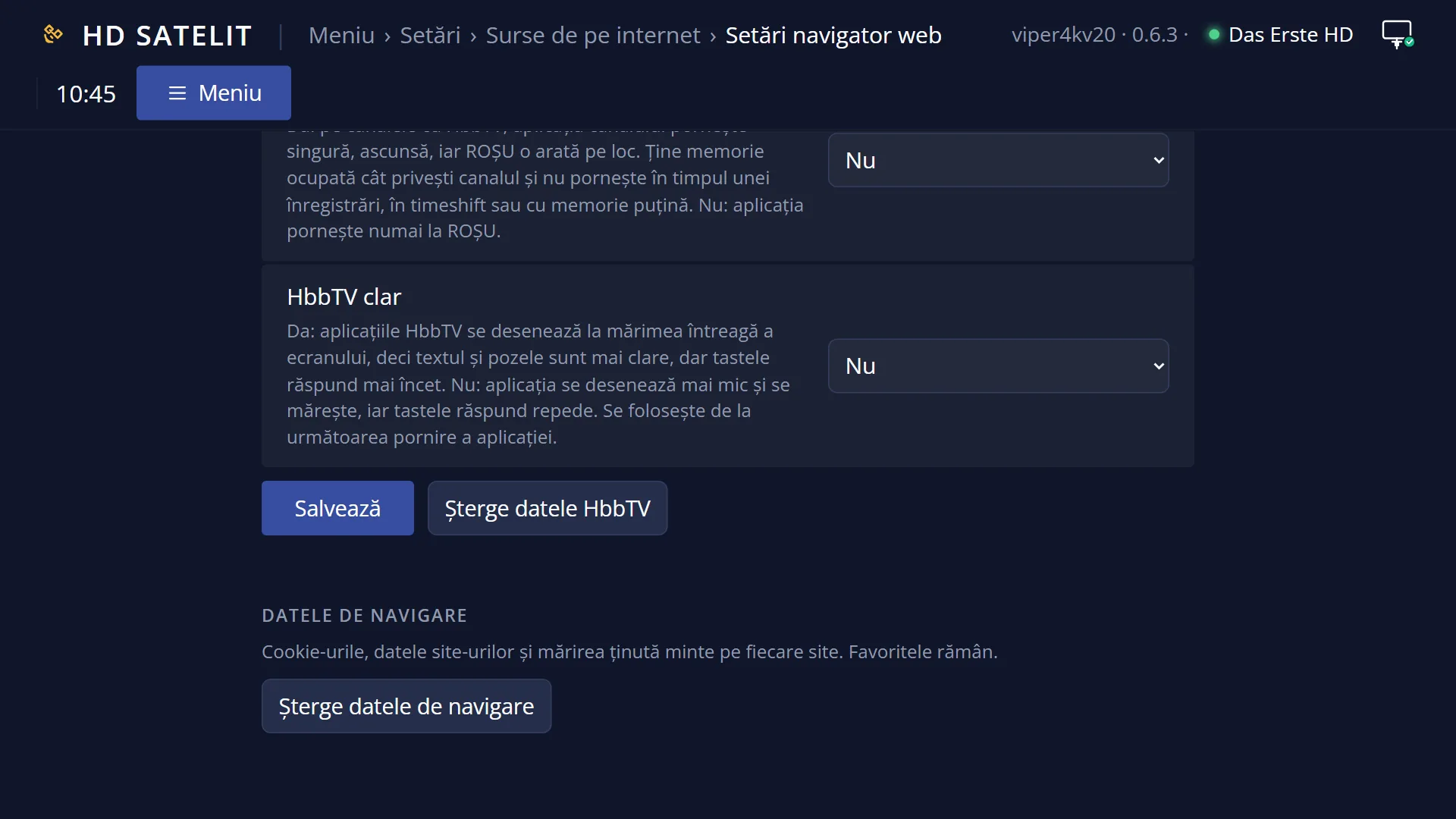
Further down the same page: the browser settings, favourites, HbbTV and browsing data (see the “Web browser settings” page).
Rows and settings
| Row | Values | Default | What it does |
|---|---|---|---|
| Text box | up to 4096 characters | empty | The text to send. It can have several lines, for multi-line fields. |
| Send to the TV | Puts the text into the field on the TV. The page says “The text was sent to the TV.” or why it did not work (“No text field is open on the TV.”, “The browser is not on the screen now.”, “Type the text first.”). It works from a browser, not with the scripting key. | ||
| Where the text goes | On-screen keyboard, text box, text setting, browser field | The receiver chooses by itself, in this order: a text window open now (the on-screen keyboard, including the browser's password keyboard, or a text box), then a text row selected in a settings screen, then the field with the cursor in the browser page. The line above the box tells you in advance where the text will go. | |
| Open on the TV | an address, words to search for | Opens the address in the web browser on the TV. A word without a full stop is searched with Google. Empty: the start page. |
Keys
| Send to the TV | Sends the text to the field selected on the TV. |
| Open on the TV | Opens the address you typed in the browser on the TV. |
| Start page on the TV | Opens the browser's start page on the TV. |
| Close the browser on the TV | Closes the web browser on the TV. |
| OK (on the remote) | Confirms the text that has arrived in a keyboard or text box on the TV. |
Step by step
Typing the Wi-Fi password on your phone
- On the TV, open WiFi networks, choose the network and press OK: the “Password for …” keyboard appears.
- On your phone, open /navigator: the line says “The text goes into the keyboard open on the TV.”.
- Type the password in the box and press “Send to the TV”, then confirm on the TV as usual.
Typing an address in a browser page
- On the TV, in the web browser, select the field in the page (for example a website's search box).
- On /navigator, type the text and press “Send to the TV”: it goes in at the cursor.
Opening a page on the TV
- On /navigator, under “Open on the TV”, type the address (or the words to search for).
- Press “Open on the TV”: the browser starts on the TV with the page.
Problems and solutions
“No text field is open on the TV.”
First open the field's keyboard on the TV (usually OK on the text row) or select the text row in a settings screen, then send again.
“The browser is not on the screen now.”
Another window is open over the browser on the TV, or the browser is closed. Close the window with EXIT or open the browser.
The text arrived, but the setting was not saved.
In a settings screen the text goes in without being saved: save on the TV as usual (for example GREEN).
“The text is too long (at most 4096 characters).”
Send the text in parts or shorten it.
I cannot see the password I sent on the TV.
It is a password field: the text is deliberately not shown on screen. Confirm on the TV and check whether it works.
Related topics
- Web browser
- Web browser settings
- Network Connection Setup (Wi-Fi password)
- Web page: /navigator.