

Radio screen settings
English screenshots coming: some of the pictures below still show the receiver and the web interface in Romanian. The rows, keys and steps described on this page are the English ones.
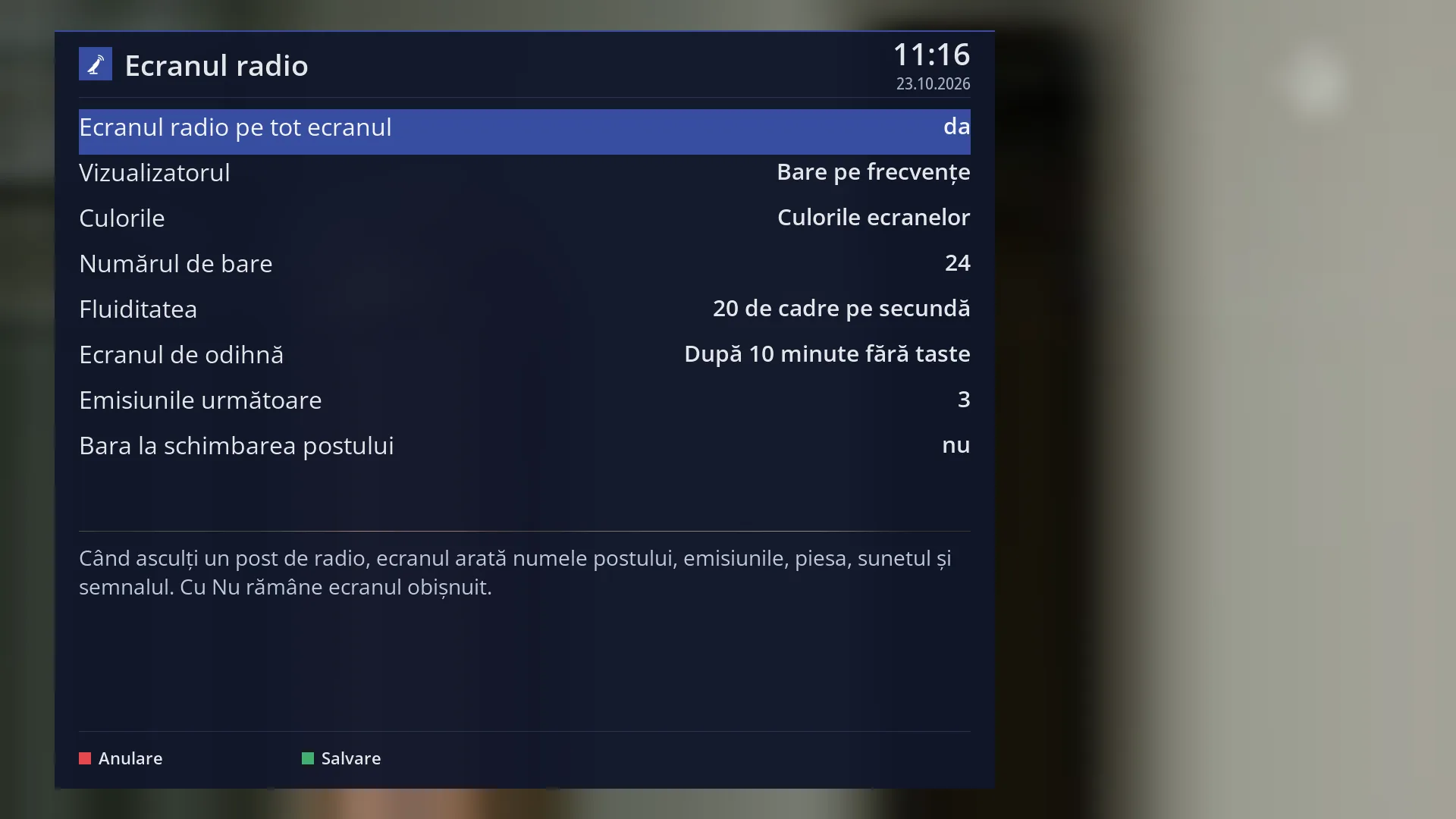
- 1 The 8 settings, with the current value on the right.
- 2 The explanation of the selected row.
- 3 RED restores the values from when the screen was opened, GREEN closes and keeps them.
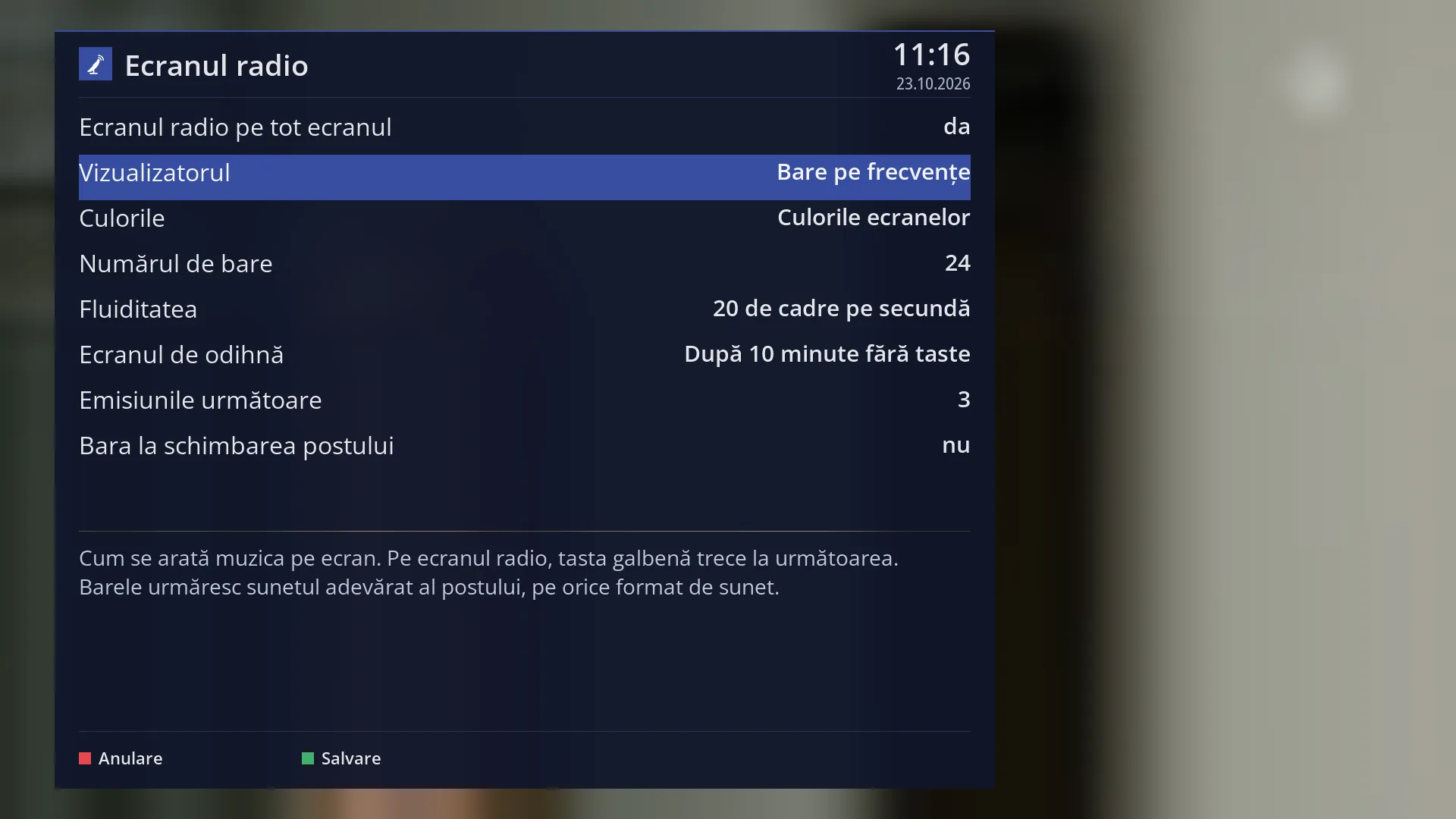
- 1 Selected row: “Visualiser: Frequency bars”.
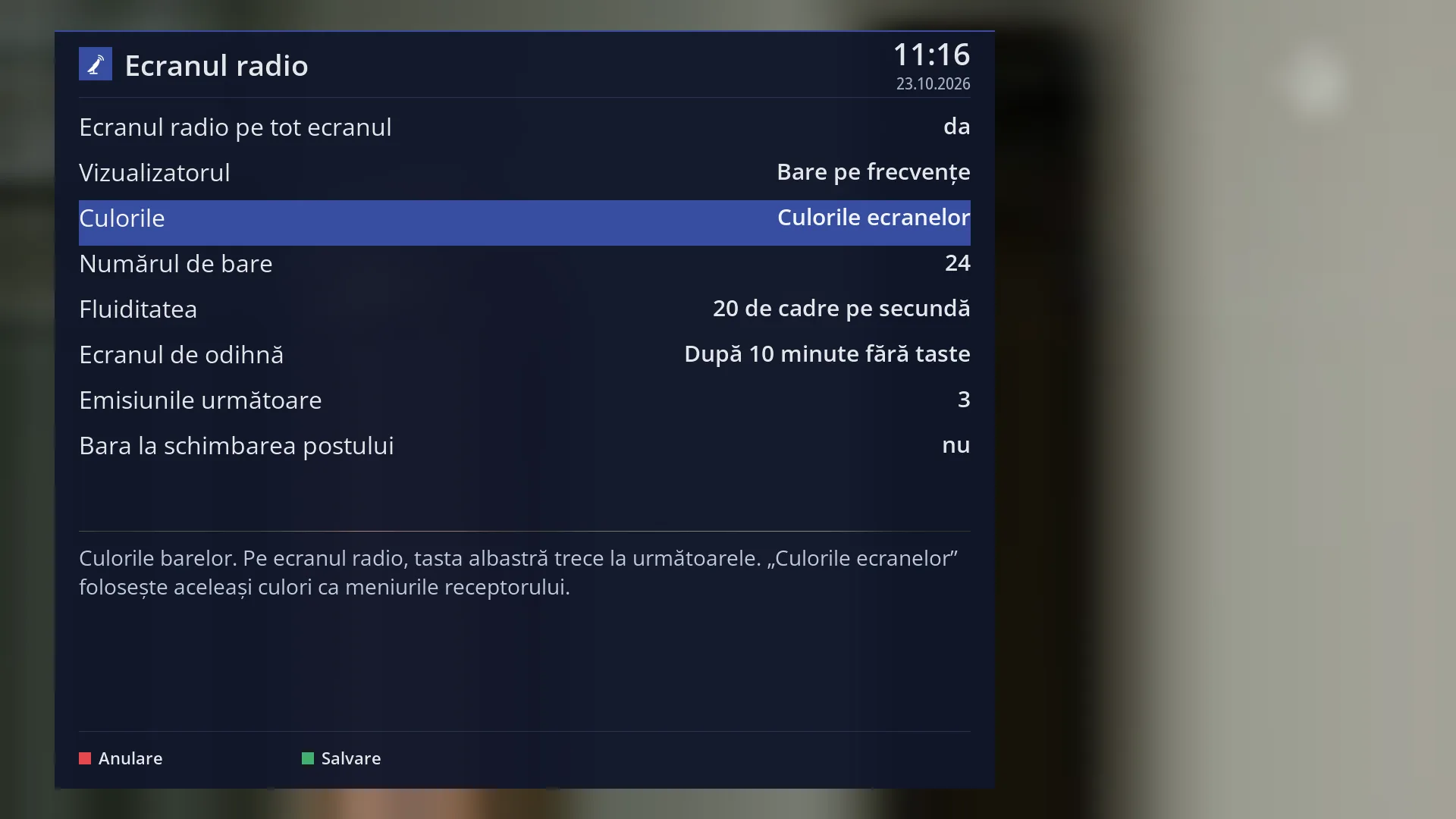
- 1 Selected row: “Colours: Screen colours”.
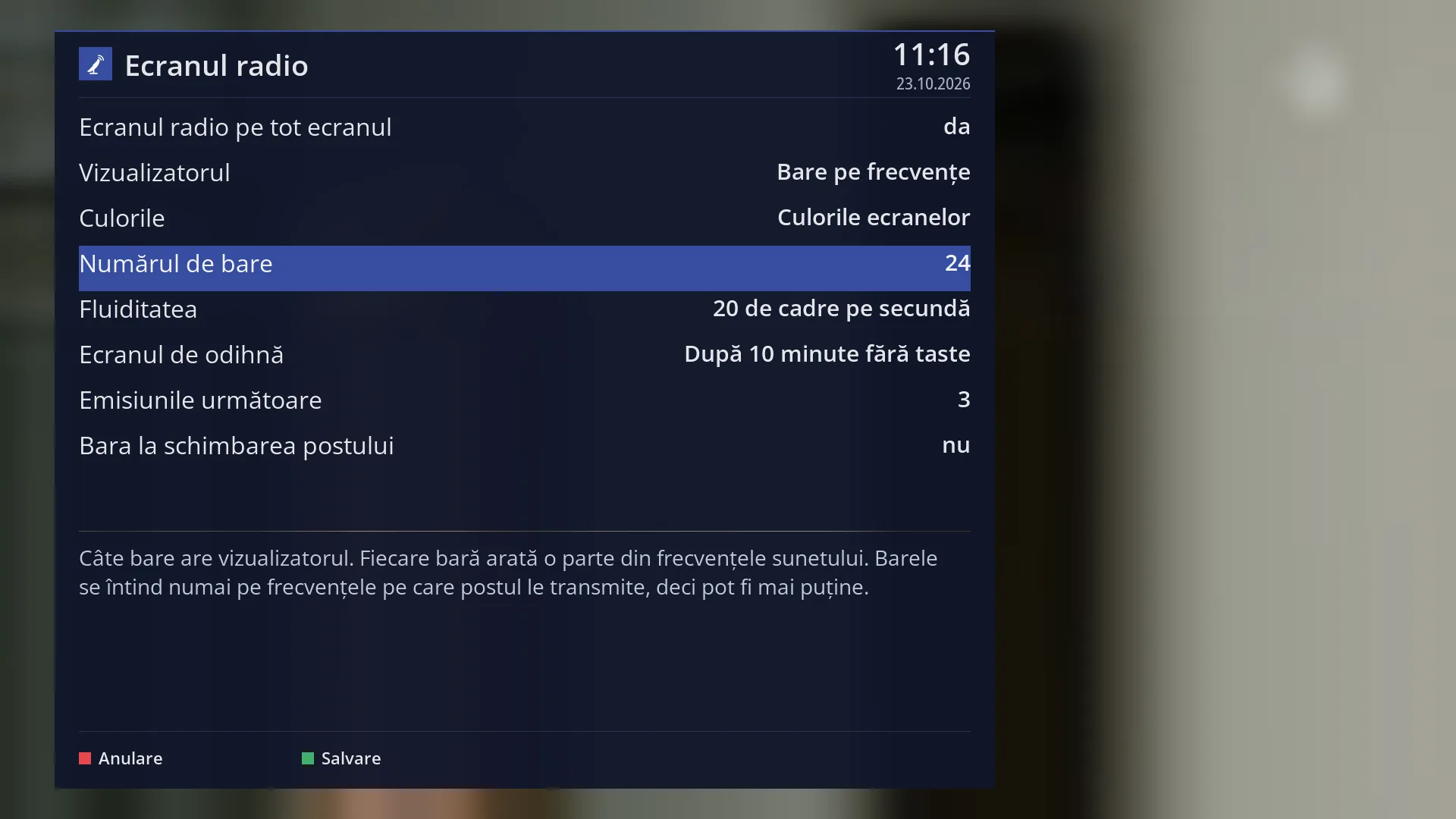
- 1 Selected row: “Number of bars: 24”.
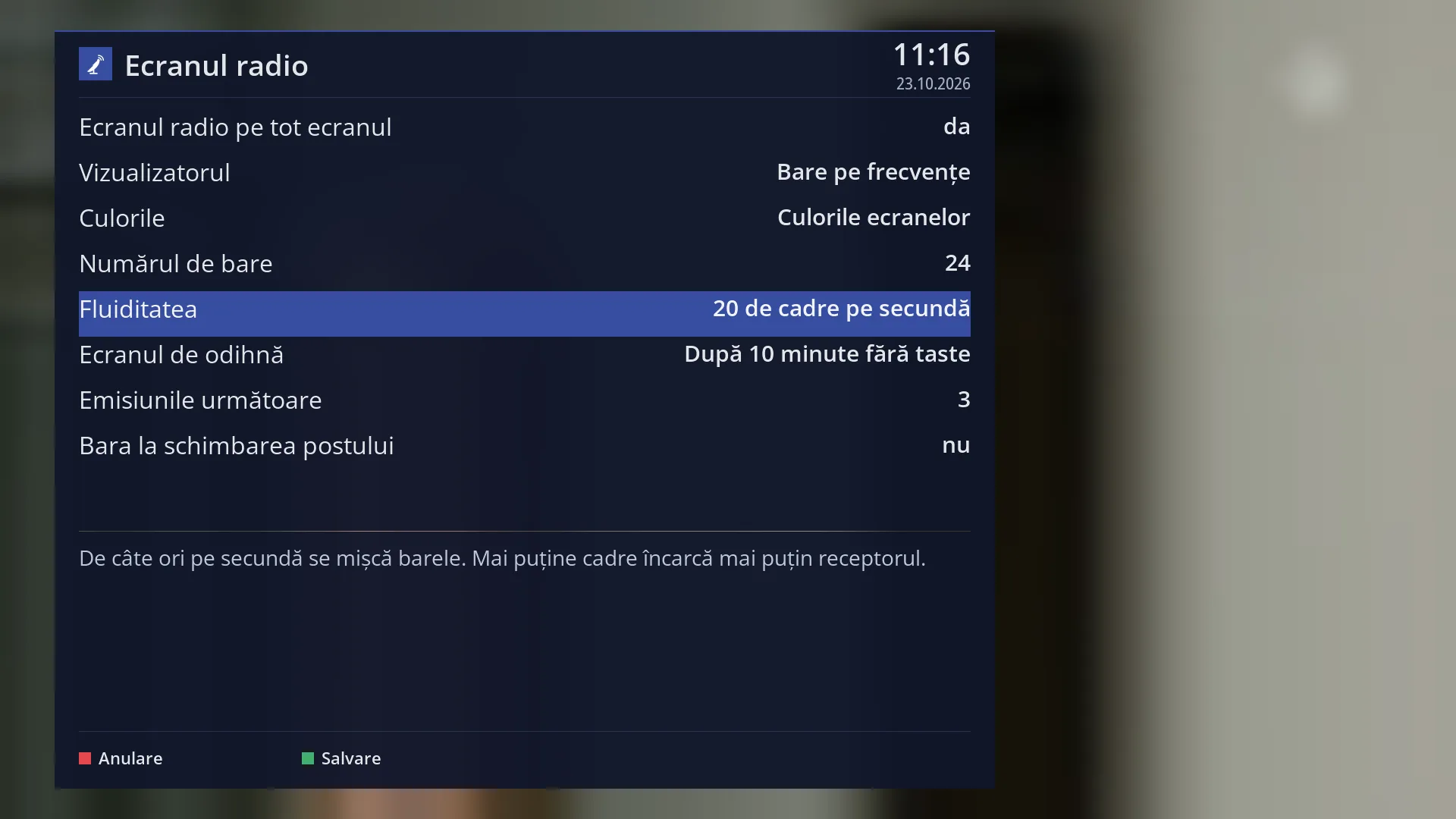
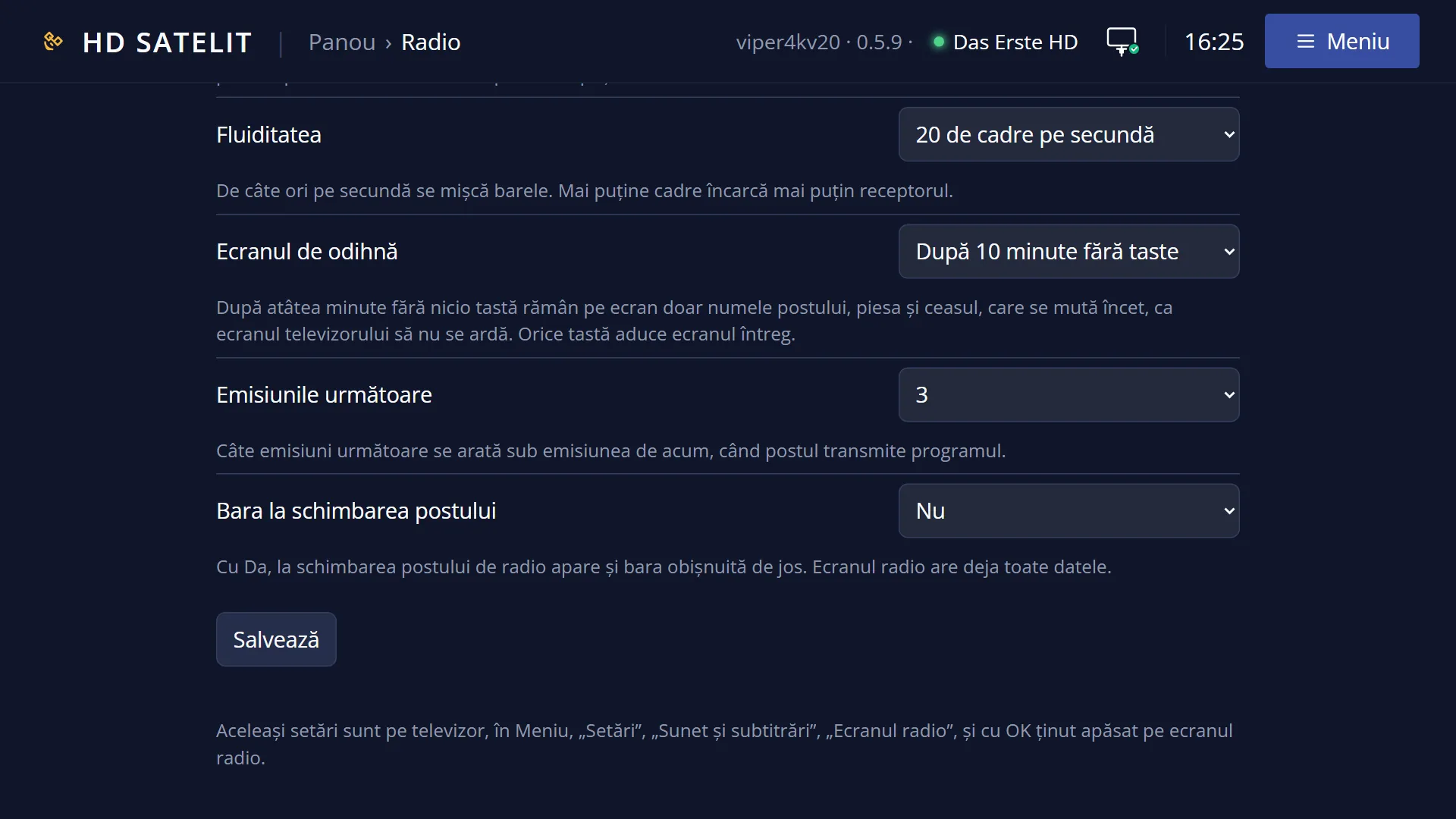
- 1 Selected row: “Smoothness: 20 frames per second”.
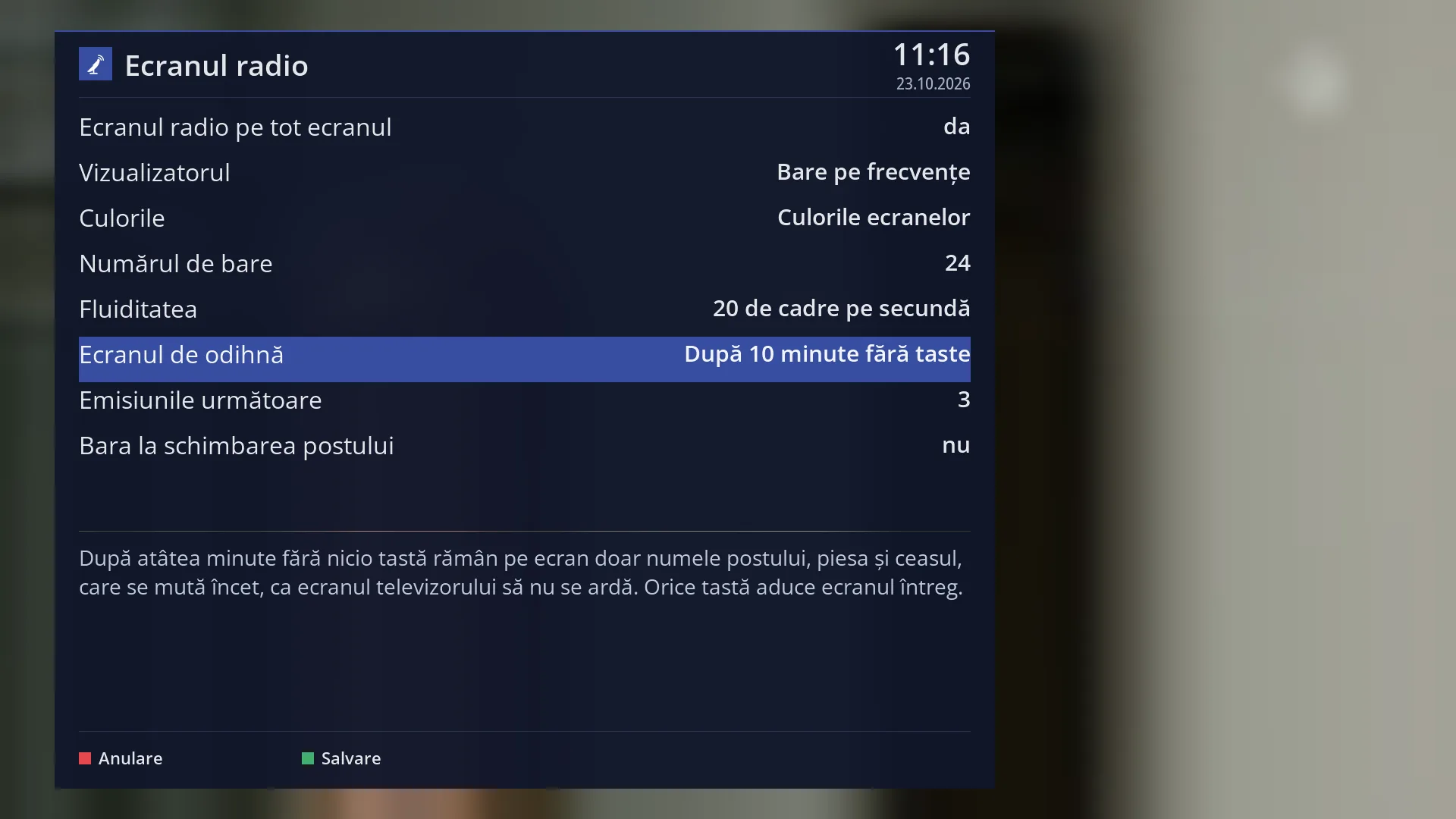
- 1 Selected row: “Rest screen: After 10 minutes without a key press”.
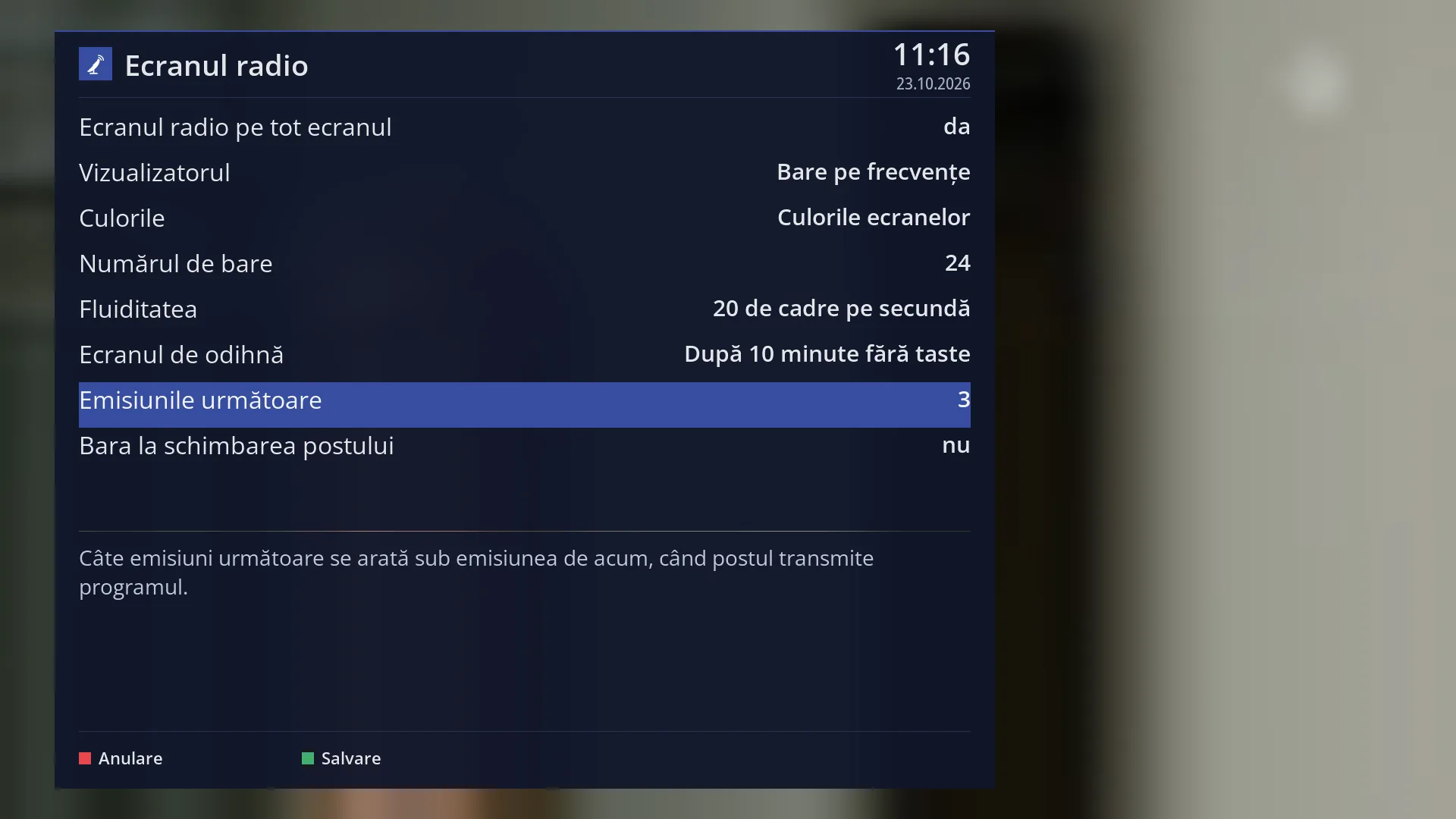
- 1 Selected row: “Next programmes: 3”.
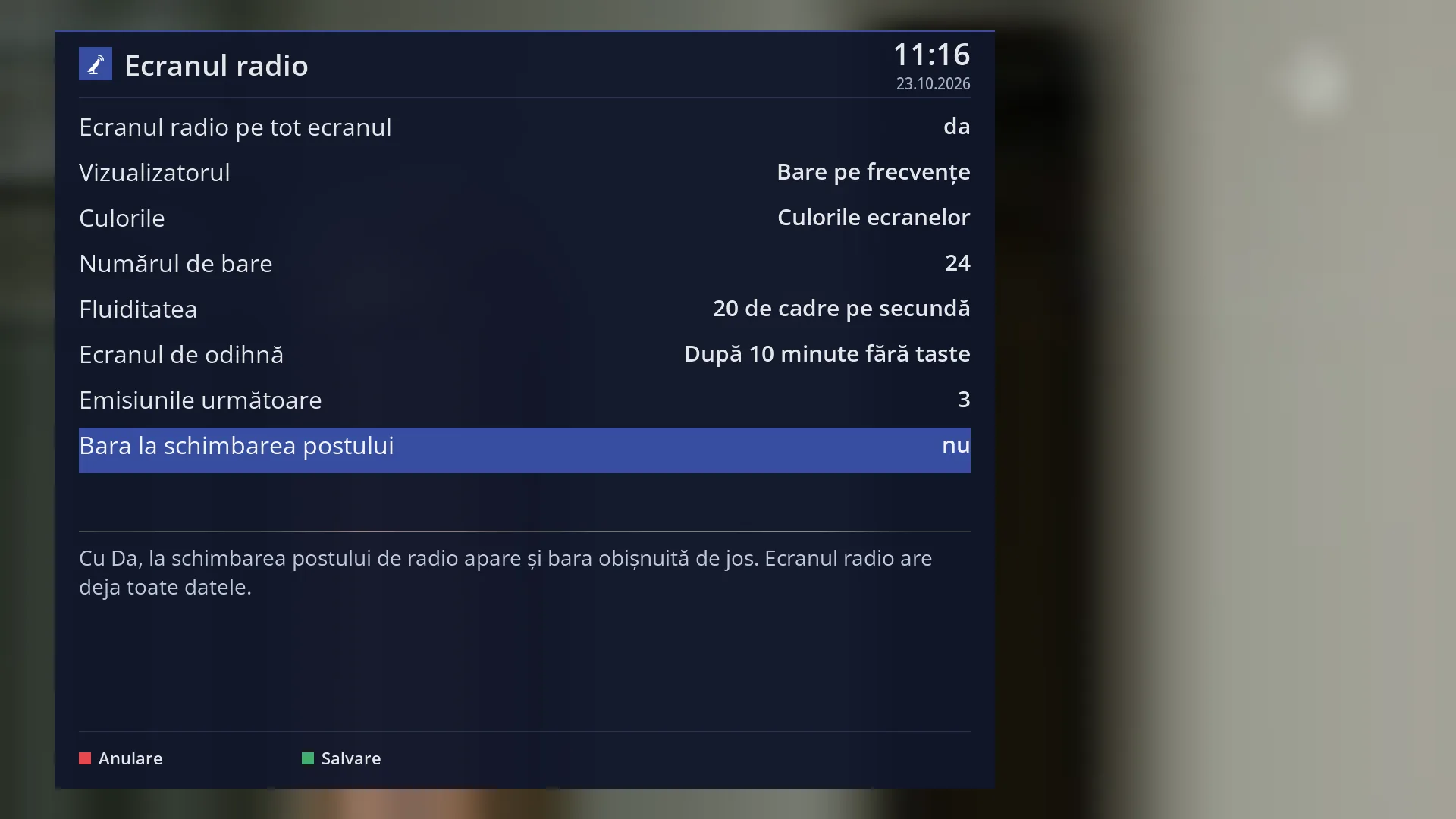
- 1 Selected row: “Bar when changing station: No”.
What it is for
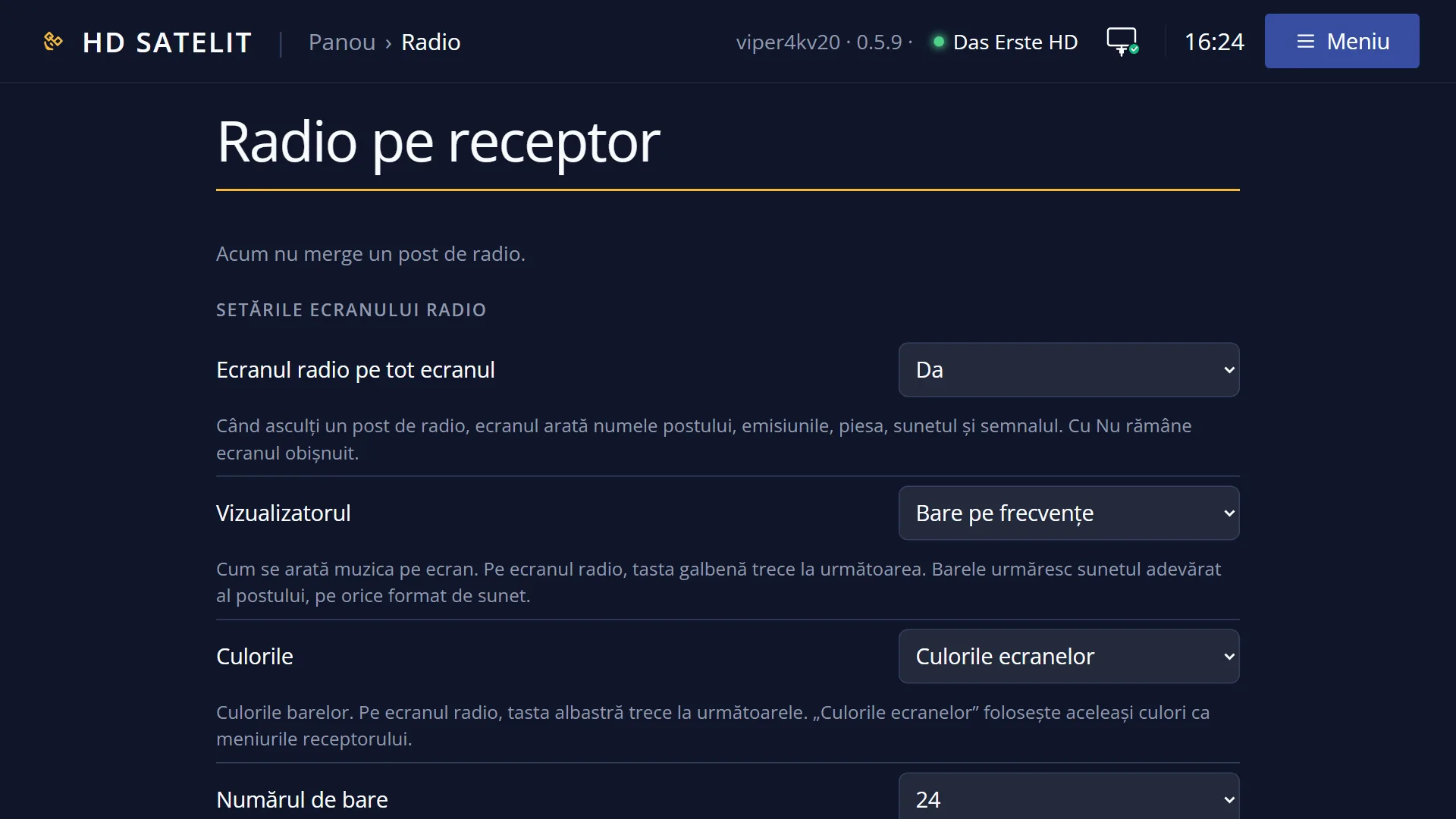
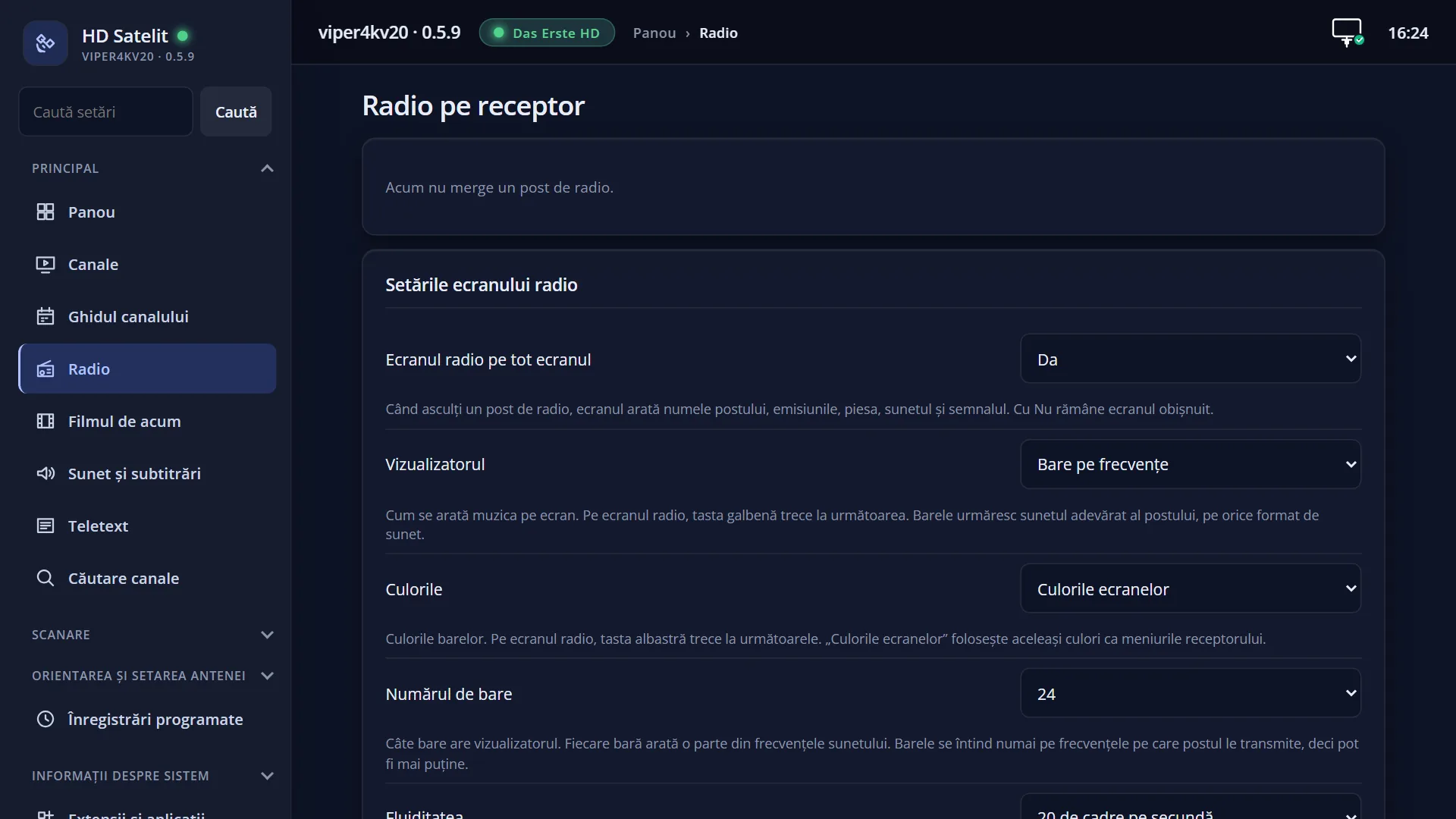
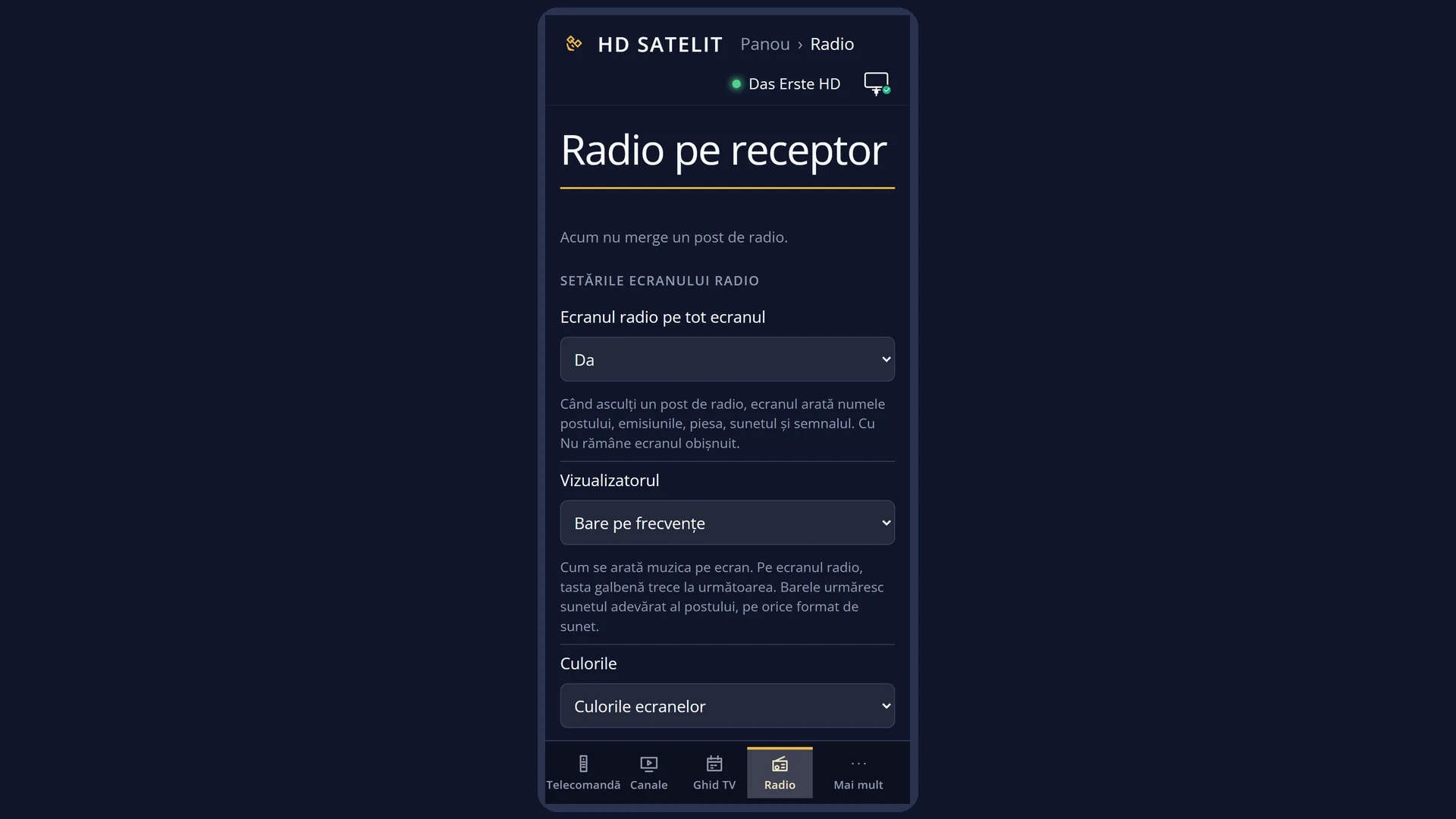
Here you decide how the radio screen looks. This is the full-screen window that appears when you listen to a radio station. You choose whether it appears at all, which visualisation the bars that move with the music use, which colours, how many bars, how smoothly they move, how long before only a small block remains (to prevent burn-in on the TV) and how many next programmes it shows.
Each choice you make with OK shows straight away on the radio screen if a station is playing, and it is remembered.
You can also change the visualisation and the colours directly on the radio screen with YELLOW and BLUE, without opening this screen.
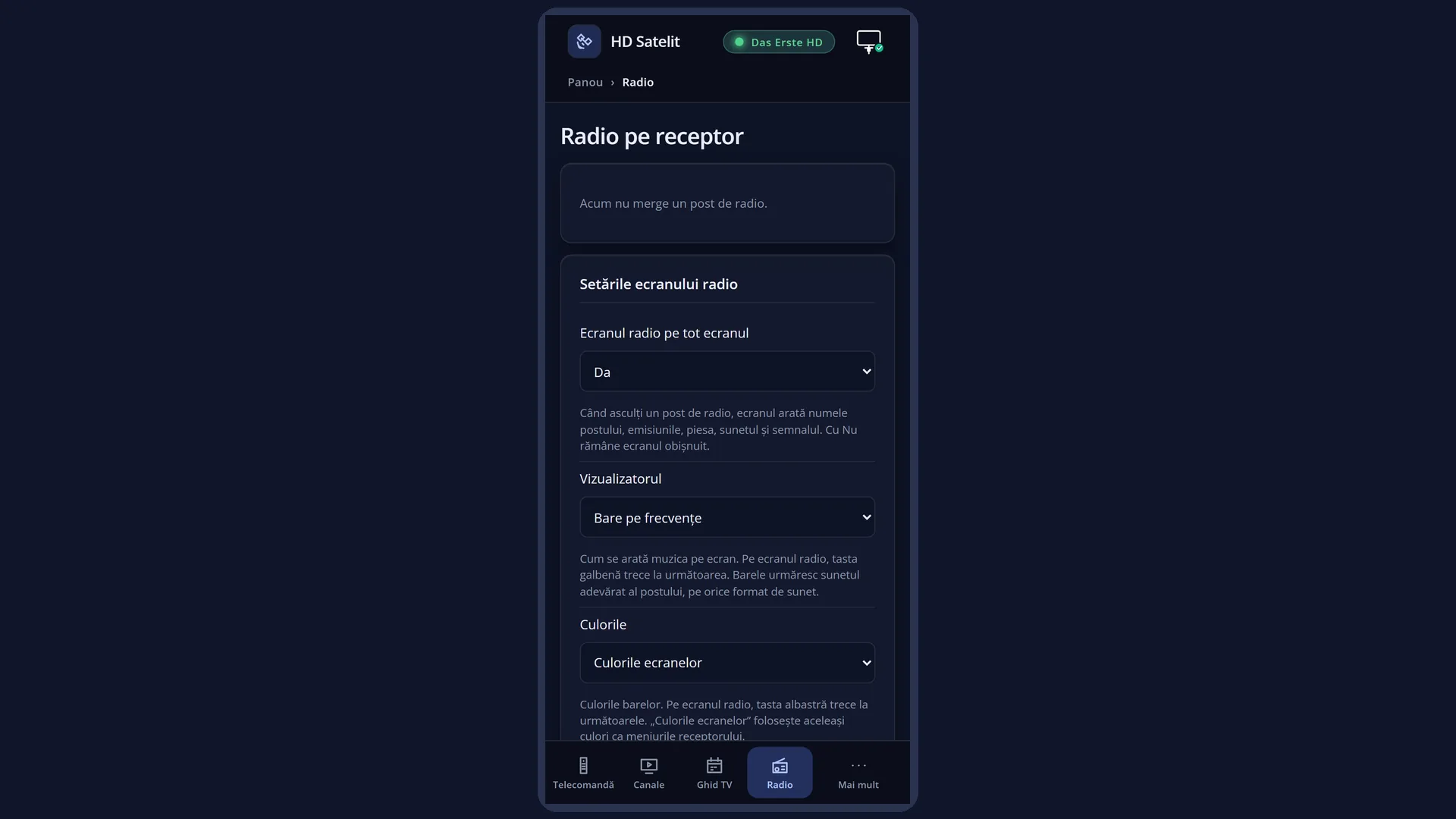
The same settings are also in the web interface, on the /radio page.
How to get here
Path: Main menu > Settings > Audio & Sound Tracks > Radio screen.
Keys while watching TV: MENU 6 4 9.
From the radio screen: hold OK (for about a second), then “Radio screen settings”.
In the web interface: the /radio page (“Radio on the receiver”).
What you see on the screen
At the top, the title “Radio screen”, the clock and the date.
The list of 8 rows, each with its value on the right: “Full-screen radio screen”, “Visualiser”, “Colours”, “Number of bars”, “Smoothness”, “Rest screen”, “Next programmes” and “Bar when changing station”. The selected row is blue.
Below a line, the explanation of the selected row (for example “When you listen to a radio station, the screen shows the station name, programmes, song, sound and signal. With No the usual screen stays.”).
At the bottom, the keys: RED “Cancel” and GREEN “Save”.
Rows and settings
| Row | Values | Default | What it does |
|---|---|---|---|
| Full-screen radio screen | Yes, No | Yes | Yes: when you listen to a radio station, the screen shows the station name, the programmes, the track, the sound and the signal. No: the receiver's usual screen stays, as with any radio station. When you prefer the simple screen for radio. |
| Visualiser | Off, Frequency bars, Bars with slowly falling peaks, Mirrored spectrum, Circle, Sound level, left and right | Bars with slowly falling peaks | How the music is shown on the screen. The bars follow the station's real sound, in any audio format. On the radio screen, the YELLOW key switches to the next visualisation. To taste. “Off” leaves only the texts. |
| Colours | Screen colours, Classic (green, yellow, red), Blue, Fire, Subtle (grey) | Screen colours | The colours of the bars. “Screen colours” uses the same colours as the receiver's menus. On the radio screen, the BLUE key switches to the next colours. To taste. “Subtle (grey)” is the least distracting in the evening. |
| Number of bars | 12, 16, 24 | 24 | How many bars the visualiser has. Each bar shows part of the sound's frequencies. The bars only cover the frequencies the station transmits, so there may be fewer. When you want fewer, wider bars. |
| Smoothness | 10 frames per second, 15 frames per second, 20 frames per second, 25 frames per second | 20 frames per second | How many times per second the bars move. Fewer frames put less load on the receiver. Fewer frames if the receiver responds slowly while you listen to radio. More for smoother movement. |
| Rest screen | After 5 minutes without a key press, After 10 minutes without a key press, After 15 minutes without a key press, After 30 minutes without a key press, Never | After 10 minutes without a key press | After this many minutes without any key press, only the station name, the track and the clock stay on the screen. They move slowly to prevent burn-in on the TV. Any key brings back the full screen. Shorter if you often leave the radio playing with the TV on. “Never” only if you know your TV does not keep marks from a still image. |
| Next programmes | 1, 2, 3, 4 | 3 | How many next programmes are shown below the current programme, when the station transmits its schedule. Fewer when you want room for the bars, more when you want to see the schedule. |
| Bar when changing station | Yes, No | No | With Yes, the usual bar at the bottom also appears when you change radio station. The radio screen already has all the information, so the factory setting is No. When you are used to the bar and want it for radio too. |
Keys
| UP / DOWN | Select the row. The explanation at the bottom changes. |
| OK | On Yes / No rows, it changes the value immediately. On the other rows, it opens the list of values (with the row's title), with the current value selected. OK on a value sets it. The choice shows straight away on the radio screen and is remembered. |
| LEFT / RIGHT | Move to the previous or next value of the row. To make the choice show straight away on the radio screen and be sure it stays after a restart, use OK. |
| GREEN or EXIT | “Save”: close the screen. If you changed anything, the settings are written to the receiver once, at this point. |
| RED | “Cancel”: restores all the values from when the screen was opened (on the radio screen too) and closes. |
Step by step
Change the bar visualisation
- Press MENU 6 4 9.
- Press DOWN to reach “Visualiser”, then OK.
- Choose from the list (for example “Circle”) and press OK.
- Press GREEN to close.
Turn off the full-screen radio screen
- Press MENU 6 4 9. The cursor is on “Full-screen radio screen”.
- Press OK: the value changes to No.
- Press GREEN. The usual screen stays for radio.
Change the settings from the radio screen, without the menu
- On the radio screen, hold OK for about a second.
- Choose “Radio screen settings” and press OK.
- Change what you want. The radio screen behind shows the result straight away.
Problems and solutions
The bars do not appear. The screen says “The bars cannot be shown for this station.” or “The bars are not available on this station.”
The receiver cannot read this station's sound for the bars. The texts and the sound work normally. Try another station or set “Visualiser” to Off.
I changed it with LEFT / RIGHT, but the radio screen still looks the same as before.
Change the value with OK: a choice made from the list of values shows straight away and stays.
The radio screen no longer appears for radio.
“Full-screen radio screen” is set to No, or you hid it with EXIT (it then comes back at the next station or with OK).
After a while, only a small moving block stays on the screen.
This is the rest screen, to prevent burn-in on the TV. Press any key. You change the time at “Rest screen”.
I cannot see the next programmes.
The station does not transmit its schedule. The radio screen then says “The station does not send a programme schedule.”.
The receiver responds slowly while the radio is playing.
Set “Smoothness” to 10 or 15 frames per second.
Related topics
- Radio screen (full screen)
- Per-station equaliser
- Equalizer (settings)
- Audio & Sound Tracks
- Matching web page: /radio.