

Media player (Mplay key)
English screenshots coming: some of the pictures below still show the receiver and the web interface in Romanian. The rows, keys and steps described on this page are the English ones.
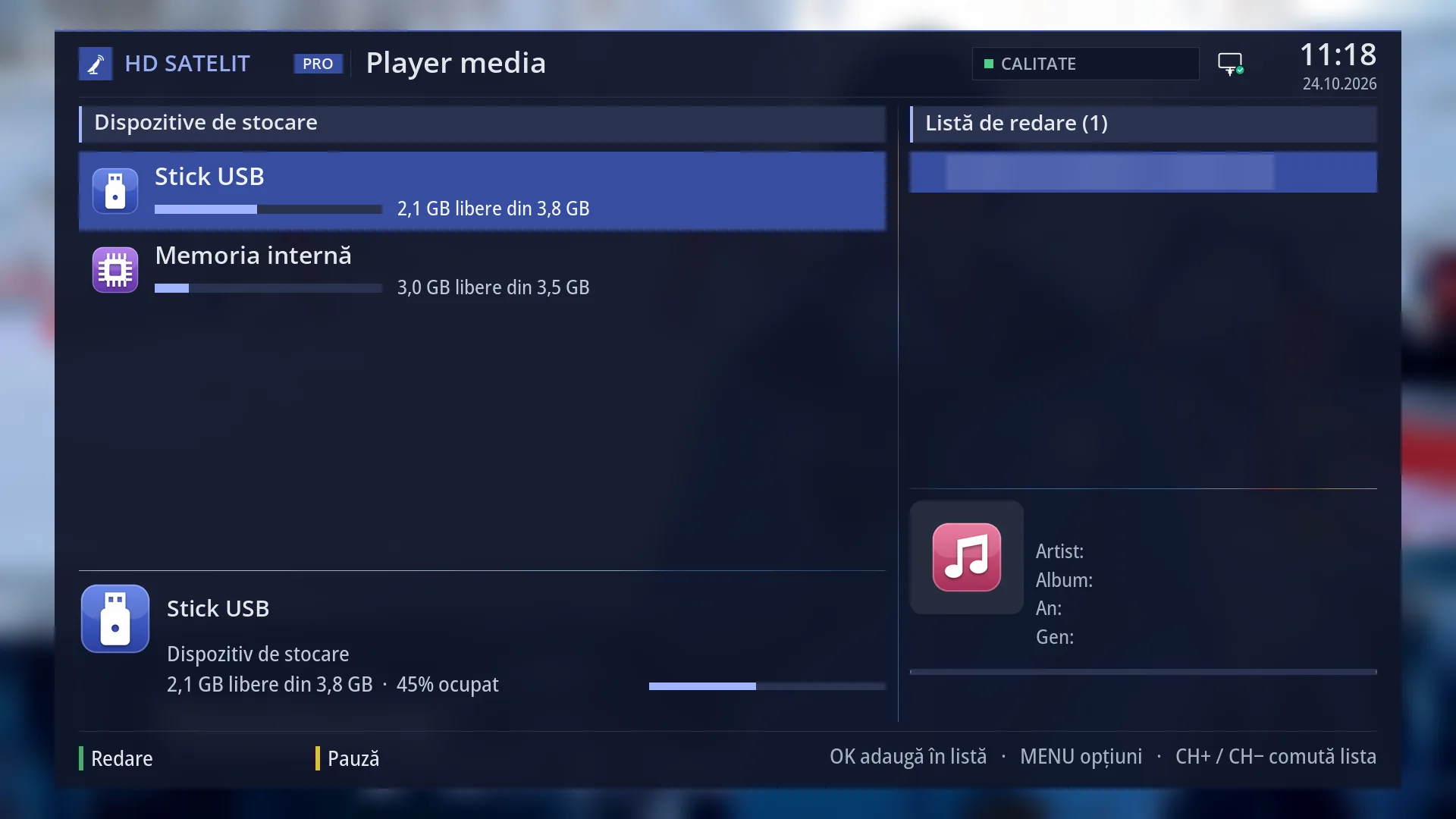
- 1 Where the player opens: the list of devices or the chosen folder.
- 2 The playlist kept from last time.
- 3 GREEN play, YELLOW pause.
What it is for
The Mplay key on the remote opens the “Media player” directly, without going through the menu. It is the same screen as Menu > Media > Media player (MENU 8 1).
It is the quickest way to the films and music on your USB stick: Mplay, OK on the USB stick, OK on the film.
When the player opens, the channel you were watching stops. When you close the player with EXIT, the channel starts again.
Everything you do in the player (the playlist, the keys, the menu, the settings) is explained on the “Media player” page.
How to get here
How to get there: press Mplay while you are watching TV or listening to the radio, with no menu or list open.
Keys while watching: Mplay.
It does not work from menus, from the channel list or while a recording is playing (EMC). Close them first with EXIT or STOP.
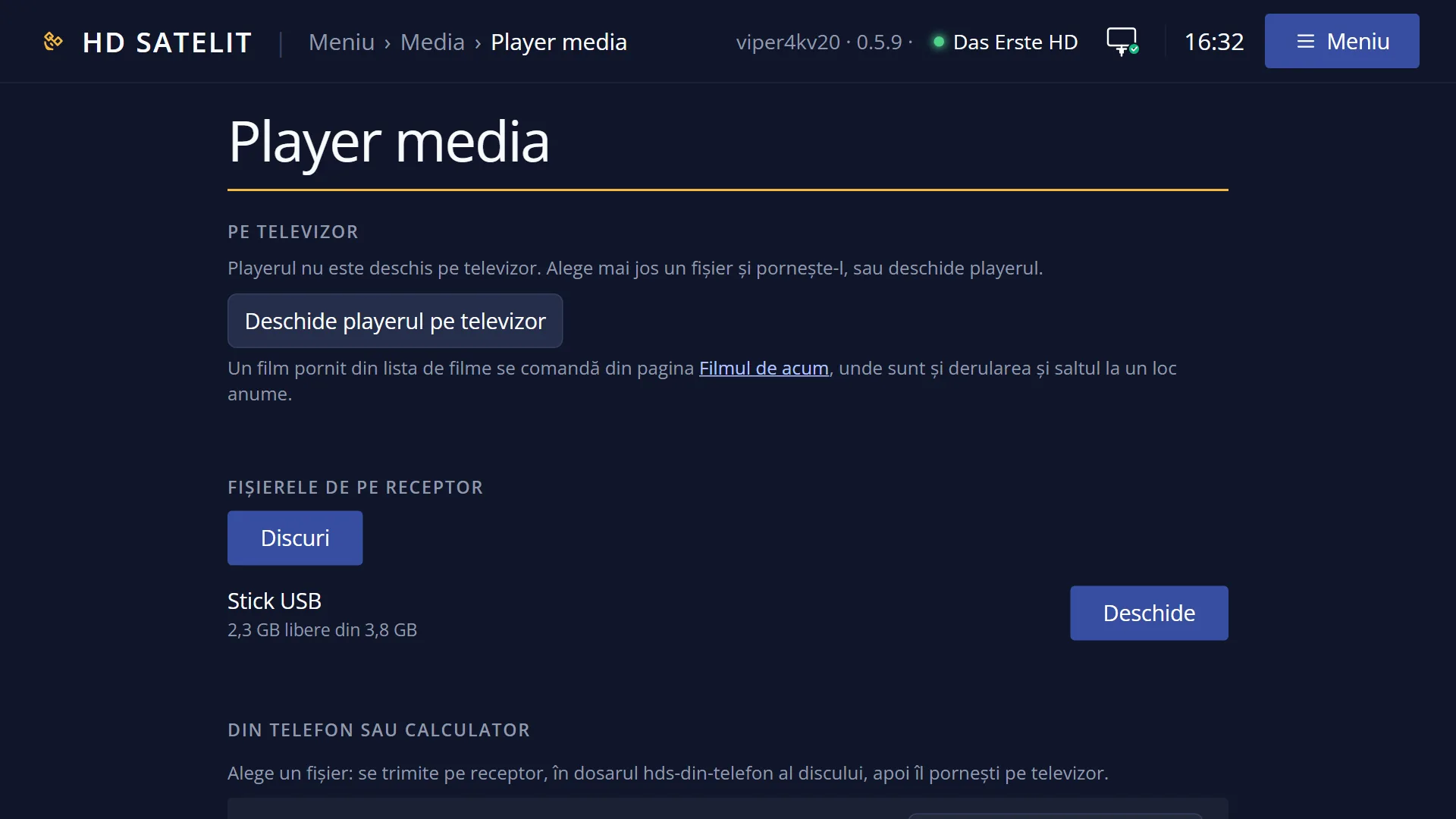
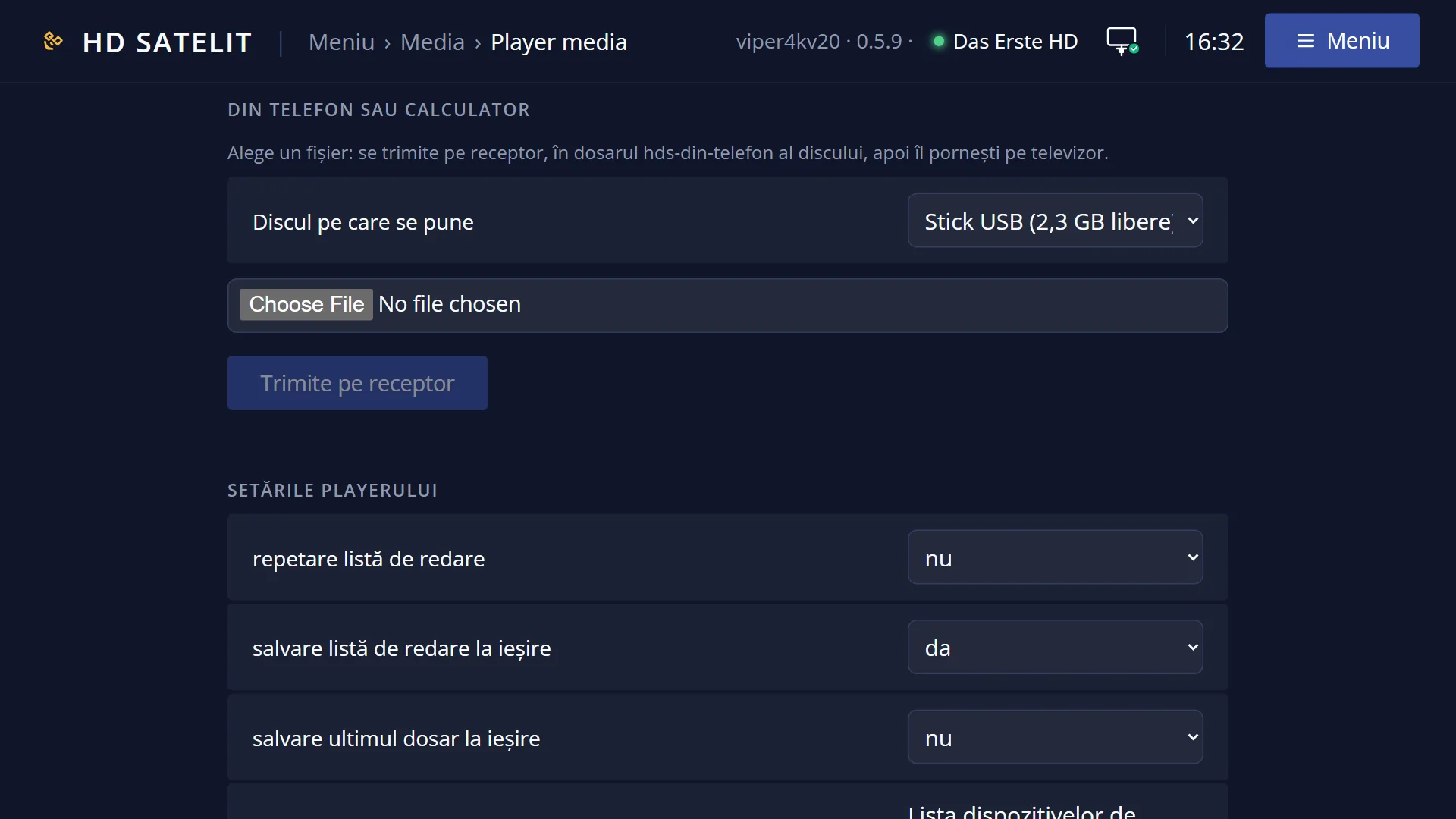
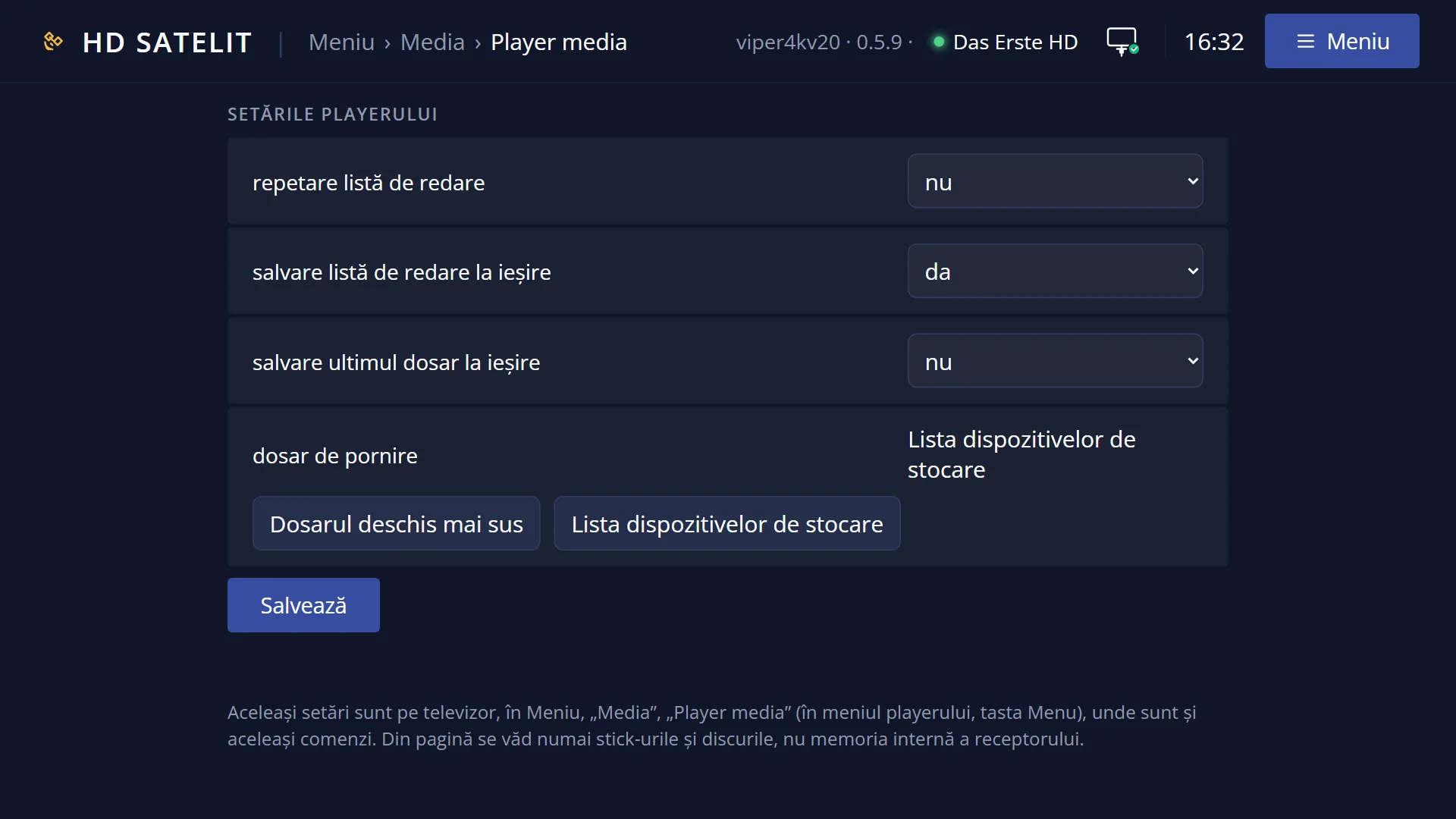
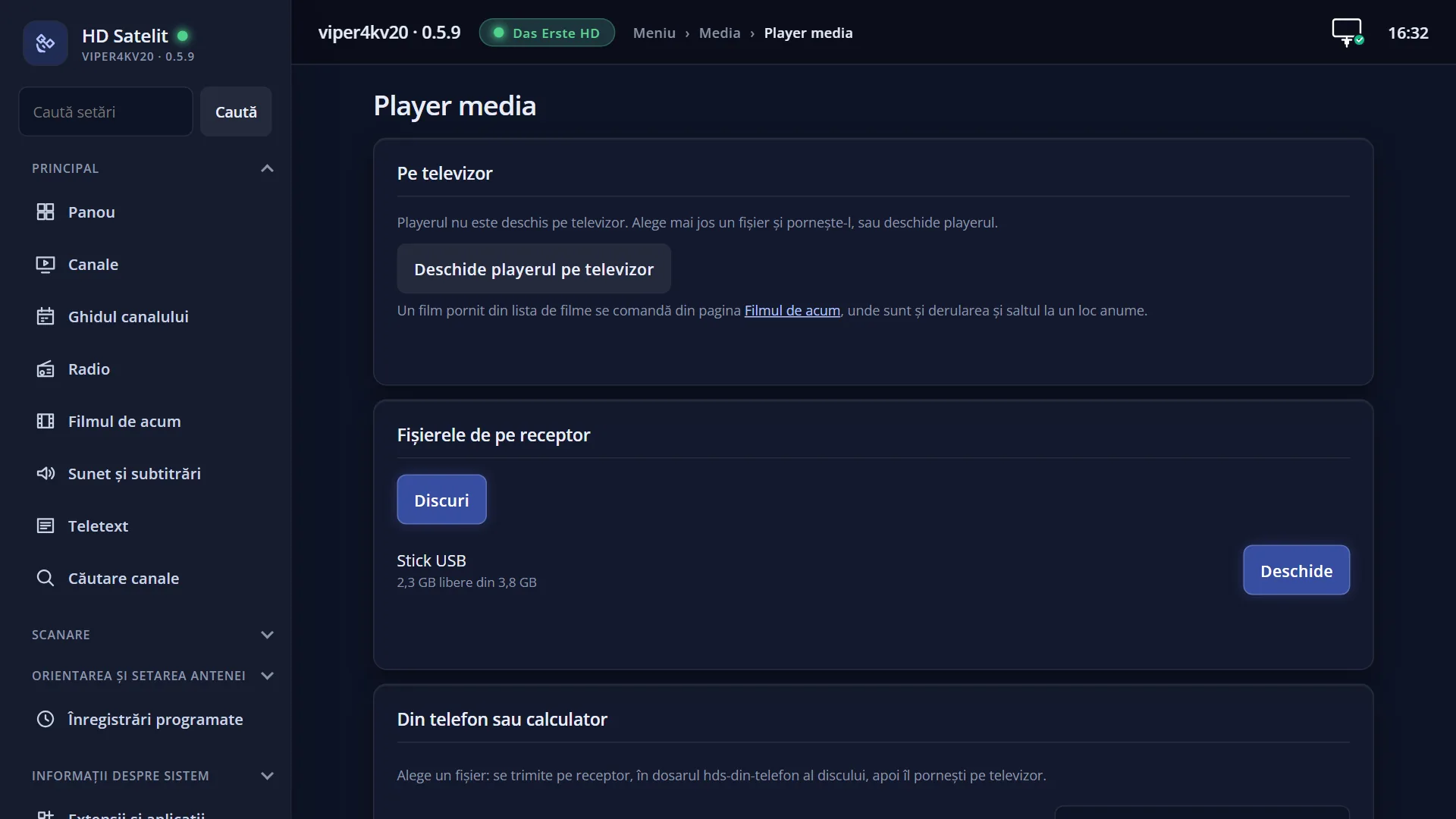
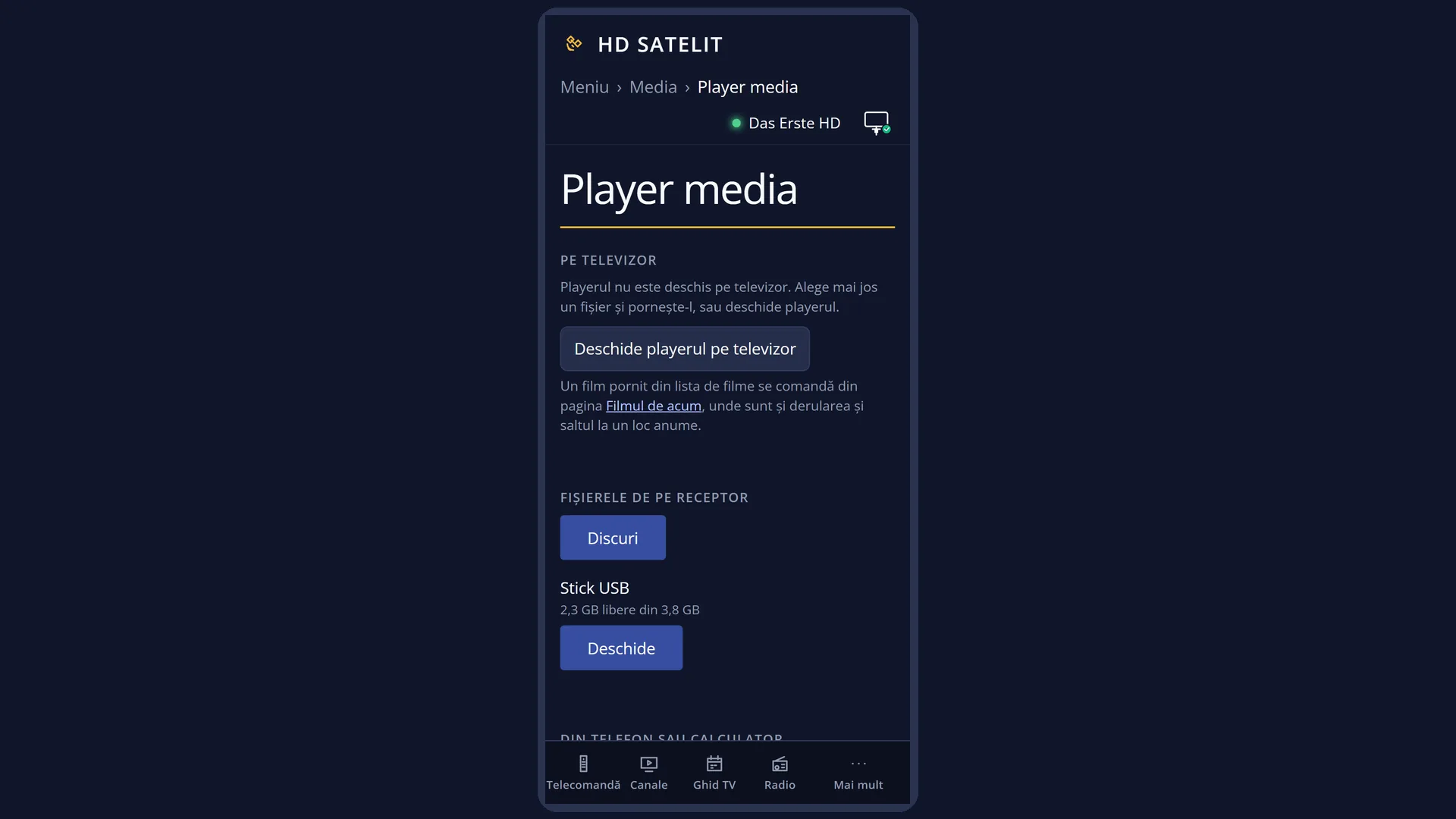
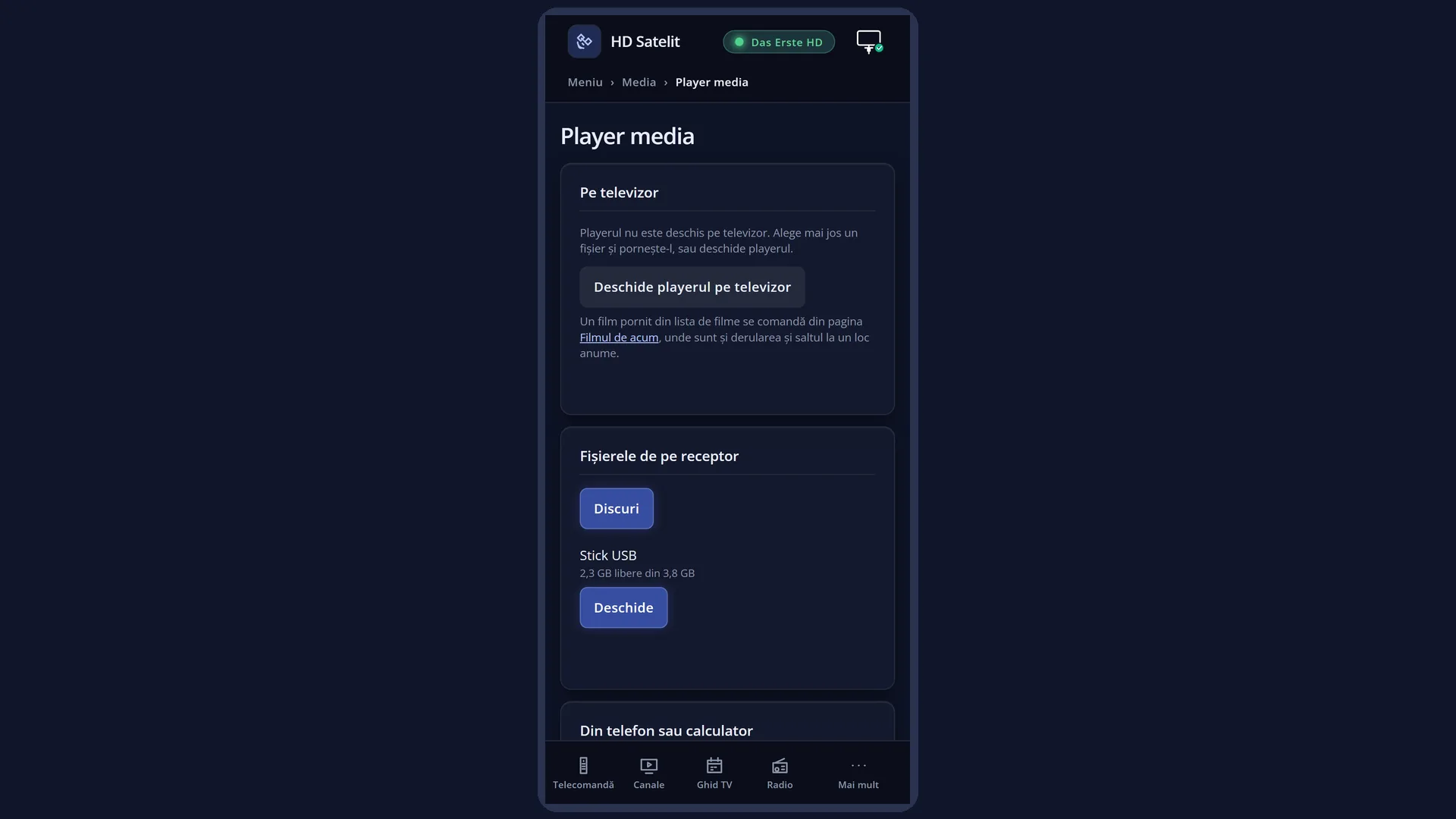
Same screen: MENU 8 1. In the web interface: the /player page.
What you see on the screen
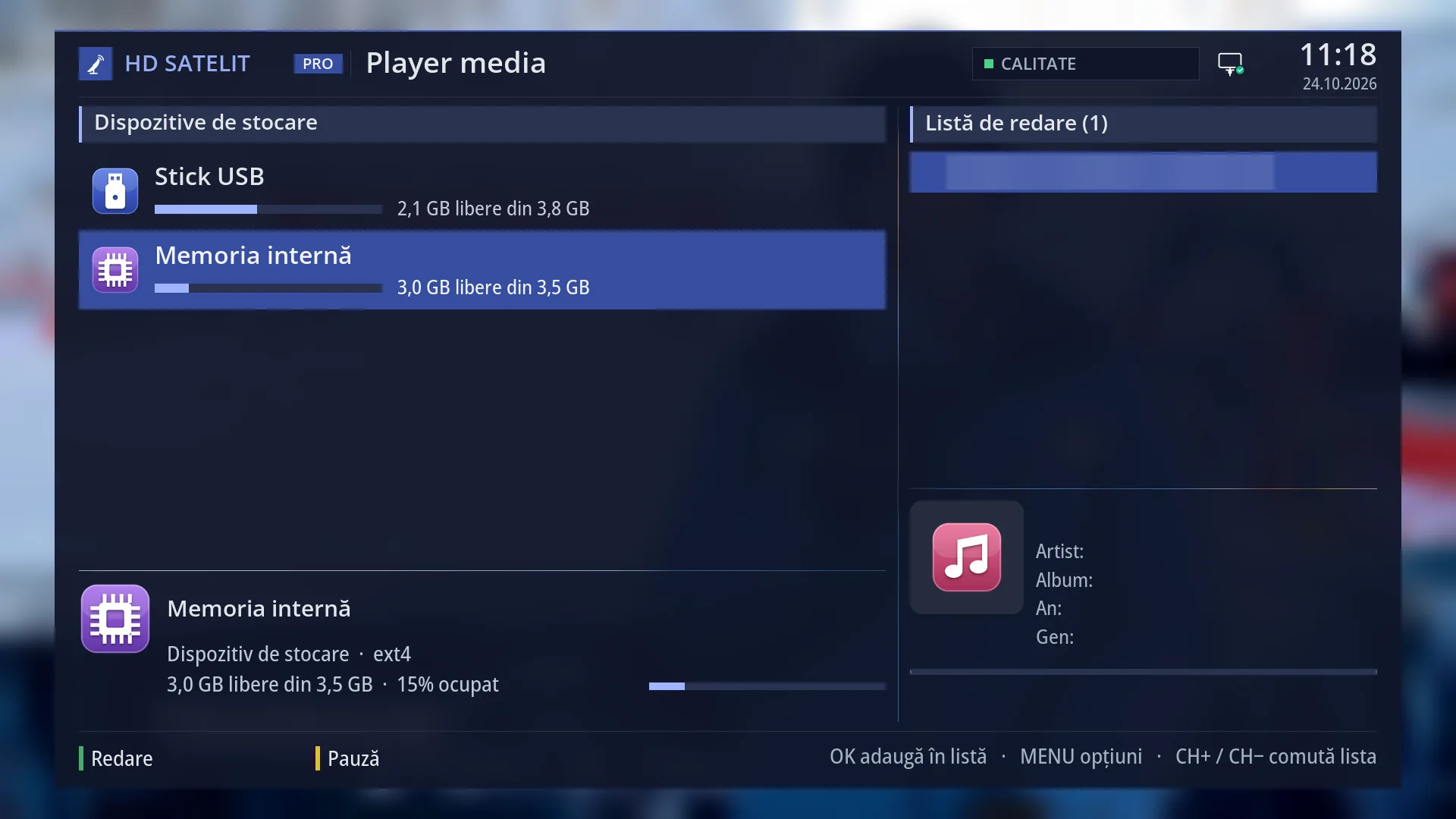
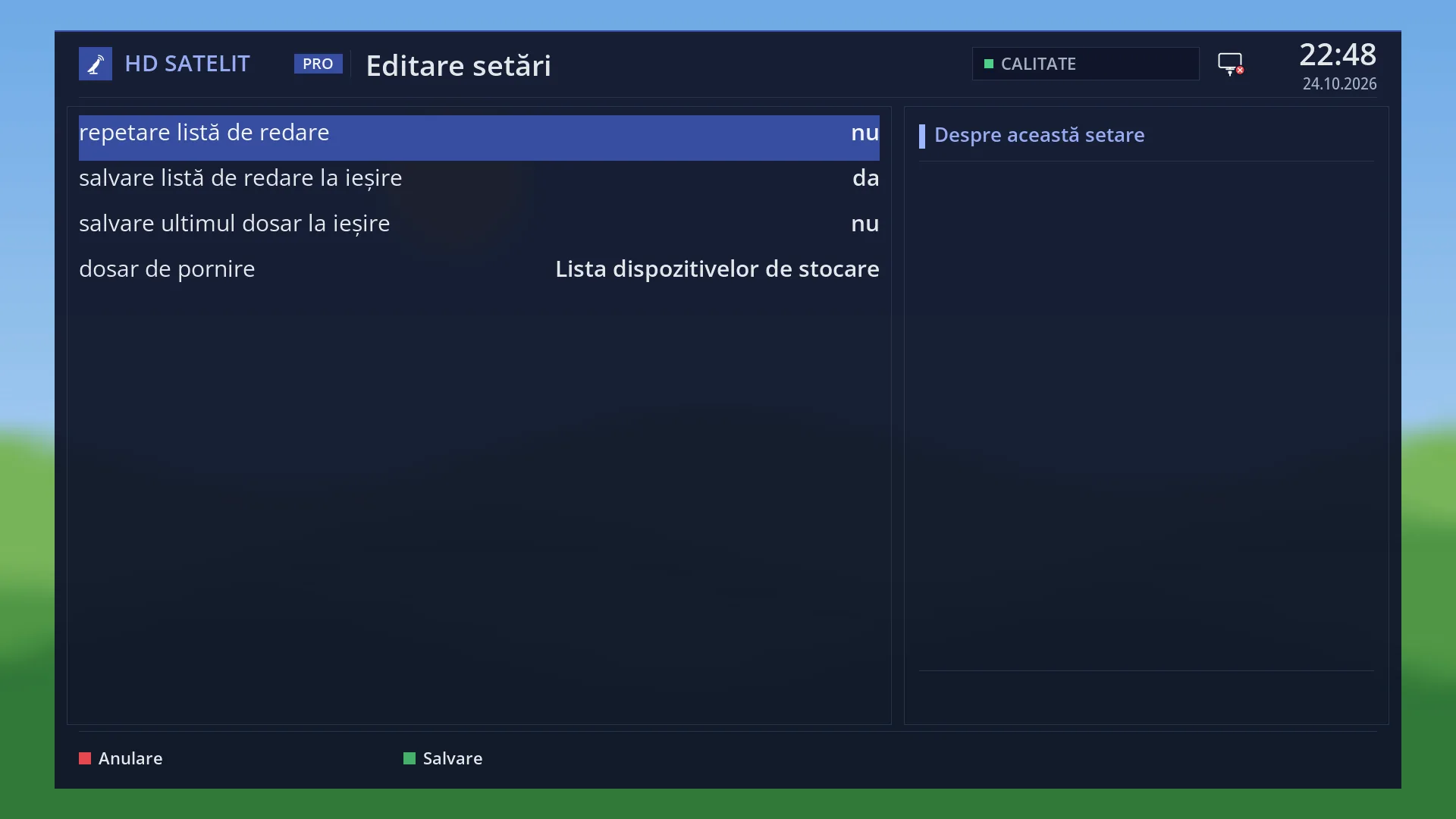
The “Media player” opens in the start directory chosen in the settings (by default, the list of devices: “USB stick”, “Internal memory”), or in the last directory, if you have turned on “save last directory on exit”.
On the right, the playlist from last time, if “save playlist on exit” is set to yes (yes by default).
At the bottom, GREEN “Play”, YELLOW “Pause” and the hint “OK adds to the list · MENU options · CH+ / CH− switches the list”.
Rows and settings
| Row | Values | Default | What it does |
|---|---|---|---|
| Where the player opens (MENU > Edit settings) | the list of devices, a chosen start directory, the last directory | the list of devices | With “save last directory on exit” set to yes, Mplay takes you to where you left off last time. Set to no, it takes you to the “start directory”. When you often play films from the same folder and want to get there with one key press. |
| The playlist from last time | kept, empty | kept (save playlist on exit: yes) | The list on the right stays from one opening to the next. You clear it by holding STOP or from the menu (“clear playlist”). When you always want a new list. |
Keys
| Mplay (while watching) | Opens the “Media player”. The channel stops while it is open. |
| OK | Opens the folder or adds the file to the playlist (if the list was empty, it also starts playing it). |
| GREEN | Puts the whole folder in the playlist and starts from the selected file. |
| YELLOW or PAUSE | Pause and play again. |
| STOP | Stops the file. Held down, it clears the playlist. |
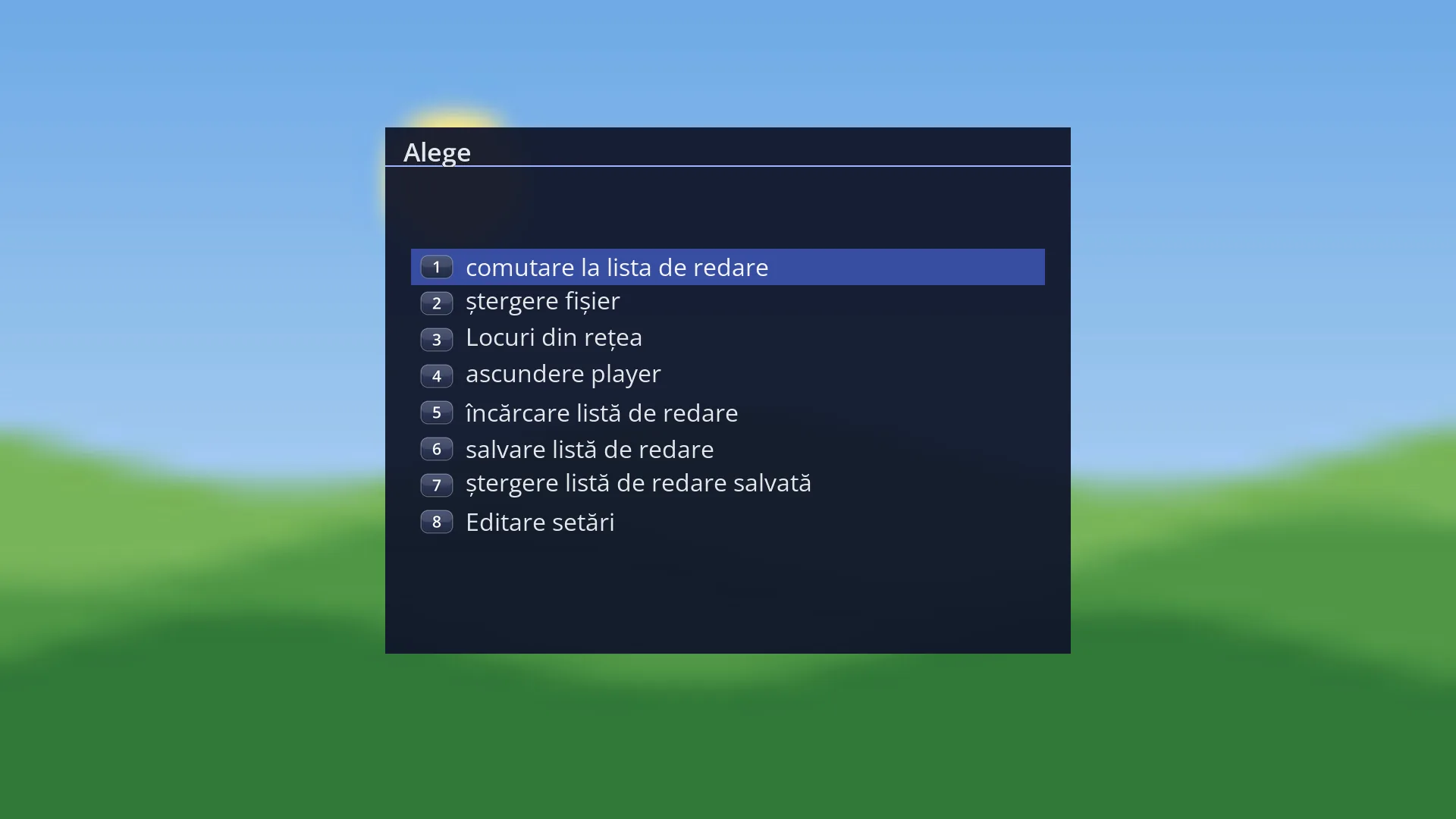
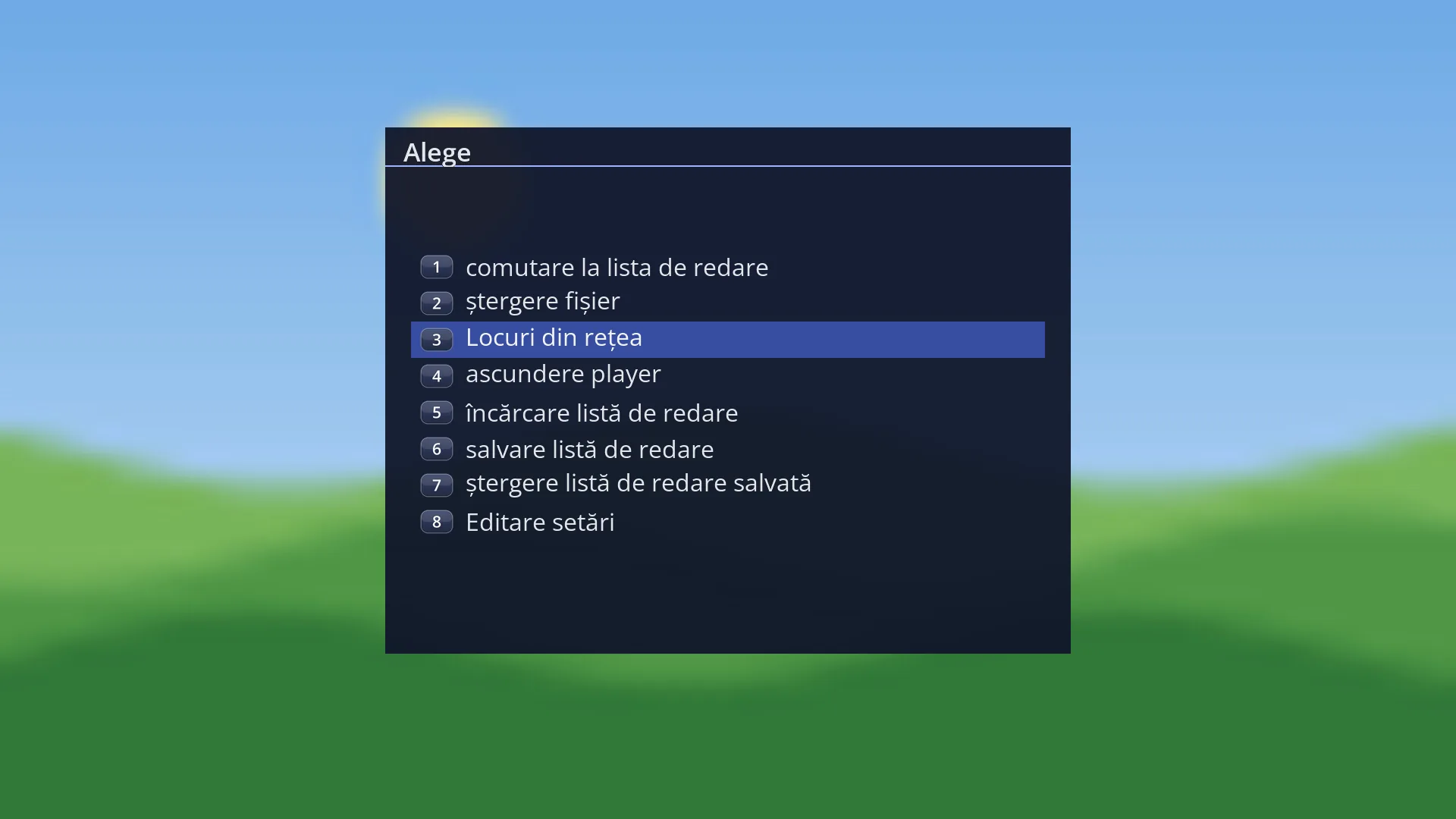
| MENU | The player menu, with “Edit settings” and “Network places”. |
| EXIT | Closes the player. The channel you were watching before starts again. |
Step by step
Quickly play a film from a USB stick
- Plug in the USB stick, then press Mplay.
- OK on “USB stick”, OK on the folder, OK on the film.
- When you have finished, press STOP and then EXIT: you are back on the channel you were watching before.
Make Mplay open directly in your films folder
- Press Mplay, then MENU and “Edit settings”.
- Set “save last directory on exit” to no. At “start directory”, press OK and choose the films folder (GREEN “Use”).
- Press GREEN (“Save”). From now on, Mplay opens there.
Problems and solutions
Mplay does nothing.
The key only works during live TV or radio. First close the menu, the channel list or the recordings player (EXIT, STOP), then press Mplay again.
When you exit, a different channel starts instead of the one you were watching.
While the player was open, a channel was started from the web interface or from a phone. The player closed and that channel stayed on.
The list on the left is empty when the player opens.
The start directory is on a USB stick that is not plugged in. Plug it in and press Mplay again, or change “start directory” in “Edit settings”.
Related topics
- Media player (the whole screen, row by row)
- Media (the submenu)
- Films and recordings (EMC)
- Matching web page: /player.