

Photos
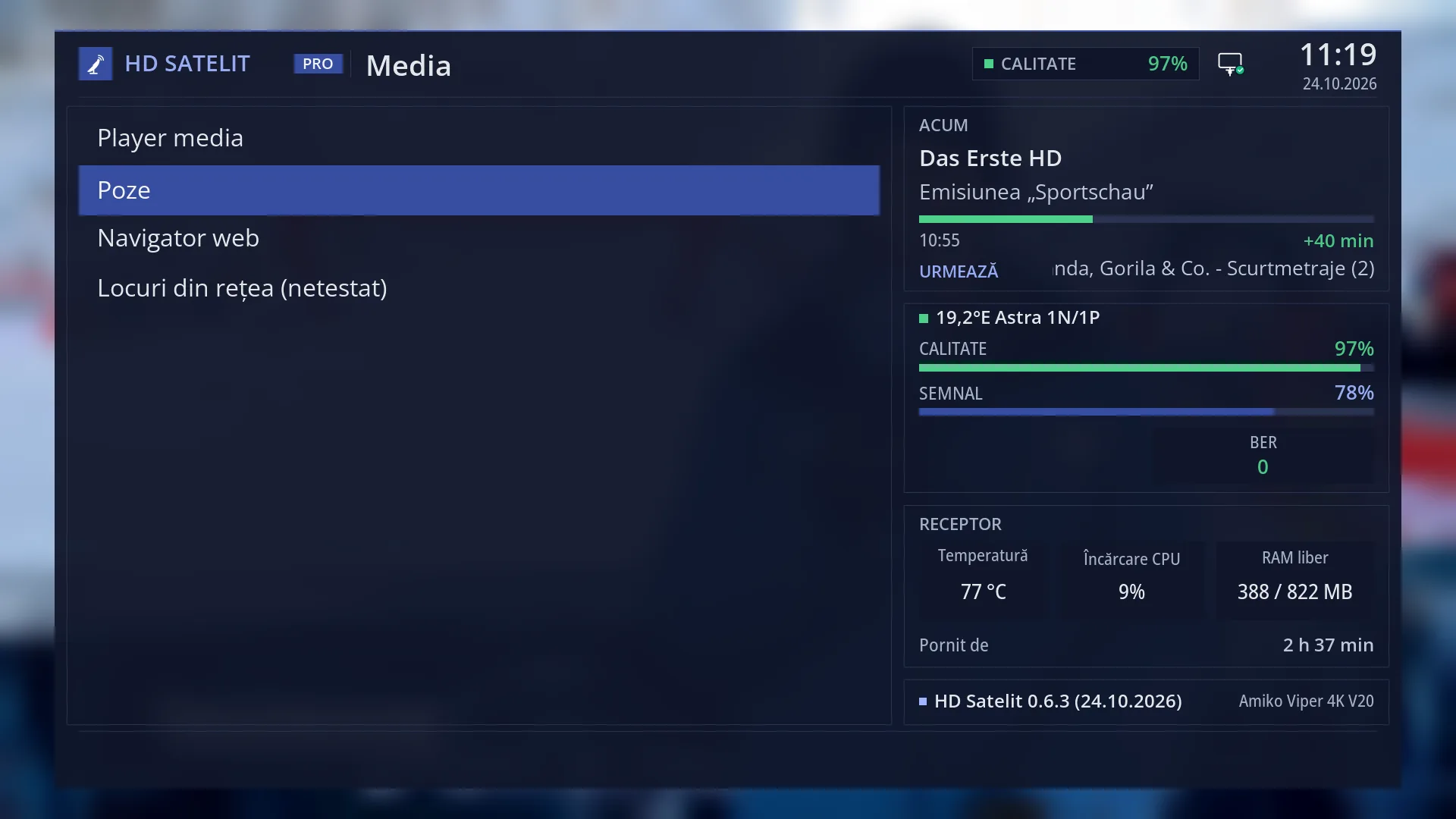
Screenshots are being added: so far 5 from the receiver and 4 from the web interface; the aim is at least 5 of each, with arrows and frames, and, where a setting changes what you see, a before and after comparison.
English screenshots coming: some of the pictures below still show the receiver and the web interface in Romanian. The rows, keys and steps described on this page are the English ones.
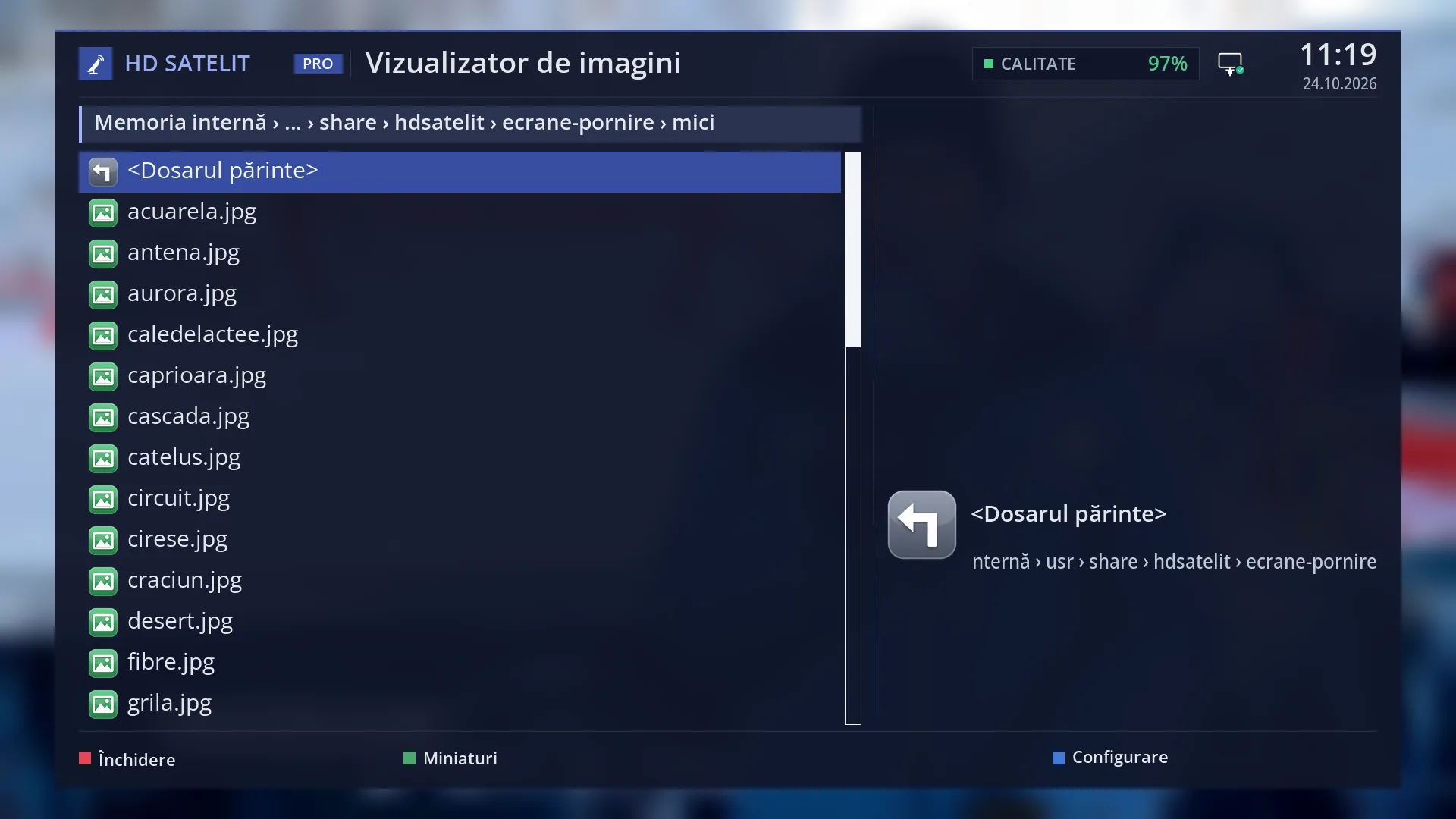
- 1 Where you are: the device and the folders.
- 2 The folders and pictures. “<Parent directory>” takes you up a level.
- 3 Details of the selected row: type, size, date, resolution.
- 4 RED closes, GREEN thumbnails, YELLOW picture details, BLUE settings.
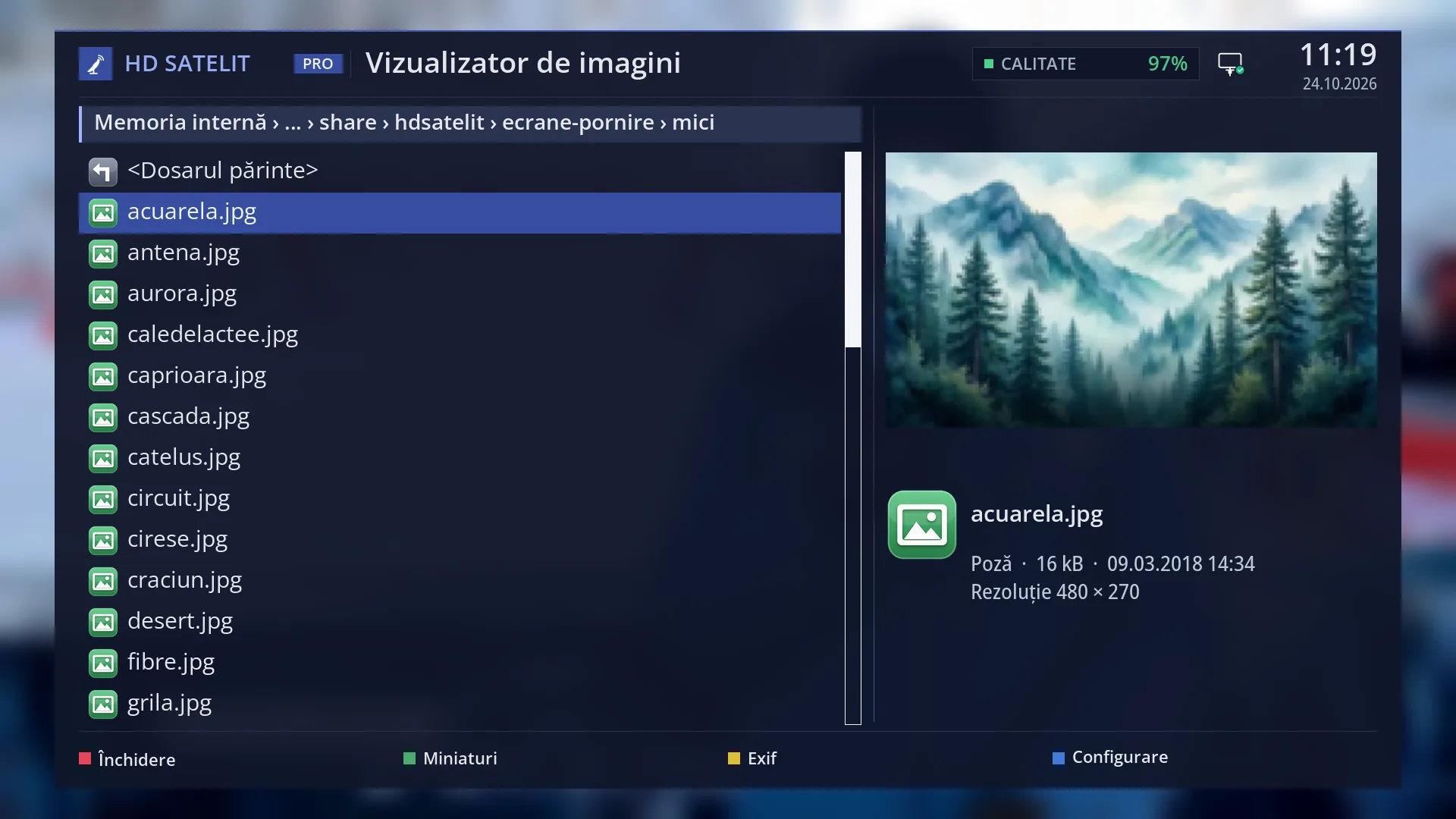
- 2 Details of the selected row: type, size, date, resolution.
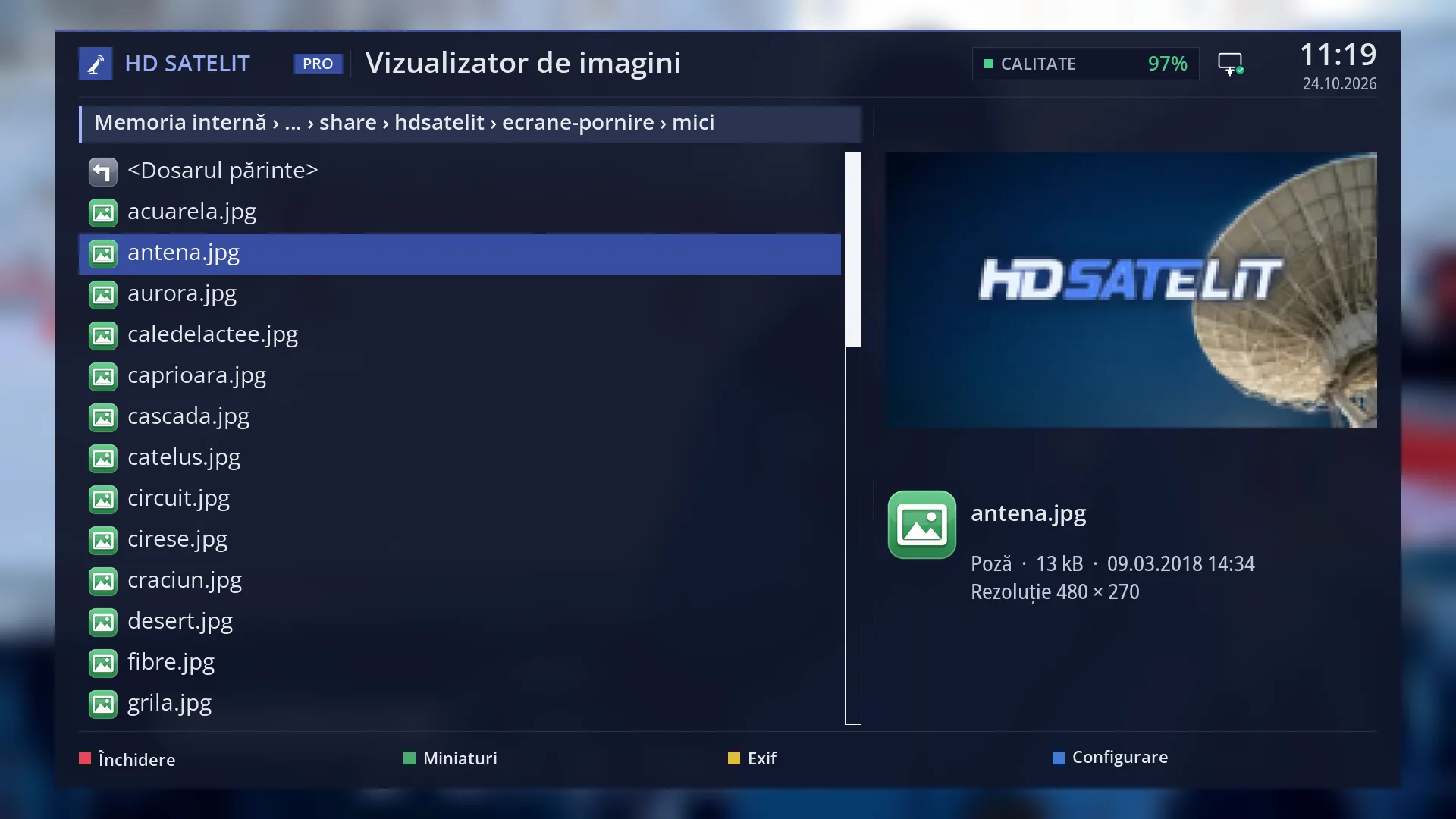
- 2 Details of the selected row: type, size, date, resolution.
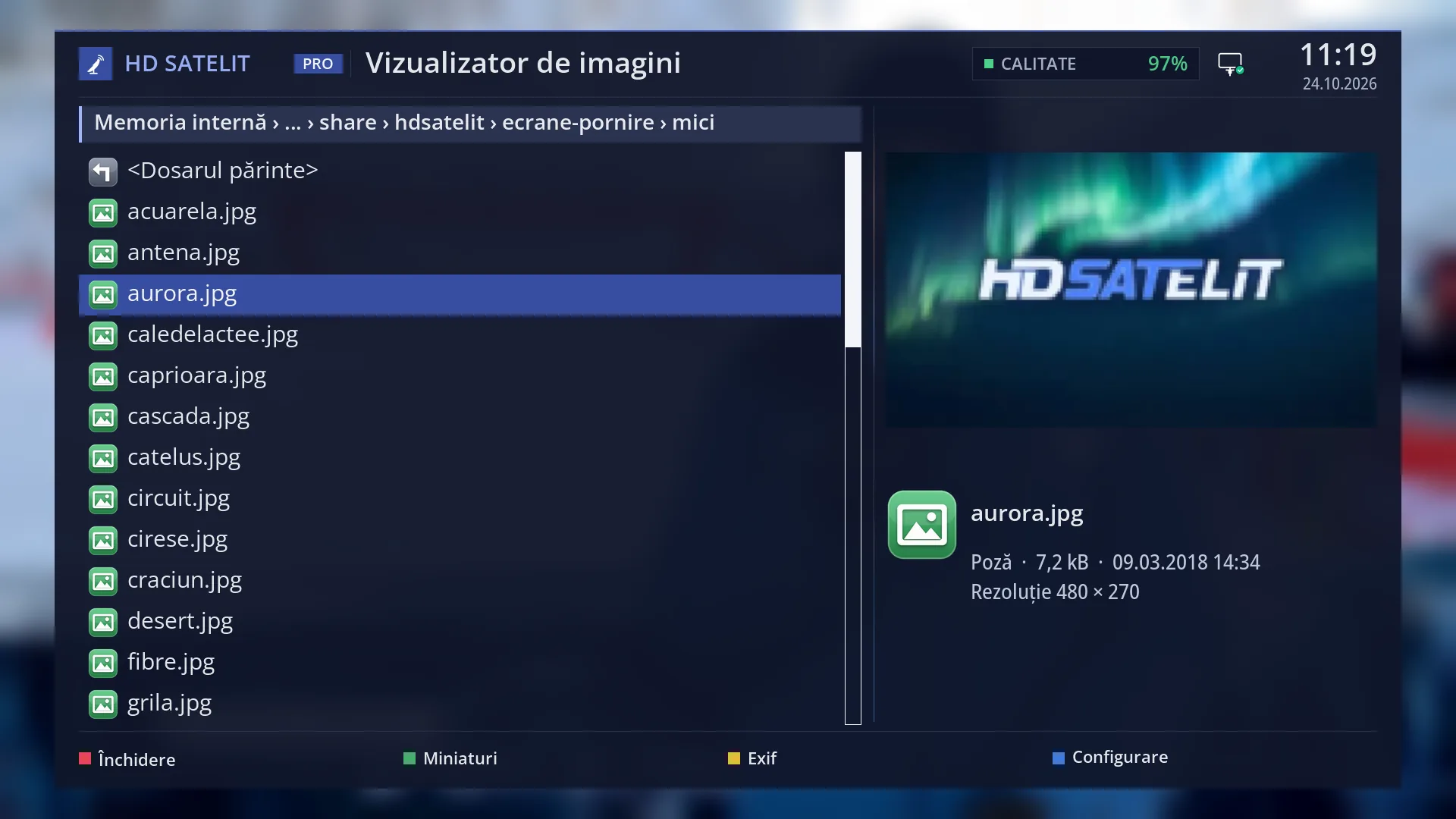
- 2 Details of the selected row: type, size, date, resolution.

What it is for
“Photos” shows on the TV the pictures on a USB stick, a hard disk or the network. You choose the folder, see a preview of the selected picture, then open it full screen.
From the same screen you can open thumbnails (many pictures at once, on pages) and the slideshow: the pictures change by themselves, one after another, every so many seconds as you choose.
It works with JPG, PNG, BMP and GIF files. For each picture you can also see the details stored in the file (camera, date, size) with YELLOW or INFO.
The screen is called “PicturePlayer”.
How to get here
Path: Main menu > Media > Photos.
Keys on live TV: MENU 8 2.
It opens in the folder you were in last time, or the first time in the list of devices.
In the web interface: the /poze page (a gallery of the pictures on the receiver, in the browser).
What you see on the screen
At the top, the title “PicturePlayer”, the clock and the date.
At the top left, the bar showing where you are (for example “USB stick › Vacanta › 2026”).
Below it, the list: the devices (with their free space), then, inside a folder, “<Parent directory>”, the subfolders and the pictures, each with its own icon.
At the top right, the preview of the selected picture, which appears after half a second.
Below it, the details of the selected row: the icon, name, type, size, date and resolution of the picture (or, for a device, the free space).
At the bottom, the keys: RED “Close”, GREEN “Thumbnails”, YELLOW “Exif” (only on a picture), BLUE “Setup”.
In full screen: the picture, with a line at the top (for example “(3/25) acuarela.jpg”), a red dot while the next one loads and the play symbol while the slideshow runs.
In thumbnails: the pictures on pages, with a frame around the selected one, “Picture 3 of 25 · page 1 of 3” at the top and the hint “OK full screen · INFO details · EXIT back to list”.
Rows and settings
| Row | Values | Default | What it does |
|---|---|---|---|
| Slideshow Interval (sec.) (BLUE “Setup”) | 10 to 60 seconds | 10 | How long each picture stays on screen in the slideshow. Longer, when you want time to look at each picture. |
| Scaling Mode | simple, better | better | How large pictures are reduced to fit on the screen: “better” looks cleaner, “simple” is faster. Simple, if very large pictures load slowly. |
| Cache Thumbnails | enable, disable | enable | Thumbnails, once made, are kept, so they appear straight away next time. Rarely. The factory setting, enable, is fine. |
| show Infoline | enable, disable | enable | The top line in full screen: the number of the picture and its name. Disable, when you show pictures to other people and want only the picture. |
| Frame size in full view | 5 to 99 pixels | 30 | The empty border around the picture in full screen. Smaller, to make the picture bigger. Bigger, if the TV cuts off the edges. |
| slide picture in loop | enable, disable | enable | Enable: after the last picture the slideshow starts again from the beginning. Disable: it stops at the last one. Disable, when you want to go through the pictures only once. |
| background colour / text colour | black, blue, red, yellow, green | black background, green text | The colour around the picture and of the info line in full screen (and in thumbnails, outside the HD Satelit theme). As you prefer. |
Keys
| UP / DOWN, LEFT / RIGHT | In the list: the row above or below; the page above or below. |
| OK | On a folder: opens it (“<Parent directory>” takes you up a level). On a picture: opens it full screen. |
| GREEN “Thumbnails” | The folder's pictures as thumbnails, on pages (only in a folder with pictures). |
| YELLOW “Exif” | The details of the selected picture: file name, camera, date, size, flash and more, when the file contains them. |
| BLUE “Setup” | The settings: slideshow interval, scaling, thumbnails, info line, frame, loop, colours. GREEN or OK saves them, RED cancels. |
| RED “Close” or EXIT | Closes the screen. The folder is remembered for next time. |
| In full screen: LEFT / RED, RIGHT / BLUE | The previous or next picture. |
| In full screen: GREEN or YELLOW | Starts the slideshow (the play symbol appears) or stops it. |
| In full screen and in thumbnails: INFO | The picture details (Exif). |
| In thumbnails: the arrow keys, OK | The arrow keys move the frame. OK opens the picture full screen. |
| In full screen and in thumbnails: EXIT | Back to the list, with the cursor on the last picture viewed. |
Step by step
Make a slideshow of your holiday pictures
- Plug in the USB stick and press MENU 8 2.
- Open the folder with the pictures with OK, then press OK on the first picture.
- Press GREEN: the pictures change by themselves every 10 seconds. GREEN again stops the slideshow. EXIT takes you back to the list.
Find a picture quickly using thumbnails
- In the folder with the pictures, press GREEN (“Thumbnails”).
- Move the frame with the arrow keys. At the top you see “Picture … of …” and the page.
- OK opens it full screen.
Change how long each picture stays in the slideshow
- In the list, press BLUE (“Setup”).
- On “Slideshow Interval (sec.)”, enter the number of seconds with the digit keys (between 10 and 60).
- Press GREEN.
Problems and solutions
I cannot see the USB stick or the pictures.
The list shows only JPG, PNG, BMP and GIF pictures. Check the folder. Plug in the USB stick and open “Photos” again.
GREEN (“Thumbnails”) does nothing.
You are in the list of devices or in a folder without pictures. Open the folder with the pictures first.
In full screen it says “No picture could be shown”.
None of the pictures in the folder can be read (damaged files, or files that were only renamed). Pictures that cannot be shown are skipped automatically.
Large pictures load slowly.
Set “Scaling Mode” to simple, or make the pictures smaller on a computer.
The picture is cut off at the edges on the TV.
Increase “Frame size in full view” (for example to 50).
The slideshow stops at the last picture.
“slide picture in loop” is set to disable. Set it to enable.