

Mark editor
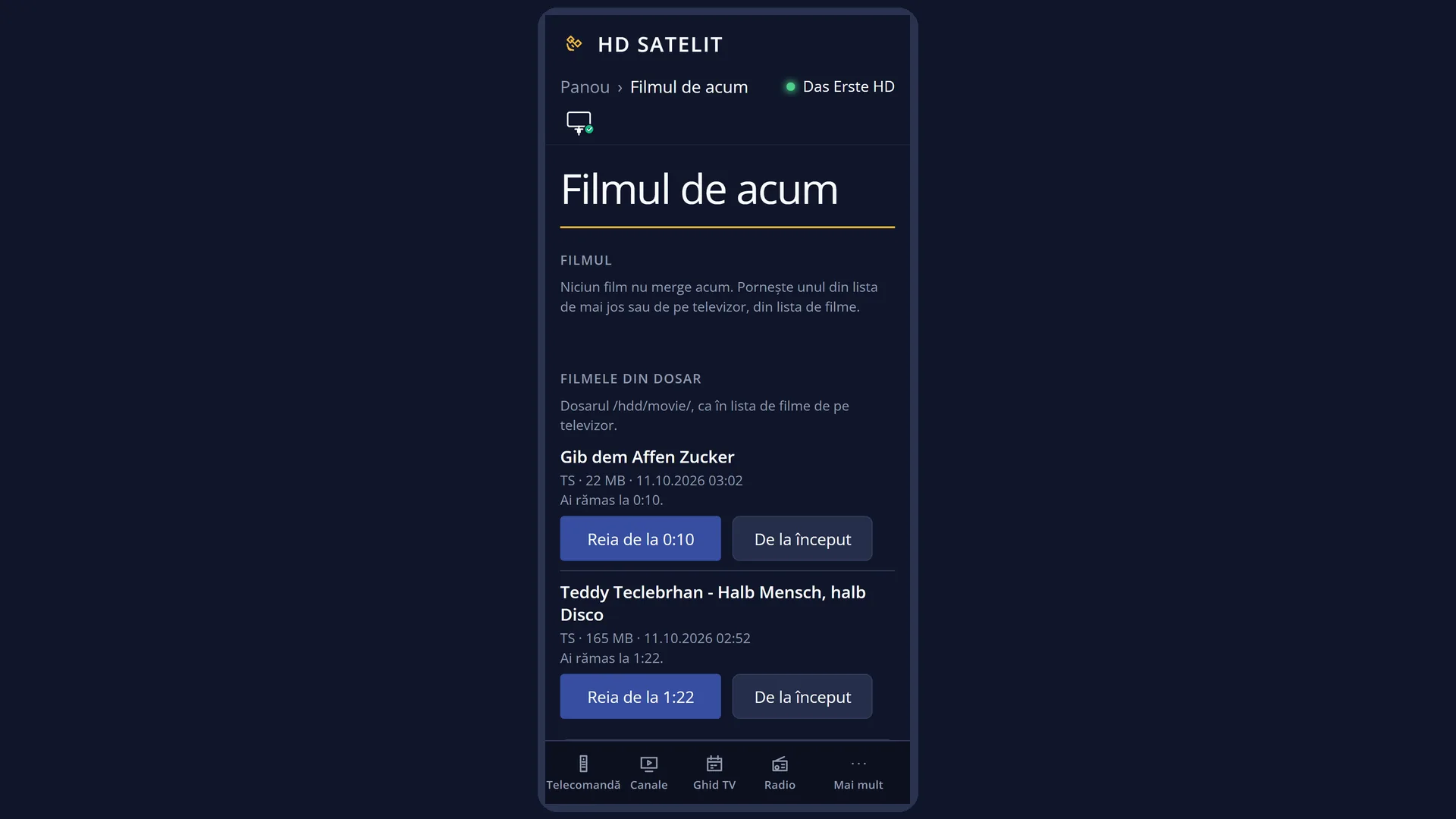
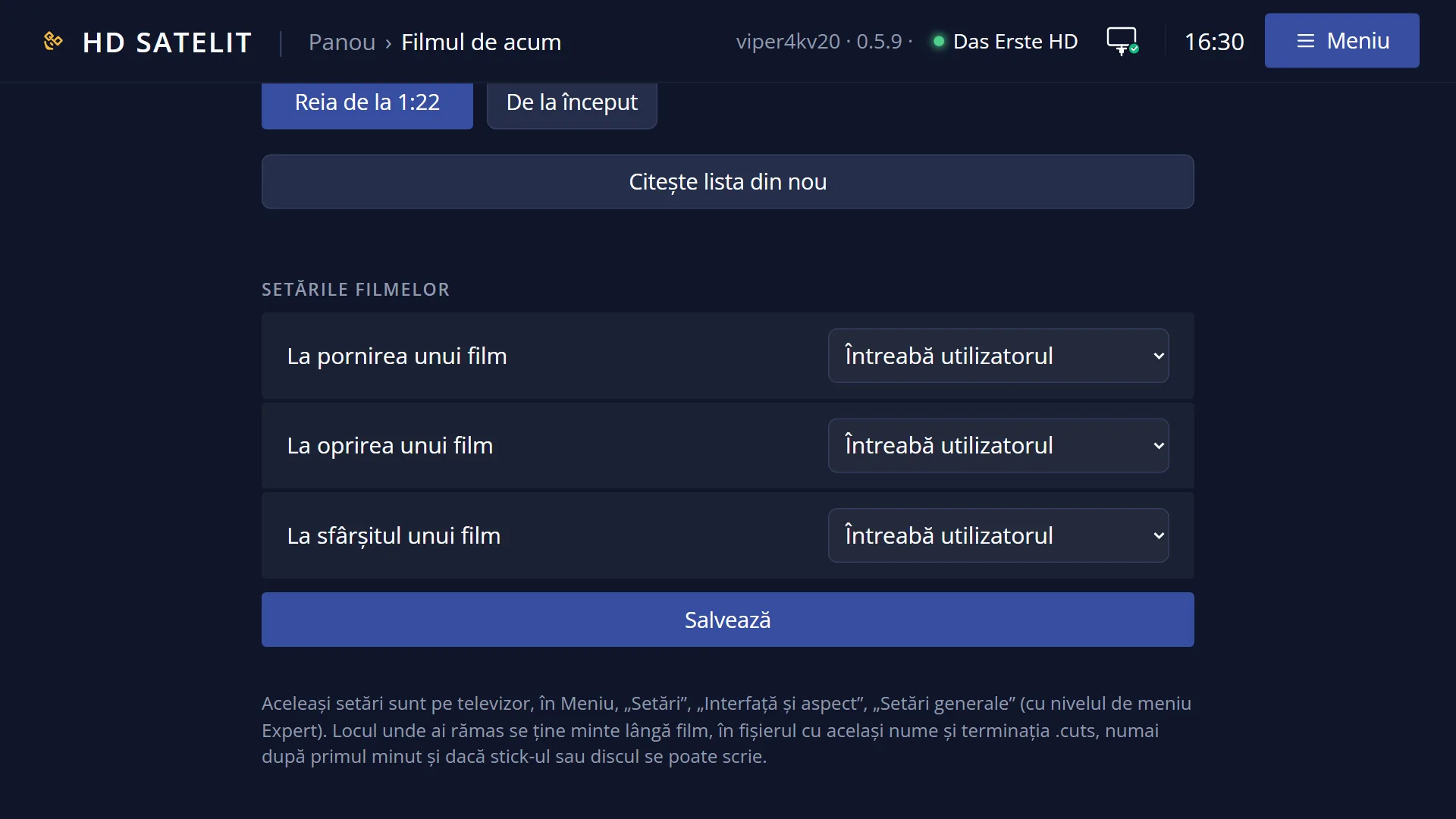
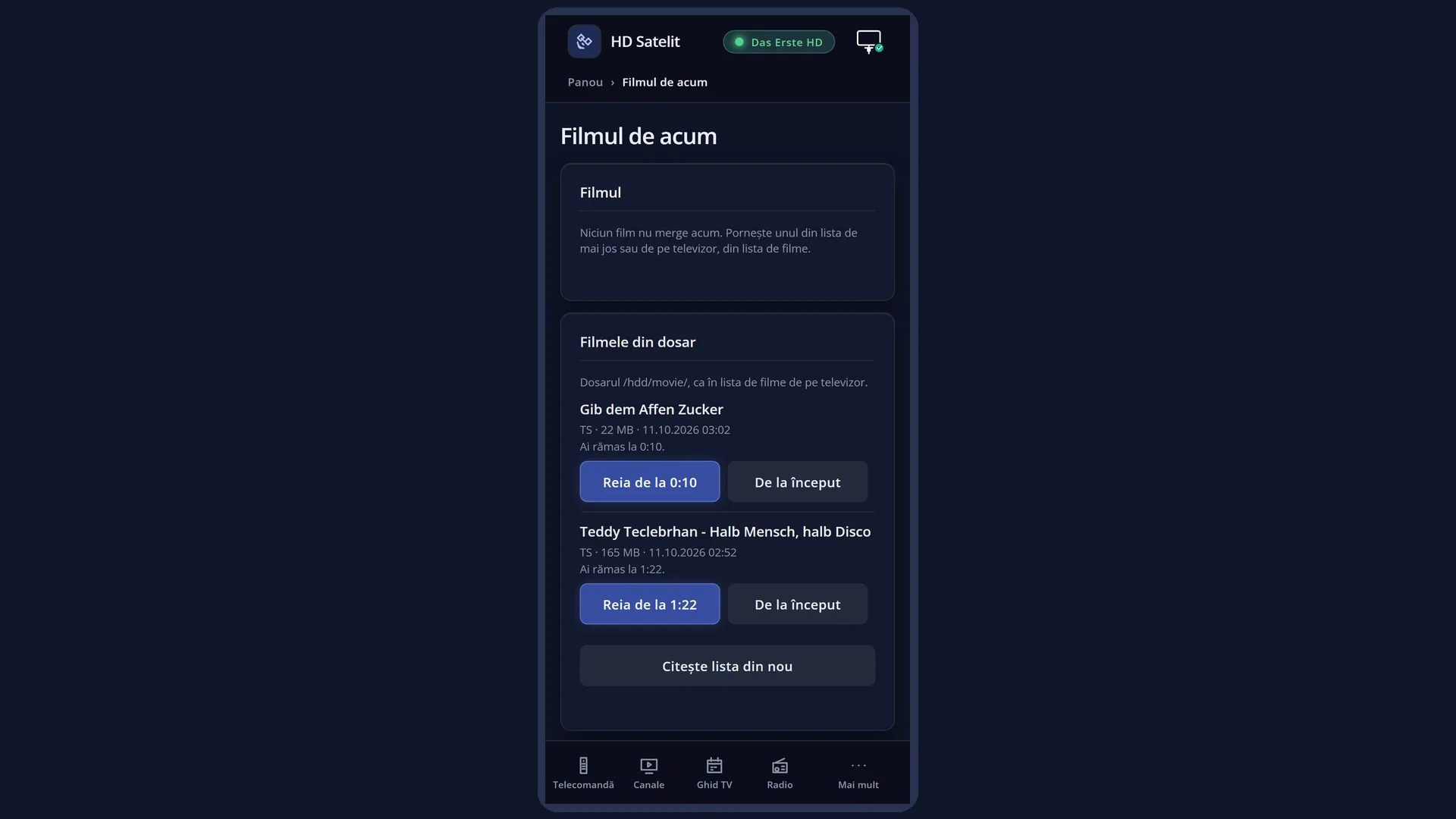
Screenshots are being added: so far 1 from the receiver and 7 from the web interface; the aim is at least 5 of each, with arrows and frames, and, where a setting changes what you see, a before and after comparison.
English screenshots coming: some of the pictures below still show the receiver and the web interface in Romanian. The rows, keys and steps described on this page are the English ones.
What it is for
“Mark editor” shows all the marks in a recording and lets you add new ones or delete the ones you do not need.
A simple mark is a point you can jump to quickly with |<< and >>| (for example the start of a programme or of the second half).
Pairs of “Keep START” and “Keep STOP” marks decide what is played: everything between a START and the next STOP is shown, and the rest is skipped during playback. This lets you skip adverts, or whatever was recorded before and after the programme.
The recording itself is not cut and nothing is deleted from it: the marks are kept in a small file next to it and you can remove them at any time.
How to get here
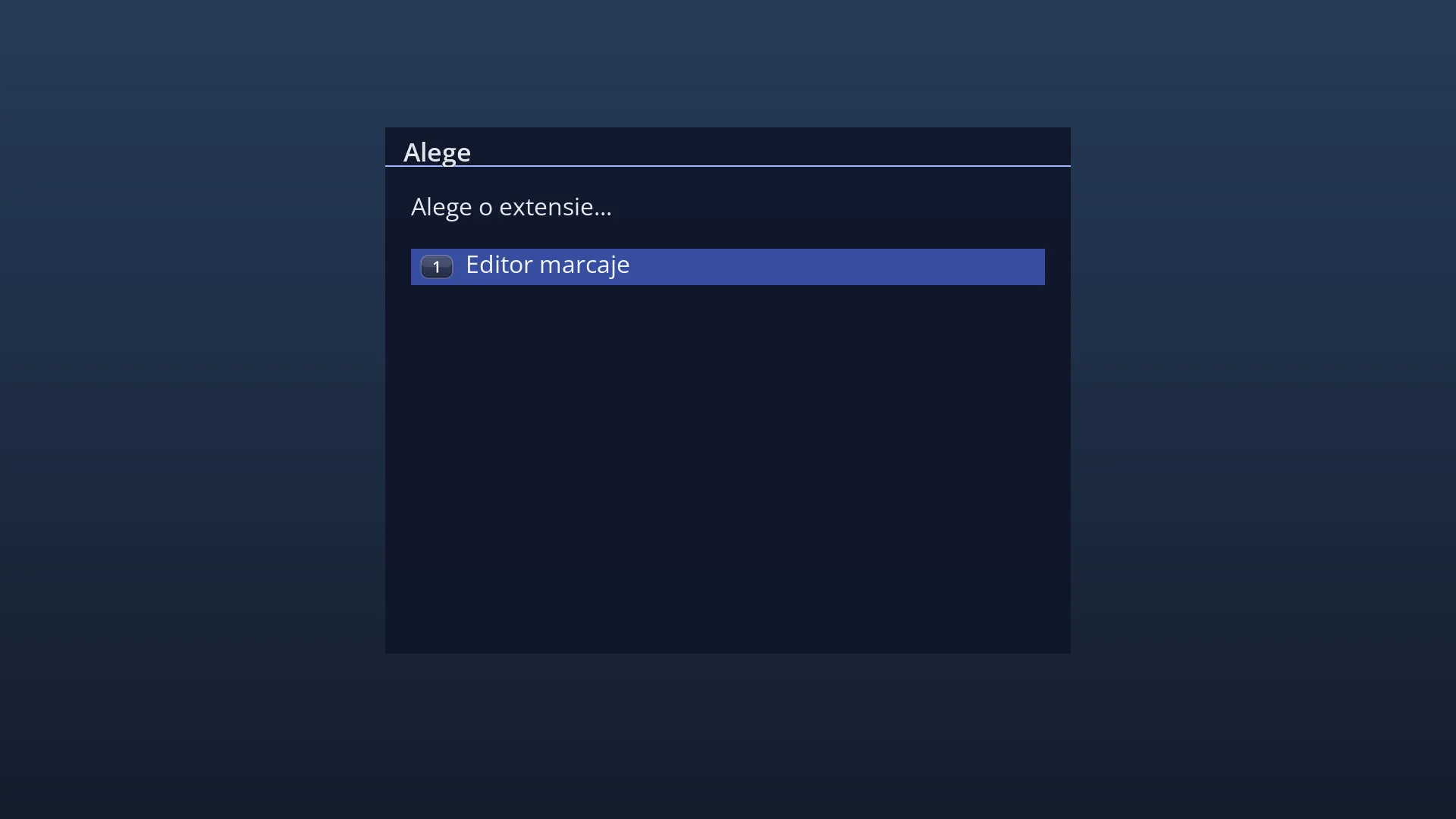
How to get there: start a recording (EMC, then OK), then press BLUE and choose “Mark editor” from “Please choose an extension...”.
Keys while watching: BLUE, in the player of a recording.
The row only appears for things that have marks, that is the receiver's recordings. It does not appear for live TV or for just any file.
Pause the recording with PAUSE before you press BLUE: new marks are placed where the film is at the moment you press the key.
What you see on the screen
The “Mark editor” window, on the left of the screen. The recording is visible behind it.
At the top, a help line: if there are marks, it shows how many (for example “3 mark(s). OK = jump there, Blue = delete the selection.”). If there are none, it shows the current position and what each colour key does (for example “Current position: 12:05; Green adds a simple mark, Yellow adds Keep START/STOP …”).
Below it is the list of marks in time order, each with its time in the recording and its type, for example “0:12:05 · mark”, “0:41:30 · Keep STOP”, “0:45:10 · Keep START”, “1:02:00 · last position watched” (the point where playback resumes). If there are none, it says “No marks yet.”.
At the bottom, the keys: RED “Back”, GREEN “Add a mark here”, YELLOW “Keep START/STOP here”, BLUE “Clear selection”.
Rows and settings
| Row | Values | Default | What it does |
|---|---|---|---|
| mark | a point in the recording | not present | A marker you can jump to with |<< and >>| in the player. It does not change what is played. To get back easily to a particular point (a goal, the start of the programme). |
| Keep START | a point in the recording | not present | Playback starts here. Anything before the first START (unless there is an earlier STOP) is skipped. At the real start of the programme or at the end of an advert break. |
| Keep STOP | a point in the recording | not present | Playback continues up to here. What follows is skipped until the next START. A STOP with no START before it keeps everything from the start of the recording up to the STOP, and if there is no START after it, all the rest is skipped. This is why the editor asks before placing it. At the start of an advert break or at the end of the programme. |
| last position watched | the point where you last stopped | set automatically when you stop | The point from which the receiver offers to resume (“Resume where you stopped?”). The receiver sets it itself every time you stop the recording. You do not need to: it changes by itself. To start from the beginning, answer No to “Resume where you stopped?”. |
Keys
| BLUE (in the player of a recording) | “Please choose an extension...”, with the “Mark editor” row. |
| UP / DOWN | Select a mark in the list. |
| OK | Jumps to the selected mark in the recording. |
| GREEN | “Add a mark here”: a simple mark at the current position. |
| YELLOW | “Keep START/STOP here”: asks “What kind of mark at the current position?”, with “Keep START (playback from here)” and “Keep STOP (playback up to here)”. |
| BLUE (in the editor) | “Clear selection”: asks “Delete the selected mark (…)?”. The answer selected by default is No. |
| RED or EXIT | “Back”: closes the editor. The marks are already saved. |
| In the player: |<< and >>| | Jump to the previous or next mark. 0 adds or removes a simple mark at the current position, without the editor. |
Step by step
Skip an advert break
- In the recording, press PAUSE exactly where the adverts start.
- Press BLUE, choose “Mark editor”, then YELLOW and “Keep STOP (playback up to here)”. Close with EXIT.
- Wind forward to where the adverts end and press PAUSE again.
- BLUE, “Mark editor”, YELLOW and “Keep START (playback from here)”. During playback, the adverts between the two marks are skipped.
Add a mark so you can get back easily
- Press PAUSE at the point you want.
- BLUE, “Mark editor”, then GREEN (“Add a mark here”).
- Later, in the player, you get there with |<< or >>|.
Delete a wrong mark
- Open “Mark editor”.
- Select the mark with UP / DOWN and press BLUE.
- At “Delete the selected mark (…)?” choose Yes.
Problems and solutions
BLUE does not show the “Mark editor” row, or it says “You have no plugins installed.”
What is playing has no marks: live TV, a film from a USB stick or a stream from the internet. The editor works with the receiver's recordings.
It says “This screen has no marks: the current service does not support cuts (for example, live TV).”
The editor was opened without a recording playing. Start the recording from EMC and open the editor from there.
It says “Cannot find out the current position (the service cannot be seeked right now).”
At that moment the receiver does not know where the film is. Close the editor, let the recording play for a few seconds and open the editor again.
After a STOP, the rest of the recording disappeared during playback.
A STOP with no START after it makes everything that follows get skipped. Add a START where you want playback to continue, or delete the STOP.
The start of the recording is skipped.
The first keep mark is a START: everything before it is skipped. Delete it if you want the recording from the beginning.
I placed the mark somewhere other than where I wanted.
The mark is placed where the film is when you press the key, and the film keeps playing while the editor is open. Press PAUSE first, then open the editor.
Related topics
- Films and recordings (EMC, the recordings player)
- Instant recording (REC)
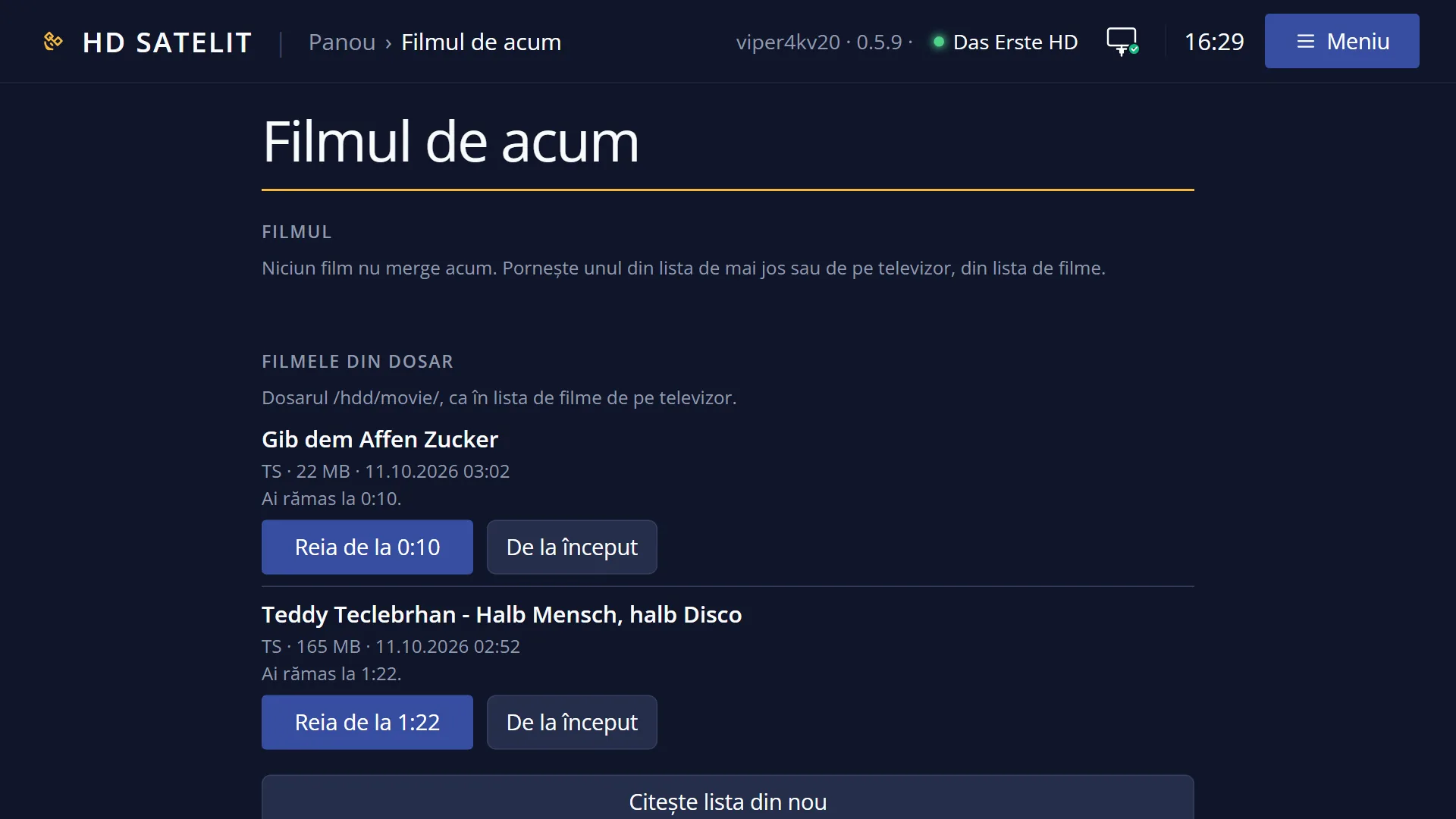
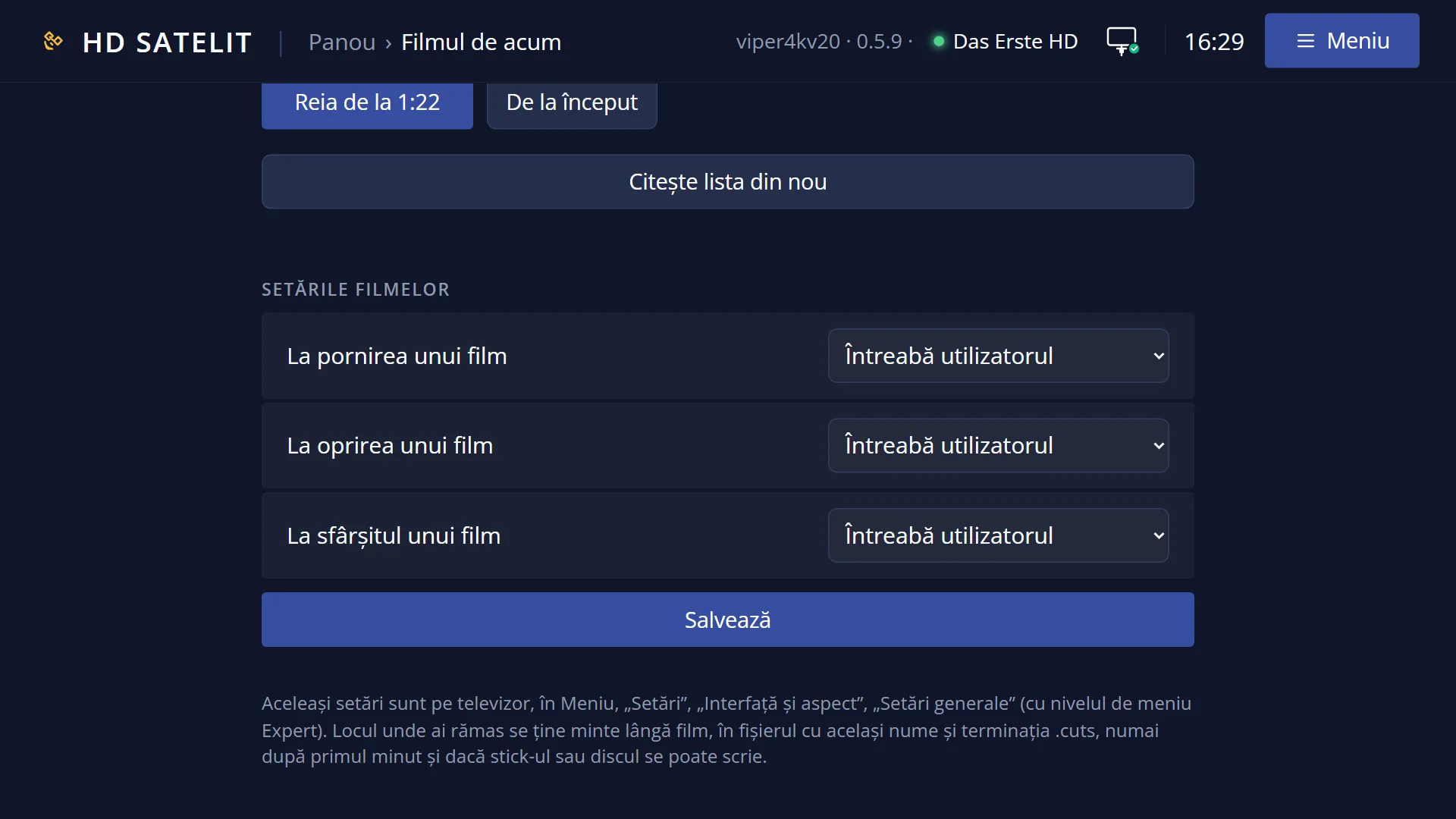
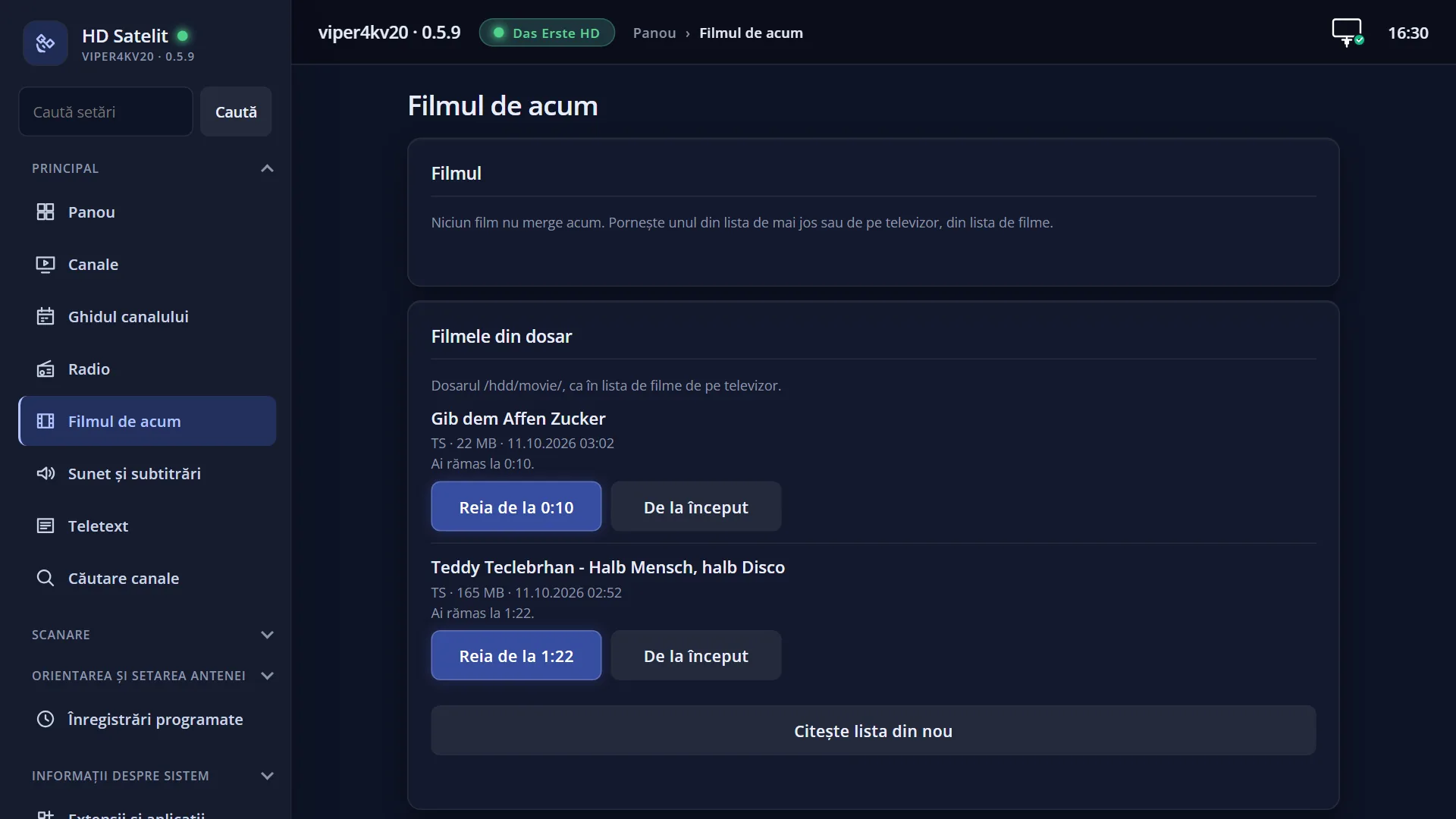
- Matching web page: /filme (the current film, with jumps and the point where you stopped).