

Search subtitles on the internet
English screenshots coming: some of the pictures below still show the receiver and the web interface in Romanian. The rows, keys and steps described on this page are the English ones.
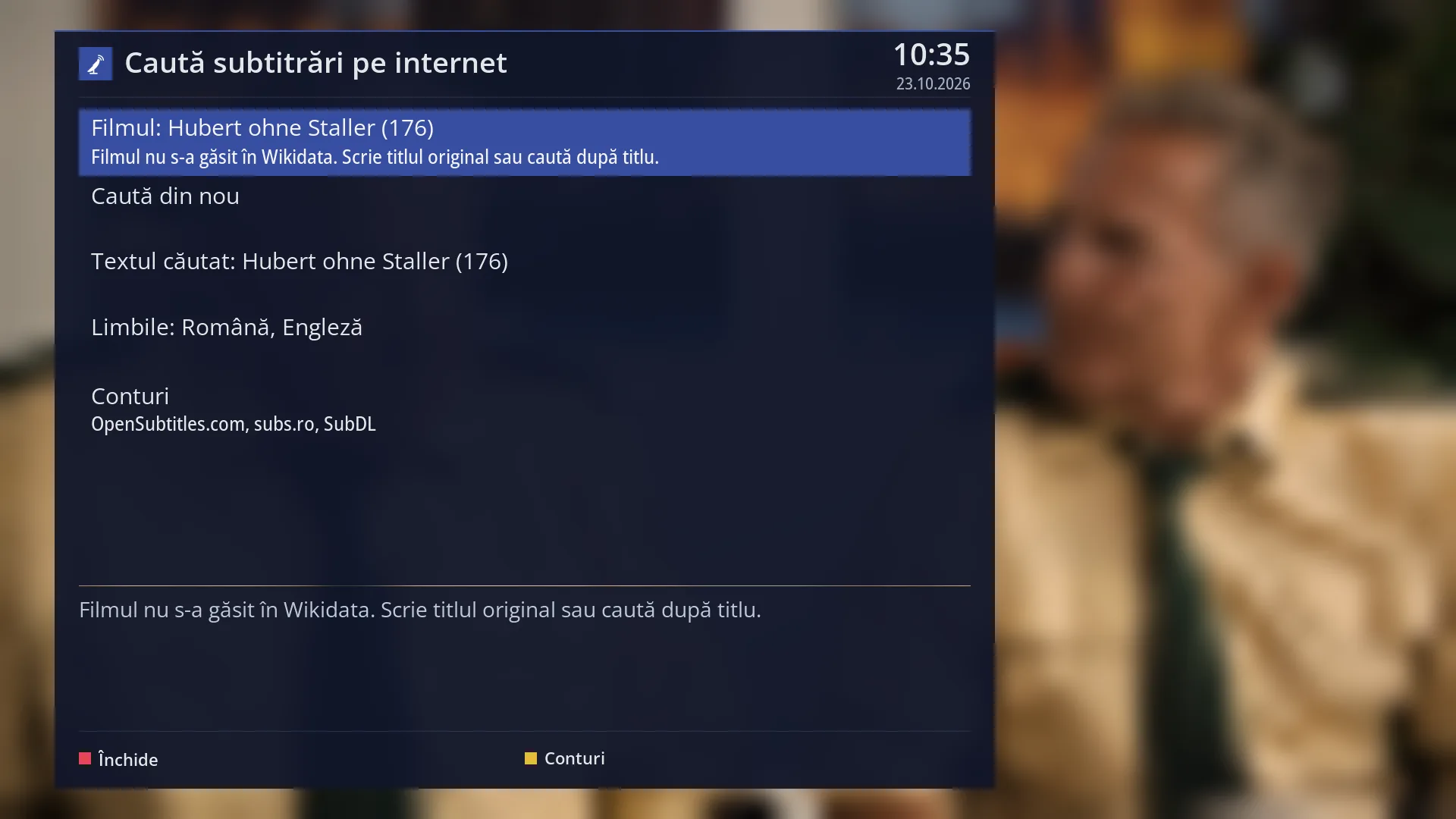
- 1 “The movie:”, with the original title and year; underneath, the director and the IMDb number.
What it is for
When a film has no subtitles in your language, the receiver searches for them on the internet, downloads them and turns them on, without a computer.
It works with a film from a file (on a USB stick, a disk or the network), with a recording and even on a live TV channel, for films broadcast without subtitles.
For a film from a file, the subtitle is saved next to the film, with the film's name and the language (for example film.ro.srt), so next time it is found automatically.
On a channel or with a recording, the receiver finds out the film from the TV guide, matches the subtitle speed to the channel by itself and starts it from the beginning of the film. You can then fine-tune it with the “Subtitle sync” bar.
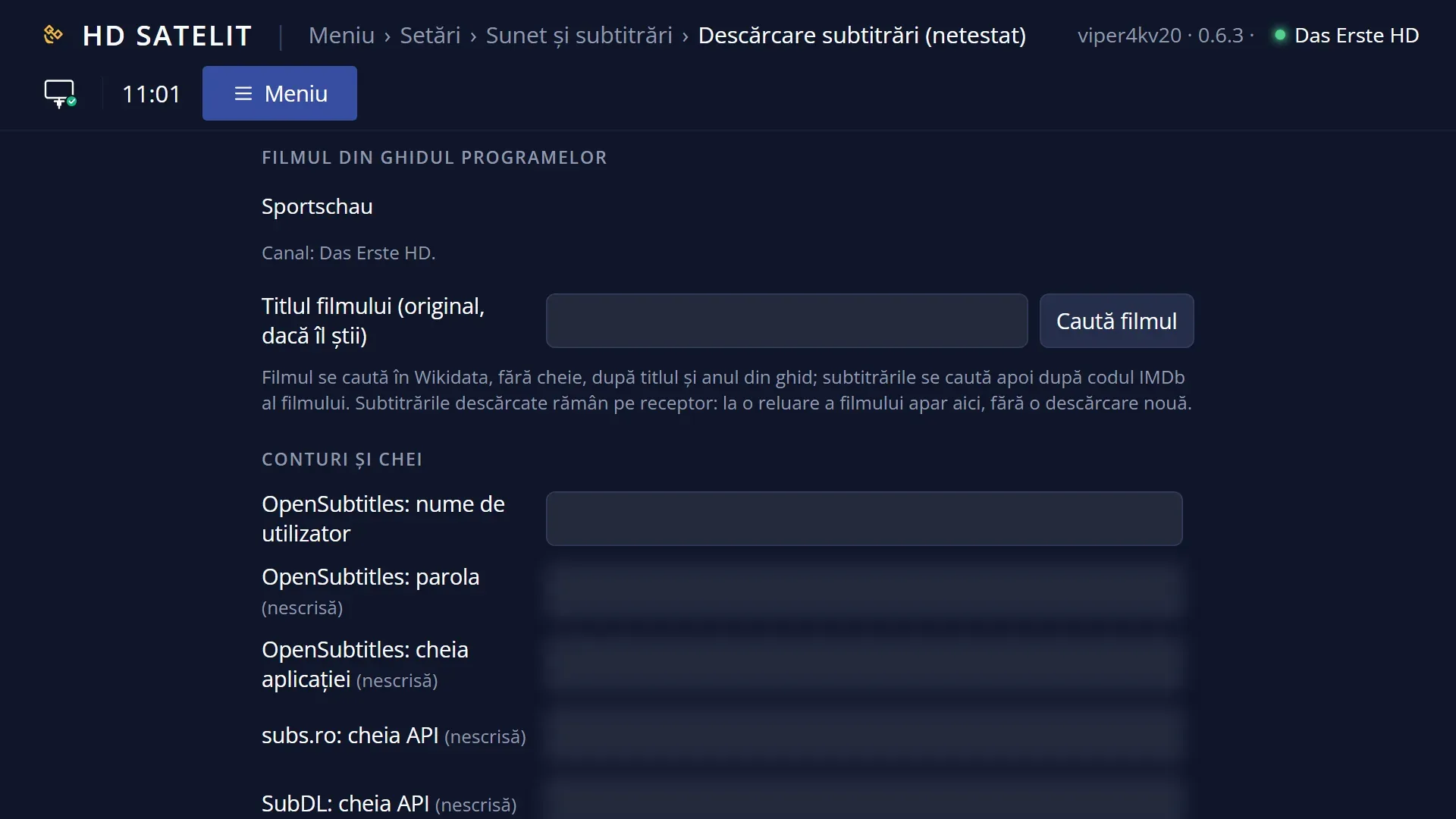
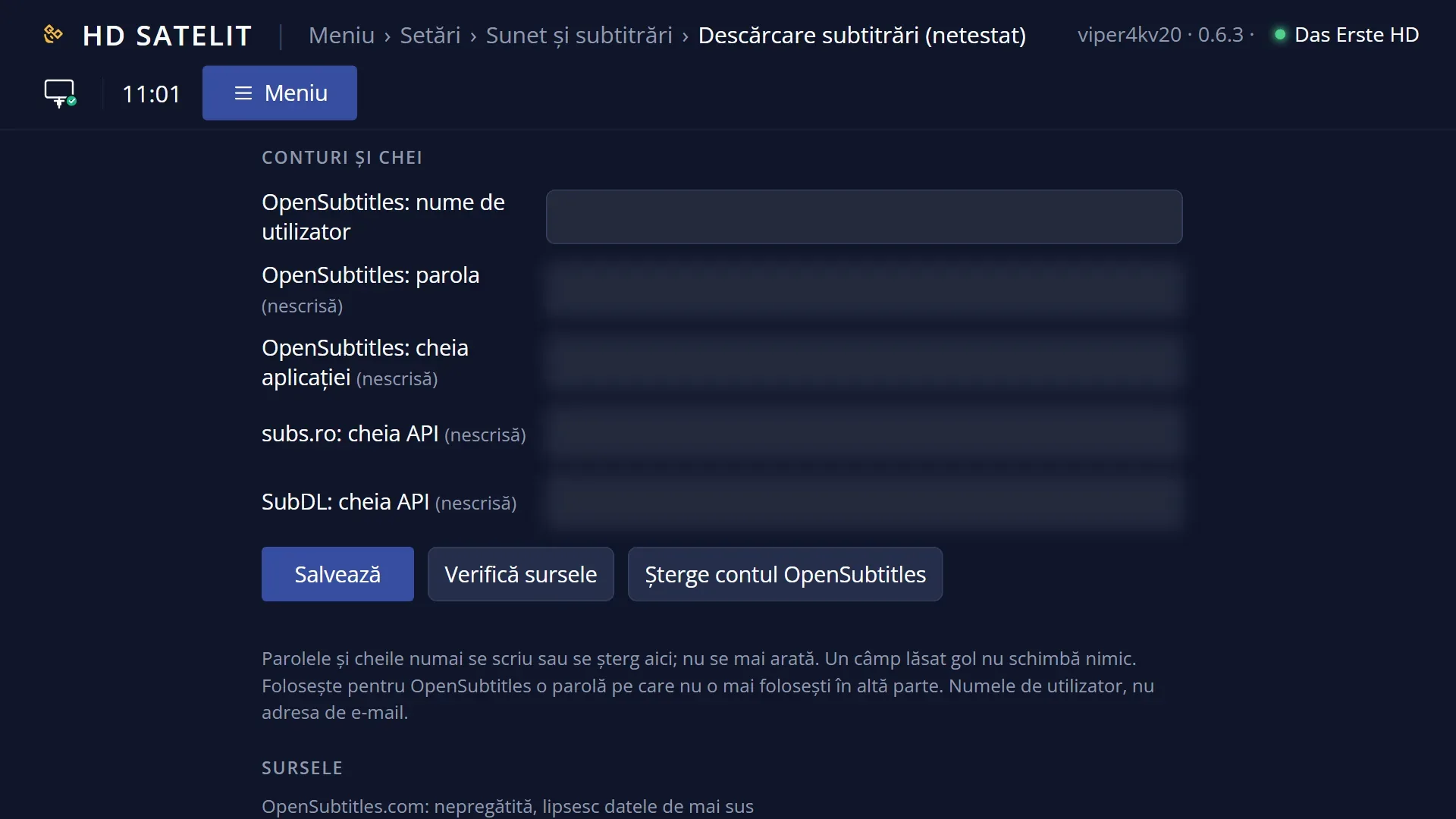
The sources are OpenSubtitles.com, subs.ro and SubDL. You need an internet connection and the account or key for at least one source, entered in “Subtitle download”. Subtitles are only searched for when you ask, and the search does not go through the HD Satelit servers.
How to get here
Path: the SUBT key, then BLUE (or the “Search subtitles on the internet” row at the bottom, with OK).
Keys while watching: SUBT BLUE.
It works while playing a film from a file, a recording, or on a TV channel with a picture. Otherwise you see the message “Subtitle search works while a film from a file, a TV channel or a recording is playing.”
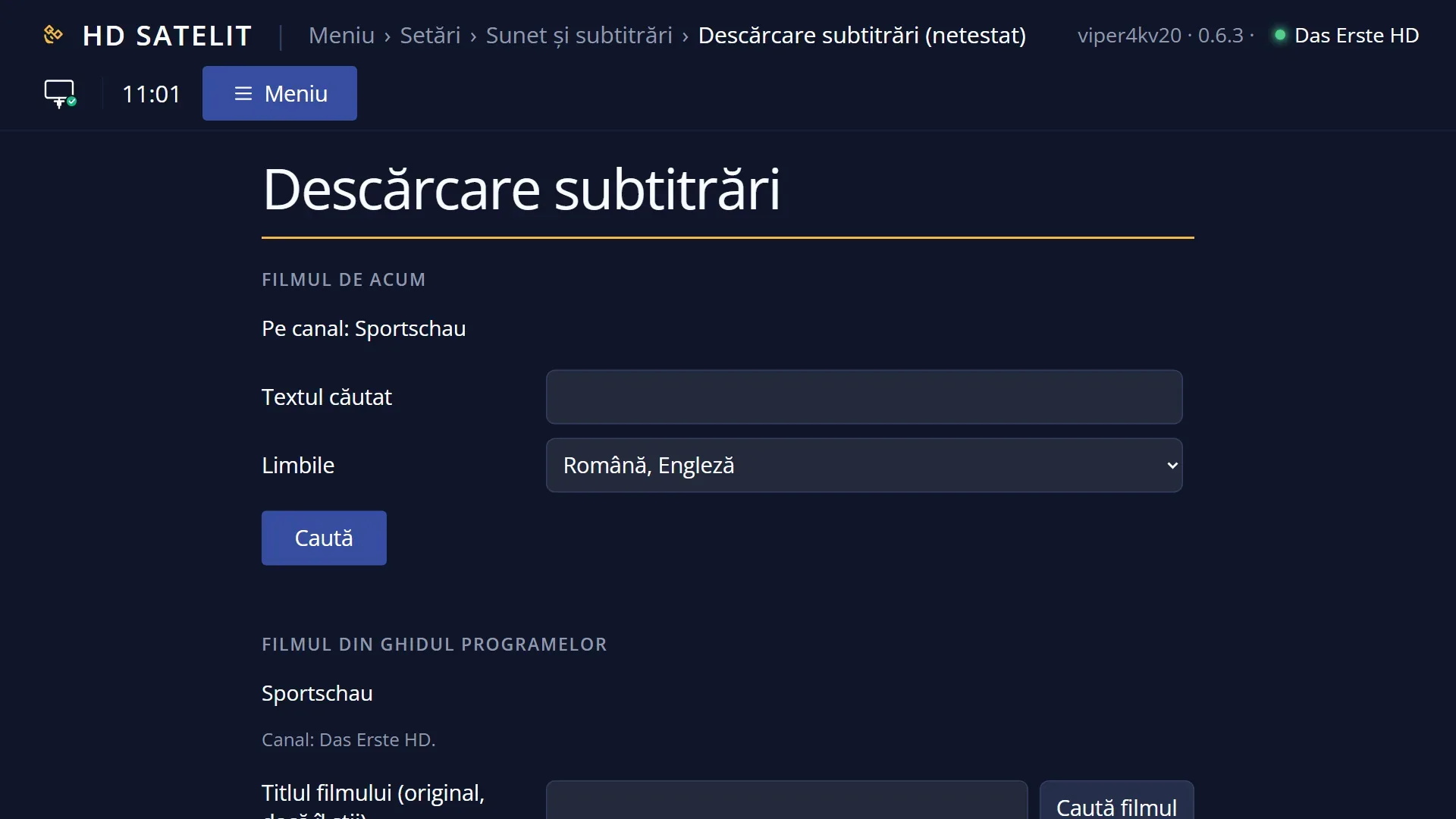
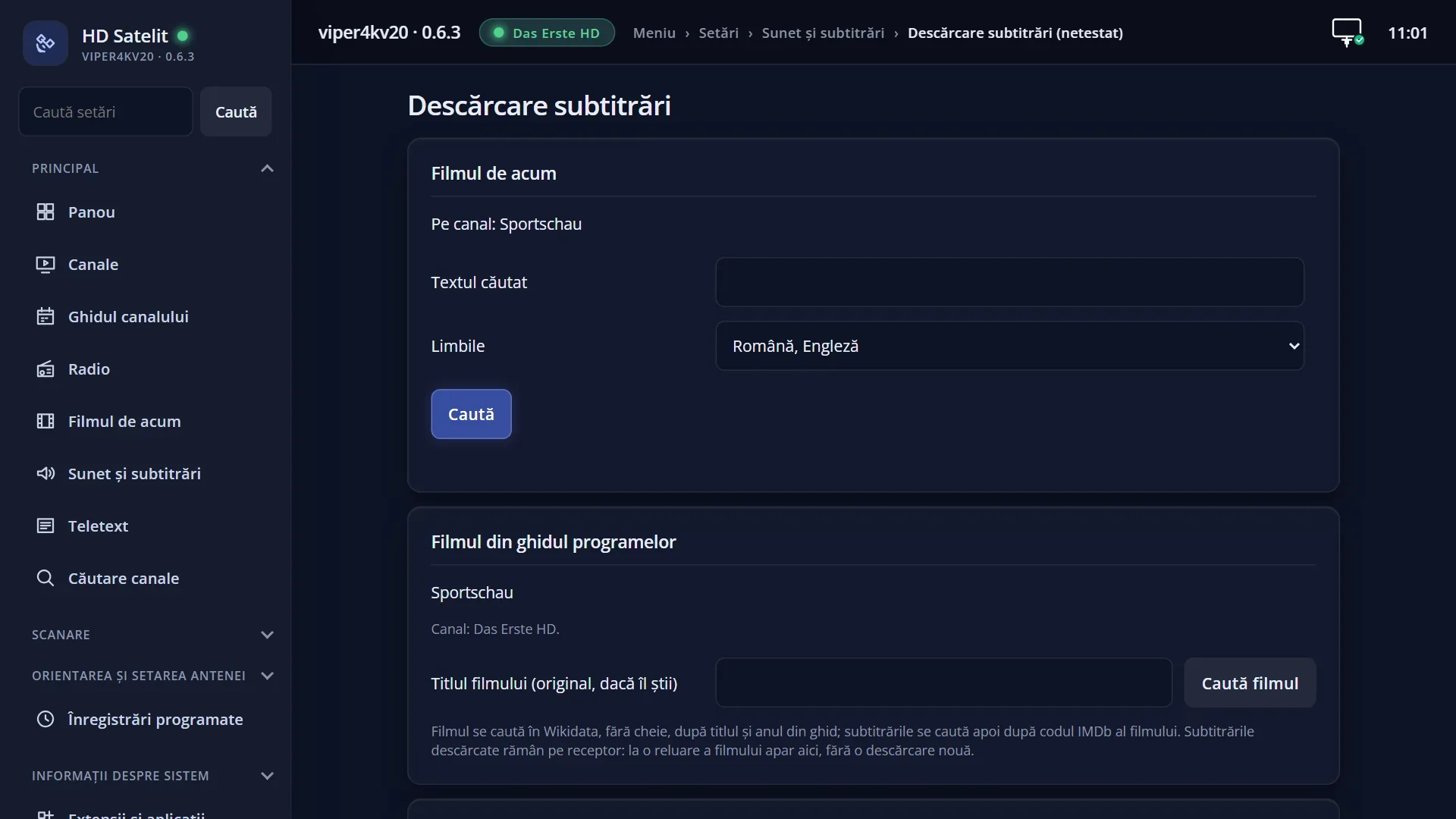
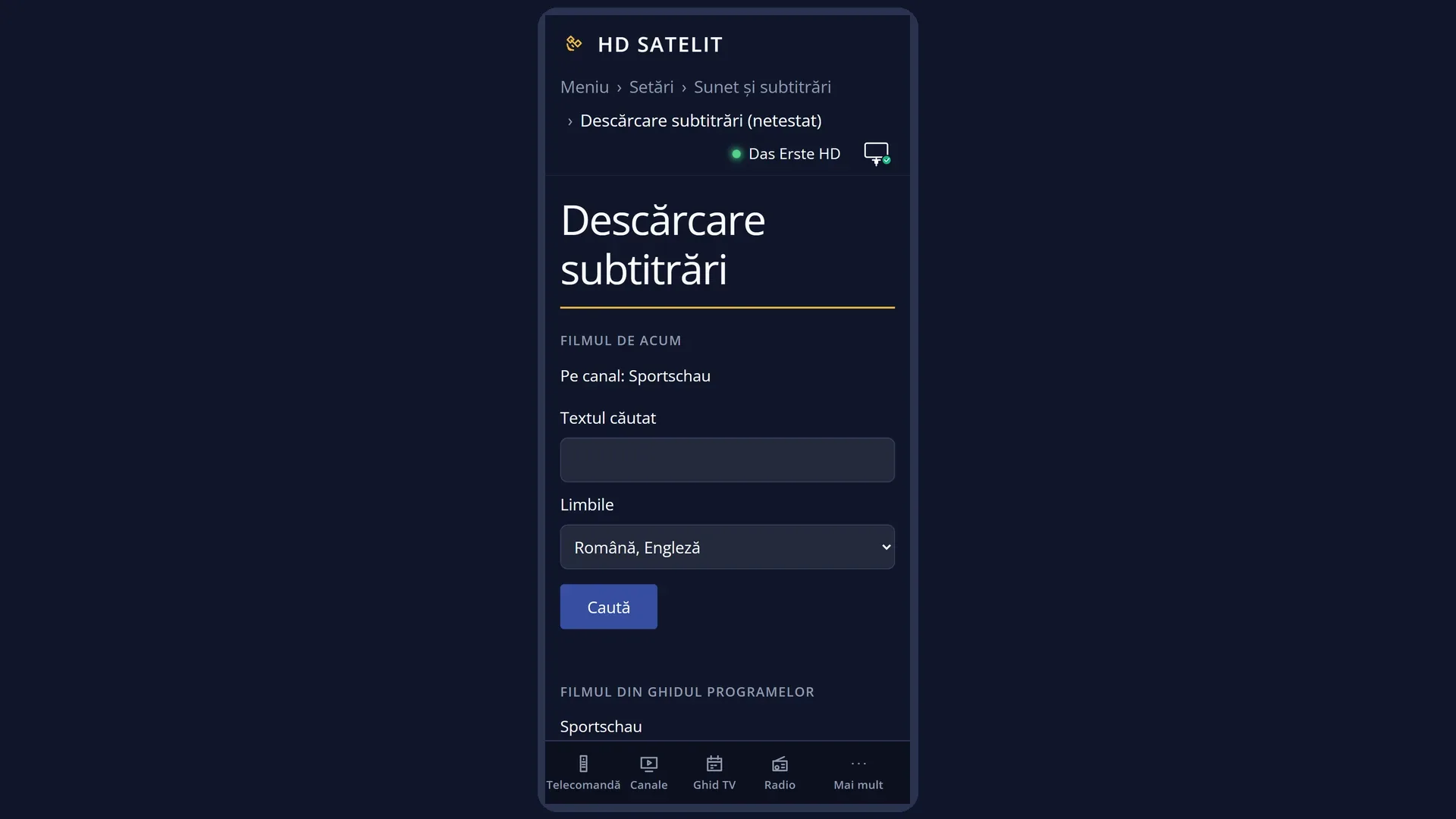
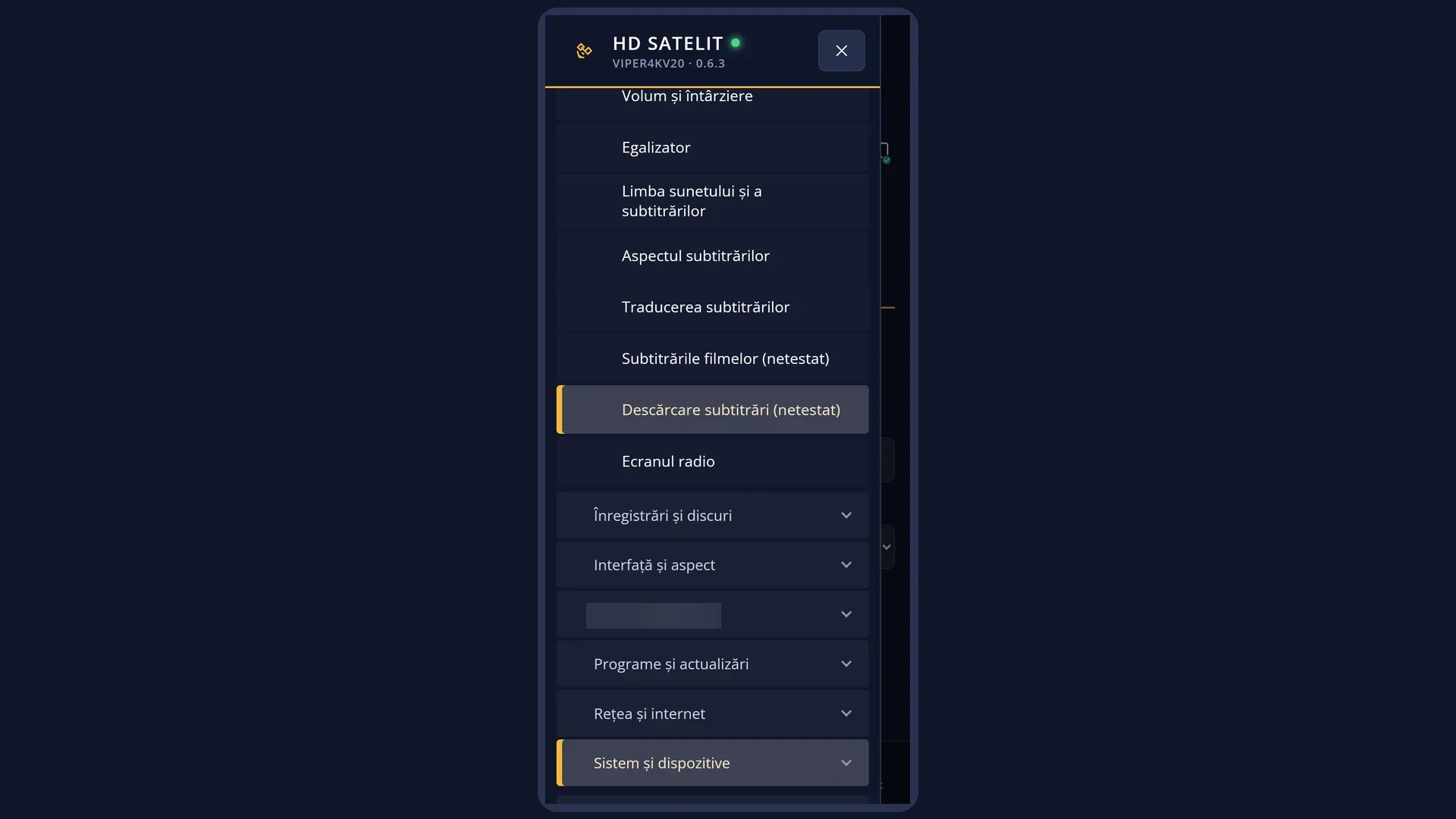
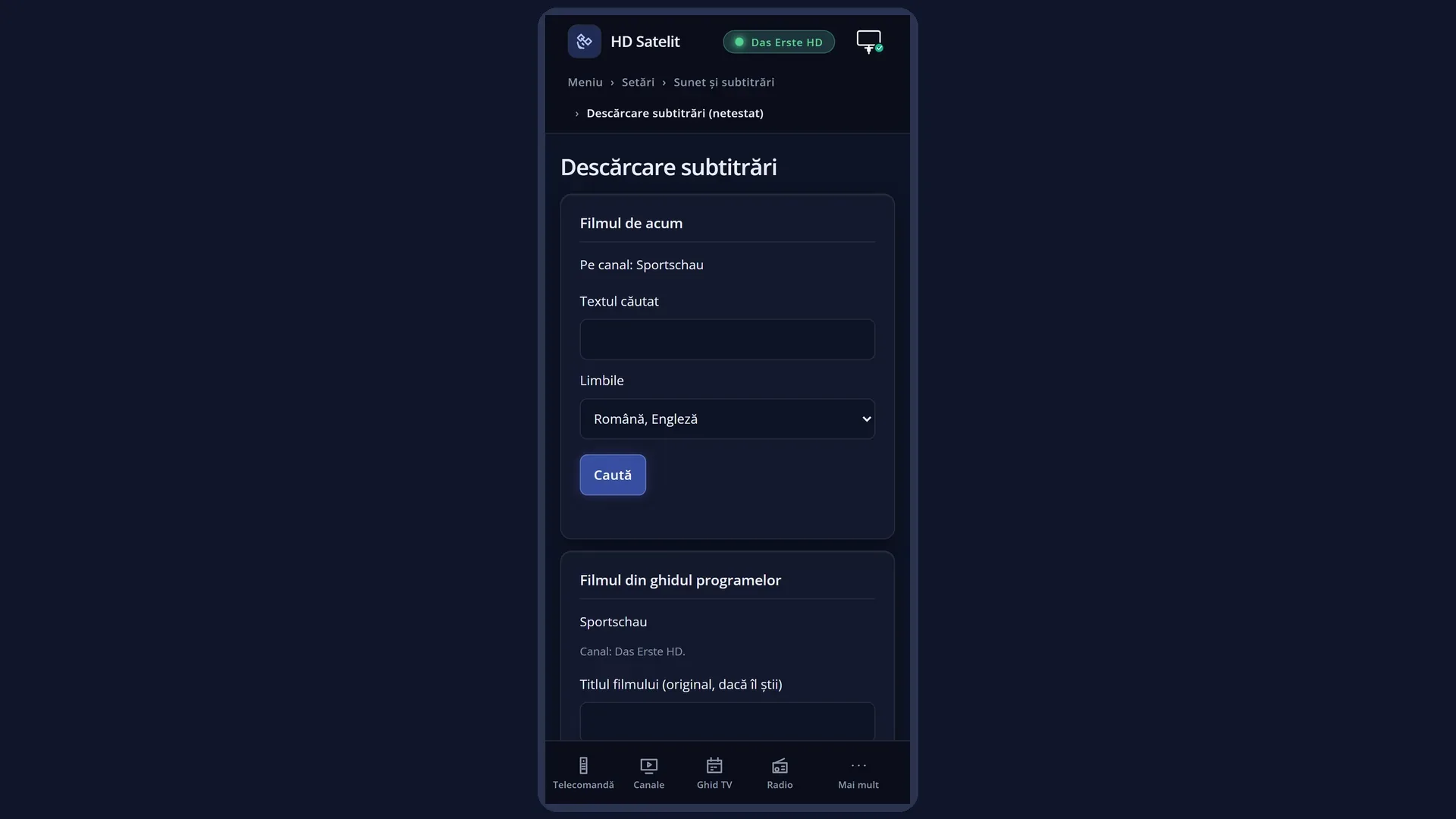
In the web interface: the /descarcare-subtitrari page (search for the current film and the accounts).
What you see on the screen
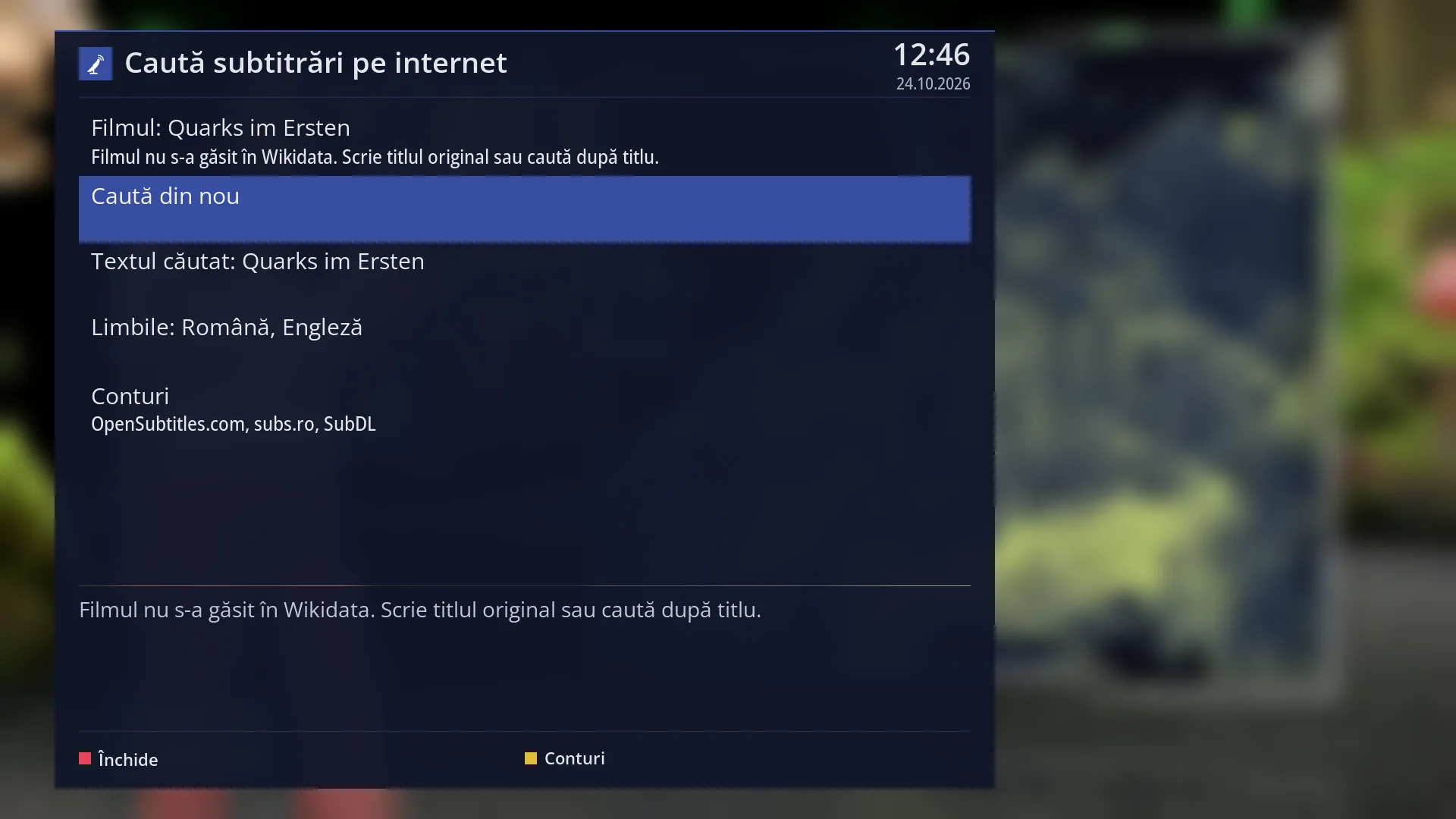
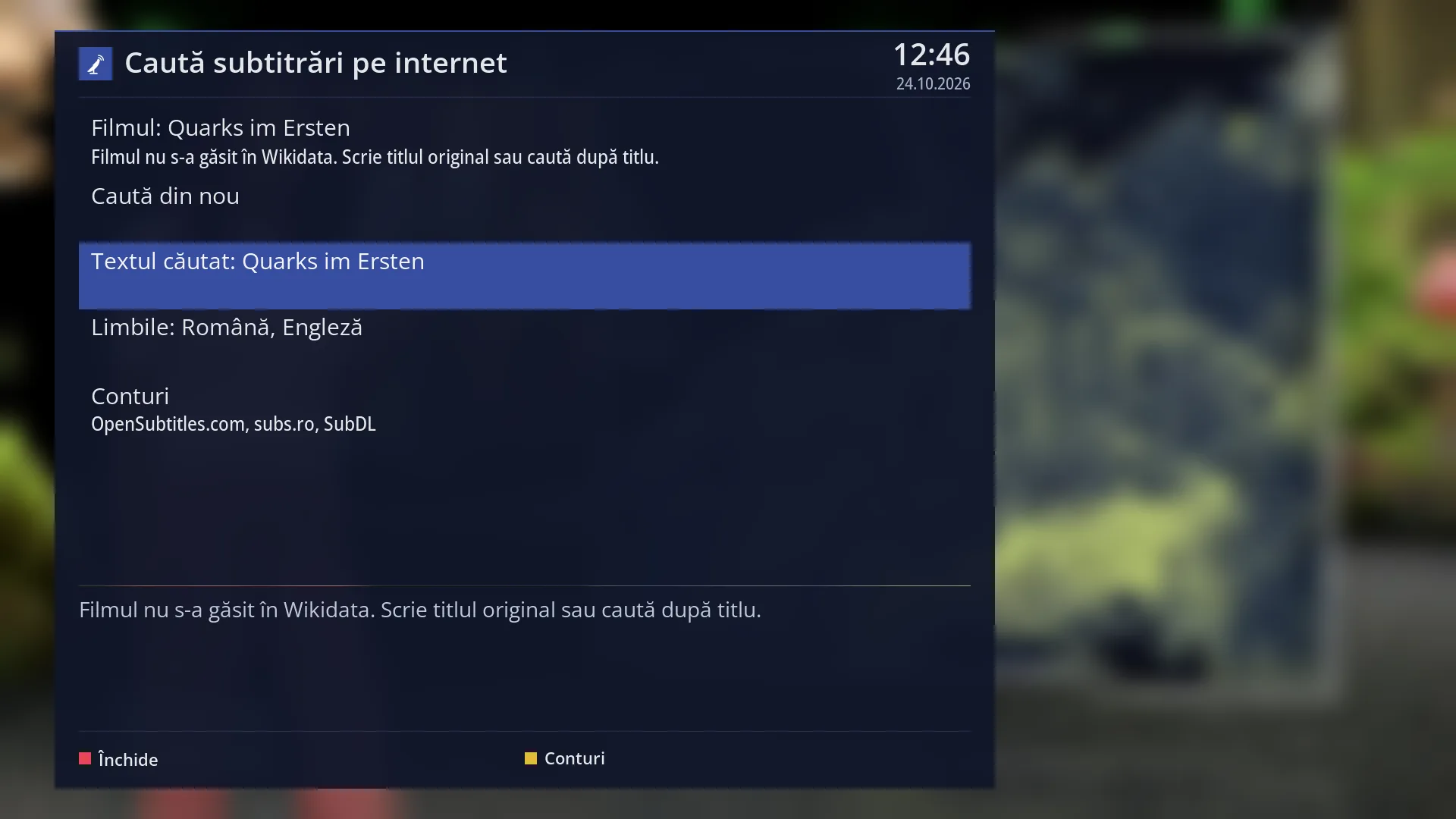
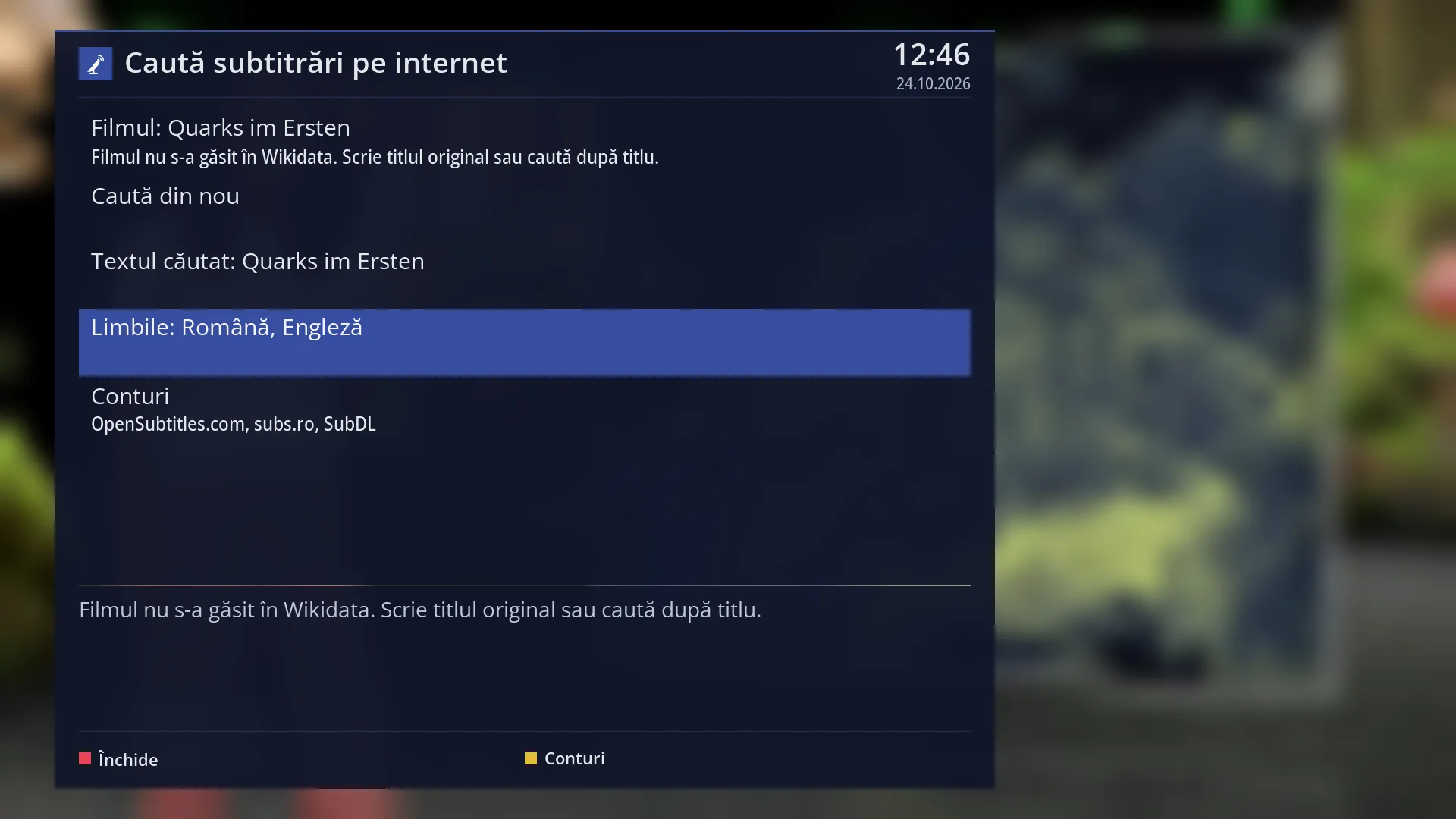
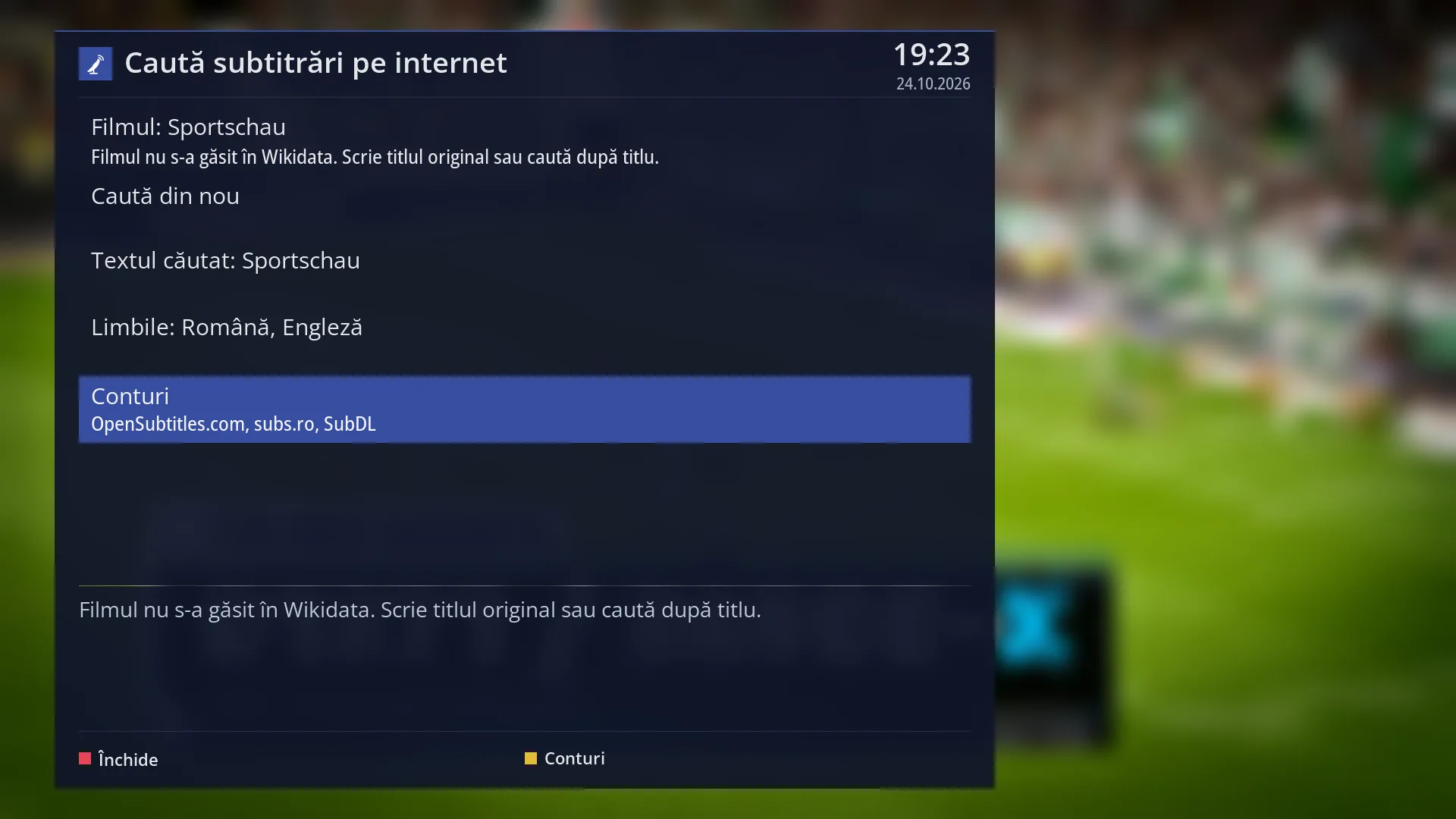
The “Search subtitles on the internet” window. Each row has two lines: what it is at the top, the details underneath.
The first rows are the settings: “Search again”, “Search text:” with the title being searched for, “The languages:” with the languages searched, and “Accounts”, with the sources ready to use on the bottom line.
On a channel or with a recording, the first row is “The movie:” with the original title and year found in the TV guide. Underneath it says “Searching for the film in Wikidata...”, “Several films: OK chooses the film.” or, once found, the title, the director and the IMDb number.
Then come the results: at the top the language and the subtitle name, underneath the source and its marks: “matches the file” (made exactly for your file), “for the hard of hearing”, the number of downloads, and on channels the frames per second and “machine translated”. On channels, subtitles already downloaded for the same film come first, as “On the receiver:”, with “already downloaded, no quota used”.
Below the list is the message box: “Searching for subtitles...”, “12 subtitles found.”, “Downloading the subtitle...”, “The subtitle was saved next to the film: ...” and others.
At the bottom, the colour keys: RED “Close” and YELLOW “Accounts”.
On a channel, after you choose, the “Subtitle sync” bar appears at the top left, over the picture, with the subtitle still visible. At the bottom of the bar you see the next line (“Next: ...”) and “YELLOW: advert break”.
Rows and settings
| Row | Values | Default | What it does |
|---|---|---|---|
| The movie: (only on channels and with recordings) | the film from the TV guide | The film being searched for, found from the title in the TV guide. OK: if there are several films with the same title, you choose from a list (“Which film is it?”). Otherwise you type the title (the “Film title (the original one, if you know it)” window). When the row says “Several films: OK chooses the film.”, or the film found is the wrong one. | |
| Search again | Starts the search again, with the current text and languages. The search also starts by itself when the window opens. After you have changed the languages or added a new account. | ||
| Search text | the film title (from the file name or the TV guide) | The title used for the search. OK opens the on-screen keyboard. After you type, the search starts by itself. When nothing is found or the title taken from the file name is wrong. The film's original title usually gives the most results. | |
| The languages | your subtitle languages from “Audio and subtitle language”, plus English (three at most), Romanian, English, Romanian, English, French, German, Italian, Spanish, Hungarian | your subtitle languages, plus English | The languages searched. LEFT and RIGHT (or OK) move to the next choice. Then press “Search again”. When you want subtitles in a language other than your usual ones. |
| Accounts | On the bottom line, the sources ready to use. OK (or YELLOW) opens “Subtitle download”, where you enter the OpenSubtitles account and the subs.ro and SubDL keys. When the search says that no source is ready. | ||
| The results (one row per subtitle) | OK on a result downloads it and turns it on. For a film from a file, the subtitle is saved next to the film and the window closes with a message. On a channel or with a recording, the subtitle is put on the channel and the “Subtitle sync” bar opens. Choose “matches the file” results first: they are made exactly for your copy. On channels, “On the receiver:” rows no longer use up your download quota. | ||
| The “Subtitle sync” bar (on channels and with recordings) | Line: < previous, next >, Fine tuning: < -0.5 s, +0.5 s >, Advert break: clock stopped / clock running, Speed: Automatic (de la 23,976 la 25 cadre/s), from 23,976 to 25 fps, from 24 to 25 fps, No change, The film starts now, Turn off the subtitle | Speed: Automatic; Advert break: clock running | Line: LEFT or RIGHT chooses the previous or next line, and the chosen line starts right now (OK = the next one). Fine tuning: moves the subtitle by half a second. Advert break: stops the subtitle clock for the length of the advert break (no line appears) and starts it again from the same point (YELLOW does this too). Speed: matches the subtitle speed to the channel. The film starts now: OK tells the receiver that the film is starting right now, so the subtitle starts from its beginning. Turn off the subtitle: OK turns it off. You can also open the bar from the SUBT window, on the “Subtitle sync…” row. The “Line” and “Advert break” rows are there too. When the subtitle comes before or after the speech, at every advert break and at the start of the film. |
Keys
| UP / DOWN | Move the cursor between rows. |
| LEFT / RIGHT | On “The languages”: changes the languages searched. Elsewhere: jumps seven rows up or down. |
| OK | Does what the row says: searches again, types the text, changes the languages, opens the accounts, chooses the film, or downloads and turns on the chosen subtitle. |
| YELLOW | “Accounts”: opens “Subtitle download”. In the “Subtitle sync” bar: “Advert break” (stops or starts the subtitle clock). |
| RED / EXIT | “Close”: closes the window. In the “Subtitle sync” bar, RED and EXIT close the bar and the subtitle stays on. |
Step by step
Getting subtitles for a film on a USB stick
- Once only: enter the account or key for a source in Menu > Settings > Audio & Sound Tracks > Subtitle download.
- Start the film and press SUBT, then BLUE. The search starts by itself.
- Choose a result in your language (preferably “matches the file”) and press OK.
- The subtitle is downloaded, saved next to the film and turned on. If it comes too early or too late, adjust it under SUBT, on the “Subtitle delay” row.
Adding subtitles to a film on a TV channel
- On the channel showing the film, press SUBT, then BLUE.
- Wait for the “The movie:” row to find the film. If it says “Several films: OK chooses the film.”, press OK on it and choose the right film.
- Choose the subtitle and press OK. The window closes and the “Subtitle sync” bar appears.
- When you hear a line, move the cursor to “Line” and press LEFT or RIGHT until the line on screen is the one being spoken. Then press EXIT.
- When the adverts start, press YELLOW (the subtitle clock stops), and when the film resumes, press YELLOW again.
Problems and solutions
You see “No source is ready. Enter the key or the account of a source (OpenSubtitles, subs.ro, SubDL) under Subtitle download, in the menu or in the web interface.”
No account or key has been entered. Press YELLOW (“Accounts”) and enter them, then choose “Search again”.
You see “No subtitle was found for ... in the chosen languages.”
Change “Search text” to the film's original title or add another language under “The languages”, then choose “Search again”.
You see “A search or a download is already running; wait for it to finish.”
The receiver does one thing at a time. Wait for the message in the box, then try again.
The download says “The archive is RAR; the receiver only opens ZIP archives.” (or 7z).
The source supplied the subtitle in an archive the receiver cannot open. Choose another result.
You see “The film's folder cannot be written; the subtitle was saved in ...”.
The film is in a place where the receiver is not allowed to write (for example a read-only network folder). The subtitle works, but it is stored in the folder shown in the message.
On a channel, the subtitle falls further and further behind or gets further and further ahead.
The speed does not match. In the “Subtitle sync” bar, try another choice under “Speed” (for example “from 24 to 25 fps” or “No change”), then match the line again.
I changed channel and the internet subtitle disappeared.
The subtitle belongs to the channel. When you return to the same channel, during the same programme, it comes back by itself (“The subtitle from the internet is back, matched as before.”). If its clock was stopped for an advert break, start it with YELLOW in the “Subtitle sync” bar.
The “The movie:” row says “The current programme has no title in the guide. Enter the title.”
The channel does not send guide data for the current programme. Press OK on the row and type the film title.
An advert appears at the start or end of the subtitle.
With a free account, OpenSubtitles may add its own advert at the start or end of the subtitle. The receiver does not add it and cannot remove it.
Related topics
- Source accounts and keys
- Subtitle selection (the SUBT key window)
- Film subtitles (delay, encoding)
- Subtitle translation, if the subtitle found is in another language
- Matching web page: /descarcare-subtitrari.