

Network streaming
English screenshots coming: some of the pictures below still show the receiver and the web interface in Romanian. The rows, keys and steps described on this page are the English ones.
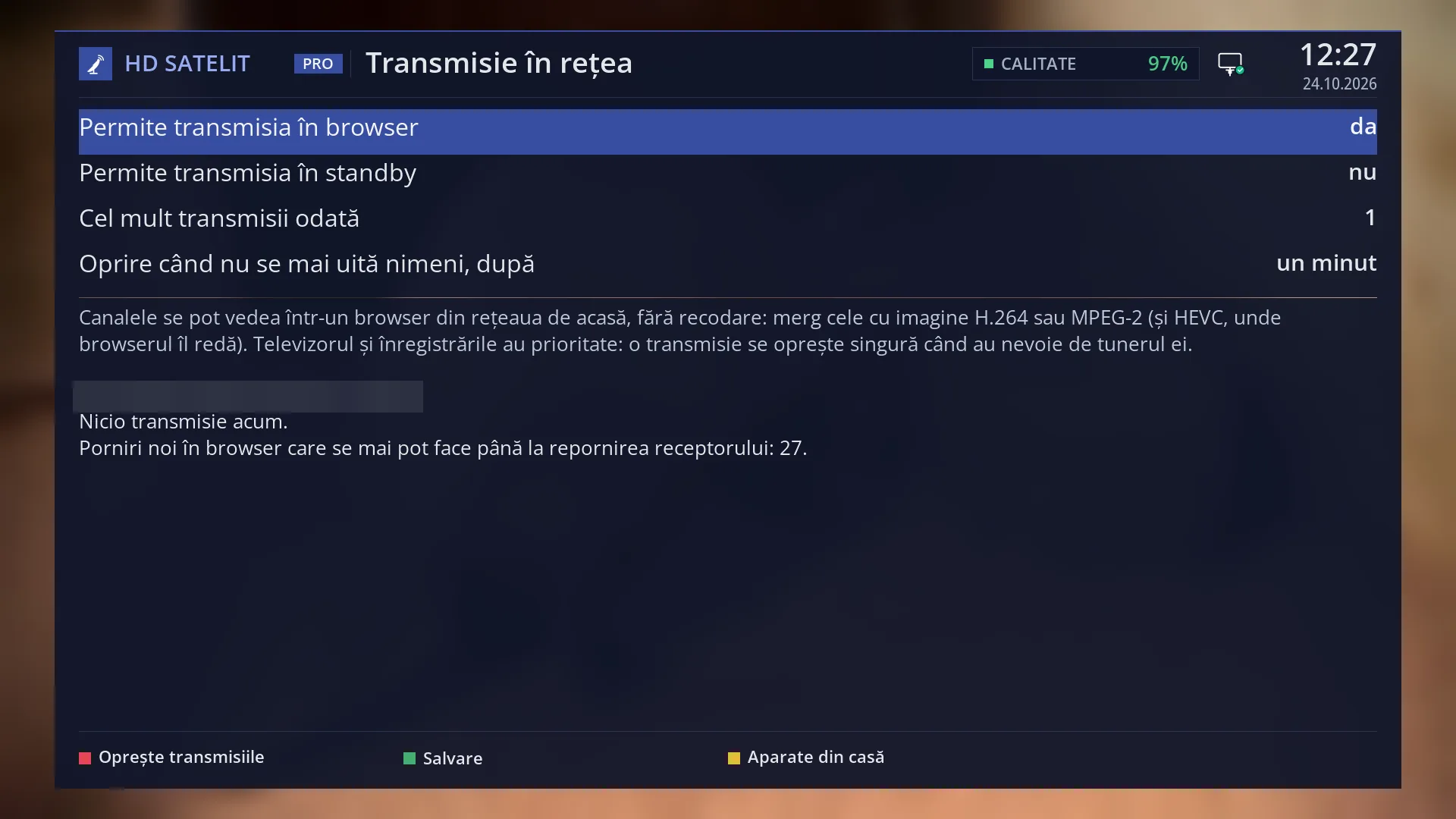
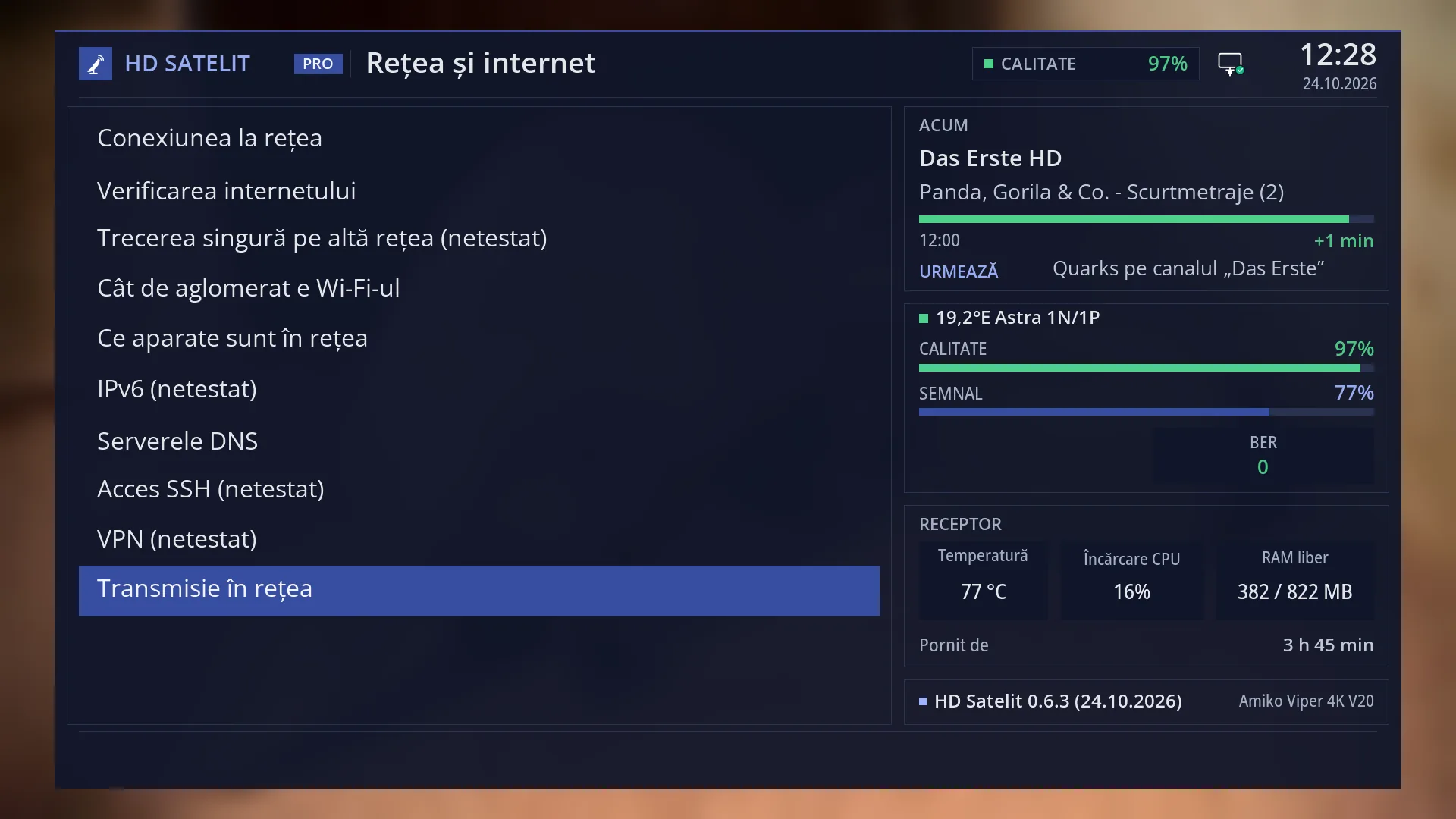
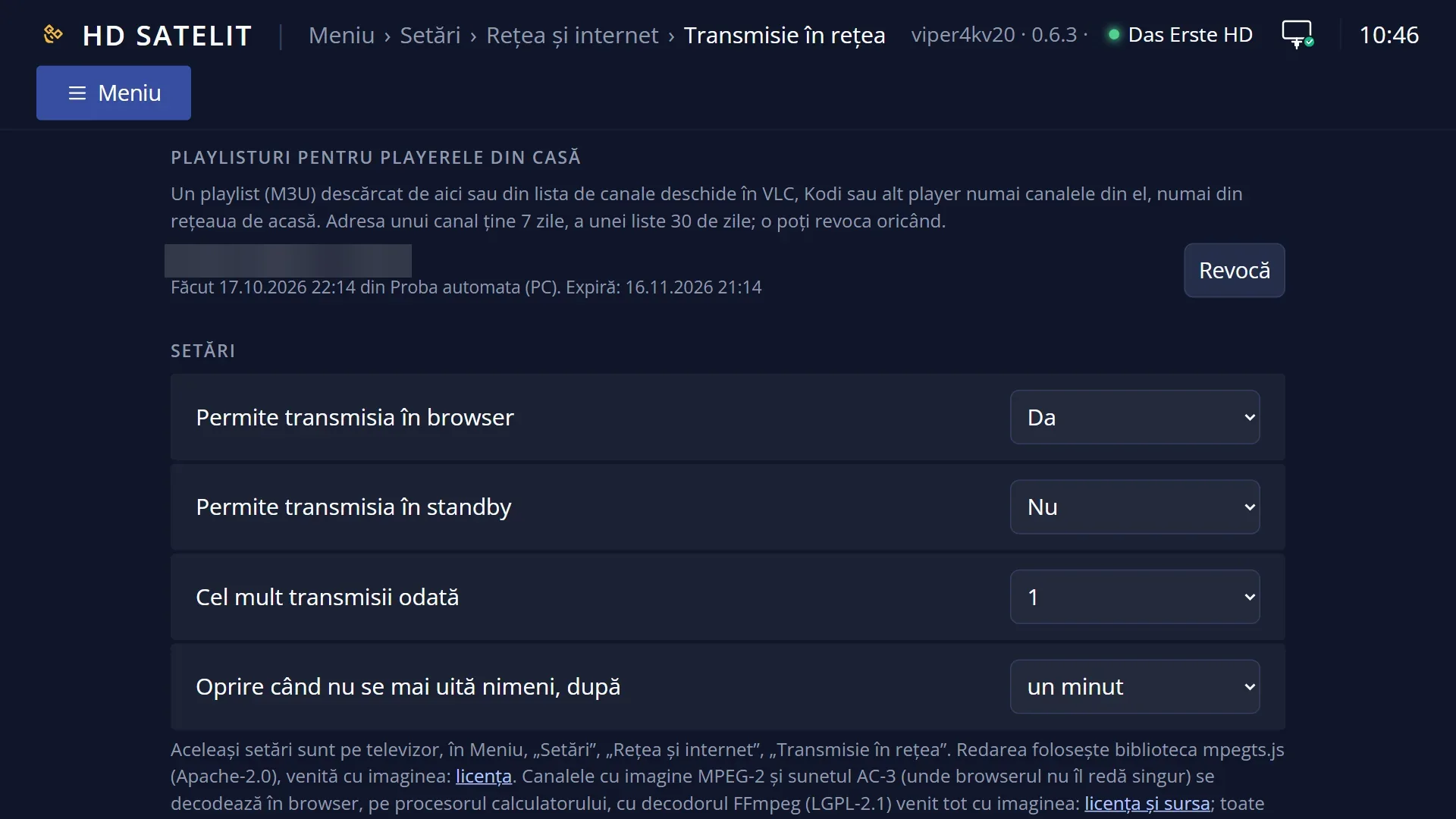
- 1 The streaming settings; with “Allow streaming to a browser” on No, only the first row remains.
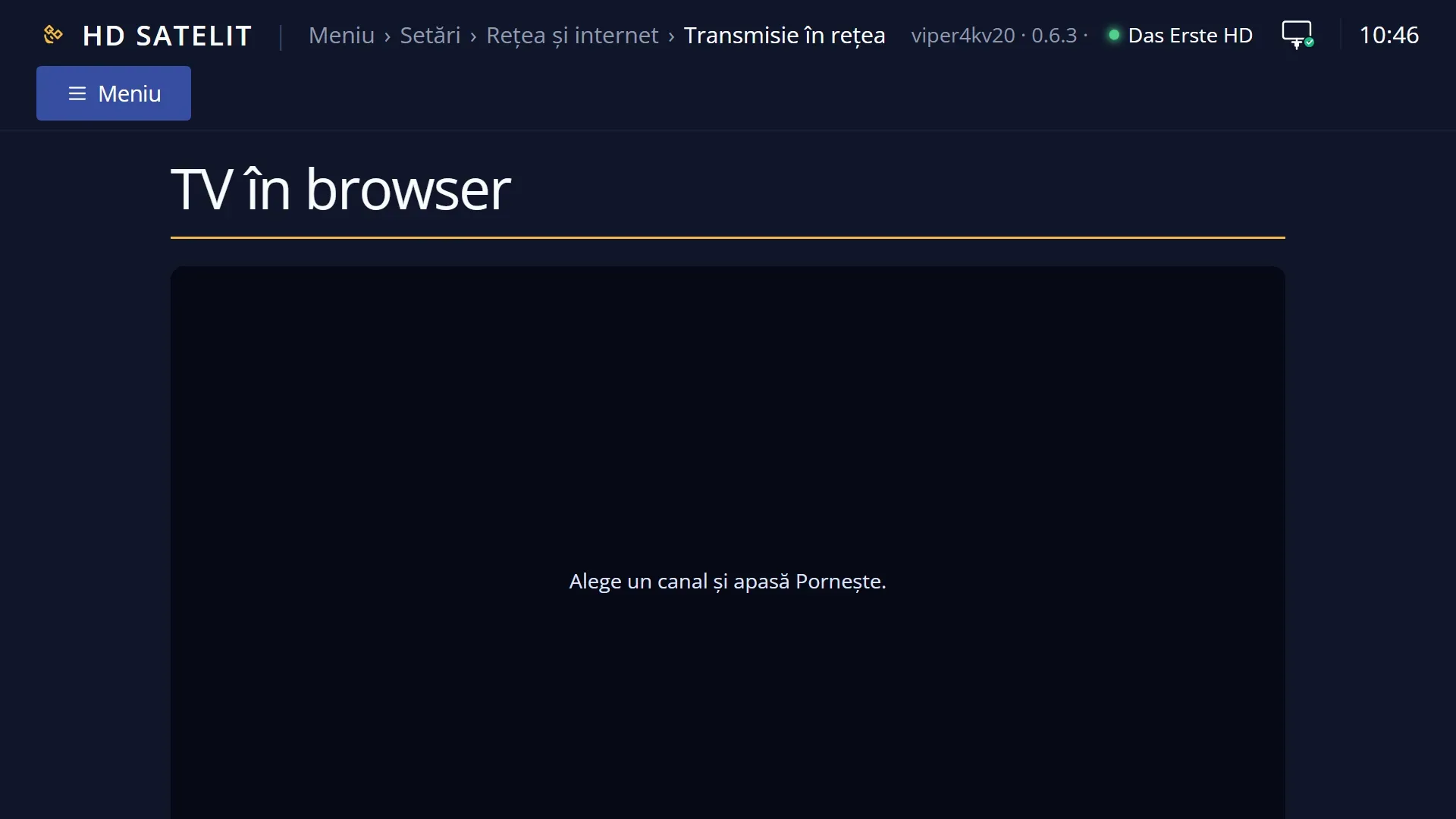
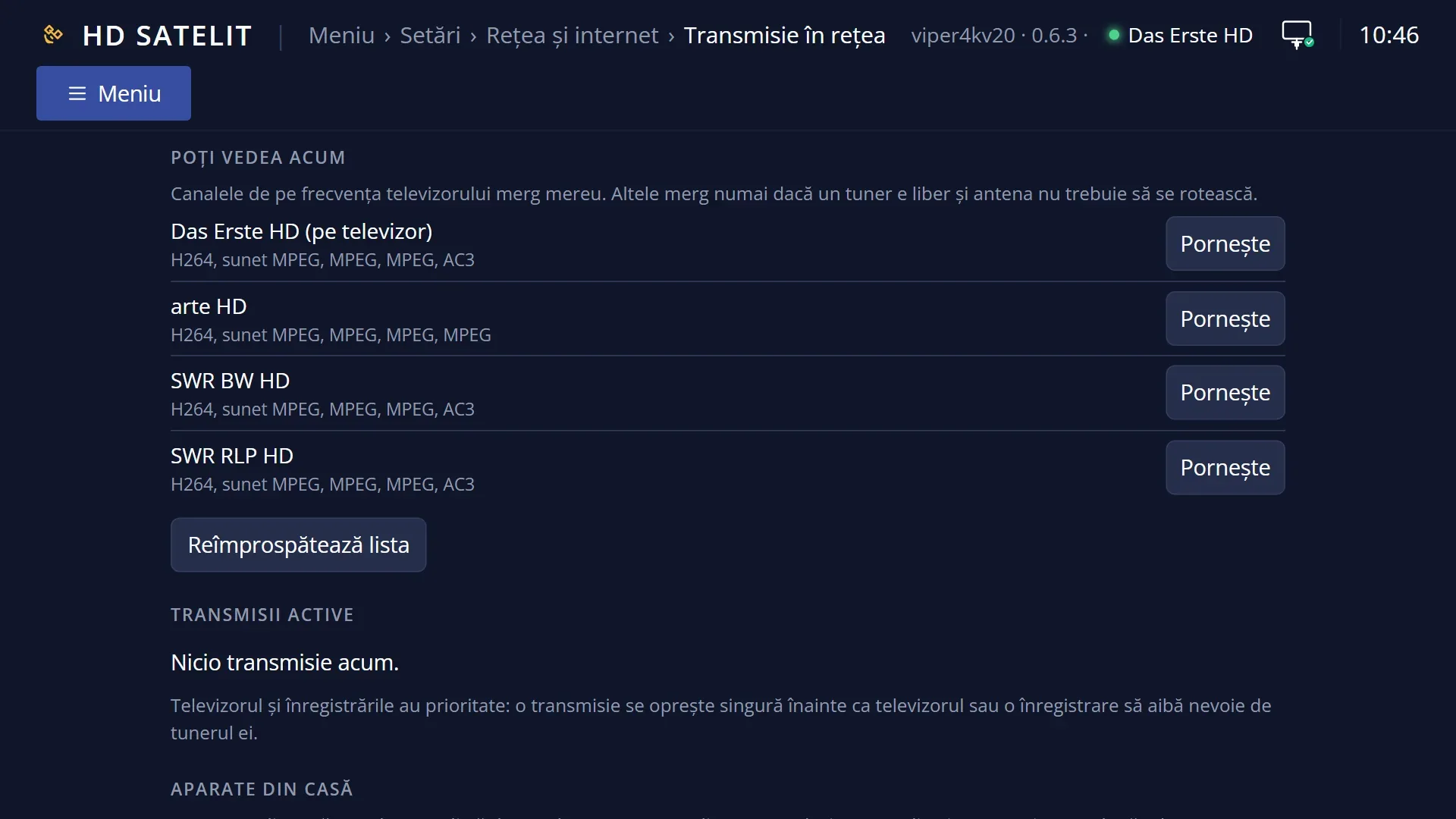
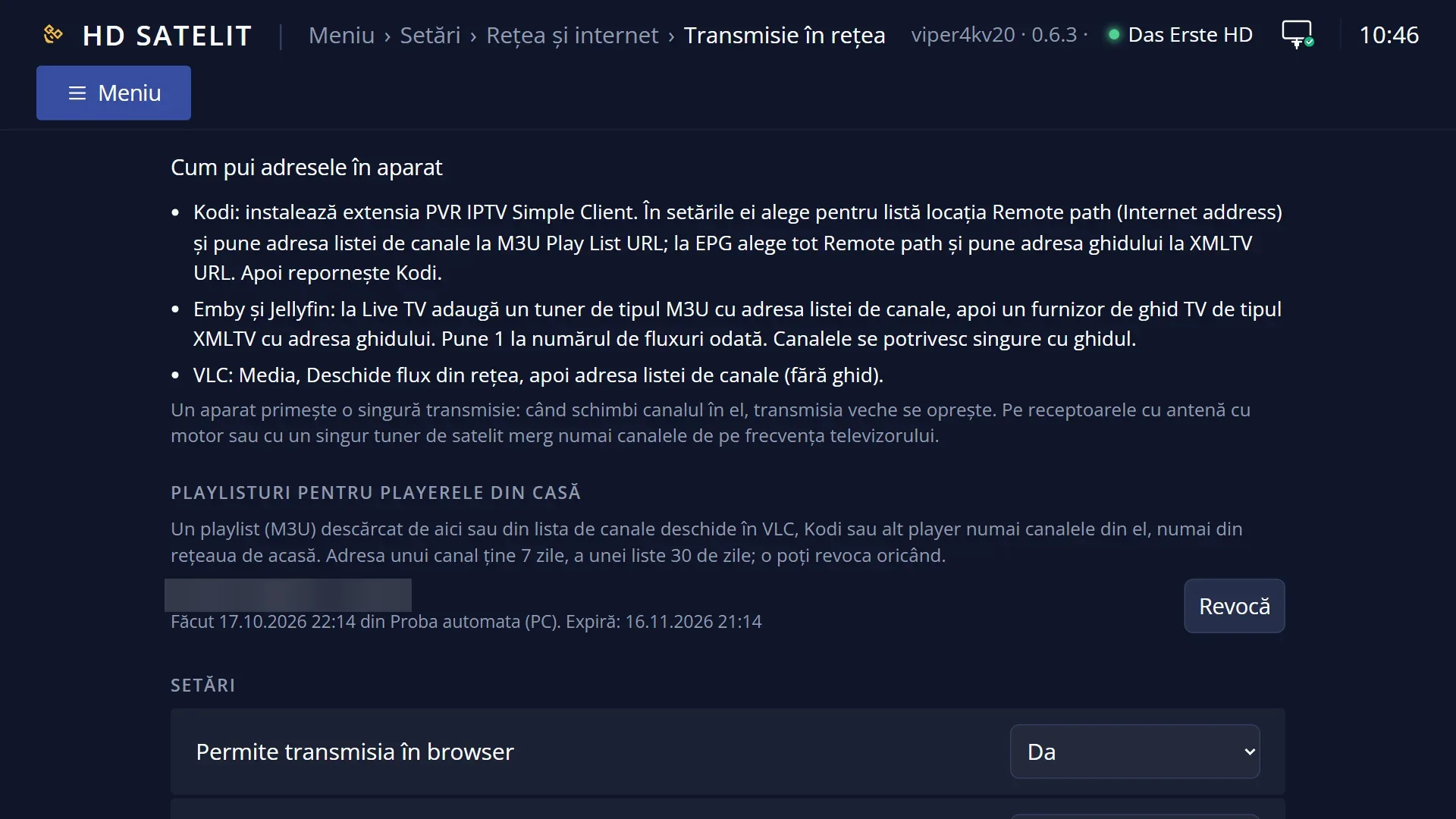
- 2 Which channels work in the browser and who has priority.
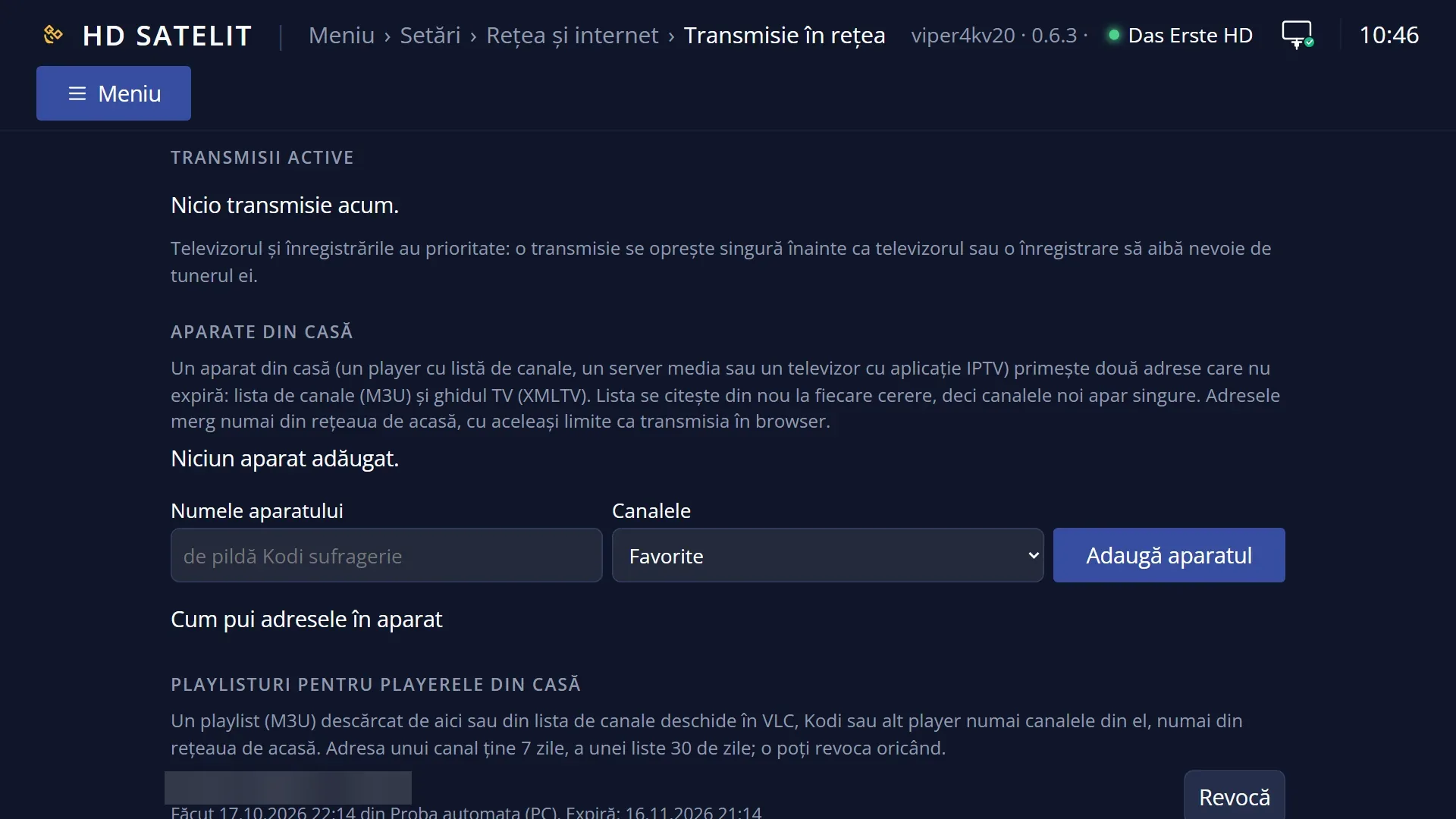
- 3 The address for the browser, the current streams, the remaining starts and the recent streams.
- 4 RED stops all streams, GREEN saves, YELLOW opens the devices at home.
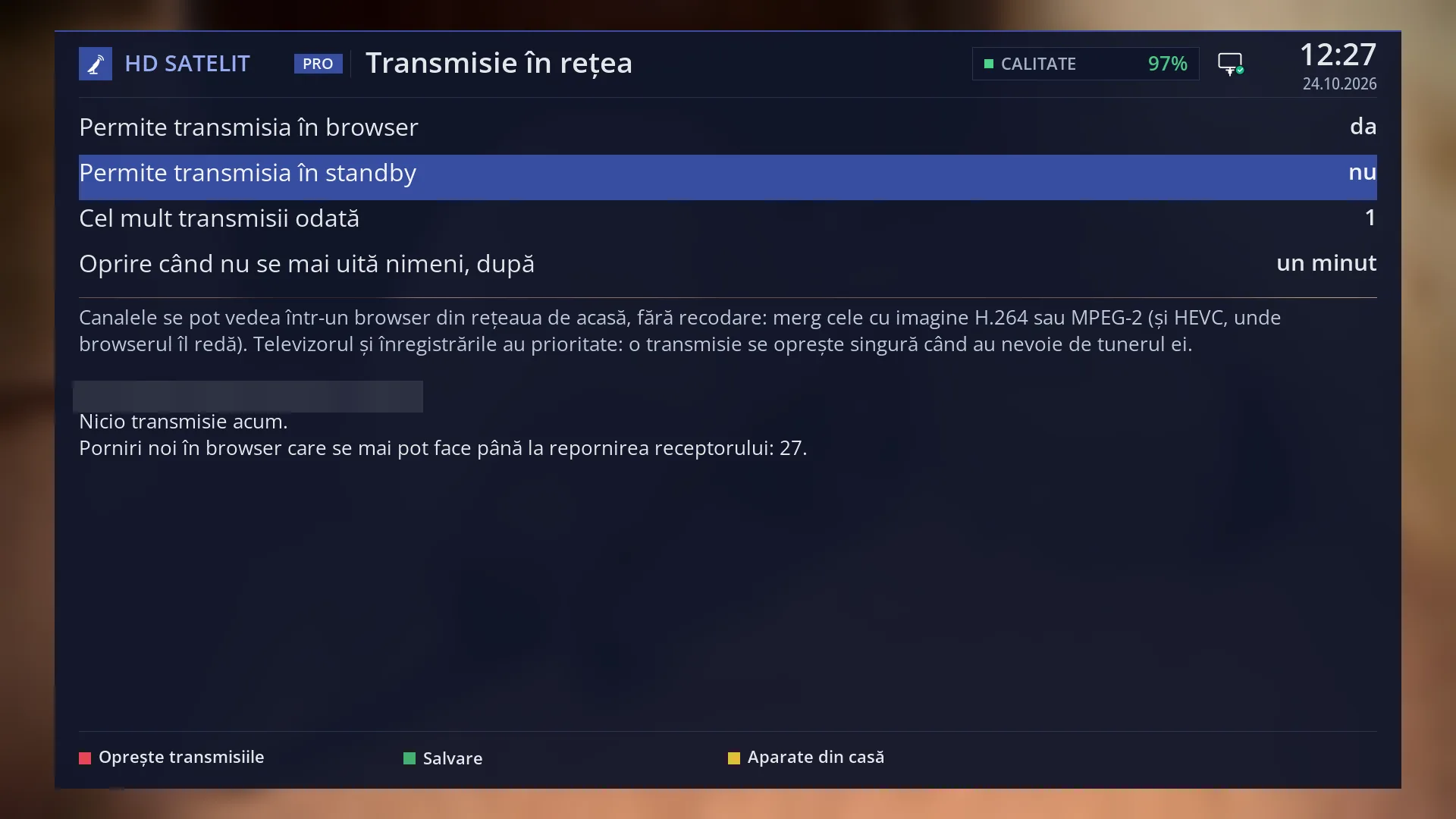
- 1 The selected row: “Allow streaming in standby: No”.
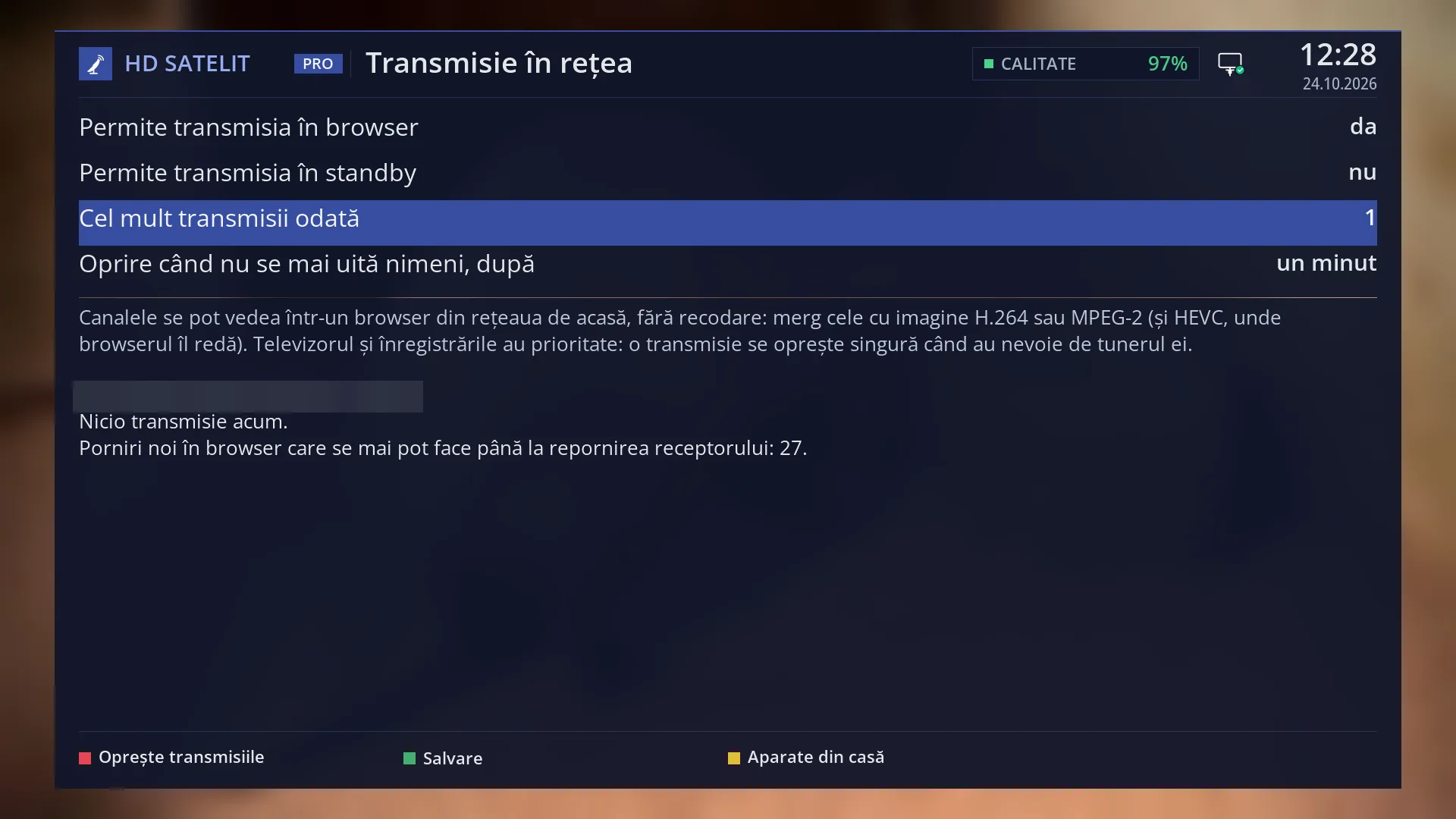
- 1 The selected row: “Maximum streams at once: 1”.
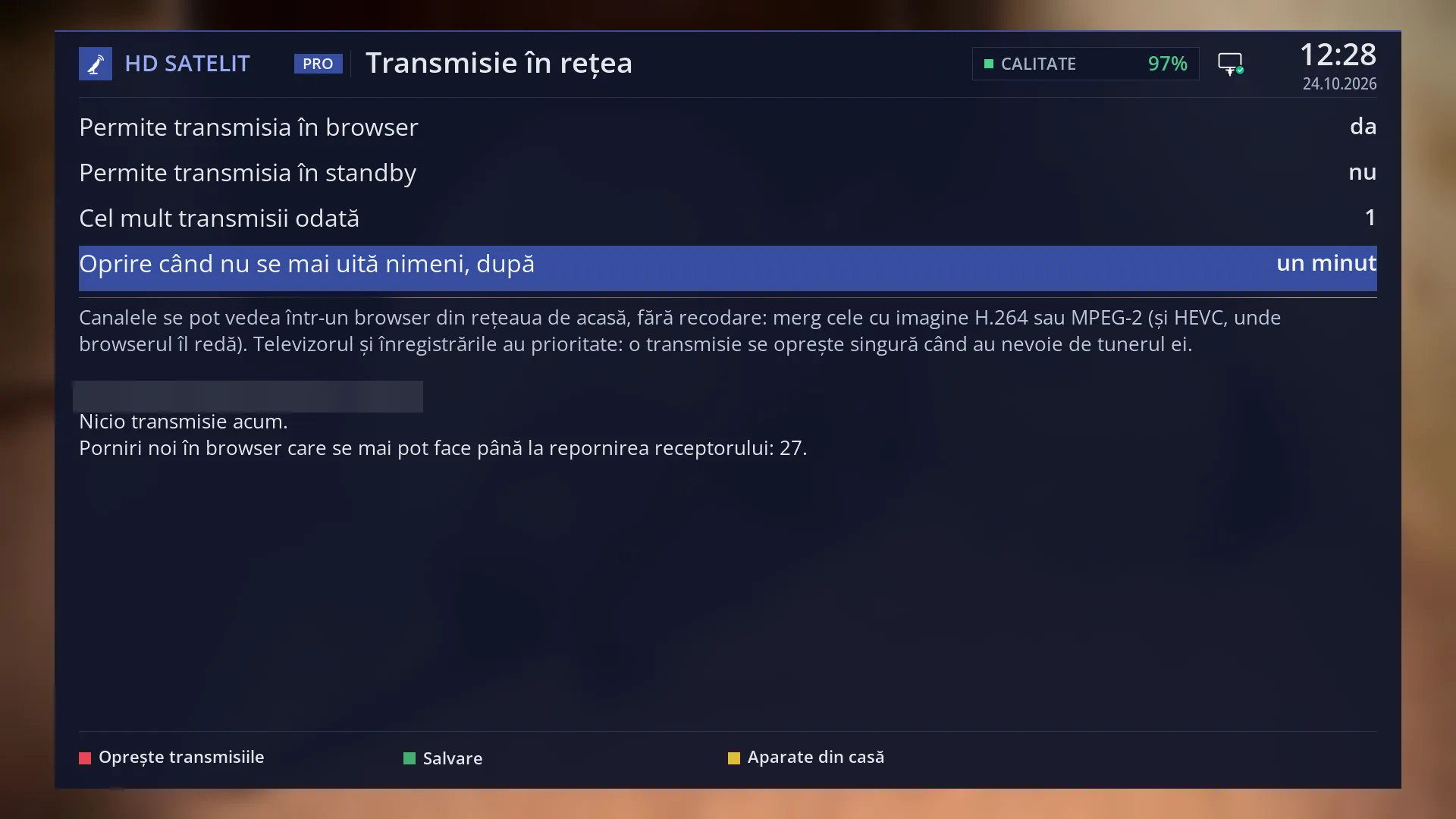
- 1 The selected row; LEFT and RIGHT choose 10 seconds, 20 seconds or a minute.
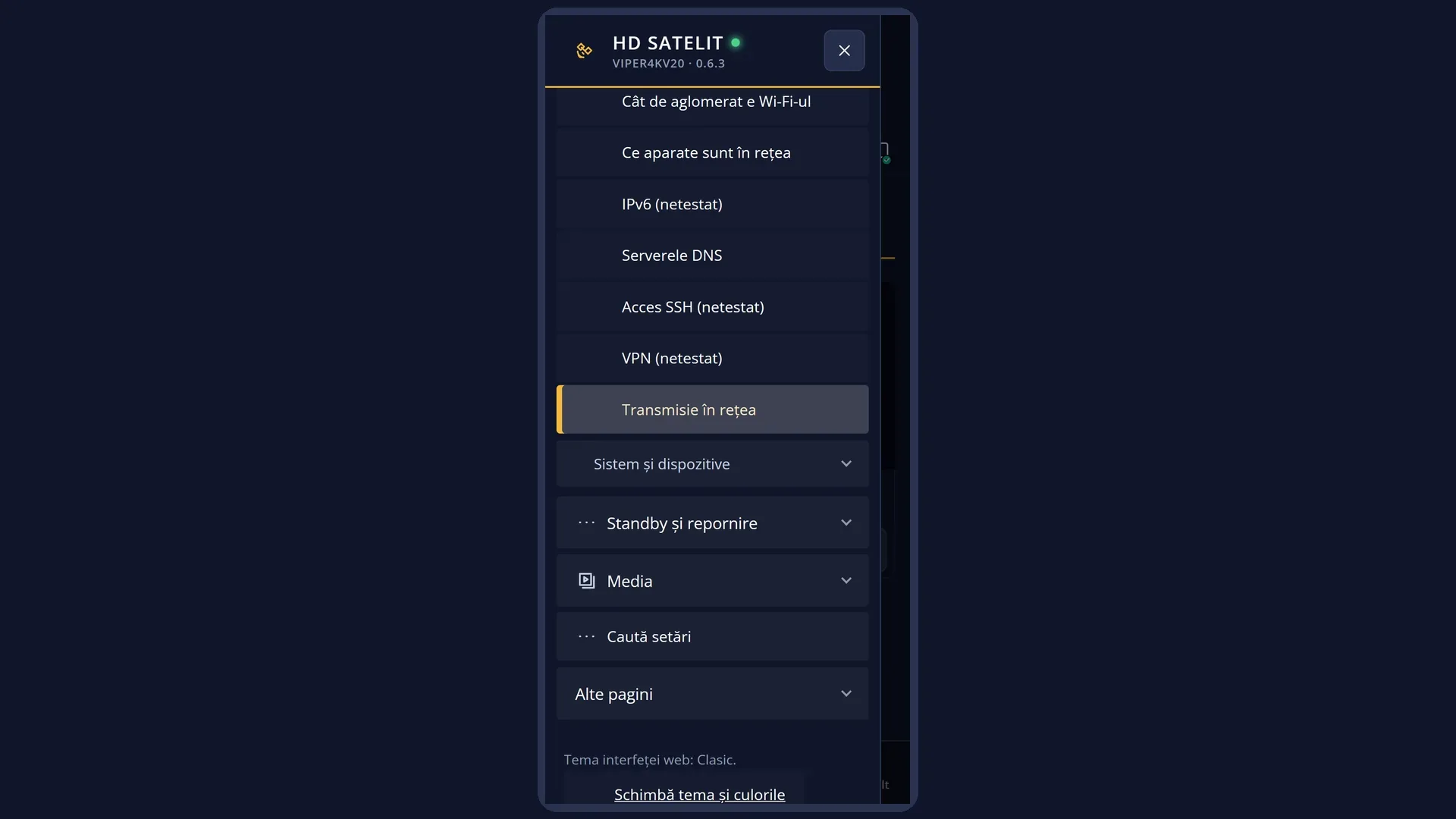
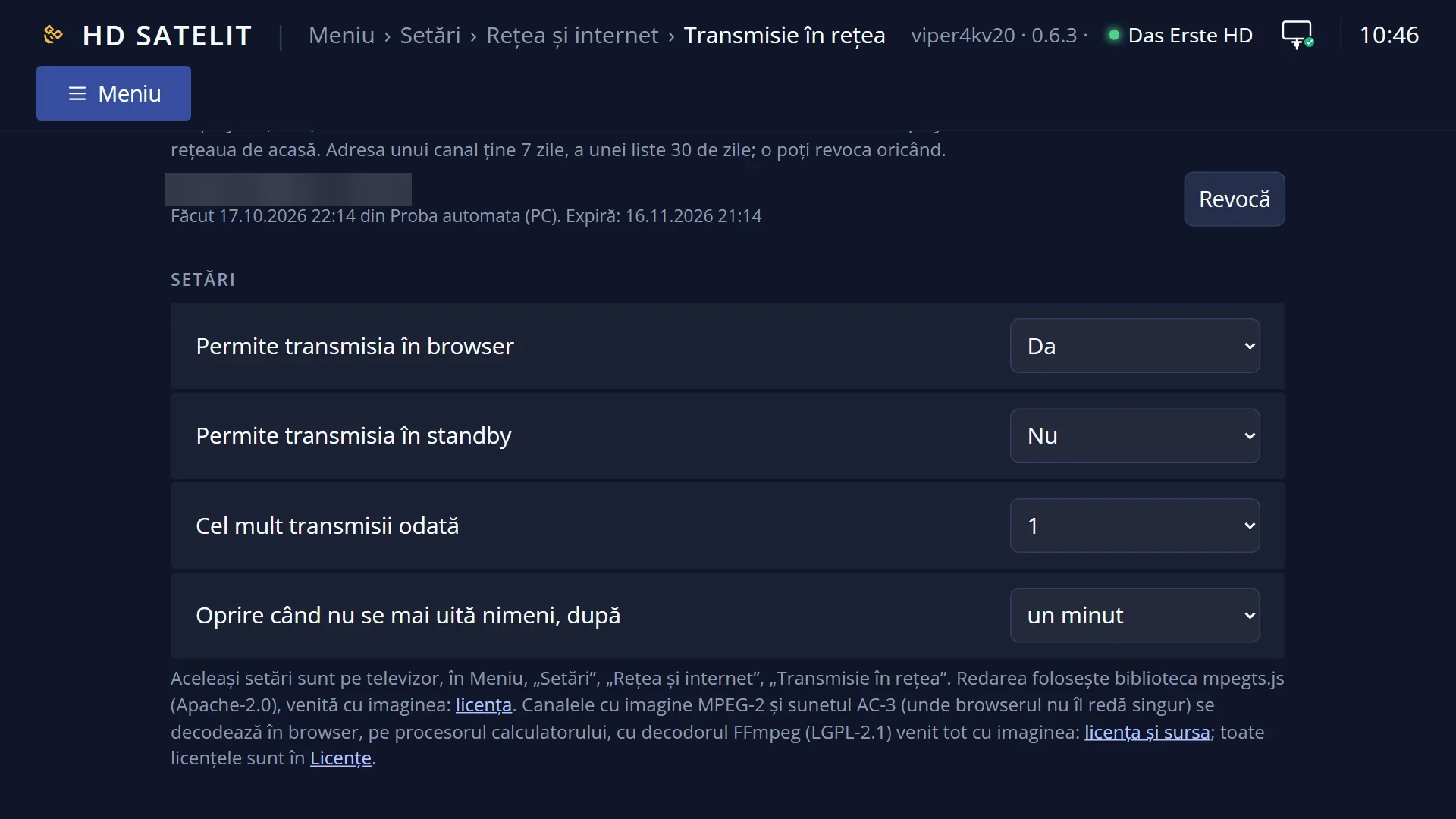
What it is for
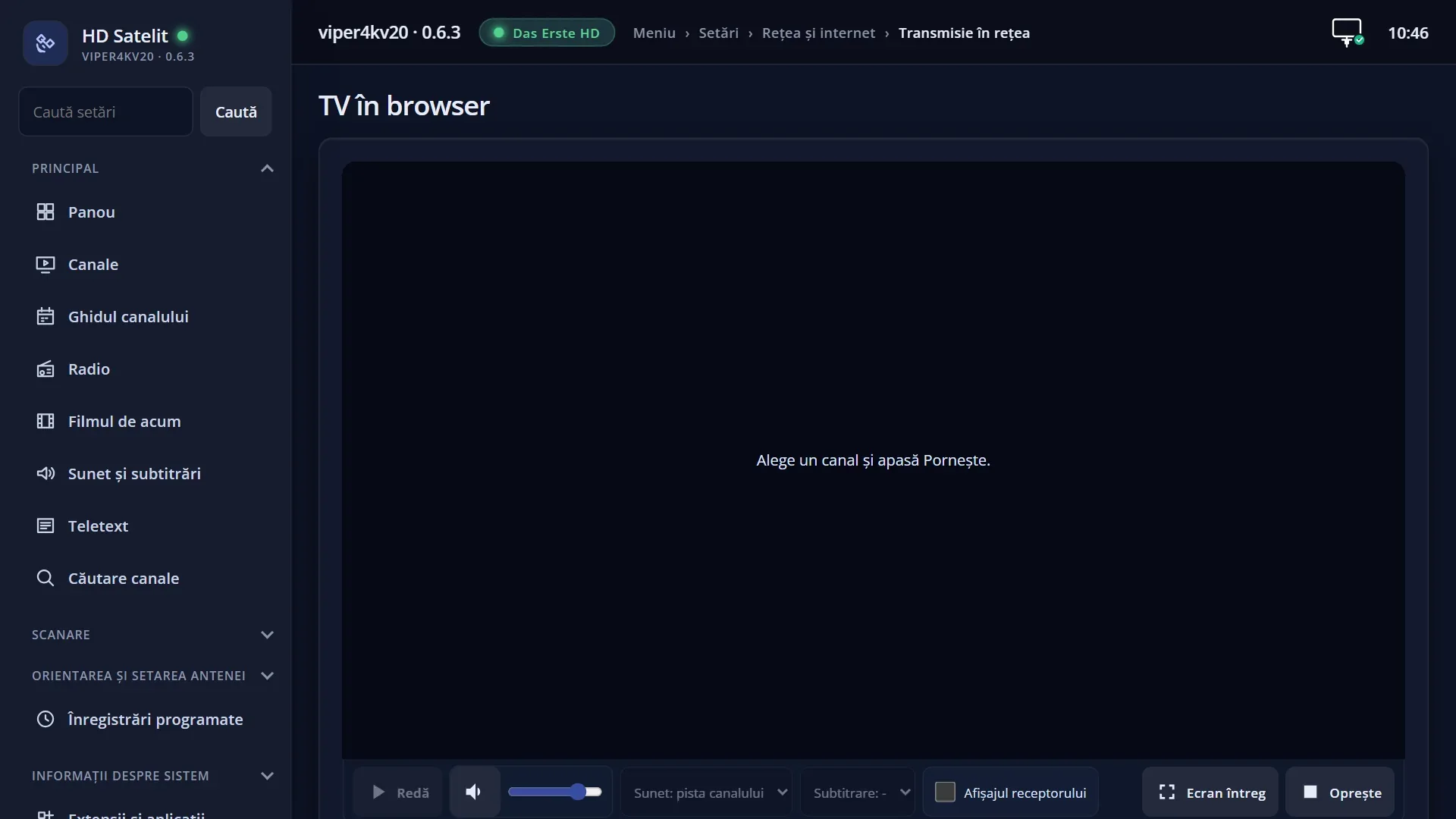
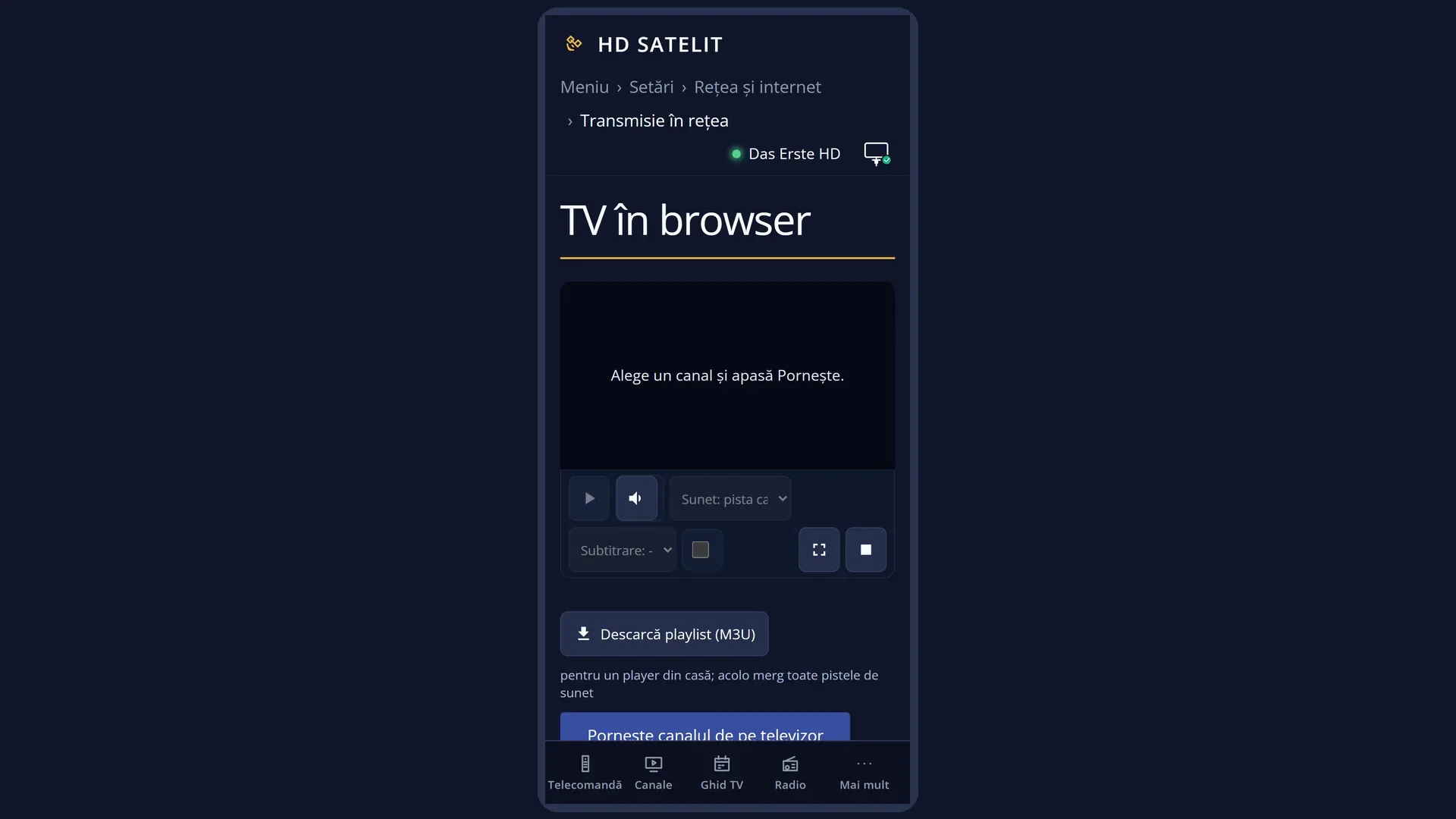
The receiver can send a channel to a browser on your home network (computer, phone, tablet), on the “TV in browser” page of the web interface. This screen on the TV shows who is watching now, which channel, since when and how much has been sent. It also holds the streaming settings.
The channel is sent exactly as it comes from the dish, without re-encoding on the receiver. Channels with H.264 or MPEG-2 video work (and HEVC, where the browser can play it). The TV and recordings have priority: a stream stops by itself when they need its tuner.
Here you can also stop all streams with one press (RED), and see or revoke the devices at home that have fixed addresses for channels and the guide (YELLOW).
The same settings, the same list and the same stop button are also in the web interface, on the /tv page.
How to get here
Path: Main menu > Settings > Network & Internet > Network streaming (the last row).
Keys on the TV remote: MENU 6 9, then UP (from the first row you jump to the last one) and OK.
In the web interface: the /tv page (“TV in browser”), the “Settings” tab and the “Active streams” list.
What you see on the screen
At the top, the setting rows. When “Allow streaming to a browser” is set to No, the other three rows disappear.
Below them, the explanation: which channels work in the browser, and that the TV and recordings have priority.
Underneath, the status, read again every 2 seconds: “From the browser: http://<receiver address>/tv”, the address you type into the browser; the number of devices at home with fixed addresses, if you have any; “Streams now:” with one row per stream (the channel, which browser and address it goes to, for how long, how many MB have been sent, “no viewer now” when the page is closed) or “No streams now.”.
When the receiver can work out the video driver memory, a row tells you how many new starts in the browser are still possible until the receiver is restarted, or “The video driver memory is running out: new streams start after the receiver is restarted.”.
At the end, “Latest streams:”, up to four: the time, the channel, how long it lasted and why it stopped (for example “Nobody was watching any more.”, “The stream has stopped: the TV switched to a channel on another frequency.”, “The receiver went into standby.”).
At the bottom, the keys: RED “Stop the streams”, GREEN “Save”, YELLOW “Devices at home”.
Rows and settings
| Row | Values | Default | What it does |
|---|---|---|---|
| Allow streaming to a browser | Yes, No | Yes | Yes: channels can be watched in the browser and in the players at home. No: no new stream starts, and the running ones stop with the reason “Streaming to a browser was turned off in the settings.”. On the /tv page the start button turns grey. When you do not want anyone on your home network to take one of the receiver's tuners. |
| Allow streaming in standby | Yes, No | No | Yes: you can watch in the browser even with the receiver in standby (TV off). No: when the receiver goes into standby, the streams stop (“The receiver went into standby.”), and a new one is refused with “The receiver is in standby. Streaming in standby is turned off in the settings.”. When you want to watch on your phone or computer with the TV switched off. |
| Maximum streams at once | 1, 2 | 1 | How many browsers or players can receive channels at the same time. With 1, a second request gets “The receiver is already streaming to <browser>. Stop that stream from the TV in browser page or from the TV.”. When two people at home want to watch at the same time, on different devices. |
| Stop when nobody is watching, after | 10 seconds, 20 seconds, a minute | a minute | How long before a stream with no browser connected (page closed) stops by itself. During this time, reloading the page finds the stream still running and does not start another one, which saves the receiver's memory. Shorter when you want the tuner to be freed quickly; a minute when you often reload the page. |
| Devices at home (YELLOW) | <name> (channels: …; last used …), <name> (channels: …; not used yet) | The list of devices (for example a player at home) that have been given fixed addresses for channels, the guide and logos. OK on one asks “Revoke the device <name>?”, with No selected; Yes cancels its addresses for good and stops its stream. New devices can only be added from the web interface, on the /tv page. If there are no devices, YELLOW says “No device at home has fixed addresses.”. When a device is no longer yours or you no longer use it. |
Keys
| UP / DOWN | Select the row. |
| LEFT / RIGHT | Change the value of the selected row. On “Allow streaming to a browser”, the rows below appear or disappear straight away. |
| OK or GREEN | “Save”: saves the settings and closes the screen. |
| EXIT | Closes without keeping the changed settings. |
| RED | “Stop the streams”: stops all streams immediately; the browser shows “The stream was stopped from the TV.”. The settings do not change: the stream can be started again from the browser. |
| YELLOW | “Devices at home”: the list of devices with fixed addresses, and revoking them. |
Step by step
Watch TV on your computer or phone
- Open the screen (MENU 6 9, UP, OK) and read the address next to “From the browser:”.
- On the computer or phone, on the same network, open that address in the browser.
- Press “Start the channel from the TV”, or “Start” next to a channel under “You can see now”.
Stop someone watching on another device
- Open the “Network streaming” screen.
- Under “Streams now” you can see who is watching and what.
- Press RED: all streams stop.
Turn off streaming to a browser completely
- On “Allow streaming to a browser”, press LEFT until it shows No.
- Press GREEN. No stream can start until you set it back to Yes.
Problems and solutions
The browser says “Streaming to a browser is turned off in the settings”.
Set “Allow streaming to a browser” to Yes and press GREEN (or change the setting on the /tv page).
You see “The receiver is already streaming to …”.
Someone else is already watching. Stop that stream (RED here or “Stop” on /tv), or set “Maximum streams at once” to 2.
You see “The video driver memory is running out”.
Each new start after a break holds a little memory until the receiver is restarted. Restart the receiver (Menu > Power & Restart > Restart Box). Changing to a channel on the same frequency and reloading the page cost nothing.
The stream stopped by itself.
Read the reason under “Recent streams”. Usually the TV switched to a channel on another frequency, a recording started, the receiver went into standby, or nobody watched for the time chosen under “Stop when nobody is watching”.
I do not know the address for the browser.
It is shown on this screen, next to “From the browser:”. The computer or phone must be on the same network as the receiver.
On the TV, a channel in the list shows the “Streaming” mark.
The channel is being sent to a browser or a player right now. The mark disappears when the stream stops.
Related topics
Differences between receivers
On a receiver with a motorised dish or with only one satellite tuner, a satellite channel can only be streamed from the frequency the TV is on (in standby, the frequency of the previous channel): the dish does not turn from the browser.