

Per-station equaliser
Screenshots are being added: so far 4 from the receiver and 7 from the web interface; the aim is at least 5 of each, with arrows and frames, and, where a setting changes what you see, a before and after comparison.
English screenshots coming: some of the pictures below still show the receiver and the web interface in Romanian. The rows, keys and steps described on this page are the English ones.
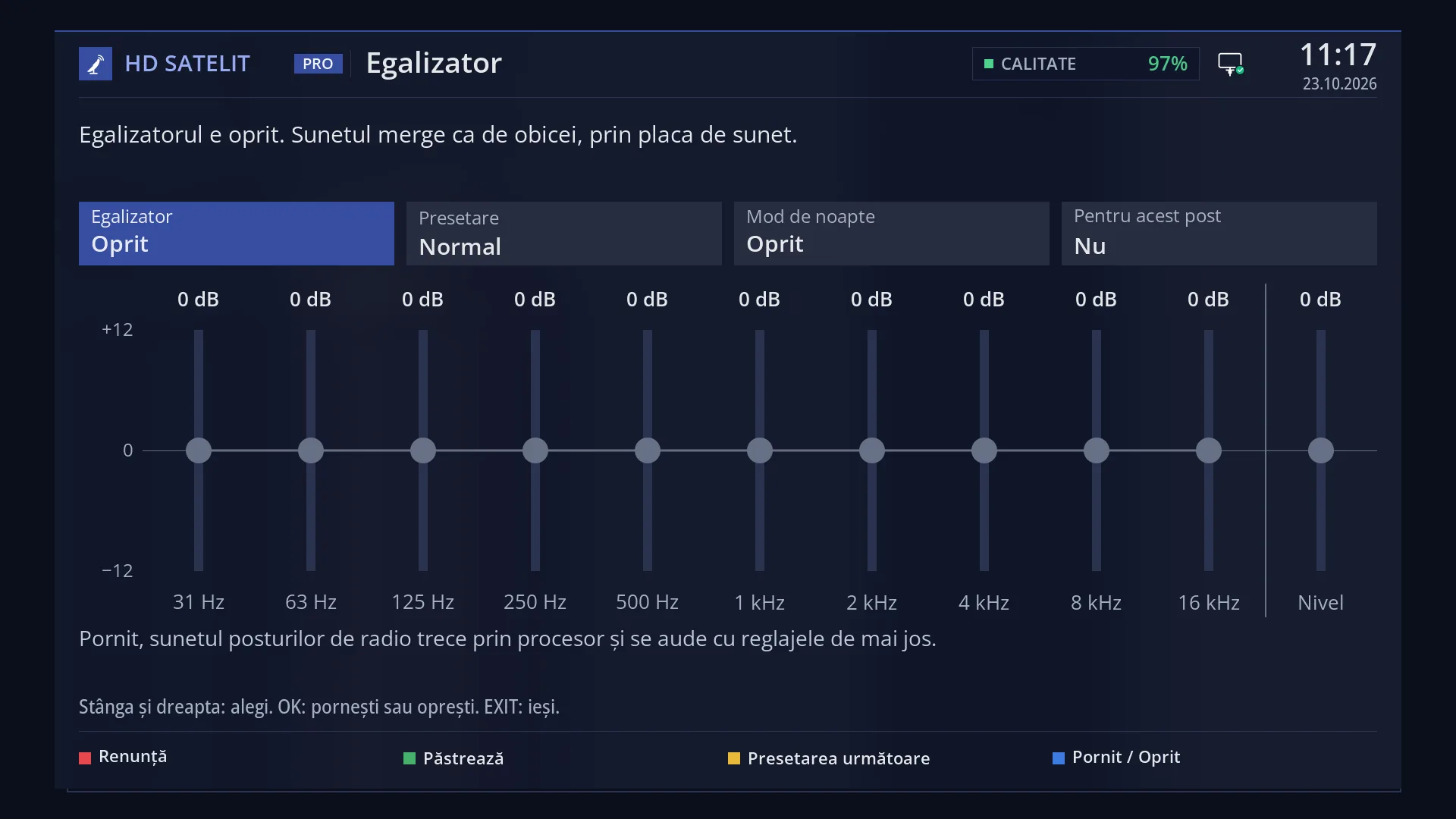
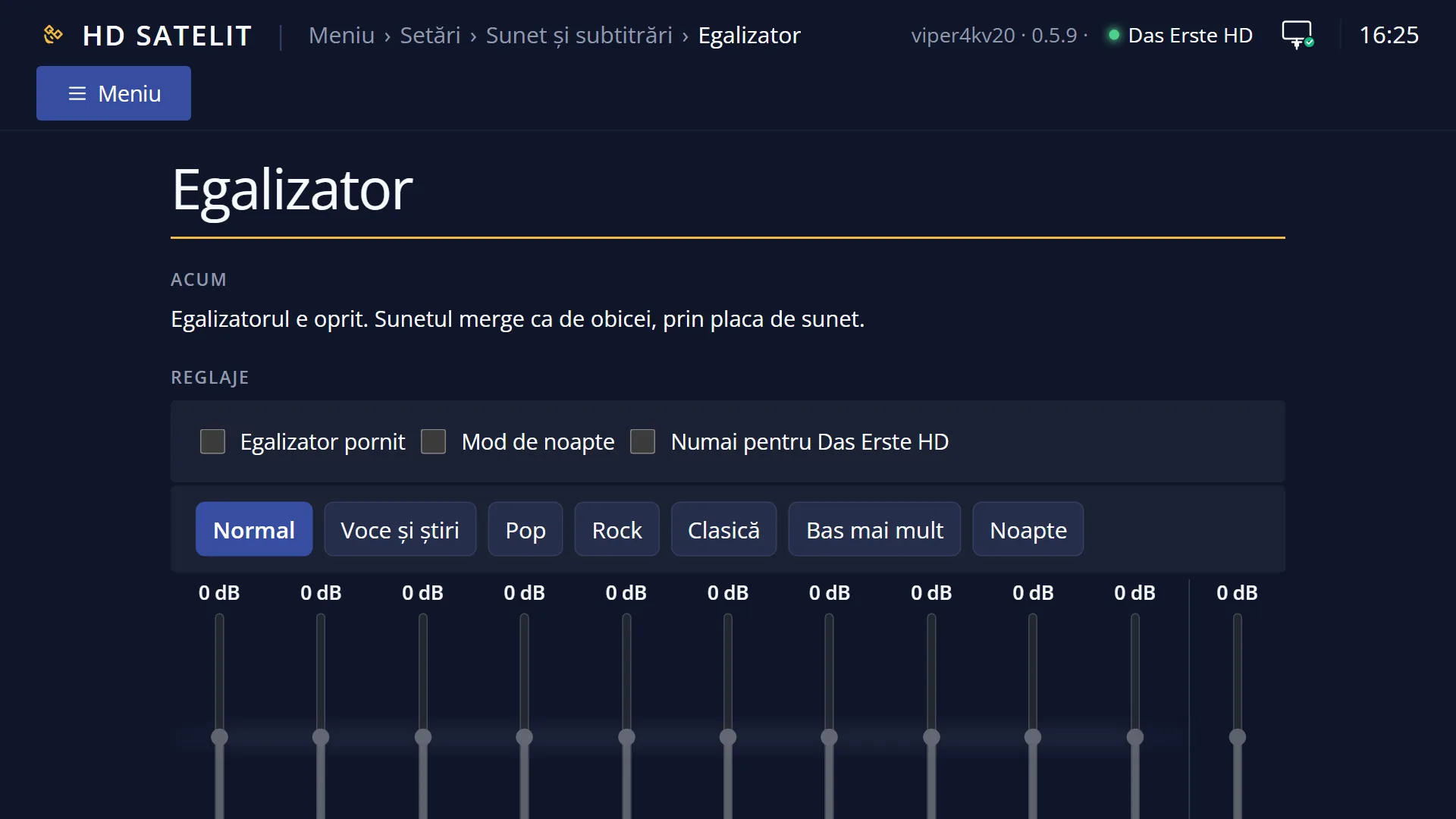
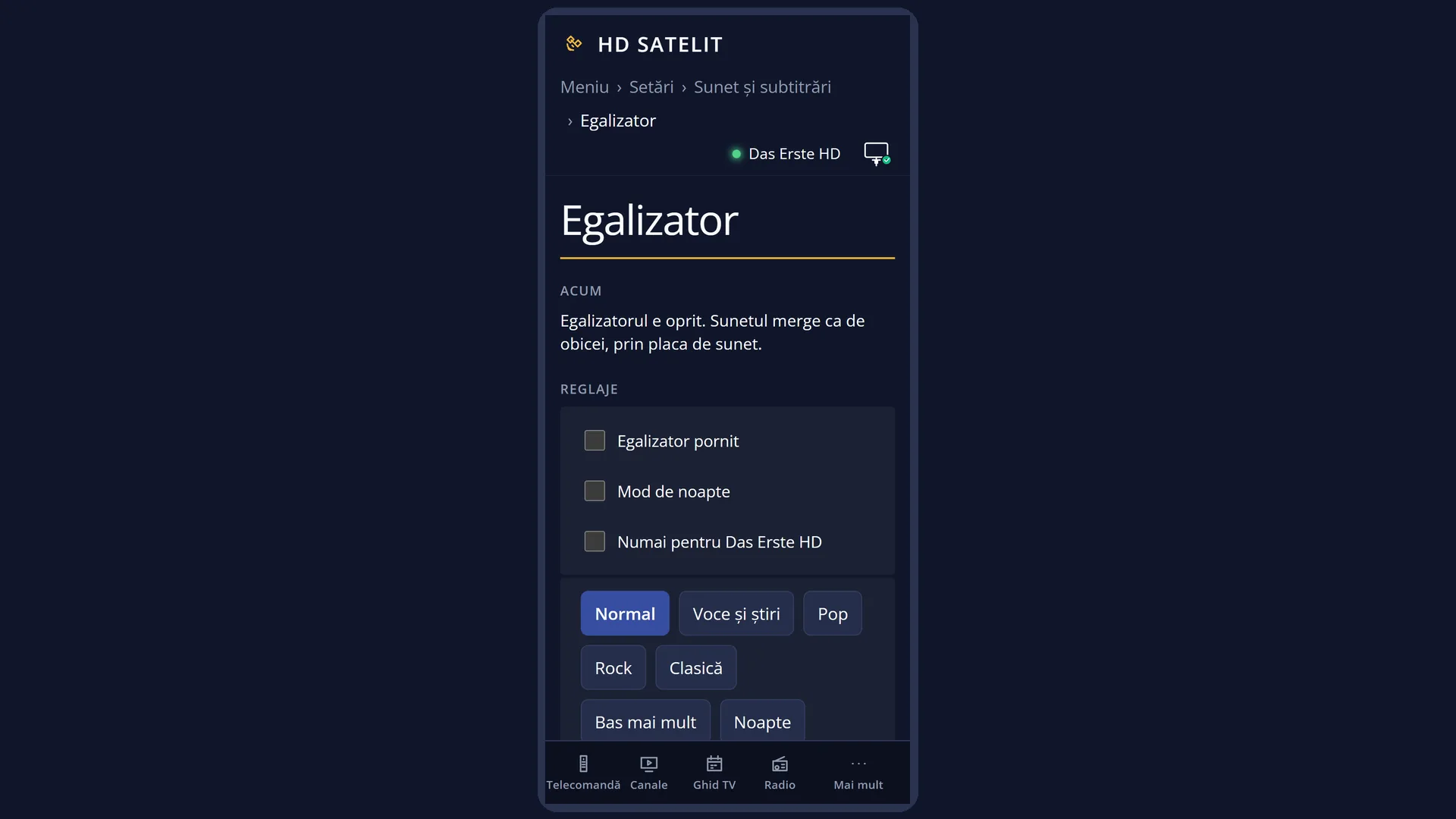
- 1 The status for the current station: whether it plays with the equaliser and, if not, why.
- 2 “For this station”: with Yes, the settings belong to this station only.
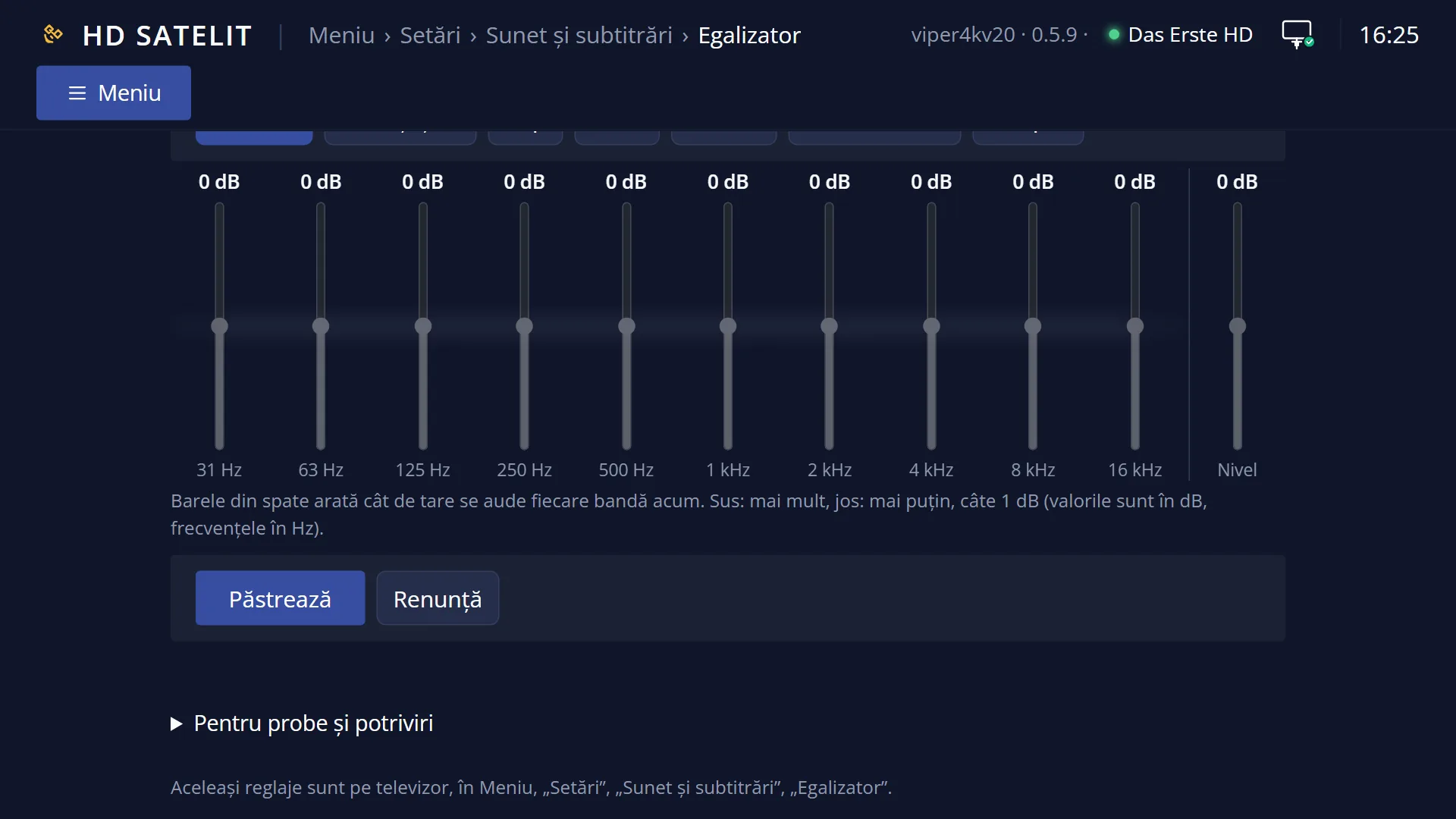
- 3 The bands and Level you hear now on this station.
- 4 The explanation of the selected item. On “For this station”, it gives the station's name.
- 5 GREEN keeps and takes you back to the radio screen, RED cancels.
What it is for
When you listen to a radio station on the radio screen, GREEN opens the equaliser right on top of it. You adjust the station's sound on 10 bands and hear each change straight away, without searching through the menu.
With “For this station” set to Yes, the settings belong to this station only. The next time you start it, the receiver applies them by itself, before the sound starts. The other stations keep the usual settings.
This way you can have, for example, a clearer voice on a news station and more bass on a music station, without changing anything each time.
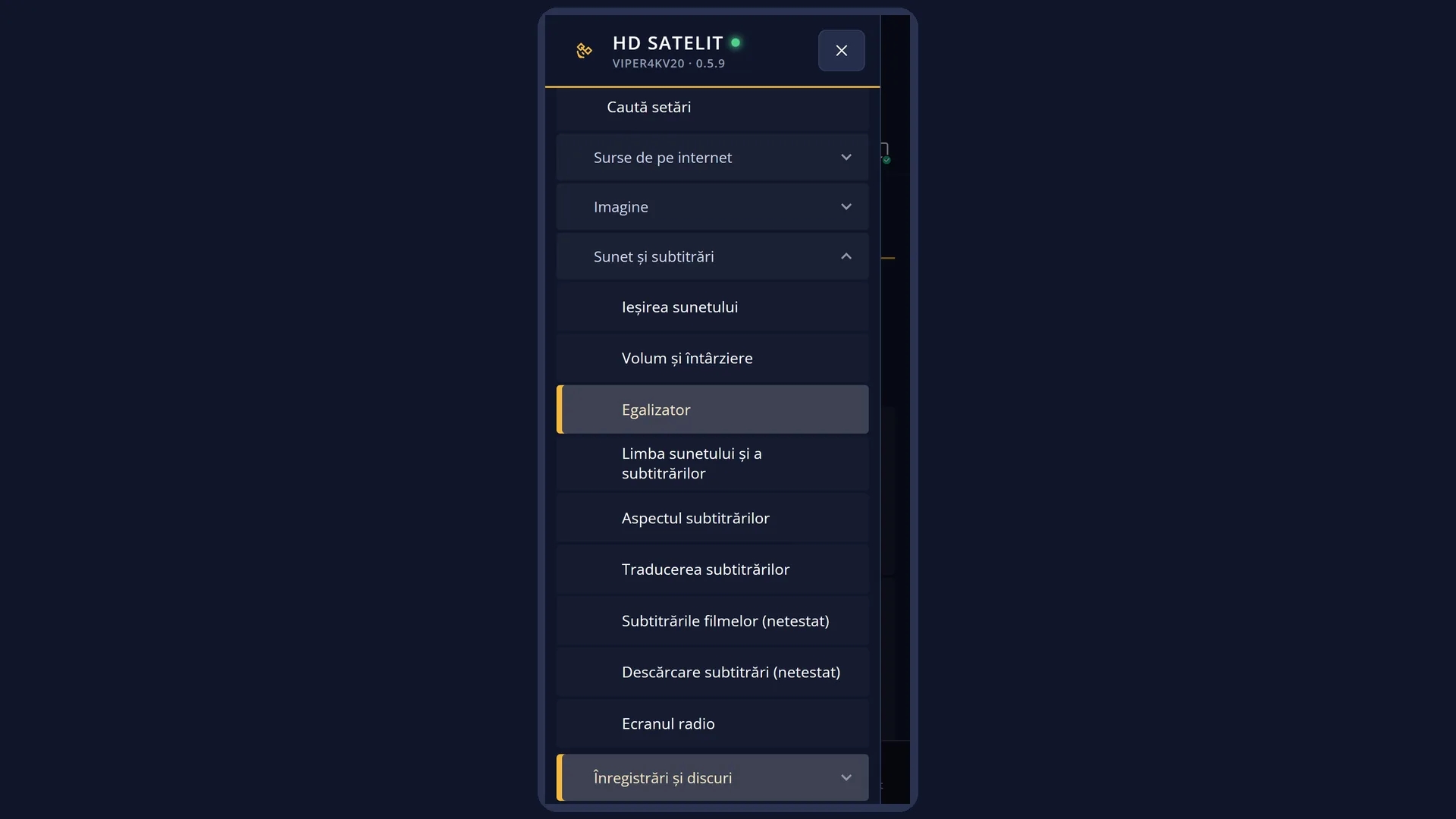
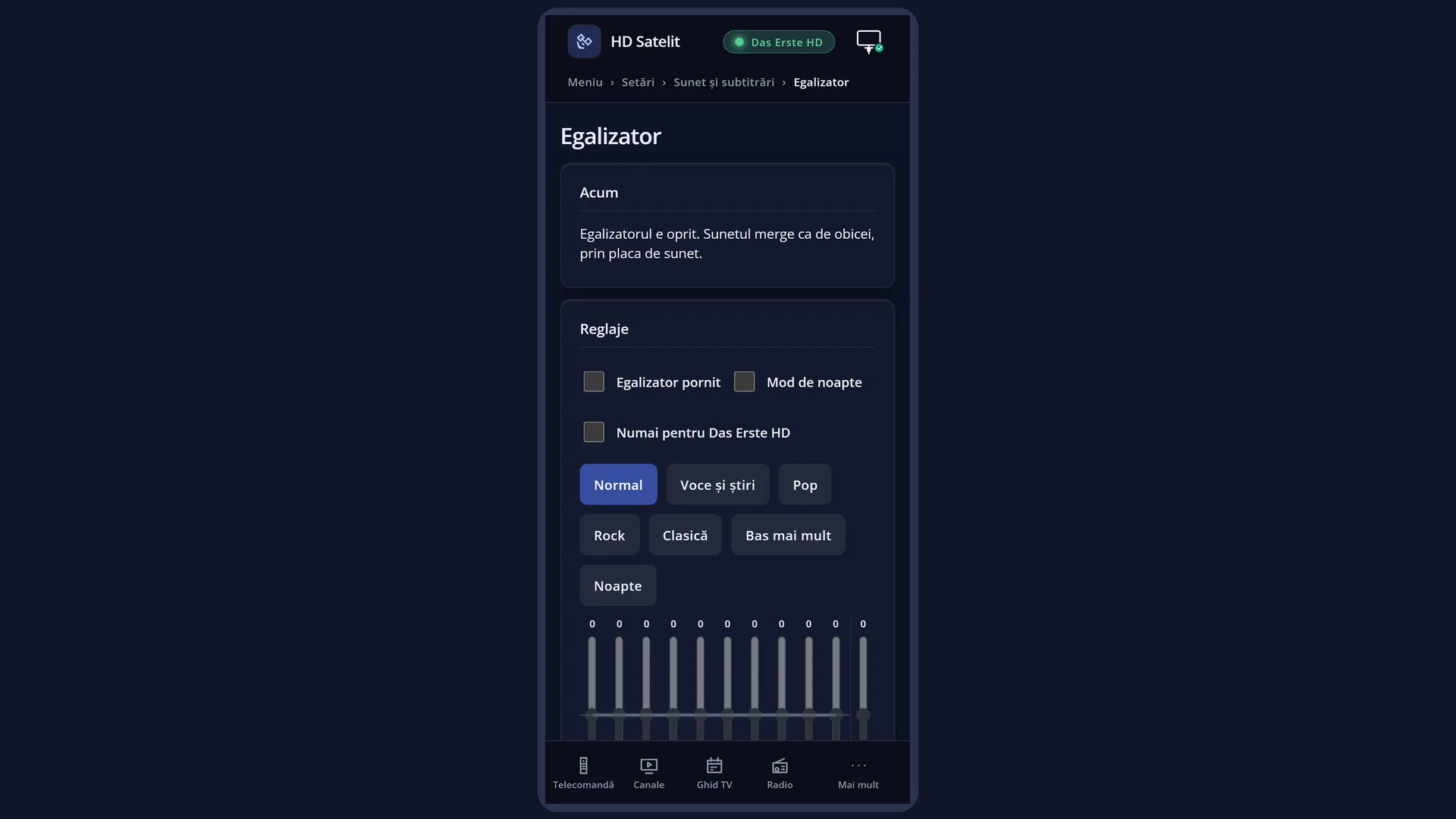
It is the same screen as Menu > Settings > Audio & Sound Tracks > Equalizer, with the same boxes, bands and keys. All the values are explained on the “Equalizer” page. Here you have it at hand on the station you are listening to.
How to get here
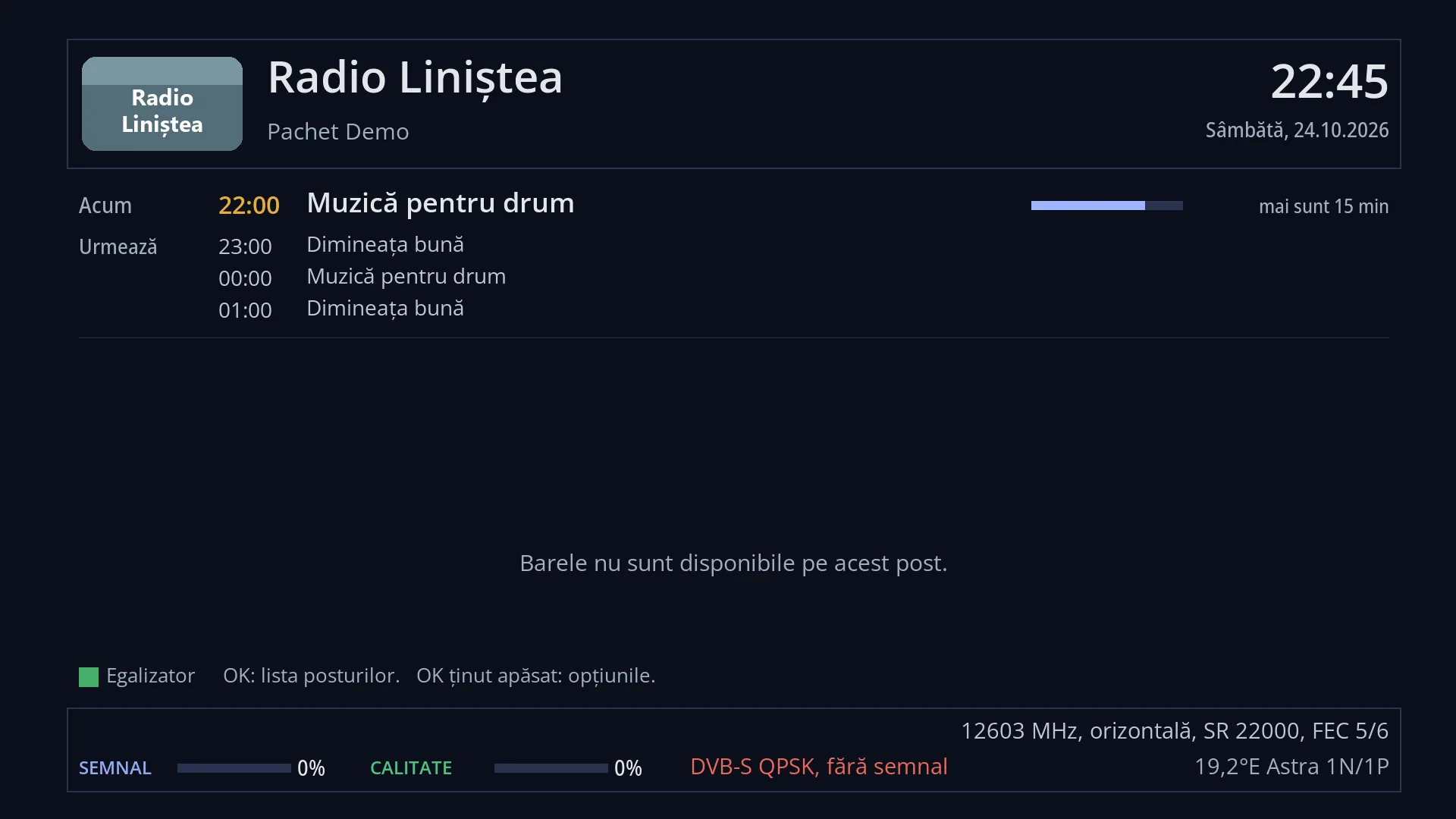
Path: start a radio station (RADIO, then OK on a station), then press GREEN on the radio screen.
Keys at the TV: GREEN on the radio screen.
Another way: on the radio screen, hold OK for about a second and choose “Equalizer” from “Radio screen”.
For a TV channel: MENU 6 4 3, with the channel playing.
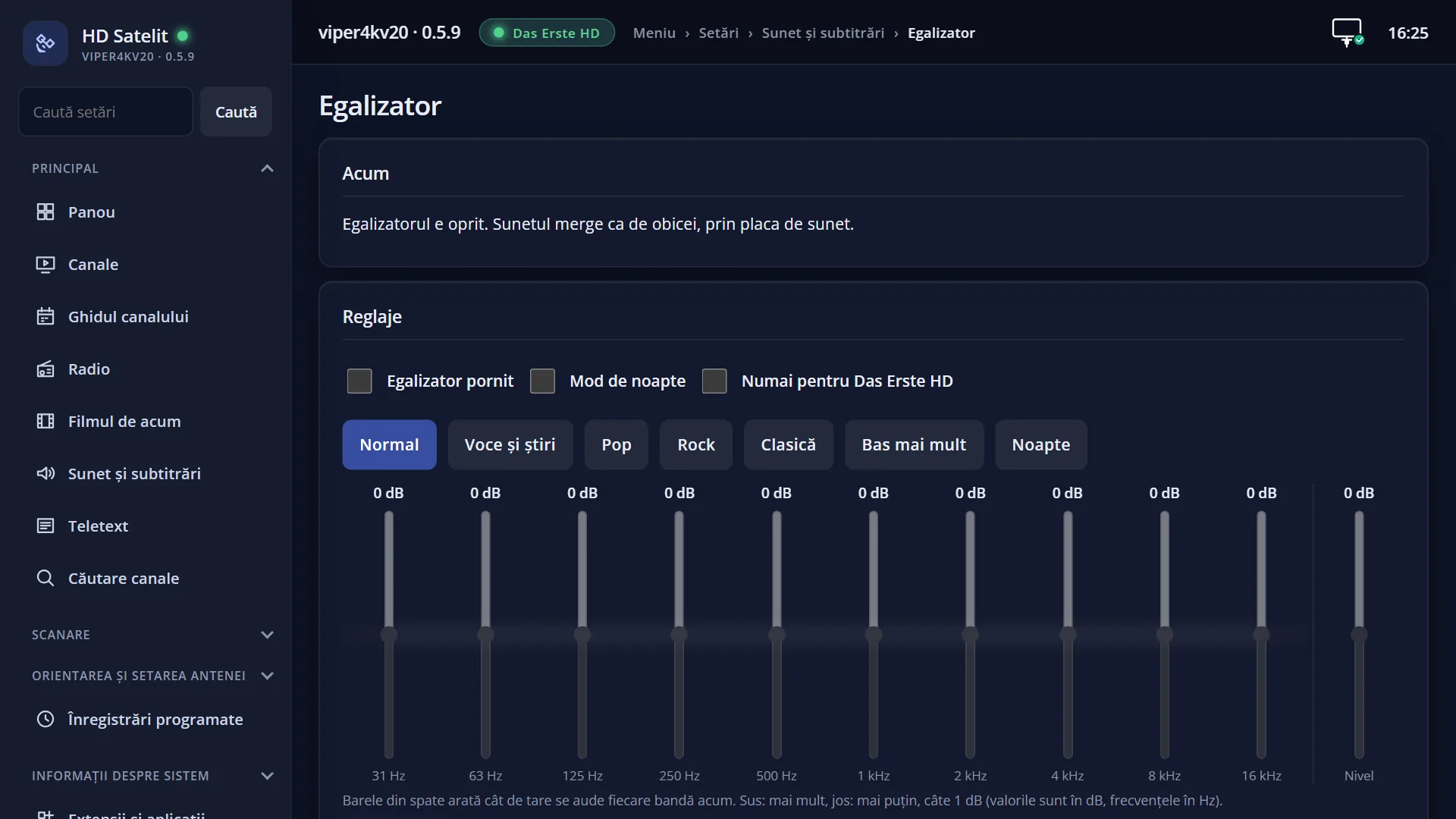
In the web interface: the /egalizator page. The “Only for …” box shows the name of the station that is playing.
What you see on the screen
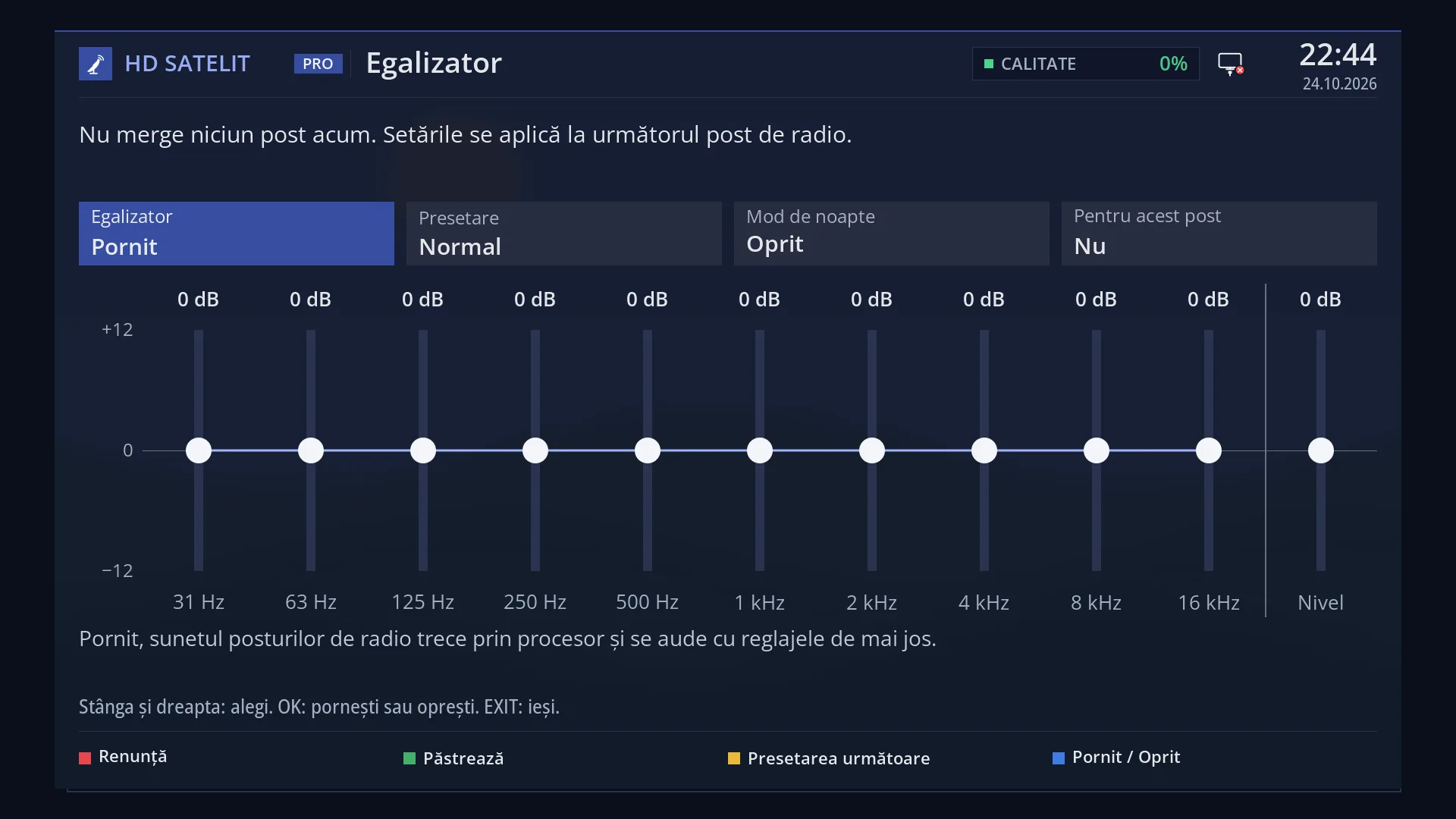
The equaliser opens on top of the radio screen, with the title “Equalizer”. When you close it, the radio screen fills the whole screen again.
At the top, the status for the station you are listening to, in its colour. Green: “Playing with the equalizer: MP2, 256 kbit/s.” (the type of sound and the station's bit rate; “about … kbit/s” when the bit rate is only estimated). White: “Starting the equalizer on this station...”, “The equalizer is off. The sound goes through the sound chip as usual.” or “No station is playing now. The settings apply to the next radio station.”. Yellow: the equaliser cannot work on this station, and the text says why (see “Problems and solutions”).
Below the status, when the sound plays with the equaliser, a small line with the details: “decoded in the processor”, the sample rate, how much of the processor it uses and the sound delay.
The “For this station” box, the fourth from the top: “Yes” when the station has its own settings, “No” when it uses the usual settings, “No station” when it is not a station from the list. On this box, the explanation at the bottom gives the station's name: “Yes: the settings here are kept only for <station name>. No: the station uses the usual settings for all stations, which you see here.”.
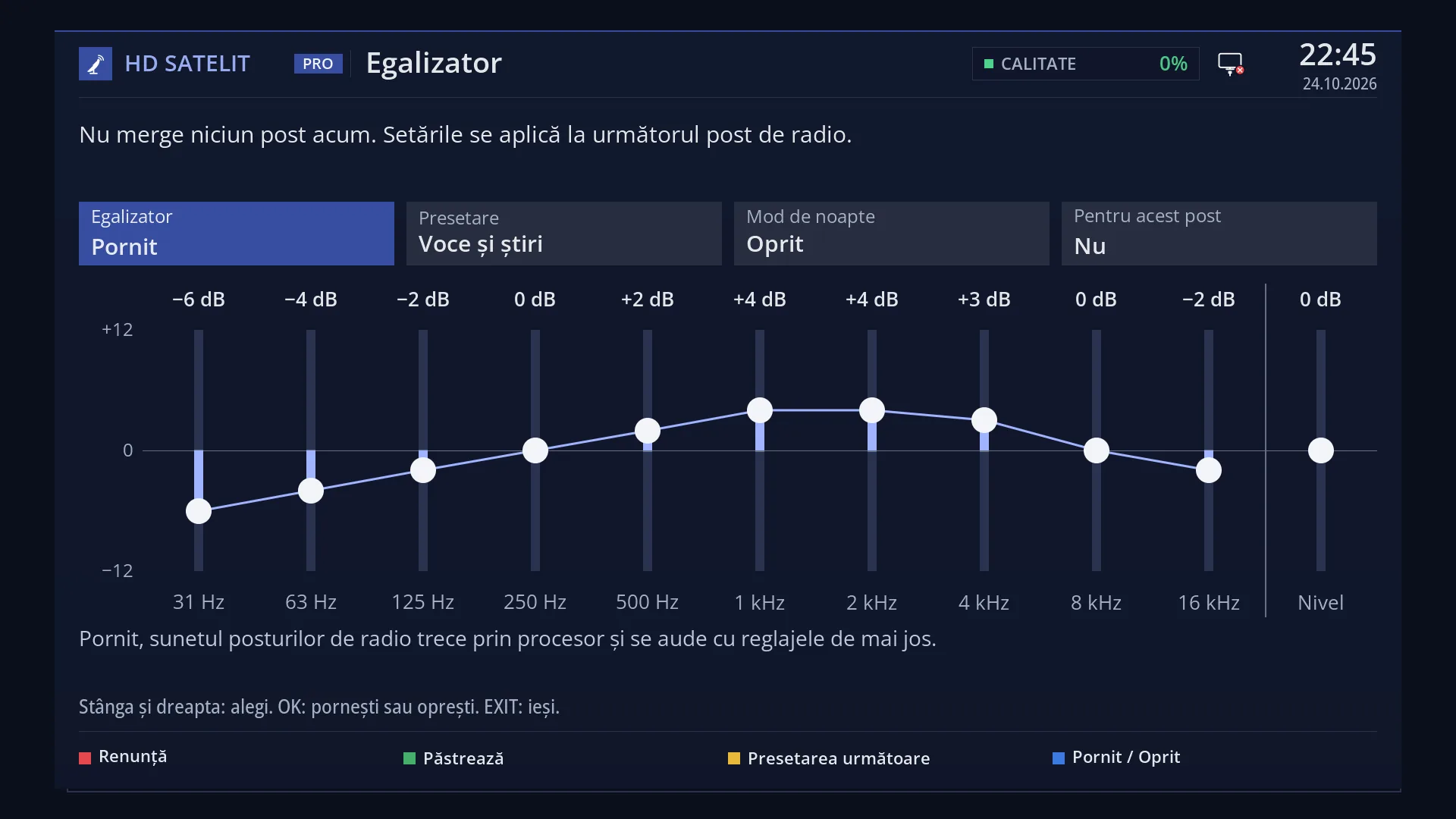
The other boxes (Equalizer, Preset, Night mode), the 10 bands and Level show the settings you hear now on this station: its own, if it has them, otherwise the usual ones. Behind the sliders, darker bars show how loud each band is in the music playing now.
At the bottom, the keys: RED “Cancel”, GREEN “Keep”, YELLOW “Next preset” and BLUE “On / Off”.
Rows and settings
| Row | Values | Default | What it does |
|---|---|---|---|
| For this station | Yes, No, No station | No | Yes: the preset, the bands, night mode and the level are remembered only for the station playing now. No: the station uses the usual settings for all stations. When you switch from Yes to No, the screen (and the sound) show the usual settings, and with “Keep” the station forgets its own settings. “No station”: no station is playing, or a film, an internet channel or a DAB+ station from satellite is playing. The settings then apply to all stations. It works the same way for a TV channel with MPEG sound. Yes, when this station needs to sound different from the others. No, when you want the station to go back to the usual settings. |
| Preset (of the station) | Normal, Voice and news, Pop, Rock, Classical, More bass, Night, Custom | Normal | With “For this station” set to Yes, the chosen preset stays with the station. “Voice and news” suits talk stations, “Pop”, “Rock” or “More bass” suit music stations. What each one does: the “Equalizer” page. As a starting point for the station's sound. |
| The bands and Level (of the station) | each from −12 dB to +12 dB, in 1 dB steps | 0 dB | With “For this station” set to Yes, the values of the 10 bands and of Level stay with the station. Level matches the loudness of the sound with the equaliser, so that the station is not louder or quieter than the others. When you are listening and want more or less bass, clearer voices or a less harsh sound on this station. |
| Night mode (of the station) | On, Off | Off | Loud sounds become quieter and quiet ones louder. With “For this station” set to Yes, it stays on or off only for this station. For a station you mostly listen to in the evening, at low volume. |
| Equalizer (for all stations) | On, Off | Off | Turns the equaliser on or off for all stations at once. It is not remembered per station. When it is off, the stations' settings are kept, but you do not hear them. When you want to compare the station with and without the equaliser (BLUE), or stop using the equaliser altogether. |
Keys
| GREEN (on the radio screen) | Opens the equaliser on top of the radio screen. It only works while the radio screen is visible and no menu or channel list is open on top of it. |
| OK held down (on the radio screen) | Opens “Radio screen”, the radio screen options. The “Equalizer” row opens the same equaliser. |
| LEFT / RIGHT | Move to the previous or next item: Equalizer, Preset, Night mode, For this station, the 10 bands, Level. |
| UP / DOWN | Change the selected item: the band or Level by 1 dB, the next or previous preset, Yes or No on the boxes. You hear it straight away. |
| OK | On “For this station”, Equalizer and Night mode: switches between Yes and No. On Preset: the next preset. On a band or on Level: keeps and closes. |
| GREEN (in the equaliser) | “Keep”: the settings are kept (for the station, with “For this station” set to Yes) and the screen closes. You see the radio screen again. |
| RED | “Cancel”: restores what was playing when you opened it and closes, without saving anything. |
| YELLOW | “Next preset”, from anywhere on the screen. |
| BLUE | “On / Off”: turns the equaliser on or off. Useful for comparing the station with and without the settings straight away. |
| EXIT | With no changes, it closes. With changes, it asks “Keep the changes?”: Yes keeps them, No restores what was there before. |
Step by step
Settings only for the station you are listening to
- Start the station (RADIO, then OK on the station). On the radio screen, press GREEN.
- If the equaliser is off, press BLUE to turn it on.
- Press RIGHT until you reach “For this station” (the fourth box from the top), then press OK. The box shows “Yes”, and the station's name appears at the bottom.
- Use RIGHT to move to the bands (or choose a preset with YELLOW) and adjust with UP and DOWN while you listen.
- Press GREEN. From now on, each time the station starts, its settings are applied by themselves.
Returning a station to the usual settings
- Start the station and press GREEN on the radio screen.
- Go to “For this station” and press OK. The box shows “No”, and the bands show the usual settings.
- Press GREEN. The station has forgotten its own settings.
Comparing the station with and without the equaliser
- On the radio screen, press GREEN.
- Press BLUE a few times and listen: the sound switches straight away between “On” and “Off”.
- Press RED if you want to leave it as it was, or GREEN to keep the last choice.
Problems and solutions
GREEN does not open the equaliser.
GREEN opens the equaliser only from the radio screen, while it is visible. If the channel list is open, GREEN chooses “Satellites” there: close the list with EXIT. If you hid the radio screen with EXIT, press OK to bring it back, then GREEN. On a TV channel, the equaliser opens from the menu: MENU 6 4 3.
“For this station” shows “No station”.
A film, an internet channel or a DAB+ station from satellite is playing, or nothing is playing. For these, the settings cannot be kept per station. What you change applies to all stations.
It says “On this station (AAC) the equalizer is not available for AAC patent licensing reasons.”
The station has AAC sound, which the equaliser cannot process. The station plays normally, without the equaliser.
It says “This station has AC3 sound. The equalizer works on stations with MPEG (MP2) sound.”
The equaliser does not work with AC3 or DTS sound. If the station also has an MPEG track, choose it with the AUDIO key.
It says “The sound goes unchanged to the soundbar: set the equalizer, volume and night mode on the soundbar.”
The sound of this station goes unchanged to the soundbar or audio system connected to the receiver. You make the adjustments there.
It says “The station is no longer sending sound. The equalizer is waiting.”
The station has stopped sending sound (for example, a weak signal). The equaliser starts by itself when the sound returns.
It says “This station has no sound.”
The selected service has no sound track. Choose another station.
It says “The equalizer could not start on this station (…). The sound goes through the sound chip.”
The station plays normally, without the equaliser. The reason is in brackets. Start the station again. If the message stays, listen to it without the equaliser.
The station's settings are not how I left them.
Check that you pressed GREEN (Keep) with “For this station” set to Yes. RED and No at the question do not keep anything. The receiver remembers at most 300 stations with their own settings. Beyond that, it forgets the ones set longest ago.
What I change on one station is also heard on the others.
“For this station” is set to No: you are changing the usual settings for all stations. Set it to Yes before you adjust.