

























Releases

Boot logos

The picture the receiver shows while it starts, before the TV picture appears. You pick one that comes with the image or one sent by the community, from the receiver menu or from your phone. The factory logo stays the same until you choose another one.

  1. Open Startup screen

    On the receiver: Menu > Settings > Interface and look > Startup screen (MENU 6 6, then UP and OK).

  2. Choose the logo

    The group with LEFT and RIGHT, the logo with the arrows, then GREEN (or OK, OK). From your phone, you tap it in the web interface.

  3. You see it at startup

    From the next time the receiver starts. Choosing it does not restart anything.

Logos that come with the image

34 logos in 8 groups

They are already on the receiver, with the HD Satelit image. The pictures have no text: the receiver writes the line with the version over the picture at startup.

Factory default
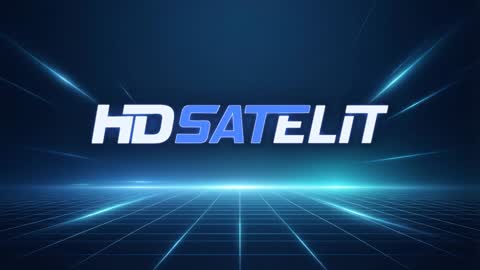
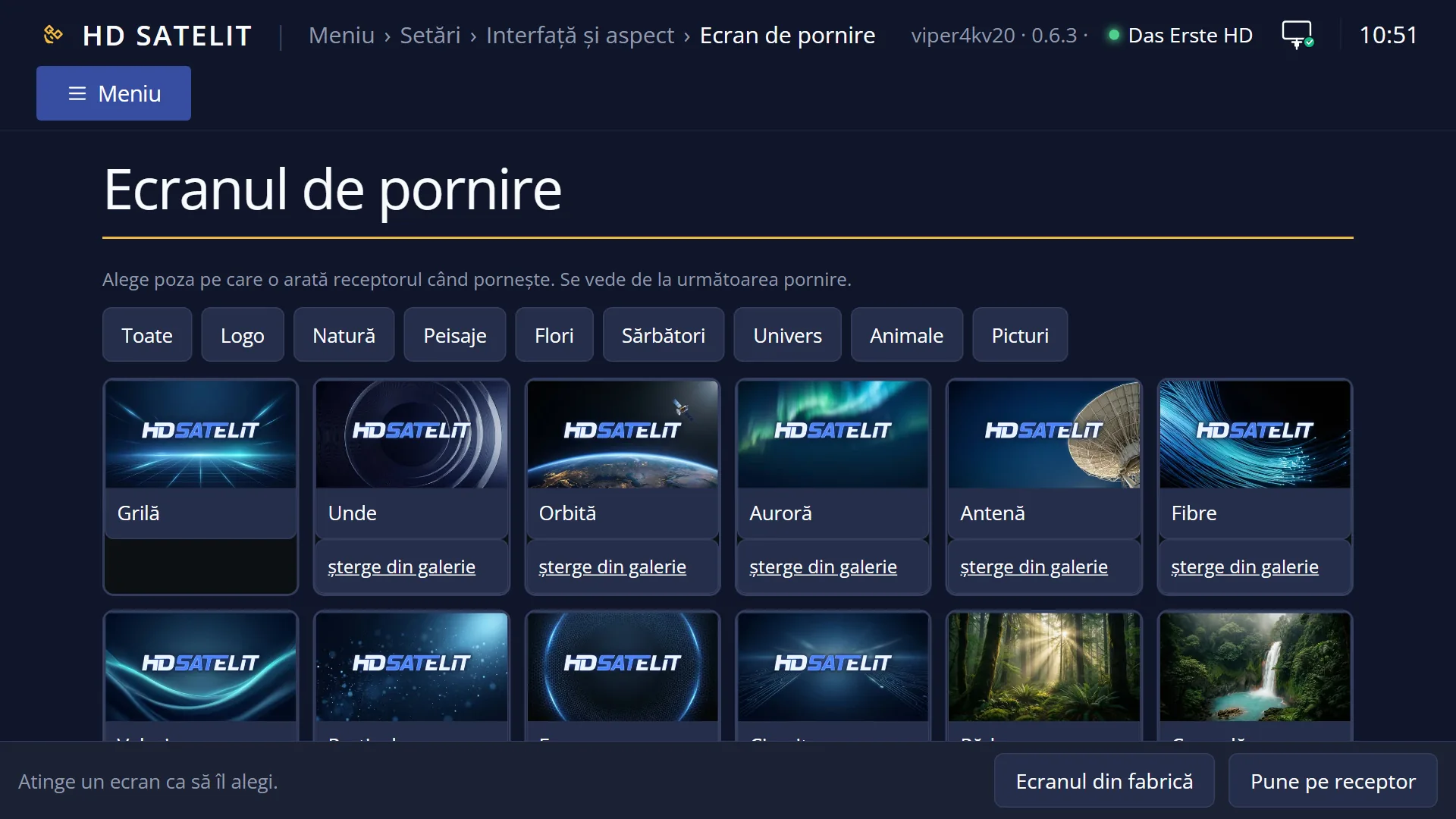
Grid
Waves
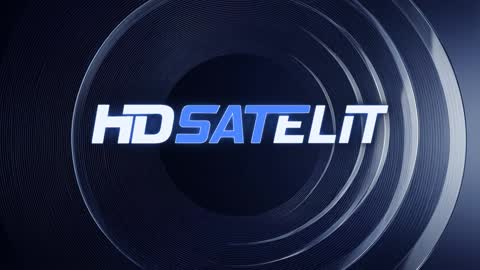
Orbit
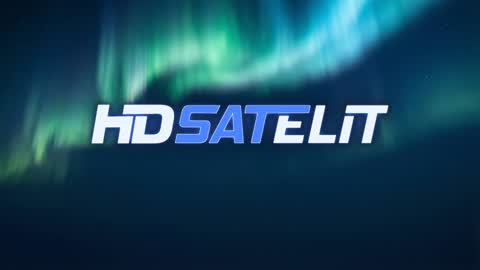
Aurora
Dish
Fibers
Ripples
Particles
Honeycomb
Circuit
Forest
Waterfall
Autumn
Spring
Beach
Mountains
Mountain lake
Desert
Lavender
Roses
Orchids
Cherry blossom
Tulips
Christmas
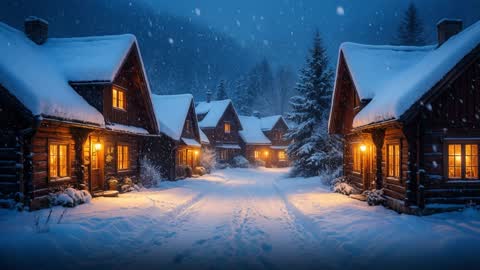
Winter village
Easter
Orbital ring
Milky Way
Kitten
Puppy
Fox
Deer
Painting
Watercolor

From the community

Send your logo

Logos made by people for HD Satelit, checked by the team, each with the author's name. On the receiver they join the same list, under Startup screen, next to the ones that come with the image.

No logos from the community yet.

The first one can be yours: a picture you made becomes the startup logo of anyone who picks it.

Send your logo

How to put it on the receiver

From the receiver menu

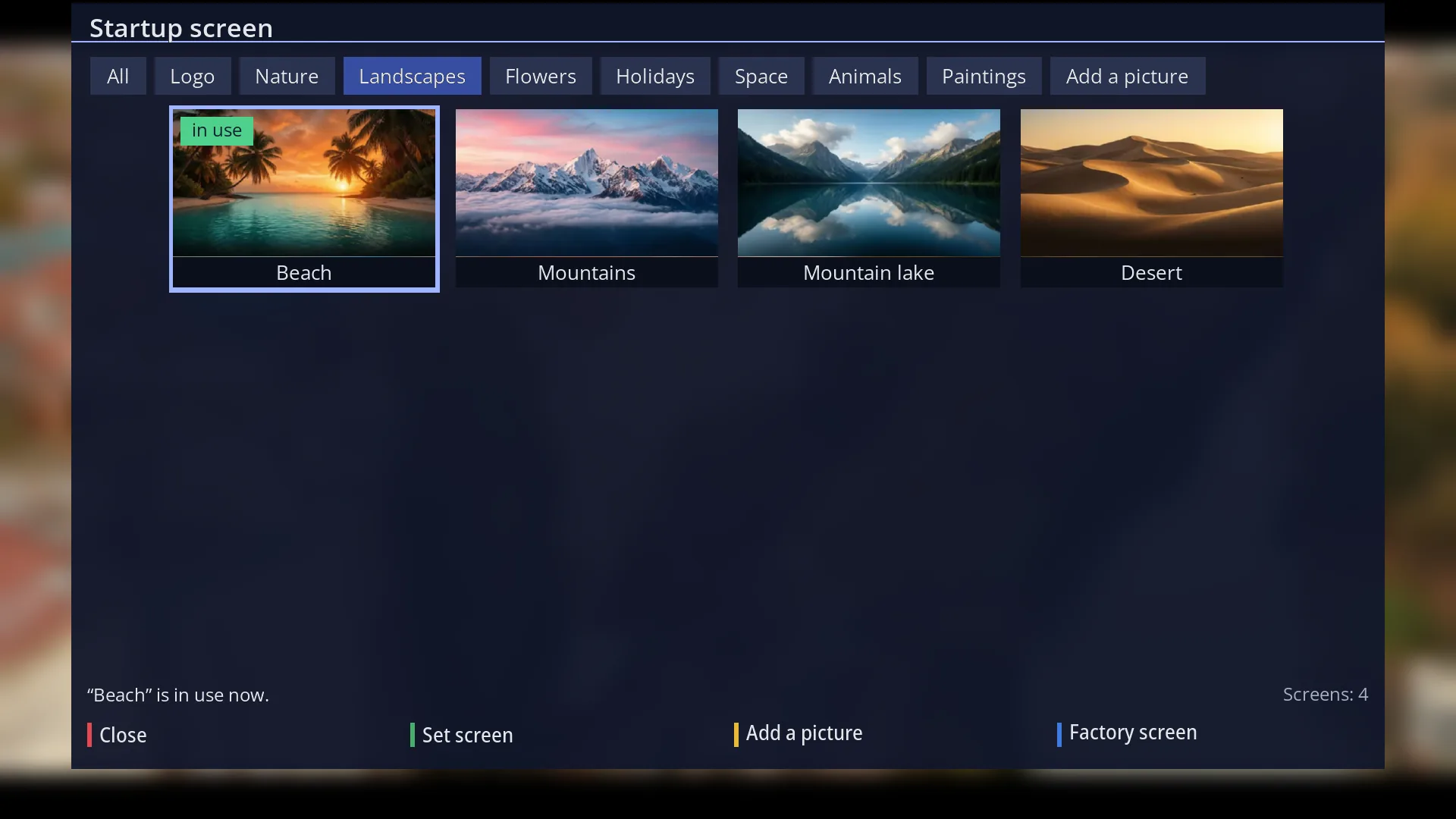
The Startup screen on the receiver, with the groups and logos
  1. Press MENU 6 6, then UP and OK. The screen opens on the logo in use.
  2. Press UP to go to the groups, choose the group with LEFT and RIGHT, then press DOWN.
  3. Move the frame to the logo you want and press GREEN (or OK, OK).
  4. BLUE puts the factory logo back.

From your phone or computer

The Startup screen page in the receiver's web interface
  1. Open the receiver's web interface in your browser and go to Menu > Settings > Interface and look > Startup screen.
  2. Tap the logo you want, then Put on receiver.
  3. Factory screen puts the HD Satelit logo back.

All the steps, with every key and with your own picture from a USB stick: Startup screen, in the help.

Manufacturer logos

The manufacturers here agreed that their logo may appear in boot logos made by the community. Download the logo and make your own boot logo with it.

ZGEMMAZGEMMA

ZGEMMA

ZGEMMA agreed on 9 November 2026. Boot logos made by the community with the ZGEMMA logo can be published in the public gallery. Air Digital is also sending us test receivers, so we can make the image for them.

Use: only for boot logos in the HD Satelit gallery and on receivers with the HD Satelit image, with the brand left unchanged.
OCTAGONOCTAGON

OCTAGON

OCTAGON agreed on 9 November 2026. Boot logos made by the community with the Octagon logo can be published in the public gallery. They may be used only on Octagon receivers.

Use: only for boot logos in the HD Satelit gallery and on receivers with the HD Satelit image, with the brand left unchanged.

We are waiting for the other manufacturers' answers and will announce each one when it comes.

Send your logo

My logos
  1. Sign in

    Your hdsatelit.com account, the same as on the forum. It is free.

  2. Choose the picture

    JPG or PNG, up to 8 MB. The server turns it into a startup logo.

  3. The team checks it

    The rights, other companies' logos and the content, before it appears.

  4. It appears in the list

    Here and on the receiver, with your name.

To send a logo, sign in to your hdsatelit.com account. Sign in

The name shown under the logo, here and on the receiver.
JPG or PNG, up to 8 MB, at least 640 × 360. It is fitted to the receiver screen by itself (1280 × 720 and 1920 × 1080), without being distorted.

Only pictures you made for HD Satelit or free to use, without other companies' logos (except the manufacturers under Manufacturer logos, above) and without unsuitable content. We check every picture on the internet before publishing. The logo appears after the team checks it; you see its status under My logos.